
16 Best Parallels Alternatives for 2026

Best Parallels Alternatives Shortlist
Here's my pick of the 10 best software from the 16 tools reviewed.


A strong Parallels alternative delivers reliable virtualization, broad OS compatibility, and support for both legacy and modern hardware. If you’re searching for alternatives to Parallels, you’re likely weighing options for running Windows, Linux, or other operating systems on your MacBook—without sacrificing performance or manageability. Whether you need to use Windows or simplify installing Windows alongside Mac apps, the right tool can make a big difference for both professional and personal use. Some users also compare virtualization tools with options like Boot Camp, depending on their workflow needs. Many platforms focus on a user-friendly experience with features like full-screen mode, making it easier for Mac users to switch between environments. This list will help you compare the top Parallels alternatives for 2026, so you can confidently choose the right solution for your infrastructure and workflow—even if you’re exploring insights from communities and forums to guide your decision.
What is Parallels?
Parallels is virtualization software that lets you run Windows, Linux, and other operating systems on a Mac without rebooting. Parallels Desktop, also known as Parallels Desktop for Mac, is widely used by IT specialists and developers who need to test, deploy, or support multiple OS environments on Apple hardware. It offers features like hardware resource allocation, snapshot management, and deep integration with macOS, making it a popular choice for cross-platform compatibility and application testing.
Best Parallels Alternatives Summary
This comparison chart summarizes pricing details for my top Parallels alternative selections to help you find the best one for your budget and business needs.
| Tool | Best For | Trial Info | Price | ||
|---|---|---|---|---|---|
| 1 | Best for Windows Server integration | Free, open-source | Free to use | Website | |
| 2 | Best for advanced hardware emulation | Free download available | Free to use | Website | |
| 3 | Best for container-based virtualization | Free trial + free demo available | Pricing upon request | Website | |
| 4 | Best for open-source hypervisor customization | Free download available | Free to use | Website | |
| 5 | Best for Apple Silicon compatibility | Not available | Free to use | Website | |
| 6 | Best for running Windows on macOS devices | Not available | Pricing upon request | Website | |
| 7 | Best for hyperconverged infrastructure integration | Not available | Pricing upon request | Website | |
| 8 | Best for Kubernetes-native VM management | Free demo available | Pricing upon request | Website | |
| 9 | Best for running Windows apps without a VM | 14-day free trial + free plan available | From $74/year | Website | |
| 10 | Best for open-source Windows app support | Not available | Free to use | Website |
Why Trust Our Software Reviews



Best Parallels Alternatives Reviews
Below are my detailed summaries of the Parallels alternatives that made it onto my shortlist. My reviews offer a detailed look at the features, best use cases, and capabilities of each software to help you find the best one for your needs.

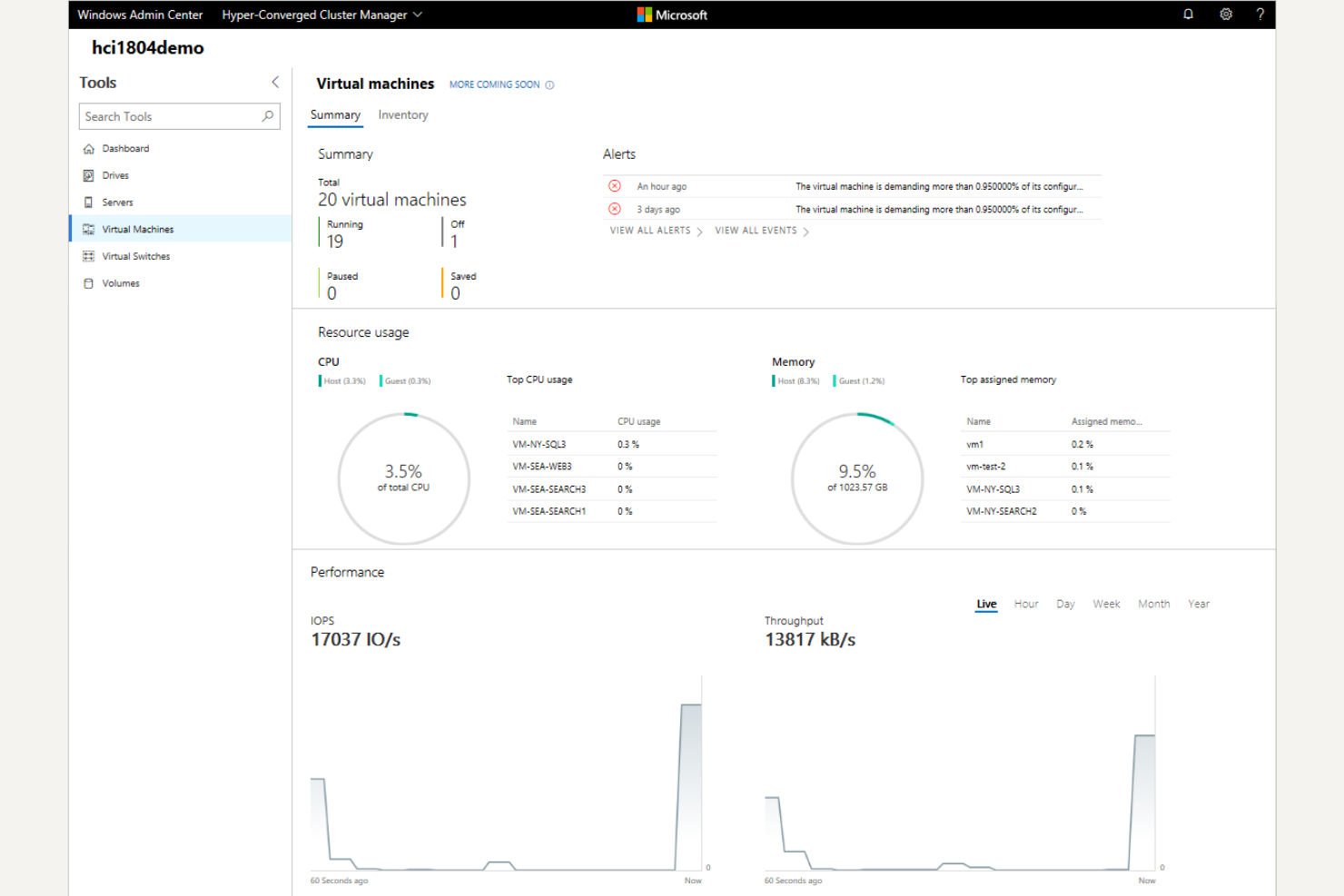
If you’re managing Windows-based infrastructure, Microsoft Hyper-V offers virtualization that’s tightly integrated with Windows Server environments. This platform is a strong fit for IT teams in organizations that rely on Microsoft technologies and need to run multiple Windows or Linux VMs on the same hardware. Hyper-V stands out from Parallels by providing native support for features like failover clustering, live migration, and direct integration with Active Directory.
Why Microsoft Hyper-V Is a Good Parallels Alternative
For organizations that depend on Windows Server, Microsoft Hyper-V delivers virtualization that’s built directly into the Windows ecosystem. I picked Hyper-V because it offers native features like failover clustering and live migration, which help maintain uptime and simplify disaster recovery for Windows workloads. You can also manage VMs using familiar Windows tools, including PowerShell and Hyper-V Manager, making it easier for IT teams already invested in Microsoft technologies. This level of integration with Windows Server is something Parallels doesn’t match, especially for enterprise environments.
Microsoft Hyper-V Key Features
Some other features that make Microsoft Hyper-V appealing include:
- Nested Virtualization: Run Hyper-V inside a virtual machine for advanced testing and development scenarios.
- Virtual Switch Manager: Create and manage virtual network switches for VM connectivity and network isolation.
- Dynamic Memory Allocation: Automatically adjust the memory assigned to VMs based on workload demands.
- Checkpoint Creation: Save the state of a VM at a specific point in time for easy rollback or recovery.
Microsoft Hyper-V Integrations
Native integrations are not currently listed.
Pros and Cons
Pros:
- Built-in checkpoints and snapshots
- Granular resource allocation and memory control
- Supports nested virtualization
Cons:
- Updates tied to Windows Server releases
- Higher overhead than lightweight hypervisors

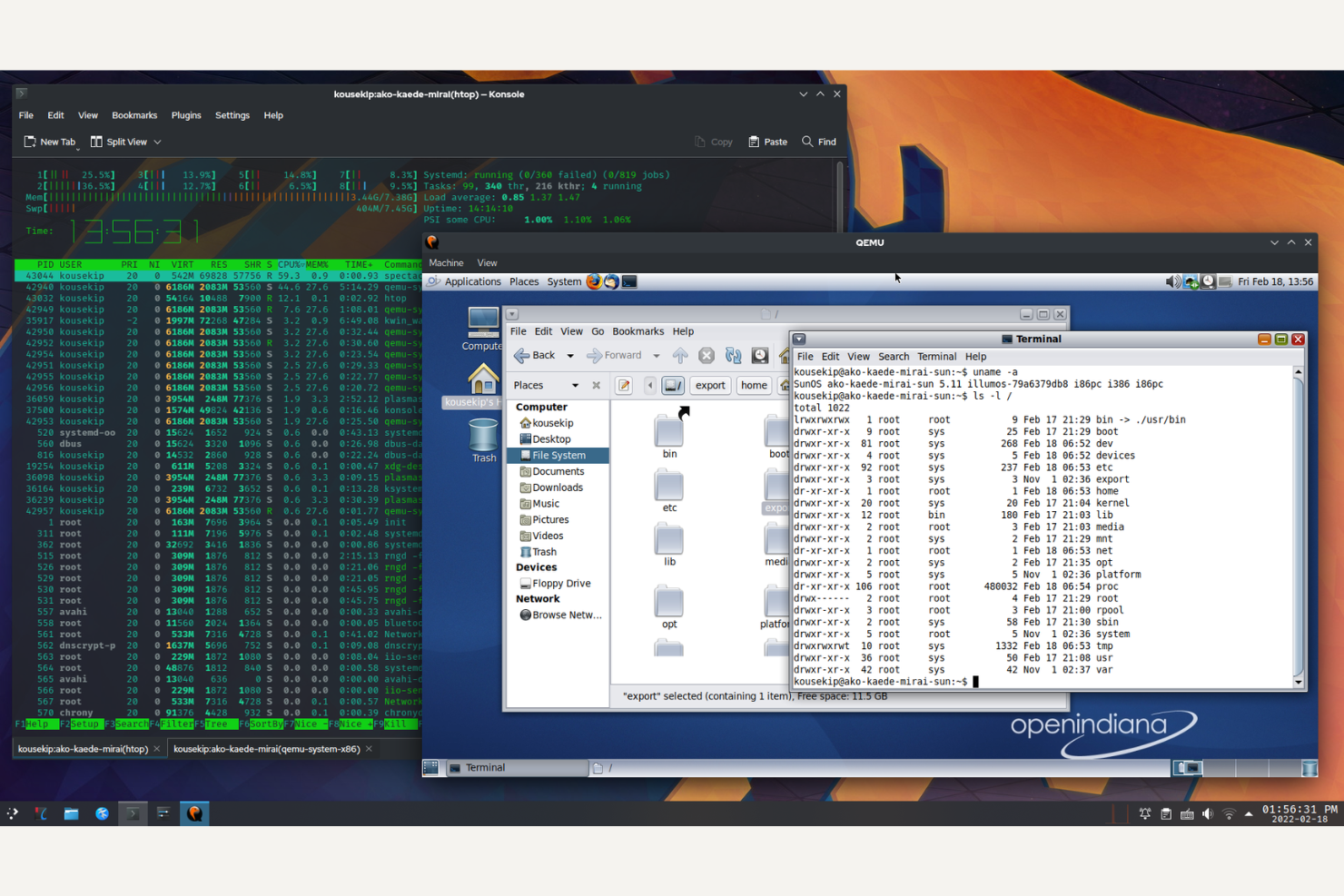
If you need to emulate a wide range of hardware platforms, QEMU offers flexibility that goes beyond standard virtualization tools. This open-source solution is well-suited for IT specialists, developers, and researchers who need to test, debug, or deploy software across different architectures. QEMU stands out for its ability to emulate everything from embedded systems to full servers, making it a strong choice when hardware compatibility and advanced emulation are priorities.
Why QEMU Is a Good Parallels Alternative
For teams that need more than just basic virtualization, QEMU delivers advanced hardware emulation that Parallels doesn’t match. I picked QEMU because it can emulate a wide variety of processor architectures, including x86, ARM, PowerPC, and MIPS, which is essential for testing and development across different platforms. Its support for custom device models and hardware peripherals lets you replicate complex environments that go far beyond standard desktop virtualization. If your work involves cross-platform development or legacy system support, QEMU’s flexibility makes it a strong alternative to Parallels.
QEMU Key Features
In addition to its advanced hardware emulation capabilities, I also found these features worth noting:
- Snapshot Management: Create, manage, and revert to snapshots of virtual machines for testing and rollback.
- Live Migration: Move running virtual machines between hosts without downtime or service interruption.
- KVM Integration: Leverage Kernel-based Virtual Machine (KVM) support for near-native performance on supported hardware.
- Command-Line and Scripting Support: Automate VM deployment and management using command-line tools and scripting options.
QEMU Integrations
Native integrations are not currently listed.
Pros and Cons
Pros:
- Snapshot and rollback features
- Live migration between hosts
- Supports multiple CPU architectures
Cons:
- Setup requires command-line knowledge
- No built-in GUI for VM management

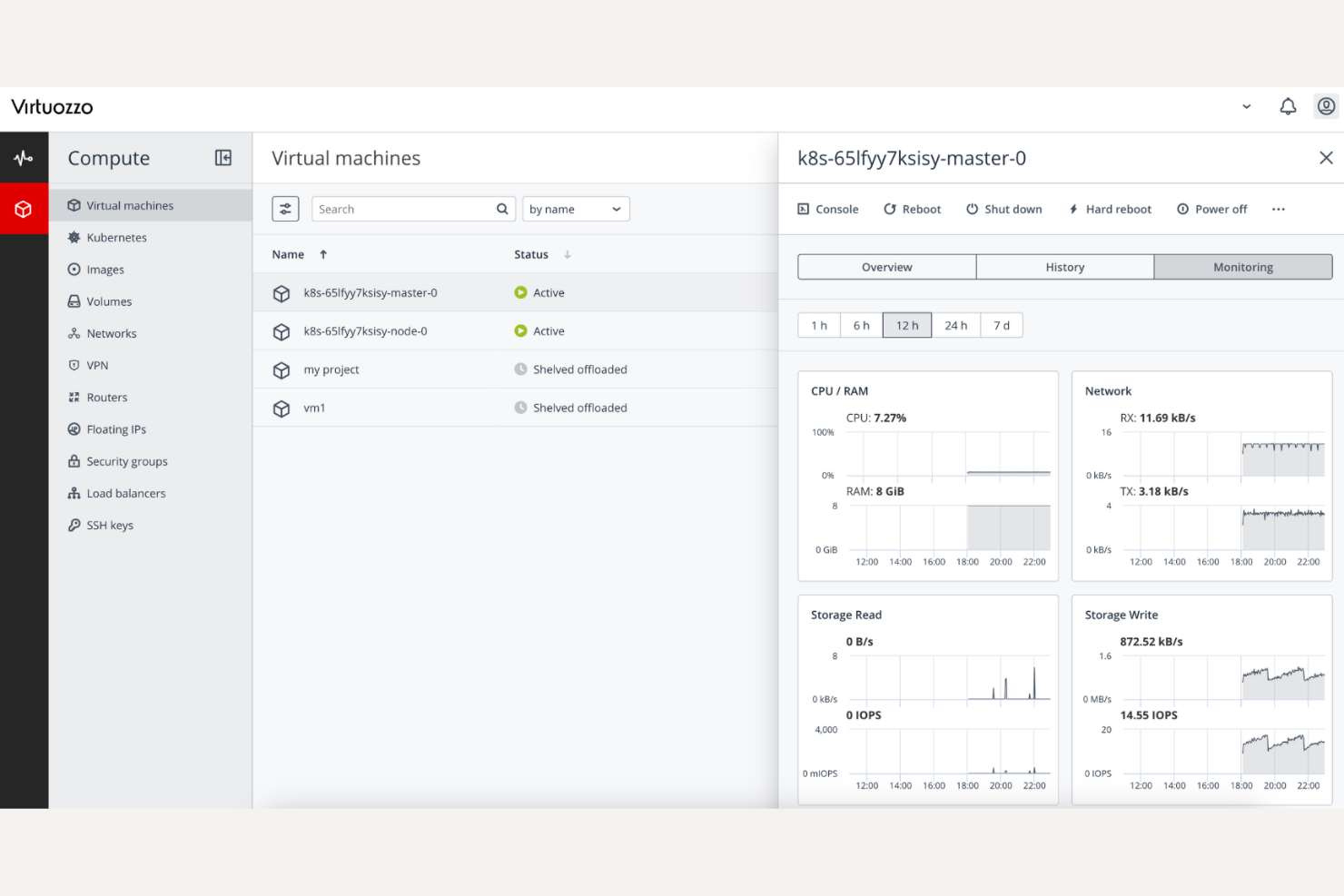
For IT teams focused on high-density, scalable virtualization, Virtuozzo delivers a container-based approach that stands apart from traditional hypervisors like Parallels. This platform is especially useful for service providers, SaaS vendors, and enterprises that need to run many isolated workloads efficiently on shared infrastructure. Virtuozzo’s technology helps you maximize resource utilization and simplify management when you’re running large numbers of containers or virtual environments.
Why Virtuozzo Is a Good Parallels Alternative
Unlike traditional hypervisors, Virtuozzo uses container-based virtualization to deliver higher density and resource efficiency. I picked Virtuozzo because it lets you run multiple isolated containers on a single host, which is ideal for service providers and businesses managing many workloads. The platform includes built-in storage virtualization and automated orchestration tools, so you can manage containers and virtual machines side by side. If you need to optimize infrastructure for scalability and performance, Virtuozzo’s container-first approach offers a clear advantage over Parallels.
Virtuozzo Key Features
Some other features that make Virtuozzo appealing include:
- Integrated Backup and Disaster Recovery: Protect workloads with built-in backup scheduling and recovery options.
- Software-Defined Networking: Create and manage virtual networks for containers and VMs within the platform.
- Multi-Tenant Management: Isolate resources and manage access for different customers or business units.
- RESTful API Access: Automate provisioning, monitoring, and management tasks through an API.
Virtuozzo Integrations
Integrations include Leostream, BitNinja, CloudBlue Connect, WHMCS, and more.
Pros and Cons
Pros:
- Multi-tenant workload isolation
- Integrated backup and disaster recovery
- Container-based virtualization for higher density
Cons:
- Advanced networking needs manual setup
- Limited Windows guest support

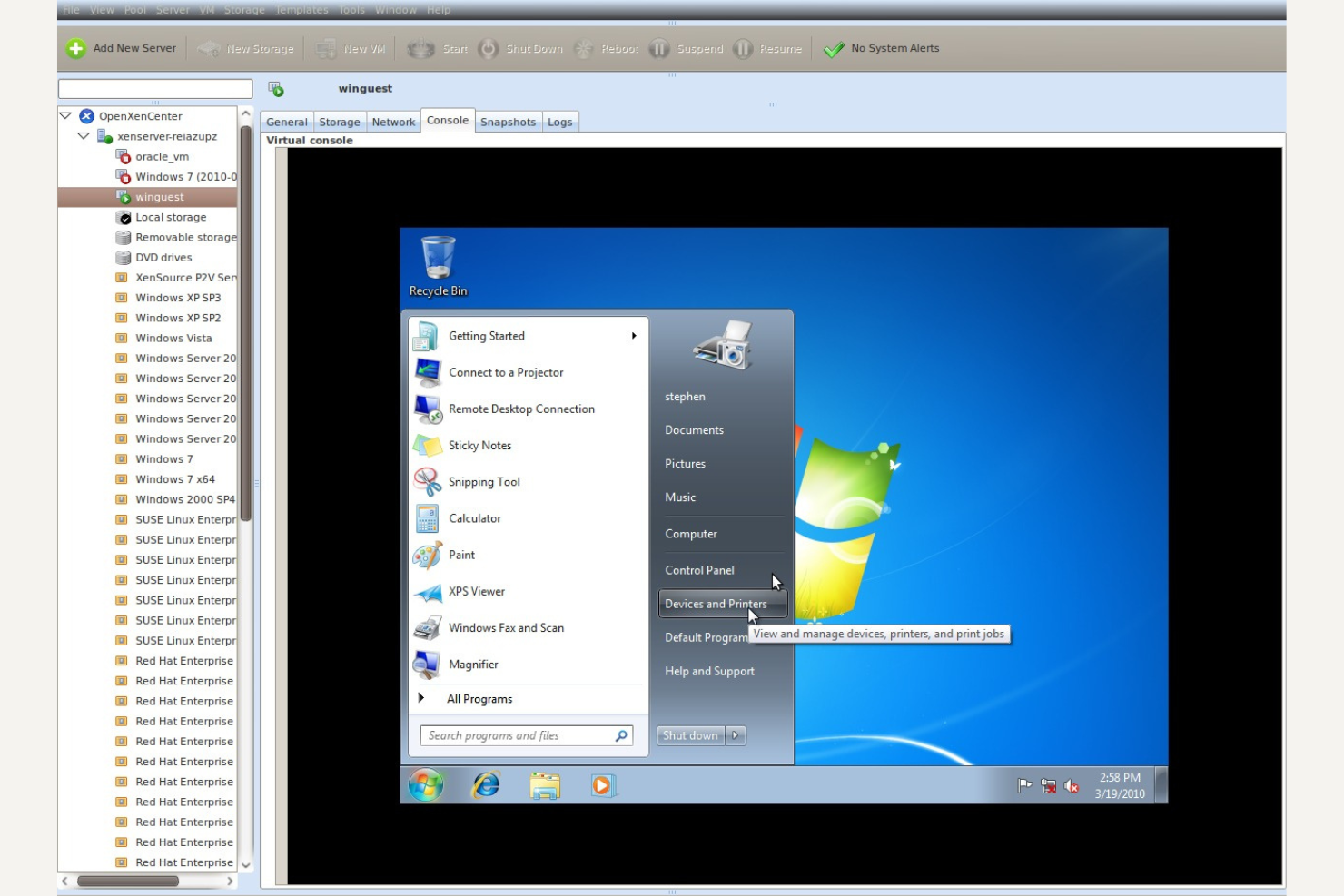
When you need a virtualization platform that you can fully customize, Xen Project stands out for its open-source hypervisor framework. This tool is a strong fit for IT teams, cloud service providers, and researchers who want to tailor virtualization environments to unique security, performance, or integration requirements. Xen Project’s modular architecture and support for custom extensions make it a top choice for those who need more control than Parallels or other commercial solutions provide.
Why Xen Project Is a Good Parallels Alternative
If you’re looking for a virtualization platform that you can shape to your exact needs, Xen Project offers open-source hypervisor customization that Parallels doesn’t provide. I picked Xen Project because its modular design lets you build, modify, and extend the hypervisor to fit specialized security, isolation, or performance requirements. You can add or remove components, develop custom drivers, and even tailor the scheduler for unique workloads. For IT teams that need granular control over their virtualization stack, Xen Project’s flexibility is a major advantage over commercial, closed-source options.
Xen Project Key Features
Some other features that make Xen Project appealing include:
- Paravirtualization Support: Run guest operating systems with optimized performance using paravirtualized drivers.
- Live VM Migration: Move running virtual machines between hosts without downtime.
- Resource Isolation: Allocate and isolate CPU, memory, and I/O resources for each virtual machine.
- Support for Multiple Guest OS Types: Run a wide range of operating systems, including Linux, Windows, and BSD, as guests.
Xen Project Integrations
Native integrations are not currently listed.
Pros and Cons
Pros:
- Runs Linux and Windows guest OS
- Supports para and hardware virtualization
- Fully open-source for customization and auditing
Cons:
- USB/GPU passthrough needs manual setup
- Documentation can be inconsistent

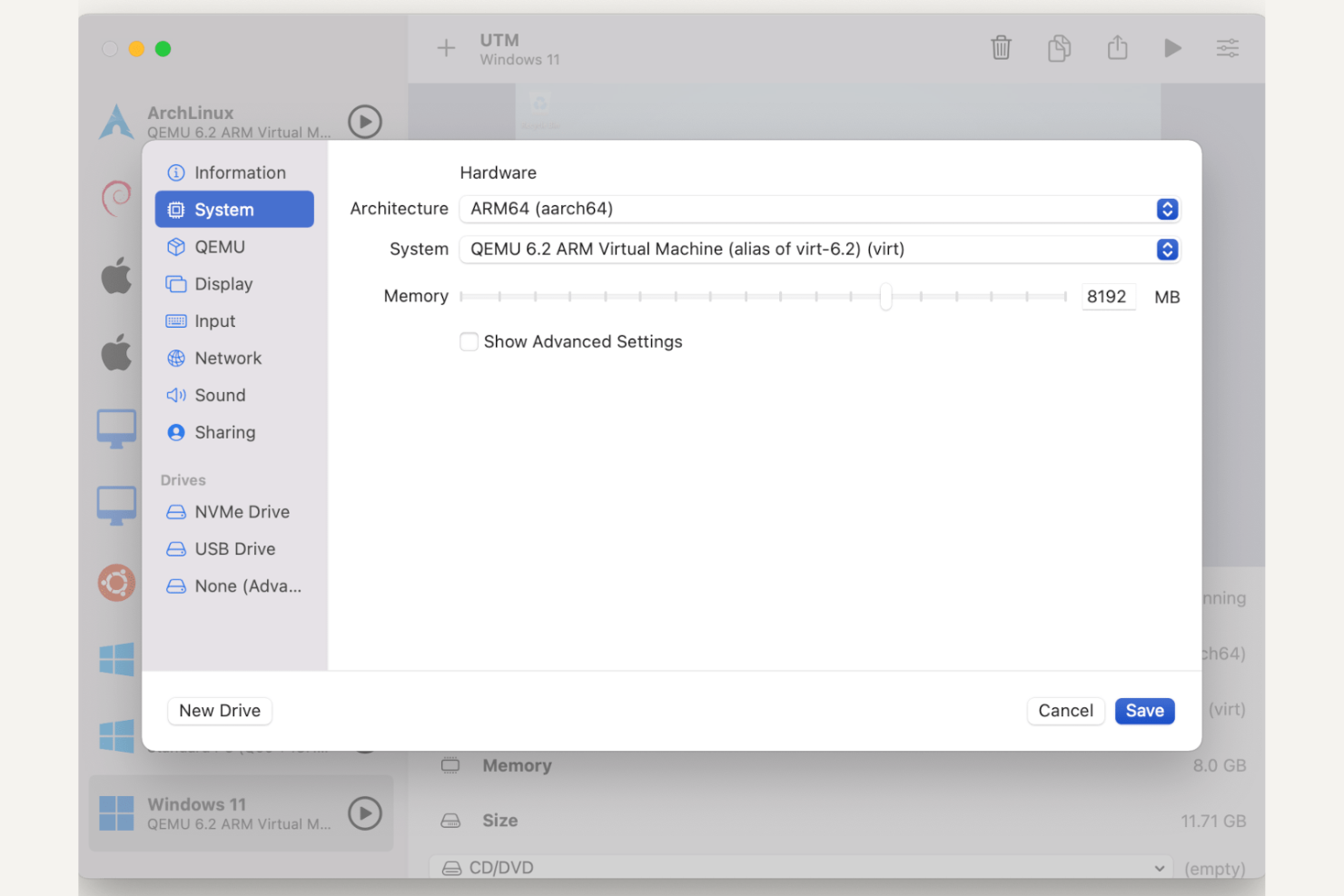
If you need virtualization software that’s built specifically for Apple Silicon, UTM is worth a close look. It’s popular among developers, IT specialists, and tech enthusiasts who want to run a wide range of operating systems on modern Macs, including devices like the MacBook Pro and other M-series machines. UTM stands out from Parallels by offering open-source flexibility and support for ARM-based guest systems without requiring kernel extensions.
Why UTM Is a Good Parallels Alternative
For anyone focused on Apple Silicon compatibility, UTM offers a unique approach that sets it apart from Parallels. I picked UTM because it’s designed to run on ARM-based Macs without relying on kernel extensions, which means better stability and security on the latest Apple hardware. UTM supports both ARM and x86 operating systems, letting you experiment with a wide range of guest environments. This makes it a strong choice for IT professionals and developers who need flexibility on Apple Silicon devices.
UTM Key Features
Some other UTM features that caught my attention include:
- Snapshot Management: Save and restore VM states to quickly test changes or recover from errors.
- Spice and QEMU Support: Leverage advanced virtualization technologies for better performance and compatibility.
- USB Device Passthrough: Connect USB devices directly to your virtual machines for hardware testing or device management.
- Built-In VM Image Gallery: Access a curated selection of ready-to-use VM images for quick setup.
UTM Integrations
Native integrations are not currently listed.
Pros and Cons
Pros:
- Open-source with community-driven updates
- Supports ARM and x86 operating systems
- Runs on Apple Silicon without extra dependencies
Cons:
- USB passthrough can be inconsistent
- Limited graphics acceleration
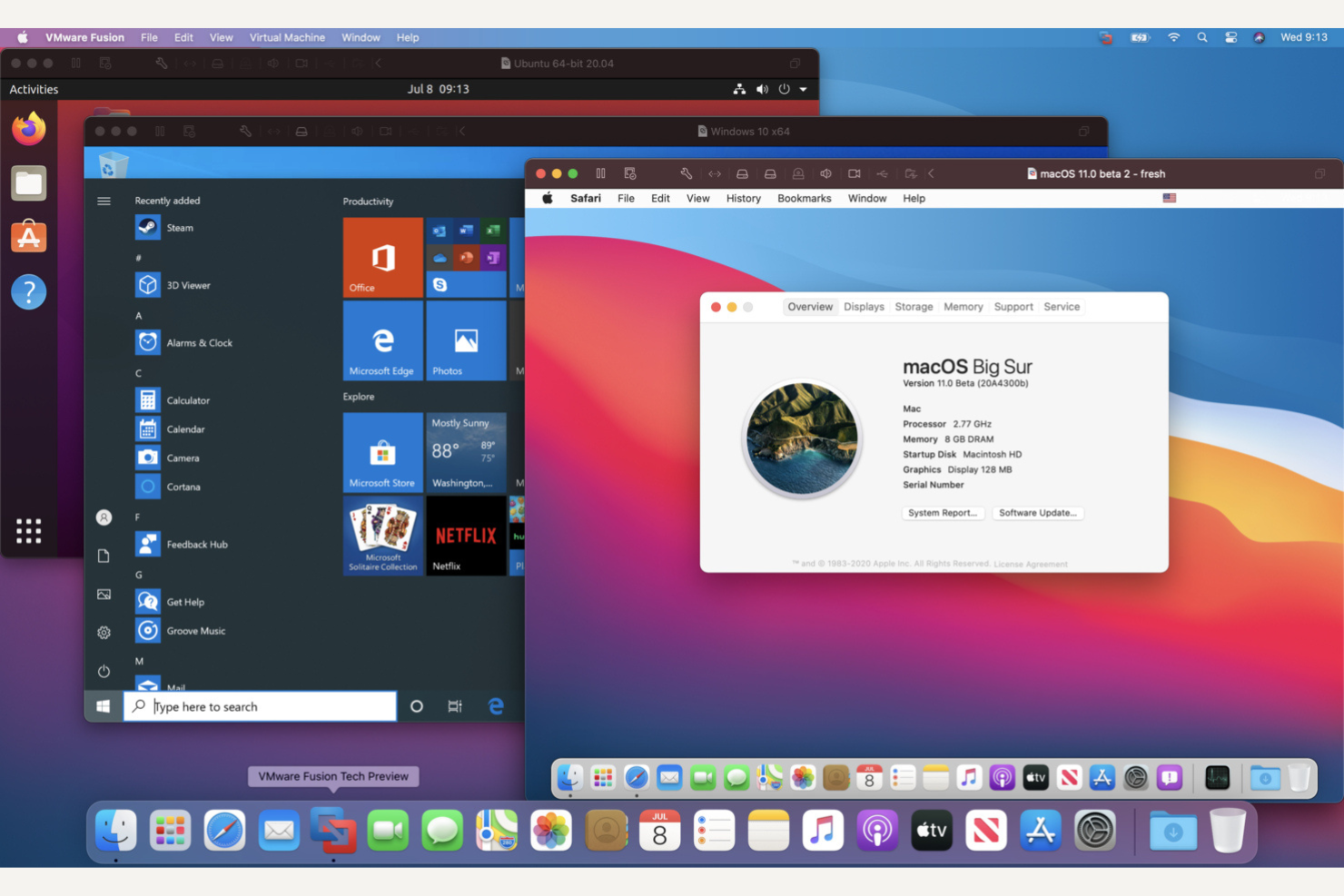
VMware Desktop Hypervisor is designed for IT professionals and developers who need to run Windows or Linux on macOS devices. It stands out for its deep integration with macOS and broad support for enterprise operating systems. If you’re looking for advanced VM management and compatibility with the latest Apple hardware, VMware Desktop Hypervisor offers features that go beyond what Parallels provides, with solutions like VMware Fusion and VMware Fusion Player, along with features such as Coherence mode for a more seamless experience between operating systems.
Why VMware Desktop Hypervisor Is a Good Parallels Alternative
VMware Desktop Hypervisor stands out for users who need to run Windows on macOS devices with high reliability and performance. I picked it as a Parallels alternative because it offers advanced VM snapshot management and supports a wide range of Windows and Linux distributions. Its Unity View mode lets you run Windows applications alongside macOS apps without switching desktops. This makes VMware Desktop Hypervisor especially useful for IT specialists and developers who need smooth cross-platform workflows.
VMware Desktop Hypervisor Key Features
Some other VMware Desktop Hypervisor features worth noting include:
- Linked Clones: Create multiple VMs from a single base image to save disk space and simplify testing environments.
- Virtual Network Customization: Design and manage complex network topologies with configurable virtual switches and network adapters.
- Encryption and VM Isolation: Protect sensitive data by encrypting VMs and isolating them from the host system.
- REST API Support: Automate VM management and integration with other tools using a built-in REST API.
VMware Desktop Hypervisor Integrations
Native integrations are not currently listed.
Pros and Cons
Pros:
- Compatible with Apple Silicon and Intel Macs
- Advanced snapshots and cloning for testing
- Supports Windows and Linux on macOS
Cons:
- Compatibility issues with new macOS versions
- Graphics performance can lag
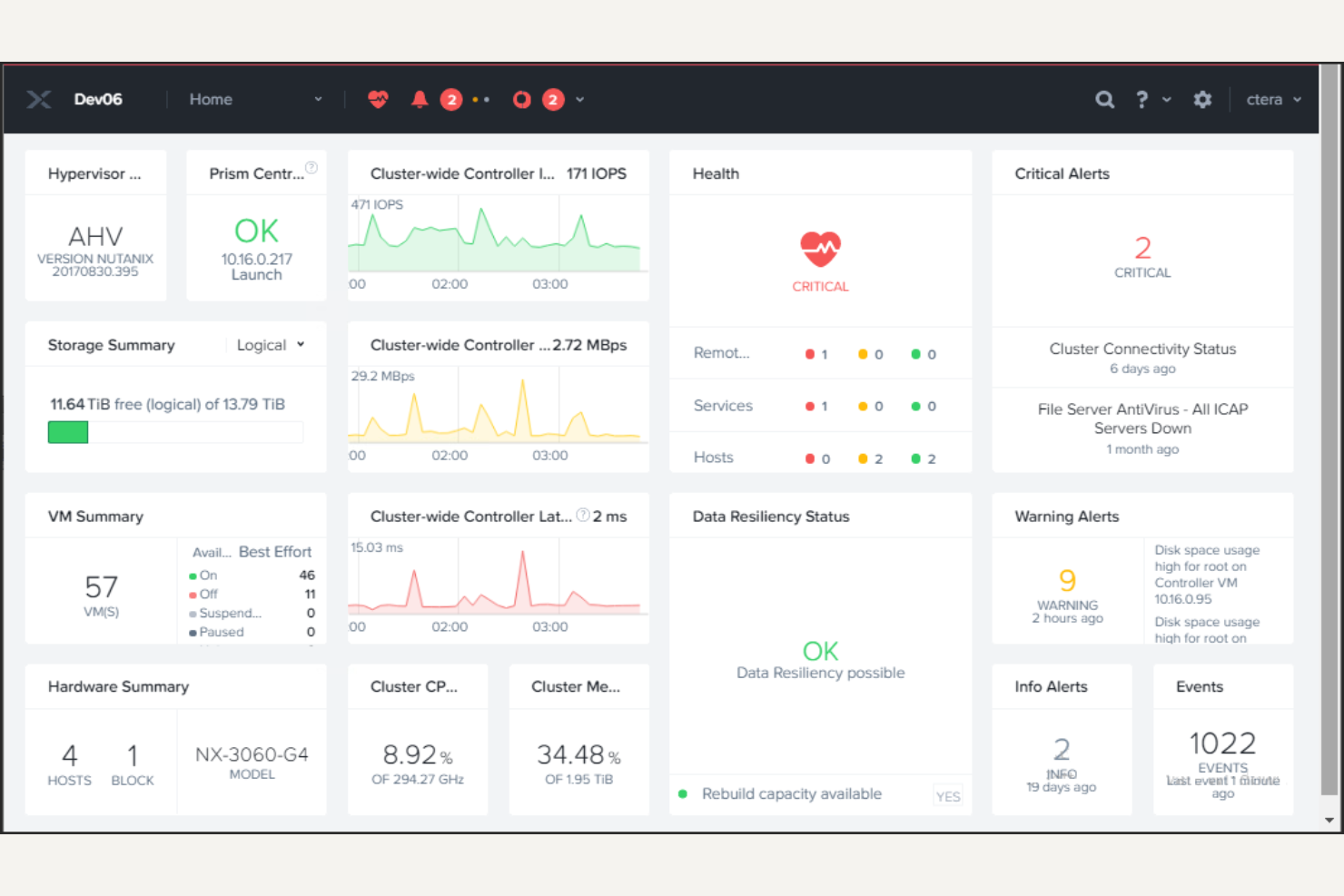
If you’re looking for virtualization that’s tightly integrated with hyperconverged infrastructure, Nutanix AHV is built for that purpose. This platform is a strong fit for IT teams in enterprises and mid-sized organizations that want to simplify management across compute, storage, and networking. Nutanix AHV stands out by offering native integration with Nutanix’s stack, reducing the need for separate management tools and making it easier to deploy and scale virtual environments.
Why Nutanix AHV Is a Good Parallels Alternative
Nutanix AHV is purpose-built for organizations that want virtualization deeply integrated with hyperconverged infrastructure. I picked Nutanix AHV because it combines compute, storage, and networking management into a single platform, which reduces complexity for IT teams. The native integration with Nutanix Prism gives you unified control and visibility across your entire environment. If you’re looking to simplify operations and scale virtual workloads without juggling multiple management tools, Nutanix AHV offers a clear advantage over Parallels.
Nutanix AHV Key Features
Some other features that make Nutanix AHV appealing include:
- Live Migration: Move running virtual machines between hosts without downtime.
- Integrated Security Policies: Apply microsegmentation and network security controls directly within the platform.
- Automated VM Provisioning: Use templates and policies to quickly deploy new virtual machines.
- Native Backup and Snapshot Tools: Create and manage backups and snapshots for disaster recovery and data protection.
Nutanix AHV Integrations
Native integrations are not currently listed.
Pros and Cons
Pros:
- Automated VM provisioning
- Microsegmentation for network security
- Live VM migration without downtime
Cons:
- Advanced features need additional licensing
- Requires Nutanix ecosystem for full use

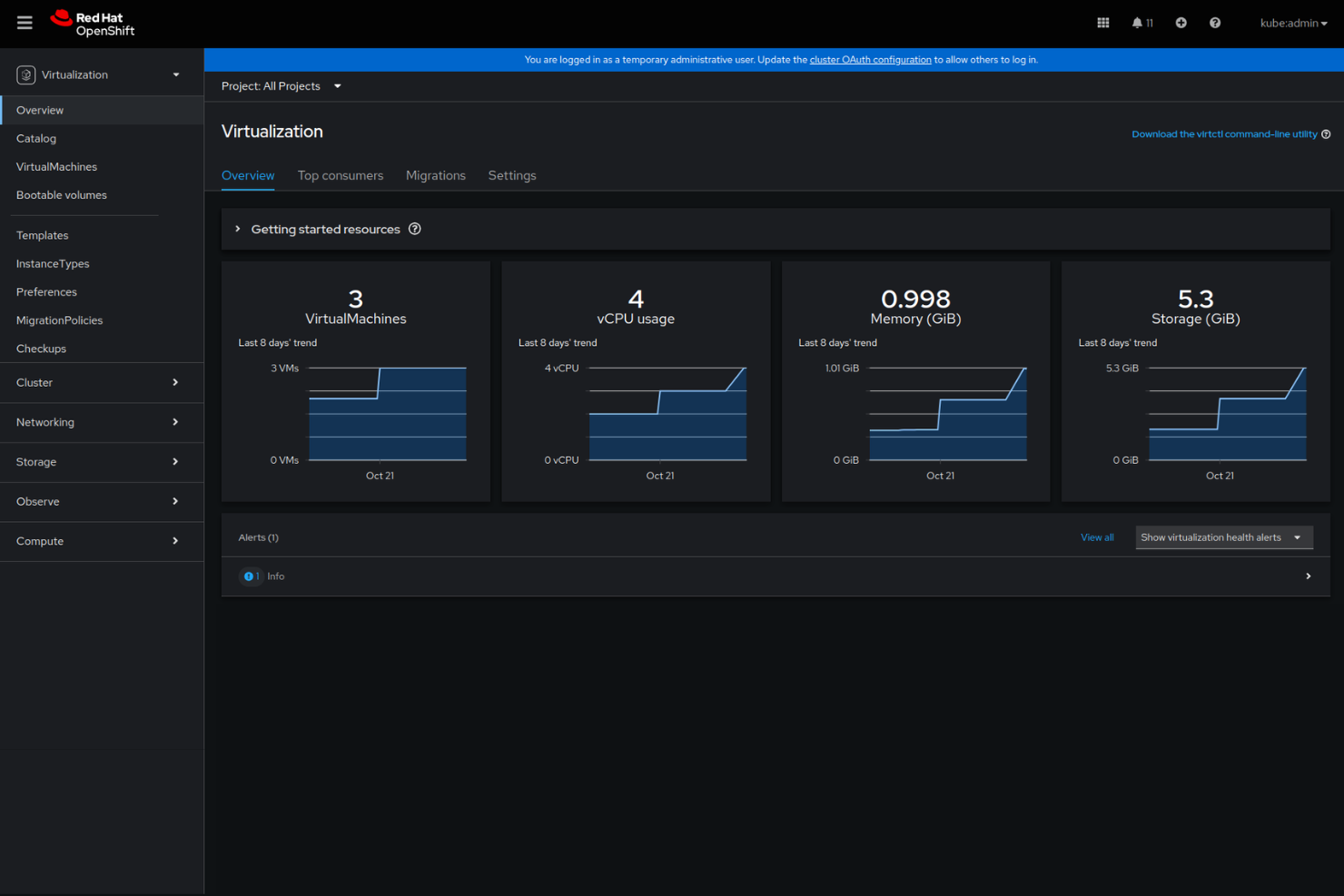
For IT teams running Kubernetes environments, Red Hat OpenShift Virtualization brings virtual machine management directly into your container platform. This solution is designed for organizations that want to manage VMs and containers side by side, using the same Kubernetes-native workflows. It’s especially useful if you need to modernize legacy workloads without leaving your existing OpenShift infrastructure.
Why Red Hat OpenShift Virtualization Is a Good Parallels Alternative
Red Hat OpenShift Virtualization stands out for teams that want to manage both virtual machines and containers within a Kubernetes-native environment. I picked this tool because it lets you run, monitor, and orchestrate VMs alongside containers using the same OpenShift platform and workflows. Features like VM lifecycle management through Kubernetes APIs and unified resource scheduling make it a strong fit for organizations modernizing their infrastructure. If you’re looking to bridge the gap between traditional virtualization and cloud-native operations, OpenShift Virtualization offers a unique approach that Parallels doesn’t provide.
Red Hat OpenShift Virtualization Key Features
Some other features that make Red Hat OpenShift Virtualization appealing include:
- Integrated Storage Management: Manage persistent storage for VMs using OpenShift’s storage classes and dynamic provisioning.
- Live Migration Support: Move running virtual machines between nodes without service interruption.
- Role-Based Access Control (RBAC): Define granular permissions for VM operations within your Kubernetes cluster.
- Automated VM Import Tools: Import existing virtual machines from VMware or Red Hat Virtualization environments.
Red Hat OpenShift Virtualization Integrations
Integrations include AWS, Google Cloud, Palo Alto Networks, Commvault, and more.
Pros and Cons
Pros:
- Imports VMs from VMware and RHV
- Supports live VM migration across nodes
- Runs VMs and containers on Kubernetes
Cons:
- VM networking docs can be complex
- Requires Kubernetes expertise to deploy
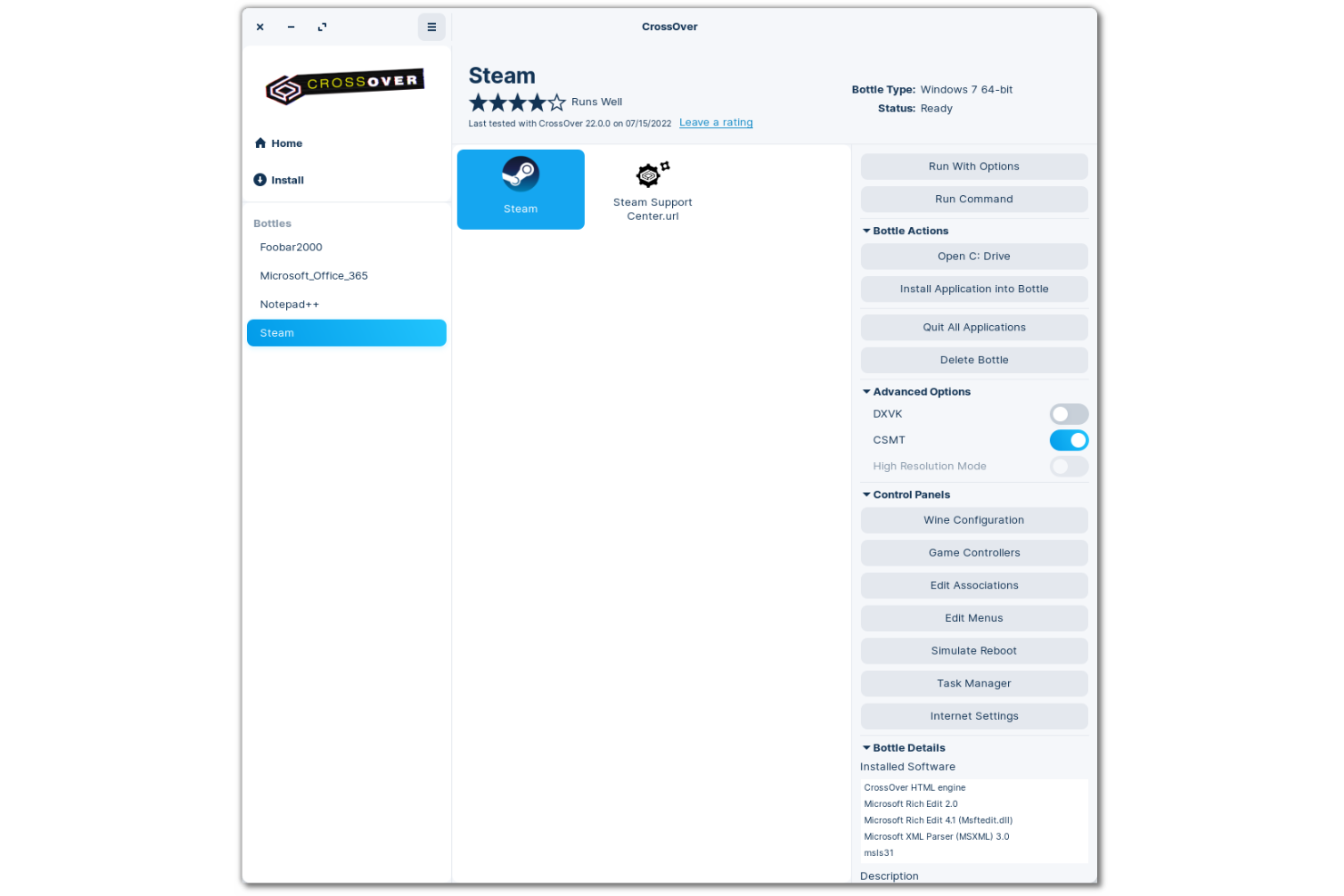
Unlike traditional virtualization tools, CrossOver lets you run Windows applications directly on macOS or Linux without setting up a full virtual machine. This approach appeals to IT specialists, developers, and business users who need specific Windows software but want to avoid the overhead of managing a separate Windows VM environment. CrossOver stands out from Parallels by eliminating the need for a Windows license and reducing system resource usage.
Why CrossOver Is a Good Parallels Alternative
If you want to run Windows applications without the overhead of a full virtual machine, CrossOver takes a different approach than Parallels. I picked CrossOver because it translates Windows API calls directly, letting you launch Windows apps on macOS or Linux as if they were native programs. This means you don’t need to install or maintain a separate Windows OS, and you avoid the extra resource consumption that comes with running a VM. For IT teams and professionals who just need specific Windows software, CrossOver offers a lightweight and direct solution.
CrossOver Key Features
Some other CrossOver features worth noting include:
- One-Click Installer for Popular Apps: Quickly install and configure supported Windows applications with a single click.
- Bottle Management: Isolate different Windows environments to prevent conflicts between applications.
- Command Line Tools: Access advanced configuration and automation options through terminal commands.
- Automatic Updates for Supported Apps: Receive updates for many Windows applications directly within CrossOver.
CrossOver Integrations
Native integrations are not currently listed.
Pros and Cons
Pros:
- One-click installers for popular apps
- Bottle management for isolated environments
- Uses fewer resources than full VMs
Cons:
- Some apps need manual tweaks
- No full hardware virtualization support

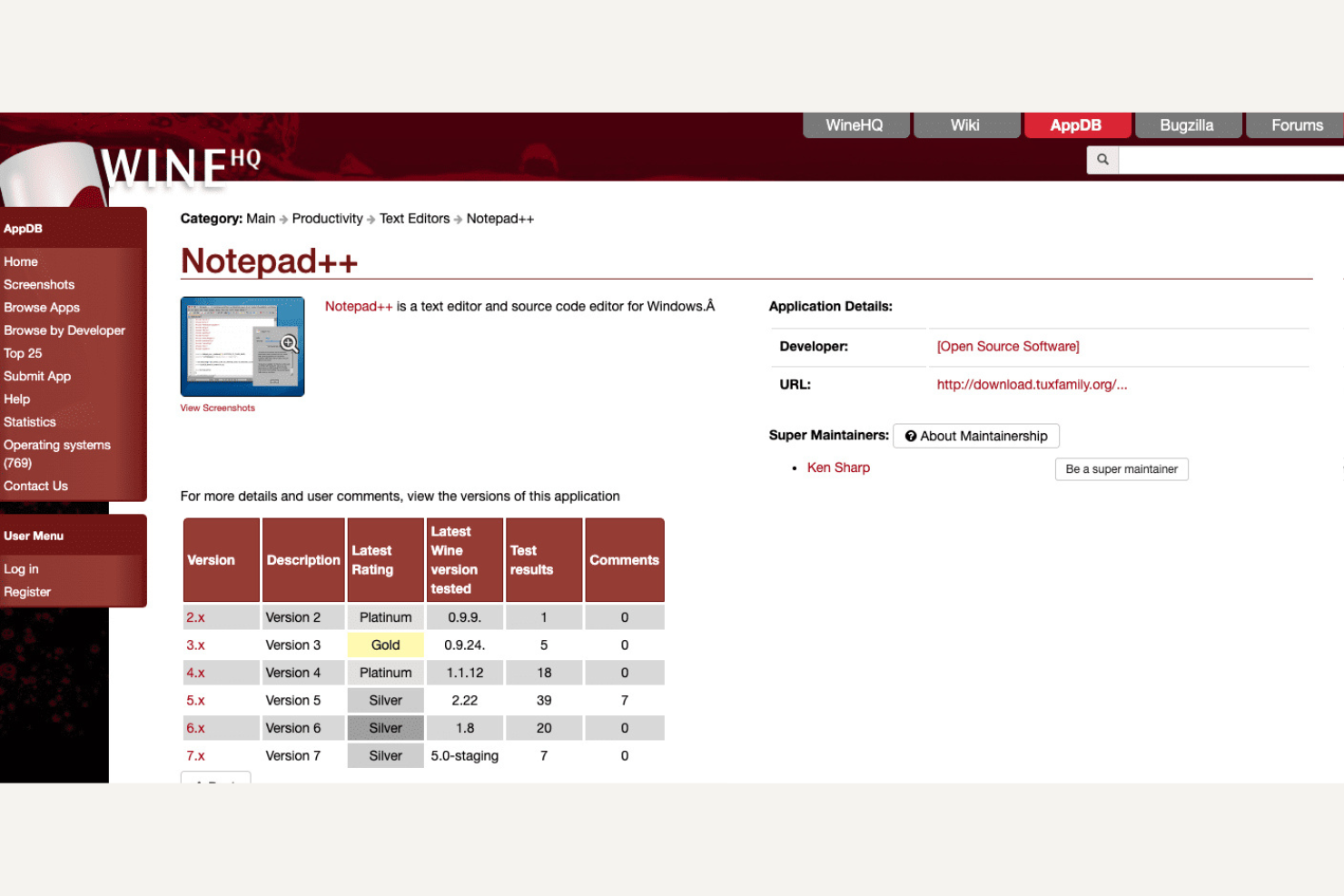
For IT teams and open-source advocates looking to run Windows applications on Linux or macOS, Wine offers a unique approach. Instead of emulating or virtualizing a full Windows environment, Wine translates Windows API calls so you can run many Windows programs natively. This makes it especially appealing to organizations that want to avoid licensing costs and prefer open-source solutions over commercial virtualization tools like Parallels.
Why Wine Is a Good Parallels Alternative
Unlike traditional virtualization platforms, Wine stands out for its open-source approach to running Windows applications on Linux and macOS. I picked Wine because it lets you run many Windows programs without installing a full Windows OS or managing a virtual machine. Its compatibility layer translates Windows API calls directly, which means you can launch supported apps natively and avoid the overhead of a VM. For IT specialists who value open-source solutions and want to minimize licensing and resource requirements, Wine offers a flexible alternative to Parallels.
Wine Key Features
Some other features that make Wine appealing include:
- Extensive Application Database: Access a large, community-maintained database that tracks compatibility and configuration tips for thousands of Windows applications.
- Custom Configuration Tools: Use built-in utilities to tweak application settings, manage libraries, and adjust Windows version emulation.
- Multi-Architecture Support: Run both 32-bit and 64-bit Windows applications on supported host systems.
- Command Line Interface: Control installations, launch applications, and manage Wine environments directly from the terminal.
Wine Integrations
Native integrations are not currently listed.
Pros and Cons
Pros:
- Large community compatibility database
- Lower resource usage than full VMs
- Runs Windows apps on Linux and macOS
Cons:
- Limited hardware passthrough support
- No full Windows desktop support
Other Parallels Alternatives
Here are some additional Parallels alternatives that didn’t make it onto my shortlist, but are still worth checking out:
- Citrix App and Desktop Virtualization
For remote desktop delivery at scale
- Proxmox VE
For unified VM and container management
- Kasm Workspaces
For secure browser isolation
- RealVNC
For cross-platform remote control
- GO-Global
For browser-based remote app access
- Apporto
For academic virtual lab delivery


Parallels Alternatives Selection Criteria
When selecting the best Parallels alternatives to include in this list, I considered common buyer needs and pain points related to virtualization software products, like supporting large-scale remote access and managing secure application delivery. I also used the following framework to keep my evaluation structured and fair:
Core Functionality (25% of total score)
To be considered for inclusion in this list, each solution had to fulfill these common use cases:
- Deliver virtual desktops to remote users
- Provide secure access to applications
- Support multiple operating systems
- Enable centralized management of virtual environments
- Allow for user session monitoring
Additional Standout Features (25% of total score)
To help further narrow down the competition, I also looked for unique features, such as:
- Advanced graphics acceleration
- Application layering technology
- Built-in session recording
- Multi-factor authentication integration
- Automated resource scaling
Usability (10% of total score)
To get a sense of the usability of each system, I considered the following:
- Intuitive user interface design
- Clear navigation and menu structure
- Customizable dashboard layouts
- Minimal steps to complete common tasks
- Accessibility for users with different needs
Onboarding (10% of total score)
To evaluate the onboarding experience for each platform, I considered the following:
- Availability of step-by-step setup guides
- Access to training videos and tutorials
- Interactive product tours for new users
- Pre-built templates for common configurations
- Responsive onboarding support or chatbots
Customer Support (10% of total score)
To assess each software provider’s customer support services, I considered the following:
- 24/7 support availability
- Multiple support channels like chat, phone, and email
- Access to a detailed knowledge base
- Fast response times to support tickets
- Availability of dedicated account managers
Value For Money (10% of total score)
To evaluate the value for money of each platform, I considered the following:
- Transparent and flexible pricing plans
- Features included at each pricing tier
- Discounts for annual or volume commitments
- No hidden fees or surprise charges
- Free trial or demo availability
Customer Reviews (10% of total score)
To get a sense of overall customer satisfaction, I considered the following when reading customer reviews:
- Consistency of positive feedback across platforms
- Reports of reliable performance and uptime
- Feedback on customer support experiences
- User comments on feature usefulness
- Noted challenges or limitations in real-world use
Why Look For a Parallels Alternative?
While Parallels is a good choice of virtualization software, there are a number of reasons why some users seek out alternative solutions. You might be looking for a Parallels alternative because…
- You need to support thousands of remote users at once
- You require advanced security and compliance features
- You want better performance over high-latency networks
- You need centralized management for complex IT environments
- You work in an industry with strict regulatory requirements
If any of these sound like you, you’ve come to the right place. My list contains several virtualization software options that are better suited for teams facing these challenges with Parallels and looking for alternative solutions.
Parallels Key Features
Here are some of the key features of Parallels, to help you contrast and compare what alternative solutions offer:
- Cross-platform desktop virtualization for Windows, macOS, and Linux
- Smooth file and clipboard sharing between host and guest systems
- Support for running Windows applications on Mac devices
- Centralized administration and license management
- USB device and peripheral redirection
- Snapshot and rollback functionality for virtual machines
- Automated VM provisioning and deployment
- Integration with cloud storage providers
- Dynamic resource allocation for CPU, memory, and disk
- Built-in security controls and encryption options