

12 Best IOS App Development Software for 2026

IOS App Development Software Shortlist
Here's my pick of the 12 best software from the 14 tools reviewed.


iOS app development software includes the tools, frameworks, and platforms you use to design, build, test, and deploy apps for Apple devices like the iPhone and iPad. If you’re searching for the best options, you’re likely balancing the need for reliable coding environments, built-in debugger tools, efficient testing for testers, and smooth deployment with the realities of tight deadlines and evolving requirements. The right tools can help your team manage complex codebases, automate repetitive tasks, and simplify the app development process while keeping up with Apple’s latest standards. Many platforms support mobile app development for native apps, offer open-source options, and focus on user-friendly workflows that help teams build and ship apps faster. In this guide, you’ll find a carefully selected list of iOS app development tools to help you choose the right fit for your workflow and project needs.
Why Trust Our Software Reviews
We’ve been testing and reviewing software since 2023. As tech leaders ourselves, we know how critical and difficult it is to make the right decision when selecting software.
We invest in deep research to help our audience make better software purchasing decisions. We’ve tested more than 2,000 tools for different tech use cases and written over 1,000 comprehensive software reviews. Learn how we stay transparent & our software review methodology.
Best iOS App Development Software Summary
This comparison chart summarizes pricing details for my top iOS app development software selections to help you find the best one for your budget and business needs.
| Tool | Best For | Trial Info | Price | ||
|---|---|---|---|---|---|
| 1 | Best for real-time backend services | Free plan available | Pay-as-you-go | Website | |
| 2 | Best for native interface design tools | Free-forever plan available | Free to use | Website | |
| 3 | Best for integrated debugging features | Free, open-source | Free to use | Website | |
| 4 | Best for legacy codebase compatibility | Free-forever plan available | Free to use | Website | |
| 5 | Best for API request testing | Free plan available | From $9/month (billed annually) | Website | |
| 6 | Best for continuous integration workflows | Free plan + demo available | From $15/month | Website | |
| 7 | Best for cross-platform UI development | Free plan available | Free to use | Website | |
| 8 | Best for drag-and-drop prototyping | Free plan available | From $19/month (billed annually) | Website | |
| 9 | Best for automated build pipelines | Free plan available | From $99/month | Website | |
| 10 | Best for modern language syntax | Free-forever plan available | Free to use | Website | |
| 11 | Best for multi-language code testing | Not available | From $22.99/license | Website | |
| 12 | IOS App Development | Free-forever plan available | Free to use | Website |
-

Site24x7
Visit WebsiteThis is an aggregated rating for this tool including ratings from Crozdesk users and ratings from other sites.4.7 -
GitHub Actions
Visit WebsiteThis is an aggregated rating for this tool including ratings from Crozdesk users and ratings from other sites.4.8 -
Docker
Visit WebsiteThis is an aggregated rating for this tool including ratings from Crozdesk users and ratings from other sites.4.6




IOS App Development Software Reviews
Below are my detailed summaries of the IOS app development software that made it onto my shortlist. My reviews offer a detailed look at the features, capabilities, and integrations of each tool to help you find the best one for you.

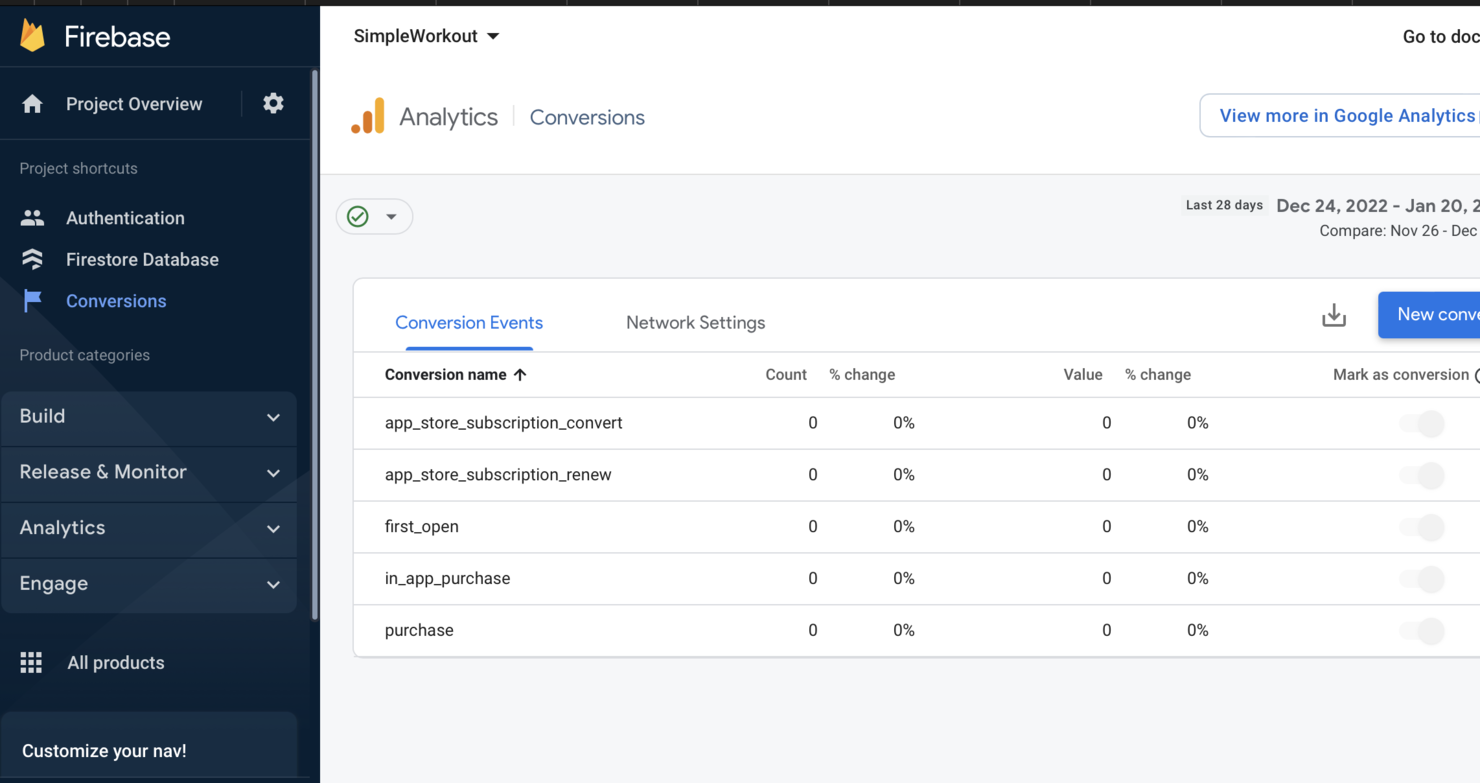
Firebase gives iOS app developers a way to build real-time backend services without managing infrastructure. It’s especially useful for teams that need instant data sync, user authentication, and cloud storage built into their apps. Firebase helps you launch features like chat, notifications, and analytics quickly, making it a strong choice for mobile-first projects.
Why I Picked Firebase
When you need real-time backend services for iOS apps, Firebase stands out for its ability to handle live data updates and instant user interactions. I picked Firebase because its real-time database lets you sync data across devices without manual refreshes, which is essential for chat, collaboration, or live activity features. The built-in authentication and cloud storage options also help you manage users and files securely, all within the same platform. These capabilities make Firebase a strong fit for iOS teams building interactive, data-driven mobile experiences.
Firebase Key Features
Some other features that make Firebase valuable for iOS app development include:
- Cloud Functions: Lets you run backend code in response to events triggered by Firebase features or HTTPS requests.
- Firebase Analytics: Tracks user behavior and app usage with detailed, customizable reports.
- Crashlytics: Monitors app crashes in real time and provides actionable diagnostics.
- Remote Config: Allows you to update app behavior and appearance without publishing a new version.
Firebase Integrations
Native integrations are not currently listed.
Pros and Cons
Pros:
- Remote Config updates apps without releases
- Crashlytics provides detailed crash reports
- Built-in authentication manages user sign-in
Cons:
- Vendor lock-in complicates migration
- Data structure limits complex app models

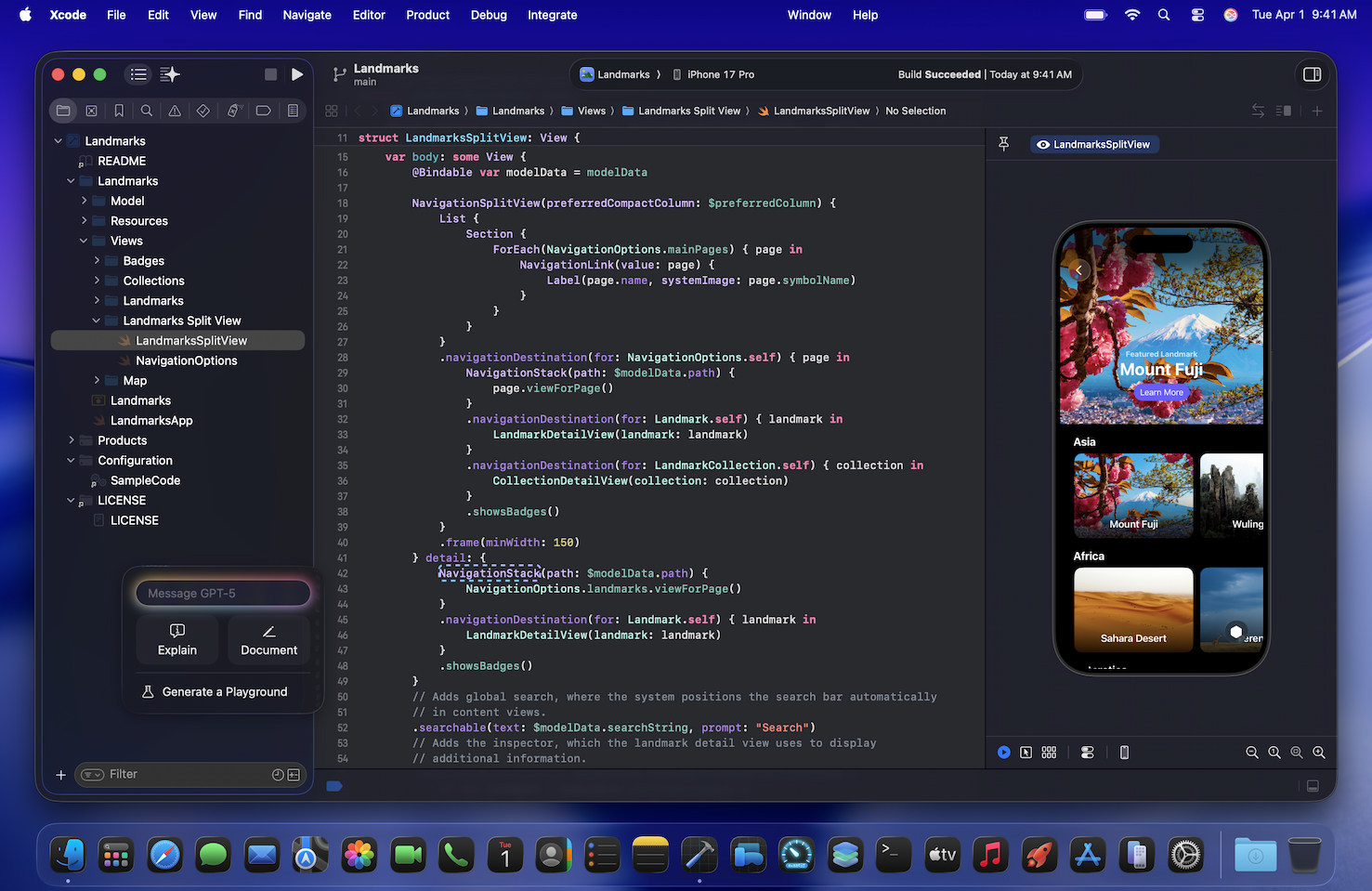
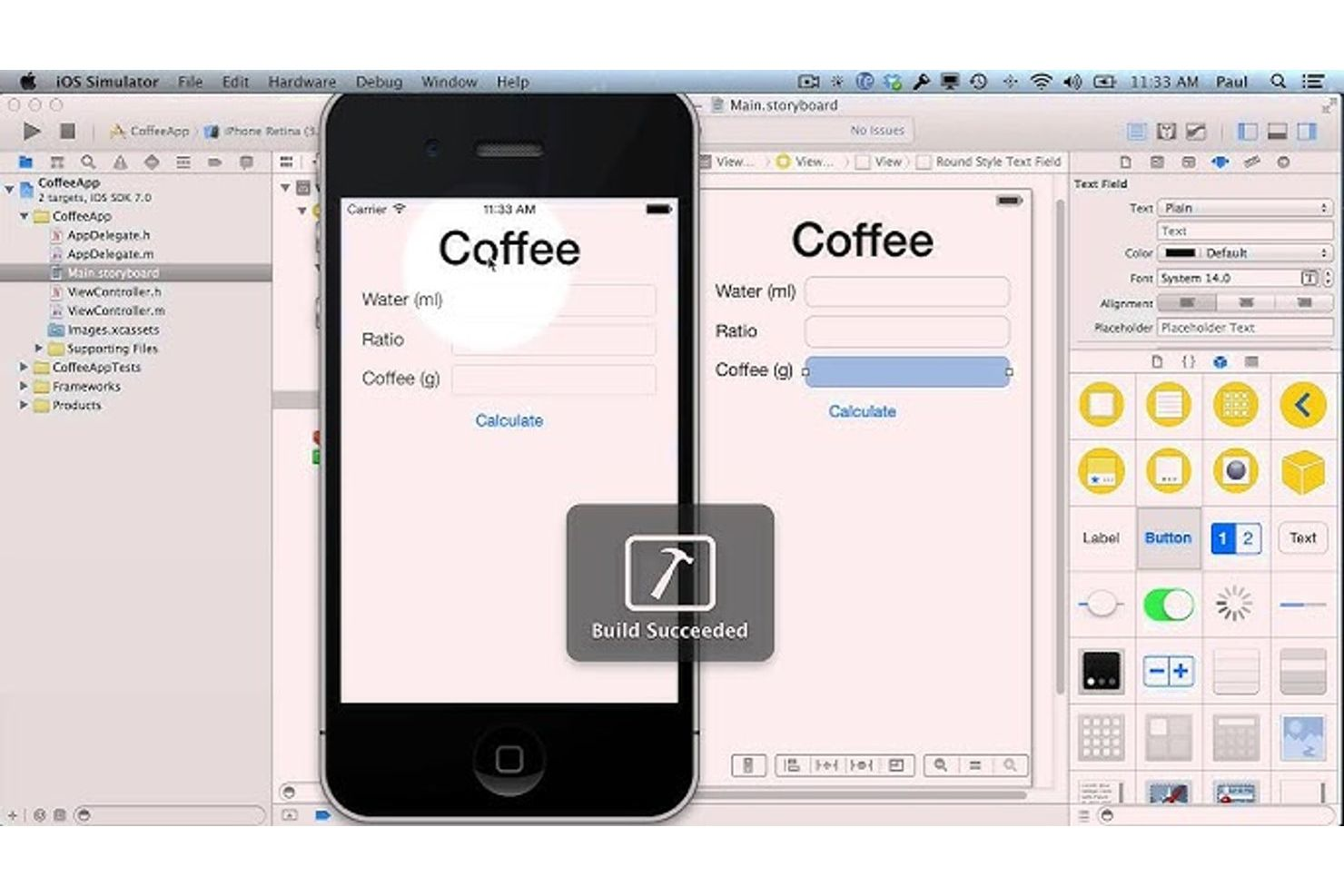
Xcode is Apple’s official integrated development environment designed specifically for building apps across the Apple ecosystem. It’s a strong fit for developers who want deep integration with native interface design tools and direct access to the latest iOS features. If you need to create, test, and debug apps that align closely with Apple’s design standards, Xcode offers a purpose-built environment.
Why I Picked Xcode
I chose Xcode because its native interface design tools set it apart for iOS app development. The Interface Builder lets you visually construct and fine-tune layouts using drag-and-drop, which helps you match Apple’s Human Interface Guidelines with precision. I also appreciate how Xcode’s live preview feature allows you to see UI changes in real time as you code. These capabilities make it easier to create polished, platform-consistent apps without relying on third-party design plugins.
Xcode Key Features
Some other features in Xcode that support iOS app development include:
- Source Control Integration: Connects with Git repositories directly in the IDE, so you can manage code changes and collaborate with your team.
- Simulator Suite: Lets you test your app on a wide range of simulated Apple devices and OS versions without needing physical hardware.
- Performance Analyzer (Instruments): Offers real-time profiling tools to help you identify memory leaks, CPU usage spikes, and other performance issues.
- Swift and Objective-C Support: Allows you to write, edit, and debug code in both of Apple’s primary programming languages for iOS development.
Xcode Integrations
Native integrations are not currently listed.
Pros and Cons
Pros:
- Advanced debugging and performance tools
- Built-in simulator tests Apple devices
- Direct access to latest Apple SDKs
Cons:
- Collaboration features are less advanced
- Limited third-party plugin support
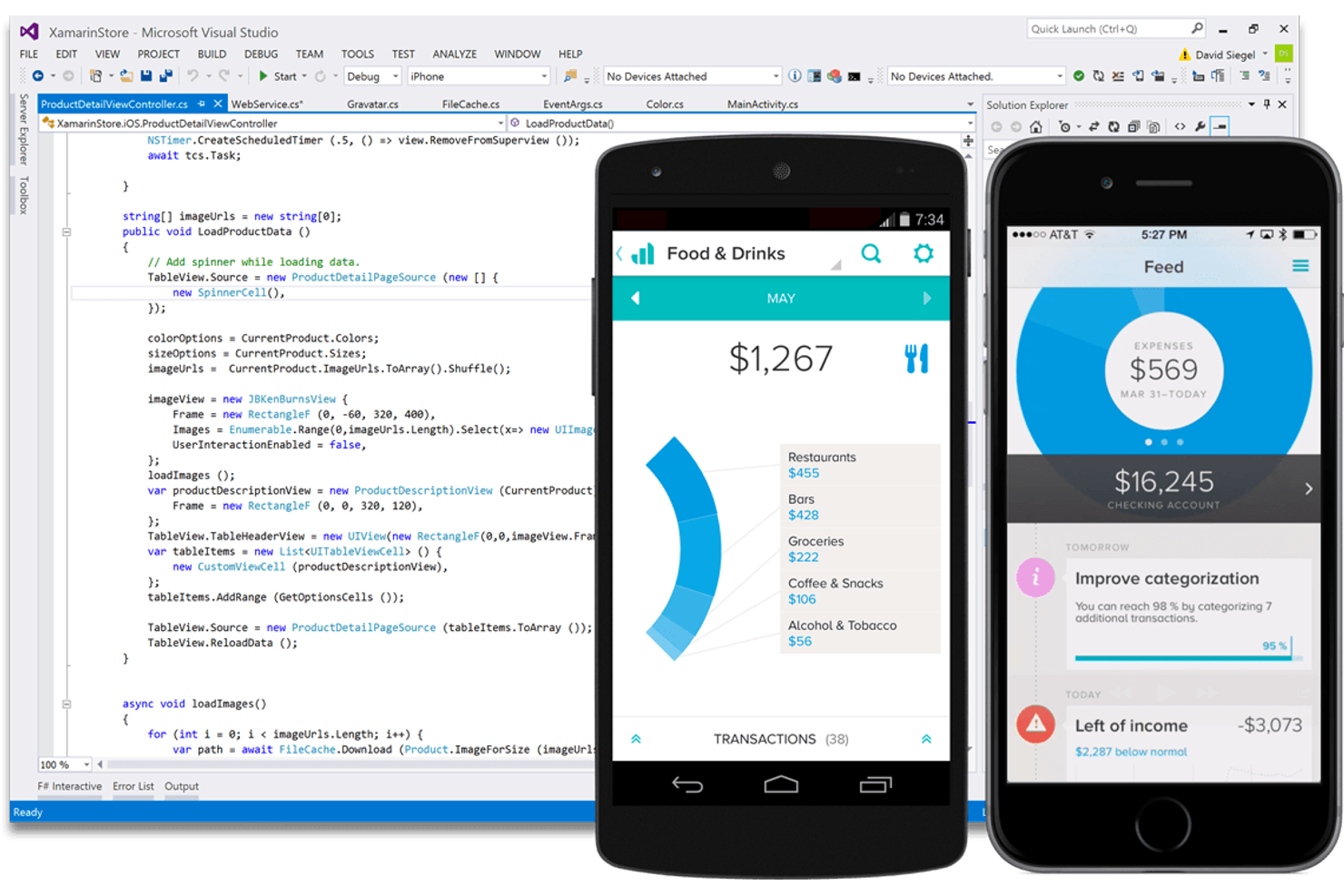
Visual Studio Code stands out for iOS app developers who want advanced debugging and code editing in one place. It’s a strong fit for teams or individuals who need to manage complex codebases and troubleshoot issues quickly. With its integrated debugging tools and wide extension support, Visual Studio Code helps you catch errors and optimize your iOS projects efficiently.
Why I Picked Visual Studio Code
For iOS app development, having strong debugging capabilities can make a real difference in productivity and code quality. Visual Studio Code’s integrated debugging features let you set breakpoints, inspect variables, and step through code directly within the editor, which is especially useful when tracking down tricky bugs in Swift or Objective-C projects. I like that you can also use extensions to add support for iOS-specific workflows, such as remote debugging or device simulation. These built-in and extensible debugging tools help you identify and resolve issues faster, making Visual Studio Code a practical choice for iOS developers who want to keep their workflow efficient.
Visual Studio Code Key Features
In addition to its integrated debugging tools, Visual Studio Code offers several other features that support iOS app development:
- Intelligent Code Completion: Provides context-aware suggestions and auto-completion for Swift, Objective-C, and other languages.
- Version Control Integration: Supports Git and other version control systems directly within the editor.
- Customizable Workspaces: Lets you configure project-specific settings, extensions, and layouts for different iOS projects.
- Integrated Terminal: Includes a built-in terminal so you can run build scripts, command-line tools, or simulators without leaving the editor.
Visual Studio Code Integrations
Native integrations are not currently listed.
Pros and Cons
Pros:
- Built-in terminal runs CLI tools
- Integrated Git simplifies version control
- Extension marketplace adds Swift support
Cons:
- iOS build setup requires manual steps
- No built-in iOS simulator support

If you’re maintaining or updating long-standing iOS applications, Objective-C Runtime remains a practical choice for your development toolkit. It’s especially useful for teams working with legacy codebases or integrating with older Apple frameworks. Objective-C Runtime helps businesses and developers ensure compatibility and stability when modernizing or extending established iOS apps.
Why I Picked Objective-C Runtime
For teams dealing with established iOS projects, Objective-C Runtime stands out for its unmatched legacy codebase compatibility. Many long-running apps and frameworks in the Apple ecosystem are still written in Objective-C Runtime, making it essential for maintaining, updating, or extending older applications. I picked Objective-C Runtime because it allows you to work directly with mature APIs and libraries that may not yet be fully supported in Swift. Its runtime features and dynamic messaging also give developers flexibility when integrating with existing code or bridging to newer technologies.
Objective-C Runtime Key Features
Some other features that make Objective-C Runtime useful for iOS app development include:
- Automatic Reference Counting (ARC): Manages memory allocation and deallocation automatically to help prevent leaks.
- Category Extensions: Lets you add methods to existing classes without subclassing or modifying the source.
- Dynamic Typing: Allows you to determine object types at runtime, supporting flexible coding patterns.
- Message Forwarding: Enables objects to handle messages they don’t directly implement, supporting advanced delegation and proxying.
Objective-C Runtime Integrations
Native integrations are not currently listed.
Pros and Cons
Pros:
- Compatible with legacy iOS codebases
- Direct access to low-level Apple APIs
- Mature language with a strong community
Cons:
- Smaller developer talent pool
- Limited adoption for new projects

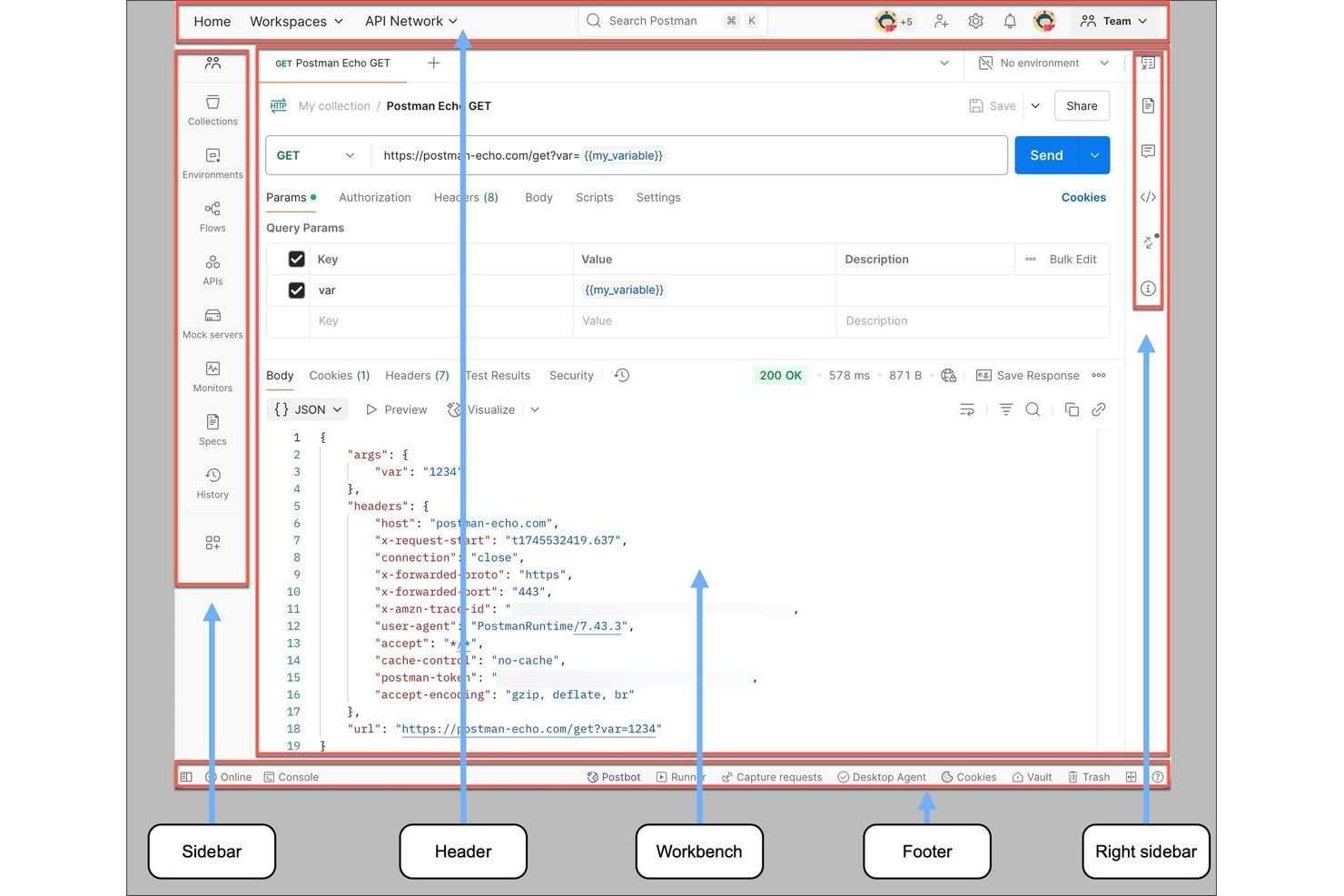
If you’re building iOS apps that rely on APIs, Postman gives you a dedicated environment to design, test, and debug API requests. It’s especially useful for mobile developers and QA teams who need to validate endpoints, automate tests, and troubleshoot integration issues before shipping code. Postman helps you catch API errors early, so your iOS app’s backend connections work as expected.
Why I Picked Postman
For iOS app development teams that need to ensure reliable API connections, Postman offers a focused environment for API request testing. I picked Postman because it lets you build and run requests against your backend, inspect responses, and automate test scripts to catch issues before they reach production. The ability to organize requests into collections and share them with your team helps maintain consistency across development and QA. These features make Postman a strong choice for anyone who needs to validate and troubleshoot API endpoints during iOS app development.
Postman Key Features
Some other features that make Postman useful for iOS app development include:
- Mock Servers: Simulate API endpoints to test app behavior before the backend is ready.
- Environment Variables: Store and manage different sets of variables for development, staging, and production.
- API Documentation Generation: Automatically create and update documentation for your API requests and responses.
- Monitoring: Schedule automated tests to run at set intervals and receive alerts for failures.
Postman Integrations
Integrations include Jira, Slack, Aikido, Datadog, GitHub, GitLab, Splunk, New Relic, and more.
Pros and Cons
Pros:
- Environment variables switch environments easily
- Automated scripts catch integration bugs
- Mock servers test APIs before backend
Cons:
- Complex API imports need manual fixes
- Mobile app lacks many desktop features

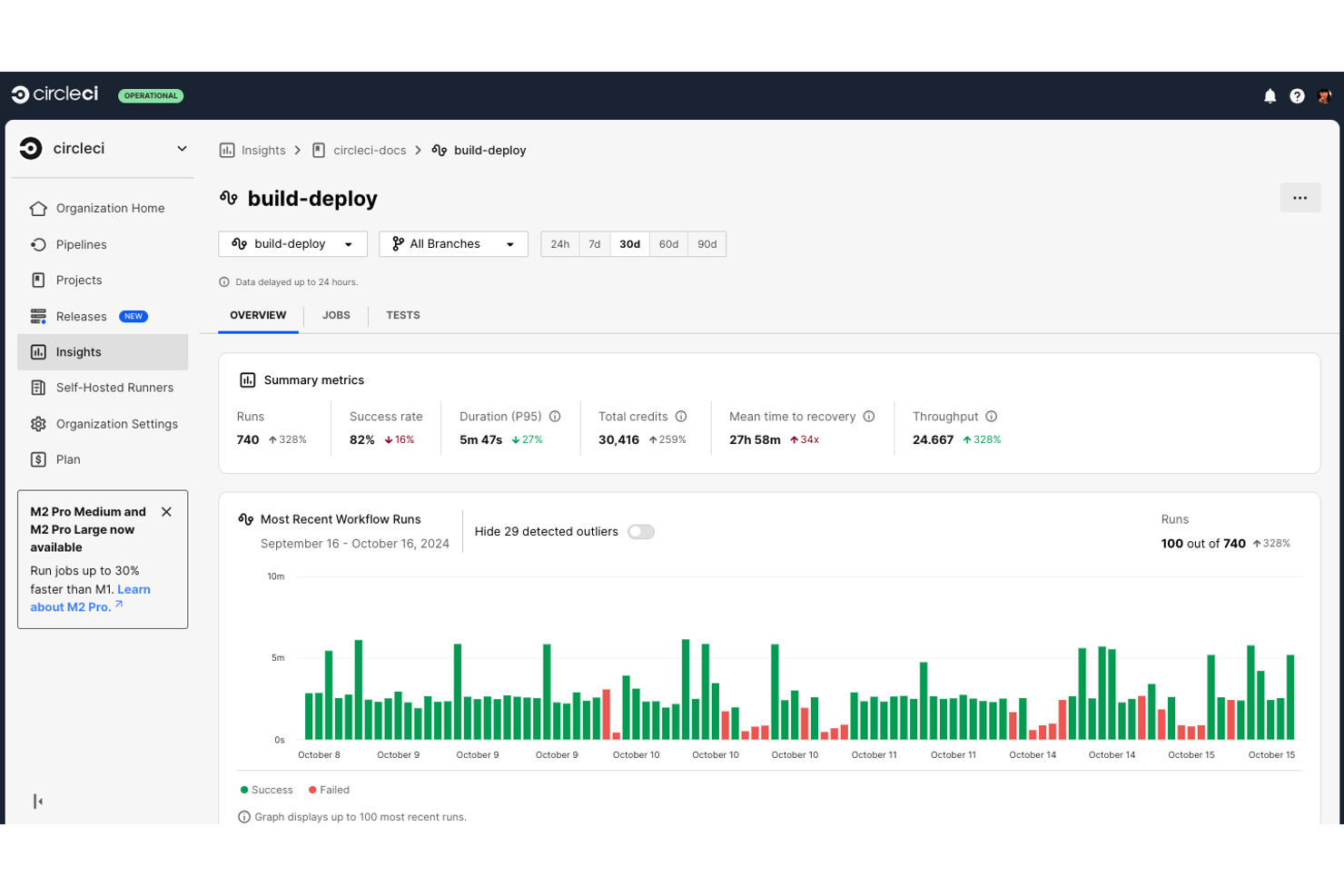
CircleCI gives iOS app development teams a way to automate and manage complex continuous integration workflows. It’s a strong fit for organizations that need to coordinate frequent code changes, run automated tests, and deploy updates across multiple environments. CircleCI helps you catch issues early and maintain high code quality as your team scales development.
Why I Picked CircleCI
For iOS app development teams that need reliable continuous integration workflows, CircleCI offers a flexible and scalable solution. I picked CircleCI because it lets you define custom pipelines using configuration files, so you can automate builds, tests, and deployments for even the most complex projects. Its support for parallel job execution and advanced caching helps speed up feedback cycles and reduce build times. These features make CircleCI a strong choice for teams that want to maintain high code quality while moving quickly.
CircleCI Key Features
Some other features that make CircleCI useful for iOS app development include:
- macOS Build Environments: Lets you run builds on dedicated macOS machines for iOS projects.
- Orbs Library: Offers reusable, shareable configuration packages to simplify common tasks.
- Insights Dashboard: Provides analytics on build performance, duration, and success rates.
- Environment Variable Management: Allows you to securely store and manage sensitive credentials for your pipelines.
CircleCI Integrations
Integrations include Anchore, Aqua Security, Arm, Anecdotes, Autify, Amazon S3, Amazon Health, Azure ACR, Bitbucket, ConfigCat, and more.
Pros and Cons
Pros:
- Detailed logs troubleshoot build failures
- Reusable orbs simplify build tasks
- Dedicated macOS environments build iOS apps
Cons:
- Limited built-in iOS UI testing
- Build queues delay jobs at peak

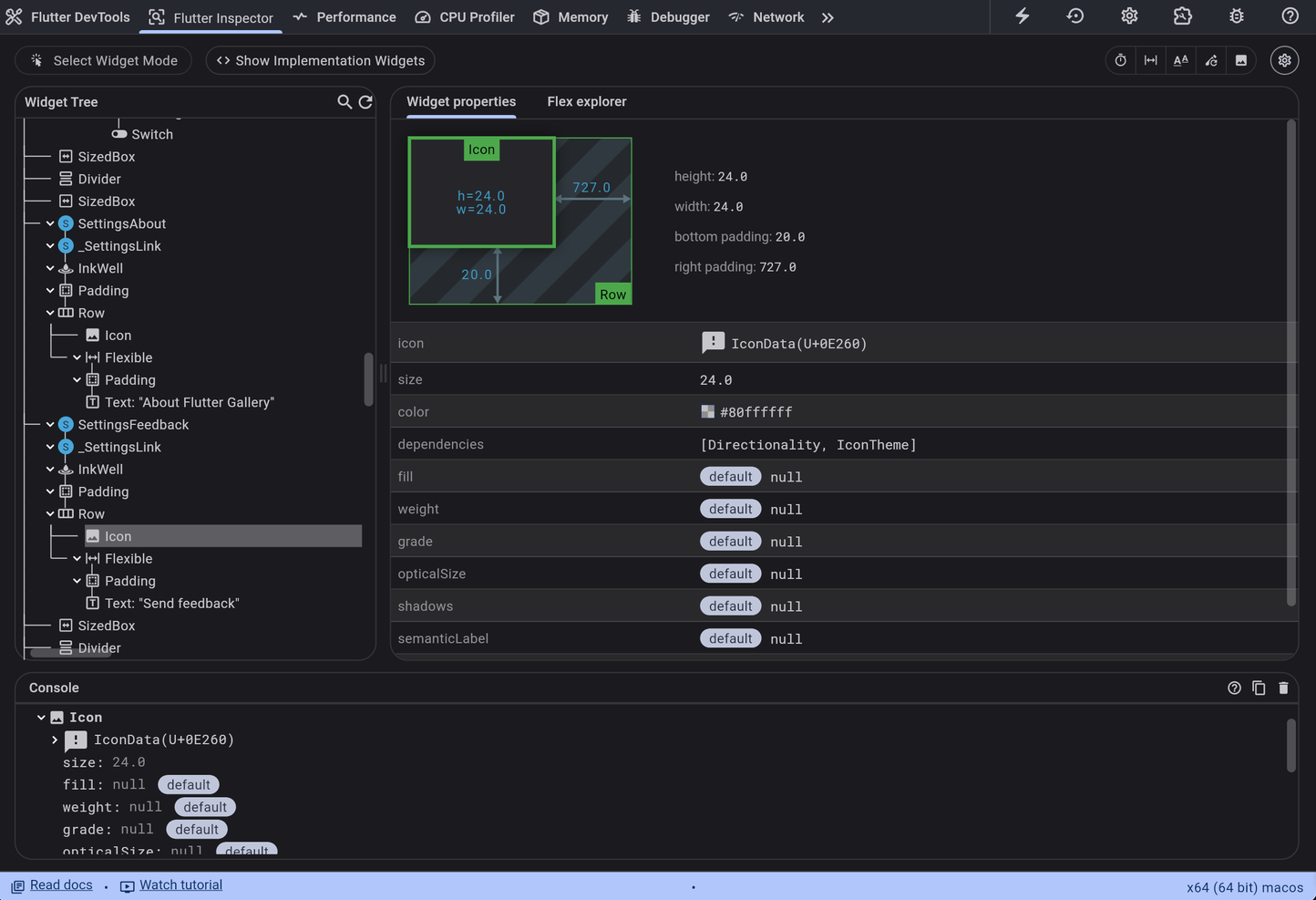
Flutter offers a way for developers to build iOS apps and Android apps from a single codebase using the Dart language. It’s especially appealing to teams that want consistent UI and performance across platforms without maintaining separate code for each. If you need to deliver polished, native-feeling apps on iOS and beyond, Flutter’s widget-based approach and hot reload feature can help you move quickly.
Why I Picked Flutter
What sets Flutter apart for iOS app development is its focus on cross-platform UI development from a single codebase. With Flutter, you can use the same set of customizable widgets to create native-like interfaces for both iOS and Android, which is especially useful for teams aiming for design consistency. I appreciate how the hot reload feature lets you see code changes instantly, making it easier to iterate on UI and logic without long build times. For developers who want to deliver polished, high-performance apps across platforms, Flutter’s approach to UI and real-time updates is a strong fit.
Flutter Key Features
Some other features in Flutter that support iOS app development include:
- Rich Set of Pre-Built Widgets: Offers a wide range of customizable widgets for layout, navigation, and animation.
- Extensive Plugin Ecosystem: Provides access to device APIs and third-party services through a large library of plugins.
- Internationalization Support: Enables you to build apps with multiple language and region settings.
- Automated Testing Framework: Includes tools for unit, widget, and integration testing directly within the framework.
Flutter Integrations
Integrations include Gemini, Firebase, Google Ads, Google Play, Google Pay, Google Wallet, and Google Maps.
Pros and Cons
Pros:
- Rich widgets build custom interfaces
- Hot reload speeds UI development
- Single codebase deploys iOS and Android
Cons:
- Limited support for Apple AR features
- Some iOS APIs need custom plugins

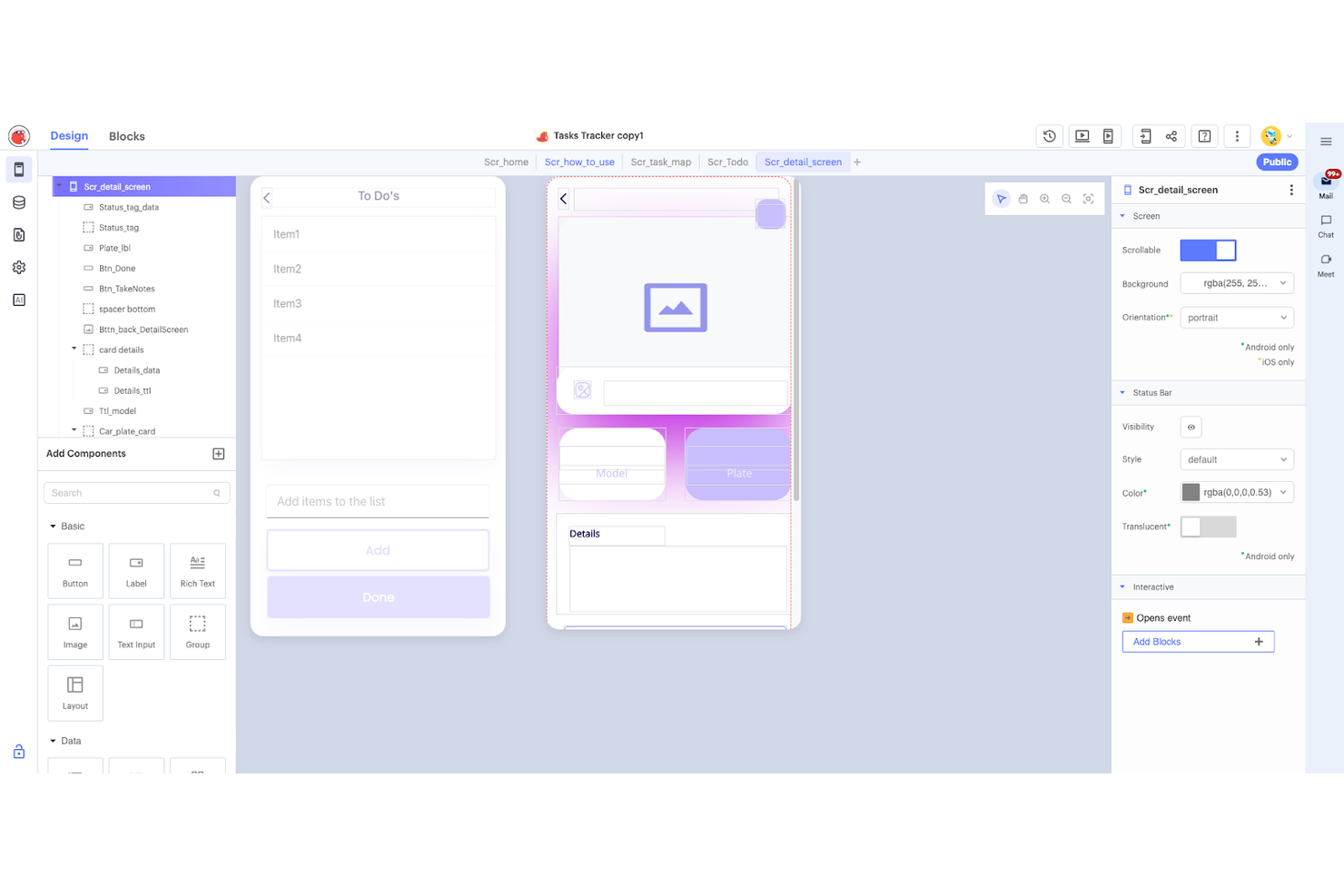
Thunkable stands out for teams and individuals who want to prototype iOS apps visually without writing code. Its drag-and-drop interface is especially useful for product managers, educators, and early-stage startups looking to quickly test ideas or build MVPs. With Thunkable, you can assemble interactive app prototypes and deploy them to iOS devices in a fraction of the time it takes with traditional development tools.
Why I Picked Thunkable
For iOS app development, Thunkable’s drag-and-drop prototyping stands out as a practical solution for quickly turning ideas into interactive app screens. The platform’s visual builder lets you assemble layouts, connect logic blocks, and preview changes instantly on iOS devices. I picked Thunkable because it removes the need for traditional coding, making it accessible for non-developers and technical teams alike. Its real-time testing and component-based design help you iterate on prototypes and share them with stakeholders without waiting for lengthy build processes.
Thunkable Key Features
Some other features that make Thunkable appealing for iOS app development include:
- Pre-Built Component Library: Offers a wide range of UI elements and logic blocks for building app functionality.
- Direct Publishing to App Store: Lets you publish your finished app directly to the Apple App Store from the platform.
- Cloud-Based Project Storage: Stores your projects online, so you can access and edit them from any device.
- API Integration Blocks: Allows you to connect your app to external APIs using visual blocks for dynamic data and services.
Thunkable Integrations
Integrations include Cloudinary, Firebase, Airtable, Google Sheets, Webflow, Xano, Backendless, Figma, Termly, and more.
Pros and Cons
Pros:
- Direct publishing to Apple App Store
- Built-in components support device features
- Real-time preview tests app changes
Cons:
- UI customization is more restricted
- No support for custom native modules

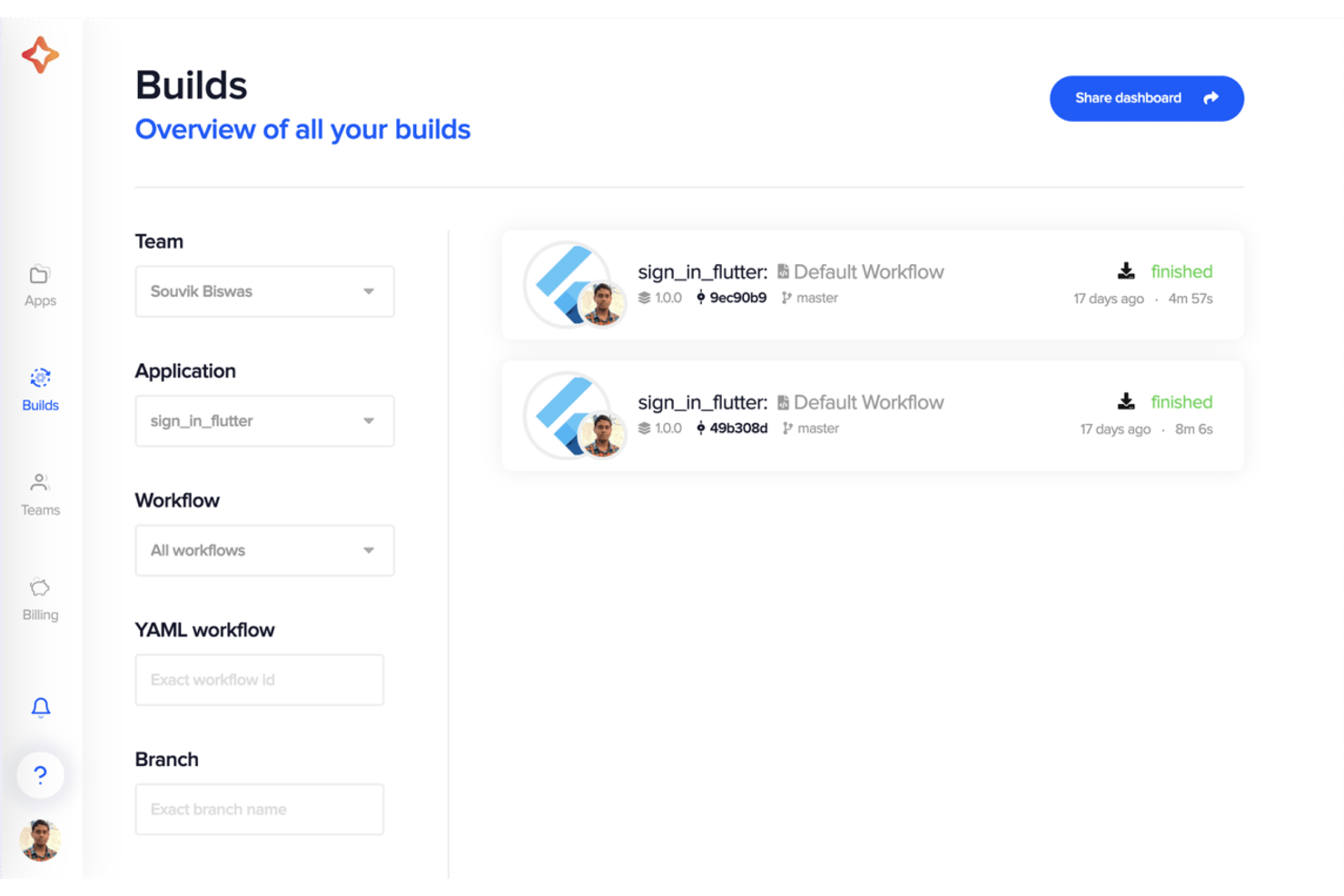
Codemagic is designed for mobile development teams that want to automate their iOS app build, test, and deployment workflows. It’s especially useful for businesses and developers who need to speed up release cycles and reduce manual steps in their CI/CD pipelines. Codemagic helps you manage complex build processes and integrations without maintaining your own infrastructure.
Why I Picked Codemagic
Automating build pipelines is a top priority for iOS teams that want to deliver updates quickly and reliably. Codemagic stands out because it offers customizable workflows that let you automate building, testing, and publishing iOS apps with minimal manual intervention. I picked Codemagic for its ability to handle code signing, environment variables, and parallel builds, which are all common pain points in mobile CI/CD. These features help your team reduce errors and speed up release cycles, making Codemagic a strong fit for iOS app development.
Codemagic Key Features
Some other features that make Codemagic valuable for iOS app development include:
- YAML Configuration Support: Lets you define and version control your build pipelines using YAML files.
- Real-Time Build Logs: Provides detailed, live logs for every build step to help with troubleshooting.
- Third-Party Service Integrations: Connects with tools like Slack, Jira, and Firebase for notifications and deployment.
- Custom Build Machines: Allows you to select specific macOS versions and hardware for your builds.
Codemagic Integrations
Integrations include Azure DevOps, GitHub, GitLab, Bitbucket, and more.
Pros and Cons
Pros:
- Manages code signing and profiles
- Real-time logs aid troubleshooting
- Automated iOS builds using YAML configs
Cons:
- macOS build queues cause occasional delays
- Build times inconsistent during peak usage
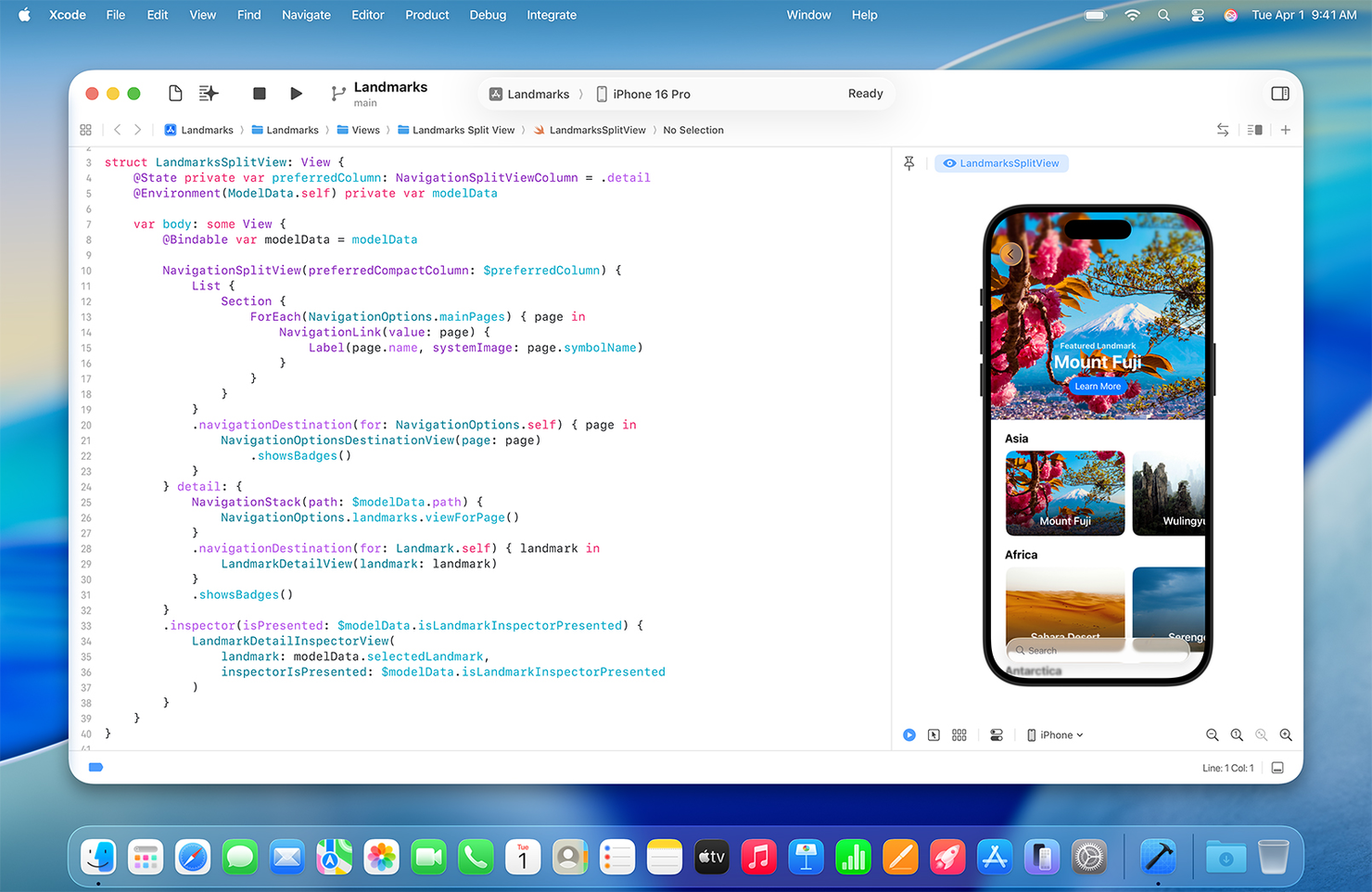
Swift brings a modern programming language to iOS app development, designed for developers who want safer code and faster performance. It appeals to software engineers, product teams, and businesses building apps that need to keep up with Apple’s evolving ecosystem. With features like type safety, concise syntax, and native support for Apple frameworks—including SwiftUI for building user interfaces—Swift helps teams create reliable and maintainable iOS applications.
Why I Picked Swift
When it comes to building iOS apps with modern language syntax, Swift offers a clear advantage over older languages like Objective-C. Its concise syntax reduces boilerplate code and helps teams write safer, more readable applications. I picked Swift because its type inference and optionals help prevent common coding errors, which is especially important for maintaining large or complex iOS projects. The language also evolves alongside Apple’s platforms, so you can take advantage of the latest features and performance improvements as soon as they’re available.
Swift Key Features
Some other features that make Swift valuable for iOS app development include:
- Swift Package Manager: Lets you manage dependencies and distribute libraries directly within Xcode.
- Interoperability with Objective-C: Allows you to integrate Swift code into existing Objective-C projects and vice versa.
- Automatic Reference Counting (ARC): Handles memory management for you, reducing the risk of memory leaks.
- Playgrounds for Interactive Coding: Provides a space to experiment with code and see results in real time.
Swift Integrations
Native integrations are not currently listed.
Pros and Cons
Pros:
- Strong typing prevents runtime errors
- Native framework support optimizes performance
- Modern syntax improves code readability
Cons:
- Updates can require major refactoring
- Limited cross-platform support

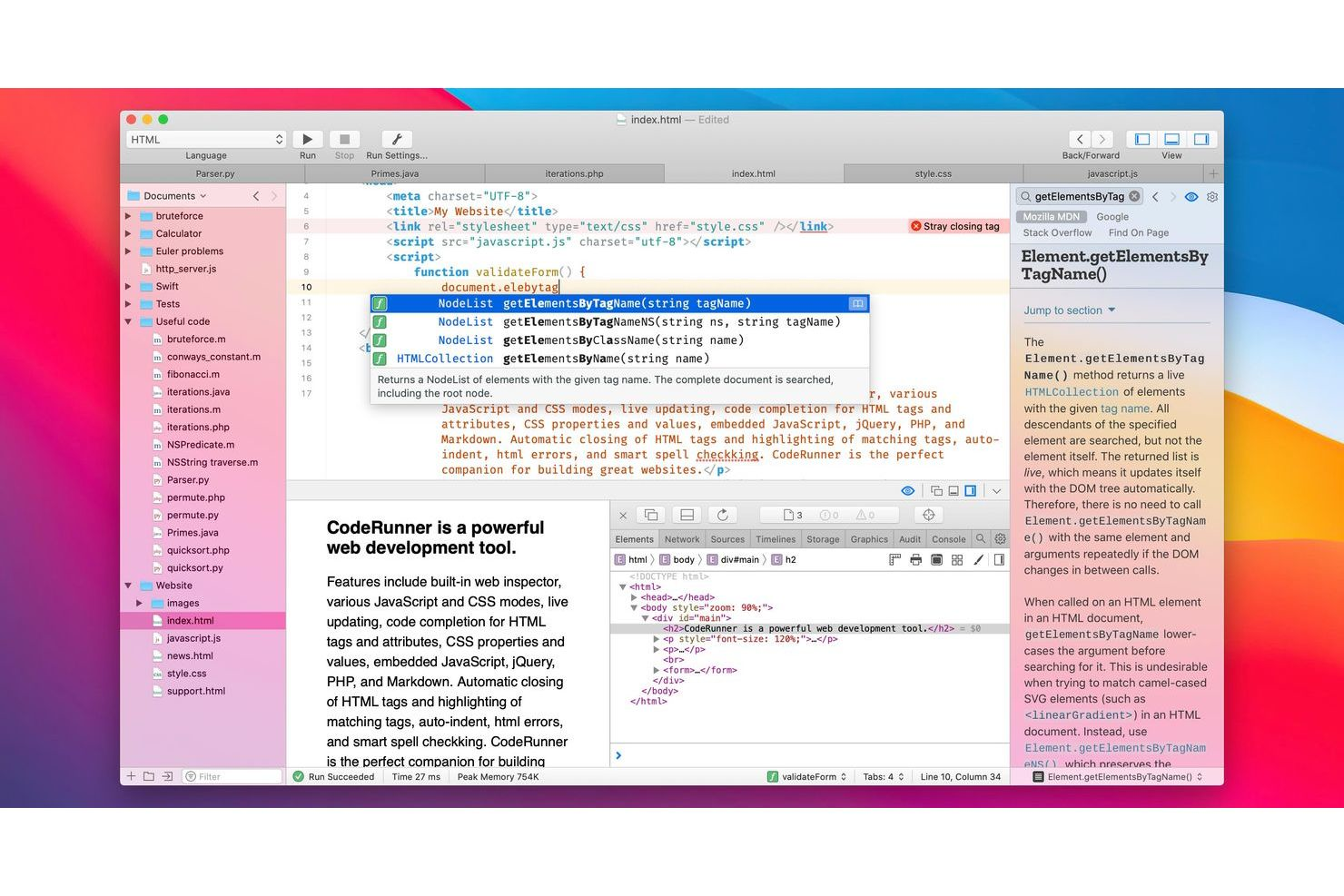
CodeRunner stands out for teams and developers who need to test code in multiple languages within a single environment. It’s especially useful for iOS app developers who work with more than just Swift or Objective-C, or who need to prototype and debug scripts quickly. If your workflow involves switching between languages or running code snippets on the fly, CodeRunner offers a flexible solution.
Why I Picked CodeRunner
For iOS app developers who need to work across several programming languages, CodeRunner’s multi-language code testing is a real advantage. The tool supports over 25 languages out of the box, so you can quickly test Swift, Objective-C, Python, JavaScript, and more without switching environments. I like that you can run code snippets instantly and see results right in the editor, which helps when prototyping or debugging scripts that support your iOS projects. This flexibility makes CodeRunner a strong fit for teams or individuals who need to move between languages as part of their development workflow.
CodeRunner Key Features
Some other features in CodeRunner that support iOS app development include:
- Customizable Code Templates: Lets you create and reuse templates for common code structures or project types.
- Integrated Debugging Tools: Provides breakpoints and variable inspection to help you troubleshoot code directly in the editor.
- Automatic Syntax Highlighting: Detects and highlights syntax for each supported language, making code easier to read and review.
- Tabbed Editing Interface: Allows you to work on multiple files or scripts at once within a single window.
CodeRunner Integrations
Native integrations are not currently listed.
Pros and Cons
Pros:
- Custom templates standardize coding tasks
- Lightweight editor launches quickly
- Supports over 25 programming languages
Cons:
- No built-in iOS device simulator
- No visual interface builder for iOS

If you’re looking to build iOS apps with a single codebase, React Native offers a component-driven approach that’s hard to match. It’s especially useful for development teams and app developers who want to reuse UI elements across multiple platforms without sacrificing native performance. With its reusable component architecture, React Native helps you speed up development, experiment with new app ideas, and maintain consistency in your iOS projects.
Why I Picked React Native
What sets React Native apart for iOS app development is its reusable component architecture, which lets you build modular UI elements that work across both iOS and Android. This approach means you can maintain a single codebase while still delivering a native look and feel for your iOS users. I appreciate how React Native’s component system supports rapid prototyping and consistent design, especially for teams managing multiple mobile projects. With features like hot reloading and a large library of pre-built components, React Native helps you iterate quickly and keep your iOS app’s interface unified.
React Native Key Features
Some other features that make React Native useful for iOS app development include:
- Live Reloading: Lets you instantly see code changes reflected in your running app.
- Native Module Support: Allows you to integrate native Swift, Objective-C, or Java modules when you need platform-specific functionality.
- Third-Party Plugin Ecosystem: Offers a wide range of community plugins for adding features like push notifications or analytics.
- Cross-Platform API Access: Provides unified APIs for accessing device features such as the camera, GPS, and storage.
React Native Integrations
Native integrations are not currently listed.
Pros and Cons
Pros:
- Strong community offers frequent updates
- Hot reloading speeds UI testing
- Shared codebase updates iOS and Android
Cons:
- Advanced animations are less supported
- Upgrades can break dependencies
Other iOS App Development Software
Here are some additional iOS app development software options that didn’t make it onto my shortlist, but are still worth checking out:
- Bitrise
For automating mobile CI/CD pipelines
- Charles Proxy
For debugging network traffic on devices


iOS App Development Software Selection Criteria
When selecting the best iOS app development software to include in this list, I considered common buyer needs and pain points like ensuring reliable API integrations and supporting efficient debugging workflows. I also used the following framework to keep my evaluation structured and fair:
Core Functionality (25% of total score)
To be considered for inclusion in this list, each solution had to fulfill these common use cases:
- Build and test iOS app code
- Debug and monitor app performance
- Integrate with APIs and backend services
- Automate build and deployment processes
- Collaborate with team members
Additional Standout Features (25% of total score)
To help further narrow down the competition, I also looked for unique features, such as:
- Mock server creation for API simulation
- Automated API documentation generation
- Real-time network traffic inspection
- Built-in CI/CD pipeline support
- Environment variable management for multiple stages
Usability (10% of total score)
To get a sense of the usability of each system, I considered the following:
- Clean and intuitive user interface
- Logical workflow navigation
- Minimal setup required for core tasks
- Responsive performance with large projects
- Customizable workspace layouts
Onboarding (10% of total score)
To evaluate the onboarding experience for each platform, I considered the following:
- Availability of step-by-step tutorials
- Access to training videos and documentation
- Interactive product tours for new users
- Pre-built templates for common workflows
- Support for data import and migration
Customer Support (10% of total score)
To assess each software provider’s customer support services, I considered the following:
- Availability of live chat or email support
- Access to a searchable knowledge base
- Community forums for peer assistance
- Timely response to support tickets
- Regular product updates and bug fixes
Value For Money (10% of total score)
To evaluate the value for money of each platform, I considered the following:
- Transparent and flexible pricing plans
- Features included in lower-tier plans
- Free trial or free plan availability
- Cost compared to similar tools
- Discounts for teams or annual billing
Customer Reviews (10% of total score)
To get a sense of overall customer satisfaction, I considered the following when reading customer reviews:
- Positive feedback on reliability and stability
- Reports of helpful and responsive support
- Comments on ease of integration with other tools
- User satisfaction with feature set
- Constructive criticism about limitations or bugs
How to Choose iOS App Development Software
It’s easy to get bogged down in long feature lists and complex pricing structures. To help you stay focused as you work through your unique software selection process, here’s a checklist of factors to keep in mind:
| Factor | What to Consider |
|---|---|
| Scalability | Will the tool support your team as your app and user base grow? Consider limits on projects, users, or API calls. |
| Integrations | Does the software connect natively with your existing tools, such as CI/CD platforms, code repositories, or analytics? |
| Customizability | Can you tailor workflows, environments, or automation to fit your team’s development process and unique requirements? |
| Ease of use | How quickly can new team members learn the tool? Look for clear navigation, logical workflows, and minimal setup steps. |
| Implementation and onboarding | What resources are available for setup and migration? Check for onboarding guides, migration support, and training materials. |
| Cost | Are pricing tiers transparent and predictable as your needs change? Watch for hidden fees or required add-ons. |
| Security safeguards | Does the tool offer encryption, access controls, and compliance with standards relevant to your organization? |
| Support availability | What support channels are offered, and are they available during your team’s working hours? Consider response times and escalation paths. |
What is iOS App Development Software?
iOS app development software refers to tools and platforms that help developers design, build, test, and deploy applications for Apple devices running iOS. These solutions support tasks like coding, compiling with a compiler, debugging, API integration, and performance monitoring. They’re essential for teams and Apple developers aiming to create reliable, secure, and high-quality mobile apps that meet Apple’s technical standards and user expectations.
Features
When selecting iOS app development software, keep an eye out for the following key features:
- Code editor: A built-in environment for writing, editing, and managing Swift or Objective-C code, often with syntax highlighting and error detection.
- Simulator and device testing: Tools that let you run your app on virtual or physical devices to check functionality, layout, and performance before release.
- API integration tools: Features that help you connect your app to backend services, manage endpoints, and handle authentication or data exchange.
- Debugging utilities: Capabilities for identifying, tracking, and resolving bugs or crashes, including breakpoints, stack traces, and log inspection.
- Version control integration: Support for connecting with systems like Git to manage code changes, collaborate with team members, and track project history.
- Build automation: Options to automate compiling, packaging, and deploying your app, reducing manual steps and minimizing errors during release cycles.
- Performance monitoring: Tools that track memory usage, CPU load, and network activity to help you optimize your app’s speed and stability.
- UI design tools: Visual editors or layout builders that let you design and preview user interfaces without writing all the code by hand.
- Documentation support: Features that help you generate, organize, and share technical documentation for your app’s codebase and APIs.
- Security testing: Built-in checks or integrations to identify vulnerabilities, enforce encryption, and ensure compliance with Apple’s security guidelines.
Benefits
Implementing iOS app development software provides several benefits for your team and your business. Here are a few you can look forward to:
- Faster development cycles: Built-in code editors, simulators, and automation tools help your team move from concept to release more quickly.
- Improved app quality: Debugging utilities, performance monitoring, and security testing features help you catch issues early and deliver more reliable apps.
- Streamlined collaboration: Version control integration and documentation support make it easier for teams to work together and stay aligned on project changes.
- Simplified API management: API integration tools and mock servers allow you to connect to backend services and test endpoints without delays.
- Consistent user experience: UI design tools and device testing features help ensure your app looks and works as intended across different iOS devices.
- Easier onboarding for new developers: Interactive tutorials, templates, and clear documentation help new team members get up to speed quickly.
- Better compliance and security: Security testing and compliance checks help you meet Apple’s requirements and protect user data throughout the development process.
Costs & Pricing
Selecting iOS app development software requires an understanding of the various pricing models and plans available. Costs vary based on features, team size, add-ons, and more. The table below summarizes common plans, their average prices, and typical features included in iOS app development software solutions:
Plan Comparison Table for iOS App Development Software
| Plan Type | Average Price | Common Features |
|---|---|---|
| Free Plan | $0 | Basic code editing, limited device testing, community support, and access to public documentation. |
| Personal Plan | $10-$25/user/month | Advanced debugging, private projects, API integration tools, and email support. |
| Business Plan | $25-$50/user/month | Team collaboration, version control integration, build automation, enhanced security, and priority support. |
| Enterprise Plan | $50-$150/user/month | Custom onboarding, advanced compliance, dedicated account management, premium support, and custom integrations. |
iOS App Development Software FAQs
Here are some answers to common questions about iOS app development software:
Can I use iOS app development software on Windows or Linux?
Yes, some iOS app development tools offer cross-platform support, but many require macOS for full functionality. If you need to build and test iOS apps on Windows or Linux, look for cloud-based solutions or tools that provide remote macOS build environments.
What programming languages are supported by iOS app development software?
Most iOS app development software supports Swift and Objective-C, which are the primary languages for iOS development. Some tools also support cross-platform frameworks like React Native or Flutter, allowing you to use JavaScript or Dart for building iOS apps.
How do I test my app on real devices using these tools?
You can connect your iOS device to your development machine and deploy the app directly for testing. Many tools also offer simulators for virtual testing, but real device testing is important for checking performance, hardware integration, and user experience.
Are there free options for iOS app development software?
Yes, several tools offer free plans with basic features suitable for individual developers or small projects. However, advanced features, team collaboration, and priority support usually require a paid subscription.
What security features should I look for in iOS app development software?
Look for features like encrypted data storage, secure API handling, access controls, and compliance with Apple’s security guidelines. These help protect your app and user data throughout the development and deployment process.