

10 Best Android Emulators Reviewed in 2026

Best Android Emulators Shortlist
Here’s my shortlist of the best Android Emulators:


The best Android emulators help developers test, debug, and optimize apps across multiple virtual devices without needing access to physical hardware. They make it easier to replicate real-world conditions, catch performance issues early, and verify compatibility across different screen sizes, OS versions, and configurations.
Teams often start looking for a better emulator when device testing slows down release cycles, memory usage causes crashes, or existing tools don’t integrate well with CI/CD pipelines. Without the right setup, testing can become inconsistent and time-consuming, leading to missed bugs and unreliable performance data.
I’ve worked with mobile development teams running Android emulators for both QA and pre-release testing, evaluating them based on speed, stability, and ease of integration into production workflows. Through that work, I’ve learned which tools truly improve productivity and accuracy across projects.
In this guide, you’ll see which Android emulators perform best under real testing conditions and which ones actually help your team release faster, more reliable apps.
Why Trust Our Software Reviews
We’ve been testing and reviewing software since 2023. As tech leaders ourselves, we know how critical and difficult it is to make the right decision when selecting software.
We invest in deep research to help our audience make better software purchasing decisions. We’ve tested more than 2,000 tools for different tech use cases and written over 1,000 comprehensive software reviews. Learn how we stay transparent & our software review methodology.
Best Android Emulators Summary
This comparison chart summarizes pricing details for my top Android Emulator selections to help you find the best one for your budget and business needs.
| Tool | Best For | Trial Info | Price | ||
|---|---|---|---|---|---|
| 1 | Best for integrated development | Not available | Free to use | Website | |
| 2 | Best for Chrome OS integration | Free forever plan | Free | Website | |
| 3 | Best for productivity tools | Not available | Free to use | Website | |
| 4 | Best for gaming performance | Not available | Free to use | Website | |
| 5 | Best for app compatibility | Not available | Free to use | Website | |
| 6 | Best for multi-instance support | Not available | Free to use | Website | |
| 7 | Best for cloud-based emulation | Free trial + free plan available | From $49/student and workstation/year | Website | |
| 8 | Best for easy setup | Not available | Free to use | Website | |
| 9 | Best for keyboard mapping | Not available | Free to use | Website | |
| 10 | Best for customization options | Not available | Free to use | Website |
-

Site24x7
Visit WebsiteThis is an aggregated rating for this tool including ratings from Crozdesk users and ratings from other sites.4.7 -
GitHub Actions
Visit WebsiteThis is an aggregated rating for this tool including ratings from Crozdesk users and ratings from other sites.4.8 -
Docker
Visit WebsiteThis is an aggregated rating for this tool including ratings from Crozdesk users and ratings from other sites.4.6




Best Android Emulators Review
Below are my detailed summaries of the best Android Emulator that made it onto my shortlist. My reviews offer a detailed look at the key features, pros & cons, integrations, and ideal use cases of each tool to help you find the best one for you.

Android Studio is an integrated development environment from Google that includes a built-in Android Emulator for running, testing, and debugging Android apps directly on your PC.
Who Is Android Studio Best For?
Android Studio is a strong fit for developers and development teams who need to build, test, and debug Android apps in a fully integrated environment.
Why I Picked Android Studio
Android Studio earns its spot on my shortlist because the emulator is built directly into the IDE—there's no separate installation or configuration needed to get a virtual Android device running. I like that you can create multiple Android Virtual Devices (AVDs) with different API levels and hardware profiles, so my team can test the same app against a Pixel phone, a foldable, and a Wear OS device without switching tools. The emulator also supports simulating incoming calls, GPS location changes, and network speed throttling, which means I can reproduce real-world conditions right from my development environment. The Build Analyzer and integrated debugger round out the loop, letting my team catch performance issues without ever leaving Android Studio.
Android Studio Key Features
- Gemini in Android Studio: An AI assistant built into the IDE that generates code, fixes bugs, and answers Android development questions.
- Compose design tools: A live preview panel that renders Jetpack Compose UI components directly in the editor as you write code.
- Lint code scanning: A static analysis tool that checks source files for bugs, security issues, and performance problems at build time.
- Gradle build system: A flexible build configuration system that lets you generate multiple build variants for different device types from a single project.
Android Studio Integrations
Native integrations are not currently listed.
Pros and Cons
Pros:
- Supports multiple languages
- Real-time performance profilers
- Integrated code editor
Cons:
- Occasional slow performance
- High system requirements

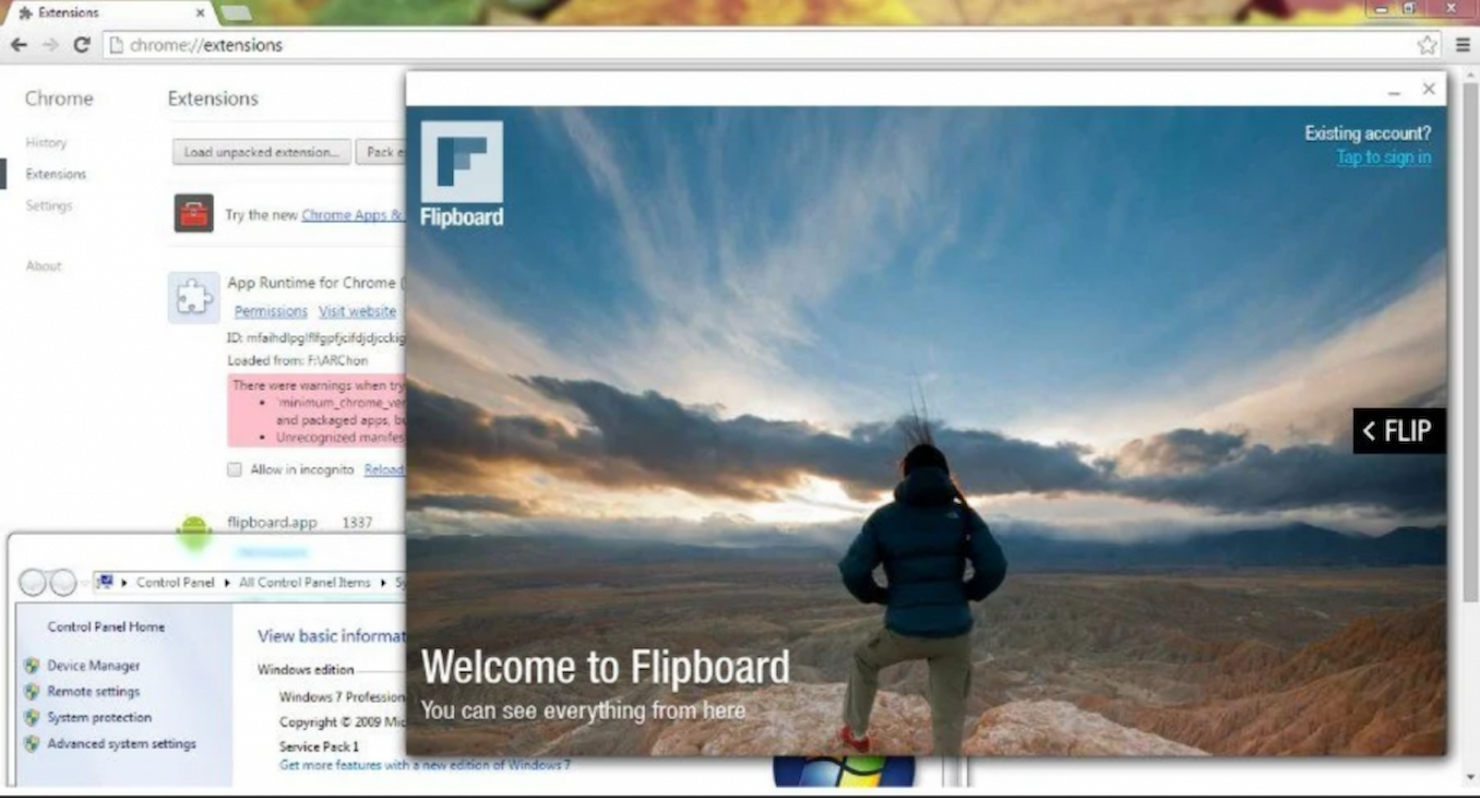
ARChon is an Android emulator for PCs that lets you run Android apps directly in the Chrome browser across Windows, macOS, Linux, and Chrome OS using a custom runtime extension.
Who Is ARChon Best For?
ARChon is a good fit for developers and technically inclined users who want to run Android apps on Chrome OS or other Chrome-supported desktop platforms without a dedicated emulator setup.
Why I Picked ARChon
ARChon earns its spot on my shortlist because of how it handles Chrome OS integration at a runtime level. Unlike traditional emulators that spin up a full virtual device, ARChon installs directly as a Chrome extension and uses Google's ARC (App Runtime for Chrome) layer to run Android APKs natively within the browser. I've used the
chromeos-apk
CLI tool to convert APKs for Chrome compatibility, and it works across 32-bit, 64-bit, and ARM-based Chromebook architectures. The ARM build support is particularly useful when running ARChon on older Chromebooks where other emulation approaches simply won't work.
ARChon Key Features
- Multiple runtime builds: ARChon offers separate runtime downloads for Intel x86 64-bit, 32-bit, and ARM architectures, so you can match the runtime to your specific hardware.
- Developer mode extension loading: You install ARChon directly through
chrome://extensionsin developer mode, letting you load and launch Android apps as unpacked Chrome extensions. - Multi-tool APK conversion support: ARChon works with several conversion utilities—including chromeos-apk (CLI), ARChon Packager (Android-based), and twerk (Chrome-based)—to package Android APKs for Chrome compatibility.
- Sample app for runtime testing: ARChon includes a downloadable sample app so you can verify the runtime is working correctly before loading your own converted APKs.
ARChon Integrations
Native integrations are not currently listed.
Pros and Cons
Pros:
- Supports multiple OS
- Open-source customization
- Flexible app version support
Cons:
- Occasional stability issues
- Limited support resources

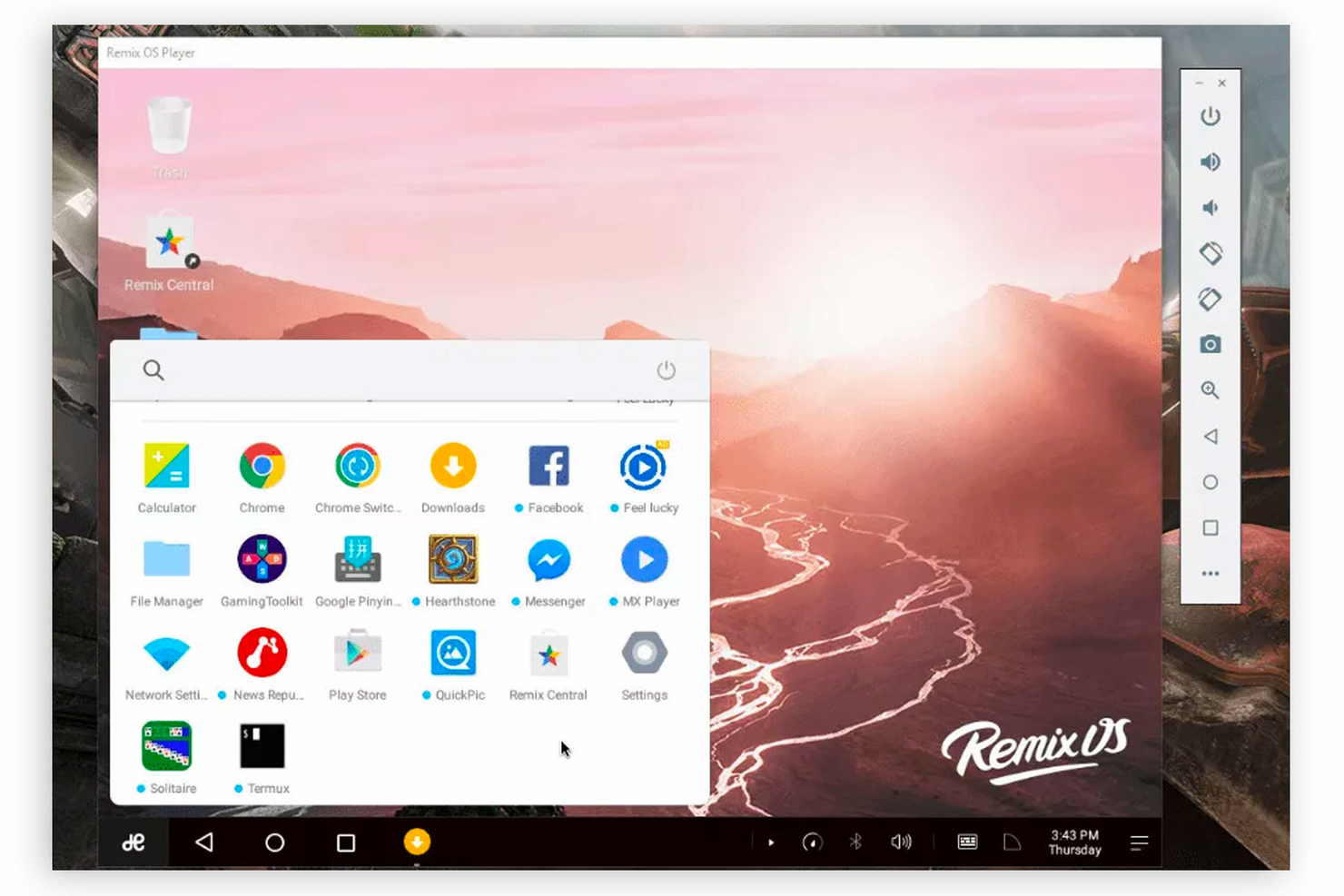
Remix OS Player is an Android emulator for Windows PCs that lets you run Android apps and games with multi-window support, keyboard mapping, and a desktop-style interface.
Who Is Remix OS Player Best For?
Remix OS Player is a good fit for Windows users who want to run Android productivity apps on a desktop environment with multitasking support.
Why I Picked Remix OS Player
I picked Remix OS Player as one of the best because of how it handles multitasking with Android productivity apps on a Windows desktop. It's built on a desktop-style Android interface, complete with a start menu, taskbar, and resizable windows—so you can run apps like Gmail alongside other Android tools without constantly switching contexts. I also like the multi-window support, which lets you keep a messaging app, email client, and a task manager open at the same time. The key-mapping tool is another practical touch, letting you bind keyboard shortcuts to Android app controls so you're not fumbling with mouse-only inputs.
Remix OS Player Key Features
- Google Play Store access: Browse and install Android apps directly from the Google Play Store within the emulator environment.
- Android-x86 foundation: Built on the open-source Android-x86 project, giving you a full desktop-grade Android OS rather than a sandboxed app container.
- Customizable toolbar: A right-hand side toolbar gives you quick access to standard Android controls like volume, rotation, Bluetooth, and Wi-Fi settings.
- App testing environment: Developers can use Remix OS Player to run and test Android applications on a Windows machine using Android Studio technology.
Remix OS Player Integrations
Native integrations are not currently listed.
Pros and Cons
Pros:
- Taskbar for quick access
- Intuitive design
- Multiple window support
Cons:
- No longer actively developed
- Performance issues on older PCs

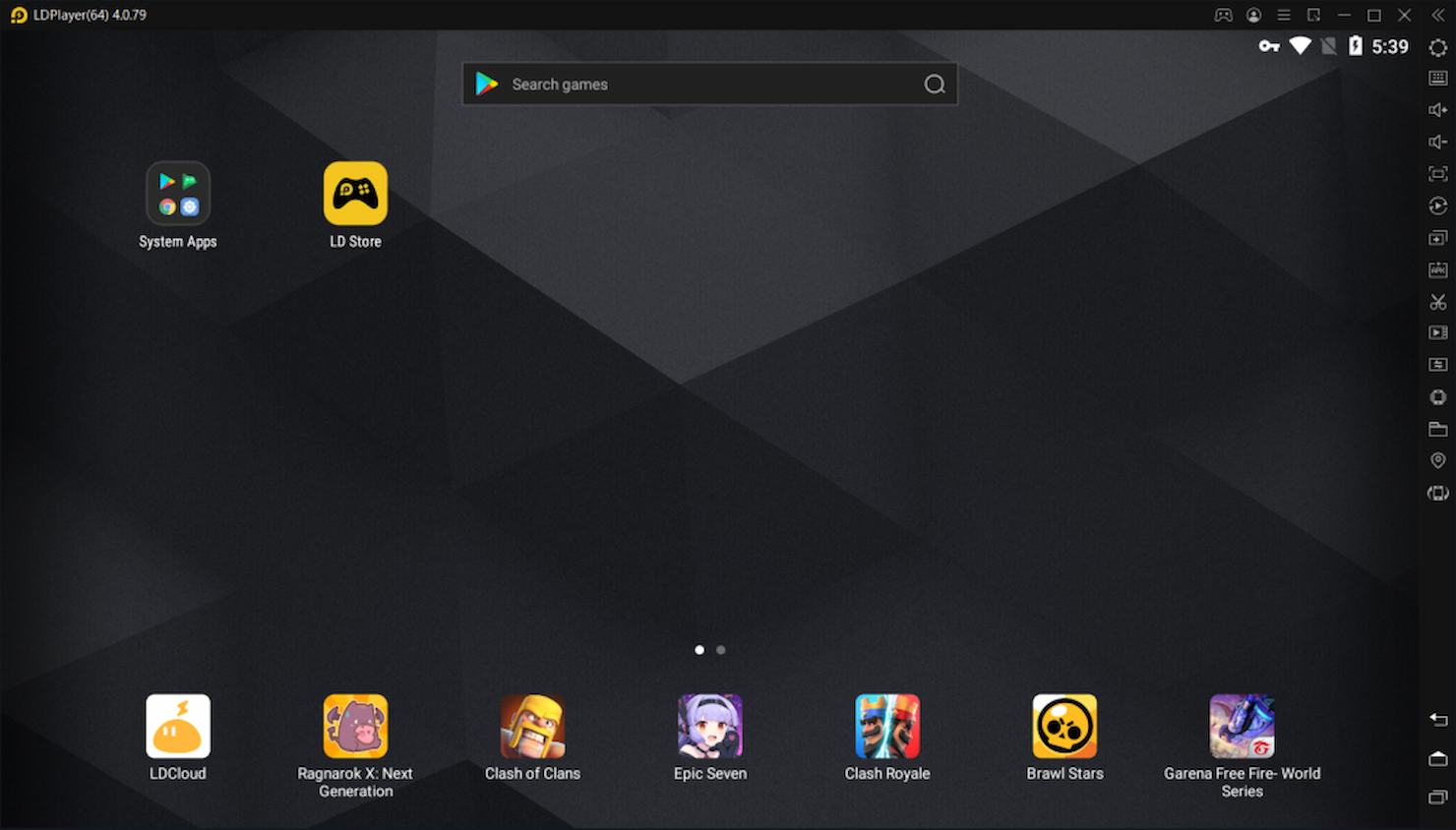
LDPlayer is a Windows-based Android emulator designed for running mobile games and apps, offering multi-instance support, keyboard mapping, and compatibility with a wide range of Android versions.
Who Is LDPlayer Best For?
LDPlayer is a good fit for mobile gamers who want to play Android games on a Windows PC with optimized performance and control customization.
Why I Picked LDPlayer
LDPlayer earns its spot on my shortlist because of how seriously it takes gaming performance at the hardware level. LDPlayer 9 can deliver stable 60 FPS even on low-end PCs, which many emulators struggle to match. The engine also optimizes CPU and GPU consumption simultaneously, allowing me to run multiple game instances without frame rate drops. The customizable keyboard mapping and gamepad support make it practical for playing titles like PUBG Mobile or Genshin Impact, giving precision controls you don't get on a touchscreen.
LDPlayer Key Features
- Multi-instance manager: Open and run multiple separate Android instances simultaneously, each with its own game session and account.
- Macro and script recorder: Record and replay sequences of in-game actions to automate repetitive tasks like farming or rerolling in gacha games.
- CPU and RAM resource allocation: Manually adjust how much CPU and RAM each emulator instance uses to match the demands of specific games or apps.
- Operations synchronization: Mirror inputs across multiple instances, so actions performed in one instance are replicated across all others.
LDPlayer Integrations
Native integrations are not currently listed.
Pros and Cons
Pros:
- Wide game compatibility
- Regular performance updates
- Multi-instance feature
Cons:
- Lacks advanced settings
- Limited customer support

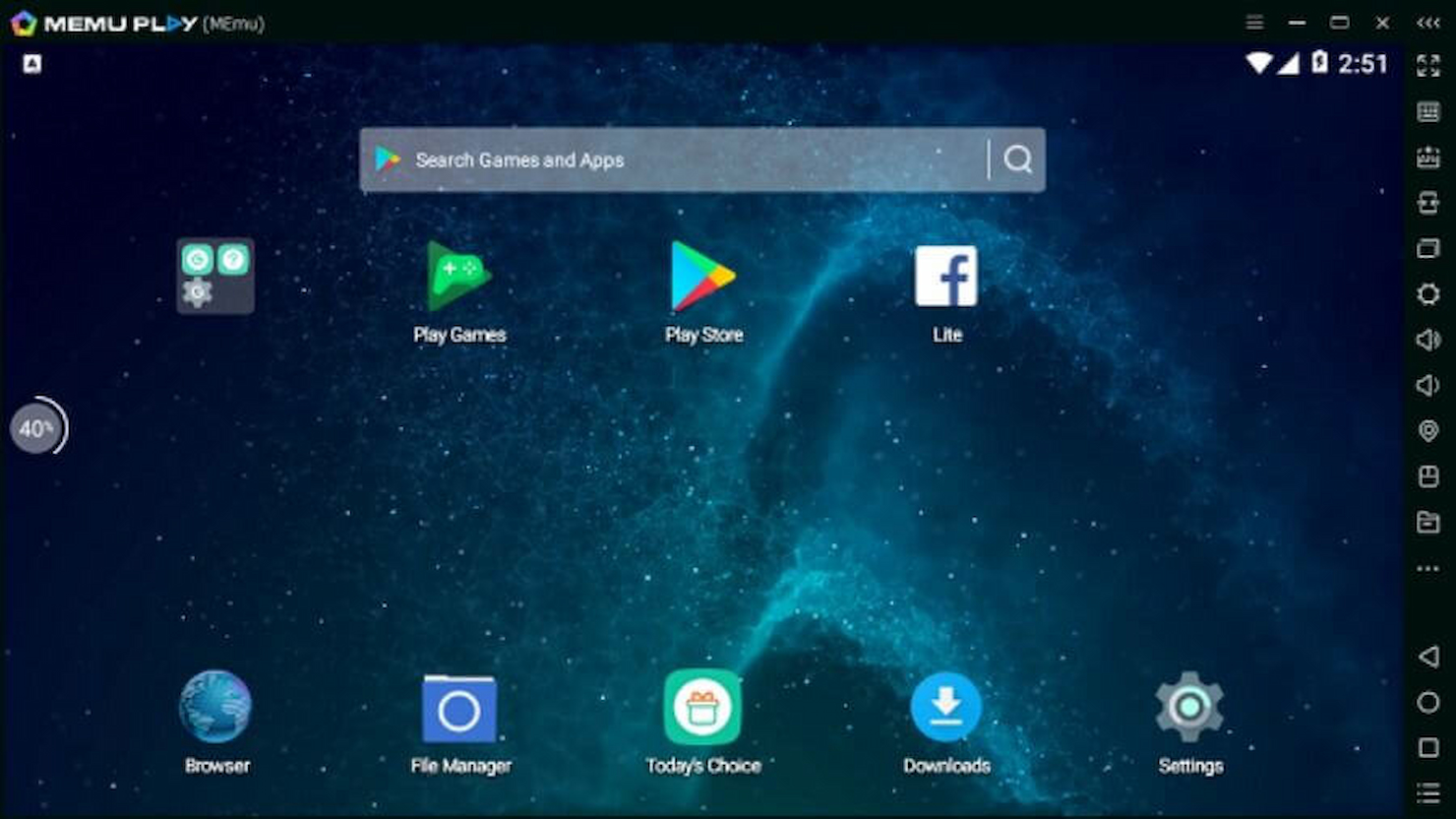
MEmu is a Windows-based Android emulator that lets you run Android apps and games on your PC, offering features like keyboard mapping, multi-instance support, and performance customization.
Who Is MEmu Best For?
MEmu is a good fit for PC users and mobile app developers who need to run a wide range of Android apps and games on Windows.
Why I Picked MEmu
MEmu earns its spot on my shortlist because it supports multiple Android kernels, improving app compatibility. Most emulators lock you into a single Android version, but MEmu lets you switch between different Android kernels—so when a specific app or game requires a particular Android version to run correctly, you're not stuck. I also like the drag-and-drop APK installation, which simplifies sideloading apps that aren't on the Google Play Store. MEmu's GPU benchmark scores are higher than competing emulators, so graphically demanding apps render correctly rather than crashing or displaying incorrectly.
MEmu Key Features
- Keyboard mapping editor: Assign keyboard keys, mouse clicks, and gamepad buttons to on-screen touch controls for any app or game.
- Multi-instance manager: Run several separate Android instances at the same time, each with its own app sessions and settings.
- Adjustable CPU and RAM allocation: Manually configure how much of your PC's processing power and memory MEmu uses per instance.
- Shared folder support: Set up a shared folder between your Windows PC and the MEmu environment to transfer files without using a cable or cloud service.
MEmu Integrations
Native integrations are not currently listed.
Pros and Cons
Pros:
- Customizable keyboard controls
- Supports multiple Android versions
- Wide app compatibility
Cons:
- Compatibility issues with some apps
- Requires frequent updates
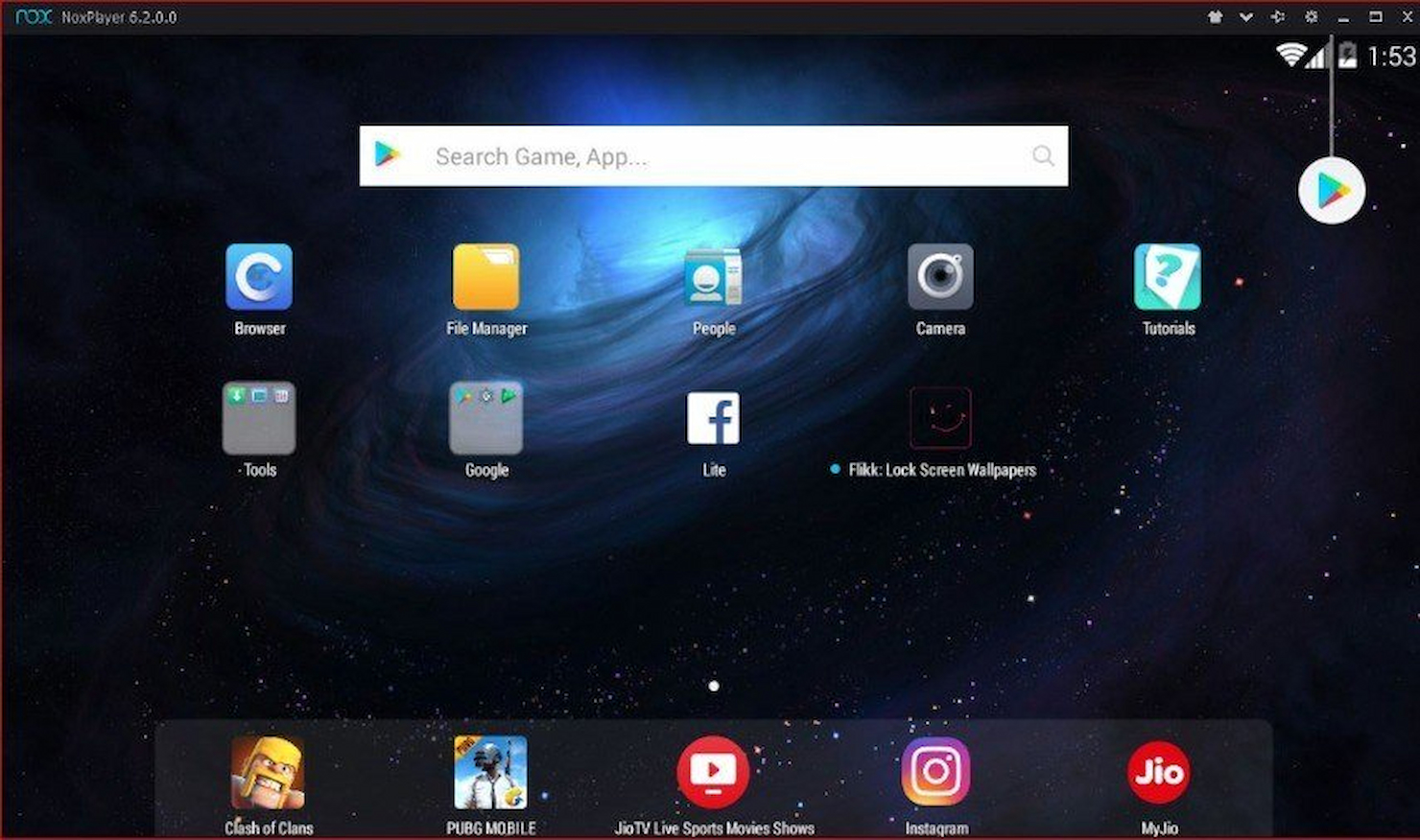
Nox Player is an Android emulator for PC users that lets you run Android apps and games on Windows and macOS, offering features like keyboard mapping, game controller support, and customizable performance settings.
Who Is Nox Player Best For?
Nox Player is a good fit for mobile gamers and app developers who need a full-featured Android environment on their desktop.
Why I Picked Nox Player
I picked Nox Player as one of the best because its multi-instance support is genuinely one of the most developed I've seen in an Android emulator. The Multi-Drive Manager lets me run multiple independent Android sessions at the same time, each with its own apps, accounts, and settings. I can use the "Extreme Multi-instance" option to batch-create several emulators at once, which is a real time-saver when I need to spin up multiple accounts for a game like Lords Mobile. The grid and diagonal arrangement views also let me organize all open instances on screen so I'm not constantly hunting for the right window.
Nox Player Key Features
- Keyboard mapping: Assign keyboard keys and mouse actions to on-screen touch controls for any Android game or app.
- Script recording: Record a sequence of in-app actions and replay them automatically with a single click.
- Customizable performance settings: Adjust CPU cores, RAM allocation, and display resolution for each emulator instance independently.
- Google Play Store access: Install and run apps directly from the Google Play Store within the emulator environment.
Nox Player Integrations
Native integrations are not currently listed.
Pros and Cons
Pros:
- High FPS support
- Custom keyboard mapping
- Multi-instance capability
Cons:
- Compatibility issues with some games
- High CPU usage
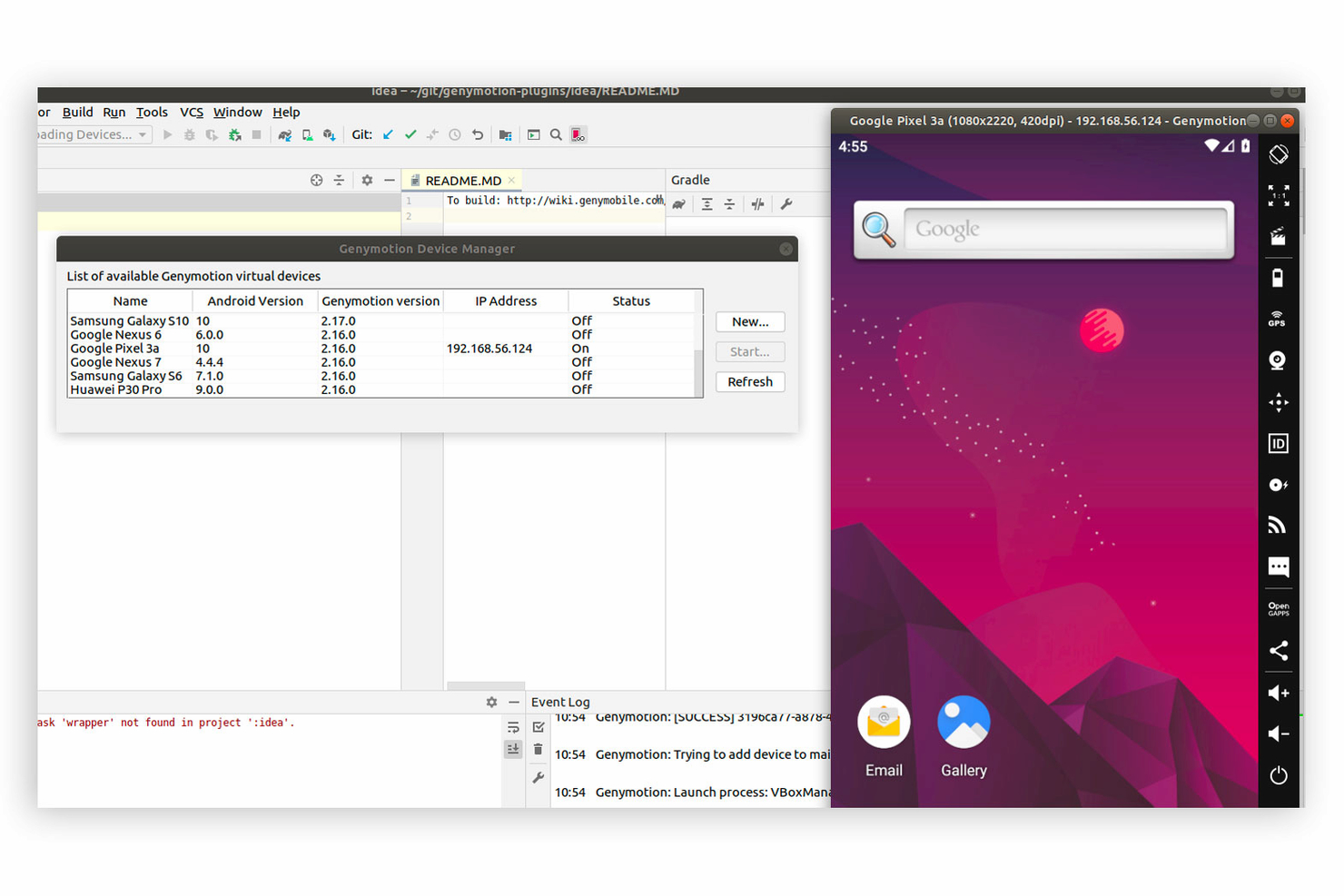
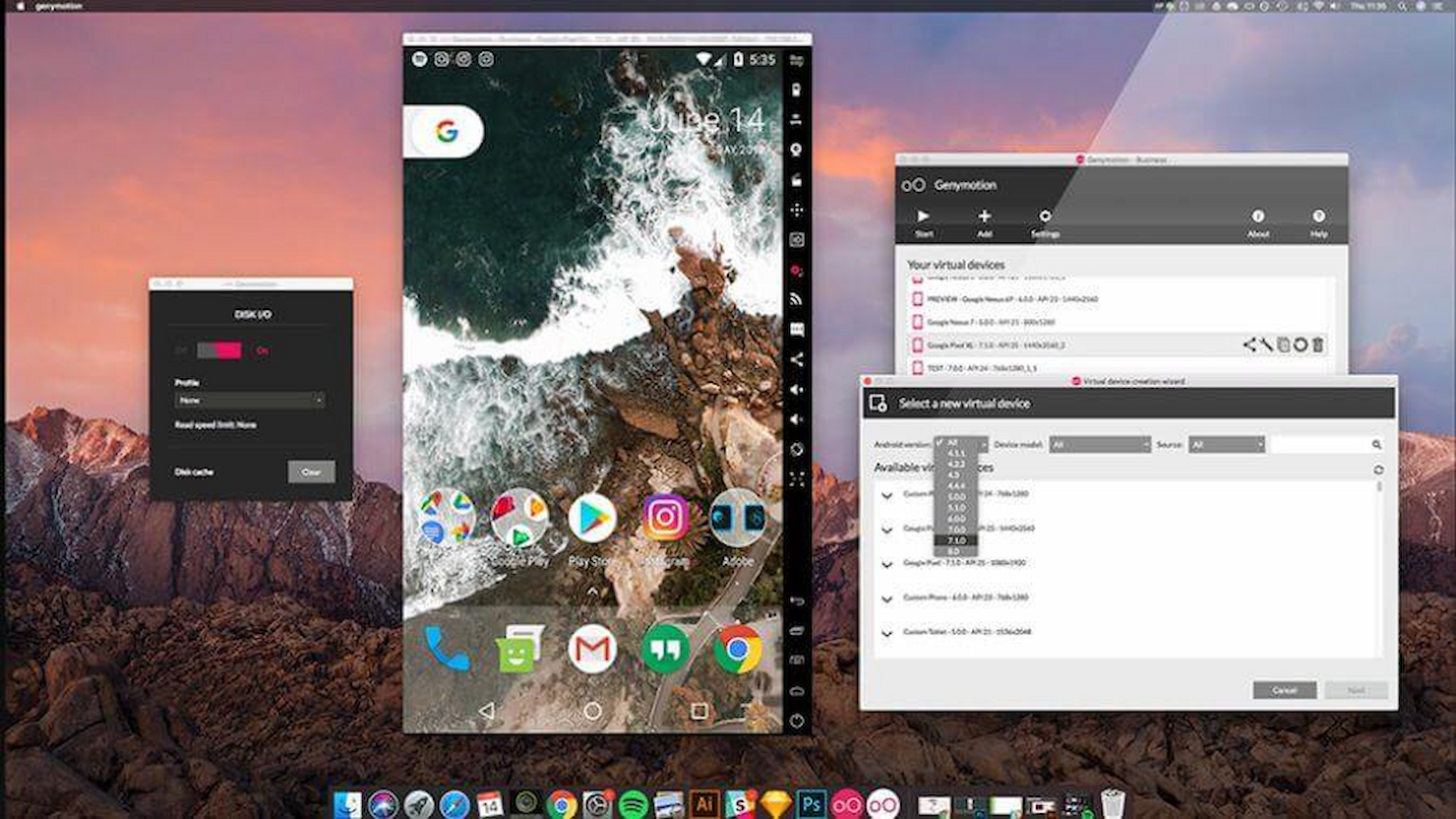
Genymotion is an Android emulator platform for PCs that lets you run virtual Android devices on both desktop and cloud, offering a wide range of device models, Android versions, and developer-focused tools for testing and automation.
Who Is Genymotion Best For?
Genymotion is a strong fit for developers and QA engineers who need scalable Android testing environments without managing local hardware.
Why I Picked Genymotion
Genymotion earns its spot on my shortlist because of how well its cloud-based emulation handles large-scale Android testing without tying up local machines. I like that Genymotion Cloud lets you spin up virtual Android devices on demand, which means my team can run parallel test sessions across multiple device configurations simultaneously. I also use the SaaS version to access pre-configured virtual devices with specific Android versions and screen resolutions, which cuts setup time significantly when reproducing device-specific bugs.
Genymotion Key Features
- GPU acceleration: Runs virtual Android devices using your host machine's GPU for full graphics performance during testing and app demos.
- Sensor simulation widgets: Simulates GPS routes, network conditions, battery states, phone calls, and SMS directly within the emulator interface.
- ARM64 device support: Creates arm64 virtual devices to run ARM-native apps and games without requiring translation layers.
- ADB compatibility: Connects virtual devices to any ADB-based IDE, including Android Studio, for direct debugging and scripting.
Genymotion Integrations
Genymotion offers native integrations with QMetry, CircleCI, Bitrise, and more.
Pros and Cons
Pros:
- Customizable device configurations
- Supports multiple Android versions
- Scalable testing environment
Cons:
- Pay-per-minute pricing model
- Can be resource-intensive

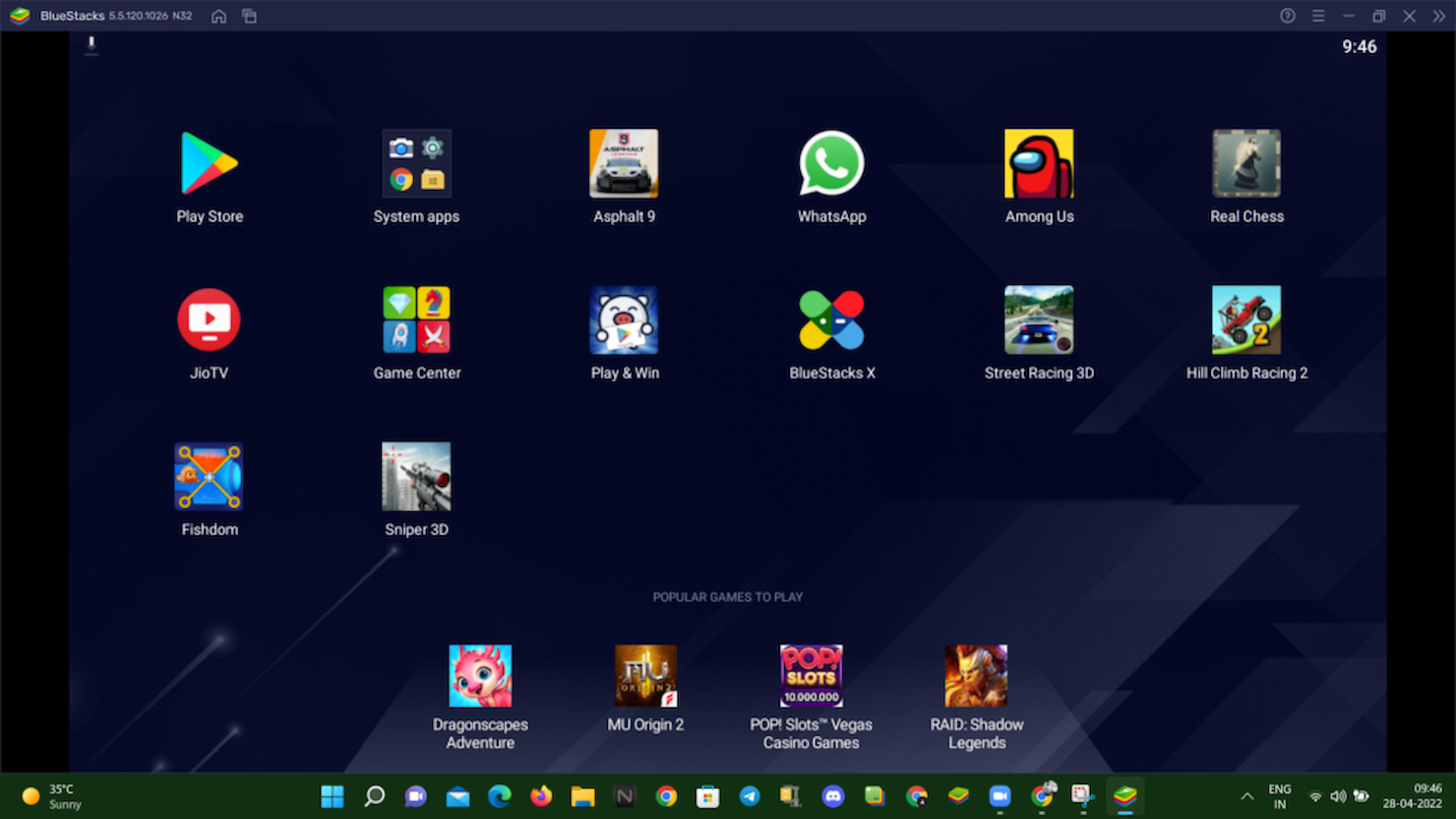
BlueStacks is an Android emulator for PCs that lets you run Android apps and games on Windows and Mac, offering features like multi-instance support, keyboard mapping, and Google Play Store access.
Who Is BlueStacks Best For?
BlueStacks is a good fit for casual users, gamers, and developers who need to run Android apps on a Windows or Mac PC without technical configuration.
Why I Picked BlueStacks
BlueStacks earns its spot on my shortlist because the setup process is one of the fastest I've seen in this category. BlueStacks 5 advertises up to 50% faster setup time than its previous version: you download an .exe file and complete installation within minutes. I also like that it ships with pre-configured controls for Mac's trackpad and keyboard, so you don't need to map inputs before getting started. The low system requirements—just 4GB of RAM and 5GB of disk space on Windows 7 or higher—mean you can run it on most machines without hardware upgrades.
BlueStacks Key Features
- Multi-instance manager: Run multiple Android app instances simultaneously, letting you play different games or use different accounts at the same time.
- Macro recorder: Record and replay sequences of in-game actions with a single keypress to automate repetitive tasks.
- Real-time translation: Translate in-game text into your local language without leaving the app.
- Eco mode: Reduce CPU and memory usage when running multiple instances in the background to keep your PC responsive.
BlueStacks Integrations
Native integrations are not currently listed.
Pros and Cons
Pros:
- Real-time translation feature
- Wide game compatibility
- Easy installation process
Cons:
- Limited customer support
- Occasional performance lags
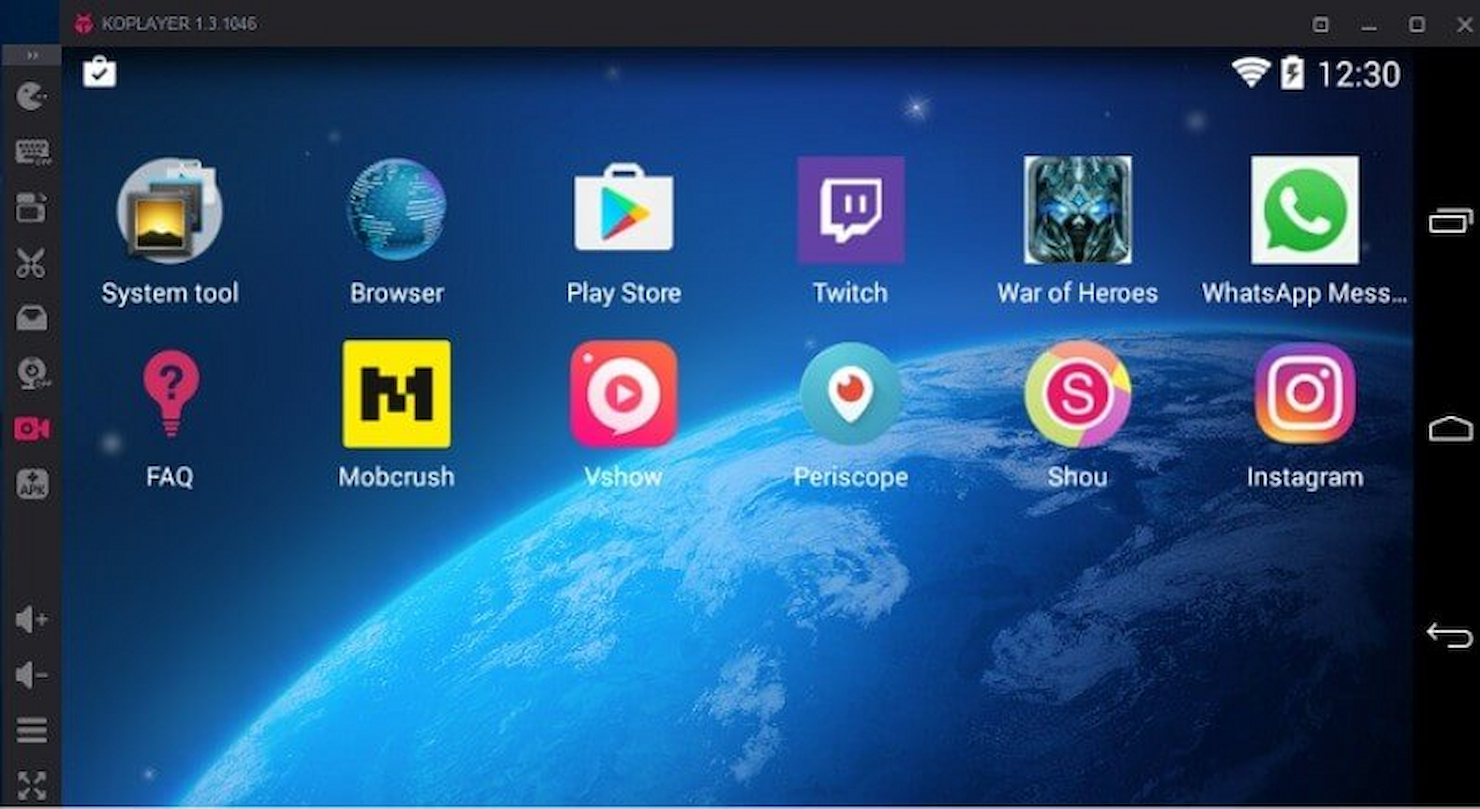
KoPlayer is an Android emulator for PCs that lets you run Android apps and games on Windows, offering features like keyboard mapping, gamepad support, and multi-instance management.
Who Is KoPlayer Best For?
KoPlayer is a good fit for mobile gamers who want to play Android games on Windows with customizable keyboard and gamepad controls.
Why I Picked KoPlayer
KoPlayer earns its spot on my shortlist because of how much control it gives you over keyboard mapping. I like that you can assign any keyboard key or mouse action to on-screen touch controls, which makes playing games like mobile MOBAs or shooters feel natural on a PC. The drag-and-drop key mapping editor is straightforward—I've set up custom control schemes in minutes without digging through complex menus. KoPlayer also supports gamepad input, so you can switch between keyboard and controller depending on the game.
KoPlayer Key Features
- Multi-instance support: Run multiple KoPlayer windows at the same time to manage several Android apps or game accounts simultaneously.
- Built-in screen recorder: Record gameplay or app activity directly within KoPlayer without needing third-party recording software.
- APK drag-and-drop installation: Install Android apps by dragging and dropping .apk files directly into the emulator, bypassing the Play Store.
- Google Play Store access: Browse, download, and install apps from the full Google Play Store library within the emulator.
KoPlayer Integrations
Native integrations are not currently listed.
Pros and Cons
Pros:
- Drag-and-drop APK installation
- Supports multiple accounts
- Multiple instance support
Cons:
- Performance lags on older PCs
- High system resource usage

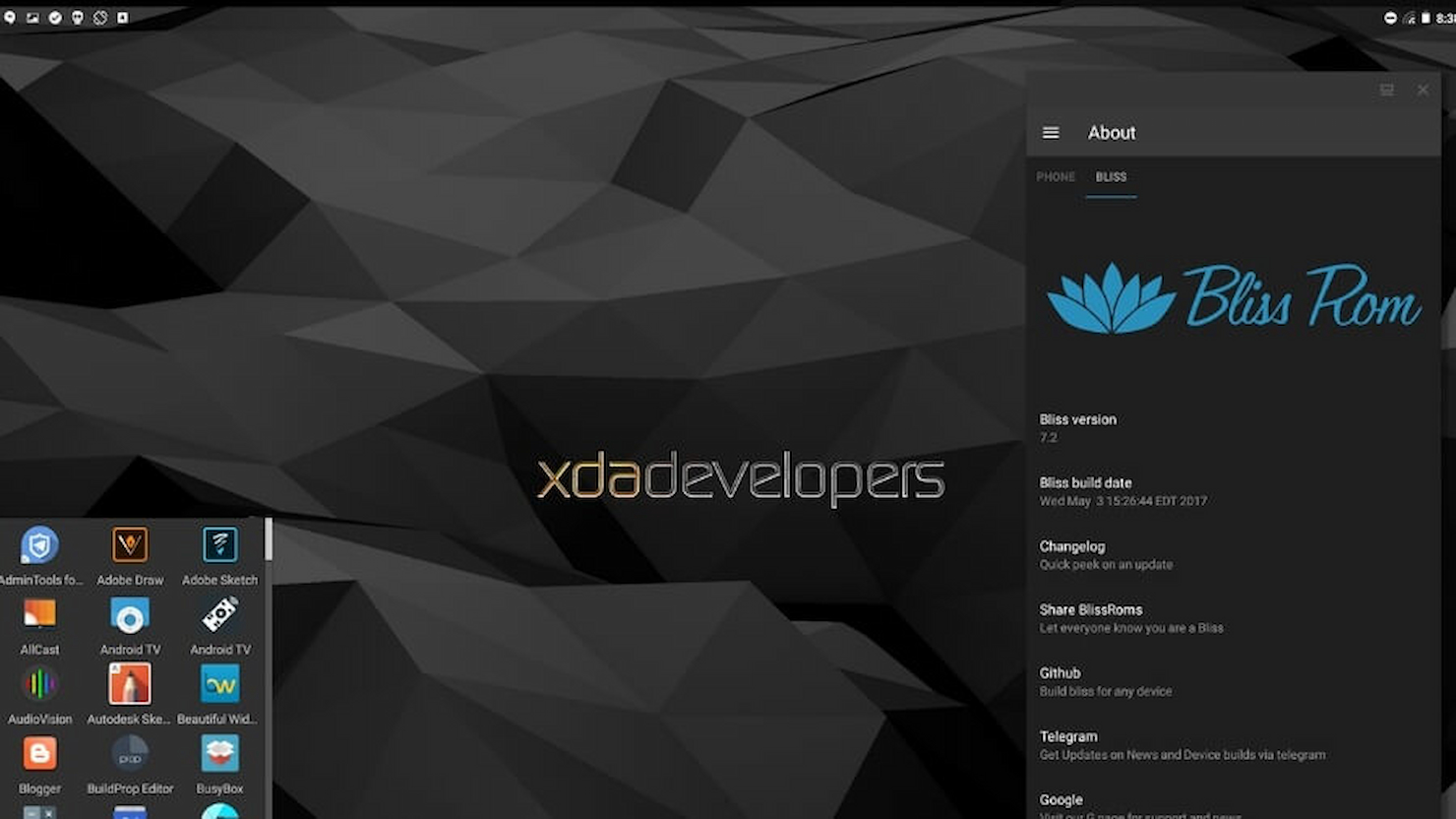
Bliss OS is an open-source Android emulator for PCs that lets you install and run a full Android operating system on x86 and ARM hardware, offering a range of interface and compatibility options for desktop environments.
Who Is Bliss OS Best For?
Bliss OS is a good fit for developers, tinkerers, and open-source enthusiasts who want a fully customizable Android environment running natively on PC hardware.
Why I Picked Bliss OS
Bliss OS is one of my top picks because I love how far its theming engine goes compared to other Android-on-PC options. Most Android emulators give you a fixed UI with little room to adjust—Bliss OS lets me dig into UI tweaks, icon packs, and system-level modifications that genuinely change how the environment looks and behaves. I also appreciate that it's built on the Android Open Source Project with a modular architecture, which means I can strip it down or build it up depending on the hardware I'm running it on. The open-source codebase is a real advantage when I need to troubleshoot or adapt the OS for a specific x86 setup.
Bliss OS Key Features
- Native-bridge ARM translation: Bliss OS includes a built-in native bridge (Intel's libhoudini or Google's libndk_translation) that lets you run ARM-based Android apps on x86 hardware without separate configuration.
- BASS (Broad Apparatus Support System): A per-device configuration layer that lets you tune hardware composer, Gralloc, audio HAL, and memory settings via kernel command line parameters.
- Multi-boot and live boot support: Install Bliss OS alongside an existing OS, run it from a bootable USB, or set it up inside a virtual machine using VirtualBox or QEMU.
- Regular security patches: Bliss OS ships with ongoing security updates and privacy-focused features built on top of the Android Open Source Project codebase.
Bliss OS Integrations
Native integrations are not currently listed. However, advanced users can extend functionality or connect with other systems through custom development and open-source contributions.
Pros and Cons
Pros:
- Focuses on speed and stability
- Emphasizes customization and theming options
- Offers a complete Android-based operating system
Cons:
- Compatibility issues with certain hardware
- May require technical knowledge for installation
Other Android Emulators
Here are some additional Android Emulator options that didn’t make it onto my shortlist, but are still worth checking out:
- Tricentis Testim Mobile
For stable mobile test automation
- Squish
For automating Android GUI tests
- TestMu AI
For cross-browser testing
- AMIDuOS
Easy to switch between Windows and Android environments, no dual boot
- Leapdroid
Fast Android O emulation for Windows that is free to use
- SmartGaga
Lightweight Android emulator for low spec PCs
- GameLoop
Android Emulator from Tencent for their own games (PUBG Mobile, Call of Duty Mobile, Auto Chess)
- Prime OS
Another Android operating system that can be used for emulation


Android Emulator Selection Criteria
When selecting the best Android Emulator to include in this list, I considered common buyer needs and pain points like compatibility with different games and efficient resource usage. I also used the following framework to keep my evaluation structured and fair:
Core Functionality (25% of total score)
To be considered for inclusion in this list, each solution had to fulfill these common use cases:
- Running Android apps on PC
- Testing app compatibility
- Customizing control settings
- Supporting multiple Android versions
- Providing a stable performance
Additional Standout Features (25% of total score)
To help further narrow down the competition, I also looked for unique features, such as:
- Multi-instance support
- Real-time translation
- Built-in video recording
- Custom keyboard mapping
- Cloud-based access
Usability (10% of total score)
To get a sense of the usability of each system, I considered the following:
- Intuitive interface design
- Ease of navigation
- Minimal learning curve
- Responsive controls
- Quick setup process
Onboarding (10% of total score)
To evaluate the onboarding experience for each platform, I considered the following:
- Availability of training videos
- Access to interactive product tours
- Presence of onboarding webinars
- Availability of chatbots for assistance
- Easy access to templates
Customer Support (10% of total score)
To assess each software provider’s customer support services, I considered the following:
- Availability of 24/7 support
- Access to a comprehensive knowledge base
- Responsiveness of support team
- Access to community forums
- Availability of live chat support
Value For Money (10% of total score)
To evaluate the value for money of each platform, I considered the following:
- Competitive pricing
- Flexibility of pricing plans
- Inclusion of essential features
- Availability of free trials
- Transparency of pricing information
Customer Reviews (10% of total score)
To get a sense of overall customer satisfaction, I considered the following when reading customer reviews:
- Consistency of positive feedback
- Frequency of reported issues
- Satisfaction with customer support
- User experience ratings
- Feedback on feature effectiveness
How to Choose an Android Emulator
It’s easy to get bogged down in long feature lists and complex pricing structures. To help you stay focused as you work through your unique software selection process, here’s a checklist of factors to keep in mind:
| Factor | What to Consider |
| Scalability | Consider whether the emulator can support your growing needs. If your team plans to test more apps or increase the number of users, ensure the tool can scale. |
| Integrations | Look for compatibility with other tools your team uses, like IDEs or CI/CD pipelines. Seamless integration can enhance productivity and workflow efficiency. |
| Customizability | Check if you can tailor features to your specific needs. Custom keyboard mappings and control settings are examples of useful customizations. |
| Ease of Use | Evaluate the user interface and how intuitive it is. A simple setup and navigation can save your team valuable time and reduce the learning curve. |
| Budget | Align the emulator's cost with your budget constraints. Consider not only the purchase price but also any hidden costs or additional features you may need. |
| Security Safeguards | Ensure the emulator provides strong security measures to protect your data and privacy. Look for encryption and compliance with industry standards. |
| Performance | Assess the emulator's capability to deliver smooth and lag-free experiences. High performance is key for testing and gaming applications. |
| Support | Consider the availability and quality of customer support. Access to timely help and resources can be crucial for resolving issues quickly. |
Trends in Android Emulators
In my research, I sourced countless product updates, press releases, and release logs from different iOS emulator and Android emulator vendors. Here are some of the emerging trends I’m keeping an eye on:
- Cloud-Based Emulation: More vendors are shifting to cloud-based solutions, allowing users to access emulators from anywhere without needing powerful local hardware. This trend is particularly useful for remote teams and businesses looking to reduce hardware costs.
- AR and VR Support: Emulators are beginning to support augmented reality (AR) and virtual reality (VR) applications, expanding their use cases beyond traditional apps. This trend is essential for developers working on immersive technologies.
- High-Fidelity Graphics: There's a growing focus on delivering high-fidelity graphics to enhance gaming and app testing experiences. Vendors like BlueStacks are pushing the envelope with enhanced graphics rendering capabilities.
- Cross-Platform Compatibility: Emulators are increasingly offering support for multiple operating systems, not just Android. This cross-platform approach helps developers test their apps in diverse environments, making their products more versatile.
- Energy Efficiency Testing: Some emulators now include features to test app energy consumption, helping developers optimize apps for better battery life. This trend is crucial as users demand longer battery performance from their devices.
What Is an Android Emulator?
An Android emulator is a tool that lets users run Android apps and operating systems on a computer by creating a virtual Android device. Developers, testers, and QA professionals use these tools to test apps across different devices and Android versions without needing physical hardware.
Features like virtual device creation, performance profiling, and debugging tools help with faster testing, troubleshooting, and app optimization. Overall, Android emulators make it easier and more efficient to build, test, and refine mobile applications in a controlled environment.
Features of Android Emulators
When selecting Android Emulator, keep an eye out for the following key features:
- Cloud-based access: Allows users to run emulators without needing powerful local hardware, ideal for remote teams and cost savings.
- Multi-instance support: Enables running multiple apps or games simultaneously, enhancing multitasking and testing capabilities.
- Custom keyboard mapping: Provides the ability to customize controls, offering users a tailored gaming experience.
- High-fidelity graphics: Delivers enhanced graphics rendering for a better visual experience, especially important for gaming and app testing.
- Cross-platform compatibility: Supports multiple operating systems, allowing developers to test apps in diverse environments.
- Energy efficiency testing: Helps developers optimize apps for better battery life by testing energy consumption.
- Real-time translation: Offers translation of game or app content, making it easier to play or test applications in different languages.
- Built-in video recording: Allows users to capture gameplay or testing sessions, useful for reviews or demonstrations.
- Virtual location feature: Simulates different geographical locations, aiding in the testing of location-based apps.
- Taskbar and multiple window modes: Provides a desktop-like interface for productivity, allowing users to manage and switch between tasks easily.
Benefits of Android Emulators
Implementing Android Emulator provides several benefits for your team and your business. Here are a few you can look forward to:
- Cost savings: Running emulators in the cloud reduces the need for physical devices, cutting down hardware expenses.
- Enhanced testing capabilities: Features like multi-instance support and cross-platform compatibility allow thorough testing across different environments.
- Improved user experience: High-fidelity graphics and custom keyboard mapping provide a better gaming and app interaction experience.
- Flexibility in app development: Energy efficiency testing and virtual location features help developers optimize apps for various conditions.
- Global reach: Real-time translation makes it easier to test and use apps in multiple languages, expanding your audience.
- Increased productivity: Taskbar and multiple window modes offer a desktop-like interface, aiding in efficient multitasking.
- Data-driven insights: Built-in video recording allows for capturing and analyzing gameplay or test sessions, providing valuable feedback.
Costs and Pricing of Android Emulators
Selecting Android Emulator requires an understanding of the various pricing models and plans available. Costs vary based on features, team size, add-ons, and more. The table below summarizes common plans, their average prices, and typical features included in Android Emulator solutions:
Plan Comparison Table for Android Emulators
| Plan Type | Average Price | Common Features |
| Free Plan | $0 | Basic app support, limited customization, and community support. |
| Personal Plan | $5-$25/ user/month | Custom keyboard mapping, multi-instance support, and basic customer support. |
| Business Plan | $30-$60/ user/month | Advanced testing tools, high-fidelity graphics, and priority customer support. |
| Enterprise Plan | $70-$150/ user/month | Cloud-based access, cross-platform compatibility, and dedicated account management. |
Android Emulator FAQs
Here are some answers to common questions about Android Emulators:
Which Android emulators offer integration with CI/CD pipelines?
Yes, several Android emulators support CI/CD pipeline integration. Tools like Android Studio Emulator, Genymotion, and Firebase Test Lab can be automated within popular build tools such as Jenkins or GitHub Actions. This lets your team run automated tests, deploy builds, and streamline app quality checks without manual intervention.
Are there Android emulators optimized for ARM or x86 architectures?
Yes, many Android emulators offer options for both ARM and x86 architectures. Genymotion and Android Studio Emulator support x86 images for faster performance on most PCs, while ARM emulation is available for compatibility testing. Always match your emulator architecture to your development and testing needs.
What are typical hardware requirements for running enterprise-scale Android emulators?
You’ll need at least a multi-core CPU (Intel i5/i7 or equivalent), 16GB RAM, and dedicated SSD storage to efficiently run several emulator instances. For larger teams or intensive use, use hardware virtualization (Intel VT-x or AMD-V) and consider cloud-based options to avoid local resource bottlenecks.
How can I automate app testing using Android emulators?
You can automate app testing by integrating emulators with testing frameworks like Espresso, Appium, or Robot Framework. Pair these with your CI/CD tools so every commit or build triggers automated tests on emulator instances, helping you find issues early and improve release quality.
Do any Android emulators support cloud-based device farms for large teams?
Yes, solutions like Firebase Test Lab, AWS Device Farm, and Genymotion Cloud provide cloud-based Android emulators. These platforms let multiple team members run large-scale automated or manual tests on different virtual devices at once, improving collaboration and scalability.
How can I improve the performance of my Android Emulator?
You can boost emulator performance by enabling hardware virtualization, allocating more memory, and using x86 system images. Disabling unnecessary graphics features and closing other heavy applications on your PC will also help your emulators run smoother.
Can I run multiple instances of an Android Emulator?
Yes, most Android emulators let you run multiple instances at once. This is useful for parallel testing across different device profiles or OS versions. Make sure your hardware can handle the extra load.
Is it safe to use Android Emulators on my PC?
Yes, running reputable Android emulators is generally safe, especially if you download them from official sources. Always check emulator permissions and avoid installing unknown APKs. For sensitive projects, use enterprise security controls and run emulators in isolated environments.
What's Next?
If you're in the process of researching android emulator, connect with a SoftwareSelect advisor for free recommendations.
You fill out a form and have a quick chat where they get into the specifics of your needs. Then you'll get a shortlist of software to review. They'll even support you through the entire buying process, including price negotiations.