

Testing Android apps on a Mac isn’t always smooth sailing. You might run into sluggish performance, limited device support, or tools that just weren’t built with developers in mind. Whether you're debugging an app, sideloading APKs, or just trying to replicate a real-device experience, the emulator you choose can seriously impact your workflow.
Over the past few years, I’ve tested a wide range of Android emulators while working on cross-platform projects and collaborating with dev teams that rely on macOS. I've seen firsthand which ones are reliable, developer-friendly, and actually deliver what they promise.
In this guide, I’ll break down the best Android emulators for Mac—based on real testing—not just specs or feature lists. Whether you need something lightweight for quick testing or a more full-featured virtual device, I’ll help you find the right fit.
Why Trust Our Software Recommendations
6,700+
Reviews
20
Industry experts
16+
Evaluation factors
14
Years
Our team has been testing and reviewing software since 2012. As tech leaders ourselves, we know how difficult—and important—it is to choose the right software.
For this guide, we evaluated tools using hands-on testing and independent research, scoring tools using our selection criteria.
Our reviews reflect our human editorial judgment, not a sales pitch.
Expert reviewers:
- Paulo Gardini MiguelTech Director
 Tim FisherVP of AI
 Gabriel RosasTech Lead & Software Architect
 Christhian GruhnTech Lead & Platform Architect

Android Emulators For Mac Comparison Table
This comparison table summarizes pricing details for my top android emulators for Mac selections:
| Tool | Best For | Trial Info | Price | ||
|---|---|---|---|---|---|
| 1 | Best for CI/CD-scale Android test coverage | 28-day free trial + free demo available | From $39/month (billed annually) | Website | |
| 2 | Best for CI/CD-driven mobile QA teams | Free trial + free demo available | From $83/month | Website | |
| 3 | Best with dedicated private device lab options | Free plan available | From $250/month | Website | |
| 4 | Best for emulating game experience | Free plan available | Free plan available | Website | |
| 5 | Best for browser-based CI/CD pipeline testing | Free plan + free demo available | From $59/month (billed annually) | Website | |
| 6 | Best with 150+ third-party tool integrations | Free trial available | From $29/user/month (billed annually) | Website | |
| 7 | Best for app development | Free plan available | Free plan available | Website | |
| 8 | Best for cloud-scale Android device fleet testing | Free plan available | From $239.99/computer/year | Website | |
| 9 | Best for Apple Silicon Android gaming on Mac | Free plan available | Free plan available | Website | |
| 10 | Best for CI/CD Android test automation at scale | Free plan available | Pricing upon request | Website |


Best Android Emulators For Mac Reviews
Below are my detailed summaries of the best Android emulators for Mac that made it onto my shortlist. My reviews offer a detailed look at the key features, pros & cons, integrations, and ideal use cases of each tool to help you find the best one for you.
 Best for CI/CD-scale Android test coverage
- 28-day free trial + free demo available
- From $39/month (billed annually)
Visit WebsiteCustomer Rating:4.3/5This rating combines scores from multiple user review sites to reflect overall customer sentiment about the product.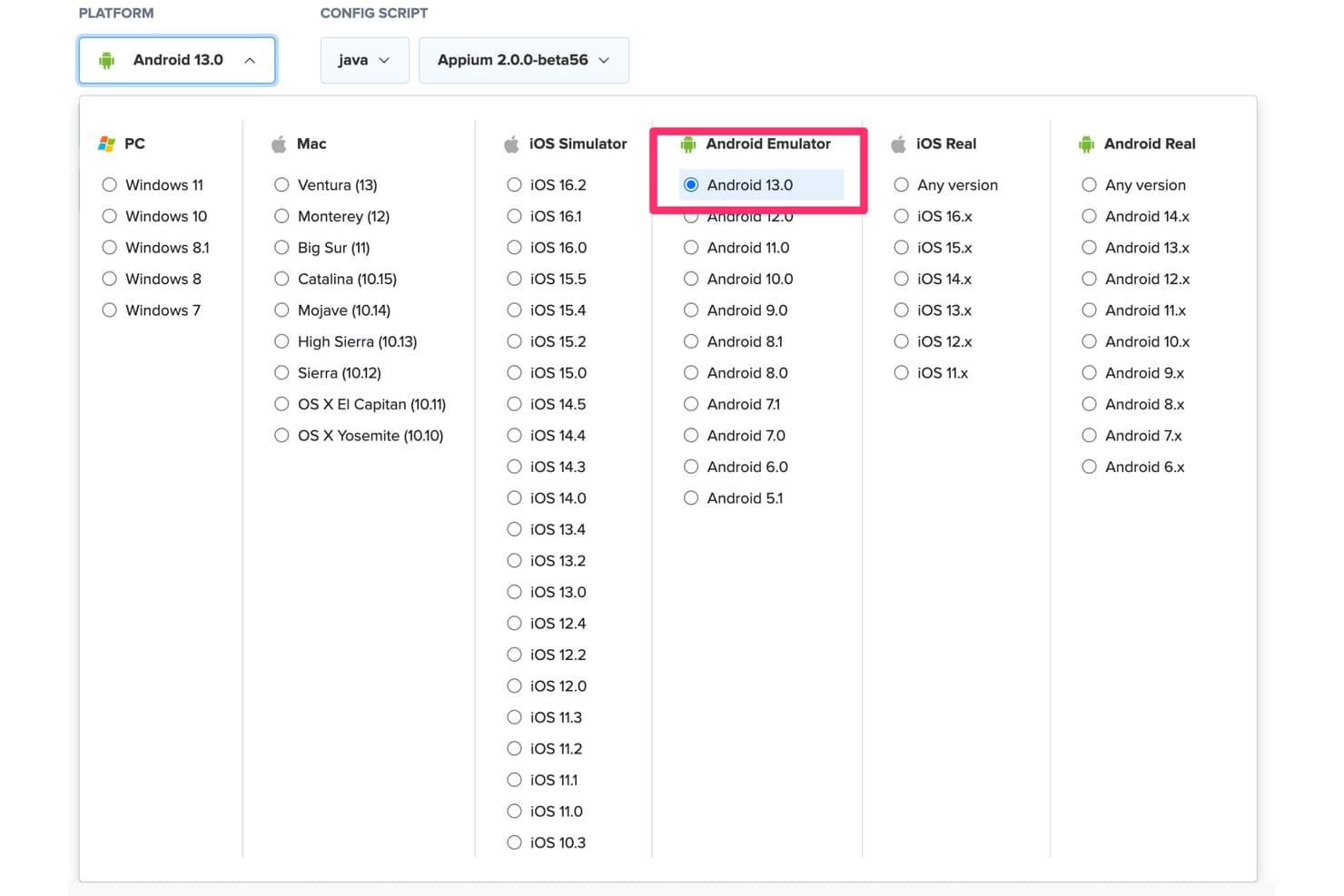
Sauce Labs supports Android Emulator testing on Android 13.0 via Java and Appium. Sauce Labs is a cloud-based Android testing platform that gives you on-demand access to 1,700+ virtual Android emulators spanning Android 5.0 through 16.x, with ARM-native execution, parallel test runs, and deep integration with Appium, Espresso, and major CI/CD pipelines.
Who Is Sauce Labs Best For?
Sauce Labs is a strong fit for QA engineers and DevOps teams that need to run Android tests at CI/CD scale without managing local emulator infrastructure.
Why I Picked Sauce Labs
I picked Sauce Labs as one of the best because it's the only platform I know of that delivers ARM-native Android execution at CI/CD scale, which directly solves the flakiness and slowness that plague x86-based cloud emulators. Session start times drop from ~90 seconds to ~20 seconds on the Android Premium Cloud, and I've seen teams run across 24+ concurrent Android versions without touching a local emulator setup. If your Mac-based QA pipeline is the bottleneck, Sauce Labs removes it entirely.
Sauce Labs Key Features
- ARM-native Android execution: The Android Premium Cloud runs virtual Android devices on ARM hardware, eliminating the x86 binary translation layer that causes test flakiness and slow session starts.
- Parallel test concurrency: Plans support up to 24+ simultaneous Android emulator sessions, letting your team run full device-version matrices in a single pipeline trigger.
- saucectl CLI: A command-line tool that handles APK/AAB uploads and Espresso test execution directly from your terminal, fitting naturally into scripted build workflows.
- Single-use VM sessions: Each emulator session spins up on a fresh virtual machine and is wiped after the session ends, giving every test run a clean, isolated environment.
Sauce Labs Integrations
Sauce Labs offers native plugins for Jenkins, Bitbucket, and TeamCity, plus documented integrations with GitHub Actions, GitLab, CircleCI, and Azure DevOps. Appium, Espresso, the
saucectlCLI, and REST API support custom CI/CD workflows from a Mac.Pros and Cons
Pros:
- Supports massive parallel version concurrency
- Runs ARM-native Android sessions in cloud
- No local Mac setup required for testing
Cons:
- Real-time app interactions limited by network latency
- Does not run natively on macOS
Learn more about Sauce Labs: Best for CI/CD-driven mobile QA teams
- Free trial + free demo available
- From $83/month
Visit WebsiteCustomer Rating:4.3/5This rating combines scores from multiple user review sites to reflect overall customer sentiment about the product.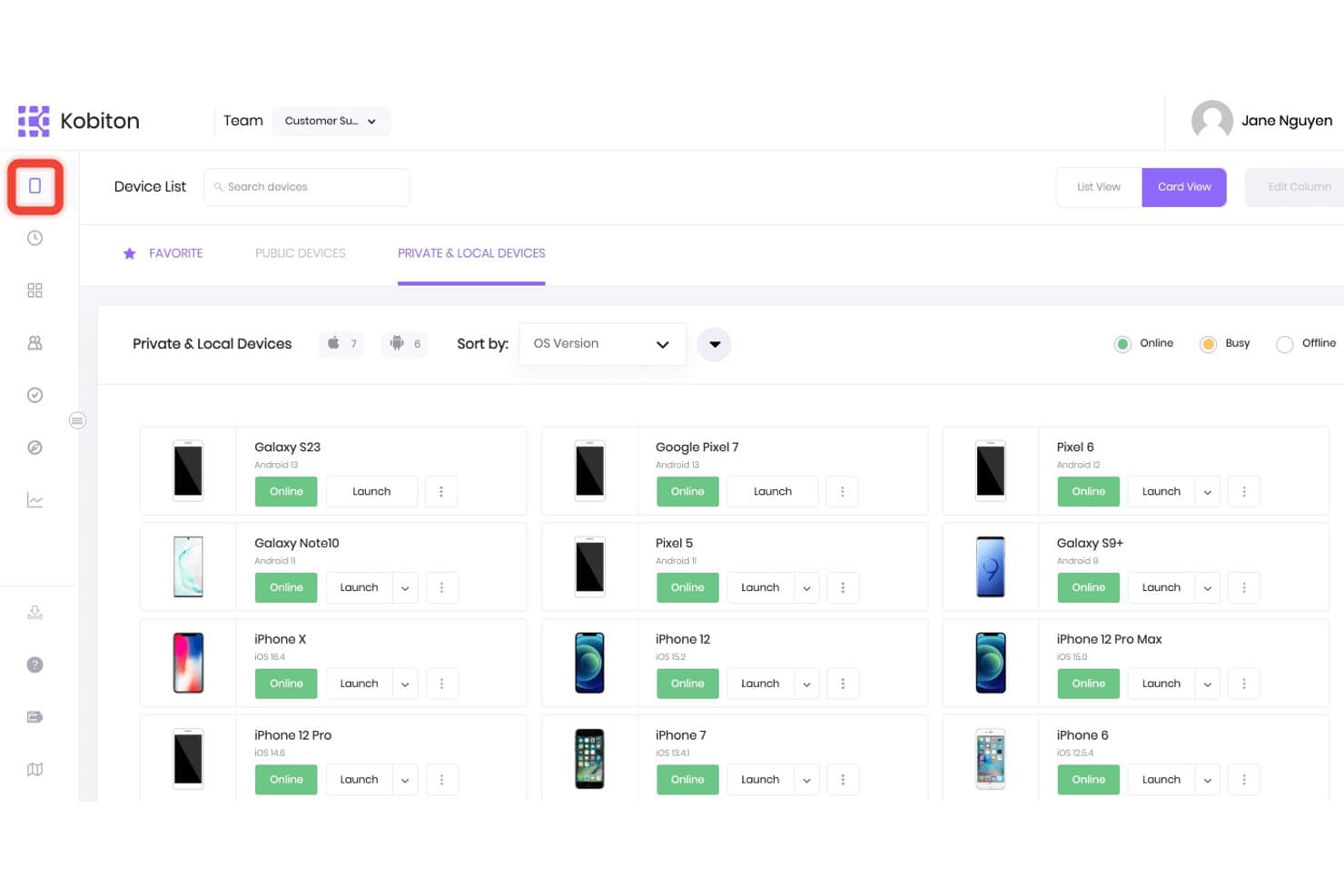
Kobiton lets users browse and launch private and local devices. Kobiton is a cloud-based mobile testing platform that gives teams browser-accessible Android device testing—combining real device access, virtual emulators, and AI-assisted test automation across a wide range of OS versions and manufacturers.
Who Is Kobiton Best For?
Kobiton is a strong fit for QA and DevOps engineers who need cloud-based Android testing woven directly into automated CI/CD pipelines.
Why I Picked Kobiton
I've included Kobiton in my top picks because it's the strongest option for QA and DevOps teams who need Android testing built directly into a CI/CD pipeline. Where local emulators fall short in automation depth, Kobiton fills the gap with scriptless test recording that auto-generates Appium scripts and self-healing script execution that adapts when UI elements change. Its Session Explorer lets you replay test sessions, inspect screen load times, and file bugs to Jira without leaving the platform.
Kobiton Key Features
- Parallel device execution: Run test sessions across multiple Android OS versions and device profiles simultaneously within a single pipeline run.
- Camera image injection: Replace a device's live camera feed with custom images or video to test barcode scanning, OCR, and augmented reality workflows.
- GPS location mocking: Set virtual GPS coordinates on cloud-hosted Android devices to validate geofencing and location-dependent app behavior.
- Air-gapped deployment support: Deploy Kobiton entirely on-premises or in a fully isolated environment for teams with strict data governance or compliance requirements.
Kobiton Integrations
Kobiton integrates with Jenkins, GitHub Actions, CircleCI, Bitrise, Azure DevOps, TeamCity, Buildkite, Jira, Appium, Espresso, and XCUITest. Its API supports custom CI/CD workflows and automated mobile testing.
Pros and Cons
Pros:
- Parallel test execution across multiple devices
- Strong CI/CD pipeline and automation features
- Access to real devices and emulators remotely
Cons:
- Requires stable internet for all device sessions
- No native emulator runs on Mac locally
Learn more about Kobiton: Best with dedicated private device lab options
- Free plan available
- From $250/month
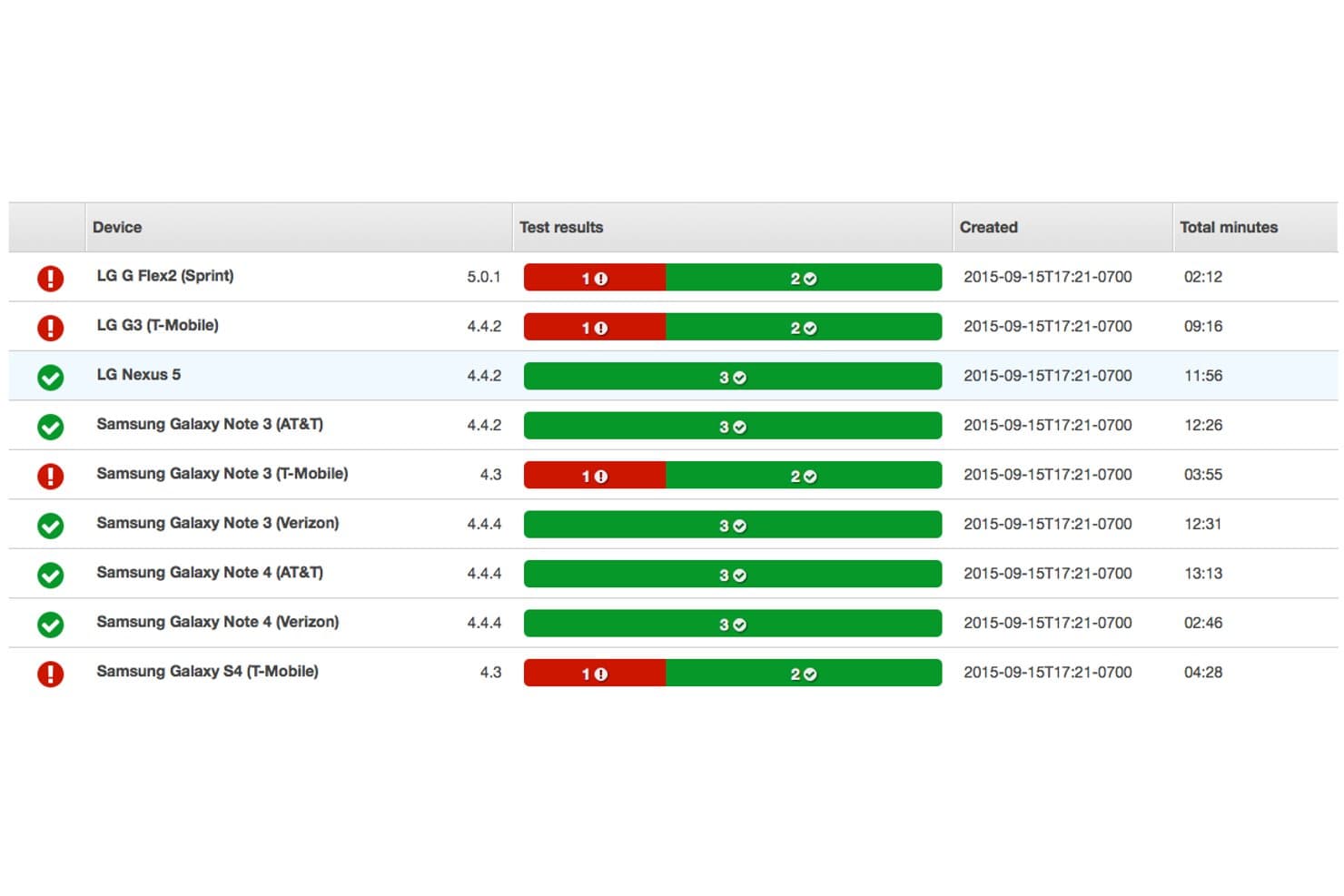
AWS Device Farm displays real Android device test results with pass/fail statuses, OS versions, and total test duration per device. AWS Device Farm is a cloud-based device testing platform designed for developers who need to run Android apps on real devices and browsers from their Mac.
Who Is AWS Device Farm Best For?
Mobile QA teams and developers at technology companies that need access to a wide range of real Android devices for thorough app testing at scale.
Why I Picked AWS Device Farm
I picked AWS Device Farm as one of the best because I can reserve private Android devices in a cloud lab, ensure sensitive apps never share hardware with competitors, and run parallel, automated tests on real hardware from my Mac.
AWS Device Farm Key Features
- Automated test suite support: Run tests using frameworks like Appium, Espresso, Calabash, and XCTest.
- Live device access: Interact with real Android devices for manual testing directly from your Mac.
- Deep diagnostic logs: Capture video, screenshots, and performance data from each test session.
- Device state configuration: Change settings like location, language, or network to simulate real-world conditions.
AWS Device Farm Integrations
AWS Device Farm offers native integrations with Jenkins, Android Studio, and the broader AWS ecosystem, including CodePipeline and S3. An API is available for custom integrations and test automation workflows.
Pros and Cons
Pros:
- Offers device state and environment configuration
- Supports both manual and automated testing
- Access to a wide real device library
Cons:
- Not suitable for offline or local-only testing
- Queues can delay access to popular devices
Learn more about AWS Device Farm:
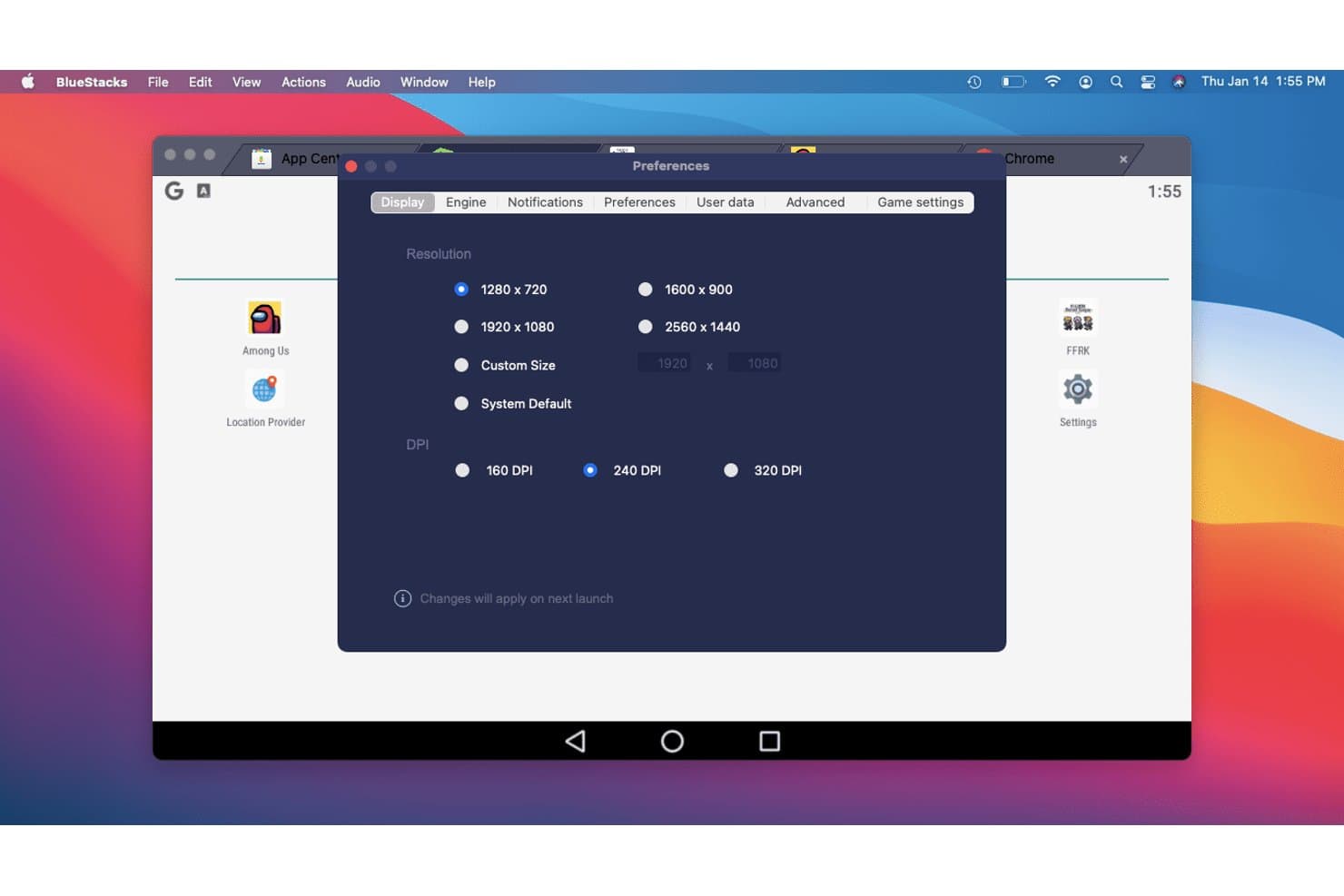
BlueStacks lets users customize display resolution and DPI settings. BlueStacks Air is a native ARM64 Android emulator for Apple Silicon Macs that runs Android 13 apps and games through a fully integrated Google Play Store, multi-instance manager, and Vulkan-accelerated graphics engine.
Who Is BlueStacks Best For?
BlueStacks Air is the go-to pick for casual gamers and mobile gaming enthusiasts who want to play Android games on an Apple Silicon Mac without any technical setup.
Why I Picked BlueStacks
BlueStacks Air earns its spot on my list because no other Mac Android emulator comes close for gaming. It's a native ARM64 build with Vulkan-accelerated graphics and up to 240 FPS support, so titles like Genshin Impact and Call of Duty: Mobile run with real fluidity on Apple Silicon. The Multi-Instance Manager lets you run several game accounts simultaneously, each with its own CPU and RAM allocation.
BlueStacks Key Features
- Google Play Store integration: Access the full Play Store with your Google account, including in-app purchases and cloud sync, without sideloading APKs.
- Multi-Instance Manager: Run multiple independent Android sessions simultaneously, each with its own CPU, RAM, and resolution settings.
- BlueStacks AI (BlueAI): An AI layer that performs in-app actions automatically, with support for third-party LLM providers via your own API key.
- Eco Mode: Reduces CPU and GPU usage for background instances so your Mac stays responsive while multiple sessions run.
BlueStacks Integrations
BlueStacks has native Google Play Store integration and supports ADB connections through port 5555. BlueAI connects with OpenAI and Anthropic through your API key, while macOS integration supports Mission Control, full-screen mode, keyboard shortcuts, and multiple monitors.
Pros and Cons
Pros:
- Multi-instance manager for parallel sessions
- Smooth gameplay with up to 240 FPS
- Native support for Apple Silicon Macs
Cons:
- Only emulates Android 13 version
- No support for Intel-based Macs
Learn more about BlueStacks: Best for browser-based CI/CD pipeline testing
- Free plan + free demo available
- From $59/month (billed annually)
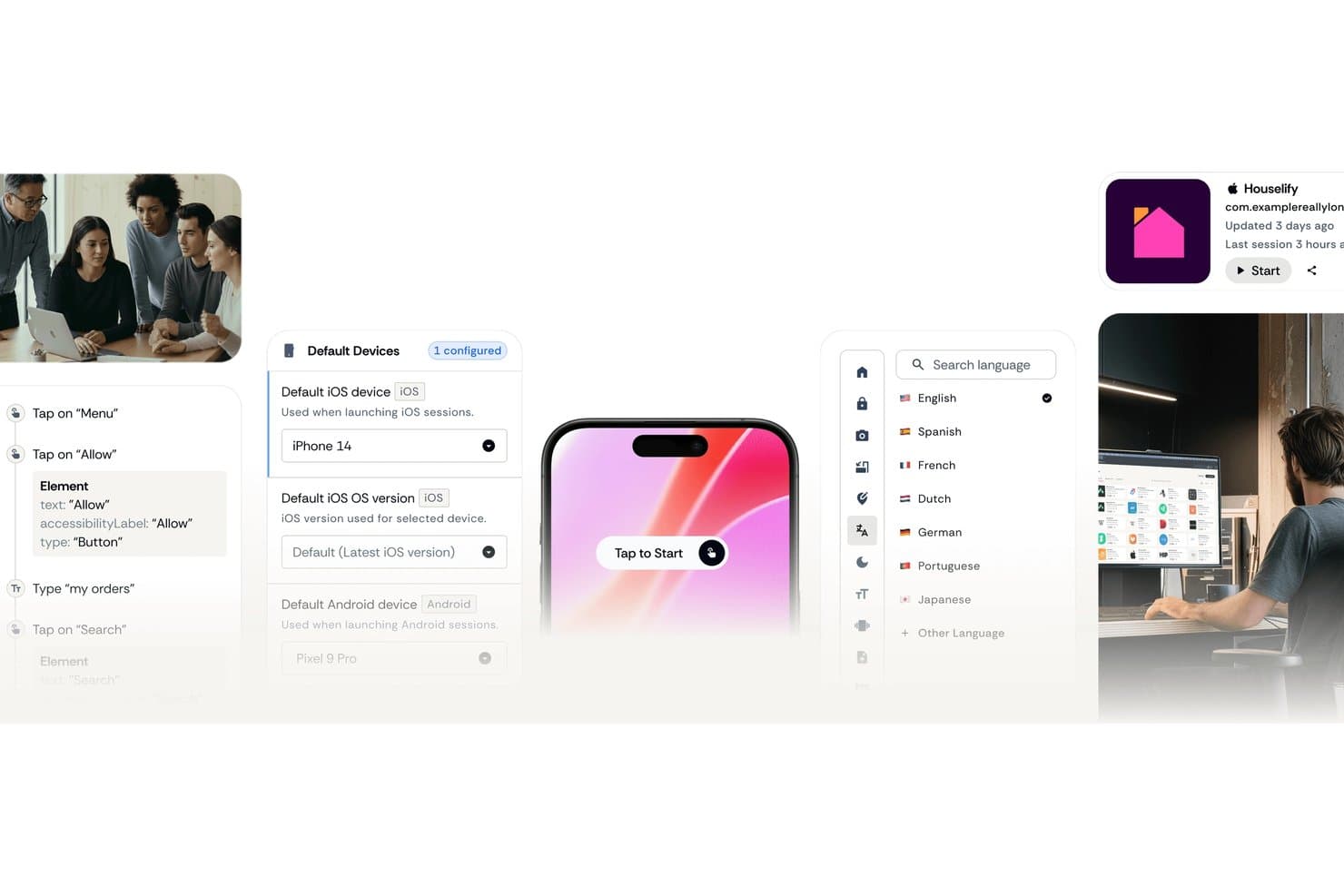
Appetize.io lets users configure default iOS and Android devices for testing. Appetize.io is a cloud-based Android emulator that runs entirely in your browser, offering APK upload and playback, multi-version device profiles spanning Android 8.1 through 16, ADB tunnel access, a JavaScript SDK, and native Playwright integration for automated testing.
Who Is Appetize.io Best For?
Appetize.io is a strong fit for QA engineers and DevOps teams who need scalable, browser-based Android testing wired directly into their CI/CD pipelines.
Why I Picked Appetize.io
I've included Appetize.io in my top picks because it's the only tool on this list that runs entirely in your browser, making Apple Silicon compatibility a non-issue. I particularly like its native Playwright integration with AppRecorder, which lets you record and replay test sessions without writing automation scripts from scratch. Pair that with documented CI/CD support for Bitrise, FastLane, GitHub, and GitLab, and you get a cloud Android environment that slots directly into an existing pipeline.
Appetize.io Key Features
- ADB tunnel access: Creates an SSH tunnel into a live cloud emulator session, letting you connect Android Studio or standard ADB commands directly to a remote device.
- Network traffic monitor: Captures all app network traffic via a built-in intercept proxy, with logs viewable in-session or downloadable as a HAR file.
- Mock location simulation: Sets device GPS coordinates via URL parameters or the JavaScript SDK
setLocation()method to test location-dependent app behaviour. - Media injection: Uploads images or video files (up to 50 MB) directly to a running emulator session for testing camera, OCR, or AR features.
Appetize.io Integrations
Appetize.io offers documented integrations with Bitrise, FastLane, GitHub, GitLab, Playwright, Android Studio via ADB tunnel, and Okta SSO. Its REST API and JavaScript SDK support custom CI/CD orchestration and embedded workflows.
Pros and Cons
Pros:
- Supports Playwright-native test automation workflows
- Connects Android Studio via ADB tunnel
- Runs Android emulation fully in browser
Cons:
- Lacks Google Play Store access
- Requires consistent internet for use
Learn more about Appetize.io: Best with 150+ third-party tool integrations
- Free trial available
- From $29/user/month (billed annually)
Visit WebsiteCustomer Rating:4.5/5This rating combines scores from multiple user review sites to reflect overall customer sentiment about the product.
BrowserStack offers parallel testing across four Android devices simultaneously, displaying the Wikipedia app on Google Pixel 9, Samsung Galaxy S25, Google Pixel 9 Pro XL, and Samsung Galaxy S25 Ultra. BrowserStack is a cloud-based testing platform that gives Mac users access to thousands of real Android devices and browsers for both manual and automated app testing.
Who Is BrowserStack Best For?
QA teams and developers at medium to large companies who need real-device Android app testing without maintaining in-house device labs.
Why I Picked BrowserStack
I picked BrowserStack because my team is able to test Android apps on real devices directly from a Mac browser and instantly switch between models, OS versions, and network settings. The 150+ third-party tool integrations let us plug device testing into our CI/CD and reporting tools.
BrowserStack Key Features
- AI-powered test agents: Access automated test authoring, analysis, and failure debugging powered by built-in AI tools.
- Visual regression testing: Run automated screenshots and visual diffs across Android devices to catch layout bugs.
- Accessibility scanning: Test app accessibility on real Android phones with detailed reports on accessibility issues.
- Device geolocation simulator: Simulate different geographic locations for apps to test region-specific features and content.
BrowserStack Integrations
BrowserStack offers over 150 native integrations, including Jenkins, Jira, GitHub, GitLab, Slack, Bitbucket, Azure DevOps, CircleCI, Appium, and Selenium. An API is also available for custom integrations.
Pros and Cons
Pros:
- No local installation required for device testing
- Wide OS and device model coverage
- Real Android devices available instantly on Mac
Cons:
- Advanced device features require higher-tier plans
- Can experience lag during peak hours
Learn more about BrowserStack:
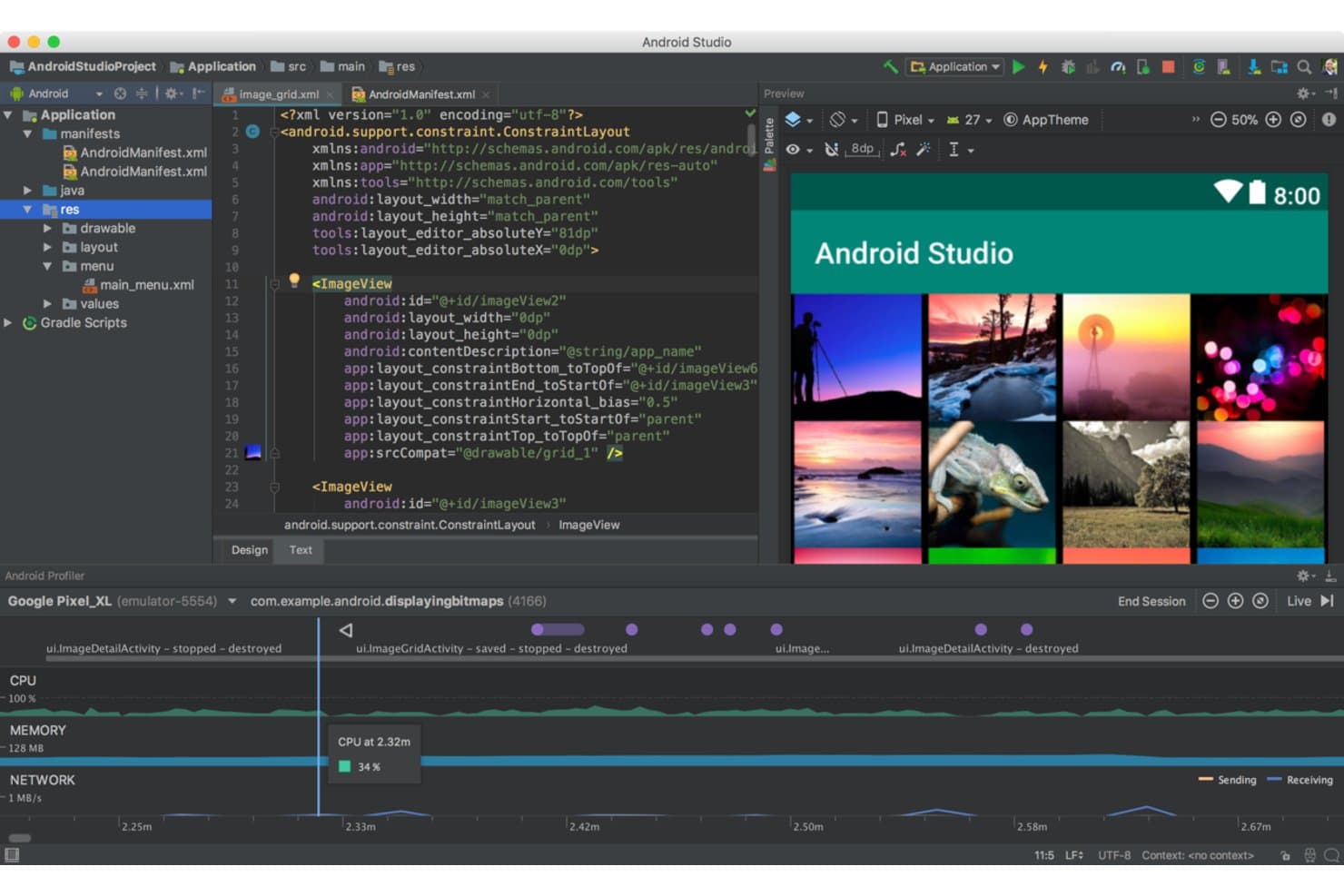
Android Studio lets users build and preview grid layouts with real-time profiling. Android Studio is Google's official Android IDE and emulator, built around the Android Virtual Device (AVD) Manager, with native Apple Silicon support, full sensor simulation, and deep integration with ADB, Gradle, Espresso, and CI/CD pipelines.
Who Is Android Studio Best For?
Android Studio is the go-to choice for Android app developers and QA engineers who need a full-featured, official development environment with deep toolchain integration.
Why I Picked Android Studio
I picked Android Studio as one of the best because it's Google's official Android IDE, which means it gets first-class support for every new Android API and device profile before any other emulator does. The AVD Manager ships with profiles covering Pixel 10 series, foldables, Wear OS, and Android Automotive, and you can swap API levels on the fly. I especially like the Extended Controls panel, which lets you script GPS routes, simulate 5G network conditions, and inject fingerprint events during active test runs.
Android Studio Key Features
- Quick Boot snapshots: Save and reload emulator states instantly, cutting subsequent launch times by up to 10x compared to a cold boot.
- Multi-instance networking: Run multiple AVDs simultaneously with a networking stack that lets emulators communicate directly, without manual port forwarding.
- Headless emulator mode: Launch and control the emulator from the command line without a GUI, making it compatible with automated CI/CD pipelines.
- Telnet and gRPC console: Connect to a running emulator via telnet or gRPC to inject commands, simulate events, and control device behavior programmatically.
Android Studio Integrations
Android Studio integrates with Gradle, Espresso, UI Automator, Firebase Test Lab, GitHub Actions, Jenkins, and Appium through ADB. It also provides gRPC and telnet interfaces for custom emulator automation.
Pros and Cons
Pros:
- Massive device and API version library
- Deep sensor and hardware simulation tools
- Native Apple Silicon and Intel Mac support
Cons:
- Not suitable for gaming or casual use
- High RAM and CPU usage on Mac
Learn more about Android Studio: Best for cloud-scale Android device fleet testing
- Free plan available
- From $239.99/computer/year
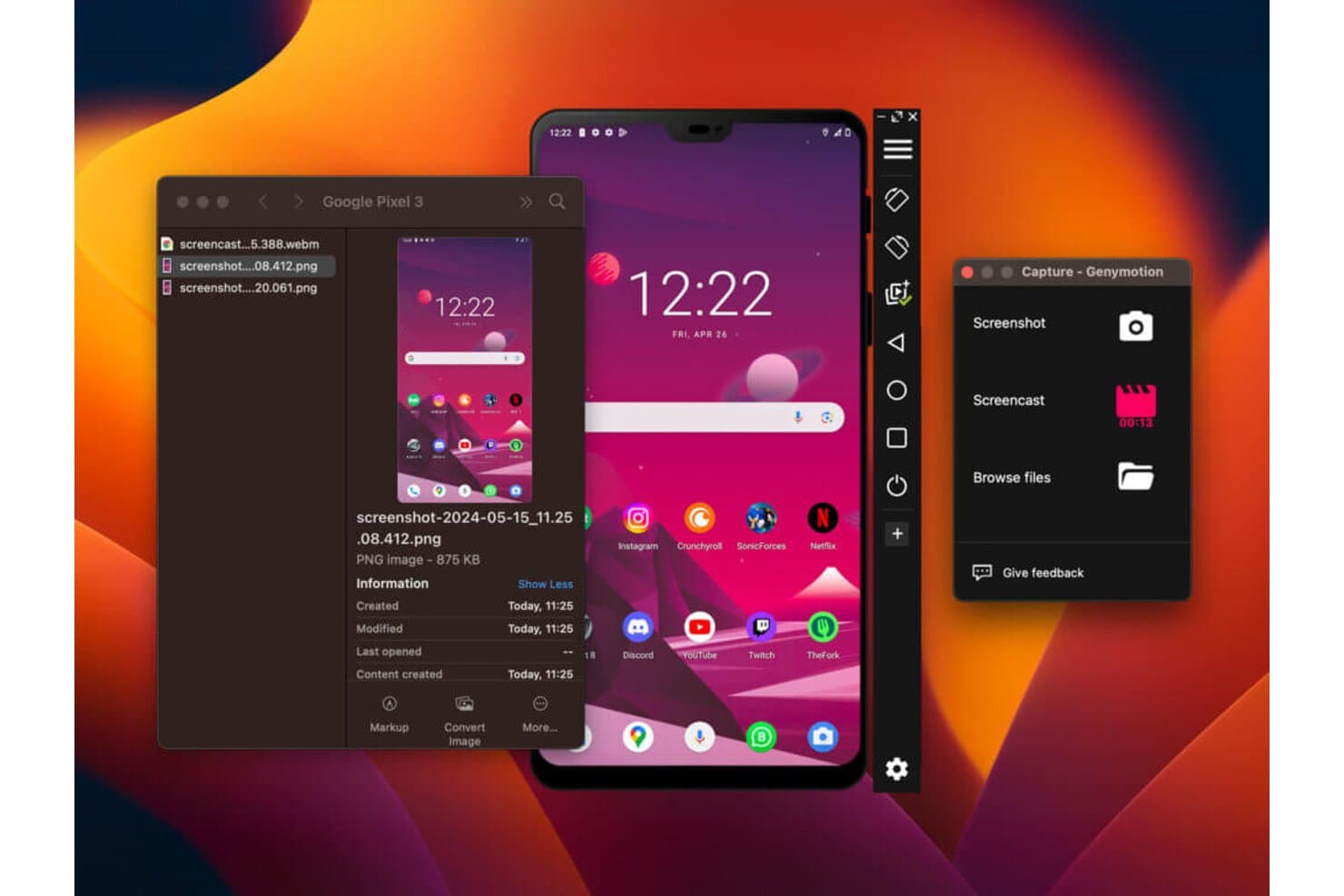
Genymotion lets users capture screenshots and screencasts of emulated Android devices on Mac. Genymotion is an Android emulator for Mac that supports local desktop, cloud-hosted (SaaS), and on-premises deployment, with multi-instance emulation, customizable device profiles, and deep CI/CD pipeline integration across Jenkins, Bitrise, CircleCI, and GitHub Actions.
Who Is Genymotion Best For?
Genymotion is a strong fit for mobile QA and DevOps teams that need to run large-scale, automated Android test suites across cloud-hosted device fleets.
Why I Picked Genymotion
I've included Genymotion in my top picks because it's the only Android emulator on this list that scales from a single local instance to a fleet of cloud-hosted virtual devices across AWS, GCP, and Azure. I like that the
gmsaasCLI lets you spin up, connect, and tear down devices programmatically inside Jenkins or GitHub Actions pipelines without any manual setup. PeerSpot users report running 100 to 200+ parallel instances, cutting test cycle times dramatically.Genymotion Key Features
- Custom device profiles: Configure screen resolution, DPI, CPU cores, RAM, and system fingerprint to replicate specific Android device models.
- Sensor simulation widgets: Simulate GPS routes via KML files, camera/media injection, battery state, biometrics, and network conditions from 2G through 5G.
- Android Studio plugin: Create, start, and deploy apps to Genymotion virtual devices directly from Android Studio via the official JetBrains Marketplace plugin.
- Multi-instance emulation: Run multiple Android virtual device instances simultaneously, with clone functionality available via the
gmtool admin clonecommand.
Genymotion Integrations
Genymotion has documented integrations with Android Studio, Jenkins, Bitrise, CircleCI, and GitHub Actions, plus Espresso, Appium, and Detox support. Its
gmsaasCLI and REST API support custom CI/CD automation across SaaS devices.Pros and Cons
Pros:
- Broad hardware and sensor simulation options
- Multi-instance emulation and quick device cloning
- Scales to large cloud device fleets
Cons:
- Motion sensor simulation unavailable in cloud mode
- No Google Play Services pre-installed
Learn more about Genymotion: Best for Apple Silicon Android gaming on Mac
- Free plan available
- Free plan available
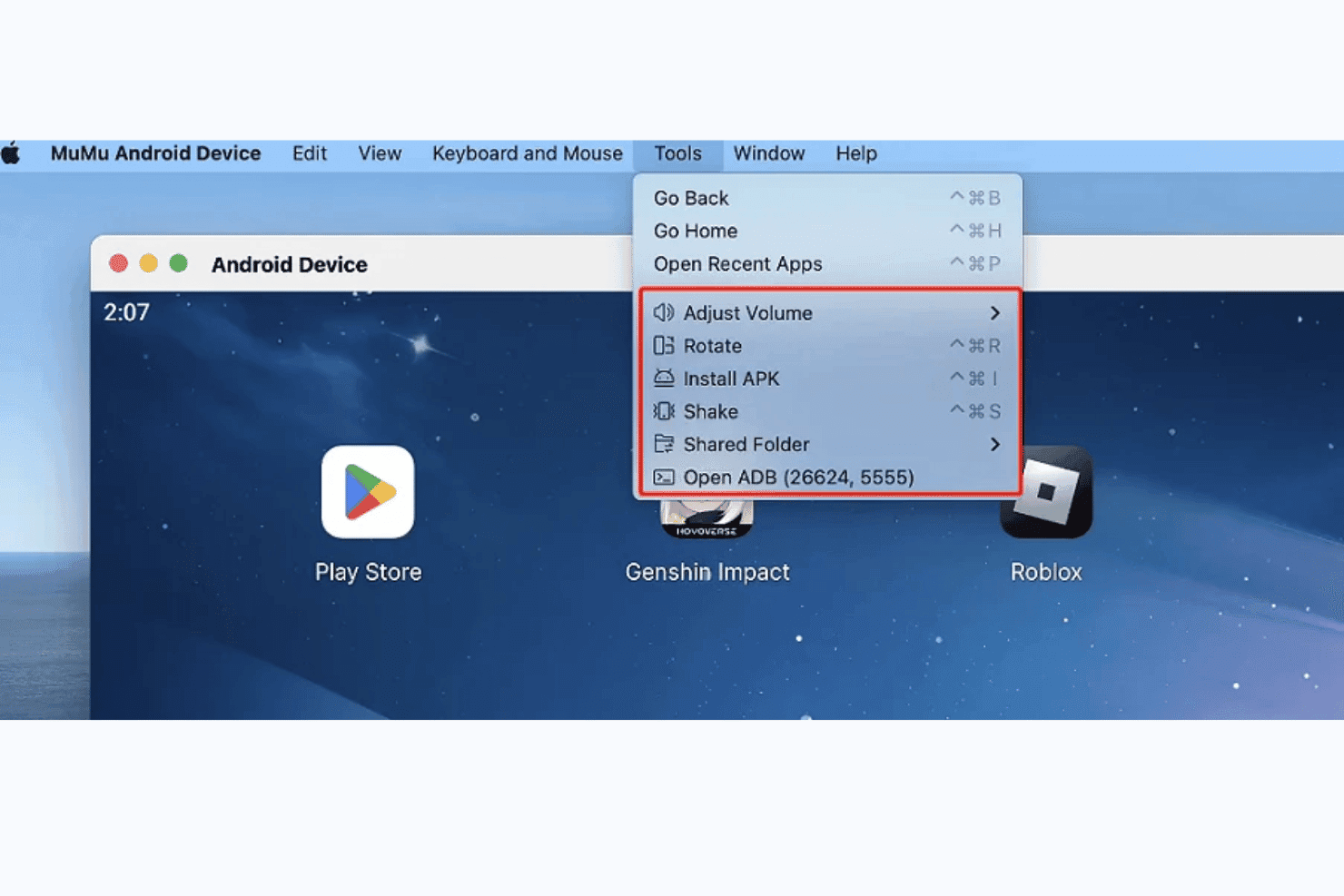
MuMuPlayer lets users access ADB, install APKs, and manage device tools on Mac. MuMuPlayer Pro is a native Apple Silicon Android emulator for Mac that runs Android 12, supports multi-instance device management, and includes ADB connectivity, a proprietary CLI, and customizable device profiles for gaming and app testing.
Who Is MuMuPlayer Best For?
MuMuPlayer Pro is a strong pick for Mac gamers and indie developers on Apple Silicon who want to run Android titles or test apps without a Windows machine.
Why I Picked MuMuPlayer
MuMuPlayer Pro earns its spot on my shortlist because it's one of the only Android emulators built natively for Apple Silicon, running as a true ARM64 app with no Rosetta overhead. I've run Genshin Impact and Honkai: Star Rail on it at high FPS without the stuttering I've seen from Rosetta-dependent alternatives. The
mumutoolCLI also lets me script device creation and APK installs, which saves real time when spinning up multiple test instances across different device profiles.MuMuPlayer Key Features
- Device profile customization: Configure each virtual device's model, resolution, DPI, GPU profile, RAM, CPU cores, and notch type per instance.
mumutoolCLI: A proprietary command-line tool for scripting device creation, APK installs, settings changes, and app lifecycle management.- Multi-instance orchestration: Create, clone, and run multiple virtual Android devices simultaneously, each with independent hardware configurations.
- ADB connectivity: Each running instance exposes a unique ADB port, letting you connect any ADB-compatible tooling or the Android Studio debugger directly.
MuMuPlayer Integrations
MuMuPlayer has native integrations with Android Studio and Android Debug Bridge (ADB), with a unique ADB port for each running device. Its proprietary
mumutoolCLI supports custom device, APK, settings, and app-management scripts; no CI/CD integrations or public API are documented.Pros and Cons
Pros:
- Customizable key mapping for games
- True multi-instance with custom device profiles
- Runs natively on Apple Silicon Macs
Cons:
- Only runs Android 12 on Mac
- No support for Intel-based Macs
Learn more about MuMuPlayer: Best for CI/CD Android test automation at scale
- Free plan available
- Pricing upon request
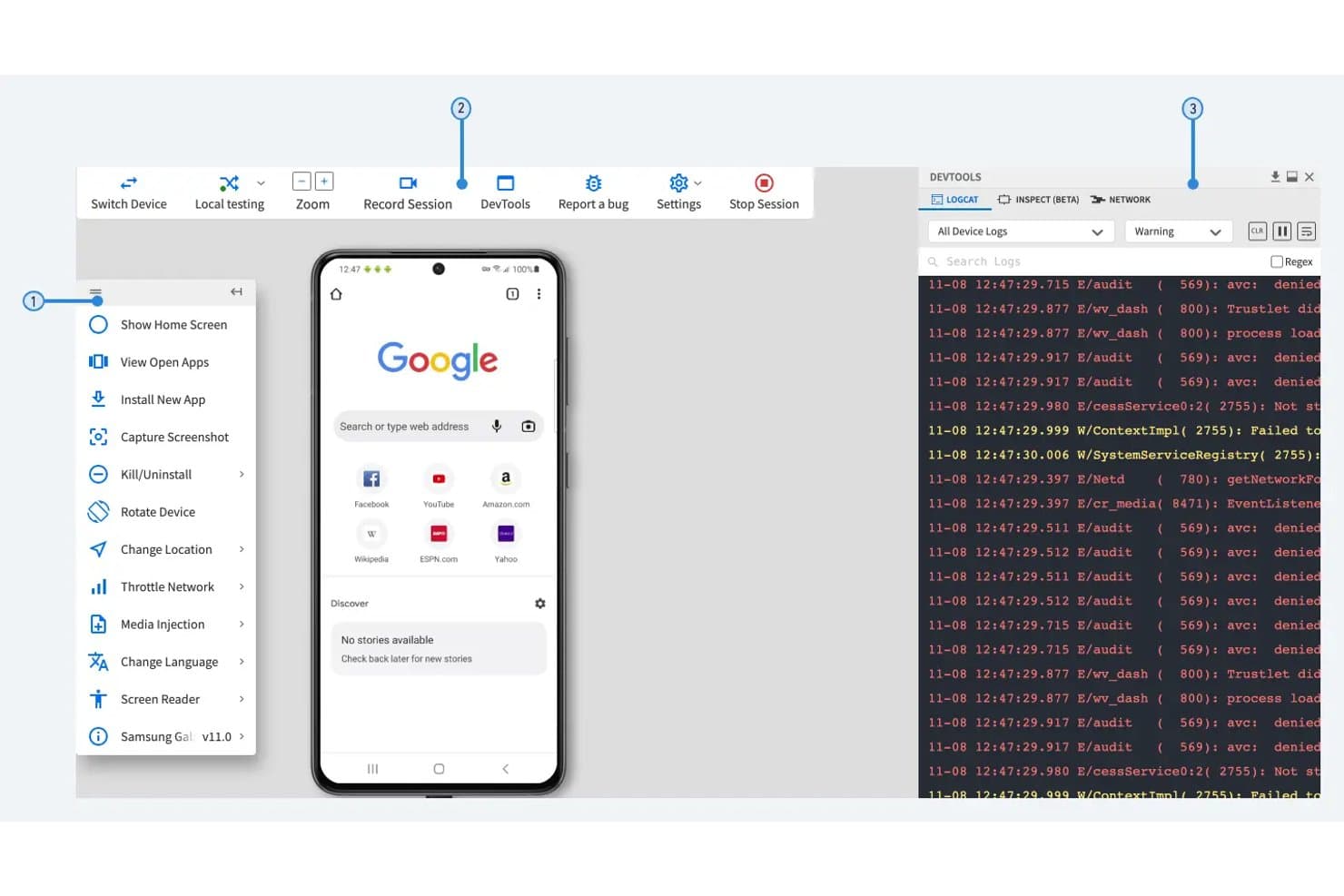
Firebase Test Lab lets users debug Android apps with live logs and device controls. Firebase Test Lab is a cloud-based Android (and iOS) testing service from Google that runs automated and interactive tests on real and virtual devices hosted in Google's data centers, accessible from any Mac via the Firebase Console, Android Studio, or the
gcloudCLI.Who Is Firebase Test Lab Best For?
Firebase Test Lab is a strong fit for QA engineers and DevOps teams who need to run automated Android tests across large device matrices as part of a CI/CD pipeline.
Why I Picked Firebase Test Lab
Firebase Test Lab earns its spot on my shortlist because it's the only option here built specifically for running automated Android tests at scale inside a CI/CD pipeline. I love that you can define a full test matrix, spanning dozens of real and virtual devices, OS versions, and locales, and execute every combination in parallel with a single
gcloudCLI command. Robo Test is also genuinely useful: it crawls your app UI automatically, no pre-written test code required, and captures logs, screenshots, and video for every run.Firebase Test Lab Key Features
- Test sharding: Splits large test suites across up to 500 parallel shards on x86 virtual devices to reduce total run time.
- Android Device Streaming: Connects you to a real remote Android device directly inside Android Studio via ADB over SSL for interactive testing.
- Network traffic profiles: Applies network condition emulations on physical devices to replicate real-world connectivity scenarios.
- Pre-launch reports: Automatically triggers test runs on popular physical devices when you upload an APK to a Google Play alpha or beta channel.
Firebase Test Lab Integrations
Firebase Test Lab has documented native integrations with Android Studio, Firebase Console, Google Cloud Storage, and Google Play Console. It also supports CI/CD workflows through
gcloudCLI integrations with Jenkins, GitHub Actions, CircleCI, and Codemagic.Pros and Cons
Pros:
- Deep integration with CI/CD tools and pipelines
- Accesses real and virtual devices remotely
- Runs automated Android tests at massive scale
Cons:
- Interactive usage limited and cloud-dependent
- Not a native Mac Android emulator
Learn more about Firebase Test Lab:
How I Evaluate Android Emulators for Mac
I split my evaluation into baseline requirements—like Apple Silicon stability and APK management—and differentiators like CI/CD fit, snapshot handling, and multi-instance support.
Core Functionality (Table Stakes For This List)
When I'm selecting tools for my list, I rank each one on a scale from 0 (does not offer the functionality) to 5 (excels in this area) for each core functionality listed below. I then calculate the tool's total score into a percentage, using 65% as a benchmark to help assess its overall fit for the list.
- macOS Compatibility: I check whether the emulator runs natively on both Intel and Apple Silicon Macs, since M-series chips need ARM64 builds to avoid Rosetta 2 overhead.
- Android OS Emulation: The range of supported Android versions matters. I look for tools that let you install APKs and access Google Play services across multiple OS releases.
- Virtual Device Configuration: I evaluate how much control you get over device profiles, including RAM allocation, screen resolution, DPI, and CPU cores—similar to the AVD manager in Android Studio.
- Input & Peripheral Mapping: Touch-based apps need reliable keyboard and mouse mapping on a desktop. I look for custom keybinding support and gamepad compatibility for game testing.
- Performance & Hardware Acceleration: I check for Hypervisor.framework support and GPU passthrough, because software-only rendering makes even simple apps sluggish on modern hardware.
- File & APK Management: Drag-and-drop APK installs, shared folders, and ADB access are what I evaluate here. These features determine how quickly you can push builds and pull logs during a test cycle.
Once I have a list of tools that meet the criteria, I consider what sets each platform apart.
Differentiating Factors (What Sets Vendors Apart)
Here's how I compare and contrast different vendors:
Standout Features
I look for snapshot and state management first. Being able to save a fully configured device state—apps installed, accounts logged in, sensor values set—and restore it in seconds cuts hours off regression testing. Scriptable automation hooks matter just as much, because headless CLI launches and gRPC control let you drive emulators from CI pipelines without manual intervention. I also evaluate network condition simulation, since throttling bandwidth or injecting latency inside the emulator is the fastest way to catch connectivity bugs before users do.
Beyond Features
Apple Silicon performance is the first thing I check. A native ARM64 build on an M-series Mac boots faster, runs cooler, and avoids the frame drops you get with x86 translation through Rosetta 2. I also evaluate CI/CD ecosystem fit—whether a tool ships Docker images, GitHub Actions workflows, or Jenkins plugins determines how quickly your DevOps team can wire it into existing pipelines. Licensing matters too, since scaling from one developer seat to a parallel test fleet can shift costs dramatically between open-source and commercial options.
How To Choose An Android Emulator For Mac
It’s easy to get bogged down in long feature lists and complex pricing structures. To help you stay focused as you work through your unique software selection process, here’s a checklist of factors to keep in mind:
| Factor | What to Consider |
| Scalability | Ensure the emulator can handle the growth of your projects without performance degradation. Look for solutions that can support additional users or more intensive apps effortlessly. |
| Integrations | Check if the emulator supports integration with your existing development tools like Android Studio or IntelliJ IDEA, to streamline your workflow seamlessly. |
| Customizability | Your team might need to adjust the emulator’s settings for specific testing scenarios. Choose an emulator that allows for tailoring configurations to fit your projects. |
| Ease of Use | Opt for an emulator with a user-friendly interface that doesn’t require extensive training. This helps your team focus on development rather than troubleshooting. |
| Budget | Compare pricing models and ensure the emulator fits within your team’s budget. Look for a balance between cost and features offered to avoid overspending. |
| Security Safeguards | Evaluate the security measures in place, like data encryption and secure connection protocols, to protect your development environment and sensitive data. |
Trends In Android Emulators
In my research, I sourced countless product updates, press releases, and release logs from different iOS emulator and Android emulator vendors. Here are some of the emerging trends I’m keeping an eye on:
- Cross-Platform Compatibility: More emulators are focusing on offering compatibility not just with Mac but also with other operating systems. This makes it easier for developers and users to switch between different environments without losing functionality. For instance, Genymotion provides support across multiple platforms.
- Performance Optimization: Emulators are increasingly geared towards improving speed and reducing lag. Vendors like BlueStacks are continually refining their architecture to ensure smoother user experiences, particularly for resource-intensive applications like games.
- Advanced Graphics Support: Enhanced graphics rendering has become a focal point, especially for gaming applications. Emulators like LDPlayer are integrating advanced graphics engines to support high-definition visuals and complex animations.
- Integration with Development Tools: Increased compatibility with development environments such as Android Studio is becoming common. This allows developers to test and deploy applications more efficiently without needing separate setups.
- User Interface Customization: There's a growing trend toward allowing users to customize the emulator interface to better suit their preferences and workflows. Vendors are offering more flexible UI settings, such as resizable windows and customizable controls.
What Is An Android Emulator For Mac?
An Android emulator for Mac is a tool that lets users run Android applications on macOS devices. Developers, gamers, and testers typically use these tools to access Android apps, test app performance, or play mobile games on a larger screen. Custom controls, multi-instance support, and compatibility with various Android versions help users test, play, and work more efficiently. Overall, these tools provide a convenient way to bring Android functionality to macOS.
Features Of Android Emulators For Mac
When selecting an Android emulator for Mac, keep an eye out for the following key features:
- Drag-and-drop installation: This feature allows users to easily install apps by dragging APK files directly into the emulator, simplifying the installation process.
- Screen recording capabilities: Emulators with this feature enable users to record their screen activities, which is beneficial for creating tutorials or capturing gameplay.
- Hardware configuration simulation: This feature allows emulators to mimic different hardware setups, such as varying screen sizes and resolutions, aiding developers in testing app responsiveness.
- Multiple instance support: This allows users to run multiple instances of the emulator simultaneously, which is useful for testing apps under different conditions or multitasking.
- Customizable controls: Users can map keyboard and mouse inputs to emulate touch controls, enhancing the experience for gaming or app testing.
- Performance settings: Emulators often provide options to adjust CPU and memory usage, allowing users to optimize performance based on their system's capabilities.
- Compatibility with development tools: Smooth integration with Android development environments like Android Studio helps developers test and debug apps efficiently.
- Cross-platform support: Some emulators offer the ability to run on different operating systems, making them versatile for users who work across various platforms.
- Cloud-based synchronization: This feature enables users to sync their emulator settings and data across devices, providing continuity and convenience.
- Advanced network configuration: Allows the emulator to simulate different network conditions, helping developers test app behaviour under varying connectivity scenarios.
Benefits Of Android Emulators For Mac
Implementing Android emulators for Mac provides several benefits for your team and your business. Here are a few you can look forward to:
- Cross-platform compatibility: Lets you run Android apps on macOS devices for better accessibility.
- Custom controls: Gives you the ability to map keyboard and mouse settings to enhance gameplay or app use.
- Multi-instance capability: Lets you run multiple apps or games simultaneously for testing or multitasking.
- App testing flexibility: Helps developers and testers simulate various Android devices and operating system versions.
- Enhanced app performance: Offers options to adjust CPU, RAM, and resolution to optimize how apps run.
- Convenience for gaming: Brings mobile games to a larger screen with better controls and smoother visuals.
- Cost-effective testing: Reduces the need for physical Android devices by providing virtual environments.
Costs And Pricing Of Android Emulators For Mac
Selecting an Android emulator for Mac requires an understanding of the various pricing models and plans available. Costs vary based on features, team size, add-ons, and more. The table below summarizes common plans, their average prices, and typical features included in Android emulator solutions for Mac:
Plan Comparison Table for Android Emulators
| Plan Type | Average Price | Common Features |
| Free Plan | $0 | Basic emulation, limited support, and restricted performance. |
| Personal Plan | $5-$20 /user /month | Standard emulation, moderate support, limited customization, and community access. |
| Business Plan | $25-$50 /user /month | Enhanced performance, priority support, multi-instance capability, and advanced integrations. |
| Enterprise Plan | $60-$100 /user /month | Full customization, dedicated support, enterprise-grade security, and comprehensive analytics. |
Android Emulator for Mac FAQs
Here are some answers to common questions about Android emulators for mac:
How can you run an Android emulator on a Mac?
To run an Android emulator on your Mac, you can use software like Android Studio, which includes the emulator tool. Start by downloading and installing Android Studio, then create an Android Virtual Device (AVD) through the AVD Manager. Launch the emulator to simulate different Android devices without needing physical hardware.
Is it possible to use an Android emulator on a Mac with an M1 chip?
Yes, you can use an Android emulator on a Mac with an M1 chip. Some emulators, like Genymotion and the latest versions of Android Studio’s emulator, are optimized for Apple’s M1 silicon, offering compatibility and performance improvements. Ensure you download the correct version that supports Apple Silicon.
What are the steps to improve the performance of an Android emulator on Mac?
To improve the performance of an Android emulator on Mac, you can allocate more RAM and CPU resources in the AVD settings. Enabling hardware acceleration, such as Intel HAXM, can also enhance performance. Consider running the emulator in a smaller window to reduce the load on your system.
Can you test Android apps on a Mac without using Android Studio?
Yes, you can test Android apps on a Mac without using Android Studio by utilizing standalone emulator choices like Genymotion or BlueStacks. These emulators allow you to run and test Android apps independently, though they may require additional configuration to mimic specific device settings.
How do you troubleshoot common issues with Android emulators on Mac?
For troubleshooting Android emulator issues on Mac, check your system’s compatibility with the emulator’s requirements. Ensure that virtualization is enabled in your Mac’s BIOS settings. Updating your emulator and SDK tools can resolve bugs, and consulting online forums can provide solutions to specific problems you’re facing.