

I 10 migliori software di assistenza remota per team IT nel 2026

Migliori Software di Supporto Remoto: Shortlist


Vuoi una soluzione che sia adatta alle esigenze del tuo team e che semplifichi la risoluzione dei problemi. Ci sono passato anch’io e conosco le difficoltà che affronti. Per esperienza, il software di supporto remoto può fare davvero la differenza per il tuo team. Aiuta a risolvere i problemi più rapidamente e mantiene alta la soddisfazione dei clienti. Tuttavia, non tutti gli strumenti sono uguali.
In questo articolo troverai le mie scelte migliori per i software di supporto remoto. Ho testato e recensito ognuno in modo indipendente, concentrandomi sugli aspetti che contano davvero: facilità d’uso, funzioni e valore. Avrai così una panoramica imparziale delle migliori opzioni disponibili, per aiutarti a prendere la decisione giusta per il tuo team.
Perché fidarsi dei nostri consigli sui software
Il nostro team testa e recensisce software dal 2012. In quanto leader tecnologici noi stessi, sappiamo quanto sia difficile — e importante — scegliere il software giusto.
Per questa guida, abbiamo valutato gli strumenti attraverso test praticie ricerche indipendenti, assegnando un punteggio agli strumenti in base ai nostri criteri di selezione.
Le nostre recensioni riflettono il nostro giudizio editoriale umano, non un discorso di vendita.
Riepilogo dei Migliori Software di Supporto Remoto
| Tool | Best For | Trial Info | Price | ||
|---|---|---|---|---|---|
| 1 | Ideale per la risoluzione remota dei problemi tramite IA | Prova gratuita di 30 giorni + demo gratuita disponibile | Da $129/tecnico/mese (fatturato annualmente) | Website | |
| 2 | Ideale per la gestione globale delle risorse IT | Demo gratuita disponibile | da $5/persona/mese | Website | |
| 3 | Ideale per connessioni sicure | Prova gratuita di 15 giorni | Da $8.25/mese (fatturato annualmente) | Website | |
| 4 | Ideale per sessioni remote cifrate | Prova gratuita di 7 giorni | Da $44.00/computer /mese | Website | |
| 5 | Ideale per la personalizzazione | Prova gratuita di 14 giorni | A partire da $30/utente/mese (fatturazione annuale) | Website | |
| 6 | Ideale per l'utilizzo multipiattaforma | Prova gratuita di 30 giorni disponibile | Da $24,90/mese (fatturato annualmente) | Website | |
| 7 | Ideale per automazione dei flussi di lavoro personalizzabile | Prova gratuita di 14 giorni | A partire da $9/postazione/mese (fatturazione annuale) | Website | |
| 8 | Ideale per i professionisti IT | Prova gratuita di 14 giorni disponibile | Prezzi su richiesta | Website | |
| 9 | Ideale per la facilità d'uso | Prova gratuita di 15 giorni + demo gratuita disponibile | A partire da $10/utente/mese (fatturazione annuale) | Website | |
| 10 | Opzione con più funzionalità | Prova gratuita di 15 giorni disponibile | Da $16.90/utente/mese (fatturazione annuale) | Website |

Recensioni dei Migliori Software di Supporto Remoto
Qui trovi una breve descrizione di ciascun sistema di supporto remoto presente in questa top 10. Ho incluso anche uno screenshot di ogni soluzione per offrirti una panoramica delle rispettive interfacce utente.

Atera
Ideale per la risoluzione remota dei problemi tramite IA
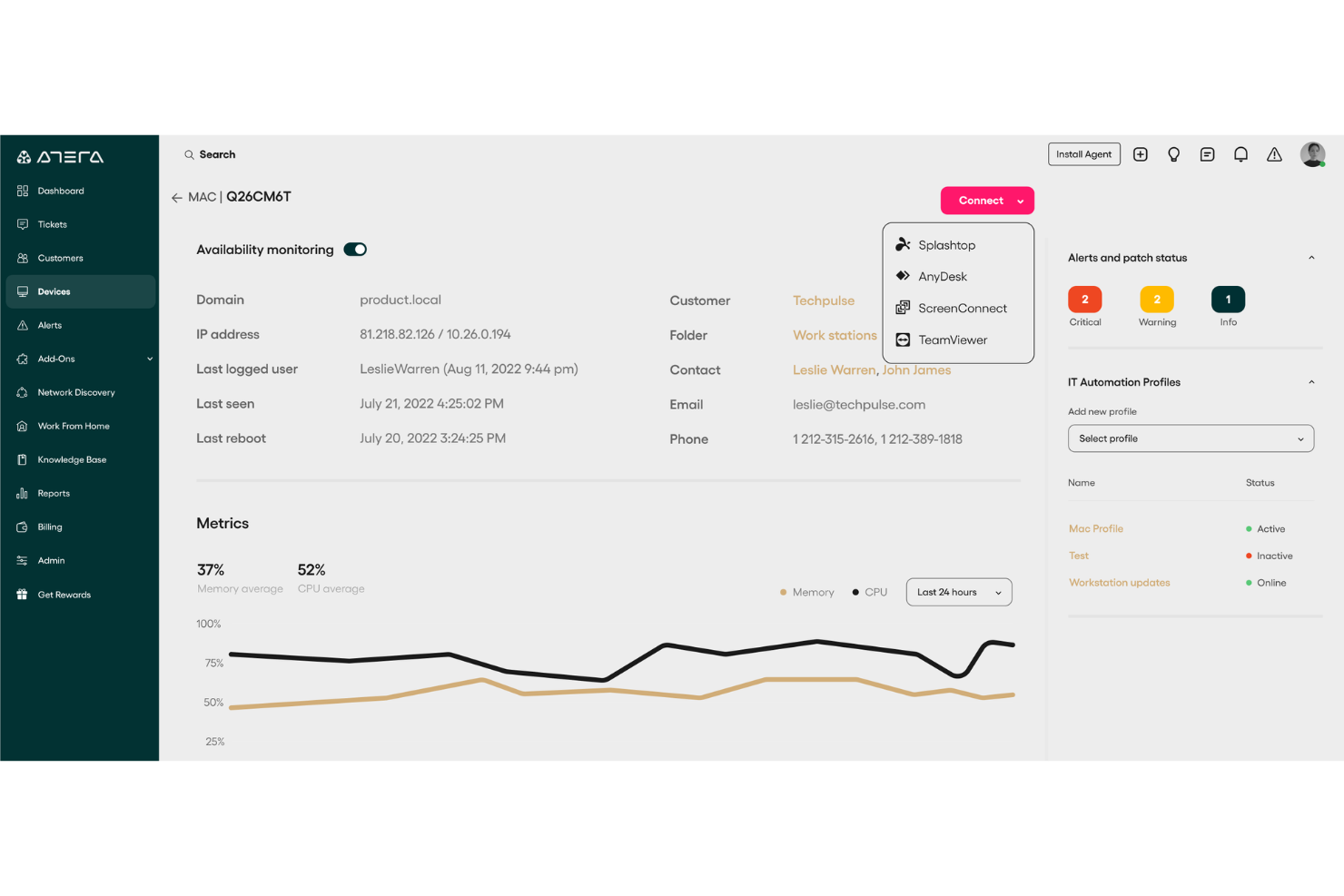
Atera è una piattaforma di gestione IT per il supporto remoto che unisce accesso remoto, monitoraggio, gestione dei ticket e automazione in un unico sistema per i team IT.
Per chi è ideale Atera?
Atera è adatto ai provider di servizi gestiti (MSP) e ai dipartimenti IT interni che necessitano di una piattaforma unica per gestire il supporto remoto su molteplici endpoint.
Perché ho scelto Atera
Atera merita un posto nella mia shortlist perché la sua IA va oltre il semplice smistamento dei ticket. Mi piace che l'AI Copilot esegua controlli in tempo reale sulla salute dei dispositivi, diagnostichi i problemi e suggerisca soluzioni direttamente sugli endpoint Windows e macOS—tutto all'interno della stessa piattaforma che il mio team utilizza per monitoraggio e ticketing. Quando un utente segnala una macchina lenta, posso usare AI Copilot per eseguire una diagnosi, generare una soluzione dalla riga di comando in linguaggio semplice ed eseguirla sul dispositivo senza mai uscire dalla console. Robin va oltre, come agente AI completamente autonomo che gestisce i ticket dall'inizio alla fine—dalla ricezione e diagnosi fino all'esecuzione di risoluzioni come l'installazione di app, il reset delle password e degli adattatori di rete, fino alla chiusura del ticket nel sistema di ticketing.
Caratteristiche principali di Atera
- Monitoraggio e avvisi in tempo reale: Imposta profili di soglia sui dispositivi degli utenti finali per essere avvisato solo quando si verificano condizioni specifiche, su Windows, macOS e Linux.
- Gestione delle patch: Automatizza le patch di sistema operativo e software su dispositivi Windows, macOS e Linux, con opzioni per applicare automaticamente le patch ai dispositivi appena integrati.
- Scoperta della rete: Scansiona la tua rete per rilevare dispositivi non autorizzati, mappare le porte aperte, identificare potenziali CVE e integrare nuovi asset senza lavoro manuale di inventario.
- Accesso remoto assistito e non assistito: Connettiti istantaneamente ai dispositivi tramite Splashtop o AnyDesk per sessioni live, oppure accedi agli endpoint senza presenza dell'utente per eseguire diagnosi e aggiornamenti.
Integrazioni di Atera
Atera offre integrazioni native con Splashtop, TeamViewer, ScreenConnect, AnyDesk per l’accesso remoto e altro ancora.
Pros and Cons
Pros:
- Inventario centralizzato degli asset di rete
- Scansione delle vulnerabilità CVE in tempo reale
- Rilevamento automatico dei dispositivi
Cons:
- Alcune funzioni richiedono componenti aggiuntivi separati
- Le opzioni di personalizzazione possono sembrare limitate
New Product Updates from Atera

Atera Adds Webhook Triggers for Technician Assignment Changes
Atera ticket automation rules now support a webhook trigger when a ticket’s technician assignment changes, expanding automation beyond creation, status updates, and closure/resolution events. For more information, visit Atera's official site.

Deel IT
Ideale per la gestione globale delle risorse IT
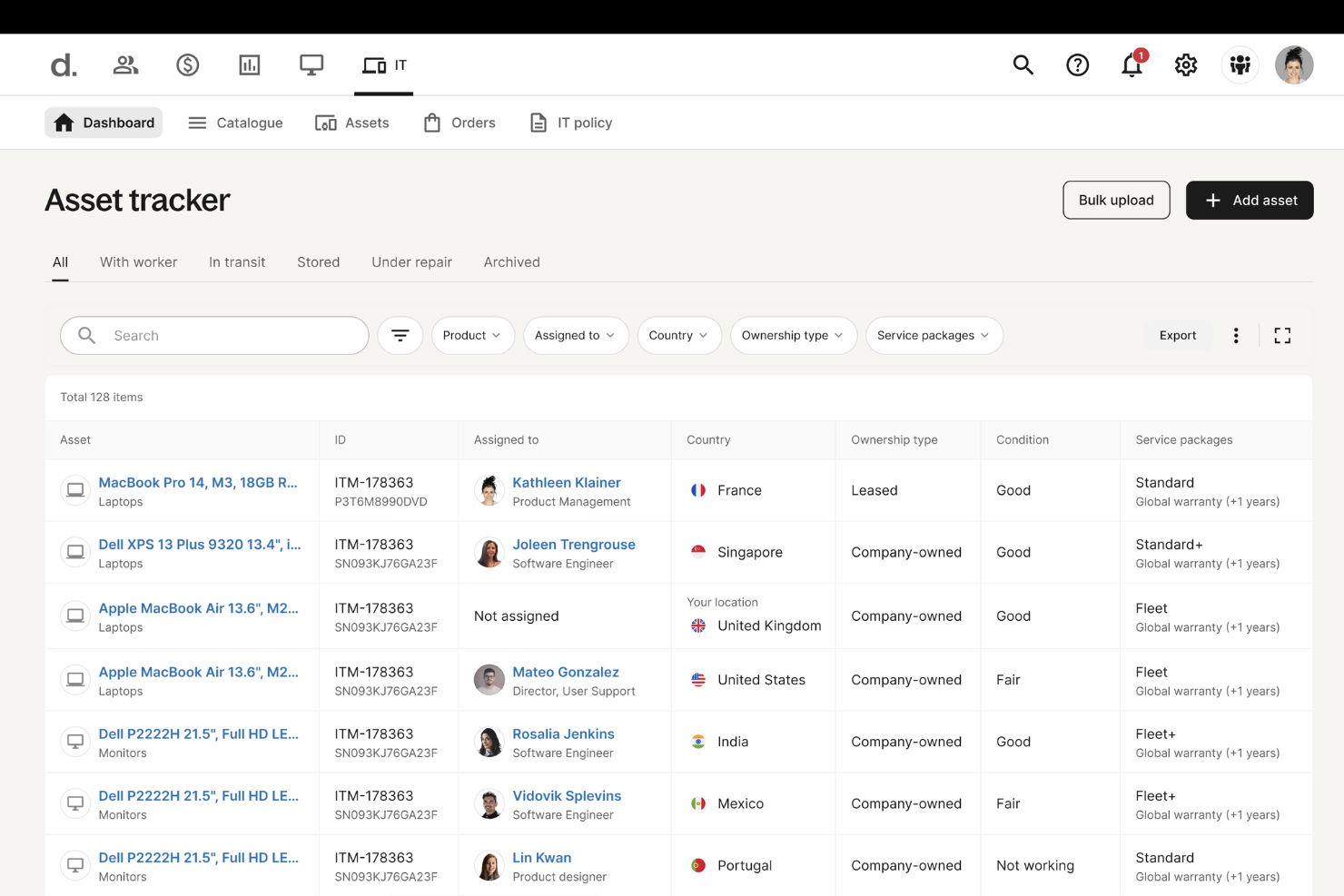
Deel IT è una piattaforma di gestione delle risorse IT progettata per team distribuiti, che offre un controllo centralizzato sull'acquisto, la distribuzione e il tracciamento del ciclo di vita dell'hardware in sedi globali.
Per chi è ideale Deel IT?
Deel IT è particolarmente indicato per i team IT che gestiscono hardware e asset in diversi paesi o per aziende con una forza lavoro prevalentemente da remoto.
Perché ho scelto Deel IT
Deel IT merita un posto nella mia selezione per la sua capacità di gestire risorse IT in sedi internazionali. Mi piace che sia possibile acquistare, spedire e tracciare dispositivi hardware a dipendenti in oltre 130 paesi direttamente dalla piattaforma, senza bisogno di ricorrere a logistica di terze parti. Il mio team può visualizzare l'intero ciclo di vita di ogni dispositivo—dalla distribuzione al recupero—in un'unica dashboard. L'integrazione con MDM (gestione dei dispositivi mobili) permette inoltre di bloccare o cancellare da remoto i dispositivi, una funzionalità importante nel caso di offboarding di dipendenti all'estero.
Caratteristiche principali di Deel IT
- Distribuzione dispositivi zero-touch: Spedisci laptop preconfigurati con app e impostazioni di sicurezza installate, così che i dispositivi siano pronti all'uso appena ricevuti dai dipendenti.
- Gestione degli accessi basata sui ruoli: Concedi, aggiorna o revoca automaticamente l'accesso alle applicazioni in base al ruolo o allo stato di impiego del dipendente.
- Supporto IT globale 24/7: Offri ai dipendenti accesso diretto a esperti IT per problemi ai dispositivi, accesso alle app, riparazioni e dispositivi sostitutivi in qualsiasi fuso orario.
- Automazione IT attivata da eventi HR: Attiva automaticamente ordini di dispositivi, modifiche agli accessi e aggiornamenti di sicurezza quando si verificano eventi HR come nuove assunzioni, cambi di ruolo o offboarding.
Integrazioni di Deel IT
Deel IT offre integrazioni native con Okta, Azure Active Directory, Google Workspace e Rippling. È disponibile un'API per integrazioni personalizzate.
Pros and Cons
Pros:
- Supporto globale per la risoluzione dei problemi e la riparazione dei dispositivi
- Semplifica la conformità e la sicurezza IT a livello globale
- Automatizza l'approvvigionamento e il recupero delle risorse IT
Cons:
- Non offre funzionalità IT avanzate come il monitoraggio della rete
- Supporto limitato per strumenti IT altamente specializzati

SetMe
Ideale per connessioni sicure
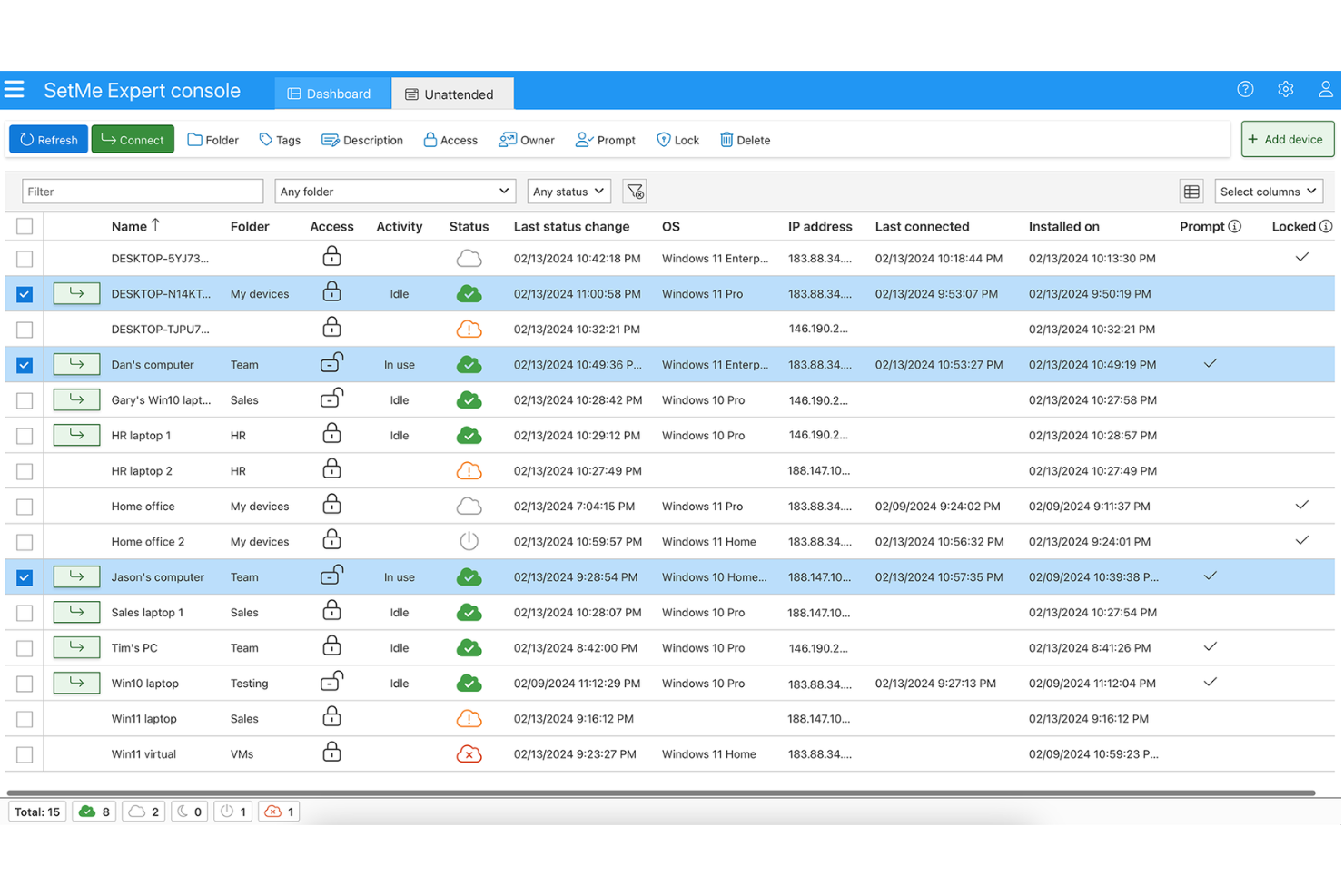
SetMe è un software di supporto remoto per team IT che offre accesso desktop remoto sicuro, gestione delle sessioni, trasferimento di file e compatibilità multipiattaforma per gestire e risolvere i problemi dei dispositivi.
Per chi è ideale SetMe?
SetMe è adatto a team di supporto IT e fornitori di servizi gestiti (MSP) che necessitano di uno strumento di accesso remoto semplice senza la complessità delle piattaforme di livello enterprise.
Perché ho scelto SetMe
SetMe ha guadagnato un posto nella mia shortlist grazie al suo approccio multilivello alla sicurezza delle connessioni. L'ho scelto specificamente per i team in cui la protezione dei dati non è opzionale, come negli ambienti sanitari o finanziari dove è richiesta la conformità a HIPAA e PCI DSS. Ogni sessione dispone di una chiave di crittografia AES-256 unica, generata tramite Elliptic-Curve Diffie-Hellman, eliminando così i rischi di chiave condivisa tra le sessioni. Inoltre, l'architettura Zero Trust di SetMe significa che ogni connessione, azione e comando viene autenticato continuamente, non solo al login.
Caratteristiche principali di SetMe
- Gestione multi-sessione: Controlla più computer remoti contemporaneamente, ciascuno gestito in una finestra separata.
- Registrazione delle sessioni: Cattura video e screenshot durante le sessioni attive e salvali localmente per audit o formazione.
- Permessi di accesso non presidiato: Assegna l'accesso a utenti specifici su determinate macchine e limita i dispositivi per un uso privato all'interno del tuo team.
- Informazioni di sistema remoto: Ottieni dettagli sul sistema operativo e sull'hardware di un computer remoto senza dover navigare manualmente tra le sue impostazioni.
Integrazioni SetMe
Attualmente non sono elencate integrazioni native.
Pros and Cons
Pros:
- Garantisce comunicazione e condivisione dati sicure
- Supporto multipiattaforma
- Facilita il trasferimento facile di file tramite drag-and-drop
Cons:
- Il piano prevede un massimo di tre utenti con licenza
- Possibili problemi di compatibilità con sistemi operativi o dispositivi più vecchi

GoToMyPC
Ideale per sessioni remote cifrate
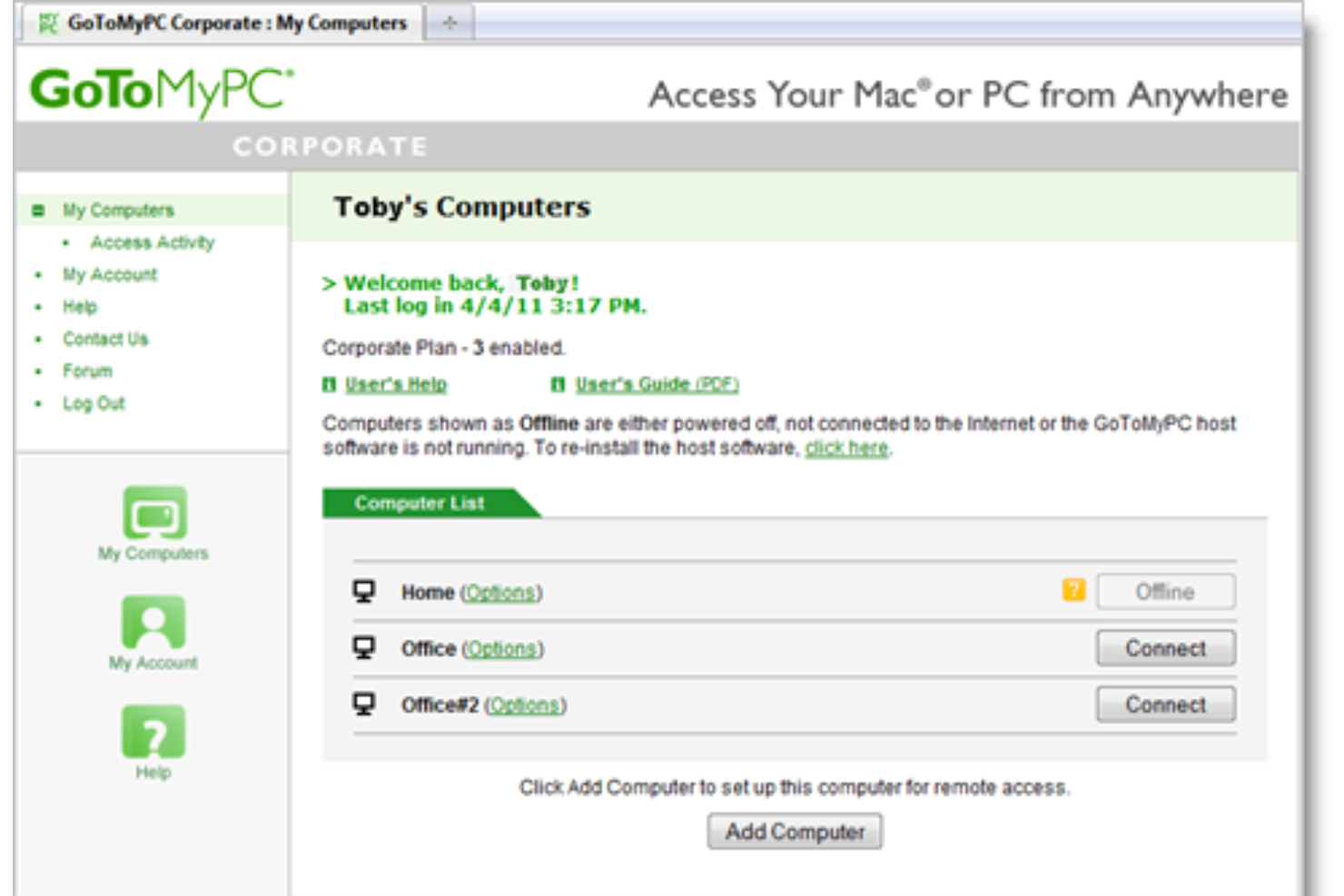
GoToMyPC è un software di supporto remoto per team IT che offre accesso desktop remoto sicuro, trasferimento file e gestione delle sessioni su più dispositivi.
Per Chi è Ideale GoToMyPC?
GoToMyPC è adatto a team IT di piccole e medie dimensioni che necessitano di un accesso remoto affidabile e sicuro a computer Windows e Mac senza configurazioni complesse.
Perché Ho Scelto GoToMyPC
GoToMyPC è nella mia lista dei preferiti perché dà priorità alla sicurezza delle sessioni. Ogni sessione remota utilizza una crittografia AES a 256 bit, un livello di protezione di livello bancario fondamentale quando si accede a sistemi sensibili o reti interne da remoto. Il Security Center fornisce un punteggio di sicurezza in tempo reale e elenca azioni come abilitare l'autenticazione a due fattori, impostare codici di accesso host o rafforzare i requisiti di password. Apprezzo anche che lo schermo si oscuri e che il timeout automatico siano integrati, così il computer host rimane bloccato se la sessione resta inattiva.
Funzionalità Principali di GoToMyPC
- Supporto multi-monitor: Visualizza tutti i monitor collegati al computer host simultaneamente durante una sessione remota.
- Invito ospite: Concedi temporaneamente l'accesso a un ospite per supporto tecnico ad hoc o risoluzione collaborativa dei problemi.
- Report di utilizzo: Monitora la cronologia delle sessioni, inclusi origine della connessione, tipo, orario e durata, a fini di audit e supervisione.
- Diagnostica in tempo reale della sessione: Controlla connettività, uso della CPU, memoria e velocità durante le sessioni attive, con suggerimenti per la risoluzione dei problemi direttamente nella dashboard.
Integrazioni di GoToMyPC
Attualmente non sono elencate integrazioni native.
Pros and Cons
Pros:
- Accesso remoto affidabile da qualsiasi luogo
- Supporto efficace per monitor multipli
- Connessioni sicure con crittografia avanzata
Cons:
- Richiede connessione Internet costante
- Nessun supporto per Linux

Ideale per la personalizzazione
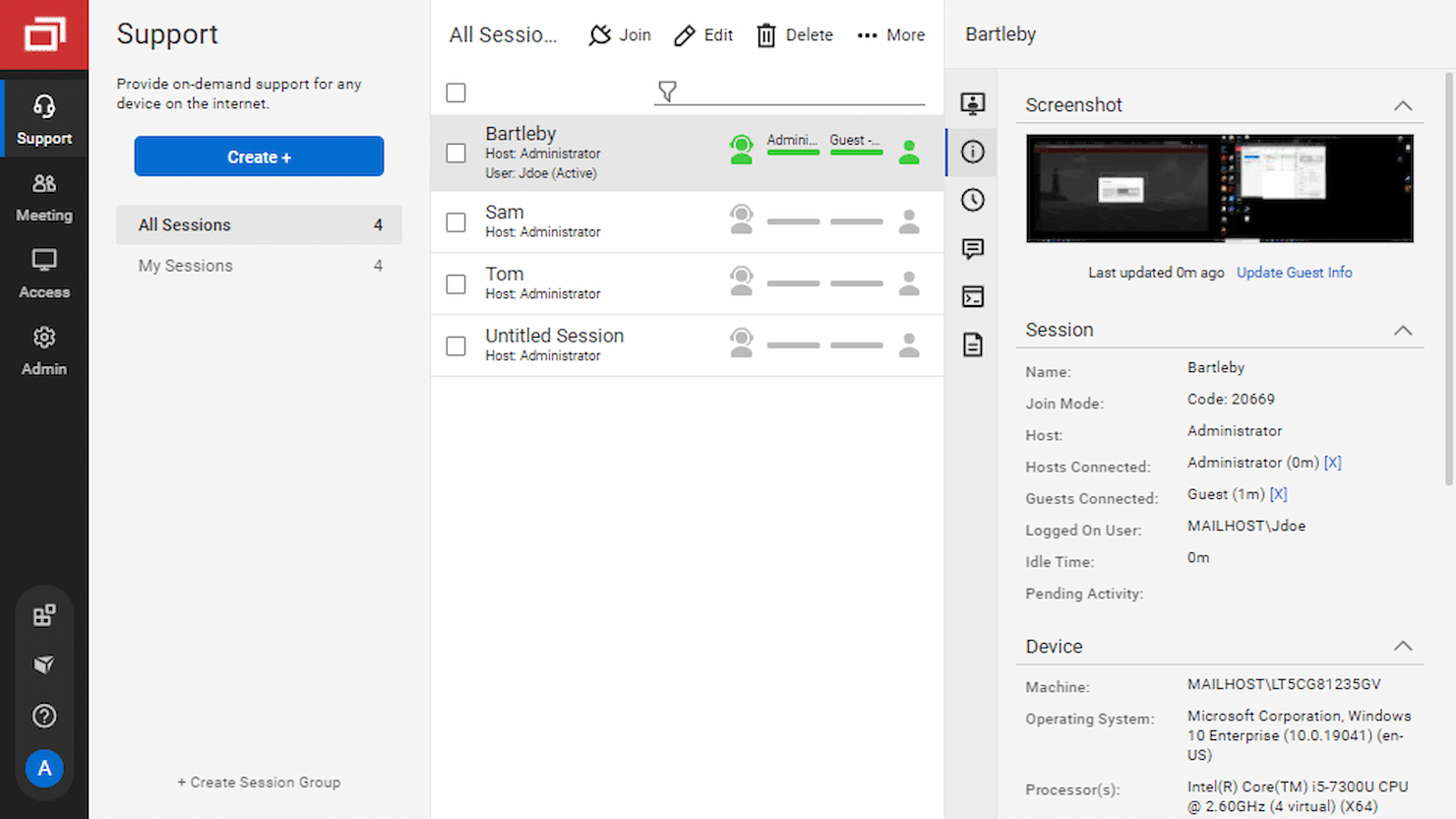
ConnectWise ScreenConnect è una piattaforma software per il supporto remoto pensata per i team IT, che offre accesso remoto sicuro al desktop, gestione delle sessioni e avanzate opzioni di personalizzazione per gestire sessioni di supporto su più sistemi operativi.
Per chi è ideale ConnectWise ScreenConnect?
ConnectWise ScreenConnect è adatto a fornitori di servizi gestiti (MSP) e ai reparti IT che hanno bisogno di uno strumento di supporto remoto altamente configurabile, capace di adattarsi ai flussi di lavoro e all'identità di marca esistenti.
Perché ho scelto ConnectWise ScreenConnect
ConnectWise ScreenConnect merita un posto tra i migliori della mia lista grazie al livello di personalizzazione che consente di raggiungere senza necessità di intervento costante di uno sviluppatore. Apprezzo in particolare la libreria delle estensioni, dove si possono aggiungere funzionalità extra—come l'autorisposta ai messaggi in chat degli ospiti o la visualizzazione di una lista dei tecnici online—oppure creare qualcosa di completamente su misura da pubblicare sul Marketplace di ConnectWise. Inoltre, il motore di automazione basato su eventi permette di creare regole if/then che si attivano a qualsiasi evento di sessione, ad esempio per impostare saluti automatici, avvisi istantanei ai tecnici quando una macchina va offline, oppure l'esecuzione di script senza dover avviare nulla manualmente. Un'altra funzione che apprezzo è l'opzione di hosting on-premises, che offre ai team IT il pieno controllo sul proprio ambiente, in un modo che le soluzioni cloud-only non possono eguagliare.
Funzionalità chiave di ConnectWise ScreenConnect
- Registrazione delle sessioni e filtro dei log di audit: Registra le sessioni di supporto e filtra il log di audit per nome sessione, così da trovare e scaricare rapidamente registrazioni specifiche per esigenze di conformità o revisione.
- Accesso non presidiato: Connettiti e gestisci endpoint 24/7 senza bisogno che l’utente finale sia presente; il tuo team può così effettuare manutenzioni o risolvere problemi fuori orario.
- Autenticazione SAML: Utilizza SAML come fonte di autenticazione single sign-on, permettendo ai tecnici di accedere all’ambiente senza gestire credenziali separate.
- Supporto per dispositivi mobili: Accedi e fornisci supporto remoto anche ai dispositivi mobili oltre che ai desktop, così il tuo team ha uno strumento unico per ogni device.
Integrazioni di ConnectWise ScreenConnect
ConnectWise ScreenConnect offre integrazioni native con ConnectWise PSA, ConnectWise Automate, Freshdesk e Zendesk.
Pros and Cons
Pros:
- Supporto non presidiato disponibile
- Opzione self-hosted
- 2FA e connettività SSL
Cons:
- Curva di apprendimento ripida
- A volte si verificano glitch e bug durante l'uso

Ideale per l'utilizzo multipiattaforma
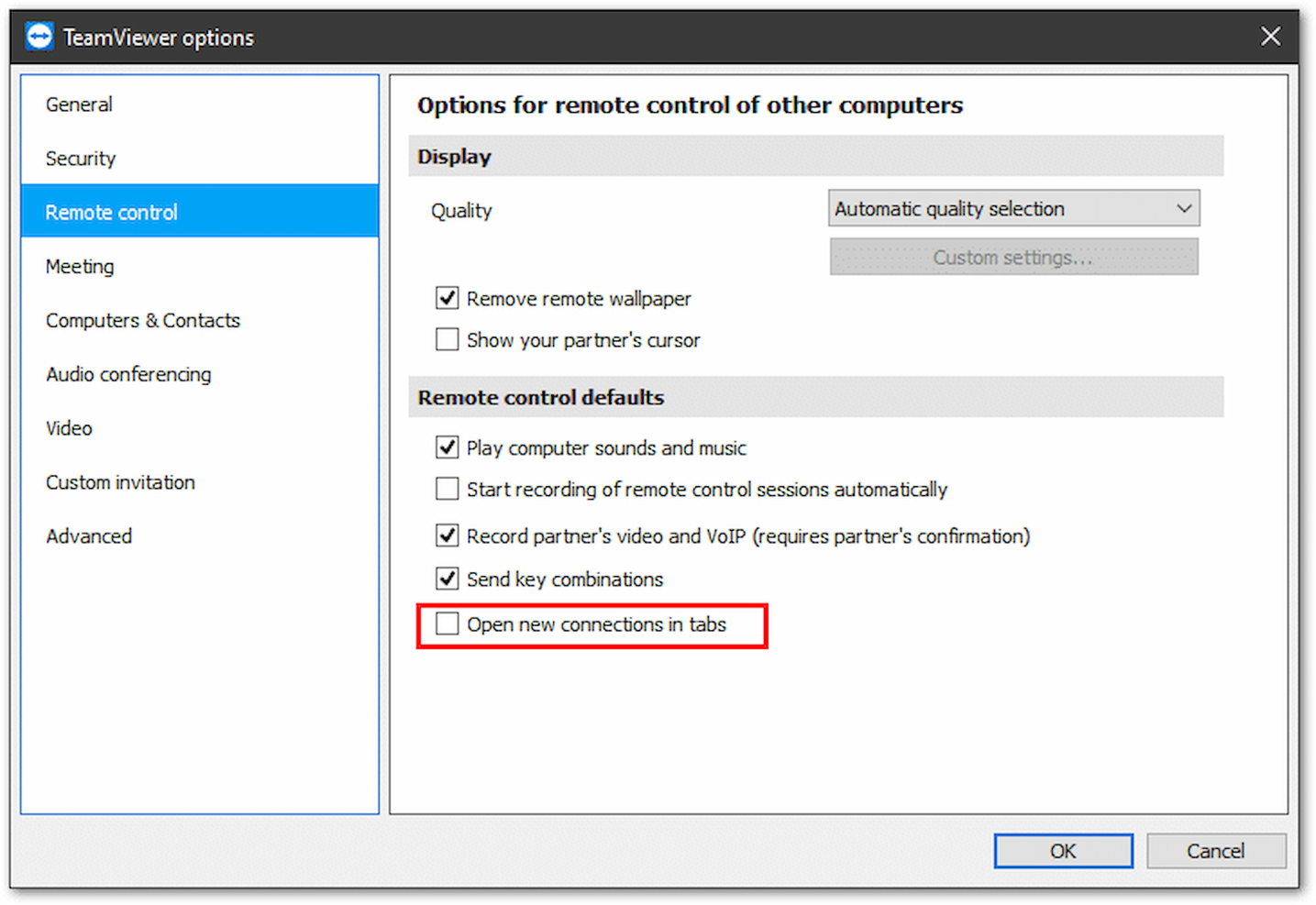
TeamViewer è una soluzione software per l'accesso remoto e il supporto che dà priorità alla sicurezza e alla privacy mantenendo la semplicità.
Perché ho scelto TeamViewer: Ho scelto TeamViewer perché offre accesso multipiattaforma per dispositivi Windows, macOS, Linux, iOS e Android. Puoi connetterti da mobile a PC, da PC a mobile e da mobile a mobile. Puoi condividere lo schermo di iPhone e iPad su un dispositivo remoto, utilizzare le sue barre degli strumenti QuickSteps per le scorciatoie e registrare le sessioni per formazione e audit.
Caratteristiche e integrazioni distintive di TeamViewer:
Le caratteristiche che spiccano per me sono la possibilità di fornire accesso remoto a dispositivi di Realtà Aumentata (AR) e Realtà Virtuale (VR), così come a dispositivi e sensori Internet delle Cose (IoT). Offre connessioni sicure e criptate con autenticazione a due fattori (2FA) e supporto per la conformità HIPAA. Puoi anche condividere e trasferire file grazie alla funzione drag-and-drop.
Le integrazioni sono disponibili nativamente per Freshworks, Slack, ServiceNow, NinjaOne, Synology, Microsoft Teams e Atlassian. Sono disponibili API.
Pros and Cons
Pros:
- Sessioni remote in alta definizione con funzionalità di audio e videoconferenza
- Funzionalità Wake-on-LAN per accedere a dispositivi spenti
- Controllo degli accessi per la gestione di permessi e ruoli
Cons:
- I piani tariffari sono più alti rispetto ad altri concorrenti
- A volte la velocità potrebbe risultare lenta
Ideale per automazione dei flussi di lavoro personalizzabile
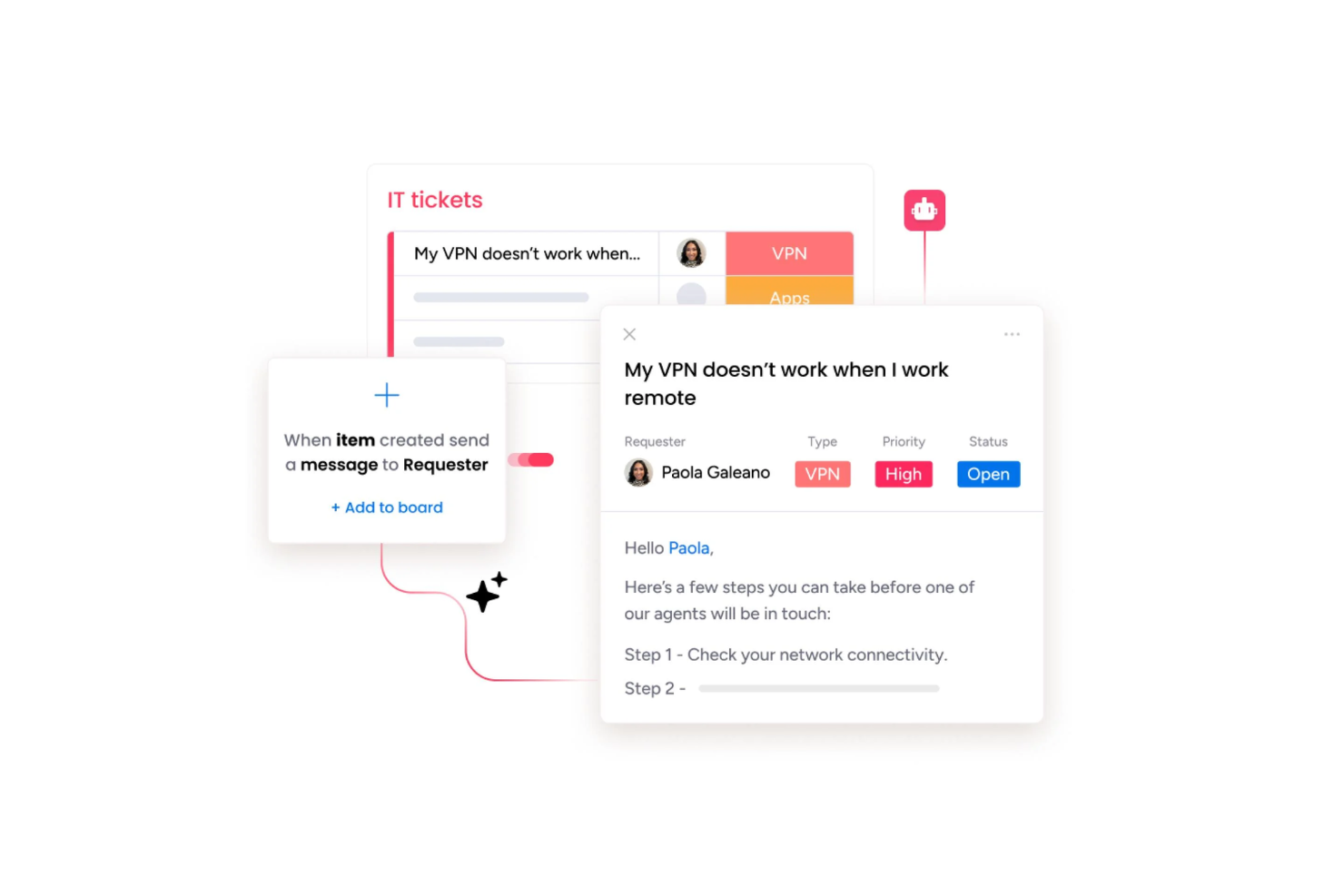
monday service è una piattaforma di supporto remoto che riunisce in un unico sistema la gestione visiva delle segnalazioni, l'automazione dei flussi di lavoro, il monitoraggio degli asset e la gestione collaborativa delle conoscenze.
Per chi è ideale monday service?
monday service è particolarmente adatto ai team IT e operativi di aziende di medie e grandi dimensioni che necessitano di una piattaforma flessibile e personalizzabile per gestire le richieste di servizio e il supporto interno.
Perché ho scelto monday service
Ho scelto monday service tra i migliori perché la sua automazione dei flussi di lavoro va ben oltre i semplici trigger basati su regole. È possibile costruire automazioni a più fasi che instradano le segnalazioni in base a priorità, categoria o stato SLA senza scrivere una sola riga di codice. Apprezzo in particolare il generatore di automazioni no-code, che permette al mio team di impostare condizioni come 'se una segnalazione non viene aggiornata entro 4 ore, viene scalata al livello 2 e viene notificato l'incaricato.' Questo tipo di controllo granulare sull'instradamento delle segnalazioni e sulla logica di escalation è veramente utile in un ambiente di supporto remoto dove i tempi di risposta sono cruciali.
Funzionalità principali di monday service
- Gestione degli asset: Traccia e gestisci gli asset IT direttamente dalle segnalazioni, collegando i record hardware o software alle richieste di supporto specifiche.
- Monitoraggio SLA: Definisci le policy SLA per tipo di segnalazione e monitora la conformità tramite indicatori visivi che segnalano le richieste a rischio o già violate.
- Moduli di richiesta personalizzabili: Crea moduli con campi condizionali per permettere agli utenti di fornire fin da subito le informazioni corrette.
- Risposte suggerite dall’IA: Utilizza l’IA per suggerire bozze di risposta sulla base del contenuto delle segnalazioni, riducendo il lavoro manuale per le richieste ricorrenti.
Integrazioni di monday service
monday service offre centinaia di integrazioni tramite le opzioni integrate e il marketplace, incluse soluzioni come Slack, Salesforce, HubSpot, Google Workspace, Zendesk, Gmail, Microsoft Teams, GitHub, Outlook e Dropbox. Supporta anche Zapier e dispone di un’API per integrazioni personalizzate.
Pros and Cons
Pros:
- Knowledge base integrata nel portale clienti
- Visualizzazione board per il monitoraggio in tempo reale delle richieste
- Automazione no-code per instradamento ed escalation delle segnalazioni
Cons:
- Nessuna funzione nativa di controllo remoto o condivisione schermo
- Nessun piano gratuito permanente oltre il periodo di prova

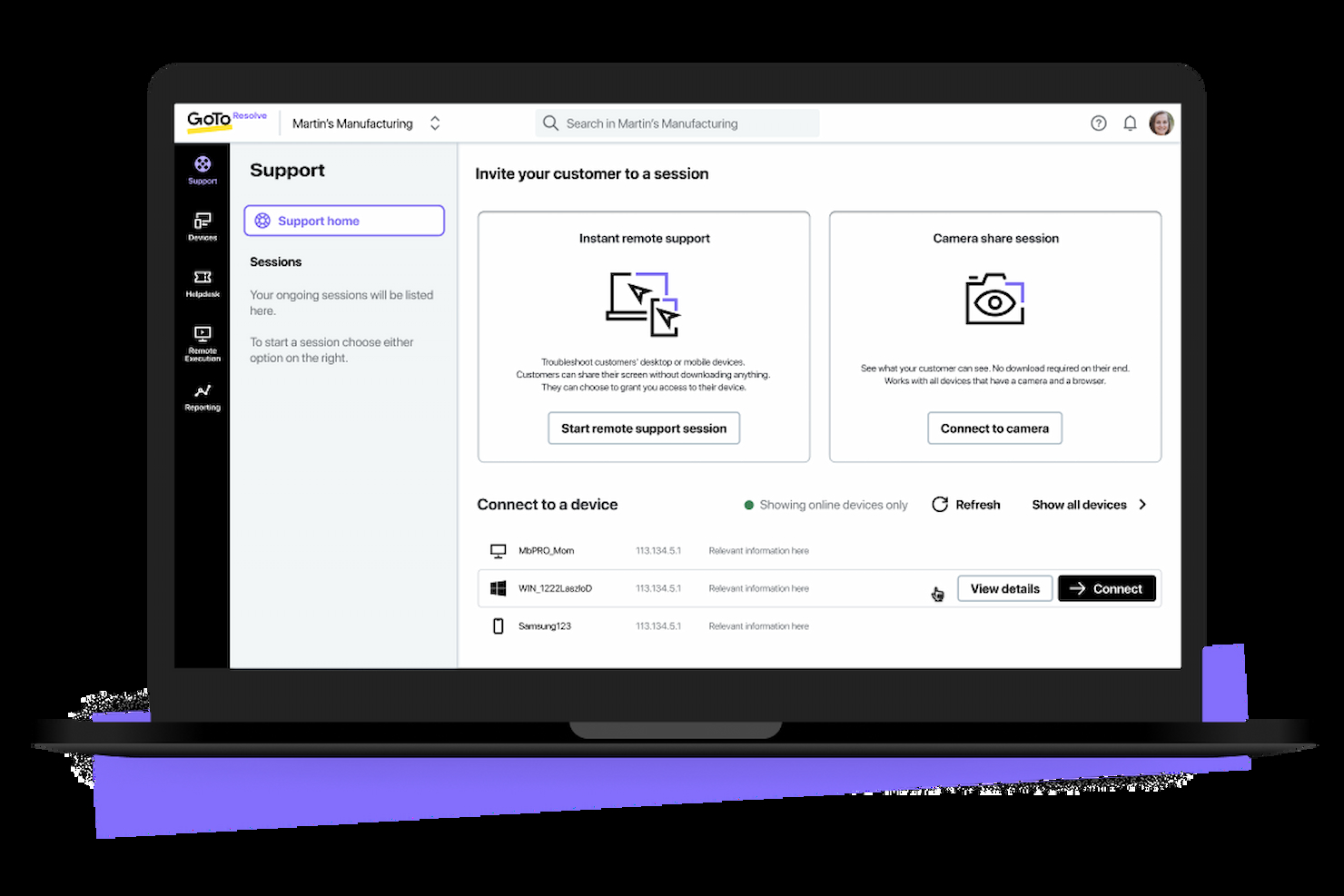
GoTo Resolve è un software di supporto remoto per team IT che unisce accesso remoto, gestione dei dispositivi non presidiati, ticketing e monitoraggio degli endpoint in un'unica piattaforma.
Per chi è GoTo Resolve?
GoTo Resolve è ideale per i professionisti IT che necessitano di una piattaforma unica per gestire supporto remoto, gestione dispositivi e ticketing dell'assistenza.
Perché ho scelto GoTo Resolve
GoTo Resolve si guadagna un posto nella mia lista perché è stato progettato appositamente per i professionisti IT che hanno bisogno di più di un semplice strumento di accesso remoto. Mi piace in particolare la funzione di accesso remoto non presidiato, che permette al mio team di risolvere problemi su dispositivi Windows, Mac e Android anche quando gli utenti finali sono offline. La generazione di script AI integrata per PowerShell, Shell, JavaScript e Python è qualcosa che utilizzo regolarmente per distribuire aggiornamenti software sui dispositivi senza dover scrivere script da zero. La combinazione di monitoraggio remoto, gestione delle patch e ticketing dell’assistenza in una sola console significa che non devo passare da uno strumento all'altro per gestire un singolo incidente.
Funzionalità principali di GoTo Resolve
- Gestione degli asset IT: Traccia hardware e software, monitora la conformità delle licenze e gestisci il ciclo di vita degli asset da una dashboard centralizzata.
- Gestione dei dispositivi mobili: Registra, configura e proteggi dispositivi mobili aziendali e BYOD con controlli di conformità degli endpoint.
- Monitoraggio e gestione remota: Imposta avvisi, esegui scansioni antivirus e monitora lo stato dei dispositivi in tutto l’ambiente da una sola console.
- GoPilot AI insights: Evidenzia osservazioni basate sull’IA in tutto l’ambiente IT per aiutarti a dare priorità ai problemi prima che si aggravino.
Integrazioni GoTo Resolve
Le integrazioni includono ServiceNow, Acronis e Microsoft Intune.
Pros and Cons
Pros:
- Supporta più dispositivi contemporaneamente
- Registra le sessioni di supporto per riferimento futuro o per il controllo qualità
- Trasferisci file in modo sicuro tra dispositivi durante una sessione di supporto
Cons:
- I prezzi possono essere elevati per i professionisti IT freelance
- Richiede una connessione Internet veloce per funzionare

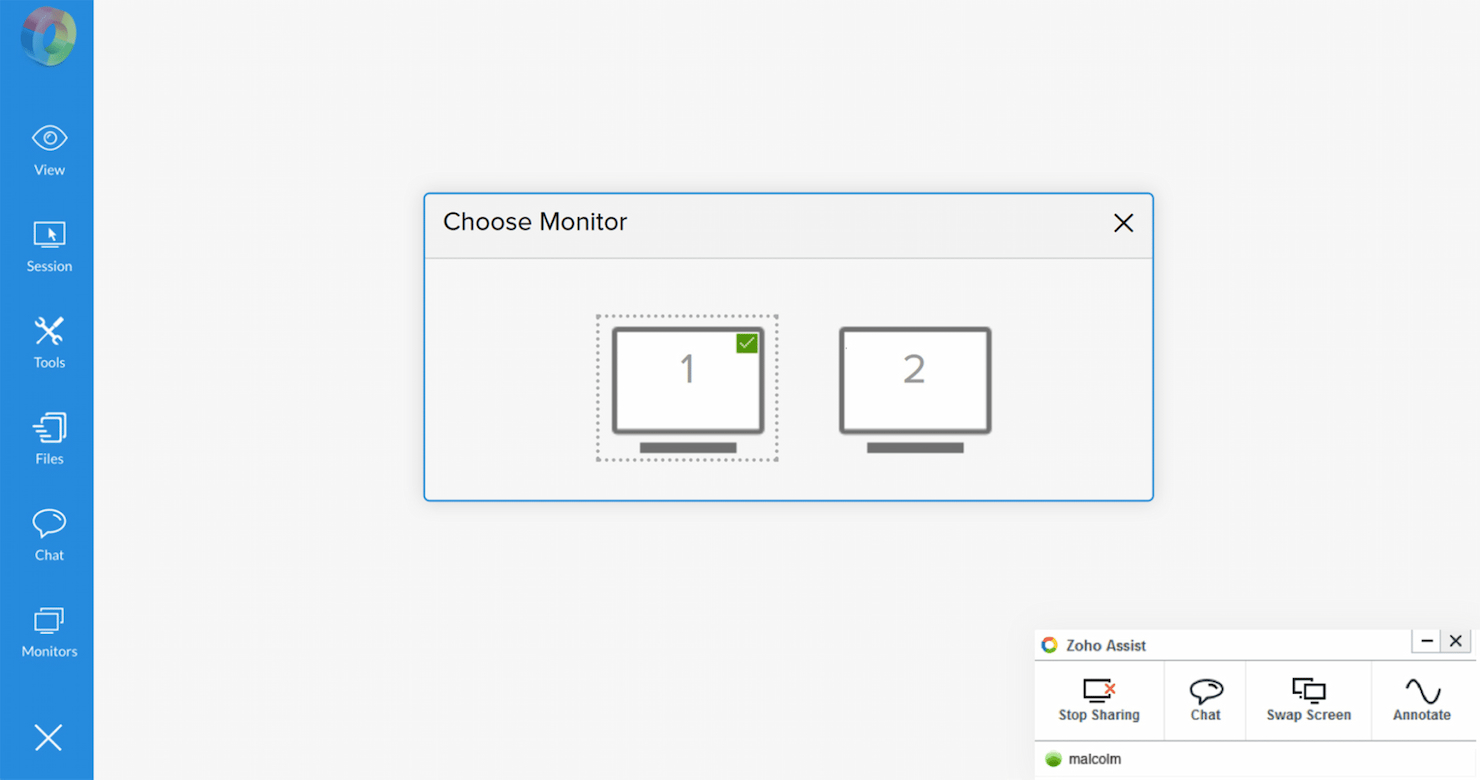
Zoho Assist è un software di supporto remoto per team IT che offre accesso desktop remoto basato su cloud, gestione dei dispositivi non presidiati, trasferimento di file e supporto multipiattaforma per risoluzione dei problemi e manutenzione.
Per chi è ideale Zoho Assist?
Zoho Assist è adatto a team IT di piccole e medie dimensioni che necessitano di uno strumento di supporto remoto semplice, senza una curva di apprendimento ripida o configurazioni complesse.
Perché ho scelto Zoho Assist
Zoho Assist merita un posto nella mia lista ristretta perché è uno dei pochi strumenti di supporto remoto in cui un tecnico può avviare una sessione in meno di 30 secondi—senza richiedere software preinstallato sul dispositivo del cliente. Trovo vantaggioso che il modello della sessione tramite browser, senza download, elimini le solite difficoltà nel collegare un utente non tecnico. Il set di strumenti diagnostici è davvero utile: posso accedere a Task Manager, Gestione Dispositivi, Prompt dei Comandi e all'editor del Registro di sistema in background senza interrompere la sessione attiva. L'opzione di distribuzione massiva per l'accesso non presidiato mi permette di inviare l'agente a dozzine di endpoint contemporaneamente invece di configurarli singolarmente.
Funzionalità principali di Zoho Assist
- Registrazione della sessione: Registra automaticamente tutte le attività durante una sessione remota, che puoi consultare per audit interni o formazione dei tecnici.
- Wake on LAN: Accende un computer remoto con un solo clic, anche se è completamente spento, senza dover prima avviare una sessione.
- Riavvio e riconnessione: Riavvia da remoto un dispositivo durante la sessione e si riconnette automaticamente senza terminare la sessione attiva.
- Navigazione multi-monitor: Consente di passare da un monitor all'altro sul computer remoto senza uscire dalla sessione.
Integrazioni Zoho Assist
Zoho Assist offre integrazioni native con Zoho Desk, Zoho CRM, ServiceNow, Jira, Zendesk, Freshdesk e Spiceworks. È disponibile un'API per integrazioni personalizzate.
Pros and Cons
Pros:
- Report dettagliati e download facili in formato CSV e PDF
- Disponibile il supporto per iOS e Android
- È possibile registrare le sessioni
Cons:
- Mancano funzionalità avanzate come lo scripting remoto
- Assistenza clienti lenta

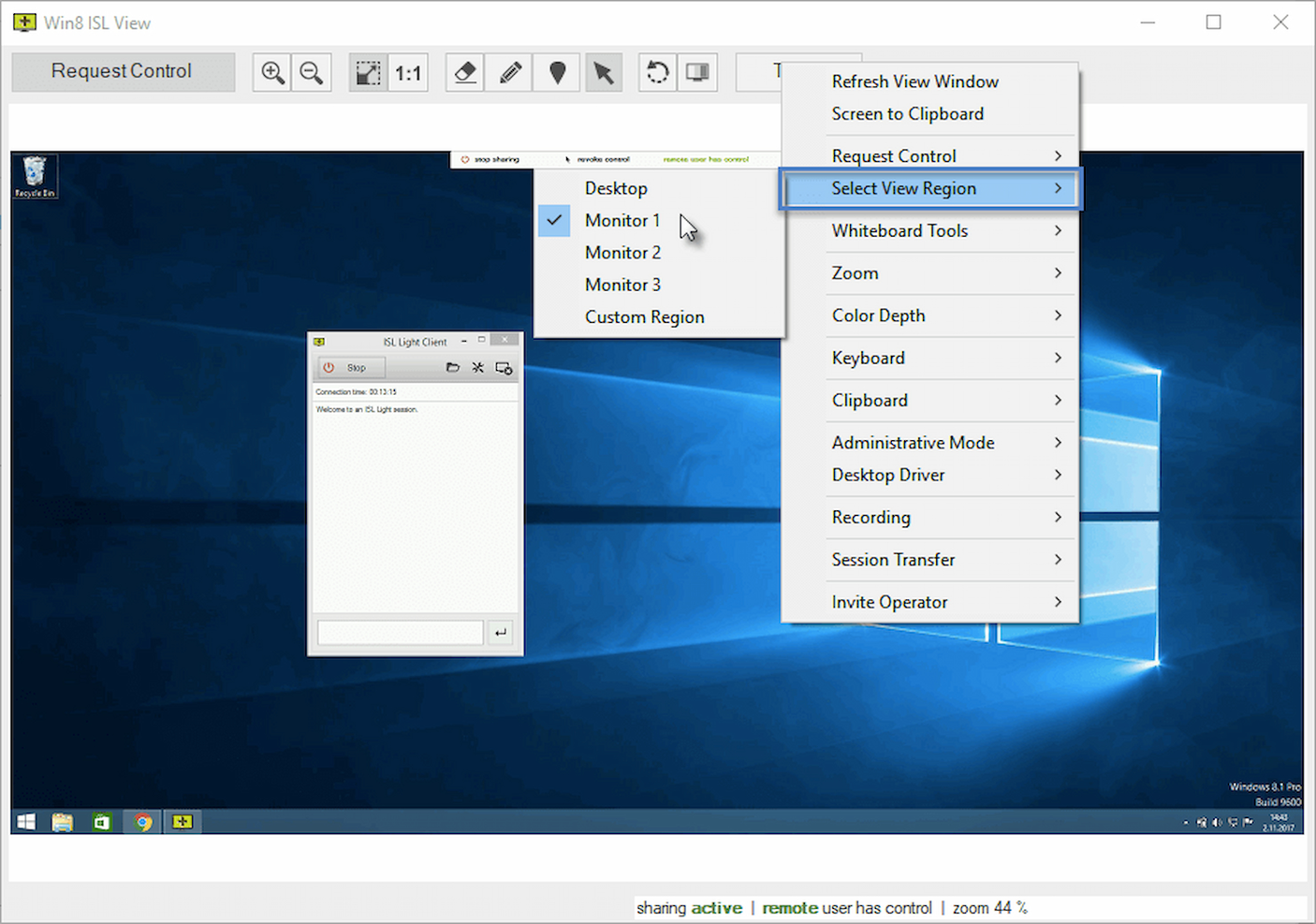
ISL Online è un software di supporto remoto per team IT che offre accesso desktop remoto sicuro, accesso non presidiato, registrazione delle sessioni e compatibilità multipiattaforma per la gestione e risoluzione dei problemi dei dispositivi.
Per chi è ideale ISL Online?
ISL Online è particolarmente adatto a team IT e provider di servizi gestiti che necessitano di uno strumento di supporto remoto completo in grado di offrire un controllo dettagliato su accessi, sicurezza e gestione delle sessioni.
Perché ho scelto ISL Online
ISL Online si guadagna un posto nella mia lista perché offre più funzionalità rispetto alla maggior parte dei tool di supporto remoto che ho testato. La gamma di funzioni va ben oltre la semplice condivisione dello schermo: apprezzo in particolare la funzione Quick Launch, che consente di aprire direttamente il Prompt dei comandi, Gestione dispositivi o Gestione attività su una macchina remota senza dover navigare attraverso il desktop del cliente. È davvero un risparmio di tempo, soprattutto quando si deve diagnosticare un problema sotto pressione. Mi affido anche alla funzione di riavvio e ripresa, che si riconnette automaticamente dopo un riavvio: non serve avviare nuovamente la sessione dopo l’installazione di aggiornamenti o driver. Inoltre, la registrazione integrata delle sessioni cattura attività schermo, chat e audio, funzionalità che il mio team utilizza per documentare le interazioni di supporto a fini di audit, senza dover ricorrere ad altri strumenti.
Funzionalità principali di ISL Online
- Supporto multi-monitor: Visualizza e passa da un monitor remoto all’altro o apri ciascun monitor in una finestra separata durante una sessione.
- Schermo nero (modalità tenda): Oscura lo schermo remoto durante la manutenzione non presidiata per impedire agli utenti in loco di visualizzare azioni sensibili.
- Modalità amministrativa: Eleva i privilegi della sessione per ottenere l’accesso con diritti amministrativi sulla macchina remota senza dover terminare e riavviare la sessione.
- Gestore file in sessione: Avvia un gestore file a doppio pannello per navigare e trasferire file tra dispositivi locali e remoti durante una sessione attiva.
Integrazioni ISL Online
ISL Online offre integrazioni native con Microsoft Active Directory, ServiceNow, Hemidal e altro ancora. È disponibile un’API per integrazioni personalizzate.
Pros and Cons
Pros:
- Si può selezionare una parte specifica dello schermo del cliente per una rapida risoluzione
- Crittografia end-to-end AES 256 e 2FA per una sicurezza avanzata
- È possibile utilizzare lo schermo nero per nascondere informazioni critiche
Cons:
- Può richiedere una formazione approfondita per sfruttarne tutte le funzionalità
- Integrazioni limitate
Altri Software di Supporto Remoto
Ecco qualche altra opzione se desideri ulteriori suggerimenti:
- NinjaOne
Ideale per grandi aziende
- UltraVNC
Miglior opzione open-source
- ControlUp
Ideale per il monitoraggio in tempo reale
- Front
Ideale per la comunicazione collaborativa con i clienti e le caselle di posta di team
- Quidget
Ideale per troubleshooting automatico tramite chat
- RemotePC
Ideale per piccole imprese
- Blitzz
Ideale per il supporto video
- Splashtop
Ideale per la sicurezza
- Scalefusion
Ideale per la gestione di endpoint multi-OS
- SuperOps
Ideale per fornitori di servizi gestiti


Come valuto il software di supporto remoto
Valuto ogni strumento su due livelli: le funzionalità di base che deve avere per essere qualificato e i fattori differenzianti che contano maggiormente per MSP, responsabili help desk e team IT distribuiti.
Funzionalità di base (Requisiti fondamentali per questa lista)
Quando seleziono gli strumenti per la mia lista, assegno a ciascuno un punteggio da 0 (non offre la funzionalità) a 5 (eccelle in quest'area) per ognuna delle funzionalità principali elencate qui sotto. Successivamente, calcolo il punteggio totale dello strumento e lo trasformo in percentuale. Ogni tool deve raggiungere un punteggio totale minimo del 65% per essere considerato per l'inclusione.
- Controllo remoto dello schermo: Verifico il pieno controllo in tempo reale con supporto multi-monitor e sincronizzazione della clipboard—fondamentale quando un tecnico deve intervenire su postazioni con doppio schermo.
- Accesso non presidiato: Gli strumenti dovrebbero permettere la connessione agli endpoint anche senza presenza dell’utente, essenziale per aggiornamenti notturni, riavvii server e manutenzione fuori orario.
- Supporto multipiattaforma: Cerco la copertura per Windows, macOS, Linux, iOS e Android così che i team possano supportare qualsiasi dispositivo in ambienti misti.
- Crittografia sicura delle sessioni: Ogni strumento valutato deve offrire crittografia AES-256, MFA e controlli di accesso basati sui ruoli per mantenere sicure le sessioni remote.
- Trasferimento file & chat nella sessione: La possibilità di inviare file di configurazione o script diagnostici durante la sessione, chattando con l’utente finale, elimina la necessità di follow-up separati.
- Registrazione sessione & log audit: Cerco la registrazione automatica e log ricercabili—particolarmente utili durante audit di conformità o quando si analizza come è stato risolto un incidente.
Una volta stilata la lista degli strumenti che soddisfano i criteri, considero cosa differenzia ciascuna piattaforma.
Fattori differenzianti (ciò che distingue i fornitori)
Ecco come confronto e metto a paragone i diversi fornitori:
Funzionalità distintive
La gestione multi-sessione è fondamentale per help desk molto attivi—cerco strumenti che permettano al tecnico di gestire più sessioni contemporanee con cambio a schede invece che dover disconnettere e riconnettere. Anche la capacità di scripting e automazione ha peso, soprattutto per distribuire patch o eseguire diagnostiche su decine di endpoint senza intervento manuale. Per gli MSP, un portale di supporto brandizzato fa davvero la differenza, offrendo ai clienti un’esperienza coerente e professionale nella richiesta d’aiuto.
Oltre le funzionalità
Valuto quanto bene uno strumento si integri con piattaforme ITSM esistenti come ServiceNow o Jira—senza integrazioni native di ticketing, i tecnici finiscono per copiare manualmente i dettagli della sessione. Anche la flessibilità di deployment e licenza influisce sulle mie raccomandazioni, poiché gli MSP che si espandono fra i clienti hanno bisogno di modelli per-tecnico che non facciano aumentare troppo i costi. Un altro aspetto è l’affidabilità della connessione; valuto la stabilità delle sessioni su reti a bassa banda, perché una disconnessione durante l’intervento obbliga a ricominciare la risoluzione del problema da capo.
Come Scegliere un Software di Supporto Remoto
È facile perdersi tra lunghe liste di funzionalità e strutture di prezzi complesse. Per aiutarti a rimanere concentrato durante il tuo particolare percorso di scelta, ecco un elenco di fattori da tenere a mente:
| Fattore | Cosa Considerare |
|---|---|
| Scalabilità | Il software può crescere con il tuo team? Valuta se supporta più utenti o dispositivi senza problemi al crescere delle tue esigenze. |
| Integrazioni | Funziona con i tuoi strumenti esistenti come CRM o sistemi di ticketing? Verifica la compatibilità per evitare silos di dati e lavoro extra. |
| Personalizzazione | Puoi adattare il software ai tuoi flussi di lavoro? Cerca opzioni che ti permettano di regolare le impostazioni o creare report personalizzati. |
| Facilità d’uso | L’interfaccia è intuitiva per il tuo team? Uno strumento facile da navigare riduce il tempo di formazione e il rischio di errori. |
| Implementazione e onboarding | Quanto velocemente può il tuo team iniziare a usarlo? Cerca risorse di onboarding complete, come tutorial e guide, per facilitare la transizione. |
| Costo | La struttura dei prezzi si adatta al tuo budget? Confronta il costo con il valore effettivo, inclusi eventuali costi nascosti o contratti a lungo termine. |
| Misure di sicurezza | Il software offre solidi meccanismi di sicurezza? Assicurati che disponga di cifratura e rispetti gli standard di protezione dei dati del tuo settore. |
| Disponibilità del supporto | L’assistenza è disponibile quando serve? Valuta i canali di supporto offerti e i tempi di risposta per garantire tempi rapidi di risoluzione dei problemi. |
Che Cos’è un Software di Supporto Remoto?
Il software di supporto remoto è uno strumento che consente ai professionisti IT di accedere e intervenire sui dispositivi degli utenti da qualsiasi luogo. È utilizzato principalmente dai team di help desk, dagli amministratori di sistema e dai managed service provider che devono risolvere rapidamente i problemi tecnici senza essere in loco.
Funzionalità come la condivisione dello schermo, il trasferimento di file e la registrazione delle sessioni aiutano a diagnosticare i problemi, guidare gli utenti e mantenere tracce di audit sicure. In generale, questi strumenti rendono più semplice risolvere rapidamente i problemi, ridurre i tempi di inattività e mantenere gli utenti produttivi.
Funzionalità
Quando si sceglie un software di supporto remoto, è importante prestare attenzione alle seguenti funzionalità chiave:
- Accesso remoto: Consente ai tecnici di collegarsi ai dispositivi da qualsiasi luogo, rendendo la risoluzione dei problemi comoda ed efficiente.
- Trasferimento file: Permette lo scambio sicuro di file tra dispositivi, facilitando la condivisione rapida dei dati per risolvere i problemi.
- Registrazione delle sessioni: Registra le sessioni remote per finalità di audit e formazione, aiutando i team a rivedere e migliorare le interazioni di supporto.
- Supporto multipiattaforma: Garantisce la compatibilità con diversi sistemi operativi e dispositivi, offrendo flessibilità negli scenari di supporto.
- Chat in tempo reale: Offre comunicazione istantanea con gli utenti durante le sessioni di supporto, migliorando collaborazione e comprensione.
- Personalizzazione del branding: Permette alle aziende di personalizzare l'interfaccia utente, rafforzando l'identità del marchio durante le interazioni di supporto.
- Sicurezza avanzata: Fornisce misure di cifratura e autenticazione per proteggere i dati sensibili durante le sessioni remote.
- Capacità di integrazione: Si collega con strumenti esistenti come CRM e sistemi di ticketing, semplificando la gestione dei flussi di lavoro e dei dati.
- Interfaccia intuitiva: Semplifica la navigazione e l'utilizzo, riducendo i tempi di formazione e minimizzando gli errori.
- Scalabilità: Si adatta alla crescita di team e dispositivi, garantendo che il software rimanga efficace man mano che le esigenze evolvono.
Vantaggi
L'implementazione di un software di supporto remoto offre numerosi vantaggi per il tuo team e la tua azienda. Eccone alcuni a cui puoi guardare con favore:
- Maggiore efficienza: L'accesso remoto e la chat in tempo reale permettono ai tecnici di risolvere i problemi più velocemente, riducendo i tempi di inattività.
- Risparmio sui costi: Elimina la necessità di visite in loco, abbattendo le spese di viaggio e risparmiando tempo.
- Migliore soddisfazione del cliente: La rapida risoluzione dei problemi e una comunicazione efficace migliorano l'esperienza dell'utente.
- Sicurezza potenziata: Le funzionalità di sicurezza avanzata proteggono i dati sensibili durante le sessioni remote, offrendo tranquillità.
- Supporto flessibile: Il supporto multipiattaforma consente di assistere gli utenti su diversi dispositivi e sistemi operativi.
- Scalabilità: Con la crescita dell'azienda, il software può gestire più utenti e dispositivi senza perdere efficacia.
- Formazione e conformità: La registrazione delle sessioni aiuta a formare i nuovi operatori e a mantenere la conformità tramite registri dettagliati.
Costi e prezzi
La scelta di un software di supporto remoto richiede la comprensione dei diversi modelli e piani tariffari disponibili. I costi variano in base alle funzionalità, alla dimensione del team, agli add-on e altro ancora. La tabella qui sotto riepiloga i piani più comuni, i prezzi medi e le caratteristiche tipiche incluse nelle soluzioni software di supporto remoto:
Tabella di confronto dei piani per il software di supporto remoto
| Tipo di piano | Prezzo medio | Caratteristiche comuni |
|---|---|---|
| Piano gratuito | $0 | Accesso remoto di base, trasferimento file e supporto limitato. |
| Piano personale | $5-$25/user/month | Accesso remoto, trasferimento file, registrazione delle sessioni e supporto via email. |
| Piano business | $30-$60/user/month | Supporto multipiattaforma, personalizzazione del branding, sicurezza avanzata e supporto telefonico. |
| Piano enterprise | $75-$150/user/month | Tutte le funzionalità degli altri piani, integrazioni, supporto prioritario e scalabilità. |
Domande frequenti sul software di supporto remoto
Ecco alcune risposte alle domande più comuni sul software di supporto remoto:
Il software di supporto remoto può essere utilizzato su dispositivi mobili?
Sì, molti strumenti di supporto remoto offrono compatibilità con dispositivi mobili. Ciò consente al tuo team di fornire assistenza su smartphone e tablet, il che è utile se supporti una forza lavoro mobile o clienti che utilizzano dispositivi mobili. Verifica se il software dispone di app dedicate o di un’interfaccia web responsive per garantire un funzionamento fluido su schermi più piccoli.
È necessaria l'installazione per l'utente finale?
Alcuni strumenti richiedono l’installazione di un client leggero sul computer dell’utente, mentre altri offrono sessioni basate sul web o su richiesta. Il processo di configurazione può influenzare la rapidità e la facilità con cui viene fornito il supporto. Gli strumenti che offrono entrambe le opzioni forniscono maggiore flessibilità nelle situazioni reali.
Il software di supporto remoto funziona su diversi sistemi operativi?
La maggior parte delle piattaforme è progettata per supportare la funzionalità cross-platform, comprendendo Windows, macOS e diverse distribuzioni Linux. Alcune supportano anche sistemi operativi mobili come iOS e Android, ma i livelli di compatibilità possono variare. È importante verificare quali sistemi sono supportati nativamente dal software prima della distribuzione.
Le sessioni vengono registrate automaticamente o manualmente?
Il comportamento della registrazione varia: alcuni strumenti offrono la registrazione automatica delle sessioni, mentre altri richiedono l’attivazione manuale. Anche la posizione e il formato di archiviazione di tali registrazioni dipendono dall’architettura della piattaforma. Se audit o riproduzione sono importanti, valuta attentamente come vengono gestite e recuperate le registrazioni.
Il software supporta l'accesso non presidiato?
Molte piattaforme supportano l’accesso non presidiato, consentendo ai tecnici di collegarsi senza la presenza dell’utente. Normalmente questo avviene tramite un agente permanente installato sul dispositivo. Verifica sempre come viene abilitato l’accesso non presidiato e se è configurabile per dispositivo o a livello globale.
E ora?
Se sei alla ricerca di un software di supporto remoto, contatta gratuitamente un consulente SoftwareSelect per ricevere raccomandazioni personalizzate.
Compila un modulo e avrai una breve chiacchierata in cui ti verranno richiesti i dettagli delle tue esigenze. Riceverai quindi una lista selezionata di software da valutare. Ti supporteranno anche durante l’intero processo di acquisto, comprese le trattative sui prezzi.