25 Beste Dokumentationssoftware im Test für 2026

Bestes Dokumentationssoftware-Shortlist
Hier ist meine Liste der besten Dokumentationssoftware:


Wenn Sie schon einmal gezwungen waren, sich durch ein chaotisches Wiki, veraltete PDFs oder einzelne Slack-Nachrichten zu wühlen, nur um eine einfache Frage zu beantworten, wissen Sie, wie sehr schlechte Dokumentation ein Team ausbremsen kann. Egal, ob Sie internes Wissen, technische Spezifikationen oder Produktanleitungen verwalten – die richtige Dokumentationssoftware kann darüber entscheiden, wie effizient Ihr Team arbeitet.
In den letzten Jahren habe ich mit wachsenden Teams und dynamischen Produktorganisationen zusammengearbeitet, um skalierbare Dokumentationssysteme von Grund auf zu erstellen. Ich habe dutzende Plattformen praktisch getestet und geprüft, wie sie sich im echten Kollaborationsstress verhalten – nicht nur in einer Demo-Umgebung.
In diesem Leitfaden teile ich die Dokumentationstools, die durch Übersichtlichkeit, Struktur, Kollaborationsfunktionen und Suchmöglichkeiten überzeugt haben – damit Sie eine Lösung wählen können, mit der Ihr Team schneller arbeitet, smarter dokumentiert und Informationen dort hält, wo sie hingehören.
Table of Contents
Why Trust Our Software Reviews
Zusammenfassung der besten Dokumentationssoftware
| Tool | Best For | Trial Info | Price | ||
|---|---|---|---|---|---|
| 1 | Best for AI-powered features | Free demo available | Pricing upon request | Website | |
| 2 | Best for automated document creation | Free plan available (for 10 days) | From $40/month (billed annually) | Website | |
| 3 | Best for branded client portals | Free demo available | Pricing upon request | Website | |
| 4 | Best for visual process documentation | Free plan available | From $9/user/month | Website | |
| 5 | Best for AI-driven customer support | 14-day free trial + free demo available | From $19/agent/month (billed annually) | Website | |
| 6 | Best for coders and developers | 30-day free trial available | From $4/user/month | Website | |
| 7 | Best for AI video documentation | Free 7-day trial + free plan + free demo available | From $18/creator/month (billed annually) | Website | |
| 8 | Best for walkthroughs | Free demo available | Pricing upon request | Website | |
| 9 | Best for creating comprehensive knowledge bases | Free plan + free demo + 7-day free trial available | From $0.83/user/month (billed annually) | Website | |
| 10 | Best for internal teams | Free plan available | From $9.99/month (billed annually) | Website | |
| 11 | Best for powerful search capabilities | 14-day free trial + demo available | From $25/user/month (billed annually) | Website | |
| 12 | Best for teams who want visual content | Free plan available | From $6/user/month | Website | |
| 13 | Best for documentation templates | Free plan + 7-day free trial available | From $6.70/user/month | Website | |
| 14 | Best for API documentation | as a free trial but doesn’t mention the number of days | Pricing available on request | Website | |
| 15 | Best for an integrated knowledge base | Free trial | From $25/user/month (billed annually) | Website |
-

Site24x7
Visit WebsiteThis is an aggregated rating for this tool including ratings from Crozdesk users and ratings from other sites.4.6 -
Docker
Visit WebsiteThis is an aggregated rating for this tool including ratings from Crozdesk users and ratings from other sites.4.6 -
Pulumi
Visit WebsiteThis is an aggregated rating for this tool including ratings from Crozdesk users and ratings from other sites.4.8




Bewertungen der besten Dokumentationssoftware
Nachfolgend finden Sie meine detaillierten Zusammenfassungen der besten Dokumentationssoftware, die es auf meine Shortlist geschafft haben. Meine Bewertungen bieten einen umfassenden Blick auf die wichtigsten Funktionen, Vorteile & Nachteile, Integrationen und idealen Anwendungsfälle jedes Tools, damit Sie die beste Lösung für sich finden.

Document360 is an AI-driven knowledge base software tailored for businesses looking to efficiently create, manage, and expand their documentation efforts. It features a comprehensive platform that includes a user-friendly portal for content creators and a customer-facing site.
Why I picked Document360: It supports various user roles with a dedicated portal, promoting effective collaboration among editors, writers, and reviewers. With advanced functionalities like analytics, workflow management, and SEO optimization, users can efficiently manage documents and boost productivity. Document360's AI-powered features, such as interactive search and automated content generation, aid in managing documentation processes more effectively. Furthermore, the platform provides a business glossary, ticket deflector, and health check metrics to support comprehensive knowledge management.
Document360 Standout Features and Integrations
Features include an AI-powered knowledge base, in-line comments, a difference viewer for comparing versions, document lifecycle statuses, a category manager, bulk actions, custom domain mapping, and custom branding.
Integrations include Zendesk, Freshdesk, Intercom, Drift, Slack, GitHub, Make, Salesforce, and Microsoft Teams.
Pros and Cons
Pros:
- Smart file management features
- Offers powerful reporting and analytics
- Provides robust version control with audit trails
Cons:
- Can be pricey for teams on a budget
- Most integrations are only available on higher-tier plans
New Product Updates from Document360

Document360 Expands Translation, Portal Visibility, and Analytics Enhancements
Document360 introduces improved category title translation, lifecycle-based account champion visibility in the portal, and clearer analytics labeling. These updates enhance multilingual consistency, improve user guidance, and refine reporting accuracy. For more information, visit Document360's official site.
 .
.

TruPeer offers an AI-powered solution for those in need of documentation software, particularly appealing to IT teams, DevOps, and support engineers. Its unique ability to transform rough screen recordings into polished product videos and detailed documentation addresses the need for quick, efficient content creation. With features such as automated script enhancement and customizable branding, it addresses the challenge of maintaining consistency and professionalism in documentation.
Why I Picked TruPeer
I picked TruPeer for its standout feature, AI-driven document generation that automatically creates structured documentation from workflows and notes. This is complemented by real-time collaboration tools, allowing your team to edit and update documents together, ensuring accuracy. Additionally, the software's ability to maintain brand consistency through customizable options makes it a unique choice for documentation needs.
TruPeer Key Features
In addition to its document generation capabilities, TruPeer offers:
- Automated Script Enhancement: Enhances your documentation scripts automatically, saving time on manual editing.
- Support for Over 65 Languages: Provides translation capabilities, making your documentation accessible to a global audience.
- Engagement Analytics: Allows you to track how your documentation is used, providing insights into its effectiveness.
- Centralized Knowledge Base: Offers a searchable repository for all your documentation, making it easy to find and use.
TruPeer Integrations
Integrations include Google Workspace, Notion, Slack, Trello, and an API for custom integrations.
Pros and Cons
Pros:
- AI video search improves accessibility to information quickly
- Collaborative tools support multi-user editing and sharing
- Transforms screen recordings into polished videos quickly
Cons:
- Customization options may not meet all branding needs
- Limited advanced editing features restrict detailed customization


Hub is an intranet and documentation platform designed to centralize company knowledge while also improving client engagement. With customizable client portals, it allows teams to create co-branded or personalized spaces where documentation can live alongside collaboration tools, making it a flexible choice for both internal and external use.
Why I picked Hub: I picked Hub because it goes beyond traditional documentation software by letting you build branded client portals. This means you can share guides, manuals, or onboarding documents with customers in a way that reflects your brand. I also like its no-code setup, which makes it accessible for non-technical teams and ensures you can launch your documentation system quickly. If you want documentation that doubles as a client-facing resource, Hub is a strong option.
Hub Standout Features and Integrations
Features include branded client portals, a no-code interface, GDPR compliance, ISO 27001 certification, AI-driven content personalization, and a progressive web app for mobile access. You’ll also get real-time reporting and analytics to track engagement.
Integrations include SharePoint, Slack, Microsoft Teams, Google Drive, OneDrive, BambooHR, YouTube, Duo, Microsoft Entra ID, Office 365, OneLogin, and OKTA.
Pros and Cons
Pros:
- Customizable branded client portals
- Secure with ISO certification
- Easy to set up
Cons:
- Limited design customization
- Pricing not publicly listed


For those seeking a documentation software solution, Lucidchart presents itself as a versatile diagramming tool that enhances the way your team visualizes processes and collaborates on projects. It caters specifically to professionals in IT, engineering, product management, and operations, providing them with the means to create detailed diagrams that simplify complex workflows. By offering features like AI-generated diagrams and real-time collaboration, Lucidchart addresses the challenge of maintaining clear, accessible documentation across various sectors, from education to healthcare.
Why I Picked Lucidchart
I picked Lucidchart for its unique ability to transform complex data into clear and actionable visuals, a crucial aspect of documentation software. The AI-powered diagramming simplifies the creation of intricate diagrams, allowing you to focus on content rather than design. Additionally, its real-time collaboration feature ensures that your team stays aligned and productive, even when working remotely. These features make Lucidchart a compelling choice for those who need to document processes and ideas clearly and collaboratively.
Lucidchart Key Features
In addition to its standout diagramming capabilities, I also found several features that enhance its utility as documentation software:
- Data Linking: Connect your diagrams to live data sources, ensuring that your documentation remains current and accurate.
- Conditional Formatting: Visualize data trends and patterns through customizable rules that highlight key information within your diagrams.
- UML Markup: Create and manage UML diagrams to document software architecture and design processes effectively.
- Template Library: Access a vast collection of templates to jumpstart your documentation projects and maintain consistency across documents.
Lucidchart Integrations
Integrations include Google Workspace, Microsoft Office, Slack, Jira, Salesforce, Atlassian Confluence, Dropbox, AWS, Zapier, and Microsoft Teams. An API is available for custom integrations.
Pros and Cons
Pros:
- Supports live data linking
- Large template library available
- Strong real-time collaboration tools
Cons:
- Advanced features require upgrades
- Limited offline access options


Zendesk is a customer service and documentation platform that helps teams manage requests, knowledge bases, and communications across multiple channels. It combines ticketing, messaging, and AI tools to enhance both customer and employee experiences.
Why I picked Zendesk: I chose Zendesk for its AI agents and automation capabilities that help resolve inquiries faster and free up human agents for more complex requests. I also appreciate its omnichannel support, which lets you manage conversations from email, chat, social media, and phone in one place. For documentation needs, Zendesk offers detailed developer resources, including APIs, SDKs, and integration guides, making it a strong fit for technical teams who need to maintain robust, accessible knowledge bases.
Zendesk Standout Features and Integrations
Features include AI agents for automated responses, messaging and live chat for real-time support, workforce management tools for resource allocation, omnichannel resolutions with advanced call routing, employee service solutions for internal requests, and strong data privacy measures for secure operations.
Integrations include Salesforce, HubSpot, Slack, Microsoft Teams, Jira, Google Sheets, Typeform, Cognito Forms, Facebook Lead Ads, Google Forms, Unbounce, and Zendesk Sell. You can also connect additional tools using Zapier, Workato, or the Zendesk Apps Framework.
Pros and Cons
Pros:
- Frequent updates with new features
- Strong integration options with telephony and apps
- Effective ticketing system for managing customer inquiries
Cons:
- Self-service system may not cover all needs
- Configuration can be complex without guidance


GitHub is a platform that allows developers to host and share code with other developers. It also has many tools that help you host and share documentation for open-source or private projects.
Why I picked GitHub: I recommend GitHub for coders and developers because of GitHub Wikis, a collaborative documentation platform and part of the GitHub repository. Wikis are particularly useful when you want to save and share information on your project, like how to use it, how the project was designed, and its fundamental principles. You can format wikis by adding images, tables, expandable sections, and quotes.
GitHub Standout Features and Integrations:
Features that I believe developers would like are its offering of GitHub README files that store essential project information like how to get help on a project and who is handling and contributing to the project. Further, they can publish their documentation page as a website with GitHub pages. All tools have powerful text formatting with simple syntax.
Integrations are available as built-in options, including Slack, Microsoft Teams, Terraform, and Jira. Includes a robust API that allows you to integrate with third-party tools.
Pros and Cons
Pros:
- Community-driven, so it’s easy to get feedback and suggestions from other coders
- Built-in code highlighting, which makes it easy to read and understand code snippets
- Markdown support
Cons:
- Pricing gets high for large teams
- Security can be a concern


Guidde is a generative AI platform designed to help your team create video documentation faster. It allows you to produce how-to guides, standard operating procedures (SOPs), training materials, and onboarding documents, all in one place.
Why I picked Guidde: I picked Guidde because of its AI-powered video documentation features that let you record a workflow and instantly generate step-by-step guides. The tool automatically adds visual instructions and lets you choose from over 100 voices and languages for narration, which is great for teams with global users. It also comes with smart editing tools that let you easily add text, annotations, voiceovers, and branding to your videos.
Guidde Standout Features and Integrations
Features include automated voice translations, desktop application compatibility, AI-generated descriptions, one-click capture, customizable branding, step-by-step workflow capture, text and annotation addition, voiceover capabilities, Windows and macOS support, and automated step descriptions.
Integrations include Salesforce, Google Drive, Microsoft OneDrive, Slack, Zoom, Zendesk, ServiceNow, Chrome, Notion, and Confluence.
Pros and Cons
Pros:
- Multilanguage support for video documentation
- Includes interactive elements and professional voiceovers
- Utilizes AI for automatic storyline creation
Cons:
- Not ideal for teams that don't use video documentation
- Could offer more integrations


Whatfix is a digital adoption platform that you can use to create technical documentation in an interactive and engaging manner. It helps users adopt your software and its workings quickly, especially if you have robust and comprehensive software that users may need help understanding.
Why I picked Whatfix: If you’re looking for a visual way to guide your users through your app, I would definitely suggest Whatfix. With Whatfix, you can create step-by-step walkthroughs without coding so users can understand how to use your product. You can create your in-app guides in multiple formats, like videos, slideshows, GIFs, and PDFs.
Whatfix Standout Features and Integrations:
Features that I want to highlight here are Whatfix’s ability to create flows in the documentation for contextual guidance and give prompts if you want users to take specific actions. You can highlight, circle, and zoom on particular parts of the screen and alert users with essential notifications about any upgrades, events, or changes. With its analytics, you can also track user behavior and optimize your content.
Integrations are natively available, including Salesforce, SAP, SurveyMonkey, Confluence, Workday, Slack, and PowerBI.
Pros and Cons
Pros:
- Supports multiple languages
- Self-service feature for common tasks
- Supportive account management team
Cons:
- Steep learning curve
- Needs more customization


Zoho Learn allows organizations to create, store, and manage knowledge base articles, FAQs, and user manuals with customization options for branding and layout. However, it is much more than just documentation software, as it is a complete employee training and development solution.
Why I picked Zoho Learn: My primary reason for choosing Zoho Learn is its ability to be a central repository of all the documentation your business needs. For example, you can create product documentation, handbooks, reports, manuals, roadmaps, wikis, strategies, FAQs, compliance documents, and more and store them in a neat and organized way.
Zoho Learn Standout Features and Integrations:
Features that I believe teams who want a robust knowledge base software will appreciate are that you can collaborate with other users on your documentation, save standard formats of manuals as templates, and track versions. I also liked that you can make shared workspaces to keep similar documentation in one place and offer feedback with comments and mentions.
Integrations are natively available with G Suite and Microsoft Teams, and you can use Zapier and open API for custom integrations.
Pros and Cons
Pros:
- Many customization options available
- Affordable pricing plans
- Can track user engagement on the documentation
Cons:
- Limited support for language translation
- Learning its navigation can take time


Dropbox is a cloud-based service that allows teams to store, share, and collaborate on internal documentation in real time.
Why I picked Dropbox: For me, Dropbox is a great solution for internal teams because it’s easy to use. Team members can simultaneously access and edit documents, add comments and annotations, and share feedback. It also uses advanced security measures to protect documents and files with two-factor authentication, role-based permissions, and remote wipe capabilities.
Dropbox Standout Features and Integrations:
Features that I feel internal teams will love are that it offers a mobile app with the full functionalities of a web or desktop Dropbox app. It has a Smart Sync feature that allows users to see and access all files and folders without occupying their hard drives; this can be helpful for teams who work with large files or have limited storage capacity. Like Google Docs, it has Dropbox Paper for better team collaboration on documents and a file preview feature where users can see the file without downloading it.
Integrations include GSuite, Microsoft Office, Nitro, Adobe Acrobat DC, Canva, IFTTT, Prezi, and monday.com. Zapier is also available.
Pros and Cons
Pros:
- Offline access and version history
- Can create custom folders and sub-folders
- Robust tag-based searching
Cons:
- Limited customization
- Limited storage for free accounts

ClickHelp is a modern documentation system for technical writers and teams to create and manage all kinds of content, including manuals, user guides, tutorials, and API documentation.
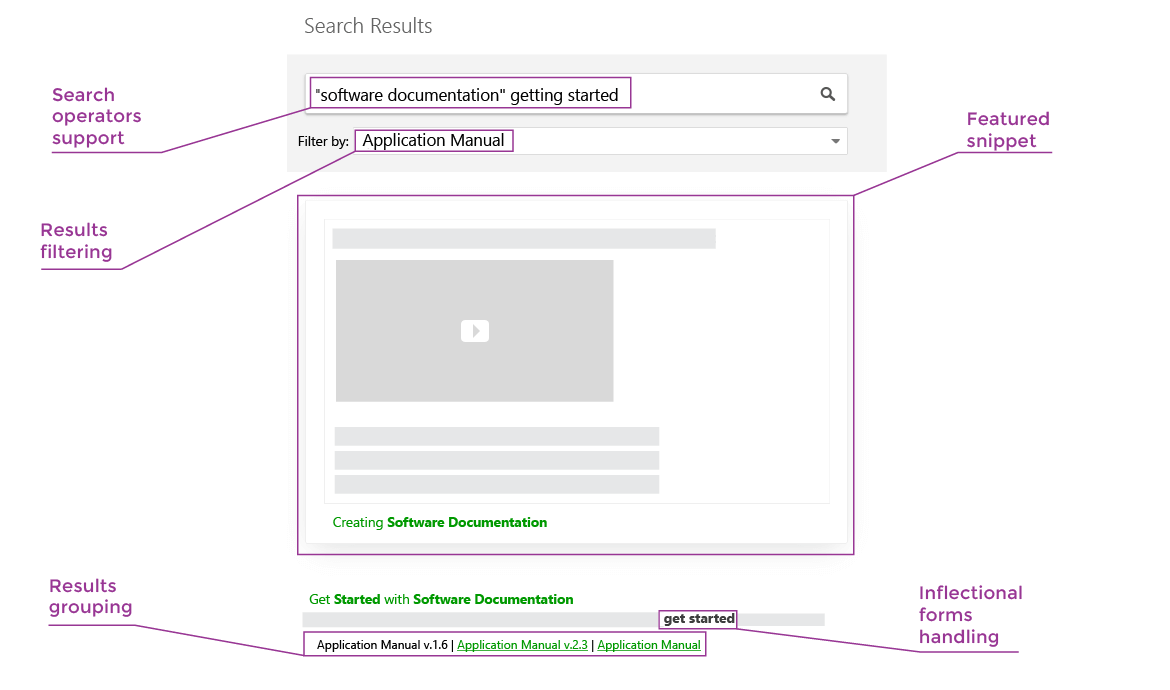
Why I picked ClickHelp: I selected ClickHelp for this list because of its patented full-text search (FTS) engine, designed solely for documentation search. It provides accurate results for exact matches and even for queries with typos or partial matches. The FTS engine can also interpret user queries to offer helpful suggestions for related searches.
ClickHelp Standout Features and Integrations:
Features that impressed me about its FTS engine are that it has predictive search and indexes content to add words that are not in the article so that readers can find what they want with the indexed terms. It also groups results, tags other pages where you can find the same result, and restricts password-protected documents from entering the search results.
Besides these, ClickHelp also lets you add rich media content like videos, quizzes, feedback forms, and surveys, and you can even track how your documentation is being used and what needs improvement with analytics.
Integrations include Zendesk, Bing, Disqus, Google Analytics, JotForm, Vimeo, YouTube, and Salesforce. APIs are also available.
Pros and Cons
Pros:
- Flexible roles and permissions settings
- Supports multiple formats for migration, including HTML, PDF, DOCX, EPUB, and CHM
- Can customize the look and feel of your online documentation with themes and templates
Cons:
- UI may not be intuitive
- Expensive compared to other options


Nuclino is a team’s collective brain and collaborative wiki that allows teams to easily create, share, and collaborate on documents. It offers features like a visual editor, version history, and the ability to link between documents.
Why I picked Nuclino: I selected Nuclino for my list because of its powerful visual editor. You can bring boring technical documents to life by adding images, videos, screenshots, code blocks, embed, file attachments, quotes, markdown commands, and Mermaid diagrams.
Nuclino Standout Features and Integrations:
Features that I think are the most impressive are its ability to adapt knowledge in different views like list, board, graph, and table view so you can manage and search information easily. Nuclino allows teams to customize their workspaces with their logo, color scheme, and appearance, making it easy to create a visually appealing and cohesive documentation hub.
Integrations are native for Slack, Microsoft Teams, YouTube, Google Calendar, Grammarly, Typeform, Figma, Canva, OneLogin, and Miro. APIs are available.
Pros and Cons
Pros:
- Flexible permission options
- Can search and filter information easily
- Real-time collaboration
Cons:
- Mobile version can be glitchy
- May not be able to handle large databases


Atlassian Confluence is a remote-friendly product for creating content like knowledge bases, product requirements, and research reports.
Why I picked Confluence: I chose Confluence because of its wide range of templates. There are templates for project documentation, incident communication, software architecture review, incident postmortem, and more. You can even create your own templates. If you’re going to write documentation of similar formats repeatedly, like a technology roadmap or strategic roadmap, then templates can be a great time-saver.
Confluence Standout Features and Integrations:
Features that impressed me include its fine-grained page and space permissions, Whiteboard and sticky notes to visualize your workflows, and commenting and alerting functionalities on pages. I also appreciated the simplicity of editing templates with the built-in editors that allowed me to adjust the layout, text, and tables of my custom templates without fuss.
Integrations are available natively and include popular tools like Jira Service Management, Trello, Miro, Balsamiq, Google Calendar, Asana, monday.com, and Slack.
Pros and Cons
Pros:
- Can create cross-links between documents to create a comprehensive documentation
- Real-time editing and version history
- Collaborative features like in-line and page comments, likes, emojis, and GIFs
Cons:
- Syntax can be confusing
- Navigation can take time to get used to


Apiary is a collaborative API development platform offering comprehensive documentation features and an interactive interface.
Why I picked Apiary: If you’re searching for a tool that lets you collaborate on API documentation, Apiary is a great choice. I picked Apiary because it comes with a dedicated API Blueprint management dashboard that helps you to easily track and manage API design and development lifecycles. You can include role-based access over your API document and even manage team members in the API design projects.
Apiary Standout Features and Integrations:
Features that I believe are important for teams creating API documentation are API Blueprint templates, the ability to customize Blueprints, version control, functionality to embed your API project on your domain with simple JavaScript, live preview to instantly collaborate on an API, and the Apiary Editor to try your API design simultaneously as you write it.
Integrations are available natively, including Travis CI, GitHub, JIRA, and APIs to connect to third-party tools.
Pros and Cons
Pros:
- Admin, editor, and viewer roles
- Clean interface
- Mock servers to test APIs
Cons:
- Pricing plans are not clear
- Limited customization options for documentation style

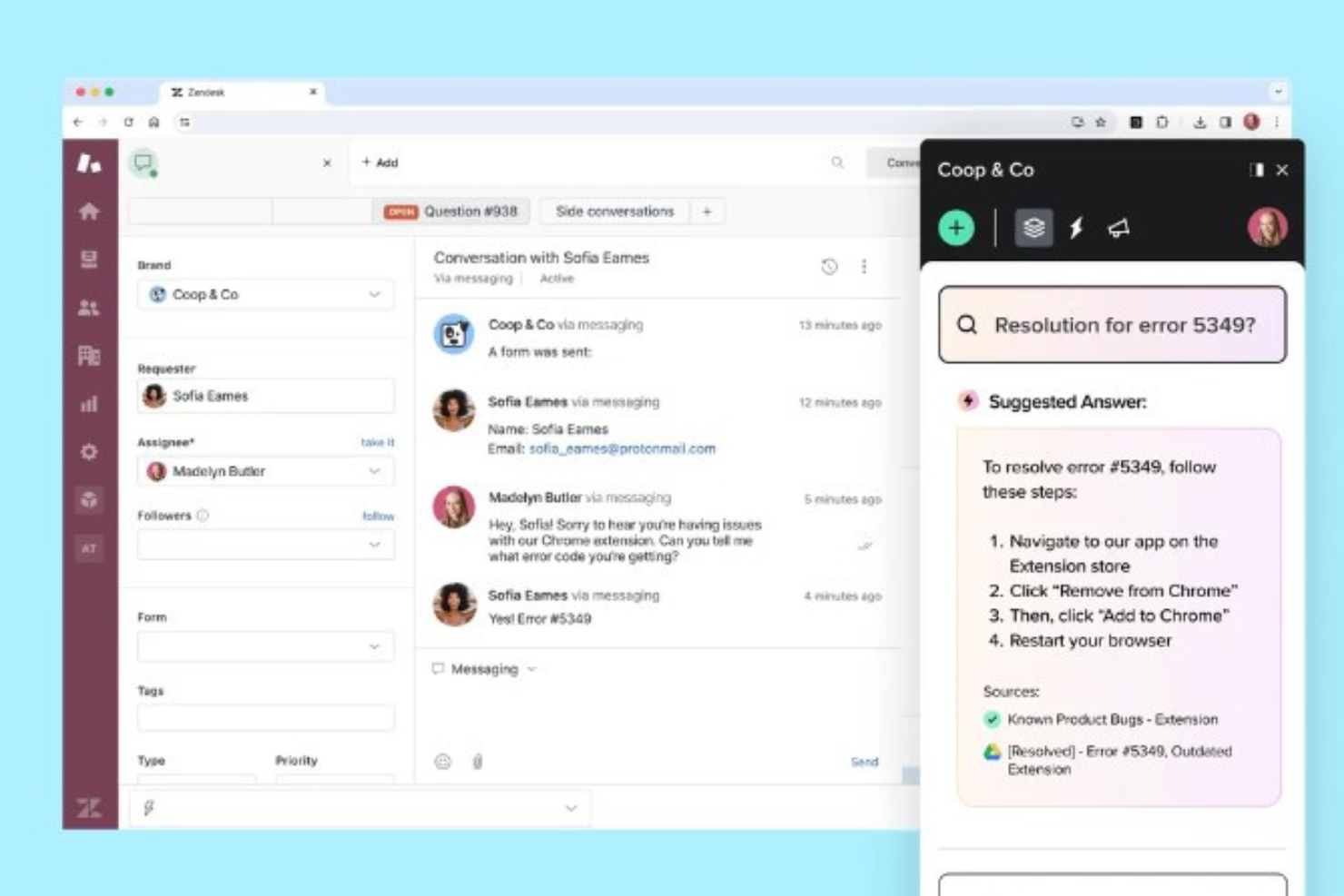
Guru is an AI-powered search, intranet, and wiki platform that brings your company's knowledge base into your existing tech stack and workflows. The search function surfaces relevant, up-to-date information in your team's day-to-day workspaces, alleviating manual searching and app-switching.
Why I picked Guru: I chose Guru because of its comprehensive AI-powered enterprise search, but also for its customizable employee engagement hub and automated, centralized knowledge base. What makes Guru stand out is its ability to connect all apps, documents, and chats, providing instant answers within the user's workflow. It also offers a zero-data retention policy, private AI models, and role-based access control (RBAC), ensuring the secure storage of your company's docs and knowledge.
Guru Standout Features and Integrations
Features include advanced search capabilities, customizable dashboards, secure data storage, real-time collaboration tools, knowledge management, AI-powered suggestions, robust analytics and reporting, integration with multiple platforms, personalized user experiences, mobile accessibility, document management, workflow automation, social networking features, and multilingual support.
Integrations include Google Chrome, Google Workspace, Slack, Microsoft Teams, Gmail, Outlook, HRIS solutions, Vimeo, Loom, Airtable, Sendesk, Salesforce, Intercom, Freshworks, Confluence, and more. Plus, you can use Zapier, Workato, or the custom API to connect more tools.
Pros and Cons
Pros:
- AI-powered helpdesk suggestions
- Excels in organizing and managing knowledge
- Tons of integrations with other tools
Cons:
- Comes with a learning curve
- Limited offline capabilities
Weitere Dokumentationssoftware
Hier sind einige weitere Optionen, die es zwar nicht auf die Shortlist der besten Dokumentationssoftware geschafft haben, aber dennoch erwähnenswert sind:
- Doxygen
For documentation from source code
- Archbee
For product and engineering teams
- SimpleMDE
For basic documentation
- MarkdownPad
For customization
- SysAid
For ITSM-integrated documentation workflows
- Tettra
For teams that use Slack extensively
- Scribe
Documentation software for automatically capturing your actions as screenshots and instructions of a process
- IT Glue
For interlinking multiple documents in an organized way
- Zendesk
For online help documentation
- NinjaOne
For fine-grained access controls and permissions


Verwandte Software- & Tool-Bewertungen
Falls Sie hier noch nicht das gefunden haben, was Sie suchen, werfen Sie einen Blick auf diese anderen Tools, die wir getestet und bewertet haben.
- Netzwerk-Monitoring-Software
- Server-Monitoring-Software
- SD-Wan-Lösungen
- Infrastruktur-Monitoring-Tools
- Packet Sniffer
- Application Monitoring Tools
Kriterien für die Auswahl von Dokumentationssoftware
Bei der Auswahl der besten Dokumentationssoftware für diese Liste habe ich die typischen Wünsche und Schmerzpunkte der Nutzer berücksichtigt – etwa, wie leicht Informationen zu finden und wie gut Teams gemeinsam darin arbeiten können. Um die Bewertung strukturiert und fair zu halten, habe ich außerdem dieses Schema verwendet:
Kernfunktionen (25% der Gesamtbewertung)
Um in diese Liste aufgenommen zu werden, musste jede Lösung folgende allgemeingültigen Anwendungsfälle abdecken:
- Erstellen und Bearbeiten von Inhalten
- Organisation von Dokumenten in einer Hierarchie oder Ordnerstruktur
- Unterstützung einer Suchfunktion
- Kollaboration mit mehreren Nutzern in Echtzeit
- Steuerung von Zugriffsrechten und Berechtigungen
Zusätzliche herausragende Funktionen (25% der Gesamtbewertung)
Um die Auswahl weiter einzugrenzen, habe ich auch nach einzigartigen Merkmalen gesucht, wie etwa:
- KI-gestützte Inhaltsempfehlungen
- Integrierte Analytik und Nutzungsüberwachung
- Automatisierte Versionskontrolle und Wiederherstellung
- Öffentliche und private Veröffentlichungsoptionen
- Integration mit Ticket- und Entwicklerwerkzeugen
Benutzerfreundlichkeit (10% der Gesamtbewertung)
Um die Benutzerfreundlichkeit jedes Systems einzuschätzen, habe ich Folgendes berücksichtigt:
- Übersichtliches und intuitives Interface-Design
- Wenige Klicks für häufige Aufgaben
- Klare Navigation und Dokumentenstruktur
- Responsives Design auf allen Endgeräten
- Barrierefreiheitsfunktionen für vielfältige Nutzergruppen
Onboarding (10% der Gesamtbewertung)
Um das Onboarding-Erlebnis jeder Plattform zu bewerten, habe ich Folgendes betrachtet:
- Verfügbarkeit interaktiver Produkttouren
- Zugang zu vorgefertigten Vorlagen oder Starter-Kits
- Vorhandensein von Schulungsvideos oder Webinaren
- In-App-Chatbots oder Onboarding-Checklisten
- Benutzerfreundlichkeit bei Datenimport- oder Migrationstools
Kundensupport (10% der Gesamtbewertung)
Um die Kundenserviceleistungen der jeweiligen Software-Anbieter zu beurteilen, habe ich Folgendes berücksichtigt:
- Verfügbarkeit von Live-Chat oder telefonischem Support
- Reaktionsgeschwindigkeit und Hilfsbereitschaft
- Zugang zu einer Wissensdatenbank oder einem Help Center
- Verfügbarkeit von Support während des Onboardings
- Vorhandensein einer Nutzer-Community oder Foren
Preis-Leistungs-Verhältnis (10% der Gesamtbewertung)
Zur Bewertung des Preis-Leistungs-Verhältnisses jeder Plattform habe ich Folgendes betrachtet:
- Preis im Verhältnis zum Funktionsumfang
- Transparente Preisstruktur
- Verfügbarkeit einer kostenlosen Version oder eines Testzugangs
- Flexibilität bei der Skalierung der Tarife
- Stimmigkeit zwischen Kosten und erwarteter Rendite (ROI)
Kundenbewertungen (10% der Gesamtbewertung)
Um einen Eindruck von der allgemeinen Kundenzufriedenheit zu bekommen, habe ich bei der Lektüre von Kundenbewertungen folgende Punkte berücksichtigt:
- Rückmeldungen zur Zuverlässigkeit und Verfügbarkeit des Produkts
- Wiederkehrende Themen bei Vor- und Nachteilen
- Bewertungen bezüglich Benutzerfreundlichkeit und Support
- Berichteter ROI oder Zeitersparnis
- Qualität des Supports nach dem Kauf
Wie Sie Dokumentationssoftware auswählen
Es ist leicht, sich in langen Funktionslisten und komplexen Preisstrukturen zu verlieren. Damit Sie auch in Ihrem eigenen Auswahlprozess den Überblick behalten, finden Sie hier eine Checkliste wichtiger Faktoren:
| Faktor | Worauf achten? |
|---|---|
| Skalierbarkeit | Wächst das Tool mit Ihrem Team mit? Suchen Sie nach Plattformen, die erweiterbare Inhaltsbibliotheken und mehrere Mitwirkende ohne Leistungseinbußen unterstützen. |
| Integrationen | Lässt sich das Tool mit bereits genutzten Anwendungen wie Slack, GitHub, Jira oder Google Drive verbinden? Integrationen sorgen für reibungslose Abläufe. |
| Anpassbarkeit | Können Sie Struktur, Design und Nutzerrollen an Ihre Dokumentationsanforderungen anpassen? Individuelle Workflows und Berechtigungen sind entscheidend. |
| Benutzerfreundlichkeit | Ist die Oberfläche für technische und nicht-technische Nutzer gleichermaßen verständlich? Eine zügige Einführung gelingt durch klare Navigation und einen einfachen Editor. |
| Budget | Passen die Kosten zu Teamgröße und Nutzung? Achten Sie auf Sitzplatzpreise und versteckte Funktionsbeschränkungen, die das Wachstum hemmen könnten. |
| Sicherheitsmaßnahmen | Werden Zugriffskontrolle, SSO, Verschlüsselung und Compliance unterstützt? Solche Funktionen sind bei sensiblen oder internen Inhalten Pflicht. |
| Suchfunktionalität | Finden Nutzer schnell, was sie brauchen? Eine leistungsfähige Suche mit Tags und Filtern minimiert Aufwand und verbessert Self Service. |
| Zusammenarbeitstools | Erlaubt das System gleichzeitiges Bearbeiten, Kommentieren oder Änderungsverfolgung? Für lebendige Dokumente braucht Ihr Team reibungslose Zusammenarbeit. |
Trends bei Dokumentationssoftware
In meinen Recherchen habe ich zahlreiche Produkt-Updates, Pressemitteilungen und Release-Logbücher verschiedener Anbieter für Dokumentationssoftware ausgewertet. Hier sind einige der aufkommenden Trends, die ich im Blick habe:
- Eingebettete Feedback-Tools: Einige Tools bieten mittlerweile Möglichkeiten, wie Leser direkt Kommentare hinterlassen oder Seiten bewerten können. GitBook und Archbee ermöglichen es Nutzern beispielsweise, Dokumentationen als hilfreich oder unklar zu markieren. Dies hilft Autoren, gezielt Verbesserungen vorzunehmen, ohne separate Umfrage-Tools zu benötigen.
- KI-gestützte Inhaltsvorschläge: Immer mehr Tools bieten KI-Unterstützung, um Nutzern beim Schreiben, Taggen oder Organisieren von Dokumentationen zu helfen. Notion und Confluence schlagen beispielsweise automatisch Inhaltszusammenfassungen vor oder erstellen neue Einträge von Grund auf. So sparen Teams Zeit und überwinden die Anfangshürde beim Schreiben.
- Integrierte Analysen: Anbieter fügen Nutzungsanalysen hinzu, um anzuzeigen, welche Seiten gelesen, ignoriert oder erneut aufgerufen werden. Slab und Helpjuice bieten beispielsweise Einblicke in Suchbegriffe und Seitenaufrufmuster. Das hilft Teams, schnell Inhaltslücken oder veraltete Artikel zu erkennen.
- Granulare Zugriffskontrollen: Teams wünschen sich mehr Kontrolle darüber, wer bestimmte Dokumente ansehen oder bearbeiten darf. Tools wie Guru und Document360 unterstützen mittlerweile bereichsbezogene Berechtigungen sowie Zugriff mit Ablaufdatum. Dies ist nützlich zur Verwaltung sensiblen internen Wissens.
- Mehrsprachiger Support: Immer mehr Plattformen setzen auf native Funktionen zur Übersetzung und Verwaltung von mehrsprachigen Inhalten. ClickHelp und Document360 ermöglichen es Nutzern, Dokumentationen in mehreren Sprachen über ein einziges Dashboard zu veröffentlichen. Das ist entscheidend für globale Teams und internationale Kunden.
Was ist Dokumentationssoftware?
Dokumentationssoftware ist eine Kategorie von Tools, die entwickelt wurden, um Dokumente elektronisch zu erstellen, zu verwalten und zu speichern. Diese Tools werden von einer Vielzahl von Fachleuten eingesetzt, darunter technische Redakteure, Projektmanager und IT-Spezialisten, die effiziente Möglichkeiten zur Handhabung von Dokumentationen benötigen.
Unternehmen nutzen diese Art von Software, um die Dokumentenerstellung zu optimieren, die Zusammenarbeit zwischen Teammitgliedern zu verbessern, sensible Informationen zu schützen und den einfachen Zugriff auf wichtige Dokumente zu gewährleisten. Der Gesamtwert dieser Help Authoring Tools liegt in ihrer Fähigkeit, den Zeit- und Arbeitsaufwand für das Dokumentenmanagement erheblich zu reduzieren. Dadurch können sich Organisationen auf ihre Kernaktivitäten konzentrieren und ihre operative Effizienz steigern.
Funktionen von Dokumentationssoftware
Hier sind zehn entscheidende Funktionen, die Sie bei der Auswahl von Dokumentationssoftware berücksichtigen sollten:
- Benutzerfreundliche Oberfläche: Eine einfache und intuitive Benutzeroberfläche ist entscheidend, damit Nutzer Funktionen ohne umfassende Schulung finden und anwenden können. Diese Einfachheit unterstützt eine schnelle Einführung und effektive Nutzung der Software auf allen technischen Erfahrungsstufen.
- Versionskontrolle: Die Möglichkeit, Änderungen im Zeitverlauf zu verfolgen und zu verwalten, ist unerlässlich. Versionskontrolle stellt sicher, dass Benutzer auf frühere Versionen zugreifen können, was ein besseres Dokumentenmanagement und Kontrolle über die Entwicklung der Dokumentation ermöglicht.
- Zugriffssteuerung: Die Festlegung, wer Dokumentationen sehen, bearbeiten oder verwalten darf, ist für Sicherheit und Governance entscheidend. Zugriffskontrolle hilft dabei, die Vertraulichkeit und Integrität der Dokumentation zu wahren, indem nur autorisierte Personen Änderungen vornehmen dürfen.
- Kollaborationstools: Funktionen, die es mehreren Nutzern ermöglichen, gleichzeitig an Dokumenten zu arbeiten, fördern die Teamarbeit und steigern die Produktivität. Kollaborationstools sind wichtig, damit Dokumentationen abgestimmt entwickelt, überprüft und aktualisiert werden können.
- Suchfunktionalität: Leistungsfähige Suchwerkzeuge ermöglichen es Nutzern, die benötigten Informationen schnell zu finden. Effektive Suchfunktionen verbessern das Nutzererlebnis und die Produktivität, indem sie die Zeit für die Suche nach bestimmten Daten oder Dokumenten minimieren.
- Content-Management: Eine effiziente Organisation und Kategorisierung von Dokumentationen erleichtert die Navigation und Pflege. Gutes Content-Management stellt sicher, dass Dokumente ordentlich verwaltet und leicht auffindbar sind – entscheidend sowohl für interne als auch externe Nutzer.
- Integrationsfähigkeit: Die Möglichkeit, sich mit anderen Tools und Systemen in der Unternehmensumgebung zu verbinden, sorgt für nahtlose Arbeitsabläufe. Integrationsmöglichkeiten sind wichtig, um Prozesse zu automatisieren und den Nutzen der Dokumentationssoftware zu steigern.
- Skalierbarkeit: Software, die mit dem Unternehmen wächst, erspart spätere Umstellungen auf leistungsfähigere Lösungen. Skalierbarkeit gewährleistet, dass die Software dem wachsenden Bedarf an Dokumentation jederzeit gewachsen ist und dabei die Performance nicht leidet.
- Sicherheitsfunktionen: Fortschrittliche Sicherheitsmaßnahmen schützen sensible Informationen vor unbefugtem Zugriff oder Datenpannen. Sicherheitsfunktionen sind essenziell für die Einhaltung gesetzlicher Vorschriften und zur Sicherung von Unternehmens- sowie Kundendaten.
- Feedback und Analysen: Tools, die Einblicke in die Nutzung der Dokumentation geben und Nutzerfeedback sammeln, helfen, die Dokumentation kontinuierlich zu verbessern. Feedback und Analysen sind wichtig, um Nutzerbedürfnisse zu verstehen und gezielte Maßnahmen zur Optimierung der Dokumentationsstrategie zu ergreifen.
Vorteile von Dokumentationssoftware
Für Organisationen, die große Mengen an Informationen verwalten müssen, bietet Dokumentationssoftware eine effiziente und übersichtliche Lösung. Egal ob kleines Start-up oder großes Unternehmen – das richtige Dokumentationstool kann Produktivität, Sicherheit und Zusammenarbeit erheblich steigern. Hier sind fünf zentrale Vorteile der Nutzung von Dokumentationssoftware für Nutzer und Unternehmen:
- Verbesserte Zusammenarbeit: Dokumentationssoftware ermöglicht es Teammitgliedern, unabhängig von ihrem Standort in Echtzeit gemeinsam an Dokumenten zu arbeiten. Dies fördert einen reibungsloseren Arbeitsablauf, erlaubt sofortiges Feedback und Beiträge, was Projektlaufzeiten verkürzen und Ergebnisse verbessern kann.
- Optimierte Dokumentenorganisation: Mit Funktionen wie Verschlagwortung, Kategorisierung und fortschrittlichen Suchfunktionen können Benutzer Dokumente einfach organisieren und finden. Dadurch wird die Zeit für die Informationssuche reduziert und sichergestellt, dass wichtige Dokumente jederzeit schnell auffindbar sind.
- Erhöhte Sicherheit: Viele Dokumentationstools bieten umfassende Sicherheitsfunktionen wie Verschlüsselung, Zugriffskontrollen und Prüfprotokolle. Dies schützt sensible Informationen vor unbefugtem Zugriff, hilft Unternehmen, Datenschutzvorgaben einzuhalten, und sichert ihr geistiges Eigentum.
- Skalierbarkeit: Mit dem Wachstum von Organisationen steigen auch deren Dokumentationsanforderungen. Dokumentationssoftware lässt sich problemlos an steigende Datenmengen, Benutzerzahlen und Komplexität anpassen, ohne Leistung oder Benutzerfreundlichkeit zu beeinträchtigen.
- Bessere Wissensweitergabe und -erhaltung: Durch die Zentralisierung der Dokumentation stellen diese Tools sicher, dass wertvolles Wissen erfasst und in einem zugänglichen Format gespeichert wird. Das fördert Wissensaustausch im Unternehmen und verhindert Informationsverlust, wenn Mitarbeitende ausscheiden oder die Position wechseln.
Kosten & Preise für Dokumentationssoftware
Die Vielzahl an Optionen für Dokumentationssoftware kann den Softwarekauf vor allem für unerfahrene Käufer zu einer Herausforderung machen. Verschiedene Anbieter bieten eine breite Auswahl an Tarifen und Preismodellen an, die auf die unterschiedlichsten Anforderungen von Unternehmen jeder Größe zugeschnitten sind. Diese Tarife sind in der Regel so strukturiert, dass sie verschiedene Nutzungsgrade, Funktionsumfänge und Budgetvorgaben abdecken, sodass jede Organisation eine passende Lösung findet.
Tarifvergleich für Dokumentationssoftware
Hier finden Sie eine Übersicht über gängige Tarifoptionen und deren Preise für Dokumentationssoftware:
| Tarifart | Durchschnittspreis | Häufige Funktionen |
|---|---|---|
| Free | $0 | Basis-Dokumentenerstellung und -speicherung, eingeschränkte Kollaborationswerkzeuge, Standardsicherheit |
| Basic | $5 - $10/user/month | Erweiterter Speicherplatz, zusätzliche Kollaborationsfunktionen, Zugriffskontrollen, Integration mit anderen Apps |
| Professional | $10 - $30/user/month | Erweiterte Sicherheitsfunktionen, unbegrenzter Speicher, vollständige Kollaborationssuite, Premium-Support |
| Enterprise | Custom pricing | Individuelle Integrationen, erweiterte Compliance- und Sicherheitsfunktionen, dedizierter Support, Unterstützung bei der Einführung |
Häufig gestellte Fragen zu Dokumentationssoftware
Möchten Sie noch besser verstehen, wie Dokumentationssoftware-Tools helfen können? Hier sind einige häufig gestellte Fragen und die dazugehörigen Antworten.
Was sind Beispiele für Dokumentation?
Was sind die Vorteile von Dokumentationssoftware?
Wie geht es weiter?
Wenn Sie gerade auf der Suche nach Dokumentationssoftware sind, nehmen Sie Kontakt mit einem SoftwareSelect-Berater auf und erhalten Sie kostenlose Empfehlungen.
Sie füllen ein Formular aus und führen ein kurzes Gespräch, in dem Ihre Anforderungen besprochen werden. Danach erhalten Sie eine engere Auswahl an Softwarelösungen zur Überprüfung. Die Berater begleiten Sie sogar durch den gesamten Kaufprozess, inklusive Preisverhandlungen.