
12 Ruby IDEs for 2026

Ruby IDE Shortlist
Here’s my shortlist of Ruby IDEs:


A Ruby IDE is an integrated development environment designed to help you write, test, and debug Ruby code more efficiently. If you’re searching for the best Ruby IDE, you’re likely looking for tools that can handle complex codebases, support your workflow, and keep up with the demands of modern development. Many IDEs also support multiple languages like Python and HTML, making them useful for full-stack development beyond Ruby.
With so many options available, it’s tough to know which IDE will actually fit your team’s needs—especially when you’re balancing performance, extensibility, and ease of use. This guide compares the top Ruby IDEs for 2026, so you can quickly evaluate your options and choose the right environment for your projects.
Why Trust Our Software Reviews
Best Ruby IDE Summary
This comparison chart summarizes pricing details for my top Ruby IDE selections to help you find the best one for your budget and business needs.
| Tool | Best For | Trial Info | Price | ||
|---|---|---|---|---|---|
| 1 | Best for intelligent code completion | 45-day free trial + free demo available | From $71.90/user/month | Website | |
| 2 | Best for lightweight performance | Free download available | From $99 (one-time license) | Website | |
| 3 | Best for customizable extensions marketplace | Free, open-source | Free to use | Website | |
| 4 | Best for advanced code analysis tools | Free plan + 30-day free trial available | From $10.90/user/month | Website | |
| 5 | Best for plugin extensibility | Free, open-source | Free to use | Website | |
| 6 | Best for handling large files | Free plan available | From $29.99 | Website | |
| 7 | Best for modal editing workflows | Free, open-source | Free to use | Website | |
| 8 | Best for native macOS integration | Free trial available | From $99/year (billed annually) | Website | |
| 9 | Best for AI-powered code suggestions | Free plan + free trials available | From $16/user/month (billed annually) | Website | |
| 10 | Best for flexible text manipulation | Free, open-source | Free to use | Website |
-

Site24x7
Visit WebsiteThis is an aggregated rating for this tool including ratings from Crozdesk users and ratings from other sites.4.6 -
GitHub Actions
Visit WebsiteThis is an aggregated rating for this tool including ratings from Crozdesk users and ratings from other sites.4.8 -
Docker
Visit WebsiteThis is an aggregated rating for this tool including ratings from Crozdesk users and ratings from other sites.4.6





Ruby IDE Reviews
Below are my detailed summaries of the Ruby IDEs that made it onto my shortlist. My reviews offer a detailed look at the features, capabilities, and integrations of each tool to help you find the best one for you.

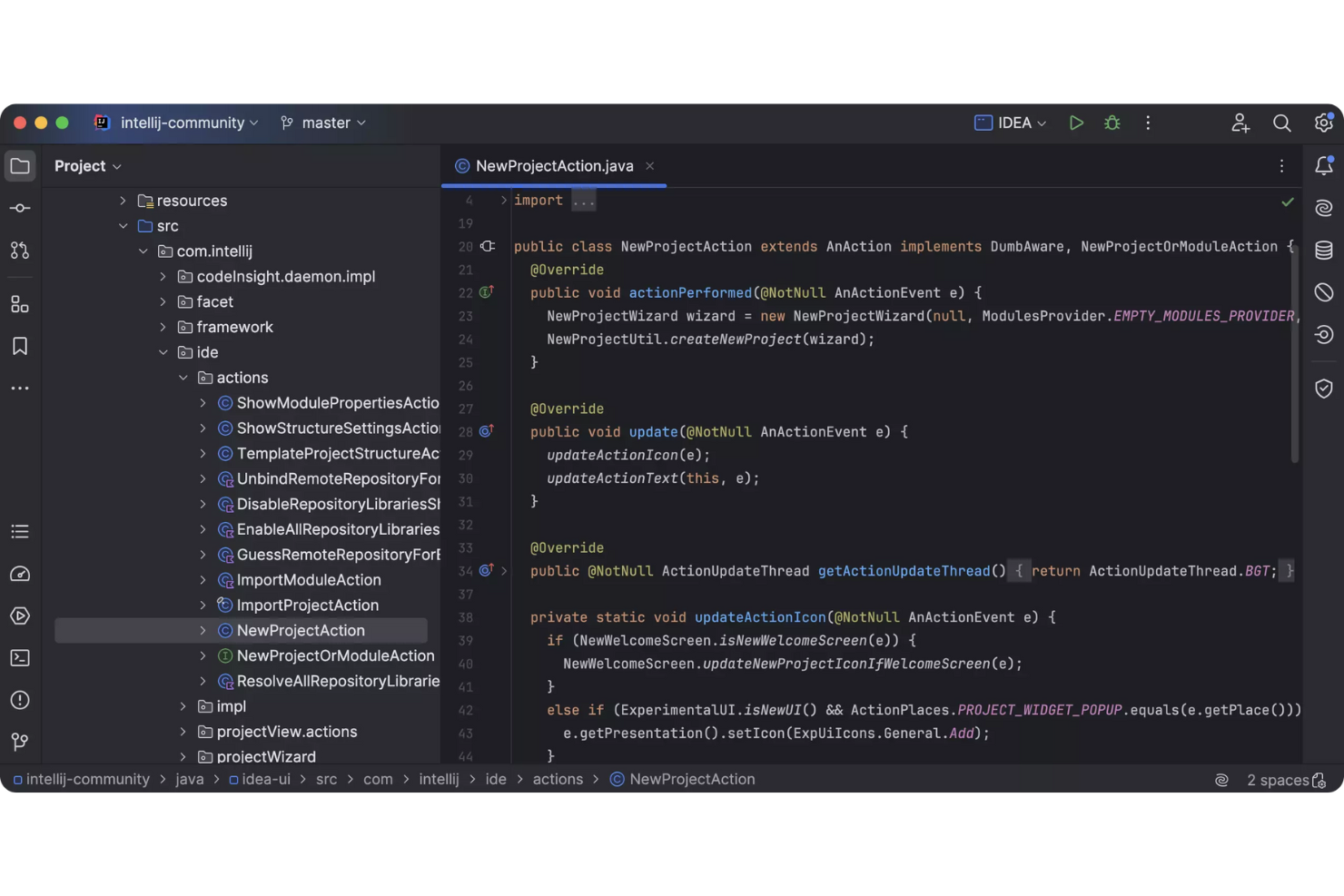
For Ruby developers who want advanced code assistance, IntelliJ IDEA offers intelligent code completion and deep language analysis. It’s a strong choice for teams or individuals who work on complex Ruby or Rails projects and need help catching errors early. IntelliJ IDEA’s smart suggestions and context-aware navigation can help you write and maintain Ruby code with fewer interruptions.
Why I Picked IntelliJ IDEA
What sets IntelliJ IDEA apart for Ruby development is its intelligent code completion, which goes beyond simple syntax suggestions. The IDE analyzes your Ruby code context to offer relevant completions, method suggestions, and even parameter hints as you type. I appreciate how it highlights potential issues in real time and provides quick fixes, which helps reduce errors and speeds up development. For anyone working on large Ruby or Rails projects, these smart features can make navigating and editing code much more efficient.
IntelliJ IDEA Key Features
Some other features in IntelliJ IDEA that Ruby developers might find useful include:
- Integrated Terminal: Access a command-line interface directly within the IDE for running Ruby scripts and commands.
- RSpec Support: Write, run, and debug RSpec tests with built-in tools and visual feedback.
- Version Control Integration: Manage Git, Mercurial, and other version control systems without leaving the IDE.
- Code Navigation Tools: Jump to definitions, usages, and symbols quickly across large Ruby codebases.
IntelliJ IDEA Integrations
Native integrations are not currently listed.
Pros and Cons
Pros:
- Real-time inspections catch errors early
- Built-in RSpec integration for testing
- Code completion and refactoring for Ruby
Cons:
- High resource usage on large builds
- Ruby plugins lag behind core IDE updates

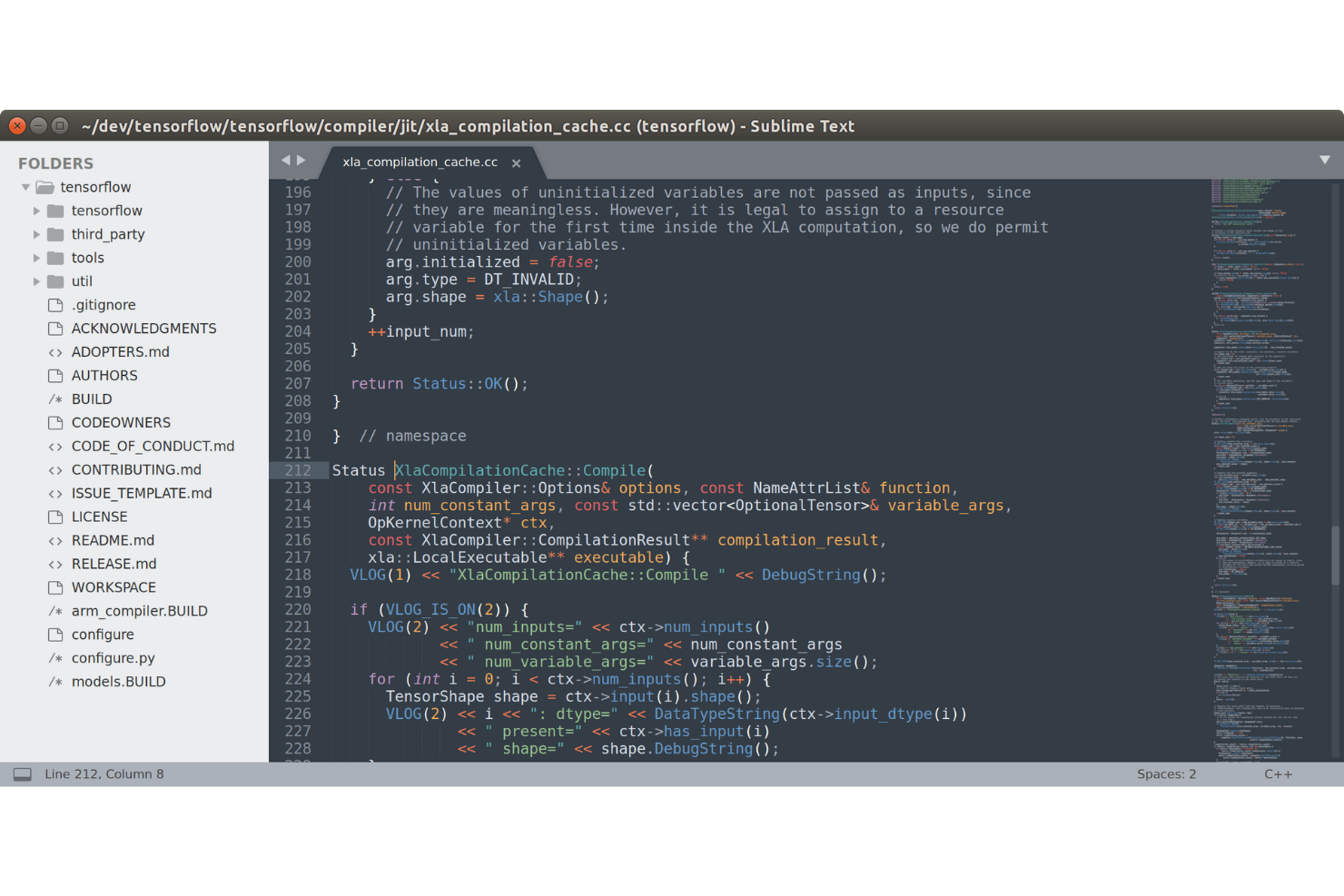
If you want a Ruby IDE that won’t slow down your system, Sublime Text is worth a look. This editor is popular with developers who need fast startup times and minimal resource usage, especially when working on large Ruby projects or switching between files. Sublime Text stands out for its lightweight design and responsive performance, making it a strong choice for those who value speed and simplicity in their coding environment.
Why I Picked Sublime Text
For Ruby developers who want an IDE that won’t bog down their workflow, Sublime Text’s lightweight performance is a clear advantage. The editor launches almost instantly and handles large Ruby files or projects without lag, which is especially helpful if you’re working on resource-constrained machines or need to switch between projects quickly. I picked Sublime Text because its low memory footprint and fast response times let you stay focused on coding, not waiting for your tools. Its distraction-free mode also helps you keep your attention on your Ruby code, making it a practical choice for those who value speed and efficiency.
Sublime Text Key Features
Some other features that make Sublime Text appealing for Ruby development include:
- Multiple Selection Editing: Edit several lines or variables at once to speed up repetitive Ruby code changes.
- Extensive Plugin Ecosystem: Add Ruby-specific tools, linters, and syntax highlighting through the built-in package manager.
- Goto Anything Navigation: Jump quickly to files, classes, or methods using a simple keyboard shortcut.
- Split Editing: View and edit multiple Ruby files side by side within the same window.
Sublime Text Integrations
Native integrations are not currently listed. However, it offers an API for custom integrations and plugins.
Pros and Cons
Pros:
- Multiple cursors for efficient refactoring
- Wide range of Ruby plugins available
- Fast startup with low memory usage
Cons:
- Manual setup for linting and tests
- Autocomplete is less advanced

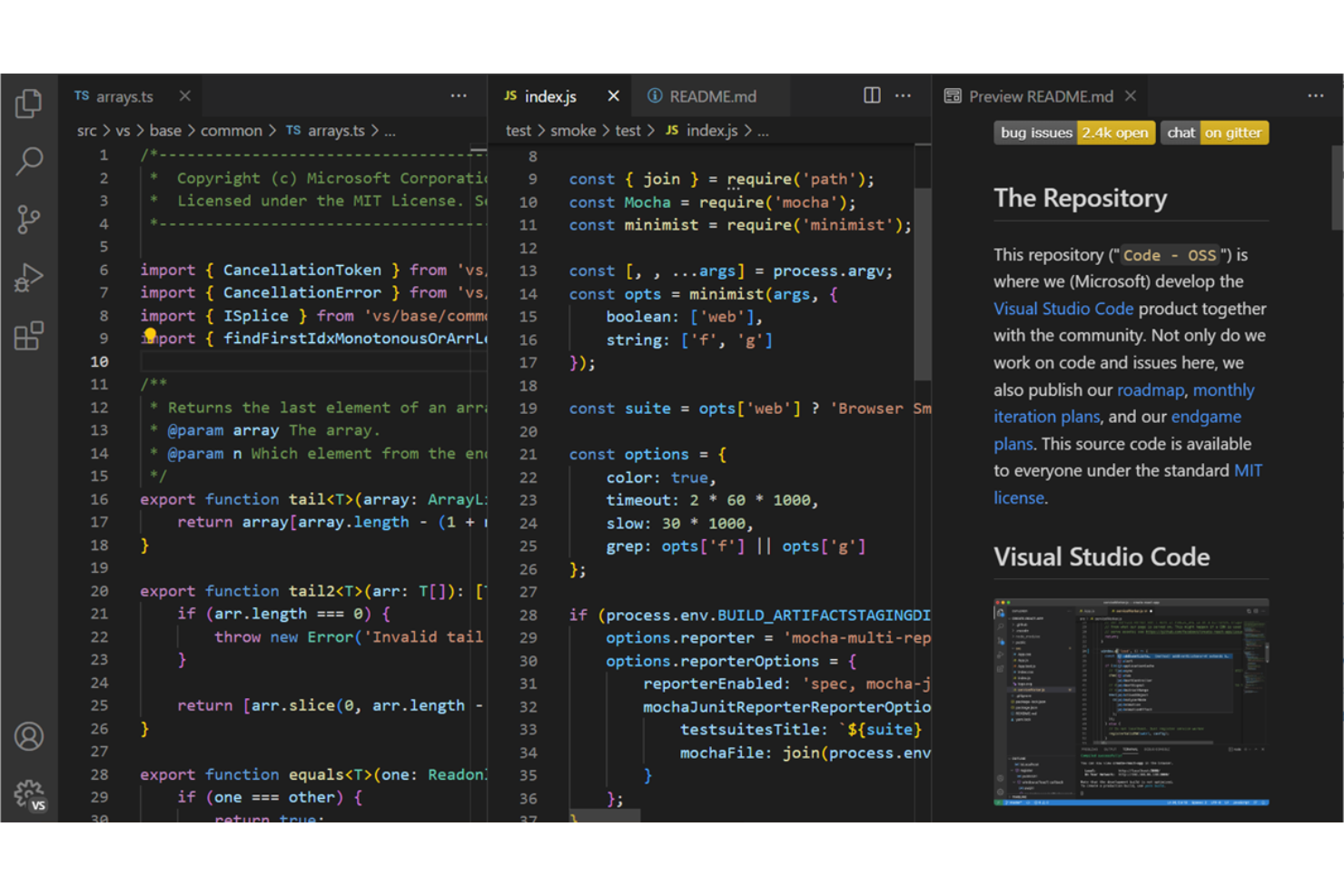
If you want a Ruby IDE that adapts to your workflow, Visual Studio Code offers a flexible environment with a vast extensions marketplace. It’s a strong fit for developers who want to customize their editor with Ruby-specific tools, debuggers, and linters. Visual Studio Code stands out for teams or individuals who need to tailor their coding experience for different Ruby projects or stacks.
Why I Picked Visual Studio Code
For Ruby developers who want to shape their own coding environment, Visual Studio Code’s extensions marketplace is a major advantage. You can install Ruby-specific extensions for syntax highlighting, code completion, and debugging, letting you build an IDE that matches your workflow. I like that you can add tools like RuboCop, Solargraph, and RSpec support with just a few clicks. This flexibility makes Visual Studio Code, or VS Code, a strong choice if you want to customize your Ruby development setup for different projects or team standards.
Visual Studio Code Key Features
Some other features in Visual Studio Code that Ruby developers might find useful include:
- Integrated Terminal: Run Ruby scripts and commands directly within the editor window.
- Git Integration: Track changes, commit, and manage branches without leaving the IDE.
- Multi-Root Workspaces: Open and manage multiple Ruby projects in a single workspace.
- Live Share: Collaborate on Ruby code in real time with other developers.
Visual Studio Code Integrations
Native integrations are not currently listed.
Pros and Cons
Pros:
- Integrated terminal for running Ruby commands
- Lightweight editor with smooth performance
- Large extension marketplace for Ruby tools
Cons:
- Extensions may conflict or lack maintenance
- Debugger setup can be complex

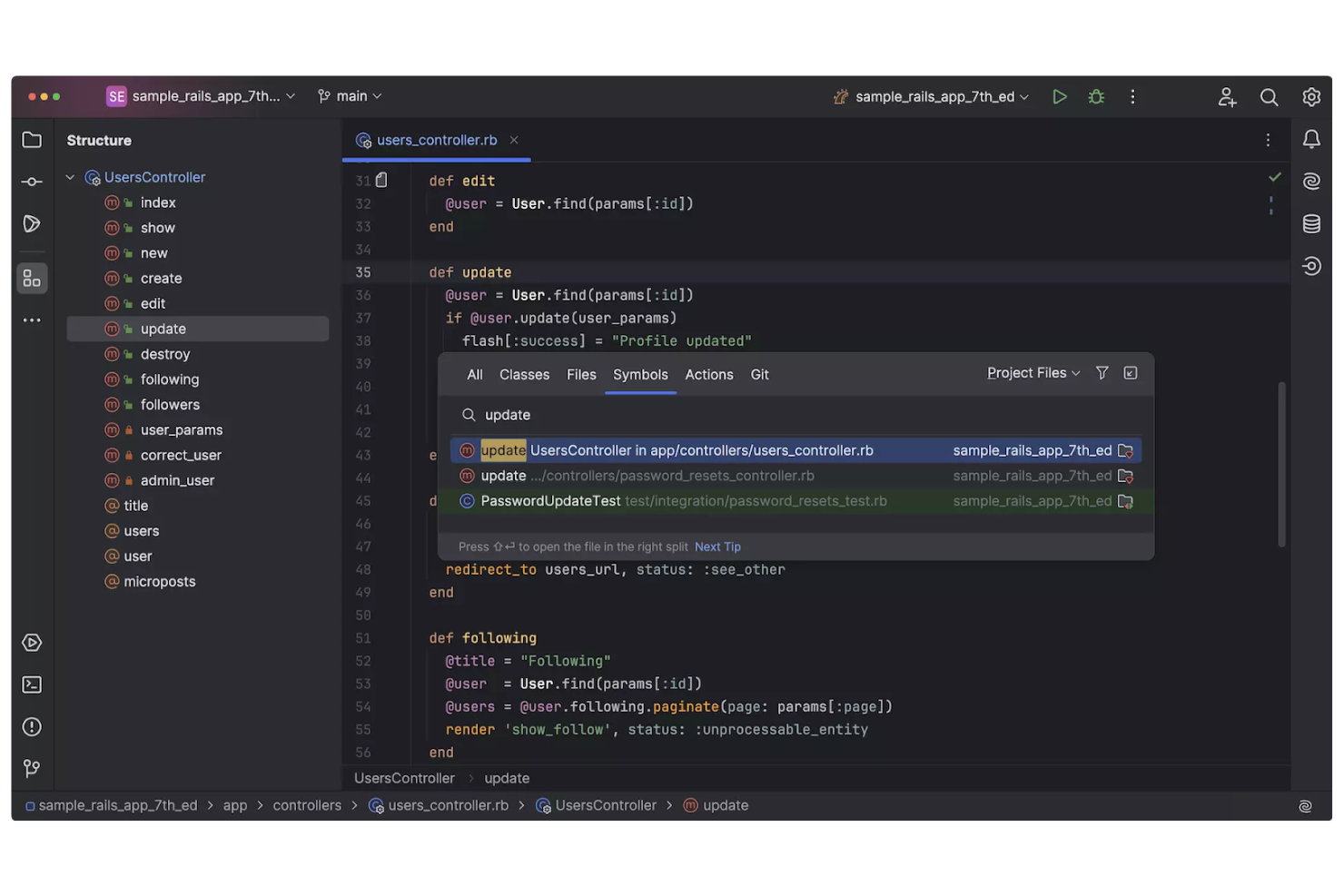
RubyMine by JetBrains is designed for developers who want deep code insight and advanced analysis when working with Ruby and Rails projects. This IDE stands out for its intelligent code navigation, refactoring tools, and integrated testing support, making it a strong choice for teams managing complex codebases. If you need a solution that helps catch errors early and maintain high code quality, RubyMine is built for that purpose.
Why I Picked RubyMine
I chose RubyMine because its advanced code analysis tools set it apart from other Ruby IDEs. The IDE offers intelligent code inspections that help identify potential issues as you type, which is especially useful for maintaining large or complex Ruby projects. I also appreciate the built-in refactoring capabilities, which let you safely restructure code without introducing errors. For anyone who needs to keep code quality high and reduce debugging time, RubyMine’s analysis features make it a strong option.
RubyMine Key Features
Some other features in RubyMine that stand out for Ruby development include:
- Integrated Debugger: Step through Ruby code, set breakpoints, and inspect variables directly within the IDE.
- Version Control Integration: Work with Git, Mercurial, and other version control systems without leaving the development environment.
- Rails-Specific Tools: Access project views, structure navigation, and generators tailored for Ruby on Rails applications.
- Smart Code Completion: Get context-aware code suggestions for Ruby, Rails, and JavaScript, helping you write code faster and with fewer errors.
RubyMine Integrations
Integrations include GitHub, Ruby, Rails, Rubocop, Hotwire, RSpec, JavaScript, and more. RubyMine also supports custom integrations via its API.
Pros and Cons
Pros:
- Built-in Rails tools improve project navigation
- Integrated debugger for step-through analysis
- Advanced inspections catch Ruby and Rails errors
Cons:
- Limited support for niche Ruby frameworks
- Uses more resources than lightweight editors

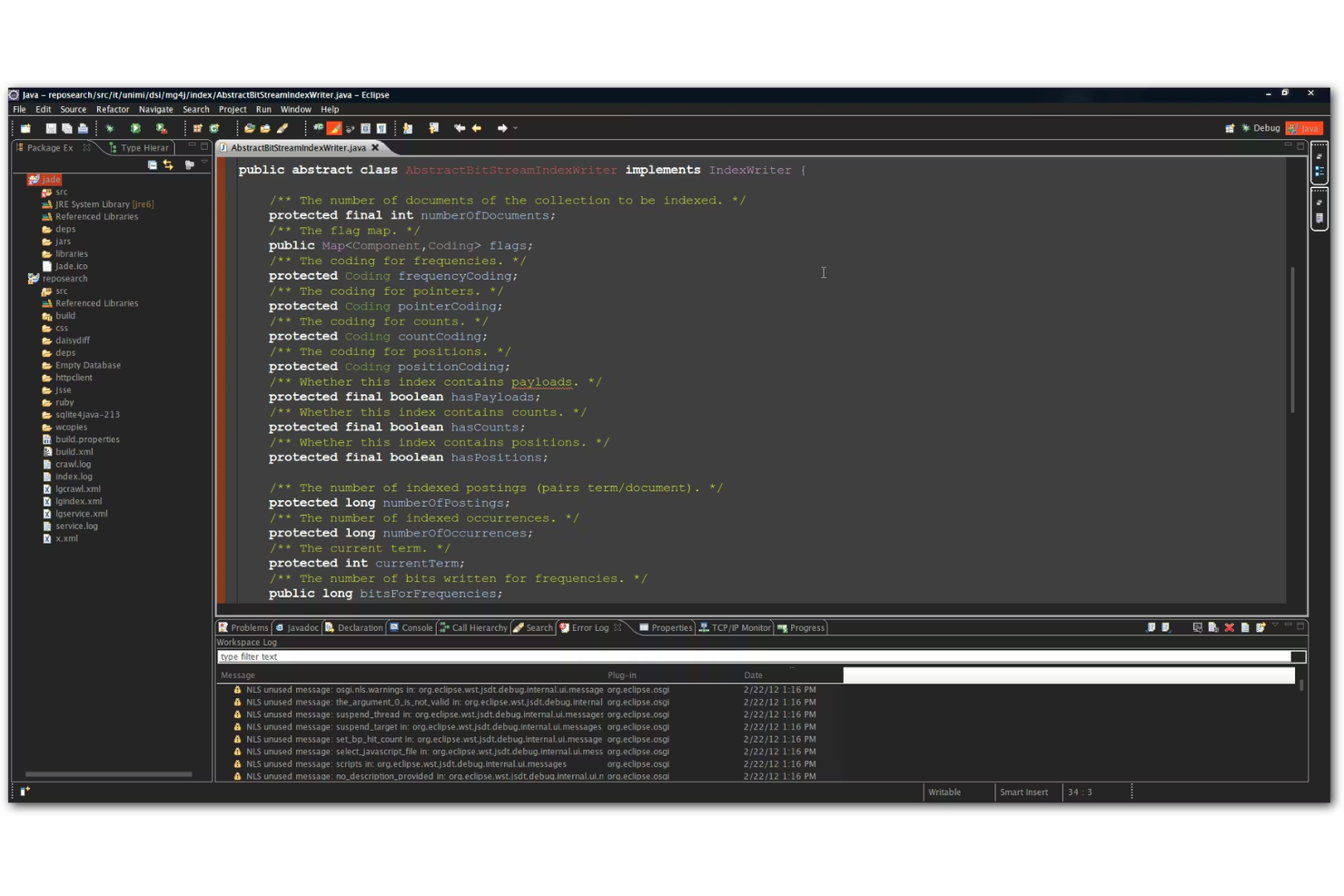
If you want a Ruby IDE that adapts to your workflow, Eclipse Foundation stands out for its plugin extensibility. It’s a strong fit for developers or teams who need to customize their environment with specialized tools, language support, or integrations. With Eclipse Foundation, you can tailor your Ruby development setup to match unique project requirements or evolving team needs.
Why I Picked Eclipse Foundation
What makes Eclipse Foundation a strong choice for a Ruby IDE is its unmatched plugin extensibility. You can add the DLTK (Dynamic Languages Toolkit) or Ruby Development Tools (RDT) plugins to bring full Ruby support into the IDE, including code editing, syntax highlighting, and project management. I appreciate how Eclipse Foundation’s modular architecture lets you customize your environment with just the features you need for Ruby development. This flexibility is especially useful if you want to build a tailored toolset for complex or evolving Ruby projects.
Eclipse Foundation Key Features
Some other features in Eclipse Foundation that Ruby developers might find helpful include:
- Refactoring Tools: Refactor Ruby code with automated tools for renaming, extracting methods, and reorganizing code structure.
- Integrated Debugger: Step through Ruby code, set breakpoints, and inspect variables within the IDE.
- Task Management: Track issues and to-dos directly in your project workspace.
- Version Control Integration: Connect to Git, SVN, and other version control systems from within Eclipse Foundation.
Eclipse Foundation Integrations
Native integrations are not currently listed.
Pros and Cons
Pros:
- Debugger supports breakpoints and inspection
- Refactoring tools reduce code errors
- Plugin architecture adds Ruby support
Cons:
- Plugin documentation is less detailed
- Fewer Ruby-specific analysis tools

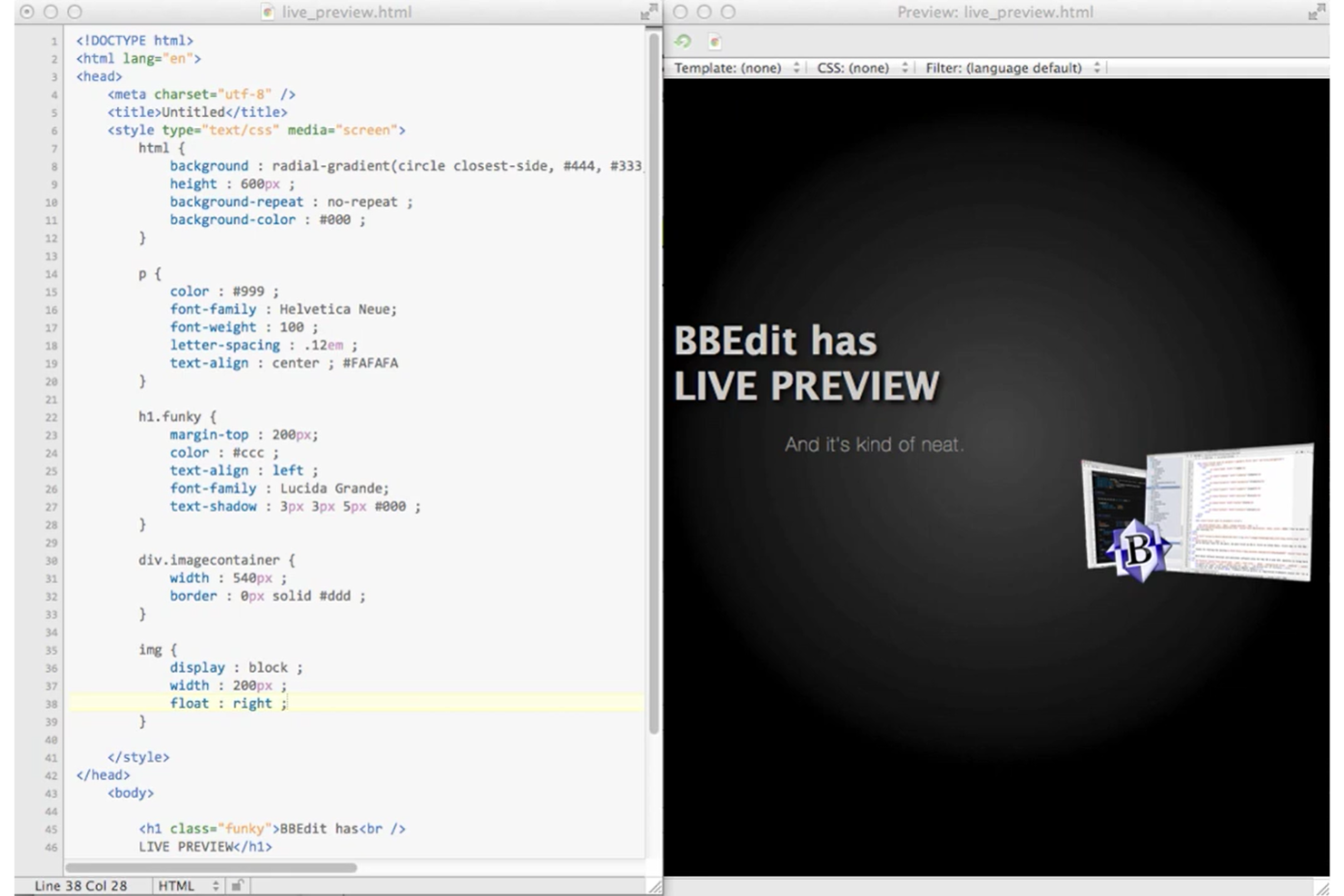
When you need to work with massive Ruby files or datasets, BBEdit is built to handle the job without slowing down. It’s a strong choice for developers, data engineers, or anyone who regularly edits large codebases or log files on macOS. BBEdit stands out for its ability to open, search, and edit files that would overwhelm most other editors, making it a practical option for Ruby projects with heavy data or legacy code.
Why I Picked BBEdit
When working with Ruby projects that involve extremely large files, BBEdit stands out for its ability to open and edit files that many other editors can’t handle. Its optimized text engine lets you search, replace, and manipulate data in files that are gigabytes in size without lag. I picked BBEdit because it’s reliable for developers who need to process logs, data exports, or legacy Ruby codebases that push the limits of typical IDEs. If you’re dealing with high-volume Ruby files, BBEdit’s performance and stability make it a practical choice.
BBEdit Key Features
In addition to handling massive files, BBEdit offers several other features that support Ruby development:
- Syntax Highlighting for Ruby: BBEdit provides clear, color-coded syntax highlighting for Ruby and many other languages.
- Multi-File Search and Replace: Search and replace text across entire Ruby projects or directories at once.
- Integrated Scripting Support: Automate tasks using AppleScript, Unix scripting, or BBEdit’s own text factories.
- Code Folding: Collapse and expand Ruby code blocks to keep files organized and easy to navigate.
BBEdit Integrations
Native integrations are not currently listed.
Pros and Cons
Pros:
- Syntax highlighting for Ruby files
- Project-wide search across big codebases
- Handles large Ruby files efficiently
Cons:
- No integrated Rails tools or generators
- No built-in Ruby debugger or REPL

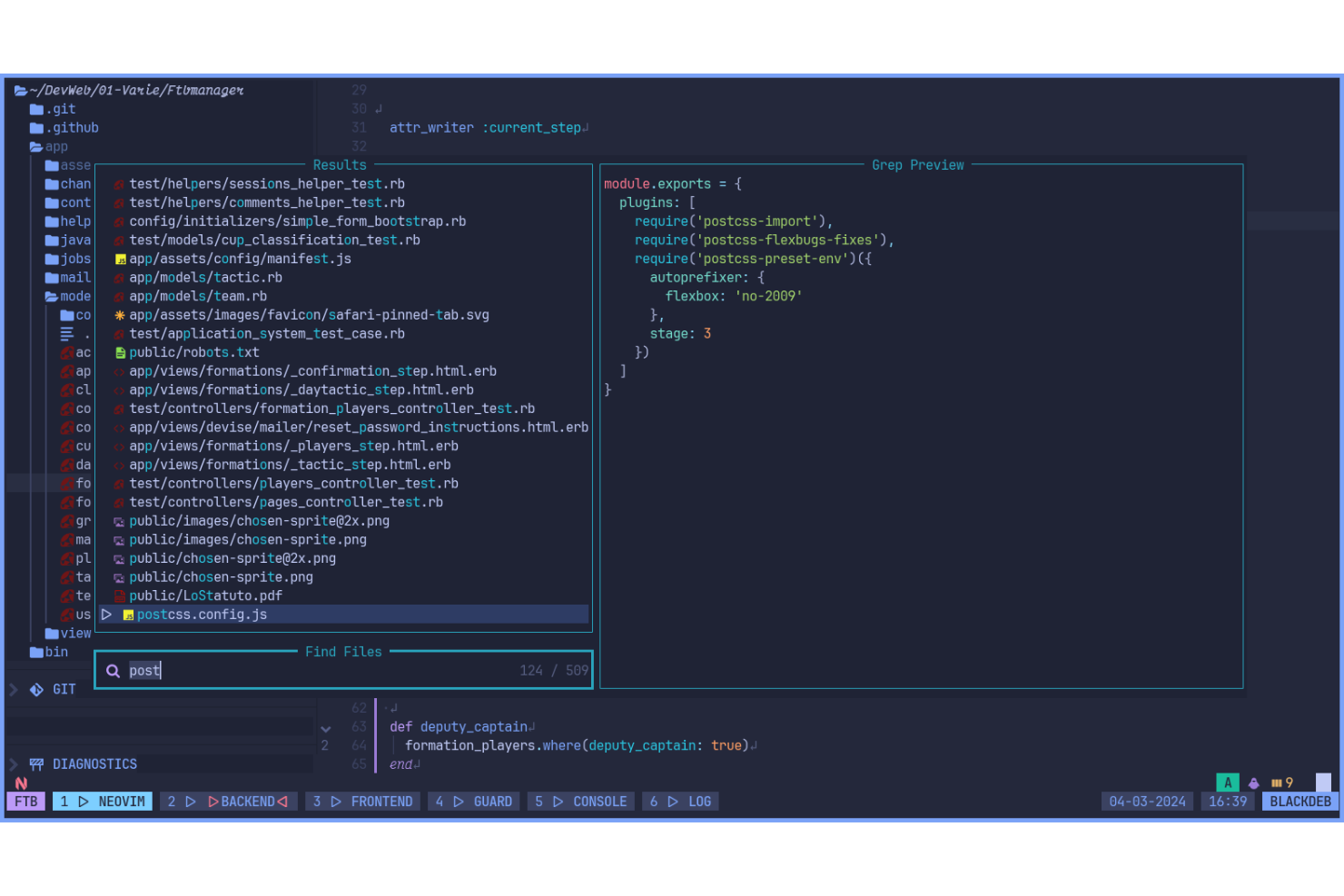
If you want a highly customizable, keyboard-driven environment for Ruby development, Neovim is designed for you. It appeals to developers who value modal editing, automation, and deep control over their workflow. Neovim stands out for its extensibility and scriptability, letting you tailor your Ruby IDE experience to fit complex or unique editing needs.
Why I Picked Neovim
For developers who want a Ruby IDE that supports modal editing workflows, Neovim offers a unique approach that’s hard to match. Its modal editing system lets you switch between editing, navigating, and command modes, which can speed up repetitive Ruby coding tasks. I picked Neovim because it’s built for customization, allowing you to script and automate nearly every aspect of your workflow using Lua or Vimscript. This makes it especially appealing if you want to create a highly efficient, keyboard-centric environment for Ruby development.
Neovim Key Features
Some other features that make Neovim appealing for Ruby development include:
- LSP (Language Server Protocol) Support: Neovim can connect to Ruby language servers for code completion, linting, and inline diagnostics.
- Tree-sitter Integration: This feature provides advanced syntax highlighting and code structure awareness for Ruby files.
- Plugin Ecosystem: Access a wide range of community plugins for Ruby testing, linting, and project navigation.
- Terminal Emulator: Run Ruby scripts and tests directly within Neovim’s built-in terminal window.
Neovim Integrations
Native integrations are not currently listed.
Pros and Cons
Pros:
- Tree-sitter improves syntax highlighting
- LSP enables completion and diagnostics
- Modal editing speeds repetitive Ruby tasks
Cons:
- No official GUI or full Windows support
- Config requires Lua or Vimscript knowledge

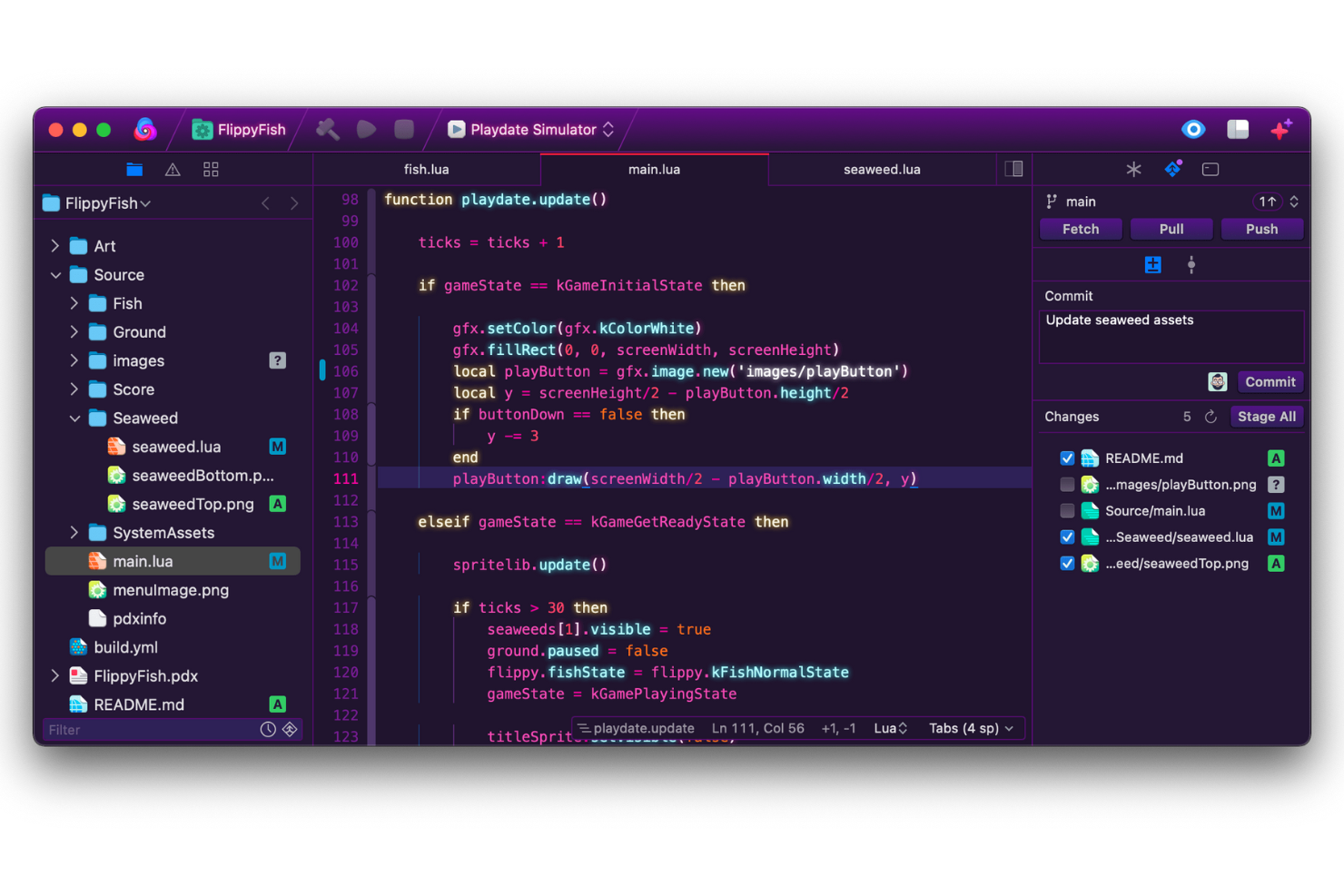
Nova is designed specifically for macOS users who want a Ruby IDE that feels fully native on their system. It appeals to developers who value deep integration with macOS features, like system notifications and smooth window management. Nova stands out for its modern interface and macOS-optimized workflow, making it a strong fit for Ruby developers who want their tools to match the look and feel of their operating system.
Why I Picked Nova
What sets Nova apart for Ruby development is its deep, native integration with macOS, which you won’t find in cross-platform editors. Nova takes advantage of macOS features like system-wide dark mode, native notifications, and smooth window management, so your Ruby IDE feels like a natural extension of your desktop. I picked Nova because it offers a modern, responsive interface that’s optimized for Mac hardware, making everyday coding tasks feel more fluid. For Ruby developers who want their tools to blend smoothly with the rest of their macOS environment, Nova is a strong choice.
Nova Key Features
In addition to its macOS integration, Nova offers several features that support Ruby development:
- Built-In Terminal: Run Ruby scripts and commands directly within the editor window.
- Extension Library: Access a range of Ruby-focused extensions for linting, formatting, and code snippets.
- Project-Wide Search and Replace: Quickly find and update Ruby code across your entire project.
- Git Integration: Manage version control tasks like commits, branches, and diffs without leaving Nova.
Nova Integrations
Native integrations are not currently listed.
Pros and Cons
Pros:
- Extensions for linting and formatting
- Built-in terminal for running Ruby scripts
- Native macOS interface for seamless experience
Cons:
- macOS-only availability
- No built-in debugger or REPL

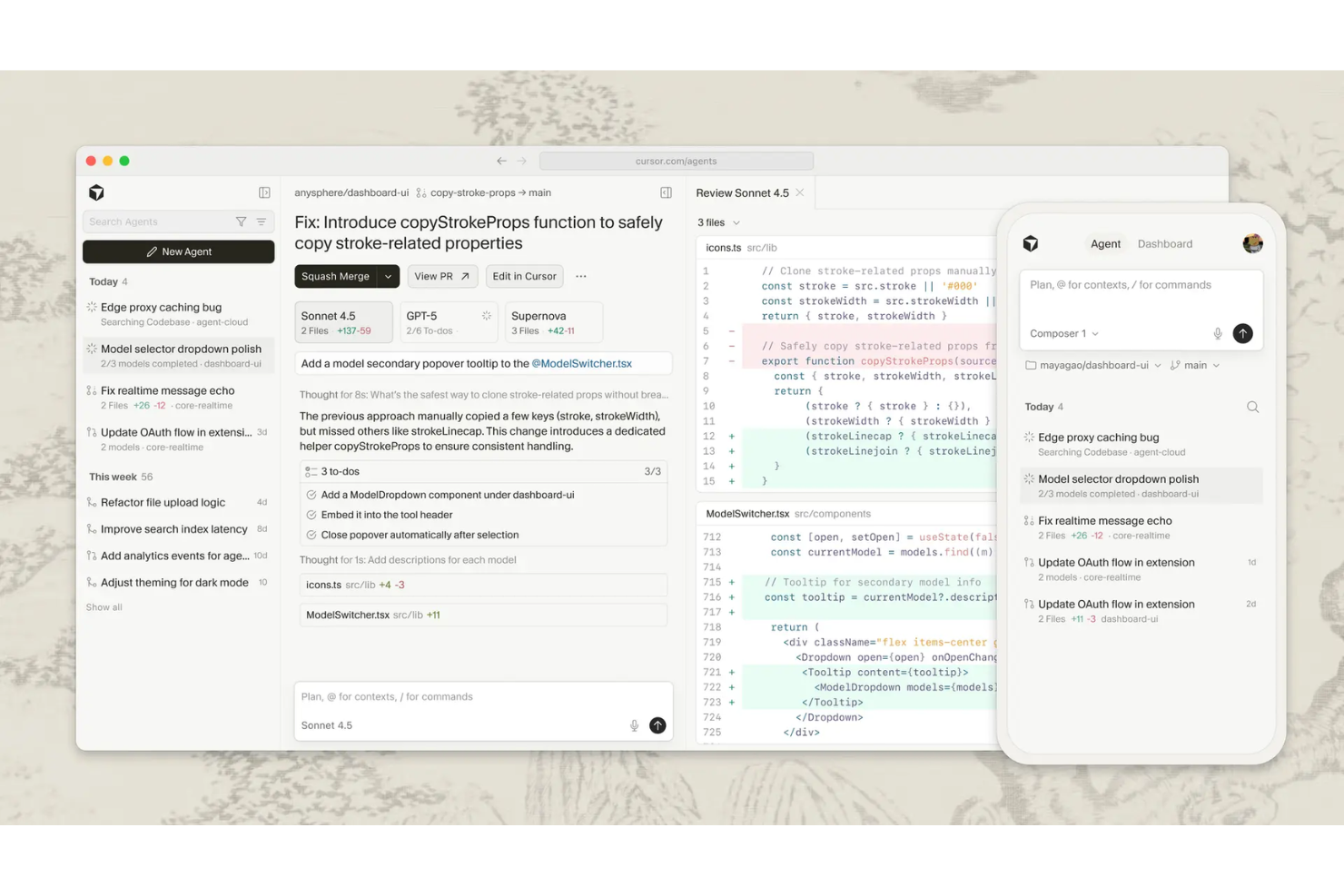
Developers looking for an IDE that brings AI directly into their Ruby workflow may want to consider Cursor. This tool appeals to teams and individuals who want real-time, context-aware code suggestions and automated refactoring powered by AI. Cursor is especially useful if you’re aiming to speed up Ruby development and reduce manual coding errors with intelligent assistance.
Why I Picked Cursor
What sets Cursor apart for Ruby development is its focus on AI-powered code suggestions that adapt to your coding style and project context. The tool offers real-time, in-line code completions and intelligent refactoring prompts, which can help you catch issues or improve code quality as you work. I appreciate that Cursor’s AI can also generate code snippets or suggest fixes based on the surrounding Ruby code, making it especially useful for complex or repetitive tasks. If you want to speed up your Ruby workflow and reduce manual errors, Cursor’s AI-driven features are worth considering.
Cursor Key Features
In addition to its AI-driven code suggestions, Cursor offers several other features Ruby developers may find valuable:
- Built-in Version Control: Manage Git repositories and track changes directly within the IDE.
- Project-Wide Search: Search for files, classes, or methods across your entire Ruby project.
- Customizable Themes: Adjust the editor’s appearance with a range of color schemes and layouts.
- Integrated Terminal: Run Ruby scripts and commands without leaving the development environment.
Cursor Integrations
Native integrations are not currently listed.
Pros and Cons
Pros:
- Integrated terminal runs Ruby commands
- In-line completions speed repetitive tasks
- AI suggestions adapt to Ruby code context
Cons:
- Ruby-specific documentation is limited
- Ruby debugging tools are less advanced

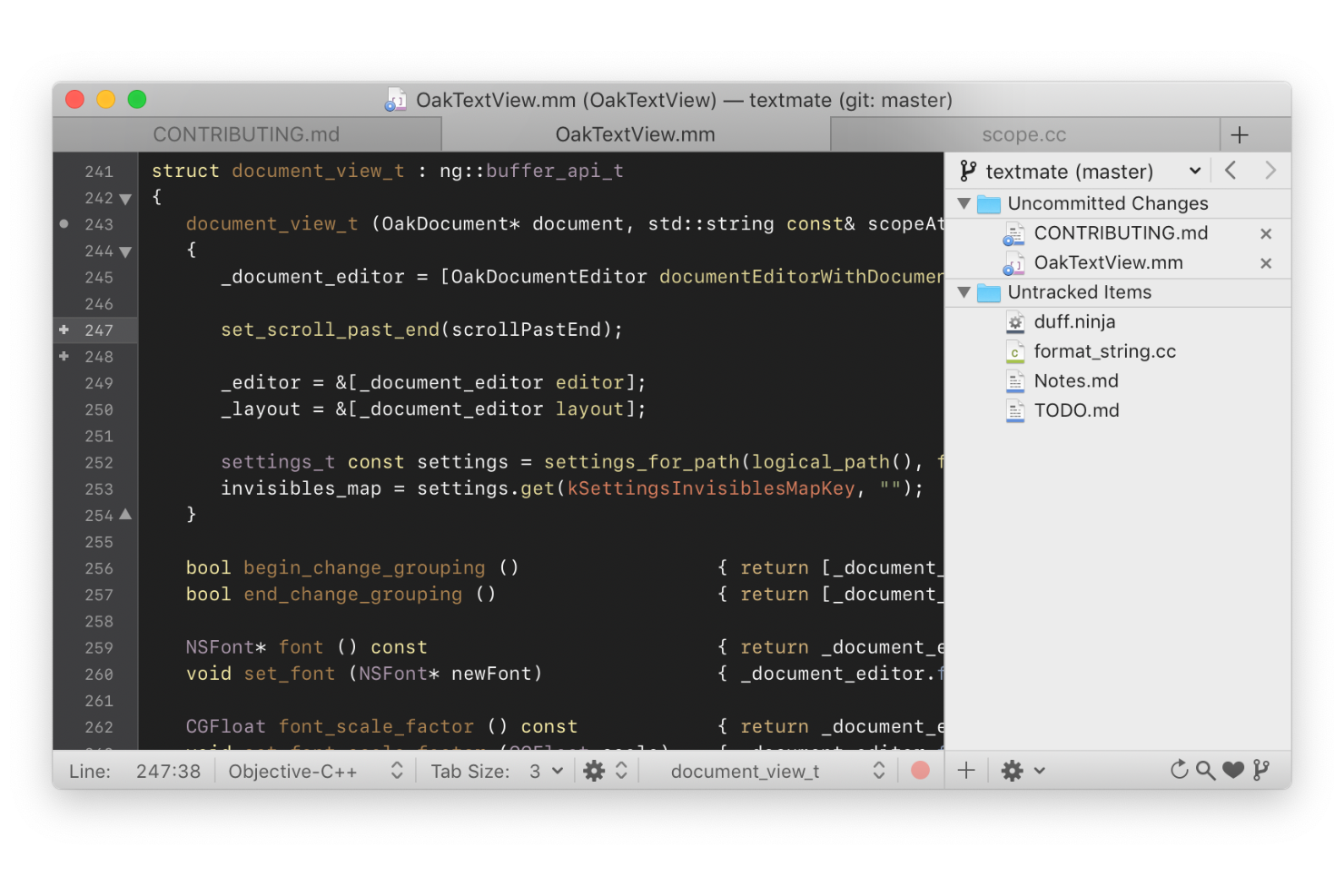
TextMate offers a unique approach for Ruby developers who want powerful text manipulation and automation on macOS. It’s especially appealing to those who work with complex codebases or need to create custom workflows using snippets and macros. If you’re looking for a Ruby IDE that emphasizes flexible editing and scripting, TextMate stands out for its bundle system and deep customization options.
Why I Picked TextMate
For Ruby developers who need advanced text manipulation, TextMate offers a level of flexibility that’s hard to match. Its bundle system lets you create and use custom commands, snippets, and macros tailored to Ruby workflows. I picked TextMate because it allows you to automate repetitive coding tasks and quickly transform or refactor code using powerful search and replace tools. If you want a Ruby IDE that puts control over text and automation in your hands, TextMate is a strong option.
TextMate Key Features
Some other features that make TextMate useful for Ruby development include:
- Scope-Based Syntax Highlighting: TextMate uses language grammars to provide accurate Ruby syntax coloring.
- Version Control Integration: Work with Git and Subversion repositories directly from the editor.
- Foldable Code Sections: Collapse and expand Ruby code blocks for easier navigation in large files.
- Clipboard History: Access and reuse multiple clipboard entries while editing Ruby scripts.
TextMate Integrations
Native integrations are not currently listed.
Pros and Cons
Pros:
- Macros automate repetitive edits
- Accurate syntax highlighting for Ruby files
- Bundle system supports custom Ruby commands
Cons:
- macOS-only, no Windows or Linux support
- Autocomplete is limited vs dedicated IDEs


Ruby IDE Selection Criteria
When selecting the best Ruby IDE to include in this list, I considered common buyer needs and pain points like support for Ruby-specific workflows and integration with testing tools. I also used the following framework to keep my evaluation structured and fair:
Core Functionality (25% of total score)
To be considered for inclusion in this list, each solution had to fulfill these common use cases:
- Edit and save Ruby files
- Provide syntax highlighting for Ruby
- Support code completion and suggestions
- Offer integrated debugging tools
- Allow project and file navigation
Additional Standout Features (25% of total score)
To help further narrow down the competition, I also looked for unique features, such as:
- Built-in support for Ruby on Rails
- Live code collaboration tools
- Integrated terminal or shell access
- Customizable scripting or macro support
- Advanced refactoring tools for Ruby
Usability (10% of total score)
To get a sense of the usability of each system, I considered the following:
- Clear and intuitive interface layout
- Minimal setup required for Ruby projects
- Responsive performance with large codebases
- Logical menu and shortcut organization
- Accessibility of key features from the main UI
Onboarding (10% of total score)
To evaluate the onboarding experience for each platform, I considered the following:
- Availability of step-by-step setup guides
- Access to training videos or tutorials
- Presence of interactive product tours
- Availability of starter templates for Ruby
- Support for importing existing projects
Customer Support (10% of total score)
To assess each software provider’s customer support services, I considered the following:
- Availability of live chat or email support
- Access to active user forums or communities
- Quality of documentation and help resources
- Responsiveness to bug reports and feature requests
- Regular updates and maintenance releases
Value For Money (10% of total score)
To evaluate the value for money of each platform, I considered the following:
- Transparent and competitive pricing structure
- Availability of a free plan or trial
- Features included in the base price
- Flexibility of subscription or licensing options
- Cost compared to similar Ruby IDEs
Customer Reviews (10% of total score)
To get a sense of overall customer satisfaction, I considered the following when reading customer reviews:
- Consistency of positive feedback across platforms
- Reports of stability and reliability
- User satisfaction with Ruby-specific features
- Feedback on customer support experiences
- Frequency of updates and improvements
How to Choose a Ruby IDE
It’s easy to get bogged down in long feature lists and complex pricing structures. To help you stay focused as you work through your unique software selection process, here’s a checklist of factors to keep in mind:
| Factor | What to Consider |
|---|---|
| Scalability | Will the IDE handle larger Ruby projects or teams as your needs grow? Consider project size limits and multi-user support. |
| Integrations | Does the IDE connect with your version control, CI/CD, or deployment tools? Check for native support for Git, Docker, or testing frameworks. |
| Customizability | Can you tailor the IDE to your workflow with plugins, themes, or scripting? Evaluate how much control you need over your environment. |
| Ease of use | How quickly can new team members become productive? Look for clear navigation, logical menus, and minimal setup for Ruby projects. |
| Implementation and onboarding | What resources are needed to get started? Assess the availability of migration tools, setup guides, and support for importing existing codebases. |
| Cost | Does the pricing fit your budget and usage patterns? Watch for hidden costs in add-ons, plugins, or per-user fees. |
| Security safeguards | How does the IDE protect your code and credentials? Check for secure storage, encrypted connections, and compliance with your organization’s policies. |
| Support availability | What support channels are offered if you run into issues? Consider the responsiveness of forums, live chat, or dedicated technical support. |
What is a Ruby IDE?
A Ruby IDE is a specialized software application designed to help a programmer write, edit, debug, and manage Ruby programming more efficiently. Built for the Ruby programming language, these environments include features like syntax highlighting, code completion, integrated debugging, and project navigation tools that make working with source code easier.
Ruby IDEs support both standard Ruby and Ruby on Rails workflows, making them especially useful for web development and broader software development projects. While some tools offer advanced capabilities, many aim to reduce the learning curve and help developers build, test, and maintain applications in a structured and organized way.
Features
When selecting a Ruby IDE, keep an eye out for the following key features:
- Syntax highlighting: Colors and formats Ruby code elements to make it easier to read, spot errors, and understand code structure at a glance.
- Code completion: Suggests possible code elements, methods, or variables as you type, helping reduce typos and speed up coding.
- Integrated debugger: Lets you set breakpoints, step through code, and inspect variables directly within the IDE to troubleshoot issues efficiently.
- Project navigation: Provides tools to quickly move between files, classes, and methods, making it easier to manage and explore large Ruby projects.
- Version control integration: Connects with systems like Git to manage code changes, branches, and commits without leaving the IDE.
- Built-in terminal: Offers a command-line interface inside the IDE, so you can run Ruby scripts, manage dependencies, or use system commands without switching windows.
- Testing framework support: Integrates with popular Ruby testing tools, allowing you to run and view test results directly within the IDE.
- Refactoring tools: Help you safely rename variables, extract methods, or restructure code to improve maintainability without introducing errors.
- Customizable environment: Lets you adjust themes, keybindings, and layouts to match your workflow and preferences.
- Plugin ecosystem: Supports add-ons or extensions that expand the IDE’s capabilities, such as additional language support, linters, or productivity tools.
Benefits
Implementing a Ruby IDE provides several benefits for your team and your business. Here are a few you can look forward to:
- Faster development cycles: Features like code completion, syntax highlighting, and integrated debugging help teams write and troubleshoot Ruby code more quickly.
- Improved code quality: Built-in testing tools, refactoring support, and linting integrations make it easier to catch errors and maintain clean, reliable code.
- Simplified project management: Project navigation tools and version control integration allow teams to organize, track, and collaborate on Ruby projects efficiently.
- Simplified onboarding: Intuitive interfaces, setup guides, and customizable environments help new team members get up to speed with Ruby development faster.
- Greater workflow flexibility: Plugin ecosystems and scripting support let teams tailor the IDE to their unique processes and integrate with other tools.
- Centralized development environment: Built-in terminals and support for multiple workflows reduce context switching and keep all essential tools in one place.
- Improved team collaboration: Features like live code sharing and integrated version control make it easier for multiple developers to work together on the same Ruby codebase.
Costs and Pricing
Selecting a Ruby IDE requires an understanding of the various pricing models and plans available. Costs vary based on features, team size, add-ons, and more. The table below summarizes common plans, their average prices, and typical features included in Ruby IDE solutions:
Plan Comparison Table for Ruby IDE
| Plan Type | Average Price | Common Features |
|---|---|---|
| Free Plan | $0 | Basic code editing, syntax highlighting, limited plugin support, and community support. |
| Personal Plan | $5-$15/user/month | Advanced code completion, integrated debugger, project navigation, and basic version control tools. |
| Business Plan | $15-$30/user/month | Team collaboration features, testing integration, improved support, and customizable environments. |
| Enterprise Plan | $30-$60/user/month | Advanced security controls, priority support, compliance tools, centralized management, and audit logs. |
Ruby IDE FAQs
Here are some answers to common questions about Ruby IDE:
Do I need a dedicated Ruby IDE for Ruby on Rails development?
Yes, using a dedicated Ruby IDE can make Rails development easier by providing project templates, code navigation, and integrated tools tailored for Rails workflows. These features help you manage controllers, models, and views more efficiently than a generic code editor.
Can I use a Ruby IDE on multiple operating systems?
Yes, most Ruby IDE solutions support Windows, macOS, and Linux. Always check system requirements before installing, as some advanced features or plugins may have OS-specific limitations or dependencies.
How do Ruby IDE solutions handle version control?
Most Ruby IDE platforms integrate with Git and other version control systems. This lets you commit, branch, and merge code directly from the IDE, reducing the need to switch between tools and helping you track changes more easily.
What should I look for when choosing a Ruby IDE for a team?
Look for collaboration features, support for shared project settings, and centralized user management. Consider how the IDE handles permissions, integrates with your existing tools, and supports onboarding for new team members.
Are there free Ruby IDE options suitable for professional use?
Yes, several free Ruby IDE options offer core features like syntax highlighting, code completion, and basic debugging. However, advanced features such as team collaboration, integrated testing, or enterprise security may require a paid plan.