

12 Best Notepad++ Alternatives Picked for 2026

Best Notepad++ Alternative Shortlist
Here's my pick of the 10 best software from the 12 tools reviewed.


A strong Notepad++ alternative offers fast performance, broad language support, and flexible customization for source code editing. If you’re searching for a replacement, you likely need a tool that matches Notepad++’s speed and simplicity but adds features like cross-platform compatibility, advanced extensions, or better collaboration.
With so many editors available, it’s tough to know which one will fit your workflow, security standards, and team needs. This list will help you compare the top Notepad++ alternatives for 2026, so you can confidently choose the right editor for your environment.
What is Notepad++?
Notepad++ is a free, open-source source code editor for Windows that supports multiple programming languages and syntax highlighting. It’s known for its lightweight design, tabbed interface, and customizable plugins. Developers, IT specialists, and system administrators use Notepad++ for quick code edits, script writing, and configuration file management. Its simplicity and speed make it a popular choice for those who need a reliable text editor without unnecessary complexity.
Best Notepad++ Alternatives Summary
This comparison chart summarizes pricing details for my top Notepad++ alternative selections to help you find the best one for your budget and business needs.
| Tool | Best For | Trial Info | Price | ||
|---|---|---|---|---|---|
| 1 | Best for advanced code intelligence | 45-day free trial + free demo available | From $71.90/month (billed annually) | Website | |
| 2 | Best for lightning-fast performance | Free download available | From $99/license | Website | |
| 3 | Best for visual web design integration | 7-day free trial available | From $22.99/month (billed annually) | Website | |
| 4 | Best for extensive extension marketplace | Free, open-source | Free to use | Website | |
| 5 | Best for efficient keyboard-driven workflows | Free plan available | Free and open-source software | Website | |
| 6 | Best for deep customization via Lisp | Not available | Free, open-source software | Website | |
| 7 | Best for coding directly on Android devices | Not available | Free and open-source | Website | |
| 8 | Best for real-time collaborative editing | 14-day free trial + free plan available | From $10/month | Website | |
| 9 | Best for instant cloud-based coding | Free plan available | From $12/workspace/month | Website | |
| 10 | Best for iOS and macOS compatibility | Not available | Free to use | Website |
Why Trust Our Software Reviews
We’ve been testing and reviewing software since 2023. As tech leaders ourselves, we know how critical and difficult it is to make the right decision when selecting software.
We invest in deep research to help our audience make better software purchasing decisions. We’ve tested more than 2,000 tools for different tech use cases and written over 1,000 comprehensive software reviews. Learn how we stay transparent & our software review methodology.
-

Site24x7
Visit WebsiteThis is an aggregated rating for this tool including ratings from Crozdesk users and ratings from other sites.4.6 -
GitHub Actions
Visit WebsiteThis is an aggregated rating for this tool including ratings from Crozdesk users and ratings from other sites.4.8 -
Docker
Visit WebsiteThis is an aggregated rating for this tool including ratings from Crozdesk users and ratings from other sites.4.6





Best Notepad++ Alternatives Reviews
Below are my detailed summaries of the Notepad++ alternatives that made it onto my shortlist. My reviews offer a detailed look at the features, best use cases, and capabilities of each tool to help you find the best one for you.

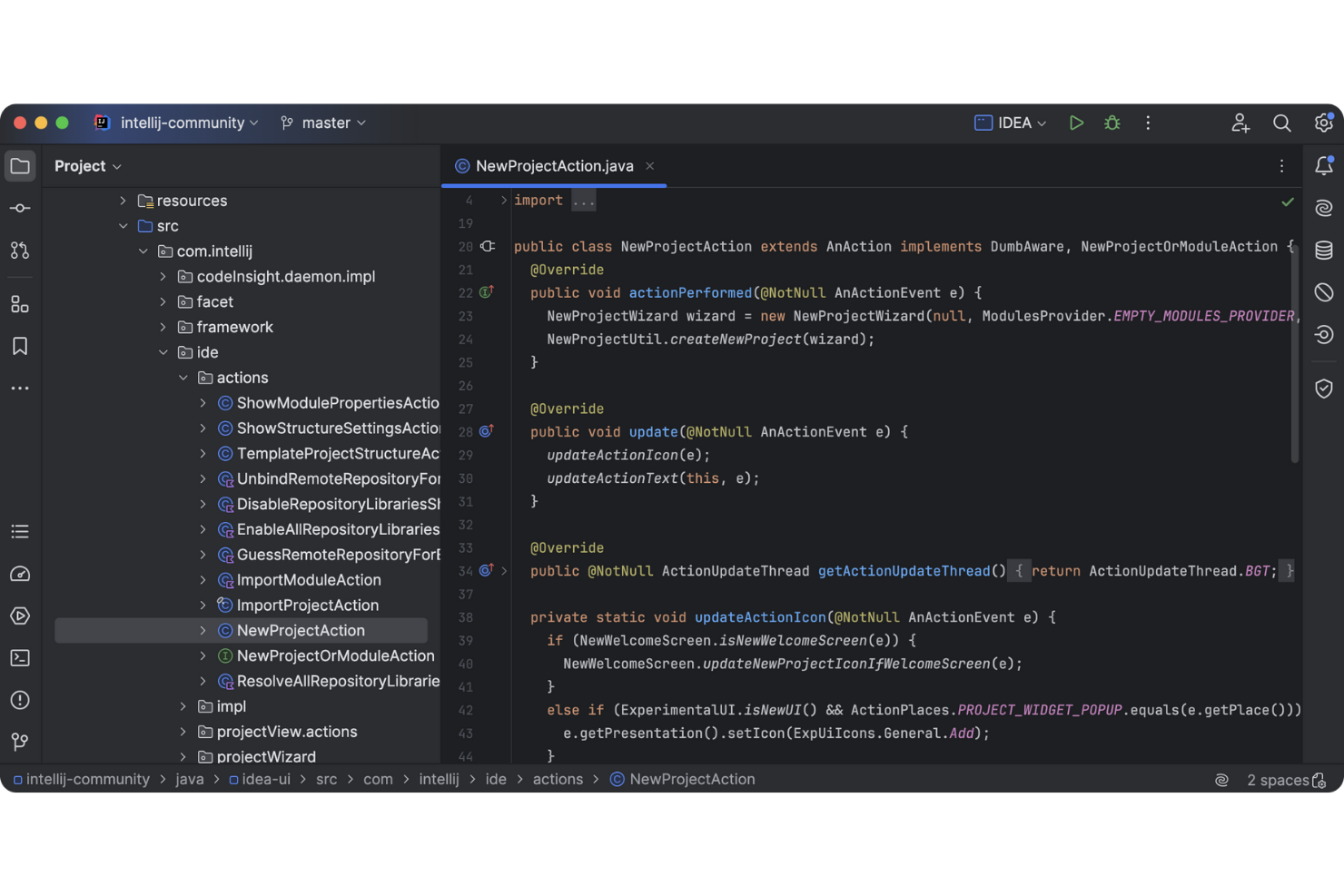
Developers looking for deep code analysis and smart automation often turn to IntelliJ IDEA. This source code editor is designed for professional software engineers who need advanced code intelligence, refactoring, and debugging tools. Unlike Notepad++, IntelliJ IDEA offers context-aware suggestions, automated code completion, and built-in support for complex project structures.
Why IntelliJ IDEA Is a Good Notepad++ Alternative
If you need a source code editor that goes far beyond basic syntax highlighting, IntelliJ IDEA is worth considering for its advanced code intelligence. I picked IntelliJ IDEA because it offers context-aware code completion and deep static analysis that help you catch errors as you type. The editor also provides automated refactoring tools and smart navigation features that make working with large, complex codebases much more manageable. For developers who want more than just a text editor, IntelliJ IDEA brings a full suite of intelligent coding tools to the table.
IntelliJ IDEA Key Features
Some other features that make IntelliJ IDEA appealing to development teams include:
- Integrated Version Control: Work with Git, Mercurial, and other VCS tools directly in the editor.
- Database Tools: Access, query, and manage databases without leaving your coding environment.
- Plugin Marketplace: Extend functionality with a wide range of community and JetBrains-developed plugins.
- Live Templates: Insert frequently used code snippets quickly with customizable templates.
IntelliJ IDEA Integrations
Native integrations are not currently listed by IntelliJ IDEA.
Pros and Cons
Pros:
- Integrated version control supports Git, Mercurial, and Subversion
- Built-in debugger and profiler help diagnose complex issues quickly
- Advanced code completion supports multiple languages and frameworks
Cons:
- Project indexing can slow down performance on large codebases
- Uses significantly more system resources than lightweight editors

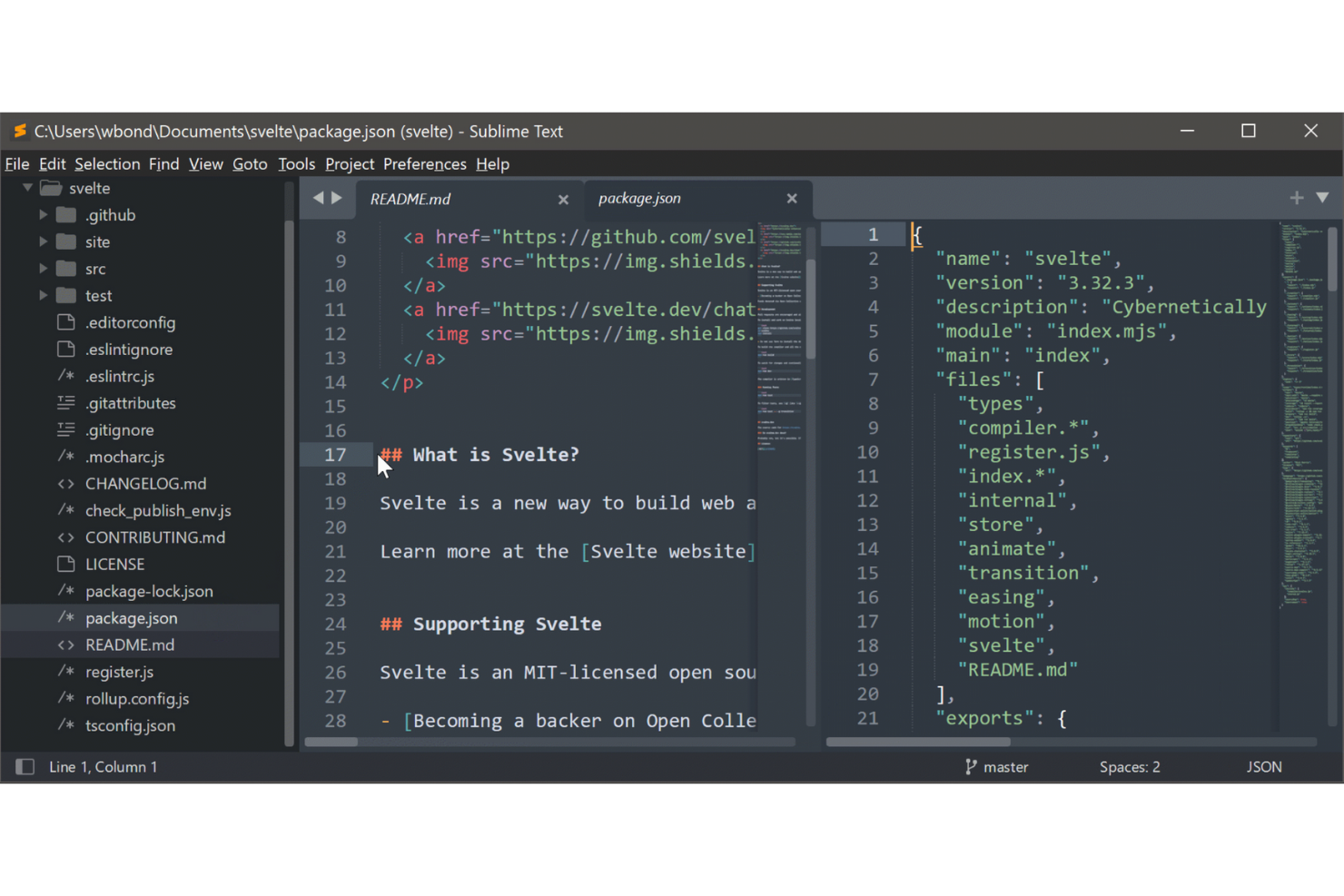
Sublime Text is built for developers and IT professionals who need a source code editor that launches and responds almost instantly, even with large files. Its performance-focused design appeals to anyone working with massive codebases or frequent file switching. If you’re frustrated by lag or slow startup times in other editors like Notepad++, Sublime Text offers a noticeably faster experience.
Why Sublime Text Is a Good Notepad++ Alternative
If you need a source code editor that opens and runs with almost no delay, Sublime Text is worth considering. I picked it as a Notepad++ alternative because its performance is hard to match, especially when working with very large files or projects. Features like instant project switching and low memory usage help keep your workflow fast and responsive. For IT specialists who value speed above all, Sublime Text delivers a noticeably quicker editing experience.
Sublime Text Key Features
Some other features in Sublime Text that source code editors may find valuable include:
- Multiple Selection Editing: Edit several lines or instances of text at once to speed up repetitive changes.
- Command Palette: Access commands, settings, and navigation tools quickly with a searchable overlay.
- Syntax Highlighting for Dozens of Languages: Work with a wide range of programming and markup languages with clear, color-coded syntax.
- Extensible Plugin API: Add new features or customize workflows using Python-based plugins and community packages.
Sublime Text Integrations
Integrations include thousands of community-built packages available through Package Control and plugins for tailored workflows.
Pros and Cons
Pros:
- Multiple selection editing speeds up repetitive code changes
- Lightweight performance with fast startup and low memory usage
- Opens and handles very large files with minimal lag
Cons:
- Update pace and feature development are slower than those of competitors
- Limited built-in features compared to modern editors


If you need a source code editor that blends visual design with coding, Adobe Dreamweaver is worth a look. It’s built for web designers and developers who want to switch between drag-and-drop layouts and direct code editing. Unlike Notepad++, Dreamweaver offers a visual interface that helps you build and preview responsive websites as you work.
Why Adobe Dreamweaver Is a Good Notepad++ Alternative
Adobe Dreamweaver stands out for its integration of visual web design tools with traditional code editing. I picked Dreamweaver because it lets you build layouts visually and then fine-tune the underlying HTML, CSS, and JavaScript directly in the same environment. The real-time preview feature helps you see exactly how your changes will look across different devices as you work. If you want a source code editor that bridges the gap between design and code, Dreamweaver offers that flexibility.
Adobe Dreamweaver Key Features
Some other features that make Dreamweaver a strong choice for web professionals include:
- Code Hinting: Get context-aware code suggestions for HTML, CSS, and JavaScript as you type.
- Git Support: Manage version control and collaborate on projects directly within the editor.
- Multi-Monitor Support: Work across multiple screens to organize your workspace and files.
- Starter Templates: Access a library of pre-built templates for responsive websites and emails.
Adobe Dreamweaver Integrations
Integrations include Creative Cloud, Photoshop, Animate, and more.
Pros and Cons
Pros:
- Starter templates help launch responsive sites and emails quickly
- Code hinting speeds up writing HTML, CSS, and JavaScript
- Visual design tools let you build layouts without coding
Cons:
- Uses more system resources than lightweight editors like Notepad++
- Requires a paid Adobe subscription for continued use
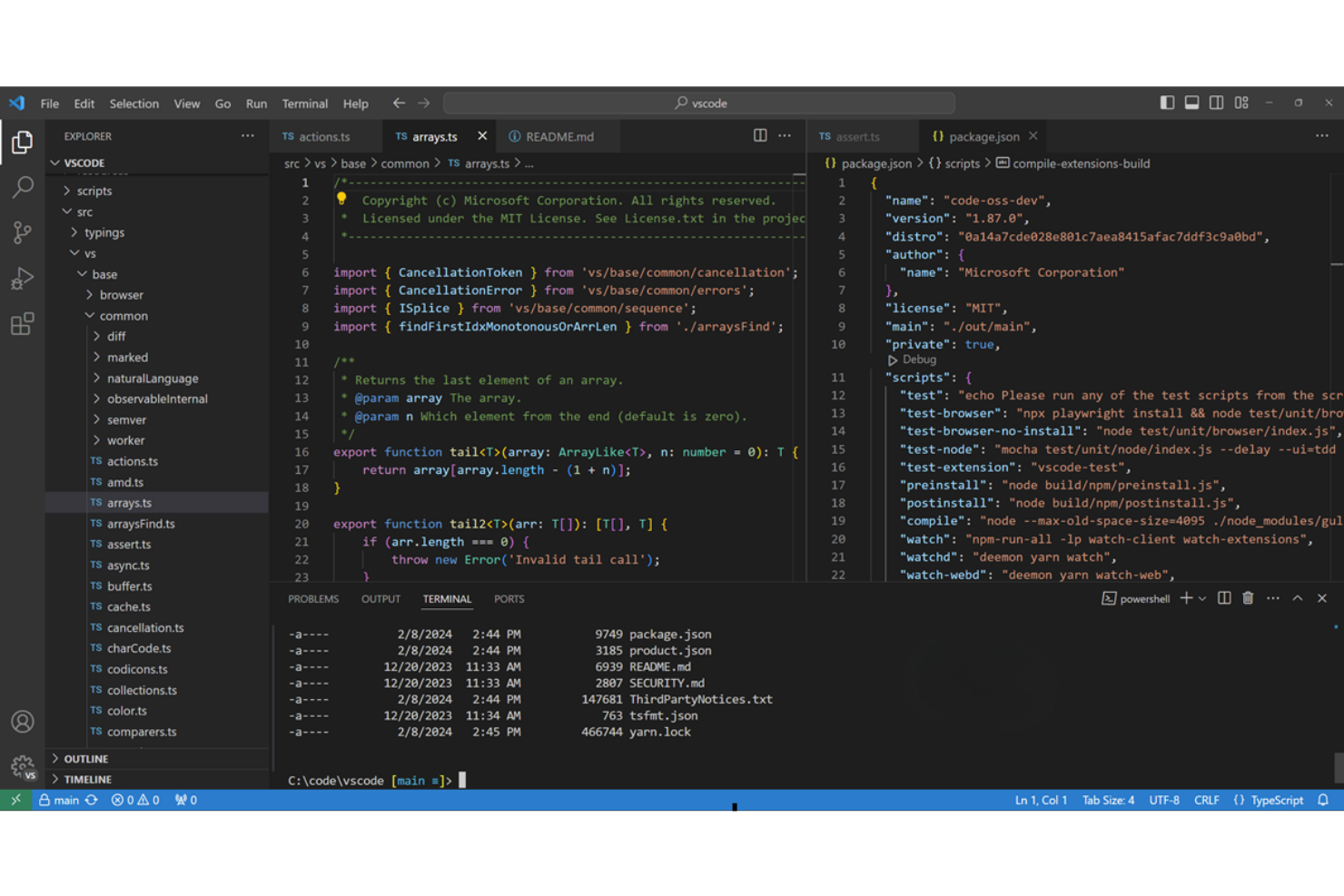
Visual Studio Code is a cross-platform source code editor designed for developers who want deep customization and a vast extension ecosystem. It’s especially useful for IT specialists and software teams who need integrated debugging, version control, and language support in one place. If you’re looking for a flexible editor that goes beyond Notepad++ with real-time collaboration and marketplace integrations, Visual Studio Code stands out.
Why Visual Studio Code Is a Good Notepad++ Alternative
What sets Visual Studio Code apart is its extensive extension marketplace, which gives you access to thousands of add-ons for languages, themes, and workflows. I picked it as a Notepad++ alternative because you can tailor the editor to fit almost any development stack or workflow. Features like built-in Git integration and real-time code linting are easy to add or remove through extensions. This flexibility makes Visual Studio Code a strong choice for teams or individuals who want a highly adaptable source code editor.
Visual Studio Code Key Features
Some other features in Visual Studio Code that source code editors may find useful include:
- Split View Editing: Work on multiple files side by side within the same window for easier code comparison and multitasking.
- IntelliSense: Get smart code completion, parameter info, and quick info for a wide range of programming languages.
- Integrated Terminal: Access a command-line terminal directly within the editor, so you can run scripts and commands without switching windows.
- Remote Development: Connect to remote servers or containers and edit code as if it were local, supporting cloud and hybrid workflows.
Visual Studio Code Integrations
Native integrations include Git, Docker, Azure Repos, Microsoft Teams, Jupyter, GitHub, ESLint, Python, C++, and Java.
Pros and Cons
Pros:
- Built-in Git support allows version control within the editor
- Large extension ecosystem enables deep customization across workflows
- Supports a wide range of programming languages out of the box
Cons:
- Interface and features can feel overwhelming for simple editing tasks
- Can consume high system resources with multiple extensions enabled

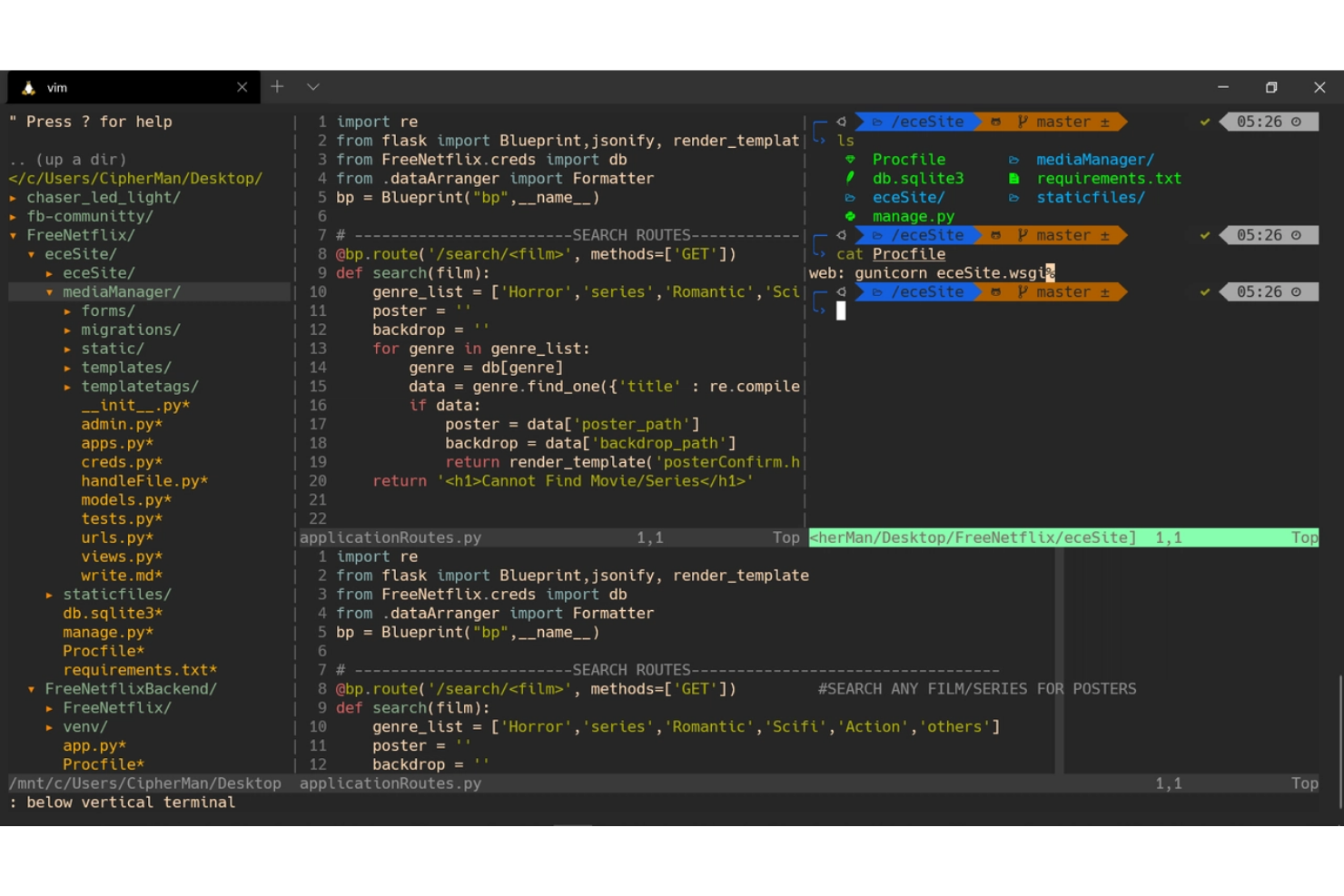
Vim stands out for developers who want maximum speed and control through keyboard-driven editing. It’s a strong fit for system administrators, DevOps engineers, and anyone who works extensively in terminal environments. Unlike Notepad++, Vim’s modal editing and extensive keyboard shortcuts let you navigate and manipulate code without ever reaching for the mouse.
Why Vim Is a Good Notepad++ Alternative
For anyone who values speed and efficiency in their coding workflow, Vim offers a unique approach that sets it apart from Notepad++. I picked Vim because its modal editing system and extensive keyboard shortcuts let you perform complex text manipulations without leaving the keyboard. Vim’s command-driven interface is especially useful for editing large files or making repetitive changes quickly. If you want a source code editor that maximizes productivity through keyboard-driven workflows, Vim is purpose-built for that style of work.
Vim Key Features
Some other features that make Vim a strong choice for developers include:
- Extensive Plugin System: Add new functionality and customize your editing environment with a wide range of community plugins.
- Split Window Support: Edit multiple files or views side by side within the same session.
- Syntax Highlighting: Automatically color-code code for dozens of programming languages.
- Macro Recording: Record and replay sequences of commands to automate repetitive editing tasks.
Vim Key Integrations
Integrations are not currently listed.
Pros and Cons
Pros:
- Available across all major platforms and terminal environments
- Lightweight and efficient with minimal system resource usage
- Extremely fast editing through keyboard-driven modal workflows
Cons:
- Requires configuration to match features of modern editors
- Steep learning curve due to modal editing system

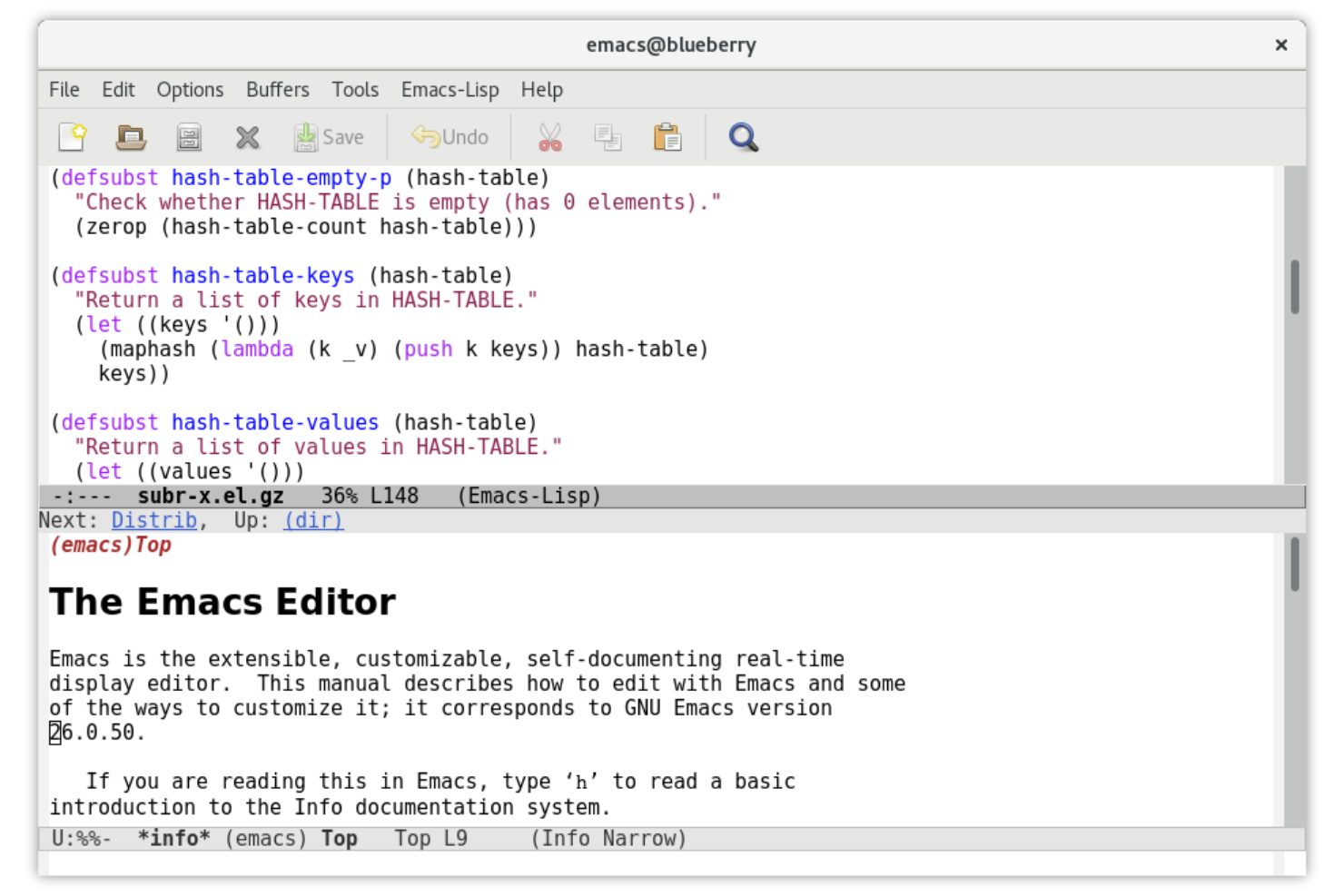
Unlike most source code editors, GNU Emacs is designed for IT professionals and developers who want to deeply customize their editing environment using Emacs Lisp. It’s especially appealing if you need to automate complex workflows or tailor every aspect of your editor to fit unique project requirements. For teams or individuals who find Notepad++ limiting in terms of extensibility, Emacs offers a level of control and flexibility that’s hard to match.
Why GNU Emacs Is a Good Notepad++ Alternative
For anyone who wants to shape their editor into a truly personalized tool, GNU Emacs stands out because of its deep customization via Emacs Lisp. I picked it as a Notepad++ alternative since you can script, automate, and redefine nearly every aspect of the editing experience. Features like programmable keybindings and the ability to create custom functions let you adapt Emacs to fit highly specific workflows. If you need an editor that grows and changes with your technical requirements, Emacs offers a level of flexibility that’s rare among source code editors.
GNU Emacs Key Features
In addition to its deep customization capabilities, I also found these features worth noting:
- Built-in Package Manager: Install, update, and manage extensions directly from within the editor.
- Integrated Terminal Emulator: Run shell commands and scripts without leaving the editing environment.
- Multiple Major and Minor Modes: Switch between language-specific editing modes and add extra functionality for different file types.
- Org Mode for Notes and Task Management: Organize notes, tasks, and project outlines using a powerful plain-text system.
GNU Emacs Integrations
Integrations include Git, LSP, TRAMP, GDB, Tree-sitter, Docker, GPT, and more, with plugins like Org-mode, Magit, Vertico, Company, and Projectile available.
Pros and Cons
Pros:
- Built-in package manager provides access to thousands of extensions
- Offers extensive keyboard shortcuts for nearly every function
- Supports advanced scripting and automation with Emacs Lisp
Cons:
- Default interface feels outdated without customization
- Steep learning curve for new users and non-technical workflows
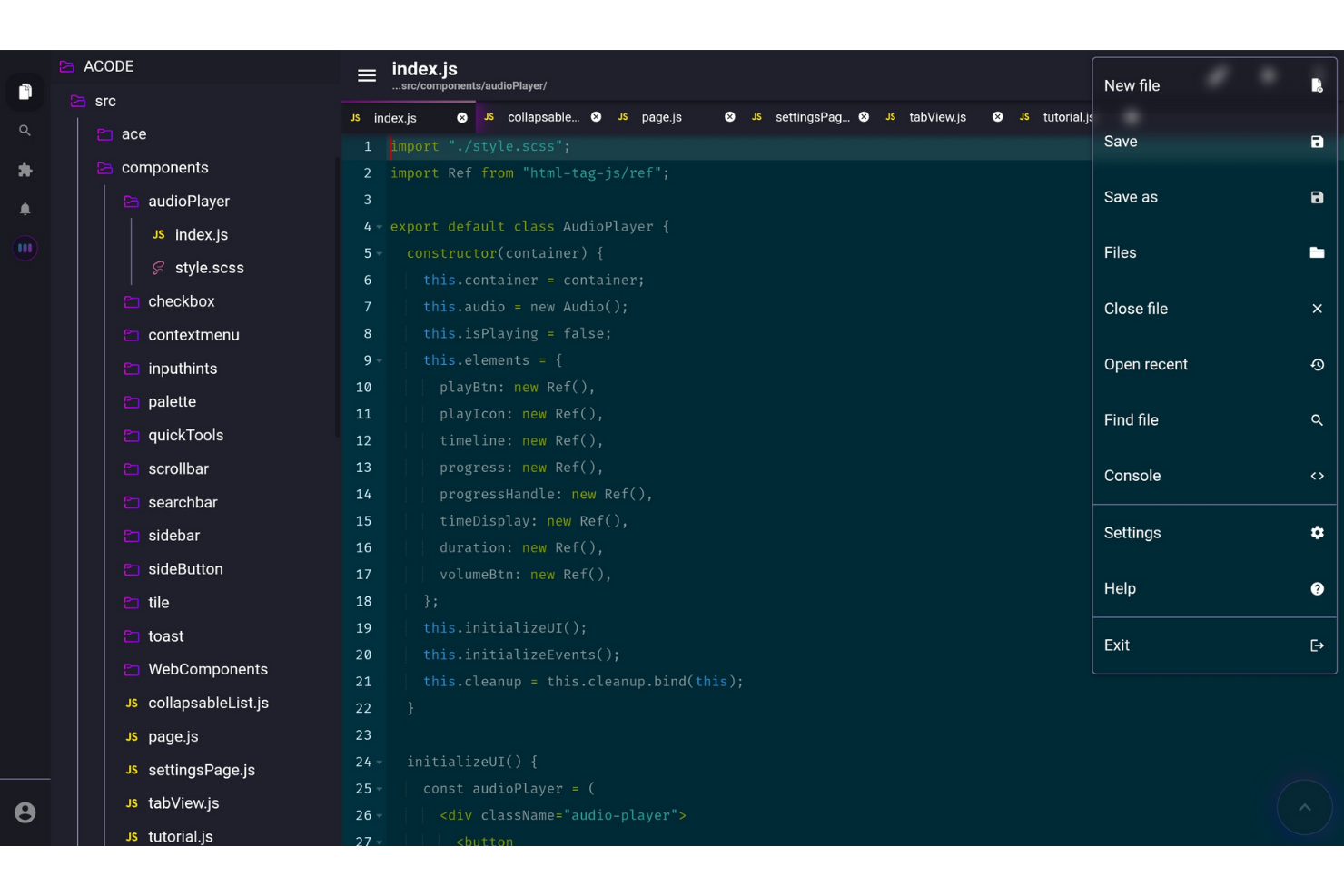
Acode is designed for developers who want to write and edit code directly on Android devices. It’s a strong fit for IT specialists, students, and professionals who need a portable code editor with syntax highlighting and file management on the go. Unlike Notepad++, Acode runs natively on Android and supports in-app preview for web development, making it practical for mobile-first workflows.
Why Acode Is a Good Notepad++ Alternative
For anyone who needs to code directly on Android devices, Acode fills a gap that Notepad++ doesn’t address. I picked it as a Notepad++ alternative because it offers a full-featured code editor with syntax highlighting and file management built specifically for Android. Acode also includes an in-app web preview, so you can test HTML, CSS, and JavaScript projects without leaving your device. If you want a portable coding solution that works natively on your phone or tablet, Acode is a practical choice.
Acode Key Features
Some other features that make Acode stand out include:
- GitHub Integration: Connect to GitHub repositories to clone, edit, and push code changes directly from your device.
- Customizable Themes: Choose from multiple color themes or create your own for a personalized coding environment.
- Keyboard Shortcuts: Use a range of keyboard shortcuts to speed up navigation and editing when using an external keyboard.
- Support for Multiple File Types: Open and edit a variety of file formats, including markdown, text, and configuration files.
Acode Key Integrations
Integrations include GitHub for repository access and version control.
Pros and Cons
Pros:
- Offers in-app web preview for HTML, CSS, and JavaScript
- Supports syntax highlighting for dozens of programming languages
- Runs natively on Android devices without requiring emulation
Cons:
- No support for collaborative or multi-user editing
- Limited feature set compared to desktop editors

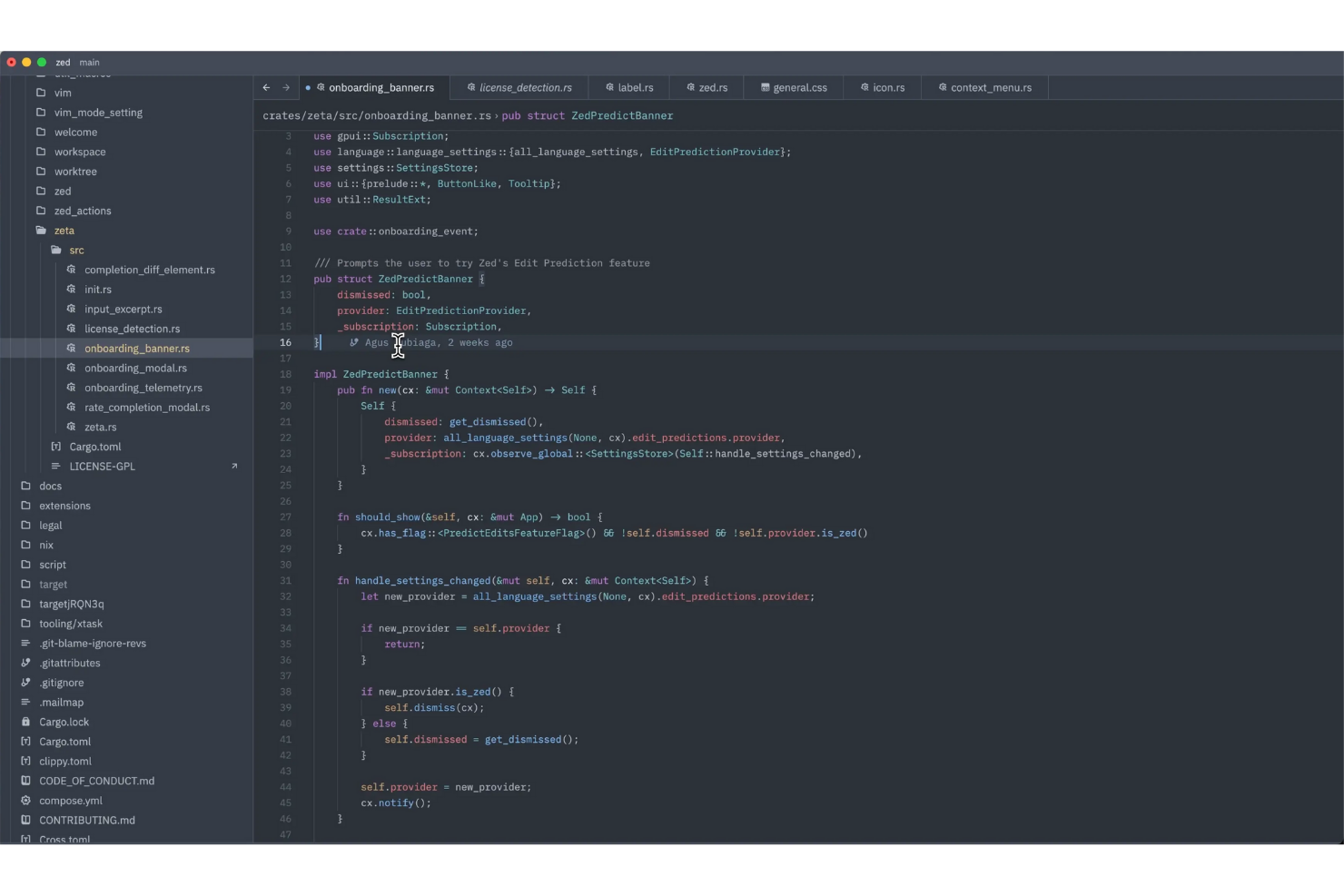
Zed brings real-time collaborative editing to developers who need to work together on code without friction. It’s especially useful for distributed teams, pair programmers, and anyone who values instant, multi-user editing in a modern environment. Unlike Notepad++, Zed is built from the ground up for live collaboration and low-latency teamwork on code projects.
Why Zed Is a Good Notepad++ Alternative
If you need a source code editor that supports real-time collaborative editing, Zed offers capabilities that Notepad++ doesn’t provide. I picked Zed because it lets multiple users edit the same file simultaneously, with changes appearing instantly for everyone involved. Zed also includes features like live cursors and in-editor chat, making it easier to communicate and coordinate during coding sessions. For teams or pairs who want to work together without switching tools, Zed is purpose-built for that experience.
Zed Key Features
Some other features that make Zed appealing to developers include:
- Command Palette: Access commands and actions quickly using a searchable command palette.
- Multi-Cursor Editing: Place multiple cursors to edit code in several places at once.
- Extensive Language Support: Work with a wide range of programming languages out of the box.
- Customizable Keybindings: Adjust keyboard shortcuts to match your workflow and preferences.
Zed Key Integrations
Integrations include Amazon Bedrock, Anthropic, DeepSeek, GitHub Copilot Chat, Google AI, LM Studio, Mistral, Ollama, OpenAI, and more.
Pros and Cons
Pros:
- Multi-cursor editing supports efficient code changes
- Modern interface designed for speed and responsiveness
- Real-time collaboration enables simultaneous editing with low latency
Cons:
- Fewer extensions and plugins than some mature competitors
- Token-based AI features incur additional costs

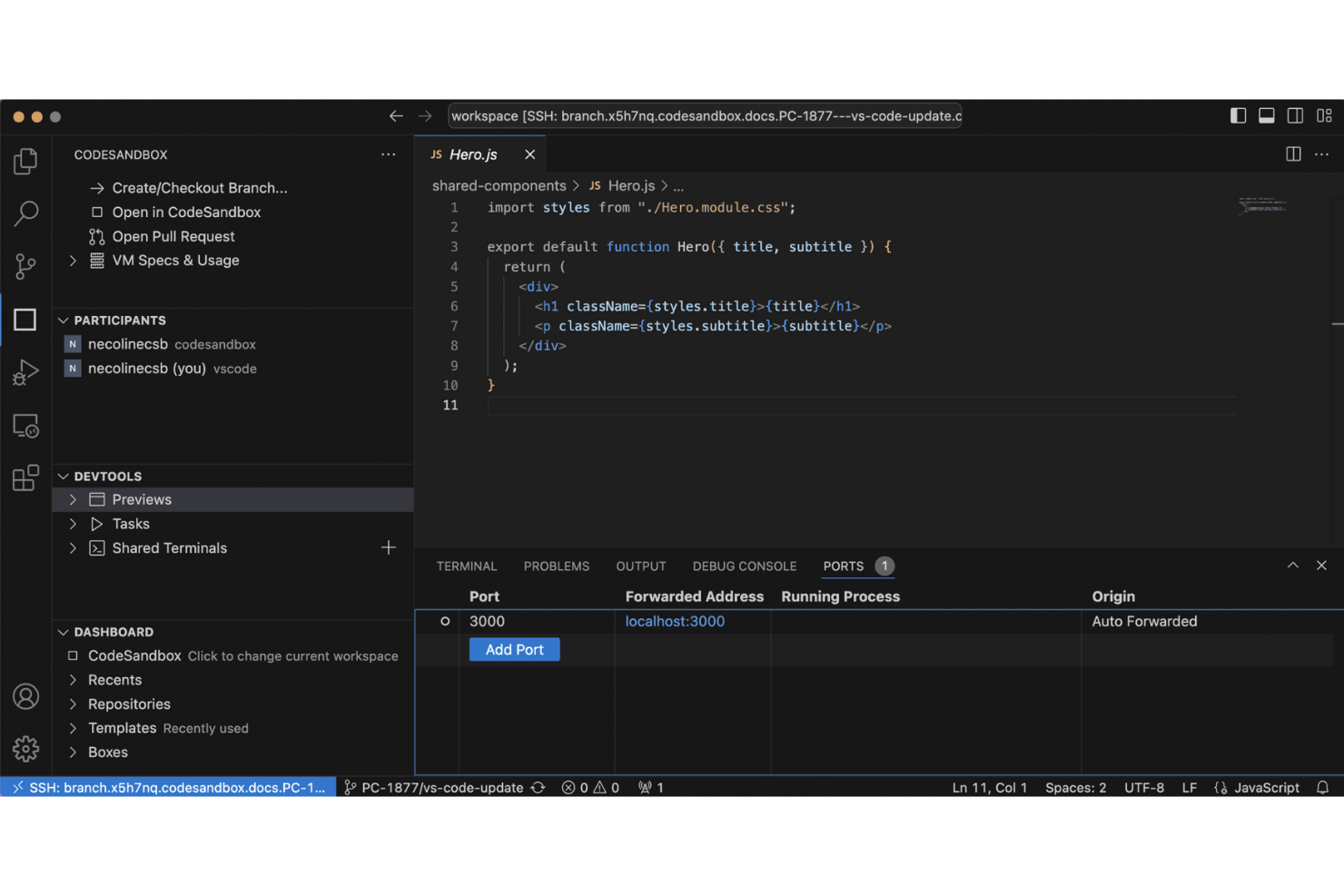
If you need a source code editor that runs entirely in the cloud, CodeSandbox is built for instant, browser-based coding. It’s a strong fit for developers, educators, and teams who want to spin up projects quickly without local setup or configuration. Unlike Notepad++, CodeSandbox lets you collaborate in real time and preview web apps instantly from any device.
Why CodeSandbox Is a Good Notepad++ Alternative
Unlike traditional desktop editors, CodeSandbox lets you start coding instantly in your browser without any installation. I picked it as a Notepad++ alternative because it’s designed for rapid prototyping and real-time collaboration, which is ideal for web development projects. You can share live project links, preview changes immediately, and even work with teammates simultaneously in the same environment. For anyone who values speed and accessibility, CodeSandbox offers a modern approach to source code editing that’s hard to match with local tools.
CodeSandbox Key Features
Some other features that make CodeSandbox stand out include:
- GitHub Integration: Connect repositories to import, edit, and commit code directly from the editor.
- Container-Based Environments: Run full-stack applications with backend support using containerized sandboxes.
- Template Library: Start new projects quickly with pre-configured templates for popular frameworks and languages.
- VS Code Compatibility: Use familiar keyboard shortcuts and interface elements modeled after Visual Studio Code.
CodeSandbox Integrations
Integrations include GitHub for repository import and version control workflows. Supports connection with container-based environments, modern web development frameworks, and VS Code workflows
Pros and Cons
Pros:
- Instant preview supports rapid frontend and full-stack development
- Real-time collaboration enables multiple users to edit simultaneously
- Runs entirely in the browser with no local setup required
Cons:
- Less suitable for non-web or low-level development tasks
- Performance can struggle with large or complex projects

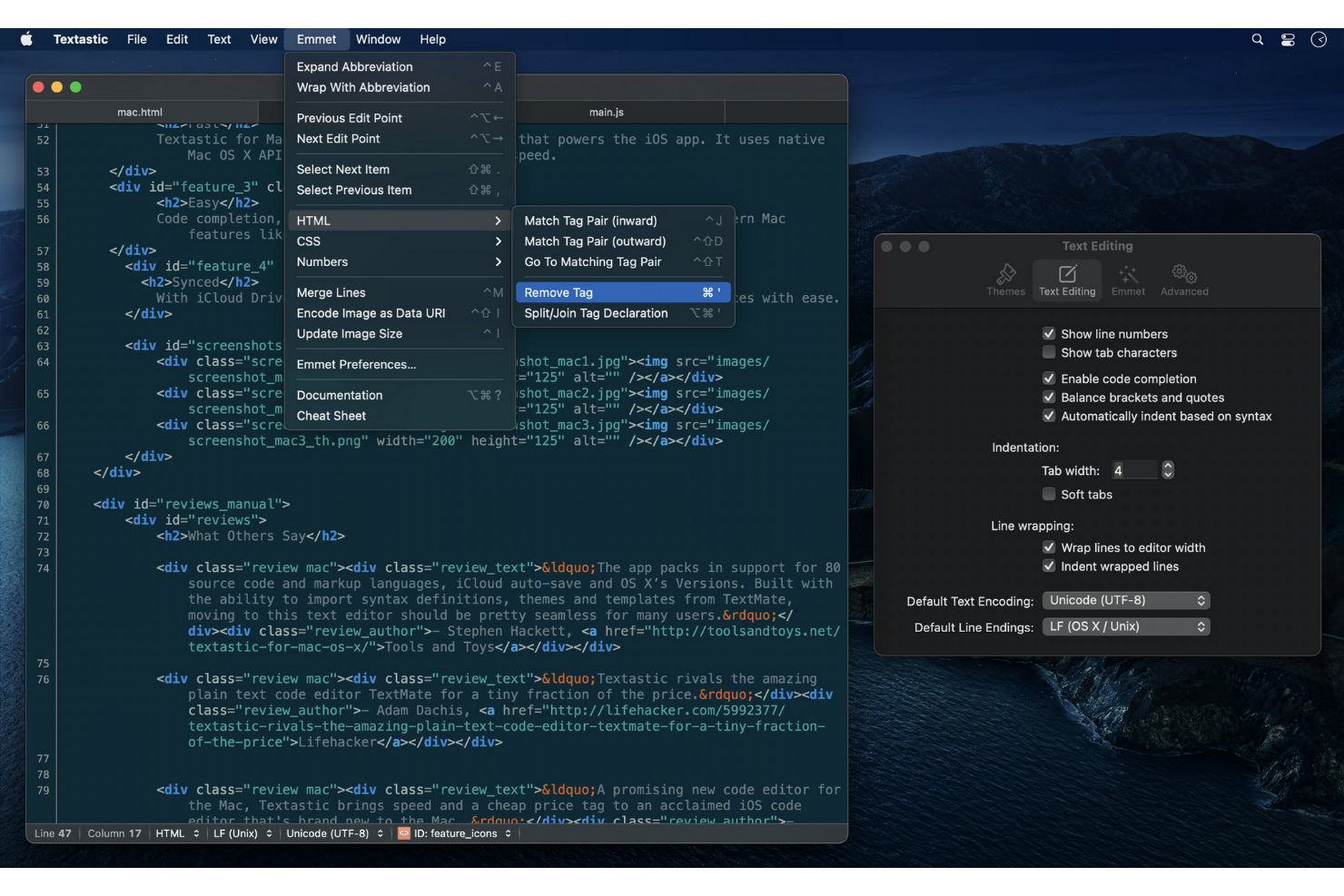
For developers and IT professionals working across Apple devices, Textastic offers a dedicated source code editor built specifically for iOS and macOS. It’s especially useful for those who need syntax highlighting and code editing on iPad, iPhone, or Mac, with support for over 80 programming languages. Unlike Notepad++, Textastic is optimized for mobile workflows and integrates with iCloud and external keyboards for on-the-go coding.
Why Textastic Is a Good Notepad++ Alternative
If you’re looking for a source code editor that works seamlessly across iOS and macOS, Textastic is purpose-built for Apple environments. I picked it as a Notepad++ alternative because it brings syntax highlighting and code editing to iPad, iPhone, and Mac, making it easy to work on code from any Apple device. Textastic supports external keyboards and iCloud sync, so you can move between devices without losing your place or your files. For anyone who needs a mobile-friendly code editor with deep Apple integration, Textastic fills a gap that Notepad++ doesn’t address.
Textastic Key Features
Some other features that make Textastic appealing include:
- Support for Over 80 Languages: Edit and highlight code in a wide range of programming and markup languages.
- Tabbed Document Interface: Open and switch between multiple files using a tabbed layout.
- SFTP, FTP, and WebDAV Access: Connect to remote servers to open, edit, and save files directly.
- Customizable Syntax Definitions: Add or modify syntax highlighting rules to fit your workflow.
Textastic Integrations
Integrations include support for iCloud Drive and local file storage providers.
Pros and Cons
Pros:
- Offers SFTP, FTP, and WebDAV for remote file editing
- Supports syntax highlighting for over 80 programming languages
- Runs natively on iOS and macOS with full feature parity
Cons:
- No built-in terminal or command-line access for development tasks
- Lacks plugin support for extending editor functionality
Other Notepad++ Alternatives
Here are some additional Notepad++ alternatives that didn’t make it onto my shortlist, but are still worth checking out:
- Visual Studio
For integrated debugging tools
- PyCharm
For intelligent Python code assistance


Notepad++ Alternatives Selection Criteria
When selecting the best Notepad++ alternatives to include in this list, I considered common buyer needs and pain points related to source code editor tool products, like support for multiple programming languages and advanced code navigation. I also used the following framework to keep my evaluation structured and fair:
Core Functionality (25% of total score)
To be considered for inclusion in this list, each solution had to fulfill these common use cases:
- Edit and save plain text and code files
- Highlight syntax for multiple programming languages
- Search and replace text within files or folders
- Open and manage multiple files or tabs
- Support basic code formatting
Additional Standout Features (25% of total score)
To help further narrow down the competition, I also looked for unique features, such as:
- Integrated debugging tools
- Intelligent code completion
- Built-in version control integration
- Real-time collaboration features
- Extensible plugin ecosystem
Usability (10% of total score)
To get a sense of the usability of each system, I considered the following:
- Clear and intuitive interface layout
- Customizable keyboard shortcuts
- Minimal lag or performance issues
- Logical menu and settings organization
- Accessibility for users with different needs
Onboarding (10% of total score)
To evaluate the onboarding experience for each platform, I considered the following:
- Availability of step-by-step setup guides
- Access to training videos or tutorials
- Interactive product tours for new users
- Pre-built templates or starter projects
- In-app tips or chatbot assistance
Customer Support (10% of total score)
To assess each software provider’s customer support services, I considered the following:
- Availability of live chat or email support
- Comprehensive online knowledge base
- Community forums or user groups
- Timely response to support requests
- Access to product documentation
Value For Money (10% of total score)
To evaluate the value for money of each platform, I considered the following:
- Transparent and flexible pricing plans
- Free trial or free tier availability
- Features included at each pricing level
- Cost compared to similar tools
- Discounts for teams or education
Customer Reviews (10% of total score)
To get a sense of overall customer satisfaction, I considered the following when reading customer reviews:
- Consistent praise or complaints about features
- Reports of bugs or stability issues
- Feedback on customer support experiences
- User sentiment about updates and improvements
- Overall ratings and recommendation rates
Why Look For a Notepad++ Alternative?
While Notepad++ is a good choice of source code editor tool, there are a number of reasons why some users seek out alternative solutions. You might be looking for a Notepad++ alternative because…
- You need advanced code intelligence or refactoring tools
- You want built-in support for version control systems
- You work on large projects with complex file structures
- You require cross-platform compatibility beyond Windows
- You need integrated debugging or database tools
If any of these sound like you, you’ve come to the right place. My list contains several source code editor tool options that are better suited for teams facing these challenges with Notepad++ and looking for alternative solutions.
Notepad++ Key Features
Here are some of the key features of Notepad++, to help you contrast and compare what alternative solutions offer:
- Syntax highlighting for a wide range of programming languages
- Tabbed interface for managing multiple open files
- Search and replace with regular expression support
- Macro recording and playback for repetitive tasks
- Customizable keyboard shortcuts
- Lightweight footprint with fast startup and operation
- Plugin support for extending functionality
- Auto-completion for words and functions
- Line numbering and code folding
- Support for multiple encoding formats