

13 Best GoodSync Alternatives in 2026

GoodSync Alternative Shortlist
Here’s my shortlist of the best GoodSync alternatives:


Any strong GoodSync alternative should offer reliable file synchronization, flexible backup options, and support for multiple platforms or storage locations. If you’re searching for a GoodSync alternative, you likely need a solution that keeps files consistent across devices, automates backup tasks, and fits into your existing workflow—without sacrificing security or control. This list will help you compare leading options, understand their unique features, and choose the right tool to maintain data integrity and simplify file management in your environment.
What Is GoodSync?
GoodSync is a data backup and file synchronization solution that helps users manage files across devices, servers, and hard drives. It supports both one-way and two-way synchronization, allowing users to control how files are copied and updated across their file system. As a user-friendly backup tool, GoodSync is used by IT teams and individuals who need reliable file management with minimal latency and consistent performance across local and remote environments.
Best GoodSync Alternatives Summary
This comparison chart summarizes pricing details for my top GoodSync alternatives selections to help you find the best one for your budget and business needs.
| Tool | Best For | Trial Info | Price | ||
|---|---|---|---|---|---|
| 1 | Free, open-source folder comparison and synchronization | Not available | Free to use | Website | |
| 2 | Advanced Google Drive and OneDrive sync for desktop | 7-day free trial available | From $49.99/cloud account (one-time payment) | Website | |
| 3 | Automated data integration for cloud and on-premises sources | Free plan available | Pricing upon request | Website | |
| 4 | Free, peer-to-peer file synchronization without the cloud | Not available | Free to use | Website | |
| 5 | Sync any folder on your computer | 30-day free trial available | From $7.49/month | Website | |
| 6 | Peer-to-peer file synchronization for fast, secure transfers | Free trial available + free demo available | Pricing upon request | Website | |
| 7 | Advanced backup and synchronization with extensive customization | 30-day free trial available | From $59.95 | Website | |
| 8 | Command-line cloud storage synchronization and backup | Free plan available | Free plan available | Website | |
| 9 | Multi-cloud file manager with direct cloud-to-cloud transfer | Free plan available | From $21/year | Website | |
| 10 | Flexible scheduling and cross-platform backup options | 30-day free trial available | From $39.90 (private use) | Website |





Why Trust Our Software Reviews
We’ve been testing and reviewing software since 2023. As tech leaders ourselves, we know how critical and difficult it is to make the right decision when selecting software.
We invest in deep research to help our audience make better software purchasing decisions. We’ve tested more than 2,000 tools for different tech use cases and written over 1,000 comprehensive software reviews. Learn how we stay transparent & our software review methodology.
-

Freshservice
Visit WebsiteThis is an aggregated rating for this tool including ratings from Crozdesk users and ratings from other sites.4.6 -
Deel IT
Visit Website -
Rippling IT
Visit WebsiteThis is an aggregated rating for this tool including ratings from Crozdesk users and ratings from other sites.4.8




GoodSync Alternative Reviews
Below are my detailed summaries of the GoodSync alternatives that made it onto my shortlist. My reviews offer a detailed look at the features, capabilities, and integrations of each software to help you find the best one for you.

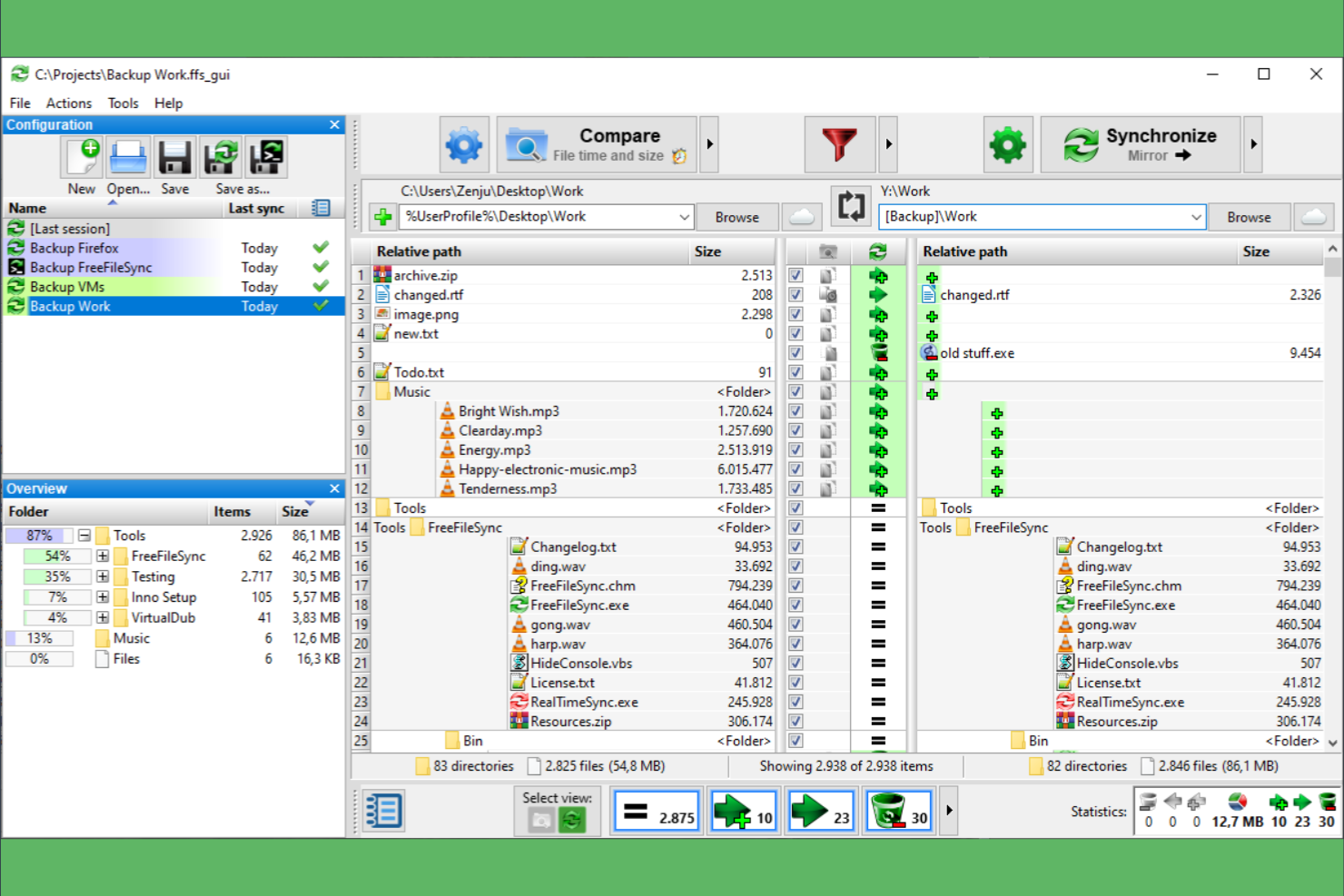
FreeFileSync is an open-source file synchronization tool designed for users who want full control over their sync and backup processes. It appeals to IT professionals and small businesses looking for a no-cost, customizable alternative to commercial sync solutions. If you need reliable folder comparison and synchronization without vendor lock-in, FreeFileSync is worth considering.
Who Is FreeFileSync Best For?
FreeFileSync is a strong choice for IT professionals and small businesses that need a free, open-source solution for local and network file synchronization.
Why FreeFileSync Is a Good GoodSync Alternative
What makes FreeFileSync stand out as a GoodSync alternative is its free, open-source approach to folder comparison and synchronization. I picked FreeFileSync for teams that want transparency and the ability to customize or audit their sync processes. The tool supports real-time sync and detailed folder comparison, which helps IT professionals manage complex backup scenarios. If you need a solution that avoids vendor lock-in and gives you full control, FreeFileSync is a strong option.
FreeFileSync Key Features
Some other features in FreeFileSync that IT teams may find valuable include:
- Batch job automation: Set up and schedule automated sync tasks to run without manual intervention.
- Versioning support: Keep multiple versions of files to protect against accidental deletions or unwanted changes.
- Cross-platform compatibility: Run FreeFileSync on Windows, macOS, and Linux systems for flexible deployment.
- Portable installation: Use FreeFileSync without installation, making it easy to run from USB drives or external storage.
FreeFileSync Integrations
Integrations include Google Drive, FTP, FTPS, SFTP, Windows Explorer, macOS Finder, Linux file managers, MTP devices, Synology NAS, and D-Link NAS.
Pros and Cons
Pros:
- Portable version allows use without installation
- Supports detailed folder comparison for accurate syncing
- Free and open-source with full customization control
Cons:
- Limited centralized management for teams
- Interface feels outdated compared to modern tools

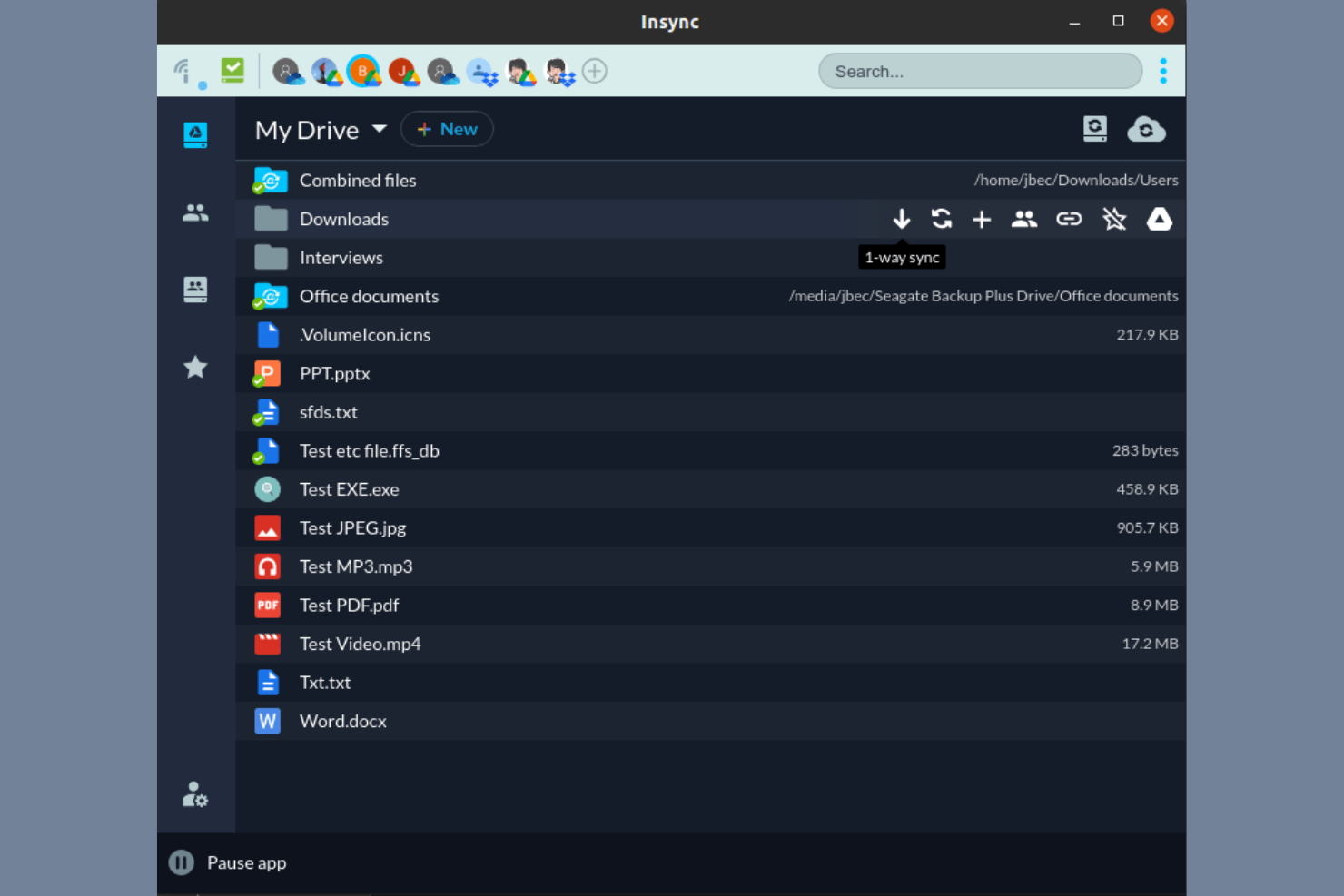
Insync offers a desktop sync solution for teams and professionals who need advanced control over Google Drive and OneDrive file management. It’s a strong fit for users who want granular sync options and cross-platform compatibility beyond what standard cloud clients provide. If you’re looking for a GoodSync alternative that emphasizes selective sync and multi-account support, Insync is worth considering.
Who Is Insync Best For?
Insync is a strong choice for IT administrators and professionals in organizations that require advanced, cross-platform sync and management of Google Drive or OneDrive accounts.
Why Insync Is a Good GoodSync Alternative
For teams that need advanced desktop syncing with Google Drive and OneDrive, Insync brings unique capabilities that GoodSync doesn’t cover. I picked it because it offers selective sync, letting you choose exactly which folders or files to keep on your device, and supports syncing multiple accounts from both Google and Microsoft. Insync also works across Windows, macOS, and Linux, making it a flexible option for mixed-OS environments. These features make it a strong fit for IT specialists who want more granular control over cloud file management than GoodSync provides.
Insync Key Features
Some other features that set Insync apart for IT teams and advanced users include:
- Cross-platform support: Insync runs natively on Windows, macOS, and Linux, supporting mixed-OS environments.
- File conversion: Automatically converts Google Docs to Microsoft Office or OpenDocument formats during sync.
- Ignore rules: Lets you set custom rules to exclude specific files or folders from syncing.
- Headless operation: Offers a command-line interface for running Insync on servers or without a GUI.
Insync Integrations
Integrations include Google Drive, OneDrive, and Dropbox.
Pros and Cons
Pros:
- Offers headless and command-line operation
- Allows selective and folder-level sync
- Supports Google Drive and OneDrive natively
Cons:
- Lacks built-in backup scheduling
- No real-time sync for all providers

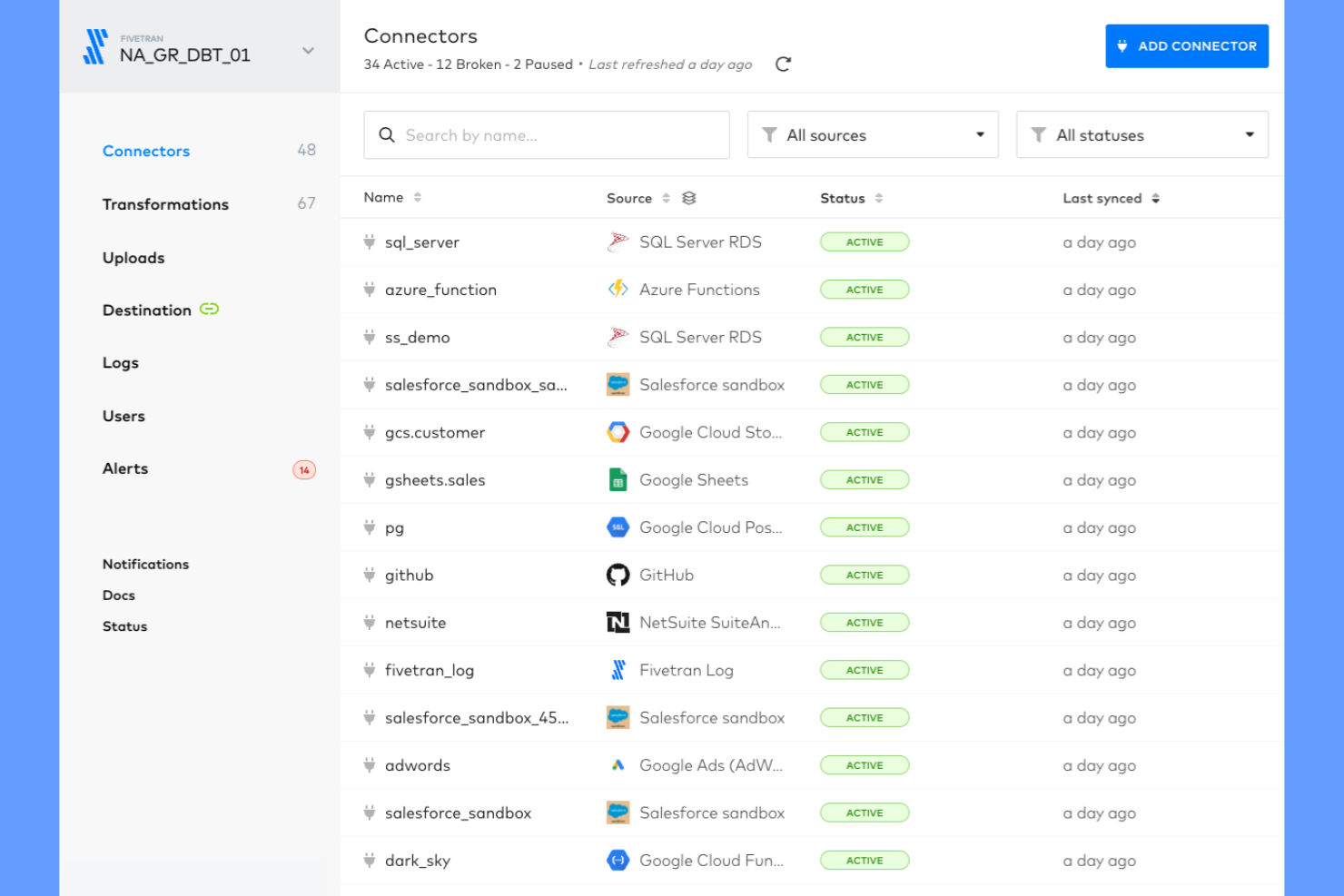
FiveTran is built for IT teams and data professionals who need to automate complex data syncs across cloud and on-premises systems. If you’re looking for a GoodSync alternative that handles large-scale, multi-source data integration with minimal manual setup, FiveTran is worth a look.
Who Is FiveTran Best For?
FiveTran is best for data engineers and IT teams at mid-sized to large organizations needing automated data integration for cloud and on-premises sources.
Why FiveTran Is a Good GoodSync Alternative
I picked FiveTran because it goes well beyond basic file sync—it automates data movement across various sources, including SaaS apps, databases, ERPs, and cloud storage. I particularly like its Hybrid Deployment option, which lets you run pipelines within your own environment, so data never leaves your infrastructure. That's a real advantage when you're dealing with strict security or compliance requirements. I also appreciate the automated schema change handling, which means my team isn't constantly babysitting pipelines when upstream data structures shift.
FiveTran Key Features
- Pre-built connector catalog: Access 700+ pre-built connectors for SaaS apps, databases, files, and streaming sources to move data without custom development.
- Reverse ETL: Sync enriched data from your data warehouse or lake back into business applications for operational or analytics use.
- Replication scheduling: Configure sync frequencies anywhere from real-time to once every 24 hours to match your pipeline requirements.
- Role-based access controls: Regulate data access with granular permissions and native integrations with governance catalogs.
FiveTran Integrations
Integrations include Salesforce, SAP, NetSuite, Snowflake, Google BigQuery, Amazon Redshift, Microsoft Azure Synapse, Oracle, PostgreSQL, and HubSpot.
Pros and Cons
Pros:
- Automated schema drift and data mapping
- Supports both cloud and on-premises connectors
- Handles large-scale, multi-source data syncs
Cons:
- Lacks granular sync conflict resolution
- Limited control over transformation logic
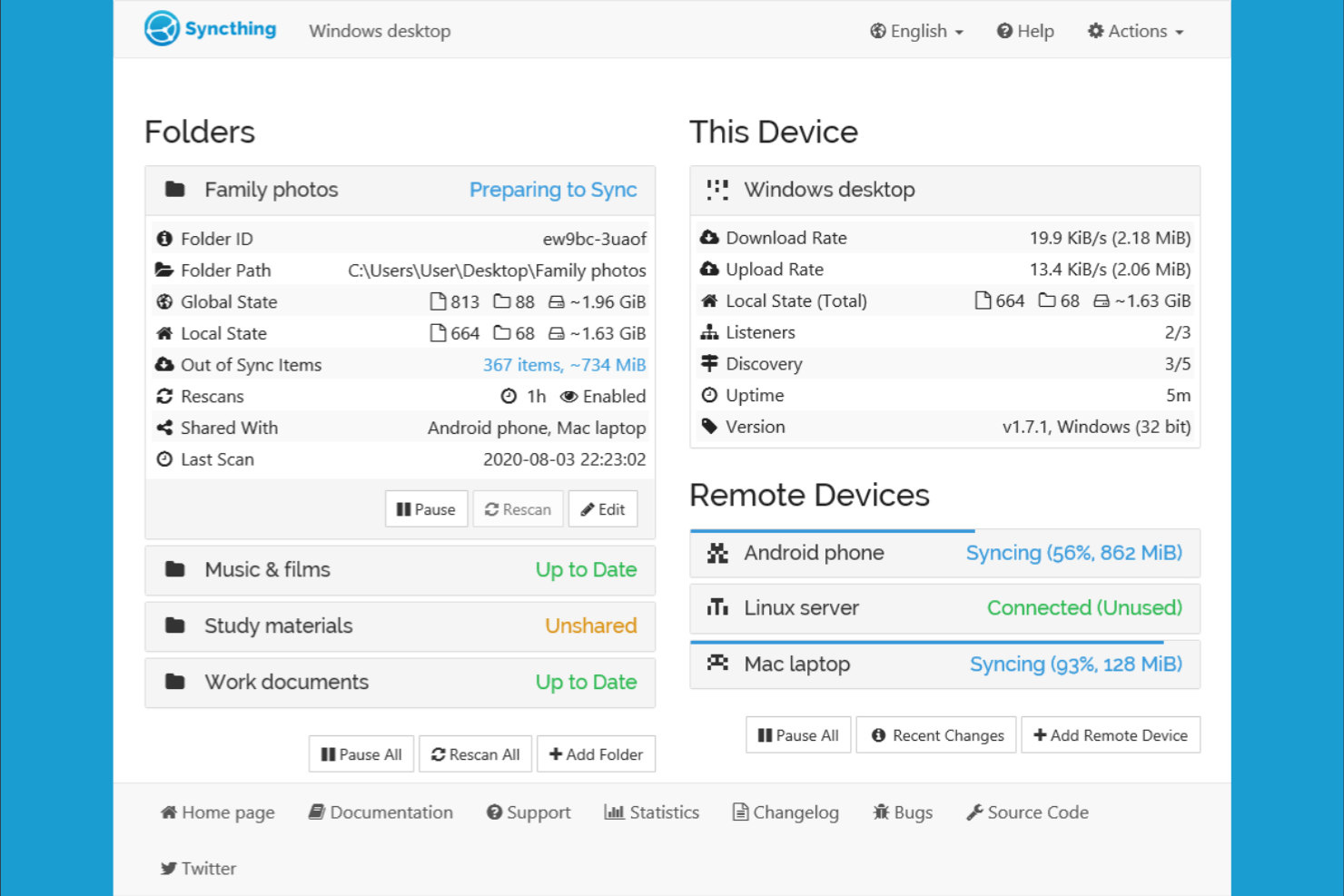
Syncthing offers a decentralized approach to file synchronization for IT teams and privacy-focused organizations. It appeals to those who want to keep data off third-party servers and maintain direct device-to-device sync. If you need a GoodSync alternative that prioritizes control and data sovereignty, Syncthing is worth a look.
Who Is Syncthing Best For?
Syncthing is a strong fit for IT professionals and organizations that require secure, peer-to-peer file synchronization without relying on cloud services.
Why Syncthing Is a Good GoodSync Alternative
What sets Syncthing apart as a GoodSync alternative is its peer-to-peer architecture that eliminates the need for cloud storage. I picked Syncthing for teams that want to keep all data transfers private and under their direct control. The tool uses encrypted device-to-device synchronization, so files never pass through third-party servers. This approach is especially valuable for organizations with strict data privacy or regulatory requirements.
Syncthing Key Features
Some other features in Syncthing that IT teams may find valuable include:
- Cross-platform support: Syncthing runs on Windows, macOS, Linux, BSD, and Android, making it suitable for mixed environments.
- Versioning options: The tool offers configurable file versioning to help recover previous versions or deleted files.
- Web-based management UI: Manage devices, folders, and sync status through an intuitive browser-based interface.
- Resource usage controls: Set limits on CPU and bandwidth usage to minimize impact on system performance.
Syncthing Integrations
Integrations include Docker, Synology NAS, QNAP NAS, Cloudron, Home Assistant OS, Python and PHP REST APIs, Ansible, Puppet, and more.
Pros and Cons
Pros:
- No account or central server required for operation
- Open-source with active community support
- Peer-to-peer sync keeps data private between devices
Cons:
- Lacks centralized management for larger teams
- Initial setup can be complex for non-technical users

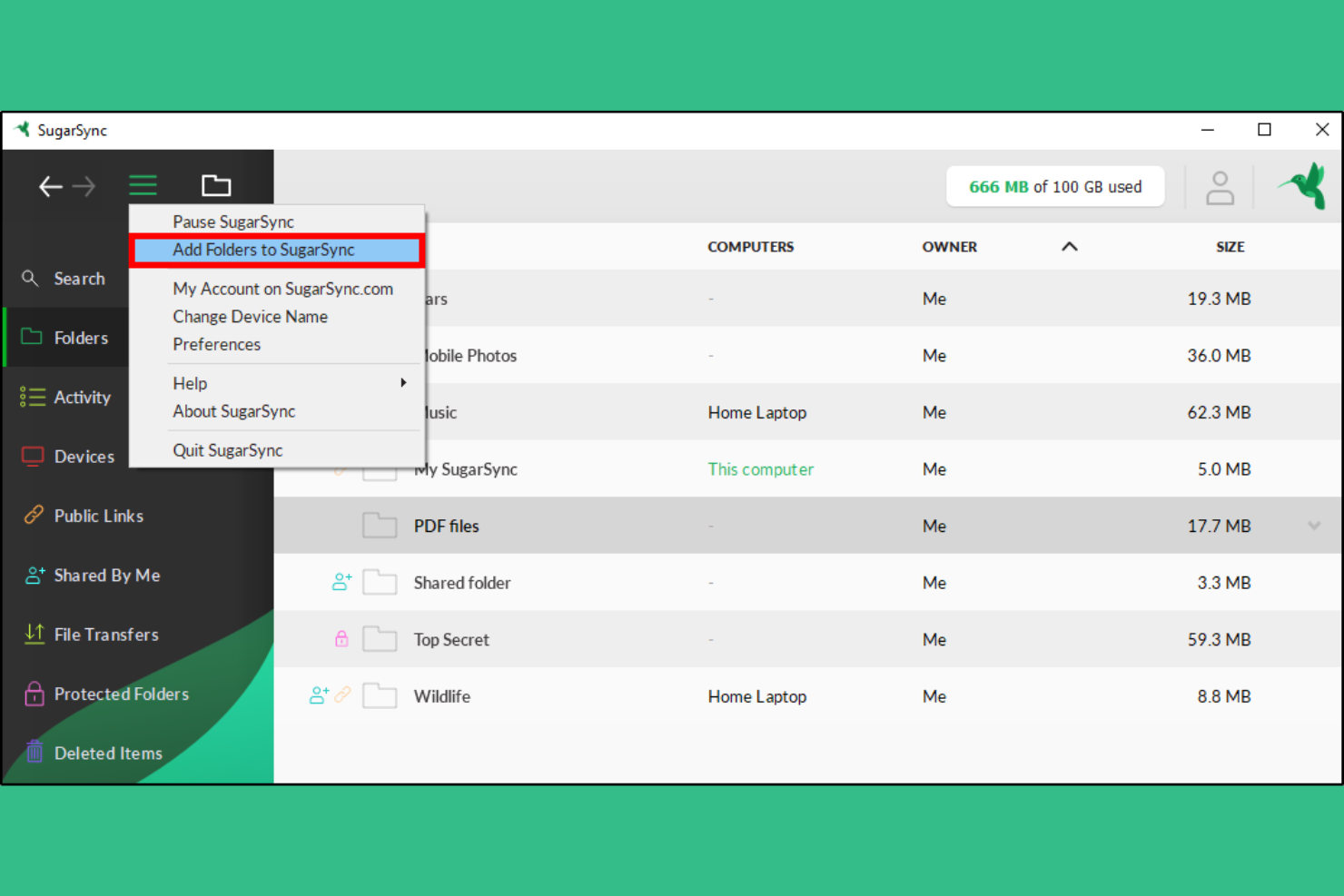
SugarSync offers a flexible cloud sync and backup solution for professionals and teams who need to manage files across multiple devices. It’s especially useful for businesses that want to sync any folder on their computers, not just a designated sync folder. If you’re looking for a GoodSync alternative that emphasizes folder-level control and device-to-device syncing, SugarSync is worth a closer look.
Who Is SugarSync Best For?
SugarSync is a strong fit for small businesses and professionals who need to sync and back up files across multiple devices without being limited to a single sync folder.
Why SugarSync Is a Good GoodSync Alternative
Unlike many sync tools, SugarSync lets you sync any folder on your computer, not just a single designated folder. This flexibility is especially valuable if you want to keep your existing file organization and still have everything backed up and accessible across devices. I picked SugarSync because it also supports real-time sync and remote device management, which are useful for IT teams managing multiple endpoints. These features make it a practical alternative to GoodSync for users who need more granular control over which folders are synced and backed up.
SugarSync Key Features
Some other features that make SugarSync appealing for IT teams and professionals include:
- Mobile apps: Access, sync, and manage files from iOS and Android devices.
- File versioning: Restore previous versions of files to recover from unwanted changes or deletions.
- Remote wipe: Remotely delete synced files from lost or stolen devices to protect sensitive data.
- Outlook plugin: Send large files directly from Microsoft Outlook without leaving your email client.
SugarSync Integrations
Native integrations are not currently listed.
Pros and Cons
Pros:
- Includes remote wipe for device security
- Supports real-time syncing across multiple devices
- Syncs any folder without location restrictions
Cons:
- Limited reporting and audit trail capabilities
- No Linux desktop support available


Resilio is designed for IT teams and organizations that need direct, high-speed file synchronization across multiple devices or locations. Its peer-to-peer architecture appeals to businesses with strict data privacy requirements or those managing large files over distributed networks. If you’re looking for a GoodSync alternative that avoids reliance on third-party cloud storage, Resilio offers a distinct approach.
Who Is Resilio Best For?
Resilio is a good fit for IT teams in distributed organizations or enterprises that need secure, high-speed file synchronization across multiple locations without relying on cloud services.
Why Resilio Is a Good GoodSync Alternative
What sets Resilio apart as a GoodSync alternative is its peer-to-peer file synchronization, which enables direct, secure transfers without routing data through a central server. I picked Resilio for teams that need to move large files quickly between multiple endpoints, even over unreliable networks. Its selective sync and granular permission controls give IT administrators flexibility in managing access and bandwidth. This approach is especially valuable for organizations with strict data privacy or compliance requirements.
Resilio Key Features
Some other features in Resilio that stand out for IT teams include:
- Cross-platform support: Resilio works on Windows, macOS, Linux, and several NAS devices, making it suitable for mixed environments.
- Automated backup scheduling: Set up recurring backup jobs to ensure files are always protected without manual intervention.
- End-to-end encryption: All data transfers are encrypted, helping maintain security and compliance during synchronization.
- Real-time sync: Changes to files are detected and synchronized instantly across all connected devices.
Resilio Integrations
Integrations include Microsoft SharePoint, Windows Server, Linux, macOS, Synology NAS, QNAP NAS, Netgear NAS, Western Digital NAS, TrueNAS, and Amazon S3.
Pros and Cons
Pros:
- Offers granular permissions and selective sync controls
- Handles large file transfers with high speed and reliability
- Peer-to-peer sync removes reliance on third-party servers
Cons:
- Advanced setup can be complex for non-technical users
- No native cloud storage option available


SyncBackPro is a backup and synchronization solution designed for IT teams and businesses that need advanced control over data management. It appeals to organizations handling complex backup schedules, large data volumes, or mixed storage environments. If you’re looking for a GoodSync alternative with deep customization and scripting options, SyncBackPro is worth a closer look.
Who Is SyncBackPro Best For?
SyncBackPro is a strong fit for IT administrators and managed service providers in midsize to large organizations that require advanced backup, synchronization, and automation across diverse storage environments.
Why SyncBackPro Is a Good GoodSync Alternative
I chose SyncBackPro as a GoodSync alternative because it offers advanced backup and synchronization with extensive customization. The software supports scripting, granular scheduling, and conditional processing, which lets you tailor backup jobs to complex business requirements. I also appreciate its ability to handle multi-destination backups and detailed versioning, which are essential for organizations managing large or distributed data sets. These features make SyncBackPro a strong choice for IT teams that need more control and flexibility than GoodSync typically provides.
SyncBackPro Key Features
Some other SyncBackPro features that stand out for IT teams and managed service providers include:
- Cloud storage support: SyncBackPro connects directly to major cloud providers like Amazon S3, Google Drive, Microsoft Azure, and Dropbox.
- Delta copying: The tool can copy only changed parts of files, reducing bandwidth and backup time for large files.
- End-to-end encryption: SyncBackPro offers AES encryption for both local and cloud backups to help protect sensitive data.
- Extensive logging and reporting: The software generates detailed logs and customizable email reports for every backup and sync job.
SyncBackPro Integrations
Integrations include Amazon S3, Google Drive, Microsoft Azure Blob Storage, Microsoft OneDrive, Dropbox, Box, Backblaze B2, Citrix ShareFile, pCloud, and WebDAV.
Pros and Cons
Pros:
- Offers detailed logging and reporting for monitoring
- Handles multi-destination sync and backup tasks
- Supports advanced scripting for complex backup workflows
Cons:
- No native macOS support available
- The interface can feel cluttered and less intuitive


Rclone is a command-line tool designed for IT professionals and system administrators who need advanced control over cloud and local file synchronization. It stands out for its ability to connect with a wide range of cloud storage providers and handle complex sync, backup, and migration tasks. If you’re looking for a GoodSync alternative that offers scriptable automation and granular configuration, Rclone is worth considering.
Who Is Rclone Best For?
Rclone is a strong fit for IT administrators and DevOps teams in organizations that require scriptable, command-line file synchronization across multiple cloud storage providers.
Why Rclone Is a Good GoodSync Alternative
Rclone stands out as a GoodSync alternative because it offers command-line control for cloud storage synchronization and backup. I picked Rclone for teams that need to automate complex sync and migration workflows across multiple cloud providers. Its scriptable interface lets you schedule, customize, and chain together sync operations with precision. This level of flexibility is especially valuable for IT professionals managing large-scale or multi-cloud environments.
Rclone Key Features
Some other features in Rclone that IT teams may find valuable include:
- Wide cloud provider support: Rclone connects with over 40 cloud storage services, including Amazon S3, Google Drive, Microsoft OneDrive, and Dropbox.
- Encryption support: The tool offers built-in encryption for files and directories, helping protect sensitive data during transfer and storage.
- Mount remote storage: Rclone can mount any supported cloud storage as a local disk, allowing direct file access through the operating system.
- Checksum verification: It uses checksums to verify file integrity during transfers, reducing the risk of data corruption.
Rclone Integrations
Integrations include Amazon S3, Google Drive, Microsoft OneDrive, Dropbox, Box, Backblaze B2, pCloud, Mega, WebDAV, and FTP.
Pros and Cons
Pros:
- Offers encryption to protect data during transfers
- Fully scriptable for advanced automation workflows
- Supports a wide range of cloud storage providers
Cons:
- Requires command-line knowledge to operate effectively
- No graphical interface for ease of use


If you need to manage files across multiple cloud storage services, Air Explorer offers a unified interface for handling cloud and local files. It’s a strong fit for IT professionals and teams juggling data between different cloud providers. Air Explorer helps simplify cloud-to-cloud transfers and centralize file management tasks that would otherwise require multiple tools.
Who Is Air Explorer Best For?
Air Explorer is well-suited for IT teams and professionals who need to manage and transfer files across multiple cloud storage platforms from a single interface.
Why Air Explorer Is a Good GoodSync Alternative
When you need to move files directly between different cloud storage services, Air Explorer stands out with its multi-cloud file manager and direct cloud-to-cloud transfer capabilities. I picked it as a GoodSync alternative because it lets you connect and manage dozens of cloud accounts in one place, which is something GoodSync doesn’t natively offer. With Air Explorer, you can schedule transfers, synchronize folders, and even encrypt files during transfer between cloud providers. This makes it especially useful for IT specialists who want to centralize and automate cloud file management without downloading files locally.
Air Explorer Key Features
Some other features that make Air Explorer appealing for IT teams and cloud administrators include:
- Dual-pane interface: View and manage files from two different locations side by side for easier drag-and-drop operations.
- File search across clouds: Search for files across all connected cloud accounts from a single search bar.
- Command-line support: Automate tasks and integrate Air Explorer into scripts using its command-line interface.
- File compression and extraction: Compress files into archives or extract them directly within the application, supporting ZIP and other formats.
Air Explorer Integrations
Integrations include Google Drive, OneDrive, Dropbox, Box, Mega, pCloud, Yandex, SharePoint Online, AWS S3, and WebDAV.
Pros and Cons
Pros:
- Includes file encryption during transfers
- Manages multiple cloud accounts from one interface
- Supports direct cloud-to-cloud file transfers
Cons:
- Interface can feel outdated to some users
- Limited real-time sync capabilities across providers


Syncovery is a backup and synchronization tool designed for IT teams and businesses managing data across multiple platforms. It stands out for its cross-platform compatibility and flexible scheduling, making it a strong fit for organizations with mixed operating systems or complex backup routines. If you need a GoodSync alternative that can handle diverse environments and advanced automation, Syncovery is worth considering.
Who Is Syncovery Best For?
Syncovery is well-suited for IT administrators and businesses that need reliable, cross-platform backup and synchronization across Windows, macOS, Linux, and cloud environments.
Why Syncovery Is a Good GoodSync Alternative
I picked Syncovery as a GoodSync alternative because it offers flexible scheduling and strong cross-platform support. You can set up highly customized backup and sync routines, including real-time, scheduled, or manual jobs, which is ideal for complex IT environments. Syncovery also runs on Windows, macOS, Linux, and several NAS devices, making it easy to standardize backup processes across mixed operating systems. This flexibility is especially valuable for organizations that need to coordinate data protection across diverse infrastructure.
Syncovery Key Features
Some other Syncovery features that IT teams and businesses may find valuable include:
- Block-level synchronization: This feature transfers only changed parts of files, reducing bandwidth and speeding up syncs for large files.
- Compression support: Syncovery can compress files during transfer or backup, helping to save storage space and network resources.
- Extensive protocol compatibility: The tool supports FTP, SFTP, WebDAV, Amazon S3, Google Drive, and many other storage protocols.
- Versioning and retention policies: You can configure how many previous versions of files to keep and set up automatic cleanup rules for old backups.
Syncovery Integrations
Integrations include Google Drive, Box, Amazon S3, Microsoft Azure, Dropbox, OneDrive, Rackspace, SharePoint, Backblaze B2, and Citrix ShareFile.
Pros and Cons
Pros:
- Provides detailed versioning and retention controls for file recovery
- Offers flexible scheduling with real-time and automated sync options
- Supports cross-platform syncing across Windows, macOS and Linux
Cons:
- Setup and advanced configuration require technical expertise
- Interface can feel outdated and complex for new users
Other GoodSync Alternatives
Here are some additional GoodSync alternatives that didn’t make it onto my shortlist, but are still worth checking out:


GoodSync Alternative Selection Criteria
When selecting the best GoodSync alternatives to include in this list, I considered common buyer needs and pain points related to file sync and backup products, like syncing across multiple devices and maintaining folder structure. I also used the following framework to keep my evaluation structured and fair:
Core Functionality (25% of total score)
To be considered for inclusion in this list, each solution had to fulfill these common use cases:
- Sync files between devices
- Back up files to the cloud
- Restore previous file versions
- Schedule automatic syncs or backups
- Support multiple operating systems
Additional Standout Features (25% of total score)
To help further narrow down the competition, I also looked for unique features, such as:
- Sync any folder outside a designated sync folder
- Remote wipe of synced data from devices
- File versioning and recovery options
- Integration with email clients for file sharing
- Real-time sync monitoring and alerts
Usability (10% of total score)
To get a sense of the usability of each system, I considered the following:
- Simple and intuitive user interface
- Clear navigation and labeling of features
- Minimal steps to set up sync or backup
- Accessible settings for advanced configurations
- Consistent performance across platforms
Onboarding (10% of total score)
To evaluate the onboarding experience for each platform, I considered the following:
- Availability of step-by-step setup guides
- Access to training videos and tutorials
- Interactive product tours for new users
- Migration tools for importing existing data
- Responsive onboarding support or chatbots
Customer Support (10% of total score)
To assess each software provider’s customer support services, I considered the following:
- Multiple support channels (email, chat, phone)
- Fast response times to inquiries
- Helpful and knowledgeable support staff
- Detailed online help center or documentation
- Availability of community forums or user groups
Value For Money (10% of total score)
To evaluate the value for money of each platform, I considered the following:
- Transparent and competitive pricing tiers
- Flexible plans for different user needs
- Free trial or demo availability
- No hidden fees or surprise charges
- Features included at each pricing level
Customer Reviews (10% of total score)
To get a sense of overall customer satisfaction, I considered the following when reading customer reviews:
- Positive feedback on reliability and performance
- Reports of helpful customer support experiences
- Comments on ease of setup and daily use
- Critiques of any recurring technical issues
- Overall satisfaction with value and features
Why Look For a GoodSync Alternative?
While GoodSync is a good choice of file sync and backup software, there are a number of reasons why some users seek out alternative solutions. You might be looking for a GoodSync alternative because…
- You need native support for Linux or mobile platforms
- You want to sync any folder, not just one directory
- You require more advanced reporting or audit trails
- You need built-in integrations with other business tools
- You want a simpler setup process for non-technical users
If any of these sound like you, you’ve come to the right place. My list contains several file sync and backup options that are better suited for teams facing these challenges with GoodSync and looking for alternative solutions.
GoodSync Key Features
Here are some of the key features of GoodSync, to help you contrast and compare what alternative solutions offer:
- File synchronization: Automatically sync files and folders between computers, servers, and external drives, ensuring data consistency across multiple locations.
- Real-time backup: Monitor files for changes and back them up instantly, reducing the risk of data loss from accidental deletions or hardware failures.
- Cross-platform support: Operate on Windows, macOS, and Linux, allowing teams to work across different operating systems without compatibility issues.
- Block-level data transfer: Transfer only the changed portions of files, which speeds up sync and backup processes and reduces bandwidth usage.
- Scheduling: Set up automated sync and backup tasks to run at specific times or intervals, minimizing manual intervention.
- End-to-end encryption: Protect files during transfer and storage with strong encryption, supporting compliance and data privacy requirements.
- Version history: Maintain multiple versions of files, so users can restore previous versions if needed after unwanted changes or corruption.
- Conflict detection: Identify and alert users to file conflicts during sync, helping prevent accidental overwrites or data loss.
- Remote file access: Access and manage files stored on remote devices or servers from anywhere, supporting distributed teams and remote work scenarios.
- Cloud storage integration: Connect directly to popular cloud storage providers, enabling hybrid workflows that combine local and cloud-based data management.