

9 Best Android Emulators for Linux in 2026

Best Android Emulator for Linux Shortlist
Here’s my shortlist of the best Android emulators for Linux:


If you're a tech expert working with Linux, you know that finding the right Android emulator can be a challenge. You want something that fits your team's needs, whether you're exploring test Android apps or Android games, and picking the right emulator can save you time and headaches.
I've independently tested and reviewed various options to give you an unbiased take on what's out there. I'll guide you through a selection of top emulators, highlighting their strengths and what makes each one unique. You'll get a clear picture of which emulator suits your specific needs.
By the end of this article, you'll have a solid understanding of your options and be ready to choose the best fit for your team.
Why Trust Our Software Reviews
We’ve been testing and reviewing software since 2023. As tech leaders ourselves, we know how critical and difficult it is to make the right decision when selecting software.
We invest in deep research to help our audience make better software purchasing decisions. We’ve tested more than 2,000 tools for different tech use cases and written over 1,000 comprehensive software reviews. Learn how we stay transparent & our software review methodology.
Best Android Emulators for Linux Summary
This comparison chart summarizes pricing details for my top Android emulator for Linux selections to help you find the best one for your budget and business needs.
| Tool | Best For | Trial Info | Price | ||
|---|---|---|---|---|---|
| 1 | Best for automated testing | Free plan available | From $8/user/month (billed annually) | Website | |
| 2 | Best for Chrome OS users | Free forever plan | Free | Website | |
| 3 | Best for cloud-based testing | Free trial + free plan available | From $49/student and workstation/year | Website | |
| 4 | Best for full-system integration | Free forever | Free | Website | |
| 5 | Best for developers using SDKs | Free forever plan | Free | Website | |
| 6 | Best for large-scale enterprise deployments | Free to download | Pricing upon request | Website | |
| 7 | Best for CI/CD automation and RevOps | Free plan available | Free forever | Website | |
| 8 | Best for running simple APKs on Linux desktops | Free plan available | Free forever | Website | |
| 9 | Best for repurposing legacy hardware | Free plan available | Free forever | Website |
-

Site24x7
Visit WebsiteThis is an aggregated rating for this tool including ratings from Crozdesk users and ratings from other sites.4.6 -
GitHub Actions
Visit WebsiteThis is an aggregated rating for this tool including ratings from Crozdesk users and ratings from other sites.4.8 -
Docker
Visit WebsiteThis is an aggregated rating for this tool including ratings from Crozdesk users and ratings from other sites.4.6




Best Android Emulators for Linux Review
Below are my detailed summaries of the best Android emulators for Linux that made it onto my shortlist. My reviews offer a detailed look at the key features, pros and cons, integrations, and ideal use cases of each tool to help you find the best one for you.

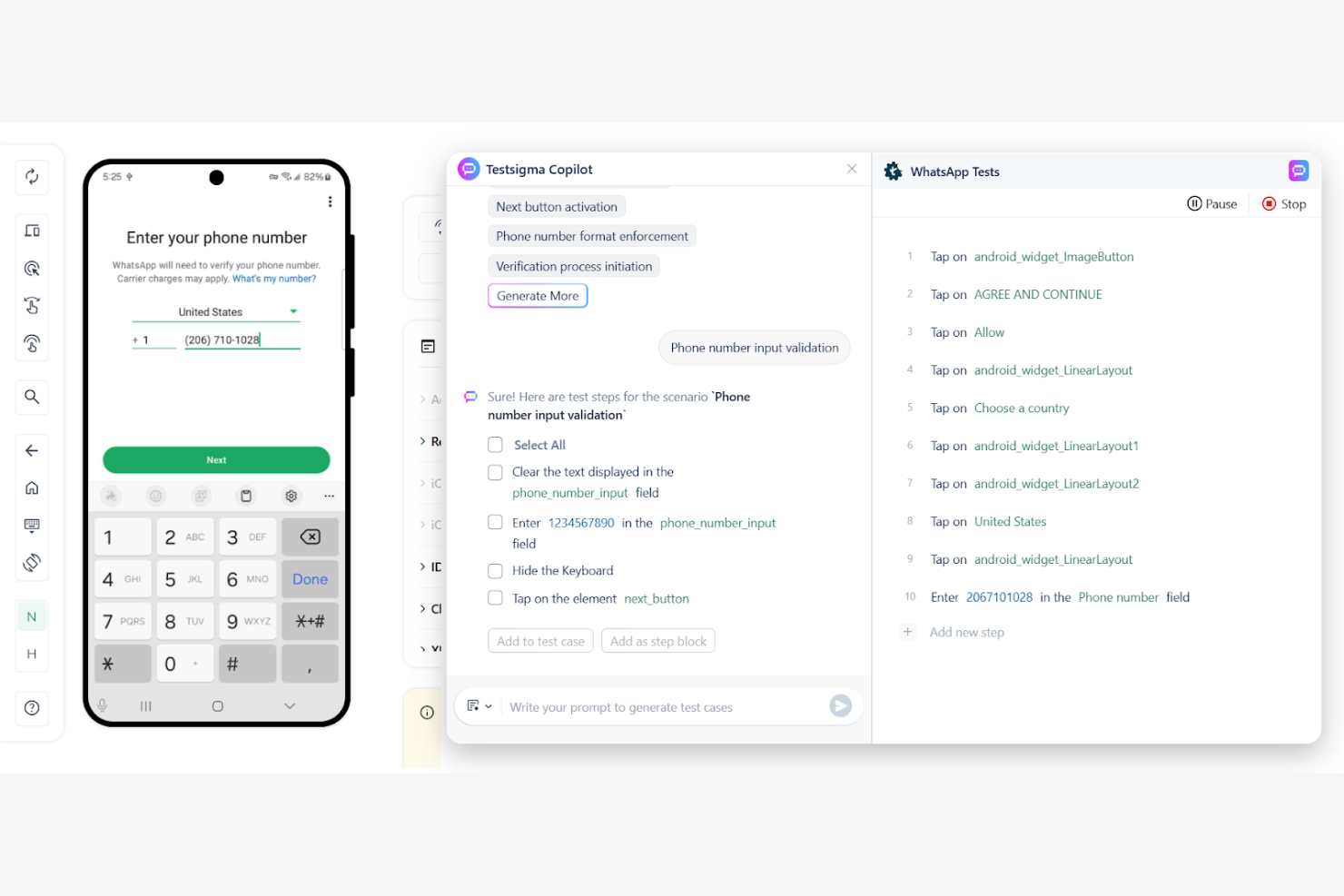
Testsigma is an automated testing platform designed for developers and QA teams looking to optimize their testing processes. It provides a cloud-based environment for executing test scripts without the need for a complex setup.
Why I picked Testsigma: It excels in automated testing, offering a user-friendly interface that simplifies the creation of test scripts. The platform supports continuous testing for agile development environments. It includes features such as natural language processing, allowing you to write test cases in plain English. In my experience, its cross-platform testing capabilities ensure your applications work across different devices and operating systems, including VirtualBox to manage virtual machines for Macs.
Standout Features and Integrations:
Features include the ability to execute tests across multiple devices and browsers simultaneously, which saves your team time. It offers detailed reporting and analytics, helping you identify issues quickly. The platform also provides test case versioning, allowing you to track changes and maintain consistency.
Integrations include Jenkins, Jira, Slack, GitHub, Trello, Microsoft Teams, and more.
Pros and Cons
Pros:
- Test case versioning
- Continuous testing capabilities
- Supports natural language scripting
Cons:
- Pricing can be high for small teams
- May need additional configuration

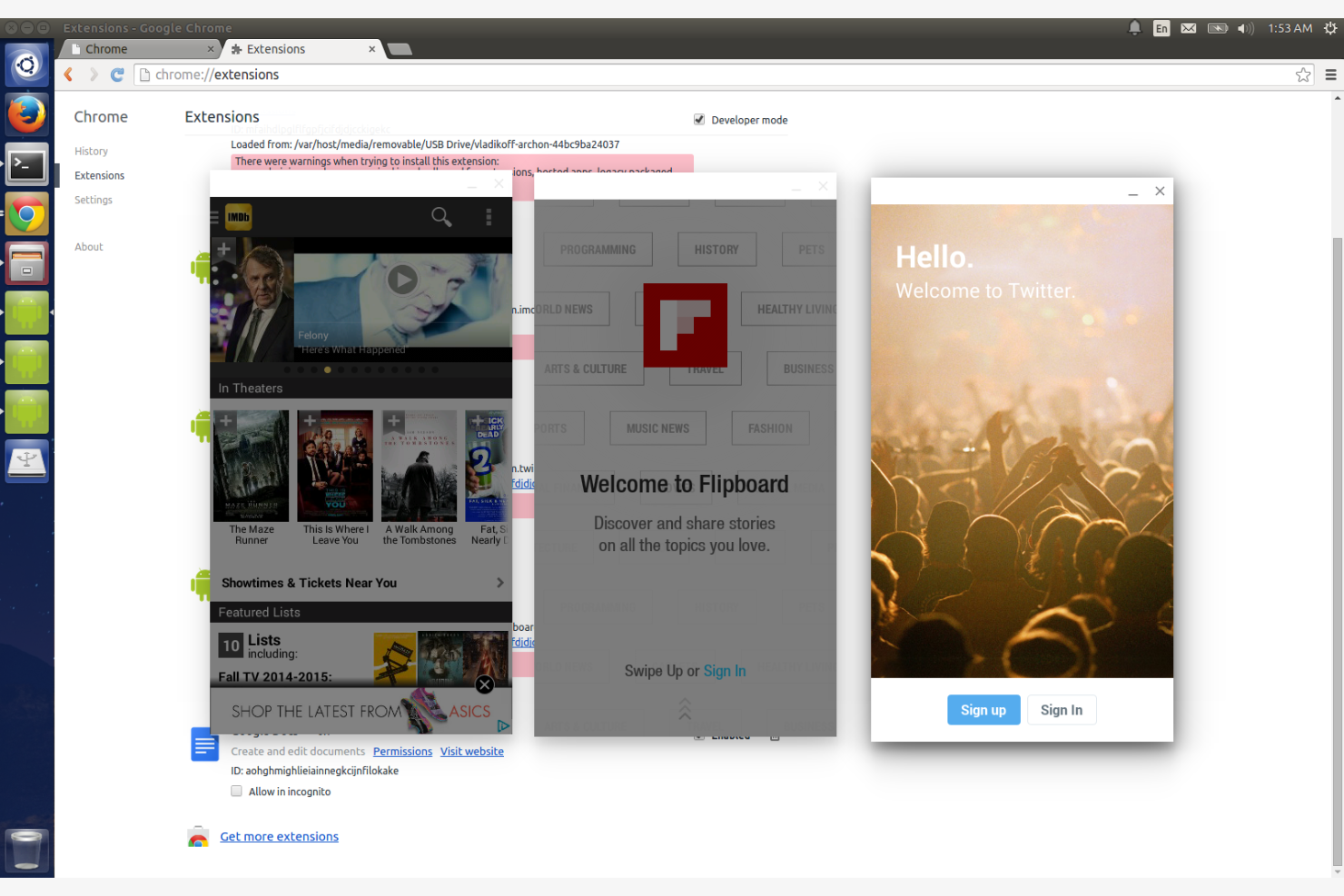
ARChon is an Android emulator that allows users to run Android apps on Chrome OS and other Chromium-based browsers, as well as macOS. It's designed for tech-savvy users who want to integrate Android applications into their web-based environments.
Why I picked ARChon: It's tailored for Chrome OS users, providing a unique solution for running Android apps within the Chrome browser. It supports a wide range of Android applications, making it versatile for different needs. ARChon's open-source nature offers opportunities for customization and community-driven improvements.
Standout Features and Integrations:
Features include the ability to run Android apps directly in the Chrome browser, which is convenient for users who rely on web-based environments. It supports multiple app instances, giving you the flexibility to use several applications at once. The emulator is adaptable, allowing you to tweak settings to improve compatibility with various apps.
Integrations include Chrome, Chromium, Chrome OS, and more.
Pros and Cons
Pros:
- Community-driven improvements
- Runs apps in the Chrome browser
- Open-source flexibility
Cons:
- Compatibility issues with some apps
- Limited official support

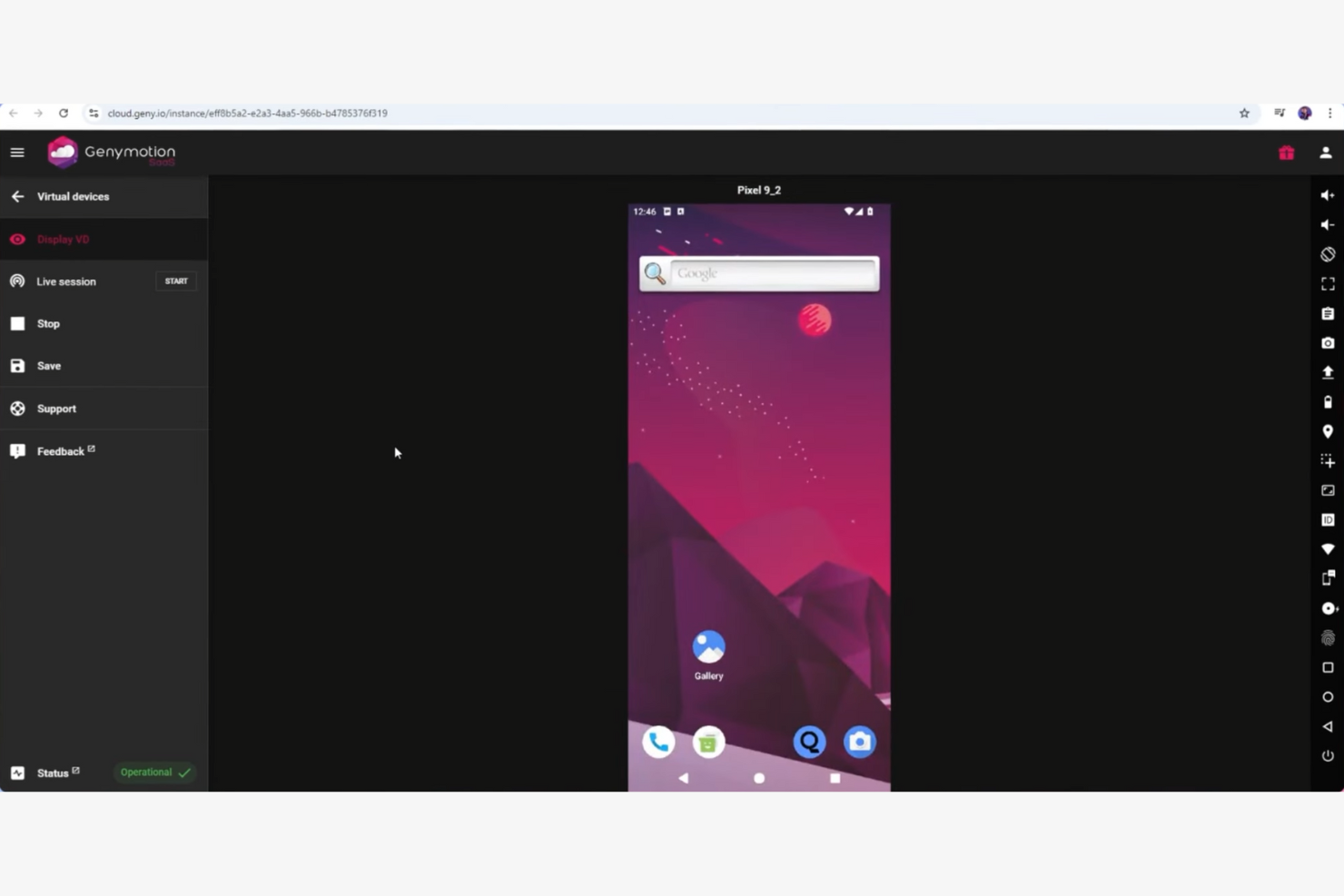
Genymotion is a cloud-based Android emulator designed primarily for developers and testers and is an alternative to AVD. It enables teams to test and run Android apps with ease, providing a virtual environment that mimics real device conditions.
Why I picked Genymotion: Genymotion excels in cloud-based testing, offering the flexibility to run multiple Android virtual devices simultaneously. Its ability to simulate various network conditions and GPS settings makes it a valuable tool for testers. The platform supports a wide range of Android versions, which helps ensure compatibility across devices. The web-based interface simplifies the testing process, making it accessible for teams of all sizes.
Standout Features and Integrations:
Features include the ability to simulate battery levels, allowing you to see how apps perform under different power conditions. The platform offers screen recording, which is handy for documentation and sharing test results. It also supports webcam integration for apps that require camera functionalities.
Integrations include Android Studio, Jenkins, AWS, and more.
Pros and Cons
Pros:
- Simulates network conditions
- Supports multiple Android versions
- Cloud-based accessibility
Cons:
- Occasional performance lag
- Expensive higher-tier plans

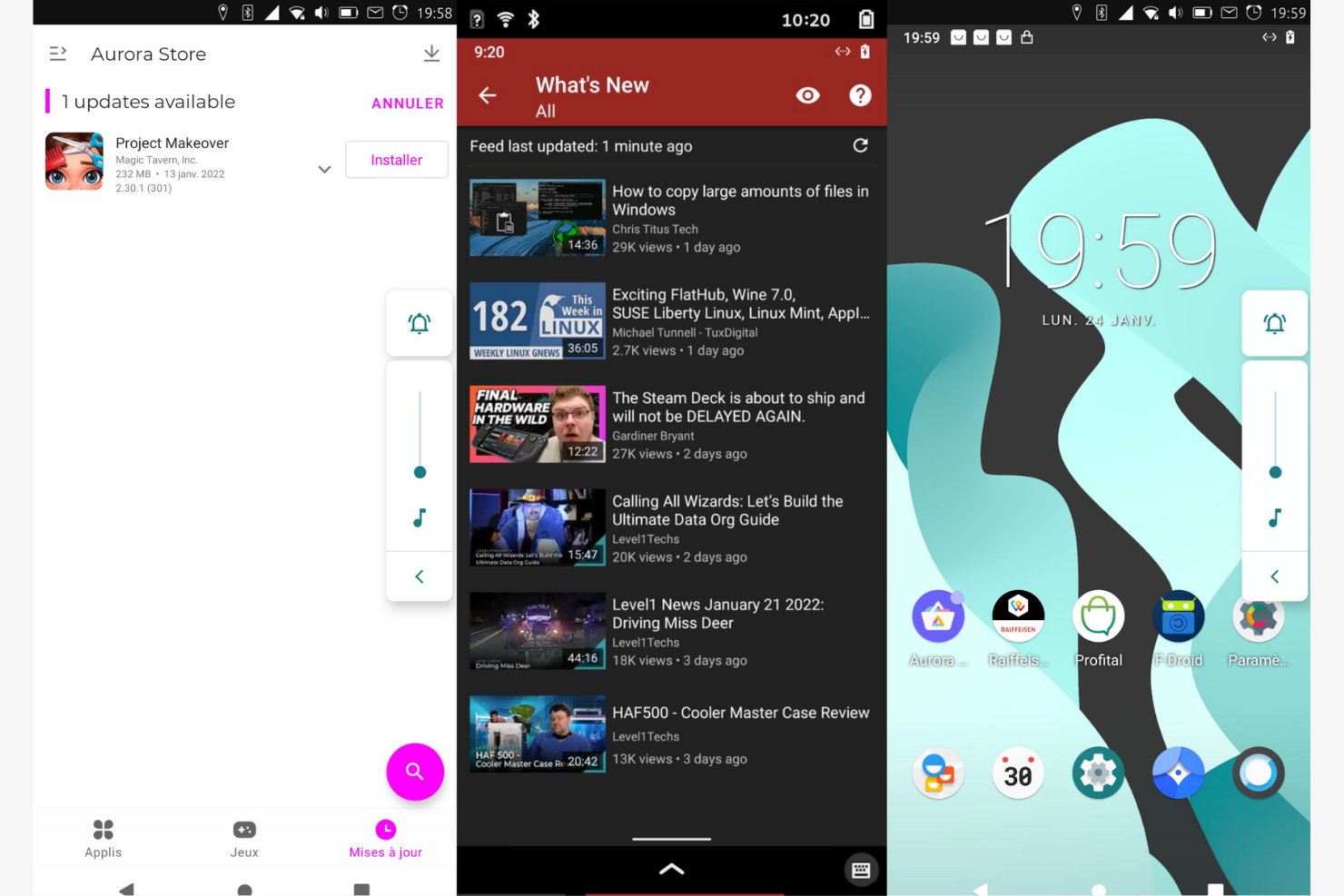
Waydroid is a container-based platform that allows users to run a full Android system on GNU/Linux platforms. It's designed for developers and tech enthusiasts who need to integrate Android applications with Linux environments.
Why I picked Waydroid: Waydroid offers a unique advantage with its ability to integrate Android apps directly into the Linux desktop environment. It provides features such as multi-window mode and a full UI for gaming, making it an excellent choice for usability. You can expect near-native performance due to its direct hardware access through LXC and binder interfaces. The active community support and development are also beneficial.
Standout Features and Integrations:
Features include multi-window support, allowing you to run multiple apps simultaneously. Full UI mode transforms your Linux desktop into a gaming-friendly environment. Direct hardware access ensures efficient performance, especially for resource-intensive applications.
Integrations include Linux Desktop Window Managers and Wayland.
Pros and Cons
Pros:
- Open-source contribution
- Multi-window support
- Full-system integration with Linux
Cons:
- Beta version stability issues
- No live mode functionality

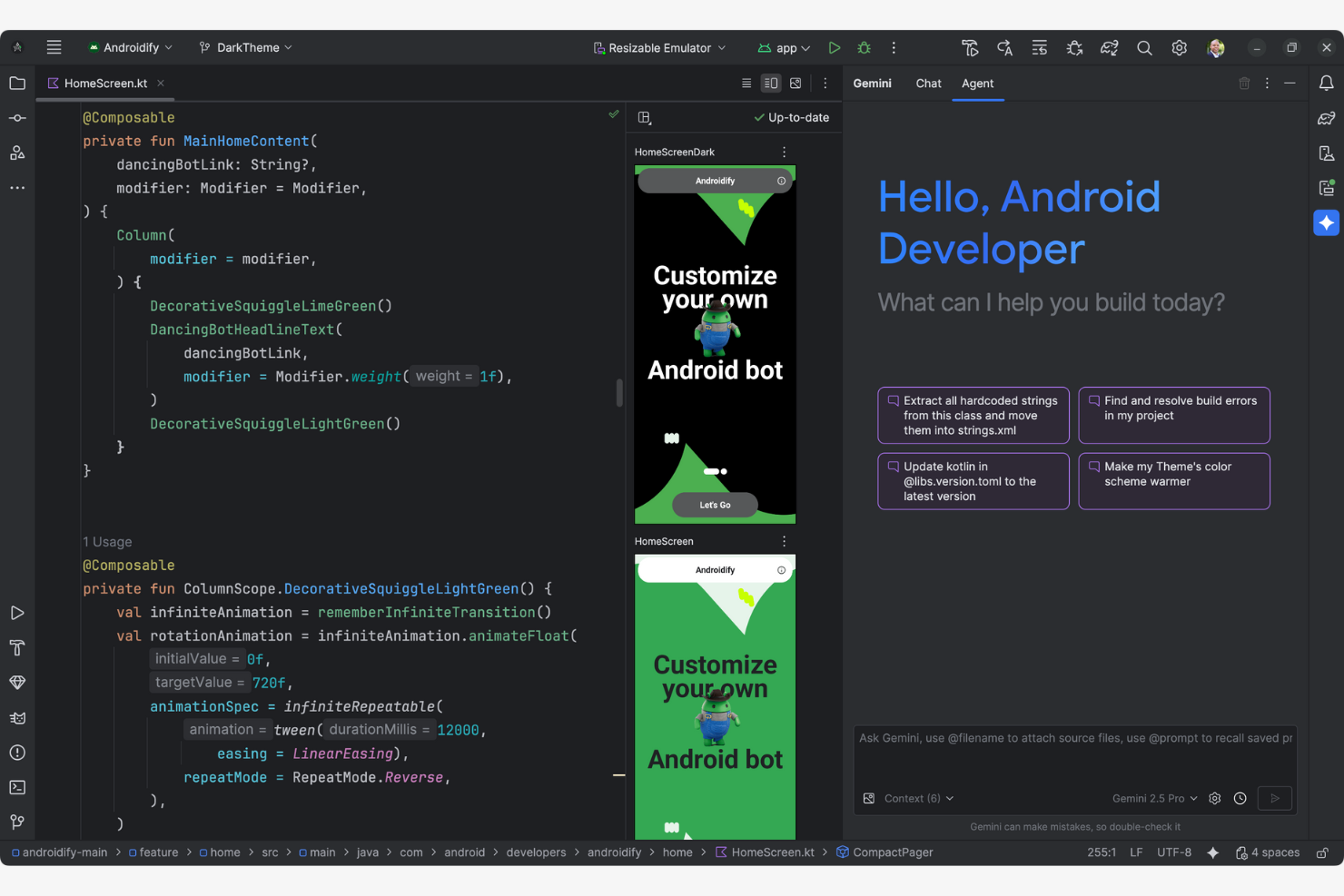
Android Emulator is a development tool aimed at Android app developers. It allows teams to test applications in a virtual environment that replicates real devices, providing essential support for app development and testing.
Why I picked Android Emulator: It's specifically designed for developers, offering features such as real-time Linux application testing and debugging through SDKs. The emulator supports a wide range of Android devices and configurations to ensure broad compatibility. It includes advanced capabilities such as sensor simulation and GPS tracking that improve the testing process. In my experience, its integration with Android makes it a go-to choice for developers.
Standout Features and Integrations:
Features include the ability to simulate different network speeds, helping you see how apps perform under varying conditions. It provides access to different Android versions and device configurations to facilitate testing. The tool also supports advanced graphics and gaming capabilities, making it suitable for a range of app types.
Integrations include Android Debug Bridge (ADB), Firebase, Google Play Services, and more.
Pros and Cons
Pros:
- Supports advanced graphics
- Real-time debugging features
- Extensive device compatibility
Cons:
- Requires high system resources
- Limited support for older devices

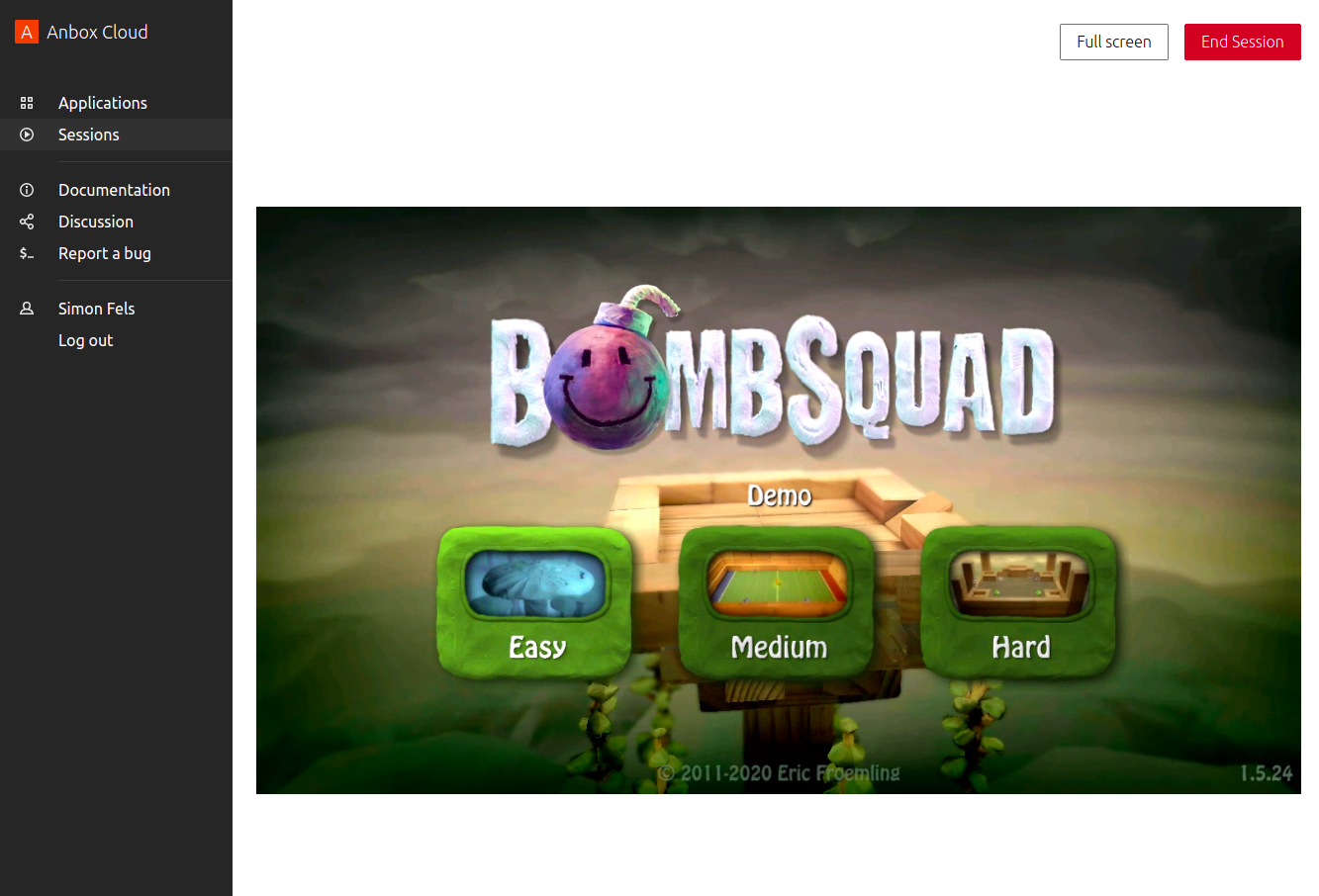
While the original desktop Anbox is deprecated, Anbox Cloud is a professional-grade solution supported by Canonical (the makers of Ubuntu). It’s specifically designed for large-scale enterprise deployments.
Why I picked Anbox Cloud: This tool is best for projects requiring hundreds or thousands of concurrent Android instances. It’s particularly effective for streaming-based use cases like cloud gaming or automotive OS development. I chose it because it bridges the gap between professional mobile development and large-scale infrastructure by offering an API-driven lifecycle management system.
Standout Features and Integrations:
Features include a high-density container runtime that supports both ARM and x86 architectures with optional GPU acceleration for rendering.
Integrations include Ubuntu Pro, Juju, and more.
Pros and Cons
Pros:
- Ultra low latency streaming
- Secure instance isolation
- Highly scalable architecture
Cons:
- High setup complexity
- Costly for small teams

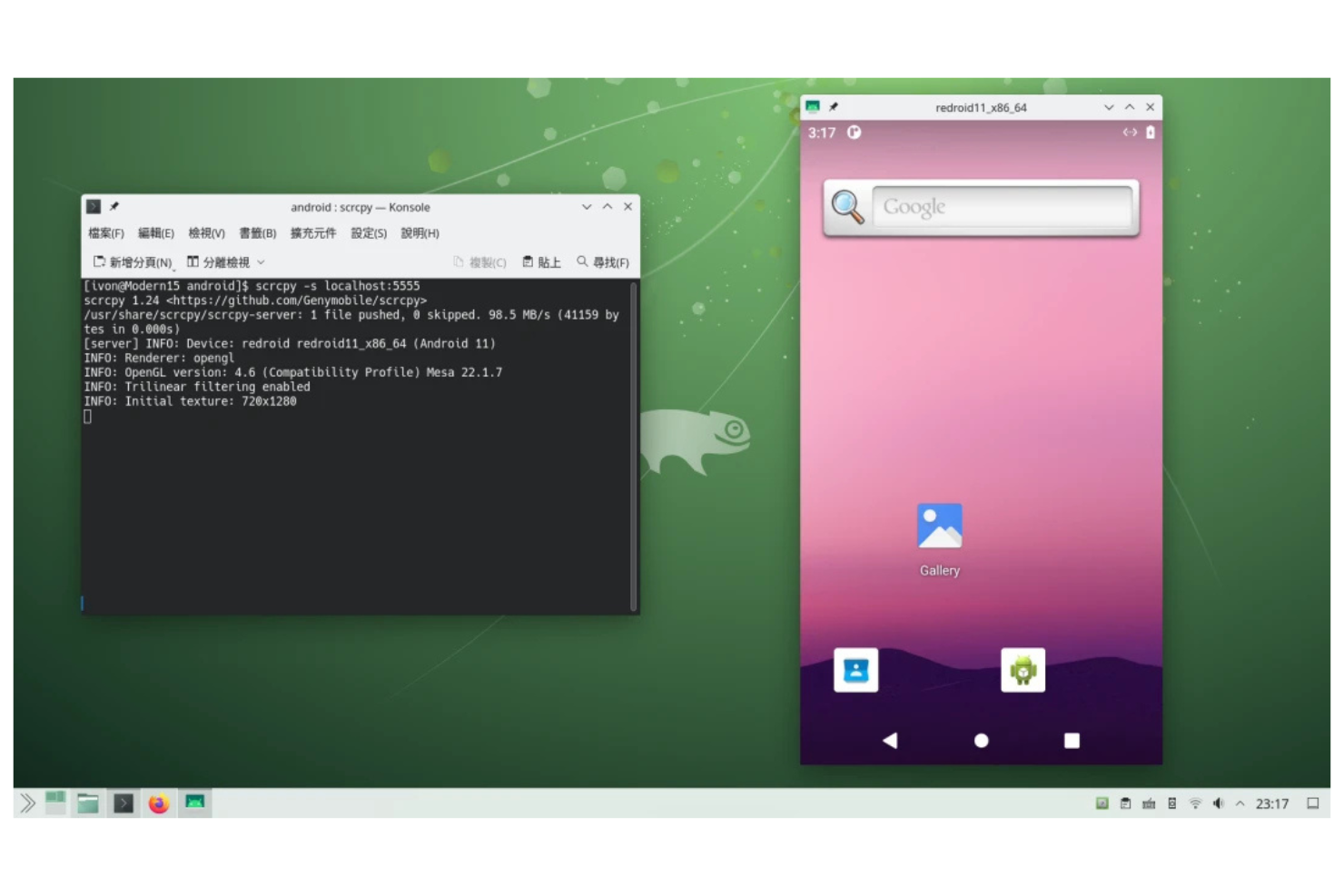
redroid (Remote Android) is a lightweight Android-in-Cloud solution that runs as a GPU-accelerated Docker container. It utilizes the host's Linux kernel to eliminate the need for traditional CPU virtualization, significantly reducing resource overhead.
Why I picked redroid: redroid is ideal for developers who need to integrate mobile testing directly into their existing automation pipelines. Because it is a containerized system, it allows for parallel testing of multiple virtual devices on a single server. It’s a standout for its speed; you can have a full Android system up and running in about a minute.
Standout Features and Integrations:
Features include support for multi-architecture deployments (arm64 and amd64) and custom parameters like display resolution, FPS, and DPI.
Integrations include Docker, Podman, Kubernetes, and more.
Pros and Cons
Pros:
- Support for STF
- Fast container startup
- Minimal resource overhead
Cons:
- Requires manual kernel configuration
- No built-in GUI

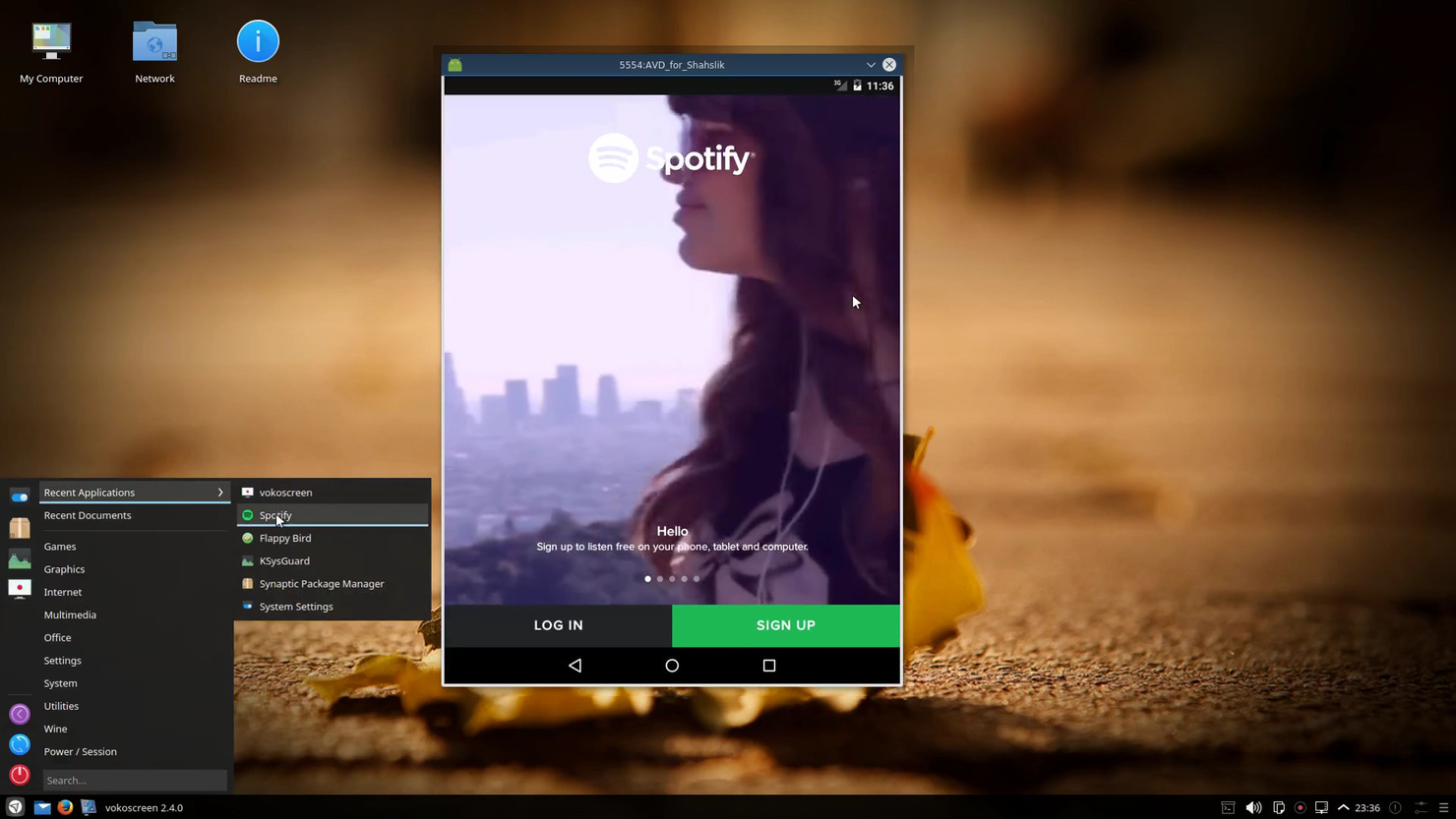
Shashlik is a set of software components that allows Linux users to run Android APKs as if they were native desktop applications. Instead of emulating a full OS, it uses a stripped-down version of Android that launches directly inside a user's session.
Why I picked Shashlik: I included Shashlik because it provides the most "native" feeling for Linux desktop users who just want to click and run a mobile app. It uses your system's existing OpenGL infrastructure for graphics, which helps maintain good performance even for demanding 3D games. While the project is older, its simplicity remains unmatched for quick, non-virtualized app execution.
Standout Features and Integrations:
Features include direct integration with your desktop menu or dash, allowing for one-click launching of mobile applications.
Integrations are not publicly listed.
Pros and Cons
Pros:
- Native desktop integration
- Very simple to use
- Low memory footprint
Cons:
- Discontinued development status
- Limited app compatibility
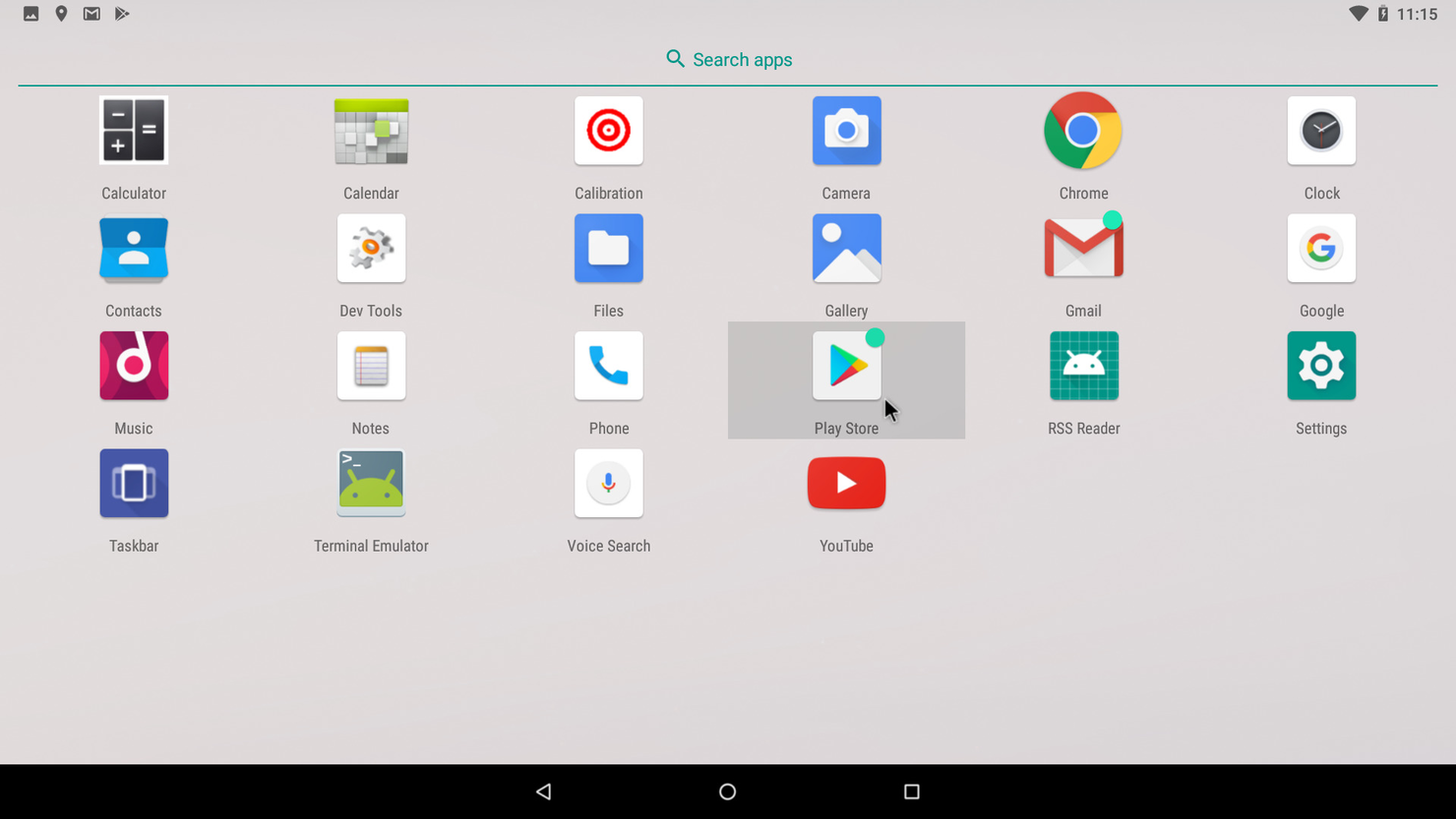
Android-x86 is an open-source project that ports the Android OS to run natively on Intel and AMD x86 processors. It provides a full Android experience by replacing low-level components like the kernel and HALs to suit standard PC architecture.
Why I picked Android-x86: If you want to turn an old laptop or a dedicated partition into a high-speed Android device, this is the best tool for the job. Unlike emulators that run on top of an OS, Android-x86 can boot directly on your hardware, giving it access to the full power of your CPU and GPU. It’s particularly useful for testing how apps behave on non-ARM hardware.
Standout Features and Integrations:
Features include a modified Linux kernel to support PC hardware like Wi-Fi and Bluetooth, with OpenGL ES hardware acceleration for supported GPUs.
Integrations include GRUB, KMS (Kernel Mode Setting), and Mesa.
Pros and Cons
Pros:
- High hardware performance
- Live USB support
- Runs directly without a virtualization layer
Cons:
- Slow update cycle
- Fragmented hardware support
Other Android Emulators for Linux
Here is an additional Android emulator for Linux option that didn’t make it onto my shortlist but is still worth checking out:
- SauceLabs
For enterprise-level testing


Android Emulators for Linux Selection Criteria
When selecting the best Android emulator for Linux to include in this list, I considered common buyer needs and pain points such as compatibility with various Android versions and performance optimization. I also used the following framework to keep my evaluation structured and fair:
Core Functionality (25% of total score)
To be considered for inclusion in this list, each solution had to fulfill these common use cases:
- Run Android apps on Linux.
- Support multiple Android versions.
- Provide keyboard and mouse integration.
- Offer app testing capabilities.
- Allow multi-window operation.
Additional Standout Features (25% of total score)
To help further narrow down the competition, I also looked for unique features, such as:
- GPU acceleration support
- Customizable keyboard mapping
- Multi-instance capability
- Screen recording functionality
- Integration with cloud services
Usability (10% of total score)
To get a sense of the usability of each system, I considered the following:
- Intuitive user interface
- Ease of navigation
- Customization options
- Minimal learning curve
- Accessibility of help resources
Onboarding (10% of total score)
To evaluate the onboarding experience for each platform, I considered the following:
- Availability of tutorials and guides
- Interactive product tours
- Access to training webinars
- Use of chatbots for assistance
- Pre-configured templates
Customer Support (10% of total score)
To assess each software provider’s customer support services, I considered the following:
- 24/7 availability
- Responsive communication
- Access to a knowledge base
- Availability of live chat support
- Community forums for users
Value For Money (10% of total score)
To evaluate the value for money of each platform, I considered the following:
- Competitive pricing structure
- Features included in the free plan
- Flexibility of subscription options
- Discount availability for long-term plans
- Cost-effectiveness compared to alternatives
Customer Reviews (10% of total score)
To get a sense of overall customer satisfaction, I considered the following when reading customer reviews:
- Overall satisfaction ratings
- Frequency of updates and improvements
- User feedback on performance
- Comments on customer support experience
- Reports on stability and reliability
How To Choose an Android Emulator for Linux
It’s easy to get bogged down in long feature lists and complex pricing structures. To help you stay focused as you work through your unique software selection process, here’s a checklist of factors to keep in mind:
| Factor | What To Consider |
|---|---|
| Scalability | Can the emulator grow with your needs? Consider if it supports additional users or larger workloads as your projects expand. Evaluate if it handles multiple instances efficiently. |
| Integrations | Does it integrate with your existing tools? Check for compatibility with your development environment, CI/CD pipelines, or cloud services you already use. |
| Customizability | Can you tailor the emulator to fit your workflows? Consider the extent to which you can modify settings or configurations to meet your specific requirements. |
| Ease of use | How intuitive is the interface? Reflect on the learning curve for your team and if minimal training is required. Look for a clean, user-friendly design. |
| Implementation and onboarding | How quickly can you get started? Assess the availability of tutorials, guides, and support to help your team onboard smoothly and efficiently. |
| Cost | Is the pricing transparent and within your budget? Compare the cost of different plans and consider any hidden fees or long-term commitments before deciding. |
| Security safeguards | Are your data and applications protected? Ensure the emulator provides encryption, secure access controls, and regular updates to address vulnerabilities. |
What is an Android Emulator for Linux?
An Android emulator for Linux is a software tool that allows users to run Android applications on Linux-based systems. Developers, testers, and tech enthusiasts often use these tools to test apps or enjoy mobile games on a desktop environment.
Multi-instance support, keyboard integration, and app testing capabilities help with development, testing, and user experience. Overall, these tools provide flexibility and efficiency in working with Android apps on Linux platforms.
Features
When selecting an Android emulator for Linux, keep an eye out for the following key features:
- Multi-instance capability: Lets you run multiple apps or games simultaneously, which is useful for testing or multitasking.
- Keyboard and mouse integration: Provides better control and precision when running apps or games.
- Customizable controls: Allow you to tailor keyboard and mouse settings to your preferences, improving usability and comfort.
- App testing support: Offers tools to test apps efficiently, ensuring compatibility and performance before deployment.
- High-definition graphics: Improved visual quality, which is particularly beneficial for gaming and media applications.
- Screen recording: Enables you to capture your screen for tutorials, demonstrations, or sharing gameplay.
- Root access: Provides advanced users with more control over the Android environment, allowing for deeper customization and testing.
- File manager: Simplifies file organization and access, making it easier to manage app data and resources.
- Macro recording: Automates repetitive tasks, saving time on tasks such as testing or gameplay.
- Security safeguards: Protect your data and applications with encryption and secure access controls, ensuring a safe user environment.
Benefits
Implementing an Android emulator for Linux provides several benefits for your team and your business. Here are a few you can look forward to:
- Improved testing: The ability to run apps in a controlled environment allows for thorough testing and debugging using an Android SDK, ensuring your applications perform well before release.
- Cost savings: By using emulators instead of physical devices, you reduce the need for multiple hardware purchases, saving money in the long run.
- Improved productivity: Features such as multi-instance capability and automation tools help your team work more efficiently by managing multiple tasks at once.
- Better user experience: Customizable controls and high-definition graphics provide a more enjoyable and effective interface for both development and gaming.
- Flexibility: The ability to run Android apps on Linux systems gives your team the flexibility to use preferred operating systems without sacrificing functionality.
- Increased security: Built-in security measures protect your data and applications, giving you peace of mind while working with sensitive information.
- Easy integration: Compatibility with existing tools and systems ensures that the emulator fits smoothly into your current workflow, minimizing disruptions.
Costs and Pricing
Selecting an Android emulator for Linux requires an understanding of the various pricing models and plans available. Costs vary based on features, team size, add-ons, and more. The table below summarizes common plans, their average prices, and typical features included in Android emulators for Linux solutions:
Plan Comparison Table for an Android Emulator for Linux
| Plan Type | Average Price | Common Features |
| Free Plan | $0 | Basic app testing, limited customization, and community support. |
| Personal Plan | $5–$25/user/month | Multi-instance support, keyboard mapping, and high-definition graphics. |
| Business Plan | $30–$60/user/month | Advanced testing tools, screen recording, and priority customer support. |
| Enterprise Plan | $70–$120/user/month | Custom integrations, improved security features, and dedicated account management. |
Android Emulators for Linux FAQs
Here are some answers to common questions about Android emulators for Linux:
What are the system requirements for running an Android emulator on Linux?
Most Android emulators for Linux require a 64-bit processor, at least 2GB of RAM, and a decent graphics card for optimal performance. Make sure your Linux distribution is up-to-date and compatible with the emulator you choose. Always check the specific requirements on the emulator’s website to avoid any compatibility issues.
Which Android emulators are best suited for Linux in enterprise environments?
The most popular Android emulators for Linux in enterprise use are Android Studio Emulator, Genymotion, and Anbox. These tools support large-scale testing, integration with CI/CD pipelines, and allow customization for enterprise workflows.
Can I run Google Play Store apps on an Android emulator for Linux?
Yes, many Android emulators for Linux allow you to download and run apps from the Google Play Store. You’ll need to sign in with your Google account to access the store. Some emulators come with Google Play pre-installed, while others may require additional configuration to enable this feature.
Is it possible to use a game controller with an Android emulator for Linux?
Yes, most Android emulators for Linux support game controllers. You can connect via USB or Bluetooth, depending on your controller. Make sure to configure the controller settings within the emulator to ensure all buttons and functions work as expected.
How does performance compare between running an Android emulator on Linux vs. Windows?
Android emulators on Linux often perform better due to lower system resource overhead and better compatibility with open-source virtualization tools such as KVM. However, hardware acceleration support may vary, so configuring KVM or HAXM properly is key for best performance.
How do I install an Android emulator on my Linux system?
To install an Android emulator on Linux, download the installer package from the emulator’s official website and follow the setup instructions. You’ll usually need to extract the files and run a script or executable. Some emulators might require additional software, including libraries and other dependencies, so check the installation guide for any prerequisites.
What’s Next:
If you're in the process of researching an Android emulator for Linux, connect with a SoftwareSelect advisor for free recommendations.
You fill out a form and have a quick chat where they get into the specifics of your needs. Then you'll get a shortlist of software to review. They'll even support you through the entire buying process, including price negotiations.