
16 Best VirtualBox Alternatives for 2026

VirtualBox Alternative Shortlist
Here’s my shortlist of VirtualBox alternatives:


A strong VirtualBox alternative offers reliable virtualization software, broad OS compatibility, and flexible resource management for running multiple operating systems on a single machine. If you’re searching for a VirtualBox alternative, you’re likely looking for better performance, advanced features, or improved integration with your existing infrastructure. The right choice can help you address hardware limitations, security requirements, or the need for enterprise-grade support—whether for personal use, development environments, or Intel-based systems. Many options also cater to beginners with more intuitive setup and management tools. In this list, you’ll find a range of VirtualBox alternatives—each with unique strengths—to help you compare options and choose the best fit for your team’s virtualization needs.
What Is VirtualBox?
VirtualBox is an open-source virtualization platform that lets you run multiple operating systems as virtual machines on a single physical device. Developed by Oracle, it supports Windows, Linux, macOS, and other guest systems. IT specialists use VirtualBox to test software, isolate environments, and manage workloads without dedicated hardware. Its flexibility and no-cost licensing make it a popular choice for labs, development, and cross-platform compatibility.
Best VirtualBox Alternatives Summary
This comparison chart summarizes pricing details for my top virtualbox alternative selections to help you find the best one for your budget and business needs.
| Tool | Best For | Trial Info | Price | ||
|---|---|---|---|---|---|
| 1 | Best for rapid cloud desktop deployment | Free trial + free demo available | From $7.5/user | Website | |
| 2 | Best for running Windows on macOS | 14-day free trial available | From $99.99 (billed annually) | Website | |
| 3 | Best for Windows server environments | Free trial available | Pricing upon request | Website | |
| 4 | Best for enterprise-grade virtualization features | Not available | Pricing upon request | Website | |
| 5 | Best for advanced hardware emulation options | Free download available | Free to use | Website | |
| 6 | Best with Linux kernel integration | Free to use | Free plan available | Website | |
| 7 | Best for open-source hypervisor customization | Free download available | Free to use | Website | |
| 8 | Best for centralized virtual infrastructure management | Free download available | Free (open-source) | Website | |
| 9 | Best for edge computing virtualization | Free trial + free demo available | From $189/core (billed annually) | Website | |
| 10 | Best for remote desktop delivery at scale | Not available | Pricing upon request | Website |
Why Trust Our Software Reviews
-

Freshservice
Visit WebsiteThis is an aggregated rating for this tool including ratings from Crozdesk users and ratings from other sites.4.6 -
Deel IT
Visit Website -
Rippling IT
Visit WebsiteThis is an aggregated rating for this tool including ratings from Crozdesk users and ratings from other sites.4.8




VirtualBox Alternatives Reviews
Below are my detailed summaries of the best VirtualBox alternatives that made it onto my shortlist. My reviews offer a detailed look at the features, best use cases, and capabilities of each virtualization platform to help you find the best one for you.

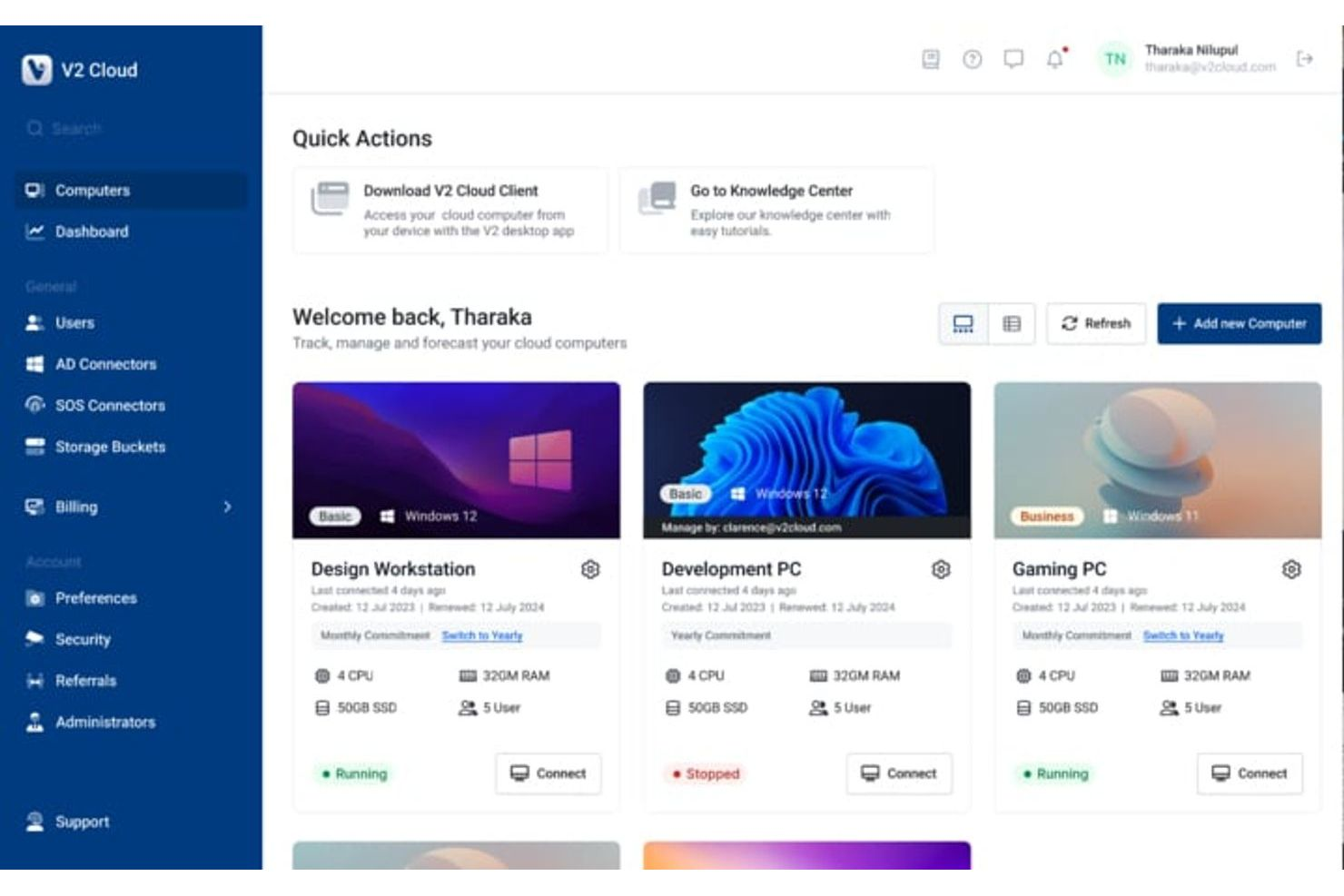
V2 Cloud is built for IT teams and businesses that need to deploy cloud desktops quickly without managing complex infrastructure. This platform is especially useful for MSPs, remote workforces, and organizations that want to deliver Windows desktops and apps from the cloud. Unlike VirtualBox, V2 Cloud handles hosting, security, and updates, so you can focus on user access and application delivery instead of backend maintenance.
Why V2 Cloud Is a Good VirtualBox Alternative
If you need to spin up cloud desktops for users in minutes, V2 Cloud is purpose-built for rapid deployment scenarios where VirtualBox falls short. I picked V2 Cloud because it lets you provision fully managed Windows desktops and applications directly from the cloud, eliminating the need for local hardware or manual VM setup. Built-in security features like multi-factor authentication and daily backups help protect your environment without extra configuration. This makes V2 Cloud a strong choice for IT teams that want to deliver virtual desktops quickly and securely to distributed users.
V2 Cloud Key Features
Some other features that make V2 Cloud stand out include:
- Browser-Based Access: Users can connect to their cloud desktops from any modern web browser.
- Role-Based Access Control: Administrators can assign permissions and manage user roles for better security.
- Integrated Antivirus Protection: Built-in antivirus helps protect virtual desktops from malware and threats.
- Printing Redirection: Users can print from their cloud desktops to local printers without extra configuration.
V2 Cloud Integrations
Native integrations are not currently listed.
Pros and Cons
Pros:
- Browser-based access from any device
- Built-in daily backups for data protection
- Rapid deployment of cloud Windows desktops
Cons:
- Storage upgrades are one-way
- Performance can lag during video-heavy workloads

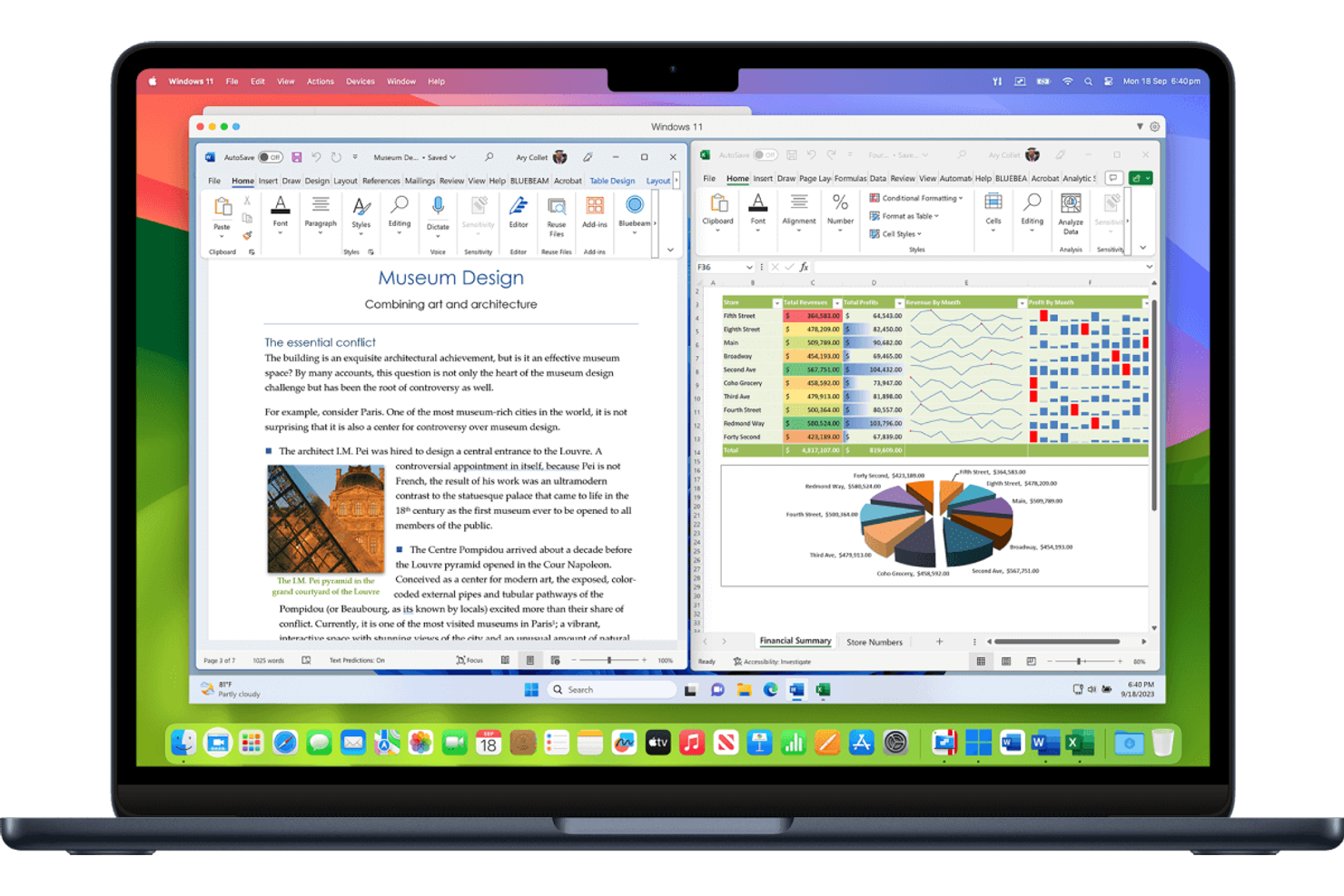
For Mac users who need to run Windows applications without rebooting, Parallels Desktop offers a virtualization solution built specifically for macOS. This tool is especially useful for IT professionals, developers, and designers who rely on both Windows and Mac software in their daily workflows. Unlike VirtualBox, Parallels Desktop provides deep integration with macOS features, including support for Apple Silicon, smooth file sharing between operating systems, and connectivity with devices like the iPhone for a more unified Apple ecosystem experience.
Why Parallels Desktop Is a Good VirtualBox Alternative
If you need to run Windows on a Mac, Parallels Desktop is purpose-built for that scenario. I picked Parallels Desktop because it offers native support for Apple Silicon and lets you run Windows and macOS applications side by side without rebooting. The tool also provides features like Coherence Mode, which allows Windows apps to appear as if they’re native Mac apps, and tight file sharing between operating systems. These capabilities make it a strong choice for anyone who needs a Windows experience on macOS, something VirtualBox doesn’t match as closely.
Parallels Desktop Key Features
Some other features that set Parallels Desktop apart include:
- Snapshot and Rollback: Create snapshots of virtual machines and quickly revert to previous states as needed.
- Virtual Machine Encryption: Protect virtual machines with built-in encryption options for added security.
- Multiple OS Support: Run a variety of operating systems, including Linux and older versions of Windows, alongside macOS.
- Integration with Visual Studio: Connect directly to Visual Studio for simplified development and testing workflows.
Parallels Desktop Integrations
Native integrations are not currently listed
Pros and Cons
Pros:
- Snapshots for safe testing and rollback
- Supports Apple Silicon and Intel Macs
- Runs Windows apps alongside macOS
Cons:
- Limited to macOS hosts only
- High resource usage under heavy workloads

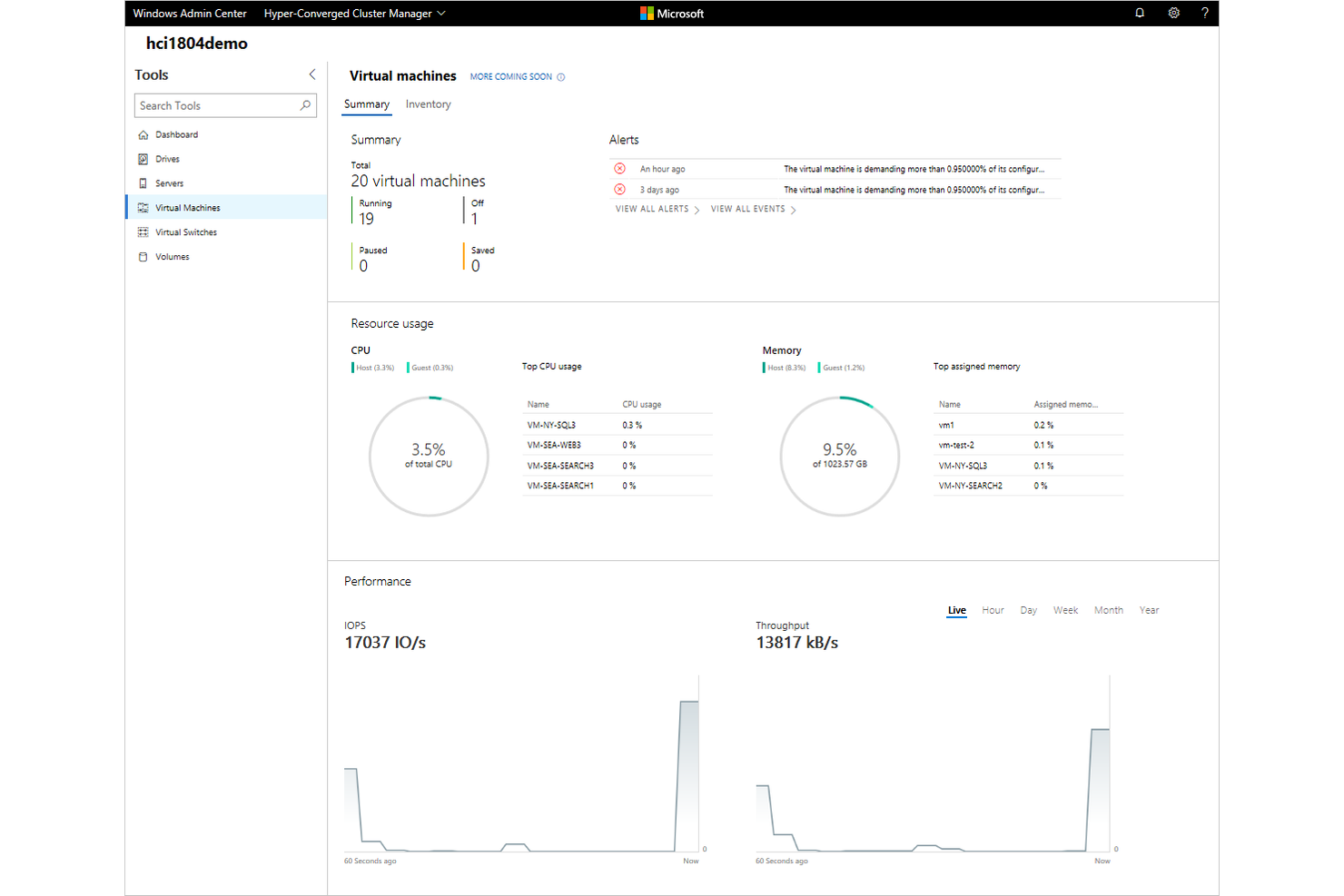
If your IT environment is built around Windows Server, Microsoft Hyper-V offers native virtualization tightly integrated with the Windows ecosystem. This platform is especially useful for organizations that want to manage virtual machines using familiar Windows tools and policies. Unlike VirtualBox, Hyper-V provides direct support for Windows clustering, live migration, and smooth integration with Active Directory.
Why Microsoft Hyper-V Is a Good VirtualBox Alternative
For IT teams running Windows Server environments, Microsoft Hyper-V delivers virtualization that’s deeply integrated with the Windows platform. I picked Hyper-V because it supports features like live migration and failover clustering, which are essential for high-availability Windows workloads. Hyper-V also allows you to manage virtual machines using familiar Windows administrative tools and Group Policy. This makes it a strong choice for organizations that want to align virtualization with their existing Windows infrastructure and management practices.
Microsoft Hyper-V Key Features
Some other Hyper-V features that may be useful for IT teams include:
- Nested Virtualization: Run Hyper-V inside a virtual machine for advanced testing and development scenarios.
- Virtual Switch Manager: Configure and manage virtual network switches for flexible network topologies.
- Dynamic Memory Allocation: Automatically adjust memory assigned to virtual machines based on workload demand.
- Shielded Virtual Machines: Protect sensitive workloads with encryption and secure boot features.
Microsoft Hyper-V Integrations
Integrations include System Center Virtual Machine Manager, Azure Site Recovery, Windows Admin Center, PowerShell, SCVMM, and more.
Pros and Cons
Pros:
- Granular resource allocation controls
- Live migration and replication features
- Supports nested virtualization
Cons:
- Advanced features need specific Server editions
- Requires Windows-based environment

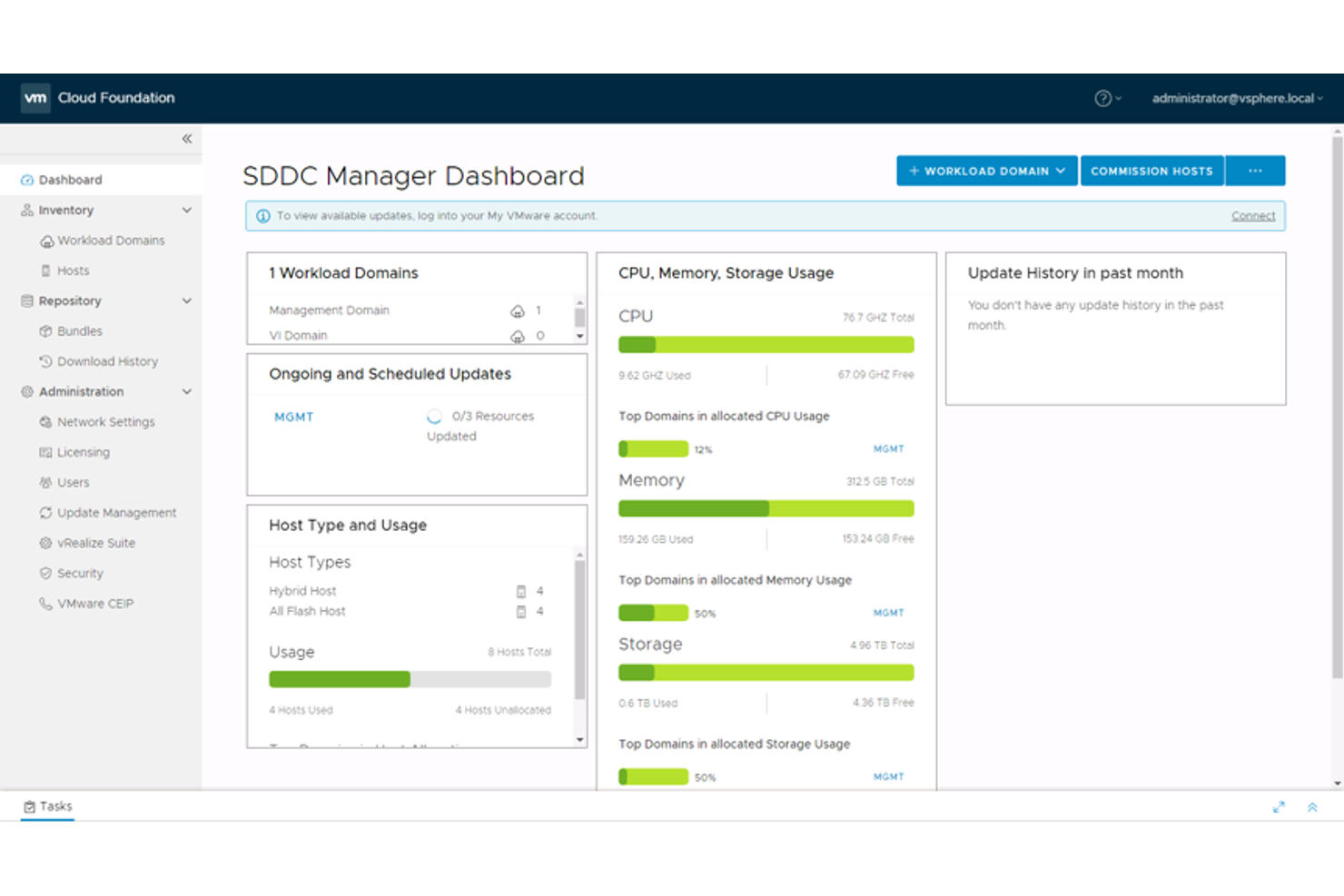
For IT teams that need advanced virtualization capabilities at scale, VMware offers a feature set designed for enterprise environments. VMware is a strong fit for organizations managing large, complex infrastructures or requiring high availability, automation, and granular control. Unlike VirtualBox, VMware delivers enterprise-grade features like distributed resource scheduling, live migration, and security options, with products such as VMware Workstation Pro and VMware Workstation Player supporting both professional and individual use cases.
Why VMware Is a Good VirtualBox Alternative
VMware is built for organizations that need enterprise-grade virtualization features beyond what VirtualBox provides. I picked VMware because it offers advanced capabilities like distributed resource scheduling and automated workload balancing, which are essential for large-scale environments. With features such as live migration (vMotion) and high availability, VMware helps IT teams minimize downtime and maintain service continuity. These tools make VMware a strong choice for businesses that require solid infrastructure management and reliability.
VMware Key Features
Some other VMware features that may interest IT professionals include:
- Role-Based Access Control: Assign granular permissions to users and groups for secure management.
- Template and Cloning Support: Create and deploy standardized virtual machine templates quickly.
- Storage vMotion: Move virtual machine disk files across storage arrays without downtime.
- Integrated Backup and Recovery: Use built-in tools for automated VM backups and point-in-time recovery.
VMware Integrations
Native integrations are not currently listed.
Pros and Cons
Pros:
- Advanced networking with virtual switches
- Granular role-based access control
- Live VM migration with vMotion
Cons:
- Limited Linux desktop support
- Uses more resources than lightweight options

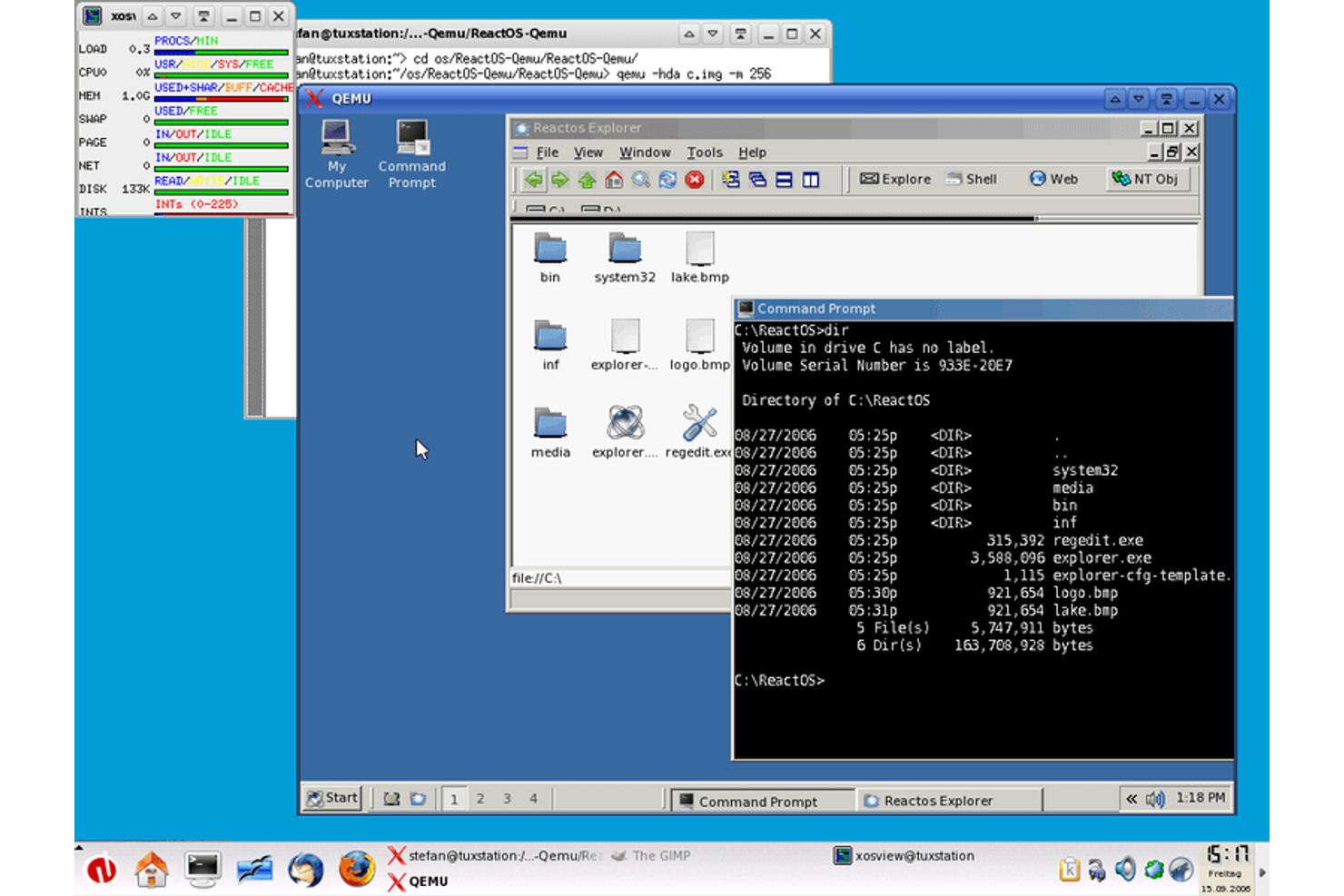
QEMU is a virtualization platform designed for IT specialists who need advanced hardware emulation and flexibility beyond what VirtualBox offers. It appeals to teams managing complex, multi-architecture environments or requiring precise control over virtual hardware. QEMU stands out for its ability to emulate a wide range of processor types and devices, making it a strong choice for testing, development, and cross-platform compatibility.
Why QEMU Is a Good VirtualBox Alternative
QEMU stands out as a VirtualBox alternative because of its advanced hardware emulation capabilities. I picked QEMU for teams that need to emulate different processor architectures, such as ARM, PowerPC, or MIPS, which VirtualBox doesn’t natively support. QEMU also lets you configure virtual devices at a granular level, giving you more control over your test and development environments. This flexibility is especially useful for IT specialists working with legacy systems or cross-platform software.
QEMU Key Features
Some other features of QEMU that may interest IT specialists include:
- Live Migration: Move running virtual machines between hosts without downtime, supporting high availability and maintenance workflows.
- Snapshot Support: Create and manage snapshots of virtual machines to enable quick rollbacks and testing scenarios.
- KVM Integration: Leverage hardware acceleration through Kernel-based Virtual Machine (KVM) for improved performance on supported systems.
- Command-Line Interface: Control and automate virtualization tasks using a CLI, which is useful for scripting and advanced configuration.
QEMU Integrations
Native integrations are not currently listed.
Pros and Cons
Pros:
- Strong CLI tools for automation
- Supports multiple CPU architectures beyond x86/x64
- Granular control over virtual hardware
Cons:
- Documentation can be fragmented
- No built-in GUI for VM management

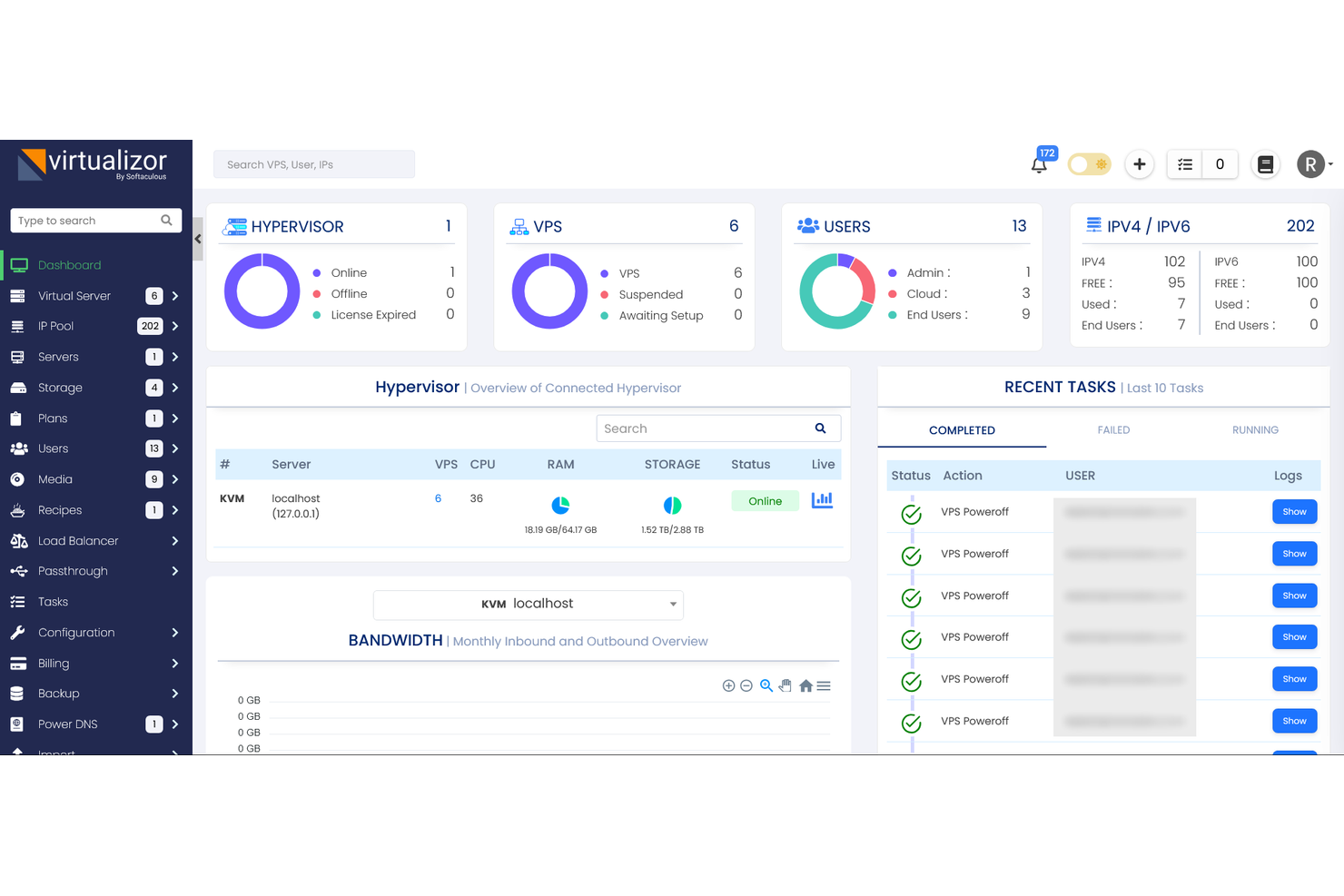
If you’re running Linux and want virtualization that’s tightly integrated with your operating system, KVM is worth a close look. KVM appeals to IT teams and system administrators who need high performance, security, and direct access to Linux kernel features. Unlike VirtualBox, KVM turns the Linux kernel itself into a hypervisor, offering native speed and resource management for demanding workloads.
Why KVM Is a Good VirtualBox Alternative
KVM stands out for its deep integration with the Linux kernel, which is something VirtualBox can’t match. I picked KVM for teams that want to leverage native Linux performance and security features in their virtualization stack. With KVM, you can take advantage of kernel-level scheduling, memory management, and hardware virtualization extensions. This makes it a strong choice for IT specialists running production workloads or building scalable, Linux-based infrastructure.
KVM Key Features
Some other features of KVM that may interest IT professionals include:
- Support for Multiple Guest Operating Systems: Run Windows, Linux, BSD, and other operating systems as virtual machines.
- Live VM Migration: Move running virtual machines between physical hosts without interruption.
- Snapshot and Restore: Create snapshots of virtual machines for quick rollback and recovery.
- Integration with Management Tools: Use KVM with tools like libvirt, oVirt, and Proxmox VE for advanced orchestration and management.
KVM Integrations
Native integrations are not currently listed.
Pros and Cons
Pros:
- Advanced features like snapshots and CPU hotplug
- Wide range of guest OS support
- Near-native performance with kernel virtualization
Cons:
- No built-in GUI for management
- Hardware passthrough is more complex

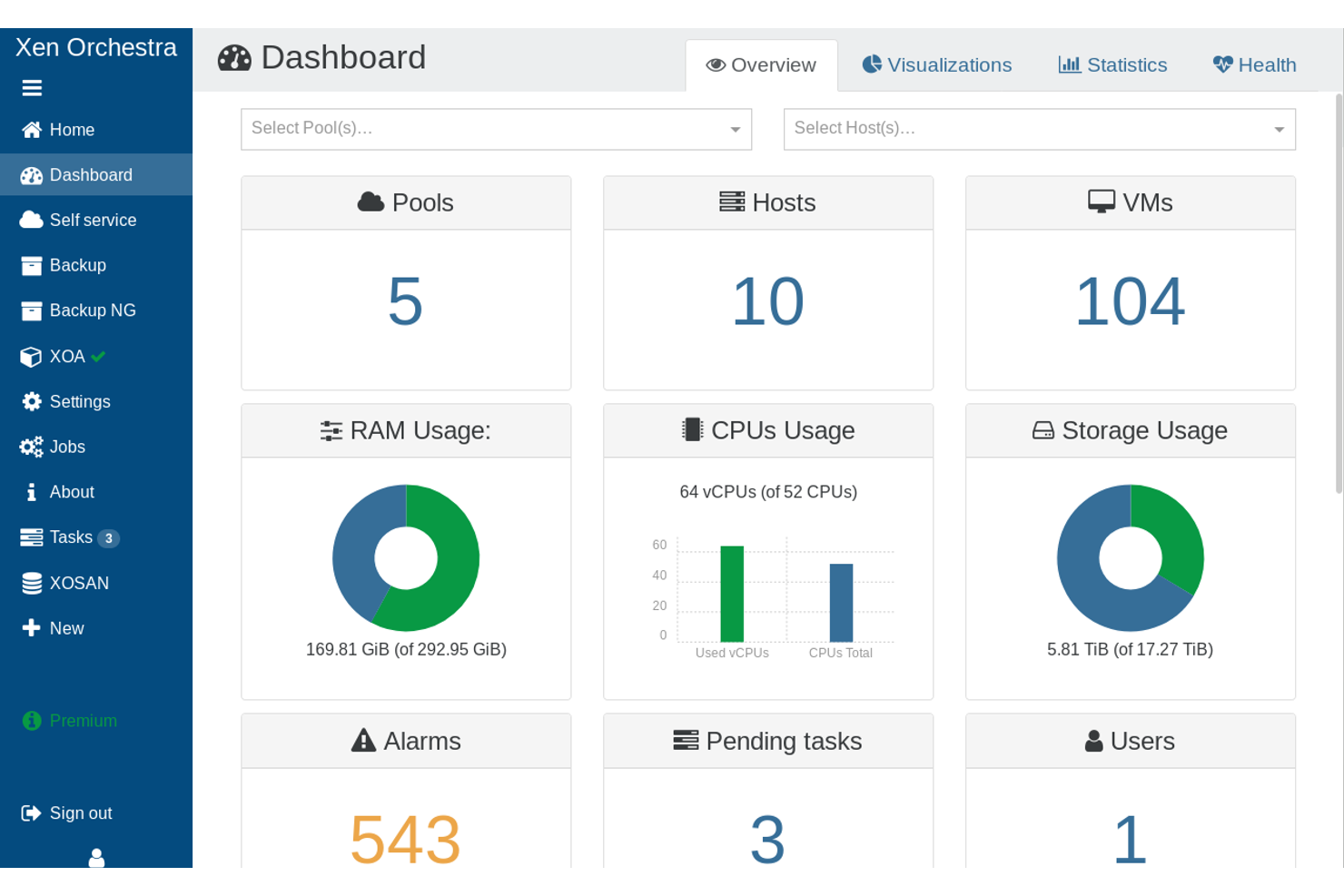
For IT specialists who want deep control over their virtualization stack, Xen Project offers a fully open-source hypervisor built for customization. This platform is ideal for organizations and professionals who need to tailor virtualization environments for unique workloads, security requirements, or hardware setups. Unlike VirtualBox, Xen Project gives you direct access to the hypervisor codebase, making it a strong fit for advanced users and those building specialized infrastructure solutions.
Why Xen Project Is a Good VirtualBox Alternative
If you need a virtualization platform you can fully customize, Xen Project stands out from VirtualBox and other closed-source options. I picked Xen Project because it gives you direct access to the hypervisor’s source code, so you can modify, extend, or optimize it for your specific use case. The platform supports advanced features like paravirtualization and hardware-assisted virtualization, which are valuable for organizations with unique performance or security requirements. This level of flexibility makes Xen Project a strong choice for IT teams building tailored virtualization solutions.
Xen Project Key Features
Some other features that make Xen Project appealing include:
- Support for Multiple Guest Operating Systems: Run Linux, Windows, and other operating systems as virtual machines.
- Live VM Migration: Move running virtual machines between hosts without service interruption.
- Resource Isolation: Allocate CPU, memory, and I/O resources to each VM for predictable performance.
- Active Open Source Community: Access extensive documentation, community support, and frequent updates.
Xen Project Integrations
Native integrations are not currently listed.
Pros and Cons
Pros:
- Supports para and hardware virtualization
- Highly customizable for specialized needs
- Runs on diverse hardware platforms
Cons:
- Fewer pre-built VM images
- No built-in graphical interface

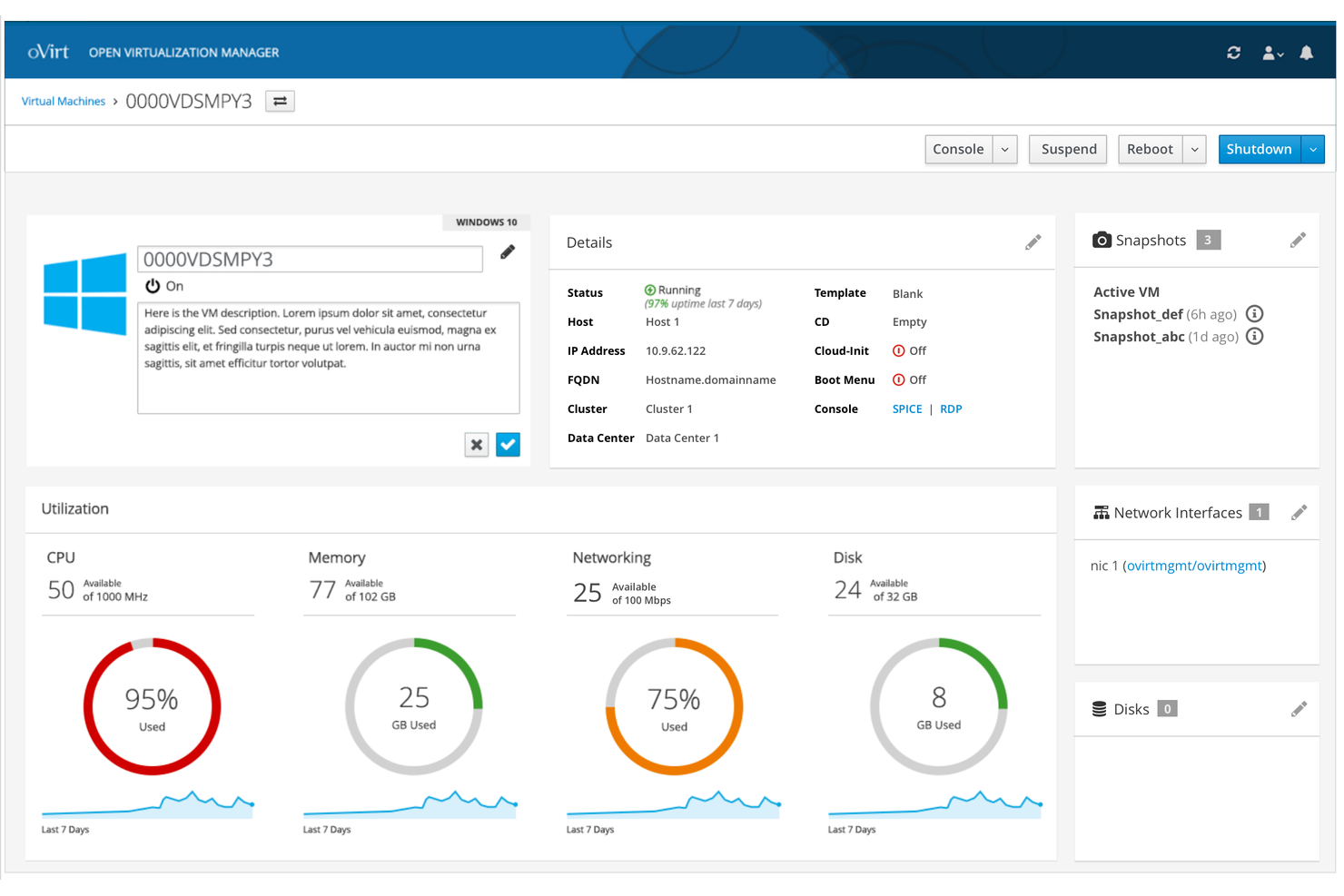
If you’re managing multiple virtual machines across your organization, oVirt offers a centralized platform designed for complex virtual infrastructure. This open-source solution is well-suited for IT teams in enterprises or data centers that need to orchestrate, monitor, and control large-scale virtualization environments. Unlike VirtualBox, oVirt provides a web-based management interface and advanced automation features for handling clusters, storage, and networking from a single dashboard.
Why oVirt Is a Good VirtualBox Alternative
For IT teams that need to manage virtual machines at scale, oVirt delivers centralized control that goes far beyond what VirtualBox offers. I picked oVirt because its web-based management console lets you oversee clusters, storage, and networking from a single interface. The platform also supports advanced automation for provisioning and maintaining virtual machines, which is essential for larger environments. These features make oVirt a strong fit for organizations looking to consolidate and simplify their virtual infrastructure management.
oVirt Key Features
Some other features that make oVirt appealing include:
- Role-Based Access Control: Assign granular permissions to users and groups for secure management.
- Template Management: Create and deploy VM templates to standardize virtual machine configurations.
- Integrated Backup and Restore: Schedule and manage backups of virtual machines directly from the platform.
- Support for Multiple Storage Types: Connect and manage storage using NFS, iSCSI, Fibre Channel, and more.
oVirt Integrations
Native integrations are not currently listed.
Pros and Cons
Pros:
- VM templating for rapid deployment
- Granular role-based access control
- Web-based console for multi-host management
Cons:
- Limited support for non-Linux guests
- No native desktop client

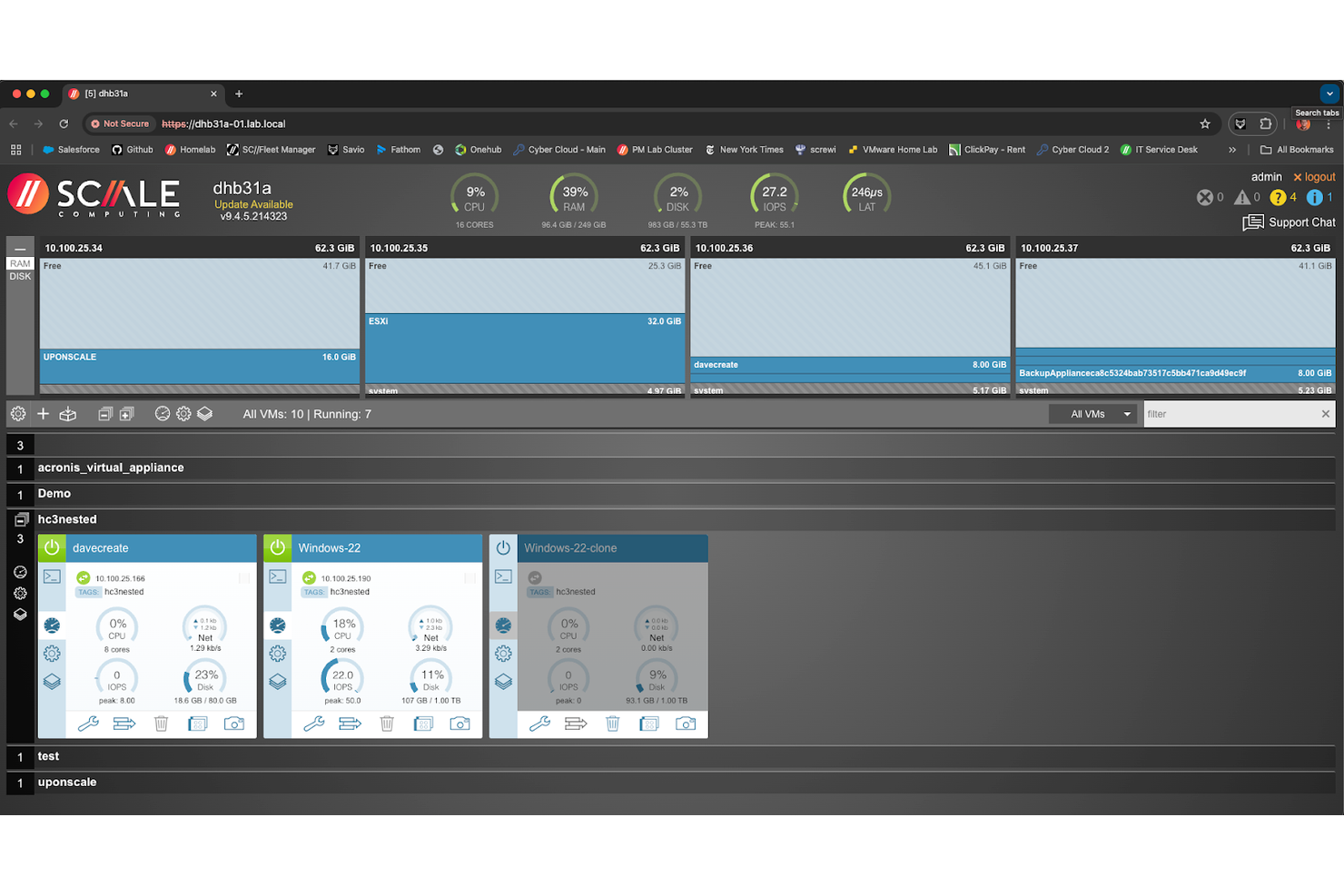
If you’re managing IT infrastructure at remote sites or branch locations, Scale Computing Platform is designed for edge computing virtualization where reliability and simplicity are essential. This solution is a strong fit for retail, manufacturing, and distributed enterprises that need to run virtual machines close to where data is generated. Unlike VirtualBox, Scale Computing Platform combines virtualization, storage, and management in a single appliance that’s purpose-built for environments with limited IT staff.
Why Scale Computing Platform Is a Good VirtualBox Alternative
For organizations that need virtualization at the edge, Scale Computing Platform offers a purpose-built solution that goes beyond what VirtualBox can provide. I picked Scale Computing Platform because it combines virtualization, storage, and management in a single, self-healing appliance designed for remote or branch locations. Its automated failover and remote management features help keep workloads running even when on-site IT resources are limited. This makes it a strong choice for businesses that need reliable, low-maintenance virtualization outside the data center.
Scale Computing Platform Key Features
Some other features that set Scale Computing Platform apart include:
- Snapshot Scheduling: Automates the creation of VM snapshots for backup and recovery.
- Integrated Hypervisor: Runs virtual machines without requiring third-party hypervisor licenses.
- Thin Provisioning: Allocates storage dynamically to maximize available capacity.
- RESTful API: Enables automation and integration with external management tools.
Scale Computing Platform Integrations
Native integrations are not currently listed.
Pros and Cons
Pros:
- Snapshot scheduling for backup and recovery
- Centralized console supports multiple sites
- Automated failover keeps VMs running
Cons:
- Lacks advanced networking features
- No support for individual desktop VMs
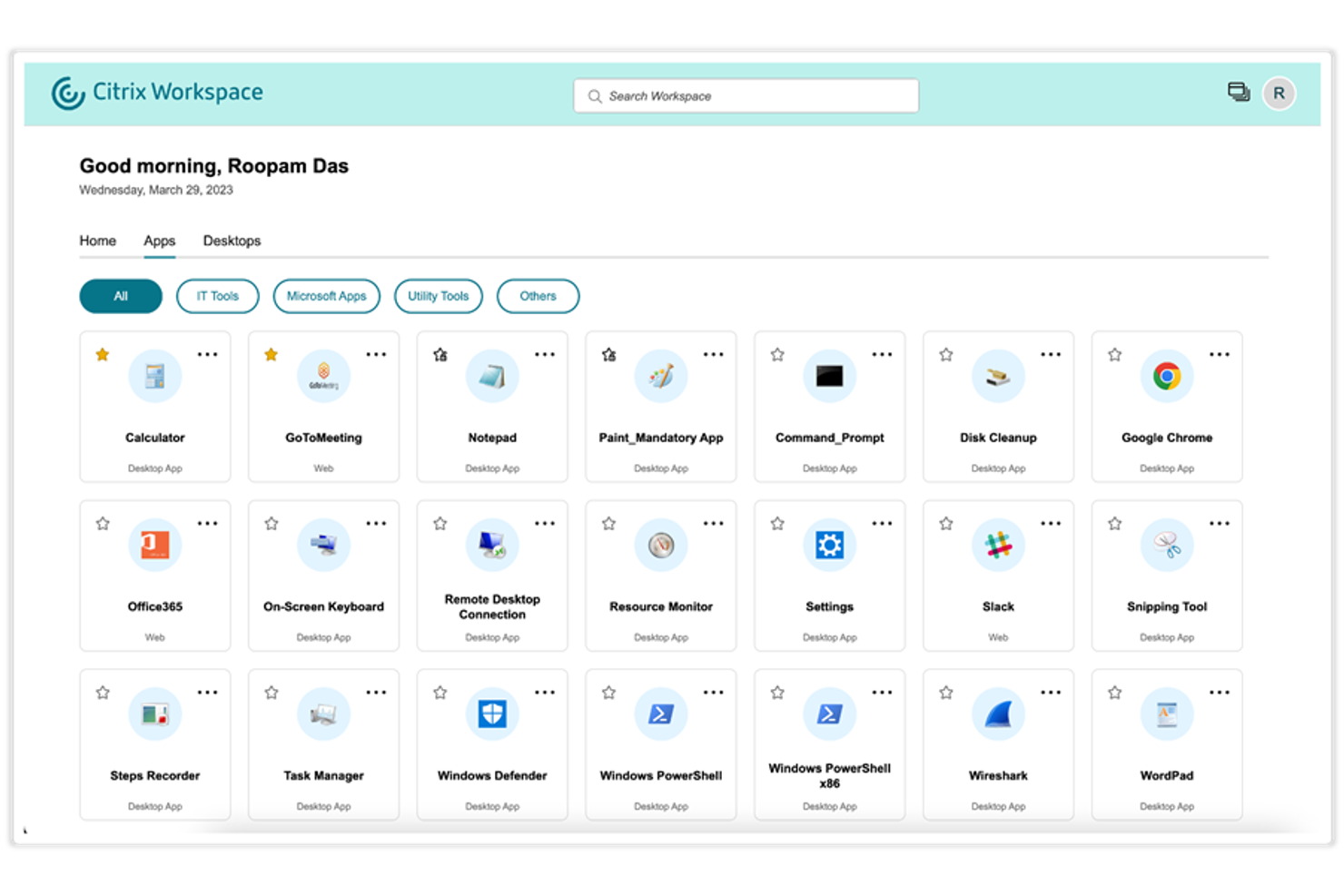
For IT teams that need to deliver secure desktops and apps to users anywhere, Citrix App and Desktop Virtualization offers a purpose-built platform for remote desktop delivery at scale. This solution is well-suited for large enterprises, managed service providers, and organizations with distributed or hybrid workforces. Unlike VirtualBox, Citrix enables centralized management, granular access controls, and optimized user experiences across a wide range of devices and network conditions.
Why Citrix App and Desktop Virtualization Is a Good VirtualBox Alternative
When you need to deliver desktops and applications to hundreds or thousands of users, Citrix App and Desktop Virtualization is built for remote desktop delivery at scale. I picked Citrix because it supports centralized deployment and management of virtual desktops, making it much easier to handle large, distributed environments than VirtualBox. The platform also offers granular access controls and session policies, so you can tailor user experiences and security for different teams or locations. These features make Citrix a strong fit for organizations that need to provide secure, high-performance remote access across a wide user base.
Citrix App and Desktop Virtualization Key Features
Some other features that make Citrix App and Desktop Virtualization stand out include:
- HDX Technology: Delivers optimized graphics and multimedia performance for remote sessions.
- Session Recording: Captures user sessions for auditing and compliance purposes.
- Multi-Factor Authentication Support: Integrates with a range of MFA providers for improved security.
- Profile Management: Manages user profiles to ensure consistent settings and data across sessions.
Citrix App and Desktop Virtualization Integrations
Native integrations are not currently listed.
Pros and Cons
Pros:
- HDX optimizes graphics and multimedia
- Centralized management for deployments
- Remote access to desktops and apps
Cons:
- Limited UI customization options
- Requires significant infrastructure investment
Other VirtualBox Alternatives
Here are some additional VirtualBox alternatives that didn’t make it onto my shortlist, but are still worth checking out:
- Proxmox VE
For unified VM and container management
- Nutanix AHV
For hyperconverged infrastructure deployments
- Amazon EC2
For scalable cloud-based VM deployment
- Google Compute Engine
For custom machine type configuration
- Microsoft Azure
For hybrid cloud integration
- HPE
With enterprise-grade hardware support


VirtualBox Alternatives Selection Criteria
When selecting the best VirtualBox alternatives to include in this list, I considered common buyer needs and pain points related to VirtualBox alternative products, like running virtual machines in the cloud and reducing local hardware dependencies. I also used the following framework to keep my evaluation structured and fair:
Core Functionality (25% of total score)
To be considered for inclusion in this list, each solution had to fulfill these common use cases:
- Run multiple operating systems on a single host
- Create and manage virtual machines
- Allocate and adjust system resources for VMs
- Support snapshot and backup of VM states
- Enable network configuration for virtual environments
Additional Standout Features (25% of total score)
To help further narrow down the competition, I also looked for unique features, such as:
- Rapid cloud desktop deployment
- Built-in security and compliance controls
- Browser-based access to virtual desktops
- Integrated backup and disaster recovery
- Role-based access management
Usability (10% of total score)
To get a sense of the usability of each system, I considered the following:
- Simple and intuitive user interface
- Clear navigation and logical menu structure
- Minimal steps to create and launch VMs
- Responsive performance for common tasks
- Accessible documentation and tooltips
Onboarding (10% of total score)
To evaluate the onboarding experience for each platform, I considered the following:
- Availability of step-by-step setup guides
- Access to training videos and tutorials
- Interactive product tours for new users
- Pre-built templates for common VM setups
- Live chat or chatbot support during onboarding
Customer Support (10% of total score)
To assess each software provider’s customer support services, I considered the following:
- 24/7 support availability
- Multiple support channels such as chat, email, and phone
- Fast response times to inquiries
- Access to a knowledge base or help center
- Community forums for peer support
Value For Money (10% of total score)
To evaluate the value for money of each platform, I considered the following:
- Transparent and predictable pricing structure
- Flexible plans for different business sizes
- No hidden fees or surprise charges
- Free trial or demo availability
- Features included at each pricing tier
Customer Reviews (10% of total score)
To get a sense of overall customer satisfaction, I considered the following when reading customer reviews:
- Consistent positive feedback on reliability
- Reports of helpful and knowledgeable support
- User comments on performance and speed
- Feedback on ease of migration from VirtualBox
- Overall satisfaction with the feature set and updates
Why Look For a VirtualBox Alternative?
While VirtualBox is a good choice, there are a number of reasons why some users seek out alternative solutions. You might be looking for a VirtualBox alternative because…
- Needing cloud-based virtual machines for remote access
- Wanting built-in security and compliance features
- Requiring support for rapid desktop deployment at scale
- Facing performance issues with resource-intensive workloads
- Lacking integration with enterprise IT management tools
- Needing commercial support and guaranteed SLAs
If any of these sound like you, you’ve come to the right place. My list contains several VirtualBox alternative options that are better suited for teams facing these challenges with VirtualBox and looking for alternative solutions.
VirtualBox Key Features
Here are some of the key features of VirtualBox, to help you contrast and compare what alternative solutions offer:
- Support for running multiple operating systems on a single host
- Snapshot and restore functionality for virtual machines
- Virtual networking with customizable network modes
- Shared folders and clipboard between host and guest systems
- USB device passthrough for guest access to peripherals
- Command-line interface for advanced VM management
- Extensible architecture with plugin and extension support
- Cross-platform compatibility with Windows, macOS, and Linux hosts
- Virtual machine cloning for rapid environment duplication
- Support for 2D and 3D graphics acceleration