14 Best OCR Tools Reviewed in 2026

Best OCR Tools Shortlist
Here’s my shortlist of the best OCR tools:


Keeping data organized is a constant challenge, especially when information lives in scanned documents, image files, or PDF files. It doesn't take long for paper-based files to slow things down and create gaps in how you can track and use information. OCR technology solves this by turning images and scanned text into searchable, editable data, making it easier to work faster and with fewer mistakes.
I've spent years testing and reviewing software, and I've seen how OCR solutions can transform your workflow. In this article, I'll share my top picks for the best OCR tools available. You'll get an unbiased look at each tool's features and benefits, helping you make an informed decision for your needs.
Why Trust Our Software Reviews
Best OCR Tools Summary
This comparison chart summarizes pricing details for my top OCR tool selection to help you find the best one for your budget and business needs.
| Tool | Best For | Trial Info | Price | ||
|---|---|---|---|---|---|
| 1 | Best for API-based OCR tasks | Free trial available + free demo | Pricing upon request | Website | |
| 2 | Best for converting PDFs to text | Free plan available | From $12.99/month (billed annually) | Website | |
| 3 | Best for PDF collaboration | 7-day free trial available | From $99/year | Website | |
| 4 | Best for AI-driven image analysis | Free plan available | From $14.99/month | Website | |
| 5 | Best for open-source OCR needs | Free forever plan | Free | Website | |
| 6 | Best for file format support | Free forever plan | Free | Website | |
| 7 | Best for data structuring | 14-day free trial available | Pricing upon request | Website | |
| 8 | Best for enterprises | Free demo available | From $1/1,000 transactions | Website | |
| 9 | Best for document conversion accuracy | Free plan available | From $4.99/month | Website | |
| 10 | Best for free online OCR | Free plan available | From $30/month | Website |
-

Site24x7
Visit WebsiteThis is an aggregated rating for this tool including ratings from Crozdesk users and ratings from other sites.4.6 -
Docker
Visit WebsiteThis is an aggregated rating for this tool including ratings from Crozdesk users and ratings from other sites.4.6 -
Pulumi
Visit WebsiteThis is an aggregated rating for this tool including ratings from Crozdesk users and ratings from other sites.4.8




Best OCR Tool Reviews
Below are my detailed summaries of the best OCR tools that made it onto my shortlist. My reviews offer a detailed look at the key features, pros and cons, integrations, and ideal use cases of each tool to help you find the best one for you.


Nanonets is an OCR solution for developers and businesses that need to automate document processing through APIs. Teams use it to integrate OCR capabilities into their applications efficiently. The tool offers customizable text extraction for specific business needs.
Why I picked Nanonets: Nanonets is ideal for API-based OCR tasks, providing a flexible solution for developers. It allows you to create custom OCR models to fit your specific document types. The tool's API enables smooth integration into existing applications, optimizing your workflow. With support for various document formats, it provides versatility in handling different data inputs.
Standout Features and Integrations:
Features include the ability to train custom OCR models, which is great for unique document types. Its API supports different coding languages, allowing you to integrate the tool into your systems. The tool also offers detailed analytics to help you track and optimize your OCR processes.
Integrations are not publicly listed.
Pros and Cons
Pros:
- Flexible API integration
- Automated line-item extraction
- Offers custom OCR model training
Cons:
- Requires API knowledge
- Usage-based credit model


Adobe Acrobat's online OCR tool is great for converting scanned PDFs into searchable text documents. Professionals and businesses use it for better document accessibility and text extraction. The tool ensures high-quality text recognition and supports multiple languages, making it a fitting choice for international businesses.
Why I picked Adobe Acrobat: Adobe Acrobat's OCR tool converts PDFs into editable text, a feature highly valued by businesses and professionals. It also recognizes text in different languages. The tool can be accessed online, which makes using it easier. Security and privacy are a priority, ensuring your documents are safely managed.
Standout Features and Integrations:
Features include high-quality text recognition, multi-language support, and online accessibility without software installation.
Integrations include Microsoft 365, Google Drive, Dropbox, Box, SharePoint, and more.
Pros and Cons
Pros:
- High-fidelity layout preservation
- PDF table structure recognition
- No software installation needed
Cons:
- Short trial period
- Requires Adobe account


ABBYY FineReader PDF is a complete OCR software for professionals who need accurate text conversion from scanned documents and PDFs. It's ideal for businesses and individuals requiring detailed document analysis and editing. The tool allows you to convert paper documents and images into editable and searchable formats.
Why I picked ABBYY FineReader PDF: ABBYY FineReader PDF offers detailed text recognition with high accuracy for complex documents. It supports a wide range of languages, ensuring versatility for international use. The tool's editing features allow you to make precise changes to converted documents. Its ability to maintain document layout and format improves the quality of your digital documents.
Standout Features and Integrations:
Features include advanced document comparison, which helps you identify differences between document versions. It also offers PDF editing capabilities, allowing you to modify texts and images directly within PDFs. Additionally, the tool provides batch processing to handle multiple documents efficiently.
Integrations include Microsoft Office, SharePoint, Dropbox, Google Drive, OneDrive, Box, Evernote, and more.
Pros and Cons
Pros:
- Offers an iOS app
- Great for collaboration
- Offers 198 recognition languages
Cons:
- Limited mobile features
- Does not offer free plan


Mistral Document AI is a high-performance Optical Character Recognition API for developers and businesses that need to analyze complex documents. It serves industries that need precise text extraction from multimodal inputs, such as PDFs, JPGs, and slides.
Why I picked Mistral Document AI: It's great for AI-powered image analysis, providing fast processing of up to 2000 pages per minute. It supports multiple languages, making it versatile for global applications. The ability to self-host ensures data privacy, which is required for handling sensitive information. Mistral also offers structured data output formats, such as JSON, improving data management.
Standout Features and Integrations:
Features include fast processing speeds and the ability to use your own server for advanced data privacy. Mistral also offers support for different alphabets and math, broadening its applicability across different industries.
Integrations are not publicly listed.
Pros and Cons
Pros:
- Structured output formats
- Self-hosting for privacy
- Fast processing speeds
Cons:
- Risk of hallucinations
- Has file size limits


Tesseract OCR is an open-source OCR engine that developers and researchers use to extract text from images. It's ideal for projects that require customizable OCR solutions because it supports a wide range of languages. The tool provides a flexible platform for integrating OCR into various applications.
Why I picked Tesseract OCR: Tesseract is an open-source solution that allows you to modify and adapt it to fit your specific needs. It supports over 100 languages, making it versatile for international users. The tool can be integrated into custom workflows, providing flexibility in deployment. Its community support offers a wealth of resources and insights for troubleshooting.
Standout Features and Integrations:
Features include Unicode (UTF-8) support, as well as line recognition and character pattern recognition. The tool also allows for custom training to improve recognition accuracy on unique fonts or handwriting. Tesseract's command-line interface provides advanced users with powerful control over its functionalities.
Integrations are not publicly listed.
Pros and Cons
Pros:
- Strong community support
- Works great with Linux
- Open-source flexibility
Cons:
- Interface can feel dated
- Limited out-of-the-box features


CuneiForm is an OCR software solution for users who need to convert printed documents into editable text. It's particularly useful for individuals and small businesses that require multi-language document processing. The tool offers efficient text recognition and conversion capabilities.
Why I picked CuneiForm: CuneiForm has strong multi-language support, making it suitable for a diverse range of documents. It provides efficient text recognition, which helps you convert printed documents into editable formats quickly. The software supports a variety of formats, allowing for broader document processing.
Standout Features and Integrations:
Features include a user-friendly interface that simplifies document conversion tasks. It supports batch processing to handle multiple documents at once. The tool also allows for customization of recognition settings to improve accuracy on specific document types.
Integrations are not publicly listed.
Pros and Cons
Pros:
- Supports batch processing
- No registration necessary
- Strong multi-language support
Cons:
- Windows only
- Basic technical support


Docsumo OCR is a specialized OCR tool for businesses that need to automate data extraction from invoices and financial documents. It's ideal for finance teams and accounting departments that want to improve accuracy and efficiency in document processing. The tool offers customizable templates to handle various invoice formats.
Why I picked Docsumo OCR: Docsumo works great for invoice data extraction, making it a perfect fit for finance-related tasks. It provides customizable templates that adapt to different invoice formats, ensuring precise data capture. The tool's ability to extract line-item details gives your team deeper insights into financial documents. Its focus on accuracy helps reduce manual errors in data entry.
Standout Features and Integrations:
Features include automatic data validation, which ensures the extracted information is accurate and reliable. It offers customizable workflows to fit your team's specific document processing needs. The tool also provides detailed analytics that help you monitor and optimize data extraction processes.
Integrations include Salesforce, QuickBooks, Xero, Zapier, Chargebee, OneDrive, Stripe, and more.
Pros and Cons
Pros:
- Detailed data extraction
- Customizable templates for invoices
- Great for invoice data extraction
Cons:
- Higher cost for small businesses
- Requires learning for financial fields
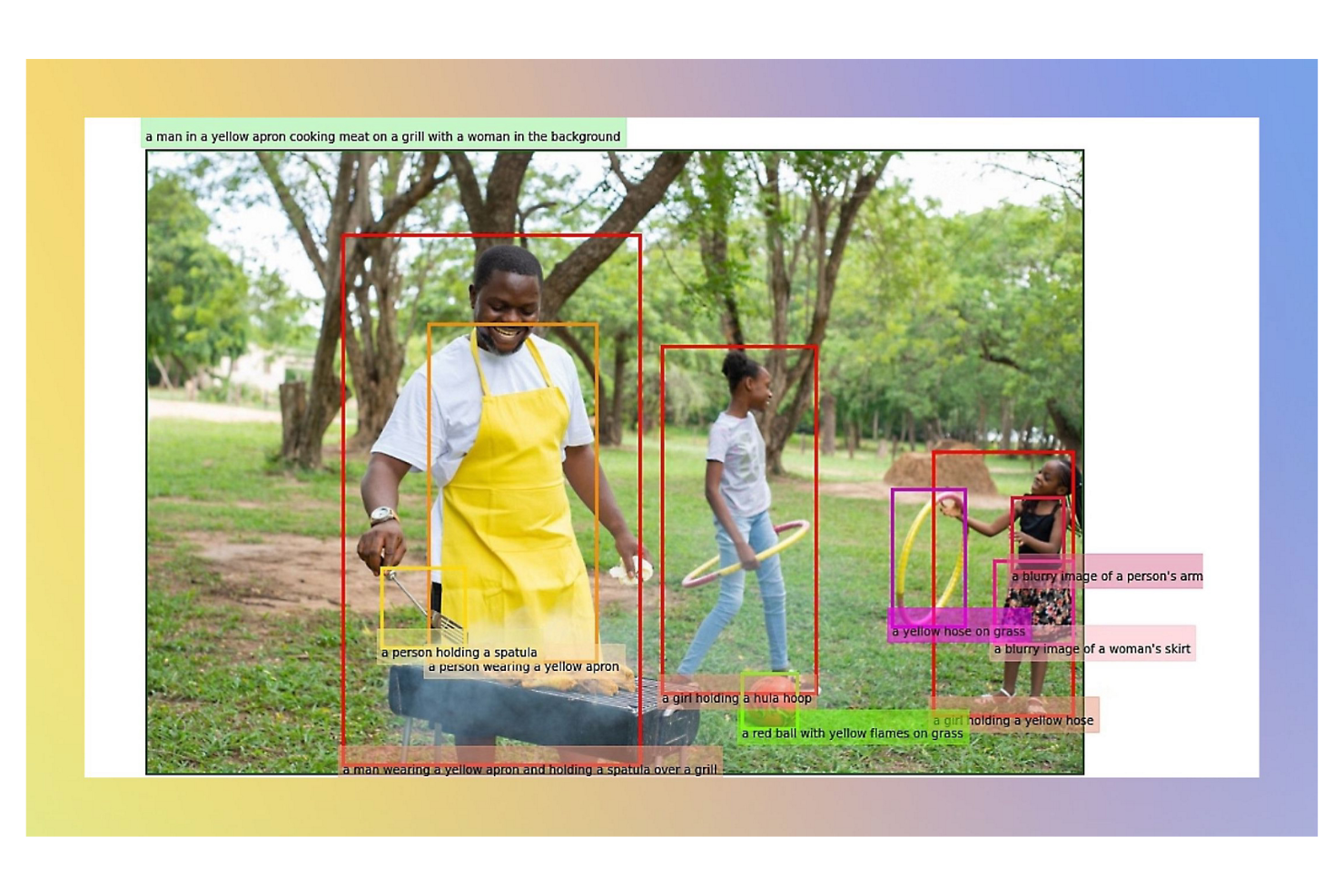
Microsoft Azure Vision is a cloud-based service for enterprises that require scalable and efficient text extraction from images. Businesses use it to process large volumes of documents with accuracy. The tool provides advanced image recognition that integrates into your workflows.
Why I picked Microsoft Azure Vision: This tool is ideal for enterprises, offering scalable text extraction that aligns with business needs. It supports a wide range of document formats, ensuring flexibility in processing. The tool's integration with other Azure services improves its utility for businesses that already use the Azure cloud platform. Its advanced security features protect sensitive data during processing.
Standout Features and Integrations:
Features include advanced image analysis that provides detailed insights into visual content. It supports real-time text recognition, which is important for time-sensitive applications. The tool also offers facial recognition for different use cases.
Integrations are not publicly listed.
Pros and Cons
Pros:
- Advanced security features
- Great for Azure cloud integration
- Turns images into machine-readable text
Cons:
- Higher cost for extensive use
- Overkill for OCR-only use


OCR.best is an online OCR tool for precise conversion of images and PDFs into editable text. It's particularly useful for individuals and businesses that require high accuracy in text extraction. The tool provides reliable document conversion without downloading software.
Why I picked OCR.best: OCR.best excels in document conversion accuracy, ensuring your text is captured correctly from scanned documents. The tool's user-friendly interface makes it easy for you to navigate and perform conversions. Its fast and accurate extraction process makes using the tool a breeze.
Standout Features and Integrations:
Features include support for a wide range of file formats, which makes your document processing options more versatile. The tool offers fast processing times, allowing you to convert documents quickly.
Integrations are not publicly listed.
Pros and Cons
Pros:
- Quick processing times
- Drag-and-drop conversion
- Low-quality image enhancement algorithm
Cons:
- Slower conversion with free plan
- Credit-based conversions with paid plans


OCR.space is an online OCR service for individuals and small businesses that need to convert images and PDFs into text. It's particularly useful for users who need a simple and cost-effective way to process documents without software installation. The tool offers high accuracy in text recognition for various file formats and languages.
Why I picked OCR.space: OCR.space provides free online OCR services, making it accessible for users without a budget for expensive software. It supports multiple languages, and the user interface is straightforward, allowing you to upload and convert files with ease.
Standout Features and Integrations:
Features include support for multiple languages, a paid API option for batch processing, and a user interface that offers different levels of OCR detail.
Integrations are not publicly listed.
Pros and Cons
Pros:
- Batch processing available
- API available
- Searchable PDF option
Cons:
- No desktop application
- Free version has limitations
Other OCR Tools
Here are some additional OCR tools options that didn’t make it onto my shortlist, but are still worth checking out:
- OnlineOCR.net
For quick online conversions
- PDFLeader
For converting PDFs to text
- Docparser
For parsing PDF documents


OCR Tools Selection Criteria
When selecting the best OCR tools to include in this list, I considered common buyer needs and pain points, such as data accuracy and ease of integration. I also used the following framework to keep my evaluation structured and fair:
Core Functionality (25% of total score)
To be considered for inclusion in this list, each solution had to fulfill these common use cases:
- Convert images to text
- Support multiple languages
- Extract data from PDFs
- Provide editable text output
- Handle batch processing
Additional Standout Features (25% of total score)
To help further narrow down the competition, I also looked for unique features, such as:
- Customizable OCR models
- Real-time processing
- Multilingual text recognition
- Integration with cloud storage
- Detailed analytics and reporting
Usability (10% of total score)
To get a sense of the usability of each system, I considered the following:
- Intuitive interface design
- Ease of navigation
- Minimal learning curve
- Customizable user settings
- Availability of help resources
Onboarding (10% of total score)
To evaluate the onboarding experience for each platform, I considered the following:
- Availability of training videos
- Interactive product tours
- Detailed user manuals
- Access to webinars and tutorials
- Supportive community forums
Customer Support (10% of total score)
To assess each software provider's customer support services, I considered the following:
- 24/7 support availability
- Multiple contact methods
- Response time
- Quality of support resources
- Availability of dedicated account managers
Value for Money (10% of total score)
To evaluate the value for money of each platform, I considered the following:
- Pricing compared to features
- Availability of free trials
- Flexible pricing plans
- Cost of additional features
- Discounts for long-term commitments
Customer Reviews (10% of total score)
To get a sense of overall customer satisfaction, I considered the following when reading customer reviews:
- Overall satisfaction ratings
- Feedback on feature reliability
- Comments on customer service
- Reports on ease of use
- Testimonials on cost-effectiveness
How To Choose OCR Tools
It's easy to get bogged down in long feature lists and complex pricing structures. To help you stay focused as you work through your unique software selection process, here's a checklist of factors to keep in mind:
| Factor | What To Consider |
|---|---|
| Scalability | Will the tool grow with your business? Consider if it can handle increased document volumes and user numbers without performance issues. |
| Integrations | Does it work with your existing systems? Check if it integrates with your current software, such as CRMs or cloud storage solutions. |
| Customizability | Can you tailor the tool to your needs? Look for options to adjust workflows or templates to fit your specific document types and processes. |
| Ease of Use | Is the interface intuitive? Ensure your team can quickly learn and use the tool without extensive training, minimizing disruption to daily tasks. |
| Implementation and Onboarding | How long does it take to set up? Evaluate the onboarding process, including the availability of resources such as tutorials or support during the transition. |
| Cost | Does the pricing fit your budget? Compare the cost of the tool against its features and potential ROI. Watch out for hidden fees or inflexible pricing plans. |
| Security Safeguards | How secure is your data? Ensure the tool has extensive security measures, such as encryption and compliance with data protection regulations, to protect sensitive information. |
| Support Availability | Is help accessible when needed? Check if the vendor offers reliable customer support, including access to live chat, phone support, or a dedicated account manager, especially during emergencies. |
What Are OCR Tools?
OCR tools are software solutions that convert images of text into editable, searchable digital text. Professionals such as data entry clerks, archivists, and researchers use them to digitize documents efficiently.
Features such as text recognition, language support, and batch processing help with converting paper documents into accessible digital formats. Overall, these tools save time and reduce errors in document processing.
Features
When selecting OCR tools, keep an eye out for the following key features:
- Text recognition: Converts images of text into digital text, making documents editable and searchable.
- Language support: Handles multiple languages, allowing for diverse document processing.
- Batch processing: Processes multiple documents simultaneously, saving time and increasing efficiency.
- Customizable templates: Allow users to tailor the tool to specific document types, improving accuracy.
- Real-time processing: Provides immediate text conversion, useful for time-sensitive applications.
- Integration capabilities: Work with existing systems, such as CRMs or cloud storage, ensuring smooth workflows.
- Security measures: Protect sensitive data with encryption and compliance with data protection regulations.
- Analytics and reporting: Offer insights into OCR processes, helping users optimize performance and efficiency.
- User-friendly interface: Ensures ease of use, minimizing the learning curve and improving user experience.
Benefits
Implementing OCR tools provides several benefits for your team and your business. Here are a few you can look forward to:
- Time savings: Automate the conversion of documents, reducing manual data entry and speeding up workflows.
- Increased accuracy: Minimize human errors in document processing by using precise text recognition.
- Improved accessibility: Convert paper documents into digital formats, making them easy to search and access.
- Cost efficiency: Reduce the need for physical storage and handling, cutting down on operational costs.
- Improved data management: Integrate with existing systems, allowing for better organization and retrieval of information.
- Scalability: Adapt to growing business needs, handling increased document volumes without performance issues.
- Security: Offer data protection features that ensure sensitive information remains secure during processing.
Costs and Pricing
Selecting OCR tools requires an understanding of the various pricing models and plans available. Costs vary based on features, team size, add-ons, and more. The table below summarizes common plans, their average prices, and typical features included in OCR tools solutions:
Plan Comparison Table for OCR Tools
| Plan Type | Average Price | Common Features |
|---|---|---|
| Free Plan | $0 | Basic text recognition, limited language support, and restricted document processing. |
| Personal Plan | $5-$25/month | Detailed text recognition, multiple language support, and basic integrations. |
| Business Plan | $30-$75/month | Advanced text recognition, batch processing, customizable templates, and priority support. |
| Enterprise Plan | $165+/month | Full language support, real-time processing, full security measures, and dedicated account management. |
OCR Tools FAQs
Here are some answers to common questions about OCR tools:
What file formats do OCR tools support?
OCR tools typically support a wide range of file formats, including PDFs, JPEGs, PNGs, and TIFFs. This versatility allows you to work with different types of documents and images. Before purchasing, check if the tool supports the specific file formats you frequently use to ensure compatibility with your workflow.
Can OCR tools handle handwritten text?
Yes, some OCR tools can handle handwritten text, but their accuracy varies. Handwritten text recognition is more complex than printed text, so look for tools with specialized features for handwriting. If your work involves a lot of handwritten documents, test the tool’s accuracy on samples before committing.
How do OCR tools integrate with other software?
OCR tools often integrate with popular software, such as Microsoft Office, Google Drive, and CRM systems. This integration helps automate document workflows and ensures smooth data transfer. Check the integration options and ensure they align with the software your team already uses to maximize efficiency.
Do OCR tools require an internet connection?
Some OCR tools require an internet connection, especially cloud-based solutions, while others can function offline. If your team works in areas with unreliable internet, consider tools that work offline. This ensures continuous productivity without being dependent on internet connectivity.
What's Next:
If you're in the process of researching OCR tools, connect with a SoftwareSelect advisor for free recommendations.
You fill out a form and have a quick chat where they get into the specifics of your needs. Then you'll get a shortlist of software to review. They'll even support you through the entire buying process, including price negotiations.