
18 Best GoToMyPC Alternatives Picked for 2026

GoToMyPC Alternative Shortlist
Here’s my shortlist of GoToMyPC alternatives:


A strong GoToMyPC alternative gives you secure, reliable remote access with flexible device support and straightforward setup—without sacrificing performance or usability. If you’re searching for a replacement, you’re likely dealing with licensing costs, feature gaps, or compatibility issues that GoToMyPC doesn’t solve for your team.
The right alternative can help you maintain secure connections, support a mix of operating systems, and keep your business running smoothly. In this list, you’ll find remote access tools that address common GoToMyPC pain points, so you can confidently choose a solution that fits your technical requirements and workflow.
What Is GoToMyPC?
GoToMyPC is remote desktop software that allows users to connect to and control their computers from another device through the internet. It is commonly used by IT teams, remote workers, and support professionals who need secure access to files, applications, and systems from anywhere.
As a form of remote support software, GoToMyPC enables users to troubleshoot devices, perform maintenance, and access workstations remotely over Wi-Fi or other internet connections. The platform supports connections across Windows and Mac systems and allows remote access from laptops, tablets, and smartphones.
Many IT management teams consider GoToMyPC because of its ease of use and relatively straightforward setup process. However, some organizations explore free alternatives or other remote desktop software solutions when they require additional features, stronger device compatibility, or a more user-friendly interface based on feedback from user reviews.
Best GoToMyPC Alternatives Summary
This comparison chart summarizes pricing details for my top GoToMyPC alternative selections to help you find the best one for your budget and business needs.
| Tool | Best For | Trial Info | Price | ||
|---|---|---|---|---|---|
| 1 | Best for enterprise-grade security options | Free trial available | From $48/month (billed annually) | Website | |
| 2 | Best for USB device redirection | Free plan available | Pricing upon request | Website | |
| 3 | Best for instant browser-based access | Not available | Free to use | Website | |
| 4 | Best for low-latency remote control | Not available | From $34.32/connection/month (billed annually) | Website | |
| 5 | Best for unattended device management | 15-day free trial + free demo available | From $10/technician/month (billed annually) | Website | |
| 6 | Best for cross-platform encryption support | 14-day free trial available | From $8.25/connection/month (billed annually) | Website | |
| 7 | Best for multi-platform compatibility | 7-day free trial available | From $22.12/year | Website | |
| 8 | Best for fluid multi-monitor support | 14-day free trial + free plan available | From $7.99/user/month (billed annually) | Website | |
| 9 | Best for self-hosted deployment flexibility | Free trial available | From $9.90/month (billed annually) | Website | |
| 10 | Best for custom branding capabilities | 14-day free trial available | From $30/month (billed annually) | Website | |
| 11 | Best for high-performance remote sessions | Free trial available | From $6/month (billed annually) | Website | |
| 12 | Best for integrated endpoint management | 30-day free trial available | From $795/50 endpoints/year | Website |
Why Trust Our Software Reviews
-

Freshservice
Visit WebsiteThis is an aggregated rating for this tool including ratings from Crozdesk users and ratings from other sites.4.6 -
Deel IT
Visit Website -
Rippling IT
Visit WebsiteThis is an aggregated rating for this tool including ratings from Crozdesk users and ratings from other sites.4.8




GoToMyPC Alternatives Reviews
Below are my detailed summaries of the best GoToMyPC alternatives that made it onto my shortlist. My reviews offer a detailed look at the features, capabilities, and best use cases of each remote access tool to help you find the best one for you.

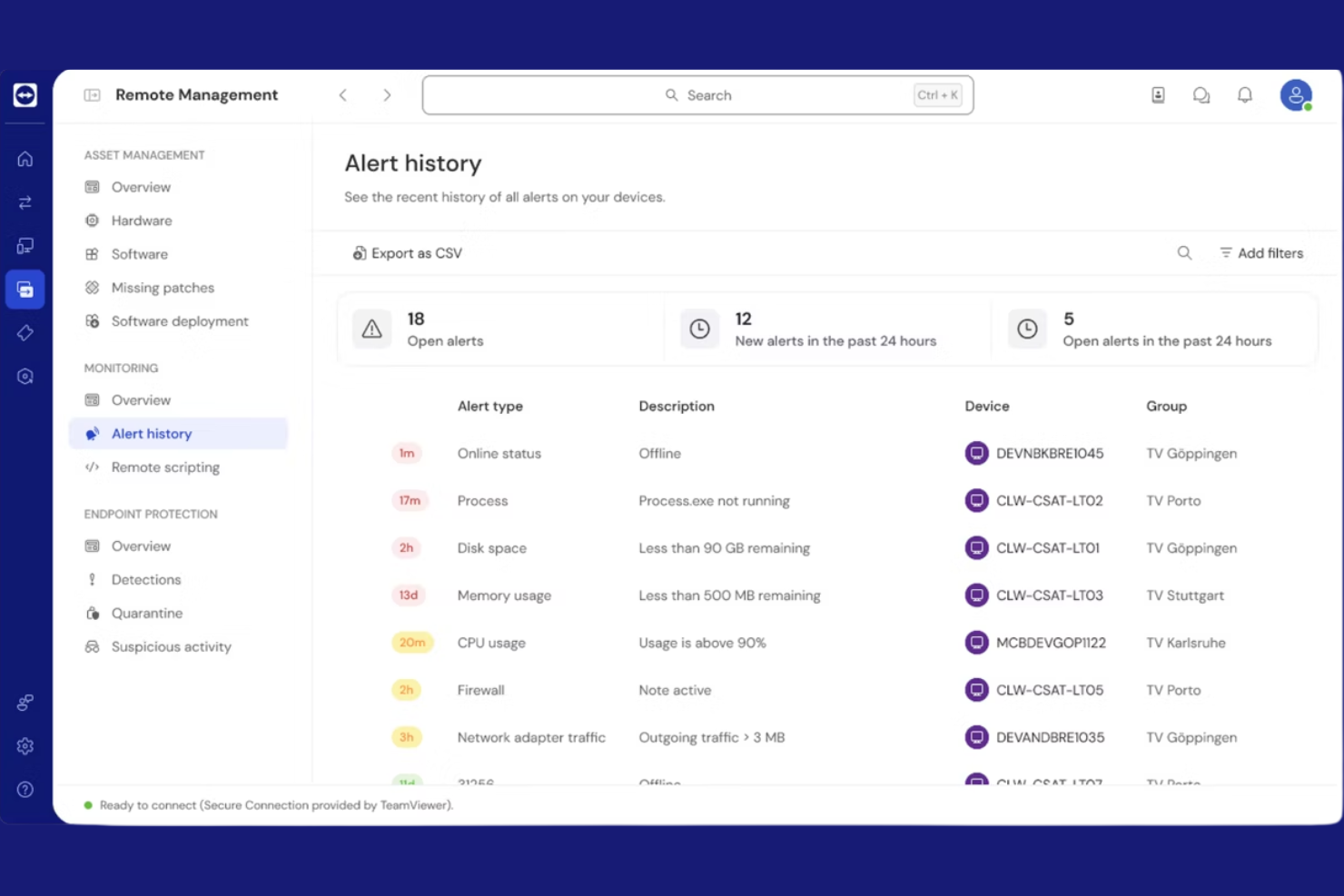
Security-focused organizations often turn to TeamViewer for remote access that meets strict compliance needs. The platform is designed for enterprises and IT teams that require advanced security controls, including granular permissions and end-to-end encryption. If you need to support remote work or manage distributed infrastructure without compromising on security standards, TeamViewer offers options that go beyond what most remote access tools provide.
Why TeamViewer Is a Good GoToMyPC Alternative
For organizations that need to prioritize security above all else, TeamViewer offers enterprise-grade options that set it apart from most remote access tools. I picked TeamViewer because it provides end-to-end encryption, granular access controls, and device authentication, which are essential for businesses with strict compliance requirements.
The platform also supports advanced logging and audit trails, so IT teams can monitor and document every remote session. These features make TeamViewer a strong choice for anyone who can’t compromise on security when enabling remote access.
TeamViewer Key Features
Some other features in TeamViewer help support a wide range of remote access needs:
- Multi-platform support: Connect between Windows, macOS, Linux, ChromeOS, iOS, and Android devices.
- Remote printing: Print documents from remote computers directly to your local printer.
- Wake-on-LAN: Power on remote devices that are turned off or in sleep mode.
- File transfer: Move files securely between local and remote devices during a session.
TeamViewer Integrations
Integrations include Salesforce, Microsoft Dynamics 365, SAP, Oracle NetSuite, ServiceNow, Jira, Zendesk, Freshworks, and more.
Pros and Cons
Pros:
- Multi-user collaboration allows teams to troubleshoot issues together
- Detailed session logs and audit trails support compliance monitoring
- End-to-end encryption secures all remote sessions and data transfers
Cons:
- Connection stability may vary on unreliable internet networks
- Commercial use detection can interrupt legitimate business sessions
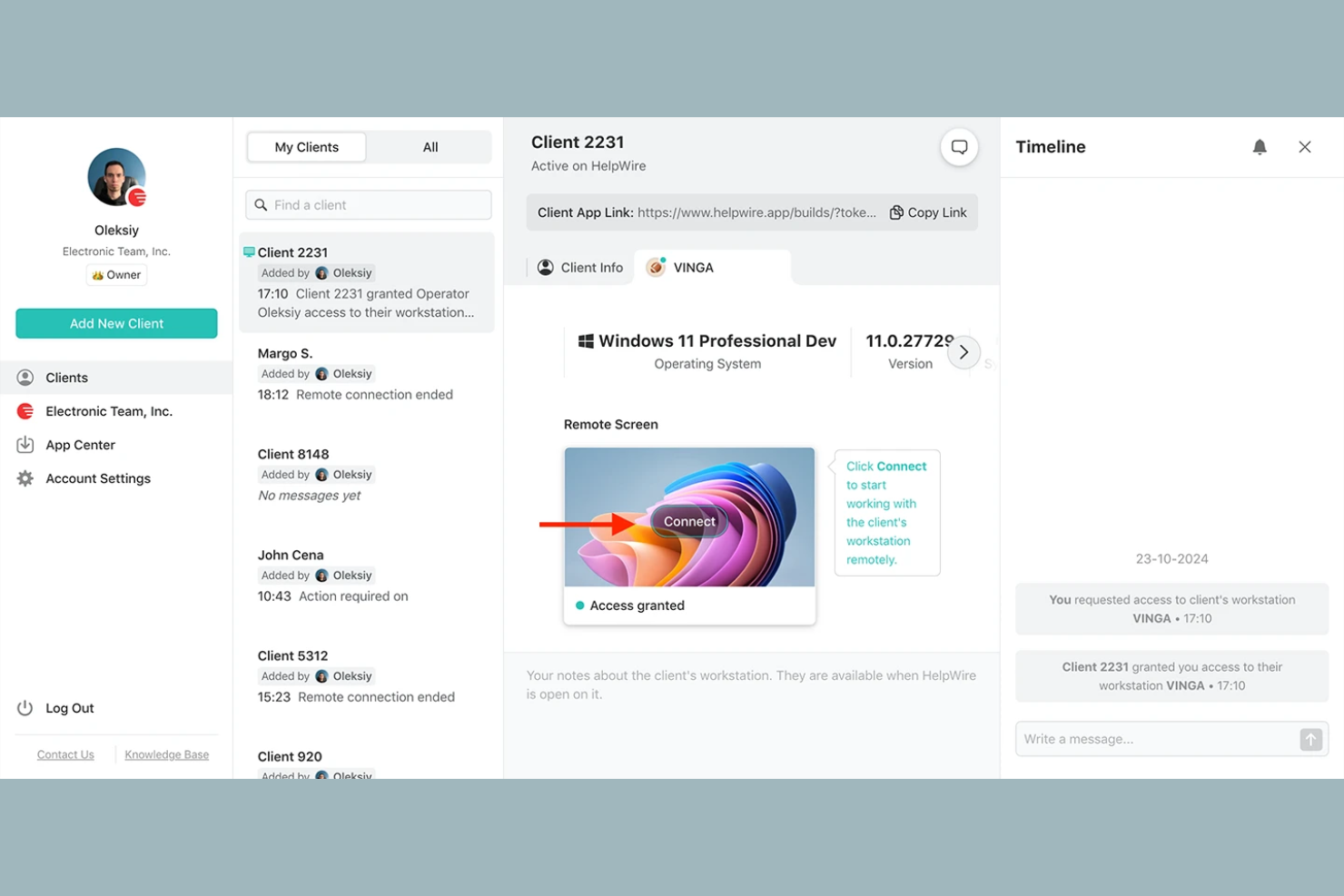
If you need to access and control remote USB devices as part of your support or IT operations, HelpWire is designed for that specific challenge. This tool is especially useful for businesses that rely on specialized hardware—like medical devices, industrial equipment, or point-of-sale peripherals—that can’t be managed with standard remote desktop tools.
Unlike GoToMyPC, HelpWire lets you redirect USB devices over the network, so you can work with remote hardware as if it’s plugged in locally.
Why HelpWire Is a Good GoToMyPC Alternative
Unlike most remote access tools, HelpWire is built specifically for redirecting USB devices over the network. I picked HelpWire because it lets you work with remote USB hardware—like scanners, card readers, or lab equipment—as if it’s physically connected to your local machine.
The software supports secure, encrypted connections and works across Windows and Mac environments. This makes it a strong choice for IT teams or support staff who need to troubleshoot or manage specialized hardware remotely, something GoToMyPC doesn’t address.
HelpWire Key Features
Some other features in HelpWire help round out its remote access capabilities:
- Session management dashboard: View and manage all active and past remote sessions from a central interface.
- Multi-user support: Allow multiple technicians to connect to and collaborate on the same remote session.
- Role-based access control: Assign different permissions to users based on their roles within your organization.
- Session logging: Automatically record session details for auditing and compliance purposes.
HelpWire Integrations
Integrations are not currently publicly listed.
Pros and Cons
Pros:
- Role-based permissions help manage technician access and responsibilities
- The session management dashboard provides visibility across active connections
- USB device redirection allows remote access to specialized hardware
Cons:
- Public documentation and learning resources are limited
- Mobile device access is not available for remote sessions

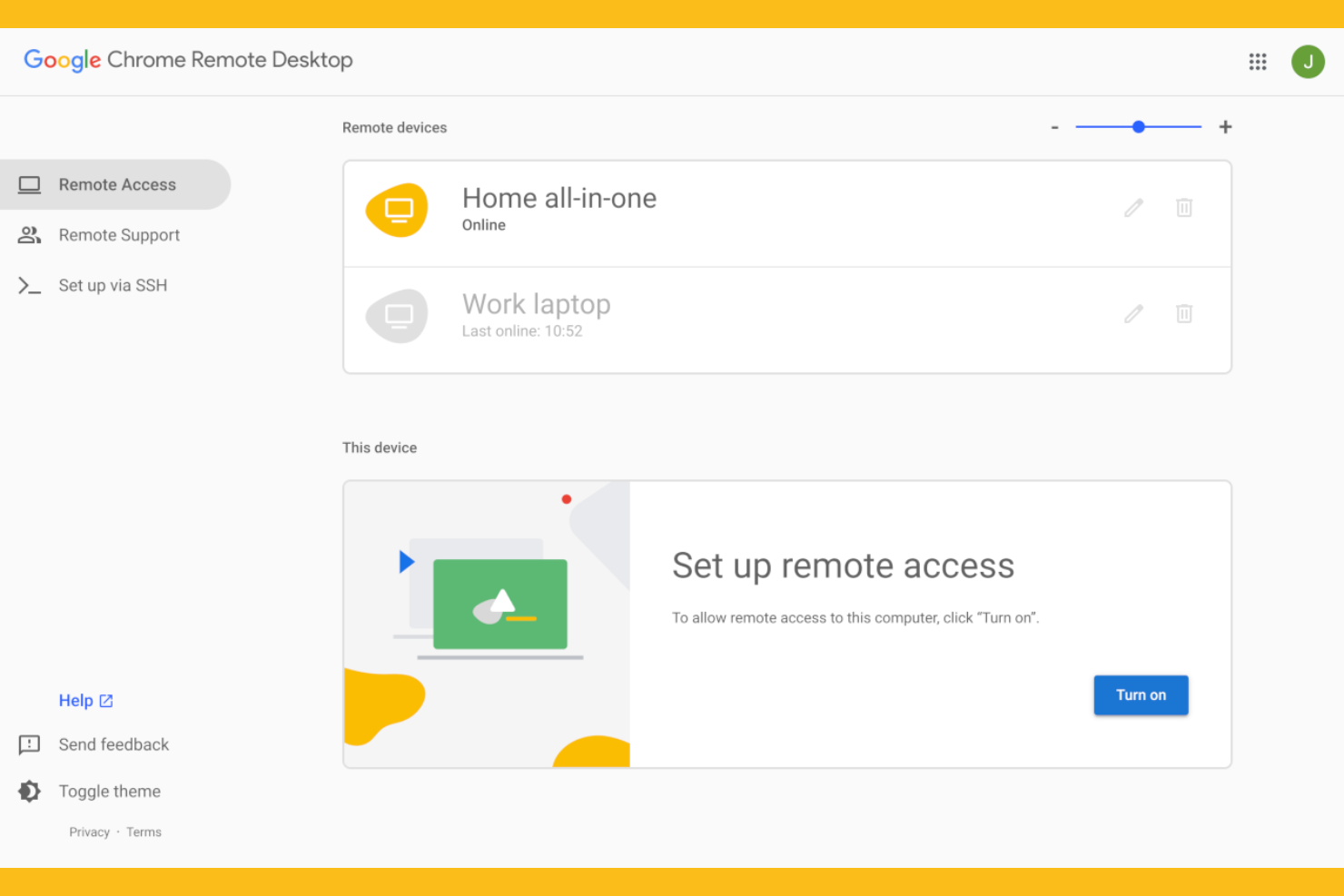
If you need remote access that works instantly from any browser, Chrome Remote Desktop is a strong option. This tool appeals to IT specialists and support teams who want a no-install, browser-based solution for quick troubleshooting or remote work. Unlike GoToMyPC, Chrome Remote Desktop runs entirely in the browser and doesn’t require extra software or complex setup.
Why Chrome Remote Desktop Is a Good GoToMyPC Alternative
For teams that want remote access without installing extra software, Chrome Remote Desktop offers instant, browser-based connections. I picked this tool because you can launch a session directly from any Chrome browser, making it ideal for quick support or remote work on the fly.
The platform supports both one-time and persistent access, so you can handle ad-hoc troubleshooting or set up ongoing remote connections. This approach is especially useful for IT specialists who need a fast, lightweight solution that works across devices.
Chrome Remote Desktop Key Features
Some other features in Chrome Remote Desktop help support a range of remote access needs:
- Clipboard synchronization: Copy and paste text between local and remote devices during a session.
- Multi-monitor support: View and control multiple monitors connected to the remote device.
- Session PIN codes: Secure each remote session with a unique PIN for added protection.
- Mobile device access: Connect to remote computers from Android and iOS devices using the mobile app.
Chrome Remote Desktop Integrations
Integrations include Google Drive, Google Calendar, Google Meet, Google Workspace, Google Sheets, Google Docs, Google Slides, Google Photos, Gmail, and YouTube.
Pros and Cons
Pros:
- Mobile apps enable remote connections from smartphones and tablets
- Cross-platform access supports Windows, macOS, Linux, and ChromeOS devices
- Browser-based remote desktop software works without installing additional applications
Cons:
- Centralized management tools are limited for large teams
- File transfer between local and remote devices is not supported

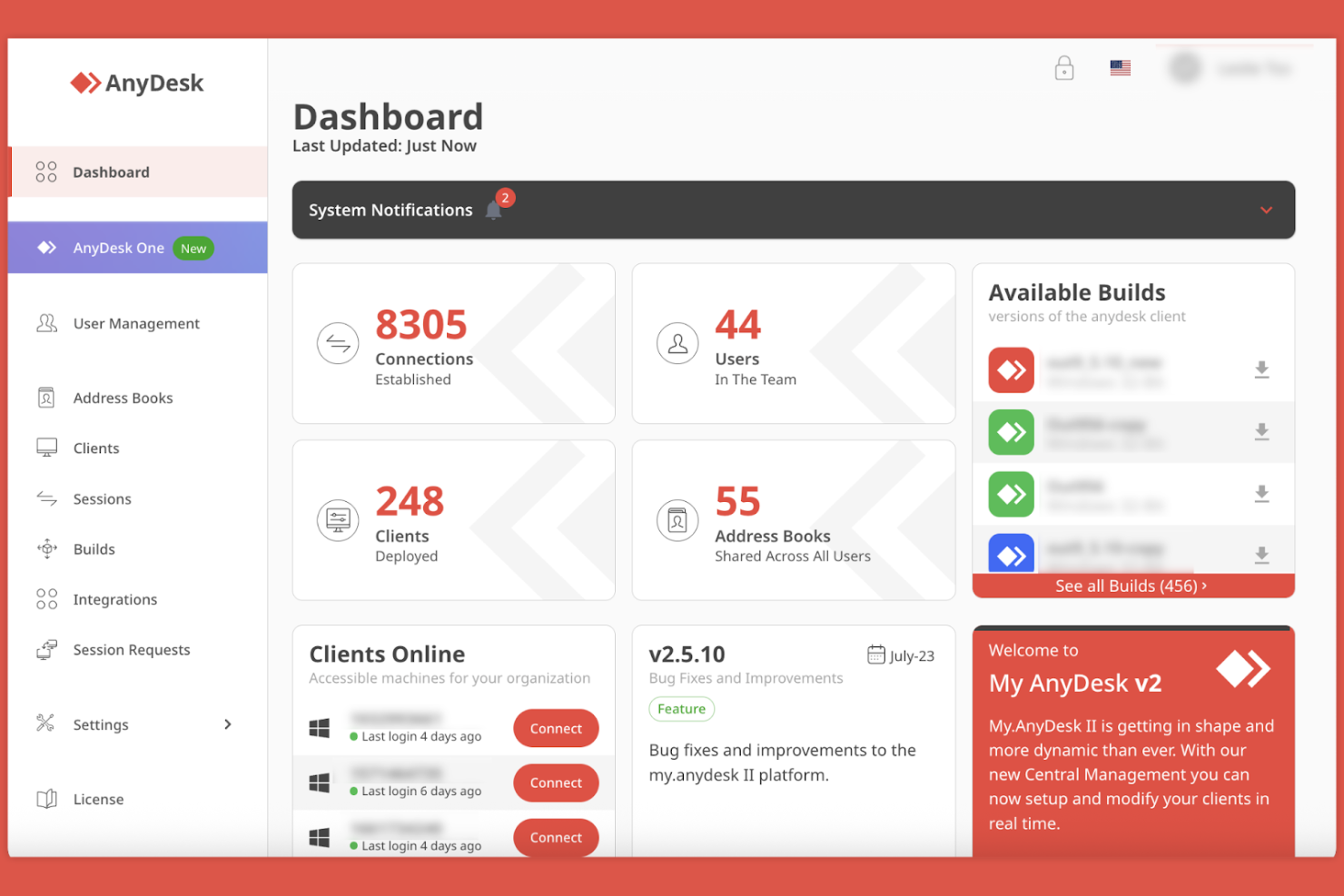
IT teams and support professionals who need fast, responsive remote control often choose AnyDesk for its low-latency performance. The platform is built for scenarios where real-time interaction matters, like troubleshooting, live support, or remote collaboration. If you’re looking for a remote access tool that minimizes lag and keeps sessions smooth, AnyDesk stands out from GoToMyPC and similar solutions.
Why AnyDesk Is a Good GoToMyPC Alternative
When low-latency remote control is your top priority, AnyDesk delivers a noticeably smoother experience than many other remote access tools. I picked AnyDesk because its proprietary DeskRT codec is designed to keep visual data crisp and responsive, even on slower connections.
The platform also supports high frame rates and low bandwidth usage, which helps maintain real-time interaction during remote sessions. These features make AnyDesk a strong choice for IT teams and support professionals who can’t afford lag or delays.
AnyDesk Key Features
Some other features in AnyDesk help support a variety of remote access scenarios:
- Unattended access: Set up devices for remote connections without requiring someone on the other end.
- Session recording: Record remote sessions for auditing, training, or compliance purposes.
- Remote printing: Print documents from a remote device directly to your local printer.
- Multi-platform compatibility: Connect between Windows, macOS, Linux, Android, and iOS devices.
AnyDesk Integrations
Integrations include support for Windows, macOS, Linux, Android, iOS, and more.
Pros and Cons
Pros:
- Unattended access allows persistent connections to remote devices
- Cross-platform support works across Windows, macOS, Linux, Android, and iOS
- Low-latency performance keeps remote control responsive on slower networks
Cons:
- Customer support response times may vary during peak demand
- Compatibility issues may occur with certain antivirus configurations

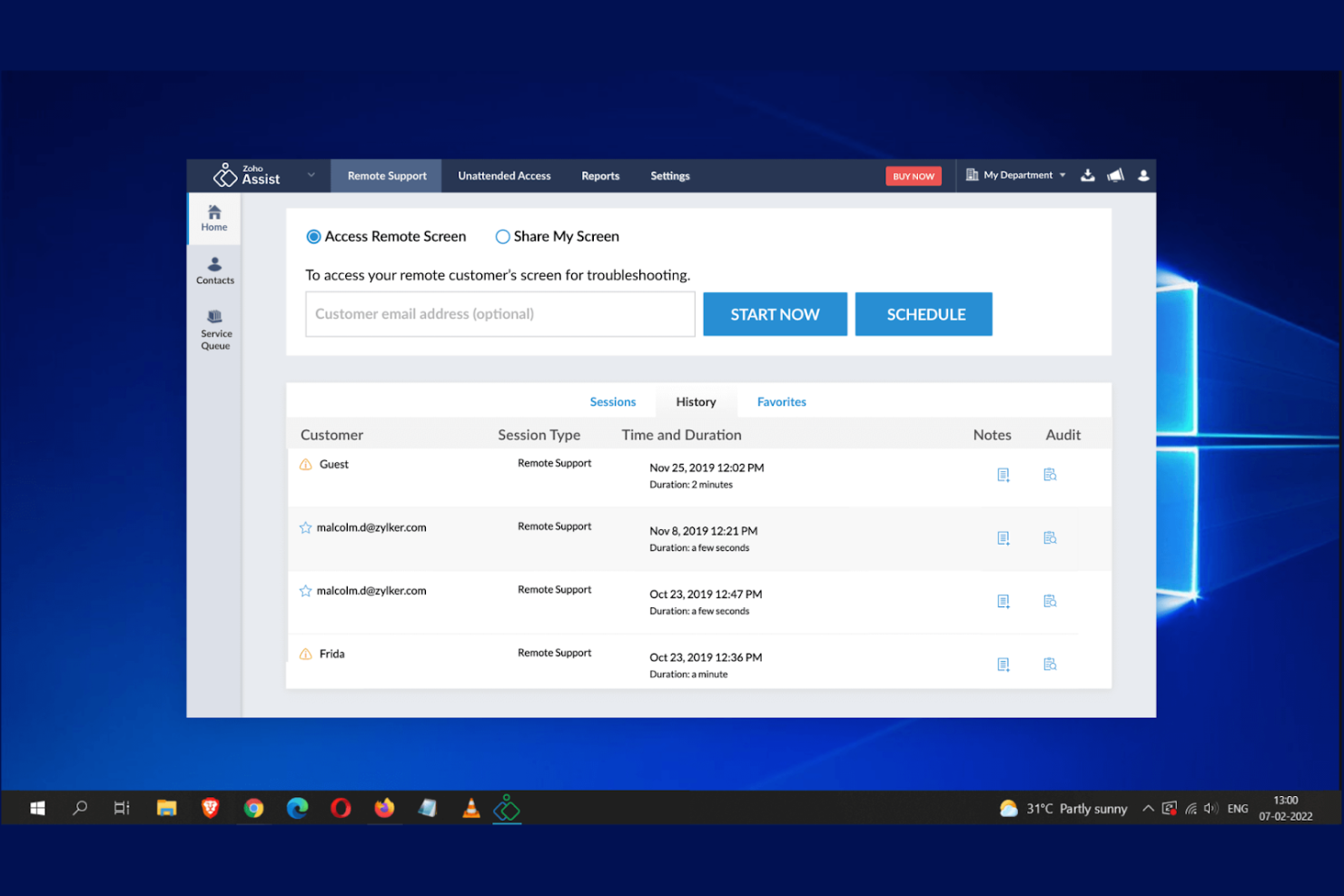
IT teams managing large fleets of unattended devices often look to Zoho Assist for its specialized remote management features. This tool is especially useful for MSPs, help desks, and organizations that need to access and maintain devices without user intervention. Unlike GoToMyPC, Zoho Assist offers robust unattended access controls and device grouping to simplify large-scale remote support.
Why Zoho Assist Is a Good GoToMyPC Alternative
For IT teams that need to manage devices without user presence, Zoho Assist stands out for its unattended device management capabilities. I picked this tool because it lets you deploy unattended access agents in bulk and organize devices into groups for easier oversight.
Zoho Assist also provides remote power options, so you can reboot or shut down machines even when no one is on-site. These features make it a strong fit for organizations supporting distributed endpoints or remote offices.
Zoho Assist Key Features
Some other features in Zoho Assist help support a wide range of remote troubleshooting needs:
- Custom branding: Add your organization’s logo and colors to the remote session interface.
- File transfer: Move files securely between local and remote devices during a session.
- Session recording: Record remote sessions for auditing or training purposes.
- Multi-monitor navigation: Switch between and control multiple monitors connected to a remote device.
Zoho Assist Integrations
Integrations include Zendesk, ServiceNow, Jira, Freshdesk, Spiceworks, Zoho Desk, Zoho SalesIQ, Google Workspace, Slack, and Microsoft Teams.
Pros and Cons
Pros:
- User-friendly interface helps support teams start remote sessions quickly
- Device grouping simplifies oversight of large fleets of computers
- Unattended access lets technicians manage remote devices without user presence
Cons:
- Advanced configuration options may require time for new users to learn
- Session performance can slow when internet connections are unstable

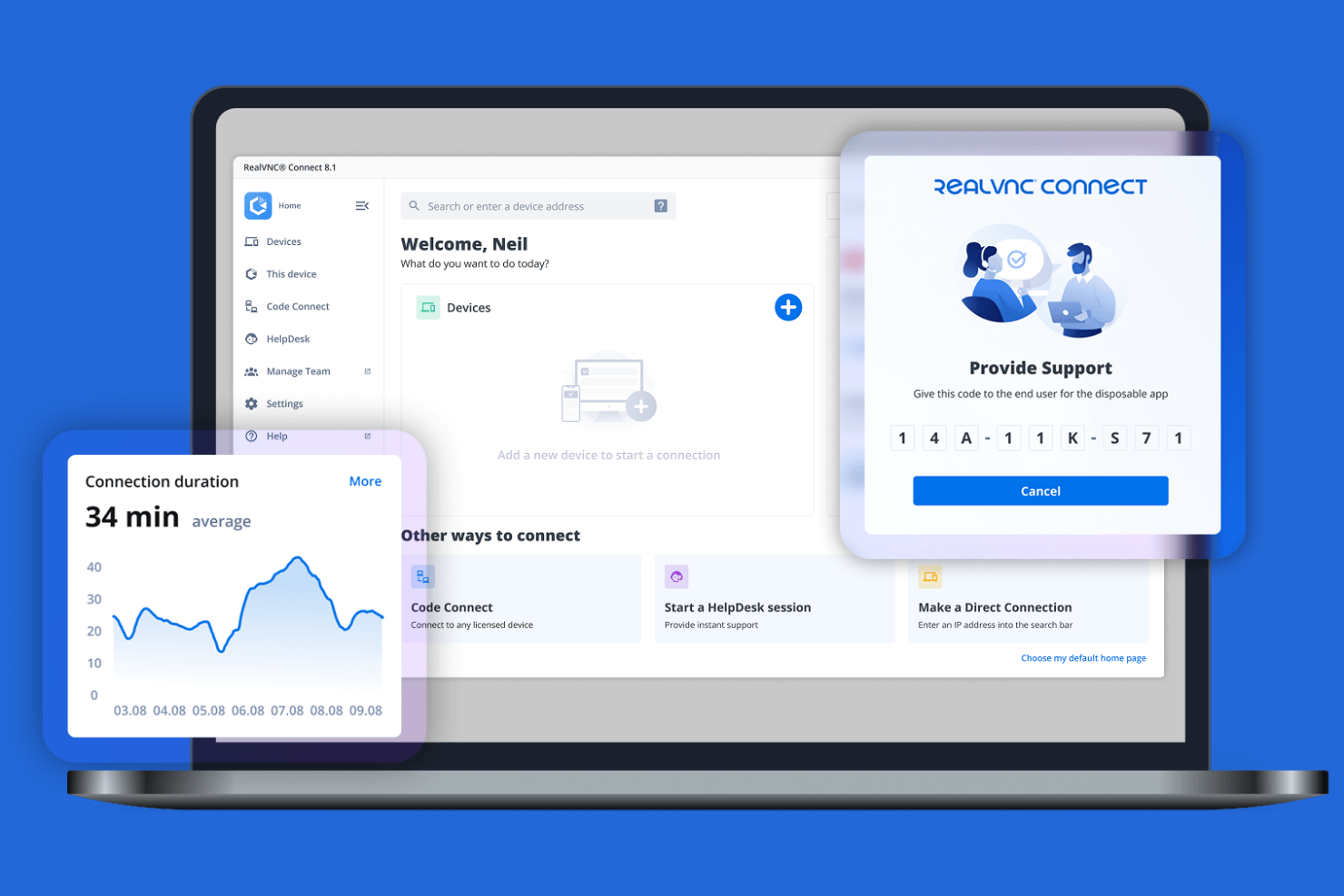
Security-focused IT teams often turn to RealVNC for its advanced encryption across multiple platforms. This tool is a strong fit for organizations that need to support remote access in mixed operating system environments while maintaining strict data protection standards. Unlike GoToMyPC, RealVNC emphasizes cross-platform compatibility and customizable encryption settings for sensitive or regulated industries.
Why RealVNC Is a Good GoToMyPC Alternative
If you need remote access with strong encryption across different operating systems, RealVNC is worth considering. I picked this tool because it supports end-to-end encryption for sessions on Windows, macOS, and Linux, which is essential for teams handling sensitive data.
RealVNC also lets you configure encryption levels to meet your organization’s compliance or security requirements. This makes it a practical choice for IT specialists who need to balance flexibility with strict data protection.
RealVNC Key Features
Some other features in RealVNC help address a range of remote access scenarios:
- Session recording: Capture and store remote access sessions for auditing or compliance purposes.
- Role-based access control: Assign permissions to users based on their roles within your organization.
- File transfer: Move files securely between local and remote devices during a session.
- Multi-factor authentication: Add an extra layer of security to user logins with MFA options.
RealVNC Integrations
Integrations include Acronis, InvGate Asset Management, Okta, Microsoft Entra ID, and RealVNC OEM deployments, with support for Linux and other major operating systems.
Pros and Cons
Pros:
- Session recording supports compliance and activity tracking
- Multi-factor authentication strengthens account security and access control
- End-to-end encryption protects remote sessions across multiple operating systems
Cons:
- No built-in messaging tools for communication during remote sessions
- Performance may slow on low-bandwidth connections

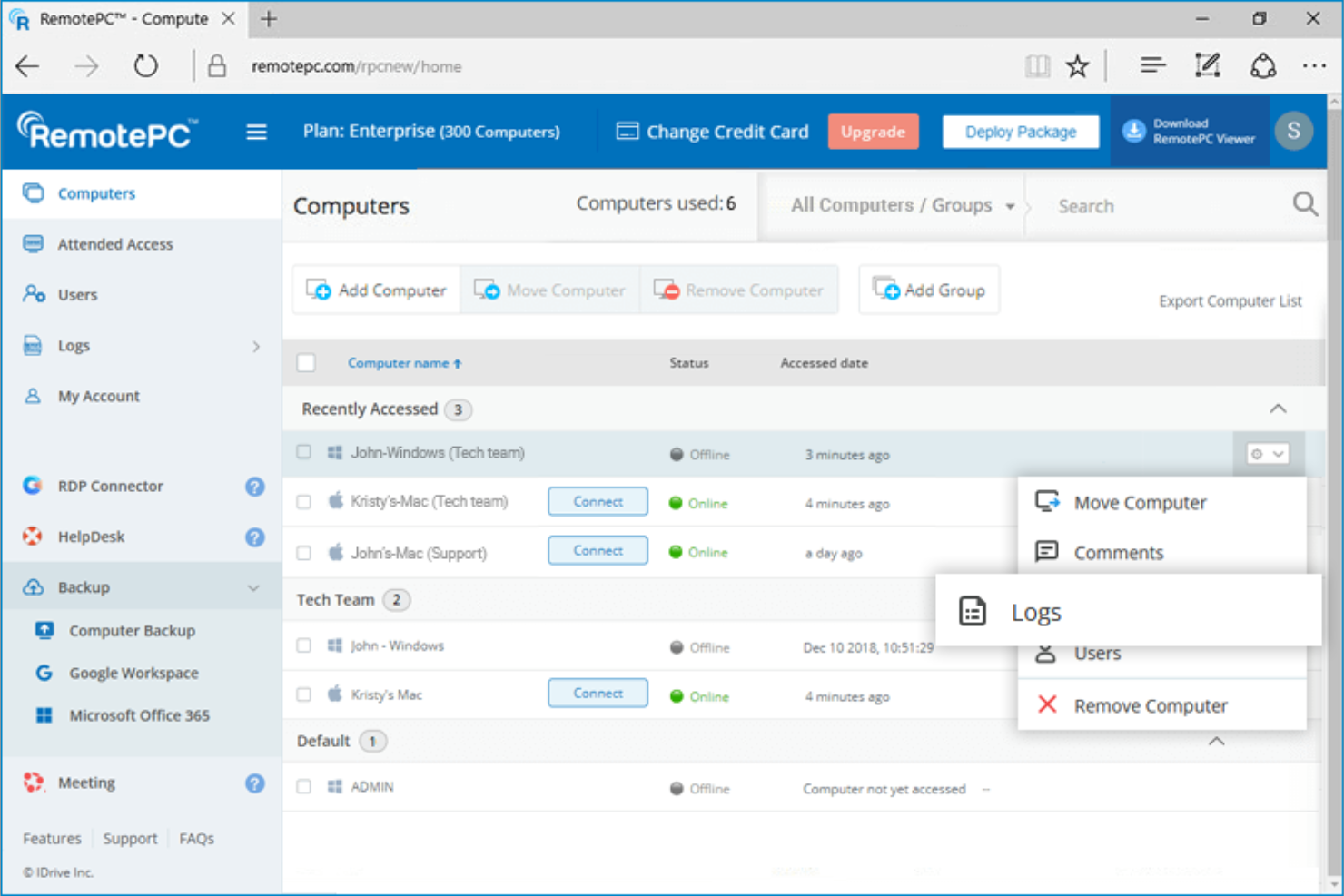
RemotePC is a strong choice for IT teams and businesses that need to support a mix of operating systems and devices. Its cross-platform compatibility covers Windows, macOS, Linux, iOS, and Android, making it easier to manage diverse environments. If you’re looking for a remote access tool that works reliably across desktops, laptops, and mobile devices, RemotePC addresses compatibility challenges that many other solutions don’t.
Why RemotePC Is a Good GoToMyPC Alternative
Unlike many remote access tools that focus on a single operating system, RemotePC is built for teams that need true multi-platform compatibility. I picked RemotePC because it lets you connect between Windows, macOS, Linux, iOS, and Android devices without extra configuration or workarounds.
The tool also supports remote access from web browsers, so you’re not limited by device or location. This flexibility is especially useful for IT teams managing mixed environments or supporting users with a variety of hardware.
RemotePC Key Features
Some other features in RemotePC help round out its remote access capabilities:
- Always-on remote access: Set up persistent connections to computers for unattended access at any time.
- File transfer: Move files between local and remote devices during a session without extra tools.
- Remote printing: Print documents from the remote computer directly to your local printer.
- Session recording: Capture and save remote sessions for auditing, training, or compliance needs.
RemotePC Integrations
Integrations include Zendesk, Freshdesk, Freshservice, JIRA, OneLogin, Okta, Azure AD, Keycloak, G Suite, and Jamf.
Pros and Cons
Pros:
- Web-based access enables remote sessions without installing desktop software
- Always-on remote access allows unattended connections to computers and servers
- Multi-platform compatibility across Windows, macOS, Linux, iOS, and Android
Cons:
- Mobile applications offer fewer capabilities than desktop versions
- Remote audio streaming may be inconsistent on some operating systems

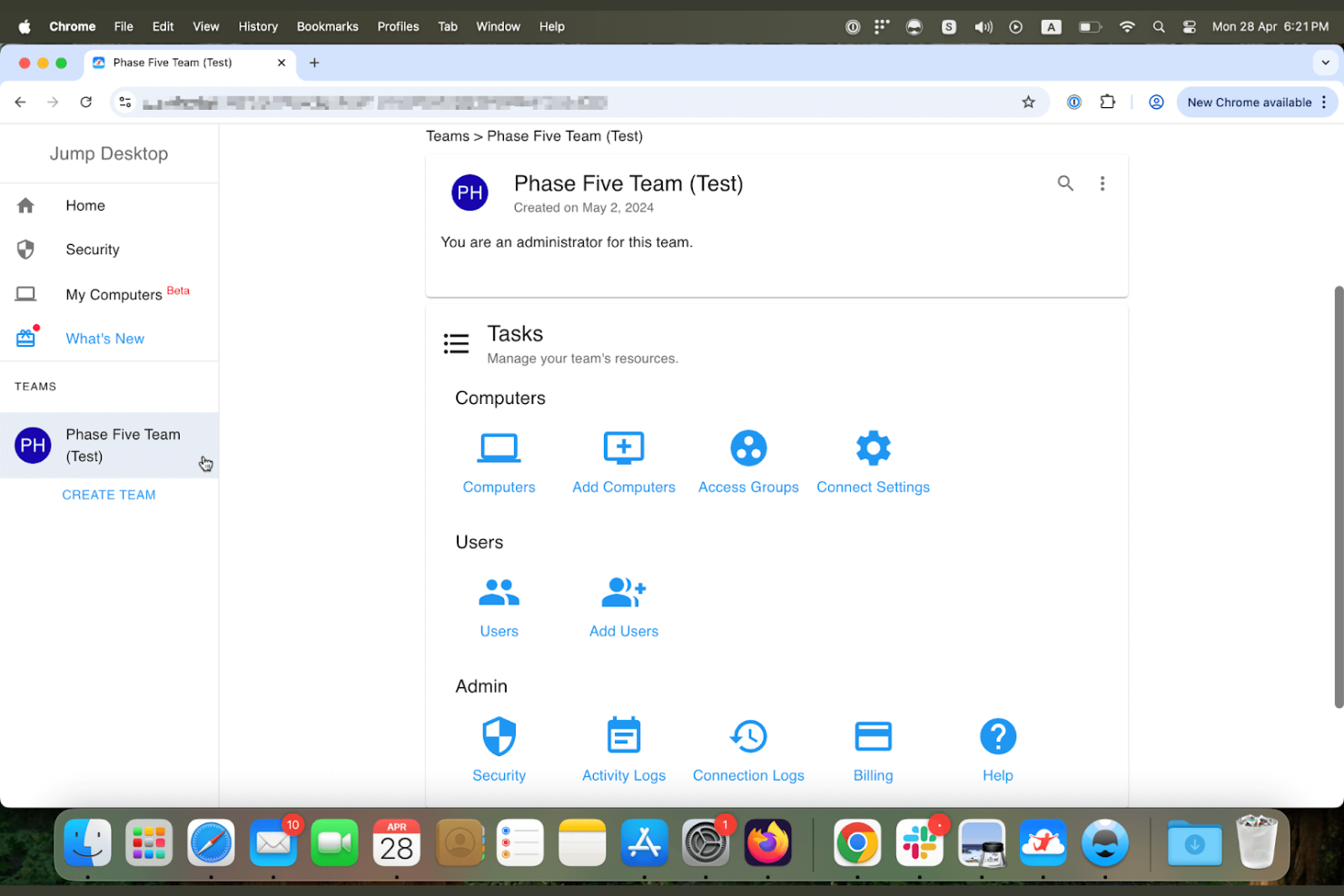
Jump Desktop stands out for teams and professionals who need smooth multi-monitor remote access across Mac, Windows, and iOS devices. If you work with complex setups or need to control several screens at once, this tool makes switching and managing displays feel natural. Unlike GoToMyPC, Jump Desktop’s multi-monitor support is designed for fluid transitions and high-performance workflows.
Why Jump Desktop Is a Good GoToMyPC Alternative
If you need remote access that handles multiple monitors as smoothly as working in person, Jump Desktop is worth considering. I picked this tool because it lets you view and control several screens at once, with easy switching between displays and full keyboard and mouse support across all monitors. Its Fluid Remote Desktop protocol is optimized for high performance, even on complex multi-monitor setups. This makes Jump Desktop especially useful for IT specialists, designers, and anyone who relies on multi-screen workflows.
Jump Desktop Key Features
Some other features in Jump Desktop help support a variety of remote access needs:
- End-to-end encryption: All remote sessions are protected with strong encryption for data privacy.
- Remote audio streaming: Listen to audio from the remote device directly on your local machine.
- Clipboard sharing: Copy and paste text and images between local and remote devices.
- Remote wake (Wake-on-LAN): Power on remote computers from anywhere when needed.
Jump Desktop Integrations
Integrations include Windows, Mac Os, iOS, Android, Linux, and web browser access. You can also connect with their app Jump Desktop for Teams through their Cloud API.
Pros and Cons
Pros:
- End-to-end encryption protects data during remote connections
- Remote audio streaming delivers sound from remote devices during sessions
- Fluid multi-monitor support allows seamless switching across multiple displays
Cons:
- No built-in chat feature for communication during remote sessions
- Linux support is more limited than Windows and macOS environments

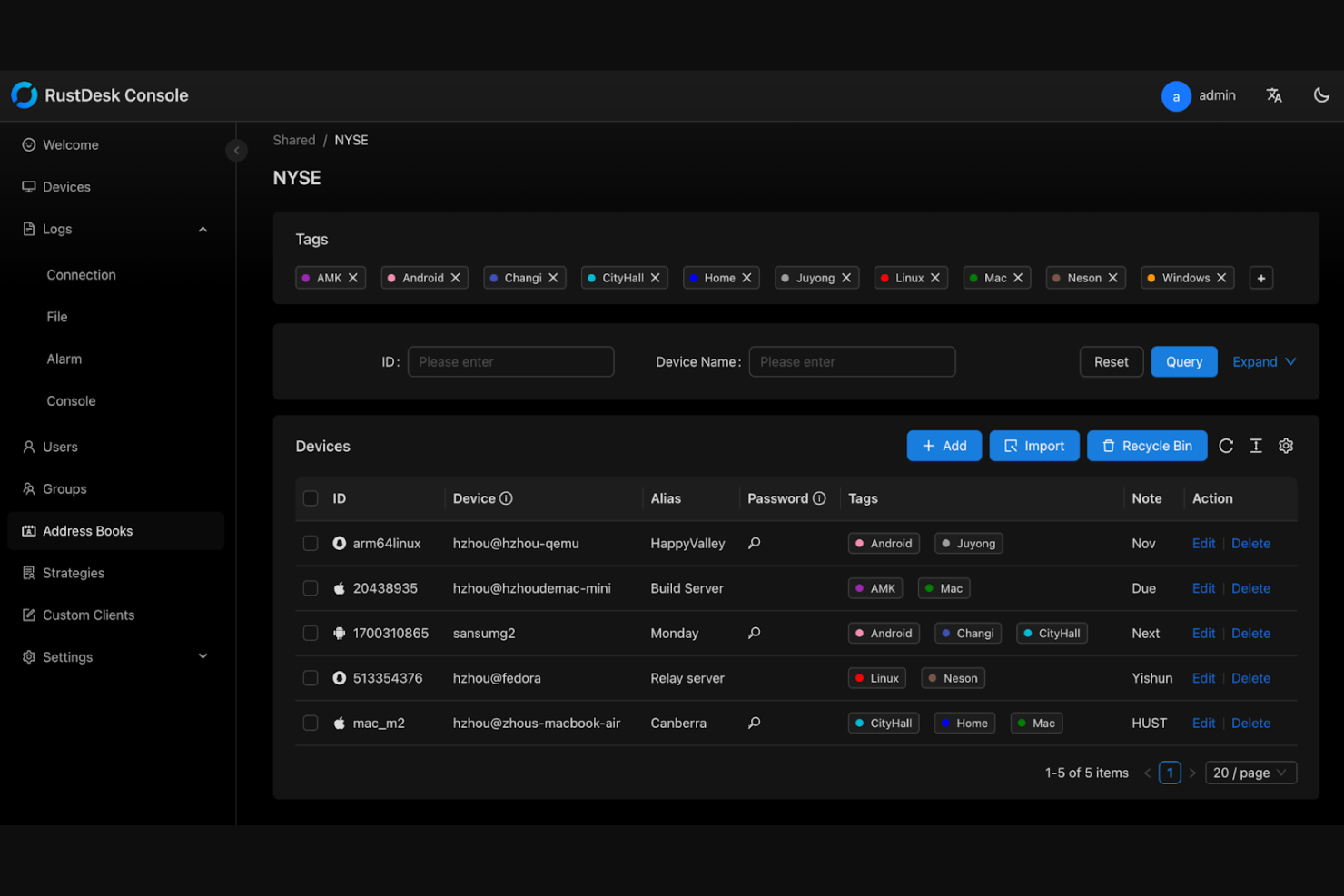
For IT teams and organizations that need full control over their remote access infrastructure, RustDesk offers a self-hosted alternative to cloud-based solutions. This tool is especially useful for businesses with strict data privacy, compliance, or network requirements. Unlike GoToMyPC, RustDesk lets you deploy and manage your own remote desktop server, giving you flexibility over security and configuration.
Why RustDesk Is a Good GoToMyPC Alternative
For teams that need to host their own remote access infrastructure, RustDesk stands out as a flexible option. I picked RustDesk because it lets you deploy your own server, so you can keep all remote session data within your own network and meet strict compliance or privacy requirements.
The tool supports cross-platform access, including Windows, Mac, Linux, Android, and iOS, which is helpful for mixed-device environments. RustDesk also gives you control over encryption keys and network routing, which is something you won’t find with most cloud-based remote access tools.
RustDesk Key Features
Some other features in RustDesk help support a range of remote access scenarios:
- File transfer: Move files between local and remote devices during a session.
- Session recording: Record remote sessions for auditing or training purposes.
- Multi-user support: Allow multiple users to connect to the same remote device.
- Clipboard synchronization: Copy and paste text and images between devices.
RustDesk Integrations
Native integrations are not currently listed. An API is available for custom integrations.
Pros and Cons
Pros:
- Cross-platform access supports Windows, Mac, Linux, Android, and iOS
- Open-source codebase enables transparency and customization
- Self-hosted deployment gives organizations full control of remote infrastructure
Cons:
- Mobile applications offer fewer features than desktop versions
- Documentation and support resources are limited compared to commercial tools
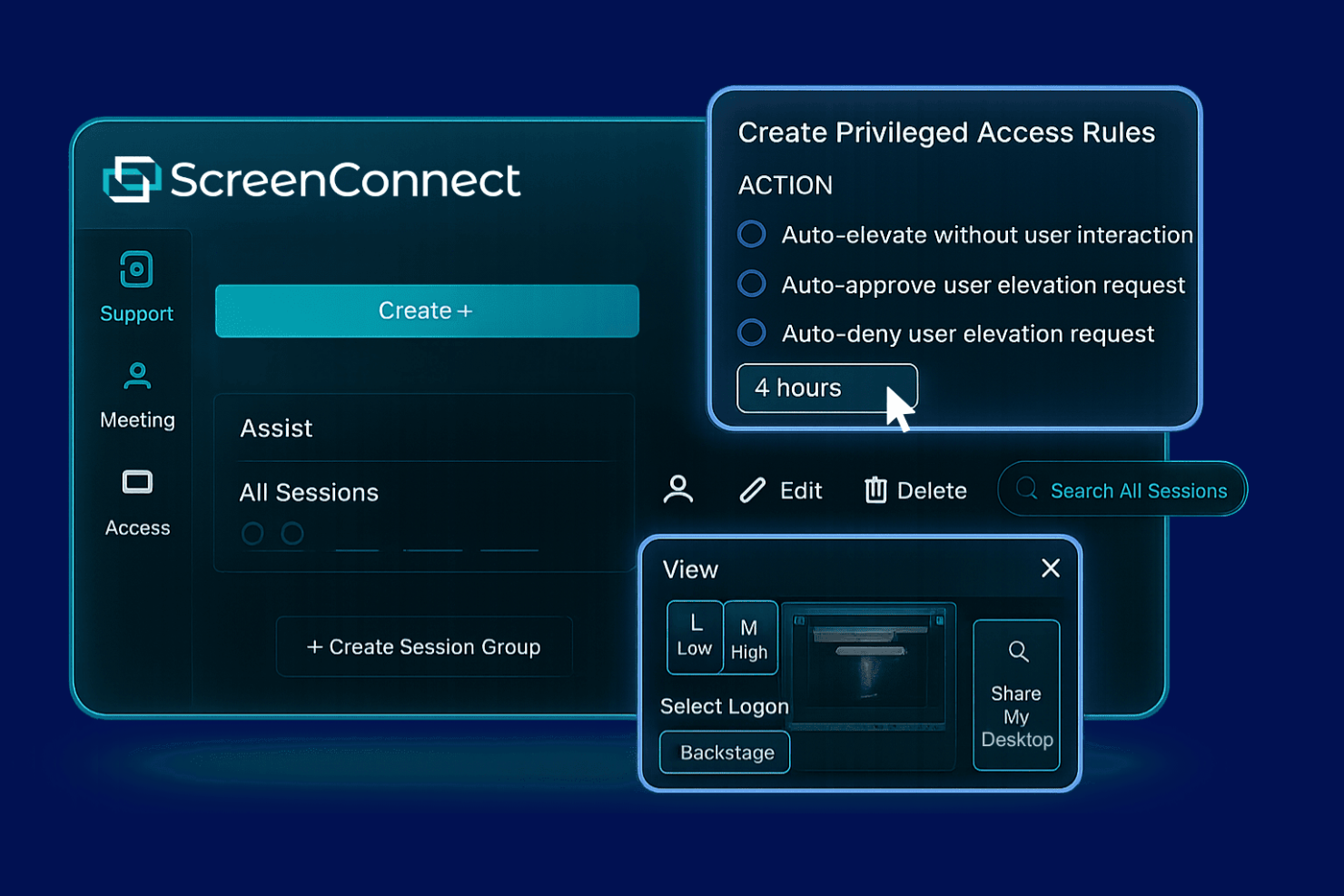
ScreenConnect gives IT teams and MSPs a way to deliver remote support while fully customizing the user experience. If your business needs to match remote access portals and session interfaces to your own brand, this tool offers extensive white-labeling options. Unlike GoToMyPC, ScreenConnect lets you tailor everything from logos to color schemes and even custom session invitations.
Why ScreenConnect Is a Good GoToMyPC Alternative
For organizations that want their remote access solution to reflect their own brand, ScreenConnect offers customization options that GoToMyPC doesn’t match. I picked this tool because you can white-label the entire remote support experience, from the web portal to the session interface.
ScreenConnect lets you upload your own logos, set custom color schemes, and even personalize session invitations. This level of branding control is especially useful for MSPs and IT providers who want a consistent, professional look for clients.
ScreenConnect Key Features
In addition to its core capabilities, ScreenConnect offers several other useful features for comprehensive endpoint management:
- Patch Management: Automates the deployment of patches for operating systems and third-party applications to keep endpoints secure and up to date.
- Software Deployment: Enables remote installation, update, and uninstallation of software across multiple devices from a centralized console.
- Asset Management: Provides detailed hardware and software inventory reports to help track and manage IT assets efficiently.
- Remote Control: Allows IT administrators to remotely access and troubleshoot endpoints to resolve issues quickly without disrupting users.
ScreenConnect Integrations
Integrations include ServiceNow, Acronis, ConnectWise RMM, ConnectWise PSA, Freshdesk, SolarWinds Passportal, and Zendesk.
Pros and Cons
Pros:
- Session recording supports auditing and quality monitoring
- Role-based permissions help manage technician and user access levels
- Custom branding options enable white-labeled remote access portals
Cons:
- User interface updates occur less frequently than other tools
- Mobile device support is less advanced than that of some competitors

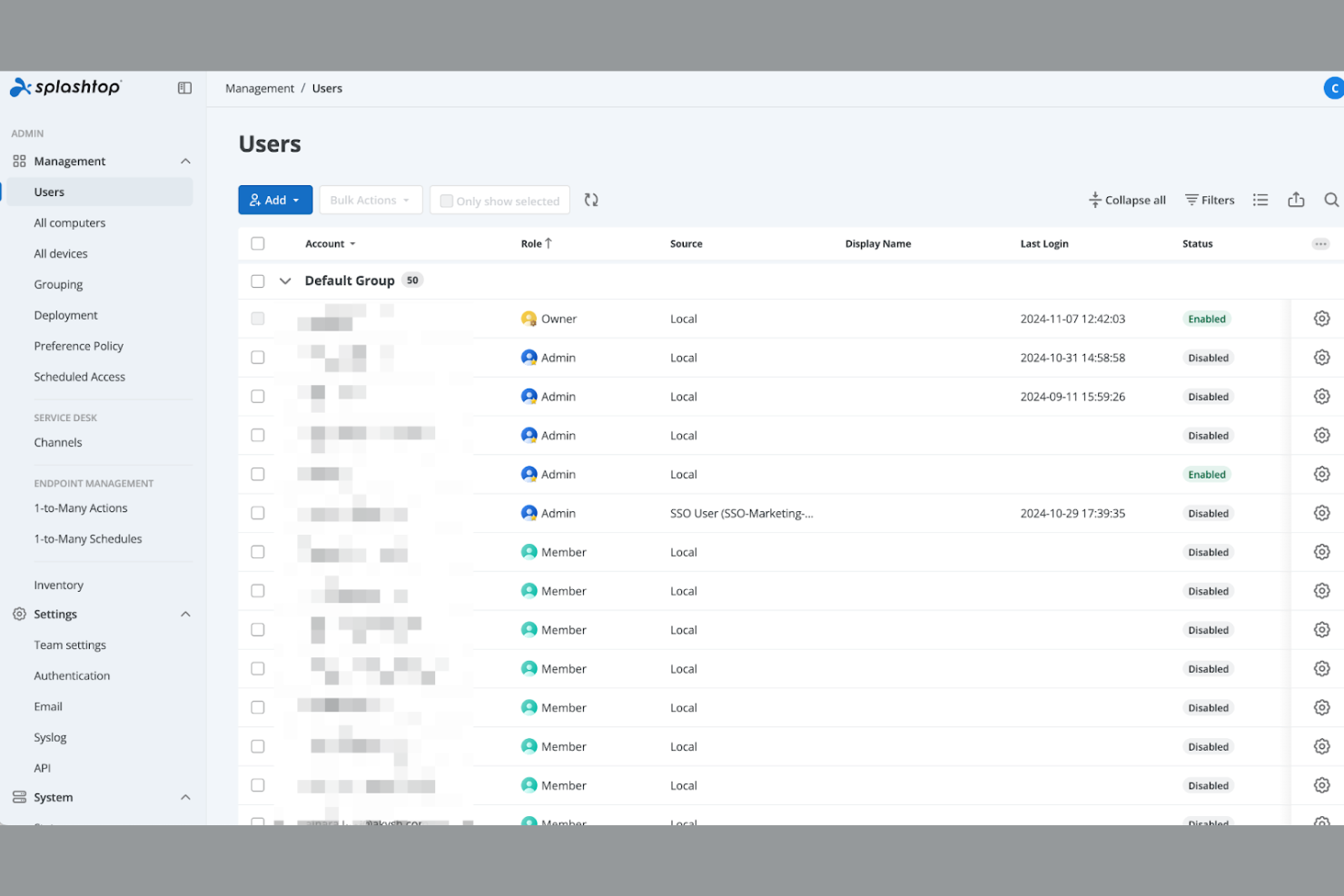
Splashtop is designed for IT teams and professionals who need fast, high-quality remote desktop sessions. It stands out for its ability to deliver smooth video and audio streaming, even over lower bandwidth connections. If you’re supporting creative workstations, remote labs, or need reliable access to resource-intensive applications, Splashtop offers performance that many other remote access tools can’t match.
Why Splashtop Is a Good GoToMyPC Alternative
Splashtop stands out for its high-performance remote sessions, which is a key advantage over GoToMyPC for users who need smooth, real-time access. I picked Splashtop because it supports 4K streaming at up to 60 frames per second and offers low-latency connections, even on demanding networks.
The tool also provides hardware acceleration and optimized audio-video sync, making it ideal for remote work involving design, engineering, or media production. These features help IT teams and professionals maintain productivity without sacrificing quality during remote sessions.
Splashtop Key Features
In addition to its core capabilities, Splashtop offers several other useful features:
- Patch Management Automation: Schedule and deploy operating system and third-party application patches across endpoints without manual intervention.
- Remote Control Tools: Access and troubleshoot user devices remotely with built-in screen sharing, file transfer, and chat capabilities.
- Software Deployment: Distribute, install, and uninstall software packages on multiple devices from a centralized console.
- Asset Inventory Tracking: Automatically discover and maintain an up-to-date inventory of hardware and software assets across your network.
Splashtop Integrations
Integrations include Acronis, Addigy, AppTec360, Atera, Bitdefender, Canopy, Datto, Freshdesk, Freshservice, and HaloITSM/HaloPSA.
Pros and Cons
Pros:
- Multi-monitor support enables efficient work across complex workstation setups
- Reliable connections maintain stable performance even on lower bandwidth networks
- High-performance remote sessions support smooth 4K streaming and fast frame rates
Cons:
- Performance can decline when connecting over unstable network conditions
- Advanced functionality may require time for teams to learn and configure

Best for integrated endpoint management
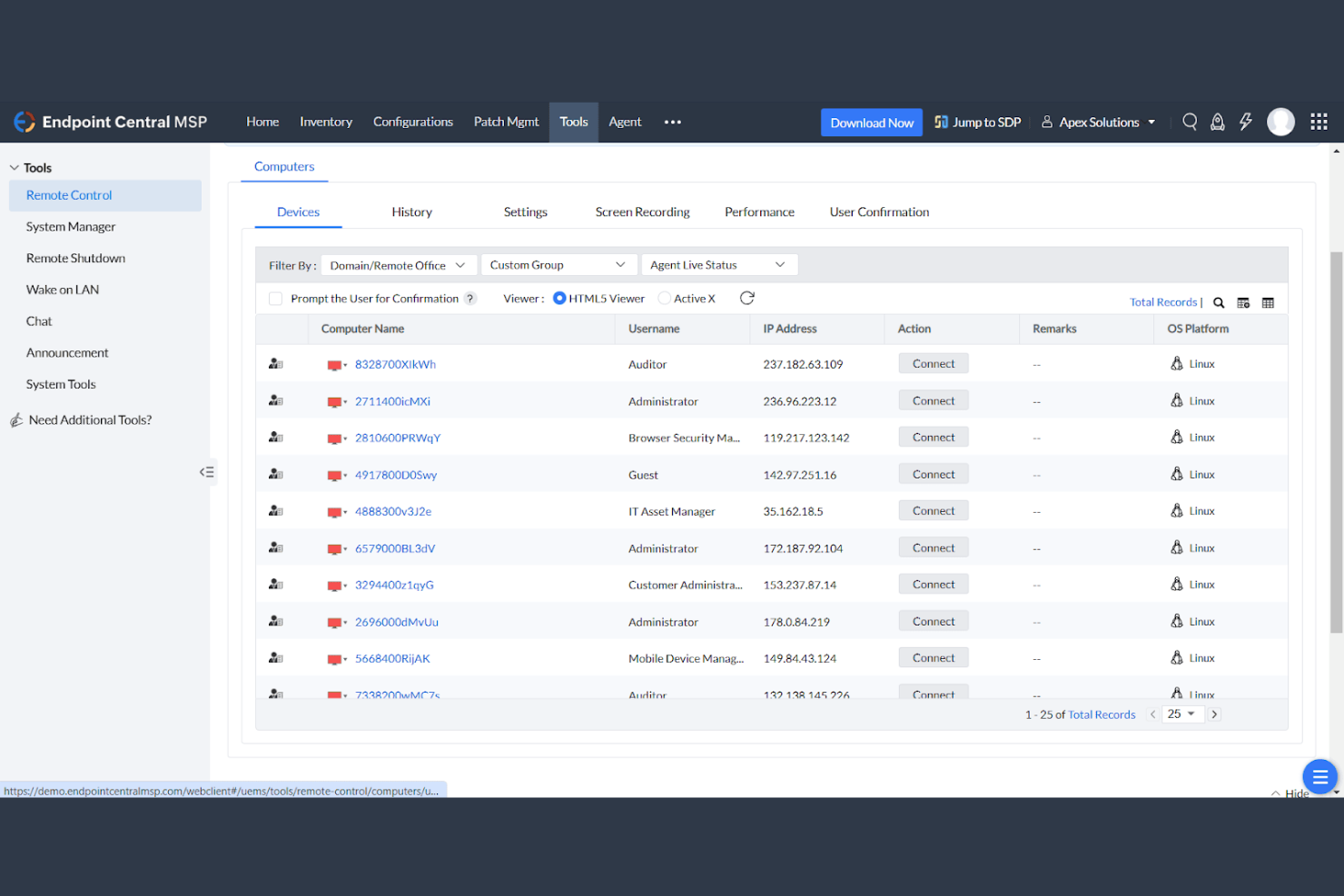
For IT teams looking to manage and secure a wide range of endpoints from a single platform, ManageEngine Endpoint Central brings together remote access, patch management, and device control in one solution.
Unlike GoToMyPC, Endpoint Central offers a unified approach to endpoint management, making it easier to enforce policies and maintain visibility across your entire IT landscape.
Why ManageEngine Endpoint Central Is a Good GoToMyPC Alternative
If you need more than just remote desktop access, ManageEngine Endpoint Central stands out for its integrated endpoint management capabilities. I picked this tool because it combines remote control with patch management, software deployment, and asset tracking, all from a single dashboard.
This tool is especially useful for organizations with mixed device environments—covering Windows, Mac, Linux, and mobile devices—who need to handle everything from software deployment to remote troubleshooting. This unified approach helps IT teams maintain security and compliance while supporting users remotely, something GoToMyPC doesn’t address.
ManageEngine Endpoint Central Key Features
Some other features in Endpoint Central help IT teams cover more ground:
- Automated OS imaging and deployment: Create and deploy operating system images to multiple devices simultaneously.
- Remote file transfer: Move files between local and remote machines during support sessions.
- Power management tools: Schedule shutdowns, restarts, or wake-on-LAN actions across endpoints.
- USB device control: Restrict or allow USB device usage on managed endpoints for security.
ManageEngine Endpoint Central Integrations
Integrations include Tenable, Splunk, CrowdStrike, Rapid7, ServiceDesk Plus, Jira Service Management, Zendesk, ServiceNow, Analytics Plus, and OS Deployer.
Pros and Cons
Pros:
- Detailed reporting provides visibility into device health and compliance
- Automated patch management helps keep systems updated across large environments
- Unified platform combines remote control with endpoint administration tools
Cons:
- Interface complexity may overwhelm teams focused only on remote support
- Initial deployment and configuration can require significant setup effort
Other GoToMyPC Alternatives
Here are some additional GoToMyPC alternative options that didn’t make it onto my shortlist, but are still worth checking out:
- V2 Cloud
For quick desktop provisioning
- Parallels RAS
For hybrid cloud deployments
- Amazon WorkSpaces
For scalable virtual desktops
- GO-Global
For rapid application publishing
- Reemo
For browser-based gaming access
- Raspberry PI
For hosting DIY sites on low cost hardware


GoToMyPC Alternatives Selection Criteria
When selecting the best GoToMyPC alternatives to include in this list, I considered common buyer needs and pain points related to remote access software products, like secure remote connectivity and multi-platform support. I also used the following framework to keep my evaluation structured and fair:
Core Functionality (25% of total score)
To be considered for inclusion in this list, each solution had to fulfill these common use cases:
- Provide secure remote desktop access
- Support file transfer between devices
- Enable remote printing capabilities
- Allow multi-user or session management
- Offer cross-platform compatibility
Additional Standout Features (25% of total score)
To help further narrow down the competition, I also looked for unique features, such as:
- Session recording and audit logs
- Integrated patch management
- Automated device discovery
- Role-based access controls
- Remote command line or scripting
Usability (10% of total score)
To get a sense of the usability of each system, I considered the following:
- Simple and intuitive user interface
- Minimal steps to initiate a remote session
- Clear navigation and labeling
- Responsive design for different devices
- Customizable dashboard or workspace
Onboarding (10% of total score)
To evaluate the onboarding experience for each platform, I considered the following:
- Availability of step-by-step setup guides
- Access to training videos or webinars
- Interactive product tours or walkthroughs
- Pre-built templates for common use cases
- In-app chatbots or live onboarding support
Customer Support (10% of total score)
To assess each software provider’s customer support services, I considered the following:
- 24/7 support availability
- Multiple support channels like chat, email, and phone
- Access to a comprehensive knowledge base
- Fast response and resolution times
- Community forums or user groups
Value For Money (10% of total score)
To evaluate the value for money of each platform, I considered the following:
- Transparent and predictable pricing
- Flexible plans for different business sizes
- No hidden fees or surprise charges
- Free trial or demo availability
- Features included at each pricing tier
Customer Reviews (10% of total score)
To get a sense of overall customer satisfaction, I considered the following when reading customer reviews:
- Consistent positive feedback on reliability
- Reports of responsive customer support
- User comments on feature completeness
- Feedback on performance and connection quality
- Insights into real-world deployment experiences
Why Look For A GoToMyPC Alternative?
While GoToMyPC is a good choice of remote access software, there are a number of reasons why some users seek out alternative solutions. You might be looking for a GoToMyPC alternative because…
- You need integrated device management and security features
- You want support for Linux or mobile operating systems
- You require advanced session recording or audit capabilities
- You need more flexible pricing or licensing options
- You want better performance on low-bandwidth connections
If any of these sound like you, you’ve come to the right place. My list contains several remote access software options that are better suited for teams facing these challenges with GoToMyPC and looking for alternative solutions.
GoToMyPC Key Features
Here are some of the key features of GoToMyPC, to help you contrast and compare what alternative solutions offer:
- Remote desktop access from any web browser or client app
- File transfer between local and remote devices
- Remote printing to local printers
- Multi-monitor support for remote sessions
- Clipboard syncing between local and remote machines
- Session recording for auditing and review
- Two-factor authentication for added security
- Real-time chat during remote sessions
- Wake-on-LAN to power on remote computers
- Usage reporting and session logs for administrators
What’s Next:
If you're in the process of researching GoToMyPC alternatives, connect with a SoftwareSelect advisor for free recommendations.
You fill out a form and have a quick chat where they get into the specifics of your needs. Then you'll get a shortlist of software to review. They'll even support you through the entire buying process, including price negotiations.