
13 AnyDesk Alternatives Picked for 2026

10 Best AnyDesk Alternative Shortlist
Here's my pick of the 10 best software from the 13 tools reviewed.


A strong Anydesk alternative delivers secure, reliable remote access, supports a wide range of devices, and offers flexible connection options for IT teams. If you’re searching for an alternative to Anydesk, you’re likely dealing with compatibility gaps, licensing limits, or the need for features that better fit your infrastructure.
The right remote access tool can help you manage endpoints, support users, and maintain uptime, without introducing new risks or complexity. In this list, you’ll find carefully selected AnyDesk alternatives for 2026, each with a clear use case, so you can confidently choose the best fit for personal use or for your team.
What is AnyDesk?
AnyDesk is a remote access software that lets users connect to and control computers from anywhere over the internet. IT specialists use AnyDesk to provide support, manage devices, and access files or applications remotely. The platform supports multiple operating systems and offers features like file transfer, session recording, and unattended access. AnyDesk is widely used for troubleshooting, remote administration, and enabling secure work-from-anywhere setups.
Best AnyDesk Alternatives Summary
This comparison chart summarizes pricing details for my top Anydesk alternative selections to help you find the best remote access software for your budget and business needs.
| Tool | Best For | Trial Info | Price | ||
|---|---|---|---|---|---|
| 1 | Best for cross-platform compatibility | 30-day free trial | From $24.90/month (billed annually) | Website | |
| 2 | Best for integrated IT management | Free demo available | From $44/month | Website | |
| 3 | Best for portable installation needs | Free trial available | From € 8,39/month/2 Concurrent connections (billed annually) | Website | |
| 4 | Best for USB device redirection | Free plan available | Pricing upon request | Website | |
| 5 | Best with LAN-based connection options | Free plan available | From $8.50/month/1 Concurrent connections (billed annually) | Website | |
| 6 | Best for always-on remote access | 7-day free trial | From $29.50/year (billed annually) | Website | |
| 7 | Best for custom branding support | Free trial available | From $30/month (billed annually) | Website | |
| 8 | Best with high frame rate streaming | Free trial available | From $6/month (billed annually) | Website | |
| 9 | Best for unattended device management | Free trial available | From $13/25 unattended computers/month (billed annually) | Website | |
| 10 | Best for simple web-based connections | 7-day free trial | From $44.00/computer /month | Website |
Why Trust Our Software Reviews
-

Freshservice
Visit WebsiteThis is an aggregated rating for this tool including ratings from Crozdesk users and ratings from other sites.4.6 -
Deel IT
Visit Website -
Rippling IT
Visit WebsiteThis is an aggregated rating for this tool including ratings from Crozdesk users and ratings from other sites.4.8




Best AnyDesk Alternatives Reviews
Below are my detailed summaries of the best AnyDesk alternatives that made it onto my shortlist. My reviews offer a detailed look at the features, best use cases, and capabilities of each remote access tool to help you find the best one for your needs.

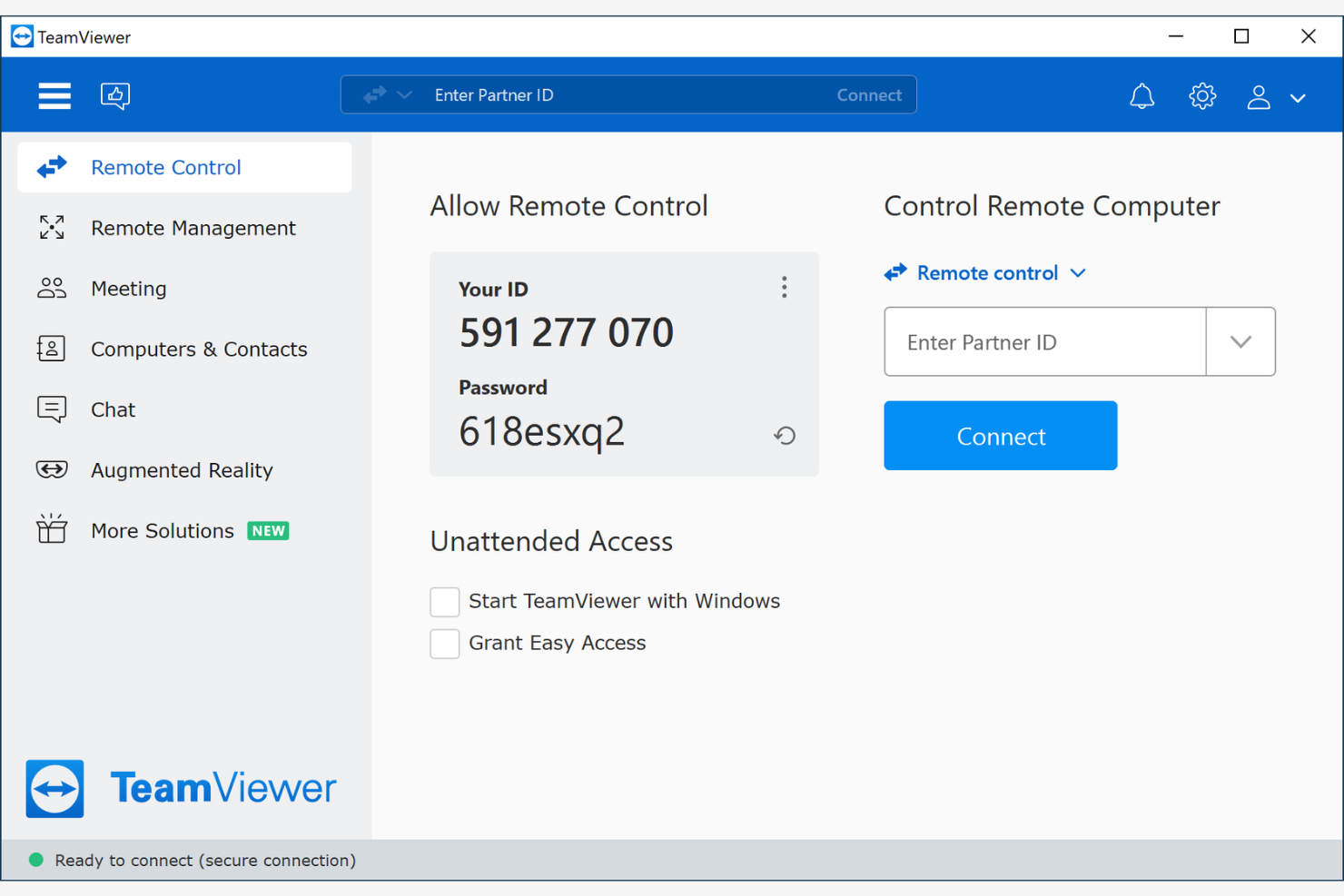
IT teams and support professionals who need to connect across a wide range of devices often turn to TeamViewer. This platform stands out for its ability to provide remote access and support on Windows, macOS, Linux, Chrome OS, iOS, and Android. If your environment includes a mix of operating systems and endpoints, TeamViewer’s cross-platform compatibility helps you manage and troubleshoot without switching tools.
Who is TeamViewer Best For?
IT administrators and support teams in mid-sized to large organizations worldwide needing cross-platform remote access capabilities.
Why I Picked TeamViewer
For teams that need to support a diverse mix of devices, TeamViewer offers unmatched cross-platform compatibility. I picked it because you can connect to and control Windows, macOS, Linux, Chrome OS, iOS, and Android devices from a single interface. The platform also supports remote access to headless systems and embedded devices, which is useful for IT environments with specialized hardware. These capabilities make TeamViewer a strong alternative to AnyDesk if you need reliable access across many operating systems.
TeamViewer Key Features
Some other features in TeamViewer can help you manage remote support and access more effectively:
- File transfer: Move files securely between local and remote devices during a session.
- Remote printing: Print documents from a remote device to a local printer.
- Session recording: Record remote sessions for documentation, training, or compliance.
- Multi-user support sessions: Invite additional experts into a live session for collaborative troubleshooting.
TeamViewer Integrations
Integrations include Salesforce, Microsoft Dynamics 365, SAP, Oracle NetSuite, ServiceNow, Jira, Zendesk, Freshworks, and more.
Pros and Cons
Pros:
- Provides unattended access for servers and headless devices
- Enables multi-user collaboration in a single remote session
- Offers session recording for compliance and training purposes
Cons:
- Licensing costs are higher than many other alternatives
- Requires installation on both local and remote devices

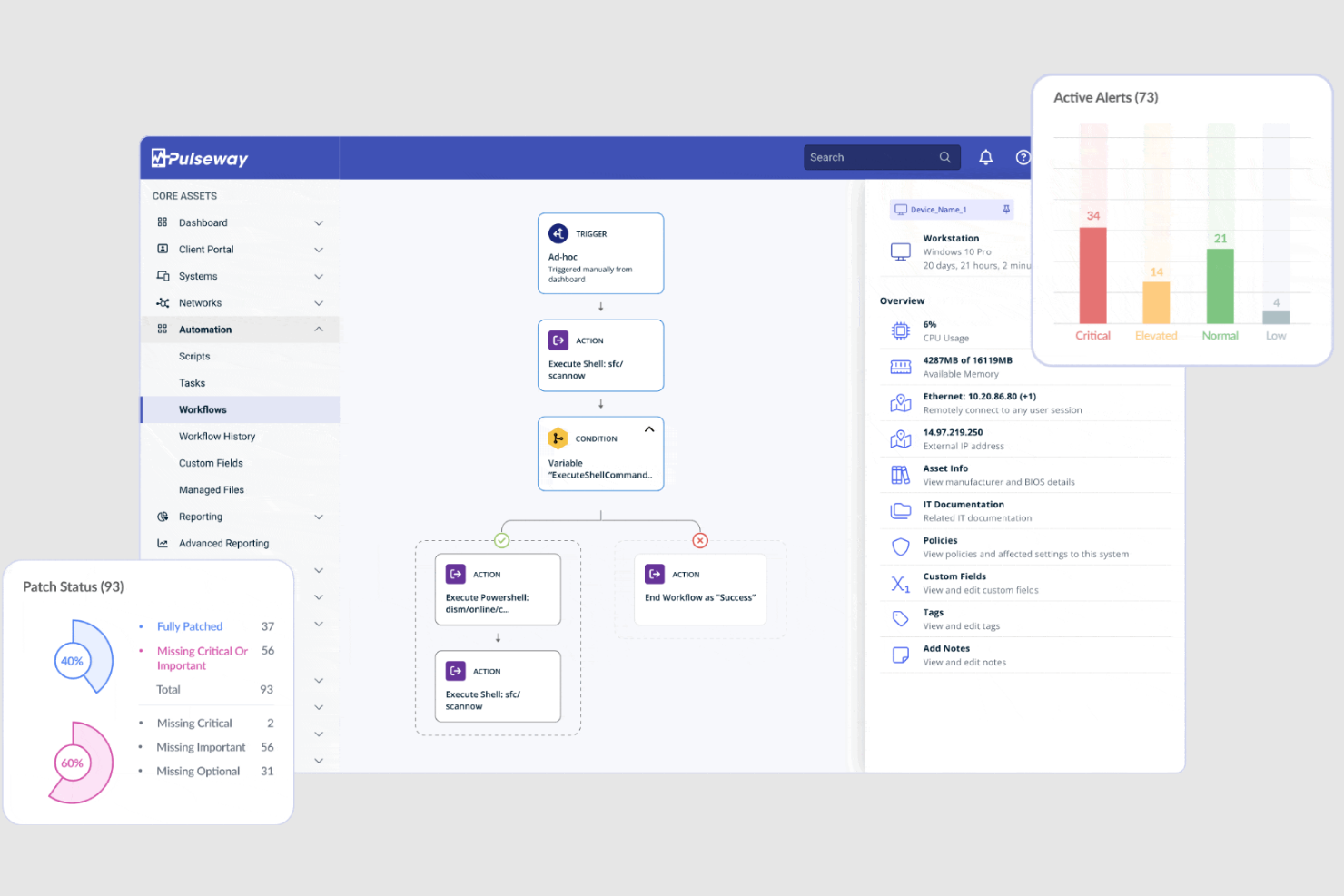
For IT teams looking to manage more than just remote access, Pulseway brings monitoring, management, and automation together in one platform. This tool is designed for IT departments and managed service providers who want to handle patching, remote control, and system alerts from a single dashboard. Unlike Anydesk, Pulseway offers integrated IT management features that help you keep your entire infrastructure in check, not just remote sessions.
Who is Pulseway Best For?
IT operations and system administrators in mid-sized organizations globally managing integrated IT monitoring, alerts, and remote access.
Why I Picked Pulseway
When you need more than just remote desktop access, Pulseway stands out for its integrated IT management capabilities. I picked it because you can monitor system health, automate patch management, and trigger custom scripts—all from the same platform you use for remote control. Pulseway’s real-time alerts and mobile management features let you respond to issues before they become bigger problems. For IT teams that want a unified approach to remote access and infrastructure management, Pulseway offers a clear advantage over AnyDesk.
Pulseway Key Features
Some other features in Pulseway can help you manage remote environments more thoroughly:
- Remote command line access: Run command line operations on remote systems without starting a full remote desktop session.
- File transfer: Move files between local and remote machines during a session.
- Role-based access control: Assign permissions and access levels to different users or groups.
- Remote wake and shutdown: Power on, restart, or shut down remote devices directly from the dashboard.
Pulseway Integrations
Integrations include Slack, Autotask, ConnectWise Manage, Zendesk, Freshservice, PagerDuty, and more.
Pros and Cons
Pros:
- Custom scripting enables automation of repetitive IT maintenance tasks
- Remote command line access supports troubleshooting without full desktop control
- Built-in patch management automates software updates across endpoints
Cons:
- Limited support for macOS and Linux compared to Windows features
- No built-in chat feature for communicating with end users

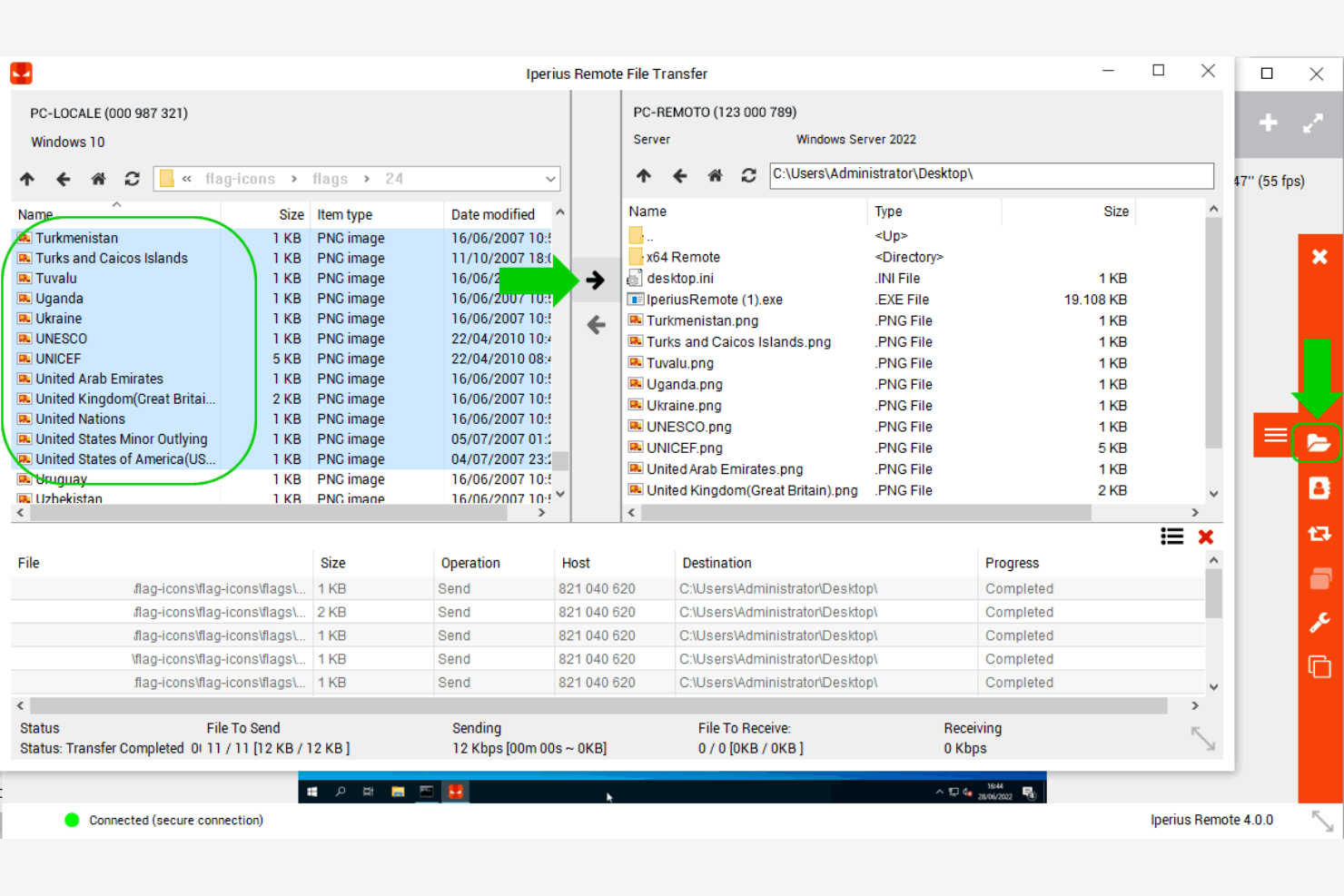
For IT teams and support professionals who need a remote access tool that doesn’t require a full installation, Iperius Remote offers a portable solution. You can run it directly from a USB drive or temporary folder, making it ideal for environments with strict software policies or frequent device changes. This approach sets it apart from AnyDesk and similar tools that require installation, giving you more flexibility in how and where you provide remote support.
Who is Iperius Remote Best For?
IT support teams in small to mid-sized companies globally needing portable remote access installations without complex setup.
Why I Picked Iperius Remote
If you need a remote access tool that works without installation, Iperius Remote stands out for its portable design. I picked it because you can launch the application from a USB stick or any folder, which is especially useful in locked-down environments or when supporting multiple devices on the go. The tool also supports quick, temporary sessions without leaving software behind on the host machine. For IT specialists who value flexibility and minimal system footprint, Iperius Remote offers a practical alternative to AnyDesk.
Iperius Remote Key Features
Some other features in Iperius Remote can help you manage remote sessions and support tasks more effectively:
- Multi-user chat: Communicate with users during remote sessions using a built-in chat window.
- File transfer: Move files between local and remote machines securely during a session.
- Unattended access: Set up persistent connections to remote devices for ongoing support.
- Session recording: Capture and save remote sessions for auditing or training purposes.
Iperius Remote Integrations
Integrations are not currently publicly listed.
Pros and Cons
Pros:
- Offers multi-user chat for real-time communication with end users
- Allows file transfer between local and remote systems during sessions
- Portable version runs without installation for quick remote sessions
Cons:
- Limited advanced security features compared to enterprise-focused tools
- Mac and mobile support is less mature than Windows functionality
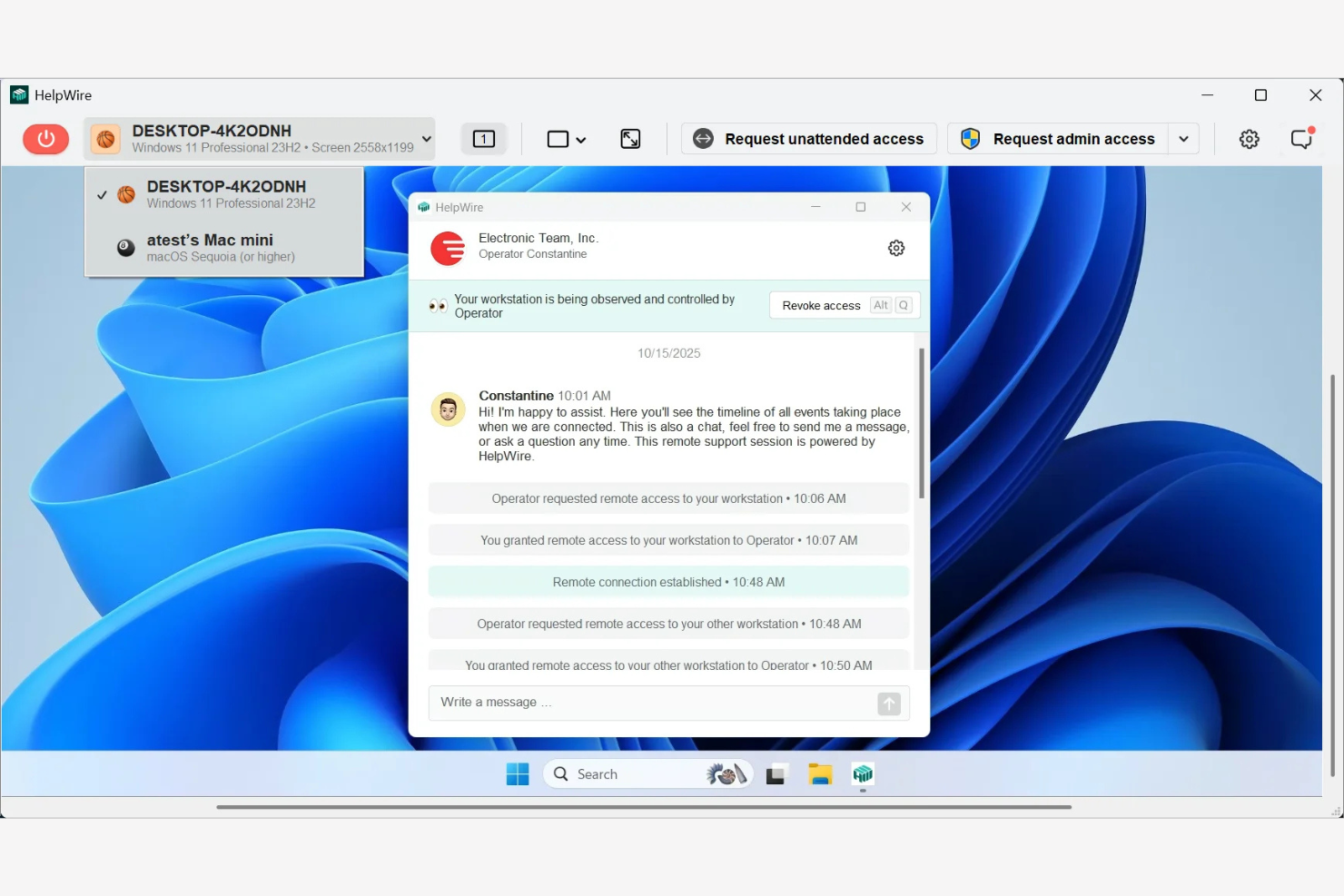
If you need to access and manage remote USB devices as part of your workflow, HelpWire is designed for that exact scenario. This tool is especially useful for IT support teams, labs, and businesses that rely on specialized hardware like dongles, scanners, or medical devices. Unlike most remote access solutions, HelpWire focuses on USB device redirection, letting you work with remote peripherals as if they were plugged in locally.
Who is HelpWire Best For?
IT and system engineers in small to mid-sized organizations in North America and Europe requiring USB device redirection during remote sessions.
Why I Picked HelpWire
Unlike most remote access tools, HelpWire specializes in redirecting USB devices over the network. I picked it because you can connect to remote USB dongles, scanners, printers, and other peripherals as if they were physically attached to your local machine. This is especially valuable for IT support teams or businesses that need to troubleshoot or operate specialized hardware remotely. If your workflow depends on accessing remote USB devices, HelpWire offers a focused solution that AnyDesk and many other remote access tools don’t provide.
HelpWire Key Features
Some other features in HelpWire can help you manage remote access and support tasks more efficiently:
- Session management dashboard: View and control all active and past remote sessions from a centralized interface.
- Multi-platform support: Connect between Windows and macOS devices for flexible remote access.
- Role-based access control: Assign permissions to users based on their roles within your organization.
- Session logging: Automatically record session details for auditing and compliance purposes.
HelpWire Integrations
Integrations are not currently publicly listed.
Pros and Cons
Pros:
- Enables remote troubleshooting of hardware peripherals
- Provides role-based access control for user management
- Supports remote access to USB devices over the network
Cons:
- Lacks mobile device support for iOS and Android platforms
- Does not support remote desktop control or screen sharing

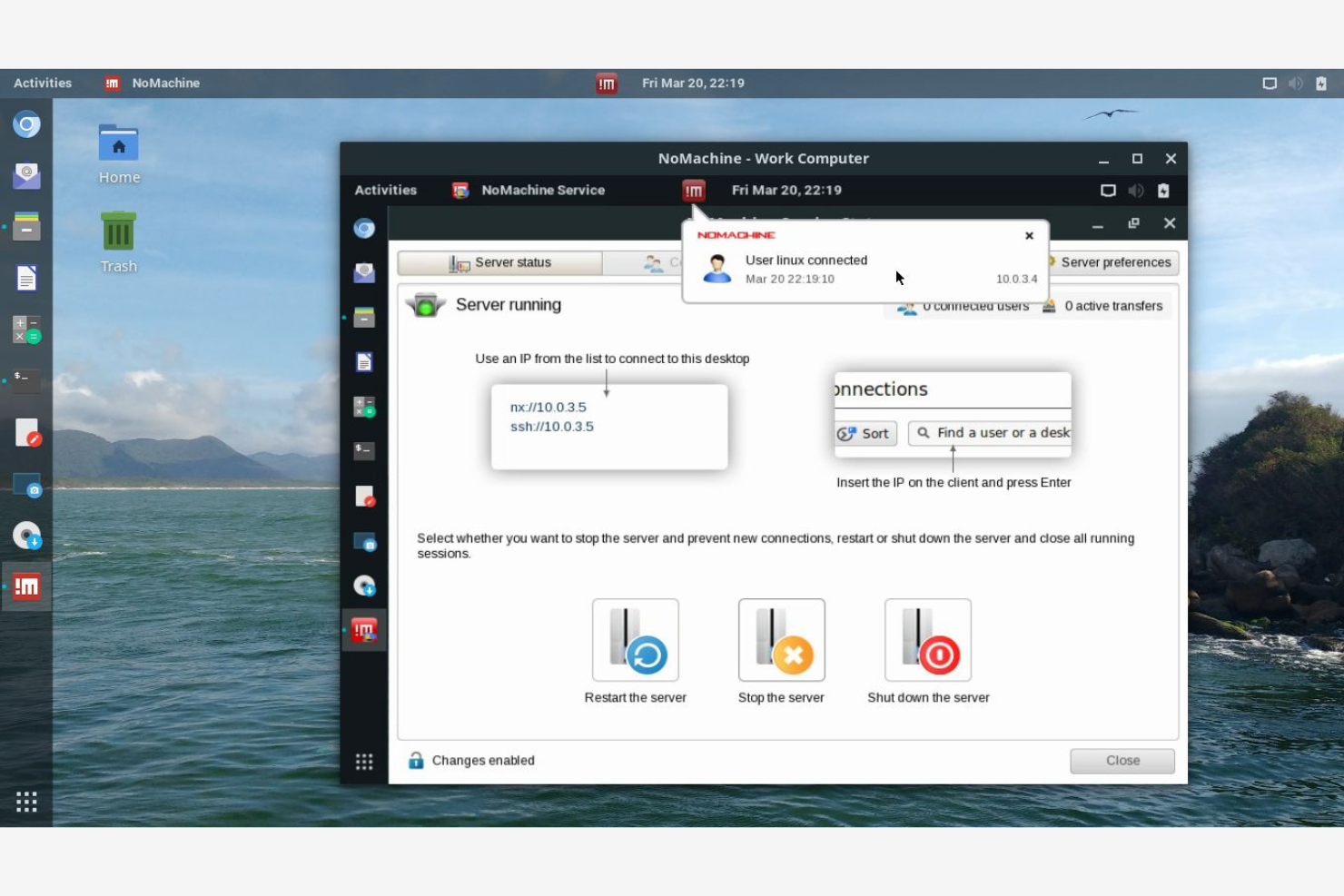
Unlike many remote access tools that rely on cloud relays, NoMachine gives IT teams direct LAN-based connection options for secure, high-speed access. This makes it a strong fit for organizations with strict data policies or those managing sensitive systems on closed networks. If you need to support devices within the same local network without exposing endpoints to the internet, NoMachine offers a practical alternative to AnyDesk.
Who is NoMachine Best For?
IT administrators and remote teams in small to mid-sized organizations in North America and Europe leveraging LAN-based connection options.
Why I Picked NoMachine
For IT teams that need direct, local network connections, NoMachine offers a unique approach compared to cloud-dependent tools. I picked NoMachine because it lets you establish remote sessions entirely over LAN, which is valuable for environments with strict security or compliance requirements. The tool supports high-speed, peer-to-peer connections without routing traffic through external servers. If you’re looking for a remote access solution that keeps all data within your own network, NoMachine is a strong alternative to AnyDesk.
NoMachine Key Features
Some other features in NoMachine can help you support a range of remote access scenarios:
- Cross-platform compatibility: Connect between Windows, macOS, Linux, Raspberry Pi, and Android devices.
- File and folder transfer: Move files and folders between local and remote systems during a session.
- Remote printing: Print documents from the remote machine to a local printer.
- Audio and video streaming: Stream sound and video from the remote desktop in real time.
NoMachine Integrations
Integrations are not currently publicly listed.
Pros and Cons
Pros:
- Delivers high-quality audio and video streaming during remote sessions
- Supports a wide range of operating systems including Linux and Raspberry Pi
- LAN-based connections allow remote access without internet exposure
Cons:
- Lacks built-in session recording for audit or compliance needs
- File transfer speeds may vary depending on network conditions

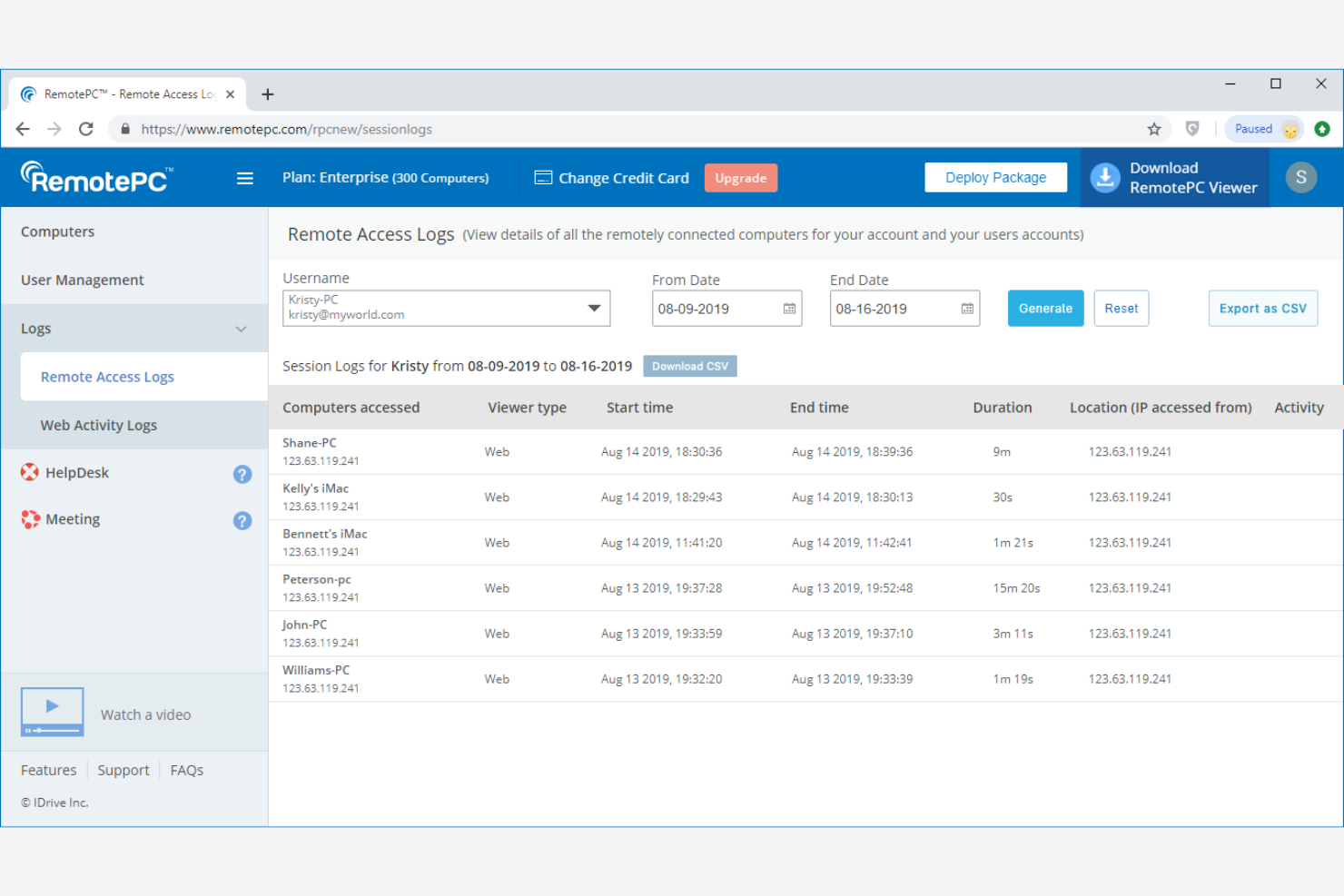
If you need remote access that’s always available, RemotePC is designed for persistent connectivity to desktops and servers. This makes it a strong choice for IT teams, managed service providers, and support staff who need to maintain or troubleshoot systems at any time. Unlike Anydesk, RemotePC emphasizes always-on access, so you can connect to critical machines without waiting for someone on the other end.
Who is RemotePC Best For?
IT and helpdesk teams in small to mid-sized organizations globally managing always-on remote access for employees and systems.
Why I Picked RemotePC
RemotePC stands out for its always-on remote access, which is especially useful for IT teams that need to connect to machines at any time without user intervention. I picked RemotePC because it lets you set up persistent connections to desktops and servers, so you can access systems even if no one is present on the remote end. The tool also supports features like Wake-on-LAN and remote power management, making it easier to maintain and troubleshoot devices around the clock. If you’re looking for a solution that prioritizes uninterrupted access, RemotePC is a strong alternative to AnyDesk.
RemotePC Key Features
Some other features in RemotePC can help you manage and support remote systems more flexibly:
- Multi-platform support: Connect to and from Windows, macOS, Linux, iOS, and Android devices.
- File transfer: Move files between local and remote machines during a session.
- Session recording: Record remote sessions for auditing or training purposes.
- Remote reboot and reconnect: Restart remote machines and automatically reconnect to the session.
RemotePC Integrations
Integrations include Jira, Zendesk, Freshdesk, and more.
Pros and Cons
Pros:
- Provides remote reboot and automatic session reconnect features
- Offers remote printing and file transfer during active sessions
- Always-on access lets you connect to unattended devices anytime
Cons:
- Delays with customer support response times
- Performance can lag on low-bandwidth or unstable connections
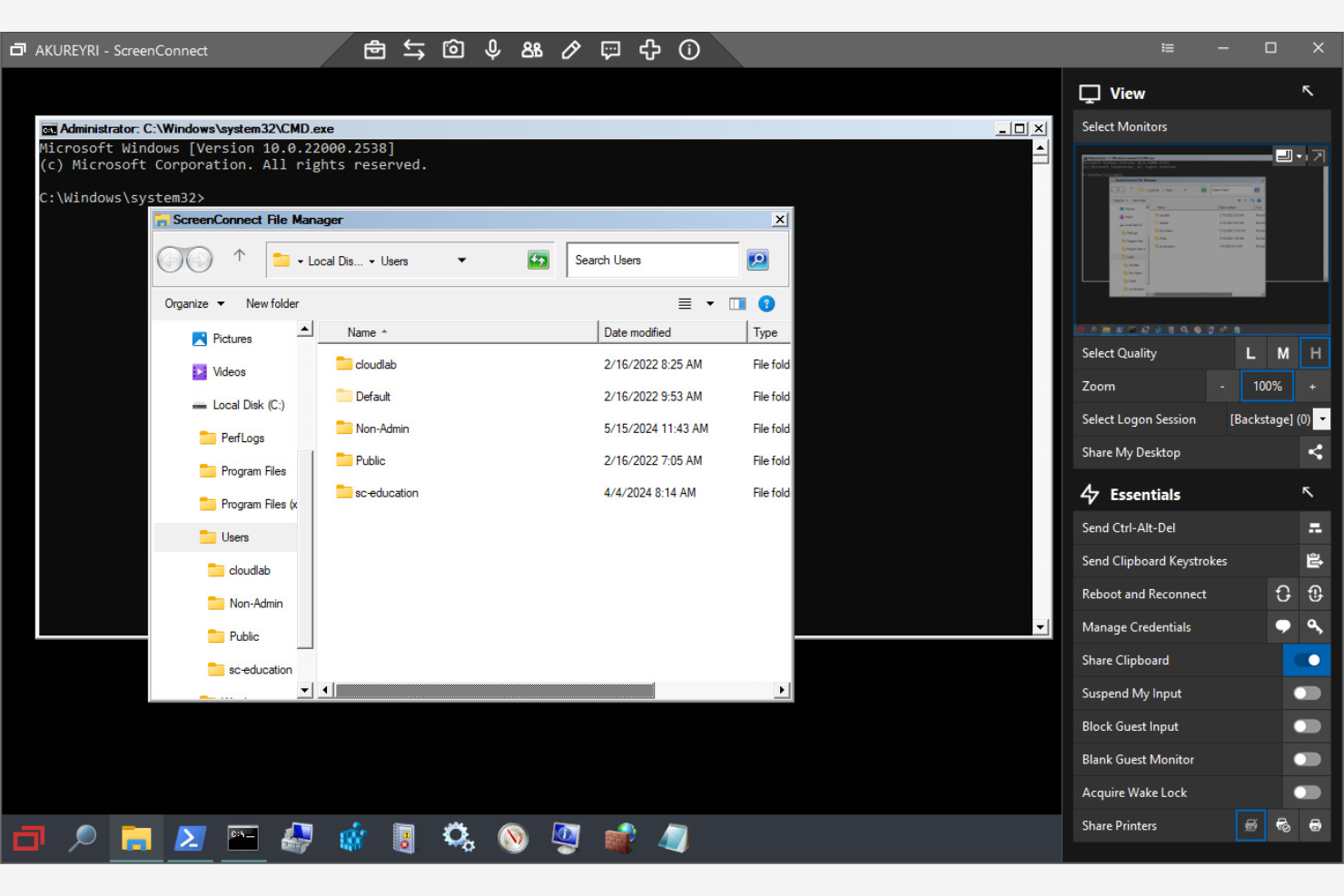
If you need remote access software that matches your company’s brand, ScreenConnect gives you extensive customization options. This tool is a strong fit for IT service providers and support teams who want to deliver a branded experience to clients during remote sessions. Unlike Anydesk, ScreenConnect lets you tailor the interface, logos, and colors to reinforce your business identity every time you connect.
Who is ScreenConnect Best For?
IT support teams and MSPs in small to mid-sized companies worldwide requiring custom branding and personalized remote support solutions.
Why I Picked ScreenConnect
For teams that want their remote access tool to reflect their brand, ScreenConnect offers customization options that go far beyond what AnyDesk provides. I picked it because you can fully brand the remote session interface, including custom logos, color schemes, and even the installer itself. This level of control helps IT service providers and support teams deliver a consistent, professional experience to clients. If you need remote access software that reinforces your business identity at every touchpoint, ScreenConnect is a strong choice.
ScreenConnect Key Features
Some other features in ScreenConnect can help you manage remote sessions more efficiently:
- Session recording: Capture and archive remote sessions for auditing and training purposes.
- File transfer: Move files securely between local and remote devices during a session.
- Multi-monitor support: View and switch between multiple monitors on the remote machine.
- Role-based security permissions: Control user access and actions based on assigned roles.
ScreenConnect Integrations
Integrations include ServiceNow, Zendesk, Freshdesk, Acronis, Passportal, and more.
Pros and Cons
Pros:
- Role-based permissions allow granular control over technician access
- Multi-monitor support helps with complex remote troubleshooting
- File transfer works reliably between local and remote devices
Cons:
- Some users report delayed support response times for technical issues
- Mac and Linux features are less developed than Windows support
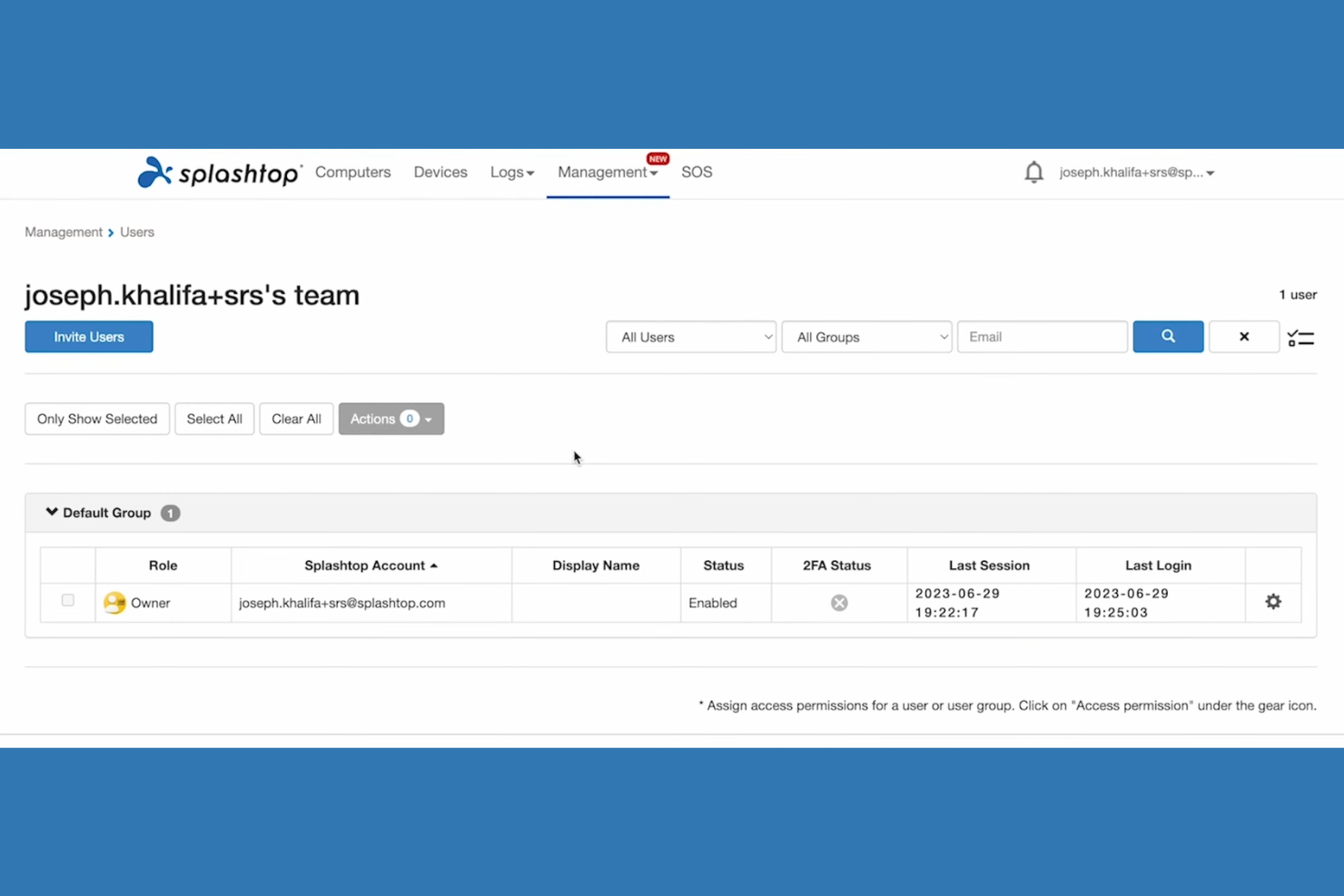
If you need remote access with smooth, high-quality visuals, Splashtop is built for you. This platform is especially useful for creative professionals, IT teams, and educators who rely on high frame rate streaming for tasks like video editing, 3D design, or interactive demos. Splashtop’s focus on delivering low-latency, high-fidelity remote sessions makes it a strong choice over AnyDesk for graphics-intensive or media-rich workflows.
Who is Splashtop Best For?
IT and technical support teams in small to mid-sized companies globally requiring high frame rate streaming for remote access.
Why I Picked Splashtop
When high frame rate streaming is a priority, Splashtop delivers a remote access experience that’s hard to match. I picked it because it supports up to 60 frames per second and 4K resolution, which is essential for users working with video, animation, or CAD applications. The platform also offers low-latency connections and hardware acceleration, so you get smooth visuals even during demanding tasks. These features make Splashtop a strong alternative to AnyDesk for anyone who needs crisp, real-time remote desktop performance.
Splashtop Key Features
Some other features in Splashtop can help you manage remote access and support tasks more efficiently:
- Multi-monitor support: View and control multiple remote monitors on a single local screen.
- Remote wake and reboot: Power on or restart remote computers without needing someone onsite.
- File transfer: Move files between local and remote devices during a session.
- Session recording: Capture remote sessions for auditing, training, or compliance purposes.
Splashtop Integrations
Integrations include ServiceNow, Freshservice, Freshdesk, Zendesk, Salesforce, Microsoft Teams, Slack, and more.
Pros and Cons
Pros:
- Includes multi-monitor viewing and control in remote sessions
- Supports remote access for Windows, Mac, Linux, iOS, and Android
- Delivers 4K streaming at up to 60 frames per second
Cons:
- No built-in chat feature during remote sessions
- Remote printing setup can be inconsistent across devices

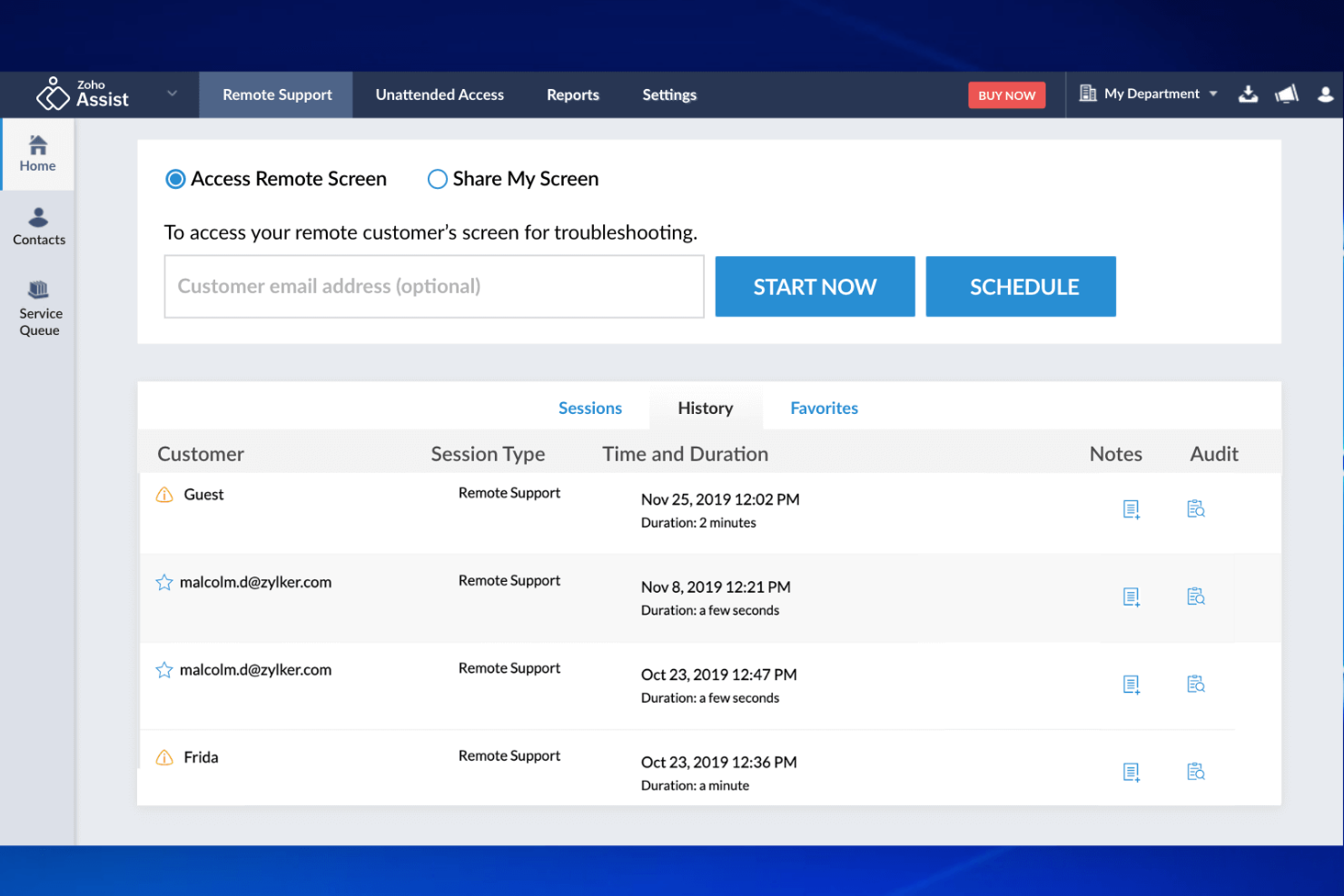
Zoho Assist is designed for IT teams and managed service providers who need reliable, unattended remote access to devices. The platform stands out for its granular device management and flexible session controls, making it easier to support endpoints without user intervention. If you’re looking to manage remote assets across multiple locations or provide after-hours support, Zoho Assist offers features that go beyond standard remote desktop tools.
Who is Zoho Assist Best For?
IT support and helpdesk teams in small to mid-sized organizations in North America and Europe managing unattended devices and remote troubleshooting.
Why I Picked Zoho Assist
For teams that need to manage devices without user involvement, Zoho Assist offers advanced unattended access controls that set it apart from AnyDesk. I picked it because you can deploy agents in bulk and organize devices into groups for easier oversight. The platform also lets you schedule maintenance sessions and push updates remotely, which is useful for distributed environments. These features make Zoho Assist a strong choice if unattended device management is your top priority.
Zoho Assist Key Features
Some other features in Zoho Assist can help you handle a range of remote support scenarios:
- Multi-platform support: Connect to Windows, Mac, Linux, iOS, and Android devices from a single dashboard.
- Session recording: Record remote sessions for auditing, compliance, or training purposes.
- Custom branding: Add your organization’s logo and colors to the technician console and customer-facing interfaces.
- File transfer: Move files securely between local and remote devices during a session.
Zoho Assist Integrations
Integrations include Zoho CRM, Zendesk, ServiceNow, Freshdesk, Jira, Slack, Microsoft Teams, and more.
Pros and Cons
Pros:
- Enables secure file transfer during remote sessions
- Allows custom branding for technician and client interfaces
- Offers session recording for compliance and audit needs
Cons:
- Advanced reporting features require higher-tier plans
- Bulk deployment tools can be complex for new users
- Remote printing features are less advanced than some alternatives
New Product Updates from Zoho Assist

Zoho Assist Adds Live Participant View, SMS Invites & Quick Device Info
Zoho Assist introduces live participant listing, SMS-based customer invites in the native viewer, and quick device-details access—all designed to improve remote session clarity and technician workflow. For more information, visit Zoho Assist's official site.
 .
.
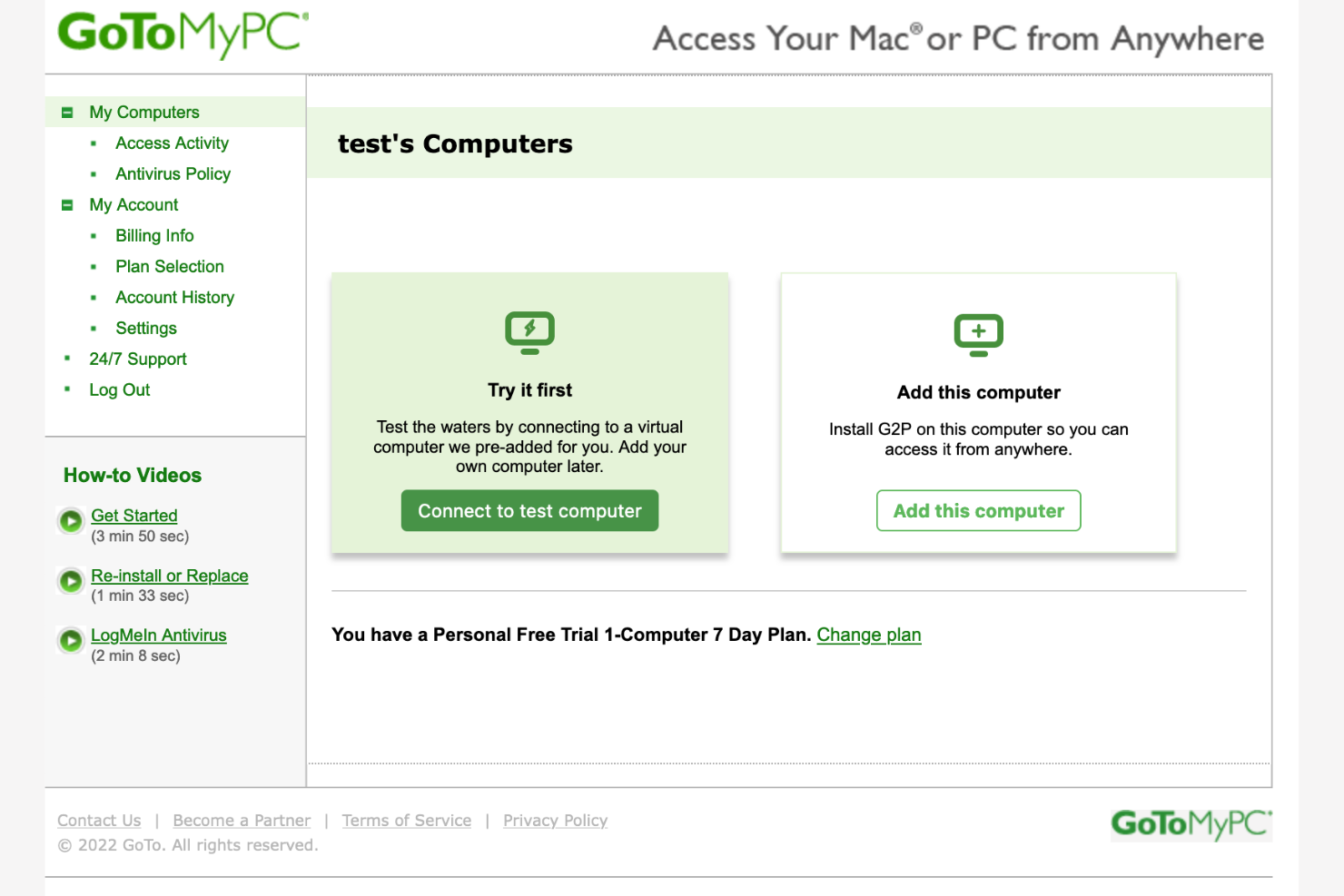
Getting started with remote access doesn’t have to be complicated—GoToMyPC offers a straightforward, browser-based approach for connecting to your computers. This tool is a good fit for professionals and small businesses that want secure, reliable access to office desktops from anywhere, without installing extra software. Unlike AnyDesk, GoToMyPC focuses on web-based simplicity, making it easy to log in and work remotely with minimal setup.
Who is GoToMyPC Best For?
IT support and remote workers in small to mid-sized organizations in North America and Europe needing simple web-based remote connections.
Why I picked GoToMyPC
If you want remote access that works directly from your web browser, GoToMyPC is worth considering. I picked it because you can log in and control your desktop without installing any client software, which is especially helpful for users who need quick, on-the-go access from different devices. The platform also supports secure browser-based sessions and lets you print documents remotely, so you can handle essential tasks from anywhere. For anyone prioritizing simple, web-based connections, GoToMyPC offers a clear alternative to AnyDesk.
GoToMyPC Key Features
Some other features in GoToMyPC can help you manage remote access more efficiently:
- Multi-monitor support: View and control multiple monitors connected to the remote computer in a single session.
- Clipboard syncing: Copy and paste text and files between local and remote devices.
- Usage reporting: Access detailed reports on session activity and connection history.
- Two-factor authentication: Add an extra layer of security to remote access sessions.
GoToMyPC Integrations
Integrations are not currently publicly listed.
Pros and Cons
Pros:
- Two-factor authentication adds an extra layer of session security
- Clipboard syncing lets you transfer text and files between devices
- Web-based access allows remote connections without installing software
Cons:
- Session timeouts can interrupt longer unattended connections
- Performance can drop during high-traffic or low-bandwidth periods
Other AnyDesk Alternatives
Here are some additional AnyDesk alternative options that didn’t make it onto my shortlist, but are still worth checking out:
- V2 Cloud
For built-in cloud desktop security
- Parallels RAS
With multi-platform virtualization support
- Chrome Remote Desktop
For quick browser-based access


AnyDesk Alternatives Selection Criteria
When selecting the best AnyDesk alternatives to include in this list, I considered common buyer needs and pain points related to Remote Access software products, like secure remote connectivity and reliable cross-platform support. I also used the following framework to keep my evaluation structured and fair:
Core Functionality (25% of total score)
To be considered for inclusion in this list, each solution had to fulfill these common use cases:
- Provide unattended remote access
- Support real-time screen sharing
- Enable secure file transfer
- Allow multi-platform connectivity
- Offer session logging and auditing
Additional Standout Features (25% of total score)
To help further narrow down the competition, I also looked for unique features, such as:
- Custom branding options
- Role-based access controls
- Session recording capabilities
- Multi-monitor navigation
- Integration with IT management tools
Usability (10% of total score)
To get a sense of the usability of each system, I considered the following:
- Intuitive user interface design
- Simple session initiation process
- Clear navigation and labeling
- Minimal setup requirements
- Responsive performance during sessions
Onboarding (10% of total score)
To evaluate the onboarding experience for each platform, I considered the following:
- Availability of step-by-step setup guides
- Access to training videos and tutorials
- Interactive product tours for new users
- Pre-built templates for common use cases
- Live chat or chatbot support during onboarding
Customer Support (10% of total score)
To assess each software provider’s customer support services, I considered the following:
- 24/7 support availability
- Multiple support channels offered
- Fast response times to inquiries
- Access to a comprehensive knowledge base
- Availability of onboarding webinars
Value For Money (10% of total score)
To evaluate the value for money of each platform, I considered the following:
- Transparent pricing structure
- Flexible subscription options
- Features included at each pricing tier
- Discounts for annual billing
- Free trial or demo availability
Customer Reviews (10% of total score)
To get a sense of overall customer satisfaction, I considered the following when reading customer reviews:
- Consistency of positive feedback
- Reports of technical issues or bugs
- Quality of customer support experiences
- Ease of deployment and daily use
- Satisfaction with feature set and updates
Why Look For an AnyDesk Alternative?
While AnyDesk is a good choice of Remote Access software, there are a number of reasons why some users seek out alternative solutions. You might be looking for an AnyDesk alternative because…
- You need more advanced custom branding options
- Your team requires deeper integration with IT management tools
- You experience inconsistent performance on low-bandwidth connections
- You need better support for Mac or Linux environments
- Your organization has strict compliance or auditing requirements
If any of these sound like you, you’ve come to the right place. My list contains several Remote Access software options that are better suited for teams facing these challenges with AnyDesk and looking for alternative solutions.
AnyDesk Key Features
Here are some of the key features of AnyDesk, to help you contrast and compare what alternative solutions offer:
- Unattended remote access for devices and servers
- Real-time screen sharing with low latency
- Cross-platform support for Windows, Mac, Linux, Android, and iOS
- Secure file transfer between local and remote devices
- Session recording for auditing and compliance
- Multi-monitor navigation and support
- Customizable access permissions for users and groups
- Clipboard synchronization between local and remote sessions
- Wake-on-LAN functionality for remote device activation
- Two-factor authentication for added security
What’s Next:
If you're in the process of researching AnyDesk alternatives, connect with a SoftwareSelect advisor for free recommendations.
You fill out a form and have a quick chat where they get into the specifics of your needs. Then you'll get a shortlist of software to review. They'll even support you through the entire buying process, including price negotiations.