
20 LogMeIn Alternatives to Consider in 2026

Best LogMeIn Alternative Shortlist
Here's my pick of the 10 best software from the 20 tools reviewed.


A strong LogMeIn alternative offers secure, reliable remote access, flexible deployment options, and support for a range of devices and operating systems. If you’re searching for a LogMeIn alternative, you’re likely looking for remote access software that fits your team’s security standards, budget, and technical requirements—without sacrificing usability or performance.
With so many options available, it’s essential to compare features like unattended access, session management, and integration capabilities. This list will help you quickly identify the best LogMeIn alternatives for your IT environment, so you can make an informed decision and keep your systems accessible and secure.
What is LogMeIn?
LogMeIn is a remote access software that lets users connect to and control computers or devices from anywhere over the internet. IT teams, support staff, and end users rely on LogMeIn to troubleshoot issues, transfer files, and manage systems remotely. Its core features include secure connections, multi-platform support, and session management, making it a popular choice for businesses needing reliable remote access and support capabilities.
Best LogMeIn Alternatives Summary
This comparison chart summarizes pricing details for my top LogMeIn alternative selections to help you find the best one for your budget and business needs.
| Tool | Best For | Trial Info | Price | ||
|---|---|---|---|---|---|
| 1 | Best for cross-platform compatibility | 30-day free trial | From $24.90/month (billed annually) | Website | |
| 2 | Best with advanced security controls | Free demo available | Pricing upon request | Website | |
| 3 | Best for multi-platform device support | Free plan available | Pricing upon request | Website | |
| 4 | Best for integrated remote diagnostics | 15-day free trial + free demo available | From $10/user/month (billed annually) | Website | |
| 5 | Best for browser-based remote sessions | Not available | Free to use | Website | |
| 6 | Best with granular access permissions | 14-day free trial | From $8.25/month (billed annually) | Website | |
| 7 | Best for on-demand session scalability | 15-day free trial | From $16.90/month (billed annually) | Website | |
| 8 | Best for always-on remote connectivity | 7-day free trial | From $29.50/year (billed annually) | Website | |
| 9 | Best for portable remote access | Not available | From €8.17/month (billed annually) | Website | |
| 10 | Best with self-hosted deployment options | Free plan available | From $9.90/month (billed annually) | Website |
Why Trust Our Software Reviews
-

Freshservice
Visit WebsiteThis is an aggregated rating for this tool including ratings from Crozdesk users and ratings from other sites.4.6 -
Deel IT
Visit Website -
Rippling IT
Visit WebsiteThis is an aggregated rating for this tool including ratings from Crozdesk users and ratings from other sites.4.8




Best LogMeIn Alternative Reviews
Below are my detailed summaries of the top LogMeIn alternatives that made it onto my shortlist. My reviews offer a detailed look at the features, best use cases, and integrations of each remote access software to help you find the best one for your needs.

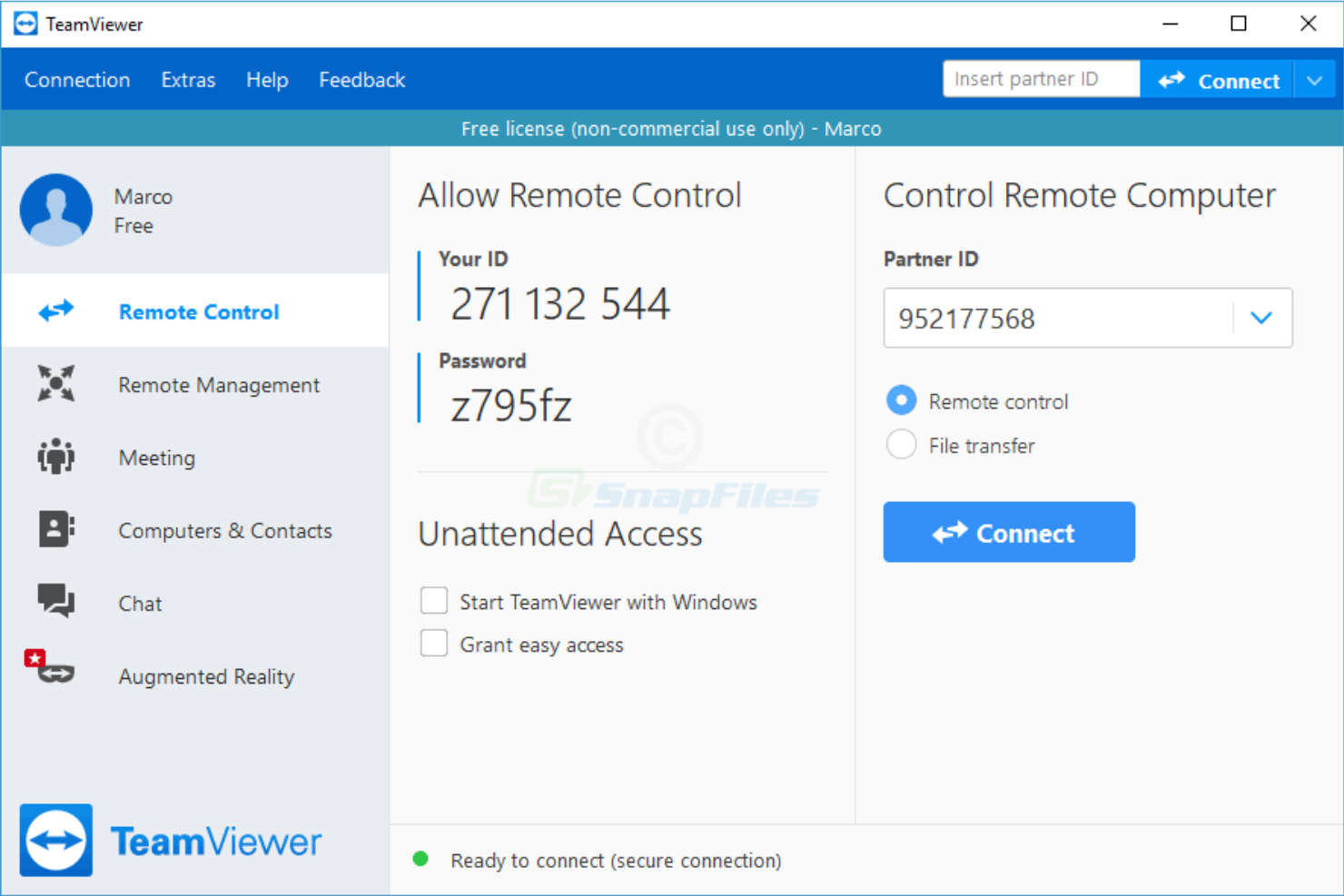
TeamViewer is an all-in-one remote access and support platform designed for businesses and IT professionals who manage devices across different operating systems. It’s a strong choice for organizations with distributed teams or clients using a mix of Windows, macOS, Linux, and mobile devices. If you need to troubleshoot, transfer files, or provide remote assistance without worrying about device compatibility, TeamViewer addresses those needs directly.
Who Is TeamViewer Best For?
TeamViewer is a strong fit for IT teams and service providers supporting users and devices across multiple operating systems and locations.
Why TeamViewer Is a Good LogMein Alternative
What sets TeamViewer apart as a LogMeIn alternative is its ease of use and strong cross-platform compatibility. You can connect to and control devices running Windows, macOS, Linux, Android, and iOS from a single interface. I picked TeamViewer for teams that need to support a wide range of operating systems without juggling multiple tools. Its ability to handle remote access, file transfer, and device management across mixed environments makes it especially practical for IT departments and service providers.
TeamViewer Key Features
Some other features in TeamViewer that are worth noting include:
- Session Recording: Capture and save remote sessions for auditing or training purposes.
- Remote Printing: Print documents from remote devices to your local printer during a session.
- Wake-on-LAN: Power on remote computers that are turned off or in sleep mode.
- Multi-User Support Sessions: Allow multiple support technicians to join and collaborate in a single remote session.
TeamViewer Integrations
Integrations include Microsoft Intune, ServiceNow, Freshworks, Jira, Salesforce, Slack, Microsoft Teams, Zendesk, Jamf Pro, and more.
Pros and Cons
Pros:
- Provides session recording for audit
- Offers remote printing from any device
- Allows multiple technicians in one session
Cons:
- Lacks granular user permission controls
- Requires installation for full feature access

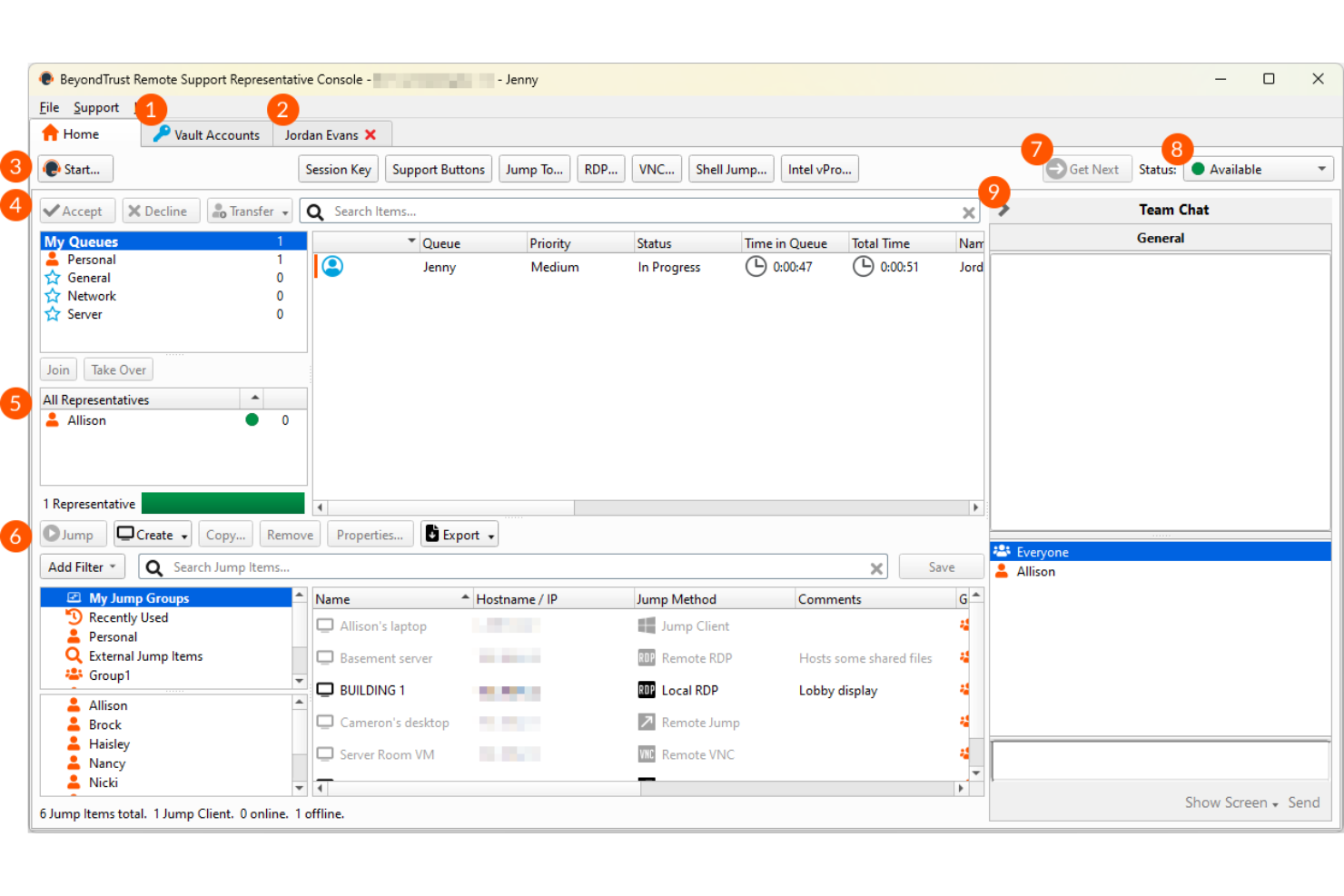
BeyondTrust is a remote access platform designed for organizations with strict security and compliance requirements. It’s a strong fit for enterprises, government agencies, and IT teams that need granular control over privileged access. If you’re looking for a LogMeIn alternative that prioritizes secure connections and detailed access management, BeyondTrust is worth a closer look.
Who Is BeyondTrust Best For?
BeyondTrust is a strong choice for large enterprises and regulated industries that require advanced security and granular control over remote access.
Why BeyondTrust Is a Good LogMein Alternative
What makes BeyondTrust a strong LogMeIn alternative is its focus on advanced security controls for remote access. I picked BeyondTrust for teams that need features like granular permission settings and detailed session auditing to meet strict compliance requirements. The platform offers capabilities such as privileged access management and real-time monitoring, which help IT teams control and track every remote session. These features are especially valuable for organizations where security and accountability are top priorities.
BeyondTrust Key Features
Some other features that set BeyondTrust apart for remote access use cases include:
- Remote Endpoint Management: Manage and troubleshoot remote devices without requiring end-user involvement.
- Cross-Platform Support: Connect to Windows, macOS, Linux, and mobile devices from a single interface.
- Session Recording and Playback: Record remote sessions for auditing, compliance, and training purposes.
- Customizable Branding: Tailor the remote access interface with your organization’s logo and colors.
BeyondTrust Integrations
Integrations include ServiceNow, Salesforce, Jira, Zendesk, Freshservice, Microsoft Dynamics 365, Splunk, Duo, and more.
Pros and Cons
Pros:
- Unattended access for remote endpoints
- Supports remote access to multiple platforms
- Granular access controls for privileged sessions
Cons:
- Requires installation on both host and client
- Pricing is not transparent online

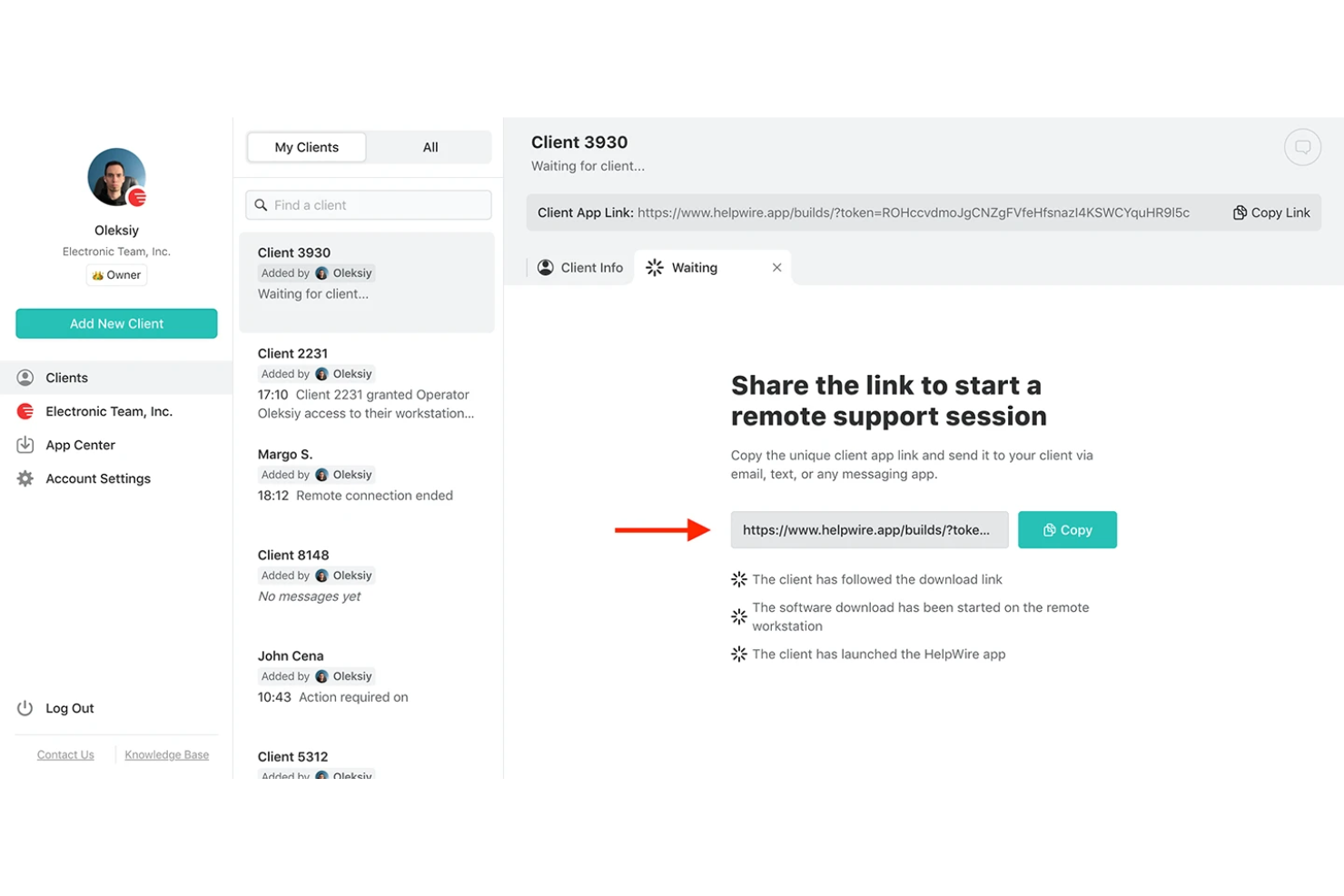
HelpWire is a cost-effective remote access software designed for IT teams and support professionals who manage a variety of devices and operating systems. It’s a strong choice for organizations that need to connect to both legacy and modern hardware without compatibility headaches. If you’re looking for a flexible solution that adapts to mixed environments, HelpWire addresses many of the limitations found in single-platform tools.
Who Is HelpWire Best For?
HelpWire is a good fit for IT support teams in organizations that manage a diverse mix of devices and operating systems across multiple locations.
Why HelpWire Is a Good LogMeIn Alternative
I picked HelpWire as a LogMeIn alternative because it’s built to handle remote access across a wide range of platforms and devices. Unlike many tools that focus on just Windows or Mac, HelpWire supports connections to both legacy and modern systems, including specialized hardware. Its ability to bridge remote sessions between different operating systems is especially useful for IT teams supporting mixed environments. This flexibility makes it a strong choice for organizations that can’t afford device or OS limitations in their remote access workflows.
HelpWire Key Features
Some other features in HelpWire that stand out for remote access management include:
- Session Recording: Capture and archive remote sessions for auditing, compliance, or training purposes.
- Role-Based Access Control: Assign permissions based on user roles to manage who can access specific devices or functions.
- File Transfer: Move files securely between local and remote systems during a session without interrupting workflow.
- Multi-User Collaboration: Allow multiple support technicians to join and work within the same remote session for complex troubleshooting.
HelpWire Integrations
Integrations are not publicly listed.
Pros and Cons
Pros:
- Offers session recording for compliance needs
- Handles mixed Windows, Mac, and Linux environments
- Supports remote access to legacy hardware
Cons:
- Pricing details are not transparent online
- No published native integrations available

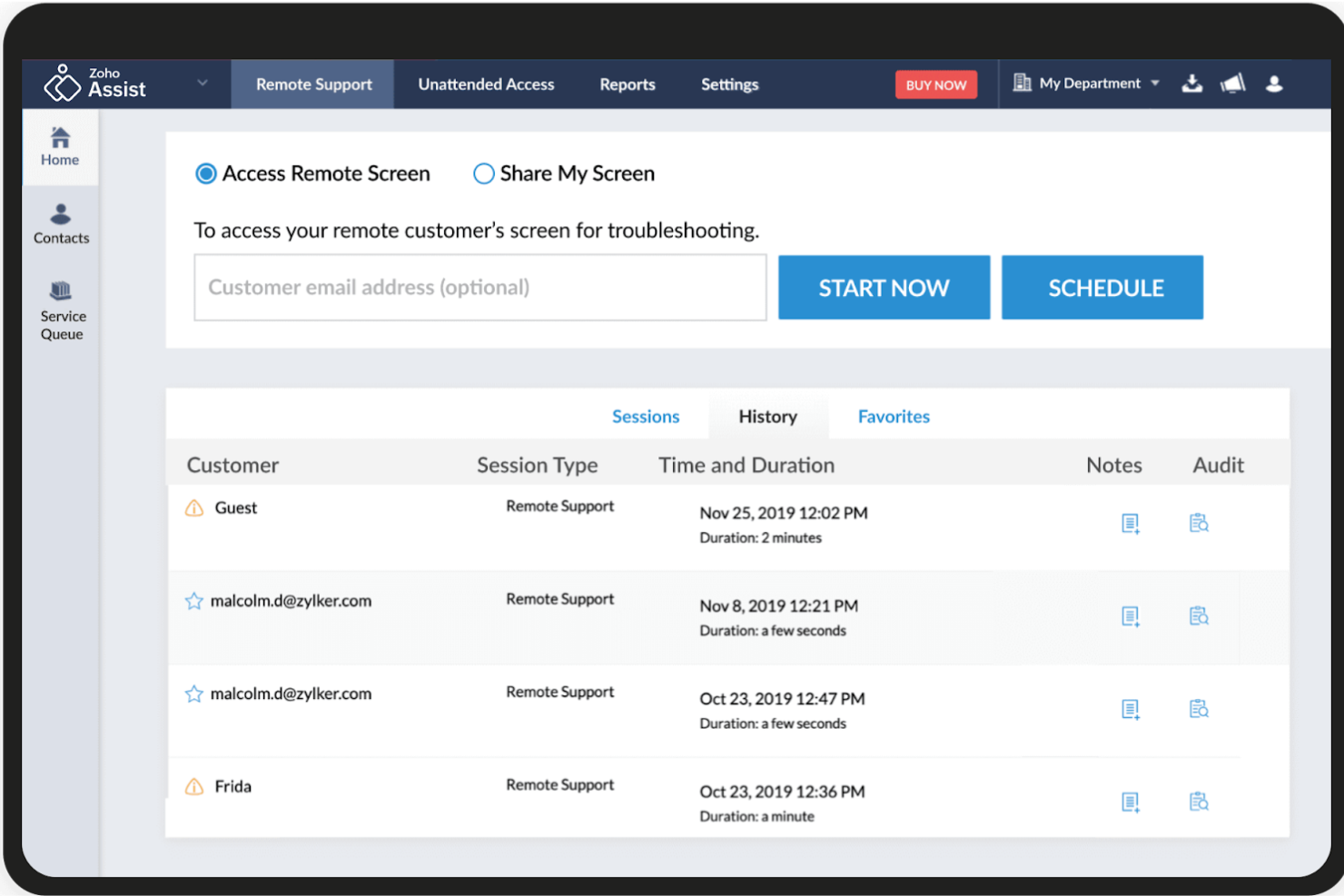
Zoho Assist is a remote support and access platform designed for IT teams and service providers who need to troubleshoot devices quickly and securely. It’s especially useful for organizations that want to centralize remote support and device management across different locations. If you’re looking for a LogMeIn alternative with a strong focus on diagnostics and support workflows, Zoho Assist is worth considering.
Who Is Zoho Assist Best For?
Zoho Assist is a strong choice for IT support teams and managed service providers that need secure, scalable remote troubleshooting across multiple devices and locations.
Why Zoho Assist Is a Good LogMein Alternative
What sets Zoho Assist apart as a LogMeIn alternative is its integrated remote diagnostics capabilities. I picked Zoho Assist for teams that need to quickly identify and resolve technical issues without switching between multiple tools. The platform offers built-in diagnostic utilities, system information gathering, and remote command prompt access, all within the same session. This makes it easier for IT professionals to troubleshoot and fix problems efficiently, especially when supporting a distributed workforce.
Zoho Assist Key Features
Some other features that make Zoho Assist a strong option for remote access include:
- Unattended Access: Set up and manage remote connections to devices even when users aren’t present.
- Multi-Platform Support: Connect to Windows, Mac, Linux, iOS, and Android devices from a single dashboard.
- File Transfer: Securely move files between local and remote devices during an active session.
- Session Recording: Record remote support sessions for auditing, compliance, or training purposes.
Zoho Assist Integrations
Integrations include Zendesk, ServiceNow, Jira, Freshdesk, Spiceworks, Zoho Desk, Zoho SalesIQ, Google Workspace, Slack, and more.
Pros and Cons
Pros:
- Multi-platform support across desktop and mobile
- Supports unattended access for multiple devices
- Integrated remote diagnostics tools included
Cons:
- Connection stability drops on spotty networks
- Advanced features sold separately

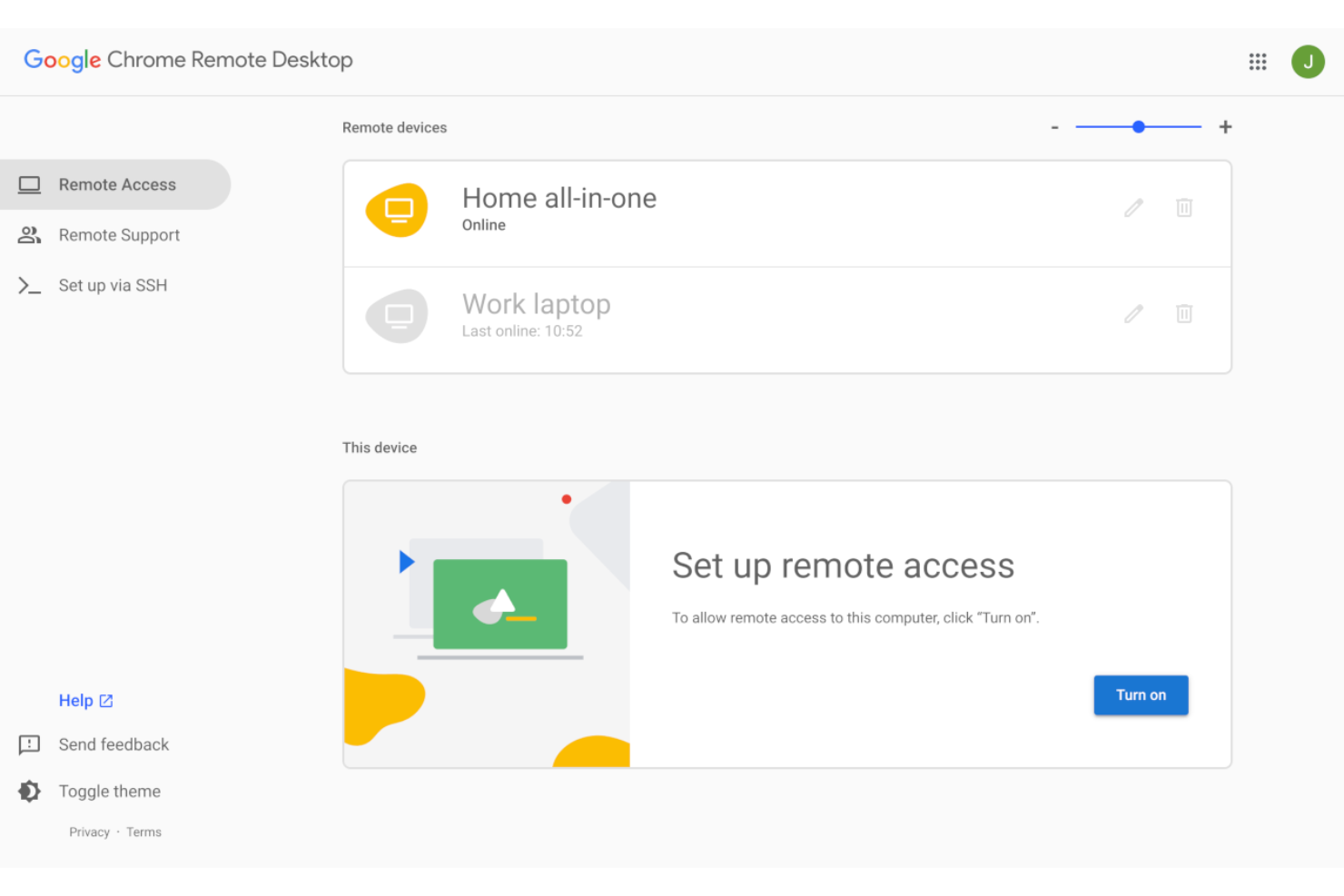
Chrome Remote Desktop is a remote access tool from Google for personal use and professional support that runs entirely in your browser. It’s a practical choice for IT specialists and support teams who want a simple, no-installation-required way to access devices remotely. If you’re looking for a solution that works across platforms without extra software, Chrome Remote Desktop addresses that need.
Who Is Chrome Remote Desktop Best For?
Chrome Remote Desktop is a strong fit for IT support teams and individuals who need quick, browser-based remote access across multiple operating systems.
Why Chrome Remote Desktop Is a Good LogMeIn Alternative
What makes Chrome Remote Desktop a strong LogMeIn alternative is its browser-based approach to remote sessions. You can launch and manage remote connections directly from a user-friendly interface in Chrome or any Chromium-based browser, with no need for extra software installations. I picked it for teams that want a lightweight, cross-platform solution that works on Windows, macOS, Linux, and even mobile devices. This browser-first design is especially useful for organizations with mixed device environments or users who need to access systems from anywhere without administrative privileges.
Chrome Remote Desktop Key Features
Some other features in Chrome Remote Desktop that are worth noting include:
- Session PIN Authentication: Every remote session requires a unique PIN for added security and access control.
- File Transfer: Move files between local and remote devices during an active session.
- Multi-Monitor Support: View and control multiple monitors connected to the remote device.
- Remote Reboot: Restart the remote machine directly from the session interface.
Chrome Remote Desktop Integrations
Integrations are not publicly available.
Pros and Cons
Pros:
- Google account-based authentication for sessions
- Free version for personal and commercial use
- No installation required for remote access
Cons:
- Limited multi-user management controls
- No session recording or audit logs

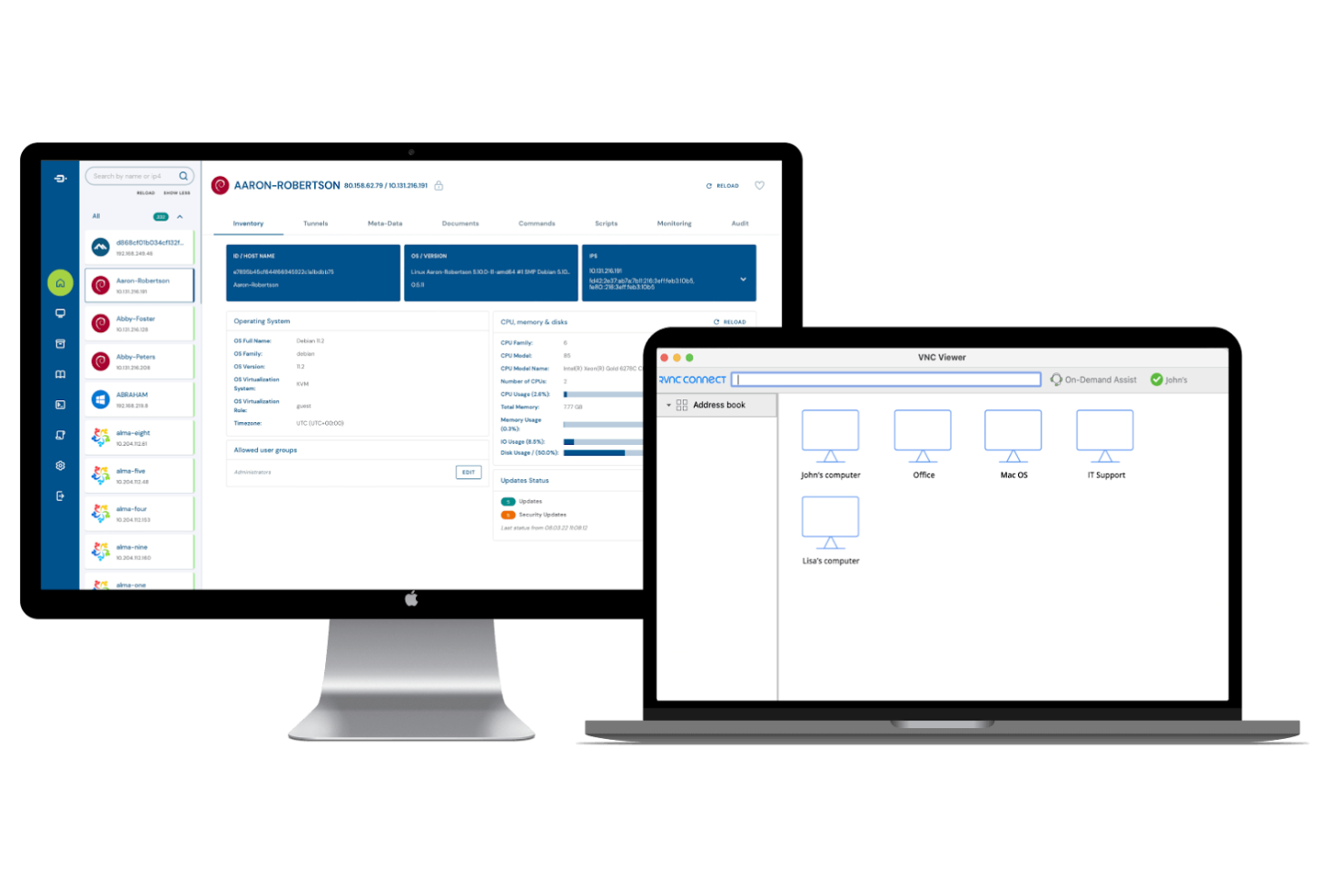
RealVNC is a remote access platform designed for organizations that need secure, reliable connections to devices anywhere in the world. It’s a strong choice for IT teams, managed service providers, and businesses with distributed infrastructure. If you’re looking for a LogMeIn alternative that emphasizes security and flexible deployment, RealVNC addresses those needs directly.
Who Is RealVNC Best For?
RealVNC is a good fit for IT administrators and support teams in organizations that require secure, role-based remote access across diverse device fleets.
Why RealVNC Is a Good LogMeIn Alternative
What makes RealVNC stand out as a LogMeIn alternative is its detailed approach to access control. I picked RealVNC for teams that need to assign precise permissions to users, devices, or groups, which helps reduce risk and maintain compliance. The platform lets you define granular roles and permissions, so you can tightly manage who can access what and when. This level of control is especially valuable for organizations with strict security requirements or complex support environments.
RealVNC Key Features
In addition to its granular access controls, RealVNC offers several other features that support secure and flexible remote access:
- Multi-Factor Authentication: Add an extra layer of security to every remote session with support for multi-factor authentication.
- Session Encryption: All remote connections are protected with end-to-end encryption to safeguard sensitive data in transit.
- Cross-Platform Support: Connect to and control Windows, macOS, Linux, Raspberry Pi, and mobile devices from a single interface.
- Cloud and Direct Connectivity: Choose between cloud-brokered connections for convenience or direct peer-to-peer connections for environments with strict network requirements.
RealVNC Integrations
Integrations are not publicly listed.
Pros and Cons
Pros:
- Session encryption meets enterprise standards
- Cross-platform access, including Raspberry Pi
- Multi-factor authentication for added security
Cons:
- File transfer speed can be inconsistent
- Limited reporting and analytics options

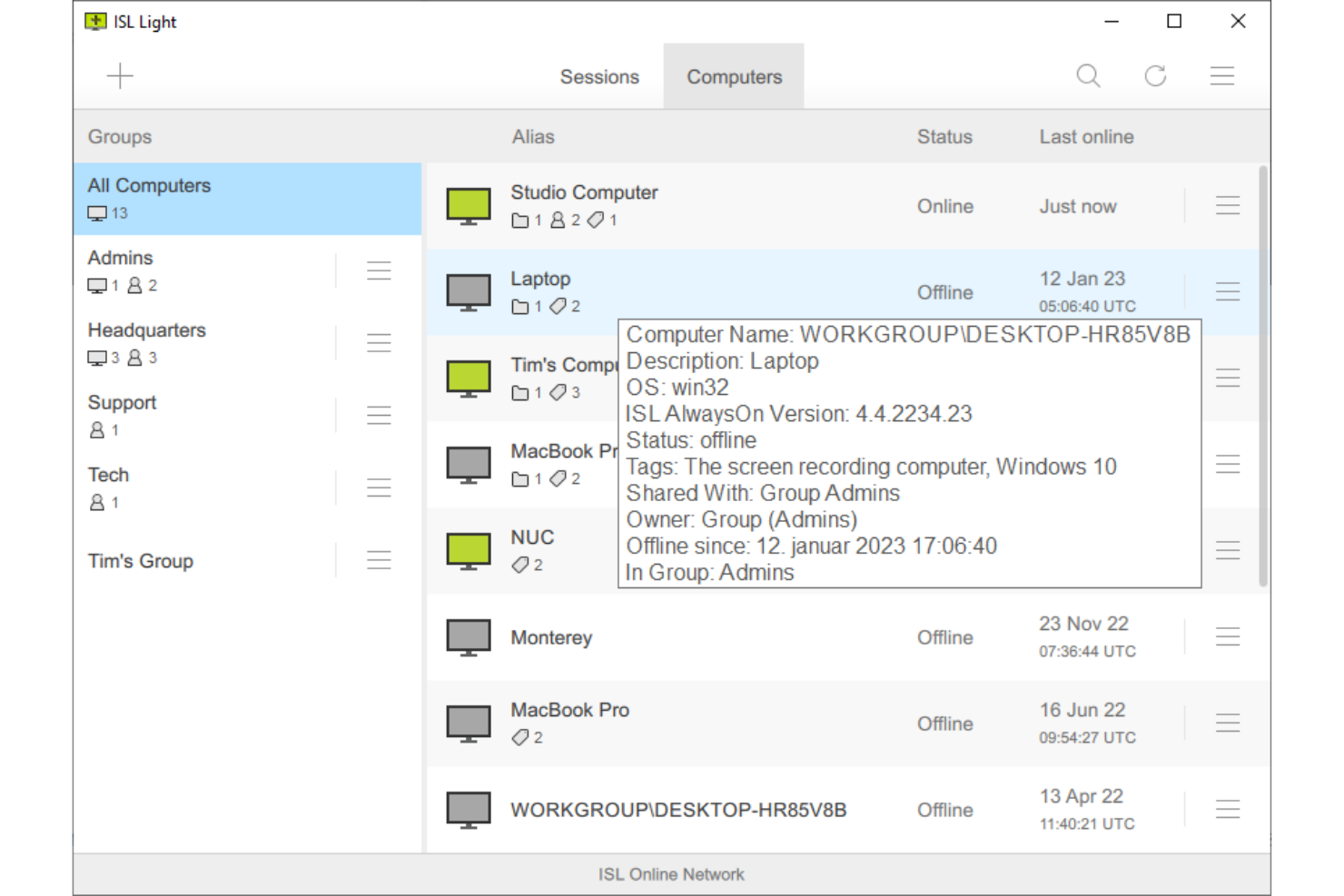
ISL Online is a remote access platform designed for IT support teams and service providers who need reliable, secure connections. It’s a good fit for organizations that want flexible deployment options, including cloud and on-premises. If you’re looking for a LogMeIn alternative that supports global access and straightforward session management, ISL Online is worth considering.
Who Is ISL Online Best For?
ISL Online is a strong choice for IT support teams and managed service providers that need to scale remote sessions across multiple clients or locations.
Why ISL Online Is a Good LogMeIn Alternative
What sets ISL Online apart as a LogMeIn alternative is its ability to handle a high volume of on-demand remote sessions without performance drops. I picked ISL Online for teams that need to quickly spin up multiple concurrent sessions, especially during peak support hours or large-scale deployments. The platform’s cloud and on-premises deployment options make it easy to adapt to different IT environments and compliance needs. Its session queuing and load balancing features help ensure stable, reliable access even as demand fluctuates.
ISL Online Key Features
Some other features I found useful for remote access and support include:
- Multi-Platform Support: Connect to Windows, macOS, Linux, and mobile devices from a single interface.
- Unattended Access: Set up and manage remote computers without requiring user interaction on the remote end.
- Session Recording: Record remote sessions for auditing, compliance, or training purposes.
- Custom Branding: Personalize the remote access portal with your organization’s logo and colors.
ISL Online Integrations
Integrations include Microsoft Active Directory, NetIQ eDirectory, LDAP, RADIUS, SAML 2.0, Microsoft Entra, Okta, PDQ Connect, and more.
Pros and Cons
Pros:
- Custom branding for client-facing portals
- Offers both cloud and on-premises deployment
- Supports unlimited on-demand and unattended sessions
Cons:
- Higher entry cost for small teams
- Clipboard sync can be inconsistent

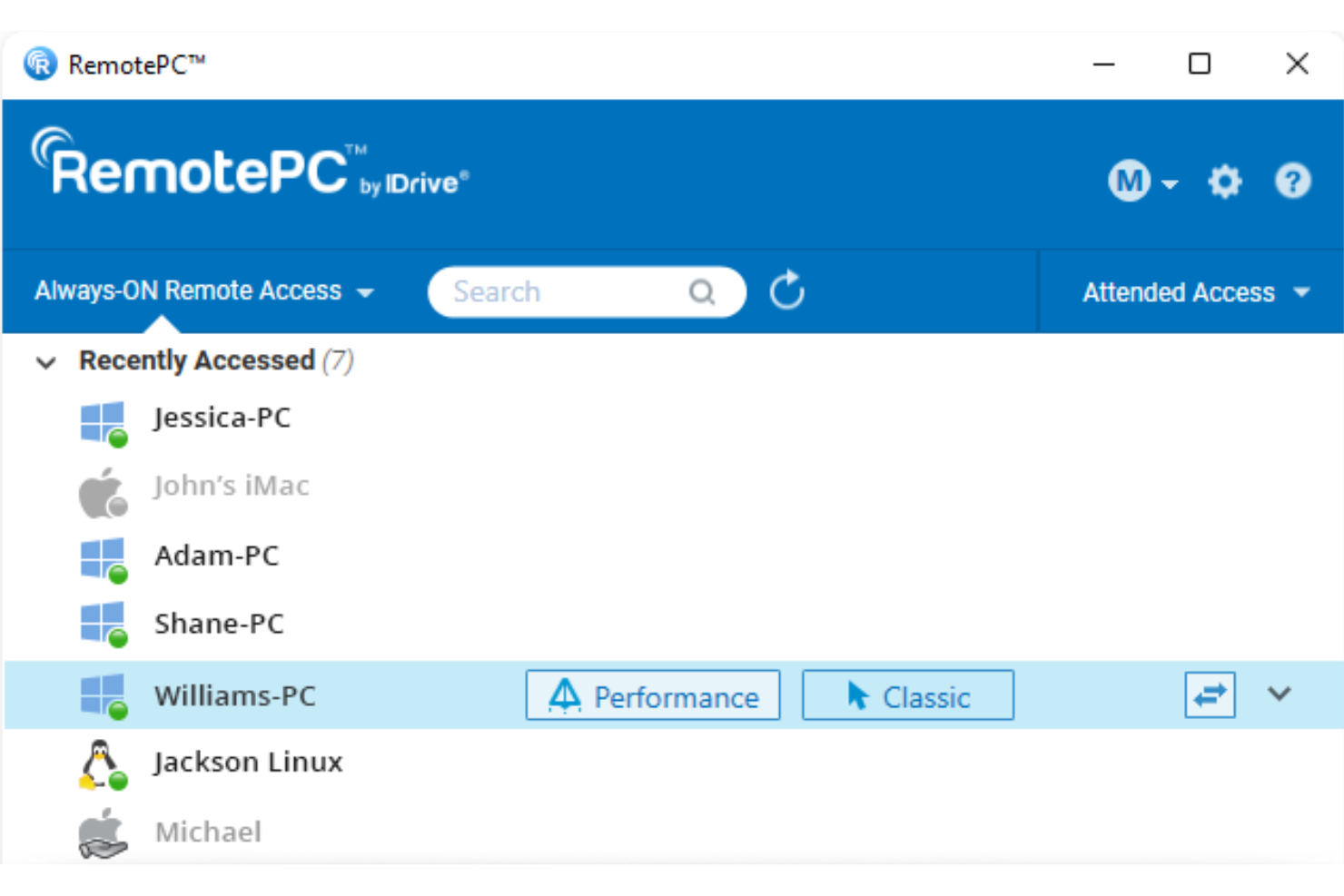
RemotePC is a remote access platform designed for businesses and IT professionals who need reliable, secure connections to computers from anywhere. It’s a strong fit for organizations that support hybrid or distributed teams and want to maintain access to office or client machines at all times. If you’re looking for a LogMeIn alternative that emphasizes persistent connectivity and flexible device management, RemotePC is worth a closer look.
Who Is RemotePC Best For?
RemotePC is a good fit for IT teams and businesses that need secure, continuous remote access to computers across multiple locations.
Why RemotePC Is a Good LogMeIn Alternative
What makes RemotePC stand out as a LogMeIn alternative is its focus on always-on remote connectivity. I picked RemotePC for teams that need to maintain uninterrupted access to remote computers, whether for ongoing support, monitoring, or administration. The platform lets you set up persistent connections, so you can access devices at any time without requiring user intervention on the remote end. Features like wake-on-LAN and remote power management further support continuous access, making it a strong choice for IT environments that can’t afford downtime.
RemotePC Key Features
Some other features that make RemotePC a strong option for remote access include:
- Multi-platform support: Connect to and control Windows, Mac, Linux, iOS, and Android devices from a single dashboard.
- File transfer: Move files securely between local and remote computers during an active session.
- Session recording: Record remote sessions for auditing, compliance, or training purposes.
- Remote printing: Print documents from a remote computer to a local printer without extra setup.
RemotePC Integrations
Integrations include Zendesk, Freshdesk, Freshservice, Jira, OneLogin, Okta, Keycloak, and more.
Pros and Cons
Pros:
- Provides multi-platform access across OS and mobile
- Offers session recording for compliance needs
- Supports always-on remote access for endpoints
Cons:
- Slow multi-monitor switching
- Inconsistent Mac-to-Windows keyboard mapping

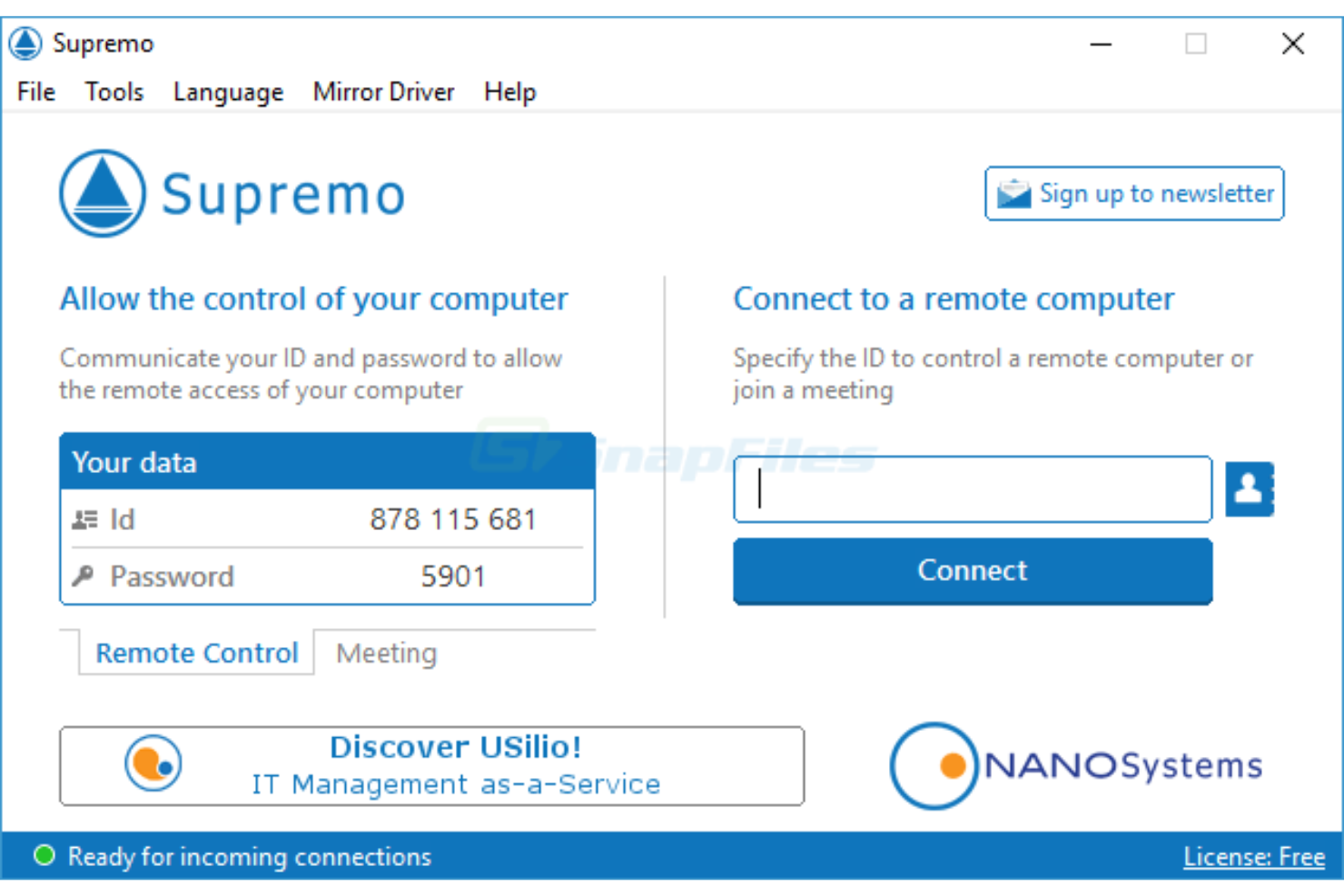
Supremo is a remote access tool designed for IT professionals and small businesses that need quick, reliable connections without complex setup. It’s especially useful for teams that want a lightweight solution they can run without installation. If you’re looking for a LogMeIn alternative that’s easy to deploy and manage across multiple devices, Supremo is worth a look.
Who Is Supremo Best For?
Supremo is a good fit for IT professionals and small to midsize businesses that need portable, on-demand remote access across multiple devices and operating systems.
Why Supremo Is a Good LogMeIn Alternative
What makes Supremo stand out as a LogMeIn alternative is its true portability—you can run it as a standalone executable without installation or admin rights. I picked Supremo for teams that need to provide remote support on the go, especially when working across different client environments or devices. The tool’s small file size and ability to launch instantly from a USB drive or cloud folder make it easy to use in situations where quick, flexible access is essential. Supremo also supports simultaneous connections, so you can manage multiple remote sessions without being tied to a single workstation.
Supremo Key Features
Some other features I found useful for remote access and support include:
- Remote printing: Print documents from the remote device directly to your local printer during a session.
- File transfer: Move files between local and remote devices securely within the session window.
- Multi-display support: View and switch between multiple monitors connected to the remote machine.
- Address book management: Organize and store frequently accessed remote devices for quick connection.
Supremo Integrations
Integrations include Acronis, Remote Desktop Manager (RDM), Riversuite, Deepser, and Easy Connect by PhySonix.
Pros and Cons
Pros:
- Lower security granularity
- Inconsistent multi-monitor support for hosts
- Unattended access works on unlimited devices
- Lightweight app uses minimal system resources
- Portable executable runs without installation

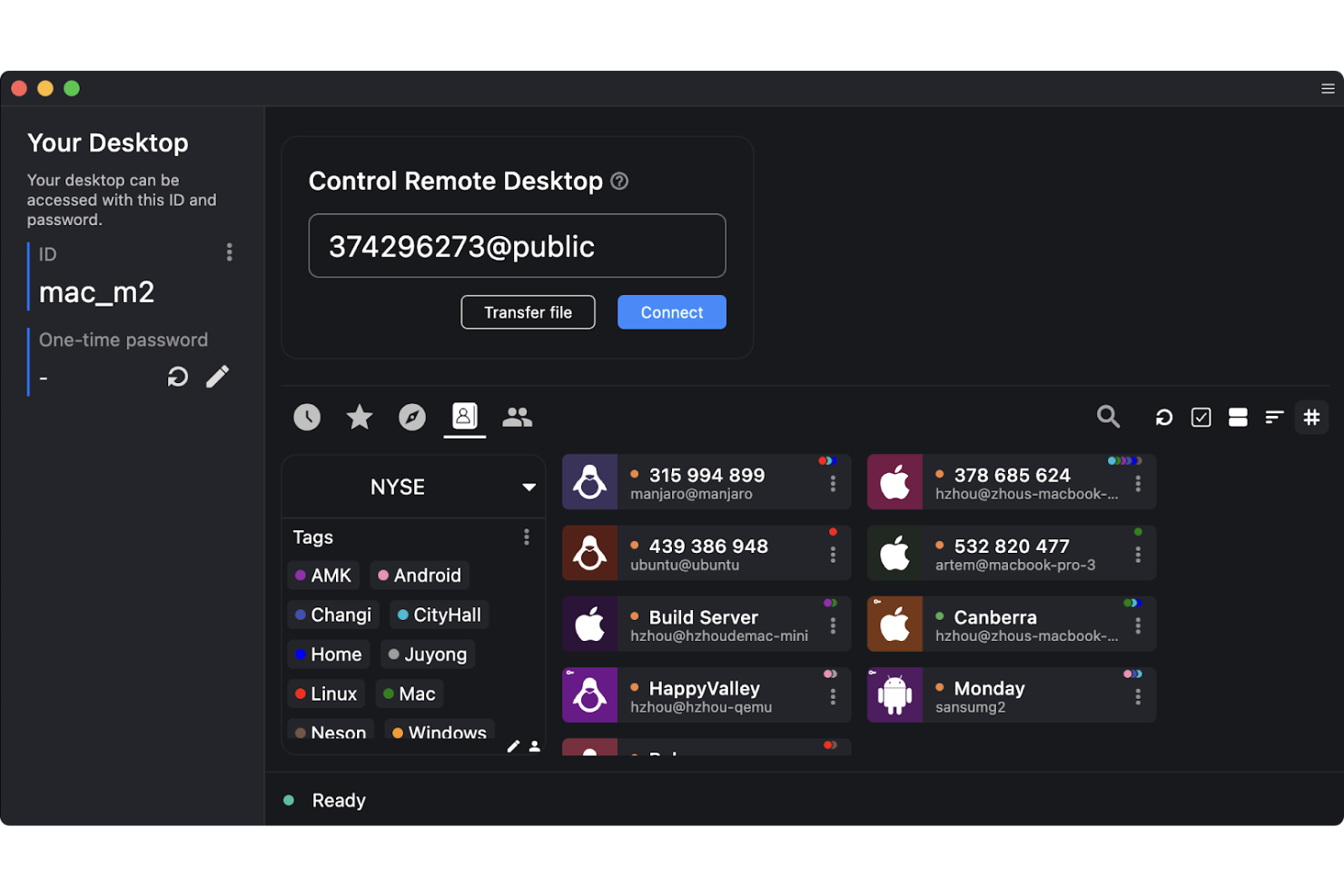
RustDesk is an open-source remote access platform designed for IT teams and organizations that want more control over their infrastructure. It appeals to businesses with strict security requirements or those operating in regulated industries. If you need a remote access tool that puts privacy and data ownership first, RustDesk offers a compelling alternative to mainstream solutions.
Who Is RustDesk Best For?
RustDesk is a strong fit for IT teams in security-conscious organizations or regulated industries that require full control over remote access infrastructure.
Why RustDesk Is a Good LogMein Alternative
What sets RustDesk apart from LogMeIn is its self-hosted deployment options, which give you full control over your remote access environment. I picked RustDesk for teams that need to keep sensitive data on-premises or within a private cloud, rather than relying on third-party servers. With features like AES encryption and customizable server infrastructure, you can tailor your setup to meet strict security or compliance requirements. This makes RustDesk especially appealing for organizations that prioritize privacy and data sovereignty in their remote access workflows.
RustDesk Key Features
Some other features in RustDesk that stand out for remote access management include:
- Clipboard Synchronization: Copy and paste text or files between local and remote devices during a session.
- Multi-Platform Support: Connect to and control devices running Windows, macOS, Linux, Android, and iOS.
- Session Recording: Record remote sessions for auditing, compliance, or training purposes.
- Unattended Access: Set up devices for remote access without requiring manual approval each time.
RustDesk Integrations
Integrations are not publicly listed.
Pros and Cons
Pros:
- No account registration required for connections
- Open-source codebase allows full transparency
- Self-hosted server keeps data in-house
Cons:
- Lacks remote printing functionality
- No built-in chat or messaging feature
Other LogMeIn Alternatives
Here are some additional LogMeIn alternative options that didn’t make it onto my shortlist, but are still worth checking out:
- ScreenConnect
For unattended remote access
- Splashtop
For high-performance remote streaming
- Datto RMM
For MSP-centric automation tools
- Parallels RAS
For virtual app delivery to any device
- V2 Cloud
For rapid desktop deployment
- Amazon WorkSpaces
With scalable cloud-based desktops
- ManageEngine Endpoint Central
With integrated patch management
- Reemo
For low-latency remote gaming access
- GO-Global
For browser-based Windows app access
- N‑central® RMM
For multi-site device monitoring


LogMeIn Alternative Selection Criteria
When selecting the best LogMeIn alternative to include in this list, I considered common buyer needs and pain points related to remote access software products, like secure cross-platform connectivity and reliable session performance. I also used the following framework to keep my evaluation structured and fair:
Core Functionality (25% of total score)
To be considered for inclusion in this list, each solution had to fulfill these common use cases:
- Provide remote desktop access
- Support file transfer between devices
- Enable multi-user or multi-session access
- Offer session logging or auditing
- Allow remote printing
Additional Standout Features (25% of total score)
To help further narrow down the competition, I also looked for unique features, such as:
- Integration with IT service management tools
- Advanced session recording and playback
- Role-based access controls
- Automated device discovery
- Support for mobile device access
Usability (10% of total score)
To get a sense of the usability of each system, I considered the following:
- Intuitive navigation and dashboard layout
- Clear labeling of features and settings
- Minimal steps to initiate a remote session
- Responsive interface across devices
- Customizable user interface options
Onboarding (10% of total score)
To evaluate the onboarding experience for each platform, I considered the following:
- Availability of step-by-step setup guides
- Access to training videos and tutorials
- Interactive product tours for new users
- Pre-built templates for common configurations
- Live help desk or tech support during onboarding
Customer Support (10% of total score)
To assess each software provider’s customer support services, I considered the following:
- 24/7 support availability
- Multiple support channels, such as phone, chat, and email
- Access to a searchable knowledge base
- Fast response times to support requests
- Availability of dedicated account managers
Value For Money (10% of total score)
To evaluate the value for money of each platform, I considered the following:
- Transparent and flexible pricing plans
- Features included at each pricing tier
- Discounts for annual or volume licensing
- Free trial or demo availability
- No hidden fees or surprise charges
Customer Reviews (10% of total score)
To get a sense of overall customer satisfaction, I considered the following when reading customer reviews:
- Consistency of positive feedback across platforms
- Reports of reliability and uptime
- Feedback on customer support experiences
- User comments on feature usefulness
- Reports of issues or limitations with the software
Why Look For a LogMein Alternative??
While LogMeIn is a good choice of remote access software, there are a number of reasons why some users seek out alternative solutions. You might be looking for a LogMeIn alternative because…
- Needing more transparent or flexible pricing
- Wanting deeper integrations with IT management tools
- Requiring advanced session recording or auditing features
- Seeking better support for mobile device access
- Experiencing inconsistent performance or connection issues
- Looking for more granular user permission controls
If any of these sound like you, you’ve come to the right place. My list contains several remote access software options that are better suited for teams facing these challenges with LogMeIn and looking for alternative solutions.
LogMeIn Key Features
Here are some of the key features of LogMeIn, to help you contrast and compare what alternative solutions offer:
- Remote desktop access: Connect to and provide remote control for computers from anywhere, allowing IT teams and end users to troubleshoot, manage, or use remote devices as if they were physically present.
- File transfer: Move files securely between local and remote devices during a session, supporting workflows like patch deployment, document sharing, or software updates.
- Multi-monitor support: View and interact with multiple monitors connected to a remote machine, making it easier to manage complex setups or provide support for users with multi-screen workstations.
- Session recording: Record remote access sessions for auditing, compliance, or training purposes, enabling organizations to review activity and maintain accountability.
- User management: Create, manage, and assign roles or permissions to users and groups, ensuring only authorized personnel can access specific devices or features.
- Remote printing: Print documents from a remote computer to a local printer, simplifying workflows for distributed teams or remote workers who need physical copies.
- Mobile device access: Access and control computers from iOS or Android devices, giving users the flexibility to provide support or manage systems on the go.
- Wake-on-LAN: Power on remote computers that are in sleep or powered-off states, reducing the need for physical access and supporting after-hours maintenance.
- Two-factor authentication: Add an extra layer of security to remote sessions by requiring a second form of verification, helping protect sensitive systems from unauthorized access.
- Session reporting: Generate detailed reports on remote access activity, including session times, users, and actions taken, supporting compliance and operational oversight.