
19 CodePen Alternatives for 2026

CodePen Alternative Shortlist
Here’s my shortlist of CodePen alternatives:


A strong CodePen alternative gives you a code playground with an online editor, real-time previews, easy sharing, and a community for feedback without locking you into a single platform. If you’re searching for alternatives to CodePen, you’re likely looking for tools that support rapid prototyping, collaboration, and a flexible workflow to write code for front-end or full-stack projects. Many also include features like code completion and a user-friendly interface to speed up development. This list will help you compare the top options for 2026, so you can find the right environment for your coding style, team needs, and project goals.
What Is CodePen?
CodePen is a social development environment that lets you write, preview, and share HTML, CSS, and JavaScript code directly in your browser. It’s widely used for prototyping, experimenting with front-end code, and getting feedback from a large developer community. CodePen supports real-time collaboration, embeds, and showcases, making it popular among web developers, designers, and educators who want to share and refine their work online.
Why Trust Our Software Reviews
Best CodePen Alternatives Summary
This comparison chart summarizes pricing details for my top CodePen alternative selections to help you find the best one for your budget and business needs.
| Tool | Best For | Trial Info | Price | ||
|---|---|---|---|---|---|
| 1 | Best for rapid front-end prototyping | Free plan available | From $8/month | Website | |
| 2 | Best for cross-platform cloud editing | Free trial available | From $9.60/user/month (billed annually) | Website | |
| 3 | Best for a large extension ecosystem | Free plan available | Free to use | Website | |
| 4 | Best for collaborative real-time coding | Free trial available | From $20/month (billed annually) | Website | |
| 5 | Best for data-driven web app development | Free plan available | From $20/month | Website | |
| 6 | Best for instant multi-language environments | Free plan available | From $9.80/month | Website | |
| 7 | Best for live JavaScript previews | Free trial available | From $21/month (billed annually) | Website | |
| 8 | Best for AI-powered code assistance | Free plan available | From $20/month | Website | |
| 9 | Best for low-latency multiplayer editing | Free plan available | From $10/month | Website | |
| 10 | Best for interactive code learning | Free plan available | $5.83/month (billed annually) | Website |
-

Site24x7
Visit WebsiteThis is an aggregated rating for this tool including ratings from Crozdesk users and ratings from other sites.4.6 -
Docker
Visit WebsiteThis is an aggregated rating for this tool including ratings from Crozdesk users and ratings from other sites.4.6 -
Pulumi
Visit WebsiteThis is an aggregated rating for this tool including ratings from Crozdesk users and ratings from other sites.4.8





Best CodePen Alternative Reviews
Below are my detailed summaries of the best CodePen alternatives that made it onto my shortlist. My reviews offer a detailed look at the features, collaboration capabilities, and best use cases of each platform to help you find the best one for you.

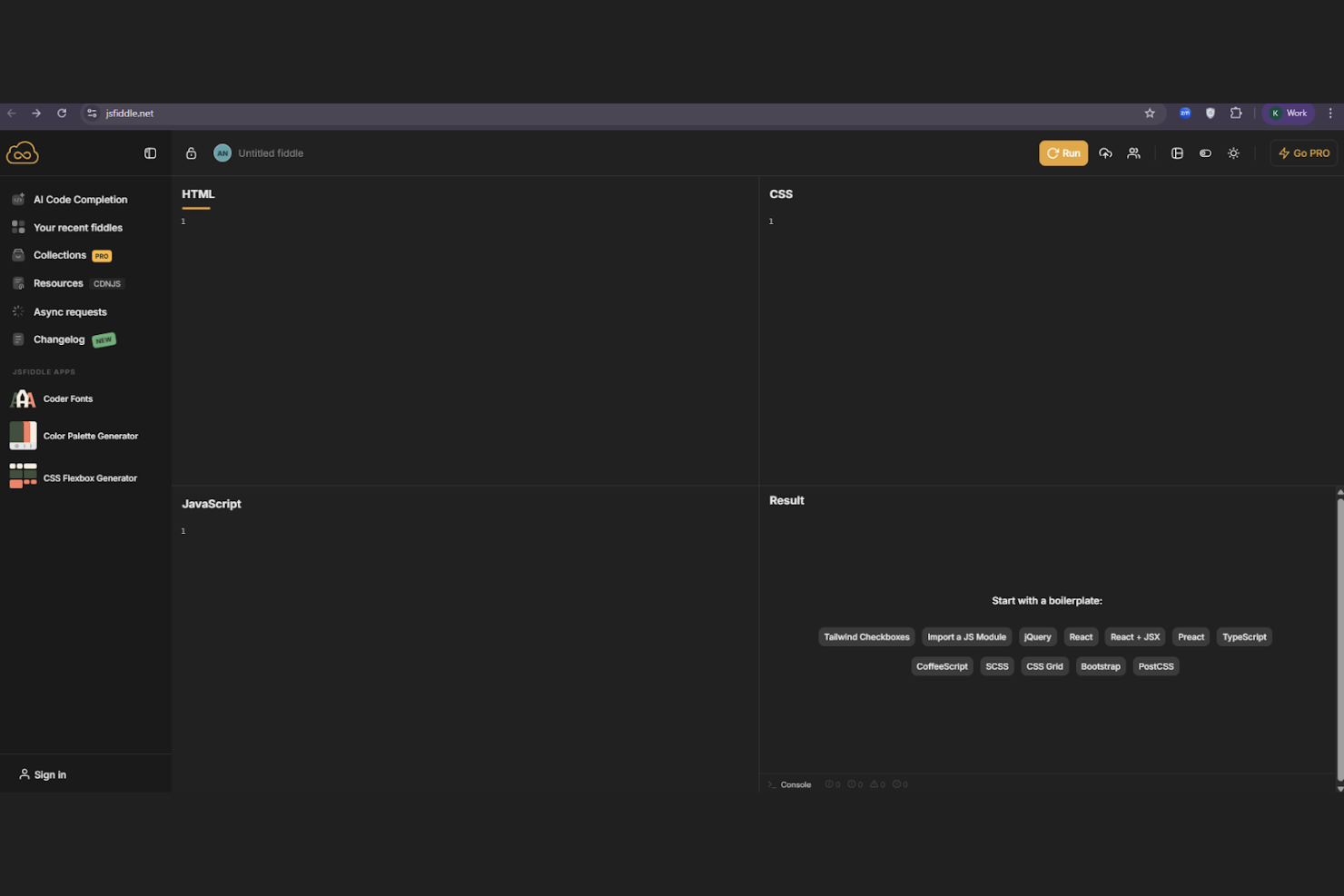
JSFiddle gives web developers a fast way to prototype and share front-end code in a simple, browser-based editor. It’s especially useful for those who want to test small code snippets or collaborate on quick experiments without extra setup. If you need a lightweight environment for HTML, CSS, and JavaScript demos, JSFiddle stands out for its speed and minimalism compared to more feature-heavy platforms.
Who is JSFiddle Best For?
Frontend developers and web designers in small to mid-sized organizations globally prototyping and testing front-end code snippets quickly.
Why I Picked JSFiddle
For rapid front-end prototyping, JSFiddle offers a focused environment that lets you write and preview HTML, CSS, and JavaScript side by side. I picked JSFiddle because it makes it easy to share live code examples with a simple URL, which is ideal for quick feedback or troubleshooting. The tool’s ability to embed fiddles directly into blogs or documentation also supports collaborative learning and discussion. If you want a no-frills way to experiment and share front-end code, JSFiddle delivers exactly that.
JSFiddle Key Features
Some other features in JSFiddle make it a flexible choice for web development teams:
- Framework and library support: Load popular JavaScript frameworks and libraries like React, Vue, or jQuery directly into your project.
- Version history: Access previous versions of your fiddles to track changes or revert to earlier code.
- Private fiddles: Create unlisted fiddles to share code privately with select collaborators.
- Result panel resizing: Adjust the size of the output panel to test how your code looks in different viewport dimensions.
JSFiddle Integrations
Integrations include GitHub, Stack Overflow, and more.
Pros and Cons
Pros:
- Offers version history for code revisions
- Allows loading of external JavaScript libraries
- Supports instant sharing of live code snippets
Cons:
- Lacks real-time collaborative editing
- No built-in asset hosting for images or files

Developers who need to code across devices and operating systems will find Codeanywhere designed for true cross-platform flexibility. This cloud-based editor appeals to distributed teams and professionals who want to work from any browser, tablet, or mobile device without losing access to their projects. Unlike CodePen, Codeanywhere supports full-stack development environments, containerized workspaces, and direct SSH access for real-time collaboration on live infrastructure.
Who is Codeanywhere Best For?
Developers and DevOps teams in small to mid-sized companies globally accessing cloud-based coding environments across devices and operating systems.
Why I Picked Codeanywhere
For teams that need to work seamlessly across different devices and operating systems, Codeanywhere offers a true cross-platform cloud editing experience. I picked Codeanywhere because it lets you spin up containerized development environments that are accessible from any browser, tablet, or mobile device. You can connect directly to remote servers using SSH, making it easy to collaborate on live infrastructure or manage code in production environments. This flexibility sets Codeanywhere apart from CodePen, especially for users who need more than just frontend prototyping in a social development environment.
Codeanywhere Key Features
Some other features in Codeanywhere help teams collaborate and manage projects more efficiently:
- Multiple code editor themes: Choose from a variety of editor themes to match your preferred coding environment.
- Version control integration: Connect directly to Git repositories for source code management within the editor.
- Real-time collaboration: Invite team members to edit and review code together in real time.
- Pre-configured development stacks: Launch workspaces with popular languages and frameworks already set up.
Codeanywhere Integrations
Integrations include GitHub, Bitbucket, Dropbox, Google Drive, FTP, SFTP, and more.
Pros and Cons
Pros:
- SSH access for direct server management
- Containerized workspaces for isolated project environments
- Supports full-stack and backend development workflows
Cons:
- Fewer built-in UI component libraries
- No social sharing or public project gallery

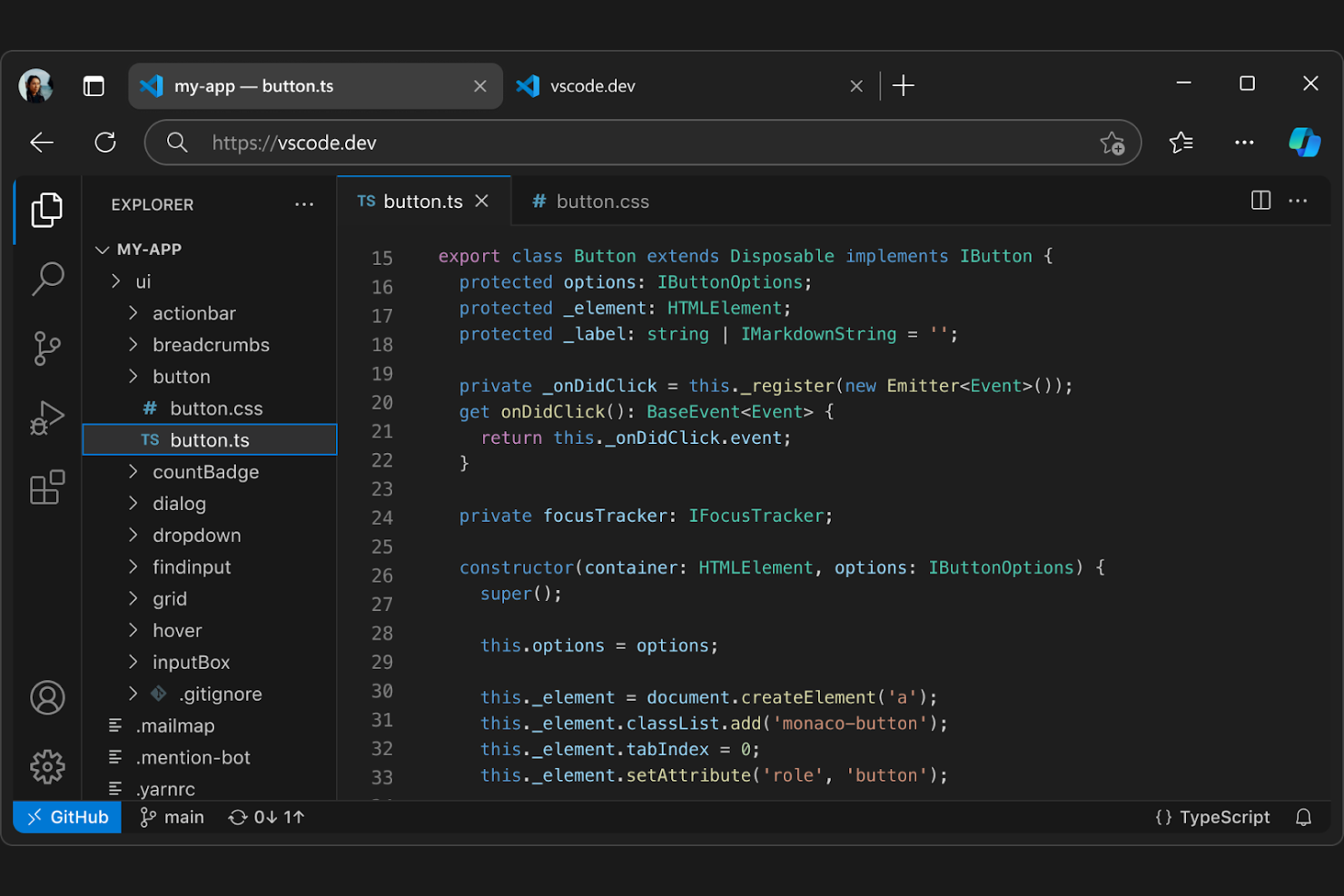
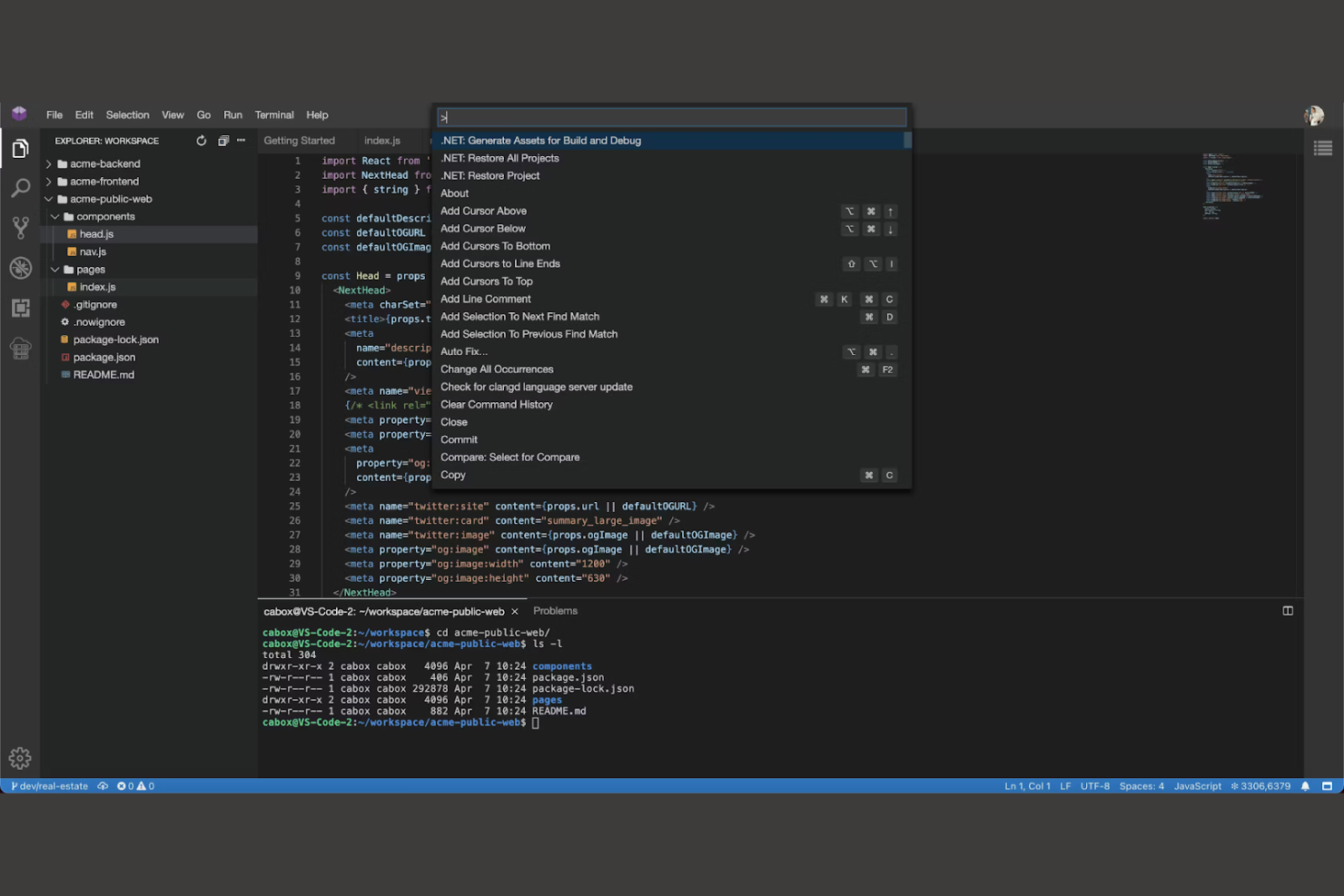
If you want a social development environment that’s highly customizable and open-source, Visual Studio Code is a strong option. This editor appeals to developers who need a flexible workspace and access to thousands of extensions for languages, frameworks, and collaboration tools. Visual Studio Code stands out for its active extension ecosystem, which lets teams tailor their environment for everything from live sharing to advanced debugging.
Who is Visual Studio Code Best For?
Developers and engineering teams in small to large organizations worldwide working in an extensible code editor with a broad extension ecosystem.
Why I Picked Visual Studio Code
What sets Visual Studio Code apart as a CodePen alternative is its massive extension ecosystem, which lets you build a truly social and collaborative coding environment. I picked Visual Studio Code because you can add extensions for live code sharing, real-time collaboration, and in-editor chat, all within the same workspace. The marketplace also includes tools for code linting, version control, and language support, so teams can customize their setup for any project. For developers who want to shape their own collaborative workflows, Visual Studio Code offers unmatched flexibility.
Visual Studio Code Key Features
Some other features make Visual Studio Code a versatile choice for collaborative coding:
- Integrated Git support: Manage source control and track changes directly within the editor.
- Built-in debugger: Set breakpoints, inspect variables, and step through code without leaving your workspace.
- Customizable keyboard shortcuts: Adjust key bindings to match your workflow and preferences.
- Split editor view: Work on multiple files side by side in the same window.
Visual Studio Code Integrations
Integrations include GitHub, Azure DevOps, Docker, ESLint, Prettier, Live Share, Python, C++, and more.
Pros and Cons
Pros:
- Split view supports multi-file editing
- Built-in Git tools for version control
- Live Share enables real-time collaborative coding
Cons:
- Workspace setup can be time-consuming
- Limited instant preview for web projects

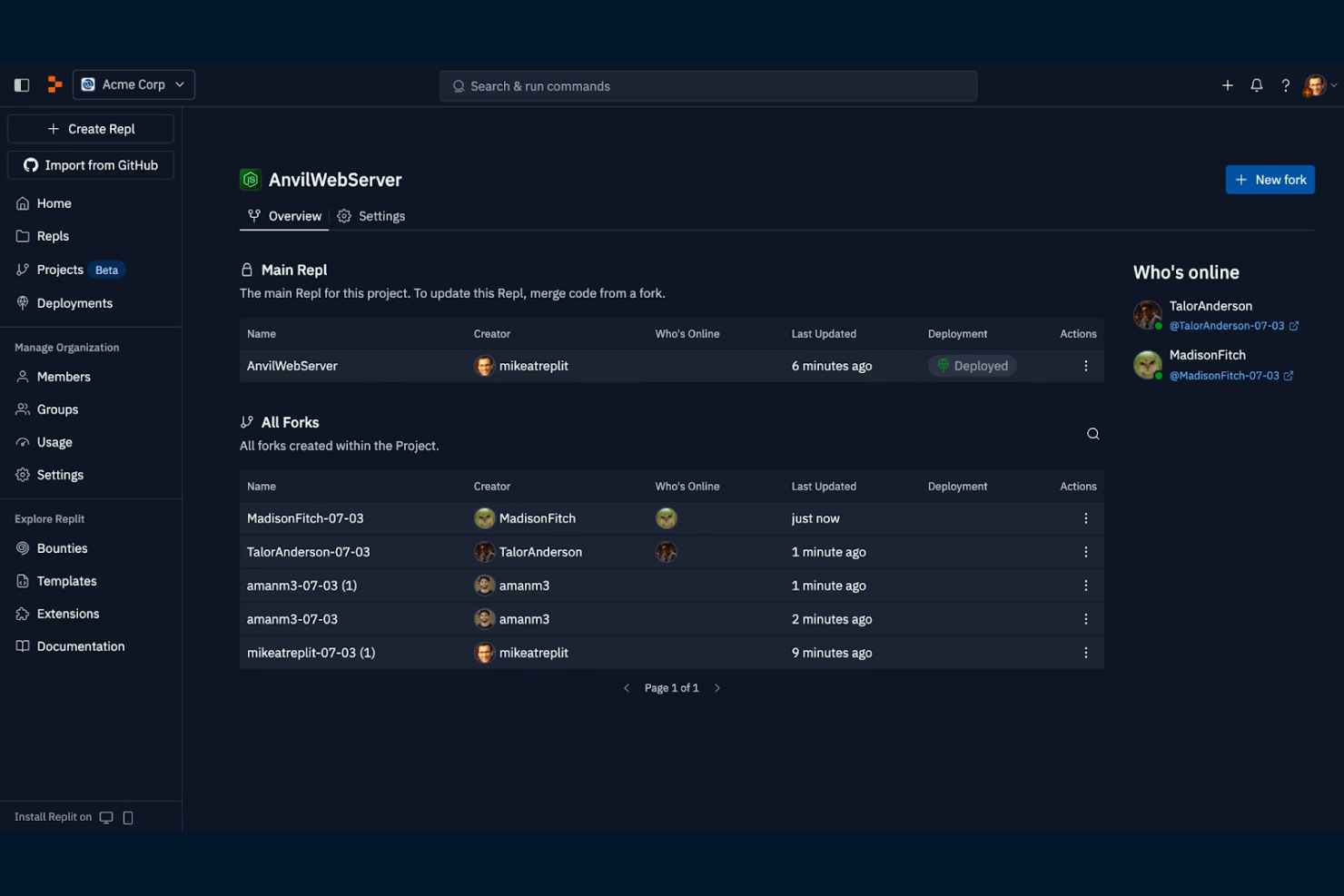
If you’re looking for a coding platform that supports real-time teamwork, Replit is worth considering. This tool is designed for developers, educators, and teams who need to collaborate on code together in the same workspace. Unlike CodePen, Replit enables true live multi-user editing and supports a wide range of programming languages for both frontend and backend projects.
Who is Replit Best For?
Developers, educators, and startup teams in small to mid-sized organizations globally collaborating on code projects in real time.
Why I Picked Replit
Unlike most browser-based coding platforms, Replit is built for real-time collaboration on code. I picked Replit because it lets multiple users edit the same project simultaneously, making it ideal for pair programming, team projects, or live teaching sessions. The built-in chat and commenting features help teams communicate directly within the coding environment. If you need a social development environment where collaboration is central, Replit offers a more interactive and team-focused experience than CodePen.
Replit Key Features
Some other features in Replit help expand its appeal for a range of coding projects:
- Multi-language support: Run and build projects in dozens of programming languages, including Python, JavaScript, Java, and C++.
- Integrated deployment: Deploy web applications and APIs directly from the editor without leaving the platform.
- Package manager: Install and manage dependencies for your projects using a built-in package manager.
- Version control integration: Connect to GitHub repositories to sync and manage your code versions.
Replit Integrations
Integrations include GitHub, GitLab, Discord, Slack, Google Drive, Dropbox, Trello, Notion, and Zoom.
Pros and Cons
Pros:
- Built-in deployment for web applications
- Supports backend languages and full-stack projects
- Real-time collaborative editing for multiple users
Cons:
- No built-in design or UI component libraries
- Free plan projects sleep after inactivity

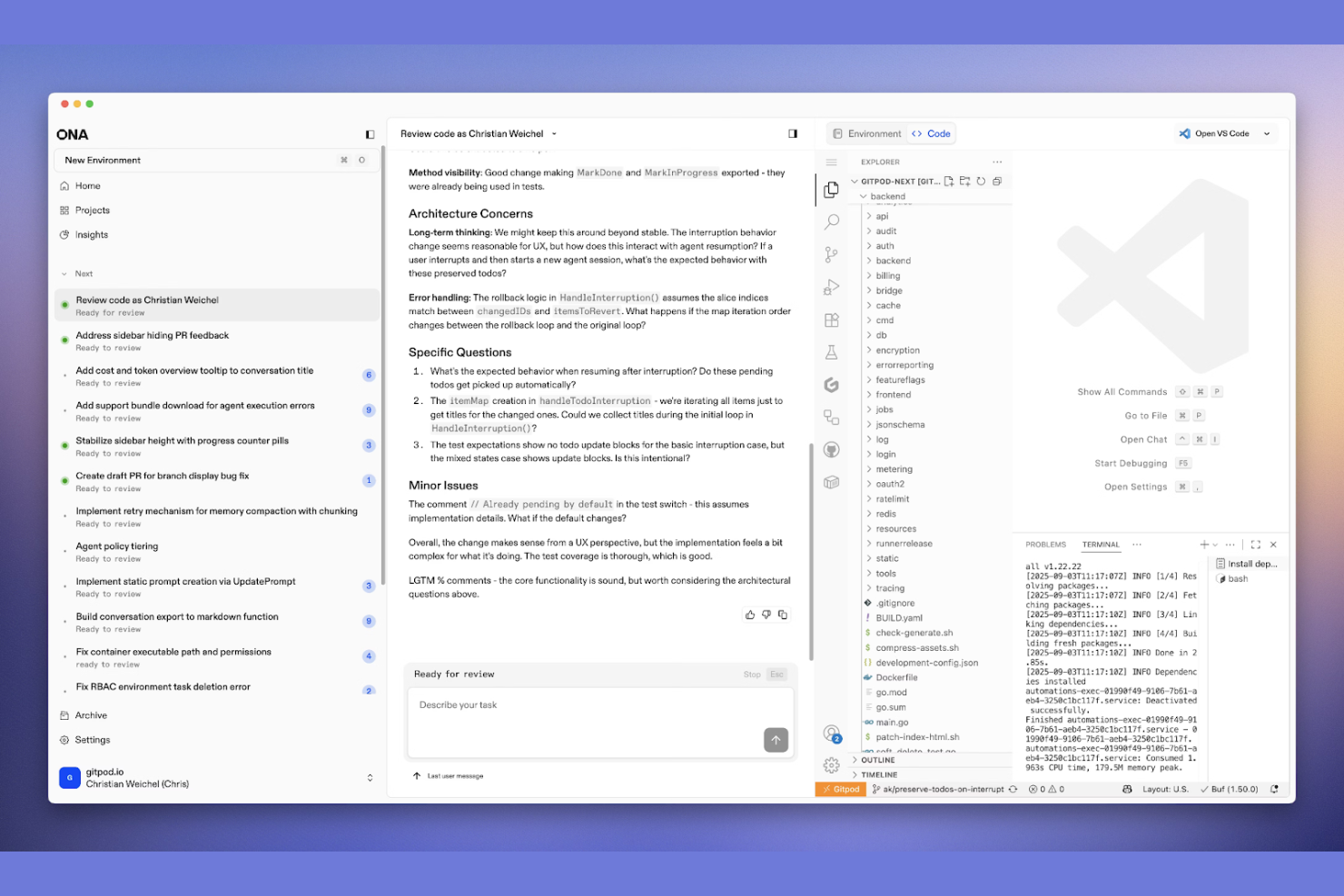
For teams building data-driven web applications, Ona offers a specialized environment focused on structured data collection and management. This platform is especially useful for organizations in research, monitoring, and field data operations that need to turn complex datasets into interactive web tools. Unlike CodePen, Ona emphasizes workflow automation, data integration, and secure collaboration for projects where data accuracy and accessibility are essential.
Who is Ona Best For?
Data engineers and developers in mid-sized organizations worldwide building data-driven web applications and managing structured datasets.
Why I Picked Ona
If your projects revolve around building web apps that rely on structured data, Ona brings a unique approach compared to CodePen. I picked Ona because it lets you design, collect, and manage complex datasets directly within the platform, making it ideal for data-driven development. Its form builder and data visualization tools help teams turn raw data into interactive web applications without switching between multiple tools. For anyone needing a social development environment focused on data workflows and collaboration, Ona stands out for its specialized support of data-centric projects.
Ona Key Features
Some other features in Ona help teams manage and share data-driven projects more efficiently:
- Role-based access controls: Assign specific permissions to users based on their roles within a project.
- Automated data validation: Set up rules to automatically check incoming data for errors or inconsistencies.
- API access for data integration: Connect Ona projects to external systems and tools using a robust API.
- Custom reporting tools: Build and share tailored reports directly from collected project data.
Ona Integrations
Integrations include Salesforce, Google Sheets, Dropbox, Slack, Tableau, Power BI, ArcGIS, KoboToolbox, SurveyCTO, and more.
Pros and Cons
Pros:
- Role-based access for secure collaboration
- Automated data validation for reliable input
- Built-in form builder for structured data apps
Cons:
- Lacks frontend design and preview tools
- No real-time collaborative code editing

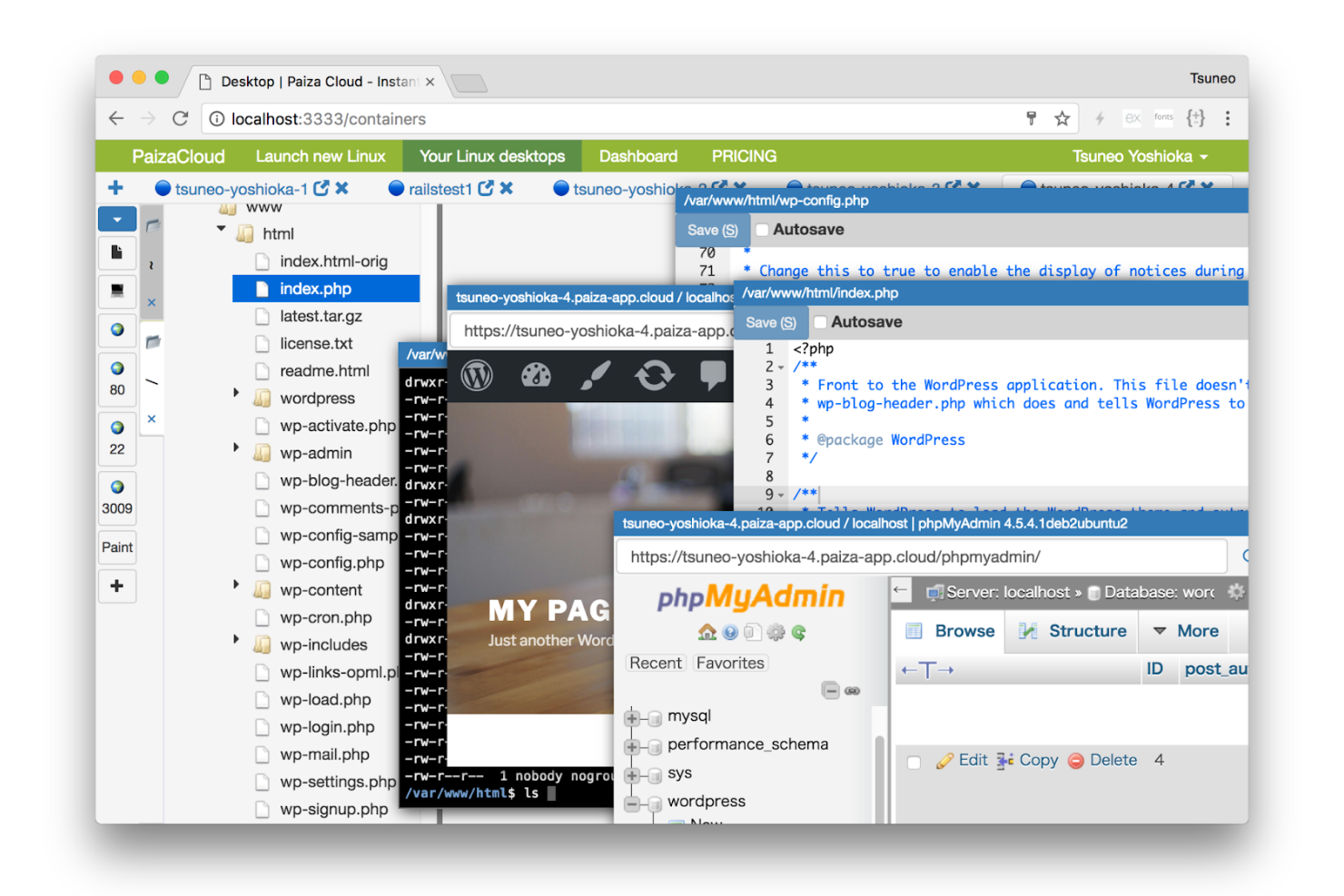
PaizaCloud gives you instant access to cloud-based development environments in multiple programming languages. This platform is a strong fit for teams, educators, and freelance developers who need to spin up new coding workspaces quickly without local setup. Unlike CodePen, PaizaCloud supports full-stack development with server access, making it easier to prototype, test, and share complex projects.
Who is PaizaCloud Best For?
Developers and technical educators in small to mid-sized organizations in North America and Asia creating instant, multi-language development environments in the browser.
Why I Picked PaizaCloud
Unlike many browser-based coding tools, PaizaCloud lets you launch full development environments for multiple languages in seconds. I picked PaizaCloud because it supports instant setup for languages like Python, Ruby, PHP, Node.js, and more, all within a cloud workspace. You can run servers, access terminals, and even install additional packages, which is ideal for building and testing more complex or backend-heavy projects. For anyone who needs more than just front-end prototyping, PaizaCloud offers a flexible alternative to CodePen’s limited environment.
PaizaCloud Key Features
Some other features in PaizaCloud help round out its appeal for collaborative coding and project sharing:
- Browser-based IDE: Access a full-featured code editor directly from your web browser without any installation.
- One-click app deployment: Launch web applications and preview them live with a single click.
- Multiple workspace tabs: Open and manage several coding projects or files at once within the same environment.
- Snapshot and restore: Save the current state of your workspace and restore it later as needed.
PaizaCloud Integrations
Integrations include GitHub, Heroku, MongoDB, Git, and more.
Pros and Cons
Pros:
- Multiple programming languages in one workspace
- One-click deployment for web applications
- Supports full-stack development with server access
Cons:
- No direct GitHub integration
- No built-in HTML/CSS/JS live preview

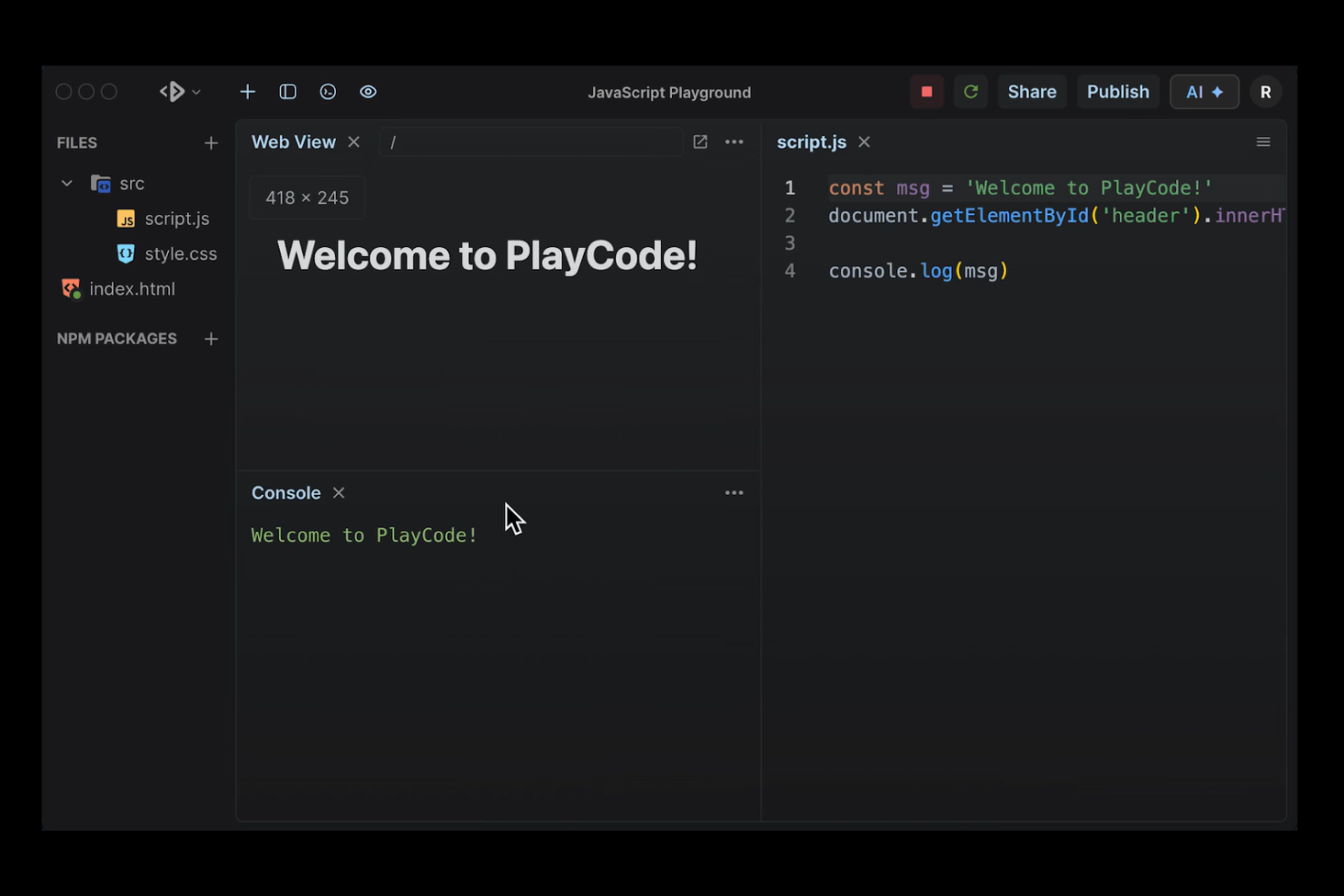
If you need instant feedback while working with JavaScript, PlayCode is built for you. This tool is especially useful for frontend developers, educators, and students who want to see live JavaScript results as they code. Unlike CodePen, PlayCode emphasizes real-time JavaScript previews and quick prototyping, making it easier to experiment and debug interactive scripts.
Who is PlayCode Best For?
Frontend developers and educators in small teams worldwide previewing JavaScript changes in real time during development or instruction.
Why I Picked PlayCode
For anyone who wants to see JavaScript changes reflected instantly, PlayCode offers a unique advantage over other social development environments. I picked PlayCode because its live JavaScript preview updates your output in real time as you type, which is especially helpful for rapid prototyping and debugging. The built-in console and error highlighting make it easy to spot issues and experiment with code snippets on the fly. If your main focus is interactive JavaScript development, PlayCode delivers a more immediate and responsive experience than CodePen.
PlayCode Key Features
Some other features in PlayCode help round out its capabilities for collaborative and experimental coding:
- Template library: Choose from a variety of pre-built templates to start new projects quickly.
- NPM package support: Import and use NPM packages directly in your projects without manual setup.
- Multi-file project structure: Organize your code with multiple files and folders within a single workspace.
- Code sharing via URL: Share your projects instantly with others using a unique link.
PlayCode Integrations
Integrations include React, Vue, TypeScript, Tailwind CSS, Bootstrap, and more.
Pros and Cons
Pros:
- Template library for quick project setup
- Built-in NPM package manager for dependencies
- Live JavaScript output updates with every keystroke
Cons:
- Free plan restricts project privacy options
- Limited support for backend languages

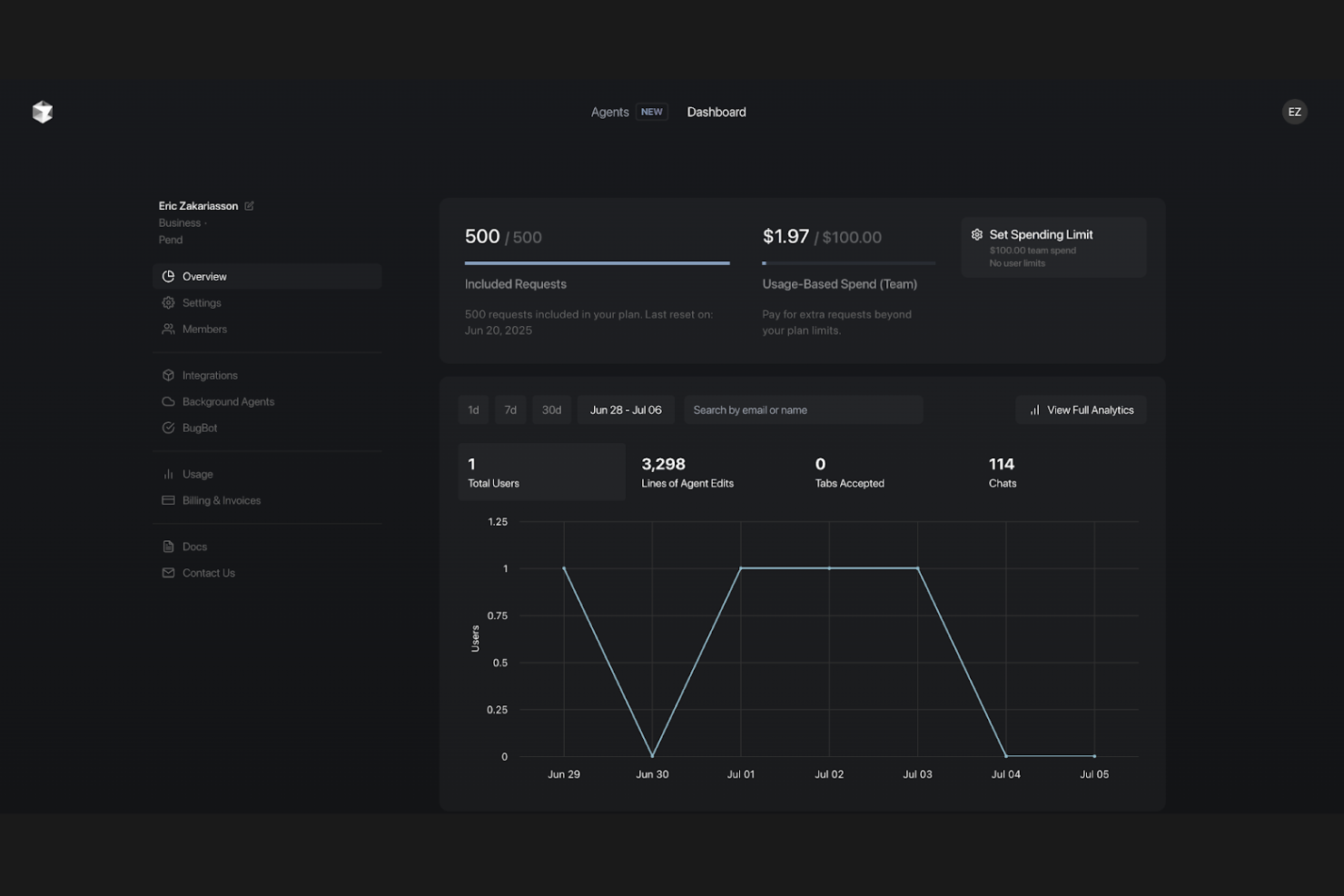
Developers looking for a social coding environment with advanced AI features will find Cursor worth considering. This tool stands out by integrating AI-powered code assistance directly into the editor, helping teams write, review, and debug code collaboratively. Cursor is especially useful for teams that want to accelerate development and reduce manual coding errors with AI support.
Who is Cursor Best For?
Software developers and engineering teams in small to mid-sized companies globally using AI-powered tools to assist with coding and code review tasks.
Why I Picked Cursor
Unlike most social development environments, Cursor puts AI-powered code assistance at the center of the collaborative experience. I picked Cursor because it offers features like in-editor AI code suggestions and automated code reviews, which help teams catch issues and improve code quality as they work together. The AI can also generate code snippets and answer technical questions in real time, making group coding sessions more productive. For teams who want to combine social coding with advanced AI support, Cursor brings a unique set of tools to the table.
Cursor Key Features
In addition to its AI-powered code assistance, Cursor offers several other features that support collaborative development:
- Live collaborative editing: Multiple users can edit the same codebase in real time.
- Integrated terminal: Access a built-in terminal directly within the editor for running commands.
- Project version history: Track and revert changes with a detailed project history.
- Customizable themes: Personalize the editor’s appearance with a range of theme options.
Cursor Integrations
Integrations include GitHub, GitLab, Bitbucket, VS Code, Slack, Jira, Trello, Notion, and more.
Pros and Cons
Pros:
- Real-time collaborative editing for team projects
- Automated code review highlights potential issues
- AI code suggestions speed up development
Cons:
- Limited frontend preview for web projects
- Requires desktop installation, not browser-based

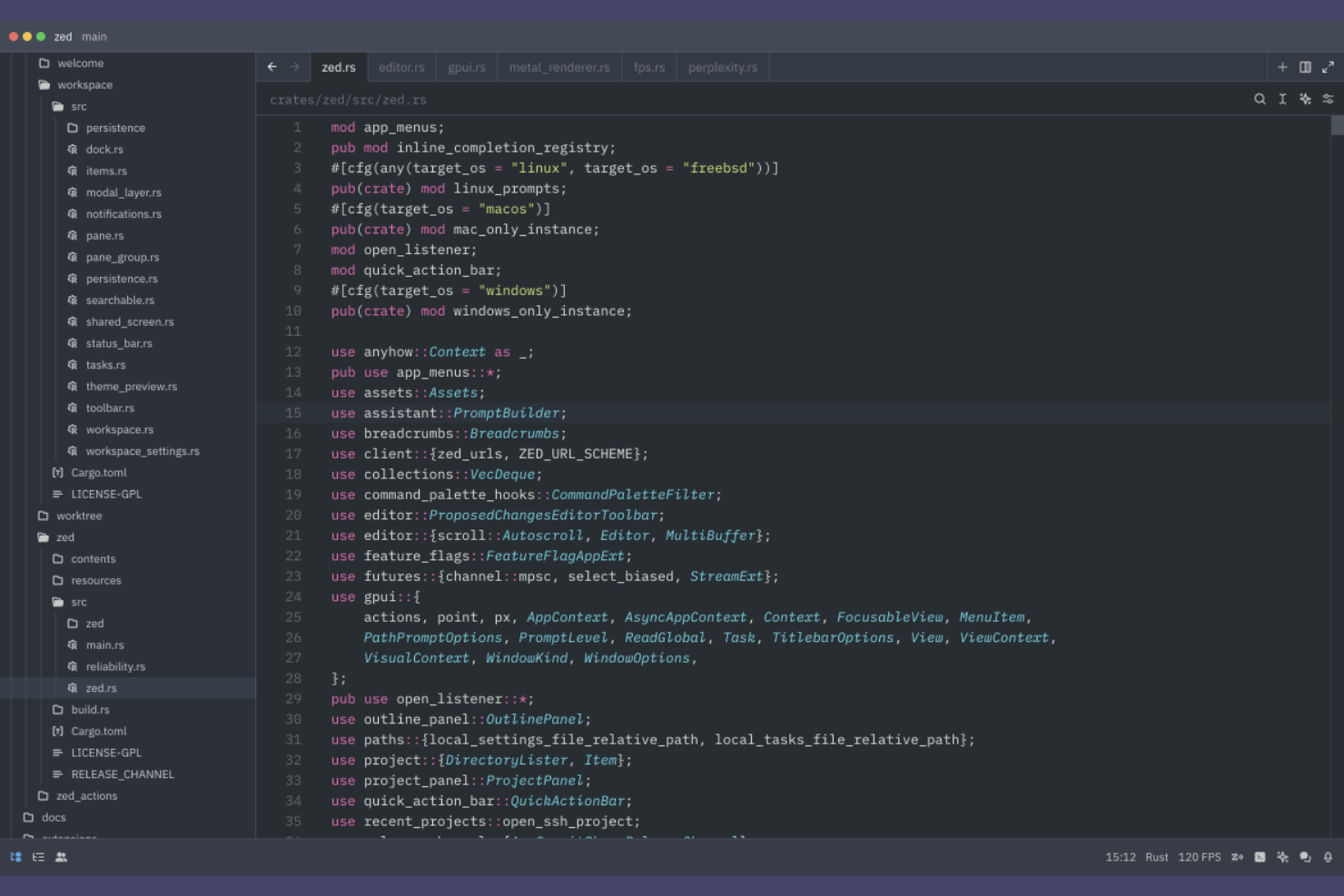
Zed is designed for developers who need real-time, low-latency collaboration on code. It’s especially useful for distributed teams, pair programmers, and anyone who values instant feedback while editing together. Unlike CodePen, Zed focuses on multiplayer editing with near-instant sync, making it ideal for fast-paced, collaborative coding sessions.
Who is Zed Best For?
Software developers and engineering teams in small to mid-sized organizations worldwide collaborating through low-latency, multiplayer code editing.
Why I Picked Zed
If you’re looking for a social development environment that prioritizes real-time collaboration, Zed is built for low-latency multiplayer editing. I picked Zed because it lets multiple developers edit the same codebase simultaneously with almost no lag, which is a step beyond what CodePen offers. Zed’s peer-to-peer architecture ensures that changes appear instantly for everyone in the session. This makes it a strong fit for teams who need fast, interactive coding sessions without the delays common in other collaborative editors.
Zed Key Features
In addition to its multiplayer editing capabilities, Zed offers several other features that support collaborative coding:
- Built-in voice chat: Communicate with collaborators directly inside the editor without switching tools.
- Project-based workspaces: Organize files and settings for each project in dedicated workspaces.
- Command palette: Access commands and actions quickly using a searchable command interface.
- Extensible plugin system: Add new functionality or customize your environment with community or custom plugins.
Zed Integrations
Integrations include GitHub Copilot, Anthropic (Claude), OpenAI (ChatGPT), Google Gemini, and more.
Pros and Cons
Pros:
- Local-first design with offline editing support
- Built-in voice chat for real-time discussion
- Low-latency multiplayer editing for instant collaboration
Cons:
- Native app required, not browser-based
- Limited web-based preview for frontend projects

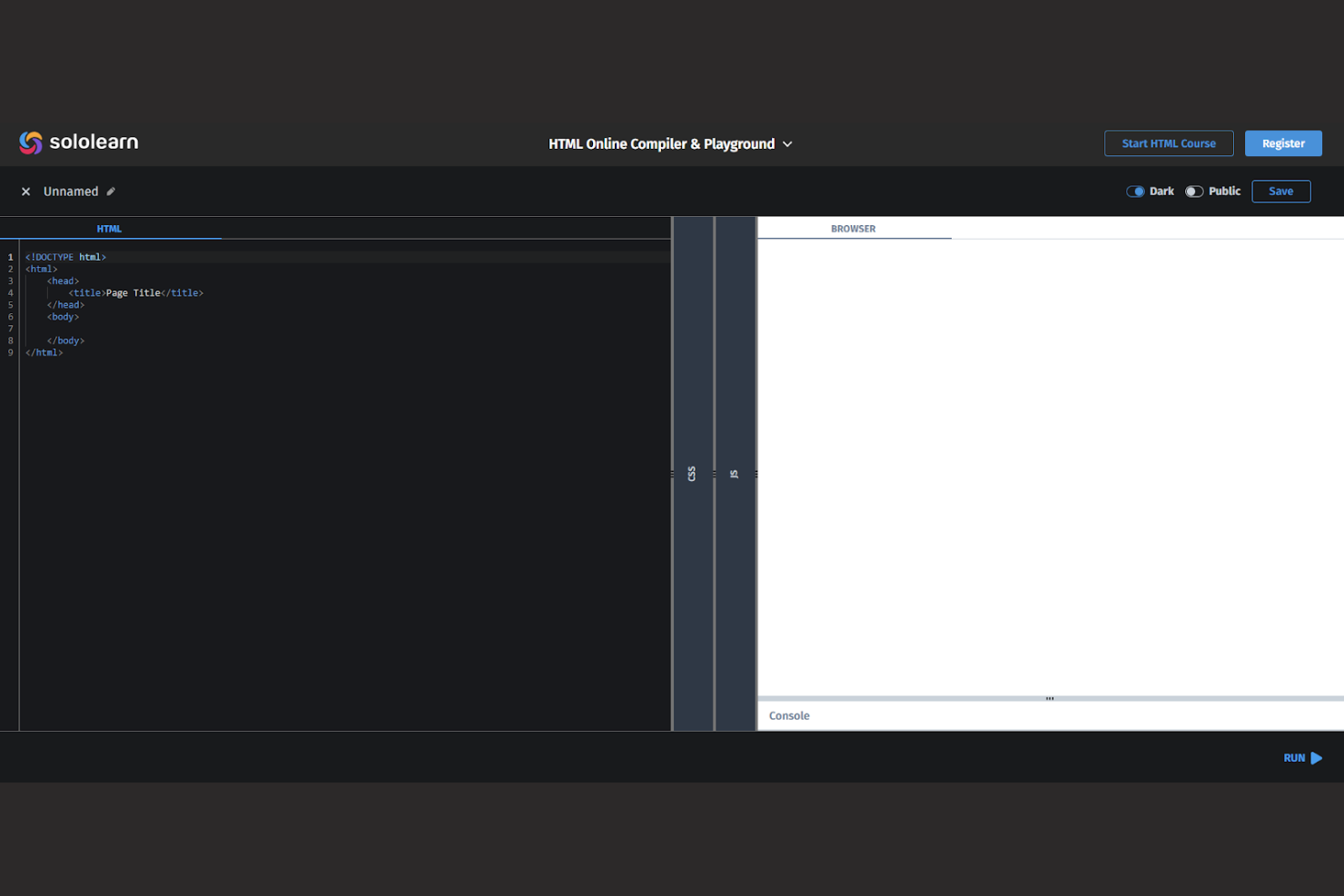
Sololearn’s Compiler Playground is designed for anyone who wants to learn coding through hands-on practice and interactive challenges. It’s especially useful for educators, students, and self-learners who want to experiment with code in a social, feedback-driven environment. Unlike CodePen, Sololearn emphasizes guided learning paths, quizzes, and peer support to help users build foundational coding skills.
Who is Sololearn Best For?
Individual developers and early-career professionals globally building coding skills through interactive programming exercises and lessons.
Why I Picked Sololearn
For anyone focused on learning to code interactively, Sololearn offers a unique approach compared to traditional code-sharing platforms. I picked Sololearn because it combines a live code editor with built-in lessons, quizzes, and coding challenges that guide users step by step. The platform’s social features, like peer code review and discussion threads, help users get feedback and support as they learn. If you want a social development environment that emphasizes skill-building and interactive practice, Sololearn is a strong alternative to CodePen.
Sololearn Key Features
Some other features in Sololearn help make it a well-rounded environment for code learning and sharing:
- Multi-language support: Run and test code in languages like Python, JavaScript, Java, C++, and more.
- Mobile app access: Write, run, and share code directly from iOS and Android devices.
- User-generated code library: Browse and interact with a large collection of public code snippets and projects.
- Achievement badges: Earn badges for completing lessons, challenges, and community activities.
Sololearn Integrations
Native integrations are not currently publicly listed.
Pros and Cons
Pros:
- Active peer feedback and discussion threads
- Gamified achievements and progress tracking
- Built-in lessons for multiple programming languages
Cons:
- Limited advanced code editor features
- No support for HTML/CSS live previews
Other CodePen Alternatives
Here are some additional CodePen alternatives that didn’t make it onto my shortlist, but are still worth checking out:
- CodeSandbox
For integrated npm package support
- Froala Editor
For rich text WYSIWYG editing
- IntelliJ IDEA
For advanced code refactoring
- Adobe Dreamweaver
For visual HTML design tools
- Sublime Text
For distraction-free editing
- Notepad++
For customizable syntax highlighting
- Geany
For lightweight IDE performance
- Lite XL
For minimal resource usage
- Textastic
For iOS code editing


CodePen Alternatives Selection Criteria
When selecting the best CodePen alternatives to include in this list, I considered common buyer needs and pain points related to social development environment products, like real-time collaboration and code sharing. I also used the following framework to keep my evaluation structured and fair:
Core Functionality (25% of total score)
To be considered for inclusion in this list, each solution had to fulfill these common use cases:
- Create and edit code in-browser
- Share code snippets or projects publicly
- Collaborate with others in real time
- Preview code output instantly
- Support multiple programming languages
Additional Standout Features (25% of total score)
To help further narrow down the competition, I also looked for unique features, such as:
- Live pair programming tools
- Built-in version control integration
- Extension or plugin marketplace
- In-app chat or messaging
- Customizable development environments
Usability (10% of total score)
To get a sense of the usability of each system, I considered the following:
- Clean and intuitive interface design
- Minimal setup required to start coding
- Responsive performance with large projects
- Logical menu and navigation structure
- Accessibility for users with disabilities
Onboarding (10% of total score)
To evaluate the onboarding experience for each platform, I considered the following:
- Availability of step-by-step product tours
- Access to training videos and documentation
- Pre-built templates for common project types
- Interactive onboarding checklists or guides
- Support for importing existing projects
Customer Support (10% of total score)
To assess each software provider’s customer support services, I considered the following:
- Availability of live chat or email support
- Response time to support inquiries
- Quality of the help center or knowledge base
- Access to the user community or forums
- Availability of onboarding webinars
Value For Money (10% of total score)
To evaluate the value for money of each platform, I considered the following:
- Transparent and flexible pricing plans
- Free plan or trial availability
- Features included in lower-tier plans
- Cost compared to similar tools
- No hidden fees or surprise charges
Customer Reviews (10% of total score)
To get a sense of overall customer satisfaction, I considered the following when reading customer reviews:
- Positive feedback on collaboration features
- Reports of bugs or technical issues
- Comments on customer support quality
- User satisfaction with performance and speed
- Feedback on ease of onboarding
Why Look For a CodePen Alternative?
While CodePen is a good choice of social development environment, there are a number of reasons why some users seek out alternative solutions. You might be looking for a CodePen alternative because…
- You need private or enterprise-level project hosting
- You want advanced real-time collaboration features
- You require support for backend or server-side languages
- You need offline editing or desktop app support
- You want more control over your development environment
- You work with large codebases or complex projects
If any of these sound like you, you’ve come to the right place. My list contains several social development environment options that are better suited for teams facing these challenges with CodePen and looking for alternative solutions.
CodePen Key Features
Here are some of the key features of CodePen, to help you contrast and compare what alternative solutions offer:
- In-browser code editor for HTML, CSS, and JavaScript
- Instant live preview of code changes
- Public and private Pens for sharing projects
- Community feed for discovering and following other creators
- Asset hosting for images and files
- Embeddable Pens for external websites or blogs
- Collaboration mode for real-time editing with others
- Project templates for quick project setup
- Built-in support for preprocessors like Sass and Babel
- Activity notifications and commenting on Pens