

Testare le app Android su un Mac non è sempre un'operazione semplice. Potresti riscontrare prestazioni lente, supporto limitato per i dispositivi o strumenti che semplicemente non sono stati progettati pensando agli sviluppatori. Che tu stia eseguendo il debug di un'app, installando APK tramite caricamento laterale o cercando semplicemente di replicare l'esperienza di un dispositivo reale, l'emulatore che scegli può influire notevolmente sul tuo flusso di lavoro.
Negli ultimi anni ho testato un'ampia gamma di emulatori Android lavorando a progetti multipiattaforma e collaborando con team di sviluppo che si affidano a macOS. Ho visto direttamente quali sono affidabili, adatti agli sviluppatori e in grado di mantenere effettivamente ciò che promettono.
In questa guida analizzerò i migliori emulatori Android per Mac, basandomi su test reali e non solo su specifiche o liste di funzionalità. Che tu abbia bisogno di qualcosa di leggero per test rapidi o di un dispositivo virtuale più completo, ti aiuterò a trovare la soluzione più adatta.
Perché fidarsi dei nostri consigli sui software
6,700+
Reviews
20
Industry experts
16+
Evaluation factors
14
Years
Il nostro team testa e recensisce software dal 2012. In quanto leader tecnologici noi stessi, sappiamo quanto sia difficile — e importante — scegliere il software giusto.
Per questa guida, abbiamo valutato gli strumenti attraverso test praticie ricerche indipendenti, assegnando un punteggio agli strumenti in base ai nostri criteri di selezione.
Le nostre recensioni riflettono il nostro giudizio editoriale umano, non un discorso di vendita.
Revisori esperti:
- Paulo Gardini MiguelDirettore tecnico
 Tim FisherVP dell'IA
 Gabriel RosasTech Lead e architetto software
 Christhian GruhnTech Lead e architetto della piattaforma

Tabella comparativa degli emulatori Android per Mac
Questa tabella comparativa riassume i dettagli dei prezzi della mia selezione dei migliori emulatori Android per Mac:
| Tool | Best For | Trial Info | Price | ||
|---|---|---|---|---|---|
| 1 | Ideale per la copertura dei test Android su scala CI/CD | Prova gratuita di 28 giorni + demo gratuita disponibile | A partire da $39/mese (con fatturazione annuale) | Website | |
| 2 | Ideale per i team QA mobile basati su CI/CD | Prova gratuita e demo gratuita disponibili | A partire da $83/mese | Website | |
| 3 | Ideale con opzioni di laboratorio privato dedicato | Piano gratuito disponibile | Da $250/mese | Website | |
| 4 | Ideale per emulare l'esperienza di gioco | Piano gratuito disponibile | Piano gratuito disponibile | Website | |
| 5 | Ideale per i test delle pipeline CI/CD basati sul browser | Piano gratuito + demo gratuita disponibile | A partire da $59/mese (con fatturazione annuale) | Website | |
| 6 | Ideale con oltre 150 integrazioni con strumenti di terze parti | Prova gratuita disponibile | A partire da $29/utente/mese (con fatturazione annuale) | Website | |
| 7 | Ideale per lo sviluppo di app | Piano gratuito disponibile | Piano gratuito disponibile | Website | |
| 8 | Ideale per i test di flotte di dispositivi Android su scala cloud | Prova gratuita di 30 giorni + piano gratuito disponibile | A partire da $239.99/anno/computer | Website | |
| 9 | Ideale per i giochi Android su Apple Silicon per Mac | Prova gratuita di 7 giorni | Prezzo su richiesta | Website | |
| 10 | Ideale per l'automazione dei test Android CI/CD su larga scala | Piano gratuito disponibile | Prezzo su richiesta | Website |


Recensioni dei migliori emulatori Android per Mac
Di seguito trovi i miei riepiloghi dettagliati dei migliori emulatori Android per Mac inclusi nella mia selezione. Le mie recensioni offrono un’analisi approfondita delle funzionalità principali, dei pro e dei contro, delle integrazioni e dei casi d’uso ideali di ogni strumento, per aiutarti a trovare quello più adatto a te.
 Ideale per la copertura dei test Android su scala CI/CD
- Prova gratuita di 28 giorni + demo gratuita disponibile
- A partire da $39/mese (con fatturazione annuale)
Visit WebsiteCustomer Rating:4.3/5This rating combines scores from multiple user review sites to reflect overall customer sentiment about the product.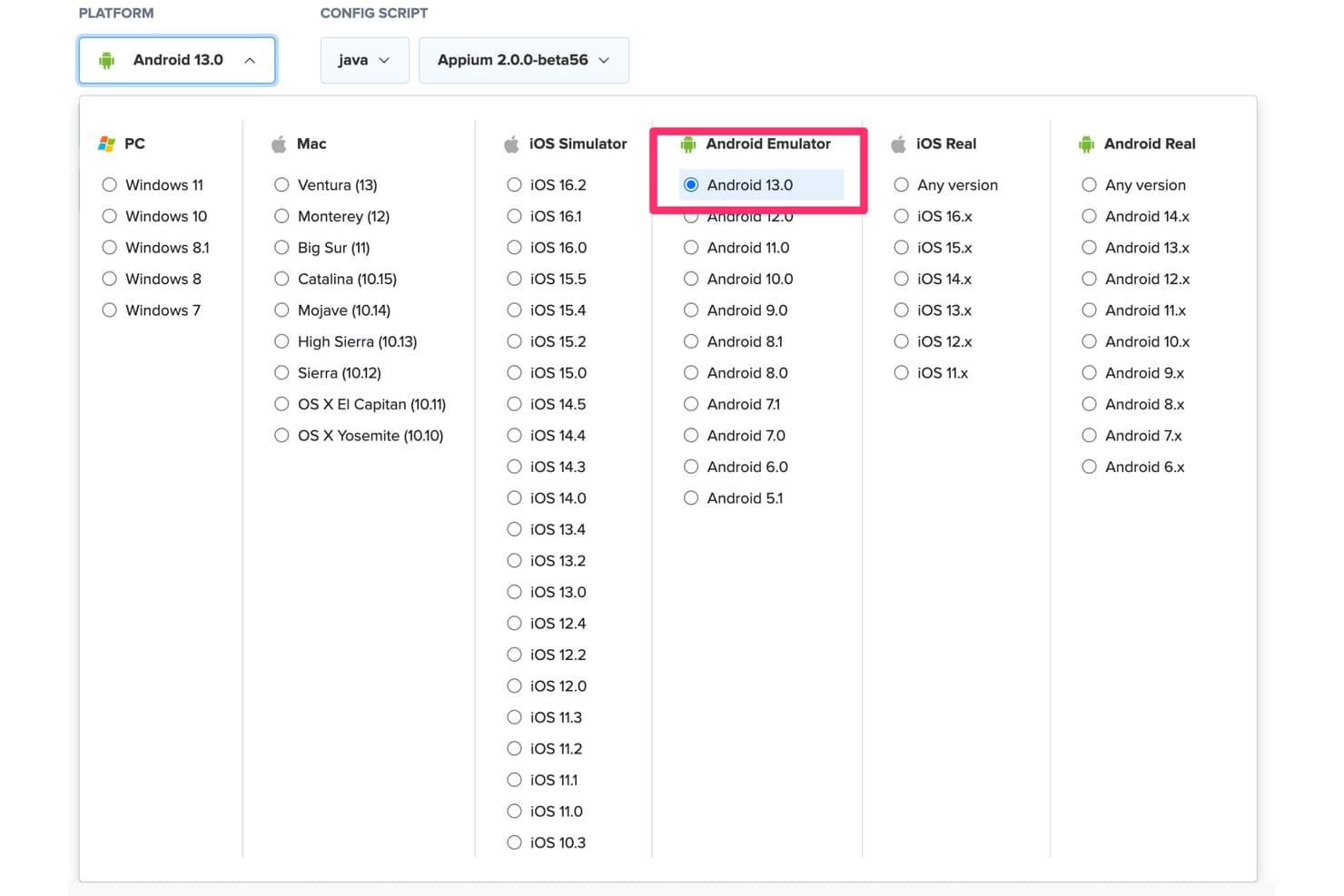
Sauce Labs supporta i test dell'emulatore Android su Android 13.0 tramite Java e Appium. Sauce Labs è una piattaforma di test Android basata sul cloud che offre accesso on-demand a oltre 1.700 emulatori Android virtuali, dalle versioni Android 5.0 alla 16.x, con esecuzione nativa su ARM, esecuzione parallela dei test e integrazione avanzata con Appium, Espresso e le principali pipeline CI/CD.
Per chi è più adatto Sauce Labs?
Sauce Labs è particolarmente adatto agli ingegneri QA e ai team DevOps che devono eseguire test Android su scala CI/CD senza gestire un'infrastruttura locale per gli emulatori.
Perché ho scelto Sauce Labs
Ho scelto Sauce Labs come una delle soluzioni migliori perché è l'unica piattaforma che conosco in grado di offrire un'esecuzione Android nativa su ARM su scala CI/CD, risolvendo direttamente i problemi di instabilità e lentezza che affliggono gli emulatori cloud basati su x86. I tempi di avvio delle sessioni scendono da circa 90 secondi a circa 20 secondi su Android Premium Cloud e ho visto team eseguire test su oltre 24 versioni Android simultanee senza toccare una configurazione locale degli emulatori. Se la tua pipeline QA basata su Mac è il collo di bottiglia, Sauce Labs lo elimina completamente.
Caratteristiche principali di Sauce Labs
- Esecuzione Android nativa su ARM: Android Premium Cloud esegue dispositivi Android virtuali su hardware ARM, eliminando il livello di traduzione dei binari x86 che causa instabilità nei test e tempi di avvio delle sessioni più lunghi.
- Esecuzione parallela dei test: I piani supportano fino a oltre 24 sessioni simultanee di emulatori Android, consentendo al team di eseguire matrici complete di dispositivi e versioni con un singolo avvio della pipeline.
- CLI saucectl: Uno strumento da riga di comando che gestisce il caricamento di APK/AAB e l'esecuzione dei test Espresso direttamente dal terminale, integrandosi naturalmente nei flussi di build automatizzati.
- Sessioni su macchine virtuali monouso: Ogni sessione dell'emulatore viene avviata su una macchina virtuale nuova e cancellata al termine della sessione, offrendo a ogni esecuzione dei test un ambiente pulito e isolato.
Integrazioni di Sauce Labs
Sauce Labs offre plugin nativi per Jenkins, Bitbucket e TeamCity, oltre a integrazioni documentate con GitHub Actions, GitLab, CircleCI e Azure DevOps. Appium, Espresso, la CLI
saucectle il supporto per le API REST consentono di gestire flussi di lavoro CI/CD personalizzati da un Mac.Pros and Cons
Pros:
- Non richiede una configurazione locale su Mac per i test
- Esegue sessioni Android native su ARM nel cloud
- Supporta l'esecuzione simultanea di numerose versioni in parallelo
Cons:
- Non viene eseguito nativamente su macOS
- Le interazioni con l'app in tempo reale sono limitate dalla latenza di rete
Learn more about Sauce Labs: Ideale per i team QA mobile basati su CI/CD
- Prova gratuita e demo gratuita disponibili
- A partire da $83/mese
Visit WebsiteCustomer Rating:4.3/5This rating combines scores from multiple user review sites to reflect overall customer sentiment about the product.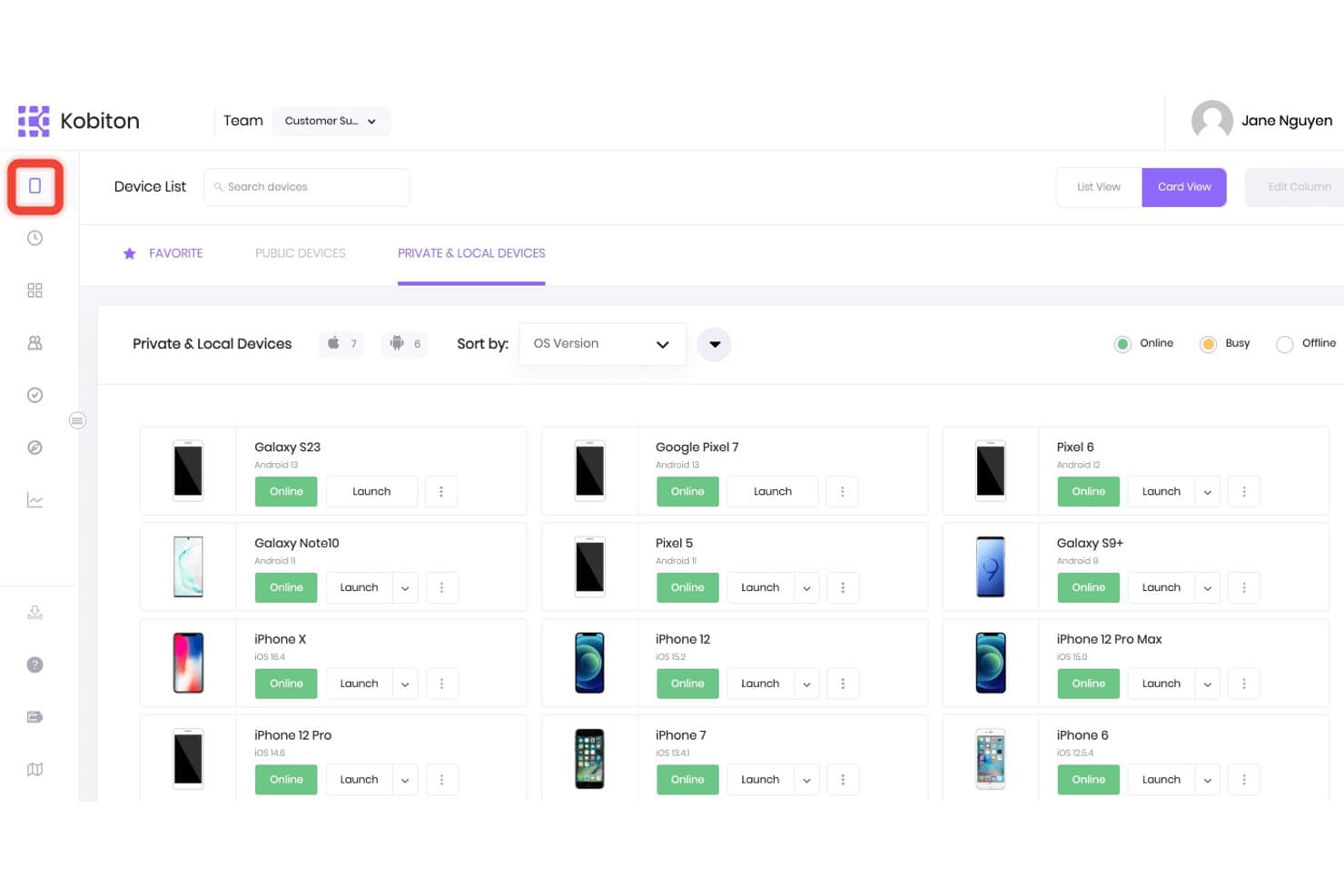
Kobiton consente agli utenti di sfogliare e avviare dispositivi privati e locali. Kobiton è una piattaforma di test mobile basata sul cloud che offre ai team la possibilità di testare dispositivi Android accessibili tramite browser, combinando l'accesso a dispositivi reali, emulatori virtuali e l'automazione dei test assistita dall'IA su un'ampia gamma di versioni del sistema operativo e produttori.
Per chi è più adatto Kobiton?
Kobiton è una soluzione particolarmente adatta agli ingegneri QA e DevOps che hanno bisogno di integrare direttamente nelle pipeline CI/CD i test Android basati sul cloud.
Perché ho scelto Kobiton
Ho incluso Kobiton tra le mie scelte migliori perché è l'opzione più efficace per i team QA e DevOps che hanno bisogno di integrare direttamente i test Android in una pipeline CI/CD. Quando gli emulatori locali non sono sufficienti in termini di profondità dell'automazione, Kobiton colma la lacuna con la registrazione dei test senza script, che genera automaticamente script Appium, e con l'esecuzione autoriparante degli script, che si adatta quando gli elementi dell'interfaccia utente cambiano. La funzione Esplora sessioni consente di riprodurre le sessioni di test, analizzare i tempi di caricamento delle schermate e registrare bug su Jira senza uscire dalla piattaforma.
Funzionalità principali di Kobiton
- Esecuzione parallela sui dispositivi: Esegui simultaneamente sessioni di test su più versioni del sistema operativo Android e profili di dispositivi all'interno di una singola esecuzione della pipeline.
- Inserimento di immagini dalla fotocamera: Sostituisci il flusso della fotocamera in tempo reale di un dispositivo con immagini o video personalizzati per testare la scansione dei codici a barre, l'OCR e i flussi di lavoro di realtà aumentata.
- Simulazione della posizione GPS: Imposta coordinate GPS virtuali sui dispositivi Android ospitati nel cloud per convalidare il geofencing e il comportamento delle app dipendente dalla posizione.
- Supporto per la distribuzione in ambienti isolati: Distribuisci Kobiton interamente in sede o in un ambiente completamente isolato per i team con rigorosi requisiti di governance dei dati o conformità.
Integrazioni di Kobiton
Kobiton si integra con Jenkins, GitHub Actions, CircleCI, Bitrise, Azure DevOps, TeamCity, Buildkite, Jira, Appium, Espresso e XCUITest. La sua API supporta flussi di lavoro CI/CD personalizzati e test mobile automatizzati.
Pros and Cons
Pros:
- Accesso remoto a dispositivi reali ed emulatori
- Solide funzionalità per pipeline CI/CD e automazione
- Esecuzione parallela dei test su più dispositivi
Cons:
- Nessuna esecuzione nativa di emulatori in locale su Mac
- Richiede una connessione Internet stabile per tutte le sessioni sui dispositivi
Learn more about Kobiton: Ideale con opzioni di laboratorio privato dedicato
- Piano gratuito disponibile
- Da $250/mese
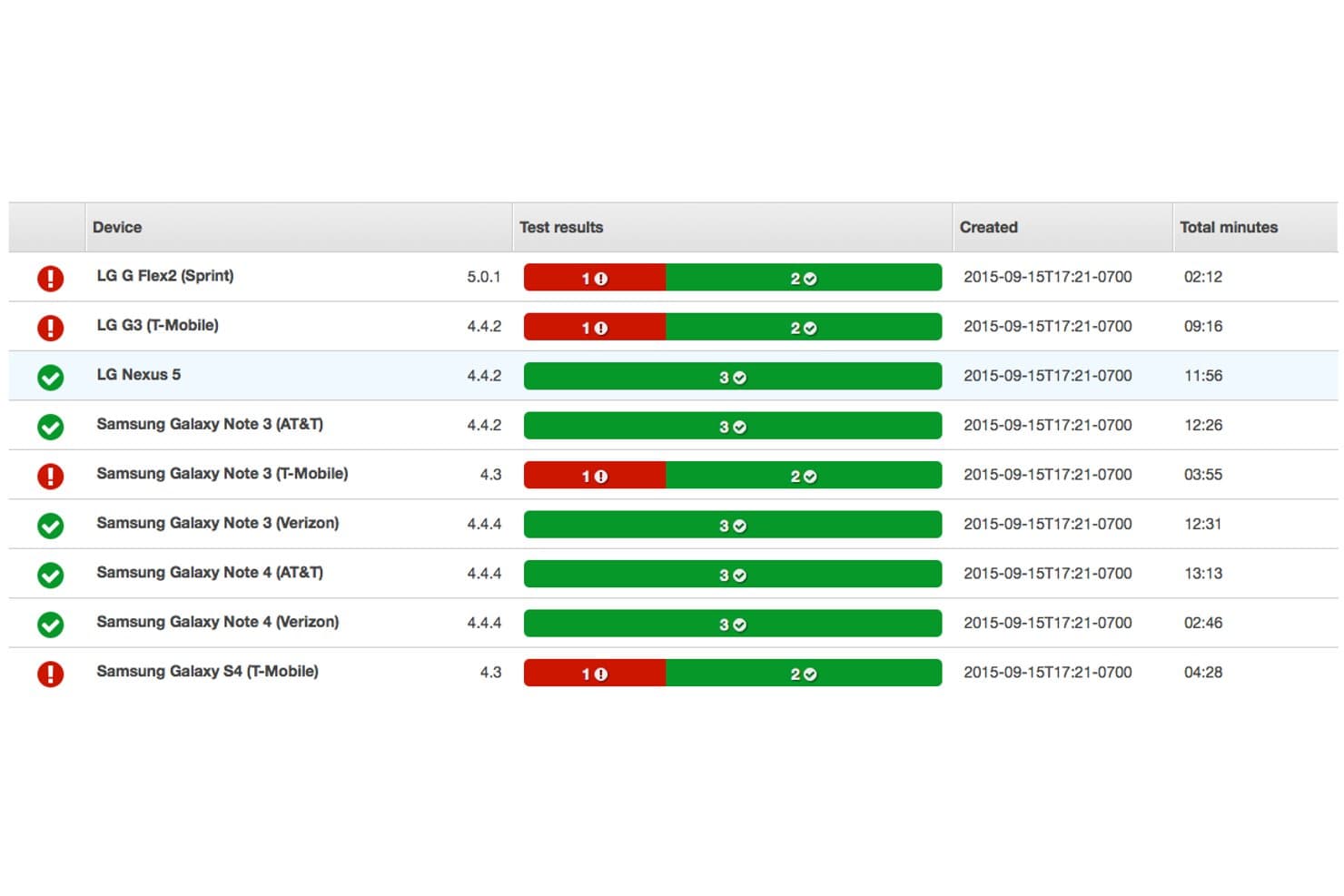
AWS Device Farm mostra i risultati dei test dei dispositivi Android reali con gli stati superato/non superato, le versioni del sistema operativo e la durata totale del test per dispositivo. AWS Device Farm è una piattaforma di test dei dispositivi basata sul cloud, progettata per gli sviluppatori che devono eseguire app Android su dispositivi e browser reali dal proprio Mac.
Per chi è più indicato AWS Device Farm?
Team di QA mobile e sviluppatori di aziende tecnologiche che necessitano di accedere a un'ampia gamma di dispositivi Android reali per testare accuratamente le app su larga scala.
Perché ho scelto AWS Device Farm
Ho scelto AWS Device Farm come una delle soluzioni migliori perché posso prenotare dispositivi Android privati in un laboratorio cloud, garantire che le app sensibili non condividano mai l'hardware con i concorrenti ed eseguire test paralleli e automatizzati su hardware reale dal mio Mac.
Funzionalità principali di AWS Device Farm
- Supporto per suite di test automatizzate: Esegui test utilizzando framework come Appium, Espresso, Calabash e XCTest.
- Accesso ai dispositivi in tempo reale: Interagisci con dispositivi Android reali per i test manuali direttamente dal tuo Mac.
- Registri diagnostici dettagliati: Acquisisci video, schermate e dati sulle prestazioni da ogni sessione di test.
- Configurazione dello stato del dispositivo: Modifica impostazioni come posizione, lingua o rete per simulare condizioni reali.
Integrazioni di AWS Device Farm
AWS Device Farm offre integrazioni native con Jenkins, Android Studio e l'ecosistema AWS più ampio, inclusi CodePipeline e S3. È disponibile un'API per integrazioni personalizzate e flussi di lavoro per l'automazione dei test.
Pros and Cons
Pros:
- Accesso a un'ampia raccolta di dispositivi reali
- Supporta sia i test manuali sia quelli automatizzati
- Offre la configurazione dello stato e dell'ambiente del dispositivo
Cons:
- Le code possono ritardare l'accesso ai dispositivi più richiesti
- Non è adatto per test senza connessione o esclusivamente locali
Learn more about AWS Device Farm: Ideale per emulare l'esperienza di gioco
- Piano gratuito disponibile
- Piano gratuito disponibile
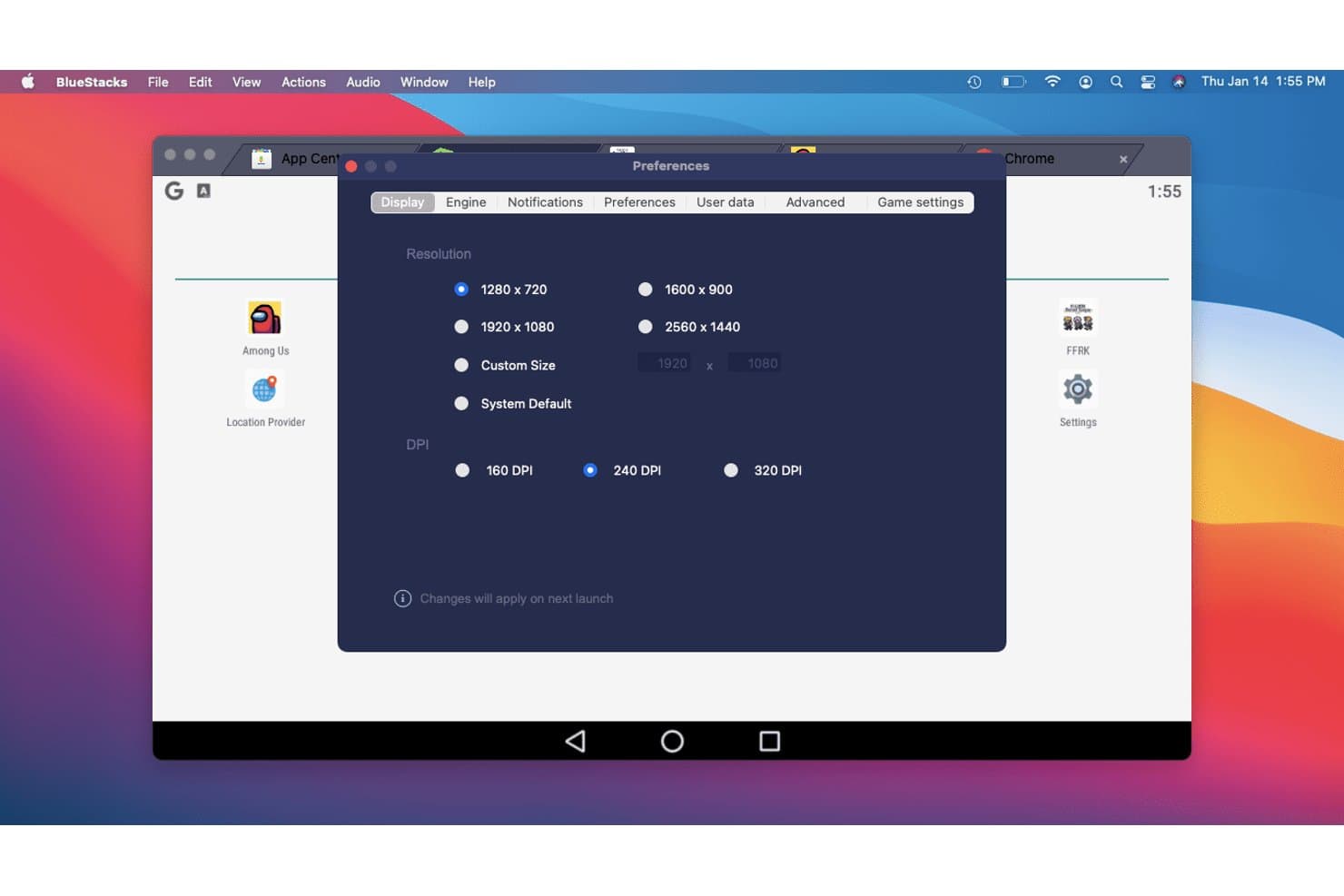
BlueStacks consente agli utenti di personalizzare la risoluzione dello schermo e le impostazioni DPI. BlueStacks Air è un emulatore Android ARM64 nativo per Mac con chip Apple Silicon, che esegue app e giochi Android 13 tramite un Google Play Store completamente integrato, un gestore multi-istanza e un motore grafico con accelerazione Vulkan.
Per chi è più adatto BlueStacks?
BlueStacks Air è la scelta ideale per i giocatori occasionali e gli appassionati di giochi mobile che vogliono giocare ai giochi Android su un Mac con Apple Silicon senza alcuna configurazione tecnica.
Perché ho scelto BlueStacks
BlueStacks Air merita un posto nella mia lista perché nessun altro emulatore Android per Mac è all'altezza per il gaming. È una versione ARM64 nativa con grafica accelerata da Vulkan e supporto fino a 240 FPS, quindi titoli come Genshin Impact e Call of Duty: Mobile funzionano con una fluidità reale sui dispositivi Apple Silicon. Il Gestore multi-istanza consente di eseguire simultaneamente diversi account di gioco, ciascuno con una propria allocazione di CPU e RAM.
Funzionalità principali di BlueStacks
- Integrazione con Google Play Store: Accedi al Play Store completo con il tuo account Google, inclusi gli acquisti in-app e la sincronizzazione cloud, senza dover installare file APK esternamente.
- Gestore multi-istanza: Esegui simultaneamente più sessioni Android indipendenti, ciascuna con le proprie impostazioni di CPU, RAM e risoluzione.
- BlueStacks AI (BlueAI): Un livello di intelligenza artificiale che esegue automaticamente azioni nelle app, con supporto per fornitori LLM di terze parti tramite la tua chiave API.
- Modalità Eco: Riduce l'utilizzo di CPU e GPU per le istanze in background, così il Mac rimane reattivo mentre sono in esecuzione più sessioni.
Integrazioni di BlueStacks
BlueStacks dispone dell'integrazione nativa con Google Play Store e supporta le connessioni ADB tramite la porta 5555. BlueAI si collega a OpenAI e Anthropic tramite la tua chiave API, mentre l'integrazione con macOS supporta Mission Control, la modalità a schermo intero, le scorciatoie da tastiera e più monitor.
Pros and Cons
Pros:
- Supporto nativo per Mac con Apple Silicon
- Esperienza di gioco fluida fino a 240 FPS
- Gestore multi-istanza per sessioni parallele
Cons:
- Nessun supporto per i Mac basati su processori Intel
- Emula esclusivamente la versione Android 13
Learn more about BlueStacks: Ideale per i test delle pipeline CI/CD basati sul browser
- Piano gratuito + demo gratuita disponibile
- A partire da $59/mese (con fatturazione annuale)
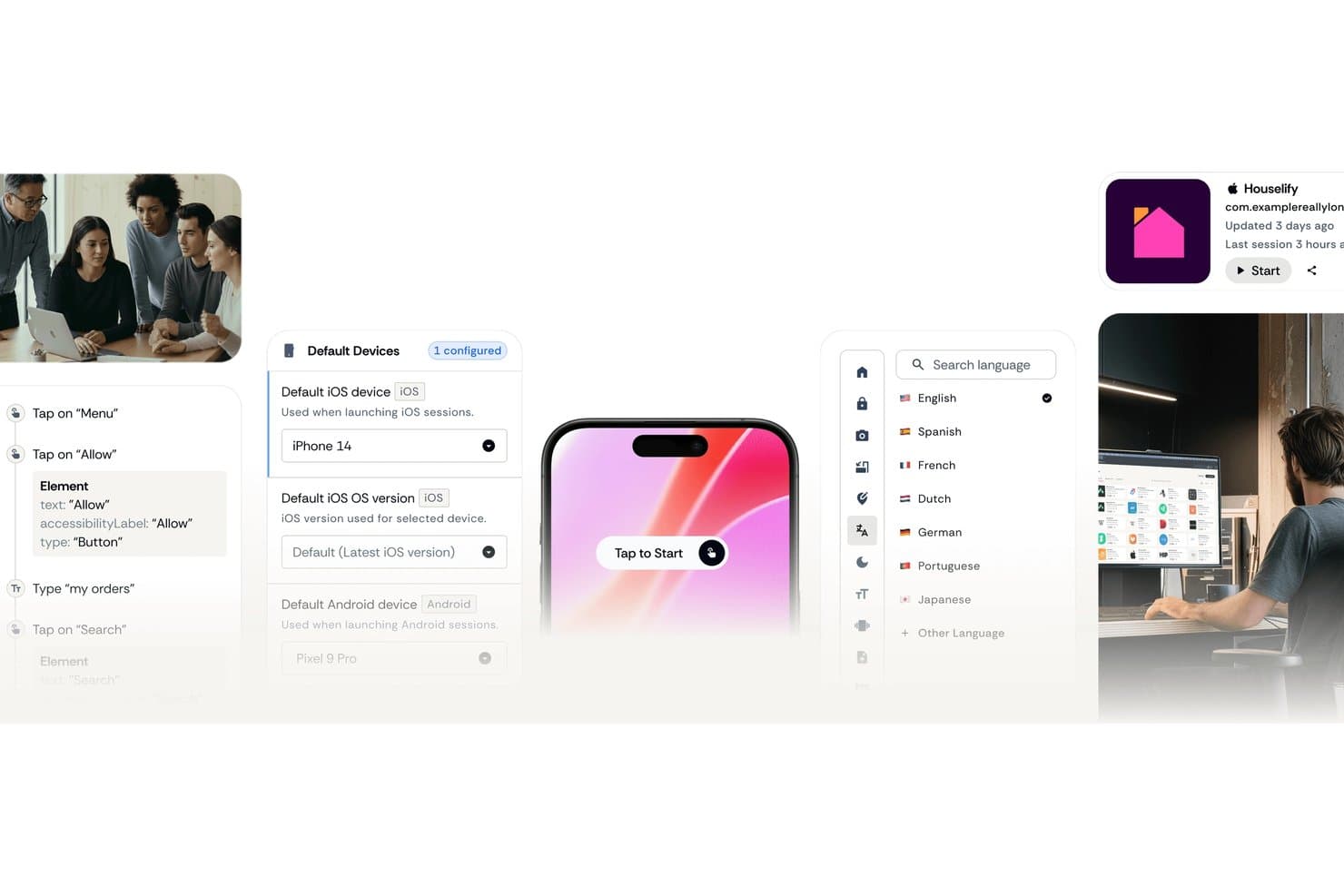
Appetize.io consente agli utenti di configurare dispositivi iOS e Android predefiniti per i test. Appetize.io è un emulatore Android basato sul cloud che funziona interamente nel browser e offre il caricamento e la riproduzione di APK, profili di dispositivi con più versioni da Android 8.1 a 16, accesso tramite tunnel ADB, un SDK JavaScript e l'integrazione nativa con Playwright per i test automatizzati.
Per chi è più adatto Appetize.io?
Appetize.io è una soluzione particolarmente adatta agli ingegneri QA e ai team DevOps che hanno bisogno di test Android scalabili e basati sul browser, collegati direttamente alle loro pipeline CI/CD.
Perché ho scelto Appetize.io
Ho incluso Appetize.io tra le mie scelte principali perché è l'unico strumento di questo elenco che funziona interamente nel browser, rendendo irrilevante la compatibilità con Apple Silicon. Apprezzo in particolare la sua integrazione nativa con Playwright tramite AppRecorder, che consente di registrare e riprodurre sessioni di test senza dover scrivere script di automazione da zero. A questo si aggiunge il supporto CI/CD documentato per Bitrise, FastLane, GitHub e GitLab, ottenendo così un ambiente Android cloud che si integra direttamente in una pipeline esistente.
Funzionalità principali di Appetize.io
- Accesso tramite tunnel ADB: crea un tunnel SSH verso una sessione attiva dell'emulatore cloud, consentendo di collegare Android Studio o i comandi ADB standard direttamente a un dispositivo remoto.
- Monitoraggio del traffico di rete: acquisisce tutto il traffico di rete dell'app tramite un proxy di intercettazione integrato, con registri visualizzabili durante la sessione o scaricabili come file HAR.
- Simulazione della posizione: imposta le coordinate GPS del dispositivo tramite parametri URL o il metodo
setLocation()dell'SDK JavaScript per testare il comportamento delle app che dipendono dalla posizione. - Inserimento di contenuti multimediali: carica direttamente in una sessione dell'emulatore in esecuzione immagini o file video, fino a 50 MB, per testare funzionalità della fotocamera, OCR o realtà aumentata.
Integrazioni di Appetize.io
Appetize.io offre integrazioni documentate con Bitrise, FastLane, GitHub, GitLab, Playwright, Android Studio tramite tunnel ADB e Okta SSO. La sua API REST e l'SDK JavaScript supportano l'orchestrazione CI/CD personalizzata e i flussi di lavoro incorporati.
Pros and Cons
Pros:
- Esegue l'emulazione Android interamente nel browser
- Collega Android Studio tramite tunnel ADB
- Supporta flussi di lavoro di automazione dei test nativi per Playwright
Cons:
- Richiede una connessione Internet stabile per l'utilizzo
- Non offre accesso al Google Play Store
Learn more about Appetize.io: Ideale con oltre 150 integrazioni con strumenti di terze parti
- Prova gratuita disponibile
- A partire da $29/utente/mese (con fatturazione annuale)
Visit WebsiteCustomer Rating:4.5/5This rating combines scores from multiple user review sites to reflect overall customer sentiment about the product.
BrowserStack offre test paralleli su quattro dispositivi Android contemporaneamente, mostrando l'app Wikipedia su Google Pixel 9, Samsung Galaxy S25, Google Pixel 9 Pro XL e Samsung Galaxy S25 Ultra. BrowserStack è una piattaforma di test basata sul cloud che offre agli utenti Mac l'accesso a migliaia di dispositivi Android e browser reali per il test manuale e automatizzato delle app.
Per chi è più indicato BrowserStack?
Team QA e sviluppatori di aziende medie e grandi che necessitano di testare app Android su dispositivi reali senza gestire laboratori di dispositivi interni.
Perché ho scelto BrowserStack
Ho scelto BrowserStack perché il mio team può testare le app Android su dispositivi reali direttamente da un browser Mac e passare istantaneamente da un modello all'altro, tra diverse versioni del sistema operativo e impostazioni di rete. Le oltre 150 integrazioni con strumenti di terze parti ci consentono di integrare i test sui dispositivi nei nostri strumenti CI/CD e di reportistica.
Funzionalità principali di BrowserStack
- Agenti di test basati sull'intelligenza artificiale: Accedi alla creazione automatizzata dei test, all'analisi e al debug degli errori tramite strumenti di intelligenza artificiale integrati.
- Test di regressione visiva: Esegui screenshot automatizzati e confronti visivi su dispositivi Android per individuare i problemi di layout.
- Scansione dell'accessibilità: Testa l'accessibilità delle app su telefoni Android reali con report dettagliati sui problemi di accessibilità.
- Simulatore di geolocalizzazione dei dispositivi: Simula diverse posizioni geografiche per testare nelle app le funzionalità e i contenuti specifici di determinate regioni.
Integrazioni di BrowserStack
BrowserStack offre oltre 150 integrazioni native, tra cui Jenkins, Jira, GitHub, GitLab, Slack, Bitbucket, Azure DevOps, CircleCI, Appium e Selenium. È disponibile anche un'API per le integrazioni personalizzate.
Pros and Cons
Pros:
- Dispositivi Android reali disponibili istantaneamente su Mac
- Ampia copertura di sistemi operativi e modelli di dispositivi
- Non è richiesta alcuna installazione locale per testare i dispositivi
Cons:
- Durante le ore di punta possono verificarsi rallentamenti
- Le funzionalità avanzate dei dispositivi richiedono piani di livello superiore
Learn more about BrowserStack: Ideale per lo sviluppo di app
- Piano gratuito disponibile
- Piano gratuito disponibile
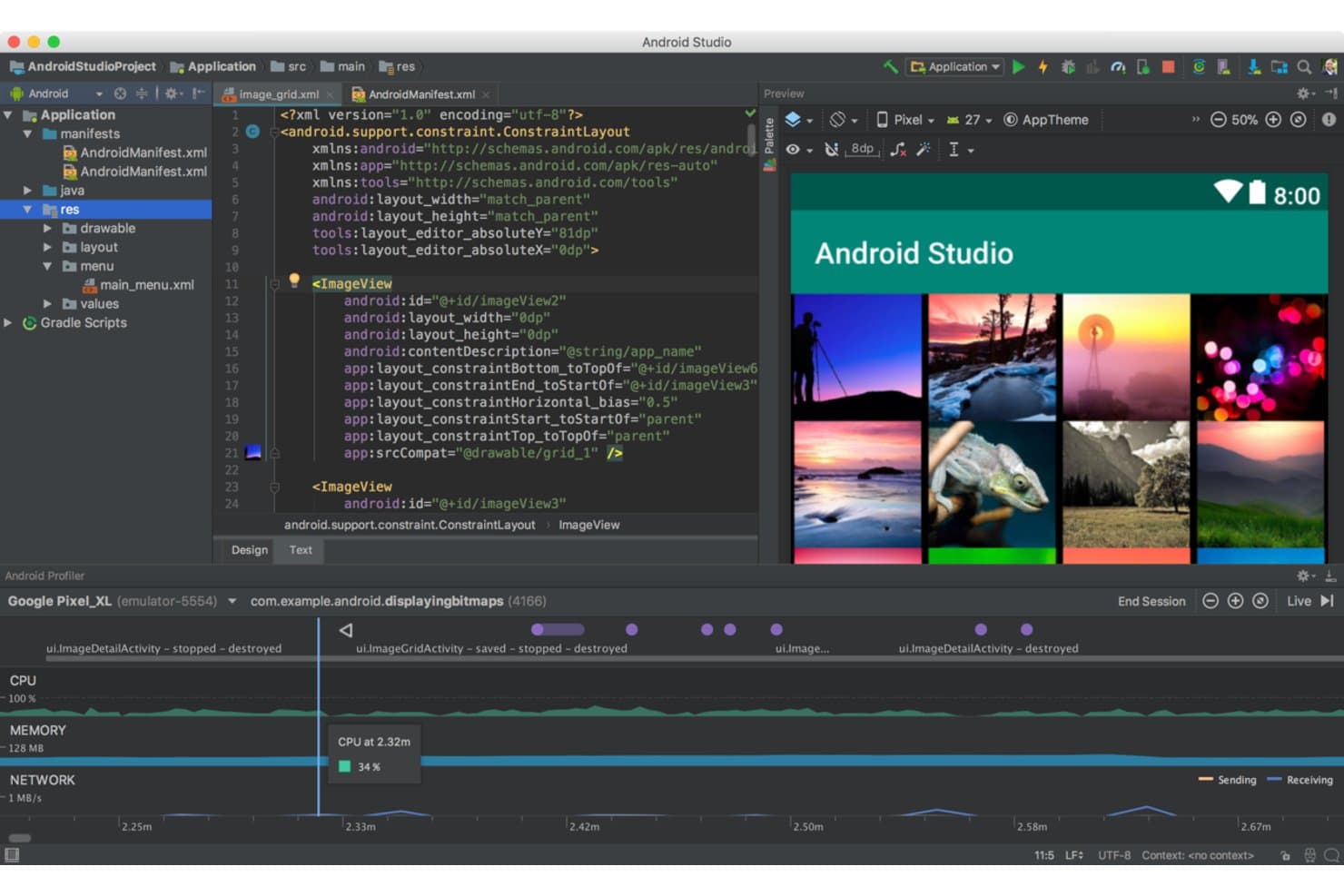
Android Studio consente agli utenti di creare e visualizzare in anteprima disposizioni a griglia con profilazione in tempo reale. Android Studio è l'ambiente di sviluppo integrato (IDE) e l'emulatore Android ufficiale di Google, basato su Android Virtual Device (AVD) Manager, con supporto nativo per Apple Silicon, simulazione completa dei sensori e integrazione avanzata con ADB, Gradle, Espresso e pipeline CI/CD.
Per chi è più indicato Android Studio?
Android Studio è la scelta principale per gli sviluppatori di app Android e gli ingegneri QA che hanno bisogno di un ambiente di sviluppo ufficiale completo, con un'integrazione avanzata con la catena di strumenti.
Perché ho scelto Android Studio
Ho scelto Android Studio come uno dei migliori perché è l'IDE Android ufficiale di Google, il che significa che riceve un supporto prioritario per ogni nuova API Android e ogni profilo di dispositivo prima di qualsiasi altro emulatore. AVD Manager include profili per la serie Pixel 10, i dispositivi pieghevoli, Wear OS e Android Automotive, e consente di cambiare i livelli API al volo. Apprezzo in particolare il pannello Controlli estesi, che permette di programmare percorsi GPS, simulare condizioni di rete 5G e iniettare eventi relativi alle impronte digitali durante le esecuzioni dei test attive.
Funzionalità principali di Android Studio
- Istantanee di avvio rapido: Salva e ricarica istantaneamente gli stati dell'emulatore, riducendo fino a 10 volte i tempi dei lanci successivi rispetto a un avvio a freddo.
- Rete multi-istanza: Esegui simultaneamente più AVD con uno stack di rete che consente agli emulatori di comunicare direttamente, senza inoltro manuale delle porte.
- Modalità emulatore senza interfaccia: Avvia e controlla l'emulatore dalla riga di comando senza un'interfaccia grafica, rendendolo compatibile con le pipeline CI/CD automatizzate.
- Console telnet e gRPC: Connettiti a un emulatore in esecuzione tramite telnet o gRPC per iniettare comandi, simulare eventi e controllare programmaticamente il comportamento del dispositivo.
Integrazioni di Android Studio
Android Studio si integra con Gradle, Espresso, UI Automator, Firebase Test Lab, GitHub Actions, Jenkins e Appium tramite ADB. Fornisce inoltre interfacce gRPC e telnet per l'automazione personalizzata dell'emulatore.
Pros and Cons
Pros:
- Supporto nativo per Apple Silicon e Mac Intel
- Strumenti avanzati per la simulazione di sensori e hardware
- Ampia libreria di dispositivi e versioni API
Cons:
- Elevato consumo di RAM e CPU su Mac
- Non adatto ai videogiochi o all'uso occasionale
Learn more about Android Studio: Ideale per i test di flotte di dispositivi Android su scala cloud
- Prova gratuita di 30 giorni + piano gratuito disponibile
- A partire da $239.99/anno/computer
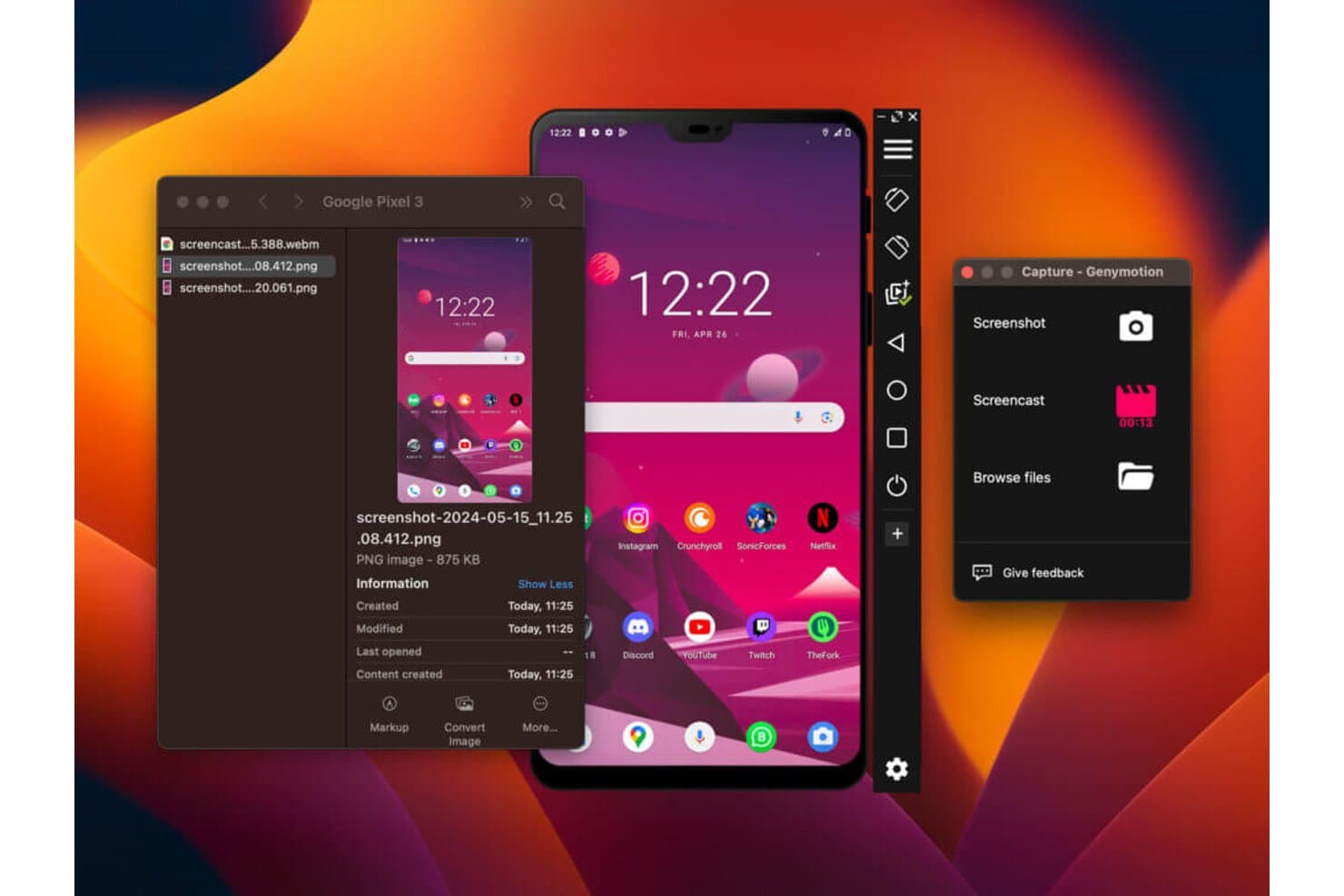
Genymotion consente agli utenti di acquisire schermate e registrazioni dello schermo dei dispositivi Android emulati su Mac. Genymotion è un emulatore Android per Mac che supporta l'implementazione locale, nel cloud (SaaS) e on-premise, con emulazione multi-istanza, profili dei dispositivi personalizzabili e una profonda integrazione con le pipeline CI/CD tramite Jenkins, Bitrise, CircleCI e GitHub Actions.
Per chi è più adatto Genymotion?
Genymotion è una soluzione ideale per i team di QA mobile e DevOps che devono eseguire suite di test Android automatizzate su larga scala attraverso flotte di dispositivi ospitati nel cloud.
Perché ho scelto Genymotion
Ho incluso Genymotion tra le mie scelte principali perché è l'unico emulatore Android di questo elenco che può scalare da una singola istanza locale a una flotta di dispositivi virtuali ospitati nel cloud su AWS, GCP e Azure. Mi piace il fatto che la CLI
gmsaasconsenta di avviare, connettere e dismettere i dispositivi in modo programmatico all'interno delle pipeline Jenkins o GitHub Actions, senza alcuna configurazione manuale. Gli utenti di PeerSpot riferiscono di eseguire da 100 a oltre 200 istanze in parallelo, riducendo drasticamente i tempi dei cicli di test.Funzionalità principali di Genymotion
- Profili dei dispositivi personalizzati: configura la risoluzione dello schermo, i DPI, i core della CPU, la RAM e l'impronta del sistema per replicare specifici modelli di dispositivi Android.
- Widget per la simulazione dei sensori: simula percorsi GPS tramite file KML, l'iniezione di fotocamera e contenuti multimediali, lo stato della batteria, i dati biometrici e le condizioni di rete dalla tecnologia 2G alla 5G.
- Plugin per Android Studio: crea, avvia e distribuisci app sui dispositivi virtuali Genymotion direttamente da Android Studio tramite il plugin ufficiale del JetBrains Marketplace.
- Emulazione multi-istanza: esegui simultaneamente più istanze di dispositivi virtuali Android, con funzionalità di clonazione disponibile tramite il comando
gmtool admin clone.
Integrazioni di Genymotion
Genymotion dispone di integrazioni documentate con Android Studio, Jenkins, Bitrise, CircleCI e GitHub Actions, oltre al supporto per Espresso, Appium e Detox. La sua CLI
gmsaase l'API REST supportano l'automazione CI/CD personalizzata sui dispositivi SaaS.Pros and Cons
Pros:
- Scalabilità fino a flotte di dispositivi cloud di grandi dimensioni
- Emulazione multi-istanza e clonazione rapida dei dispositivi
- Ampie opzioni di simulazione dell'hardware e dei sensori
Cons:
- Google Play Services non è preinstallato
- La simulazione dei sensori di movimento non è disponibile in modalità cloud
Learn more about Genymotion: Ideale per i giochi Android su Apple Silicon per Mac
- Prova gratuita di 7 giorni
- Prezzo su richiesta
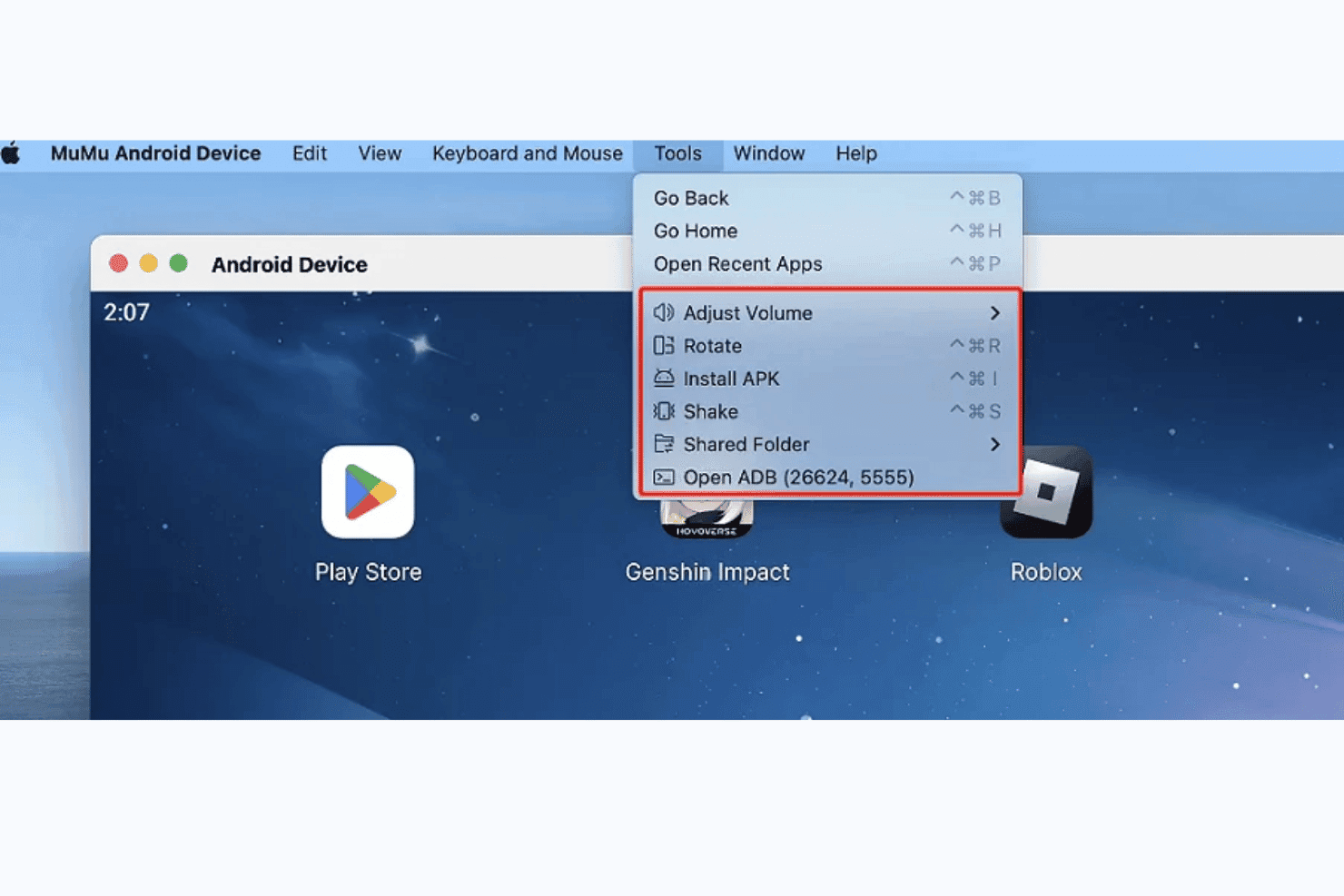
MuMuPlayer consente agli utenti di accedere ad ADB, installare APK e gestire gli strumenti del dispositivo su Mac. MuMuPlayer Pro è un emulatore Android nativo per Apple Silicon per Mac che esegue Android 12, supporta la gestione di più istanze del dispositivo e include la connettività ADB, una CLI proprietaria e profili dispositivo personalizzabili per i giochi e il test delle applicazioni.
Per chi è più adatto MuMuPlayer?
MuMuPlayer Pro è una scelta eccellente per i giocatori Mac e gli sviluppatori indipendenti che utilizzano Apple Silicon e desiderano eseguire titoli Android o testare applicazioni senza un computer Windows.
Perché ho scelto MuMuPlayer
MuMuPlayer Pro è entrato nella mia lista ristretta perché è uno dei pochi emulatori Android sviluppati nativamente per Apple Silicon, eseguito come vera app ARM64 senza il sovraccarico di Rosetta. Ho eseguito Genshin Impact e Honkai: Star Rail con un FPS elevato senza gli scatti che ho riscontrato nelle alternative dipendenti da Rosetta. La CLI
mumutoolconsente inoltre di creare script per la creazione dei dispositivi e l'installazione degli APK, facendomi risparmiare molto tempo quando configuro più istanze di test con profili dispositivo differenti.Funzionalità principali di MuMuPlayer
- Personalizzazione del profilo del dispositivo: Configura per ogni istanza il modello, la risoluzione, i DPI, il profilo GPU, la RAM, i core della CPU e il tipo di tacca di ciascun dispositivo virtuale.
- CLI
mumutool: Uno strumento proprietario da riga di comando per creare script per la creazione dei dispositivi, l'installazione degli APK, la modifica delle impostazioni e la gestione del ciclo di vita delle app. - Orchestrazione di più istanze: Crea, clona ed esegui simultaneamente più dispositivi Android virtuali, ciascuno con configurazioni hardware indipendenti.
- Connettività ADB: Ogni istanza in esecuzione espone una porta ADB univoca, consentendo di collegare direttamente qualsiasi strumento compatibile con ADB o lo strumento di debug di Android Studio.
Integrazioni di MuMuPlayer
MuMuPlayer offre integrazioni native con Android Studio e Android Debug Bridge (ADB), con una porta ADB univoca per ogni dispositivo in esecuzione. La CLI proprietaria
mumutoolsupporta script personalizzati per la gestione dei dispositivi, degli APK, delle impostazioni e delle app; non sono documentate integrazioni CI/CD né API pubbliche.Pros and Cons
Pros:
- Esecuzione nativa sui Mac con Apple Silicon
- Più istanze reali con profili dispositivo personalizzati
- Mappatura dei tasti personalizzabile per i giochi
Cons:
- Nessun supporto per i Mac basati su processori Intel
- Esegue solo Android 12 su Mac
Learn more about MuMuPlayer: Ideale per l'automazione dei test Android CI/CD su larga scala
- Piano gratuito disponibile
- Prezzo su richiesta
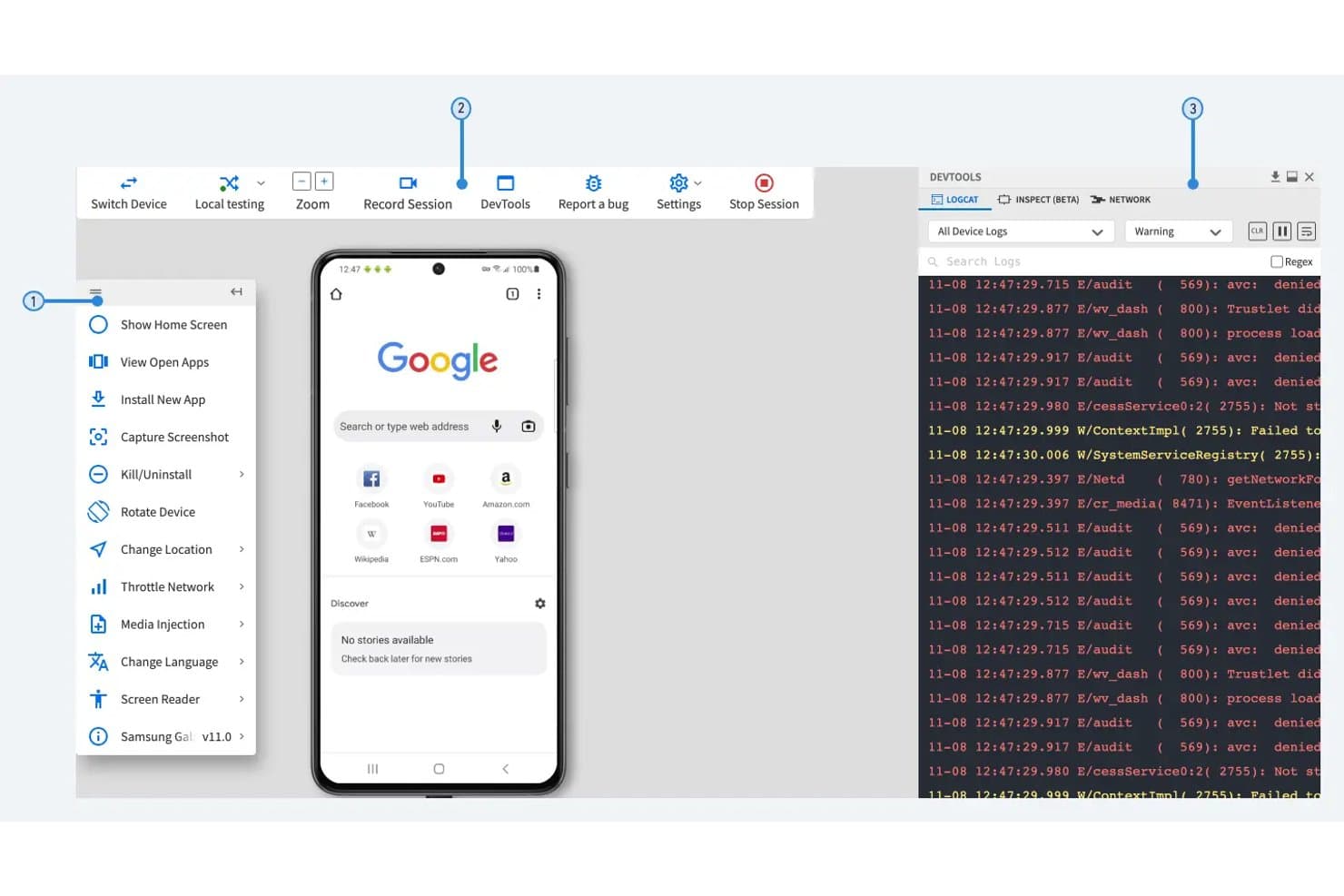
Firebase Test Lab consente agli utenti di eseguire il debug delle app Android con log in tempo reale e controlli del dispositivo. Firebase Test Lab è un servizio di test basato sul cloud per Android (e iOS) di Google, che esegue test automatizzati e interattivi su dispositivi reali e virtuali ospitati nei centri dati di Google, accessibile da qualsiasi Mac tramite Firebase Console, Android Studio o la CLI
gcloud.Per chi è più adatto Firebase Test Lab?
Firebase Test Lab è una soluzione particolarmente adatta agli ingegneri QA e ai team DevOps che devono eseguire test Android automatizzati su matrici di dispositivi estese nell'ambito di una pipeline CI/CD.
Perché ho scelto Firebase Test Lab
Firebase Test Lab si è guadagnato un posto nella mia selezione perché è l'unica opzione qui presente progettata specificamente per eseguire test Android automatizzati su larga scala all'interno di una pipeline CI/CD. Apprezzo molto la possibilità di definire una matrice di test completa, che comprende decine di dispositivi reali e virtuali, versioni del sistema operativo e impostazioni locali, ed eseguire ogni combinazione in parallelo con un singolo comando della CLI
gcloud. Anche Robo Test è davvero utile: analizza automaticamente l'interfaccia utente della tua app, senza richiedere codice di test scritto in precedenza, e raccoglie log, schermate e video per ogni esecuzione.Funzionalità principali di Firebase Test Lab
- Suddivisione dei test: Divide le suite di test di grandi dimensioni in un massimo di 500 suddivisioni parallele su dispositivi virtuali x86 per ridurre il tempo totale di esecuzione.
- Streaming dei dispositivi Android: Connette direttamente l'utente a un dispositivo Android remoto reale all'interno di Android Studio tramite ADB su SSL per i test interattivi.
- Profili del traffico di rete: Applica emulazioni delle condizioni di rete sui dispositivi fisici per replicare scenari di connettività reali.
- Report pre-lancio: Avvia automaticamente le esecuzioni dei test sui dispositivi fisici più diffusi quando si carica un APK su un canale alpha o beta di Google Play.
Integrazioni di Firebase Test Lab
Firebase Test Lab dispone di integrazioni native documentate con Android Studio, Firebase Console, Google Cloud Storage e Google Play Console. Supporta inoltre i flussi di lavoro CI/CD tramite integrazioni della CLI
gcloudcon Jenkins, GitHub Actions, CircleCI e Codemagic.Pros and Cons
Pros:
- Esecuzione di test Android automatizzati su larga scala
- Accesso remoto a dispositivi reali e virtuali
- Integrazione approfondita con strumenti e pipeline CI/CD
Cons:
- Non è un emulatore Android nativo per Mac
- Utilizzo interattivo limitato e dipendente dal cloud
Learn more about Firebase Test Lab:
Come valuto gli emulatori Android per Mac
Divido la mia valutazione in requisiti di base, come la stabilità su Apple Silicon e la gestione degli APK, e fattori distintivi come l'integrazione con CI/CD, la gestione delle istantanee e il supporto per più istanze.
Funzionalità principali (Requisiti fondamentali per questo elenco)
Quando seleziono gli strumenti per il mio elenco, assegno a ciascuno un punteggio su una scala da 0 (non offre la funzionalità) a 5 (eccelle in quest'area) per ogni funzionalità principale elencata di seguito. Calcolo quindi il punteggio totale dello strumento trasformandolo in una percentuale, utilizzando il 65% come parametro di riferimento per contribuire a valutarne l'idoneità complessiva per l'elenco.
- Compatibilità con macOS: verifico se l'emulatore funziona nativamente sia sui Mac con processore Intel sia sui Mac con Apple Silicon, poiché i chip della serie M richiedono compilazioni ARM64 per evitare il sovraccarico di Rosetta 2.
- Emulazione del sistema operativo Android: è importante l'ampiezza delle versioni di Android supportate. Cerco strumenti che consentano di installare APK e accedere ai servizi Google Play su più versioni del sistema operativo.
- Configurazione del dispositivo virtuale: valuto quanto controllo si abbia sui profili dei dispositivi, inclusi allocazione della RAM, risoluzione dello schermo, DPI e core della CPU, in modo simile al gestore AVD di Android Studio.
- Mappatura degli input e delle periferiche: le app basate sul tocco necessitano di una mappatura affidabile di tastiera e mouse su un computer desktop. Cerco il supporto per associazioni di tasti personalizzate e la compatibilità con i controller di gioco per i test dei giochi.
- Prestazioni e accelerazione hardware: verifico il supporto per Hypervisor.framework e l'accesso diretto alla GPU, perché la renderizzazione esclusivamente software rende lente persino le app più semplici sull'hardware moderno.
- Gestione dei file e degli APK: in questo caso valuto l'installazione degli APK tramite trascinamento, le cartelle condivise e l'accesso ADB. Queste funzionalità determinano la rapidità con cui è possibile distribuire le compilazioni e recuperare i registri durante un ciclo di test.
Dopo aver ottenuto un elenco di strumenti che soddisfano i criteri, considero ciò che distingue ogni piattaforma.
Fattori distintivi (Ciò che differenzia i fornitori)
Ecco come confronto i diversi fornitori e ne metto in evidenza le differenze:
Funzionalità di rilievo
Per prima cosa cerco le funzionalità di gestione delle istantanee e dello stato. La possibilità di salvare lo stato di un dispositivo completamente configurato, con app installate, account collegati e valori dei sensori impostati, e di ripristinarlo in pochi secondi riduce di ore i test di regressione. I meccanismi di automazione programmabili sono altrettanto importanti, perché l'avvio senza interfaccia tramite CLI e il controllo gRPC consentono di gestire gli emulatori dalle pipeline CI senza intervento manuale. Valuto anche la simulazione delle condizioni di rete, poiché limitare la larghezza di banda o introdurre latenza all'interno dell'emulatore è il modo più rapido per individuare i bug di connettività prima degli utenti.
Oltre le funzionalità
Le prestazioni su Apple Silicon sono la prima cosa che verifico. Una compilazione ARM64 nativa su un Mac con chip della serie M si avvia più rapidamente, funziona a temperature inferiori ed evita i cali di fotogrammi che si verificano con la traduzione x86 tramite Rosetta 2. Valuto anche l'integrazione nell'ecosistema CI/CD: la disponibilità di immagini Docker, flussi di lavoro GitHub Actions o estensioni Jenkins determina la rapidità con cui il team DevOps può collegare lo strumento alle pipeline esistenti. Anche le licenze sono importanti, poiché il passaggio da una postazione per sviluppatore a una flotta di test paralleli può modificare drasticamente i costi tra le opzioni a codice sorgente aperto e quelle commerciali.
Come scegliere un emulatore Android per Mac
È facile perdersi in lunghi elenchi di funzionalità e strutture tariffarie complesse. Per aiutarti a rimanere concentrato mentre affronti il tuo particolare processo di selezione del software, ecco una lista di fattori da tenere presenti:
| Fattore | Cosa considerare |
| Scalabilità | Assicurati che l'emulatore sia in grado di gestire la crescita dei tuoi progetti senza un peggioramento delle prestazioni. Cerca soluzioni in grado di supportare senza difficoltà utenti aggiuntivi o app più impegnative. |
| Integrazioni | Verifica se l'emulatore supporta l'integrazione con gli strumenti di sviluppo che già utilizzi, come Android Studio o IntelliJ IDEA, per ottimizzare il tuo flusso di lavoro. |
| Personalizzazione | Il tuo team potrebbe dover modificare le impostazioni dell'emulatore per specifici scenari di test. Scegli un emulatore che consenta di adattare le configurazioni alle esigenze dei tuoi progetti. |
| Facilità d'uso | Scegli un emulatore con un'interfaccia intuitiva che non richieda una formazione approfondita. In questo modo il tuo team potrà concentrarsi sullo sviluppo anziché sulla risoluzione dei problemi. |
| Budget | Confronta i modelli di prezzo e assicurati che l'emulatore rientri nel budget del tuo team. Cerca un equilibrio tra costi e funzionalità offerte, per evitare spese eccessive. |
| Misure di sicurezza | Valuta le misure di sicurezza adottate, come la crittografia dei dati e i protocolli di connessione sicura, per proteggere il tuo ambiente di sviluppo e i dati sensibili. |
Tendenze degli emulatori Android
Nella mia ricerca ho raccolto innumerevoli aggiornamenti di prodotto, comunicati stampa e registri delle versioni di diversi fornitori di emulatori iOS ed emulatori Android. Ecco alcune delle tendenze emergenti che sto tenendo d'occhio:
- Compatibilità multipiattaforma: Un numero sempre maggiore di emulatori si sta concentrando sull'offerta di compatibilità non solo con Mac, ma anche con altri sistemi operativi. Questo rende più semplice per sviluppatori e utenti passare da un ambiente all'altro senza perdere funzionalità. Ad esempio, Genymotion offre supporto per più piattaforme.
- Ottimizzazione delle prestazioni: Gli emulatori sono sempre più orientati al miglioramento della velocità e alla riduzione dei rallentamenti. Fornitori come BlueStacks perfezionano continuamente la propria architettura per garantire esperienze utente più fluide, in particolare per applicazioni ad alto consumo di risorse come i giochi.
- Supporto grafico avanzato: Il miglioramento del rendering grafico è diventato un punto focale, soprattutto per le applicazioni di gioco. Emulatori come LDPlayer integrano motori grafici avanzati per supportare immagini ad alta definizione e animazioni complesse.
- Integrazione con gli strumenti di sviluppo: La maggiore compatibilità con ambienti di sviluppo come Android Studio sta diventando sempre più comune. Ciò consente agli sviluppatori di testare e distribuire le applicazioni in modo più efficiente, senza dover ricorrere a configurazioni separate.
- Personalizzazione dell'interfaccia utente: Si sta diffondendo la tendenza a consentire agli utenti di personalizzare l'interfaccia dell'emulatore in base alle proprie preferenze e ai propri flussi di lavoro. I fornitori offrono impostazioni dell'interfaccia utente più flessibili, come finestre ridimensionabili e controlli personalizzabili.
Che cos'è un emulatore Android per Mac?
Un emulatore Android per Mac è uno strumento che consente agli utenti di eseguire applicazioni Android sui dispositivi macOS. Sviluppatori, giocatori e tester utilizzano generalmente questi strumenti per accedere alle app Android, testare le prestazioni delle applicazioni o giocare ai giochi mobile su uno schermo più grande. I controlli personalizzati, il supporto per più istanze e la compatibilità con diverse versioni di Android aiutano gli utenti a testare, giocare e lavorare in modo più efficiente. Nel complesso, questi strumenti offrono un modo pratico per portare le funzionalità Android su macOS.
Caratteristiche degli emulatori Android per Mac
Quando scegli un emulatore Android per Mac, presta attenzione alle seguenti caratteristiche principali:
- Installazione tramite trascinamento: questa funzionalità consente agli utenti di installare facilmente le app trascinando direttamente i file APK nell'emulatore, semplificando il processo di installazione.
- Funzionalità di registrazione dello schermo: gli emulatori dotati di questa funzionalità consentono agli utenti di registrare le attività sullo schermo, una possibilità utile per creare tutorial o catturare sessioni di gioco.
- Simulazione della configurazione hardware: questa funzionalità consente agli emulatori di simulare diverse configurazioni hardware, come schermi di dimensioni e risoluzioni differenti, aiutando gli sviluppatori a testare la reattività delle app.
- Supporto per più istanze: consente agli utenti di eseguire contemporaneamente più istanze dell'emulatore, una funzione utile per testare le app in condizioni diverse o per il multitasking.
- Controlli personalizzabili: gli utenti possono associare gli input della tastiera e del mouse ai controlli touch, migliorando l'esperienza di gioco o di test delle app.
- Impostazioni delle prestazioni: gli emulatori offrono spesso opzioni per regolare l'utilizzo della CPU e della memoria, consentendo agli utenti di ottimizzare le prestazioni in base alle capacità del proprio sistema.
- Compatibilità con gli strumenti di sviluppo: la perfetta integrazione con gli ambienti di sviluppo Android, come Android Studio, aiuta gli sviluppatori a testare ed eseguire il debug delle app in modo efficiente.
- Supporto multipiattaforma: alcuni emulatori offrono la possibilità di essere eseguiti su diversi sistemi operativi, risultando versatili per gli utenti che lavorano su varie piattaforme.
- Sincronizzazione basata sul cloud: questa funzionalità consente agli utenti di sincronizzare le impostazioni e i dati dell'emulatore tra più dispositivi, garantendo continuità e praticità.
- Configurazione di rete avanzata: consente all'emulatore di simulare diverse condizioni di rete, aiutando gli sviluppatori a testare il comportamento delle app in scenari di connettività variabili.
Vantaggi degli emulatori Android per Mac
L'implementazione di emulatori Android per Mac offre numerosi vantaggi al tuo team e alla tua azienda. Eccone alcuni di cui potrai usufruire:
- Compatibilità multipiattaforma: consente di eseguire app Android sui dispositivi macOS per una maggiore accessibilità.
- Controlli personalizzati: offre la possibilità di associare le impostazioni della tastiera e del mouse per migliorare l'esperienza di gioco o l'utilizzo delle app.
- Funzionalità multi-istanza: consente di eseguire contemporaneamente più app o giochi per attività di test o multitasking.
- Flessibilità nel test delle app: aiuta sviluppatori e tester a simulare diversi dispositivi Android e versioni del sistema operativo.
- Prestazioni migliorate delle app: offre opzioni per regolare CPU, RAM e risoluzione, così da ottimizzare il funzionamento delle app.
- Praticità per il gaming: porta i giochi mobile su uno schermo più grande, con controlli migliori e immagini più fluide.
- Test convenienti: riduce la necessità di disporre di dispositivi Android fisici, fornendo ambienti virtuali.
Costi e prezzi degli emulatori Android per Mac
La scelta di un emulatore Android per Mac richiede la comprensione dei vari modelli di prezzo e dei piani disponibili. I costi variano in base alle funzionalità, alle dimensioni del team, ai componenti aggiuntivi e ad altri fattori. La tabella seguente riassume i piani più comuni, i relativi prezzi medi e le funzionalità generalmente incluse nelle soluzioni di emulazione Android per Mac:
Tabella di confronto dei piani per emulatori Android
| Tipo di piano | Prezzo medio | Funzionalità comuni |
| Piano gratuito | $0 | Emulazione di base, assistenza limitata e prestazioni ridotte. |
| Piano personale | $5-$20 /utente /mese | Emulazione standard, assistenza moderata, personalizzazione limitata e accesso alla comunità. |
| Piano aziendale | $25-$50 /utente /mese | Prestazioni migliorate, assistenza prioritaria, capacità multiistanza e integrazioni avanzate. |
| Piano aziendale avanzato | $60-$100 /utente /mese | Personalizzazione completa, assistenza dedicata, sicurezza di livello aziendale e analisi complete. |