

Remote access software lets you securely connect to and control devices from anywhere, bridging gaps between distributed teams and remote systems. If you lead IT, you need to know which platforms offer the right mix of security controls, high-quality streaming, and real-world management features.
Get direct answers on the best remote access software in 2026—from enterprise-grade compliance tools to reliable desktop support picks—so you can minimize risk, reduce headaches, and give your team the access they need with confidence. This list walks you through top offerings, making your next choice clear and actionable.
Why Trust Our Software Recommendations
6,700+
Reviews
20
Industry experts
16+
Evaluation factors
14
Years
Our team has been testing and reviewing software since 2012. As tech leaders ourselves, we know how difficult—and important—it is to choose the right software.
For this guide, we evaluated tools using hands-on testing and independent research, scoring tools using our selection criteria.
Our reviews reflect our human editorial judgment, not a sales pitch.
Expert reviewers:
- Paulo Gardini MiguelTech Director
 Tim FisherVP of AI
 Gabriel RosasTech Lead & Software Architect
 Christhian GruhnTech Lead & Platform Architect

| Tool | Best For | Trial Info | Price | ||
|---|---|---|---|---|---|
| 1 | Best for automated patch management workflows | Free demo available | Pricing upon request | Website | |
| 2 | Best for self-hosted perpetual licensing | 15-day free trial | From $16.9/month (billed annually) | Website | |
| 3 | Best for multi-device desktop management at scale | 7-day free trial | From $1.84/month (billed annually) | Website | |
| 4 | Best for MSP technician speed and diagnostic tools | 14-day free trial + free demo available | Pricing upon request | Website | |
| 5 | Best for high-performance remote control at 4K quality | Free trial + free demo available | From $6/month | Website | |
| 6 | Best with AI-assisted IT diagnostics | 30-day free trial | From $24.9/month (billed annually) | Website | |
| 7 | Best for FIPS 140-2 compliant support | Free trial + free demo available | Pricing upon request | Website | |
| 8 | Best for FedRAMP-grade zero trust access | Free trial + free demo available | Pricing upon request | Website | |
| 9 | Best for session recording and auditing | 14-day free trial | From $33/month (billed annually) | Website | |
| 10 | Best for mass deployment call center support | Free 14-day free trial + free demo available | From $109/month (billed annually) | Website |


Remote Access Software Reviews
Below are my detailed summaries of the best remote access software that made it onto my shortlist. My reviews offer a detailed look at the features, best use cases, and capabilities of each software to help you find the best one for you.
 Best for automated patch management workflows
- Free demo available
- Pricing upon request

Kaseya VSA enables one-click remote control sessions to managed devices. Kaseya VSA is a cloud-based remote monitoring and management (RMM) platform built for MSPs and internal IT teams, covering endpoint monitoring, automated patching, policy-based task automation, ransomware detection, mobile device management, and secure remote control access.
Who Is Kaseya VSA Best For?
Kaseya VSA is a strong fit for MSPs and internal IT teams managing large fleets of endpoints that need policy-driven patch automation across Windows, macOS, and third-party applications.
Why I Picked Kaseya VSA
I picked Kaseya VSA as one of the best because its patch management goes beyond basic scheduling. Policy-based patching lets you define approval rules, maintenance windows, and blackout periods across Windows, macOS, Linux, and 300+ third-party apps from a single console. What I find genuinely useful is the patch override functionality, which lets you exclude specific problematic patches via script without disrupting the broader workflow. The RMM agent also pushes patches on and off-network without relying on LAN caches, so remote endpoints stay current without extra configuration.
Kaseya VSA Key Features
- Secure remote control access: Connect instantly to any endpoint for live support sessions without requiring user interaction or a VPN.
- Ransomware detection and isolation: Behaviour-based detection automatically quarantines infected endpoints to contain threats before they spread.
- Real-time monitoring and alerts: Monitors endpoint health continuously and triggers automated ticket creation and remediation when issues arise.
- IT asset discovery and mapping: Automatically discovers and inventories hardware, software, VMs, cloud infrastructure, and IoT devices across your environment.
Kaseya VSA Integrations
Kaseya VSA offers native integrations with Autotask, IT Glue, ConnectWise, Acronis, Bitdefender, ESET, Webroot, Datto, and Scalepad Lifecycle Manager. An API is available for custom integrations.
Pros and Cons
Pros:
- Ransomware isolation for remote endpoints
- Secure remote sessions without a VPN
- Policy-based automated patch deployment
Cons:
- Some remote features require agent installation
- Interface can feel dated and cluttered
Learn more about Kaseya VSA: Best for self-hosted perpetual licensing
- 15-day free trial
- From $16.9/month (billed annually)
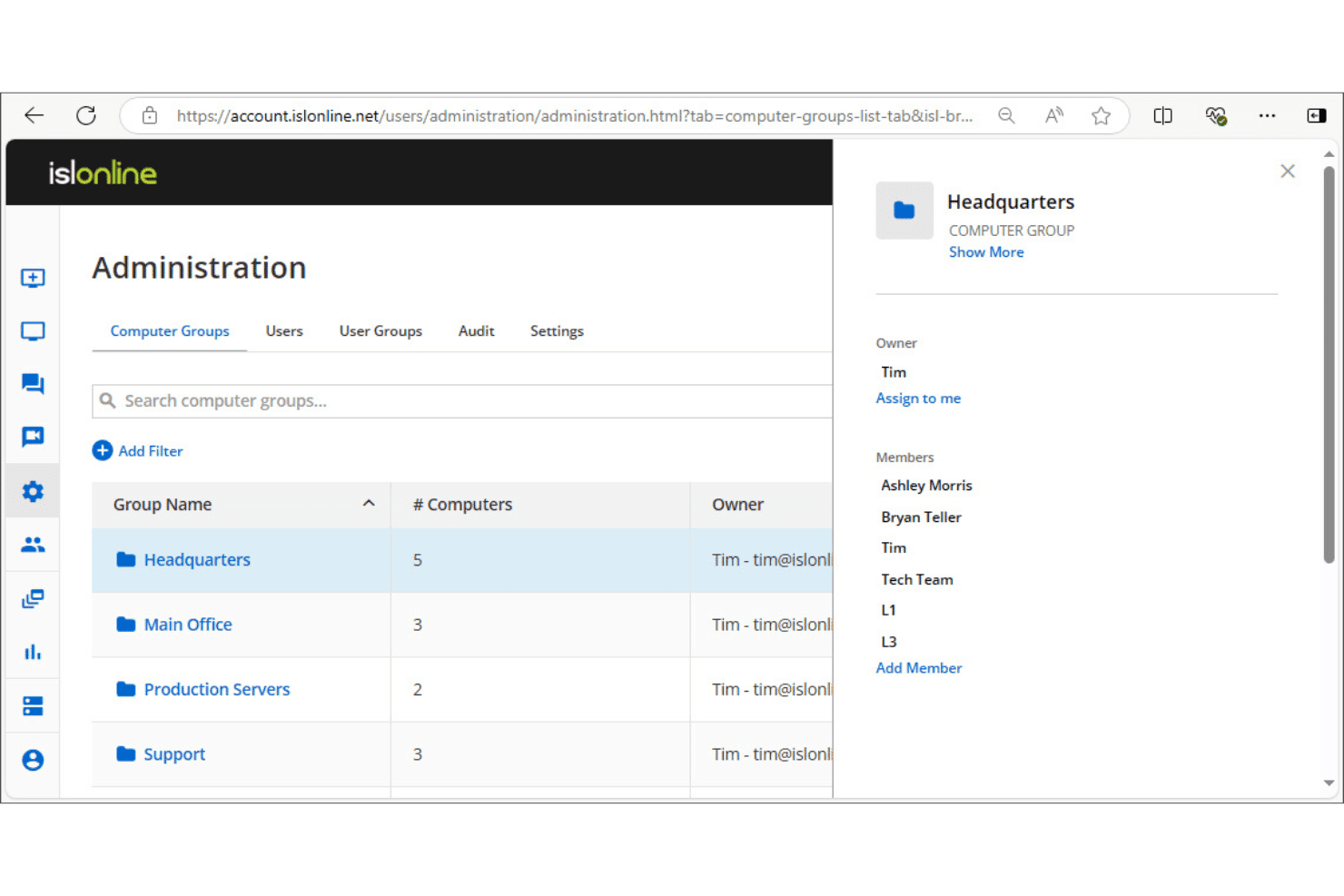
ISL Online lets admins organize computers into groups with member access controls. ISL Online is a remote desktop software that supports unattended access, live customer support sessions, RDP/SSH connections, and centralized user and device administration across Windows, macOS, Linux, and mobile platforms.
Who Is ISL Online Best For?
ISL Online is a strong fit for IT teams and managed service providers that need to run remote access infrastructure on their own servers rather than rely on a vendor's cloud.
Why I Picked ISL Online
ISL Online earns its spot on my shortlist because of how seriously it treats self-hosted deployment as a first-class option, not an afterthought. I like that the self-hosted plan lets you run the full ISL Online server on your own infrastructure, with support for external LDAP authentication and SAML SSO alongside ports 80 and 443. That means your session data never touches a third-party cloud, which matters when your organization has strict data residency or compliance requirements.
ISL Online Key Features
- Session recording: Capture full video recordings of remote sessions for audit trails and compliance documentation.
- File transfer: Send and receive files between local and remote machines directly within an active session.
- Two-factor authentication: Require a second verification step at login to reduce unauthorized access to remote devices.
- RDP/SSH connections: Connect to remote machines over RDP or SSH without requiring VPN configuration or firewall changes.
ISL Online Integration
ISL Online offers native integrations with ServiceNow, Freshdesk, HaloITSM, Microsoft Intune, Devolutions Remote Desktop Manager, Deepser, SuperOps, and PDQ Connect, and provides a REST API for embedding remote access or building custom OEM integrations into RMM, PSA, EDR, and ITSM platforms.
Pros and Cons
Pros:
- Native support for both RDP and SSH
- Requires additional verification for login
- Can deploy entirely on your own infrastructure
Cons:
- No automated endpoint remediation tasks
- Requires self-hosting for maximum privacy
Learn more about ISL Online: Best for multi-device desktop management at scale
- 7-day free trial
- From $1.84/month (billed annually)
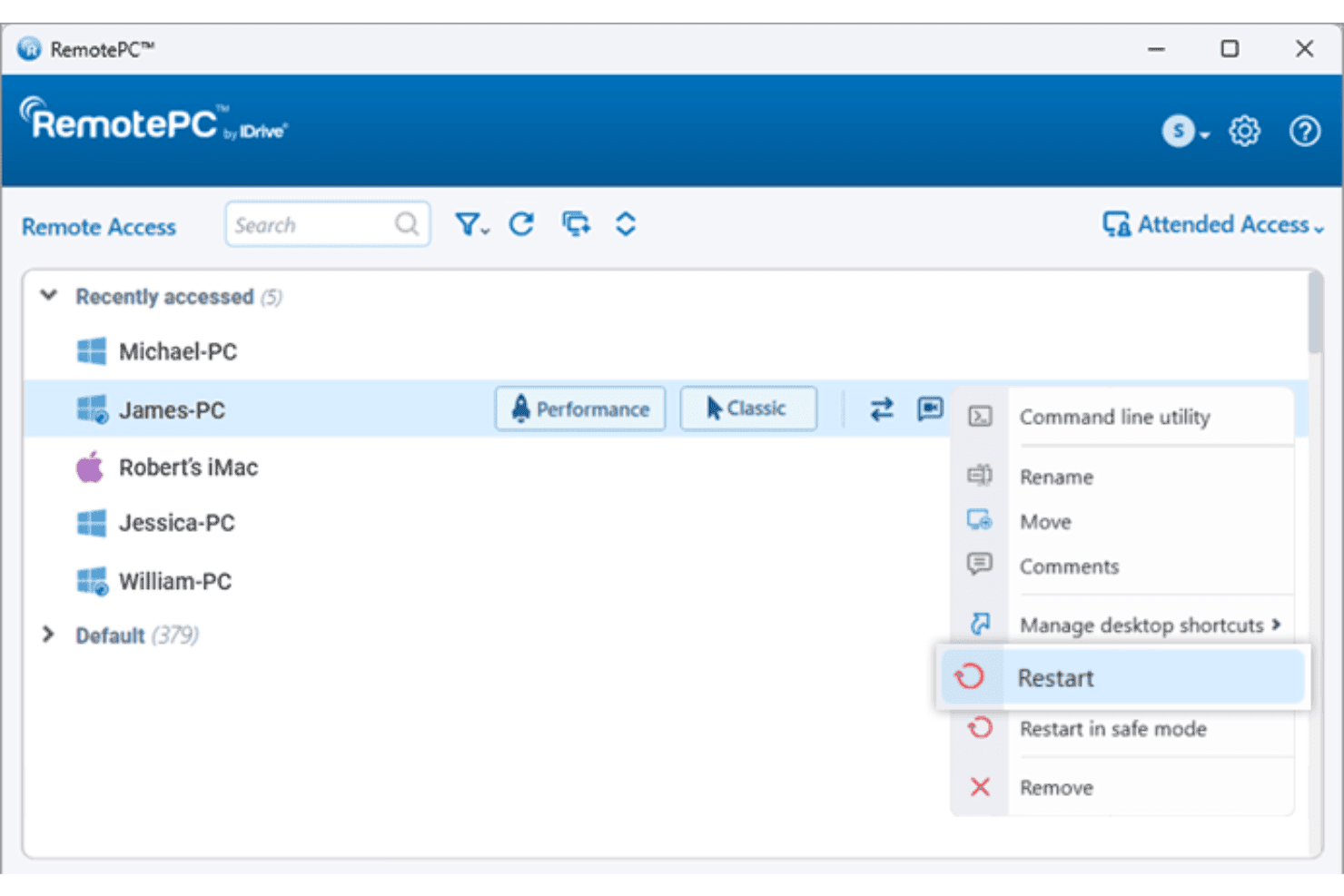
RemotePC lets users restart remote computers directly from the device list. RemotePC is a remote access platform that lets you connect to and control Windows, Mac, Linux, Android, and iOS devices over the internet, with features spanning multi-monitor support, file transfer, remote deployment, user and computer group management, and session recording.
Who Is RemotePC Best For?
RemotePC is a strong fit for IT teams managing large fleets of Windows, Mac, and Linux devices that need centralized remote access with user and computer group management.
Why I Picked RemotePC
RemotePC earns its spot on my shortlist because of how well it handles scale. The computer grouping and user group management features let you organize large device fleets and assign access permissions without manually configuring each machine. What I find especially useful is mass deployment via GPO, Microsoft Intune, or Jamf Pro, which means you can push RemotePC across hundreds of endpoints from a central console rather than touching each one. Add session recording and detailed access logs, and you have solid accountability across every remote connection in your environment.
RemotePC Key Features
- Remote printing: Print documents stored on any remote machine directly to your local printer without manual file transfers.
- USB device redirection: Redirect a USB device from your local machine to a remote computer so it functions as if it's physically connected.
- RDP connector: Access remote Windows computers and servers via RDP without configuring a VPN or Microsoft RD Gateway.
- Attended access: Share a one-time session code to give instant, on-demand access to a remote computer for real-time support.
RemotePC Integrations
RemotePC offers native integrations with Zendesk, Freshdesk, Freshservice, Jira, OneLogin, Okta, Azure AD, Keycloak, Google Workspace, and Jamf Pro. An API is available for custom integrations.
Pros and Cons
Pros:
- Wake-on-network functionality supported
- Mass deployment options for large device fleets
- Supports remote access to all major platforms
Cons:
- Lacks automated remote software patching tools
- No support for custom API integrations
Learn more about RemotePC: Best for MSP technician speed and diagnostic tools
- 14-day free trial + free demo available
- Pricing upon request
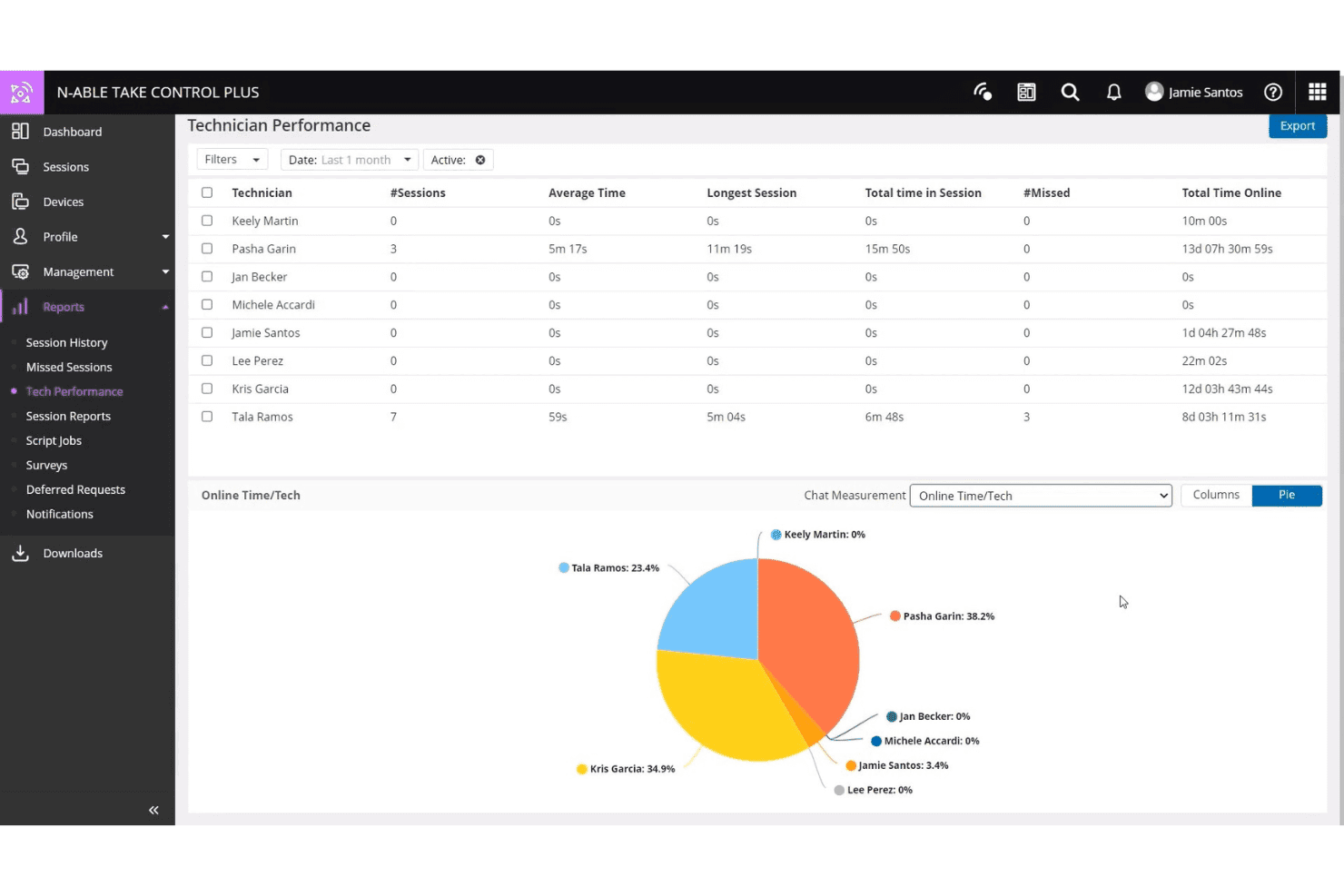
N-able Take Control tracks technician session activity and online time. N-able Take Control is a remote support tool built for MSPs and IT teams, offering cross-platform session management, built-in diagnostic tools, live chat, VoIP, multi-factor authentication, and integrations with N-able's RMM platforms.
Who Is N-able Take Control Best For?
N-able Take Control is a strong fit for MSP technicians who need fast session starts and built-in diagnostic tools without switching between platforms.
Why I Picked N-able Take Control
I've included N-able Take Control in my top picks because the session startup speed is genuinely impressive, and the built-in diagnostic tools mean technicians aren't jumping between tabs to troubleshoot. I particularly like the device health dashboard, which surfaces CPU, memory, and disk data during a live session so you can diagnose while you work. The one-click remote command console is another feature I keep coming back to, letting you run scripts and restart services without interrupting the end user's screen.
N-able Take Control Key Features
- Cross-platform remote sessions: Connect to and from Windows, Mac, Linux, iOS, and Android devices within a single session queue.
- Multi-monitor support: Switch between and view multiple monitors on the remote device without ending or restarting the session.
- In-session file transfer: Drag and drop files directly to and from a remote device during an active support session.
- Session recording: Start and stop recordings of live sessions for auditing, compliance, or technician training purposes.
N-able Take Control Integrations
N-able Take Control offers native integrations with N-sight RMM, N-central, Autotask, and ConnectWise. An API is available for custom integrations.
Pros and Cons
Pros:
- Multi-platform queues for Windows, Mac, Linux
- Built-in device health dashboard during sessions
- Session startup speed is consistently fast
Cons:
- Some advanced features need the N-central platform
- Limited native integrations outside the N-able ecosystem
Learn more about N-able Take Control: Best for high-performance remote control at 4K quality
- Free trial + free demo available
- From $6/month
Visit WebsiteCustomer Rating:4.8/5
Splashtop lets users remotely view and filter Windows event logs by type and severity. Splashtop is a remote access and remote support platform built for IT teams, offering remote desktop control, screen sharing, session recording, and multi-monitor support across Windows, Mac, iOS, Android, and Linux devices.
Who Is Splashtop Best For?
Splashtop is a strong fit for IT teams and managed service providers that need high-fidelity remote desktop control, especially where display quality and session performance matter most.
Why I Picked Splashtop
Splashtop earns its spot on my shortlist because of its 4K streaming at up to 60fps, which makes it genuinely viable for remote work on graphics-heavy applications like Adobe Creative Suite or AutoCAD. I've used it in scenarios where display fidelity actually matters, and the difference from a standard HD stream is noticeable. On top of that, multi-monitor support lets you view multiple remote displays without losing workspace context.
Splashtop Key Features
- Session recording: Automatically record remote sessions and store them for audit, compliance, or troubleshooting review.
- File transfer: Move files between the local and remote device directly within an active session without a third-party tool.
- Remote reboot: Restart a remote machine, including in safe mode, without losing access to the session.
- Two-factor authentication: Require a second verification step at login to reduce unauthorized access to remote endpoints.
Splashtop Integrations
Splashtop offers 40+ native integrations, including Jira, ServiceNow, Zendesk, Freshservice, Microsoft Teams, Salesforce, Splunk, Jamf, NinjaOne, and JumpCloud, and it has native integrations across the Microsoft ecosystem, including Microsoft Entra ID. An API is also available for custom integrations.
Pros and Cons
Pros:
- Offers direct file transfer capabilities
- Allows safe remote device rebooting
- Streams remote desktops at 4K 60fps
Cons:
- No automated software patching tools
- Lacks a background endpoint command line
Learn more about Splashtop: Best with AI-assisted IT diagnostics
- 30-day free trial
- From $24.9/month (billed annually)
Visit WebsiteCustomer Rating:4.5/5
TeamViewer discovers and monitors all devices across your network. TeamViewer is a remote access and support platform that combines device connectivity, session-based troubleshooting, endpoint monitoring, and AI-assisted diagnostics across desktop, mobile, and IoT environments.
Who Is TeamViewer Best For?
TeamViewer is a strong fit for IT support teams managing large, mixed-device environments where fast remote diagnostics across desktops, mobile, and IoT endpoints are a daily necessity.
Why I Picked TeamViewer
TeamViewer earns its spot on my shortlist because of Tia, its built-in AI agent that actually diagnoses issues mid-session, recommends a fix, executes approved remediation, and validates the outcome without you having to leave the remote session. I also like Session Insights, which auto-generates audit-ready session summaries and feeds pattern data into Session Analytics so you can spot recurring issues across your environment. For IT teams juggling high ticket volumes across mixed device fleets, those two features together close the gap between reactive troubleshooting and something closer to autonomous support.
TeamViewer Key Features
- Unattended access: Connect to and control approved devices—including computers and Android endpoints—without requiring a user to be present on the other end.
- Augmented reality remote assistance: Use Assist AR to guide on-site workers through hardware or software problems via live smartphone-based AR overlays, without dispatching a technician.
- Encrypted file transfer: Transfer files between local and remote devices using end-to-end 256-bit AES encryption, with support for multiple transfer methods including copy-paste.
- Silent mass deployment: Push the TeamViewer client to thousands of devices in bulk without requiring user interaction, reducing onboarding time for large device fleets.
TeamViewer Integrations
TeamViewer offers 30+ native integrations, including ServiceNow, Salesforce, Zendesk, Jira, Freshworks, Slack, Google Meet, SAP, Jamf Pro, and Microsoft ecosystem tools like Microsoft 365, Intune, Teams, Dynamics 365, and Entra ID. An API is also available for custom integrations.
Pros and Cons
Pros:
- Augmented reality visual assistance mode
- Session Insights generate audit-ready support reports
- AI-driven diagnostics suggest fixes in real time
Cons:
- Remote access occasionally blocked by strict firewalls
- Lacks stealth background management mode
Learn more about TeamViewer: Best for FIPS 140-2 compliant support
- Free trial + free demo available
- Pricing upon request

BeyondTrust Remote Support tracks live sessions, wait times, and rep activity. BeyondTrust Remote Support is a remote access platform built for IT and support teams that need to securely access, troubleshoot, and manage endpoints across on-premises, cloud, and hybrid environments.
Who Is BeyondTrust Remote Support Best For?
BeyondTrust Remote Support is a strong fit for IT and security teams in government, defence, and highly regulated industries that need remote support validated to FIPS 140-2, Level 1 standards.
Why I Picked BeyondTrust Remote Support
BeyondTrust Remote Support is the only remote support product with FIPS 140-2, Level 1 validation, which makes it a clear pick for government agencies, defence contractors, and organizations operating under FedRAMP or FISMA requirements. I particularly like the Vault feature, which lets you manage, rotate, and inject up to 100,000 credentials directly within remote sessions, keeping privileged access tightly controlled. Session logging and forensics give security teams a full audit trail of every connection.
BeyondTrust Remote Support Key Features
- Jump Clients: Deploy Jump Clients for unattended access to remote endpoints, with support for mass deployments and just-in-time access provisioning.
- Remote Support Dashboard: Monitor all active sessions in real time, view team load, and transfer or take over sessions directly from a centralized manager view.
- Multi-platform device support: Connect to and troubleshoot Windows, Linux, macOS, Chrome OS, iOS, and Android devices from a single interface.
- Automated script execution: Run scripts and mass installers across endpoints during remote sessions to speed up remediation without manual intervention.
BeyondTrust Remote Support Integrations
BeyondTrust Remote Support offers native integrations with ServiceNow, Jira Service Management, BMC ITSM, Splunk, Microsoft Entra ID, Okta, and Ping Identity. An API is available for custom integrations.
Pros and Cons
Pros:
- Automated script execution across endpoints
- Centralized credential management during remote sessions
- Offers FIPS 140-2 Level 1 validation
Cons:
- Requires setup for optimal unattended access
- Lacks background endpoint management mode
Learn more about BeyondTrust Remote Support: Best for FedRAMP-grade zero trust access
- Free trial + free demo available
- Pricing upon request

BeyondTrust tracks computer policy compliance and client versions across endpoints. BeyondTrust Privileged Remote Access is a privileged access management (PAM) solution that controls and audits remote sessions for employees, vendors, and service accounts across cloud, on-premises, and OT environments using zero trust architecture, credential injection, and session recording.
Who Is BeyondTrust Privileged Access Management Best For?
BeyondTrust Privileged Remote Access is a strong fit for government agencies, defence contractors, and regulated enterprises that need FedRAMP-authorized remote access controls for privileged users and third-party vendors.
Why I Picked BeyondTrust Privileged Access Management
BeyondTrust Privileged Remote Access earns its spot on my list because it's one of the few remote access solutions with FedRAMP Moderate authorization, which matters a lot if you're in a federal agency or supporting government contractors. I particularly like its credential injection capability, which lets privileged users authenticate to systems without ever seeing plaintext passwords. Pair that with just-in-time access controls and full session recording, and you get the kind of audit-ready access trail that satisfies both internal security teams and external compliance reviewers.
BeyondTrust Privileged Access Management Key Features
- Vendor privileged access management: Grants third-party vendors time-limited remote access without requiring VPN connectivity or shared credentials.
- Multi-protocol session support: Supports RDP, VNC, SSH, HTTPS, and SQL connections for authenticated and auditable sessions across human and non-human identities.
- Cloud developer access: Provides protocol-first access with a bring-your-own-tool workflow for ephemeral multi-cloud systems and API-based environments.
- Delegated vendor onboarding: Lets you assign vendor user management to group policies, removing shared accounts and reducing manual provisioning overhead.
BeyondTrust Privileged Access Management Integrations
BeyondTrust Privileged Remote Access offers native integrations with ServiceNow, Jira Service Management, Splunk, Sekoia, SailPoint IdentityIQ, AWS, and VMware. An API is available for custom integrations.
Pros and Cons
Pros:
- Session recording enables thorough audit trails
- Credential injection hides sensitive passwords from users
- FedRAMP Moderate authorization supports federal compliance needs
Cons:
- No built-in antivirus management
- Lacks direct endpoint chat messenger
Learn more about BeyondTrust Privileged Access Management: Best for session recording and auditing
- 14-day free trial
- From $33/month (billed annually)

ScreenConnect tracks elevation requests and access approvals in one dashboard. ScreenConnect is a remote access and support platform that covers unattended device access, remote support sessions, privileged access management, and real-time camera sharing across Windows, Mac, Linux, and mobile devices.
Who Is ScreenConnect Best For?
ScreenConnect is a good fit for IT teams and managed service providers that need full audit trails and recorded session logs to meet compliance or internal accountability requirements.
Why I Picked ScreenConnect
ScreenConnect earns its spot on my shortlist because of how seriously it handles session visibility and accountability. Every remote session can be logged as a video recording, and the audit log tracks login attempts, password changes, and session access in one filterable view, so you can pull up exactly what a technician did during a specific session without digging through fragmented logs. I also like that you can filter audit logs by session name to find recordings fast, which matters when you're responding to a compliance inquiry or internal review.
ScreenConnect Key Features
- Unattended device access: Connect to remote Windows, Mac, and Linux machines without requiring a user to be present on the other end.
- Real-time camera sharing: Access a live feed of a device's camera during a support session to get visual context on physical environments or hardware issues.
- Role-based access control: Assign technicians permissions at a granular level, controlling which machines and session types each user can access.
- Wake-on-LAN: Power on remote devices over the network so you can connect to machines that are powered off without needing someone on-site.
ScreenConnect Integrations
ScreenConnect offers native integrations with ConnectWise PSA, ConnectWise Automate, ConnectWise RMM, Acronis, Freshdesk, Zendesk, Microsoft Outlook, ServiceNow, and Delinea, plus 100+ extensions available through the ConnectWise Marketplace. An API is available for custom integrations.
Pros and Cons
Pros:
- Role-based permissions for technician access control
- Granular audit logs for accountability reviews
- Real-time device camera sharing
Cons:
- Lacks unified endpoint patch deployment
- No free or trial version available
Learn more about ScreenConnect: Best for mass deployment call center support
- Free 14-day free trial + free demo available
- From $109/month (billed annually)

LogMeIn Rescue lets users start remote, mobile, or screen-sharing support sessions. LogMeIn Rescue is a cloud-based remote support platform built for IT teams and help desks, offering remote device access, session management, multi-platform support, and technician console tools across desktop and mobile environments.
Who Is LogMeIn Rescue Best For?
LogMeIn Rescue is a strong fit for IT help desks and call centers that need to support large volumes of end users across multiple devices and operating systems simultaneously.
Why I Picked LogMeIn Rescue
I've included LogMeIn Rescue in my top picks because it handles high-volume call center support better than most tools in this category. The Calling Card feature is the real differentiator: deploy a single-click desktop shortcut across thousands of end-user machines via mass install, and users connect to a support session without a PIN. Technicians on the other end manage inbound requests through session queues and channel routing, which keeps call center workflows organized at scale.
LogMeIn Rescue Key Features
- AI session summaries: Automatically generate structured session notes from chat logs, device information, and technician actions taken during a support session.
- Session recording and reporting: Record remote sessions and access historical usage data to review technician activity and track team-level metrics.
- Live Lens: Let end users share their physical environment via smartphone camera, so technicians can diagnose hardware or on-site issues without an on-desk visit.
- Multi-technician collaboration: Invite additional technicians into an active session to troubleshoot together without restarting or transferring the session.
LogMeIn Rescue Integrations
LogMeIn Rescue offers native integrations with ServiceNow, Salesforce (including Lightning), Microsoft Dynamics, Microsoft Teams, Zendesk, Freshdesk, Jira Service Management, Autotask, and Nexthink. It also provides APIs and SDKs for custom integrations with CRM, ticketing, and workflow systems.
Pros and Cons
Pros:
- Multi-technician sessions without disruption
- Live Lens supports hardware issue diagnosis
- Automatic session note generation capability
Cons:
- Lacks continuous endpoint patch automation
- No built-in endpoint antivirus
Learn more about LogMeIn Rescue:
Other Remote Access Software
Here are some additional remote access software options that didn’t make it onto my shortlist, but are still worth checking out:
- 11NinjaOneBest for RMM-native endpoint control
- 12Zoho AssistBest for native Zoho ecosystem integrations
- 13AteraBest for transparent per-technician pricing
- 14ManageEngine Remote Access PlusBest for unattended system diagnostics
- 15Parallels RASBest for virtual app and desktop delivery to any device
- 16AnyDeskBest for low-latency cross-platform control
- 17Azure Virtual DesktopBest for cloud-native Windows desktops
- 18LogMeIn ResolveBest for unified endpoint ticketing and access
- 19RustDeskBest for open-source data sovereignty
- 20RealVNC ConnectBest for embedded system and IoT access
Related Reviews
How I Evaluate Remote Access Software
I split my evaluation into baseline capabilities every tool must clear—like unattended access and session auditing—and the differentiators, like zero-trust architecture or MSP ecosystem fit, that separate good tools from the right one.
Core Functionality (Table Stakes for This List)
When I'm selecting tools for my list, I rank each one on a scale from 0 (does not offer the functionality) to 5 (excels in this area) for each core functionality listed below. I then calculate the tool's total score as a percentage, using 75% as a benchmark to help assess its overall fit for the list.
- Remote control access: I evaluate real-time screen, keyboard, and mouse control across connections, checking for multi-monitor handling, resolution scaling, and performance under high-latency conditions.
- Unattended access: Tools need to support always-on agent-based connections so technicians can reach endpoints for after-hours patching or server maintenance without someone on the other end.
- Cross-platform support: I check whether each tool covers Windows, macOS, Linux, iOS, and Android as both host and client, since mixed-OS environments are the norm for most IT teams.
- Secure connection and encryption: AES-256 encryption, MFA enforcement, and SSO/SAML support are what I look for, along with any compliance certifications like SOC 2 or ISO 27001.
- File transfer and session tools: Bi-directional file transfer, clipboard sync, remote print, and in-session chat all factor in, especially for support scenarios where a technician needs to push a config file mid-session.
- Session management and auditing: I look at session recording, role-based access controls, and exportable audit logs, since these directly support compliance requirements and internal accountability reviews.
Once I have a list of tools that meet the criteria, I consider what sets each platform apart.
Differentiating Factors (What Sets Vendors Apart)
Here's how I compare and contrast different vendors:
Standout Features
Session recording with searchable metadata matters most when your compliance team needs a defensible audit trail. I check whether recordings auto-attach to tickets and how long vendors retain them. Just-in-time privileged access is equally important—I evaluate how tools handle time-bound, approval-gated elevation for contractors so access revokes automatically after a session ends. I also look at mass deployment tooling, since onboarding thousands of endpoints via silent MSI installers or Group Policy integration separates enterprise-ready platforms from ones that require manual setup.
Beyond Features
I evaluate each tool's deployment model first—cloud-hosted, self-hosted, or hybrid—because teams in regulated industries often need on-premises control or data residency guarantees. Licensing structure matters just as much: per-technician pricing suits lean internal teams, while per-endpoint or concurrent-session models can save MSPs real money at scale. I also check for native connectors to PSA, ITSM, and identity providers like Okta or Azure AD, since launching a remote session straight from a ServiceNow ticket eliminates context-switching. Finally, I look at compliance certifications like SOC 2 Type II and FedRAMP that map directly to buyer requirements in healthcare, finance, and public sector.
How to Choose a Remote Access Software
Which priorities should drive your remote access software selection process to support secure, scalable, and auditable access for your team:
| If your priority is… | Look for… |
|---|---|
| If your priority is…Proving security and compliance | Look for…Certifications like SOC 2, FIPS 140-2, or FedRAMP plus session auditing tools |
| If your priority is…Enterprise-scale device coverage | Look for…Mass deployment via MSI, GPO, or RMM integration |
| If your priority is…Cross-platform access | Look for…Full support for Windows, macOS, Linux, iOS, and Android as both host and client |
| If your priority is…Zero trust and granular control | Look for…Role-based access with just-in-time elevation and mandatory MFA enforcement |
| If your priority is…Audit-ready troubleshooting | Look for…Session recording with exportable logs and searchable metadata |
How to Vet Your Shortlist
- Request Compliance Artifacts: Ask vendors for current SOC 2 or FedRAMP documentation within two business days.
- Test Mass Deployment: Trial silent installer or GPO-based deployment to at least 10 endpoints on separate networks.
- Simulate Access Controls: Use a trial to create time-bound, approval-gated access for a test contractor and verify automatic revocation.
- Export Session Audit Logs: Complete a session, then export a detailed log or recording for a real device within 24 hours.
- Pick Your Lane—Cloud Convenience vs. On-Premises Control: Decide between the agility of SaaS versus the data sovereignty and compliance guarantees of self-hosted deployment.
What Are Remote Access Software?
Remote access software is a set of tools that let you securely connect to and control another device over a network or the internet. They enable IT teams and users to manage devices, troubleshoot issues, and perform administration tasks without being physically present. These platforms are important for supporting distributed environments, maintaining uptime, and enforcing security controls across various operating systems and locations.
Features of Remote Access Software
When selecting remote access software, keep an eye out for the following key features:
- Remote control access: Lets you view and control another device’s screen, keyboard, and mouse in real time to handle troubleshooting, updates, or maintenance without being physically onsite.
- Unattended access: Allows remote connections to endpoints even when no user is present, which is critical for after-hours support, patching, and server work.
- Cross-platform compatibility: Supports connections between Windows, macOS, Linux, iOS, and Android devices, ensuring your team can manage mixed environments without gaps.
- Strong encryption: Uses security protocols such as AES-256 to protect session data, ensuring your remote sessions can’t be intercepted or tampered with.
- Multi-factor authentication (MFA): Requires another authentication step beyond just a password, reducing unauthorized access risk and increasing overall security.
- Session recording and audit logs: Captures remote session activity and provides detailed logs, helping with compliance, internal reviews, and verifying user actions.
- File transfer tools: Facilitate sending and receiving files between local and remote machines, which is crucial for deploying patches, scripts, or gathering log files during support sessions.
- Role-based access controls: Lets you assign granular permissions to users or groups, limiting remote access to only those who absolutely need it.
- In-session chat: Offers a way for technicians to communicate directly with remote users during a support session, helping clarify issues and coordinate troubleshooting.
- Scalable deployment options: Provides mass installation tools or integrations (like MSI installers, GPO, or RMM connectors), simplifying onboarding large numbers of endpoints across your environment.
Common Remote Access Software AI Features
Beyond the standard remote access software features listed above, many of these solutions are incorporating AI with features like:
- Automated issue detection: AI analyzes session activity and system logs to identify potential problems or anomalies before they escalate, helping IT teams address issues proactively.
- Intelligent session routing: AI matches support requests with the most qualified technician based on historical performance, expertise, and current workload, reducing resolution times and improving user experience.
- Predictive maintenance alerts: AI monitors device health and usage patterns to forecast hardware failures or software issues, allowing teams to schedule maintenance before disruptions occur.
- Context-aware session summaries: AI generates detailed, searchable summaries of remote sessions, highlighting key actions, decisions, and outcomes to simplify documentation and compliance reviews.
- Anomaly-based access monitoring: AI continuously evaluates user behaviour during remote sessions, flagging unusual access patterns or risky actions for immediate review to strengthen security.
- Natural language support chatbots: AI-powered chatbots assist users and technicians during remote sessions by answering questions, suggesting troubleshooting steps, or automating routine tasks through conversational interfaces.
Benefits of Remote Access Software
Implementing remote access software provides several benefits for your team and your business. Here are a few you can look forward to:
- Secure remote connectivity: Enable your team to troubleshoot, administer, and update devices from anywhere using encrypted connections, MFA, and role-based access controls.
- Cross-platform device management: Manage and control endpoints across Windows, macOS, Linux, iOS, and Android platforms, supporting diverse infrastructure without requiring multiple tools.
- Audit and compliance support: Meet audit and regulatory needs through session recording, exportable logs, and granular user activity tracking that make compliance reviews easier.
- Unattended system maintenance: Schedule patches, address incidents, or access servers after hours without waiting on an end user, thanks to always-on agent and unattended access features.
- Direct file transfers and collaboration: Transfer files, sync clipboards, and use in-session chat to resolve issues efficiently and support users in real time.
- Scalable deployment: Quickly onboard thousands of devices using MSI installers, group policy integration, or RMM connectors that simplify mass deployment.
- AI-driven insights and automation: Use AI tools for automated issue detection, context-aware session summaries, and predictive maintenance alerts to help your team prevent problems before they impact users.
Costs and Pricing
Selecting remote access software requires an understanding of the various pricing models and plans available. Costs vary based on features, team size, add-ons, and more. The table below summarizes common plans, their average prices, and typical features included in remote access software solutions:
Plan Comparison Table for Remote Access Software
| Plan Type | Average Price | Common Features |
|---|---|---|
| Plan TypeFree Plan | Average Price$0 | Common FeaturesBasic remote control, limited session length, support for one or two devices, and community support. |
| Plan TypePersonal Plan | Average Price$5–$15/user/month | Common FeaturesUnattended access, file transfer tools, strong encryption, and support for Windows and macOS. |
| Plan TypeBusiness Plan | Average Price$25–$40/user/month | Common FeaturesCross-platform access, multi-factor authentication, session recording, team management, and audit logs. |
| Plan TypeEnterprise Plan | Average Price$50–$80/user/month | Common FeaturesAdvanced role-based access controls, just-in-time elevation, integration with identity providers, mass deployment, and compliance certifications. |
Remote Access Software FAQs
Here are some answers to common questions about remote access software:
How do I know if remote access software is secure enough for my organization?
To ensure a secure remote access setup, check for strong encryption (like AES-256), multi-factor authentication, and integration with a password manager or SSO. Ask vendors for compliance certifications like SOC 2 or FedRAMP. Confirm it works alongside your existing firewall and VPN, and ensure there is session recording to prove you control access for every session.
Can remote access software work with a mix of Windows, macOS, and Linux systems?
Yes, a versatile remote desktop solution supports cross-platform connections. Look for vendors explicitly listing compatibility for managing a Windows PC, macOS, Linux, Chromebooks (ChromeOS), and iOS devices. Check if they offer a native desktop app and a mobile app so you can connect in both directions.
What’s the difference between unattended and attended remote access?
Unattended remote access means tech support can establish a remote desktop connection without a user present, enabling after-hours server maintenance or updating a Raspberry Pi. Attended access requires someone at the device to grant permission for the session. Most teams use both approaches depending on the scenario.
How can I mass-deploy remote access software to a large number of endpoints?
You can use deployment tools like MSI installers, scripts, group policy objects, or integration with remote monitoring and management (RMM) platforms. Prioritize vendors that provide command-line options or direct integrations for bulk onboarding—manual installs won’t scale.
Is it possible to integrate remote access software with my ITSM or help desk system?
Yes, many remote access platforms offer native connectors to ITSM tools like ServiceNow, Jira Service Management, or Zendesk. This lets you launch sessions directly from support tickets and automatically attach audit trails to the right record, which saves time and reduces context switching.
What compliance requirements should I consider when choosing remote access software?
Focus on your industry’s expectations. Healthcare teams often need HIPAA adherence, finance teams look for SOC 2 Type II, and public sector buyers may require FedRAMP. Ask vendors for up-to-date certification reports, and review their session logging and data residency options closely.