
13 alternatives à Microsoft Visio pour 2026

Liste des meilleures alternatives à Microsoft Visio
Voici ma sélection d’alternatives à Microsoft Visio :


Une bonne alternative à Microsoft Visio offre une flexibilité de création de diagrammes, une grande compatibilité de fichiers et des fonctionnalités de collaboration adaptées au flux de travail de votre équipe. Si vous cherchez à remplacer Microsoft Visio, vous faites probablement face à des coûts de licence Microsoft Office, des limitations de plateforme ou le besoin d'une meilleure intégration à vos outils existants. La bonne alternative vous permettra de créer des diagrammes professionnels, diagrammes de flux, schémas de réseau et cartes des processus, sans les contraintes que vous avez rencontrées avec Visio. Dans cette liste, vous trouverez des alternatives gratuites à Visio ainsi que des options premium favorisant la collaboration en temps réel, la personnalisation open source et des fonctionnalités spécialisées pour les environnements IT—le tout en privilégiant la facilité d’utilisation—pour que vous puissiez choisir l’outil le plus adapté à vos exigences techniques et aux besoins de votre équipe.
Qu’est-ce que Microsoft Visio ?
Microsoft Visio est un outil de création de schémas et de diagrammes de flux utilisé pour visualiser des processus, des systèmes et des structures organisationnelles. Il prend en charge de nombreux types de diagrammes, dont les schémas de réseau, les cartographies de processus, les plans d’étage, ainsi que des diagrammes détaillés pour des cas d’utilisation techniques ou métiers. Les spécialistes IT, analystes métiers et chefs de projet utilisent Visio pour cartographier des informations complexes et communiquer visuellement leurs idées. Son intégration avec Microsoft 365 et la prise en charge des formats de fichiers standards du secteur en font un choix courant dans de nombreuses organisations.
Résumé des meilleures alternatives à Microsoft Visio
Ce tableau comparatif résume les détails tarifaires de mes principales alternatives à Microsoft Visio pour vous aider à trouver celle qui correspond à votre budget et à vos besoins professionnels.
| Tool | Best For | Trial Info | Price | ||
|---|---|---|---|---|---|
| 1 | Best for visual project management features | Free plan available | From $5/user/month (billed annually) | Website | |
| 2 | Best for automatic diagram formatting | Free trial available | From $7.95/user/month (billed annually) | Website | |
| 3 | Best for macOS and iOS professionals | 14-day free trial available | From $59.99/year | Website | |
| 4 | Best with Google Workspace integration | Free forever plan | Free to use | Website | |
| 5 | Best for Atlassian ecosystem compatibility | 30-day free trial + free demo available | From $2.80/user/month (billed annually) | Website | |
| 6 | Best for multi-user editing sessions | Free plan available | From $6/user/month | Website | |
| 7 | Best for open-source customization | Free forever plan | Free to use | Website | |
| 8 | Best for advanced automatic layout algorithms | Free forever plan | Free to use | Website | |
| 9 | Best for infinite canvas brainstorming | Free plan available | From $8/member/month (billed annually) | Website | |
| 10 | Best for real-time team collaboration | Free plan available | From $9/user/month | Website |

Why Trust Our Software Reviews
-

Site24x7
Visit WebsiteThis is an aggregated rating for this tool including ratings from Crozdesk users and ratings from other sites.4.6 -
Docker
Visit WebsiteThis is an aggregated rating for this tool including ratings from Crozdesk users and ratings from other sites.4.6 -
Pulumi
Visit WebsiteThis is an aggregated rating for this tool including ratings from Crozdesk users and ratings from other sites.4.8





Avis détaillés sur les meilleures alternatives à Microsoft Visio
Vous trouverez ci-dessous mes résumés détaillés des meilleures alternatives à Microsoft Visio figurant dans ma sélection. Mes avis offrent un aperçu approfondi des fonctionnalités, cas d’utilisation privilégiés et intégrations de chaque outil afin de vous aider à trouver celui qui vous conviendra le mieux.
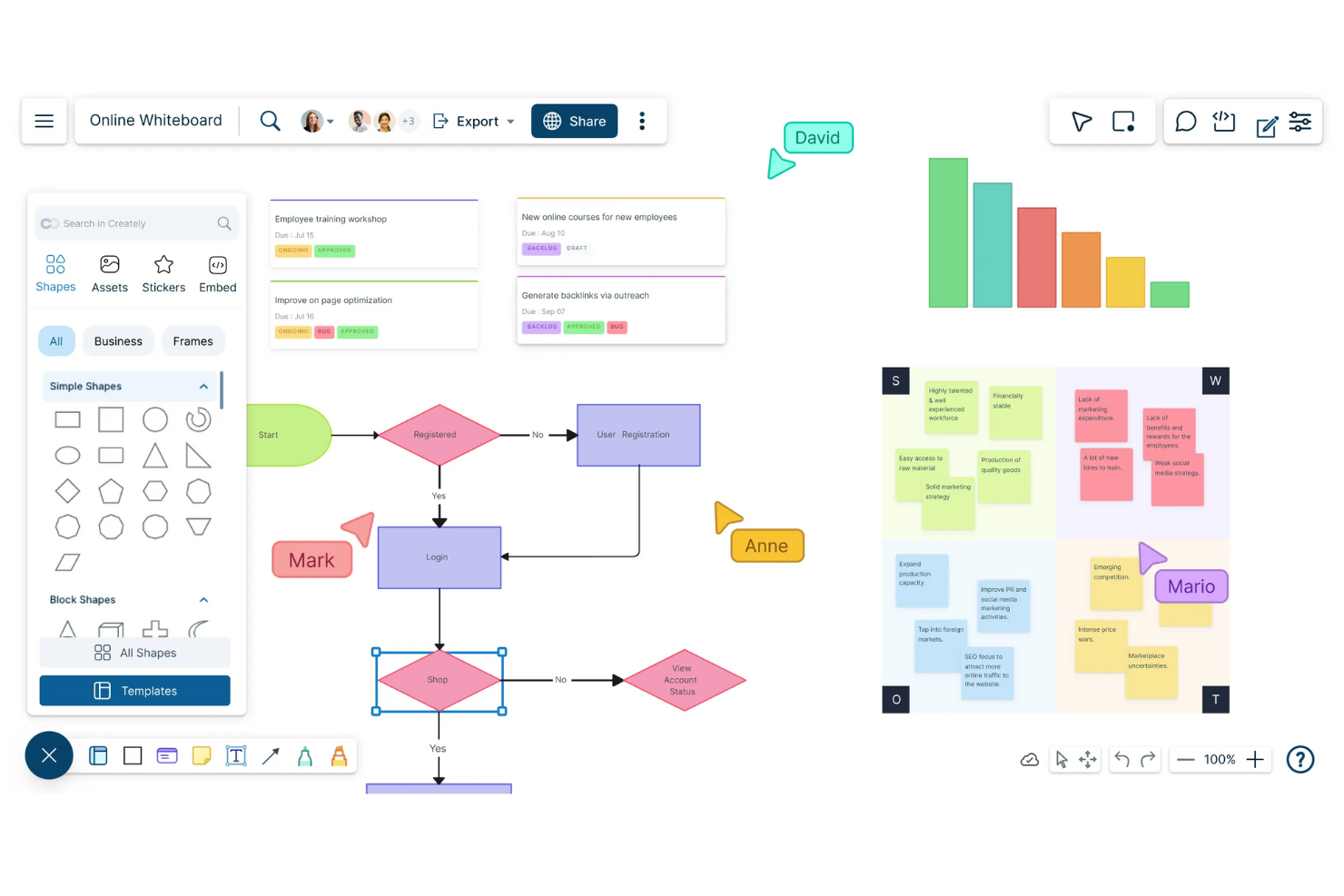
Creately stands out for teams that want to combine diagramming with visual project management. It’s a strong fit for IT specialists, project leads, and cross-functional teams who need to map processes, manage tasks, and track workflows in one place. Unlike Microsoft Visio, Creately lets you link diagrams directly to project boards, notes, and databases for a more connected workspace.
Why Creately Is a Good Microsoft Visio Alternative
What sets Creately apart from Microsoft Visio is its focus on visual project management features. I appreciate that you can turn any diagram element into a task, assign it to team members, and track progress directly from the same workspace. Creately also lets you connect diagrams to project boards, notes, and even databases, so your visual plans stay linked to actionable work. For teams that want to manage both diagrams and projects in one place, Creately offers a more integrated approach than traditional diagramming tools.
Creately Key Features
Some other features in Creately help teams build and organize diagrams more flexibly:
- Infinite Canvas: Expand diagrams without boundaries to map complex systems or workflows.
- Real-Time Collaboration: Work with multiple team members simultaneously on the same diagram.
- Template Library: Choose from hundreds of pre-built templates for flowcharts, org charts, and network diagrams.
- Data Linking: Attach data fields to shapes and visualize information directly within diagrams.
Creately Integrations
Integrations include Confluence Cloud, Microsoft Teams, and Slack.
Pros and Cons
Pros:
- Infinite canvas maps systems
- Real-time collaboration supports teams
- Project boards manage tasks
Cons:
- Exports sometimes lose formatting
- Advanced automation features are limited
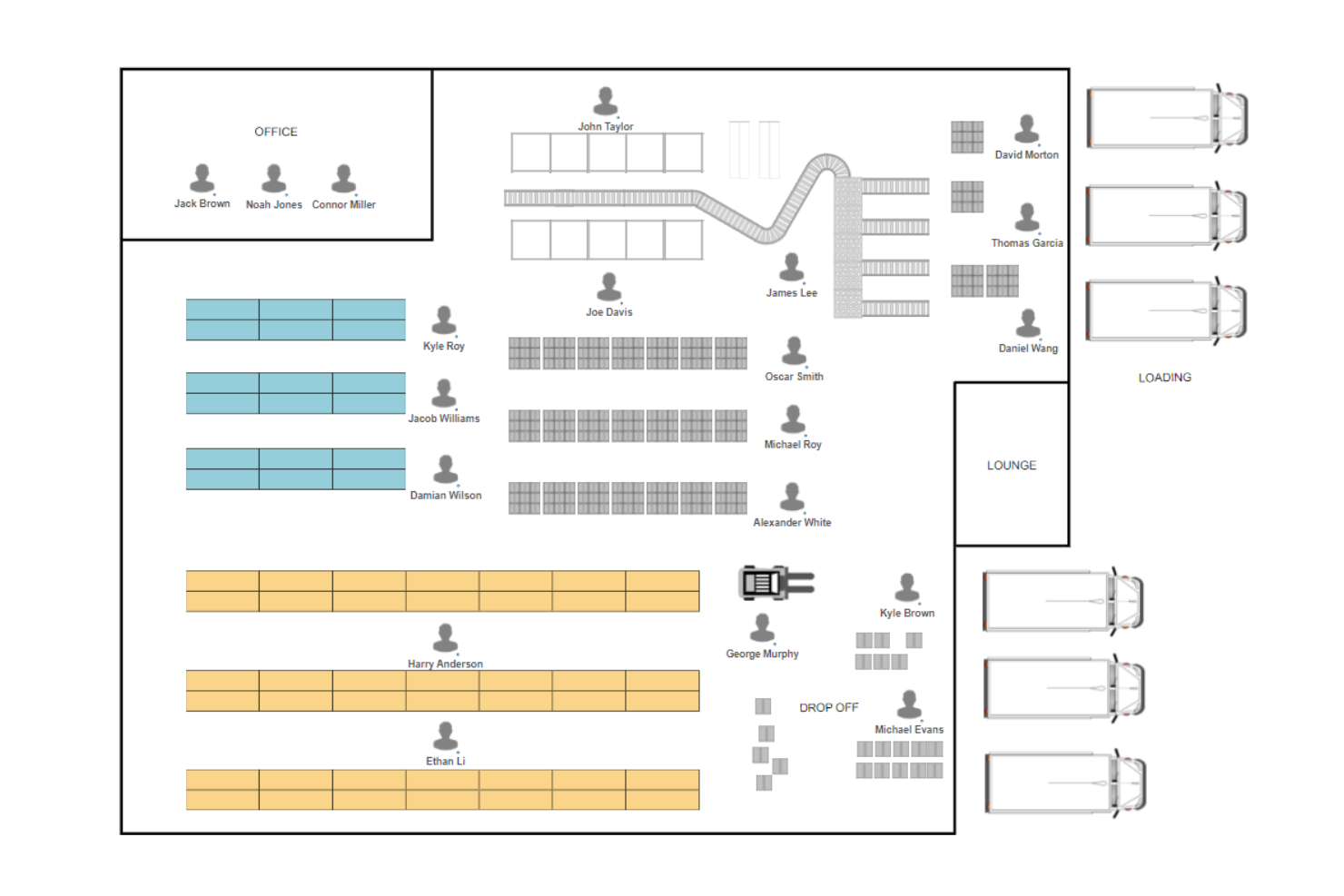
SmartDraw stands out for its automatic diagram formatting, which helps IT specialists and business teams create clean, organized visuals with less manual effort. If you need to build complex network diagrams, business process maps, org charts, or process flows, SmartDraw’s formatting engine keeps everything aligned as you add or move elements. Its cross-platform accessibility makes it convenient for different work environments, and the intuitive design reduces the learning curve compared to Microsoft Visio, helping users avoid tedious manual adjustments.
Why SmartDraw Is a Good Microsoft Visio Alternative
What sets SmartDraw apart from Microsoft Visio is its automatic diagram formatting, which keeps diagrams tidy as you build and edit them. The tool automatically aligns shapes, spaces elements evenly, and adjusts connectors as you add or move items. I appreciate how this feature reduces the time spent on manual adjustments, especially in large or complex diagrams. For anyone who wants to focus on content rather than layout, SmartDraw’s formatting engine is a clear advantage.
SmartDraw Key Features
Some other features in SmartDraw make it a versatile choice for technical and business diagramming:
- Extensive Template Library: Access hundreds of templates for network diagrams, org charts, and floor plans.
- Intelligent Formatting for Flowcharts: Automatically adjusts flowchart shapes and connectors as you build.
- Visio File Import and Export: Open, edit, and save Microsoft Visio files directly within SmartDraw.
- Collaboration Tools: Share diagrams with team members and manage permissions for editing or viewing.
SmartDraw Integrations
Integrations include Microsoft OneDrive, SharePoint, Google Drive, Dropbox, Box, Google Workspace, Microsoft Teams, Confluence, Jira, and Trello.
Pros and Cons
Pros:
- Flexible access via desktop/web
- Visio support facilitates migration
- Auto-formatting keeps diagrams organized
Cons:
- Real-time multi-user editing is limited
- Performance may lag with very large or detailed diagrams

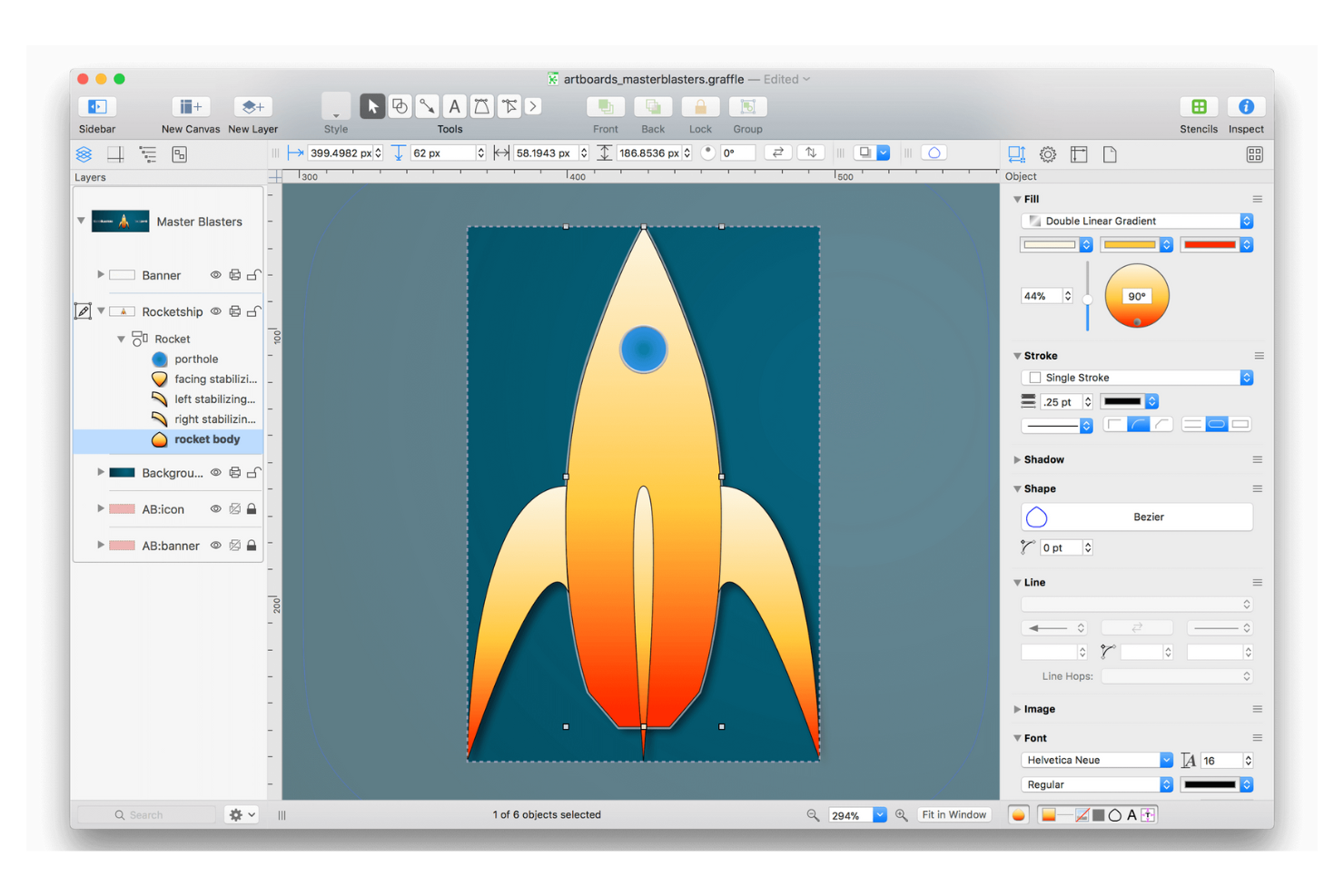
Designed specifically for Apple users, OmniGraffle gives macOS and iOS professionals a native way to create precise diagrams and wireframes. It’s a strong choice for IT specialists, UX designers, and architects who want advanced layout tools and pixel-level control on Apple devices. Unlike Microsoft Visio, OmniGraffle offers deep integration with macOS features and a user experience tailored for Apple workflows.
Why OmniGraffle Is a Good Microsoft Visio Alternative
For professionals who work exclusively on Apple devices, OmniGraffle delivers a native experience that Microsoft Visio can’t match. I like that it offers advanced grid and alignment tools, as well as precise shape editing, which are especially useful for technical diagrams and wireframes. The app also supports Apple Pencil on iPad, giving you more flexibility for sketching and annotating diagrams on the go. If you need a diagramming tool that feels fully integrated with macOS and iOS, OmniGraffle is a strong alternative.
OmniGraffle Key Features
Some other features in OmniGraffle help you create and organize diagrams with more control:
- Stencils Library: Access a wide range of reusable shapes and symbols for technical diagrams.
- Automatic Layout: Arrange complex diagrams automatically to improve clarity and structure.
- Layer Management: Organize diagram elements on multiple layers for detailed editing and visibility control.
- SVG Import and Export: Work with vector graphics by importing and exporting SVG files directly.
OmniGraffle Integrations
Integrations are not publicly listed.
Pros and Cons
Pros:
- Supports SVG, PDF, and PNG
- Pencil supports iPad annotations
- Precision tools support technical grids
Cons:
- Higher upfront costs than subscriptions
- No Windows or web support

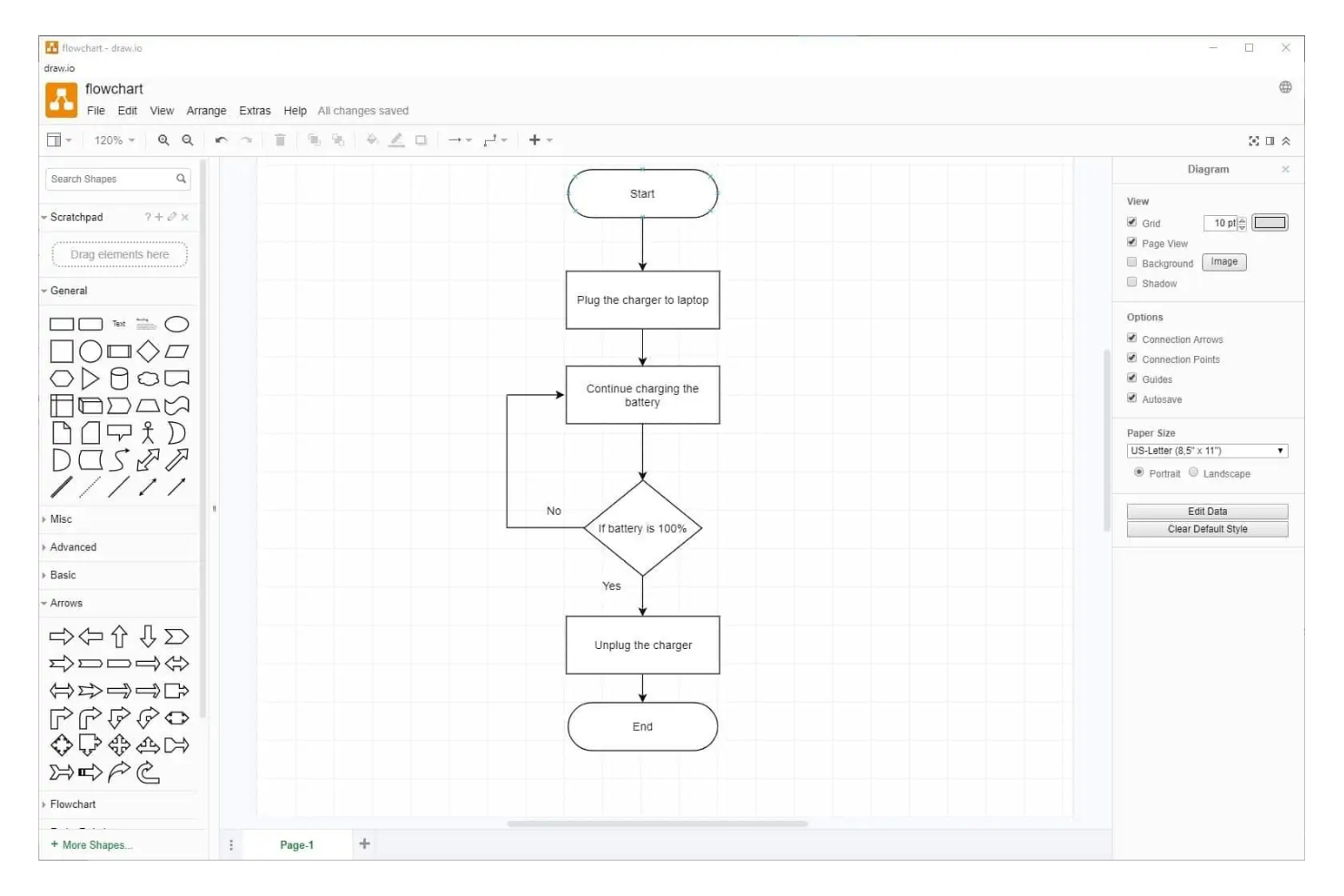
If you’re looking for a diagramming tool that works directly within Google Workspace, Draw.io is a strong choice. IT teams and business users who rely on Google Drive or Google Docs can create, store, and share diagrams without leaving their familiar environment. As a free alternative to Microsoft Visio, Draw.io’s deep integration with Google tools makes it easy to collaborate and manage diagrams alongside other project files.
Why Draw.io Is a Good Microsoft Visio Alternative
For teams that depend on Google Workspace, Draw.io offers a level of integration that Microsoft Visio can’t match. You can create and save diagrams directly to Google Drive, making it simple to organize and share files within your existing folder structure. I like that you can embed diagrams into Google Docs and Sheets, so your visuals stay connected to your project documentation. This tight connection with Google tools makes Draw.io especially useful for organizations that have standardized on Google Workspace.
Draw.io Key Features
Some other features in Draw.io make it a flexible option for technical diagramming and process mapping:
- Extensive Shape Libraries: Access a wide range of shapes for network diagrams, UML, BPMN, and more.
- Offline Editing: Work on diagrams without an internet connection using the desktop app.
- Version Control: Track changes and revert to previous versions of your diagrams.
- Custom Templates: Create and reuse your own templates for consistent diagramming across projects.
Draw.io Integrations
Integrations include Google Drive, Microsoft OneDrive, SharePoint, Atlassian Confluence, Jira, GitHub, GitLab, Dropbox, Notion, and Nextcloud.
Pros and Cons
Pros:
- Wide selection of templates available
- Core features are no-cost
- Google Drive supports real-time syncing
Cons:
- Large diagrams cause browser slowdowns
- Multi-user collaboration is less advanced

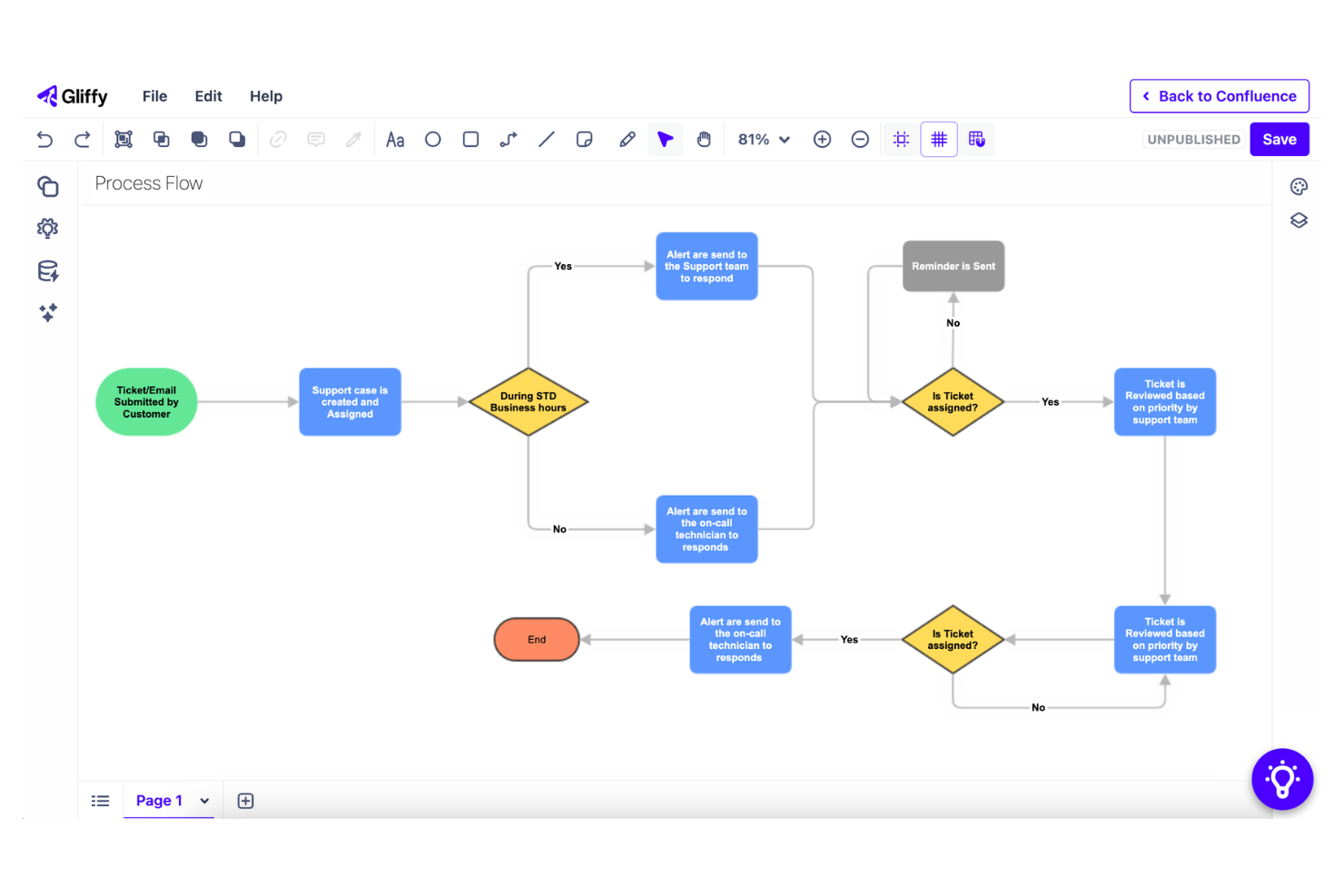
If your team relies on Atlassian tools like Confluence or Jira, Gliffy is designed to fit right into your workflow. IT specialists, project managers, and software teams can create, edit, and embed diagrams directly within Atlassian products. Unlike Microsoft Visio, Gliffy’s deep integration with the Atlassian ecosystem makes it easy to keep diagrams and documentation in sync.
Why Gliffy Is a Good Microsoft Visio Alternative
For teams working inside the Atlassian ecosystem, Gliffy offers a level of integration that Microsoft Visio can’t match. I like that you can create, edit, and embed diagrams directly within Confluence pages or Jira issues, keeping visuals and documentation tightly connected. Gliffy’s permission controls and version history also help teams manage diagram updates without leaving their Atlassian environment. If your workflow depends on Atlassian tools, Gliffy’s compatibility is a major advantage.
Gliffy Key Features
Some other features in Gliffy help teams create and manage diagrams efficiently:
- Drag-and-Drop Editor: Build diagrams quickly using a simple drag-and-drop interface.
- Shape and Icon Library: Access a wide range of shapes and icons for technical and business diagrams.
- Import and Export Options: Import diagrams from Visio and export to formats like PNG, JPG, and SVG.
- Collaboration Tools: Share diagrams with team members and control viewing or editing permissions.
Gliffy Integrations
Integrations include Confluence, Jira, and draw.io.
Pros and Cons
Pros:
- Cloud access enables browser editing
- Visio imports preserve most formatting
- Version control allows easy rollbacks
Cons:
- Collaboration features are relatively basic
- Exports sometimes lose original formatting

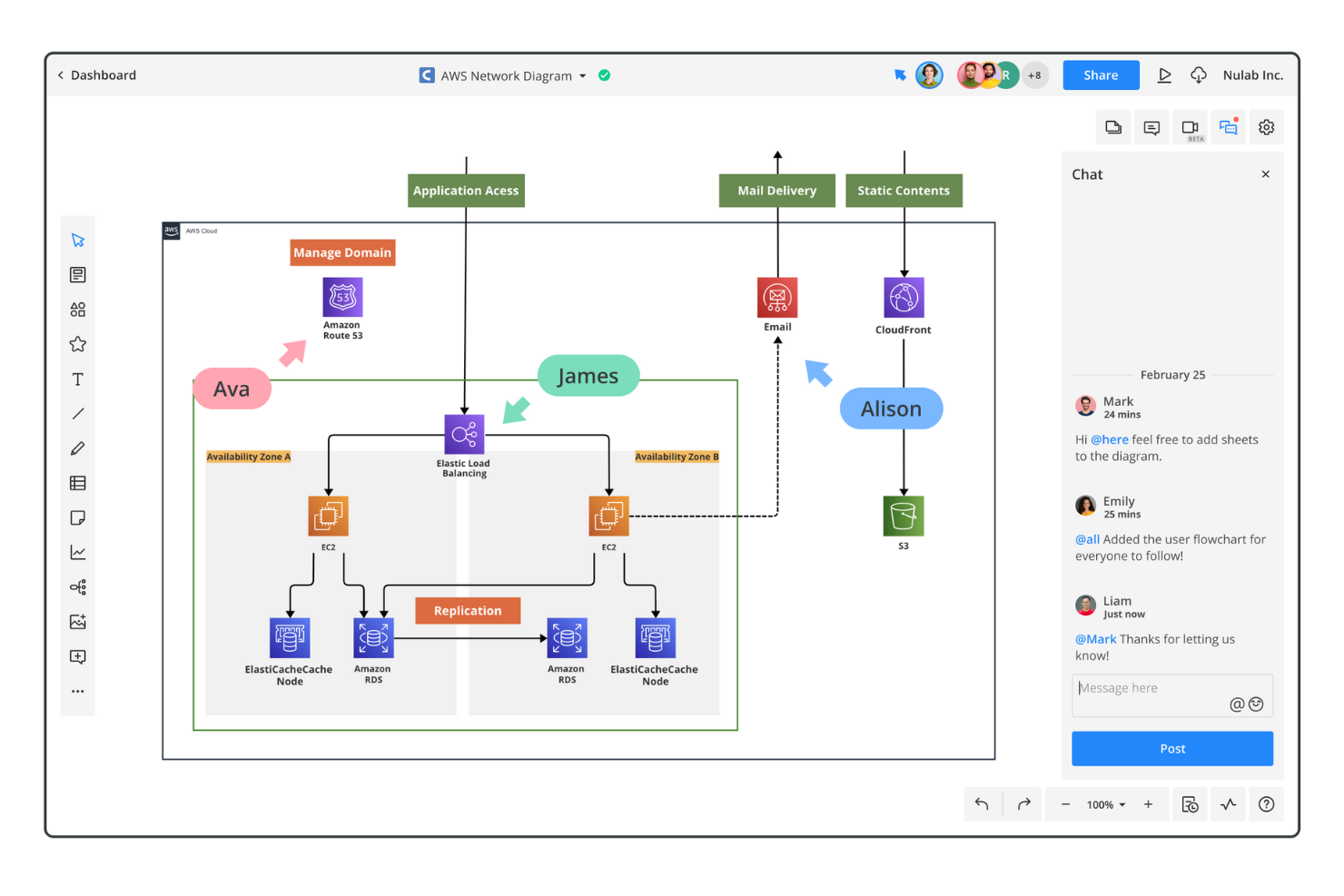
For teams that need to collaborate on diagrams in real time, Cacoo offers a cloud-based platform built for multi-user editing sessions. IT departments, project managers, and distributed technical teams can work together on flowcharts, network diagrams, and architecture visuals without version control headaches. Unlike Microsoft Visio, Cacoo’s simultaneous editing and live chat features make group diagramming much more interactive and efficient.
Why Cacoo Is a Good Microsoft Visio Alternative
Cacoo stands out for its real-time multi-user editing, which is something Microsoft Visio doesn’t natively support in the same way. I appreciate how multiple team members can work on the same diagram at once, see each other's changes instantly, and use built-in chat to discuss updates as they happen. This makes Cacoo especially useful for IT teams and technical groups who need to collaborate on network diagrams or architecture flows without waiting for file handoffs. If your workflow depends on live group input, Cacoo’s collaborative features are a major advantage.
Cacoo Key Features
Some other features in Cacoo help teams create and manage diagrams efficiently:
- Revision History: Track changes and restore previous versions of diagrams at any time.
- Template Library: Access a wide range of pre-built templates for network diagrams, flowcharts, and wireframes.
- Export Options: Download diagrams in formats like PNG, SVG, PDF, and PowerPoint.
- Commenting Tools: Leave feedback directly on diagrams with threaded comments and mentions.
Cacoo Integrations
Integrations include Backlog, Slack, Google Drive, Google Docs, Atlassian Confluence, AWS, Box, Adobe Creative Cloud, Microsoft Teams, and Microsoft Visio.
Pros and Cons
Pros:
- Cloud access allows remote editing
- Built-in chat simplifies team feedback
- Real-time editing supports live collaboration
Cons:
- Exported files may lose formatting
- Complex diagrams experience performance lag
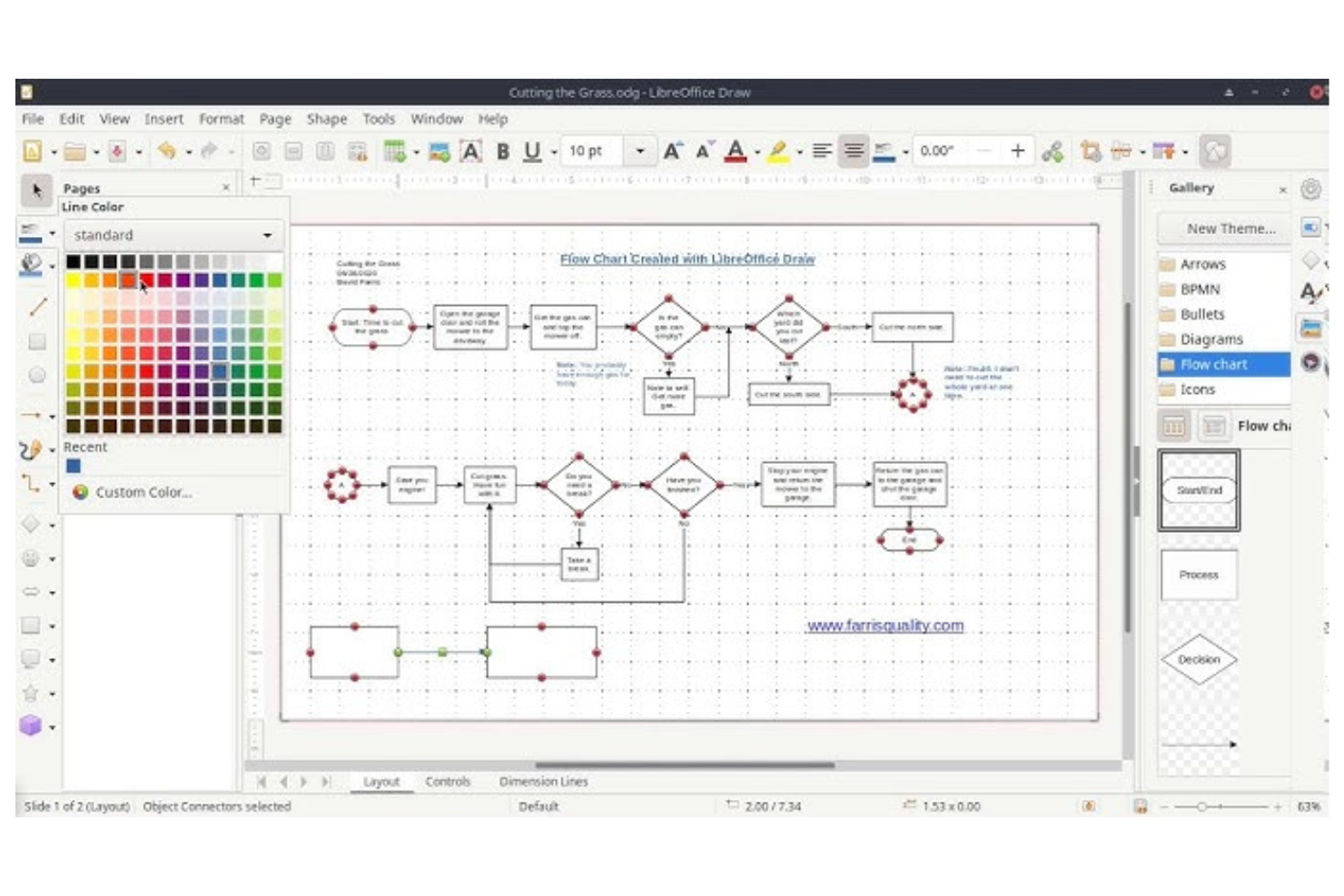
LibreOffice Draw gives IT teams and technical professionals a fully open-source platform for building diagrams and flowcharts. If you need deep customization or want to tailor your diagramming tool with extensions and scripting, Draw’s open architecture stands out from Microsoft Visio and most commercial options. It’s especially useful for organizations that prioritize transparency, control, and cost savings in their software stack.
Why LibreOffice Draw Is a Good Microsoft Visio Alternative
Unlike most commercial diagramming tools, LibreOffice Draw is fully open-source, which means you can customize and extend it to fit your team’s unique needs. I like that you can use community-built extensions, create your own add-ons, or even automate tasks with scripting. This level of flexibility is hard to find in proprietary tools like Microsoft Visio. For IT specialists who want full control over their diagramming environment, Draw’s open architecture is a major advantage.
LibreOffice Draw Key Features
Some other features in LibreOffice Draw make it a practical choice for technical diagramming and flowchart creation:
- Multi-Page Document Support: Create and manage diagrams that span multiple pages within a single file.
- PDF Import and Export: Open, edit, and save diagrams as PDF files for easy sharing.
- Connector and Shape Tools: Use a variety of connectors and pre-built shapes for network diagrams, org charts, and more.
- ODF File Format Compatibility: Save and exchange diagrams in the Open Document Format for broad interoperability.
LibreOffice Draw Integrations
Integrations are not publicly listed.
Pros and Cons
Pros:
- OS Community extensions add extra shapes
- Compatible with all major
- Supports Visio and PDF files
Cons:
- No real-time or cloud collaboration
- Interface visuals feel outdated

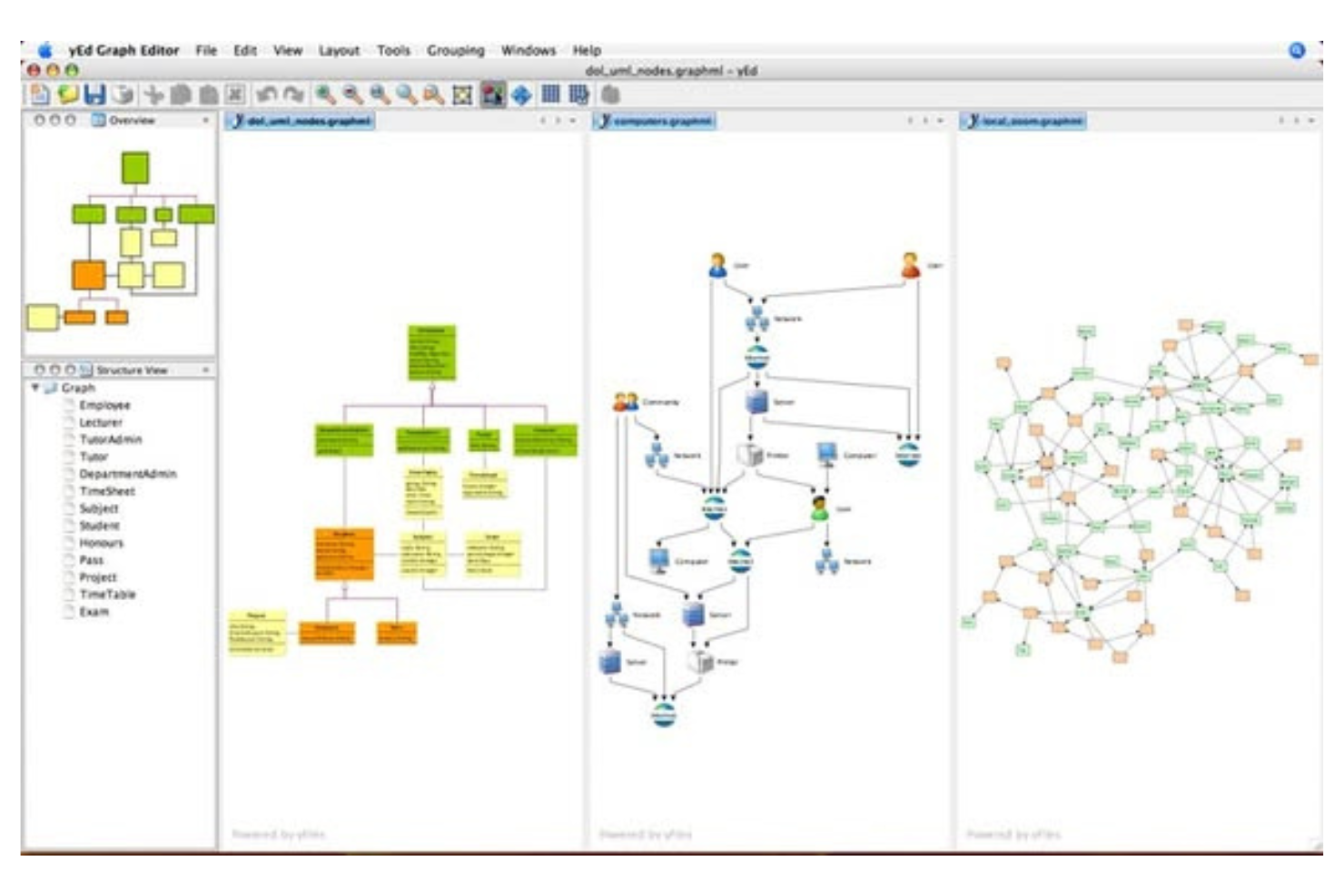
If you need to generate complex diagrams with minimal manual effort, yED offers advanced automatic layout algorithms that handle the heavy lifting. This tool is a strong fit for IT specialists, engineers, and researchers who work with large data sets or intricate network structures. Unlike Microsoft Visio, yED’s layout engine can quickly organize even the most tangled diagrams into clear, logical structures.
Why yED Is a Good Microsoft Visio Alternative
What sets yED apart from Microsoft Visio is its focus on advanced automatic layout algorithms that can instantly organize even the most complex diagrams. I appreciate how yED offers a wide range of layout options, including hierarchical, orthogonal, and organic layouts, which are especially useful for visualizing large networks or data structures. The tool also lets you import data from spreadsheets or XML files and automatically generate diagrams from that data. If you need to quickly transform raw information into clear, structured visuals, yED is a strong alternative to Visio.
yED Key Features
Some other features in yED help you work with diagrams more flexibly:
- Custom Shape Creation: Design and save your own shapes for repeated use in diagrams.
- Batch Processing: Apply changes or generate diagrams for multiple files at once.
- GraphML Support: Import and export diagrams using the GraphML file format for compatibility with other tools.
- Image Export Options: Export diagrams as PNG, JPG, SVG, or PDF files for sharing and publication.
yED Integrations
Integrations are not publicly listed.
Pros and Cons
Pros:
- Imports Excel and XML files
- Free desktop app without fees
- Auto-layout handles complex diagrams
Cons:
- Mac version has stability issues
- Limited template library for IT

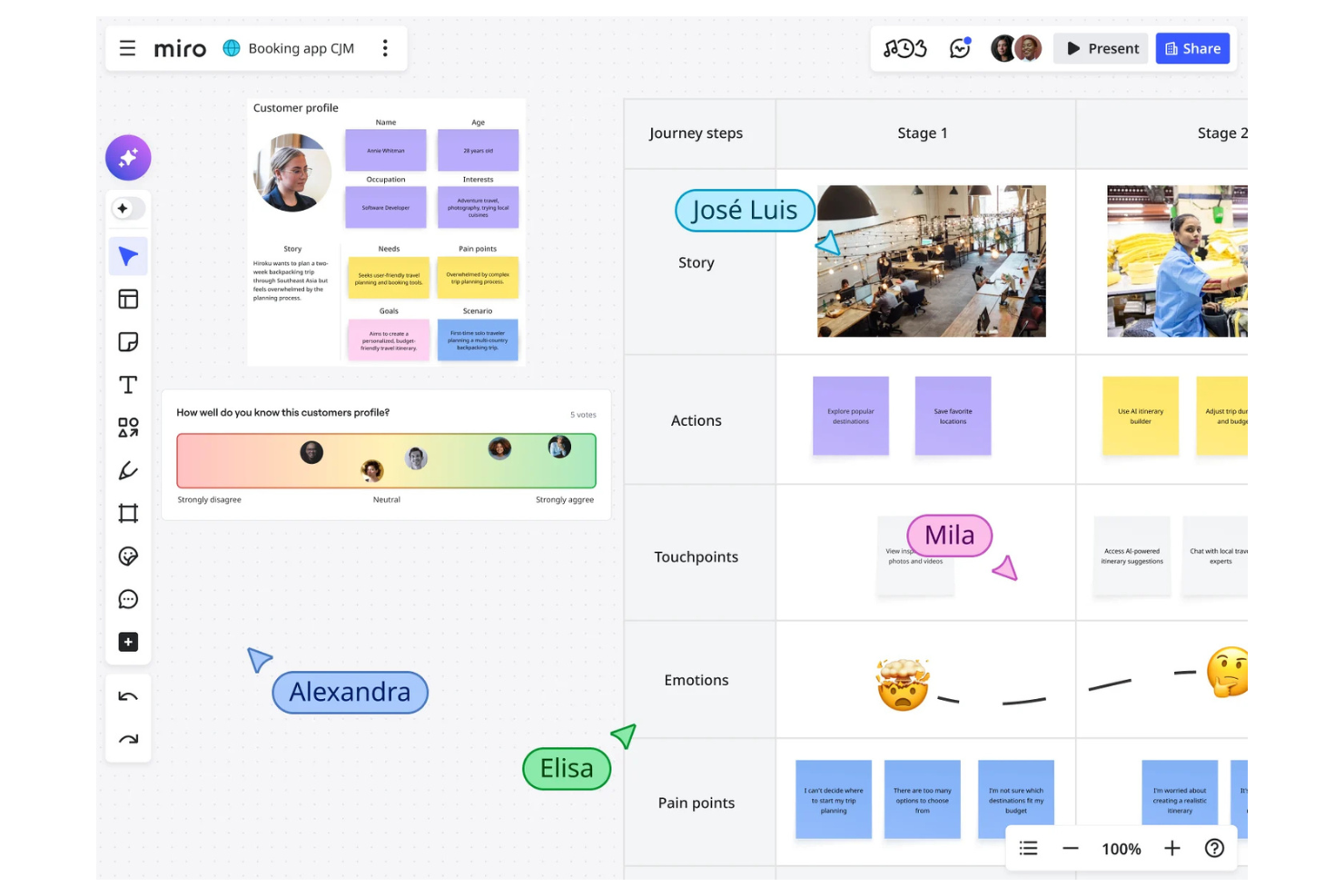
When you need a digital whiteboard that never runs out of space, Miro gives your team an infinite canvas for brainstorming and mapping ideas. This tool is especially useful for distributed teams, product managers, and IT specialists who want to collaborate visually in real time. Unlike Microsoft Visio, Miro’s flexible workspace lets you combine diagrams, sticky notes, and freeform sketches all in one place.
Why Miro Is a Good Microsoft Visio Alternative
Miro stands out from Microsoft Visio by offering an infinite canvas that’s ideal for brainstorming sessions and freeform diagramming. I like how you can zoom in and out without limits, letting teams map out complex workflows, mind maps, or architecture diagrams without worrying about running out of space. The tool also supports real-time multi-user collaboration, so everyone can contribute ideas, shapes, and comments simultaneously. If you need a flexible workspace for visual thinking and group ideation, Miro is a strong alternative to Visio.
Miro Key Features
Some other features in Miro help teams organize and present their work more effectively:
- Pre-built Template Library: Access a wide range of templates for flowcharts, mind maps, and technical diagrams.
- Presentation Mode: Turn your board into a guided presentation with step-by-step navigation.
- Commenting and Tagging: Add comments and tags directly to objects for feedback and organization.
- Integration with Video Conferencing: Launch video calls directly within boards to discuss diagrams in real time.
Miro Integrations
Integrations include Microsoft 365, Google Workspace, Atlassian Jira, Atlassian Confluence, Slack, Zoom, Microsoft Teams, Asana, Notion, and Dropbox.
Pros and Cons
Pros:
- Real-time editing enables team collaboration
- Infinite canvas supports large diagrams
- Presentation mode shares diagrams directly
Cons:
- Permissions lack granular Visio controls
- Graphics-heavy boards cause performance lag
New Product Updates from Miro

Miro Enhances AI Workflows and Tables for Task Planning
Miro enhances AI workflows and Tables with AI-generated planning boards and web-aware automation. These updates help teams organize tasks faster and analyze external content within workflows. For more information, visit Miro’s official site.

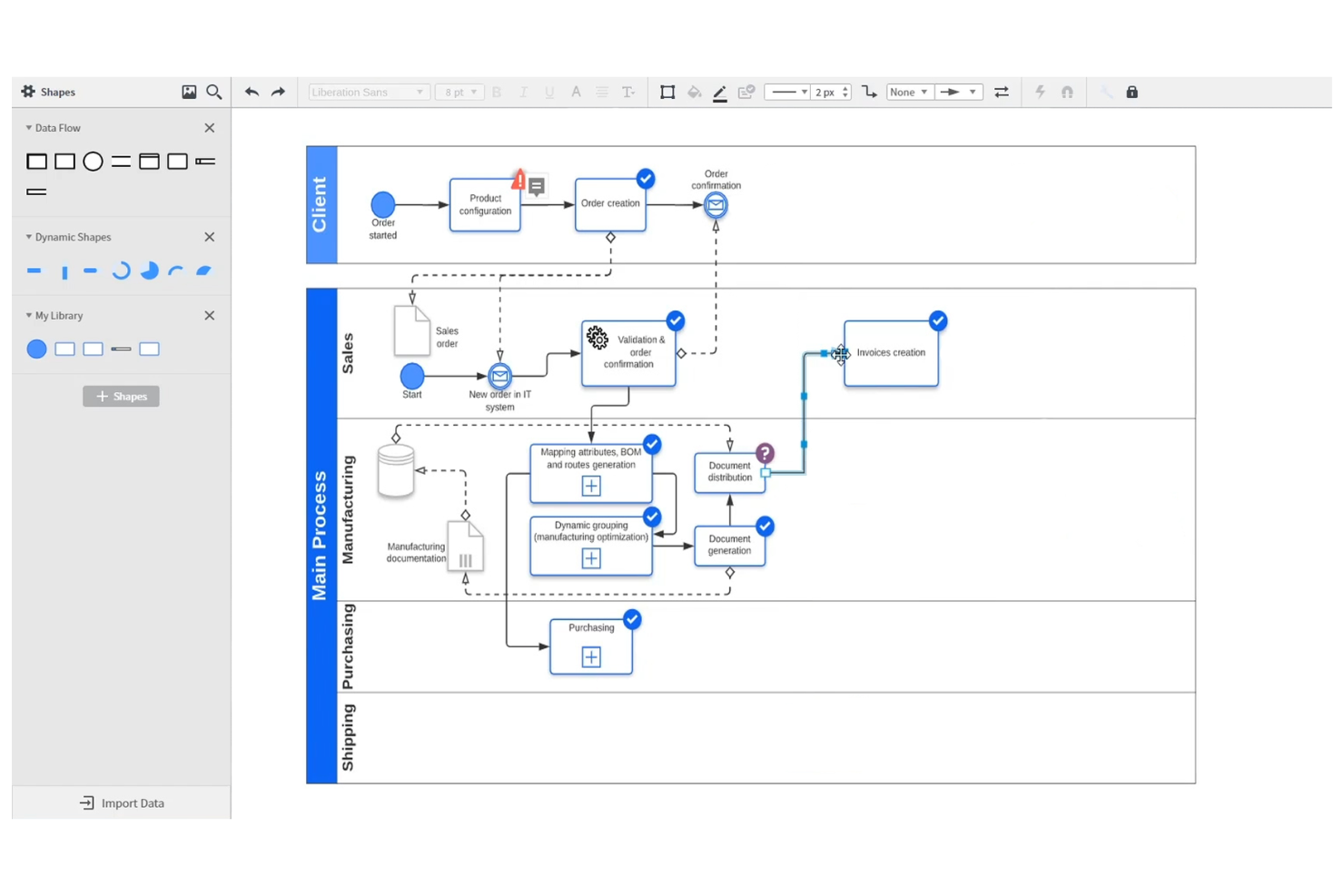
Lucidchart is a cloud-based diagramming tool designed for teams that need to collaborate on flowcharts and technical diagrams in real time. IT specialists and project managers who work across distributed teams will appreciate its live editing and commenting features. With its user-friendly interface and intuitive, web-based workspace, Lucidchart makes group work and feedback easy, making it a strong Visio alternative for collaborative teams.
Why Lucidchart Is a Good Microsoft Visio Alternative
Lucidchart stands out for teams that need to work together on diagrams without version control headaches. Its real-time collaboration lets multiple users edit the same flowchart or network diagram at once, so everyone stays on the same page. I appreciate the built-in commenting and sharing tools, which make it easy to gather feedback and resolve questions quickly. For IT teams and project groups that rely on live input, Lucidchart offers a more interactive experience than Microsoft Visio.
Lucidchart Key Features
Some other features in Lucidchart make it a flexible choice for technical diagramming and process mapping:
- Data Linking: Connect shapes and diagrams to live data sources for up-to-date visualizations.
- Template Library: Access a wide range of pre-built templates for network diagrams, org charts, and process flows.
- Revision History: Track changes and restore previous versions of diagrams as needed.
- Shape Libraries: Use specialized shape sets for IT, engineering, and business diagrams.
Lucidchart Integrations
Integrations include Microsoft Teams, Slack, Jira, Confluence, Google Drive, Microsoft Excel, Salesforce, Notion, ServiceNow, and BambooHR.
Pros and Cons
Pros:
- Web access removes local installation
- Revision history allows easy rollbacks
- Data linking enables live updates
Cons:
- Offline editing requires paid add-on
- Advanced shape formatting is limited
Autres alternatives à Microsoft Visio
Voici d’autres alternatives à Microsoft Visio qui ne figurent pas dans ma sélection principale mais qui méritent quand même votre attention :
- Mermaid
With markdown-based diagram scripting
- Excalidraw
For hand-drawn style diagrams
- Pencil Project
For offline wireframing needs


Critères de sélection pour les alternatives à Microsoft Visio
Pour sélectionner les meilleures alternatives à Microsoft Visio présentes dans cette liste, j'ai pris en compte les besoins et préoccupations courants des acheteurs concernant les outils de création de schémas et de diagrammes de flux, comme la gestion de la collaboration en équipe en temps réel et la capacité à traiter des diagrammes complexes et multi-niveaux. J'ai également utilisé la méthodologie suivante pour garantir une évaluation structurée et objective :
Fonctionnalités principales (25% de la note totale)
Pour figurer dans cette liste, chaque solution devait permettre de répondre à ces besoins communs :
- Créer des diagrammes de flux et des processus
- Élaborer des organigrammes
- Concevoir des schémas de réseau et d'architecture
- Exporter des diagrammes dans des formats de fichiers courants
- Partager des diagrammes avec les membres de l’équipe
Fonctionnalités remarquables supplémentaires (25% de la note totale)
Pour aller plus loin dans la sélection, j'ai aussi recherché des fonctionnalités distinctives, telles que :
- Toile infinie pour un schéma sans restriction
- Collaboration multi-utilisateurs en temps réel
- Chat vidéo ou vocal intégré
- Génération de diagrammes alimentée par l’IA
- Contrôles avancés des autorisations et des accès
Facilité d’utilisation (10 % du score total)
Pour évaluer la facilité d’utilisation de chaque système, j’ai pris en compte les éléments suivants :
- Interface claire et intuitive
- Structure de menu et navigation logiques
- Nombre de clics minimal pour créer et modifier des diagrammes
- Performance réactive même avec de grands schémas
- Disposition de l’espace de travail personnalisable
Intégration des nouveaux utilisateurs (10 % du score total)
Pour évaluer l’expérience d’onboarding de chaque plateforme, j’ai considéré les critères suivants :
- Disponibilité de visites guidées pas à pas du produit
- Accès à des bibliothèques de modèles pour un démarrage rapide
- Vidéos de formation et documentation
- Chatbots ou aide guidée intégrés à l’application
- Webinaires ou sessions d’intégration en direct
Service client (10 % du score total)
Pour évaluer le service client de chaque fournisseur de logiciel, j’ai pris en compte les éléments suivants :
- Multiples canaux de support (chat, e-mail, téléphone)
- Temps de réponse rapide aux demandes
- Accès à une base de connaissances consultable
- Forums communautaires pour l’entraide entre pairs
- Disponibilité de gestionnaires de compte dédiés
Rapport qualité/prix (10 % du score total)
Pour juger le rapport qualité/prix de chaque plateforme, j’ai pris en compte les éléments suivants :
- Tarification transparente et flexible
- Fonctionnalités incluses à chaque niveau de prix
- Disponibilité d’un forfait gratuit ou d’une période d’essai
- Réductions pour la facturation annuelle ou en volume
- Coût comparé à des outils similaires
Avis clients (10 % du score total)
Pour cerner la satisfaction globale des utilisateurs, j’ai pris en compte les points suivants en lisant les avis clients :
- Commentaires positifs concernant les fonctionnalités de collaboration
- Signalements de haute disponibilité et bonne performance
- Remarques sur la qualité du service client
- Satisfaction des utilisateurs concernant les intégrations
- Retours sur les options d’exportation et de partage
Pourquoi chercher une alternative à Microsoft Visio ?
Bien que Microsoft Visio soit un bon choix en matière d’outil de création de diagrammes et d’organigrammes, il existe plusieurs raisons pour lesquelles certains utilisateurs recherchent des solutions alternatives. Vous pourriez chercher une alternative à Microsoft Visio parce que…
- Vous avez besoin de collaboration en temps réel pour des équipes réparties
- Vous souhaitez un modèle tarifaire plus abordable ou plus flexible
- Vous exigez un accès depuis le navigateur sans installation sur le poste
- Vous avez besoin d’intégrations avec des outils et plateformes non-Microsoft
- Vous souhaitez une interface plus moderne ou intuitive
- Vous avez besoin de la compatibilité avec des appareils sous macOS ou Linux
Si l’un de ces points vous concerne, vous êtes au bon endroit. Ma liste comporte plusieurs options d’outils de création de diagrammes et d’organigrammes qui conviennent mieux aux équipes confrontées à ces défis avec Microsoft Visio et recherchant des solutions alternatives.
Fonctionnalités clés de Microsoft Visio
Voici quelques-unes des principales fonctionnalités de Microsoft Visio, pour vous aider à comparer et contraster ce que proposent les solutions alternatives :
- Large bibliothèque de formes préconstruites et de modèles de diagrammes
- Interface de création de diagrammes par glisser-déposer
- Liaison de données à des sources externes comme Excel et SQL Server
- Prise en charge des calques pour des diagrammes complexes et multi-niveaux
- Co-création en temps réel avec une intégration Microsoft 365
- Outils avancés de mise en forme et de disposition
- Options d’exportation vers PDF, image et formats web
- Outils de validation pour les diagrammes de processus et les workflows
- Intégration avec d'autres applications Microsoft telles que Teams et SharePoint
- Création de formes et de gabarits personnalisés
Et ensuite :
Si vous êtes en train de chercher une alternative à Microsoft Visio, contactez gratuitement un conseiller SoftwareSelect pour des recommandations personnalisées.
Vous remplissez un formulaire et échangez brièvement pour détailler vos besoins. Puis, vous recevrez une liste restreinte de logiciels à examiner. Ils vous accompagnent aussi tout au long du processus d'achat, y compris pour la négociation des prix.