
13 Microsoft Visio Alternativen für 2026

Microsoft Visio Alternative Shortlist
Hier ist meine Auswahlliste von Microsoft Visio Alternativen:


Eine starke Microsoft Visio Alternative bietet flexible Diagrammfunktionen, breite Dateikompatibilität und Team-Kollaboration, die zu Ihrem Workflow passt. Wenn Sie nach einem Ersatz für Microsoft Visio suchen, kämpfen Sie vermutlich mit den Lizenzkosten für Microsoft Office, Plattformbeschränkungen oder benötigen eine bessere Integration mit Ihren vorhandenen Tools. Die richtige Alternative hilft Ihnen, professionelle Diagramme, Flussdiagramme, Netzwerktopologien und Prozessdarstellungen ohne die Einschränkungen, die Sie bisher bei Visio erlebt haben, zu erstellen. In dieser Liste finden Sie sowohl kostenlose Visio Alternativen als auch kostenpflichtige Premiumoptionen, die Echtzeit-Zusammenarbeit, Open-Source-Anpassung und spezialisierte Funktionen für IT-Umgebungen unterstützen – und dabei besonderen Wert auf Benutzerfreundlichkeit legen – sodass Sie das Tool wählen können, das Ihren technischen wie organisatorischen Anforderungen am besten entspricht.
Was ist Microsoft Visio?
Microsoft Visio ist ein Tool zum Erstellen von Diagrammen und Flussdiagrammen, das zur Visualisierung von Prozessen, Systemen und Organisationsstrukturen verwendet wird. Es unterstützt eine Vielzahl von Diagrammarten, darunter Netzwerktopologien, Prozessdarstellungen, Grundrisse und detaillierte Visio-Diagramme für technische und betriebliche Anwendungsfälle. IT-Fachkräfte, Business-Analysten und Projektmanager nutzen Visio, um komplexe Informationen zu strukturieren und Ideen visuell zu kommunizieren. Die Integration mit Microsoft 365 und die Unterstützung von branchenüblichen Dateiformaten machen Visio in vielen Unternehmen zur beliebten Wahl.
Zusammenfassung der besten Microsoft Visio Alternativen
Diese Vergleichstabelle fasst die Preisinformationen meiner besten Microsoft Visio Alternativen zusammen, damit Sie die passende Lösung für Ihr Budget und Ihre geschäftlichen Anforderungen finden.
| Tool | Best For | Trial Info | Price | ||
|---|---|---|---|---|---|
| 1 | Best for visual project management features | Free plan available | From $5/user/month (billed annually) | Website | |
| 2 | Best for automatic diagram formatting | Free trial available | From $7.95/user/month (billed annually) | Website | |
| 3 | Best for macOS and iOS professionals | 14-day free trial available | From $59.99/year | Website | |
| 4 | Best with Google Workspace integration | Not available | Free to use | Website | |
| 5 | Best for Atlassian ecosystem compatibility | 30-day free trial + free demo available | From $2.80/user/month (billed annually) | Website | |
| 6 | Best for multi-user editing sessions | Free plan available | From $6/user/month | Website | |
| 7 | Best for open-source customization | Free forever plan | Free to use | Website | |
| 8 | Best for advanced automatic layout algorithms | Free forever plan | Free to use | Website | |
| 9 | Best for infinite canvas brainstorming | Free plan available | From $8/user/month (billed annually) | Website | |
| 10 | Best for real-time team collaboration | Free plan available | From $9/user/month (billed annually) | Website |

Why Trust Our Software Reviews
-

Site24x7
Visit WebsiteThis is an aggregated rating for this tool including ratings from Crozdesk users and ratings from other sites.4.6 -
Docker
Visit WebsiteThis is an aggregated rating for this tool including ratings from Crozdesk users and ratings from other sites.4.6 -
Pulumi
Visit WebsiteThis is an aggregated rating for this tool including ratings from Crozdesk users and ratings from other sites.4.8





Bewertung der besten Microsoft Visio Alternativen
Nachfolgend finden Sie meine detaillierten Zusammenfassungen der besten Microsoft Visio Alternativen aus meiner Auswahlliste. Meine Rezensionen bieten einen genauen Blick auf die Eigenschaften, besten Einsatzzwecke und Integrationen der jeweiligen Tools, damit Sie Ihre optimale Lösung finden.
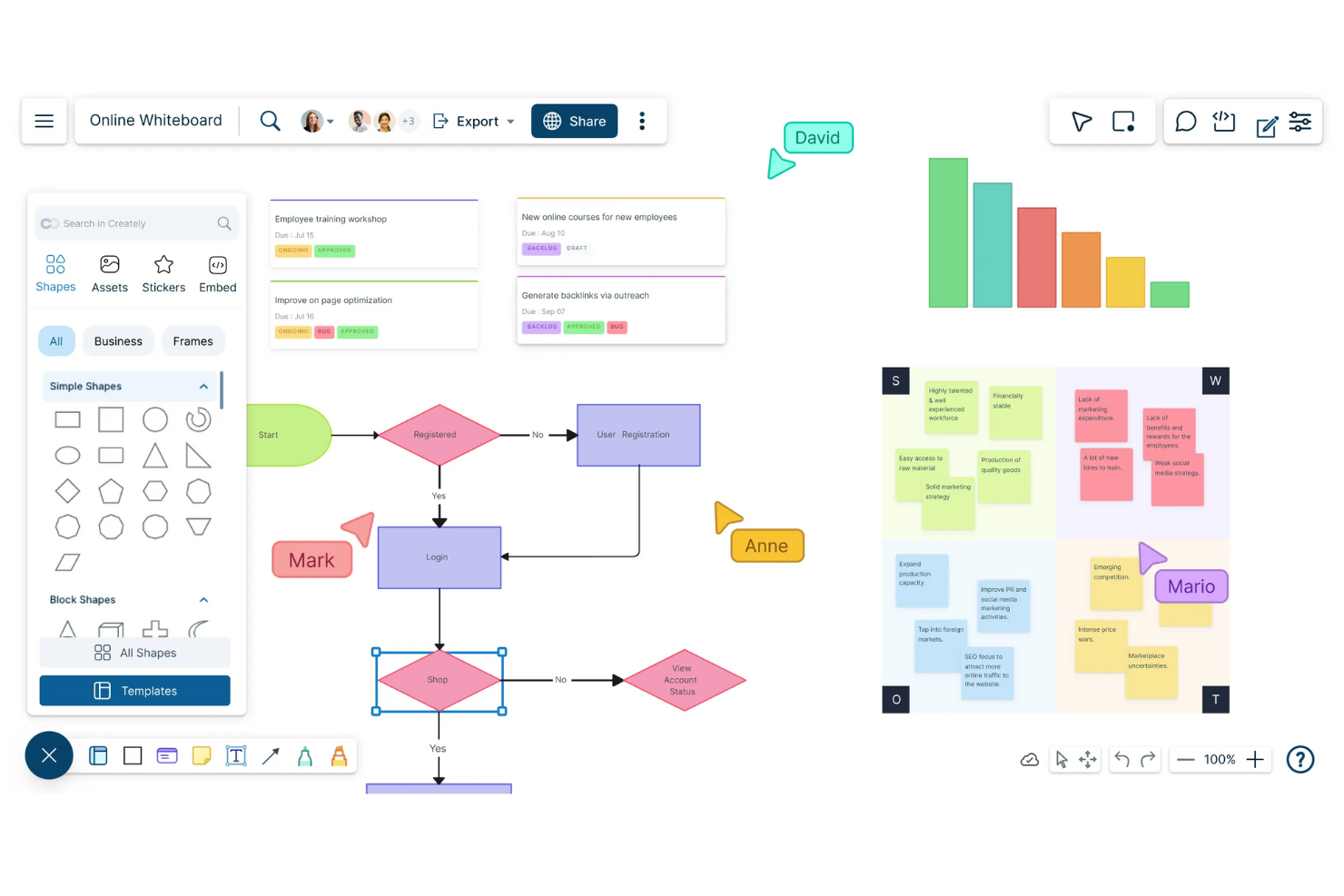
Creately stands out for teams that want to combine diagramming with visual project management. It’s a strong fit for IT specialists, project leads, and cross-functional teams who need to map processes, manage tasks, and track workflows in one place. Unlike Microsoft Visio, Creately lets you link diagrams directly to project boards, notes, and databases for a more connected workspace.
Why Creately Is a Good Microsoft Visio Alternative
What sets Creately apart from Microsoft Visio is its focus on visual project management features. I appreciate that you can turn any diagram element into a task, assign it to team members, and track progress directly from the same workspace. Creately also lets you connect diagrams to project boards, notes, and even databases, so your visual plans stay linked to actionable work. For teams that want to manage both diagrams and projects in one place, Creately offers a more integrated approach than traditional diagramming tools.
Creately Key Features
Some other features in Creately help teams build and organize diagrams more flexibly:
- Infinite Canvas: Expand diagrams without boundaries to map complex systems or workflows.
- Real-Time Collaboration: Work with multiple team members simultaneously on the same diagram.
- Template Library: Choose from hundreds of pre-built templates for flowcharts, org charts, and network diagrams.
- Data Linking: Attach data fields to shapes and visualize information directly within diagrams.
Creately Integrations
Integrations include Confluence Cloud, Microsoft Teams, and Slack.
Pros and Cons
Pros:
- Infinite canvas maps systems
- Real-time collaboration supports teams
- Project boards manage tasks
Cons:
- Exports sometimes lose formatting
- Advanced automation features are limited
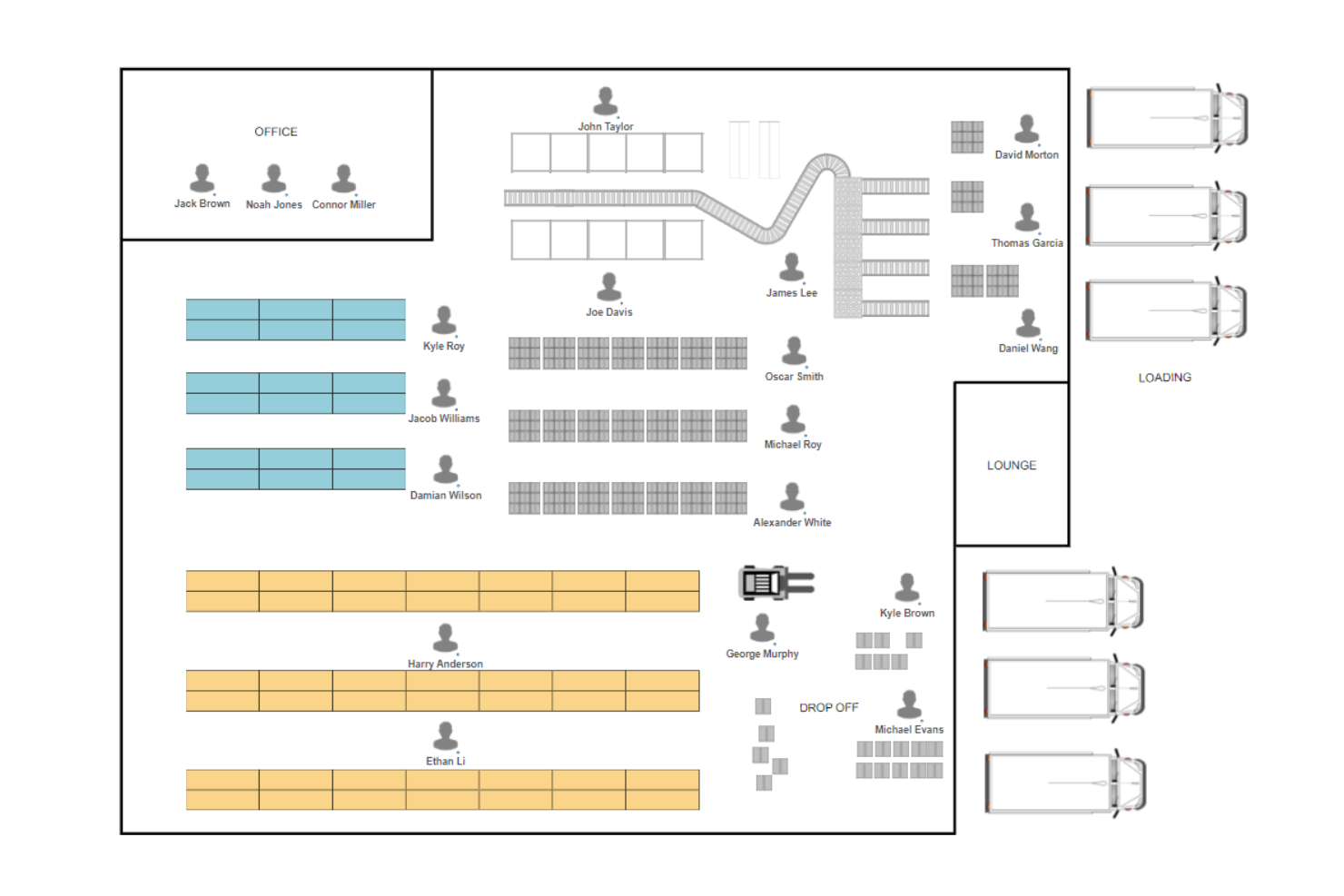
SmartDraw stands out for its automatic diagram formatting, which helps IT specialists and business teams create clean, organized visuals with less manual effort. If you need to build complex network diagrams, business process maps, org charts, or process flows, SmartDraw’s formatting engine keeps everything aligned as you add or move elements. Its cross-platform accessibility makes it convenient for different work environments, and the intuitive design reduces the learning curve compared to Microsoft Visio, helping users avoid tedious manual adjustments.
Why SmartDraw Is a Good Microsoft Visio Alternative
What sets SmartDraw apart from Microsoft Visio is its automatic diagram formatting, which keeps diagrams tidy as you build and edit them. The tool automatically aligns shapes, spaces elements evenly, and adjusts connectors as you add or move items. I appreciate how this feature reduces the time spent on manual adjustments, especially in large or complex diagrams. For anyone who wants to focus on content rather than layout, SmartDraw’s formatting engine is a clear advantage.
SmartDraw Key Features
Some other features in SmartDraw make it a versatile choice for technical and business diagramming:
- Extensive Template Library: Access hundreds of templates for network diagrams, org charts, and floor plans.
- Intelligent Formatting for Flowcharts: Automatically adjusts flowchart shapes and connectors as you build.
- Visio File Import and Export: Open, edit, and save Microsoft Visio files directly within SmartDraw.
- Collaboration Tools: Share diagrams with team members and manage permissions for editing or viewing.
SmartDraw Integrations
Integrations include Microsoft OneDrive, SharePoint, Google Drive, Dropbox, Box, Google Workspace, Microsoft Teams, Confluence, Jira, and Trello.
Pros and Cons
Pros:
- Flexible access via desktop/web
- Visio support facilitates migration
- Auto-formatting keeps diagrams organized
Cons:
- Real-time multi-user editing is limited
- Performance may lag with very large or detailed diagrams

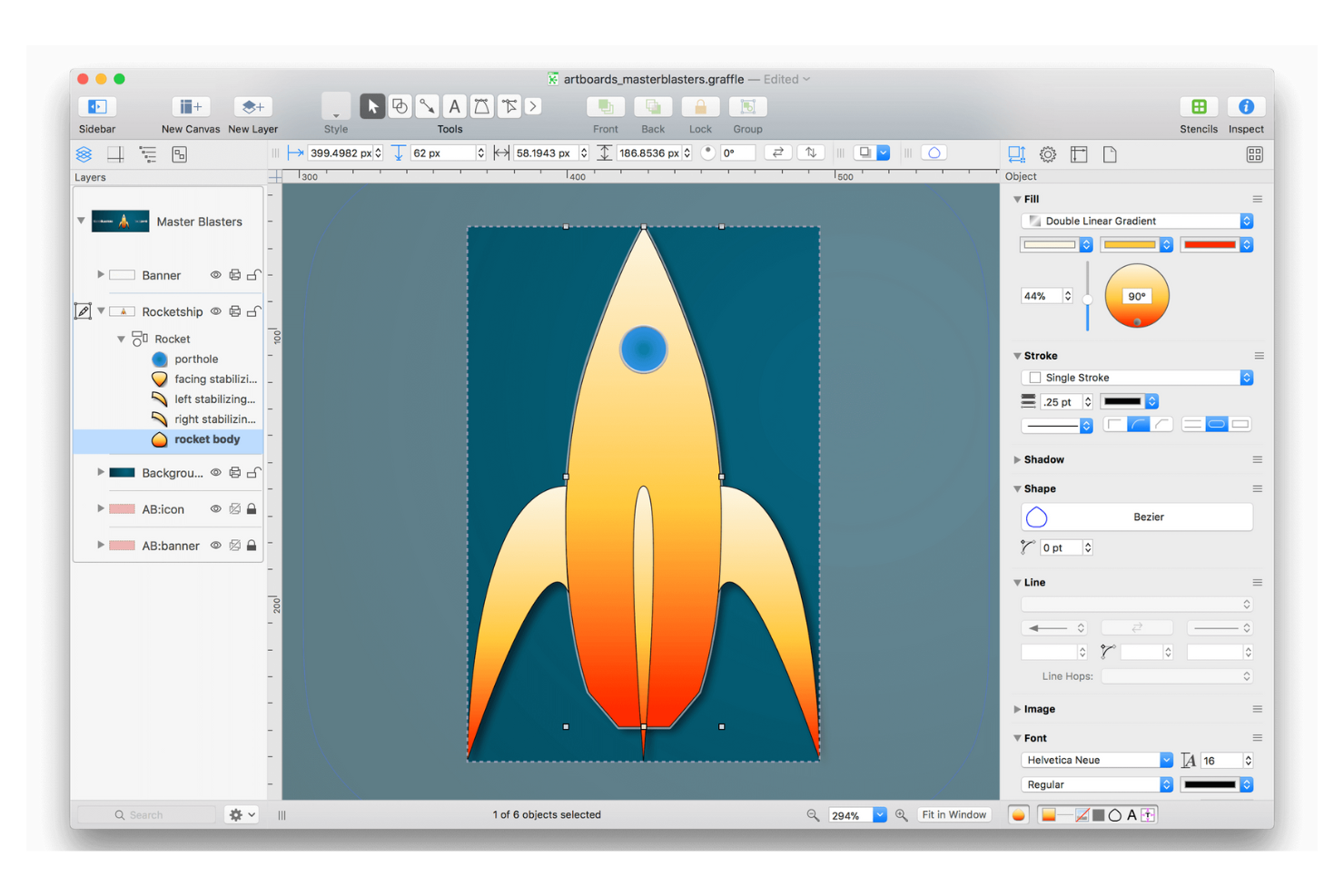
Designed specifically for Apple users, OmniGraffle gives macOS and iOS professionals a native way to create precise diagrams and wireframes. It’s a strong choice for IT specialists, UX designers, and architects who want advanced layout tools and pixel-level control on Apple devices. Unlike Microsoft Visio, OmniGraffle offers deep integration with macOS features and a user experience tailored for Apple workflows.
Why OmniGraffle Is a Good Microsoft Visio Alternative
For professionals who work exclusively on Apple devices, OmniGraffle delivers a native experience that Microsoft Visio can’t match. I like that it offers advanced grid and alignment tools, as well as precise shape editing, which are especially useful for technical diagrams and wireframes. The app also supports Apple Pencil on iPad, giving you more flexibility for sketching and annotating diagrams on the go. If you need a diagramming tool that feels fully integrated with macOS and iOS, OmniGraffle is a strong alternative.
OmniGraffle Key Features
Some other features in OmniGraffle help you create and organize diagrams with more control:
- Stencils Library: Access a wide range of reusable shapes and symbols for technical diagrams.
- Automatic Layout: Arrange complex diagrams automatically to improve clarity and structure.
- Layer Management: Organize diagram elements on multiple layers for detailed editing and visibility control.
- SVG Import and Export: Work with vector graphics by importing and exporting SVG files directly.
OmniGraffle Integrations
Integrations are not publicly listed.
Pros and Cons
Pros:
- Supports SVG, PDF, and PNG
- Pencil supports iPad annotations
- Precision tools support technical grids
Cons:
- Higher upfront costs than subscriptions
- No Windows or web support

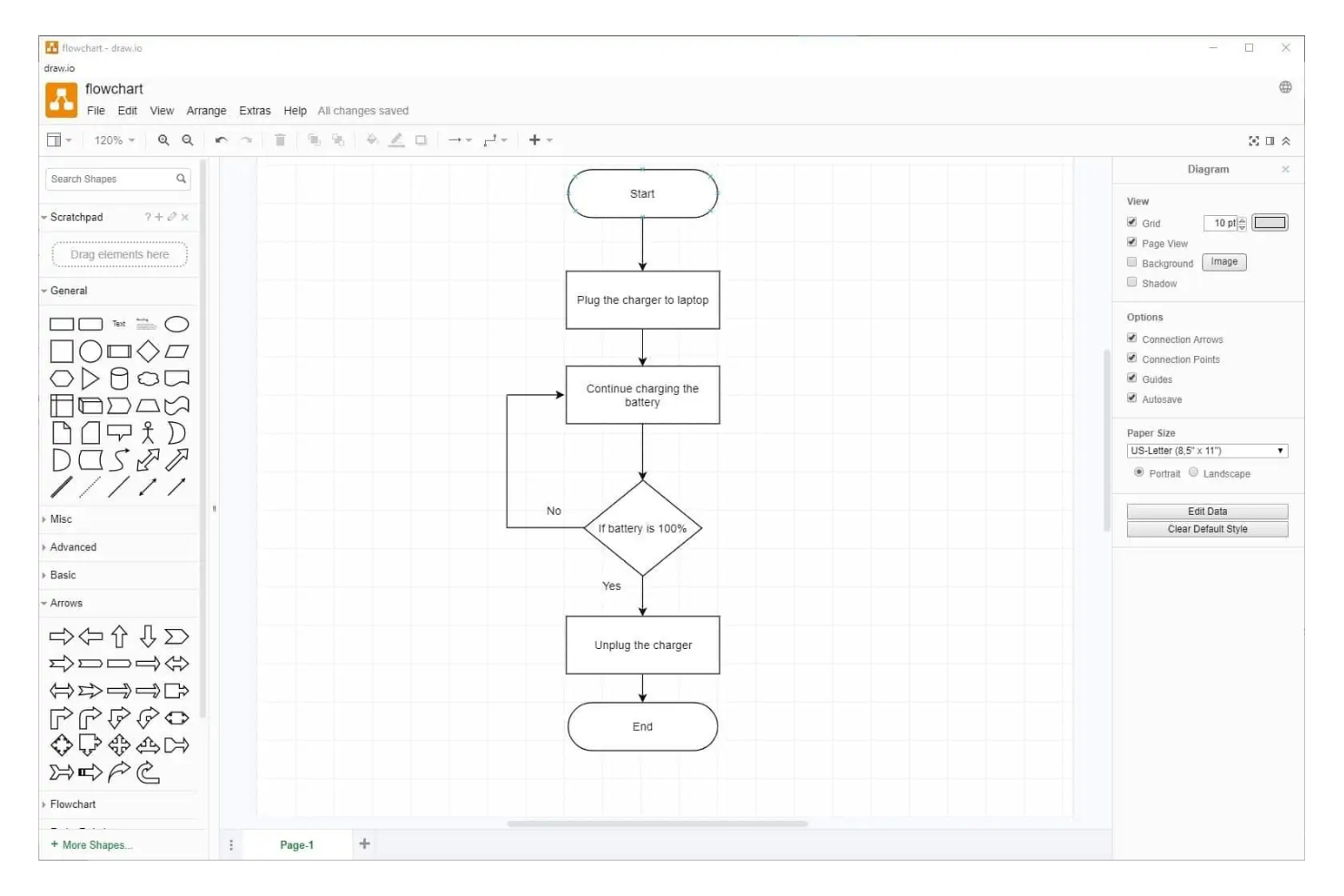
If you’re looking for a diagramming tool that works directly within Google Workspace, Draw.io is a strong choice. IT teams and business users who rely on Google Drive or Google Docs can create, store, and share diagrams without leaving their familiar environment. As a free alternative to Microsoft Visio, Draw.io’s deep integration with Google tools makes it easy to collaborate and manage diagrams alongside other project files.
Why Draw.io Is a Good Microsoft Visio Alternative
For teams that depend on Google Workspace, Draw.io offers a level of integration that Microsoft Visio can’t match. You can create and save diagrams directly to Google Drive, making it simple to organize and share files within your existing folder structure. I like that you can embed diagrams into Google Docs and Sheets, so your visuals stay connected to your project documentation. This tight connection with Google tools makes Draw.io especially useful for organizations that have standardized on Google Workspace.
Draw.io Key Features
Some other features in Draw.io make it a flexible option for technical diagramming and process mapping:
- Extensive Shape Libraries: Access a wide range of shapes for network diagrams, UML, BPMN, and more.
- Offline Editing: Work on diagrams without an internet connection using the desktop app.
- Version Control: Track changes and revert to previous versions of your diagrams.
- Custom Templates: Create and reuse your own templates for consistent diagramming across projects.
Draw.io Integrations
Integrations include Google Drive, Microsoft OneDrive, SharePoint, Atlassian Confluence, Jira, GitHub, GitLab, Dropbox, Notion, and Nextcloud.
Pros and Cons
Pros:
- Wide selection of templates available
- Core features are no-cost
- Google Drive supports real-time syncing
Cons:
- Large diagrams cause browser slowdowns
- Multi-user collaboration is less advanced

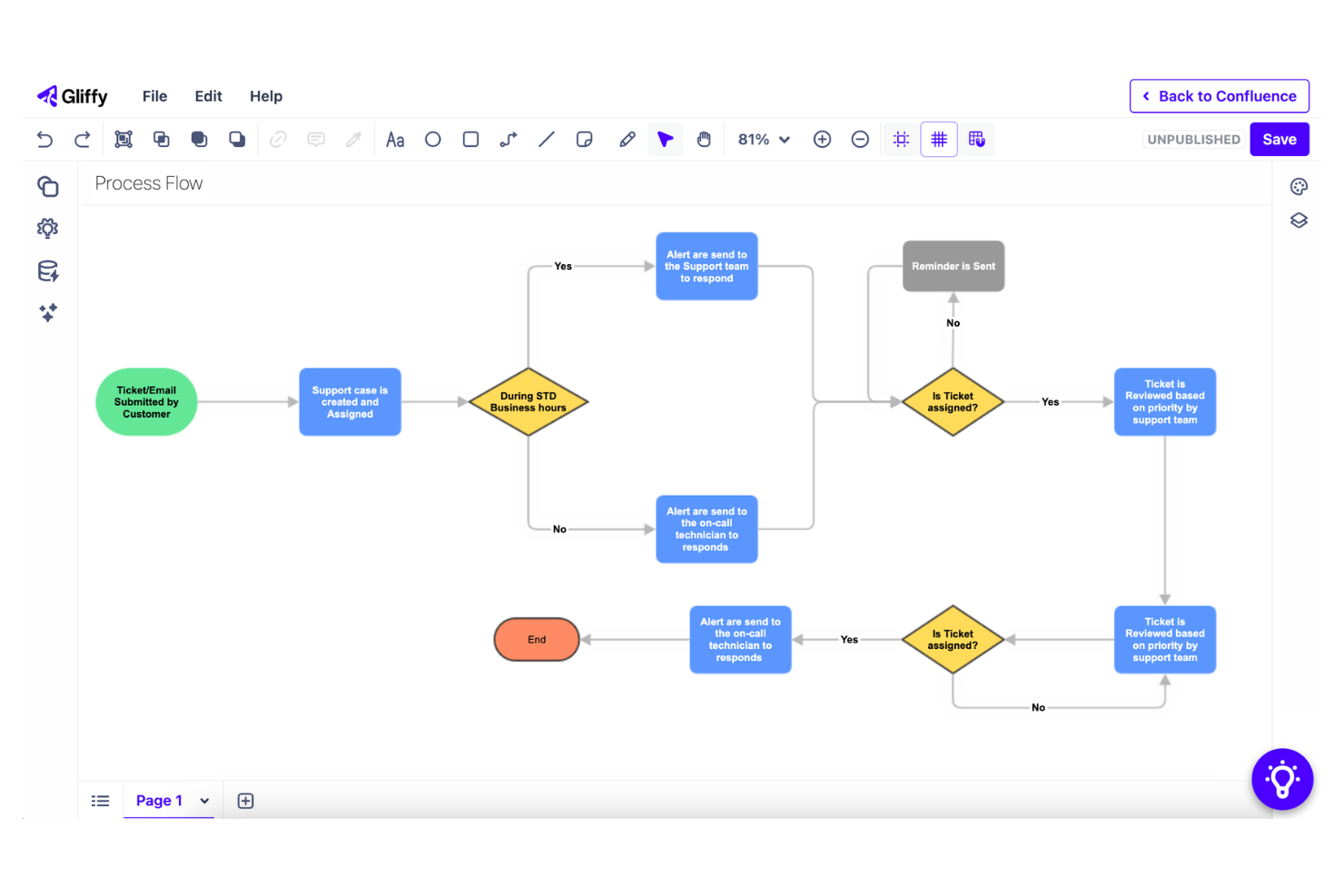
If your team relies on Atlassian tools like Confluence or Jira, Gliffy is designed to fit right into your workflow. IT specialists, project managers, and software teams can create, edit, and embed diagrams directly within Atlassian products. Unlike Microsoft Visio, Gliffy’s deep integration with the Atlassian ecosystem makes it easy to keep diagrams and documentation in sync.
Why Gliffy Is a Good Microsoft Visio Alternative
For teams working inside the Atlassian ecosystem, Gliffy offers a level of integration that Microsoft Visio can’t match. I like that you can create, edit, and embed diagrams directly within Confluence pages or Jira issues, keeping visuals and documentation tightly connected. Gliffy’s permission controls and version history also help teams manage diagram updates without leaving their Atlassian environment. If your workflow depends on Atlassian tools, Gliffy’s compatibility is a major advantage.
Gliffy Key Features
Some other features in Gliffy help teams create and manage diagrams efficiently:
- Drag-and-Drop Editor: Build diagrams quickly using a simple drag-and-drop interface.
- Shape and Icon Library: Access a wide range of shapes and icons for technical and business diagrams.
- Import and Export Options: Import diagrams from Visio and export to formats like PNG, JPG, and SVG.
- Collaboration Tools: Share diagrams with team members and control viewing or editing permissions.
Gliffy Integrations
Integrations include Confluence, Jira, and draw.io.
Pros and Cons
Pros:
- Cloud access enables browser editing
- Visio imports preserve most formatting
- Version control allows easy rollbacks
Cons:
- Collaboration features are relatively basic
- Exports sometimes lose original formatting

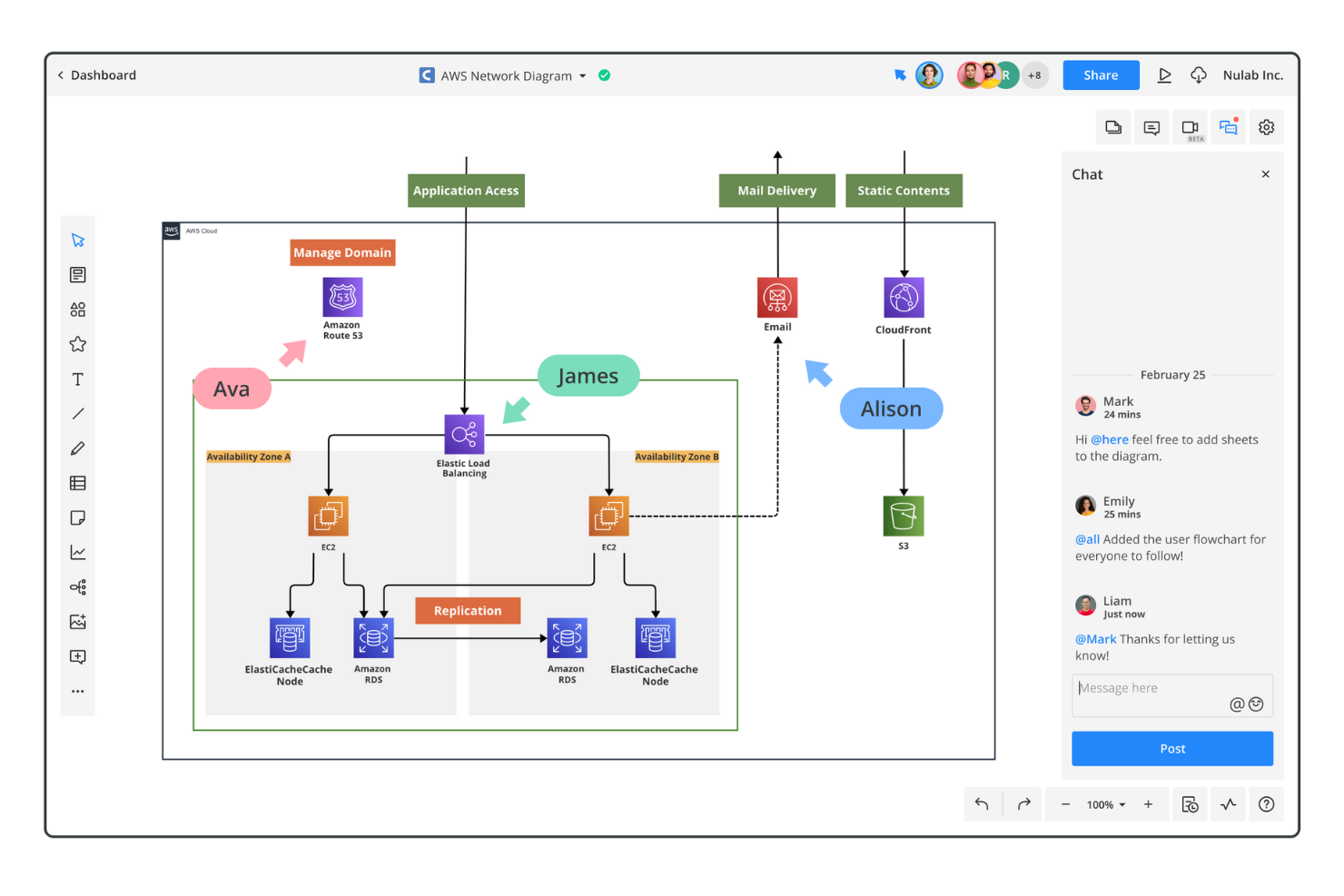
For teams that need to collaborate on diagrams in real time, Cacoo offers a cloud-based platform built for multi-user editing sessions. IT departments, project managers, and distributed technical teams can work together on flowcharts, network diagrams, and architecture visuals without version control headaches. Unlike Microsoft Visio, Cacoo’s simultaneous editing and live chat features make group diagramming much more interactive and efficient.
Why Cacoo Is a Good Microsoft Visio Alternative
Cacoo stands out for its real-time multi-user editing, which is something Microsoft Visio doesn’t natively support in the same way. I appreciate how multiple team members can work on the same diagram at once, see each other's changes instantly, and use built-in chat to discuss updates as they happen. This makes Cacoo especially useful for IT teams and technical groups who need to collaborate on network diagrams or architecture flows without waiting for file handoffs. If your workflow depends on live group input, Cacoo’s collaborative features are a major advantage.
Cacoo Key Features
Some other features in Cacoo help teams create and manage diagrams efficiently:
- Revision History: Track changes and restore previous versions of diagrams at any time.
- Template Library: Access a wide range of pre-built templates for network diagrams, flowcharts, and wireframes.
- Export Options: Download diagrams in formats like PNG, SVG, PDF, and PowerPoint.
- Commenting Tools: Leave feedback directly on diagrams with threaded comments and mentions.
Cacoo Integrations
Integrations include Backlog, Slack, Google Drive, Google Docs, Atlassian Confluence, AWS, Box, Adobe Creative Cloud, Microsoft Teams, and Microsoft Visio.
Pros and Cons
Pros:
- Cloud access allows remote editing
- Built-in chat simplifies team feedback
- Real-time editing supports live collaboration
Cons:
- Exported files may lose formatting
- Complex diagrams experience performance lag
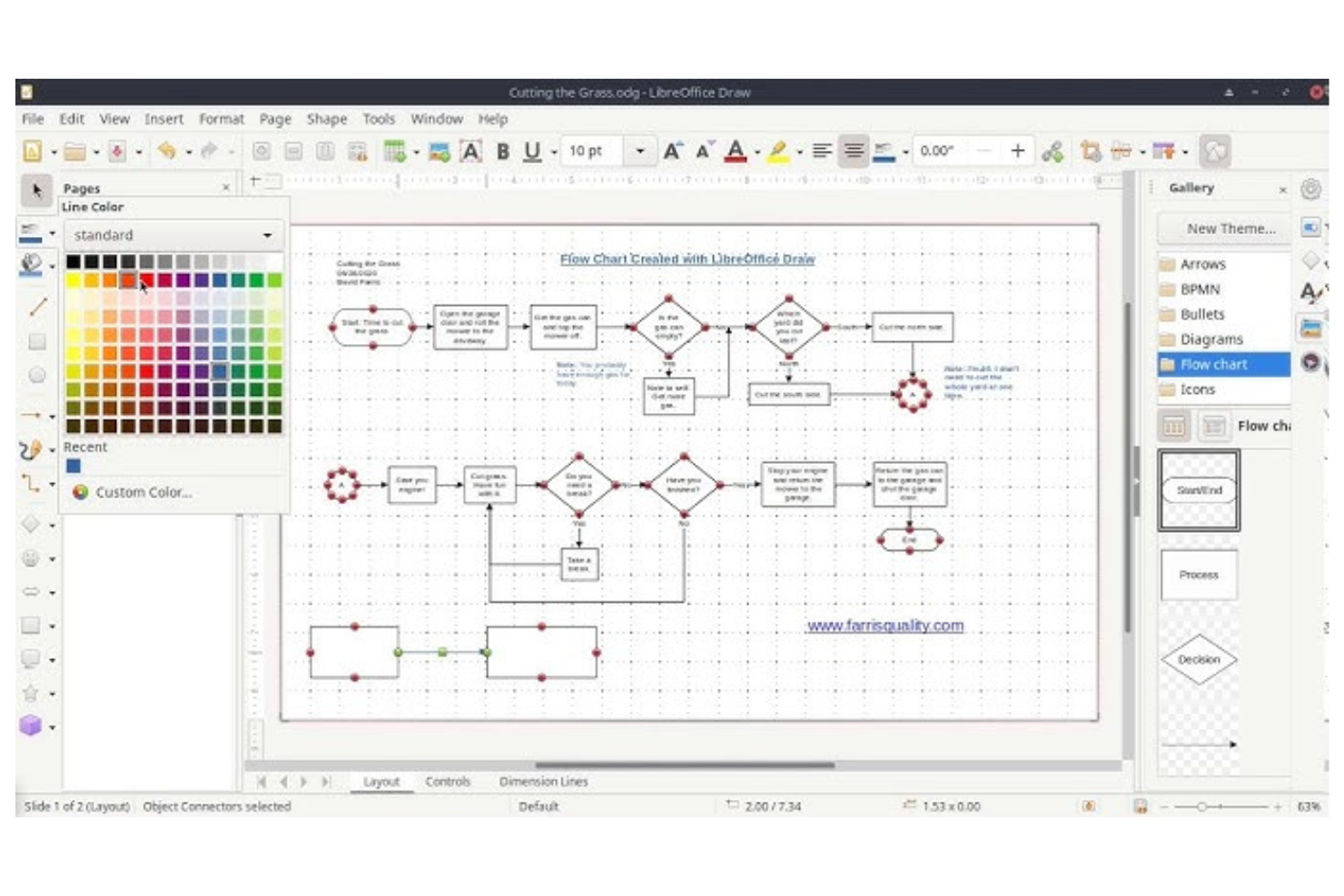
LibreOffice Draw gives IT teams and technical professionals a fully open-source platform for building diagrams and flowcharts. If you need deep customization or want to tailor your diagramming tool with extensions and scripting, Draw’s open architecture stands out from Microsoft Visio and most commercial options. It’s especially useful for organizations that prioritize transparency, control, and cost savings in their software stack.
Why LibreOffice Draw Is a Good Microsoft Visio Alternative
Unlike most commercial diagramming tools, LibreOffice Draw is fully open-source, which means you can customize and extend it to fit your team’s unique needs. I like that you can use community-built extensions, create your own add-ons, or even automate tasks with scripting. This level of flexibility is hard to find in proprietary tools like Microsoft Visio. For IT specialists who want full control over their diagramming environment, Draw’s open architecture is a major advantage.
LibreOffice Draw Key Features
Some other features in LibreOffice Draw make it a practical choice for technical diagramming and flowchart creation:
- Multi-Page Document Support: Create and manage diagrams that span multiple pages within a single file.
- PDF Import and Export: Open, edit, and save diagrams as PDF files for easy sharing.
- Connector and Shape Tools: Use a variety of connectors and pre-built shapes for network diagrams, org charts, and more.
- ODF File Format Compatibility: Save and exchange diagrams in the Open Document Format for broad interoperability.
LibreOffice Draw Integrations
Integrations are not publicly listed.
Pros and Cons
Pros:
- OS Community extensions add extra shapes
- Compatible with all major
- Supports Visio and PDF files
Cons:
- No real-time or cloud collaboration
- Interface visuals feel outdated

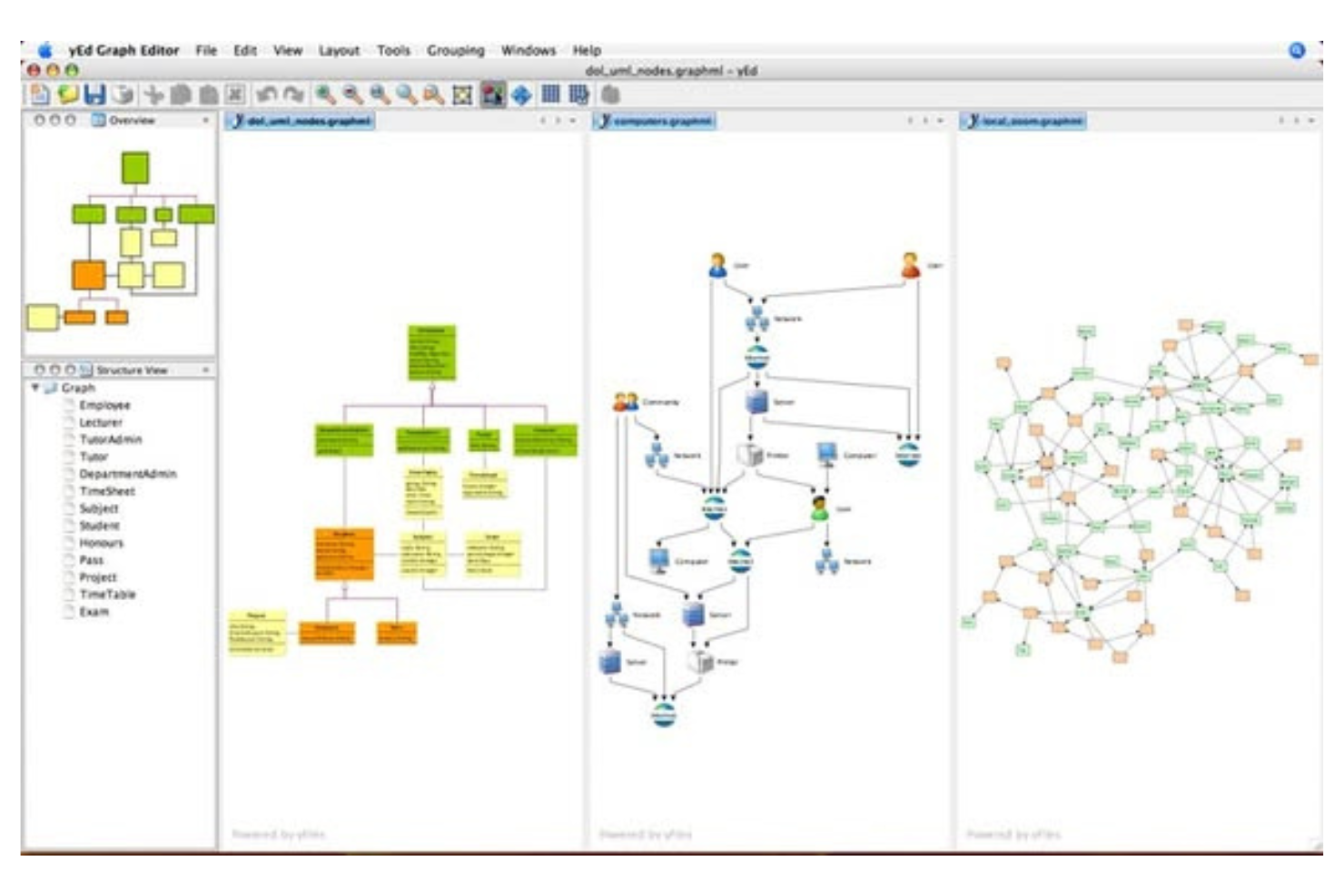
If you need to generate complex diagrams with minimal manual effort, yED offers advanced automatic layout algorithms that handle the heavy lifting. This tool is a strong fit for IT specialists, engineers, and researchers who work with large data sets or intricate network structures. Unlike Microsoft Visio, yED’s layout engine can quickly organize even the most tangled diagrams into clear, logical structures.
Why yED Is a Good Microsoft Visio Alternative
What sets yED apart from Microsoft Visio is its focus on advanced automatic layout algorithms that can instantly organize even the most complex diagrams. I appreciate how yED offers a wide range of layout options, including hierarchical, orthogonal, and organic layouts, which are especially useful for visualizing large networks or data structures. The tool also lets you import data from spreadsheets or XML files and automatically generate diagrams from that data. If you need to quickly transform raw information into clear, structured visuals, yED is a strong alternative to Visio.
yED Key Features
Some other features in yED help you work with diagrams more flexibly:
- Custom Shape Creation: Design and save your own shapes for repeated use in diagrams.
- Batch Processing: Apply changes or generate diagrams for multiple files at once.
- GraphML Support: Import and export diagrams using the GraphML file format for compatibility with other tools.
- Image Export Options: Export diagrams as PNG, JPG, SVG, or PDF files for sharing and publication.
yED Integrations
Integrations are not publicly listed.
Pros and Cons
Pros:
- Imports Excel and XML files
- Free desktop app without fees
- Auto-layout handles complex diagrams
Cons:
- Mac version has stability issues
- Limited template library for IT

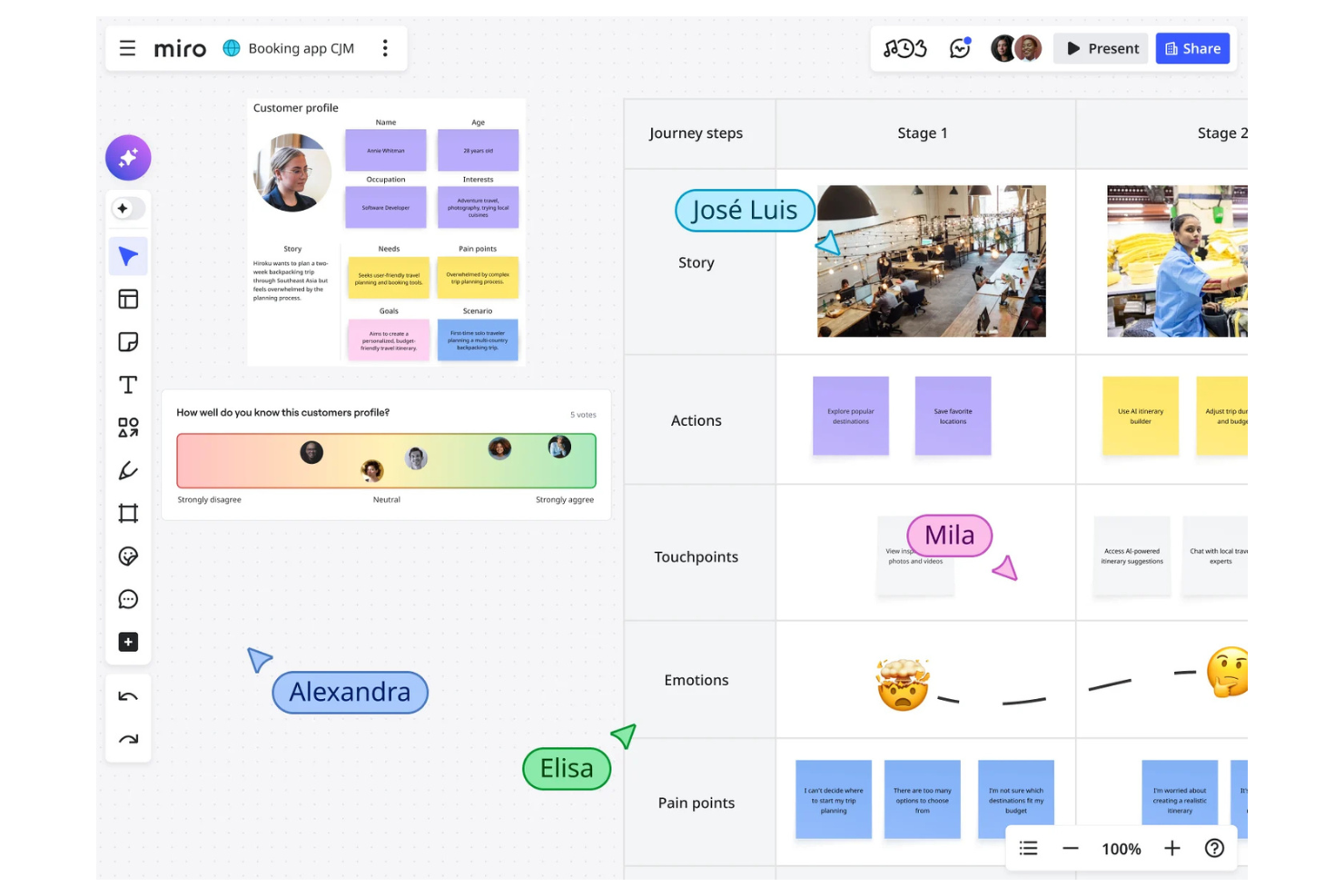
When you need a digital whiteboard that never runs out of space, Miro gives your team an infinite canvas for brainstorming and mapping ideas. This tool is especially useful for distributed teams, product managers, and IT specialists who want to collaborate visually in real time. Unlike Microsoft Visio, Miro’s flexible workspace lets you combine diagrams, sticky notes, and freeform sketches all in one place.
Why Miro Is a Good Microsoft Visio Alternative
Miro stands out from Microsoft Visio by offering an infinite canvas that’s ideal for brainstorming sessions and freeform diagramming. I like how you can zoom in and out without limits, letting teams map out complex workflows, mind maps, or architecture diagrams without worrying about running out of space. The tool also supports real-time multi-user collaboration, so everyone can contribute ideas, shapes, and comments simultaneously. If you need a flexible workspace for visual thinking and group ideation, Miro is a strong alternative to Visio.
Miro Key Features
Some other features in Miro help teams organize and present their work more effectively:
- Pre-built Template Library: Access a wide range of templates for flowcharts, mind maps, and technical diagrams.
- Presentation Mode: Turn your board into a guided presentation with step-by-step navigation.
- Commenting and Tagging: Add comments and tags directly to objects for feedback and organization.
- Integration with Video Conferencing: Launch video calls directly within boards to discuss diagrams in real time.
Miro Integrations
Integrations include Microsoft 365, Google Workspace, Atlassian Jira, Atlassian Confluence, Slack, Zoom, Microsoft Teams, Asana, Notion, and Dropbox.
Pros and Cons
Pros:
- Real-time editing enables team collaboration
- Infinite canvas supports large diagrams
- Presentation mode shares diagrams directly
Cons:
- Permissions lack granular Visio controls
- Graphics-heavy boards cause performance lag
New Product Updates from Miro

Miro Enhances AI Workflows and Tables for Task Planning
Miro enhances AI workflows and Tables with AI-generated planning boards and web-aware automation. These updates help teams organize tasks faster and analyze external content within workflows. For more information, visit Miro’s official site.

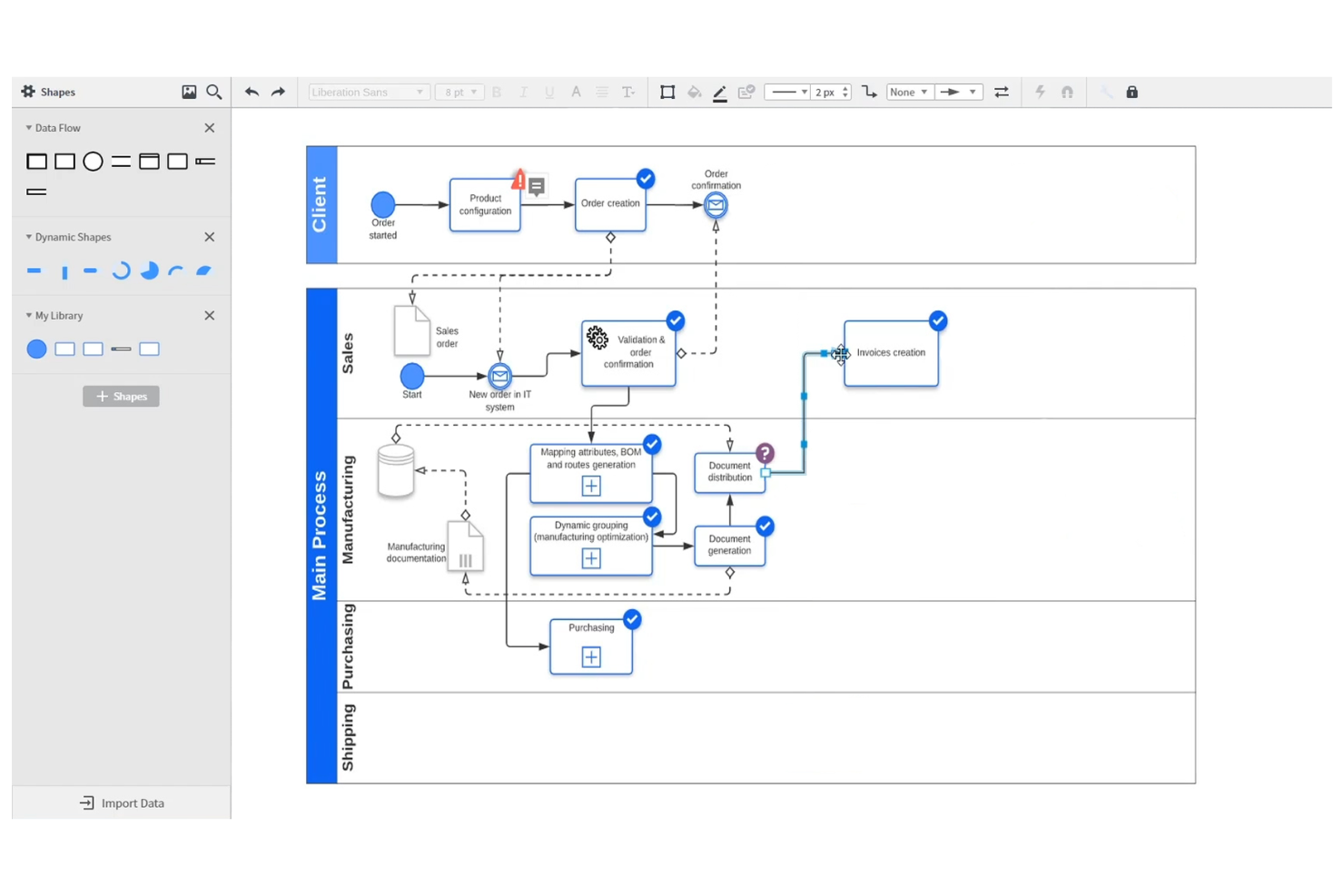
Lucidchart is a cloud-based diagramming tool designed for teams that need to collaborate on flowcharts and technical diagrams in real time. IT specialists and project managers who work across distributed teams will appreciate its live editing and commenting features. With its user-friendly interface and intuitive, web-based workspace, Lucidchart makes group work and feedback easy, making it a strong Visio alternative for collaborative teams.
Why Lucidchart Is a Good Microsoft Visio Alternative
Lucidchart stands out for teams that need to work together on diagrams without version control headaches. Its real-time collaboration lets multiple users edit the same flowchart or network diagram at once, so everyone stays on the same page. I appreciate the built-in commenting and sharing tools, which make it easy to gather feedback and resolve questions quickly. For IT teams and project groups that rely on live input, Lucidchart offers a more interactive experience than Microsoft Visio.
Lucidchart Key Features
Some other features in Lucidchart make it a flexible choice for technical diagramming and process mapping:
- Data Linking: Connect shapes and diagrams to live data sources for up-to-date visualizations.
- Template Library: Access a wide range of pre-built templates for network diagrams, org charts, and process flows.
- Revision History: Track changes and restore previous versions of diagrams as needed.
- Shape Libraries: Use specialized shape sets for IT, engineering, and business diagrams.
Lucidchart Integrations
Integrations include Microsoft Teams, Slack, Jira, Confluence, Google Drive, Microsoft Excel, Salesforce, Notion, ServiceNow, and BambooHR.
Pros and Cons
Pros:
- Web access removes local installation
- Revision history allows easy rollbacks
- Data linking enables live updates
Cons:
- Offline editing requires paid add-on
- Advanced shape formatting is limited
Weitere Microsoft Visio Alternativen
Hier sind einige weitere Microsoft Visio Alternativen, die es nicht in meine engere Auswahlliste geschafft haben, aber dennoch einen Blick wert sind:
- Excalidraw
For hand-drawn style diagrams
- Pencil Project
For offline wireframing needs
- Mermaid
With markdown-based diagram scripting


Auswahlkriterien für Microsoft Visio Alternativen
Bei der Auswahl der besten Microsoft Visio Alternativen für diese Liste habe ich die typischen Bedürfnisse und Herausforderungen von Anwendern rund um Diagramm- und Flussdiagramm-Tools berücksichtigt, etwa die Unterstützung von Echtzeit-Teamarbeit oder das Handling komplexer, mehrschichtiger Diagramme. Außerdem habe ich dieses Bewertungsraster genutzt, um die Kandidaten objektiv und einheitlich zu beurteilen:
Kernfunktionen (25% der Gesamtwertung)
Um in diese Liste aufgenommen zu werden, musste jede Lösung folgende Anwendungsfälle abdecken:
- Erstellen von Flussdiagrammen und Prozessgrafiken
- Organigramme erstellen
- Netzwerk- und Architekturdiagramme entwerfen
- Diagramme in gängige Dateiformate exportieren
- Diagramme mit Teammitgliedern teilen
Weitere besondere Funktionen (25% der Gesamtwertung)
Um die Auswahl weiter einzugrenzen, habe ich auch nach besonderen Funktionen gesucht, wie zum Beispiel:
- Unbegrenzte Arbeitsfläche für uneingeschränktes Diagramm-Erstellen
- Echtzeit-Zusammenarbeit mit mehreren Nutzern
- Integrierter Video- oder Sprachchat
- KI-gestützte Diagrammerstellung
- Erweiterte Berechtigungs- und Zugriffskontrollen
Benutzerfreundlichkeit (10 % der Gesamtbewertung)
Um die Benutzerfreundlichkeit jedes Systems einzuschätzen, habe ich Folgendes berücksichtigt:
- Übersichtliches und intuitives Oberflächendesign
- Logische Menüstruktur und Navigation
- Wenige Klicks, um Diagramme zu erstellen und zu bearbeiten
- Reaktionsschnelle Leistung bei großen Diagrammen
- Anpassbares Arbeitsbereich-Layout
Einarbeitung (10 % der Gesamtbewertung)
Um die Einarbeitung in jede Plattform zu beurteilen, habe ich Folgendes berücksichtigt:
- Verfügbarkeit von Schritt-für-Schritt-Produkt-Touren
- Zugriff auf Vorlagenbibliotheken für schnelle Einstiege
- Schulungsvideos und Dokumentation
- In-App-Chatbots oder geführte Hilfen
- Webinare oder Live-Einführungssitzungen
Kundensupport (10 % der Gesamtbewertung)
Um die Kundendienstleistungen der einzelnen Softwareanbieter zu beurteilen, habe ich Folgendes berücksichtigt:
- Mehrere Supportkanäle (Chat, E-Mail, Telefon)
- Schnelle Antwortzeiten auf Anfragen
- Zugriff auf eine durchsuchbare Wissensdatenbank
- Community-Foren für Austausch unter Nutzern
- Verfügbarkeit von dedizierten Kundenbetreuern
Preis-Leistungs-Verhältnis (10 % der Gesamtbewertung)
Um das Preis-Leistungs-Verhältnis jeder Plattform zu bewerten, habe ich Folgendes berücksichtigt:
- Transparente und flexible Preispläne
- Enthaltene Funktionen auf jeder Preisstufe
- Verfügbarkeit eines kostenlosen Plans oder einer Testversion
- Rabatte für jährliche Abrechnung oder größere Mengen
- Kosten im Vergleich zu ähnlichen Tools
Kundenbewertungen (10 % der Gesamtbewertung)
Um einen Eindruck von der allgemeinen Kundenzufriedenheit zu bekommen, habe ich beim Lesen von Kundenbewertungen Folgendes beachtet:
- Positives Feedback zu Kollaborationsfunktionen
- Berichte über zuverlässige Verfügbarkeit und Performance
- Kommentare zur Qualität des Kundensupports
- Zufriedenheit der Nutzer mit Integrationen
- Feedback zu Export- und Freigabeoptionen
Warum nach einer Alternative zu Microsoft Visio suchen?
Auch wenn Microsoft Visio ein gutes Werkzeug für Diagrammerstellung und Flussdiagramme ist, gibt es eine Reihe von Gründen, warum einige Nutzer nach alternativen Lösungen suchen. Vielleicht suchst du eine Alternative zu Microsoft Visio, weil…
- Du Echtzeit-Zusammenarbeit für verteilte Teams benötigst
- Du ein günstigeres oder flexibleres Preismodell möchtest
- Du browserbasierten Zugriff ohne Desktop-Installation brauchst
- Du Integrationen mit Nicht-Microsoft-Tools und Plattformen benötigst
- Du eine modernere oder intuitivere Benutzeroberfläche möchtest
- Du Unterstützung für macOS- oder Linux-Geräte benötigst
Wenn du dich in einem oder mehreren dieser Punkte wiedererkennst, bist du hier genau richtig. Meine Liste enthält verschiedene Optionen für Diagrammerstellung und Flussdiagramme, die für Teams besser geeignet sind, die vor diesen Herausforderungen mit Microsoft Visio stehen und nach alternativen Lösungen suchen.
Microsoft Visio: Zentrale Funktionen
Hier sind einige der wichtigsten Funktionen von Microsoft Visio, damit du besser vergleichen kannst, was alternative Lösungen bieten:
- Umfangreiche Bibliothek mit vorgefertigten Formen und Diagrammvorlagen
- Drag-and-Drop-Oberfläche zur Diagrammerstellung
- Datenverknüpfung mit externen Quellen wie Excel und SQL Server
- Ebenenunterstützung für komplexe, mehrstufige Diagramme
- Echtzeit-Zusammenarbeit mit Integration in Microsoft 365
- Erweiterte Formatierungs- und Layoutwerkzeuge
- Exportoptionen in PDF-, Bild- und Webformate
- Validierungswerkzeuge für Prozessdiagramme und Workflows
- Integration mit anderen Microsoft-Anwendungen wie Teams und SharePoint
- Erstellung eigener Formen und Schablonen
Wie geht es weiter:
Wenn Sie auf der Suche nach einer Microsoft Visio-Alternative sind, verbinden Sie sich kostenlos mit einem SoftwareSelect-Berater für Empfehlungen.
Sie füllen ein Formular aus und führen ein kurzes Gespräch, in dem Ihre spezifischen Anforderungen geklärt werden. Anschließend erhalten Sie eine Auswahlliste mit Softwarevorschlägen zur Überprüfung. Die Berater unterstützen Sie sogar während des gesamten Kaufprozesses, einschließlich Preisverhandlungen.