

Los 10 mejores programas de edición de texto para programar en 2026

Lista de los mejores programas de edición de texto


Los programas de edición de texto te permiten escribir, editar y gestionar código o documentos de forma rápida y eficiente, con funciones útiles como la sangría automática, las vistas divididas y la compatibilidad con varios tipos de archivo. Si quieres ahorrar tiempo, detectar errores más rápido y hacer que la edición tediosa sea muy sencilla, el editor de texto adecuado puede mejorar considerablemente tu flujo de trabajo.
A continuación, te guiaré por las mejores opciones de programas de edición de texto para que encuentres la herramienta que mejor se adapte a tu forma de trabajar y, por fin, te olvides de las dificultades de los editores anticuados y poco prácticos.
Por qué confiar en nuestras recomendaciones de software
Nuestro equipo lleva probando y evaluando software desde 2012. Como líderes tecnológicos, sabemos lo difícil —y lo importante— que es elegir el software adecuado.
Para esta guía, evaluamos las herramientas mediante pruebas prácticas e investigación independiente, puntuando las herramientas según nuestros criterios de selección.
Nuestras reseñas reflejan nuestro criterio editorial humano, no un discurso de ventas.
Revisores expertos:
Resumen de los mejores programas de edición de texto
Esta tabla comparativa resume los detalles de precios de mis principales selecciones de programas de edición de texto para ayudarte a encontrar la mejor opción para tu presupuesto y las necesidades de tu empresa.
| Tool | Best For | Trial Info | Price | ||
|---|---|---|---|---|---|
| 1 | Ideal para una navegación rápida por el código y búsqueda de símbolos | Descarga gratuita disponible | Desde $8/usuario/mes (facturado anualmente) | Website | |
| 2 | La mejor opción para quienes desean un editor extensible y personalizable | Plan gratuito disponible | Gratis | Website | |
| 3 | Mejor para desarrolladores que usan varios lenguajes | Plan gratuito disponible | Gratis | Website | |
| 4 | Mejor para la gestión y manipulación de archivos grandes | Prueba gratuita de 30 días | Desde $7.50/usuario/mes (facturado anualmente) | Website | |
| 5 | Mejor para programadores que necesitan una interfaz personalizable | Not available | Gratis | Website | |
| 6 | Ideal para usuarios avanzados que buscan una edición de texto eficiente | Plan gratuito disponible | Gratis | Website | |
| 7 | Ideal para diseñadores web con función de vista previa en vivo | Descarga gratuita disponible | Gratis | Website | |
| 8 | Mejor para usuarios de macOS que necesitan búsquedas avanzadas | Plan gratuito disponible | Desde $3.33/usuario/mes (facturado anualmente) | Website | |
| 9 | Ideal para la simplicidad en la edición y el resaltado de sintaxis | Not available | Desde $27/usuario, facturado anualmente. | Website | |
| 10 | Ideal para desarrolladores web que requieren proyectos concurrentes | Descarga gratuita disponible | Gratis | Website |
Opiniones sobre los mejores programas de edición de texto
A continuación, encontrarás mis resúmenes detallados de los mejores programas de edición de texto que llegaron a mi lista de selección. Mis reseñas ofrecen un análisis detallado de las funciones principales, las ventajas y desventajas, las integraciones y los casos de uso ideales de cada herramienta para ayudarte a encontrar la mejor opción para ti.

Ideal para una navegación rápida por el código y búsqueda de símbolos
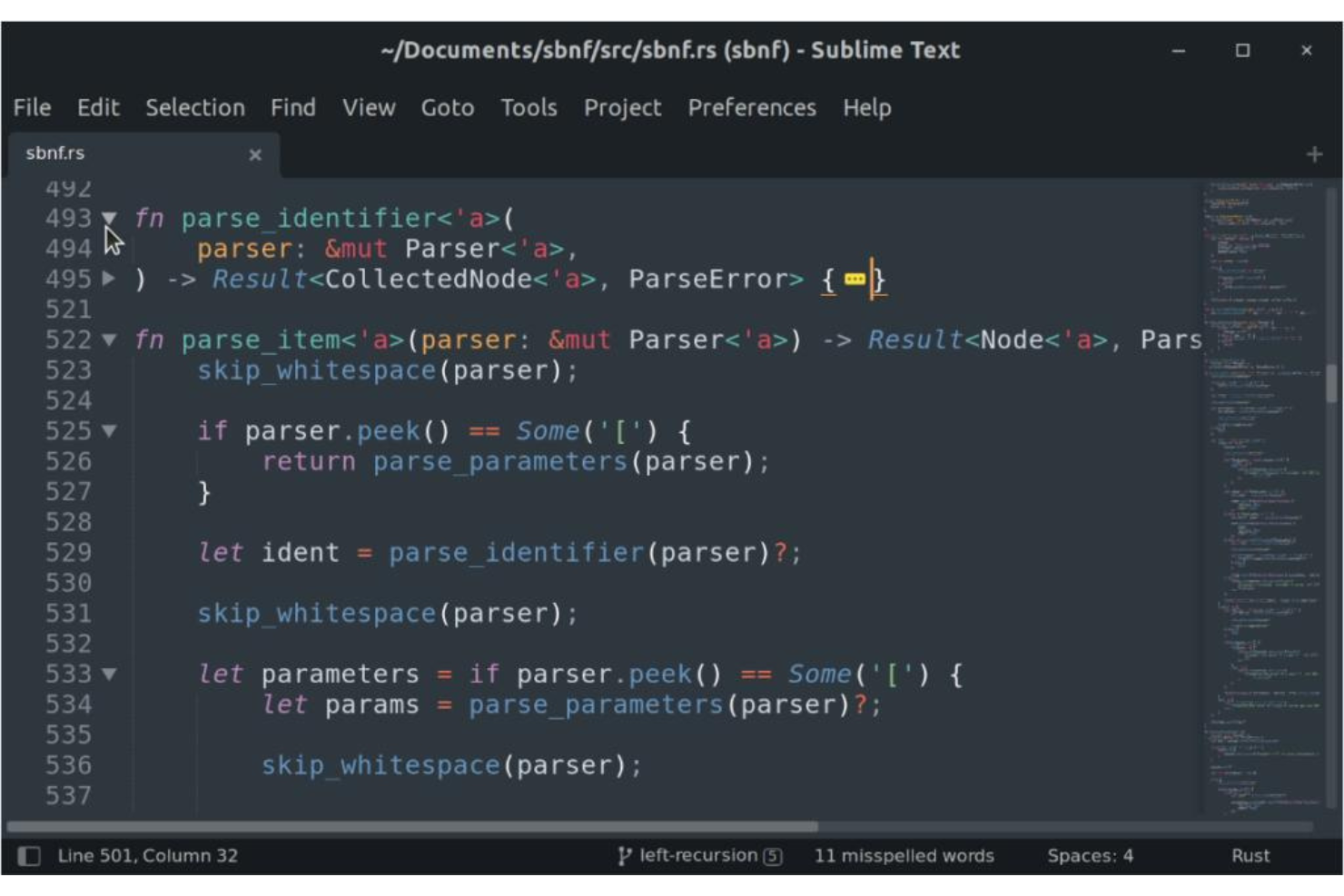
Sublime Text es un editor de texto popular ampliamente utilizado por desarrolladores y escritores que buscan fluidez y eficiencia en su flujo de trabajo. Permite una navegación rápida por el código y ofrece una interfaz limpia para la búsqueda de símbolos, alineándose con las necesidades modernas del desarrollo de software.
Por qué elegí Sublime Text:
Elegí Sublime Text por su reputación en ofrecer funciones de navegación y búsqueda rápidas. Cuenta con una API de Python, lo que permite integrar una gran variedad de complementos a la solución de edición de texto. Comparado con otros editores, destaca por su capacidad para permitir a los usuarios saltar rápidamente entre secciones del código, localizando símbolos y líneas sin esfuerzo. Esta herramienta es ideal para quienes necesitan un entorno altamente eficiente para programar o escribir, gracias a su sistema de navegación ágil y fluido.
Características destacadas e integraciones:
Sublime Text ofrece funciones como Ir a Cualquier Parte (Goto Anything) para navegar rápidamente a archivos, símbolos o líneas, y la capacidad de selección múltiple para modificar varias líneas al mismo tiempo. Su Paleta de Comandos alberga funcionalidades poco utilizadas, haciéndolas fácilmente accesibles. Las integraciones con Git y otros sistemas de control de versiones aumentan su atractivo, junto con la compatibilidad con numerosos lenguajes de programación y complementos de terceros.
Pros and Cons
Pros:
- Navegación eficiente por símbolos y líneas
- Soporte para múltiples lenguajes y compatibilidad con plugins de terceros
- Interfaz personalizable
Cons:
- Curva de aprendizaje más pronunciada para principiantes
- Algunas funciones avanzadas requieren plugins de pago
- Puede requerir configuración para un uso óptimo

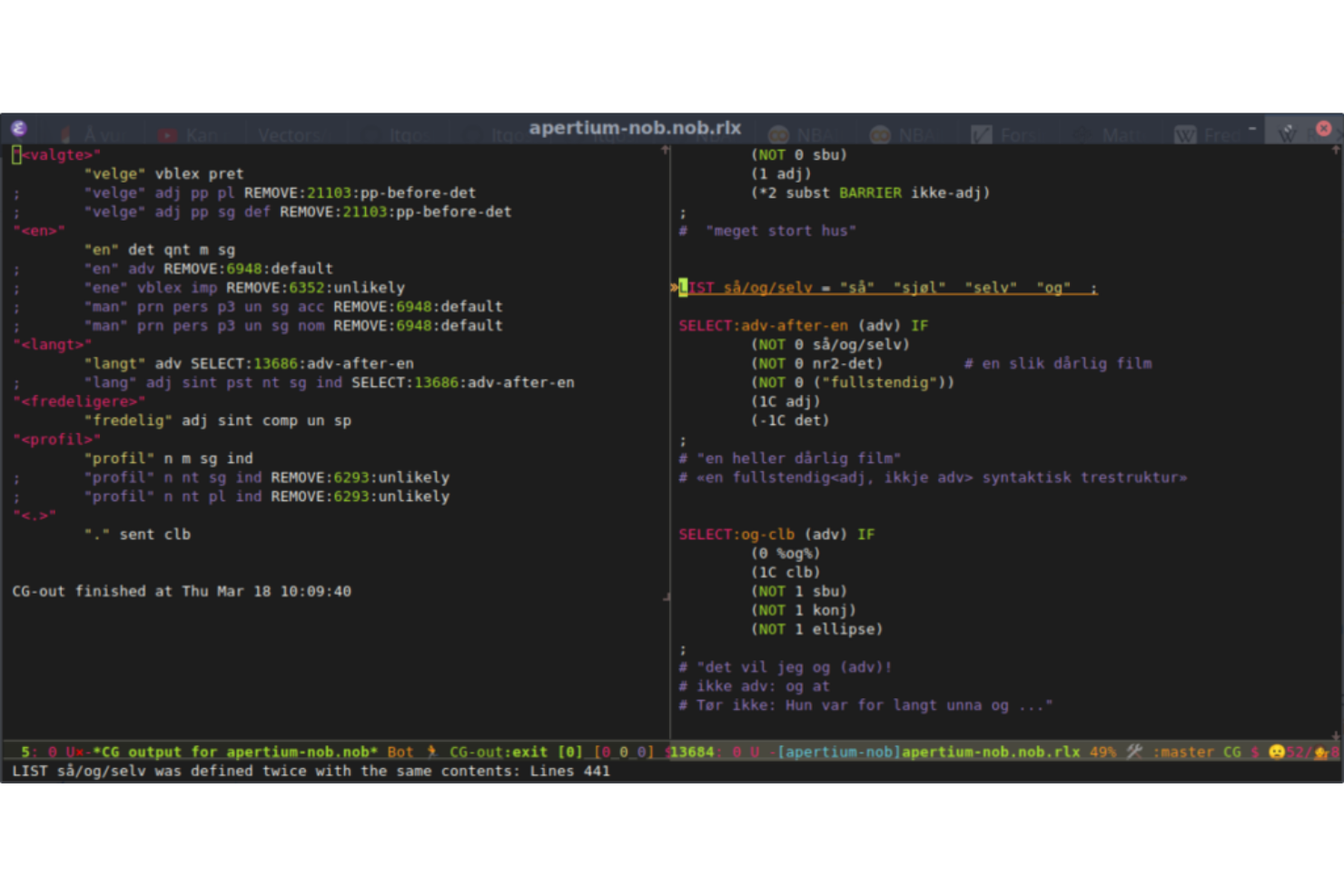
Emacs es un editor de texto avanzado, extensible y altamente personalizable que puede adaptarse a diversas tareas de programación. El nivel de personalización y capacidad de extensión es inigualable, lo que lo convierte en la mejor elección para quienes buscan un editor que pueda ser moldeado según sus necesidades específicas.
Por qué elegí Emacs:
Elegí GNU Emacs tras una cuidadosa comparación y juicio sobre su naturaleza personalizable. La flexibilidad y el poder de añadir o modificar funcionalidades según requisitos individuales lo distinguen de otros editores de texto. Esta extensibilidad lo hace ideal para quienes quieren una herramienta adaptable exactamente a sus necesidades, desde la programación hasta la redacción de contenidos.
Características destacadas e integraciones:
Emacs soporta una amplia variedad de lenguajes de programación y ofrece numerosas extensiones que mejoran su utilidad. Se integra con muchos sistemas de control de versiones como Git, permitiendo a los desarrolladores gestionar su base de código desde dentro del editor. Sus combinaciones de teclas y la funcionalidad de grabación de macros proporcionan más opciones de personalización y automatización.
Pros and Cons
Pros:
- Altamente extensible y personalizable
- Fuerte apoyo de la comunidad
- Documentación integral para que los usuarios aprovechen al máximo la personalización
Cons:
- Curva de aprendizaje más pronunciada para principiantes
- Puede volverse intensivo en recursos con muchas personalizaciones
- Estéticamente menos moderno en comparación con algunas alternativas

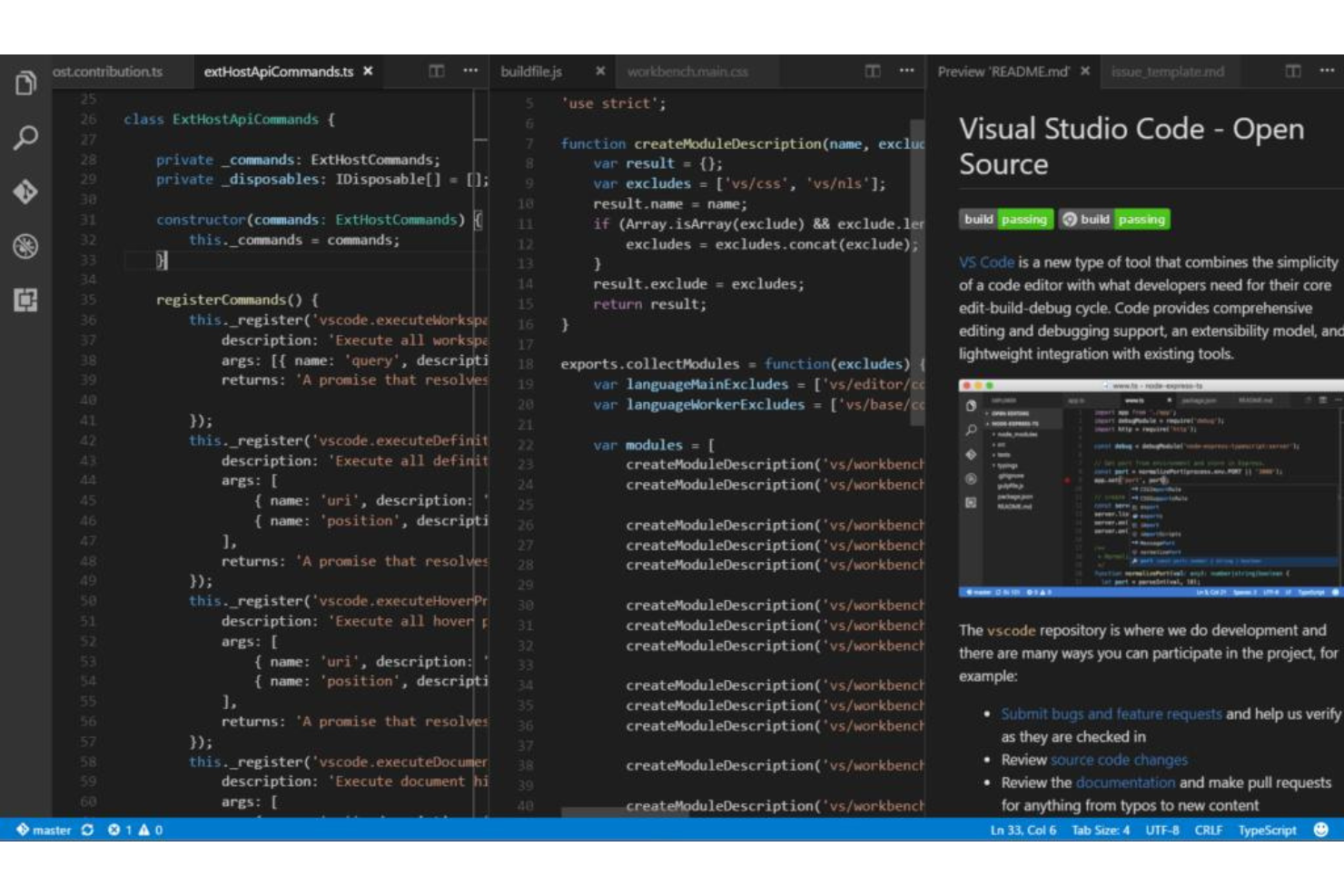
Visual Studio Code (VS Code) es un editor de código abierto diseñado para las prácticas de desarrollo modernas. Con su soporte para múltiples lenguajes de programación y una asistencia integral al código, es la mejor opción para desarrolladores que suelen cambiar entre diferentes lenguajes en sus proyectos.
Por qué elegí Visual Studio Code:
Seleccioné Visual Studio Code por su notable adaptabilidad y capacidad para manejar varios lenguajes. Al determinar su lugar en esta lista, su amplio soporte de lenguajes y extensiones impulsadas por la comunidad realmente lo destacaron. Visual Studio Code es ideal para desarrolladores que buscan un editor capaz de adaptarse sin esfuerzo a varios lenguajes de programación, proporcionando una experiencia unificada y coherente.
Funciones destacadas e integraciones:
Visual Studio Code ofrece autocompletado inteligente de código, resaltado de sintaxis con Intellisense, atajos de teclado y refactorización de código para numerosos lenguajes de programación como HTML, Python, VBScript, JavaScript, Perl y más. Su control integrado de Git ayuda en la gestión de versiones. La integración con varios compiladores, depuradores y extensiones específicas de lenguajes proporciona un entorno de desarrollo rico y adaptable a muchos paradigmas de programación diferentes.
Pros and Cons
Pros:
- Amplio soporte para múltiples lenguajes
- Extensiones sólidas impulsadas por la comunidad
- Control de Git integrado
Cons:
- Puede ser intensivo en recursos en sistemas más antiguos
- La configuración inicial puede ser desafiante para algunos
- Algunas extensiones pueden entrar en conflicto entre sí

Mejor para la gestión y manipulación de archivos grandes
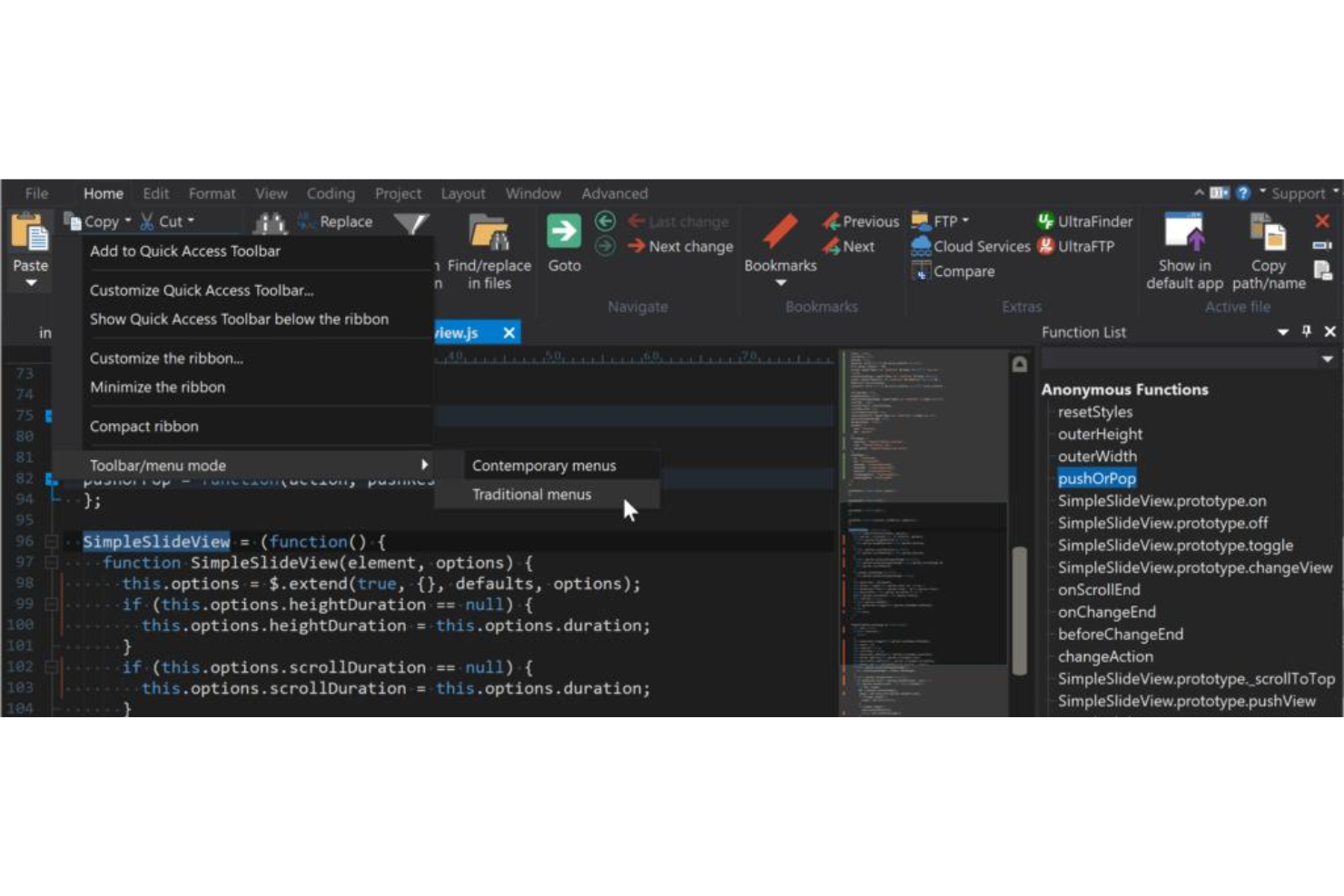
UltraEdit es un editor de texto versátil y robusto, reconocido por su capacidad para manejar archivos grandes y estructuras de datos complejas. Esta capacidad lo convierte en una herramienta preferida por desarrolladores y profesionales de datos que a menudo necesitan manipular archivos masivos, posicionándolo como el mejor para la gestión y manipulación de archivos grandes.
Por qué elegí UltraEdit:
Elegí UltraEdit para esta lista tras evaluar su extraordinaria capacidad para manejar archivos grandes. Lo que lo diferencia de otros editores de texto es su rendimiento optimizado y fiabilidad, incluso con documentos de varios gigabytes. Esta eficiencia insuperable para gestionar y manipular archivos extensos es la razón por la que determiné que UltraEdit es el mejor para quienes trabajan con grandes conjuntos de datos o proyectos de codificación voluminosos.
Características destacadas e integraciones:
Las características más importantes de UltraEdit incluyen la gestión sencilla de archivos grandes, una interfaz de usuario con múltiples ventanas y una potente función de búsqueda y reemplazo. El software también admite varios lenguajes de programación e integra con FTP, SSH y Telnet, facilitando la edición y gestión remota de archivos.
Pros and Cons
Pros:
- Excelente rendimiento en la gestión de archivos grandes
- Conjunto de funciones completas para codificación y manipulación de texto
- Fuerte integración con herramientas de gestión remota de archivos
Cons:
- Puede ser excesivo para necesidades sencillas de edición de texto
- La interfaz puede ser intimidante para principiantes
- Algunos usuarios pueden considerar restrictiva la facturación anual

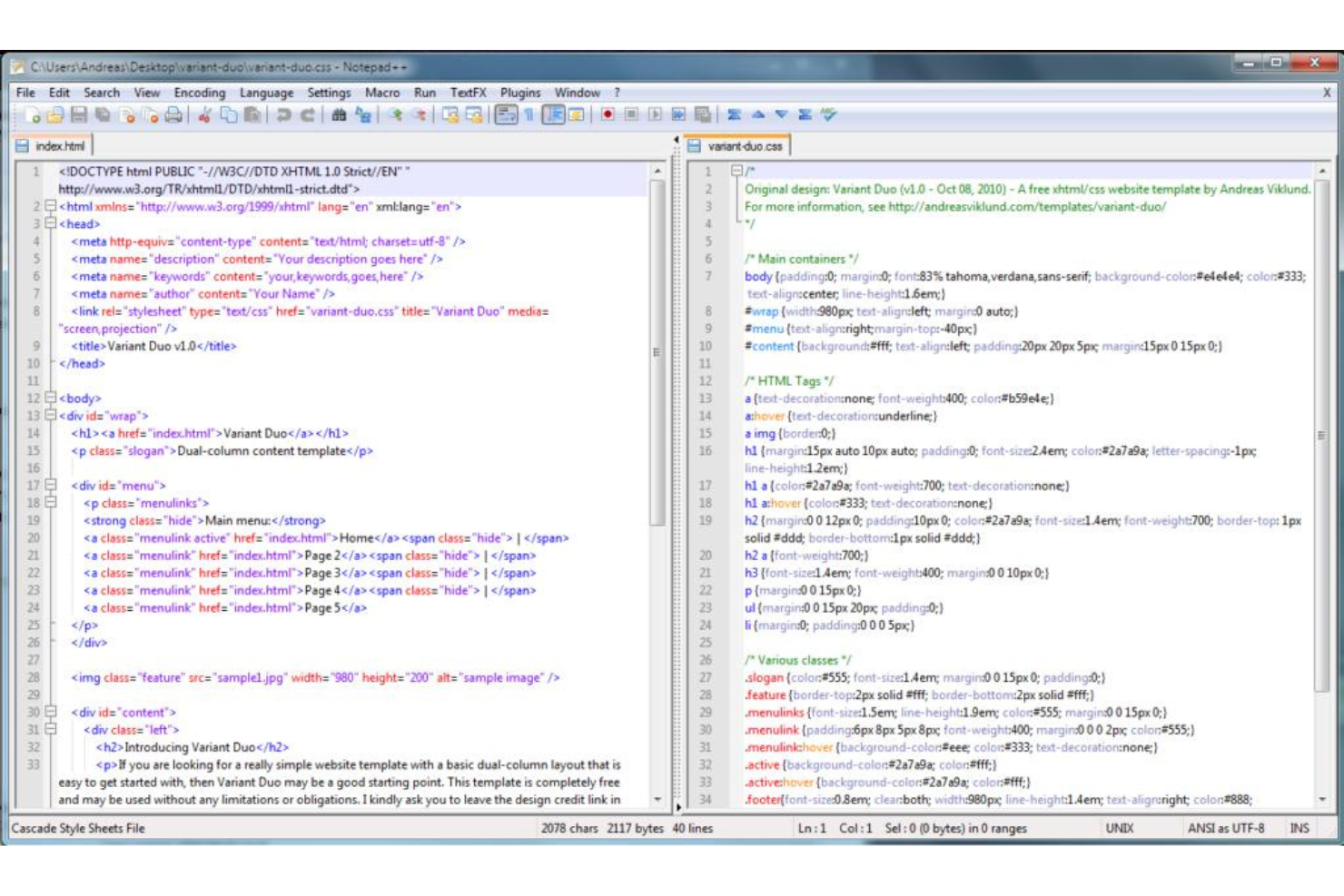
Notepad++ es un editor de texto y código fuente ampliamente reconocido por su interfaz fácil de usar y su robusta funcionalidad. Su interfaz altamente personalizable se adapta a las necesidades de los programadores que requieren configuraciones específicas para su entorno de desarrollo, por lo que es el mejor para quienes necesitan configuraciones personalizadas.
Por qué elegí Notepad++:
Seleccioné Notepad++ tras analizar detenidamente su flexibilidad y capacidad de adaptación. Entre sus similares, se destacó por ofrecer una interfaz altamente personalizable que responde a las preferencias específicas de los programadores. Notepad++ sobresale como la mejor opción para quienes desean adaptar su espacio de trabajo, ya que soporta múltiples lenguajes de programación y ajustes.
Funciones destacadas e integraciones:
Notepad++ cuenta con resaltado y plegado de sintaxis, los cuales se pueden personalizar según las necesidades individuales. La interfaz con pestañas permite navegar fácilmente entre varios archivos y su rica arquitectura de plugins amplía la funcionalidad. La integración con compiladores populares y sistemas de control de versiones lo convierte en una excelente elección para programadores, mientras que el soporte FTP permite la edición directa en servidores.
Pros and Cons
Pros:
- Posibilidades de personalización extensas
- Amplio abanico de lenguajes de programación soportados
- Gran selección de plugins
Cons:
- Sólo compatible con Microsoft Windows
- La interfaz puede ser abrumadora para los principiantes
- Algunos plugins pueden generar problemas de estabilidad

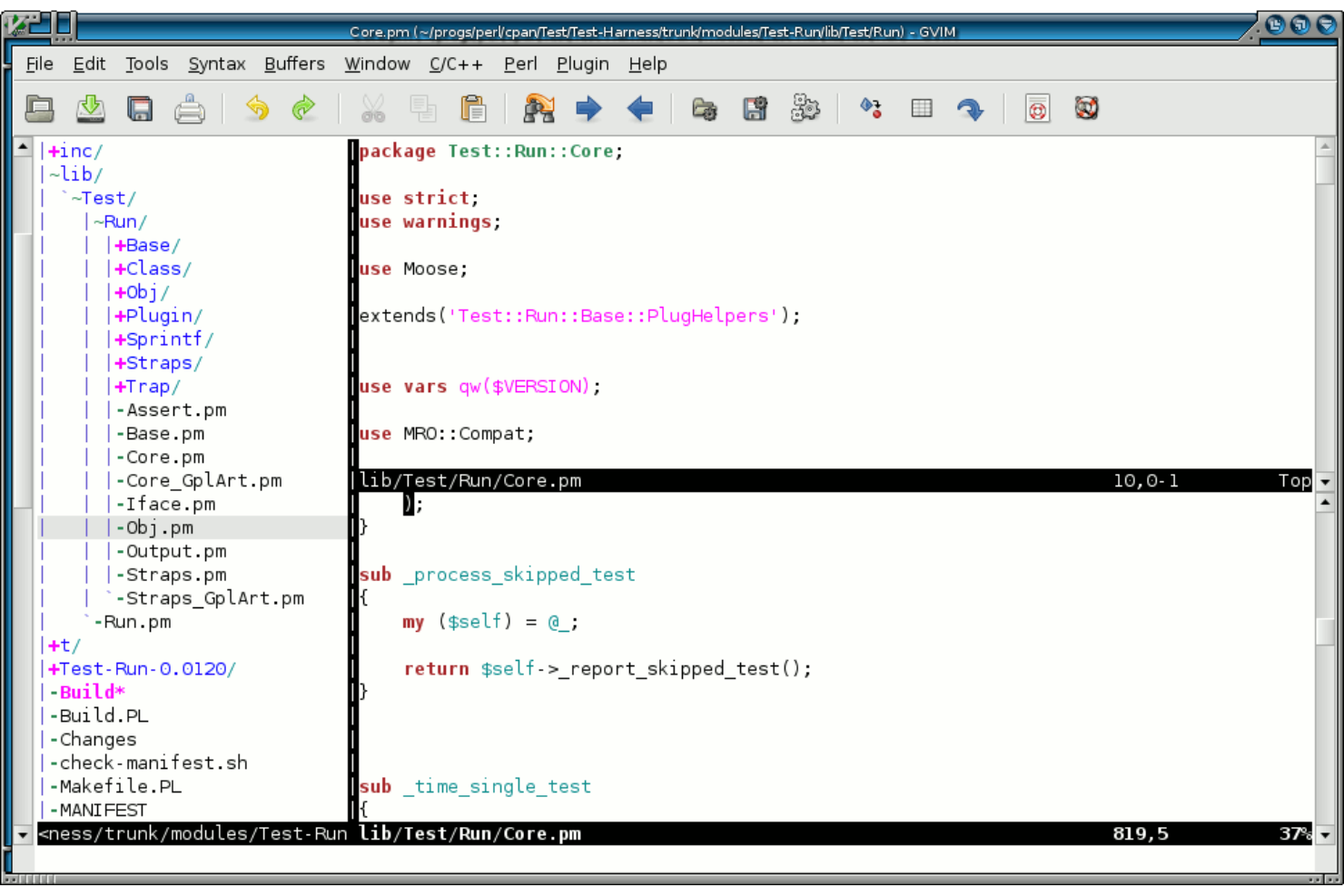
Vim es un editor de texto potente y altamente eficiente que es ampliamente apreciado por usuarios experimentados. Está diseñado para usarse tanto desde una interfaz de línea de comandos (CLI) como una aplicación independiente en una interfaz gráfica de usuario (GUI). Su enfoque centrado en el teclado y sus modos de operación únicos lo convierten en una herramienta rápida y sensible para quienes desean minimizar el uso del ratón, lo que justifica su posición como la mejor opción para usuarios avanzados que buscan una edición de texto eficiente.
Por qué elegí Vim:
Elegí Vim después de evaluar su valor al proporcionar una edición de texto eficiente para quienes ya están familiarizados con su interfaz única. Lo que diferencia a Vim de otros editores de texto es su diseño modal, donde se utilizan diferentes modos para la navegación y la edición. Esta configuración permite un alto grado de eficiencia, especialmente para usuarios avanzados, y por eso lo consideré el mejor para quienes quieren optimizar su proceso de edición de texto.
Características destacadas e integraciones:
Las principales características de Vim incluyen la edición modal, donde los usuarios cambian entre diferentes modos para navegar, editar y manipular texto. El amplio soporte de complementos permite personalización y funcionalidades añadidas. Vim también se integra bien con muchos sistemas de control de versiones populares como Git, permitiendo la gestión de código desde el propio editor.
Pros and Cons
Pros:
- Edición de texto altamente eficiente mediante el diseño modal
- Extensible con numerosos complementos
- Disponible en múltiples plataformas
Cons:
- Curva de aprendizaje pronunciada, especialmente para principiantes
- Carece de algunas comodidades modernas presentes en otros editores
- La configuración y personalización pueden ser complejas y consumir mucho tiempo

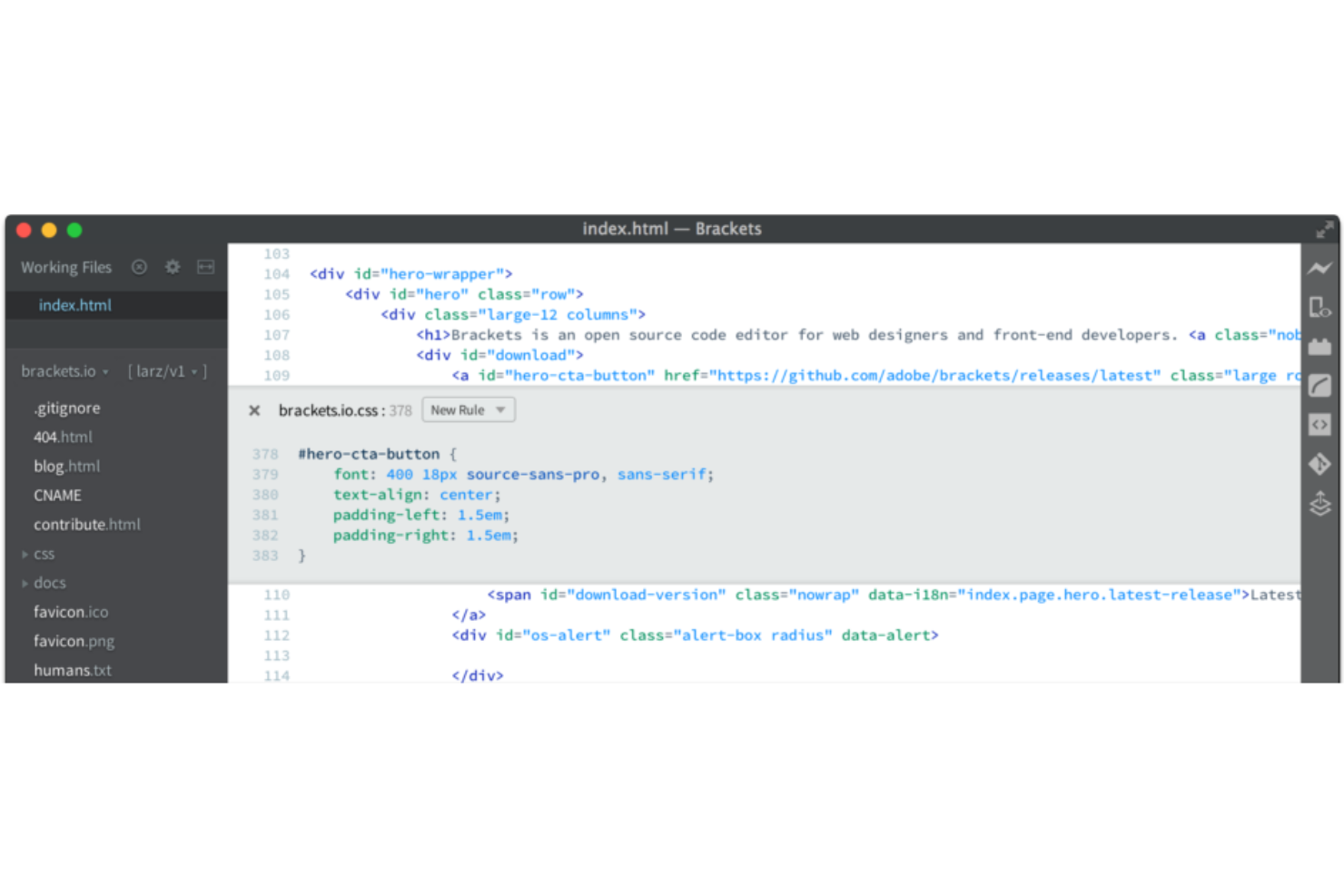
Brackets es un editor de texto de código abierto diseñado específicamente para el desarrollo web. Su función de vista previa en vivo, que permite a los diseñadores web ver los cambios en tiempo real, lo convierte en la mejor opción para quienes buscan retroalimentación inmediata sobre las modificaciones de su diseño.
Por qué elegí Brackets:
Elegí Brackets por su funcionalidad única y muy eficaz de vista previa en vivo que se adapta perfectamente a las necesidades del diseño web moderno. Al comparar y evaluar las alternativas, Brackets destacó por esta característica, que simplifica el proceso de diseño y minimiza las suposiciones. Es ideal para diseñadores web que desean ver retroalimentación visual inmediata mientras trabajan en sus proyectos.
Características e integraciones destacadas:
Brackets ofrece edición en línea, permitiendo a los desarrolladores editar CSS y JavaScript dentro de la misma ventana de código. La función de vista previa en vivo está sincronizada con el editor de código, proporcionando un reflejo instantáneo de los cambios. Las integraciones con soporte para preprocesadores populares como LESS y SCSS mejoran su funcionalidad para el desarrollo web contemporáneo.
Pros and Cons
Pros:
- Vista previa en vivo para retroalimentación inmediata
- Edición en línea para CSS y JavaScript
- Fuerte apoyo de la comunidad
Cons:
- Enfocado principalmente en desarrollo web; menos versátil para otras necesidades de codificación
- Puede ser menos intuitivo para principiantes
- El rendimiento puede ser lento con proyectos grandes


BBEdit es un editor de texto diseñado específicamente para usuarios de macOS, que ofrece potentes funciones con énfasis en la funcionalidad de búsqueda avanzada. Ya sea buscando en un solo documento o a través de múltiples archivos, las potentes funciones de búsqueda de BBEdit lo distinguen, siendo la mejor opción para usuarios de macOS que necesitan capacidades avanzadas de búsqueda.
Por qué elegí BBEdit:
Elegí BBEdit tras comparar detenidamente sus características con las de otros editores de texto para macOS. Su capacidad para manejar consultas de búsqueda complejas en varios tipos de archivos y diferentes proyectos es única y convincente. Determiné que BBEdit destaca como la mejor herramienta para usuarios de macOS que buscan capacidades avanzadas de búsqueda, especialmente al trabajar con grandes bases de código o tareas complejas de manipulación de texto.
Características destacadas e integraciones:
Las capacidades de búsqueda de BBEdit son insuperables, con características como soporte para expresiones regulares, menú desplegable de funciones, búsqueda en múltiples archivos e informes detallados de resultados. El editor de texto también admite resaltado de sintaxis para más de veinte lenguajes y ofrece integración con varios sistemas de control de versiones como Git y Subversion, facilitando el trabajo colaborativo.
Pros and Cons
Pros:
- Funcionalidad de búsqueda excepcional
- Integración con populares sistemas de control de versiones
- Diseñado específicamente para macOS, lo que garantiza un rendimiento óptimo
Cons:
- Atractivo limitado para usuarios que no son de macOS
- Puede tener más funciones de las necesarias para la edición de texto ocasional
- Algunos usuarios podrían preferir una interfaz más moderna


TextPad es un editor de texto versátil conocido por su simplicidad y su sólida capacidad de resaltado de sintaxis. Como una herramienta diseñada para ser intuitiva pero potente, atiende tanto a principiantes como a usuarios experimentados, por lo que es ideal para quienes buscan simplicidad en la edición y el resaltado de sintaxis.
Por qué elegí TextPad:
Escogí TextPad para esta lista tras determinar que ofrece una interfaz limpia y sin desorden, junto con un resaltado de sintaxis eficaz. Al compararlo con otros editores de texto, observé que el enfoque de TextPad en las funcionalidades esenciales, sin complejidades innecesarias, lo hace destacar. Por lo tanto, en mi opinión, es la mejor opción para quienes buscan una experiencia directa con el resaltado de sintaxis.
Características destacadas e integraciones:
La característica más útil de TextPad es su amplio resaltado de sintaxis, que soporta numerosos lenguajes de programación. Su función de buscar y reemplazar opera en múltiples archivos, facilitando la edición eficiente. Además, ofrece integración con compiladores y otras herramientas externas, proporcionando un entorno de desarrollo cohesivo.
Pros and Cons
Pros:
- Resaltado de sintaxis robusto para muchos lenguajes de programación.
- Interfaz intuitiva que promueve la facilidad de uso.
- Funcionalidad eficiente de búsqueda y reemplazo en varios archivos
Cons:
- Carece de algunas características avanzadas encontradas en otros editores
- Puede no ser adecuado para tareas de desarrollo altamente complejas
- Soporte limitado para plugins y extensiones modernas


Bluefish es un potente editor de texto orientado a programadores y desarrolladores web. Con la capacidad de gestionar múltiples proyectos simultáneamente, agiliza el proceso de edición de archivos en varios lenguajes, siendo ideal para desarrolladores web que necesitan manejar proyectos concurrentes.
Por qué elegí Bluefish:
Elegí Bluefish tras comparar cuidadosamente y evaluar su capacidad para soportar varios proyectos al mismo tiempo. La característica que distingue a Bluefish es su facilidad para ayudar a los desarrolladores web a gestionar proyectos múltiples de manera simultánea. Esta razón me llevó a seleccionar Bluefish como el mejor para quienes necesitan alternar entre diferentes proyectos de desarrollo web al mismo tiempo.
Funciones destacadas e integraciones:
Entre las funciones destacadas de Bluefish se incluye su capacidad para abrir más de 500 documentos simultáneamente y su soporte integrado para proyectos, lo que organiza fácilmente múltiples tareas. El resaltado de sintaxis compatible con varios lenguajes de programación mejora la experiencia de codificación. Su integración con navegadores web para vistas previas y otras herramientas de desarrollo crea un entorno perfectamente adaptado a las necesidades de los desarrolladores web.
Pros and Cons
Pros:
- Permite manejar numerosos documentos y proyectos a la vez.
- Resaltado de sintaxis extenso para diferentes lenguajes de programación.
- Se integra bien con los navegadores web para vistas previas en tiempo real
Cons:
- La interfaz puede considerarse menos moderna en comparación con otros editores
- Carece de algunas funciones avanzadas que se encuentran en editores de texto comerciales
- La curva de aprendizaje puede ser pronunciada para quienes son nuevos en el desarrollo web
Otros programas de edición de texto
Estas son algunas opciones adicionales de programas de edición de texto que no llegaron a mi lista de selección, pero que aún vale la pena consultar:
- Geany
Mejor para quienes buscan un diseño liviano con funciones básicas de IDE
- Light Table
Mejor para evaluación y modificación de código en tiempo real
- CoffeeCup HTML Editor
Bueno para el diseño de sitios web con edición visual de HTML


Cómo Evalúo el Software de Editores de Texto
Divido mi evaluación en criterios básicos—como el resaltado de sintaxis y la navegación entre múltiples archivos de proyectos—y diferenciadores como asistencia por IA, soporte para desarrollo remoto y flexibilidad de licencias.
Funcionalidad Principal (Requisitos Básicos Para Esta Lista)
Cuando selecciono herramientas para mi lista, califico cada una en una escala del 0 (no ofrece la funcionalidad) al 5 (sobresale en esta área) para cada funcionalidad principal listada a continuación. Luego, calculo el puntaje total de la herramienta en porcentaje. Cada herramienta necesita alcanzar un puntaje total mínimo de 75% para ser considerada para inclusión.
- Resaltado de Sintaxis: Verifico cuántos lenguajes resalta una herramienta de forma nativa y si permite definiciones de sintaxis personalizadas para DSL internos o formatos de configuración propietarios.
- Soporte de Archivos Multi-Lenguaje: Editar un script en Python, un archivo de pipeline YAML y un Dockerfile en la misma sesión debe sentirse natural, así que busco herramientas profundas según el lenguaje.
- Extensibilidad y Ecosistema de Plugins: Evalúo si el editor ofrece un marketplace o gestor de paquetes para instalar extensiones—como linters, formateadores o conectores SSH.
- Capacidades de Búsqueda y Reemplazo: Busco búsquedas con expresiones regulares a nivel de todo el proyecto, especialmente la opción de limitar las consultas a tipos de archivos o directorios específicos en un monorepositorio.
- Edición de Múltiples Archivos y Proyectos: La edición por pestañas, paneles divididos y un árbol de archivos que soporte un directorio de proyecto completo son importantes cuando pasas a diario entre módulos y configuraciones.
- Integración con Control de Versiones: Busco soporte Git nativo que muestre diferencias, historial de cambios y gestión de ramas dentro del editor, sin requerir cambiar al terminal.
Una vez que tengo una lista de herramientas que cumplen este criterio, considero qué distingue a cada plataforma.
Factores Diferenciadores (Lo Que Distingue a Cada Proveedor)
Así es como comparo y contrasto diferentes proveedores:
Características Destacadas
La asistencia de código impulsada por IA es un gran diferenciador—busco editores que ofrezcan autocompletado en línea y sugerencias contextuales mientras escribes, no solo autocompletado básico. El soporte para desarrollo remoto también es importante cuando el equipo trabaja en máquinas virtuales en la nube o contenedores. Evalúo si el editor puede abrir un proyecto en un host remoto y aun así sentirse local. Un terminal integrado y depurador completan el conjunto, permitiendo ejecutar builds y recorrer puntos de interrupción sin salir del editor.
Más Allá de las Características
El rendimiento importa—evalúo cómo gestiona cada editor archivos de registro grandes y directorios de proyectos extensos sin congelarse o aumentar el uso de memoria. La disponibilidad multiplataforma es otro factor clave, especialmente para equipos que usan sistemas operativos mixtos, donde mantener sincronizada la configuración entre servidores Linux y estaciones de trabajo macOS ayuda a conservar los flujos de trabajo consistentes. También analizo detenidamente los modelos de licenciamiento y precios, ya que las opciones de código abierto como Vim o VS Code tienen implicaciones diferentes para la adopción empresarial en comparación con editores propietarios con costos por usuario.
Cómo elegir un programa de edición de texto
Es fácil perderse entre largas listas de funciones y complejas estructuras de precios. Para ayudarte a mantener la concentración mientras avanzas en tu proceso personalizado de selección de software, aquí tienes una lista de factores que debes tener en cuenta:
| Factor | Qué debes considerar |
|---|---|
| Escalabilidad | ¿El programa crecerá junto con tu equipo? Comprueba si puede gestionar proyectos más grandes o un mayor número de usuarios a medida que aumenten tus necesidades. |
| Integraciones | ¿Se conecta con las demás herramientas que utilizas? Comprueba que sea compatible con tu conjunto de herramientas tecnológicas actual para evitar interrupciones en el flujo de trabajo. |
| Personalización | ¿Puedes adaptarlo a tu flujo de trabajo? Busca opciones para personalizar los atajos, los temas y otros ajustes según tus preferencias. |
| Facilidad de uso | ¿Es fácil de usar para todos los miembros de tu equipo? Una curva de aprendizaje pronunciada podría ralentizar la adopción y reducir la eficiencia. |
| Implementación e incorporación | ¿Con qué rapidez puedes empezar? Evalúa la disponibilidad de recursos como tutoriales y asistencia para facilitar la transición. |
| Coste | ¿Se ajusta a tu presupuesto? Compara el precio con las funciones disponibles y ten en cuenta los costes ocultos. |
| Medidas de seguridad | ¿Están protegidos tus datos y proyectos? Verifica que el programa cuente con sólidas medidas de seguridad para impedir el acceso no autorizado. |
| Necesidades de recursos internos | ¿Qué recursos necesitarás para mantener y dar asistencia al programa? Considera los conocimientos técnicos necesarios y cualquier tarea de mantenimiento continua. |
¿Qué es un programa de edición de texto?
Un programa de edición de texto es una herramienta para crear y editar archivos de texto sin formato. Los desarrolladores, escritores y otros profesionales utilizan estas herramientas para gestionar código, redactar documentos y organizar notas de manera eficiente.
Las funciones de resaltado de sintaxis, búsqueda y reemplazo, y autocompletado ayudan a mejorar la precisión al programar, la velocidad de edición y la gestión de archivos grandes. En general, estas herramientas simplifican la gestión de texto y mejoran la productividad.
Funciones
Al seleccionar un software de edición de texto, presta atención a las siguientes funciones clave:
- Resaltado de sintaxis: Resalta la sintaxis del código para mejorar la legibilidad y reducir los errores.
- Autocompletado: Sugiere completaciones de código para acelerar la escritura y minimizar los errores tipográficos.
- Búsqueda y reemplazo: Permite navegar rápidamente y realizar cambios en archivos de texto grandes.
- Gestión de archivos: Organiza archivos y proyectos para mantener el trabajo estructurado y accesible.
- Colaboración en tiempo real: Permite que varios usuarios editen documentos simultáneamente.
- Ampliable mediante complementos: Ofrece funcionalidades adicionales mediante complementos de terceros.
- Terminal integrada: Proporciona acceso a la línea de comandos dentro del editor para agilizar los flujos de trabajo.
- Compatibilidad multiplataforma: Funciona en varios sistemas operativos para adaptarse a los distintos entornos de los usuarios.
- Interfaz personalizable: Permite a los usuarios adaptar el diseño y la apariencia según sus preferencias.
- Funciones de seguridad: Garantiza la protección de los datos y evita el acceso no autorizado a archivos confidenciales.
Beneficios
Implementar un software de edición de texto ofrece varios beneficios para tu equipo y tu empresa. Estos son algunos de los que puedes esperar:
- Mayor productividad: Funciones como el autocompletado y el resaltado de sintaxis aceleran las tareas de programación y edición.
- Colaboración mejorada: La colaboración en tiempo real permite que los miembros del equipo trabajen juntos en documentos simultáneamente.
- Organización mejorada: La gestión de archivos mantiene los proyectos y documentos bien organizados y fáciles de acceder.
- Opciones de personalización: Las interfaces personalizables permiten a los usuarios adaptar el software a sus preferencias de flujo de trabajo.
- Compatibilidad multiplataforma: La compatibilidad con varios sistemas operativos garantiza la accesibilidad para todos los miembros del equipo.
- Reducción de errores: El resaltado de sintaxis y el autocompletado ayudan a minimizar los errores de programación y mejorar la precisión.
- Garantía de seguridad: Las funciones de seguridad integradas protegen los datos confidenciales frente al acceso no autorizado.
Costes y precios
Seleccionar un software de edición de texto requiere comprender los distintos modelos de precios y planes disponibles. Los costes varían según las funciones, el tamaño del equipo, los complementos y otros factores. La siguiente tabla resume los planes habituales, sus precios medios y las funciones que suelen incluir las soluciones de software de edición de texto:
Tabla comparativa de planes de software de edición de texto
| Tipo de plan | Precio medio | Funciones habituales |
|---|---|---|
| Plan gratuito | $0 | Edición básica, resaltado de sintaxis y compatibilidad limitada con complementos. |
| Plan personal | $5-$25/usuario/mes | Herramientas de edición avanzadas, autocompletado y temas personalizables. |
| Plan empresarial | $30-$50/usuario/mes | Herramientas de colaboración, terminal integrada y compatibilidad ampliada con complementos. |
| Plan corporativo | $60-$100/usuario/mes | Personalización completa, asistencia prioritaria y funciones de seguridad mejoradas. |
Preguntas frecuentes sobre software de edición de texto
Estas son algunas respuestas a preguntas frecuentes sobre el software de edición de texto:
¿Las herramientas de edición de texto ofrecen integraciones con otro software?
Muchas herramientas de edición de texto ofrecen integraciones con sistemas de control de versiones como Git, plataformas de colaboración como Slack y otras herramientas de desarrollo. Las integraciones con \u003ca href=\u0022https://thectoclub.com/tools/best-help-authoring-tools/\u0022\u003eherramientas de creación de ayuda\u003c/a\u003e pueden mejorar considerablemente el flujo de trabajo, ya que permiten a los usuarios realizar tareas dentro del propio editor de texto sin tener que cambiar entre distintas aplicaciones.
¿Puede el software de edición de texto ayudar con el desarrollo de código?
¡Por supuesto! El software de edición de texto es esencial para el desarrollo de código. Los editores de texto avanzados ofrecen funciones como resaltado de sintaxis, autocompletado de código, detección de errores y compatibilidad con la depuración, lo que los convierte en herramientas indispensables para los desarrolladores.
¿Es posible utilizar herramientas de edición de texto para el trabajo colaborativo?
Sí, algunas herramientas de edición de texto están diseñadas teniendo en cuenta la colaboración. Herramientas como Zoho Writer permiten la colaboración en tiempo real y compartir documentos, por lo que son adecuadas para proyectos de equipo, creación de contenido y mucho más.
¿Puedo personalizar la interfaz del software de edición de texto?
Sí, la mayoría de los editores de texto permiten personalizar la interfaz. Puedes ajustar los temas, las fuentes y los diseños según tus preferencias, haciendo que tu espacio de trabajo sea más cómodo y productivo. Algunos programas incluso admiten complementos para ampliar las funciones y personalizar aún más tu experiencia.
Qué sigue:
Si estás investigando software de edición de texto, ponte en contacto con un asesor de SoftwareSelect para obtener recomendaciones gratuitas.
Rellenas un formulario y tienes una breve conversación en la que se profundiza en los detalles de tus necesidades. Después, recibirás una lista corta de programas para revisar. Incluso te ayudarán durante todo el proceso de compra, incluidas las negociaciones de precios.