

15 Beste Terminal-Emulatoren im Test 2026

Beste Terminal-Emulatoren Kurzliste
Hier ist meine Kurzliste der besten Terminal-Emulatoren:


Die Navigation in der Technologiewelt kann überwältigend sein, besonders wenn Sie versuchen, den richtigen Terminal-Emulator für Ihr Team zu finden. Sie benötigen ein Tool, das zu Ihrem Arbeitsablauf passt und die Produktivität steigert, ohne die Komplexität zu erhöhen.
Ich habe unzählige Stunden damit verbracht, Software unabhängig zu testen und zu bewerten. Mein Ziel ist es, Ihnen einen klaren, unvoreingenommenen Überblick über die besten Terminal-Emulatoren am Markt zu geben.
In diesem Artikel teile ich Erkenntnisse darüber, was diese Tools besonders macht, mit Fokus auf Funktionen, die reale Herausforderungen lösen. Egal, ob Sie plattformübergreifende Fähigkeiten, Anpassbarkeit oder Benutzerfreundlichkeit suchen – ich habe die passende Auswahl für Sie. Tauchen wir ein und finden das richtige Tool für Ihre Anforderungen.
Table of Contents
Why Trust Our Software Reviews
We’ve been testing and reviewing software since 2023. As tech leaders ourselves, we know how critical and difficult it is to make the right decision when selecting software.
We invest in deep research to help our audience make better software purchasing decisions. We’ve tested more than 2,000 tools for different tech use cases and written over 1,000 comprehensive software reviews. Learn how we stay transparent & our software review methodology.
Beste Terminal-Emulatoren Zusammenfassung
Diese Vergleichstabelle fasst die Preisinformationen meiner Top-Termin-Emulatoren zusammen, damit Sie die beste Lösung für Ihr Budget und Ihre Unternehmensbedürfnisse finden.
| Tool | Best For | Trial Info | Price | ||
|---|---|---|---|---|---|
| 1 | Am besten für plattformübergreifende Synchronisierung | Kostenloser Tarif verfügbar | Ab $8/Nutzer/Monat (bei jährlicher Abrechnung) | Website | |
| 2 | Am besten für Geschwindigkeit und Einfachheit | Kostenloser Plan verfügbar | Alacritty ist Open Source und kostenlos nutzbar. | Website | |
| 3 | Am besten für Nutzer von Windows 11 | Not available | Kostenlos nutzbar (Open Source) | Website | |
| 4 | Am besten geeignet für die Anpassung von Windows | Not available | ConEmu ist Open Source und kostenlos nutzbar. | Website | |
| 5 | Am besten für GNOME-Desktop-Nutzer geeignet | Not available | Kostenlos, da es in die GNOME-Desktopumgebung integriert ist. | Website | |
| 6 | Am besten für KDE-Desktop-Nutzer | Not available | Konsole ist Open Source und kostenlos nutzbar. | Website | |
| 7 | Am besten geeignet für umfassende Netzwerkprotokollunterstützung | Not available | PuTTY ist Open Source und kostenlos nutzbar. | Website | |
| 8 | Am besten geeignet als Dropdown-Terminal | Not available | Yakuake ist Open Source und kostenlos nutzbar. | Website | |
| 9 | Am besten für macOS-Integration | Kostenlose Version verfügbar | Kostenlos nutzbar, aber es besteht die Möglichkeit, durch eine Spende das Projekt zu unterstützen. | Website | |
| 10 | Am besten für Unternehmenslösungen geeignet | Kostenlose Demo verfügbar | Preise auf Anfrage. | Website | |
| 11 | Am besten geeignet für Remote-Netzwerktools | Kostenloser Tarif verfügbar | Ab $69/Nutzer (jährlich abgerechnet) | Website | |
| 12 | Am besten für Plugin-Unterstützung | Kostenloser Tarif verfügbar | Preise auf Anfrage | Website | |
| 13 | Am besten für sicheren Fernzugriff | Not available | Ab $119 | Website | |
| 14 | Am besten geeignet für SSH- und serielle Unterstützung | Kostenlose Version verfügbar | Tabby ist Open-Source und kostenlos nutzbar. | Website | |
| 15 | Am besten geeignet für webbasierten Zugriff | Kostenlose Testversion verfügbar | Preise auf Anfrage. | Website |


-

Site24x7
Visit WebsiteThis is an aggregated rating for this tool including ratings from Crozdesk users and ratings from other sites.4.7 -
GitHub Actions
Visit WebsiteThis is an aggregated rating for this tool including ratings from Crozdesk users and ratings from other sites.4.8 -
Docker
Visit WebsiteThis is an aggregated rating for this tool including ratings from Crozdesk users and ratings from other sites.4.6




Beste Terminal-Emulatoren im Test
Im Folgenden finden Sie meine detaillierten Zusammenfassungen der besten Terminal-Emulatoren aus meiner Kurzliste. Meine Bewertungen bieten einen ausführlichen Blick auf die wichtigsten Funktionen, Vorteile u0026 Nachteile, Integrationen und die idealen Einsatzbereiche jedes Tools, um Ihnen bei der Auswahl des passenden Programms zu helfen.

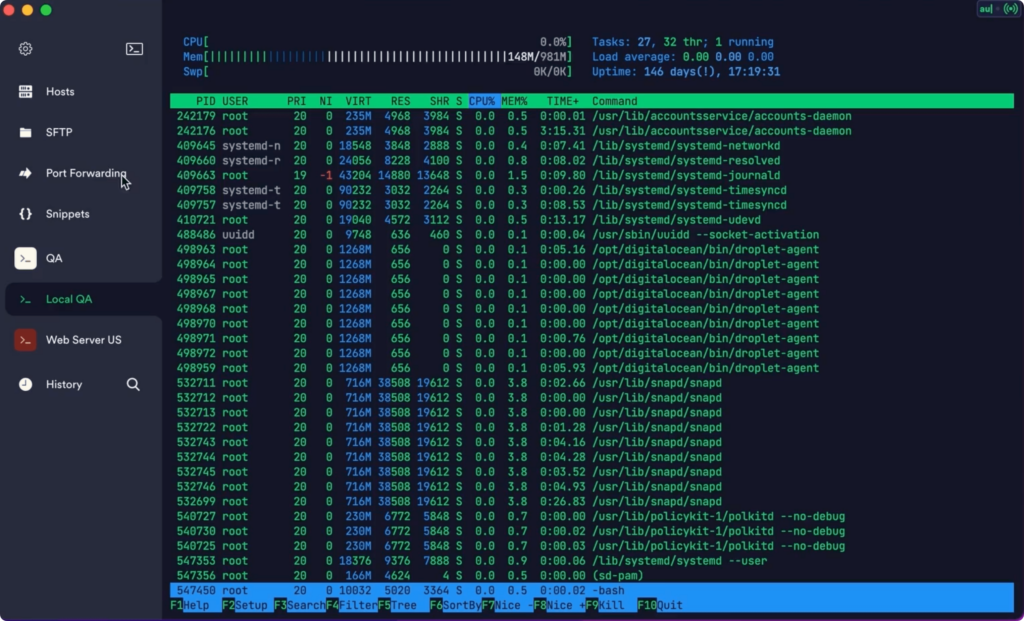
Termius ist ein moderner SSH-Client, der für Ingenieure entwickelt wurde, die Infrastruktur auf verschiedenen Geräten verwalten müssen. Er bietet Funktionen wie verschlüsselte Cloud-Tresore, Autovervollständigung für Befehle und Echtzeit-Multiplayer-Unterstützung, um die Produktivität zu steigern.
Warum ich Termius ausgewählt habe: Termius zeichnet sich durch plattformübergreifende Synchronisierung aus, sodass Ihr Team nahtlos auf Mobilgeräten und Desktop-Computern arbeiten kann. Der sichere Cloud-Tresor sorgt dafür, dass Ihre Daten über alle Plattformen hinweg zugänglich und geschützt sind. Die Autovervollständigung erleichtert die Eingabe von Befehlen und spart Zeit im täglichen Betrieb. Die Echtzeit-Multiplayer-Unterstützung ermöglicht es Ihnen, sofort mit Ihrem Team zusammenzuarbeiten, unabhängig vom Standort.
Herausragende Funktionen & Integrationen:
Zu den Funktionen gehören ein verschlüsselter Cloud-Tresor zur sicheren Datensynchronisierung, der gewährleistet, dass Ihre Informationen sicher und leicht zugänglich sind. Die Autovervollständigung für Befehle reduziert Fehler und beschleunigt Ihren Arbeitsablauf. Die Echtzeit-Multiplayer-Unterstützung ermöglicht die Zusammenarbeit mit Teammitgliedern von überall.
Integrationen umfassen GitHub, GitLab, Bitbucket, Git, Docker, AWS, Azure, Google Cloud und DigitalOcean.
Pros and Cons
Pros:
- Sicherer Cloud-Tresor
- Plattformübergreifende Synchronisierung
- Autovervollständigung von Befehlen
Cons:
- Abo-Modell
- Internetverbindung für Synchronisierung erforderlich

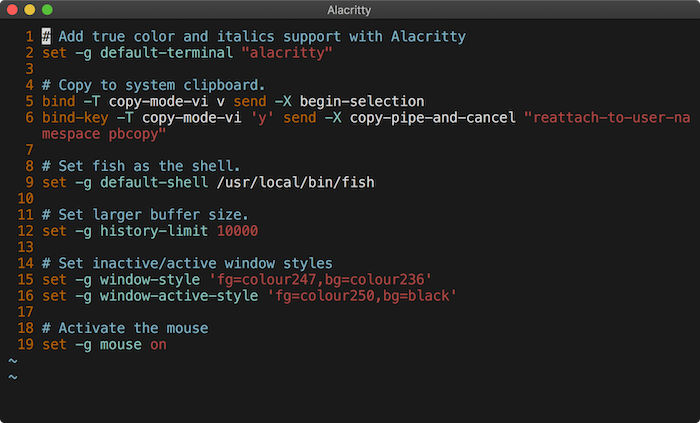
Alacritty ist ein schlanker Terminal-Emulator, der für Anwender entwickelt wurde, die Geschwindigkeit und Effizienz schätzen. Er richtet sich an Entwickler und Systemadministratoren, die ein schnelles und unkompliziertes Terminal für tägliche Aufgaben benötigen.
Warum ich Alacritty gewählt habe: Es bietet unvergleichliche Geschwindigkeit und Einfachheit und ist damit ideal für Nutzer, denen ein schnörkelloses Terminalerlebnis wichtig ist. Das Tool ist GPU-beschleunigt und sorgt so für flüssiges und schnelles Rendering. Das minimalistische Design konzentriert sich auf Leistung und verzichtet auf unnötigen Ballast. Das Erscheinungsbild kann bis zu einem gewissen Grad angepasst werden, aber der Hauptvorteil liegt in seiner Effizienz.
Herausragende Funktionen & Integrationen:
Funktionen umfassen GPU-Beschleunigung, die eine überlegene Leistung und Rendergeschwindigkeit bietet. Die Konfiguration des Tools ist unkompliziert, sodass Sie Einstellungen einfach über eine einfache Datei anpassen können. Es unterstützt dynamisches Textrendering, was jederzeit für Klarheit und Lesbarkeit sorgt.
Integrationen umfassen Wayland, X11, macOS, Linux, BSD, Windows, Rust, Cargo und OpenGL.
Pros and Cons
Pros:
- Einfache Konfiguration
- Schnelle Rendergeschwindigkeiten
- Minimalistisches Design
Cons:
- Erfordert manuelle Konfiguration
- Begrenzte Anpassungsmöglichkeiten

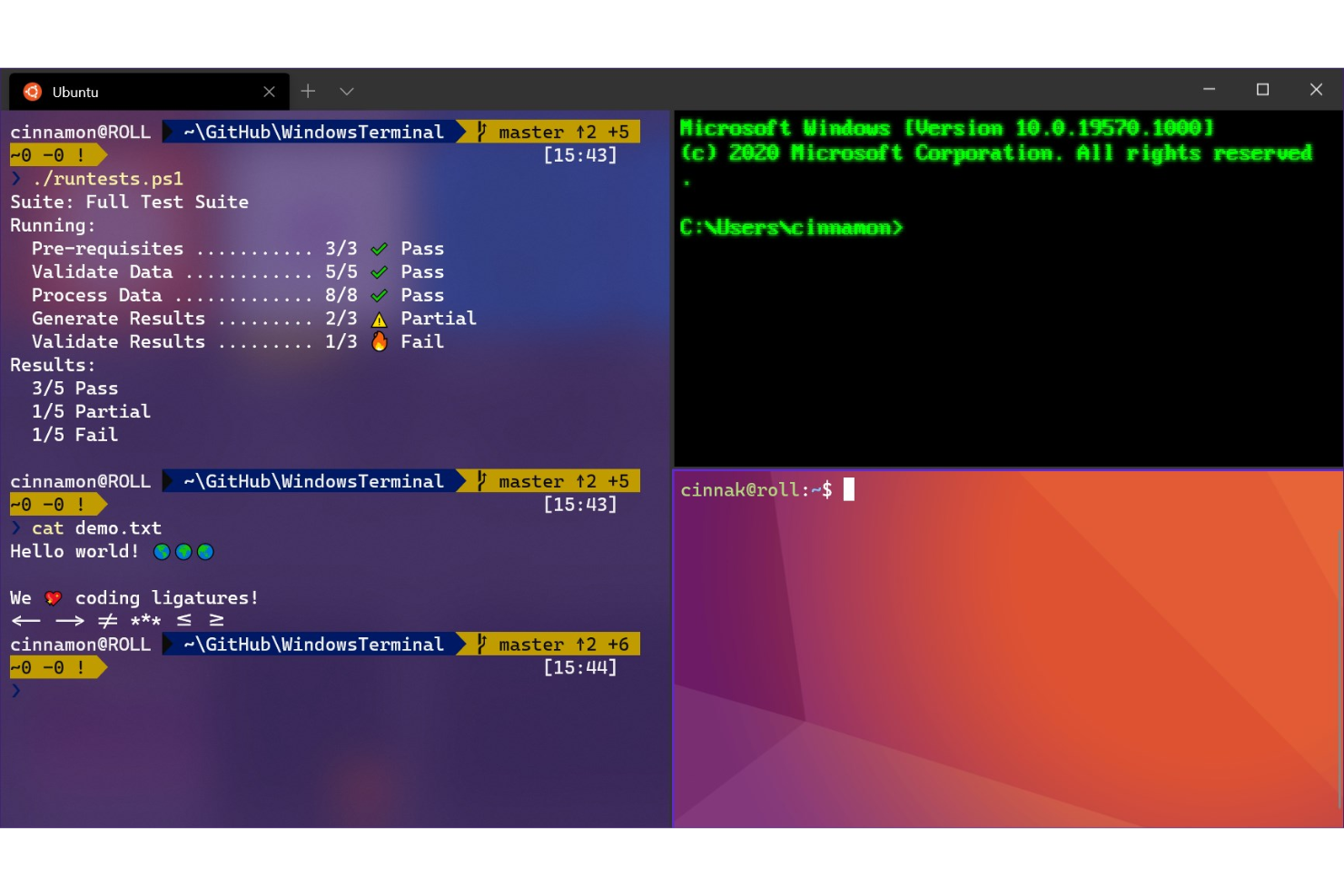
Windows Terminal ist eine moderne Anwendung, die für Nutzer der Befehlszeile entwickelt wurde, die verschiedene Shells und Werkzeuge an einem Ort nutzen möchten. Sie wird von Entwicklern, IT-Teams und Power-Usern verwendet, die verschiedene Befehlszeilenumgebungen in einem einzigen Arbeitsbereich ausführen müssen. Das Tool unterstützt die Produktivität, indem es das Verwalten und Wechseln zwischen Aufgaben erleichtert, ohne den Arbeitsplatz zu überladen.
Warum ich Windows Terminal gewählt habe: Es ermöglicht das Öffnen mehrerer Tabs und das Anpassen von Layouts, sodass Sie genauso arbeiten können, wie es Ihnen am besten passt. Sie können Schriftarten, Farben und Hintergrundbilder personalisieren, um Ihren Arbeitsbereich individuell zu gestalten. Das Tool unterstützt Unicode und GPU-beschleunigtes Rendering von Texten, was eine flüssige und klare Textdarstellung ermöglicht. Sie können zudem eigene Tastenkombinationen anlegen, um Ihren Arbeitsablauf zu beschleunigen.
Herausragende Funktionen & Integrationen:
Funktionen beinhalten eine geteilte Fensteransicht, mit der Sie verschiedene Shells nebeneinander laufen lassen können. Einstellungen lassen sich in einer einfachen JSON-Datei speichern, die Sie schnell im Team teilen oder aktualisieren können. Die Suchfunktion erleichtert es, Ausgaben in langen Protokolldateien zu finden.
Integrationen umfassen die Eingabeaufforderung, PowerShell, Azure Cloud Shell, Windows Subsystem für Linux, Git Bash und SSH.
Pros and Cons
Pros:
- Führt mehrere Shells in einem Fenster aus
- Geschmeidige Texte mit GPU-Beschleunigung
- Anpassbare Layouts und Designs
Cons:
- Benötigt Bearbeitung der JSON-Datei für Einstellungen
- Kann auf älteren PCs schwerfällig wirken

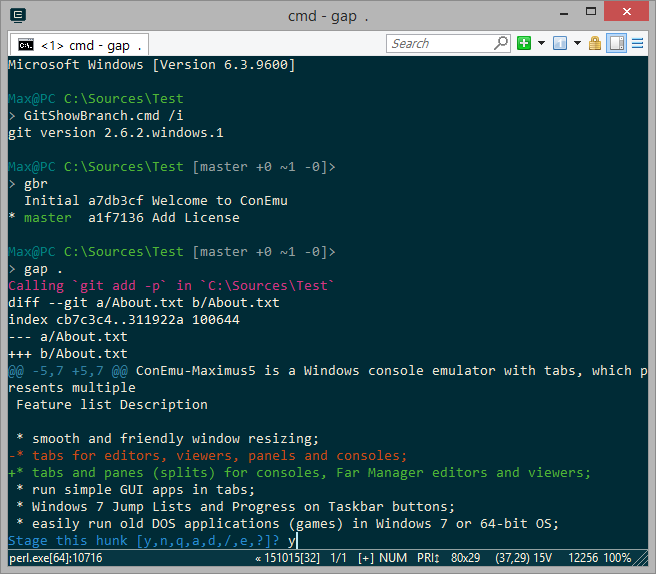
ConEmu ist ein Terminalemulator, der für Windows-Nutzer entwickelt wurde, die Flexibilität in ihrer Befehlszeilenschnittstelle benötigen. Er unterstützt mehrere Konsolenanwendungen in Tabs und bietet ein hohes Maß an Anpassungsmöglichkeiten.
Warum ich mich für ConEmu entschieden habe: Es bietet umfangreiche Anpassungsoptionen für Windows-Umgebungen und ist damit ideal für Nutzer, die maßgeschneiderte Oberflächen benötigen. Das Erscheinungsbild und Verhalten von Tabs und Fenstern lässt sich individuell an den eigenen Arbeitsablauf anpassen. Es unterstützt mehrere Konsolen und einfache GUI-Anwendungen, was die Integration mit verschiedenen Tools ermöglicht. Die Möglichkeit, Hotkeys und Makros individuell festzulegen, steigert die Produktivität für Anwender, die spezielle Konfigurationen benötigen.
Herausragende Funktionen & Integrationen:
Funktionen beinhalten anpassbare Farbschemata, mit denen du die visuelle Oberfläche nach deinem Geschmack gestalten kannst. Es unterstützt mehrere Konsolen in Tabs, sodass du verschiedene Aufgaben in einem Fenster verwalten kannst. Die Integration von einfachen GUI-Anwendungen ermöglicht es, grafische Tools neben der Befehlszeilenschnittstelle auszuführen.
Integrationen umfassen Git, Bash, Powershell, Cygwin, MSYS, MinGW, PuTTY, CMD, TCC und WSL.
Pros and Cons
Pros:
- Unterstützt mehrere Konsolen
- Hochgradig anpassbare Oberfläche
- Individualisierbare Hotkeys
Cons:
- Begrenzte native Funktionen
- Nur für Windows verfügbar

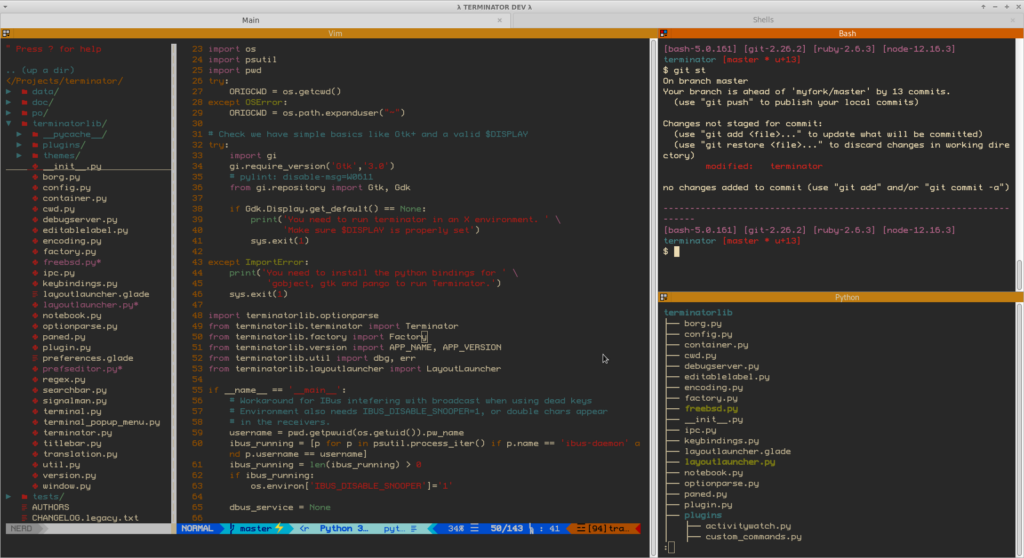
GNOME Terminal ist ein Terminal-Emulator, der speziell für Nutzer der GNOME-Desktopumgebung entwickelt wurde. Er bietet grundlegende Befehlszeilenfunktionen, mit denen Entwickler und Systemadministratoren Aufgaben effizient verwalten können.
Warum ich GNOME Terminal ausgewählt habe: Es integriert sich nahtlos in die GNOME-Desktopumgebung und bietet ein einheitliches Nutzererlebnis. Sie können das Erscheinungsbild und Verhalten des Terminals individuell an Ihren Arbeitsstil anpassen. Dank der Unterstützung für mehrere Tabs können Sie gleichzeitig mehrere Sitzungen verwalten. Die Kompatibilität mit GNOME sorgt für eine reibungslose und effiziente Nutzung.
Hervorstechende Funktionen & Integrationen:
Funktionen wie die Unterstützung mehrerer Profile ermöglichen es Ihnen, verschiedene Terminalkonfigurationen zu erstellen und einfach zwischen ihnen zu wechseln. Das Tool bietet zahlreiche Anpassungsmöglichkeiten, mit denen Sie das Aussehen und das Verhalten individuell gestalten können. Die Fähigkeit, mehrere Tabs zu handhaben, hilft Ihnen dabei, Ihre Aufgaben zu organisieren, ohne Ihren Arbeitsplatz zu überladen.
Integration umfasst GNOME Shell, Nautilus, D-Bus, GLib, GSettings, VTE, GTK, Pango, Cairo und GObject.
Pros and Cons
Pros:
- Nahtlose GNOME-Integration
- Unterstützung mehrerer Profile
- Anpassbare Oberfläche
Cons:
- Begrenzt auf GNOME-Nutzer
- Weniger geeignet für andere Desktopumgebungen als GNOME

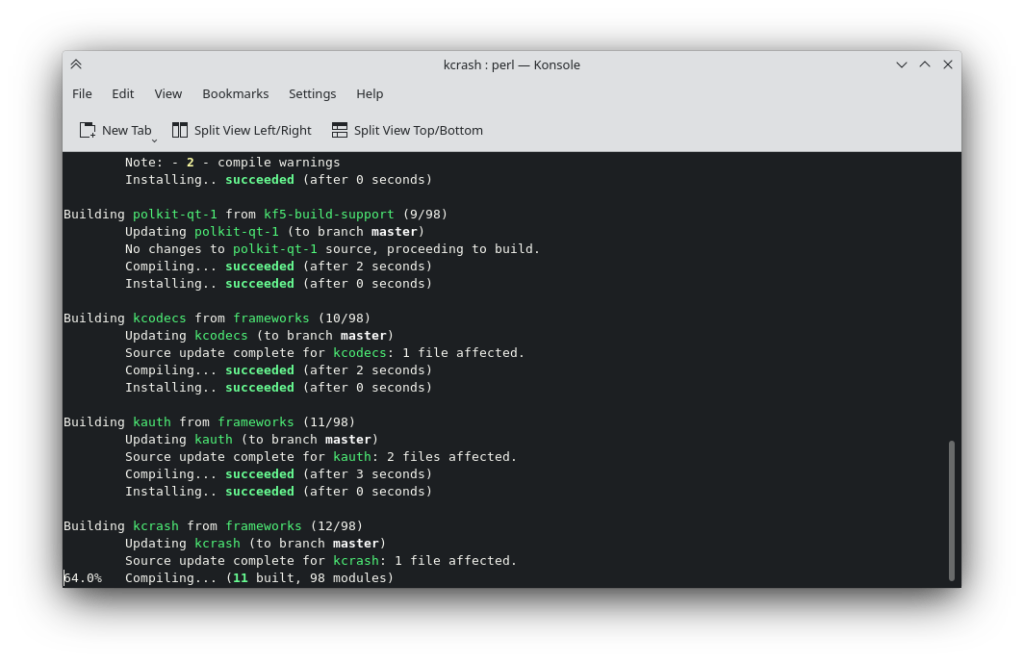
Konsole ist ein Terminal-Emulator, der speziell für Nutzer der KDE-Desktop-Umgebung entwickelt wurde. Er bietet alle grundlegenden Terminalfunktionen und ermöglicht das effiziente Ausführen von Befehlen und Skripten.
Warum ich Konsole gewählt habe: Es lässt sich nahtlos in den KDE-Desktop integrieren und ist somit die natürliche Wahl für Anwender dieses Ökosystems. Sie können die Terminal-Oberfläche individuell anpassen, um Ihren Arbeitsablauf zu optimieren. Funktionen wie geteilte Ansichten und Tabbed-Browsing bieten Flexibilität beim Bearbeiten mehrerer Aufgaben. Die Kompatibilität von Konsole mit KDE sorgt für eine reibungslose und einheitliche Nutzungserfahrung.
Herausragende Funktionen & Integrationen:
Funktionen beinhalten die Unterstützung für geteilte Ansichten, wodurch Sie mehrere Terminals in einem einzigen Fenster anzeigen können. Mit Tabbed-Browsing lassen sich verschiedene Sitzungen leicht verwalten und Ihr Arbeitsbereich bleibt übersichtlich. Dank der Möglichkeit, das Erscheinungsbild anzupassen, richten Sie Konsole ganz nach Ihren Wünschen ein.
Integrationen umfassen KDE Frameworks, Plasma, KIO, KParts, KTextEditor, KConfig, KCoreAddons, Qt, D-Bus und OpenSSL.
Pros and Cons
Pros:
- Nahtlose KDE-Integration
- Anpassbares Erscheinungsbild
- Unterstützung für geteilte Ansichten
Cons:
- KDE-Umgebung erforderlich
- Weniger Unterstützung für andere Desktops

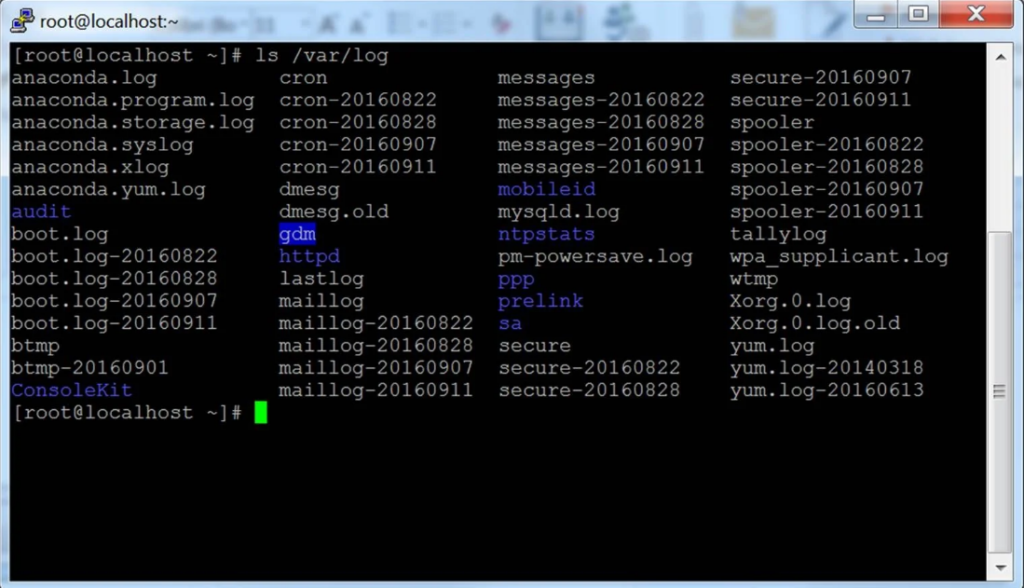
PuTTY ist ein vielseitiger Terminal-Emulator, der von Nutzern bevorzugt wird, die über verschiedene Netzwerkprotokolle eine Verbindung zu entfernten Systemen herstellen müssen. Er wird von IT-Fachkräften und Netzwerkadministratoren häufig für die Verwaltung von Servern und Netzwerkgeräten eingesetzt.
Warum ich PuTTY ausgewählt habe: Es unterstützt eine breite Palette von Netzwerkprotokollen, darunter SSH, Telnet und Rlogin, was es zu einer vielseitigen Wahl für die Verbindung mit unterschiedlichen Systemen macht. Sie können die Sitzungsoptionen problemlos konfigurieren, um sie an Ihre Anforderungen anzupassen und so Ihren Workflow zu optimieren. Die Einfachheit und schlanke Gestaltung des Tools machen es für Anfänger ebenso zugänglich wie für fortgeschrittene Anwender. Die Open-Source-Natur ermöglicht gemeinschaftsgetriebene Verbesserungen und Anpassungen.
Herausragende Funktionen & Integrationen:
Funktionen beinhaltet eine übersichtliche Benutzeroberfläche, welche den Prozess der Herstellung von Remote-Verbindungen vereinfacht. Das Tool bietet umfangreiche Einstellungsmöglichkeiten zur Konfiguration, sodass Sie Ihre Sitzungen nach Bedarf maßschneidern können. Es enthält auch einen integrierten Terminal-Emulator, der ein konsistentes Erlebnis auf verschiedenen Plattformen bietet.
Integrationen umfassen SSH, Telnet, Rlogin, SCP, SFTP, Seriell, Windows, Unix, Linux und MacOS.
Pros and Cons
Pros:
- Leichtgewichtig und schnell
- Umfangreiche Protokollunterstützung
- Open Source für Anpassungen
Cons:
- Keine native Tab-Unterstützung
- Erfordert manuelle Konfiguration

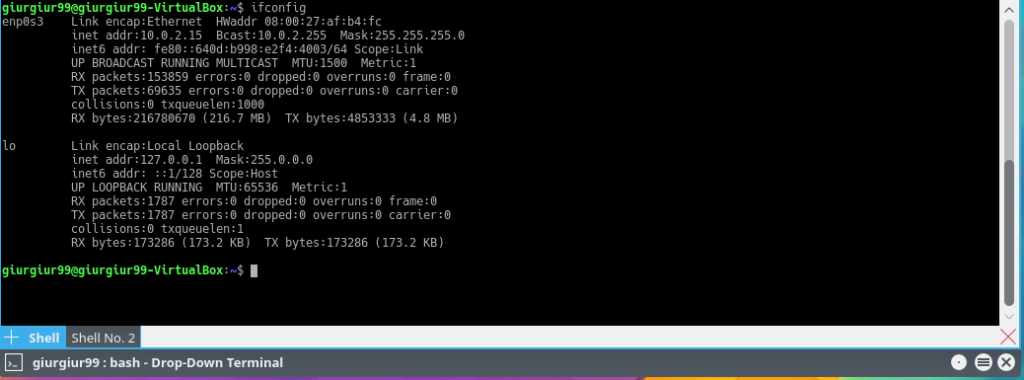
Yakuake ist ein Dropdown-Terminal-Emulator, der für Nutzer der KDE-Desktopumgebung entwickelt wurde. Er bietet schnellen Zugriff auf Terminal-Sitzungen und ist damit ideal für Entwickler und Systemadministratoren, die effizient multitasken müssen.
Warum ich Yakuake gewählt habe: Es verfügt über eine einzigartige Dropdown-Oberfläche, die den Zugriff auf das Terminal mit nur einem Tastendruck ermöglicht und so die Produktivität steigert. Sie können das Aussehen und Verhalten des Terminals an Ihre Vorlieben anpassen. Die nahtlose Integration mit dem KDE-Desktop sorgt für ein reibungsloses Nutzungserlebnis. Mit der Möglichkeit, mehrere Tabs zu verwalten, behalten Sie Ihre Aufgaben stets organisiert und zugänglich.
Herausragende Funktionen & Integrationen:
Funktionen beinhalten die Möglichkeit, das Terminalfenster zu teilen, sodass Sie mehrere Sitzungen gleichzeitig anzeigen und verwalten können. Die Transparenz des Terminals ist einstellbar, wodurch Sie den Fokus auf Ihre Hauptaufgaben behalten. Die anpassbaren Tastenkombinationen des Tools ermöglichen schnellen Zugriff auf verschiedene Funktionen und steigern so die Effizienz Ihres Workflows.
Integrationen umfassen KDE Frameworks, Plasma, Konsole, KWin, KIO, KParts, KConfig, Qt, D-Bus und KNotifications.
Pros and Cons
Pros:
- Schneller Dropdown-Zugriff
- Individuell anpassbares Erscheinungsbild
- Verwaltung mehrerer Tabs
Cons:
- Nur in der KDE-Umgebung nutzbar
- Setzt eine KDE-Desktop-Installation voraus

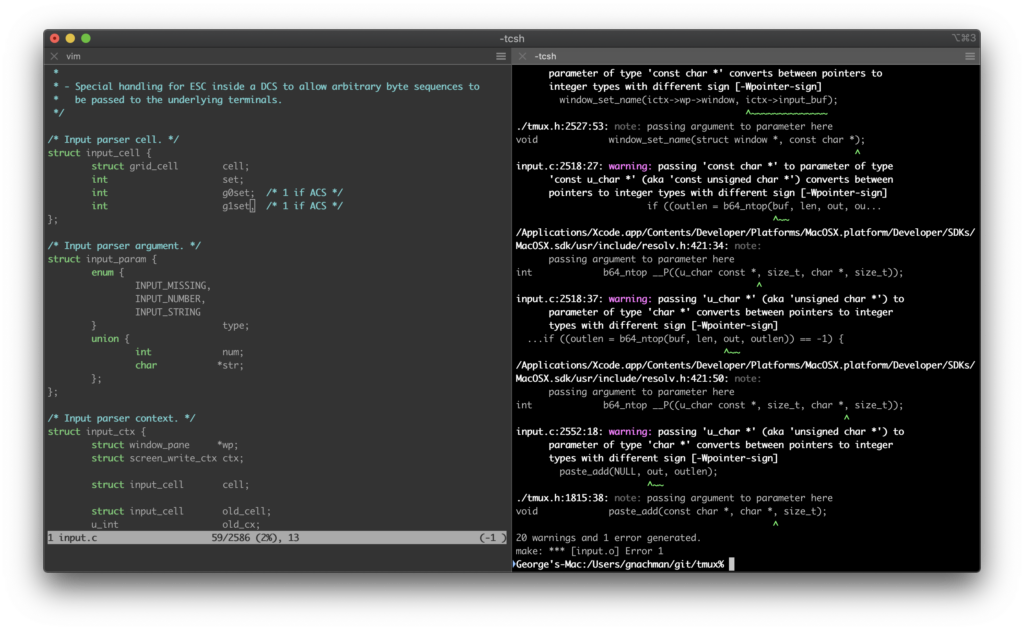
iTerm2 ist ein Terminal-Emulator, der speziell für macOS-Benutzer entwickelt wurde, die erweiterte Terminalfunktionen benötigen. Er bietet eine intuitive Oberfläche zur Ausführung von Befehlen und zum effizienten Verwalten von Aufgaben auf Apple-Geräten.
Warum ich iTerm2 ausgewählt habe: Es bietet eine tiefe Integration mit macOS und stellt Funktionen bereit, die das Benutzererlebnis auf Apple-Geräten verbessern. Sie können Fensterbereiche innerhalb eines einzigen Fensters aufteilen, um effektiv Multitasking zu betreiben. Das Tool unterstützt umfangreiche Anpassungen, sodass Sie das Terminal an Ihre Bedürfnisse anpassen können. Die Hotkey-Fensterfunktion gibt Ihnen schnellen Zugriff auf ein Terminal, ohne Ihren Arbeitsfluss zu unterbrechen.
Hervorstechende Funktionen & Integrationen:
Funktionen beinhalten fortschrittliche Suchfunktionen, mit denen Sie Text in Ihrem Terminalverlauf einfach finden können. Die Zwischenablage-Historie hilft Ihnen, zuvor kopierten Text effizient zu verwalten und abzurufen. Sie können außerdem Trigger verwenden, um Aufgaben basierend auf bestimmten Textausgaben zu automatisieren.
Integrationen umfassen AppleScript, Automator, Shell-Integration, Python, Perl, Ruby, Bash, Zsh, Fish und Cocoa.
Pros and Cons
Pros:
- Erweiterte Suchfunktionen
- Tiefe macOS-Integration
- Geteilte Fensterbereiche für Multitasking
Cons:
- Komplexe Konfigurationsoptionen
- Nur macOS-Unterstützung

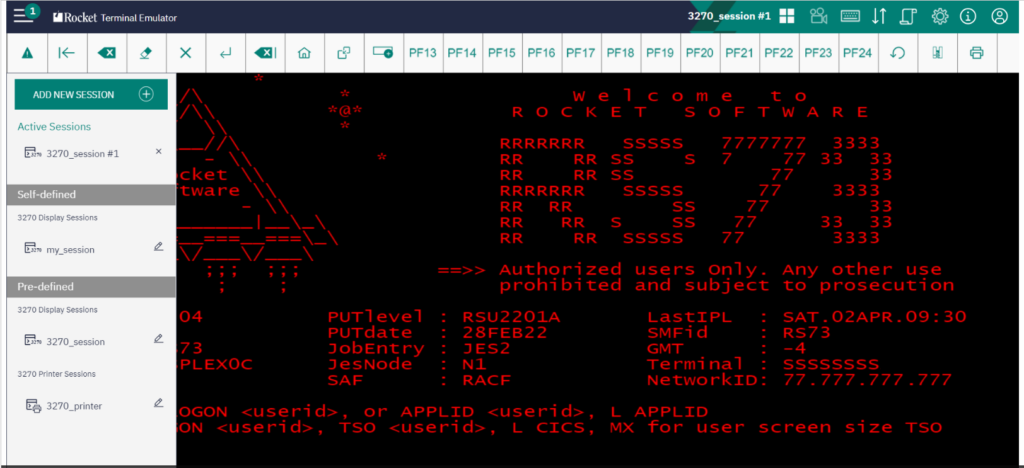
Rocket Terminal Emulator ist ein Terminal-Emulator in Unternehmensqualität, der für große Organisationen entwickelt wurde, die einen sicheren und zuverlässigen Zugang zu Altsystemen benötigen. Er dient IT-Abteilungen, indem er eine effiziente Terminal-Emulation über verschiedene Plattformen hinweg ermöglicht.
Warum ich Rocket Terminal Emulator gewählt habe: Er bietet umfassende Unternehmenslösungen und ist daher für groß angelegte Implementierungen geeignet. Sie können die Benutzeroberfläche individuell an die Anforderungen Ihres Unternehmens anpassen, was die Nutzererfahrung verbessert. Das Tool unterstützt mehrere Protokolle und stellt so die Kompatibilität mit unterschiedlichen Systemen sicher. Die robusten Sicherheitsfunktionen schützen sensible Daten während der Terminalsitzungen.
Herausragende Funktionen & Integrationen:
Funktionen umfassen fortschrittliche Sicherheitsmaßnahmen zum Schutz von Daten bei Fernzugriff, was für Unternehmen entscheidend ist. Das Tool bietet umfassende Anpassungsmöglichkeiten, damit Sie die Oberfläche an die Standards Ihrer Organisation anpassen können. Es unterstützt zudem eine breite Palette von Terminalemulations-Protokollen und sorgt so für Kompatibilität mit verschiedenen Systemen.
Integrationen umfassen IBM i, IBM z, UNIX, Linux, Windows Server, Microsoft Azure, Amazon Web Services, Oracle Cloud, Google Cloud und Salesforce.
Pros and Cons
Pros:
- Sicherheitsstandards auf Unternehmensniveau
- Unterstützt mehrere Protokolle
- Anpassbare Benutzeroberfläche
Cons:
- Komplexer Einrichtungsprozess
- Erfordert technisches Fachwissen

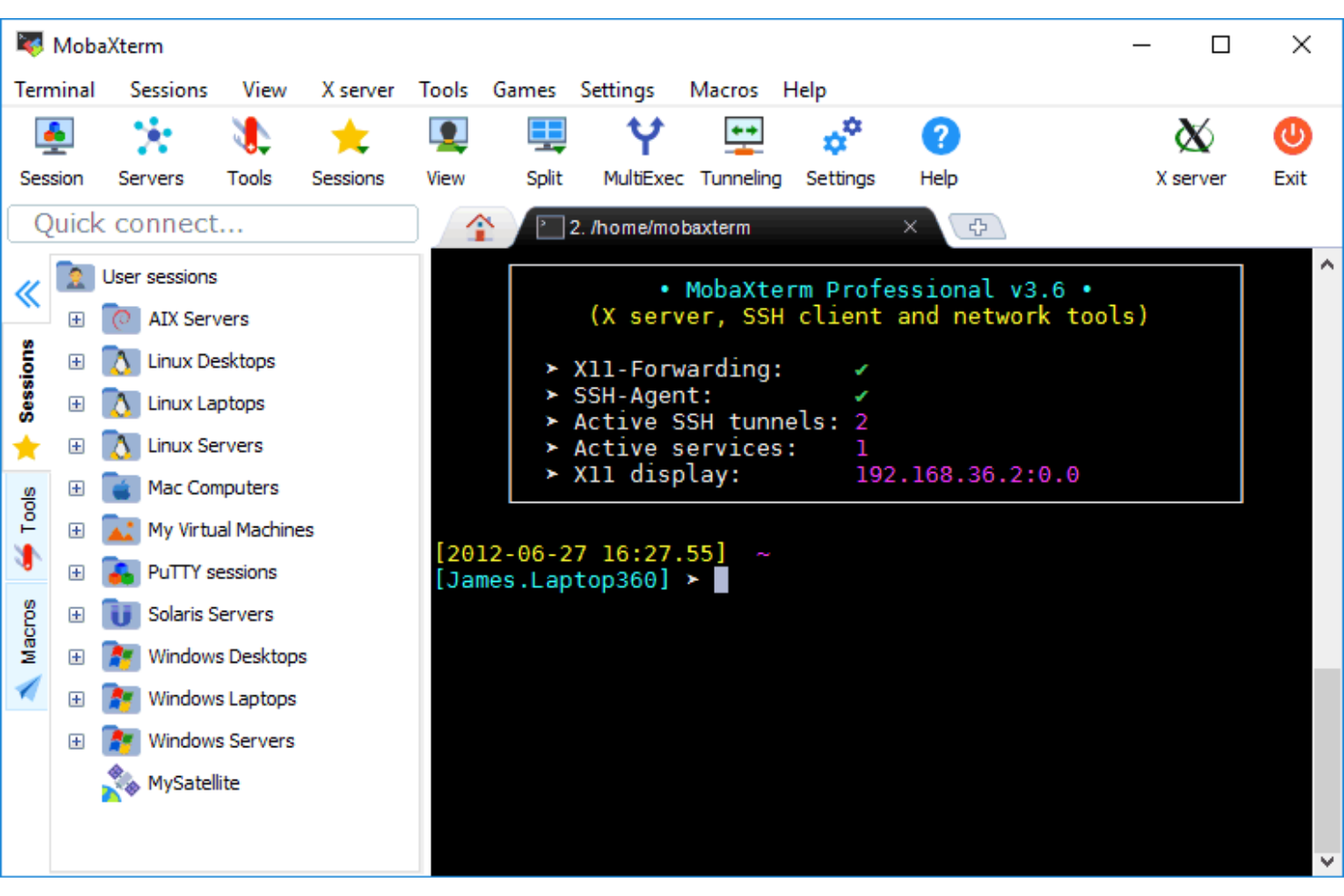
MobaXterm ist eine Softwareanwendung, die entwickelt wurde, um Nutzern eine vollständige Umgebung für das Remote-Computing bereitzustellen. Sie ist für Fachleute konzipiert, die Zugriff auf mehrere Netzwerkinstrumente und Serververwaltungsfunktionen an einem Ort benötigen. Das Tool unterstützt eine Vielzahl von Aufgaben, von Remote-Sitzungen bis hin zum Dateitransfer.
Warum ich MobaXterm ausgewählt habe:
MobaXterm bietet Ihnen Unterstützung für Remote-Sitzungen wie SSH, RDP und VNC sowie integrierte Netzwerkbefehle. Sie können Dateien einfach über den grafischen SFTP-Browser verwalten, während Sie auf Remote-Servern arbeiten. Außerdem sind nützliche Unix-Befehle enthalten, sodass Sie für grundlegende Aufgaben nicht das Werkzeug wechseln müssen.
Hervorstechende Funktionen & Integrationen:
Funktionen umfassen einen Sitzungsmanager, mit dem Sie Remote-Systeme schnell organisieren und verbinden können. Außerdem können Sie mit der Multi-Execution-Funktion Befehle gleichzeitig an mehrere Server senden. Die portable Edition ermöglicht es Ihnen, MobaXterm ohne Installation auszuführen und bietet somit Flexibilität.
Integrationen umfassen X11-Server, SSH, RDP, VNC, FTP, SFTP, Telnet, Rlogin, Serial und Xdmcp.
Pros and Cons
Pros:
- Portable Edition benötigt keine Installation
- Unterstützt viele Remote-Protokolle
- Eingebaute Unterstützung für Unix-Befehle
Cons:
- Kann anfangs überwältigend wirken
- Einstellungen müssen manuell angepasst werden

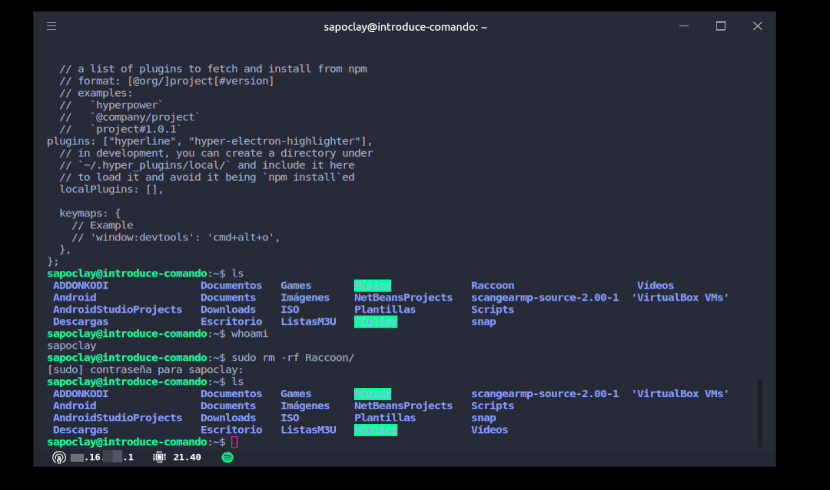
Hyper ist ein Open-Source-Terminalemulator, der für Entwickler entwickelt wurde, die Wert auf Anpassungsfähigkeit und Erweiterbarkeit legen. Er übernimmt grundlegende Terminalfunktionen und ermöglicht es den Nutzern, seine Fähigkeiten durch Plugins zu erweitern.
Warum ich Hyper ausgewählt habe: Es bietet umfassende Plugin-Unterstützung, sodass Sie das Terminal auf Ihre spezifischen Bedürfnisse zuschneiden können. Entwickler können problemlos Plugins erstellen oder installieren, um neue Funktionen hinzuzufügen oder die Benutzeroberfläche zu individualisieren. Diese Flexibilität macht Hyper ideal für Teams, die bestimmte Funktionalitäten benötigen. Außerdem werden Themes unterstützt, wodurch Sie das Aussehen und das Gefühl Ihres Terminals personalisieren können.
Hervorstechende Funktionen & Integrationen:
Funktionen umfassen eine umfangreiche Theme-Bibliothek mit verschiedensten visuellen Stilen für jeden Geschmack. Das Tool basiert auf Webtechnologien, was es Entwicklern einfach macht, Erweiterungen zu erstellen und Modifikationen vorzunehmen. Dank plattformübergreifender Fähigkeiten können Sie es auf unterschiedlichen Betriebssystemen ohne Kompatibilitätsprobleme nutzen.
Integrationen beziehen sich auf Git, Bash, Zsh, Fish, Tmux, Node.js, npm, Yarn, Electron und React.
Pros and Cons
Pros:
- Umfangreiche Plugin-Unterstützung
- Leicht anpassbar
- Plattformübergreifende Fähigkeiten
Cons:
- Leistung kann variieren
- Begrenzte native Funktionen


SecureCRT ist eine Softwareanwendung, die für Fachleute entwickelt wurde, die zuverlässige Fernverbindungen zu Systemen und Geräten benötigen. Sie wird von Teams eingesetzt, die einen sicheren Zugriff zur Verwaltung von Servern, Netzwerkausrüstung und anderen Ressourcen benötigen. Das Tool unterstützt wichtige Kommunikations- und Verwaltungsaufgaben in einer einzigen Umgebung.
Warum ich SecureCRT ausgewählt habe: Es bietet Ihnen starke Verschlüsselung und sichere Protokolle wie SSH1, SSH2 und Telnet, sodass Sie sicher auf entfernte Systeme zugreifen können. Sie können das Sitzungsmanagement individuell an Ihre Arbeitsweise und die Ihres Teams anpassen. Das Tool ermöglicht es Ihnen außerdem, mit Skripten wiederkehrende Aufgaben zu automatisieren. Es hilft, sensible Vorgänge sicher zu halten und gibt Ihnen dennoch die Flexibilität, verschiedene Systeme zu verwalten.
Herausragende Funktionen & Integrationen:
Funktionen beinhalten Sitzungsmanagement, mit dem Sie Verbindungen einfach speichern und organisieren können. Sie können Sitzungen für Dokumentations- oder Fehlerbehebungszwecke protokollieren. Die Software unterstützt außerdem fortschrittliche Tastaturbelegung, sodass Sie die Steuerung Ihren Bedürfnissen anpassen können.
Integrationen umfassen SSH1, SSH2, Telnet, Rlogin, Serial, TAPI, RAW und SFTP.
Pros and Cons
Pros:
- Funktioniert mit vielen Verbindungsprotokollen
- Ermöglicht Automatisierung mit Skripten
- Zuverlässig für lange Fernsitzungen
Cons:
- Einrichtung kann technisch wirken
- Aktualisierungen nicht sehr häufig


Tabby ist ein Terminal-Emulator, der sich an Entwickler und IT-Fachkräfte richtet, die zuverlässige SSH- und serielle Verbindungen benötigen. Er ermöglicht sicheren Fernzugriff und die Verwaltung von Systemen über Netzwerke hinweg.
Warum ich Tabby gewählt habe: Tabby zeichnet sich durch hervorragende SSH- und serielle Unterstützung aus und ist damit unverzichtbar für IT-Teams, die entfernte Server verwalten. Sie können mühelos mehrere Sitzungen parallel führen, was besonders beim Multitasking wichtig ist. Die Anpassungsoptionen des Tools erlauben es, die Benutzeroberfläche individuell zu gestalten. Ein Pluginsystem erweitert die Funktionalität und Anpassungsfähigkeit zusätzlich.
Herausragende Funktionen & Integrationen:
Funktionen wie eine Registerkarten-Oberfläche ermöglichen es, mehrere Sitzungen effizient zu organisieren und zwischen ihnen zu wechseln. Das Tool unterstützt geteilte Fenster, sodass Sie mehrere Terminalansichten gleichzeitig betrachten können. Anpasbare Themes erlauben es, das visuelle Erlebnis ganz nach Ihrem Geschmack zu gestalten.
Integrationen umfassen SSH, Telnet, Seriell, SFTP, SCP, PowerShell, CMD, WSL, Git und Docker.
Pros and Cons
Pros:
- Zuverlässige SSH-Unterstützung
- Unterstützt serielle Verbindungen
- Einfache Sitzungsverwaltung
Cons:
- Kann ressourcenintensiv sein
- Die Ersteinrichtung kann komplex sein


Flynet Viewer TE ist ein webbasiertes Terminal-Emulationsprogramm, das für Unternehmen entwickelt wurde, die ihre Altsysteme auf moderne Webschnittstellen umstellen möchten. Es dient Unternehmen, indem es einen Remote-Zugriff auf Mainframe- und Midrange-Systeme über einen Browser ermöglicht.
Warum ich mich für Flynet Viewer TE entschieden habe: Es bietet einen einzigartigen webbasierten Ansatz, sodass Ihr Team Terminal-Sitzungen direkt über einen Browser nutzen kann, ohne zusätzliche Software installieren zu müssen. Sie können es einfach in bestehende IT-Umgebungen integrieren, was es zu einer flexiblen Wahl für Unternehmen macht. Die Möglichkeit, mehrere Sitzungen gleichzeitig zu unterstützen, steigert die Produktivität. Der Fokus des Tools auf Sicherheit stellt sicher, dass sensible Daten beim Remote-Zugriff geschützt bleiben.
Herausragende Funktionen & Integrationen:
Funktionen beinhalten eine anpassbare Benutzeroberfläche, mit der Sie das Erscheinungsbild an Ihr Unternehmensbranding anpassen können. Sitzungsaufzeichnung ermöglicht die Nachverfolgung und Überprüfung von Aktivitäten zu Compliance- und Schulungszwecken. Das Tool unterstützt mehrere Sprachen, was die Nutzung in vielfältigen Teams erleichtert.
Integrationen umfassen IBM i, IBM z, UNIX, Linux, Windows Server, Microsoft Azure, Amazon Web Services, Oracle Cloud, Google Cloud und Salesforce.
Pros and Cons
Pros:
- Webbasierter Zugriff
- Unterstützt mehrere Sitzungen
- Anpassbare Benutzeroberfläche
Cons:
- Erfordert stabile Internetverbindung
- Abhängigkeit von der Browser-Kompatibilität
Auswahlkriterien für Terminal-Emulatoren
Bei der Auswahl der besten Terminal-Emulatoren für diese Liste habe ich die häufigsten Bedürfnisse und Schmerzpunkte von Käufern berücksichtigt, etwa die Kompatibilität mit Betriebssystemen und Möglichkeiten zur Anpassung. Außerdem habe ich folgendes Bewertungsraster genutzt, um die Beurteilung strukturiert und fair zu gestalten:
Kernfunktionen (25 % der Gesamtbewertung)
Um auf dieser Liste zu erscheinen, musste jede Lösung diese gängigen Anwendungsfälle abdecken:
- Zugriff auf entfernte Server
- Befehlsausführung
- Dateiübertragung
- Sitzungsverwaltung
- Unterstützung für Netzwerkprotokolle
Besondere Zusatzfunktionen (25 % der Gesamtbewertung)
Um die Auswahl weiter einzuschränken, habe ich außerdem nach einzigartigen Eigenschaften gesucht, wie:
- GPU-Beschleunigung
- Ausklappbare Oberfläche
- Kachel-Management von Fenstern
- Erweiterte Skriptfunktionen
- Plattformübergreifende Kompatibilität
Benutzerfreundlichkeit (10 % der Gesamtbewertung)
Um die Benutzerfreundlichkeit jeder Lösung einzuschätzen, habe ich dabei folgende Punkte bewertet:
- Intuitive Benutzeroberfläche
- Anpassungsmöglichkeiten
- Einfache Navigation
- Lernkurve
- Barrierefreiheitsfunktionen
Einstieg (10 % der Gesamtbewertung)
Um die Einarbeitungsphase jeder Plattform zu bewerten, habe ich auf folgende Aspekte geachtet:
- Verfügbarkeit von Trainingsvideos
- Interaktive Produkttouren
- Benutzerfreundliche Dokumentation
- Zugang zu Webinaren
- Unterstützende Community-Foren
Kundenservice (10 % der Gesamtbewertung)
Um die Kundensupport-Dienste jedes Softwareanbieters zu beurteilen, habe ich folgende Kriterien berücksichtigt:
- Verfügbarkeit von Live-Chat-Support
- Reaktionsschnelligkeit des E-Mail-Supports
- Umfassende Wissensdatenbank
- Zugang zu Telefonsupport
- Regelmäßige Software-Updates
Preis-Leistungs-Verhältnis (10 % der Gesamtbewertung)
Um das Preis-Leistungs-Verhältnis jeder Plattform zu beurteilen, habe ich Folgendes berücksichtigt:
- Konkurrenzfähige Preisgestaltung
- Funktionsumfang im Verhältnis zu den Kosten
- Verfügbarkeit von kostenlosen Testversionen
- Skalierbarkeitsoptionen
- Kostentransparenz
Kundenbewertungen (10 % der Gesamtbewertung)
Um ein Gefühl für die allgemeine Kundenzufriedenheit zu bekommen, habe ich beim Lesen von Kundenbewertungen Folgendes berücksichtigt:
- Bewertungen zur Nutzerzufriedenheit
- Häufig gemeldete Probleme
- Häufigkeit von positivem Feedback
- Feedback zum Kundensupport
- Gesamtzuverlässigkeit des Tools
So wählen Sie einen Terminal-Emulator aus
Es ist leicht, sich in langen Funktionslisten und komplexen Preisstrukturen zu verlieren. Damit Sie während Ihres individuellen Auswahlprozesses den Überblick behalten, finden Sie hier eine Checkliste wichtiger Faktoren:
| Faktor | Was zu beachten ist |
| Skalierbarkeit | Stellen Sie sicher, dass das Tool mit Ihrem Team wachsen kann. Prüfen Sie, ob es mehrere Nutzer unterstützt und erhöhte Arbeitslasten effizient bewältigt. |
| Integration | Überprüfen Sie die Kompatibilität mit Ihren bestehenden Systemen. Achten Sie auf Unterstützung für SSH, Telnet und andere von Ihrem Team genutzte Protokolle. |
| Anpassbarkeit | Bewerten Sie, wie sehr Sie die Benutzeroberfläche anpassen können. Lassen sich Themes ändern oder Plugins ergänzen, die zu Ihrem Workflow passen? |
| Benutzerfreundlichkeit | Bewerten Sie die Lernkurve. Die Oberfläche sollte für neue Nutzer intuitiv sein und keine aufwändige Schulung zum Einstieg erfordern. |
| Budget | Stimmen Sie die Kosten des Tools auf Ihre finanziellen Ressourcen ab. Prüfen Sie, ob eine kostenlose Testversion oder gestaffelte Preispläne angeboten werden, die zu Ihrem Budget passen. |
| Sicherheitsvorkehrungen | Überprüfen Sie, ob Verschlüsselung und sichere Zugriffskontrollen vorhanden sind. Stellen Sie sicher, dass das Tool sensible Daten schützt und Ihren Sicherheitsstandards entspricht. |
| Support | Prüfen Sie die Verfügbarkeit des Kundensupports. Bietet der Anbieter Chat-, Telefon- oder E-Mail-Support, um Probleme schnell zu lösen? |
| Leistung | Beachten Sie die Geschwindigkeit und Zuverlässigkeit des Tools. Suchen Sie nach Funktionen wie GPU-Beschleunigung oder geringem Ressourcenverbrauch für einen effizienten Betrieb. |
Trends bei Terminal-Emulatoren
In meinen Recherchen habe ich zahlreiche Produkt-Updates, Pressemitteilungen und Release-Logs verschiedener Terminal-Emulator-Anbieter ausgewertet. Hier sind einige der neuen Trends, die ich besonders im Auge behalte:
- GPU-Beschleunigung: Immer mehr Terminal-Emulatoren nutzen GPU-Beschleunigung, um die Rendergeschwindigkeit zu erhöhen und die Leistung zu steigern. Das sorgt für ein flüssigeres Nutzungserlebnis, besonders bei komplexen Aufgaben. Alacritty ist bei dieser Funktion führend.
- Plattformübergreifende Unterstützung: Anbieter bieten zunehmend plattformübergreifende Kompatibilität, damit Nutzer Terminal-Emulatoren auf Windows, macOS und Linux sowie Android-Emulatoren für Mac verwenden können. Diese Flexibilität ist entscheidend für Teams, die in unterschiedlichen Umgebungen arbeiten. Tabby und Hyper sind Beispiele für Tools, die mehrere Betriebssysteme unterstützen.
- Erweiterte Skripting-Funktionen: Verbesserte Möglichkeiten zum Scripting gewinnen an Bedeutung, damit Benutzer wiederkehrende Aufgaben automatisieren und die Effizienz steigern können. Kitty bietet umfangreiche Skripting-Features, mit denen Workflows individuell angepasst werden können.
- Minimalistisches Design: Es gibt einen Trend zu minimalistischen und ablenkungsfreien Benutzeroberflächen. Dies spricht Nutzer an, die Wert auf Einfachheit und Leistung statt auf ausgefallene Features legen. Alacritty und Cool Retro Term fokussieren sich auf ein sauberes, effizientes Design.
- Dynamische Konfiguration: Immer beliebter werden Echtzeit-Konfigurationsänderungen, ohne das Terminal neu zu starten. Damit können Einstellungen direkt angepasst werden, was die Produktivität erhöht. Tools wie Tilix integrieren diese Möglichkeit sehr effektiv.
Was ist ein Terminal-Emulator?
Ein Terminal-Emulator ist eine Software, die es einem Computer ermöglicht, über eine Befehlszeilenschnittstelle einen anderen Computer aus der Ferne zu steuern und darauf zuzugreifen. IT-Fachleute, Entwickler und Netzwerkadministratoren nutzen diese Tools in der Regel, um Server und Netzwerkgeräte effizient zu verwalten.
Funktionen wie GPU-Beschleunigung, plattformübergreifende Unterstützung und erweiterte Skripting-Möglichkeiten tragen zur Steigerung der Leistung, Flexibilität und Automatisierung bei. Insgesamt bieten diese Tools eine unverzichtbare Konnektivität und Kontrolle und erhöhen die Produktivität in technischen Umgebungen.
Funktionen des Terminal-Emulators
Achten Sie bei der Auswahl eines Terminal-Emulators auf folgende Schlüsselfunktionen:
- GPU-Beschleunigung: Verbessert die Rendering-Geschwindigkeit und Leistung, sodass auch komplexe Aufgaben reibungslos verarbeitet werden können.
- Plattformübergreifende Unterstützung: Ermöglicht die Nutzung des Terminals auf verschiedenen Betriebssystemen und bietet so Flexibilität für unterschiedliche Umgebungen.
- Erweitertes Skripting: Erlaubt die Automatisierung wiederkehrender Aufgaben und steigert somit Effizienz und Produktivität.
- Minimalistisches Design: Bietet eine aufgeräumte und ablenkungsfreie Oberfläche – ideal für Nutzer, die Wert auf Einfachheit und Leistung legen.
- Dynamische Konfiguration: Gestattet Änderungen in Echtzeit ohne Neustart und erhöht dadurch die Produktivität, da Einstellungen spontan angepasst werden können.
- Unterstützung mehrerer Protokolle: Ermöglicht Verbindungen über Protokolle wie SSH, Telnet und Rlogin und sorgt so für breite Kompatibilität.
- Tabbasierte Oberfläche: Hilft, mehrere Sitzungen effizient zu organisieren und erleichtert die Navigation zwischen Aufgaben.
- Anpassungsfähigkeit: Erlaubt es, das Erscheinungsbild und die Funktionalität nach persönlichen oder organisatorischen Bedürfnissen zu gestalten.
- Sicherheitsvorkehrungen: Bietet Verschlüsselung sowie Zugangskontrollen zum Schutz sensibler Daten während Fernsitzungen.
- Sitzungsmanagement: Unterstützt Verwaltung und Pflege mehrerer Verbindungen, was für Multitasking und Workflow-Organisation unerlässlich ist.
Vorteile eines Terminal-Emulators
Die Implementierung eines Terminal-Emulators bringt zahlreiche Vorteile für Ihr Team und Ihr Unternehmen. Hier einige, auf die Sie sich freuen können:
- Erhöhte Effizienz: Erweitertes Skripting und Automatisierung verringern manuelle Tätigkeiten, sodass Ihr Team sich auf wichtigere Aufgaben konzentrieren kann.
- Flexibilität und Anpassungsfähigkeit: Plattformübergreifende Unterstützung und Anpassbarkeit sorgen dafür, dass das Terminal in Ihren Workflow passt und unter verschiedenen Betriebssystemen genutzt werden kann.
- Verbesserte Leistung: GPU-Beschleunigung erhöht die Geschwindigkeit und Darstellung, sodass komplexe Aufgaben schnell und reibungslos ausgeführt werden.
- Erhöhte Sicherheit: Integrierte Sicherheitsvorkehrungen schützen sensible Daten während Fernsitzungen und geben Ihnen ein beruhigendes Gefühl.
- Bessere Organisation: Funktionen wie tabbasierte Oberflächen und Sitzungsmanagement helfen Ihrem Team, Aufgaben übersichtlich und zugänglich zu halten.
- Echtzeit-Anpassungen: Die dynamische Konfiguration ermöglicht Änderungen ohne Unterbrechung und sorgt so für anhaltende Produktivität.
- Kosteneinsparungen: Durch die Bündelung mehrerer Tools in einer Lösung können Sie Softwarekosten senken und das IT-Management vereinfachen.
Kosten und Preise für Terminal-Emulatoren
Die Auswahl eines Terminal-Emulators erfordert das Verständnis verschiedener Preismodelle und Angebote. Die Kosten variieren je nach Funktionsumfang, Teamgröße, Erweiterungen und mehr. Die folgende Tabelle fasst die gängigen Pläne, deren Durchschnittspreise sowie typische enthaltene Funktionen bei Terminal-Emulator-Lösungen zusammen:
Vergleichstabelle für Terminal-Emulator-Tarife
| Tarifart | Durchschnittspreis | Gängige Funktionen |
| Free Plan | $0 | Ausführung von einfachen Befehlen, eingeschränkter Protokollsupport und minimale Anpassungsmöglichkeiten. |
| Personal Plan | $5-$15/user/month | Erweiterte Anpassung, tabbasierte Oberfläche und grundlegende Skripting-Funktionen. |
| Business Plan | $20-$40/user/month | Erweitertes Skripting, Unterstützung mehrerer Protokolle und Sicherheitsfunktionen. |
| Enterprise Plan | $50-$100/user/month | Umfassender Protokollsupport, erweiterte Sicherheitsvorkehrungen und priorisierter Support. |
Terminal-Emulator-FAQs
Hier finden Sie Antworten auf häufig gestellte Fragen zu Terminal-Emulatoren:
Mit was interagiert ein Terminal-Emulator?
Ein Terminal-Emulator interagiert mit Altsystemen, Mainframes oder entfernten Servern, indem er ein traditionelles Computerterminal nachahmt. Er ermöglicht Ihnen den Zugriff und die Verwaltung dieser Systeme, als ob Sie ein physisches Terminal verwenden würden. Diese Interaktion ist entscheidend für Aufgaben wie Servermanagement und Systemwartung.
Was ist der Unterschied zwischen einem Terminal und einem Terminal-Emulator?
Ein Terminal ist ein Hardwaregerät, das für Eingabe- und Ausgabefunktionen genutzt wird, während ein Terminal-Emulator eine Softwareanwendung ist, die die Funktionen eines Terminals auf einem modernen Computer nachbildet. Terminal-Emulatoren bieten denselben Zugang zu entfernten Systemen, jedoch über eine grafische Oberfläche auf Ihrem Computer.
Welcher ist der schnellste Terminal-Emulator?
Alacritty gilt als der schnellste Terminal-Emulator, da er für das Rendering die GPU verwendet. Dadurch sind Optimierungen möglich, die bei anderen Emulatoren nicht realisierbar sind, was ihn ideal für Nutzer macht, die auf hohe Leistung und Geschwindigkeit angewiesen sind.
Warum verwenden wir immer noch Terminal-Emulatoren?
Terminal-Emulatoren werden genutzt, um Verbindungen zu Betriebssystemen auf lokalen oder entfernten Rechnern herzustellen. Sie sind unerlässlich für die Verwaltung von Servern, den Zugriff auf Mainframes und die Durchführung von Systemadministrationsaufgaben und ermöglichen die Interaktion mit Systemen ohne physische Terminals.
Wie kann man herausfinden, welcher Terminal-Emulator aktuell verwendet wird?
Um festzustellen, welchen Terminal-Emulator Sie verwenden, finden Sie diese Information in der Regel in den Einstellungen oder im Info-Bereich des Terminals. Auf Unix-basierten Systemen können Sie zum Beispiel den Befehl echo $TERM nutzen, um den verwendeten Terminal-Emulator zu bestimmen.
Warum müssen Terminal-Emulatoren immer noch bestimmte, alte Terminals emulieren?
Terminal-Emulatoren müssen bestimmte alte Terminals emulieren, um die Kompatibilität mit Altsystemen und Anwendungen sicherzustellen. Viele Systeme und Programme basieren weiterhin auf den Protokollen und Befehlen älterer Terminaltypen, sodass diese Emulation für einen reibungslosen Betrieb notwendig ist.
Wie geht es weiter?
Wenn Sie gerade dabei sind, Terminal-Emulatoren zu recherchieren, nehmen Sie Kontakt zu einem SoftwareSelect-Berater für kostenlose Empfehlungen auf.
Sie füllen ein Formular aus und führen ein kurzes Gespräch, in dem Ihre Bedürfnisse konkretisiert werden. Anschließend erhalten Sie eine Auswahlliste an Software, die Sie prüfen können. Der Berater unterstützt Sie sogar während des gesamten Kaufprozesses bis hin zu Preisverhandlungen.