

10 beste Texteditor-Software zum Programmieren im Jahr 2026

Auswahl der besten Texteditor-Software


Mit Texteditor-Software können Sie Code oder Dokumente schnell und effizient schreiben, bearbeiten und verwalten – mit praktischen Funktionen wie automatischer Einrückung, geteilten Ansichten und Unterstützung für mehrere Dateitypen. Wenn Sie Zeit sparen, Fehler schneller erkennen und lästige Bearbeitungsaufgaben mühelos erledigen möchten, kann der richtige Texteditor Ihren Arbeitsablauf deutlich verbessern.
Hier stelle ich Ihnen die besten Texteditor-Softwarelösungen vor, damit Sie das Tool finden, das am besten zu Ihrer Arbeitsweise passt – und sich endlich nicht mehr mit umständlichen, veralteten Editoren herumärgern müssen.
Warum Sie unseren Software-Empfehlungen vertrauen können
Unser Team testet und bewertet Software seit 2012. Als Tech-Führungskräfte wissen wir selbst, wie schwierig – und wichtig – es ist, die richtige Software auszuwählen.
Für diesen Leitfaden haben wir Tools mithilfe von praktischen Tests und unabhängiger Recherche bewertet und dabei unsere Bewertungskriterien angewendet.
Unsere Bewertungen spiegeln unser menschliches redaktionelles Urteilsvermögen wider, keine Verkaufsstrategie.
Expertenprüfer:
Zusammenfassung der besten Texteditor-Software
Diese Vergleichstabelle fasst die Preisinformationen meiner besten Texteditor-Softwareauswahlen zusammen, damit Sie die beste Lösung für Ihr Budget und Ihre geschäftlichen Anforderungen finden.
| Tool | Best For | Trial Info | Price | ||
|---|---|---|---|---|---|
| 1 | Am besten für schnelle Codenavigation und Symbolsuche geeignet | Kostenloser Download verfügbar | Ab $8/Nutzer/Monat (jährliche Abrechnung) | Website | |
| 2 | Am besten geeignet für alle, die einen erweiterbaren, anpassbaren Editor suchen | Kostenlose Version verfügbar | Kostenlos | Website | |
| 3 | Beste Wahl für Entwickler, die mehrere Sprachen nutzen | Kostenlos, Open-Source | Kostenlos | Website | |
| 4 | Am besten für die Verarbeitung und Bearbeitung großer Dateien geeignet | 30-tägige kostenlose Testversion | Ab $7.50/Benutzer/Monat (jährlich abgerechnet) | Website | |
| 5 | Am besten für Programmierer, die eine anpassbare Benutzeroberfläche benötigen | Not available | Kostenlos | Website | |
| 6 | Am besten geeignet für erfahrene Nutzer, die effiziente Textbearbeitung suchen | Kostenloser Plan verfügbar | Kostenlos | Website | |
| 7 | Am besten für Webdesigner geeignet mit Live-Vorschau-Funktion | Kostenlos | Website | ||
| 8 | Am besten für macOS-Nutzer mit Bedarf an erweiterten Suchfunktionen | Kostenloser Tarif verfügbar | Ab $3.33/Benutzer/Monat (jährliche Abrechnung) | Website | |
| 9 | Am besten geeignet für einfache Bearbeitung und Syntaxhervorhebung | Not available | Ab $27/Nutzer, jährlich abgerechnet. | Website | |
| 10 | Am besten geeignet für Webentwickler, die mehrere Projekte parallel betreuen müssen | Kostenloser Download verfügbar | Kostenlos | Website |
Bewertungen der besten Texteditor-Software
Im Folgenden finden Sie meine ausführlichen Zusammenfassungen der besten Texteditor-Softwarelösungen, die es in meine Vorauswahl geschafft haben. Meine Bewertungen bieten einen detaillierten Einblick in die wichtigsten Funktionen, Vor- & Nachteile, Integrationen und idealen Anwendungsfälle jedes Tools, damit Sie die beste Lösung für sich finden.

Am besten für schnelle Codenavigation und Symbolsuche geeignet
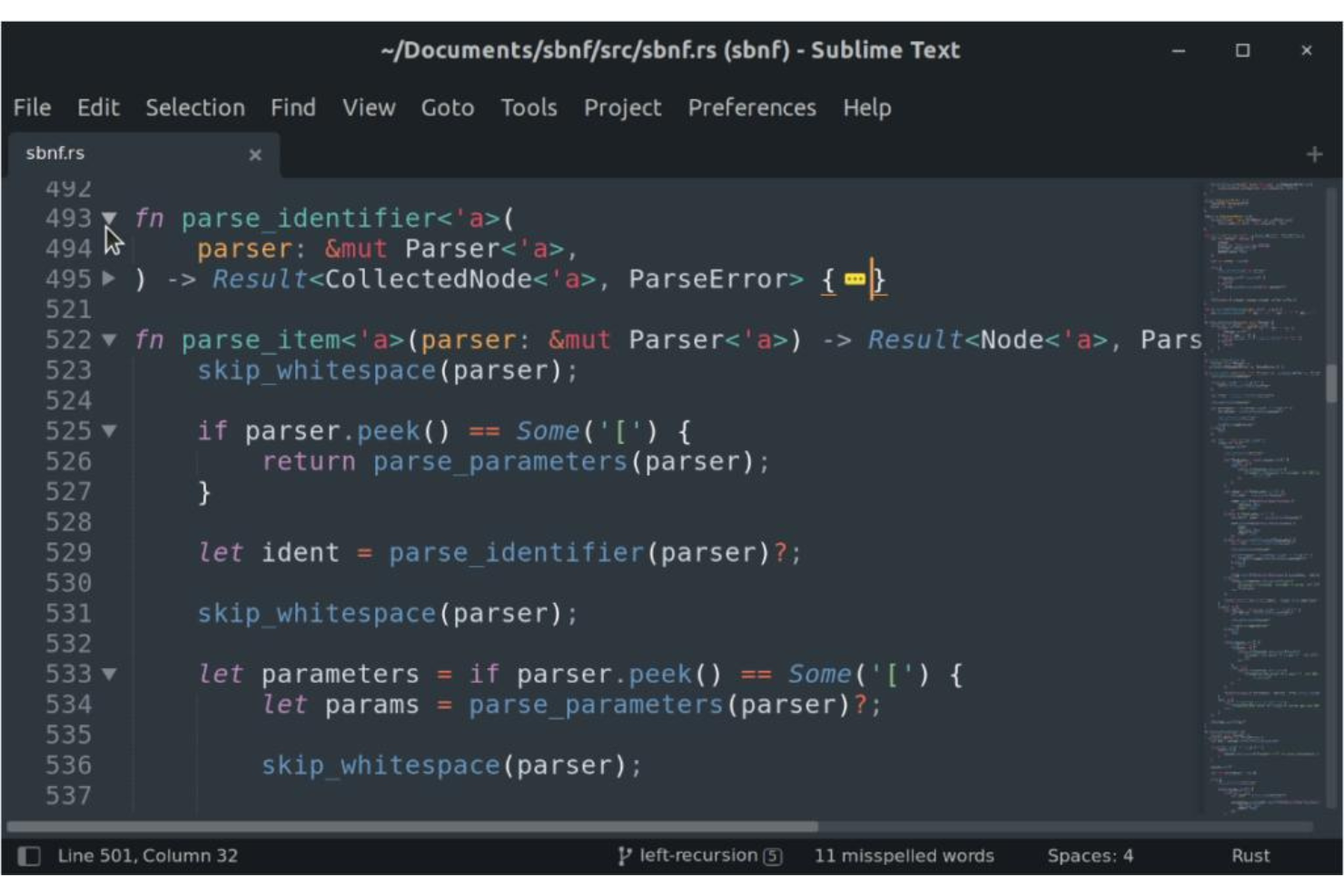
Sublime Text ist ein beliebter Texteditor, der von Entwicklern und Autoren genutzt wird, die Wert auf reibungslose und effiziente Arbeitsabläufe legen. Er ermöglicht schnelles Navigieren im Code und bietet eine übersichtliche Oberfläche für die Symbolsuche, was den modernen Anforderungen der Softwareentwicklung entspricht.
Warum ich Sublime Text gewählt habe:
Ich habe mich für Sublime Text entschieden, weil er für seine schnellen Navigations- und Suchfunktionen bekannt ist. Dank seiner Python-API lässt sich eine Vielzahl von Plugins nahtlos in die Textbearbeitungslösung integrieren. Im Vergleich zu anderen Editoren überzeugte er besonders durch die Möglichkeit, bequem im Code zu springen und Symbole sowie Zeilen gezielt anzusteuern. Dieses Tool eignet sich am besten für Nutzer, die eine hocheffiziente Umgebung zum Programmieren oder Schreiben benötigen, da es ein flüssiges und schnelles Navigationssystem bietet.
Hervorstechende Funktionen & Integrationen:
Sublime Text bietet Funktionen wie 'Gehe zu beliebigem' (Goto Anything) für das schnelle Navigieren zu Dateien, Symbolen oder Zeilen sowie Mehrfachauswahlfunktionen, um mehrere Zeilen gleichzeitig zu bearbeiten. Die Befehlspalette fasst selten genutzte Funktionen zusammen und macht sie leicht zugänglich. Integrationen mit Git und anderen Versionskontrollsystemen sowie die Kompatibilität mit vielen Programmiersprachen und externen Plugins runden das Angebot ab.
Pros and Cons
Pros:
- Effiziente Navigation zwischen Symbolen und Zeilen
- Umfangreiche Sprachunterstützung und Kompatibilität mit Drittanbieter-Plugins
- Anpassbare Oberfläche
Cons:
- Höhere Lernkurve für Einsteiger
- Einige fortgeschrittene Funktionen benötigen kostenpflichtige Plugins
- Erfordert möglicherweise Konfiguration für optimale Nutzung

Emacs
Am besten geeignet für alle, die einen erweiterbaren, anpassbaren Editor suchen
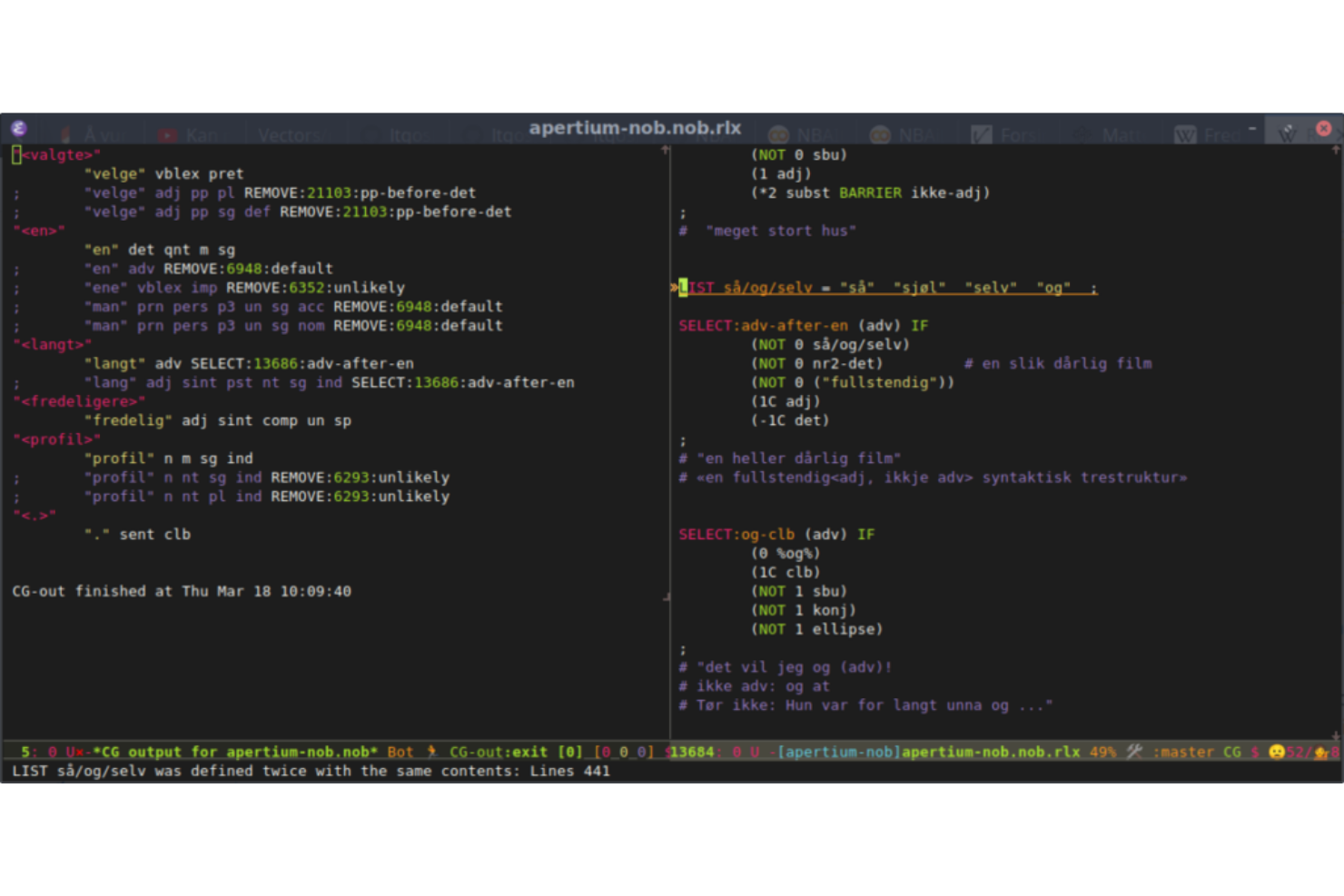
Emacs ist ein fortschrittlicher, erweiterbarer und äußerst anpassbarer Texteditor, der auf verschiedene Programmieraufgaben zugeschnitten werden kann. Das Maß an Personalisierung und Erweiterbarkeit ist unerreicht und macht ihn zur besten Wahl für alle, die einen Editor suchen, der sich nach ihren individuellen Bedürfnissen formen lässt.
Warum ich Emacs gewählt habe:
Ich habe mich nach sorgfältigem Vergleich und Überlegung aufgrund seiner anpassbaren Eigenschaften für GNU Emacs entschieden. Die Flexibilität und die Möglichkeit, Funktionen nach eigenen Anforderungen hinzuzufügen oder zu verändern, heben ihn von anderen Texteditoren ab. Diese Erweiterbarkeit macht ihn ideal für alle, die ein Werkzeug benötigen, das exakt auf ihre Bedürfnisse zugeschnitten werden kann – vom Programmieren bis zum Schreiben von Inhalten.
Herausragende Funktionen & Integrationen:
Emacs unterstützt eine Vielzahl von Programmiersprachen und bietet zahlreiche Erweiterungen, die seine Einsatzmöglichkeiten verbessern. Er integriert sich mit vielen Versionskontrollsystemen wie Git, wodurch Entwickler ihren Code direkt im Editor verwalten können. Die Möglichkeiten zur Tastenkürzel-Definition und Makroaufzeichnung bieten zusätzliche Anpassungs- und Automatisierungsmöglichkeiten.
Pros and Cons
Pros:
- Sehr erweiterbar und individuell anpassbar
- Starke Community-Unterstützung
- Umfassende Dokumentation, damit Nutzer das Maximum aus den Anpassungsmöglichkeiten herausholen können
Cons:
- Für Anfänger steilere Lernkurve
- Kann bei umfangreichen Anpassungen ressourcenintensiv werden
- Optisch weniger modern als einige Alternativen


Visual Studio Code (VS Code) ist ein Open-Source-Code-Editor, der für moderne Entwicklungsmethoden konzipiert wurde. Dank seiner Unterstützung für mehrere Programmiersprachen und umfassender Codeunterstützung ist er die beste Wahl für Entwickler, die häufig zwischen verschiedenen Sprachen in ihren Projekten wechseln.
Warum ich Visual Studio Code ausgewählt habe:
Ich habe Visual Studio Code wegen seiner bemerkenswerten Anpassungsfähigkeit und Vielseitigkeit bei der Unterstützung verschiedener Sprachen ausgewählt. Bei der Entscheidung für einen Platz auf dieser Liste waren seine umfangreiche Sprachunterstützung und die von der Community entwickelten Erweiterungen ausschlaggebend. Visual Studio Code ist am besten für Entwickler geeignet, die einen Editor suchen, der mühelos verschiedene Programmiersprachen unterstützt und dabei ein einheitliches und übersichtliches Erlebnis bietet.
Herausragende Funktionen & Integrationen:
Visual Studio Code bietet intelligente Codevervollständigung, Intellisense-Syntaxhervorhebung, Tastaturkürzel und Code-Refactoring für zahlreiche Programmiersprachen wie HTML, Python, VBScript, JavaScript, Perl und viele mehr. Die integrierte Git-Steuerung erleichtert das Versionsmanagement. Die Integration mit verschiedenen Compilern, Debuggern und sprachspezifischen Erweiterungen schafft eine reichhaltige Entwicklungsumgebung, die sich an zahlreiche unterschiedliche Programmierparadigmen anpassen lässt.
Pros and Cons
Pros:
- Umfangreiche Unterstützung für mehrere Sprachen
- Starke, community-getriebene Erweiterungen
- Integrierte Git-Steuerung
Cons:
- Kann auf älteren Systemen ressourcenintensiv sein
- Erstkonfiguration kann für manche herausfordernd sein
- Einige Erweiterungen können miteinander in Konflikt geraten

Am besten für die Verarbeitung und Bearbeitung großer Dateien geeignet
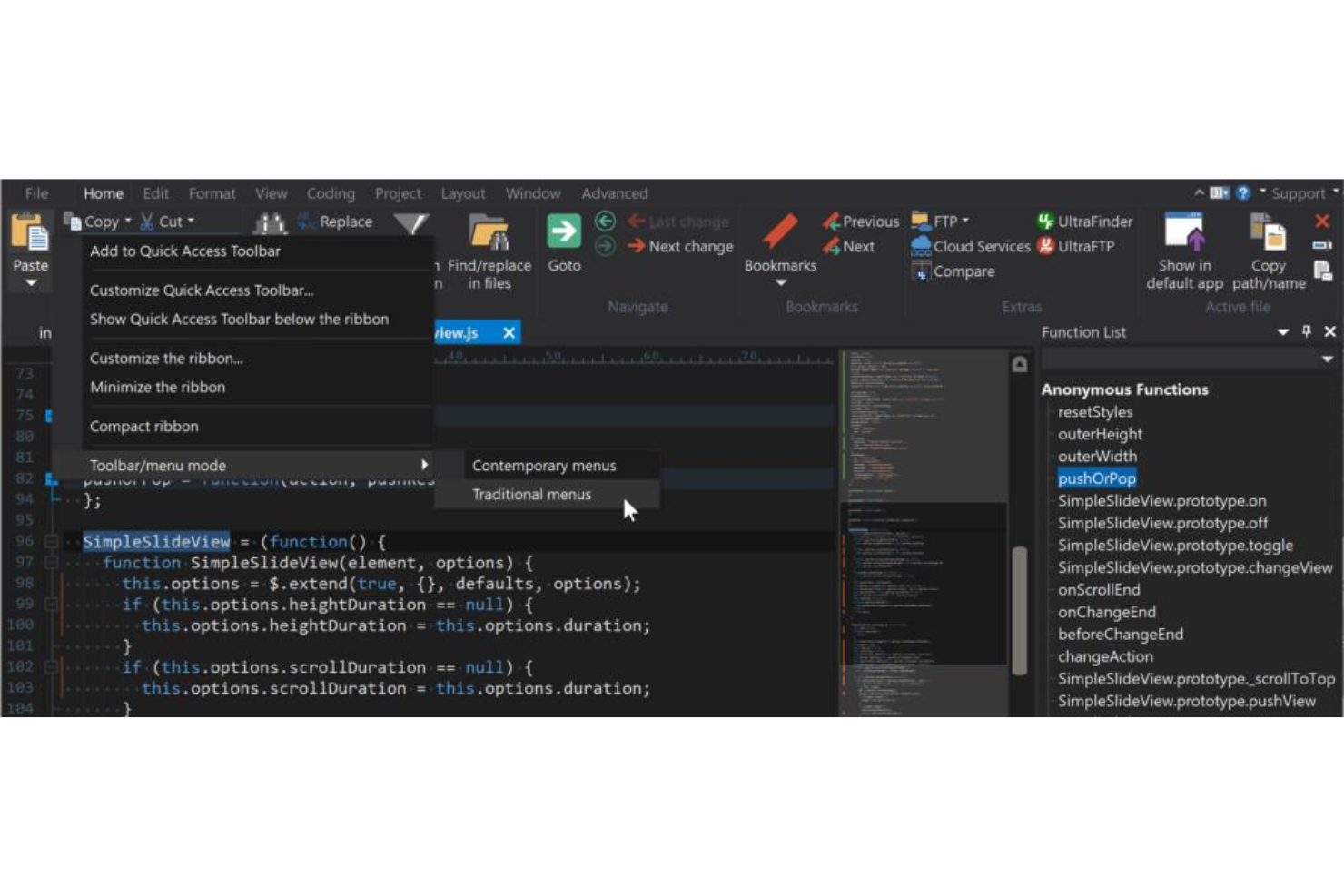
UltraEdit ist ein vielseitiger und leistungsstarker Texteditor, der für seine Fähigkeit bekannt ist, große Dateien und komplexe Datenstrukturen zu verarbeiten. Diese Eigenschaft macht ihn zum bevorzugten Werkzeug für Entwickler und Datenexperten, die häufig massive Dateien bearbeiten müssen, und positioniert ihn als die beste Wahl für die Bearbeitung und Handhabung großer Dateien.
Warum ich UltraEdit ausgewählt habe:
Ich habe UltraEdit auf diese Liste gesetzt, nachdem ich seine außergewöhnliche Fähigkeit zur Verarbeitung großer Dateien beurteilt habe. Was ihn von anderen Texteditoren abhebt, ist seine optimierte Performance und Zuverlässigkeit – selbst bei Dokumenten mit Gigabyte-Größe. Diese unvergleichliche Effizienz beim Verarbeiten und Manipulieren umfangreicher Dateien ist der Grund, warum ich UltraEdit als beste Option für alle bestimmt habe, die mit großen Datensätzen oder umfangreichen Programmierprojekten arbeiten.
Herausragende Funktionen & Integrationen:
Zu den wichtigsten Funktionen von UltraEdit gehören das einfache Bearbeiten großer Dateien, eine Benutzeroberfläche mit mehreren Fenstern sowie eine leistungsstarke Suchen-und-Ersetzen-Funktion. Die Software unterstützt zudem zahlreiche Programmiersprachen und integriert sich mit FTP, SSH und Telnet, wodurch das Bearbeiten und Verwalten von Dateien auf entfernten Servern erleichtert wird.
Pros and Cons
Pros:
- Hervorragende Leistung bei der Bearbeitung großer Dateien
- Umfassender Funktionsumfang für Programmierung und Textbearbeitung
- Starke Integration mit Tools zur Verwaltung entfernter Dateien
Cons:
- Für einfache Textbearbeitungsaufgaben womöglich überdimensioniert
- Die Benutzeroberfläche kann für Einsteiger einschüchternd wirken
- Manche Nutzer empfinden die jährliche Abrechnung als einschränkend

Am besten für Programmierer, die eine anpassbare Benutzeroberfläche benötigen
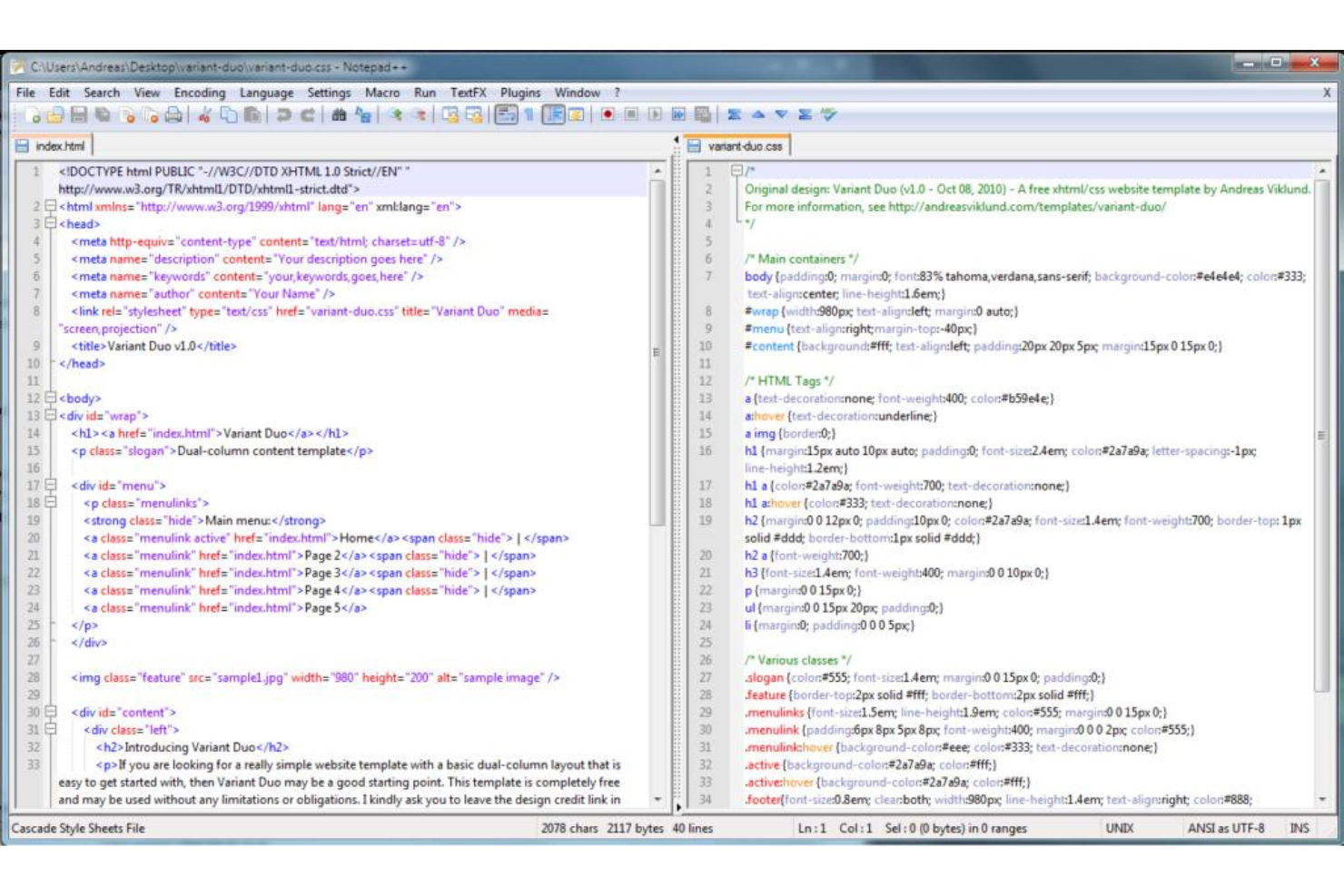
Notepad++ ist ein Text- und Quellcode-Editor, der für seine benutzerfreundliche Oberfläche und seine umfangreiche Funktionalität weithin anerkannt ist. Die hochgradig anpassbare Benutzeroberfläche passt sich den Bedürfnissen von Programmierern an, die spezielle Einstellungen für ihre Programmierumgebung benötigen, und ist daher ideal für alle, die individuelle Konfigurationen wünschen.
Warum ich Notepad++ ausgewählt habe:
Ich habe mich für Notepad++ entschieden, nachdem ich seine Flexibilität und Anpassungsfähigkeit genau geprüft habe. Im Vergleich zu ähnlichen Programmen zeichnet es sich dadurch aus, dass es eine äußerst anpassbare Oberfläche bietet, die auf die individuellen Vorlieben von Programmierern eingeht. Notepad++ ist die beste Option für alle, die ihren Arbeitsbereich individuell gestalten möchten und dabei Unterstützung für zahlreiche Programmiersprachen und Einstellungen benötigen.
Herausragende Funktionen & Integrationen:
Notepad++ bietet Syntaxhervorhebung und Syntaxfaltung, die an persönliche Bedürfnisse angepasst werden können. Die Tab-Oberfläche ermöglicht es, leicht zwischen mehreren Dateien zu wechseln, und eine vielseitige Plugin-Architektur erweitert den Funktionsumfang. Die Integration mit gängigen Compilern und Versionskontrollsystemen macht Notepad++ zu einer starken Wahl für Programmierer, während FTP-Unterstützung das direkte Bearbeiten auf Servern ermöglicht.
Pros and Cons
Pros:
- Umfangreiche Anpassungsmöglichkeiten
- Breite Palette unterstützter Programmiersprachen
- Große Auswahl an Plugins
Cons:
- Nur mit Microsoft Windows kompatibel
- Oberfläche kann für Einsteiger überwältigend sein
- Einige Plugins können Stabilitätsprobleme verursachen

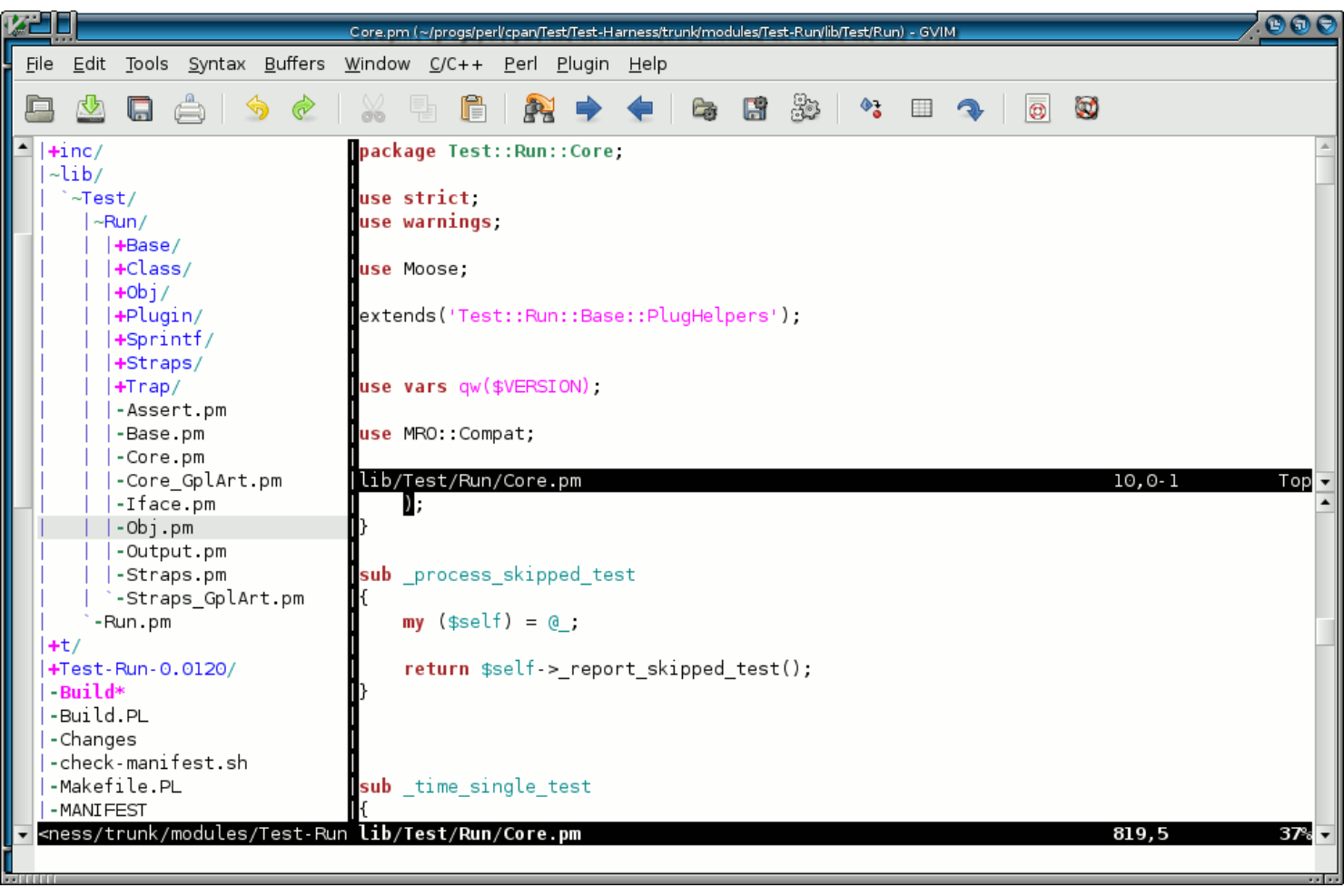
Vim ist ein leistungsstarker und äußerst effizienter Texteditor, der von erfahrenen Nutzern sehr geschätzt wird. Er ist sowohl für die Nutzung über eine Kommandozeile (CLI) als auch als eigenständige Anwendung mit grafischer Benutzeroberfläche (GUI) konzipiert. Durch die tastaturzentrierte Bedienung und einzigartige Arbeitsmodi ist er ein schnelles und reaktionsfreudiges Werkzeug für alle, die die Mausnutzung minimieren möchten – damit rechtfertigt sich seine Position als beste Option für erfahrene Nutzer, die effizientes Textbearbeiten suchen.
Warum ich Vim gewählt habe:
Ich habe Vim ausgewählt, nachdem ich den Mehrwert bezüglich effizienter Textbearbeitung für diejenigen beurteilt habe, die bereits mit seiner einzigartigen Oberfläche vertraut sind. Was Vim von anderen Texteditoren unterscheidet, ist das modale Design, bei dem verschiedene Modi für Navigation und Bearbeitung verwendet werden. Diese Struktur ermöglicht ein Höchstmaß an Effizienz – insbesondere für erfahrene Nutzer – und ist der Grund, warum ich Vim als die beste Wahl für alle einstufe, die ihren Textbearbeitungsprozess optimieren möchten.
Herausragende Funktionen & Integrationen:
Zu den Hauptfunktionen von Vim gehören das modale Editieren, bei dem Nutzer zwischen verschiedenen Modi für Navigation, Bearbeitung und Textmanipulation wechseln. Umfangreiche Plugin-Unterstützung erlaubt die Anpassung und Erweiterung der Funktionalität. Zudem integriert sich Vim hervorragend mit vielen gängigen Versionskontrollsystemen wie Git, sodass eine Codeverwaltung direkt im Editor möglich ist.
Pros and Cons
Pros:
- Hocheffiziente Textbearbeitung durch modales Design
- Mit zahlreichen Plugins erweiterbar
- Verfügbar auf mehreren Plattformen
Cons:
- Hohe Einstiegshürde, insbesondere für Anfänger
- Es fehlen einige moderne Annehmlichkeiten, die andere Editoren bieten
- Konfiguration und Anpassung können komplex und zeitaufwendig sein

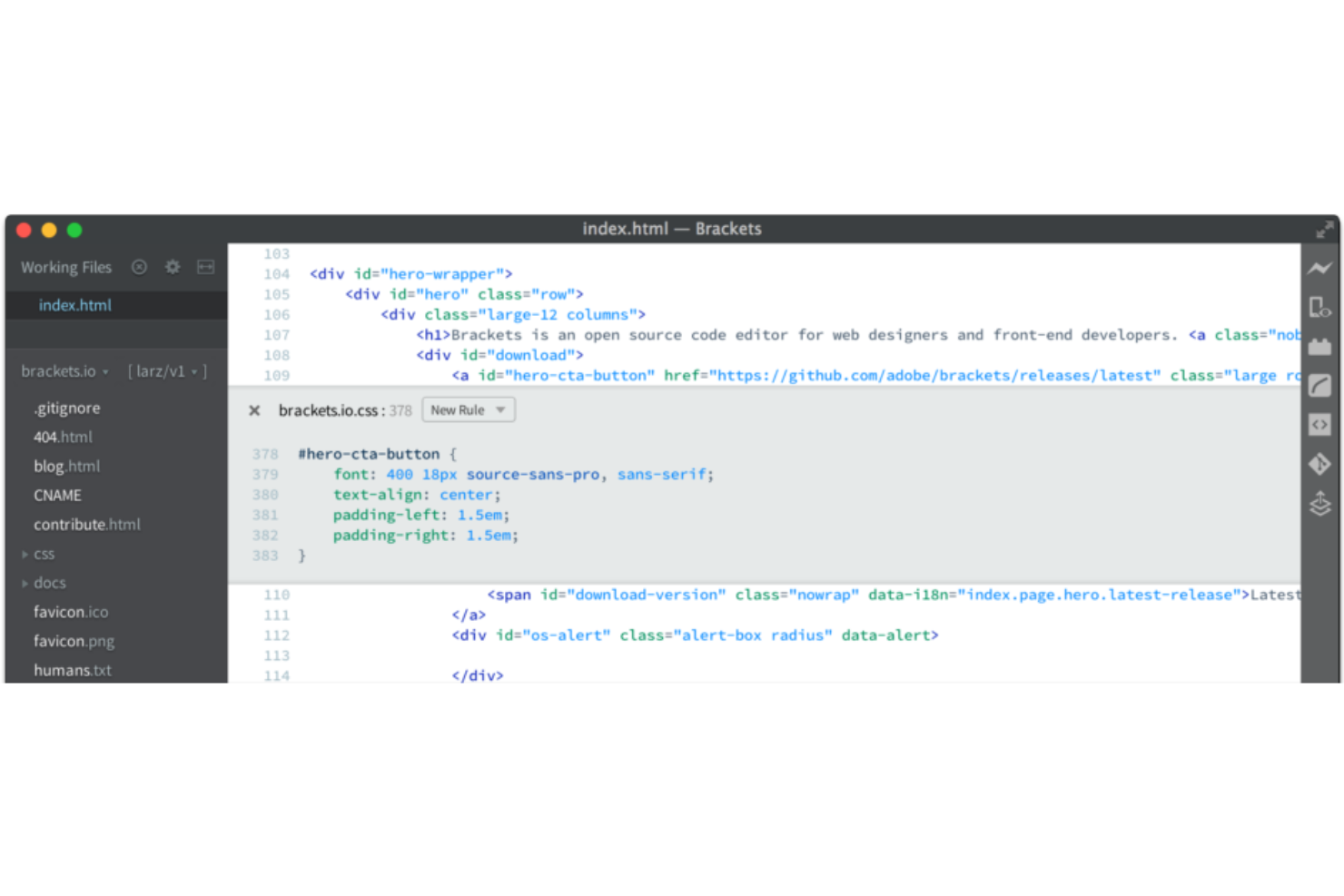
Brackets ist ein Open-Source-Texteditor, der speziell für die Webentwicklung entwickelt wurde. Die Live-Vorschau-Funktion, mit der Webdesigner Änderungen in Echtzeit sehen können, macht ihn zur besten Wahl für alle, die sofortiges Feedback zu ihren Designänderungen wünschen.
Warum ich Brackets gewählt habe:
Ich habe mich für Brackets entschieden, weil die einzigartige und äußerst effektive Live-Vorschau-Funktion perfekt auf die Anforderungen modernen Webdesigns abgestimmt ist. Beim Vergleich und der Bewertung der Alternativen stach Brackets durch dieses Feature hervor, das den Designprozess vereinfacht und Rätselraten minimiert. Es ist ideal für Webdesigner, die während der Arbeit an ihren Projekten sofort visuelles Feedback sehen möchten.
Hervorstechende Funktionen & Integrationen:
Brackets bietet Inline-Bearbeitung, sodass Entwickler CSS und JavaScript innerhalb desselben Code-Fensters bearbeiten können. Die Live-Vorschau ist mit dem Code-Editor synchronisiert und zeigt Änderungen unmittelbar an. Integrationen mit beliebten Präprozessoren wie LESS und SCSS verbessern die Funktionalität für die moderne Webentwicklung.
Pros and Cons
Pros:
- Live-Vorschau für sofortiges Feedback
- Inline-Bearbeitung für CSS und JavaScript
- Starke Community-Unterstützung
Cons:
- Konzentriert sich hauptsächlich auf Webentwicklung, weniger vielseitig für andere Programmiersprachen
- Für Anfänger möglicherweise weniger intuitiv
- Leistung kann bei großen Projekten nachlassen

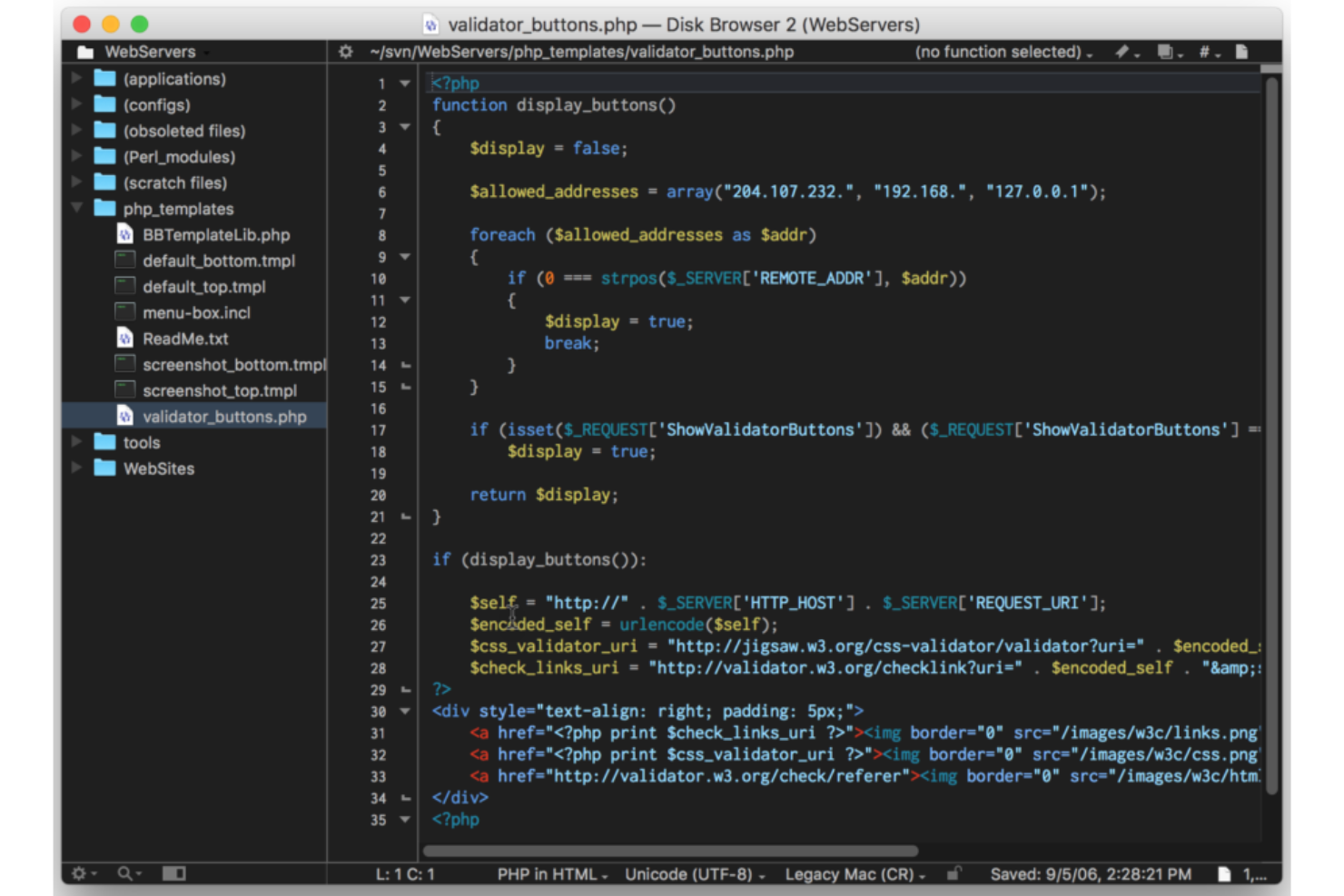
BBEdit ist ein Texteditor, der speziell für macOS-Nutzer entwickelt wurde und robuste Funktionen mit Schwerpunkt auf erweiterter Suchfunktionalität bietet. Ob beim Durchsuchen eines einzelnen Dokuments oder mehrerer Dateien – die leistungsstarken Suchfunktionen von BBEdit heben es hervor und machen es zur besten Wahl für macOS-Anwender, die fortschrittliche Suchmöglichkeiten benötigen.
Warum ich BBEdit gewählt habe:
Ich habe BBEdit ausgewählt, nachdem ich seine Funktionen genau mit denen anderer macOS-Texteditoren verglichen habe. Die Fähigkeit, komplexe Suchanfragen über verschiedene Dateitypen und innerhalb unterschiedlicher Projekte hinweg zu verarbeiten, ist einzigartig und überzeugend. Ich habe festgestellt, dass BBEdit das beste Tool für macOS-Nutzer ist, die erweiterte Suchfunktionen suchen, insbesondere beim Umgang mit umfangreichen Codebasen oder anspruchsvoller Textmanipulation.
Herausragende Funktionen & Integrationen:
Die Suchfunktionen von BBEdit sind unübertroffen und bieten unter anderem Unterstützung für reguläre Ausdrücke, Funktions-Popup, Mehrfachdateiensuche und detaillierte Ergebnisberichte. Der Texteditor unterstützt außerdem Syntaxhervorhebung für über zwanzig Sprachen und bietet Integration mit verschiedenen Versionskontrollsystemen wie Git und Subversion, was die Zusammenarbeit erleichtert.
Pros and Cons
Pros:
- Außergewöhnliche Suchfunktionalität
- Integration mit gängigen Versionskontrollsystemen
- Speziell für macOS entwickelt und dadurch optimale Performance
Cons:
- Eingeschränkte Attraktivität für Nicht-macOS-Nutzer
- Enthält eventuell mehr Funktionen als für gelegentliche Textbearbeitung nötig
- Einige Nutzer bevorzugen vielleicht ein moderneres UI-Design


TextPad ist ein vielseitiger Texteditor, der für seine Einfachheit und robuste Syntaxhervorhebung bekannt ist. Als Werkzeug, das intuitiv und dennoch leistungsfähig gestaltet wurde, richtet es sich sowohl an Anfänger als auch an erfahrene Nutzer und ist damit ideal für alle, die Einfachheit beim Bearbeiten und bei der Syntaxhervorhebung suchen.
Warum ich TextPad ausgewählt habe:
Ich habe TextPad für diese Liste gewählt, nachdem ich festgestellt habe, dass es eine übersichtliche und aufgeräumte Benutzeroberfläche sowie eine effektive Syntaxhervorhebung bietet. Im Vergleich zu anderen Texteditoren habe ich festgestellt, dass TextPad durch seinen Fokus auf die Kernfunktionen ohne unnötige Komplexität besonders hervorsticht. Meiner Einschätzung nach ist es daher die beste Wahl für Nutzer, die eine unkomplizierte Erfahrung mit Syntaxhervorhebung suchen.
Herausragende Funktionen & Integrationen:
Die nützlichste Funktion von TextPad ist die umfangreiche Syntaxhervorhebung, die zahlreiche Programmiersprachen unterstützt. Seine Such- und Ersetzungsfunktion arbeitet über mehrere Dateien hinweg und ermöglicht so effizientes Bearbeiten. Zusätzlich bietet es eine Integration mit Compilern und anderen externen Tools und stellt damit eine zusammenhängende Entwicklungsumgebung bereit.
Pros and Cons
Pros:
- Robuste Syntaxhervorhebung für viele Programmiersprachen.
- Intuitive Benutzeroberfläche, die die Bedienung erleichtert.
- Effiziente Suchen-und-Ersetzen-Funktion über mehrere Dateien
Cons:
- Fehlen einiger fortgeschrittener Funktionen, die andere Editoren bieten
- Für sehr komplexe Entwicklungsvorhaben möglicherweise ungeeignet
- Begrenzte Unterstützung für moderne Plugins und Erweiterungen

Bluefish
Am besten geeignet für Webentwickler, die mehrere Projekte parallel betreuen müssen
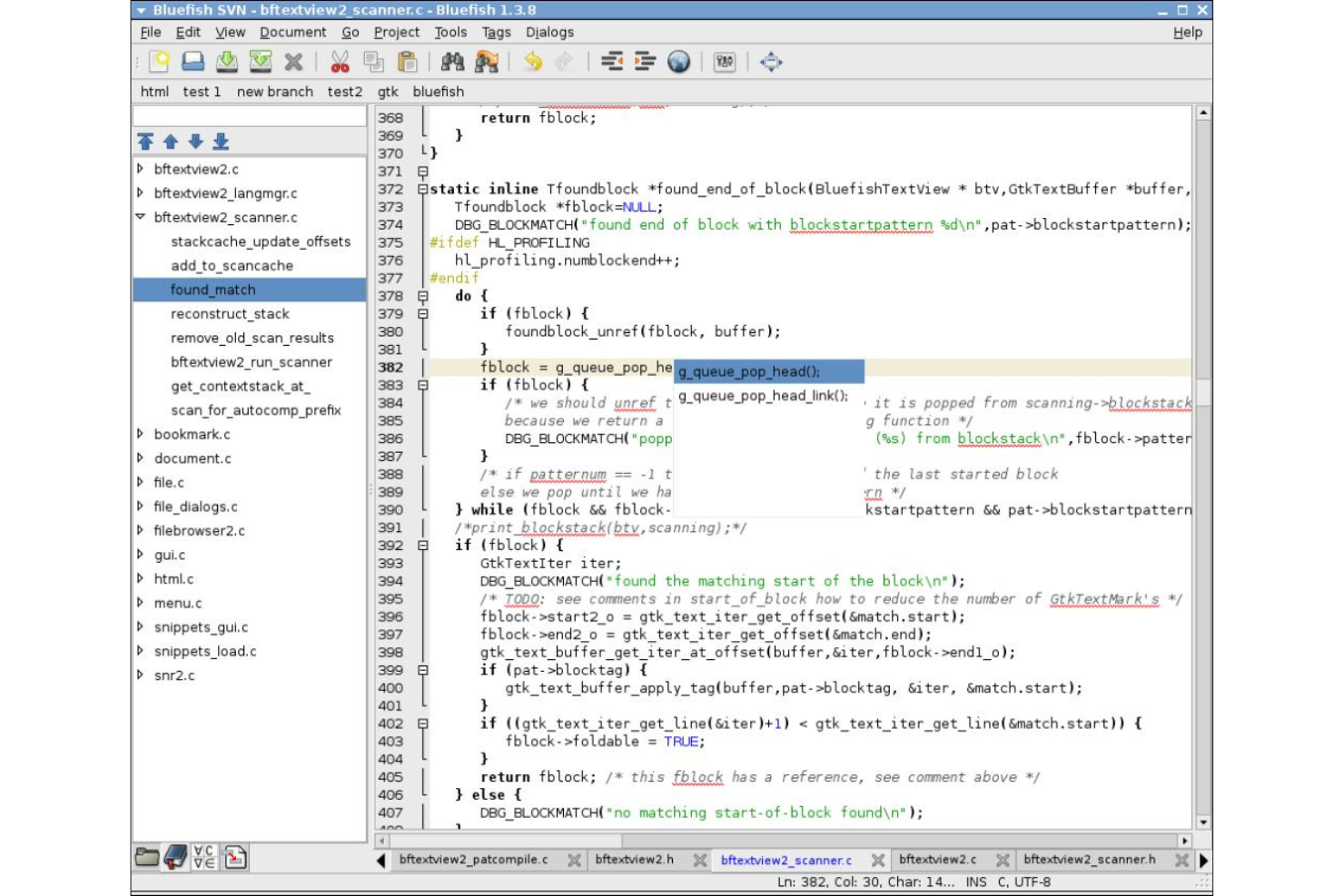
Bluefish ist ein leistungsstarker Texteditor, der sich an Programmierer und Webentwickler richtet. Mit der Fähigkeit, mehrere Projekte gleichzeitig zu verwalten, rationalisiert er den Prozess des Bearbeitens von Dateien in verschiedenen Sprachen und ist damit ideal für Webentwickler, die mehrere Projekte parallel benötigen.
Warum ich Bluefish ausgewählt habe:
Ich habe Bluefish ausgewählt, nachdem ich sorgfältig seine Fähigkeit verglichen und beurteilt habe, mehrere Projekte gleichzeitig zu unterstützen. Das Merkmal, das Bluefish von anderen abhebt, ist seine Fähigkeit, die Arbeit von Webentwicklern zu erleichtern, die mehrere Projekte gleichzeitig betreuen. Diese Überlegung hat mich dazu bewogen, Bluefish als beste Lösung für diejenigen auszuwählen, die verschiedene Webentwicklungsprojekte parallel durchführen müssen.
Herausragende Funktionen & Integrationen:
Zu den herausragenden Funktionen von Bluefish gehört die Möglichkeit, über 500 Dokumente gleichzeitig zu öffnen, sowie die integrierte Projektunterstützung, die mehrere Projekte mühelos organisiert. Das Syntax-Highlighting unterstützt verschiedene Programmiersprachen und verbessert so das Programmiererlebnis. Die Integration mit Webbrowsern für Vorschauen und weiteren Entwicklerwerkzeugen schafft eine Umgebung, die auf die Bedürfnisse von Webentwicklern zugeschnitten ist.
Pros and Cons
Pros:
- Unterstützt die Bearbeitung zahlreicher Dokumente und Projekte gleichzeitig.
- Umfangreiches Syntax-Highlighting für verschiedene Programmiersprachen.
- Integriert sich gut mit Webbrowsern für Echtzeit-Vorschauen
Cons:
- Die Oberfläche wirkt im Vergleich zu anderen Editoren eventuell weniger modern
- Es fehlen einige fortgeschrittene Funktionen, wie sie in kommerziellen Texteditoren zu finden sind
- Die Lernkurve kann für Neueinsteiger in die Webentwicklung steil sein
Weitere Texteditor-Software
Hier finden Sie einige zusätzliche Optionen für Texteditor-Software, die es nicht in meine Vorauswahl geschafft haben, aber dennoch einen Blick wert sind:
- Geany
Am besten für leichtgewichtiges Design mit grundlegenden IDE-Funktionen
- Light Table
Am besten für Echtzeit-Codeauswertung und -anpassung
- CoffeeCup HTML Editor
Ideal für Webseitendesign mit visueller HTML-Bearbeitung


Wie ich Texteditor-Software bewerte
Ich unterteile meine Bewertung in grundlegende Kriterien – wie Syntaxhervorhebung und Navigation in Projekten mit mehreren Dateien – sowie in Unterscheidungsmerkmale wie KI-Unterstützung, Unterstützung für Remote-Entwicklung und Flexibilität in der Lizenzierung.
Kernfunktionen (Grundvoraussetzungen für diese Liste)
Bei der Auswahl von Tools für meine Liste bewerte ich jedes Tool auf einer Skala von 0 (bietet die Funktion nicht) bis 5 (ist in diesem Bereich herausragend) hinsichtlich jeder unten aufgeführten Kernfunktion. Anschließend berechne ich die Gesamtpunktzahl des Tools in Prozent. Jedes Tool muss eine Mindestpunktzahl von 75% erreichen, um für die Aufnahme berücksichtigt zu werden.
- Syntaxhervorhebung: Ich prüfe, wie viele Sprachen ein Tool standardmäßig hervorhebt und ob es benutzerdefinierte Syntaxdefinitionen für interne DSLs oder proprietäre Konfigurationsformate unterstützt.
- Unterstützung mehrerer Programmiersprachen-Dateien: Das Bearbeiten eines Python-Skripts, einer YAML-Pipeline-Datei und einer Dockerfile in derselben Sitzung sollte sich selbstverständlich anfühlen – deshalb achte ich auf umfangreiche Werkzeuge pro Sprache.
- Erweiterbarkeit & Plugin-Ökosystem: Ich bewerte, ob der Editor einen Marktplatz oder Paketmanager für die Installation von Erweiterungen bietet – zum Beispiel Linter, Formatierer oder SSH-Connectoren.
- Such- & Ersetz-Funktionen: Ich suche nach regex-gestützter, projektweiter Suche, besonders nach der Möglichkeit, Abfragen auf bestimmte Dateitypen oder Verzeichnisse in einem Monorepo einzuschränken.
- Bearbeitung mehrerer Dateien & Projekte: Tabbed Editing, geteilte Fenster und eine Dateibaum-Navigation, die ein komplettes Projektverzeichnis bewältigen kann, sind wichtig, wenn man täglich zwischen Modulen und Konfigurationen wechselt.
- Versionskontrollintegration: Ich achte auf native Git-Unterstützung, die Diffs, Commit-Historie und Branch-Management direkt im Editor anzeigt, ohne Kontextwechsel ins Terminal.
Nachdem ich eine Liste von Tools habe, die diese Kriterien erfüllen, schaue ich, was jede Plattform besonders macht.
Unterscheidungsmerkmale (Was Anbieter unterscheidet)
So vergleiche und bewerte ich verschiedene Anbieter:
Herausragende Funktionen
KI-gestützte Codehilfe ist ein wesentliches Unterscheidungsmerkmal – ich suche Editoren, die beim Tippen Inline-Vervollständigungen und kontextbezogene Vorschläge anbieten, nicht nur eine einfache Autovervollständigung. Auch Remote-Entwicklungsunterstützung ist wichtig, wenn Ihr Team auf Cloud-VMs oder in Containern arbeitet. Ich bewerte, ob der Editor ein Projekt auf einem Remote-Host öffnen kann, sich dabei aber weiterhin lokal anfühlt. Ein integriertes Terminal und Debugger runden das Bild ab, da Sie Builds ausführen und Breakpoints durchgehen können, ohne den Editor zu verlassen.
Über Funktionen hinaus
Leistung spielt eine Rolle – ich bewerte, wie jeder Editor mit großen Logdateien und umfangreichen Projektverzeichnissen umgeht, ohne einzufrieren oder den Speicherverbrauch in die Höhe zu treiben. Plattformübergreifende Verfügbarkeit ist ein weiterer Schlüsselfaktor, insbesondere für Teams in gemischten Betriebssystemumgebungen, bei denen das Synchronisieren von Einstellungen zwischen Linux-Servern und macOS-Arbeitsplätzen einen konsistenten Workflow sicherstellt. Außerdem betrachte ich genau Lizenz- und Preismodelle, denn Open-Source-Optionen wie Vim oder VS Code bringen für die Einführung im Unternehmen andere Voraussetzungen mit sich als proprietäre Editoren mit Kosten pro Arbeitsplatz.
So wählen Sie Texteditor-Software aus
Bei langen Funktionslisten und komplexen Preisstrukturen verliert man leicht den Überblick. Damit Sie sich bei der Auswahl der passenden Software auf Ihre individuellen Anforderungen konzentrieren können, finden Sie hier eine Checkliste mit wichtigen Faktoren:
| Faktor | Was Sie berücksichtigen sollten |
|---|---|
| Skalierbarkeit | Wächst die Software mit Ihrem Team? Prüfen Sie, ob sie größere Projekte oder mehr Benutzer bewältigen kann, wenn Ihre Anforderungen steigen. |
| Integrationen | Verbindet sie sich mit anderen Tools, die Sie verwenden? Achten Sie auf die Kompatibilität mit Ihrer bestehenden technischen Umgebung, um Unterbrechungen im Arbeitsablauf zu vermeiden. |
| Anpassbarkeit | Können Sie sie an Ihren Arbeitsablauf anpassen? Suchen Sie nach Möglichkeiten, Tastenkürzel, Designs und andere Einstellungen nach Ihren Vorlieben zu konfigurieren. |
| Benutzerfreundlichkeit | Ist sie für alle Mitglieder Ihres Teams einfach zu bedienen? Eine steile Lernkurve kann die Einführung verlangsamen und die Effizienz verringern. |
| Implementierung und Einarbeitung | Wie schnell können Sie loslegen? Prüfen Sie, ob Ressourcen wie Anleitungen und Support verfügbar sind, um den Übergang zu erleichtern. |
| Kosten | Passt die Software in Ihr Budget? Vergleichen Sie die Preise mit den verfügbaren Funktionen und berücksichtigen Sie mögliche versteckte Kosten. |
| Sicherheitsvorkehrungen | Sind Ihre Daten und Projekte geschützt? Vergewissern Sie sich, dass die Software über starke Sicherheitsmaßnahmen verfügt, um unbefugten Zugriff zu verhindern. |
| Interner Ressourcenbedarf | Welche Ressourcen benötigen Sie, um die Software zu warten und zu unterstützen? Berücksichtigen Sie die erforderlichen technischen Kenntnisse und den laufenden Wartungsaufwand. |
Was ist Texteditor-Software?
Texteditor-Software ist ein Tool zum Erstellen und Bearbeiten von Klartextdateien. Entwickler, Autoren und andere Fachkräfte verwenden diese Tools, um Code zu verwalten, Dokumente zu verfassen und Notizen effizient zu organisieren.
Syntaxhervorhebung, Suchen und Ersetzen sowie Funktionen zur automatischen Vervollständigung helfen bei der Genauigkeit beim Codieren, der Bearbeitungsgeschwindigkeit und der Verwaltung großer Dateien. Insgesamt vereinfachen diese Tools die Textverwaltung und steigern die Produktivität.
Funktionen
Achten Sie bei der Auswahl einer Texteditor-Software auf die folgenden wichtigen Funktionen:
- Syntaxhervorhebung: Hebt die Syntax des Codes hervor, um die Lesbarkeit zu verbessern und Fehler zu reduzieren.
- Automatische Vervollständigung: Schlägt Vervollständigungen für Code vor, um das Schreiben zu beschleunigen und Tippfehler zu minimieren.
- Suchen und Ersetzen: Ermöglicht die schnelle Navigation und Änderungen innerhalb großer Textdateien.
- Dateiverwaltung: Organisiert Dateien und Projekte, damit die Arbeit strukturiert und zugänglich bleibt.
- Zusammenarbeit in Echtzeit: Ermöglicht mehreren Benutzern, Dokumente gleichzeitig zu bearbeiten.
- Durch Erweiterungen ausbaufähig: Bietet zusätzliche Funktionen durch Erweiterungen von Drittanbietern.
- Integriertes Terminal: Bietet Zugriff auf die Befehlszeile innerhalb des Editors für effiziente Arbeitsabläufe.
- Plattformübergreifende Unterstützung: Läuft auf verschiedenen Betriebssystemen und berücksichtigt dadurch unterschiedliche Benutzerumgebungen.
- Anpassbare Benutzeroberfläche: Ermöglicht es Benutzern, Layout und Erscheinungsbild an ihre Vorlieben anzupassen.
- Sicherheitsfunktionen: Gewährleisten den Datenschutz und verhindern den unbefugten Zugriff auf vertrauliche Dateien.
Vorteile
Der Einsatz einer Texteditor-Software bietet Ihrem Team und Ihrem Unternehmen mehrere Vorteile. Hier sind einige davon:
- Höhere Produktivität: Funktionen wie automatische Vervollständigung und Syntaxhervorhebung beschleunigen Codierungs- und Bearbeitungsaufgaben.
- Verbesserte Zusammenarbeit: Die Zusammenarbeit in Echtzeit ermöglicht es Teammitgliedern, gleichzeitig gemeinsam an Dokumenten zu arbeiten.
- Verbesserte Organisation: Die Dateiverwaltung hält Projekte und Dokumente gut organisiert und leicht zugänglich.
- Anpassungsmöglichkeiten: Anpassbare Benutzeroberflächen ermöglichen es Benutzern, die Software an ihre bevorzugten Arbeitsabläufe anzupassen.
- Plattformübergreifende Kompatibilität: Die Unterstützung verschiedener Betriebssysteme gewährleistet die Zugänglichkeit für alle Teammitglieder.
- Fehlerreduzierung: Syntaxhervorhebung und automatische Vervollständigung helfen, Codierungsfehler zu minimieren und die Genauigkeit zu verbessern.
- Gewährleistete Sicherheit: Integrierte Sicherheitsfunktionen schützen vertrauliche Daten vor unbefugtem Zugriff.
Kosten & Preise
Die Auswahl einer Texteditor-Software erfordert ein Verständnis der verschiedenen verfügbaren Preismodelle und Tarife. Die Kosten variieren je nach Funktionen, Teamgröße, Zusatzoptionen und weiteren Faktoren. Die folgende Tabelle fasst gängige Tarife, ihre Durchschnittspreise und typische in Texteditor-Softwarelösungen enthaltene Funktionen zusammen:
Vergleichstabelle für Texteditor-Software
| Tarifart | Durchschnittlicher Preis | Übliche Funktionen |
|---|---|---|
| Kostenloser Tarif | $0 | Grundlegende Bearbeitung, Syntaxhervorhebung und eingeschränkte Unterstützung für Erweiterungen. |
| Persönlicher Tarif | $5-$25/user/month | Erweiterte Bearbeitungswerkzeuge, automatische Vervollständigung und anpassbare Designs. |
| Geschäftstarif | $30-$50/user/month | Werkzeuge für die Zusammenarbeit, integriertes Terminal und erweiterte Unterstützung für Erweiterungen. |
| Unternehmenstarif | $60-$100/user/month | Vollständige Anpassungsmöglichkeiten, bevorzugter Support und erweiterte Sicherheitsfunktionen. |
FAQs zu Texteditor-Software
Hier finden Sie Antworten auf häufige Fragen zu Texteditor-Software:
Bieten Texteditor-Tools Integrationen mit anderer Software?
Viele Texteditor-Tools bieten Integrationen mit Versionskontrollsystemen wie Git, Kollaborationsplattformen wie Slack und anderen Entwicklungstools. Integrationen mit Tools zur Erstellung von Hilfedokumentation können den Arbeitsablauf erheblich verbessern, da Benutzer Aufgaben direkt im Texteditor ausführen können, ohne zwischen verschiedenen Anwendungen wechseln zu müssen.
Kann Texteditor-Software bei der Codeentwicklung helfen?
Auf jeden Fall! Texteditor-Software ist für die Codeentwicklung unverzichtbar. Fortschrittliche Texteditoren bieten Funktionen wie Syntaxhervorhebung, Codevervollständigung, Fehlererkennung und Unterstützung beim Debugging und sind daher für Entwickler unverzichtbare Werkzeuge.
Können Texteditor-Tools für die Zusammenarbeit verwendet werden?
Ja, einige Texteditor-Tools wurden speziell für die Zusammenarbeit entwickelt. Tools wie Zoho Writer ermöglichen die Zusammenarbeit in Echtzeit und das Teilen von Dokumenten und eignen sich daher für Teamprojekte, die Erstellung von Inhalten und vieles mehr.
Kann ich die Benutzeroberfläche von Texteditor-Software anpassen?
Ja, die meisten Texteditoren ermöglichen die Anpassung der Benutzeroberfläche. Sie können Designs, Schriftarten und Layouts an Ihre Vorlieben anpassen, um Ihren Arbeitsbereich komfortabler und produktiver zu gestalten. Einige Softwarelösungen unterstützen sogar Plugins, mit denen Sie den Funktionsumfang erweitern und Ihre Benutzererfahrung noch individueller gestalten können.
Wie geht es weiter:
Wenn Sie gerade Texteditor-Software recherchieren, wenden Sie sich an einen SoftwareSelect-Berater, um kostenlos Empfehlungen zu erhalten.
Sie füllen ein Formular aus und führen ein kurzes Gespräch, in dem die spezifischen Anforderungen besprochen werden. Anschließend erhalten Sie eine engere Auswahl an Softwarelösungen, die Sie prüfen können. Der Berater unterstützt Sie sogar während des gesamten Kaufprozesses, einschließlich der Preisverhandlungen.