

A Linux terminal emulator lets you run command-line applications in a graphical environment, giving you access to system tools and scripts without leaving your desktop. If you manage servers, write scripts, or troubleshoot systems, the right terminal emulator can transform your workflow and reduce headaches.
This guide breaks down top choices so you can find the best fit for your needs—whether you’re after performance, customization, or specific desktop integration. Expect practical comparisons that help you decide which terminal emulator deserves a spot in your toolkit for 2026.
Why Trust Our Software Recommendations
6,700+
Reviews
20
Industry experts
16+
Evaluation factors
14
Years
Our team has been testing and reviewing software since 2012. As tech leaders ourselves, we know how difficult—and important—it is to choose the right software.
For this guide, we evaluated tools using hands-on testing and independent research, scoring tools using our selection criteria.
Our reviews reflect our human editorial judgment, not a sales pitch.
Expert reviewers:
- Paulo Gardini MiguelTech Director
 Tim FisherVP of AI
 Gabriel RosasTech Lead & Software Architect
 Christhian GruhnTech Lead & Platform Architect

Linux Terminal Emulator Comparison Table
This comparison table summarizes pricing details for my top linux terminal emulator selections:
| Tool | Best For | Trial Info | Price | ||
|---|---|---|---|---|---|
| 1 | Best for native GNOME desktop integration | Free to use | Free, open-source | Website | |
| 2 | Best for KDE environment integration | Free to use | Free, open-source | Website | |
| 3 | Best for slide-down terminal in KDE environments | Free to use | Free, open-source | Website | |
| 4 | Best for modern interface with AI command input | Free plan available | From $18/user/month (billed annually) | Website | |
| 5 | Best for quick dropdown access from any workspace | Free to use | Free, open-source | Website | |
| 6 | Best for accelerated terminal performance | Free to use | Free, open-source | Website | |
| 7 | Best for cross-platform workflows and plugins | Free to use | Free, open-source | Website | |
| 8 | Best for GPU-accelerated text and image rendering | Free to use | Free, open-source | Website | |
| 9 | Best for advanced scripting with Lua configuration | Free to use | Free, open-source | Website | |
| 10 | Best for minimal footprint with high performance | Free to use | Free, open-source | Website |


Best Linux Terminal Emulator Reviews
Below are my detailed summaries of the best Linux terminal emulators that made it onto my shortlist. My reviews offer a detailed look at the features, use cases, and integrations of each tool to help you find the best one for you.


GNOME Terminal displays its About dialog showing version 3.36.2 alongside a terminal window running the ls -l command. GNOME Terminal is the default terminal emulator for the GNOME desktop environment, offering tabbed sessions, per-profile customization, color schemes, font controls, and full ANSI/VT escape sequence rendering.
Who Is GNOME Terminal Best For?
It's a natural fit for developers and sysadmins working on GNOME-based Linux distributions like Ubuntu or Fedora who want a reliable terminal without extra setup.
Why I Picked GNOME Terminal
GNOME Terminal earns its spot on my shortlist because of how naturally it fits into the GNOME desktop. It inherits GTK themes, system fonts, and accessibility settings automatically, which means zero manual theming work on Ubuntu or Fedora. I also like the per-profile configuration, where I can define separate shells, color schemes, and startup commands for each profile without touching a config file.
GNOME Terminal Key Features
- Tabbed terminal sessions: Switch between multiple open tabs in a single window to keep concurrent sessions organized.
- Built-in text search: Quickly find specific command output or log entries within the current buffer.
- Hyperlink and email support: Automatically detects URLs and email addresses for quick access or copying.
- Custom keyboard shortcuts: Configure and use keyboard shortcuts for faster navigation and workflow.
GNOME Terminal Integrations
Native integrations are not clearly documented. GNOME Terminal is tightly integrated with the GNOME desktop environment and underlying GTK/VTE libraries.
Pros and Cons
Pros:
- Supports multiple profiles and tabs
- Reliable performance on Ubuntu and Fedora
- Tight GNOME and GTK theme integration
Cons:
- Lacks built-in SSH session manager
- No native split pane support
Learn more about GNOME Terminal:

Konsole displays a hamburger menu with options like Save Output As, Full Screen Mode, font controls, and profile settings in a tabbed terminal window. Konsole is a KDE-native terminal emulator that offers tabbed sessions, split-view panes, multiple profiles, SSH and telnet session bookmarking, and a VT102/xterm-compliant rendering engine.
Who Is Konsole Best For?
Konsole is a natural fit for developers and system administrators who run KDE Plasma as their primary desktop environment.
Why I Picked Konsole
I picked Konsole as one of the best because its KDE Plasma integration is genuinely hard to replicate in other terminal emulators. When I'm working in KDevelop or Kate, Konsole embeds directly via KPart, so I never need to context-switch to a separate terminal window. I also rely on its SSH and telnet session bookmarking, which keeps remote connections organized across multiple tabs and split panes without any extra configuration.
Konsole Key Features
- Split-view mode: Open multiple terminal panes within a single window for parallel workflows.
- Custom profiles: Save and switch between personalized shell, color, and behavior settings for different tasks.
- Unicode and multilingual support: Render UTF-8 output and native languages including right-to-left scripts.
- Activity and silence monitoring: Highlight tabs or trigger notifications when output or inactivity is detected.
Konsole Integrations
Konsole offers native integrations across the KDE application ecosystem, including Dolphin, Kate, KDevelop, Kile, and more.
Pros and Cons
Pros:
- Unicode and right-to-left language output supported
- Supports tabs, split-view, and profiles out-of-the-box
- KDE Plasma desktop integration is smooth
Cons:
- Limited automation features compared to competitors
- No native SSH key management interface
Learn more about Konsole:

Yakuake displays a drop-down bash terminal with Podman image listings, file system output, and shell command history. Yakuake is a drop-down terminal emulator for KDE that slides down from the top of your screen on a keypress, offering tabbed sessions, split panes, and a D-Bus interface for runtime scripting control.
Who Is Yakuake Best For?
Yakuake is a strong fit for developers and sysadmins who run KDE Plasma as their primary desktop environment and want instant terminal access without leaving their workflow.
Why I Picked Yakuake
Yakuake earns its spot on my shortlist because the slide-down behavior is genuinely different from any standard terminal workflow. Pressing F12 drops a fully active Konsole session from the top of the screen without disrupting what's behind it. I also like that the configurable width and height settings let me tailor exactly how much screen real estate it occupies, and split panes mean I can run parallel sessions inside the same drop-down window.
Yakuake Key Features
- Tabbed interface: Organize multiple terminal sessions in a single dropdown window for quick switching.
- D-Bus integration: Control runtime actions programmatically, including opening tabs and executing commands remotely.
- Konsole-based backend: Leverages the Konsole engine for robust shell support and ANSI/VT rendering accuracy.
- Built-in search functionality: Quickly find text within the scrollback buffer across active terminal tabs.
Yakuake Integrations
Yakuake offers native integration with KDE Plasma and leverages Konsole's backend for shell compatibility. An API is available through its D-Bus interface for custom integrations and scripting.
Pros and Cons
Pros:
- Customizable appearance with transparency options
- Multiple tabbed sessions in a single window
- Fast drop-down access with global hotkey
Cons:
- Limited to KDE and Linux environments
- No built-in SSH profile manager
Learn more about Yakuake: 4Best for modern interface with AI command input
Warp
- Free plan available
- From $18/user/month (billed annually)
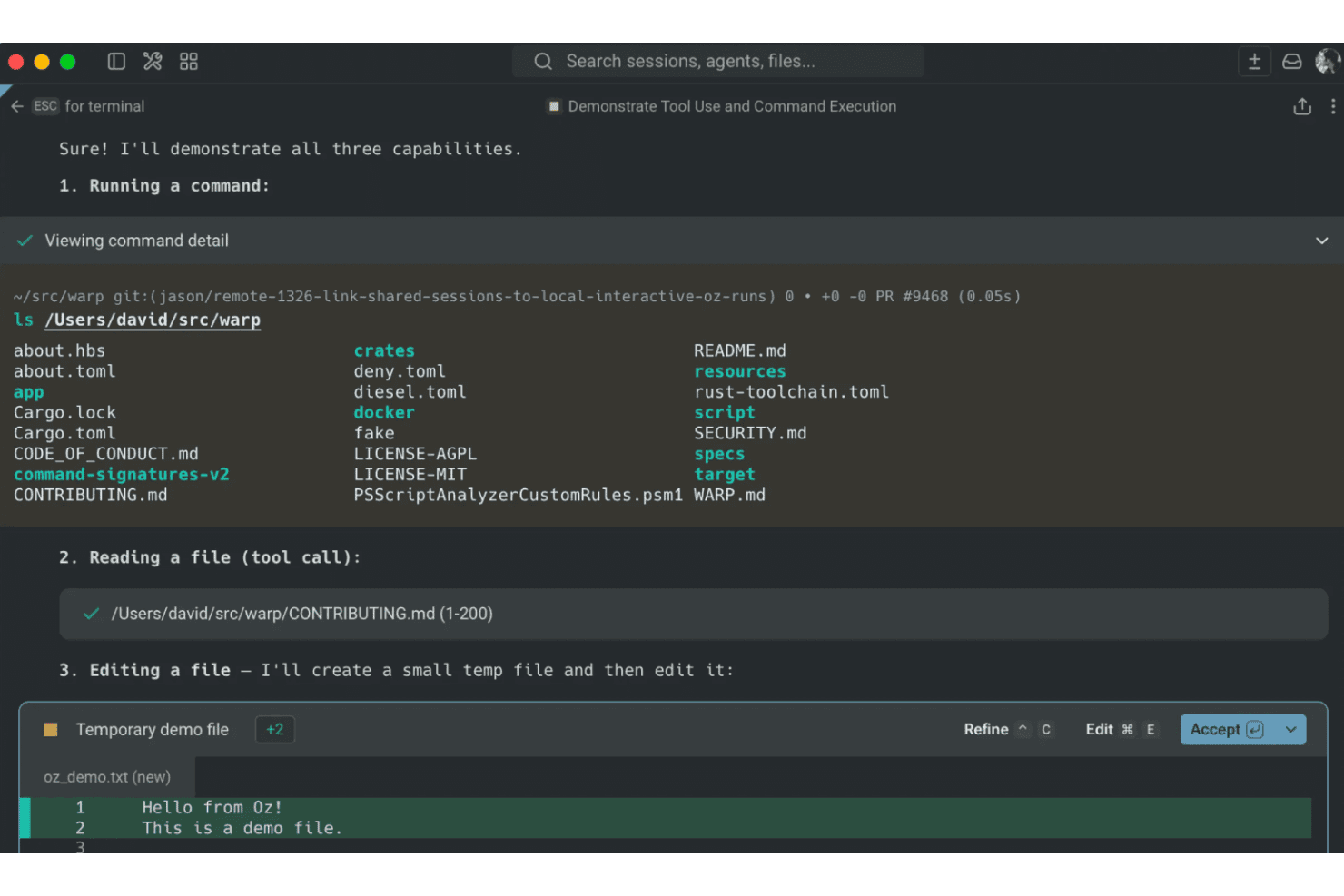
Warp demonstrates AI agent capabilities including running commands, reading files, and editing files directly within the terminal interface. Warp is a Rust-based Linux terminal emulator built around block-based command output, an integrated AI assistant for natural-language command input, and team collaboration features like shared runbooks and command snippets via Warp Drive.
Who Is Warp Best For?
Warp is a strong fit for DevOps engineers and backend developers who spend most of their day in the terminal and want AI-assisted command input without leaving their shell environment.
Why I Picked Warp
Warp earns its spot on my shortlist because of how its built-in AI assistant actually changes the way I write commands. Instead of hunting through man pages, I describe what I need in plain language with Ctrl+` and Warp generates the command for me to review before running. The block-based output is equally impressive: each command and its result renders as a collapsible, shareable block I can copy as a URL or send directly to a teammate.
Warp Key Features
- Block-based command output: Each executed command displays as an individual block for easy selection, copying, and sharing.
- Multithreaded workflows: Run multiple terminal sessions in vertical tabs with metadata for git branches and worktrees.
- Integrated SSH client: Connect to remote servers directly from the terminal and manage sessions through a unified interface.
- Customizable themes and keybindings: Adjust appearance and keyboard shortcuts to match your workflow and preferences.
Warp Integrations
Warp offers native integrations with Warp Agent, Claude Code, OpenAI Codex CLI, Opencode, and Gemini CLI.
Pros and Cons
Pros:
- Modern interface optimized for keyboard workflows
- Built-in AI for natural language command entry
- Block-based command output and navigation
Cons:
- No native tmux or screen multiplexing
- Limited support for Fish and less common shells
Learn more about Warp: Best for quick dropdown access from any workspace
- Free to use
- Free, open-source

Guake Terminal displays a multi-pane tmux session with htop process monitor, kernel logs, and a nano CSS editor running simultaneously. Guake Terminal is a drop-down terminal emulator for the GNOME desktop environment that features hotkey-triggered visibility toggling, multiple named tabs, 130+ color palettes, and Quick Open file launching.
Who Is Guake Terminal Best For?
Guake Terminal is a good fit for Linux power users—developers and system administrators—who work primarily within the GNOME desktop environment.
Why I Picked Guake Terminal
I picked Guake Terminal as one of the best because the default F12 hotkey drops a terminal directly from the top of my screen, no matter what application I have focused. The multi-monitor support is genuinely useful: it opens on whichever display my mouse is on, so I don't have to drag windows around between workspaces. I also use named tabs with per-tab keyboard shortcuts to jump between shell sessions without reaching for the mouse.
Guake Terminal Key Features
- Named tabs: Automatically names each tab based on the running command, with the option for users to set custom names.
- Quick Open links: Lets users click file paths in output to open them in a configurable text editor, including line and column jump.
- 130+ color palettes: Provides a wide selection of predefined terminal color schemes for rapid visual customization.
- Multi-monitor awareness: Detects which monitor the pointer is on and launches the terminal dropdown on that display.
Guake Terminal Integrations
Guake Terminal integrates natively with the GNOME desktop environment and supports Quick Open to external text editors.
Pros and Cons
Pros:
- 130+ color palettes for fast switching
- Automatically names tabs based on process
- Instantly drops down from any workspace
Cons:
- Lacks split-pane or tiling support
- No built-in SSH session management
Learn more about Guake Terminal:

Alacritty displays Rust source code with syntax highlighting, demonstrating its GPU-accelerated rendering in a dark-themed terminal environment. Alacritty is a free, open-source, GPU-accelerated terminal emulator written in Rust that runs on Linux, macOS, BSD, and Windows, configured entirely through a text file with no built-in tabs or splits by design.
Who Is Alacritty Best For?
Alacritty is a strong fit for developers and sysadmins who prefer a minimal, config-file-driven workflow and want the fastest possible terminal rendering without extra overhead.
Why I Picked Alacritty
Alacritty earns its spot on my shortlist because of its GPU-accelerated rendering pipeline, which I've consistently found delivers noticeably lower key-to-glyph latency compared to CPU-bound terminals like GNOME Terminal. I like that it's written in Rust and uses OpenGL directly, keeping idle CPU usage near zero even across long sessions. The Regex Hints feature is genuinely useful, letting me flag and interact with output patterns like IP addresses or file paths without lifting my hands from the keyboard.
Alacritty Key Features
- Vi mode: Navigate and select text in the terminal using familiar vi keybindings.
- Multi-window support: Open multiple terminal windows, each managed by a single Alacritty process.
- YAML-based configuration: Define fonts, colors, and keybindings through a clear and editable YAML file.
- Cross-platform compatibility: Runs natively on Linux, BSD, macOS, and Windows for a consistent terminal setup.
Alacritty Integrations
Native integrations are not clearly documented. Alacritty works directly with terminal multiplexers like tmux and screen, standard shells, and a variety of window managers.
Pros and Cons
Pros:
- Configured entirely through a single file
- Very low resource usage during heavy loads
- Extremely fast with GPU acceleration
Cons:
- Lacks built-in SSH session management
- No native tab or split support
Learn more about Alacritty:
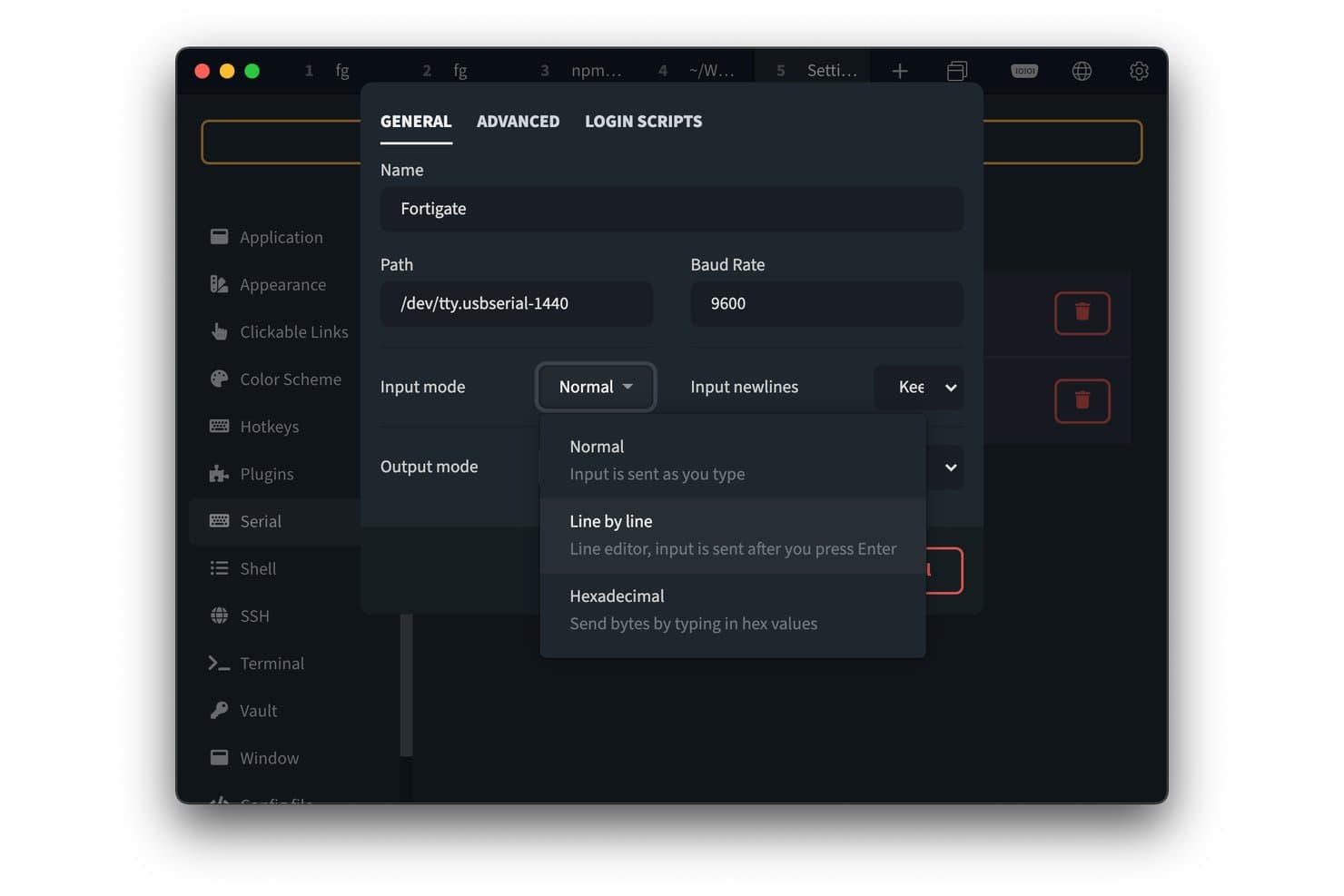
Tabby offers a Serial connection configuration panel with input mode options including Normal, Line by line, and Hexadecimal. Tabby is a free, open-source terminal emulator for Linux, macOS, and Windows that combines local shell support, an integrated SSH client, serial and Telnet connections, split panes, and a JS/CSS-based plugin system.
Who Is Tabby Best For?
Tabby suits developers, sysadmins, and DevOps engineers who work across multiple operating systems and need a single terminal for local shells and remote SSH sessions.
Why I Picked Tabby
Tabby earns its spot as one of the best on my shortlist because its plugin architecture lets me extend the terminal in ways most emulators simply don't allow. I can install or write JS-based plugins to add functionality, and CSS customization means my team's terminal setup looks and behaves consistently whether we're on Linux, macOS, or Windows. I also rely on its simultaneous multi-pane input when pushing the same command across several remote sessions at once.
Tabby Key Features
- Integrated SSH client: Connect directly to remote servers with built-in profile and key management.
- Multi-pane layout support: Arrange and manage multiple terminal sessions with resizable splits in a single workspace.
- Shell and environment support: Launch Bash, Zsh, Fish, PowerShell, WSL, Git-Bash, Cygwin, or CMD within a unified interface.
- Theming and community color schemes: Switch among 150+ ANSI color schemes and customize terminal appearance using CSS.
Tabby Integrations
Tabby offers native integrations with PowerShell, WSL, Git-Bash, MSYS2, Cmder, and CMD, and includes built-in support for SSH, SFTP, Zmodem, Telnet, and more. An API is available for custom integrations.
Pros and Cons
Pros:
- Multiple split panes and tab layouts
- Cross-platform support for Linux, Windows, macOS
- Plugin system supports deep extensibility
Cons:
- No native inline image rendering
- Electron base increases memory usage
Learn more about Tabby:

Kitty terminal displays a diff view comparing two versions of a Python file alongside two application icons. Kitty is a GPU-accelerated terminal emulator for Linux and macOS, written in C and Python, with built-in tiling window management, image rendering via its own graphics protocol, and Python-based extensibility through kittens.
Who Is Kitty Best For?
Kitty is a strong fit for developers and system administrators who live in the terminal and want deep configurability, native tiling, and advanced rendering without relying on a multiplexer.
Why I Picked Kitty
Kitty earns its spot on my shortlist because of how it handles rendering. It uses the GPU alongside SIMD vector CPU instructions to draw text, which means scrolling through dense log output or large files stays smooth even at high speeds. I also like the Kitty Graphics Protocol, which lets you display images and animations directly in the terminal. I use it regularly with the
kitten icatcommand to preview files without leaving the shell, which cuts a surprising amount of context-switching out of my workflow.Kitty Key Features
- Startup sessions: Launches predefined sets of windows, tabs, and layouts from a config file for repeatable workflows.
- Remote control protocol: Enables scripts or tools to control and interact with running Kitty instances in real time.
- Markdown and hyperlink support: Recognizes and displays clickable hyperlinks as well as certain markdown formatting directly in terminal output.
- Comprehensive shell integration: Offers support scripts for Bash, Zsh, and Fish to enhance terminal interactions and prompt awareness.
Kitty Integrations
Kitty offers native shell integrations for Bash, Zsh, and Fish, along with built-in SSH workflow support and a Python API for custom extensions and scripting.
Pros and Cons
Pros:
- Python-based extension system for custom scripts
- Native tiling window and tab management
- GPU-accelerated text and image rendering
Cons:
- Limited accessibility features for screen readers
- No GUI for configuration or profiles
Learn more about Kitty:

WezTerm displays a Lua configuration file in Neovim with transparency and blur effects visible through the terminal window. WezTerm is a GPU-accelerated, cross-platform terminal emulator and multiplexer written in Rust that supports tabbed sessions, split panes, a built-in SSH client, and deep Lua-based configuration with hot reloading.
Who Is WezTerm Best For?
WezTerm is a strong fit for developers, DevOps engineers, and SREs who want to script and automate their terminal environment beyond what config files typically allow.
Why I Picked WezTerm
WezTerm earns its spot on my shortlist because its Lua API goes well beyond setting colors and fonts. I write event-driven scripts that react to tab changes or process titles, letting me build workspace layouts that load automatically per project. The hot-reload behavior means I can iterate on my config without restarting, and
wezterm.plugin.requiremakes it easy to share scripts across machines.WezTerm Key Features
- GPU-based rendering: Provides hardware-accelerated terminal output for smooth scrolling and graphics display.
- Advanced font support: Offers ligatures, fallback fonts, Powerline symbols, and full Unicode compatibility.
- Inline image protocol: Supports Kitty, iTerm2, and Sixel graphics for displaying images directly in the terminal.
- Multiplexer server: Enables local and remote persistent terminal sessions with tabs, splits, and session grouping.
WezTerm Integrations
WezTerm offers native integrations with Bash, Zsh, and Fish shells for OSC features, and includes a built-in SSH client for remote connections.
Pros and Cons
Pros:
- GPU acceleration for smooth rendering
- Hot-reload configuration without restarting sessions
- Lua scripting for deep terminal automation
Cons:
- No graphical configuration settings available
- Sparse official documentation and tutorials
Learn more about WezTerm:

Ghostty displays a fastfetch system info output in a dark terminal window with a pixelated NixOS logo and color palette. Ghostty is an open-source, GPU-accelerated terminal emulator for Linux and macOS, built on a native GTK4 architecture with tabs, splits, hundreds of built-in themes, Kitty graphics protocol support, and full VT/ANSI compliance.
Who Is Ghostty Best For?
Ghostty suits developers and power users on Linux or macOS who want a fast, native terminal that works well out of the box without requiring extensive configuration.
Why I Picked Ghostty
I picked Ghostty as one of the best because its OpenGL-based GPU rendering on Linux hits around 407 FPS with roughly 2ms key-to-screen latency, which I notice immediately when tailing high-volume logs. It's built on a Zig-based core (libghostty) that keeps the binary lean, and it's the first native GTK4 terminal to skip the VTE library entirely, cutting the overhead that slows most traditional Linux terminals down.
Ghostty Key Features
- Kitty graphics protocol support: Display inline images and graphical content directly in the terminal window.
- Hundreds of built-in themes: Switch easily between preconfigured color schemes or author your own for full visual control.
- Native GTK4 interface: Integrates seamlessly with modern Linux desktop environments using the newest native UI toolkit.
- Advanced Unicode handling: Correctly renders multi-codepoint emoji, Arabic, Hebrew, and other complex scripts.
Ghostty Integrations
Ghostty natively supports the Kitty graphics protocol for inline images and integrates with shells like Bash, Zsh, and Fish.
Pros and Cons
Pros:
- Native GTK4 interface for desktop integration
- Supports hundreds of built-in terminal themes
- Extremely low resource usage and fast startup
Cons:
- Lacks macro or snippet automation features
- No built-in SSH profile manager
Learn more about Ghostty:
Other Linux Terminal Emulator
Here are some additional Linux terminal emulator options that didn’t make it onto my shortlist, but are still worth checking out:
- 11TilixBest for drag-and-drop tiling and layout control
- 12TerminatorBest for multi-pane window management
- 13HyperBest for extensive plugin customization
- 14Xfce TerminalBest for lightweight resource usage in Xfce
- 15FootBest for minimalist designs with Wayland support
- 16Wave TerminalBest for unified dashboards with file editing
- 17Rio TerminalBest for simple cross-platform installation
- 18PtyxisBest for container access alongside host systems
- 19Black BoxBest for modern GNOME interface aesthetics
How I Evaluate Linux Terminal Emulators
I split my evaluation into baseline requirements every terminal emulator must meet and the differentiators—like GPU acceleration, Lua scripting, or SSH management—that separate good from great.
Core Functionality (Table Stakes For This List)
When I'm selecting tools for my list, I rank each one on a scale from 0 (does not offer the functionality) to 5 (excels in this area) for each core functionality listed below. Then, I calculate the tool's total score into a percentage. Each tool needs to achieve a minimum total score of 75% to be considered for inclusion.
- Shell Compatibility: I check whether the emulator handles Bash, Zsh, Fish, and others with full ANSI/VT escape sequence rendering so prompts and TUI apps display correctly.
- Multi-Session Management: Tabs and split panes are table stakes, but I also look for session grouping and broadcast input for managing clusters.
- SSH & Remote Access: I evaluate how each tool handles saved SSH profiles, key management, and jump host support for daily remote server work.
- Customization & Theming: From keybindings to per-profile color schemes, I look for config depth that lets you version-control your setup across machines.
- Text & Buffer Handling: Scrollback search, regex matching, hyperlink detection, and solid Unicode/UTF-8 rendering all factor into how I assess output handling.
- Scripting & Automation: I consider whether the emulator offers scripting hooks, macros, or snippet support to automate repetitive tasks like log tailing or deployments.
Once I have a list of tools that meet the criteria, I consider what sets each platform apart.
Differentiating Factors (What Sets Vendors Apart)
Here's how I compare and contrast different vendors:
Standout Features
GPU acceleration matters when you're tailing massive log files or running TUI dashboards. I look for OpenGL or Vulkan support that keeps rendering smooth under heavy output. Scripting and extensibility is another key differentiator, since tools like Kitty and WezTerm let you define configs in code and make setups portable and version-controlled. Inline image protocol support also stands out, letting you preview plots or thumbnails directly in the terminal without switching contexts.
Beyond Features
Resource footprint is a big one—I check startup time and memory usage because if you're spawning terminals dozens of times a day, a slow launch adds up fast. Desktop environment compatibility also matters, especially whether a tool supports Wayland natively or still relies on XWayland. Community health and licensing round things out. An active open-source project with responsive maintainers means bugs get fixed and shared configs stay current.
How to Choose Linux Terminal Emulator
It’s easy to get bogged down in long feature lists and complex pricing structures. To help you stay focused as you work through your unique software selection process, here’s a checklist of factors to keep in mind:
| Factor | What to Consider |
|---|---|
| FactorScalability | What to ConsiderWill the emulator fit your needs as your team or project scales? Consider if it can handle more sessions, devices, or complex workflows over time. |
| FactorIntegrations | What to ConsiderDoes it work smoothly with your SSH keys, password managers, or version control systems? Confirm compatibility with your toolchain before committing. |
| FactorCustomizability | What to ConsiderHow easily can you adapt it to match your workflows or preferences? Be mindful of whether changes require GUI settings, config files, or scripting. |
| FactorEase of use | What to ConsiderWill team members pick it up without steep training? Try to gauge initial learning curves, available documentation, and the clarity of settings menus. |
| FactorImplementation and onboarding | What to ConsiderHow long will deployment and setup take? Check for pre-built packages, install scripts, and setup guides for your OS and user environment. |
| FactorCost | What to ConsiderAre there any licensing or commercial use restrictions? Review pricing for paid components, optional plugins, or ongoing support. |
| FactorSecurity safeguards | What to ConsiderHow are SSH keys, credentials, and settings protected? Always check for encrypted storage, safe update channels, and auditability of config changes. |
| FactorSupport availability | What to ConsiderCan you get help promptly when issues arise? Consider vendor support SLAs, forums, and community responsiveness for troubleshooting or urgent fixes. |
What Are Linux Terminal Emulators?
A Linux terminal emulator is software that lets you use command-line shells within a graphical desktop environment. You can run shell commands, manage remote servers, navigate directories, and execute scripts directly from your desktop. These tools give you flexible, centralized access to your system and remote environments, supporting a wide range of daily developer and admin workflows.
Features of Linux Terminal Emulator
When selecting linux terminal emulator, keep an eye out for the following key features:
- Shell compatibility: Supports popular shells like Bash, Zsh, and Fish, so you can work with your preferred environment and command set.
- Tab and pane management: Lets you open multiple terminal sessions in tabs or split panes, keeping projects and servers organized in one window.
- SSH integration: Enables direct connections to remote servers with saved profiles, making remote management faster and reducing manual setup.
- Customizable themes: Allows you to change fonts, colors, and layouts, so you can personalize your terminal to match your visual needs and workflow.
- Scrollback buffer: Retains command output history, letting you review or search through previous commands and responses easily.
- Keyboard shortcuts: Offers configurable keybindings for quick navigation, command execution, and window management.
- Copy and paste support: Simplifies text selection and transfer between the terminal and other applications without breaking formatting or command syntax.
- Unicode and emoji support: Properly displays international characters, symbols, and emojis, useful for logs, scripts, and collaboration with global teams.
- Scripting and automation hooks: Lets you automate repetitive tasks, run scripts at startup, or define macros for faster operations.
- Plugin or extension support: Expands core functionality via user-created plugins or extensions, allowing you to tailor the terminal for niche needs or advanced workflows.
Benefits of Linux Terminal Emulator
Implementing linux terminal emulator provides several benefits for your team and your business. Here are a few you can look forward to:
- Centralized command access: Work with multiple shells and remote sessions from a single, unified interface, simplifying day-to-day IT and development tasks.
- Flexible customization: Personalize themes, layouts, and keybindings to create an efficient environment that fits your preferred workflows.
- Improved remote management: Built-in SSH integration and session profiles make it faster and safer to access remote systems and servers.
- Faster troubleshooting: Scrollback buffers, search features, and copy/paste support help your team analyze logs or errors without missing critical details.
- Enhanced productivity: Tabs, split panes, and scripting hooks let you juggle projects, automate repeated tasks, and multitask with ease.
- Better international support: Accurate Unicode and emoji rendering makes collaborating and working across different languages more accessible.
- Easy extensibility: Plugin and extension support allows you to adapt your terminal to new tasks or future tech without switching platforms.
Costs and Pricing of Linux Terminal Emulator
Selecting linux terminal emulator requires an understanding of the various pricing models and plans available. Costs vary based on features, team size, add-ons, and more. The table below summarizes common plans, their average prices, and typical features included in linux terminal emulator solutions:
Plan Comparison Table for Linux Terminal Emulator
| Plan Type | Average Price | Common Features |
|---|---|---|
| Plan TypeFree Plan | Average Price$0 | Common FeaturesSupports core terminal features, basic theming, tabbed sessions, and community support. |
| Plan TypePersonal Plan | Average Price$5-$15/user/month | Common FeaturesAdds advanced customization, SSH profile management, session persistence, and priority updates. |
| Plan TypeBusiness Plan | Average Price$15-$30/user/month | Common FeaturesIncludes multi-user management, plugin support, enhanced security settings, and audit controls. |
| Plan TypeEnterprise Plan | Average Price$30-$50/user/month | Common FeaturesOffers enterprise SSO, dedicated support, compliance features, extended integrations, and SLA-backed uptime. |
Linux Terminal Emulator FAQs
Here are some answers to common questions about linux terminal emulator:
Can I run multiple shell sessions at once?
Yes, most linux terminal emulators let you open multiple tabs or split panes, so you can work in several shell sessions simultaneously or organize connections to different servers.
Are linux terminal emulators secure for remote connections?
Yes, as long as you use secure protocols like SSH and manage your keys securely. Many emulators offer built-in SSH features and support for encrypted key storage, but always review your configuration settings.
What makes one linux terminal emulator better for scripting and automation?
Look for emulators that support scripting hooks, macros, or plugin systems. These features help automate routine workflows, such as deploying code or running diagnostics, directly from your terminal.
Do linux terminal emulators work across different desktop environments?
Most modern linux terminal emulators are designed for compatibility with GNOME, KDE, Xfce, and tiling window managers. Always check for support with your preferred environment, especially on Wayland.
How do I customize themes and fonts in a linux terminal emulator?
You can usually change themes, fonts, and colors using either a preferences dialog or by editing a configuration file. Some emulators support community-shared themes to make setup even easier.