

O software de acesso remoto permite-lhe ligar-se de forma segura a dispositivos e controlá-los a partir de qualquer lugar, colmatando as lacunas entre equipas distribuídas e sistemas remotos. Se lidera a área de TI, precisa de saber quais as plataformas que oferecem a combinação certa de controlos de segurança, transmissão de alta qualidade e funcionalidades de gestão para situações reais.
Obtenha respostas diretas sobre o melhor software de acesso remoto em 2026—desde ferramentas de conformidade de nível empresarial a opções fiáveis para suporte a computadores—para minimizar os riscos, reduzir as dores de cabeça e proporcionar à sua equipa o acesso de que precisa com confiança. Esta lista apresenta-lhe as principais opções, tornando a sua próxima escolha clara e prática.
Why Trust Our Software Recommendations
6,700+
Reviews
20
Industry experts
16+
Evaluation factors
14
Years
Our team has been testing and reviewing software since 2012. As tech leaders ourselves, we know how difficult—and important—it is to choose the right software.
For this guide, we evaluated tools using hands-on testing and independent research, scoring tools using our selection criteria.
Our reviews reflect our human editorial judgment, not a sales pitch.
Expert reviewers:
- Paulo Gardini MiguelTech Director
 Tim FisherVP of AI
 Gabriel RosasTech Lead & Software Architect
 Christhian GruhnTech Lead & Platform Architect

Tabela comparativa de software de acesso remoto
| Tool | Best For | Trial Info | Price | ||
|---|---|---|---|---|---|
| 1 | Best for automated patch management workflows | Free demo available | Pricing upon request | Website | |
| 2 | Best for self-hosted perpetual licensing | 15-day free trial | From $16.9/month (billed annually) | Website | |
| 3 | Best for multi-device desktop management at scale | 7-day free trial | From $1.84/month (billed annually) | Website | |
| 4 | Best for MSP technician speed and diagnostic tools | 14-day free trial + free demo available | Pricing upon request | Website | |
| 5 | Best for high-performance remote control at 4K quality | Free trial available | From $6/month | Website | |
| 6 | Best with AI-assisted IT diagnostics | 30-day free trial | From $120.90/month (billed annually) | Website | |
| 7 | Best for FIPS 140-2 compliant support | Free trial available | Pricing upon request | Website | |
| 8 | Best for FedRAMP-grade zero trust access | Free trial + free demo available | Pricing upon request | Website | |
| 9 | Best for session recording and auditing | 14-day free trial | From $33/month (billed annually) | Website | |
| 10 | Best for mass deployment call center support | Free 14-day free trial + free demo available | From $109/month (billed annually) | Website |


Análises de software de acesso remoto
Seguem-se os meus resumos detalhados do melhor software de acesso remoto que entrou na minha seleção. As minhas análises apresentam uma análise detalhada das funcionalidades, dos melhores casos de utilização e das capacidades de cada software, para o ajudar a encontrar a melhor opção para si.
 Best for automated patch management workflows
- Free demo available
- Pricing upon request

Kaseya VSA enables one-click remote control sessions to managed devices. Kaseya VSA is a cloud-based remote monitoring and management (RMM) platform built for MSPs and internal IT teams, covering endpoint monitoring, automated patching, policy-based task automation, ransomware detection, mobile device management, and secure remote control access.
Who Is Kaseya VSA Best For?
Kaseya VSA is a strong fit for MSPs and internal IT teams managing large fleets of endpoints that need policy-driven patch automation across Windows, macOS, and third-party applications.
Why I Picked Kaseya VSA
I picked Kaseya VSA as one of the best because its patch management goes beyond basic scheduling. Policy-based patching lets you define approval rules, maintenance windows, and blackout periods across Windows, macOS, Linux, and 300+ third-party apps from a single console. What I find genuinely useful is the patch override functionality, which lets you exclude specific problematic patches via script without disrupting the broader workflow. The RMM agent also pushes patches on and off-network without relying on LAN caches, so remote endpoints stay current without extra configuration.
Kaseya VSA Key Features
- Secure remote control access: Connect instantly to any endpoint for live support sessions without requiring user interaction or a VPN.
- Ransomware detection and isolation: Behaviour-based detection automatically quarantines infected endpoints to contain threats before they spread.
- Real-time monitoring and alerts: Monitors endpoint health continuously and triggers automated ticket creation and remediation when issues arise.
- IT asset discovery and mapping: Automatically discovers and inventories hardware, software, VMs, cloud infrastructure, and IoT devices across your environment.
Kaseya VSA Integrations
Kaseya VSA offers native integrations with Autotask, IT Glue, ConnectWise, Acronis, Bitdefender, ESET, Webroot, Datto, and Scalepad Lifecycle Manager. An API is available for custom integrations.
Pros and Cons
Pros:
- Ransomware isolation for remote endpoints
- Secure remote sessions without a VPN
- Policy-based automated patch deployment
Cons:
- Some remote features require agent installation
- Interface can feel dated and cluttered
Learn more about Kaseya VSA: Best for self-hosted perpetual licensing
- 15-day free trial
- From $16.9/month (billed annually)
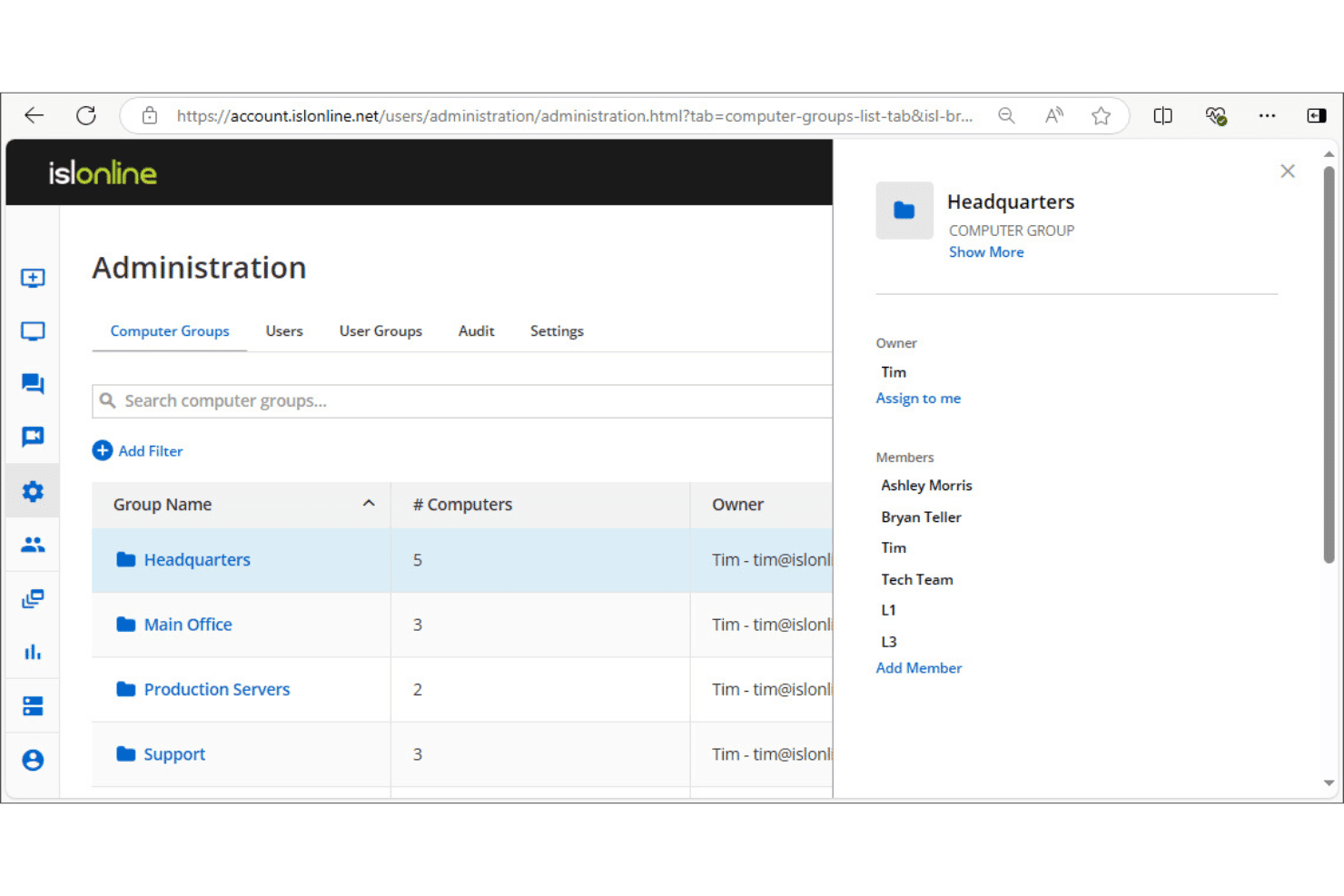
ISL Online lets admins organize computers into groups with member access controls. ISL Online is a remote desktop software that supports unattended access, live customer support sessions, RDP/SSH connections, and centralized user and device administration across Windows, macOS, Linux, and mobile platforms.
Who Is ISL Online Best For?
ISL Online is a strong fit for IT teams and managed service providers that need to run remote access infrastructure on their own servers rather than rely on a vendor's cloud.
Why I Picked ISL Online
ISL Online earns its spot on my shortlist because of how seriously it treats self-hosted deployment as a first-class option, not an afterthought. I like that the self-hosted plan lets you run the full ISL Online server on your own infrastructure, with support for external LDAP authentication and SAML SSO alongside ports 80 and 443. That means your session data never touches a third-party cloud, which matters when your organization has strict data residency or compliance requirements.
ISL Online Key Features
- Session recording: Capture full video recordings of remote sessions for audit trails and compliance documentation.
- File transfer: Send and receive files between local and remote machines directly within an active session.
- Two-factor authentication: Require a second verification step at login to reduce unauthorized access to remote devices.
- RDP/SSH connections: Connect to remote machines over RDP or SSH without requiring VPN configuration or firewall changes.
ISL Online Integration
ISL Online offers native integrations with ServiceNow, Freshdesk, HaloITSM, Microsoft Intune, Devolutions Remote Desktop Manager, Deepser, SuperOps, and PDQ Connect, and provides a REST API for embedding remote access or building custom OEM integrations into RMM, PSA, EDR, and ITSM platforms.
Pros and Cons
Pros:
- Native support for both RDP and SSH
- Requires additional verification for login
- Can deploy entirely on your own infrastructure
Cons:
- No automated endpoint remediation tasks
- Requires self-hosting for maximum privacy
Learn more about ISL Online: Best for multi-device desktop management at scale
- 7-day free trial
- From $1.84/month (billed annually)
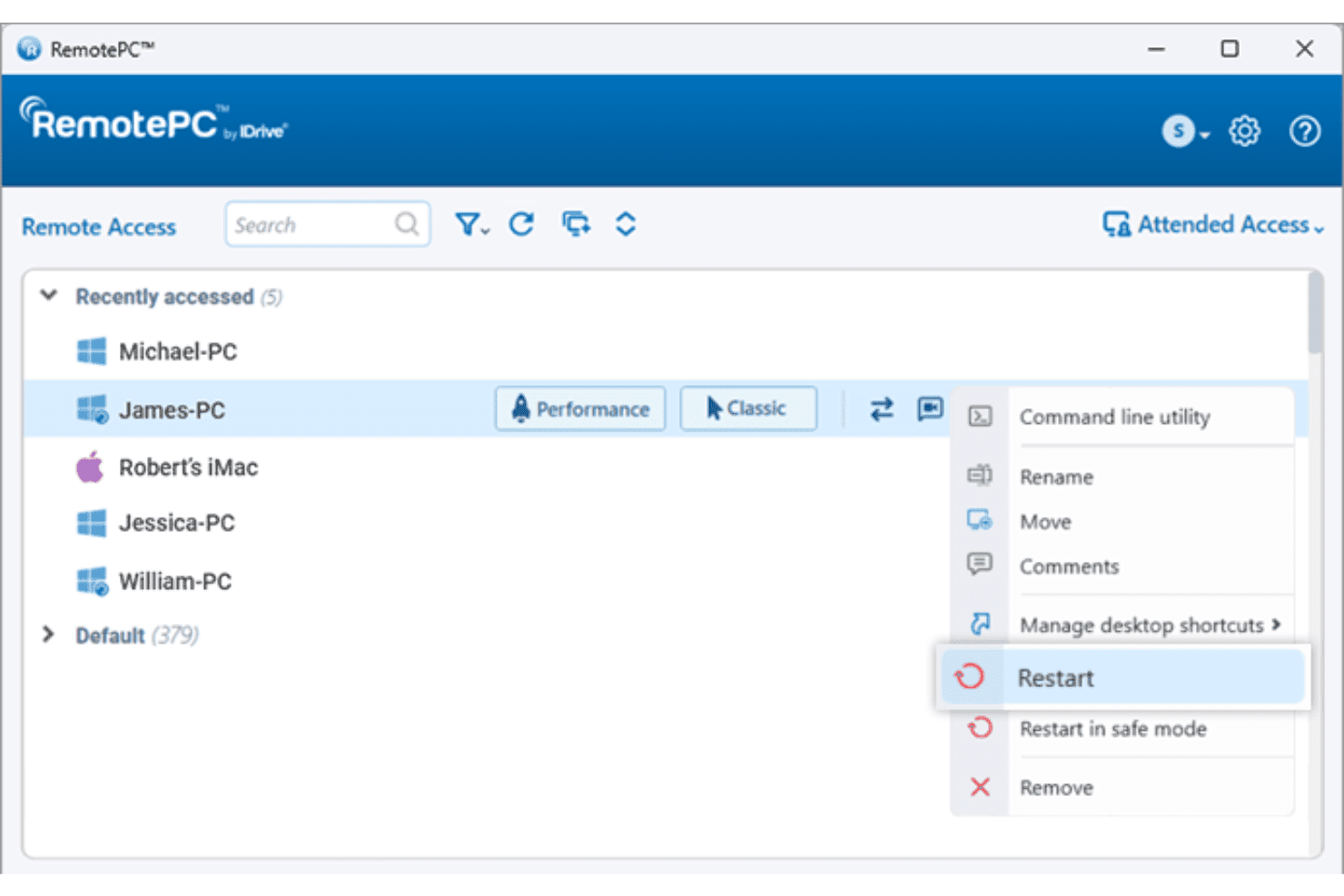
RemotePC lets users restart remote computers directly from the device list. RemotePC is a remote access platform that lets you connect to and control Windows, Mac, Linux, Android, and iOS devices over the internet, with features spanning multi-monitor support, file transfer, remote deployment, user and computer group management, and session recording.
Who Is RemotePC Best For?
RemotePC is a strong fit for IT teams managing large fleets of Windows, Mac, and Linux devices that need centralized remote access with user and computer group management.
Why I Picked RemotePC
RemotePC earns its spot on my shortlist because of how well it handles scale. The computer grouping and user group management features let you organize large device fleets and assign access permissions without manually configuring each machine. What I find especially useful is mass deployment via GPO, Microsoft Intune, or Jamf Pro, which means you can push RemotePC across hundreds of endpoints from a central console rather than touching each one. Add session recording and detailed access logs, and you have solid accountability across every remote connection in your environment.
RemotePC Key Features
- Remote printing: Print documents stored on any remote machine directly to your local printer without manual file transfers.
- USB device redirection: Redirect a USB device from your local machine to a remote computer so it functions as if it's physically connected.
- RDP connector: Access remote Windows computers and servers via RDP without configuring a VPN or Microsoft RD Gateway.
- Attended access: Share a one-time session code to give instant, on-demand access to a remote computer for real-time support.
RemotePC Integrations
RemotePC offers native integrations with Zendesk, Freshdesk, Freshservice, Jira, OneLogin, Okta, Azure AD, Keycloak, Google Workspace, and Jamf Pro. An API is available for custom integrations.
Pros and Cons
Pros:
- Wake-on-network functionality supported
- Mass deployment options for large device fleets
- Supports remote access to all major platforms
Cons:
- Lacks automated remote software patching tools
- No support for custom API integrations
Learn more about RemotePC: Best for MSP technician speed and diagnostic tools
- 14-day free trial + free demo available
- Pricing upon request
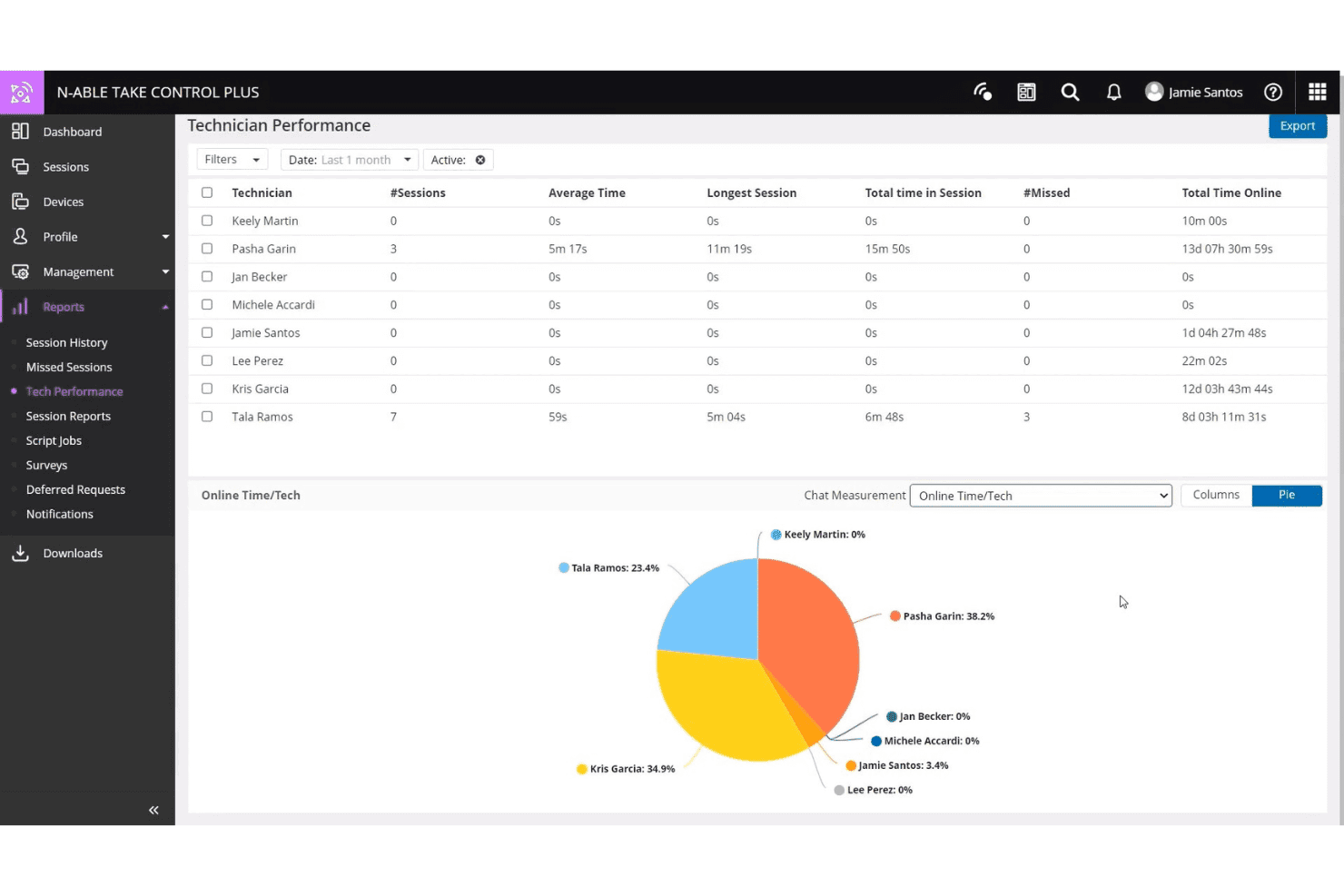
N-able Take Control tracks technician session activity and online time. N-able Take Control is a remote support tool built for MSPs and IT teams, offering cross-platform session management, built-in diagnostic tools, live chat, VoIP, multi-factor authentication, and integrations with N-able's RMM platforms.
Who Is N-able Take Control Best For?
N-able Take Control is a strong fit for MSP technicians who need fast session starts and built-in diagnostic tools without switching between platforms.
Why I Picked N-able Take Control
I've included N-able Take Control in my top picks because the session startup speed is genuinely impressive, and the built-in diagnostic tools mean technicians aren't jumping between tabs to troubleshoot. I particularly like the device health dashboard, which surfaces CPU, memory, and disk data during a live session so you can diagnose while you work. The one-click remote command console is another feature I keep coming back to, letting you run scripts and restart services without interrupting the end user's screen.
N-able Take Control Key Features
- Cross-platform remote sessions: Connect to and from Windows, Mac, Linux, iOS, and Android devices within a single session queue.
- Multi-monitor support: Switch between and view multiple monitors on the remote device without ending or restarting the session.
- In-session file transfer: Drag and drop files directly to and from a remote device during an active support session.
- Session recording: Start and stop recordings of live sessions for auditing, compliance, or technician training purposes.
N-able Take Control Integrations
N-able Take Control offers native integrations with N-sight RMM, N-central, Autotask, and ConnectWise. An API is available for custom integrations.
Pros and Cons
Pros:
- Multi-platform queues for Windows, Mac, Linux
- Built-in device health dashboard during sessions
- Session startup speed is consistently fast
Cons:
- Some advanced features need the N-central platform
- Limited native integrations outside the N-able ecosystem
Learn more about N-able Take Control: Best for high-performance remote control at 4K quality
- Free trial available
- From $6/month
Visit WebsiteCustomer Rating:4.8/5
Splashtop lets users remotely view and filter Windows event logs by type and severity. Splashtop is a remote access and remote support platform built for IT teams, offering remote desktop control, screen sharing, session recording, and multi-monitor support across Windows, Mac, iOS, Android, and Linux devices.
Who Is Splashtop Best For?
Splashtop is a strong fit for IT teams and managed service providers that need high-fidelity remote desktop control, especially where display quality and session performance matter most.
Why I Picked Splashtop
Splashtop earns its spot on my shortlist because of its 4K streaming at up to 60fps, which makes it genuinely viable for remote work on graphics-heavy applications like Adobe Creative Suite or AutoCAD. I've used it in scenarios where display fidelity actually matters, and the difference from a standard HD stream is noticeable. On top of that, multi-monitor support lets you view multiple remote displays without losing workspace context.
Splashtop Key Features
- Session recording: Automatically record remote sessions and store them for audit, compliance, or troubleshooting review.
- File transfer: Move files between the local and remote device directly within an active session without a third-party tool.
- Remote reboot: Restart a remote machine, including in safe mode, without losing access to the session.
- Two-factor authentication: Require a second verification step at login to reduce unauthorized access to remote endpoints.
Splashtop Integrations
Splashtop offers 40+ native integrations, including Jira, ServiceNow, Zendesk, Freshservice, Microsoft Teams, Salesforce, Splunk, Jamf, NinjaOne, and JumpCloud, and it has native integrations across the Microsoft ecosystem, including Microsoft Entra ID. An API is also available for custom integrations.
Pros and Cons
Pros:
- Offers direct file transfer capabilities
- Allows safe remote device rebooting
- Streams remote desktops at 4K 60fps
Cons:
- No automated software patching tools
- Lacks a background endpoint command line
Learn more about Splashtop: Best with AI-assisted IT diagnostics
- 30-day free trial
- From $120.90/month (billed annually)
Visit WebsiteCustomer Rating:4.6/5
TeamViewer discovers and monitors all devices across your network. TeamViewer is a remote access and support platform that combines device connectivity, session-based troubleshooting, endpoint monitoring, and AI-assisted diagnostics across desktop, mobile, and IoT environments.
Who Is TeamViewer Best For?
TeamViewer is a strong fit for IT support teams managing large, mixed-device environments where fast remote diagnostics across desktops, mobile, and IoT endpoints are a daily necessity.
Why I Picked TeamViewer
TeamViewer earns its spot on my shortlist because of Tia, its built-in AI agent that actually diagnoses issues mid-session, recommends a fix, executes approved remediation, and validates the outcome without you having to leave the remote session. I also like Session Insights, which auto-generates audit-ready session summaries and feeds pattern data into Session Analytics so you can spot recurring issues across your environment. For IT teams juggling high ticket volumes across mixed device fleets, those two features together close the gap between reactive troubleshooting and something closer to autonomous support.
TeamViewer Key Features
- Unattended access: Connect to and control approved devices—including computers and Android endpoints—without requiring a user to be present on the other end.
- Augmented reality remote assistance: Use Assist AR to guide on-site workers through hardware or software problems via live smartphone-based AR overlays, without dispatching a technician.
- Encrypted file transfer: Transfer files between local and remote devices using end-to-end 256-bit AES encryption, with support for multiple transfer methods including copy-paste.
- Silent mass deployment: Push the TeamViewer client to thousands of devices in bulk without requiring user interaction, reducing onboarding time for large device fleets.
TeamViewer Integrations
TeamViewer offers 30+ native integrations, including ServiceNow, Salesforce, Zendesk, Jira, Freshworks, Slack, Google Meet, SAP, Jamf Pro, and Microsoft ecosystem tools like Microsoft 365, Intune, Teams, Dynamics 365, and Entra ID. An API is also available for custom integrations.
Pros and Cons
Pros:
- Augmented reality visual assistance mode
- Session Insights generate audit-ready support reports
- AI-driven diagnostics suggest fixes in real time
Cons:
- Remote access occasionally blocked by strict firewalls
- Lacks stealth background management mode
Learn more about TeamViewer: Best for FIPS 140-2 compliant support
- Free trial available
- Pricing upon request

BeyondTrust Remote Support tracks live sessions, wait times, and rep activity. BeyondTrust Remote Support is a remote access platform built for IT and support teams that need to securely access, troubleshoot, and manage endpoints across on-premises, cloud, and hybrid environments.
Who Is BeyondTrust Remote Support Best For?
BeyondTrust Remote Support is a strong fit for IT and security teams in government, defence, and highly regulated industries that need remote support validated to FIPS 140-2, Level 1 standards.
Why I Picked BeyondTrust Remote Support
BeyondTrust Remote Support is the only remote support product with FIPS 140-2, Level 1 validation, which makes it a clear pick for government agencies, defence contractors, and organizations operating under FedRAMP or FISMA requirements. I particularly like the Vault feature, which lets you manage, rotate, and inject up to 100,000 credentials directly within remote sessions, keeping privileged access tightly controlled. Session logging and forensics give security teams a full audit trail of every connection.
BeyondTrust Remote Support Key Features
- Jump Clients: Deploy Jump Clients for unattended access to remote endpoints, with support for mass deployments and just-in-time access provisioning.
- Remote Support Dashboard: Monitor all active sessions in real time, view team load, and transfer or take over sessions directly from a centralized manager view.
- Multi-platform device support: Connect to and troubleshoot Windows, Linux, macOS, Chrome OS, iOS, and Android devices from a single interface.
- Automated script execution: Run scripts and mass installers across endpoints during remote sessions to speed up remediation without manual intervention.
BeyondTrust Remote Support Integrations
BeyondTrust Remote Support offers native integrations with ServiceNow, Jira Service Management, BMC ITSM, Splunk, Microsoft Entra ID, Okta, and Ping Identity. An API is available for custom integrations.
Pros and Cons
Pros:
- Automated script execution across endpoints
- Centralized credential management during remote sessions
- Offers FIPS 140-2 Level 1 validation
Cons:
- Requires setup for optimal unattended access
- Lacks background endpoint management mode
Learn more about BeyondTrust Remote Support: Best for FedRAMP-grade zero trust access
- Free trial + free demo available
- Pricing upon request

BeyondTrust tracks computer policy compliance and client versions across endpoints. BeyondTrust Privileged Remote Access is a privileged access management (PAM) solution that controls and audits remote sessions for employees, vendors, and service accounts across cloud, on-premises, and OT environments using zero trust architecture, credential injection, and session recording.
Who Is BeyondTrust Privileged Access Management Best For?
BeyondTrust Privileged Remote Access is a strong fit for government agencies, defence contractors, and regulated enterprises that need FedRAMP-authorized remote access controls for privileged users and third-party vendors.
Why I Picked BeyondTrust Privileged Access Management
BeyondTrust Privileged Remote Access earns its spot on my list because it's one of the few remote access solutions with FedRAMP Moderate authorization, which matters a lot if you're in a federal agency or supporting government contractors. I particularly like its credential injection capability, which lets privileged users authenticate to systems without ever seeing plaintext passwords. Pair that with just-in-time access controls and full session recording, and you get the kind of audit-ready access trail that satisfies both internal security teams and external compliance reviewers.
BeyondTrust Privileged Access Management Key Features
- Vendor privileged access management: Grants third-party vendors time-limited remote access without requiring VPN connectivity or shared credentials.
- Multi-protocol session support: Supports RDP, VNC, SSH, HTTPS, and SQL connections for authenticated and auditable sessions across human and non-human identities.
- Cloud developer access: Provides protocol-first access with a bring-your-own-tool workflow for ephemeral multi-cloud systems and API-based environments.
- Delegated vendor onboarding: Lets you assign vendor user management to group policies, removing shared accounts and reducing manual provisioning overhead.
BeyondTrust Privileged Access Management Integrations
BeyondTrust Privileged Remote Access offers native integrations with ServiceNow, Jira Service Management, Splunk, Sekoia, SailPoint IdentityIQ, AWS, and VMware. An API is available for custom integrations.
Pros and Cons
Pros:
- Session recording enables thorough audit trails
- Credential injection hides sensitive passwords from users
- FedRAMP Moderate authorization supports federal compliance needs
Cons:
- No built-in antivirus management
- Lacks direct endpoint chat messenger
Learn more about BeyondTrust Privileged Access Management: Best for session recording and auditing
- 14-day free trial
- From $33/month (billed annually)

ScreenConnect tracks elevation requests and access approvals in one dashboard. ScreenConnect is a remote access and support platform that covers unattended device access, remote support sessions, privileged access management, and real-time camera sharing across Windows, Mac, Linux, and mobile devices.
Who Is ScreenConnect Best For?
ScreenConnect is a good fit for IT teams and managed service providers that need full audit trails and recorded session logs to meet compliance or internal accountability requirements.
Why I Picked ScreenConnect
ScreenConnect earns its spot on my shortlist because of how seriously it handles session visibility and accountability. Every remote session can be logged as a video recording, and the audit log tracks login attempts, password changes, and session access in one filterable view, so you can pull up exactly what a technician did during a specific session without digging through fragmented logs. I also like that you can filter audit logs by session name to find recordings fast, which matters when you're responding to a compliance inquiry or internal review.
ScreenConnect Key Features
- Unattended device access: Connect to remote Windows, Mac, and Linux machines without requiring a user to be present on the other end.
- Real-time camera sharing: Access a live feed of a device's camera during a support session to get visual context on physical environments or hardware issues.
- Role-based access control: Assign technicians permissions at a granular level, controlling which machines and session types each user can access.
- Wake-on-LAN: Power on remote devices over the network so you can connect to machines that are powered off without needing someone on-site.
ScreenConnect Integrations
ScreenConnect offers native integrations with ConnectWise PSA, ConnectWise Automate, ConnectWise RMM, Acronis, Freshdesk, Zendesk, Microsoft Outlook, ServiceNow, and Delinea, plus 100+ extensions available through the ConnectWise Marketplace. An API is available for custom integrations.
Pros and Cons
Pros:
- Role-based permissions for technician access control
- Granular audit logs for accountability reviews
- Real-time device camera sharing
Cons:
- Lacks unified endpoint patch deployment
- No free or trial version available
Learn more about ScreenConnect: Best for mass deployment call center support
- Free 14-day free trial + free demo available
- From $109/month (billed annually)

LogMeIn Rescue lets users start remote, mobile, or screen-sharing support sessions. LogMeIn Rescue is a cloud-based remote support platform built for IT teams and help desks, offering remote device access, session management, multi-platform support, and technician console tools across desktop and mobile environments.
Who Is LogMeIn Rescue Best For?
LogMeIn Rescue is a strong fit for IT help desks and call centers that need to support large volumes of end users across multiple devices and operating systems simultaneously.
Why I Picked LogMeIn Rescue
I've included LogMeIn Rescue in my top picks because it handles high-volume call center support better than most tools in this category. The Calling Card feature is the real differentiator: deploy a single-click desktop shortcut across thousands of end-user machines via mass install, and users connect to a support session without a PIN. Technicians on the other end manage inbound requests through session queues and channel routing, which keeps call center workflows organized at scale.
LogMeIn Rescue Key Features
- AI session summaries: Automatically generate structured session notes from chat logs, device information, and technician actions taken during a support session.
- Session recording and reporting: Record remote sessions and access historical usage data to review technician activity and track team-level metrics.
- Live Lens: Let end users share their physical environment via smartphone camera, so technicians can diagnose hardware or on-site issues without an on-desk visit.
- Multi-technician collaboration: Invite additional technicians into an active session to troubleshoot together without restarting or transferring the session.
LogMeIn Rescue Integrations
LogMeIn Rescue offers native integrations with ServiceNow, Salesforce (including Lightning), Microsoft Dynamics, Microsoft Teams, Zendesk, Freshdesk, Jira Service Management, Autotask, and Nexthink. It also provides APIs and SDKs for custom integrations with CRM, ticketing, and workflow systems.
Pros and Cons
Pros:
- Multi-technician sessions without disruption
- Live Lens supports hardware issue diagnosis
- Automatic session note generation capability
Cons:
- Lacks continuous endpoint patch automation
- No built-in endpoint antivirus
Learn more about LogMeIn Rescue:
Outro software de acesso remoto
Eis algumas opções adicionais de software de acesso remoto que não entraram na minha seleção, mas que ainda vale a pena consultar:
- 11NinjaOneBest for RMM-native endpoint control
- 12Zoho AssistBest for native Zoho ecosystem integrations
- 13AteraBest for transparent per-technician pricing
- 14ManageEngine Remote Access PlusBest for unattended system diagnostics
- 15Parallels RASBest for virtual app and desktop delivery to any device
- 16AnyDeskBest for low-latency cross-platform control
- 17Azure Virtual DesktopBest for cloud-native Windows desktops
- 18LogMeIn ResolveBest for unified endpoint ticketing and access
- 19RustDeskBest for open-source data sovereignty
- 20RealVNC ConnectBest for embedded system and IoT access
Related Reviews
How I Evaluate Remote Access Software
I split my evaluation into baseline capabilities every tool must clear—like unattended access and session auditing—and the differentiators, like zero-trust architecture or MSP ecosystem fit, that separate good tools from the right one.
Core Functionality (Table Stakes for This List)
When I'm selecting tools for my list, I rank each one on a scale from 0 (does not offer the functionality) to 5 (excels in this area) for each core functionality listed below. I then calculate the tool's total score as a percentage, using 75% as a benchmark to help assess its overall fit for the list.
- Remote control access: I evaluate real-time screen, keyboard, and mouse control across connections, checking for multi-monitor handling, resolution scaling, and performance under high-latency conditions.
- Unattended access: Tools need to support always-on agent-based connections so technicians can reach endpoints for after-hours patching or server maintenance without someone on the other end.
- Cross-platform support: I check whether each tool covers Windows, macOS, Linux, iOS, and Android as both host and client, since mixed-OS environments are the norm for most IT teams.
- Secure connection and encryption: AES-256 encryption, MFA enforcement, and SSO/SAML support are what I look for, along with any compliance certifications like SOC 2 or ISO 27001.
- File transfer and session tools: Bi-directional file transfer, clipboard sync, remote print, and in-session chat all factor in, especially for support scenarios where a technician needs to push a config file mid-session.
- Session management and auditing: I look at session recording, role-based access controls, and exportable audit logs, since these directly support compliance requirements and internal accountability reviews.
Once I have a list of tools that meet the criteria, I consider what sets each platform apart.
Differentiating Factors (What Sets Vendors Apart)
Here's how I compare and contrast different vendors:
Standout Features
Session recording with searchable metadata matters most when your compliance team needs a defensible audit trail. I check whether recordings auto-attach to tickets and how long vendors retain them. Just-in-time privileged access is equally important—I evaluate how tools handle time-bound, approval-gated elevation for contractors so access revokes automatically after a session ends. I also look at mass deployment tooling, since onboarding thousands of endpoints via silent MSI installers or Group Policy integration separates enterprise-ready platforms from ones that require manual setup.
Beyond Features
I evaluate each tool's deployment model first—cloud-hosted, self-hosted, or hybrid—because teams in regulated industries often need on-premises control or data residency guarantees. Licensing structure matters just as much: per-technician pricing suits lean internal teams, while per-endpoint or concurrent-session models can save MSPs real money at scale. I also check for native connectors to PSA, ITSM, and identity providers like Okta or Azure AD, since launching a remote session straight from a ServiceNow ticket eliminates context-switching. Finally, I look at compliance certifications like SOC 2 Type II and FedRAMP that map directly to buyer requirements in healthcare, finance, and public sector.
Como escolher um software de acesso remoto
Que prioridades devem orientar o processo de seleção do seu software de acesso remoto para proporcionar à sua equipa um acesso seguro, escalável e auditável:
| Se a sua prioridade for… | Procure… |
|---|---|
| Se a sua prioridade for…Comprovar a segurança e a conformidade | Procure…Certificações como SOC 2, FIPS 140-2 ou FedRAMP, além de ferramentas de auditoria de sessões |
| Se a sua prioridade for…Cobertura de dispositivos à escala empresarial | Procure…Implementação em massa através de MSI, GPO ou integração com RMM |
| Se a sua prioridade for…Acesso multiplataforma | Procure…Suporte completo para Windows, macOS, Linux, iOS e Android, tanto como anfitrião como cliente |
| Se a sua prioridade for…Confiança zero e controlo granular | Procure…Acesso baseado em funções, com elevação temporária e aplicação obrigatória de MFA |
| Se a sua prioridade for…Resolução de problemas preparada para auditorias | Procure…Gravação de sessões com registos exportáveis e metadados pesquisáveis |
Como avaliar a sua seleção
- Solicite documentação de conformidade: Peça aos fornecedores documentação atualizada relativa a SOC 2 ou FedRAMP no prazo de dois dias úteis.
- Teste a implementação em massa: Experimente uma implementação silenciosa através de um instalador ou baseada em GPO em, pelo menos, 10 dispositivos terminais em redes separadas.
- Simule os controlos de acesso: Utilize uma versão de avaliação para criar um acesso limitado no tempo e sujeito a aprovação para um contratante de teste e verifique a revogação automática.
- Exporte os registos de auditoria da sessão: Conclua uma sessão e, em seguida, exporte um registo detalhado ou uma gravação de um dispositivo real no prazo de 24 horas.
- Escolha o seu caminho — conveniência da nuvem versus controlo local: Decida entre a agilidade do SaaS e a soberania dos dados e as garantias de conformidade de uma implementação autoalojada.
O que é um software de acesso remoto?
O software de acesso remoto é um conjunto de ferramentas que permite estabelecer uma ligação segura a outro dispositivo e controlá-lo através de uma rede ou da Internet. Permite às equipas de TI e aos utilizadores gerir dispositivos, resolver problemas e executar tarefas de administração sem estarem fisicamente presentes. Estas plataformas são importantes para dar suporte a ambientes distribuídos, manter a disponibilidade e aplicar controlos de segurança em vários sistemas operativos e localizações.
Funcionalidades do software de acesso remoto
Ao selecionar um software de acesso remoto, procure as seguintes funcionalidades essenciais:
- Acesso para controlo remoto: Permite visualizar e controlar o ecrã, o teclado e o rato de outro dispositivo em tempo real, para resolver problemas, efetuar atualizações ou realizar manutenção sem estar fisicamente no local.
- Acesso não assistido: Permite estabelecer ligações remotas a dispositivos terminais mesmo quando não está presente nenhum utilizador, algo essencial para suporte fora do horário de expediente, aplicação de correções e trabalho em servidores.
- Compatibilidade multiplataforma: Suporta ligações entre dispositivos Windows, macOS, Linux, iOS e Android, garantindo que a sua equipa pode gerir ambientes mistos sem lacunas.
- Encriptação forte: Utiliza protocolos de segurança como o AES-256 para proteger os dados das sessões, garantindo que as suas sessões remotas não podem ser intercetadas nem manipuladas.
- Autenticação multifator (MFA): Exige uma etapa de autenticação adicional para além de uma simples palavra-passe, reduzindo o risco de acesso não autorizado e aumentando a segurança geral.
- Gravação de sessões e registos de auditoria: Regista a atividade das sessões remotas e fornece registos detalhados, ajudando na conformidade, nas revisões internas e na verificação das ações dos utilizadores.
- Ferramentas de transferência de ficheiros: Facilitam o envio e a receção de ficheiros entre máquinas locais e remotas, algo crucial para implementar correções e scripts ou recolher ficheiros de registo durante sessões de suporte.
- Controlos de acesso baseados em funções: Permitem atribuir permissões granulares a utilizadores ou grupos, limitando o acesso remoto apenas a quem realmente necessita dele.
- Chat durante a sessão: Disponibiliza uma forma de os técnicos comunicarem diretamente com os utilizadores remotos durante uma sessão de suporte, ajudando a esclarecer problemas e a coordenar a resolução.
- Opções de implementação escaláveis: Disponibiliza ferramentas de instalação em massa ou integrações, como instaladores MSI, GPO ou conectores RMM, simplificando a integração de um grande número de dispositivos terminais no seu ambiente.
Funcionalidades comuns de IA no software de acesso remoto
Para além das funcionalidades padrão do software de acesso remoto acima indicadas, muitas destas soluções estão a incorporar IA com funcionalidades como:
- Deteção automatizada de problemas: A IA analisa a atividade das sessões e os registos do sistema para identificar potenciais problemas ou anomalias antes que se agravem, ajudando as equipas de TI a resolver os problemas de forma proativa.
- Encaminhamento inteligente de sessões: A IA associa os pedidos de suporte ao técnico mais qualificado com base no desempenho histórico, na experiência e na carga de trabalho atual, reduzindo os tempos de resolução e melhorando a experiência do utilizador.
- Alertas de manutenção preditiva: A IA monitoriza o estado e os padrões de utilização dos dispositivos para prever falhas de hardware ou problemas de software, permitindo às equipas agendar a manutenção antes de ocorrerem interrupções.
- Resumos de sessões sensíveis ao contexto: A IA gera resumos detalhados e pesquisáveis das sessões remotas, destacando ações, decisões e resultados importantes para simplificar a documentação e as revisões de conformidade.
- Monitorização de acesso baseada em anomalias: A IA avalia continuamente o comportamento dos utilizadores durante as sessões remotas, assinalando padrões de acesso invulgares ou ações de risco para análise imediata, reforçando assim a segurança.
- Chatbots de suporte em linguagem natural: Os chatbots baseados em IA ajudam os utilizadores e os técnicos durante as sessões remotas, respondendo a perguntas, sugerindo passos para a resolução de problemas ou automatizando tarefas de rotina através de interfaces de conversação.
Benefícios do software de acesso remoto
A implementação de software de acesso remoto proporciona várias vantagens à sua equipa e à sua empresa. Eis algumas que pode esperar:
- Conectividade remota segura: Permita que a sua equipa resolva problemas, administre e atualize dispositivos a partir de qualquer lugar, utilizando ligações encriptadas, MFA e controlos de acesso baseados em funções.
- Gestão de dispositivos multiplataforma: Faça a gestão e controle dispositivos terminais em plataformas Windows, macOS, Linux, iOS e Android, suportando infraestruturas diversificadas sem precisar de várias ferramentas.
- Suporte para auditorias e conformidade: Cumpra os requisitos de auditoria e regulamentares através da gravação de sessões, de registos exportáveis e do acompanhamento detalhado da atividade dos utilizadores, facilitando as análises de conformidade.
- Manutenção de sistemas sem supervisão: Agende correções, resolva incidentes ou aceda a servidores fora do horário de expediente sem esperar por um utilizador final, graças às funcionalidades de agentes sempre ativos e de acesso sem supervisão.
- Transferência direta de ficheiros e colaboração: Transfira ficheiros, sincronize áreas de transferência e utilize o chat durante as sessões para resolver problemas de forma eficiente e prestar suporte aos utilizadores em tempo real.
- Implementação escalável: Integre rapidamente milhares de dispositivos utilizando instaladores MSI, integração com políticas de grupo ou conectores RMM que simplificam a implementação em massa.
- Informações e automatização baseadas em AI: Utilize ferramentas de AI para a deteção automatizada de problemas, resumos de sessões sensíveis ao contexto e alertas de manutenção preditiva, ajudando a sua equipa a prevenir problemas antes de estes afetarem os utilizadores.
Custos e preços
A seleção de software de acesso remoto requer uma compreensão dos vários modelos de preços e planos disponíveis. Os custos variam consoante as funcionalidades, o tamanho da equipa, os complementos, entre outros fatores. A tabela abaixo resume os planos comuns, os respetivos preços médios e as funcionalidades normalmente incluídas nas soluções de software de acesso remoto:
Tabela de comparação de planos de software de acesso remoto
| Tipo de plano | Preço médio | Funcionalidades comuns |
|---|---|---|
| Tipo de planoPlano gratuito | Preço médio$0 | Funcionalidades comunsControlo remoto básico, duração limitada das sessões, suporte para um ou dois dispositivos e apoio da comunidade. |
| Tipo de planoPlano pessoal | Preço médio$5–$15/utilizador/mês | Funcionalidades comunsAcesso sem supervisão, ferramentas de transferência de ficheiros, encriptação robusta e suporte para Windows e macOS. |
| Tipo de planoPlano empresarial | Preço médio$25–$40/utilizador/mês | Funcionalidades comunsAcesso multiplataforma, autenticação multifator, gravação de sessões, gestão de equipas e registos de auditoria. |
| Tipo de planoPlano empresarial de grande escala | Preço médio$50–$80/utilizador/mês | Funcionalidades comunsControlos de acesso avançados baseados em funções, elevação de privilégios no momento certo, integração com fornecedores de identidade, implementação em massa e certificações de conformidade. |
Perguntas frequentes sobre software de acesso remoto
\u003cspan data-slate-fragment=”JTVCJTdCJTIyY2hpbGRyZW4lMjIlM0ElNUIlN0IlMjJ0ZXh0JTIyJTNBJTIySGVyZSUyMGFyZSUyMHNvbWUlMjBhbnN3ZXJzJTIwdG8lMjBjb21tb24lMjBxdWVzdGlvbnMlMjBhYm91dCUyMHJlbW90ZSUyMGFjY2VzcyUyMHNvZnR3YXJlJTNBJTIyJTdEJTVEJTJDJTIydHlwZSUyMiUzQSUyMnAlMjIlMkMlMjJpZCUyMiUzQSUyMmJsYWowRUxDclYlMjIlN0QlNUQ=”\u003eEis algumas respostas a perguntas comuns sobre software de acesso remoto:\u003c/span\u003e
Como posso saber se o software de acesso remoto é suficientemente seguro para a minha organização?
\u003cspan data-slate-fragment=”JTVCJTdCJTIyY2hpbGRyZW4lMjIlM0ElNUIlN0IlMjJ0ZXh0JTIyJTNBJTIyVG8lMjBlbnN1cmUlMjBhJTIwc2VjdXJlJTIwcmVtb3RlJTIwYWNjZXNzJTIwc2V0dXAlMkMlMjBjaGVjayUyMGZvciUyMHN0cm9uZyUyMGVuY3J5cHRpb24lMjAobGlrZSUyMEFFUy0yNTYpJTJDJTIwbXVsdGktZmFjdG9yJTIwYXV0aGVudGljYXRpb24lMkMlMjBhbmQlMjBpbnRlZ3JhdGlvbiUyMHdpdGglMjBhJTIwcGFzc3dvcmQlMjBtYW5hZ2VyJTIwb3IlMjBTU08uJTIwQXNrJTIwdmVuZG9ycyUyMGZvciUyMGNvbXBsaWFuY2UlMjBjZXJ0aWZpY2F0aW9ucyUyMGxpa2UlMjBTT0MlMjAyJTIwb3IlMjBGZWRSQU1QLiUyMENvbmZpcm0lMjBpdCUyMHdvcmtzJTIwYWxvbmdzaWRlJTIweW91ciUyMGV4aXN0aW5nJTIwZmlyZXdhbGwlMjBhbmQlMjBWUE4lMkMlMjBhbmQlMjBlbnN1cmUlMjB0aGVyZSUyMGlzJTIwc2Vzc2lvbiUyMHJlY29yZGluZyUyMHRvJTIwcHJvdmUlMjB5b3UlMjBjb250cm9sJTIwYWNjZXNzJTIwZm9yJTIwZXZlcnklMjBzZXNzaW9uLiUyMiU3RCU1RCUyQyUyMnR5cGUlMjIlM0ElMjJwJTIyJTJDJTIyaWQlMjIlM0ElMjI5cm04NnBhOElVJTIyJTdEJTVE”\u003ePara garantir uma configuração de acesso remoto segura, procure uma encriptação forte (como AES-256), autenticação multifator e integração com um gestor de palavras-passe ou SSO. Peça aos fornecedores certificações de conformidade, como SOC 2 ou FedRAMP. Confirme que funciona em conjunto com a sua firewall e VPN existentes e assegure-se de que existe gravação de sessões para provar que controla o acesso em cada sessão.\u003c/span\u003e
O software de acesso remoto pode funcionar com uma combinação de sistemas Windows, macOS e Linux?
\u003cspan data-slate-fragment=”JTVCJTdCJTIyY2hpbGRyZW4lMjIlM0ElNUIlN0IlMjJ0ZXh0JTIyJTNBJTIyWWVzJTJDJTIwYSUyMHZlcnNhdGlsZSUyMHJlbW90ZSUyMGRlc2t0b3AlMjBzb2x1dGlvbiUyMHN1cHBvcnRzJTIwY3Jvc3MtcGxhdGZvcm0lMjBjb25uZWN0aW9ucy4lMjBMb29rJTIwZm9yJTIwdmVuZG9ycyUyMGV4cGxpY2l0bHklMjBsaXN0aW5nJTIwY29tcGF0aWJpbGl0eSUyMGZvciUyMG1hbmFnaW5nJTIwYSUyMFdpbmRvd3MlMjBQQyUyQyUyMG1hY09TJTJDJTIwTGludXglMkMlMjBDaHJvbWVib29rcyUyMChDaHJvbWVPUyklMkMlMjBhbmQlMjBpT1MlMjBkZXZpY2VzLiUyMENoZWNrJTIwaWYlMjB0aGV5JTIwb2ZmZXIlMjBhJTIwbmF0aXZlJTIwZGVza3RvcCUyMGFwcCUyMGFuZCUyMGElMjBtb2JpbGUlMjBhcHAlMjBzbyUyMHlvdSUyMGNhbiUyMGNvbm5lY3QlMjBpbiUyMGJvdGglMjBkaXJlY3Rpb25zLiUyMiU3RCU1RCUyQyUyMnR5cGUlMjIlM0ElMjJwJTIyJTJDJTIyaWQlMjIlM0ElMjJMUU1xbmRadWx5JTIyJTdEJTVE”\u003eSim, uma solução versátil de ambiente de trabalho remoto suporta ligações entre diferentes plataformas. Procure fornecedores que indiquem explicitamente a compatibilidade para gerir um PC Windows, macOS, Linux, Chromebooks (ChromeOS) e dispositivos iOS. Verifique se disponibilizam uma aplicação de ambiente de trabalho nativa e uma aplicação móvel, para que possa estabelecer ligações em ambas as direções.\u003c/span\u003e
Qual é a diferença entre acesso remoto não assistido e assistido?
\u003cspan data-slate-fragment=”JTVCJTdCJTIyY2hpbGRyZW4lMjIlM0ElNUIlN0IlMjJ0ZXh0JTIyJTNBJTIyVW5hdHRlbmRlZCUyMHJlbW90ZSUyMGFjY2VzcyUyMG1lYW5zJTIwdGVjaCUyMHN1cHBvcnQlMjBjYW4lMjBlc3RhYmxpc2glMjBhJTIwcmVtb3RlJTIwZGVza3RvcCUyMGNvbm5lY3Rpb24lMjB3aXRob3V0JTIwYSUyMHVzZXIlMjBwcmVzZW50JTJDJTIwZW5hYmxpbmclMjBhZnRlci1ob3VycyUyMHNlcnZlciUyMG1haW50ZW5hbmNlJTIwb3IlMjB1cGRhdGluZyUyMGElMjBSYXNwYmVycnklMjBQaS4lMjBBdHRlbmRlZCUyMGFjY2VzcyUyMHJlcXVpcmVzJTIwc29tZW9uZSUyMGF0JTIwdGhlJTIwZGV2aWNlJTIwdG8lMjBncmFudCUyMHBlcm1pc3Npb24lMjBmb3IlMjB0aGUlMjBzZXNzaW9uLiUyME1vc3QlMjB0ZWFtcyUyMHVzZSUyMGJvdGglMjBhcHByb2FjaGVzJTIwZGVwZW5kaW5nJTIwb24lMjB0aGUlMjBzY2VuYXJpby4lMjIlN0QlNUQlMkMlMjJ0eXBlJTIyJTNBJTIycCUyMiUyQyUyMmlkJTIyJTNBJTIyWDNlRHNlNDlJRCUyMiU3RCU1RA==”\u003eO acesso remoto não assistido significa que o suporte técnico pode estabelecer uma ligação a um ambiente de trabalho remoto sem a presença de um utilizador, permitindo realizar a manutenção de servidores fora do horário de expediente ou atualizar um Raspberry Pi. O acesso assistido requer que alguém esteja junto do dispositivo para autorizar a sessão. A maioria das equipas utiliza ambas as abordagens, consoante o cenário.\u003c/span\u003e
Como posso implementar software de acesso remoto em massa num grande número de terminais?
\u003cspan data-slate-fragment=”JTVCJTdCJTIyY2hpbGRyZW4lMjIlM0ElNUIlN0IlMjJ0ZXh0JTIyJTNBJTIyWW91JTIwY2FuJTIwdXNlJTIwZGVwbG95bWVudCUyMHRvb2xzJTIwbGlrZSUyME1TSSUyMGluc3RhbGxlcnMlMkMlMjBzY3JpcHRzJTJDJTIwZ3JvdXAlMjBwb2xpY3klMjBvYmplY3RzJTJDJTIwb3IlMjBpbnRlZ3JhdGlvbiUyMHdpdGglMjByZW1vdGUlMjBtb25pdG9yaW5nJTIwYW5kJTIwbWFuYWdlbWVudCUyMChSTU0pJTIwcGxhdGZvcm1zLiUyMFByaW9yaXRpemUlMjB2ZW5kb3JzJTIwdGhhdCUyMHByb3ZpZGUlMjBjb21tYW5kLWxpbmUlMjBvcHRpb25zJTIwb3IlMjBkaXJlY3QlMjBpbnRlZ3JhdGlvbnMlMjBmb3IlMjBidWxrJTIwb25ib2FyZGluZyVFMiU4MCU5NG1hbnVhbCUyMGluc3RhbGxzJTIwd29uJUUyJTgwJTk5dCUyMHNjYWxlLiUyMiU3RCU1RCUyQyUyMnR5cGUlMjIlM0ElMjJwJTIyJTJDJTIyaWQlMjIlM0ElMjJoS1pXdHBRSWJ2JTIyJTdEJTVE”\u003ePode utilizar ferramentas de implementação, como instaladores MSI, scripts, objetos de política de grupo ou integração com plataformas de monitorização e gestão remotas (RMM). Dê prioridade a fornecedores que disponibilizem opções de linha de comandos ou integrações diretas para a integração em massa — as instalações manuais não são escaláveis.\u003c/span\u003e
É possível integrar o software de acesso remoto com o meu sistema ITSM ou de assistência técnica?
\u003cspan data-slate-fragment=”JTVCJTdCJTIyY2hpbGRyZW4lMjIlM0ElNUIlN0IlMjJ0ZXh0JTIyJTNBJTIyWWVzJTJDJTIwbWFueSUyMHJlbW90ZSUyMGFjY2VzcyUyMHBsYXRmb3JtcyUyMG9mZmVyJTIwbmF0aXZlJTIwY29ubmVjdG9ycyUyMHRvJTIwSVRTTSUyMHRvb2xzJTIwbGlrZSUyMFNlcnZpY2VOb3clMkMlMjBKaXJhJTIwU2VydmljZSUyME1hbmFnZW1lbnQlMkMlMjBvciUyMFplbmRlc2suJTIwVGhpcyUyMGxldHMlMjB5b3UlMjBsYXVuY2glMjBzZXNzaW9ucyUyMGRpcmVjdGx5JTIwZnJvbSUyMHN1cHBvcnQlMjB0aWNrZXRzJTIwYW5kJTIwYXV0b21hdGljYWxseSUyMGF0dGFjaCUyMGF1ZGl0JTIwdHJhaWxzJTIwdG8lMjB0aGUlMjByaWdodCUyMHJlY29yZCUyQyUyMHdoaWNoJTIwc2F2ZXMlMjB0aW1lJTIwYW5kJTIwcmVkdWNlcyUyMGNvbnRleHQlMjBzd2l0Y2hpbmcuJTIyJTdEJTVEJTJDJTIydHlwZSUyMiUzQSUyMnAlMjIlMkMlMjJpZCUyMiUzQSUyMm9FQTlHTHV1QW8lMjIlN0QlNUQ=”\u003eSim, muitas plataformas de acesso remoto disponibilizam conectores nativos para ferramentas ITSM, como ServiceNow, Jira Service Management ou Zendesk. Isto permite iniciar sessões diretamente a partir dos pedidos de assistência e anexar automaticamente os registos de auditoria ao registo correto, poupando tempo e reduzindo a alternância entre contextos.\u003c/span\u003e
Que requisitos de conformidade devo considerar ao escolher software de acesso remoto?
\u003cspan data-slate-fragment=”JTVCJTdCJTIyY2hpbGRyZW4lMjIlM0ElNUIlN0IlMjJ0ZXh0JTIyJTNBJTIyRm9jdXMlMjBvbiUyMHlvdXIlMjBpbmR1c3RyeSVFMiU4MCU5OXMlMjBleHBlY3RhdGlvbnMuJTIwSGVhbHRoY2FyZSUyMHRlYW1zJTIwb2Z0ZW4lMjBuZWVkJTIwSElQQUElMjBhZGhlcmVuY2UlMkMlMjBmaW5hbmNlJTIwdGVhbXMlMjBsb29rJTIwZm9yJTIwU09DJTIwMiUyMFR5cGUlMjBJSSUyQyUyMGFuZCUyMHB1YmxpYyUyMHNlY3RvciUyMGJ1eWVycyUyMG1heSUyMHJlcXVpcmUlMjBGZWRSQU1QLiUyMEFzayUyMHZlbmRvcnMlMjBmb3IlMjB1cC10by1kYXRlJTIwY2VydGlmaWNhdGlvbiUyMHJlcG9ydHMlMkMlMjBhbmQlMjByZXZpZXclMjB0aGVpciUyMHNlc3Npb24lMjBsb2dnaW5nJTIwYW5kJTIwZGF0YSUyMHJlc2lkZW5jeSUyMG9wdGlvbnMlMjBjbG9zZWx5LiUyMiU3RCU1RCUyQyUyMnR5cGUlMjIlM0ElMjJwJTIyJTJDJTIyaWQlMjIlM0ElMjI1VV9nUXpOLWw0JTIyJTdEJTVE”\u003eConcentre-se nas expectativas do seu setor. As equipas de saúde precisam frequentemente de conformidade com a HIPAA, as equipas financeiras procuram SOC 2 Type II e os compradores do setor público podem exigir FedRAMP. Peça aos fornecedores relatórios de certificação atualizados e analise atentamente as respetivas opções de registo de sessões e residência dos dados.\u003c/span\u003e