

I 10 migliori software di editing del testo per la programmazione nel 2026

Elenco dei migliori software per l'editing di testo


Il software per l'editing di testo ti permette di scrivere, modificare e gestire rapidamente ed efficacemente codice o documenti, grazie a funzioni pratiche come il rientro automatico, le visualizzazioni divise e il supporto per più tipi di file. Se vuoi risparmiare tempo, individuare gli errori più velocemente e rendere semplici anche le modifiche più noiose, l'editor di testo giusto può migliorare notevolmente il tuo flusso di lavoro.
Qui ti presenterò le migliori soluzioni software per l'editing di testo, così potrai trovare lo strumento più adatto al tuo modo di lavorare e lasciarti finalmente alle spalle la difficoltà di usare editor macchinosi e obsoleti.
Perché fidarsi dei nostri consigli sui software
Il nostro team testa e recensisce software dal 2012. In quanto leader tecnologici noi stessi, sappiamo quanto sia difficile — e importante — scegliere il software giusto.
Per questa guida, abbiamo valutato gli strumenti attraverso test praticie ricerche indipendenti, assegnando un punteggio agli strumenti in base ai nostri criteri di selezione.
Le nostre recensioni riflettono il nostro giudizio editoriale umano, non un discorso di vendita.
Revisori esperti:
Riepilogo dei migliori software per l'editing di testo
Questa tabella comparativa riassume i dettagli sui prezzi delle mie migliori selezioni di software per l’editing di testo, per aiutarti a trovare la soluzione più adatta al tuo budget e alle esigenze della tua azienda.
| Tool | Best For | Trial Info | Price | ||
|---|---|---|---|---|---|
| 1 | Ideale per la navigazione rapida del codice e la ricerca di simboli | Download gratuito disponibile | Da $8/utente/mese (fatturazione annuale) | Website | |
| 2 | Ideale per chi desidera un editor estensibile e personalizzabile | Piano gratuito disponibile | Gratis | Website | |
| 3 | Ideale per sviluppatori che usano più linguaggi | Piano gratuito disponibile | Gratuito | Website | |
| 4 | Ideale per la gestione e manipolazione di file di grandi dimensioni | Prova gratuita di 30 giorni | A partire da $7.50/utente/mese (fatturazione annuale) | Website | |
| 5 | Ideale per programmatori che necessitano di un'interfaccia personalizzabile | Not available | Gratis | Website | |
| 6 | Ideale per utenti esperti che cercano un'editing del testo efficiente | Piano gratuito disponibile | Gratuito | Website | |
| 7 | Ideale per web designer grazie alla funzione di anteprima dal vivo | Download gratuito disponibile | Gratuito | Website | |
| 8 | Ideale per utenti macOS che necessitano di ricerca avanzata | Piano gratuito disponibile | Da $3.33/utente/mese (fatturato annualmente) | Website | |
| 9 | Ideale per semplicità nella modifica e nell'evidenziazione della sintassi | Not available | Da $27/utente, fatturato annualmente. | Website | |
| 10 | Ideale per sviluppatori web che necessitano di gestire progetti simultanei | Download gratuito disponibile | Gratuito | Website |
Recensioni dei migliori software per l'editing di testo
Di seguito trovi i miei riepiloghi dettagliati dei migliori software per l’editing di testo inclusi nella mia selezione. Le mie recensioni offrono un’analisi approfondita delle caratteristiche principali, dei vantaggi e degli svantaggi, delle integrazioni e dei casi d’uso ideali di ogni strumento, per aiutarti a trovare quello più adatto a te.

Ideale per la navigazione rapida del codice e la ricerca di simboli
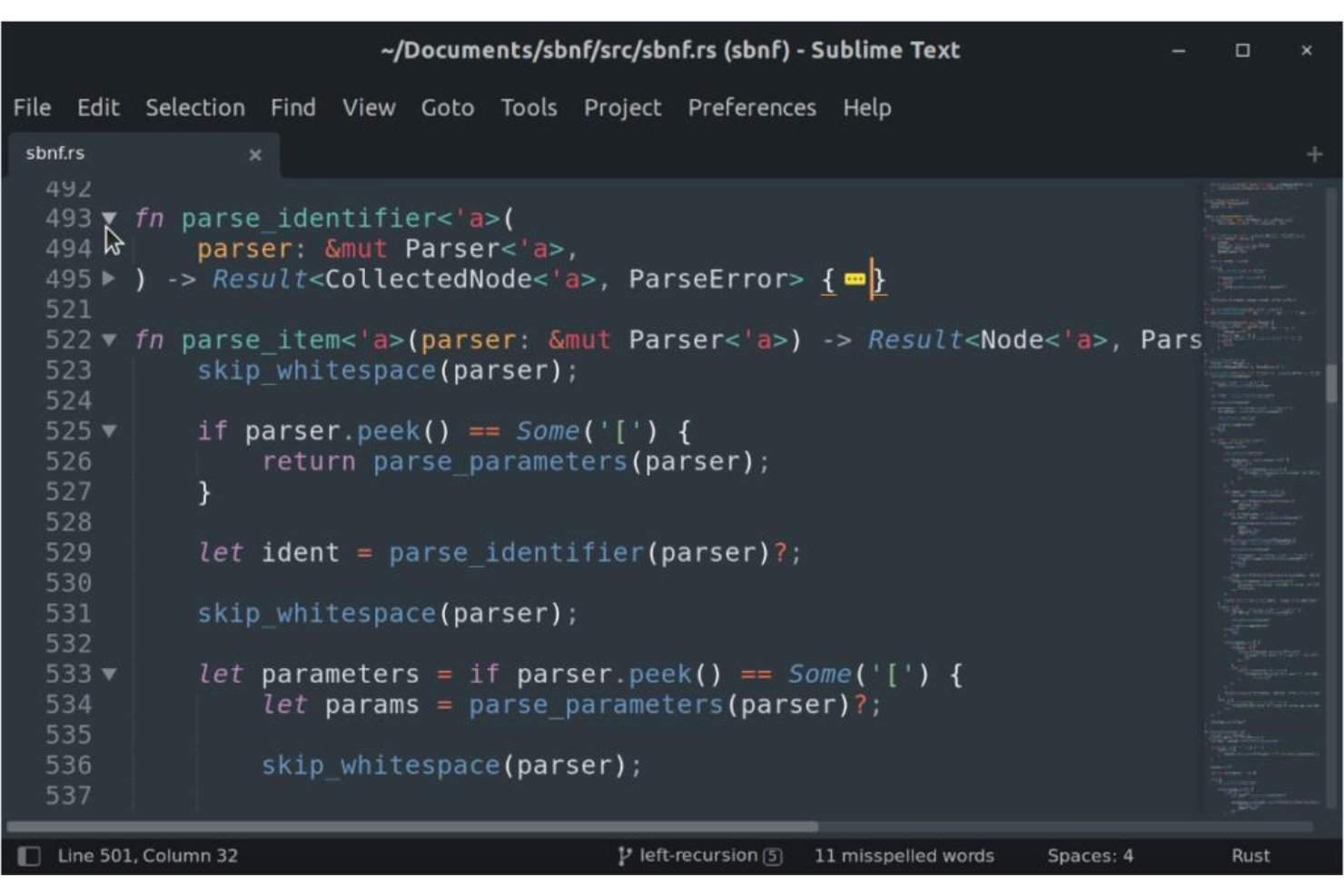
Sublime Text è un editor di testo molto popolare, ampiamente utilizzato da sviluppatori e scrittori che cercano fluidità ed efficienza nel loro flusso di lavoro. Permette una navigazione del codice veloce e offre un'interfaccia pulita per la ricerca di simboli, allineandosi alle esigenze moderne dello sviluppo software.
Perché ho scelto Sublime Text:
Ho scelto Sublime Text per la sua reputazione nel fornire funzionalità di navigazione e ricerca rapide. Dispone di una API Python, il che significa che una grande varietà di plugin può essere integrata con la soluzione di editing di testo. Rispetto ad altri editor, si è distinto per la sua capacità di permettere agli utenti di spostarsi facilmente nel codice, individuando simboli e linee senza sforzo. Questo strumento è ideale per chi ha bisogno di un ambiente altamente efficiente per programmare o scrivere, grazie al suo sistema di navigazione fluido e rapido.
Funzionalità e integrazioni distintive:
Sublime Text offre funzionalità come Goto Anything per la navigazione rapida tra file, simboli o linee e la possibilità di selezionare più elementi per modificare contemporaneamente molte righe. Il Command Palette contiene funzionalità utilizzate raramente, rendendole facilmente accessibili. Le integrazioni con Git e altri sistemi di controllo versione aumentano il suo fascino, insieme alla compatibilità con molti linguaggi di programmazione e plugin di terze parti.
Pros and Cons
Pros:
- Navigazione efficiente tra simboli e linee
- Ampio supporto linguistico e compatibilità con plugin di terze parti
- Interfaccia personalizzabile
Cons:
- Curva di apprendimento più ripida per i principianti
- Alcune funzionalità avanzate richiedono plugin a pagamento
- Può richiedere configurazione per un uso ottimale

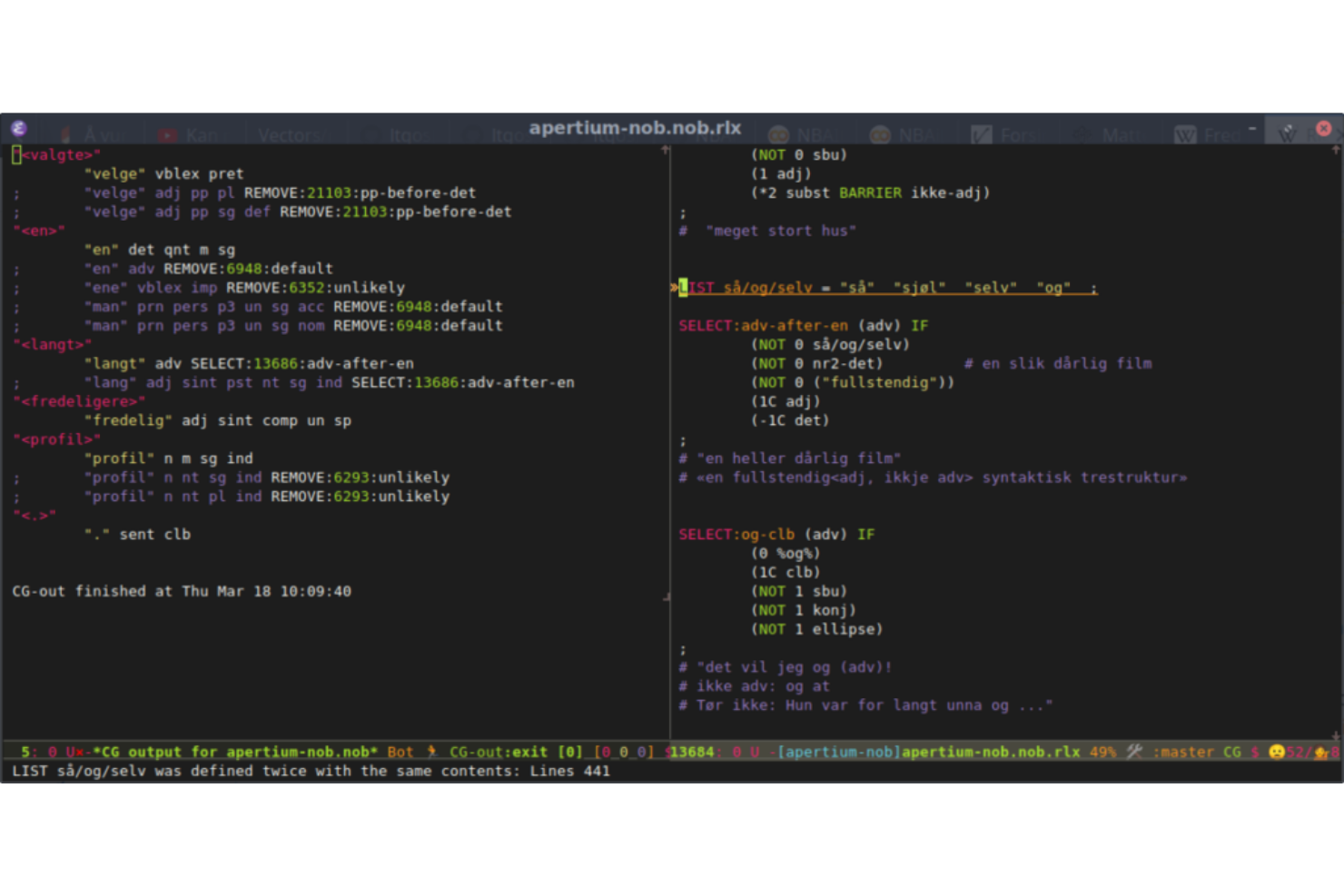
Emacs è un editor di testo avanzato, estensibile e altamente personalizzabile che può essere adattato a una vasta gamma di compiti di programmazione. Il livello di personalizzazione e capacità di estensione è senza paragoni, rendendolo la scelta migliore per chi desidera un editor che possa essere modellato secondo le proprie esigenze specifiche.
Perché ho scelto Emacs:
Ho scelto GNU Emacs dopo un attento confronto e valutazione della sua natura personalizzabile. La flessibilità e la potenza di aggiungere o modificare funzionalità in base ai requisiti individuali lo distinguono dagli altri editor di testo. Questa estendibilità lo rende ideale per chi cerca uno strumento che possa essere adattato esattamente alle proprie necessità, dalla programmazione alla scrittura di contenuti.
Funzionalità e integrazioni distintive:
Emacs supporta un'ampia gamma di linguaggi di programmazione e offre numerose estensioni che ne aumentano l'utilità. Si integra con molti sistemi di controllo versione come Git, consentendo agli sviluppatori di gestire il proprio codice direttamente dall'editor. Le sue combinazioni di tasti e la funzionalità di registrazione macro offrono ulteriori possibilità di personalizzazione e automazione.
Pros and Cons
Pros:
- Altamente estensibile e personalizzabile
- Forte supporto della community
- Documentazione completa per permettere agli utenti di sfruttare al massimo la personalizzazione
Cons:
- Curva di apprendimento più ripida per i principianti
- Può diventare esigente in termini di risorse con molte personalizzazioni
- Esteticamente meno moderno rispetto ad alcune alternative


Visual Studio Code (VS Code) è un editor di codice open-source progettato per le pratiche di sviluppo moderne. Grazie al supporto per molteplici linguaggi di programmazione e a un'assistenza completa alla scrittura del codice, è la soluzione ideale per gli sviluppatori che lavorano spesso con diversi linguaggi nei loro progetti.
Perché ho scelto Visual Studio Code:
Ho scelto Visual Studio Code per la sua straordinaria adattabilità e l'ampiezza di gestione di diversi linguaggi. Nel determinarne la posizione in questa lista, il suo supporto esteso ai linguaggi e le estensioni guidate dalla comunità lo hanno reso un punto di riferimento chiaro. Visual Studio Code è il migliore per gli sviluppatori che desiderano un editor in grado di accogliere vari linguaggi di programmazione, offrendo un'esperienza unificata e coerente.
Funzionalità e integrazioni principali:
Visual Studio Code offre completamento del codice intelligente, evidenziazione della sintassi con Intellisense, scorciatoie da tastiera e refactoring del codice per numerosi linguaggi come HTML, Python, VBScript, JavaScript, Perl e altri ancora. Il controllo Git integrato aiuta nella gestione delle versioni. L'integrazione con vari compilatori, debugger ed estensioni specifiche per i linguaggi fornisce un ambiente di sviluppo ricco e adattabile a diversi paradigmi di programmazione.
Pros and Cons
Pros:
- Ampio supporto a molteplici linguaggi
- Estensioni fortemente supportate dalla comunità
- Controllo Git integrato
Cons:
- Può essere esoso di risorse su sistemi più datati
- La configurazione iniziale può risultare impegnativa per alcuni
- Alcune estensioni potrebbero entrare in conflitto tra loro

Ideale per la gestione e manipolazione di file di grandi dimensioni
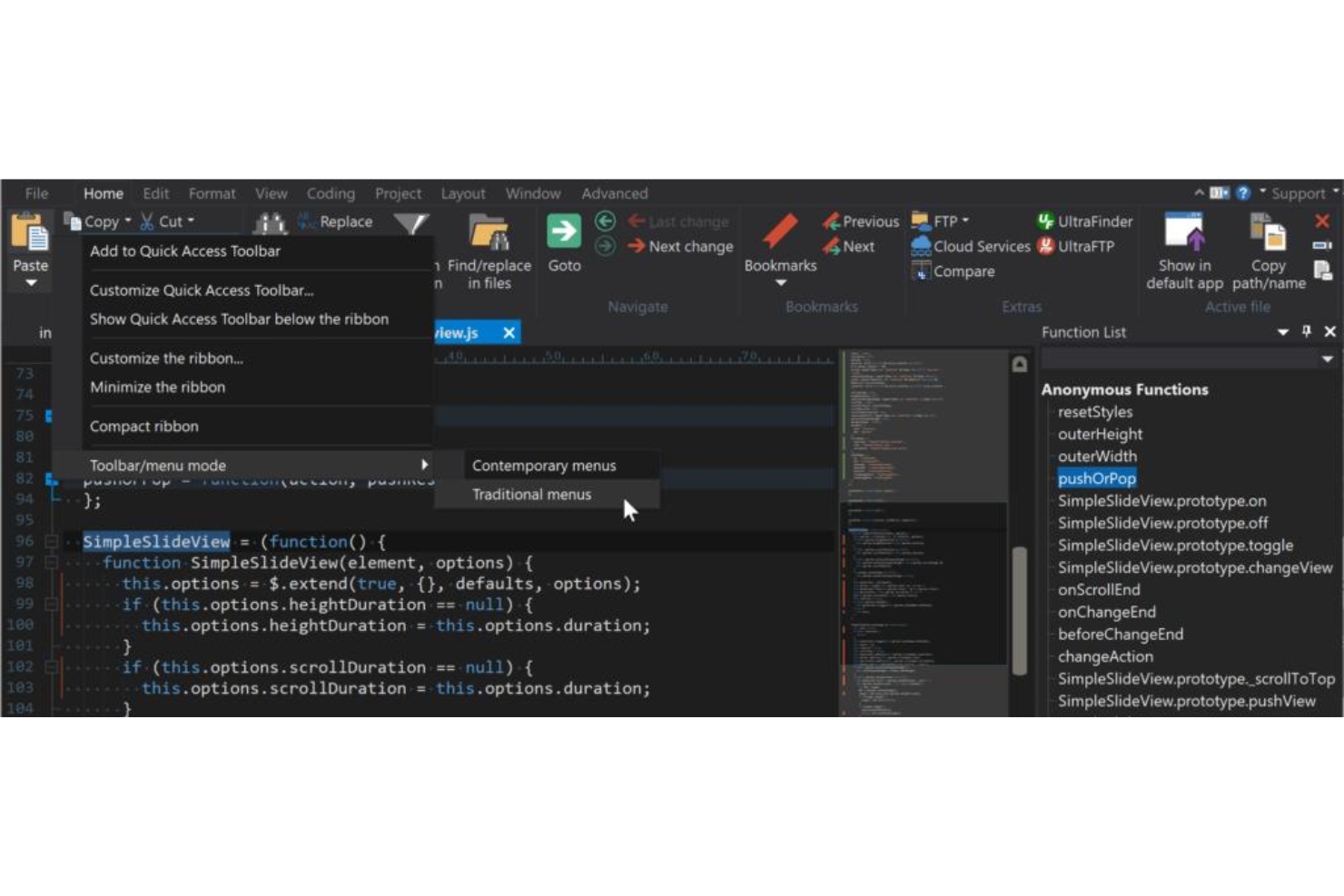
UltraEdit è un editor di testo versatile e robusto, rinomato per la sua capacità di gestire file di grandi dimensioni e strutture dati complesse. Questa caratteristica lo rende uno strumento preferito da sviluppatori e professionisti dei dati che spesso devono manipolare file enormi, posizionandolo come il migliore per la gestione e la manipolazione di file di grandi dimensioni.
Perché ho scelto UltraEdit:
Ho scelto UltraEdit per questa lista dopo aver valutato la sua straordinaria capacità di gestire file di grandi dimensioni. Ciò che lo distingue dagli altri editor di testo è la sua performance ottimizzata e affidabilità, anche con documenti di diversi gigabyte. Questa efficienza impareggiabile nella gestione e manipolazione di file estesi è il motivo per cui ho determinato che UltraEdit sia il migliore per chi lavora con grandi dataset o progetti di coding consistenti.
Funzionalità e integrazioni principali:
Le funzionalità più importanti di UltraEdit includono la gestione semplice di file di grandi dimensioni, un'interfaccia multi-finestra e una potente funzione di ricerca e sostituzione. Il software supporta inoltre diversi linguaggi di programmazione e si integra con FTP, SSH e Telnet, rendendo immediata la modifica e la gestione remota dei file.
Pros and Cons
Pros:
- Prestazioni eccellenti nella gestione di file di grandi dimensioni
- Ampia gamma di funzionalità per il coding e la manipolazione del testo
- Solida integrazione con strumenti di gestione remota dei file
Cons:
- Potrebbe essere eccessivo per esigenze di semplice modifica testi
- L'interfaccia può risultare intimidatoria per i principianti
- Alcuni utenti potrebbero trovare la fatturazione annuale limitante

Ideale per programmatori che necessitano di un'interfaccia personalizzabile

Notepad++ è un editor di testo e codice sorgente ampiamente riconosciuto per la sua interfaccia intuitiva e le sue potenti funzionalità. La sua interfaccia altamente personalizzabile si adatta alle esigenze dei programmatori che richiedono impostazioni specifiche per il loro ambiente di sviluppo, rendendolo la scelta ideale per chi necessita di configurazioni personalizzate.
Perché ho scelto Notepad++:
Ho selezionato Notepad++ dopo aver valutato attentamente la sua flessibilità e adattabilità. Tra i suoi pari, si è distinto per offrire un'interfaccia altamente personalizzabile che si adatta ai programmatori con preferenze specifiche. Notepad++ si distingue come la migliore opzione per chi desidera personalizzare il proprio ambiente di lavoro, supportando molteplici linguaggi di programmazione e impostazioni.
Caratteristiche principali & integrazioni:
Notepad++ offre evidenziazione e compressione della sintassi, che possono essere adattate alle esigenze individuali. L'interfaccia a schede consente una facile navigazione tra più file e una ricca architettura di plugin estende le funzionalità. L'integrazione con compilatori popolari e sistemi di controllo versione lo rende una scelta robusta per i programmatori, mentre il supporto FTP permette la modifica diretta sui server.
Pros and Cons
Pros:
- Ampie possibilità di personalizzazione
- Ampia gamma di linguaggi di programmazione supportati
- Vasta selezione di plugin
Cons:
- Compatibilità limitata a Microsoft Windows
- L'interfaccia può risultare opprimente per i nuovi utenti
- Alcuni plugin potrebbero causare problemi di stabilità


Vim è un editor di testo potente e altamente efficiente, ampiamente apprezzato dagli utenti esperti. È progettato per essere utilizzato sia da un'interfaccia a riga di comando (CLI) che come applicazione autonoma in un'interfaccia grafica (GUI). Il suo approccio centrato sulla tastiera e le modalità operative uniche lo rendono uno strumento rapido e reattivo per chi desidera ridurre al minimo l'uso del mouse, giustificando la sua posizione come migliore opzione per utenti esperti alla ricerca di un'editing del testo efficiente.
Perché ho scelto Vim:
Ho scelto Vim valutando il suo valore nell'offrire un editing del testo efficiente per chi già conosce la sua interfaccia unica. Ciò che distingue Vim dagli altri editor di testo è il suo design modulare, in cui modalità differenti sono utilizzate per la navigazione e la modifica. Questo sistema consente un elevato livello di efficienza, soprattutto per gli utenti esperti, ed è il motivo per cui l'ho ritenuto il migliore per chi desidera ottimizzare il processo di editing del testo.
Funzionalità principali & integrazioni:
Le principali funzionalità di Vim includono la modifica modulare, in cui gli utenti alternano tra diverse modalità per navigare, modificare e manipolare il testo. Il supporto esteso ai plugin permette personalizzazione e funzionalità aggiuntive. Vim si integra inoltre molto bene con molti dei più popolari sistemi di controllo versione come Git, consentendo la gestione del codice all'interno dell'editor.
Pros and Cons
Pros:
- Editing del testo altamente efficiente grazie al design modulare
- Estendibile con numerosi plugin
- Disponibile su più piattaforme
Cons:
- Curva di apprendimento ripida, in particolare per i principianti
- Mancano alcune modernità presenti in altri editor
- La configurazione e la personalizzazione possono essere complesse e richiedere tempo

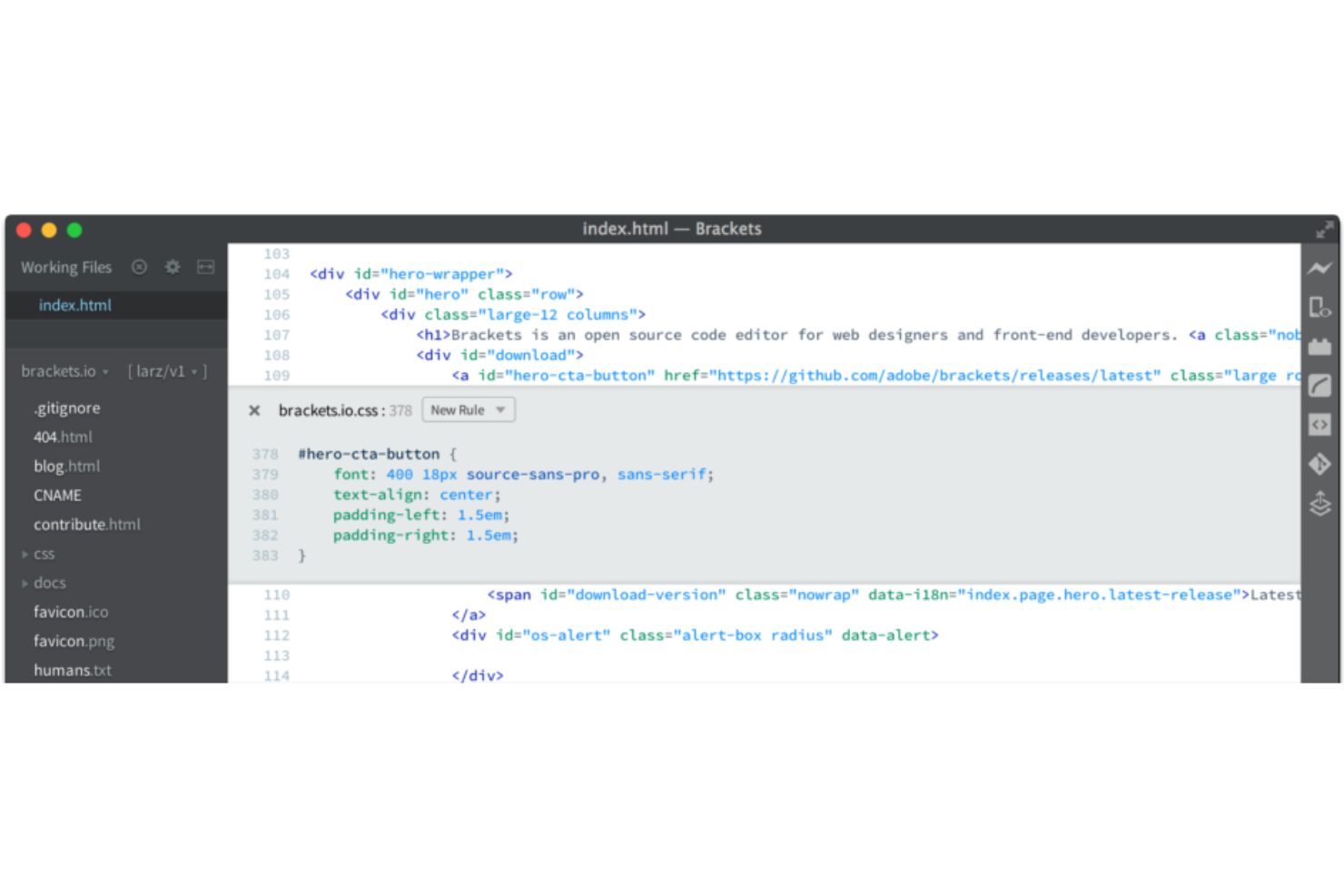
Brackets è un editor di testo open-source specificamente pensato per lo sviluppo web. La sua funzione di anteprima dal vivo, che permette ai web designer di vedere i cambiamenti in tempo reale, lo rende la scelta migliore per chi desidera feedback immediati sulle modifiche al design.
Perché ho scelto Brackets:
Ho scelto Brackets per la sua funzionalità di anteprima dal vivo unica ed estremamente efficace, perfettamente in linea con le esigenze del web design moderno. Durante il confronto e la valutazione delle alternative, Brackets si è distinto proprio per questa caratteristica, che semplifica il processo di progettazione e riduce al minimo le supposizioni. È ideale per i web designer che vogliono vedere un feedback visivo immediato mentre lavorano ai loro progetti.
Caratteristiche distintive & integrazioni:
Brackets offre l'editing in linea, consentendo agli sviluppatori di modificare CSS e JavaScript nella stessa finestra del codice. La funzione di anteprima dal vivo è sincronizzata con l'editor, fornendo un riflesso istantaneo delle modifiche. L'integrazione con i più diffusi preprocessori come LESS e SCSS ne potenzia le possibilità per lo sviluppo web moderno.
Pros and Cons
Pros:
- Anteprima dal vivo per feedback immediato
- Editing in linea per CSS e JavaScript
- Grande supporto dalla community
Cons:
- Principalmente orientato allo sviluppo web, meno versatile per altri tipi di programmazione
- Può risultare meno intuitivo per i principianti
- Le prestazioni possono rallentare con progetti di grandi dimensioni

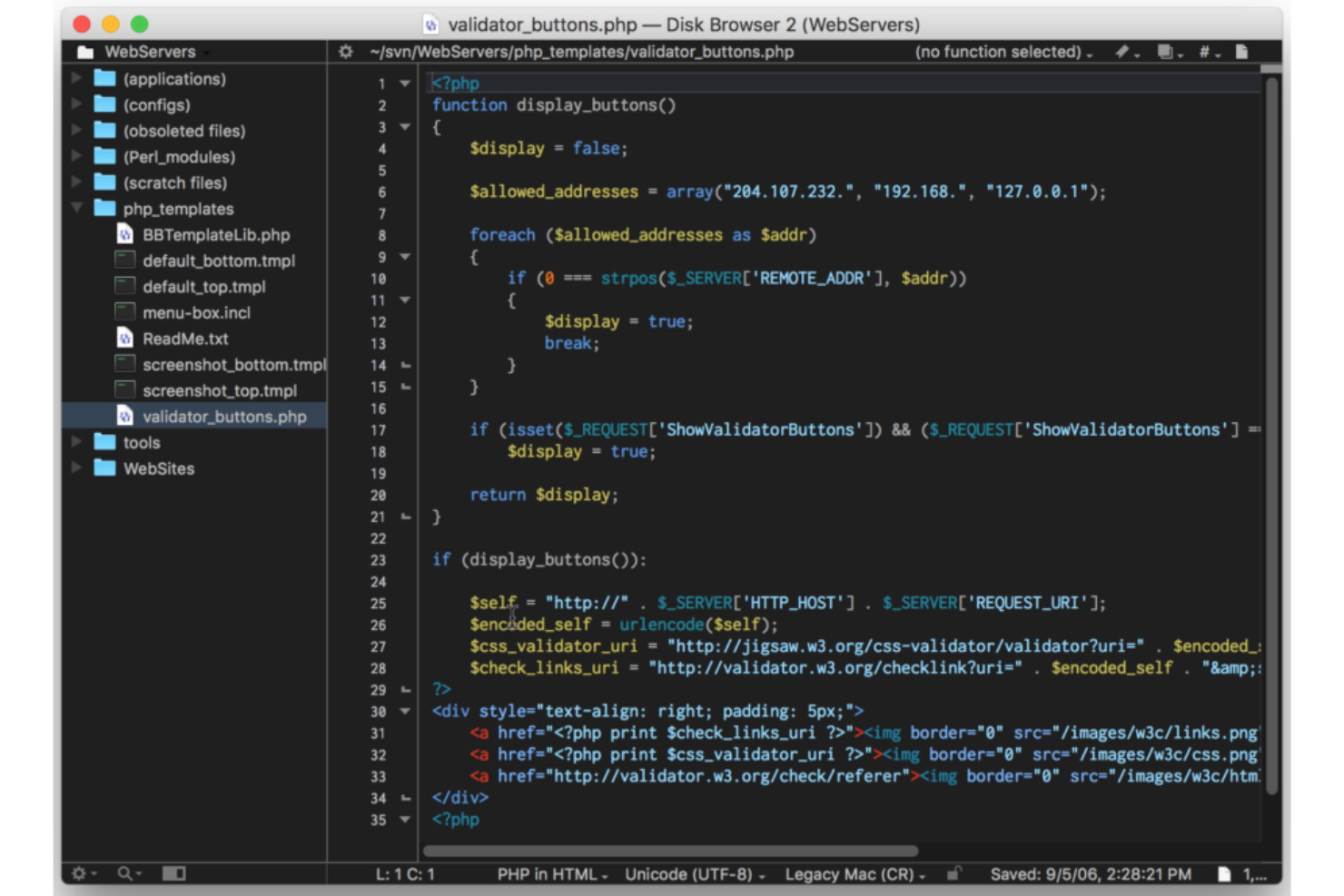
BBEdit è un editor di testo progettato specificamente per utenti macOS, offrendo funzionalità robuste con un'enfasi sulle capacità di ricerca avanzate. Sia che si effettui una ricerca all'interno di un singolo documento sia fra più file, le potenti funzionalità di ricerca di BBEdit lo distinguono, rendendolo la scelta migliore per gli utenti macOS che necessitano di capacità di ricerca avanzate.
Perché ho scelto BBEdit:
Ho scelto BBEdit dopo aver confrontato attentamente le sue funzionalità con quelle di altri editor di testo per macOS. La sua capacità di gestire query di ricerca complesse su vari tipi di file e progetti diversi è unica e interessante. Ho ritenuto che BBEdit si distingua come il miglior strumento per utenti macOS alla ricerca di funzionalità di ricerca avanzate, soprattutto quando si lavora con basi di codice estese o attività complesse di manipolazione del testo.
Funzionalità principali & integrazioni:
Le capacità di ricerca di BBEdit sono senza eguali, con funzionalità come il supporto alle espressioni regolari, popup delle funzioni, ricerca su più file e report dei risultati dettagliati. L'editor di testo offre anche l'evidenziazione della sintassi per oltre venti lingue e si integra con diversi sistemi di controllo versione come Git e Subversion, facilitando il lavoro collaborativo.
Pros and Cons
Pros:
- Funzionalità di ricerca eccezionali
- Integrazione con i principali sistemi di controllo versione
- Progettato specificamente per macOS, garantendo prestazioni ottimali
Cons:
- Appeal limitato per utenti non macOS
- Potrebbero esserci più funzionalità del necessario per modifiche di testo occasionali
- Alcuni utenti potrebbero preferire un'interfaccia più moderna

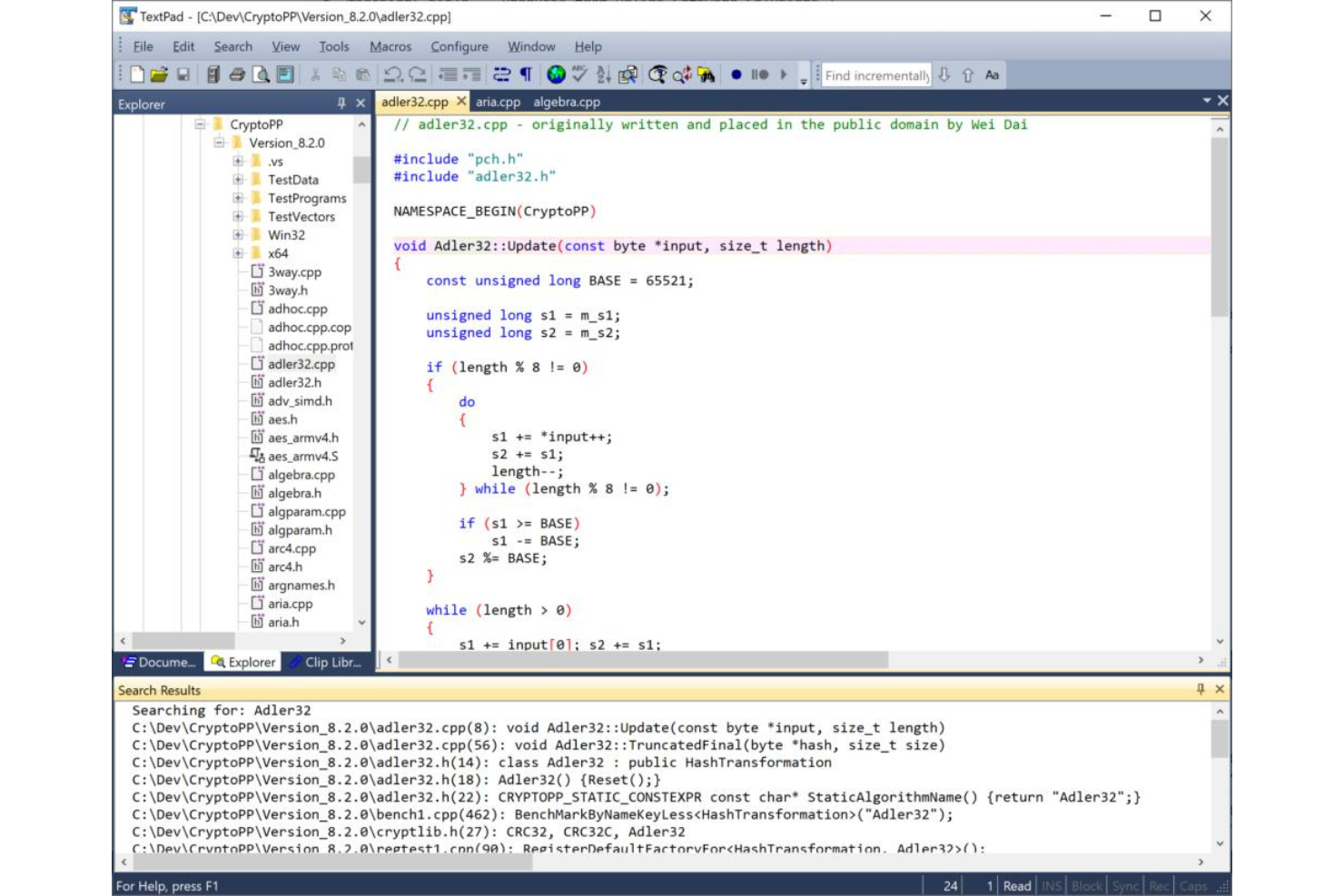
TextPad è un editor di testo versatile, noto per la sua semplicità e le solide capacità di evidenziazione della sintassi. Essendo uno strumento progettato per essere intuitivo ma potente, si rivolge sia ai principianti che agli utenti esperti, risultando ideale per chi cerca semplicità durante la modifica e l'evidenziazione della sintassi.
Perché ho scelto TextPad:
Ho scelto TextPad per questa lista dopo aver determinato che offre un'interfaccia pulita ed essenziale, unita a una efficace evidenziazione della sintassi. Confrontandolo con altri editor di testo, ho constatato che la concentrazione di TextPad sulle funzionalità principali, senza complessità inutili, lo fa spiccare. Pertanto, a mio avviso, è il migliore per chi desidera un'esperienza diretta con l'evidenziazione della sintassi.
Caratteristiche principali e integrazioni:
La funzionalità più utile di TextPad è la sua estesa evidenziazione della sintassi, che supporta numerosi linguaggi di programmazione. La funzione di ricerca e sostituzione opera su più file, facilitando modifiche efficienti. Inoltre, offre integrazione con compilatori e altri strumenti esterni, fornendo così un ambiente di sviluppo coeso.
Pros and Cons
Pros:
- Evidenziazione della sintassi solida per molti linguaggi di programmazione.
- Interfaccia intuitiva che favorisce la facilità d'uso.
- Ricerca e sostituzione efficiente su più file
Cons:
- Mancano alcune delle funzionalità avanzate presenti in altri editor
- Potrebbe non essere adatto a compiti di sviluppo molto complessi
- Supporto limitato per plugin ed estensioni moderne

Bluefish
Ideale per sviluppatori web che necessitano di gestire progetti simultanei
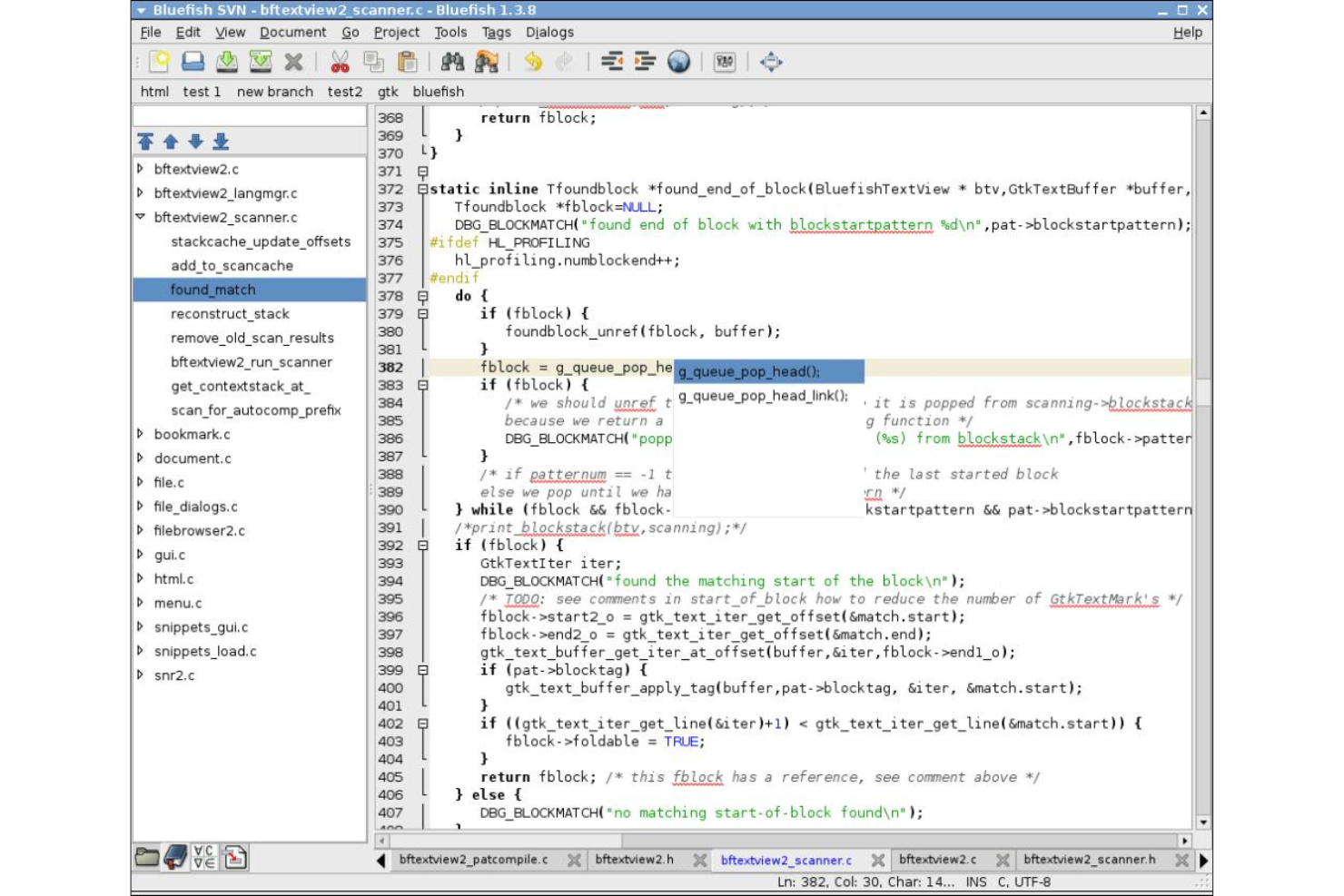
Bluefish è un potente editor di testo pensato per programmatori e sviluppatori web. Grazie alla capacità di gestire più progetti contemporaneamente, ottimizza il processo di modifica di file in vari linguaggi, risultando ideale per gli sviluppatori web che necessitano di lavorare su progetti simultanei.
Perché ho scelto Bluefish:
Ho scelto Bluefish dopo aver confrontato e valutato attentamente la sua capacità di supportare più progetti nello stesso momento. La caratteristica che distingue Bluefish dagli altri è la sua abilità nel facilitare il lavoro degli sviluppatori web che gestiscono diversi progetti contemporaneamente. Questa peculiarità mi ha portato a selezionare Bluefish come la soluzione migliore per chi deve destreggiarsi tra vari progetti di sviluppo web allo stesso tempo.
Funzionalità principali e integrazioni:
Le funzionalità distintive di Bluefish includono la possibilità di aprire oltre 500 documenti simultaneamente e il supporto integrato ai progetti, che consente di organizzare facilmente più progetti. L'evidenziazione della sintassi supporta vari linguaggi di programmazione, migliorando l'esperienza di scrittura di codice. L'integrazione con i browser web per le anteprime e altri strumenti di sviluppo crea un ambiente su misura per le esigenze degli sviluppatori web.
Pros and Cons
Pros:
- Supporta la gestione di numerosi documenti e progetti contemporaneamente.
- Estesa evidenziazione della sintassi per diversi linguaggi di programmazione.
- Si integra bene con i browser web per anteprime in tempo reale
Cons:
- L'interfaccia potrebbe essere considerata meno moderna rispetto ad altri editor
- Mancano alcune funzionalità avanzate presenti negli editor di testo commerciali
- La curva di apprendimento può essere ripida per chi è alle prime armi con lo sviluppo web
Altri software per l'editing di testo
Ecco alcune altre opzioni di software per l’editing di testo che non sono state incluse nella mia selezione, ma che vale comunque la pena valutare:
- Geany
Ideale per un design leggero con funzionalità basilari da IDE
- Light Table
Ideale per la valutazione e la modifica del codice in tempo reale
- CoffeeCup HTML Editor
Ideale per la progettazione di siti web con modifica visiva dell'HTML


Come valuto i software di editor di testo
Divido la mia valutazione in criteri di base—come l'evidenziazione della sintassi e la navigazione tra progetti multi-file—e fattori differenzianti come l'assistenza AI, il supporto allo sviluppo remoto e la flessibilità delle licenze.
Funzionalità principali (requisiti minimi per questa lista)
Quando seleziono gli strumenti per la mia lista, valuto ciascuno su una scala da 0 (non offre la funzionalità) a 5 (eccelle in quest'area) per ogni funzionalità principale elencata di seguito. Successivamente, calcolo il punteggio totale dello strumento in una percentuale. Ogni strumento deve raggiungere un punteggio minimo totale del 75% per essere preso in considerazione.
- Evidenziazione della sintassi: Verifico per quante lingue uno strumento evidenzia la sintassi nativamente e se supporta definizioni di sintassi personalizzate per DSL interni o formati di configurazione proprietari.
- Supporto multi-linguaggio: Modificare uno script Python, un file pipeline YAML e un Dockerfile nella stessa sessione dovrebbe sembrare naturale, quindi cerco strumenti con un supporto profondo per ogni linguaggio.
- Estendibilità & ecosistema di plugin: Valuto se l'editor offre un marketplace o un gestore di pacchetti per installare estensioni—come linters, formattatori o connettori SSH.
- Capacità di ricerca & sostituzione: Ricerche potenti basate su regex, su tutto il progetto, sono essenziali, specialmente la possibilità di limitare le query a tipi di file o directory specifici in un monorepo.
- Modifica di file multipli & progetti: Modifica a schede, suddivisione in riquadri e un albero di file che possa gestire una directory di progetto completa sono importanti quando si salta tra moduli e configurazioni ogni giorno.
- Integrazione con il controllo di versione: Cerco il supporto nativo di Git che mostri differenze, cronologia dei commit e gestione dei branch direttamente all'interno dell'editor senza dover cambiare contesto nel terminale.
Una volta che ho un elenco di strumenti che soddisfano questi criteri, considero ciò che distingue ogni piattaforma dalle altre.
Fattori differenzianti (cosa distingue i fornitori)
Ecco come confronto i diversi fornitori:
Caratteristiche distintive
L'assistenza alla scrittura del codice tramite AI è un elemento di grande differenziazione—cerco editor che offrano completamenti inline e suggerimenti contestuali mentre si digita, non solo un semplice completamento automatico. Anche il supporto allo sviluppo remoto è rilevante quando il team lavora su VM cloud o container. Valuto se l'editor può aprire un progetto su un host remoto mantenendo la sensazione di un ambiente locale. Un terminale integrato e un debugger completano il quadro, consentendoti di eseguire build ed eseguire il debug passo-passo senza uscire dall'editor.
Oltre le funzionalità
Le prestazioni contano—valuto come ogni editor gestisce file di log di grandi dimensioni e directory di progetto estese senza bloccarsi o saturare la memoria. La disponibilità multipiattaforma è un altro fattore chiave, soprattutto per i team che usano ambienti misti, dove sincronizzare le impostazioni tra server Linux e workstation macOS mantiene il flusso di lavoro costante. Considero da vicino anche i modelli di licenza e prezzo, poiché opzioni open-source come Vim o VS Code implicano scenari diversi per l'adozione aziendale rispetto a editor proprietari che richiedono costi per utente.
Come scegliere il software per l'editing di testo
È facile perdersi in lunghi elenchi di funzionalità e strutture tariffarie complesse. Per aiutarti a rimanere concentrato mentre affronti il tuo specifico processo di selezione del software, ecco un elenco di fattori da tenere presenti:
| Fattore | Cosa considerare |
|---|---|
| Scalabilità | Il software crescerà insieme al tuo team? Valuta se è in grado di gestire progetti più grandi o un numero maggiore di utenti con l'espansione delle tue esigenze. |
| Integrazioni | Si collega agli altri strumenti che usi? Verifica la compatibilità con il tuo stack tecnologico esistente per evitare interruzioni del flusso di lavoro. |
| Possibilità di personalizzazione | Puoi adattarlo al tuo flusso di lavoro? Cerca opzioni per personalizzare scorciatoie, temi e altre impostazioni in base alle tue preferenze. |
| Facilità d'uso | È facile da usare per tutti i membri del tuo team? Una curva di apprendimento ripida potrebbe rallentarne l'adozione e ridurre l'efficienza. |
| Implementazione e avviamento | Quanto velocemente puoi iniziare? Valuta la disponibilità di risorse come tutorial e assistenza per facilitare la transizione. |
| Costo | Rientra nel tuo budget? Confronta il prezzo con le funzionalità disponibili e considera eventuali costi nascosti. |
| Misure di sicurezza | I tuoi dati e progetti sono protetti? Verifica che il software disponga di solide misure di sicurezza per impedire gli accessi non autorizzati. |
| Risorse interne necessarie | Di quali risorse avrai bisogno per mantenere e supportare il software? Considera le competenze tecniche richieste e le eventuali esigenze di manutenzione continua. |
Che cos'è il software per l'editing di testo?
Il software per l'editing di testo è uno strumento per creare e modificare file di testo semplice. Sviluppatori, scrittori e altri professionisti usano questi strumenti per gestire il codice, scrivere documenti e organizzare le note in modo efficiente.
L'evidenziazione della sintassi, la ricerca e sostituzione e le funzioni di completamento automatico contribuiscono alla precisione nella programmazione, alla velocità di modifica e alla gestione di file di grandi dimensioni. Nel complesso, questi strumenti semplificano la gestione del testo e migliorano la produttività.
Caratteristiche
Quando selezioni un software per l'editing del testo, presta attenzione alle seguenti caratteristiche principali:
- Evidenziazione della sintassi: Evidenzia la sintassi del codice per migliorarne la leggibilità e ridurre gli errori.
- Completamento automatico: Suggerisce i completamenti del codice per velocizzare la scrittura e ridurre gli errori di battitura.
- Ricerca e sostituzione: Consente di navigare e apportare rapidamente modifiche all'interno di file di testo di grandi dimensioni.
- Gestione dei file: Organizza file e progetti per mantenere il lavoro strutturato e accessibile.
- Collaborazione in tempo reale: Consente a più utenti di modificare contemporaneamente i documenti.
- Estensibilità tramite plugin: Offre funzionalità aggiuntive attraverso plugin di terze parti.
- Terminale integrato: Fornisce l'accesso alla riga di comando all'interno dell'editor per flussi di lavoro efficienti.
- Supporto multipiattaforma: Funziona su diversi sistemi operativi per adattarsi ai vari ambienti degli utenti.
- Interfaccia personalizzabile: Consente agli utenti di adattare il layout e l'aspetto alle proprie preferenze.
- Funzioni di sicurezza: Garantisce la protezione dei dati e impedisce l'accesso non autorizzato ai file sensibili.
Vantaggi
L'implementazione di un software per l'editing del testo offre diversi vantaggi al tuo team e alla tua azienda. Ecco alcuni dei vantaggi che puoi aspettarti:
- Maggiore produttività: Funzioni come il completamento automatico e l'evidenziazione della sintassi velocizzano le attività di programmazione e modifica.
- Collaborazione migliorata: La collaborazione in tempo reale consente ai membri del team di lavorare contemporaneamente sugli stessi documenti.
- Organizzazione ottimizzata: La gestione dei file mantiene progetti e documenti ben organizzati e facilmente accessibili.
- Opzioni di personalizzazione: Le interfacce personalizzabili consentono agli utenti di adattare il software alle proprie preferenze del flusso di lavoro.
- Compatibilità multipiattaforma: Il supporto per diversi sistemi operativi garantisce l'accessibilità a tutti i membri del team.
- Riduzione degli errori: L'evidenziazione della sintassi e il completamento automatico contribuiscono a ridurre al minimo gli errori di programmazione e a migliorare la precisione.
- Garanzia di sicurezza: Le funzioni di sicurezza integrate proteggono i dati sensibili dagli accessi non autorizzati.
Costi e prezzi
La selezione di un software per l'editing del testo richiede la comprensione dei diversi modelli e piani tariffari disponibili. I costi variano in base alle funzionalità, alle dimensioni del team, ai componenti aggiuntivi e ad altri fattori. La tabella seguente riassume i piani comuni, i relativi prezzi medi e le funzionalità tipicamente incluse nelle soluzioni software per l'editing del testo:
Tabella di confronto dei piani per software di editing del testo
| Tipo di piano | Prezzo medio | Funzionalità comuni |
|---|---|---|
| Piano gratuito | $0 | Modifica di base, evidenziazione della sintassi e supporto limitato ai plugin. |
| Piano personale | $5-$25/user/month | Strumenti di modifica avanzati, completamento automatico e temi personalizzabili. |
| Piano aziendale | $30-$50/user/month | Strumenti di collaborazione, terminale integrato e supporto esteso ai plugin. |
| Piano enterprise | $60-$100/user/month | Personalizzazione completa, supporto prioritario e funzioni di sicurezza avanzate. |
Domande frequenti sui software per editor di testo
Ecco alcune risposte alle domande frequenti sui software per editor di testo:
Gli strumenti per editor di testo offrono integrazioni con altri software?
Molti strumenti per editor di testo offrono integrazioni con sistemi di controllo versione come Git, piattaforme di collaborazione come Slack e altri strumenti di sviluppo. Le integrazioni con strumenti per la creazione della documentazione di assistenza possono migliorare notevolmente il flusso di lavoro, consentendo agli utenti di eseguire le attività direttamente nell’editor di testo senza dover passare da un’applicazione all’altra.
Il software per editor di testo può aiutare nello sviluppo del codice?
Assolutamente! Il software per editor di testo è essenziale per lo sviluppo del codice. Gli editor di testo avanzati offrono funzionalità come l’evidenziazione della sintassi, il completamento del codice, il rilevamento degli errori e il supporto per il debug, rendendoli strumenti indispensabili per gli sviluppatori.
È possibile utilizzare gli strumenti per editor di testo per il lavoro collaborativo?
Sì, alcuni strumenti per editor di testo sono progettati pensando alla collaborazione. Strumenti come Zoho Writer consentono la collaborazione in tempo reale e la condivisione dei documenti, rendendoli adatti ai progetti di gruppo, alla creazione di contenuti e ad altro ancora.
Posso personalizzare l'interfaccia del software per editor di testo?
Sì, la maggior parte degli editor di testo consente di personalizzare l’interfaccia. Puoi modificare temi, caratteri e layout in base alle tue preferenze, rendendo il tuo spazio di lavoro più confortevole e produttivo. Alcuni software supportano anche i plugin per estendere le funzionalità e personalizzare ulteriormente la tua esperienza.
Cosa fare ora:
Se stai cercando un software per editor di testo, contatta gratuitamente un consulente SoftwareSelect per ricevere consigli.
Compili un modulo e fai una breve conversazione durante la quale il consulente approfondisce le tue esigenze specifiche. Riceverai quindi una lista ristretta di software da valutare. Il consulente ti assisterà anche durante l'intero processo di acquisto, comprese le negoziazioni sul prezzo.