

Il software di accesso remoto consente di connettersi e controllare i dispositivi in modo sicuro da qualsiasi luogo, colmando le distanze tra team distribuiti e sistemi remoti. Se ti occupi di IT, devi sapere quali piattaforme offrono il giusto equilibrio tra controlli di sicurezza, trasmissione di alta qualità e funzionalità di gestione concrete.
Ottieni risposte dirette sui migliori software di accesso remoto nel 2026—dagli strumenti di conformità di livello aziendale alle soluzioni affidabili per l'assistenza desktop—così puoi ridurre al minimo i rischi, evitare complicazioni e offrire al tuo team l'accesso di cui ha bisogno in tutta sicurezza. Questo elenco ti presenta le migliori soluzioni, rendendo la tua prossima scelta chiara e concreta.
Perché fidarsi dei nostri consigli sui software
6,700+
Reviews
20
Industry experts
16+
Evaluation factors
14
Years
Il nostro team testa e recensisce software dal 2012. In quanto leader tecnologici noi stessi, sappiamo quanto sia difficile — e importante — scegliere il software giusto.
Per questa guida, abbiamo valutato gli strumenti attraverso test praticie ricerche indipendenti, assegnando un punteggio agli strumenti in base ai nostri criteri di selezione.
Le nostre recensioni riflettono il nostro giudizio editoriale umano, non un discorso di vendita.
Revisori esperti:
- Paulo Gardini MiguelDirettore tecnico
 Tim FisherVP dell'IA
 Gabriel RosasTech Lead e architetto software
 Christhian GruhnTech Lead e architetto della piattaforma

Tabella comparativa dei software di accesso remoto
| Tool | Best For | Trial Info | Price | ||
|---|---|---|---|---|---|
| 1 | Ideale per i flussi di lavoro automatizzati di gestione delle patch | Demo gratuita disponibile | Prezzo su richiesta | Website | |
| 2 | Ideale per le licenze perpetue con distribuzione autonoma | Prova gratuita di 15 giorni | A partire da $16.9/mese (con fatturazione annuale) | Website | |
| 3 | Ideale per la gestione su larga scala di più computer desktop | Prova gratuita di 7 giorni | A partire da $1.84/mese (fatturato annualmente) | Website | |
| 4 | Ideale per la rapidità e gli strumenti diagnostici dei tecnici MSP | Prova gratuita di 14 giorni + demo gratuita disponibile | Prezzo su richiesta | Website | |
| 5 | Ideale per il controllo remoto ad alte prestazioni con qualità 4K | Prova gratuita + demo gratuita disponibili | A partire da $6/mese | Website | |
| 6 | Ideale con la diagnostica IT assistita dall'IA | Prova gratuita di 30 giorni | Da $24.9/mese (fatturato annualmente) | Website | |
| 7 | Ideale per il supporto conforme a FIPS 140-2 | Versione di prova gratuita + demo gratuita disponibili | Prezzi su richiesta | Website | |
| 8 | Ideale per accessi zero trust conformi agli standard FedRAMP | Prova gratuita + demo gratuita disponibili | Prezzi su richiesta | Website | |
| 9 | Ideale per la registrazione e il controllo delle sessioni | Prova gratuita di 14 giorni | A partire da $33/mese (fatturato annualmente) | Website | |
| 10 | Ideale per il supporto dei call center con distribuzione su larga scala | Prova gratuita di 14 giorni + demo gratuita disponibile | A partire da $109/mese (con fatturazione annuale) | Website |


Recensioni dei software di accesso remoto
Di seguito trovi i miei riepiloghi dettagliati dei migliori software di accesso remoto inclusi nel mio elenco ristretto. Le mie recensioni offrono uno sguardo approfondito sulle funzionalità, sui casi d’uso migliori e sulle capacità di ciascun software, per aiutarti a trovare quello più adatto a te.
 Ideale per i flussi di lavoro automatizzati di gestione delle patch
- Demo gratuita disponibile
- Prezzo su richiesta

Kaseya VSA consente sessioni di controllo remoto con un solo clic sui dispositivi gestiti. Kaseya VSA è una piattaforma cloud di monitoraggio e gestione remota (RMM) progettata per MSP e team IT interni, che offre monitoraggio degli endpoint, applicazione automatica delle patch, automazione delle attività basata su criteri, rilevamento dei ransomware, gestione dei dispositivi mobili e accesso sicuro al controllo remoto.
Per chi è più adatto Kaseya VSA?
Kaseya VSA è particolarmente adatto agli MSP e ai team IT interni che gestiscono grandi flotte di endpoint e necessitano di un'automazione delle patch basata su criteri per Windows, macOS e applicazioni di terze parti.
Perché ho scelto Kaseya VSA
Ho scelto Kaseya VSA come una delle soluzioni migliori perché la sua gestione delle patch va oltre la semplice pianificazione. L'applicazione delle patch basata su criteri consente di definire regole di approvazione, finestre di manutenzione e periodi di esclusione per Windows, macOS, Linux e oltre 300 applicazioni di terze parti da un'unica console. Una funzione che trovo davvero utile è quella di sostituzione delle patch, che consente di escludere specifiche patch problematiche tramite script senza interrompere il flusso di lavoro generale. L'agente RMM distribuisce inoltre le patch sia dentro che fuori dalla rete senza fare affidamento sulle cache LAN, mantenendo aggiornati gli endpoint remoti senza configurazioni aggiuntive.
Funzionalità principali di Kaseya VSA
- Accesso sicuro al controllo remoto: Connettiti istantaneamente a qualsiasi endpoint per sessioni di assistenza in tempo reale senza richiedere l'interazione dell'utente o una VPN.
- Rilevamento e isolamento dei ransomware: Il rilevamento basato sul comportamento mette automaticamente in quarantena gli endpoint infetti per contenere le minacce prima che si diffondano.
- Monitoraggio e avvisi in tempo reale: Monitora continuamente lo stato degli endpoint e attiva automaticamente la creazione di ticket e la correzione dei problemi quando si verificano.
- Rilevamento e mappatura delle risorse IT: Rileva e inventaria automaticamente hardware, software, macchine virtuali, infrastruttura cloud e dispositivi IoT nell'intero ambiente.
Integrazioni di Kaseya VSA
Kaseya VSA offre integrazioni native con Autotask, IT Glue, ConnectWise, Acronis, Bitdefender, ESET, Webroot, Datto e Scalepad Lifecycle Manager. È disponibile un'API per le integrazioni personalizzate.
Pros and Cons
Pros:
- Distribuzione automatizzata delle patch basata su criteri
- Sessioni remote sicure senza VPN
- Isolamento dei ransomware per gli endpoint remoti
Cons:
- L'interfaccia può sembrare obsoleta e disordinata
- Alcune funzionalità da remoto richiedono l'installazione dell'agente
Learn more about Kaseya VSA: Ideale per le licenze perpetue con distribuzione autonoma
- Prova gratuita di 15 giorni
- A partire da $16.9/mese (con fatturazione annuale)
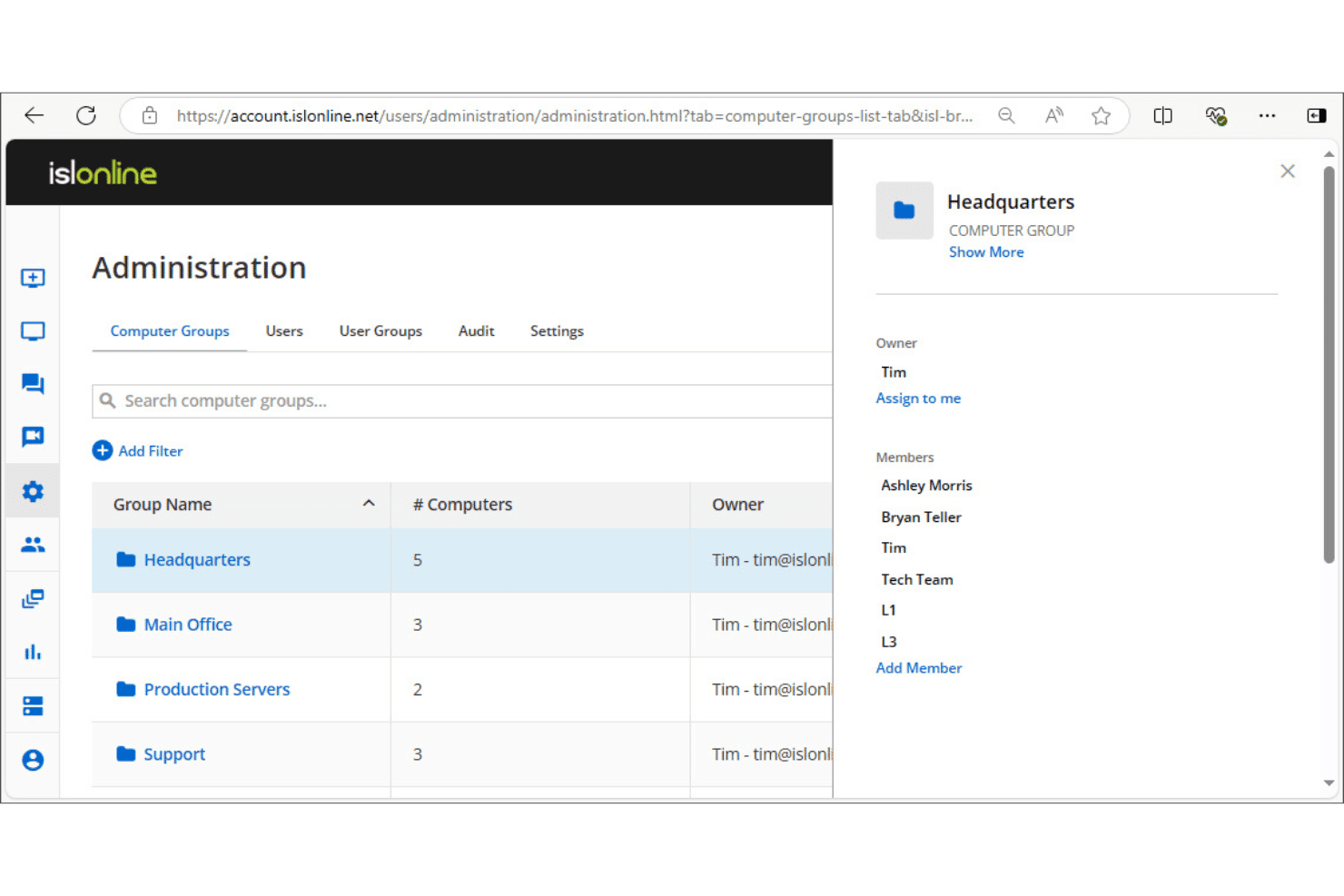
ISL Online consente agli amministratori di organizzare i computer in gruppi con controlli di accesso per i membri. ISL Online è un software per desktop remoto che supporta l'accesso non presidiato, le sessioni di assistenza clienti in tempo reale, le connessioni RDP/SSH e l'amministrazione centralizzata di utenti e dispositivi su piattaforme Windows, macOS, Linux e mobili.
Per chi è più adatto ISL Online?
ISL Online è una soluzione particolarmente adatta ai team IT e ai fornitori di servizi gestiti che devono eseguire l'infrastruttura per l'accesso remoto sui propri server anziché affidarsi al cloud di un fornitore.
Perché ho scelto ISL Online
ISL Online è entrato nella mia lista ristretta soprattutto per l'importanza che attribuisce alla distribuzione autonoma, considerandola un'opzione di primo livello e non un ripiego. Apprezzo il fatto che il piano con distribuzione autonoma consenta di eseguire il server completo di ISL Online sulla propria infrastruttura, con supporto per l'autenticazione LDAP esterna e SAML SSO, oltre alle porte 80 e 443. Ciò significa che i dati delle sessioni non entrano mai in un cloud di terze parti, un aspetto importante quando l'organizzazione deve rispettare rigidi requisiti di residenza dei dati o di conformità normativa.
Funzionalità principali di ISL Online
- Registrazione delle sessioni: Acquisisci registrazioni video complete delle sessioni remote per i registri di audit e la documentazione di conformità.
- Trasferimento di file: Invia e ricevi file tra macchine locali e remote direttamente all'interno di una sessione attiva.
- Autenticazione a due fattori: Richiedi un secondo passaggio di verifica al momento dell'accesso per ridurre gli accessi non autorizzati ai dispositivi remoti.
- Connessioni RDP/SSH: Connettiti a macchine remote tramite RDP o SSH senza dover configurare una VPN o apportare modifiche al firewall.
Integrazioni di ISL Online
ISL Online offre integrazioni native con ServiceNow, Freshdesk, HaloITSM, Microsoft Intune, Devolutions Remote Desktop Manager, Deepser, SuperOps e PDQ Connect, oltre a fornire un'API REST per incorporare l'accesso remoto o creare integrazioni OEM personalizzate nelle piattaforme RMM, PSA, EDR e ITSM.
Pros and Cons
Pros:
- Può essere distribuito interamente sulla propria infrastruttura
- Richiede una verifica aggiuntiva per l'accesso
- Supporto nativo sia per RDP sia per SSH
Cons:
- Richiede la distribuzione autonoma per garantire la massima privacy
- Nessuna attività automatizzata di correzione degli endpoint
Learn more about ISL Online: Ideale per la gestione su larga scala di più computer desktop
- Prova gratuita di 7 giorni
- A partire da $1.84/mese (fatturato annualmente)
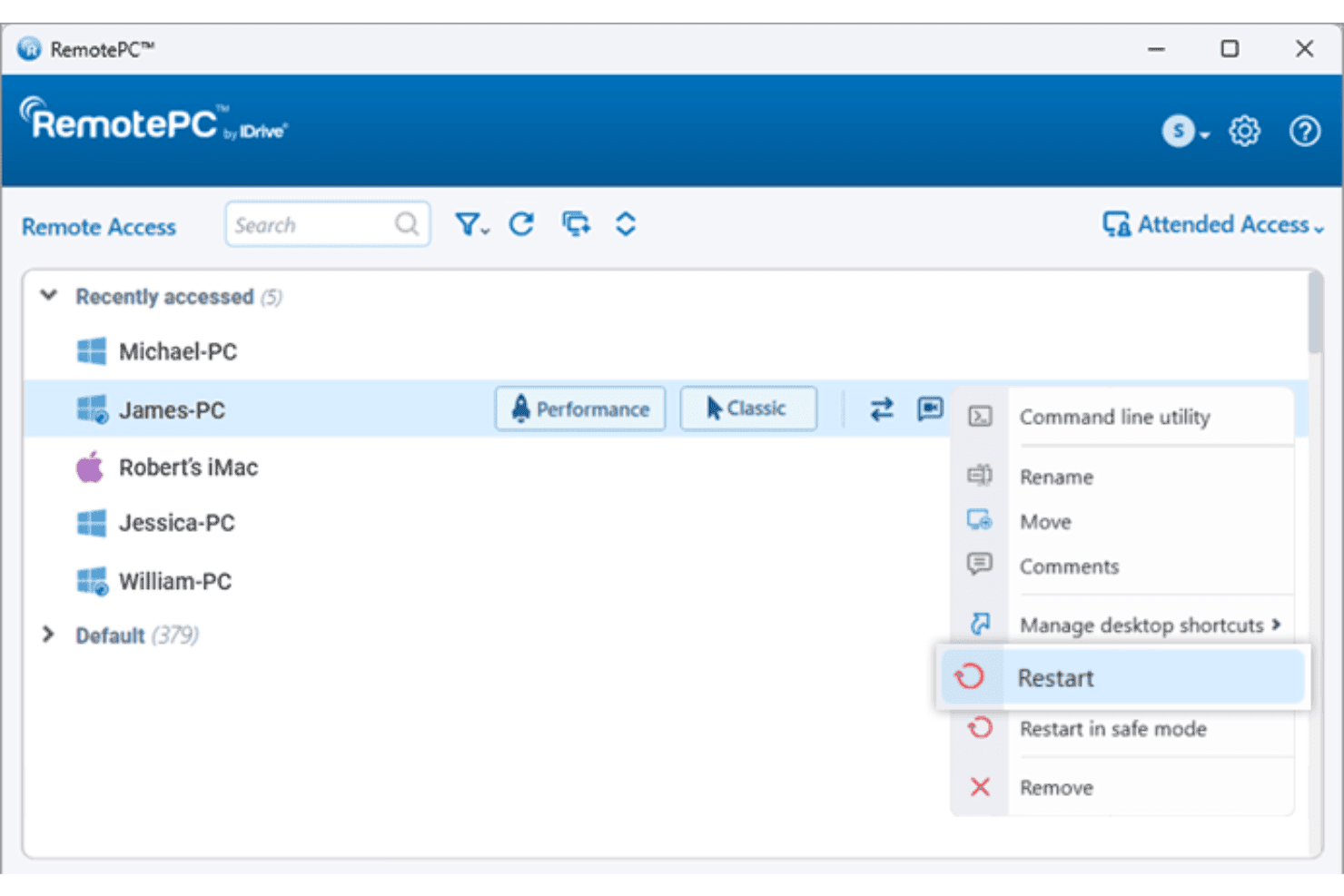
RemotePC consente agli utenti di riavviare i computer remoti direttamente dall'elenco dei dispositivi. RemotePC è una piattaforma di accesso remoto che consente di connettersi e controllare dispositivi Windows, Mac, Linux, Android e iOS tramite Internet, con funzionalità che includono il supporto per più monitor, il trasferimento di file, la distribuzione remota, la gestione di gruppi di utenti e computer e la registrazione delle sessioni.
Per chi è più adatto RemotePC?
RemotePC è una soluzione particolarmente adatta ai team IT che gestiscono grandi flotte di dispositivi Windows, Mac e Linux e necessitano di un accesso remoto centralizzato con gestione dei gruppi di utenti e computer.
Perché ho scelto RemotePC
RemotePC è entrato nella mia rosa di migliori soluzioni soprattutto per la sua capacità di gestire ambienti su larga scala. Le funzionalità di raggruppamento dei computer e gestione dei gruppi di utenti consentono di organizzare grandi flotte di dispositivi e assegnare autorizzazioni di accesso senza dover configurare manualmente ogni macchina. Trovo particolarmente utile la distribuzione massiva tramite GPO, Microsoft Intune o Jamf Pro, che consente di distribuire RemotePC su centinaia di dispositivi da una console centrale, invece di intervenire su ciascuno di essi. Con l'aggiunta della registrazione delle sessioni e di registri dettagliati degli accessi, si ottiene una solida tracciabilità per ogni connessione remota nell'ambiente.
Funzionalità principali di RemotePC
- Stampa remota: stampa i documenti archiviati su qualsiasi macchina remota direttamente sulla stampante locale, senza trasferimenti manuali di file.
- Reindirizzamento dei dispositivi USB: reindirizza un dispositivo USB dalla macchina locale a un computer remoto, in modo che funzioni come se fosse collegato fisicamente.
- Connettore RDP: accedi a computer e server Windows remoti tramite RDP senza configurare una VPN o Microsoft RD Gateway.
- Accesso con assistenza: condividi un codice di sessione monouso per fornire accesso immediato e su richiesta a un computer remoto per il supporto in tempo reale.
Integrazioni di RemotePC
RemotePC offre integrazioni native con Zendesk, Freshdesk, Freshservice, Jira, OneLogin, Okta, Azure AD, Keycloak, Google Workspace e Jamf Pro. È disponibile un'API per le integrazioni personalizzate.
Pros and Cons
Pros:
- Supporta l'accesso remoto a tutte le principali piattaforme
- Opzioni di distribuzione massiva per flotte di dispositivi di grandi dimensioni
- Supporta la funzionalità di riattivazione tramite rete
Cons:
- Non supporta le integrazioni API personalizzate
- Mancano strumenti automatizzati per l'applicazione di patch software da remoto
Learn more about RemotePC: Ideale per la rapidità e gli strumenti diagnostici dei tecnici MSP
- Prova gratuita di 14 giorni + demo gratuita disponibile
- Prezzo su richiesta
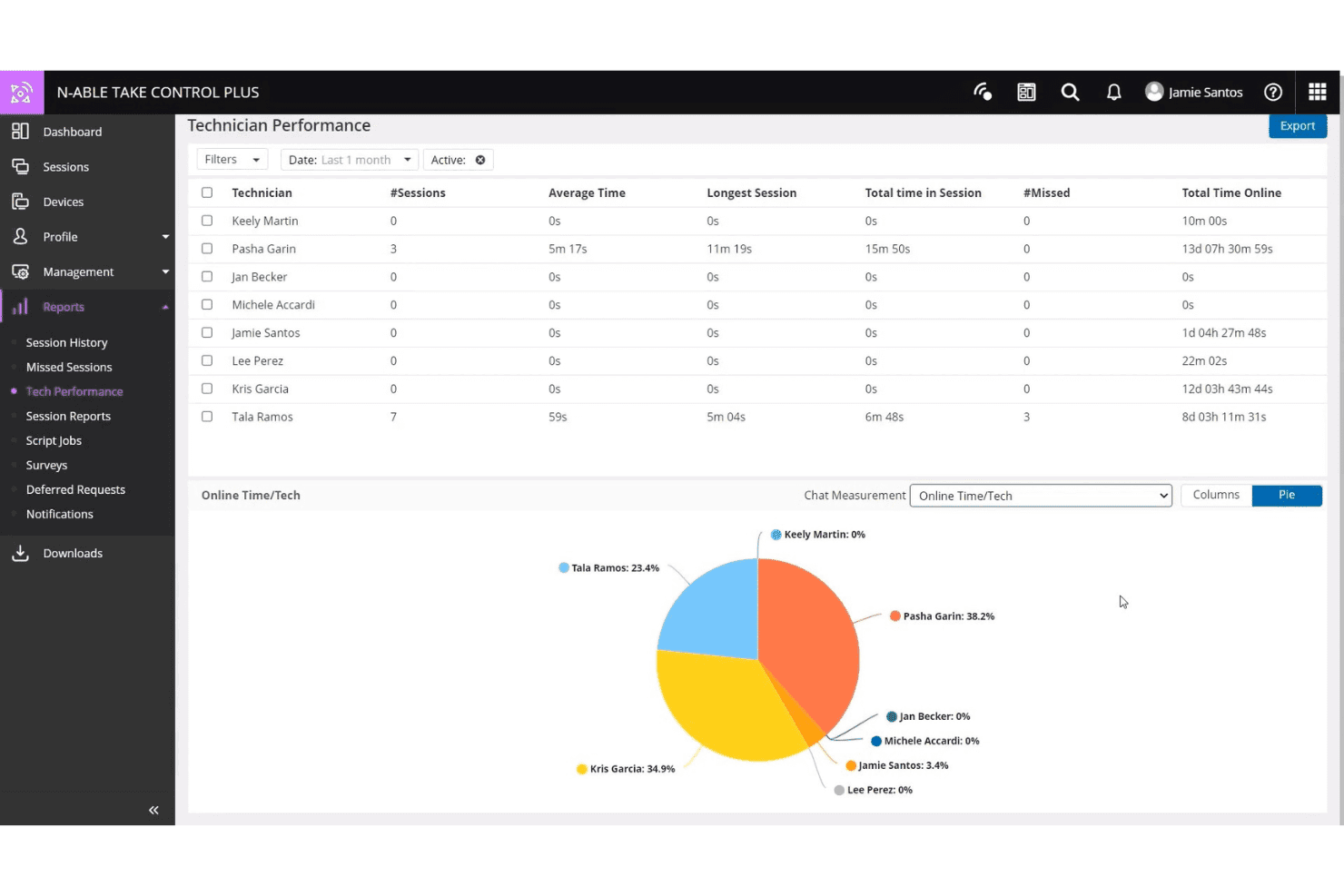
N-able Take Control monitora l'attività delle sessioni dei tecnici e il tempo in linea. N-able Take Control è uno strumento di supporto remoto progettato per MSP e team IT, che offre la gestione delle sessioni multipiattaforma, strumenti diagnostici integrati, chat dal vivo, VoIP, autenticazione a più fattori e integrazioni con le piattaforme RMM di N-able.
Per chi è più adatto N-able Take Control?
N-able Take Control è particolarmente adatto ai tecnici MSP che hanno bisogno di avviare rapidamente le sessioni e di utilizzare strumenti diagnostici integrati senza dover passare da una piattaforma all'altra.
Perché ho scelto N-able Take Control
Ho incluso N-able Take Control tra le mie scelte principali perché la velocità di avvio delle sessioni è davvero notevole e gli strumenti diagnostici integrati evitano ai tecnici di passare da una scheda all'altra durante la risoluzione dei problemi. Apprezzo in particolare il pannello dello stato del dispositivo, che durante una sessione attiva mostra i dati relativi a CPU, memoria e disco, consentendo di effettuare la diagnosi mentre si lavora. Un'altra funzione a cui ricorro spesso è la console dei comandi remoti con un clic, che permette di eseguire script e riavviare servizi senza interrompere la visualizzazione dello schermo dell'utente finale.
Funzionalità principali di N-able Take Control
- Sessioni remote multipiattaforma: Connessione da e verso dispositivi Windows, Mac, Linux, iOS e Android all'interno di un'unica coda di sessioni.
- Supporto per più monitor: Passaggio da un monitor all'altro e visualizzazione di più monitor sul dispositivo remoto senza terminare o riavviare la sessione.
- Trasferimento di file durante la sessione: Trascinamento e rilascio diretto dei file da e verso un dispositivo remoto durante una sessione di supporto attiva.
- Registrazione delle sessioni: Avvio e interruzione delle registrazioni delle sessioni attive per finalità di controllo, conformità o formazione dei tecnici.
Integrazioni di N-able Take Control
N-able Take Control offre integrazioni native con N-sight RMM, N-central, Autotask e ConnectWise. È disponibile un'API per le integrazioni personalizzate.
Pros and Cons
Pros:
- La velocità di avvio delle sessioni è costantemente elevata
- Pannello integrato dello stato del dispositivo durante le sessioni
- Code multipiattaforma per Windows, Mac e Linux
Cons:
- Integrazioni native limitate al di fuori dell'ecosistema N-able
- Alcune funzionalità avanzate richiedono la piattaforma N-central
Learn more about N-able Take Control: Ideale per il controllo remoto ad alte prestazioni con qualità 4K
- Prova gratuita + demo gratuita disponibili
- A partire da $6/mese
Visit WebsiteCustomer Rating:4.8/5
Splashtop consente agli utenti di visualizzare e filtrare da remoto i registri eventi di Windows per tipo e gravità. Splashtop è una piattaforma di accesso remoto e supporto remoto progettata per i team IT, che offre controllo del desktop remoto, condivisione dello schermo, registrazione delle sessioni e supporto per più monitor su dispositivi Windows, Mac, iOS, Android e Linux.
Per chi è più adatto Splashtop?
Splashtop è particolarmente adatto ai team IT e ai fornitori di servizi gestiti che necessitano di un controllo del desktop remoto ad alta fedeltà, soprattutto quando la qualità dello schermo e le prestazioni della sessione sono fondamentali.
Perché ho scelto Splashtop
Splashtop si è guadagnato un posto nella mia selezione perché offre lo streaming in 4K fino a 60 fps, rendendolo realmente adatto al lavoro da remoto su applicazioni che richiedono molta grafica, come Adobe Creative Suite o AutoCAD. L'ho utilizzato in situazioni in cui la fedeltà delle immagini è davvero importante e la differenza rispetto a uno streaming HD standard è evidente. Inoltre, il supporto per più monitor consente di visualizzare diversi schermi remoti senza perdere il contesto dell'area di lavoro.
Funzionalità principali di Splashtop
- Registrazione delle sessioni: registra automaticamente le sessioni remote e conservale per audit, conformità o analisi dei problemi.
- Trasferimento di file: sposta i file tra il dispositivo locale e quello remoto direttamente all'interno di una sessione attiva, senza utilizzare strumenti di terze parti.
- Riavvio remoto: riavvia una macchina remota, anche in modalità provvisoria, senza perdere l'accesso alla sessione.
- Autenticazione a due fattori: richiede un secondo passaggio di verifica all'accesso per ridurre gli accessi non autorizzati agli endpoint remoti.
Integrazioni di Splashtop
Splashtop offre oltre 40 integrazioni native, tra cui Jira, ServiceNow, Zendesk, Freshservice, Microsoft Teams, Salesforce, Splunk, Jamf, NinjaOne e JumpCloud, oltre a integrazioni native nell'ecosistema Microsoft, tra cui Microsoft Entra ID. È disponibile anche un'API per le integrazioni personalizzate.
Pros and Cons
Pros:
- Trasmette i desktop remoti in 4K a 60 fps
- Consente di riavviare in sicurezza i dispositivi remoti
- Offre funzionalità dirette per il trasferimento di file
Cons:
- Manca una riga di comando per gli endpoint in background
- Nessuno strumento per l'applicazione automatizzata delle patch software
Learn more about Splashtop: Ideale con la diagnostica IT assistita dall'IA
- Prova gratuita di 30 giorni
- Da $24.9/mese (fatturato annualmente)
Visit WebsiteCustomer Rating:4.6/5
TeamViewer rileva e monitora tutti i dispositivi della rete. TeamViewer è una piattaforma di accesso e supporto remoto che combina connettività dei dispositivi, risoluzione dei problemi basata su sessioni, monitoraggio degli endpoint e diagnostica assistita dall'IA in ambienti desktop, mobili e IoT.
Per chi è più adatto TeamViewer?
TeamViewer è particolarmente adatto ai team di supporto IT che gestiscono ambienti eterogenei con numerosi dispositivi, dove la diagnostica remota rapida su endpoint desktop, mobili e IoT è una necessità quotidiana.
Perché ho scelto TeamViewer
TeamViewer si è guadagnato un posto nella mia selezione perché include Tia, il suo agente IA integrato che diagnostica effettivamente i problemi durante la sessione, consiglia una soluzione, esegue la correzione approvata e ne verifica il risultato senza dover abbandonare la sessione remota. Apprezzo anche Session Insights, che genera automaticamente riepiloghi delle sessioni pronti per l'audit e invia i dati sui modelli ad Analytics delle sessioni, così puoi individuare i problemi ricorrenti nel tuo ambiente. Per i team IT che devono gestire grandi volumi di ticket su flotte di dispositivi eterogenei, queste due funzionalità colmano il divario tra la risoluzione reattiva dei problemi e un'assistenza più vicina all'autonomia.
Funzionalità principali di TeamViewer
- Accesso senza supervisione: Connettiti ai dispositivi approvati e controllali, inclusi computer ed endpoint Android, senza che sia necessaria la presenza di un utente dall'altra parte.
- Assistenza remota in realtà aumentata: Usa Assist AR per guidare i lavoratori sul posto nella risoluzione di problemi hardware o software tramite sovrapposizioni AR in tempo reale basate sullo smartphone, senza dover inviare un tecnico.
- Trasferimento di file crittografato: Trasferisci file tra dispositivi locali e remoti utilizzando la crittografia AES a 256 bit end-to-end, con supporto per diversi metodi di trasferimento, incluso il copia-incolla.
- Distribuzione di massa silenziosa: Distribuisci il client TeamViewer su migliaia di dispositivi in blocco senza richiedere l'interazione dell'utente, riducendo i tempi di configurazione per le flotte di dispositivi di grandi dimensioni.
Integrazioni di TeamViewer
TeamViewer offre oltre 30 integrazioni native, tra cui ServiceNow, Salesforce, Zendesk, Jira, Freshworks, Slack, Google Meet, SAP, Jamf Pro e strumenti dell'ecosistema Microsoft come Microsoft 365, Intune, Teams, Dynamics 365 ed Entra ID. È inoltre disponibile un'API per le integrazioni personalizzate.
Pros and Cons
Pros:
- La diagnostica basata sull'IA suggerisce correzioni in tempo reale
- Session Insights genera report di supporto pronti per l'audit
- Modalità di assistenza visiva in realtà aumentata
Cons:
- Manca una modalità di gestione invisibile in background
- L'accesso remoto viene occasionalmente bloccato dai firewall più rigidi
Learn more about TeamViewer: Ideale per il supporto conforme a FIPS 140-2
- Versione di prova gratuita + demo gratuita disponibili
- Prezzi su richiesta

BeyondTrust Remote Support monitora le sessioni attive, i tempi di attesa e l'attività degli operatori. BeyondTrust Remote Support è una piattaforma di accesso remoto progettata per i team IT e di supporto che devono accedere, risolvere i problemi e gestire in modo sicuro gli endpoint in ambienti locali, cloud e ibridi.
Per chi è più adatto BeyondTrust Remote Support?
BeyondTrust Remote Support è particolarmente indicato per i team IT e di sicurezza di enti governativi, organizzazioni della difesa e settori altamente regolamentati che necessitano di un supporto remoto convalidato secondo gli standard FIPS 140-2, Livello 1.
Perché ho scelto BeyondTrust Remote Support
BeyondTrust Remote Support è l'unico prodotto di supporto remoto con convalida FIPS 140-2, Livello 1, il che lo rende una scelta ovvia per le agenzie governative, gli appaltatori della difesa e le organizzazioni che operano secondo i requisiti FedRAMP o FISMA. Apprezzo particolarmente la funzionalità Vault, che consente di gestire, ruotare e inserire fino a 100.000 credenziali direttamente nelle sessioni remote, mantenendo un controllo rigoroso sugli accessi privilegiati. La registrazione delle sessioni e l'analisi forense offrono ai team di sicurezza una traccia di controllo completa di ogni connessione.
Funzionalità principali di BeyondTrust Remote Support
- Client Jump: Distribuisci i Client Jump per l'accesso senza supervisione agli endpoint remoti, con supporto per le distribuzioni di massa e il provisioning dell'accesso just-in-time.
- Pannello di controllo del supporto remoto: Monitora tutte le sessioni attive in tempo reale, visualizza il carico del team e trasferisci o assumi il controllo delle sessioni direttamente da una vista centralizzata di gestione.
- Supporto per dispositivi multipiattaforma: Connettiti a dispositivi Windows, Linux, macOS, Chrome OS, iOS e Android e risolvi i problemi da un'unica interfaccia.
- Esecuzione automatizzata degli script: Esegui script e programmi di installazione in massa sugli endpoint durante le sessioni remote per velocizzare la risoluzione dei problemi senza interventi manuali.
Integrazioni di BeyondTrust Remote Support
BeyondTrust Remote Support offre integrazioni native con ServiceNow, Jira Service Management, BMC ITSM, Splunk, Microsoft Entra ID, Okta e Ping Identity. È disponibile un'API per le integrazioni personalizzate.
Pros and Cons
Pros:
- Offre la convalida FIPS 140-2 Livello 1
- Gestione centralizzata delle credenziali durante le sessioni remote
- Esecuzione automatizzata degli script sugli endpoint
Cons:
- Non dispone di una modalità di gestione degli endpoint in background
- Richiede una configurazione per un accesso senza supervisione ottimale
Learn more about BeyondTrust Remote Support: Ideale per accessi zero trust conformi agli standard FedRAMP
- Prova gratuita + demo gratuita disponibili
- Prezzi su richiesta

BeyondTrust monitora la conformità alle policy dei computer e le versioni dei client tra gli endpoint. BeyondTrust Privileged Remote Access è una soluzione di gestione degli accessi privilegiati (PAM) che controlla e sottopone ad audit le sessioni remote per dipendenti, fornitori e account di servizio negli ambienti cloud, on-premise e OT, utilizzando un'architettura zero trust, l'inserimento automatico delle credenziali e la registrazione delle sessioni.
Per chi è più indicata la gestione degli accessi privilegiati di BeyondTrust?
BeyondTrust Privileged Remote Access è particolarmente adatta ad agenzie governative, appaltatori della difesa e aziende soggette a normative che necessitano di controlli per l'accesso remoto degli utenti privilegiati e dei fornitori terzi autorizzati da FedRAMP.
Perché ho scelto la gestione degli accessi privilegiati di BeyondTrust
BeyondTrust Privileged Remote Access si è guadagnata un posto nella mia lista perché è una delle poche soluzioni di accesso remoto con autorizzazione FedRAMP Moderate, un aspetto molto importante se lavori per un'agenzia federale o fornisci supporto ad appaltatori governativi. Apprezzo in particolare la sua funzionalità di inserimento automatico delle credenziali, che consente agli utenti privilegiati di autenticarsi ai sistemi senza visualizzare mai le password in testo normale. Abbinando questa funzione ai controlli di accesso just-in-time e alla registrazione completa delle sessioni, si ottiene una traccia degli accessi pronta per l'audit, in grado di soddisfare sia i team di sicurezza interni sia i revisori esterni della conformità.
Funzionalità principali della gestione degli accessi privilegiati di BeyondTrust
- Gestione degli accessi privilegiati dei fornitori: Concede ai fornitori terzi un accesso remoto a tempo limitato senza richiedere la connettività VPN o credenziali condivise.
- Supporto per sessioni multi-protocollo: Supporta connessioni RDP, VNC, SSH, HTTPS e SQL per sessioni autenticate e sottoposte ad audit tra identità umane e non umane.
- Accesso degli sviluppatori al cloud: Fornisce accesso basato innanzitutto sul protocollo con un flusso di lavoro che consente di usare i propri strumenti per sistemi multi-cloud effimeri e ambienti basati su API.
- Inserimento delegato dei fornitori: Consente di assegnare la gestione degli utenti dei fornitori ai criteri di gruppo, eliminando gli account condivisi e riducendo il carico della configurazione manuale.
Integrazioni della gestione degli accessi privilegiati di BeyondTrust
BeyondTrust Privileged Remote Access offre integrazioni native con ServiceNow, Jira Service Management, Splunk, Sekoia, SailPoint IdentityIQ, AWS e VMware. È disponibile un'API per le integrazioni personalizzate.
Pros and Cons
Pros:
- L'autorizzazione FedRAMP Moderate supporta i requisiti di conformità federali
- L'inserimento automatico delle credenziali nasconde agli utenti le password sensibili
- La registrazione delle sessioni consente di creare tracce di audit approfondite
Cons:
- Manca un sistema di messaggistica diretta per le chat sugli endpoint
- Nessuna gestione antivirus integrata
Learn more about BeyondTrust Privileged Access Management: Ideale per la registrazione e il controllo delle sessioni
- Prova gratuita di 14 giorni
- A partire da $33/mese (fatturato annualmente)

ScreenConnect tiene traccia delle richieste di elevazione e delle approvazioni degli accessi in un'unica dashboard. ScreenConnect è una piattaforma di accesso e supporto remoto che offre accesso ai dispositivi non presidiati, sessioni di supporto remoto, gestione degli accessi privilegiati e condivisione della videocamera in tempo reale su dispositivi Windows, Mac, Linux e mobili.
Per chi è più adatto ScreenConnect?
ScreenConnect è una soluzione adatta ai team IT e ai fornitori di servizi gestiti che necessitano di registri di controllo completi e registri delle sessioni registrate per soddisfare i requisiti di conformità o di responsabilità interna.
Perché ho scelto ScreenConnect
ScreenConnect si è guadagnato un posto nella mia lista ristretta soprattutto per la serietà con cui gestisce la visibilità e la responsabilità delle sessioni. Ogni sessione remota può essere registrata come video e il registro di controllo tiene traccia dei tentativi di accesso, delle modifiche alle password e degli accessi alle sessioni in un'unica visualizzazione filtrabile, così puoi verificare esattamente cosa ha fatto un tecnico durante una sessione specifica senza dover cercare tra registri frammentati. Apprezzo anche la possibilità di filtrare i registri di controllo in base al nome della sessione per trovare rapidamente le registrazioni, un aspetto importante quando si risponde a una richiesta di conformità o a una revisione interna.
Funzionalità principali di ScreenConnect
- Accesso ai dispositivi non presidiati: Connettiti a macchine Windows, Mac e Linux remote senza che sia necessaria la presenza di un utente dall'altra parte.
- Condivisione della videocamera in tempo reale: Accedi alla trasmissione dal vivo della videocamera di un dispositivo durante una sessione di supporto per ottenere un contesto visivo sull'ambiente fisico o sui problemi hardware.
- Controllo degli accessi basato sui ruoli: Assegna ai tecnici autorizzazioni a livello granulare, controllando a quali macchine e tipi di sessione può accedere ciascun utente.
- Wake-on-LAN: Accendi i dispositivi remoti tramite la rete, così puoi connetterti a macchine spente senza che sia necessario l'intervento di qualcuno sul posto.
Integrazioni di ScreenConnect
ScreenConnect offre integrazioni native con ConnectWise PSA, ConnectWise Automate, ConnectWise RMM, Acronis, Freshdesk, Zendesk, Microsoft Outlook, ServiceNow e Delinea, oltre a più di 100 estensioni disponibili tramite ConnectWise Marketplace. È disponibile un'API per le integrazioni personalizzate.
Pros and Cons
Pros:
- Condivisione della videocamera del dispositivo in tempo reale
- Registri di controllo granulari per le revisioni della responsabilità
- Autorizzazioni basate sui ruoli per il controllo degli accessi dei tecnici
Cons:
- Nessuna versione gratuita o di prova disponibile
- Manca una distribuzione unificata delle patch sugli endpoint
Learn more about ScreenConnect: Ideale per il supporto dei call center con distribuzione su larga scala
- Prova gratuita di 14 giorni + demo gratuita disponibile
- A partire da $109/mese (con fatturazione annuale)

LogMeIn Rescue consente agli utenti di avviare sessioni di supporto remoto, mobile o con condivisione dello schermo. LogMeIn Rescue è una piattaforma di supporto remoto basata sul cloud, progettata per i team IT e gli help desk, che offre accesso remoto ai dispositivi, gestione delle sessioni, supporto multipiattaforma e strumenti per la console dei tecnici su ambienti desktop e mobili.
Per chi è più indicato LogMeIn Rescue?
LogMeIn Rescue è particolarmente adatto agli help desk IT e ai call center che devono supportare contemporaneamente grandi volumi di utenti finali su più dispositivi e sistemi operativi.
Perché ho scelto LogMeIn Rescue
Ho incluso LogMeIn Rescue tra le mie scelte principali perché gestisce il supporto per call center ad alto volume meglio della maggior parte degli strumenti di questa categoria. La funzionalità Scheda di chiamata è il vero elemento distintivo: consente di distribuire un collegamento desktop con avvio tramite un singolo clic su migliaia di macchine degli utenti finali mediante un'installazione di massa, così gli utenti possono connettersi a una sessione di supporto senza PIN. I tecnici dall'altra parte gestiscono le richieste in arrivo tramite code di sessione e instradamento dei canali, mantenendo organizzati i flussi di lavoro dei call center su larga scala.
Funzionalità principali di LogMeIn Rescue
- Riepiloghi delle sessioni basati sull'IA: Genera automaticamente note strutturate delle sessioni a partire dai registri delle chat, dalle informazioni sui dispositivi e dalle azioni eseguite dai tecnici durante una sessione di supporto.
- Registrazione e report delle sessioni: Registra le sessioni remote e consente di accedere ai dati storici sull'utilizzo per esaminare l'attività dei tecnici e monitorare le metriche a livello di team.
- Obiettivo in tempo reale: Consente agli utenti finali di condividere l'ambiente fisico tramite la fotocamera dello smartphone, così i tecnici possono diagnosticare problemi hardware o in loco senza recarsi presso la postazione.
- Collaborazione tra più tecnici: Invita altri tecnici a partecipare a una sessione attiva per risolvere i problemi insieme senza riavviare o trasferire la sessione.
Integrazioni di LogMeIn Rescue
LogMeIn Rescue offre integrazioni native con ServiceNow, Salesforce (incluso Lightning), Microsoft Dynamics, Microsoft Teams, Zendesk, Freshdesk, Jira Service Management, Autotask e Nexthink. Fornisce inoltre API e SDK per integrazioni personalizzate con sistemi CRM, di gestione dei ticket e dei flussi di lavoro.
Pros and Cons
Pros:
- Possibilità di generare automaticamente le note delle sessioni
- Obiettivo in tempo reale per la diagnosi dei problemi hardware
- Sessioni con più tecnici senza interruzioni
Cons:
- Nessun antivirus per endpoint integrato
- Non dispone di automazione continua delle patch degli endpoint
Learn more about LogMeIn Rescue:
Altri software di accesso remoto
Ecco alcune opzioni aggiuntive di software di accesso remoto che non sono entrate nel mio elenco ristretto, ma che vale comunque la pena esaminare:
- 11NinjaOneIdeale per il controllo degli endpoint nativo dell'RMM
- 12Zoho AssistIdeale per le integrazioni native con l'ecosistema Zoho
- 13AteraIdeale per prezzi trasparenti per tecnico
- 14ManageEngine Remote Access PlusIdeale per la diagnostica dei sistemi senza supervisione
- 15Parallels RASIdeale per la distribuzione di app e desktop virtuali su qualsiasi dispositivo
- 16AnyDeskIdeale per il controllo multipiattaforma a bassa latenza
- 17Azure Virtual DesktopIdeale per desktop Windows nativi del cloud
- 18LogMeIn ResolveIdeale per la gestione unificata dei ticket e degli accessi
- 19RustDeskIdeale per la sovranità dei dati a codice aperto
- 20RealVNC ConnectIdeale per l'accesso a sistemi integrati e IoT
How I Evaluate Remote Access Software
I split my evaluation into baseline capabilities every tool must clear—like unattended access and session auditing—and the differentiators, like zero-trust architecture or MSP ecosystem fit, that separate good tools from the right one.
Core Functionality (Table Stakes for This List)
When I'm selecting tools for my list, I rank each one on a scale from 0 (does not offer the functionality) to 5 (excels in this area) for each core functionality listed below. I then calculate the tool's total score as a percentage, using 75% as a benchmark to help assess its overall fit for the list.
- Remote control access: I evaluate real-time screen, keyboard, and mouse control across connections, checking for multi-monitor handling, resolution scaling, and performance under high-latency conditions.
- Unattended access: Tools need to support always-on agent-based connections so technicians can reach endpoints for after-hours patching or server maintenance without someone on the other end.
- Cross-platform support: I check whether each tool covers Windows, macOS, Linux, iOS, and Android as both host and client, since mixed-OS environments are the norm for most IT teams.
- Secure connection and encryption: AES-256 encryption, MFA enforcement, and SSO/SAML support are what I look for, along with any compliance certifications like SOC 2 or ISO 27001.
- File transfer and session tools: Bi-directional file transfer, clipboard sync, remote print, and in-session chat all factor in, especially for support scenarios where a technician needs to push a config file mid-session.
- Session management and auditing: I look at session recording, role-based access controls, and exportable audit logs, since these directly support compliance requirements and internal accountability reviews.
Once I have a list of tools that meet the criteria, I consider what sets each platform apart.
Differentiating Factors (What Sets Vendors Apart)
Here's how I compare and contrast different vendors:
Standout Features
Session recording with searchable metadata matters most when your compliance team needs a defensible audit trail. I check whether recordings auto-attach to tickets and how long vendors retain them. Just-in-time privileged access is equally important—I evaluate how tools handle time-bound, approval-gated elevation for contractors so access revokes automatically after a session ends. I also look at mass deployment tooling, since onboarding thousands of endpoints via silent MSI installers or Group Policy integration separates enterprise-ready platforms from ones that require manual setup.
Beyond Features
I evaluate each tool's deployment model first—cloud-hosted, self-hosted, or hybrid—because teams in regulated industries often need on-premises control or data residency guarantees. Licensing structure matters just as much: per-technician pricing suits lean internal teams, while per-endpoint or concurrent-session models can save MSPs real money at scale. I also check for native connectors to PSA, ITSM, and identity providers like Okta or Azure AD, since launching a remote session straight from a ServiceNow ticket eliminates context-switching. Finally, I look at compliance certifications like SOC 2 Type II and FedRAMP that map directly to buyer requirements in healthcare, finance, and public sector.
Come scegliere un software di accesso remoto
Quali priorità dovrebbero guidare il processo di selezione del software di accesso remoto per garantire al tuo team un accesso sicuro, scalabile e verificabile:
| Se la tua priorità è… | Cerca… |
|---|---|
| Se la tua priorità è…Dimostrare sicurezza e conformità | Cerca…Certificazioni come SOC 2, FIPS 140-2 o FedRAMP, oltre a strumenti di controllo delle sessioni |
| Se la tua priorità è…Copertura dei dispositivi su scala aziendale | Cerca…Distribuzione di massa tramite MSI, GPO o integrazione RMM |
| Se la tua priorità è…Accesso multipiattaforma | Cerca…Supporto completo per Windows, macOS, Linux, iOS e Android sia come dispositivo ospitante sia come client |
| Se la tua priorità è…Fiducia zero e controllo granulare | Cerca…Accesso basato sui ruoli con elevazione al momento necessario e applicazione obbligatoria dell'autenticazione a più fattori |
| Se la tua priorità è…Risoluzione dei problemi pronta per le verifiche | Cerca…Registrazione delle sessioni con log esportabili e metadati ricercabili |
Come valutare il tuo elenco ristretto
- Richiedi la documentazione sulla conformità: chiedi ai fornitori la documentazione SOC 2 o FedRAMP aggiornata entro due giorni lavorativi.
- Testa la distribuzione di massa: prova un programma di installazione invisibile o una distribuzione basata su GPO su almeno 10 dispositivi terminali in reti separate.
- Simula i controlli di accesso: utilizza una versione di prova per creare un accesso a tempo determinato e soggetto ad approvazione per un collaboratore esterno di test, quindi verifica la revoca automatica.
- Esporta i log di controllo delle sessioni: completa una sessione, quindi esporta entro 24 ore un log dettagliato o una registrazione per un dispositivo reale.
- Scegli il tuo percorso: praticità del cloud o controllo on-premise: scegli tra l’agilità del SaaS e la sovranità dei dati e le garanzie di conformità della distribuzione autogestita.
Che cos’è il software per l’accesso remoto?
Il software per l’accesso remoto è un insieme di strumenti che consentono di connettersi in modo sicuro a un altro dispositivo e di controllarlo tramite una rete o internet. Questi strumenti permettono ai team IT e agli utenti di gestire i dispositivi, risolvere i problemi ed eseguire attività di amministrazione senza essere fisicamente presenti. Queste piattaforme sono importanti per supportare gli ambienti distribuiti, mantenere la continuità operativa e applicare i controlli di sicurezza su diversi sistemi operativi e in varie sedi.
Funzionalità del software per l’accesso remoto
Quando scegli un software per l’accesso remoto, presta attenzione alle seguenti funzionalità principali:
- Accesso con controllo remoto: consente di visualizzare e controllare in tempo reale lo schermo, la tastiera e il mouse di un altro dispositivo per gestire la risoluzione dei problemi, gli aggiornamenti o la manutenzione senza essere fisicamente sul posto.
- Accesso non presidiato: consente connessioni remote agli endpoint anche quando non è presente alcun utente, una funzione fondamentale per l’assistenza fuori orario, l’applicazione delle patch e gli interventi sui server.
- Compatibilità multipiattaforma: supporta connessioni tra dispositivi Windows, macOS, Linux, iOS e Android, garantendo al team la possibilità di gestire ambienti eterogenei senza lacune.
- Crittografia avanzata: utilizza protocolli di sicurezza come AES-256 per proteggere i dati delle sessioni, garantendo che le sessioni remote non possano essere intercettate o manomesse.
- Autenticazione a più fattori (MFA): richiede un ulteriore passaggio di autenticazione oltre alla semplice password, riducendo il rischio di accessi non autorizzati e aumentando la sicurezza complessiva.
- Registrazione delle sessioni e registri di controllo: acquisisce l’attività delle sessioni remote e fornisce registri dettagliati, agevolando la conformità, le verifiche interne e la convalida delle azioni degli utenti.
- Strumenti per il trasferimento dei file: facilitano l’invio e la ricezione di file tra macchine locali e remote, una funzione essenziale per distribuire patch e script o raccogliere file di registro durante le sessioni di assistenza.
- Controlli degli accessi basati sui ruoli: consentono di assegnare autorizzazioni granulari a utenti o gruppi, limitando l’accesso remoto esclusivamente a chi ne ha effettiva necessità.
- Chat durante la sessione: offre ai tecnici un modo per comunicare direttamente con gli utenti remoti durante una sessione di assistenza, aiutando a chiarire i problemi e a coordinare la risoluzione.
- Opzioni di distribuzione scalabili: fornisce strumenti per l’installazione su larga scala o integrazioni, come programmi di installazione MSI, GPO o connettori RMM, semplificando l’onboarding di grandi numeri di endpoint nell’ambiente.
Funzionalità comuni dell’intelligenza artificiale nei software per l’accesso remoto
Oltre alle funzionalità standard del software per l’accesso remoto elencate sopra, molte di queste soluzioni integrano l’intelligenza artificiale con funzionalità come:
- Rilevamento automatizzato dei problemi: l’intelligenza artificiale analizza l’attività delle sessioni e i registri di sistema per identificare potenziali problemi o anomalie prima che si aggravino, aiutando i team IT ad affrontare i problemi in modo proattivo.
- Instradamento intelligente delle sessioni: l’intelligenza artificiale abbina le richieste di assistenza al tecnico più qualificato in base alle prestazioni storiche, alle competenze e al carico di lavoro attuale, riducendo i tempi di risoluzione e migliorando l’esperienza degli utenti.
- Avvisi di manutenzione predittiva: l’intelligenza artificiale monitora lo stato e i modelli di utilizzo dei dispositivi per prevedere guasti hardware o problemi software, consentendo ai team di programmare la manutenzione prima che si verifichino interruzioni.
- Riepiloghi delle sessioni basati sul contesto: l’intelligenza artificiale genera riepiloghi dettagliati e ricercabili delle sessioni remote, evidenziando azioni, decisioni e risultati principali per semplificare la documentazione e le verifiche di conformità.
- Monitoraggio degli accessi basato sulle anomalie: l’intelligenza artificiale valuta continuamente il comportamento degli utenti durante le sessioni remote, segnalando modelli di accesso insoliti o azioni rischiose per una verifica immediata e il rafforzamento della sicurezza.
- Chatbot di assistenza in linguaggio naturale: i chatbot basati sull’intelligenza artificiale assistono utenti e tecnici durante le sessioni remote rispondendo alle domande, suggerendo passaggi per la risoluzione dei problemi o automatizzando le attività di routine tramite interfacce conversazionali.
Vantaggi del software per l’accesso remoto
L'implementazione di un software per l'accesso remoto offre diversi vantaggi al tuo team e alla tua azienda. Eccone alcuni:
- Connettività remota sicura: consenti al tuo team di risolvere i problemi, amministrare e aggiornare i dispositivi da qualsiasi luogo utilizzando connessioni crittografate, MFA e controlli degli accessi basati sui ruoli.
- Gestione dei dispositivi multipiattaforma: gestisci e controlla gli endpoint su piattaforme Windows, macOS, Linux, iOS e Android, supportando infrastrutture diversificate senza richiedere più strumenti.
- Supporto per audit e conformità: soddisfa le esigenze di audit e normative tramite la registrazione delle sessioni, registri esportabili e il monitoraggio dettagliato delle attività degli utenti, rendendo più semplici le verifiche di conformità.
- Manutenzione dei sistemi senza supervisione: pianifica le patch, gestisci gli incidenti o accedi ai server fuori dall'orario lavorativo senza attendere l'utente finale, grazie alle funzionalità di agente sempre attivo e accesso senza supervisione.
- Trasferimento diretto dei file e collaborazione: trasferisci file, sincronizza gli appunti e utilizza la chat durante la sessione per risolvere i problemi in modo efficiente e assistere gli utenti in tempo reale.
- Implementazione scalabile: configura rapidamente migliaia di dispositivi utilizzando programmi di installazione MSI, l'integrazione con i criteri di gruppo o connettori RMM che semplificano l'implementazione su larga scala.
- Informazioni e automazione basate sull'IA: utilizza gli strumenti di IA per il rilevamento automatico dei problemi, riepiloghi delle sessioni sensibili al contesto e avvisi di manutenzione predittiva, per aiutare il tuo team a prevenire i problemi prima che abbiano un impatto sugli utenti.
Costi e prezzi
La scelta di un software per l'accesso remoto richiede la comprensione dei vari modelli e piani tariffari disponibili. I costi variano in base alle funzionalità, alle dimensioni del team, agli eventuali componenti aggiuntivi e ad altri fattori. La tabella seguente riepiloga i piani più comuni, i relativi prezzi medi e le funzionalità tipicamente incluse nelle soluzioni software per l'accesso remoto:
Tabella di confronto dei piani per i software di accesso remoto
| Tipo di piano | Prezzo medio | Funzionalità comuni |
|---|---|---|
| Tipo di pianoPiano gratuito | Prezzo medio$0 | Funzionalità comuniControllo remoto di base, durata delle sessioni limitata, supporto per uno o due dispositivi e assistenza della comunità. |
| Tipo di pianoPiano personale | Prezzo medio$5–$15/utente/mese | Funzionalità comuniAccesso senza supervisione, strumenti per il trasferimento dei file, crittografia avanzata e supporto per Windows e macOS. |
| Tipo di pianoPiano aziendale | Prezzo medio$25–$40/utente/mese | Funzionalità comuniAccesso multipiattaforma, autenticazione a più fattori, registrazione delle sessioni, gestione del team e registri di audit. |
| Tipo di pianoPiano aziendale avanzato | Prezzo medio$50–$80/utente/mese | Funzionalità comuniControlli avanzati degli accessi basati sui ruoli, elevazione dei privilegi al momento necessario, integrazione con i provider di identità, implementazione su larga scala e certificazioni di conformità. |