

10 Beste IDEs, um Ihr Programmierlevel in 2026 zu steigern

10 Beste Java-IDEs Kurzübersicht
Here's my pick of the 10 best software from the 25 tools reviewed.


Du stehst vor endlosen Optionen, die alle versprechen, deine Programmiererfahrung zu verbessern. Aber welches passt wirklich zu deinen Anforderungen? Da ich Software unabhängig teste und bewerte, kenne ich die Herausforderungen, das richtige Tool für dein Team zu finden.
Java-IDEs sind unverzichtbar für effizientes Programmieren, helfen dabei, deinen Arbeitsalltag zu vereinfachen und die Produktivität zu steigern. In dieser Liste teile ich meine Top-Empfehlungen und biete dir eine unvoreingenommene, gründlich recherchierte Bewertung.
Du erfährst, welche Tools wirklich überzeugen und warum, damit du die perfekte IDE für deine Entwicklungsbedürfnisse findest. Lass uns gemeinsam die richtige Lösung für dich entdecken.
Why Trust Our Software Reviews
We’ve been testing and reviewing software since 2023. As tech leaders ourselves, we know how critical and difficult it is to make the right decision when selecting software.
We invest in deep research to help our audience make better software purchasing decisions. We’ve tested more than 2,000 tools for different tech use cases and written over 1,000 comprehensive software reviews. Learn how we stay transparent & our software review methodology.
Zusammenfassung der besten Java-IDEs
| Tool | Best For | Trial Info | Price | ||
|---|---|---|---|---|---|
| 1 | Best for intelligent coding assistance | 45-day free trial + free demo available | From $71.90/month (billed annually) | Website | |
| 2 | Best for multi-language support | Not available | From $45/user/month | Website | |
| 3 | Best for modular development | Free plan available | Free | Website | |
| 4 | Best for Oracle application development | Not available | From $15/user/month | Website | |
| 5 | Best for in-memory analytics | Not available | Pricing upon request | Website | |
| 6 | Best for WebSphere integration | Not available | Pricing upon request | Website | |
| 7 | Best for collaborative coding sessions | Not available | Pricing upon request | Website | |
| 8 | Best for long-term Java support | Not available | Amazon Corretto is offered at no cost. | Website | |
| 9 | Best for online development environments | Not available | Pricing upon request | Website | |
| 10 | Best for cloud-native development | Not available | Free forever plan | Website |
-

Site24x7
Visit WebsiteThis is an aggregated rating for this tool including ratings from Crozdesk users and ratings from other sites.4.7 -
GitHub Actions
Visit WebsiteThis is an aggregated rating for this tool including ratings from Crozdesk users and ratings from other sites.4.8 -
Docker
Visit WebsiteThis is an aggregated rating for this tool including ratings from Crozdesk users and ratings from other sites.4.6




Java-IDEs im Test


IntelliJ IDEA is a widely-recognized integrated development environment (IDE) primarily built for Java development. Its reputation largely stems from its smart code completion and in-depth understanding of code logic, making it particularly fitting for those seeking intelligent coding assistance.
Why I Picked IntelliJ IDEA: I chose IntelliJ IDEA for this list after comparing it with several other IDEs. The primary reason for my selection was its exceptional code analysis capability. This tool not just edits or compiles Java code; it comprehends it. Amongst the myriad of available IDEs, IntelliJ IDEA distinctly stands out because of its efficient and smart coding recommendations. This is why I believe it's the best for intelligent coding assistance.
Standout Features & Integrations:
One of IntelliJ IDEA's notable features is its deep static code analysis, which can identify potential errors and inefficiencies before runtime. Its built-in source code editor offers a range of automated solutions to common coding issues. Furthermore, it supports integration with a myriad of developer tools and frameworks, thus streamlining the development process.
Given its compatibility with the Java Virtual Machine (JVM), it naturally provides support for other JVM languages like Kotlin, Groovy, and Scala. Moreover, its open-source Java capabilities mean that developers can delve deeper and tweak functionalities to their liking.
Pros and Cons
Pros:
- Integrations with popular developer tools and frameworks.
- Comprehensive support for open-source Java and JVM languages.
- Robust intelligent coding assistance that understands Java intricacies.
Cons:
- Occasional performance hitches with large projects.
- Ultimate Edition, which offers more features, can be relatively costly for individual developers.
- Steeper learning curve for beginners.


Visual Studio is a comprehensive integrated development environment (IDE) developed by Microsoft. Designed to facilitate the development process across different programming languages, it emerges as a top choice for developers in need of extensive multi-language support.
Why I Picked Visual Studio: I chose Visual Studio after carefully determining its fit among a pool of IDEs. When judging based on multi-language compatibility, Visual Studio was superior. Having opinions from several experienced developers and comparing it with other tools, Visual Studio's extensive language support made it the best for developers working across varied languages.
Standout Features & Integrations:
Visual Studio is enriched with features that cater to different development needs. Its capabilities in web development are top-tier, allowing for effective design, coding, and debugging. Additionally, the IDE provides robust XML and UML tools, aiding in design and data representation. Its ultimate edition further amplifies these features, making the development process more refined.
Visual Studio integrates with Microsoft's ecosystem, including Azure. Furthermore, it has a tight connection with various version control systems, debugging tools, and third-party extensions.
Pros and Cons
Pros:
- Strong integration with Microsoft products, especially Azure.
- Ultimate edition provides advanced tools and features.
- Comprehensive multi-language support.
Cons:
- The learning curve for newcomers, given its vast range of tools.
- Might be overkill for simple projects or beginner developers.
- Can be resource-intensive, especially on older hardware.

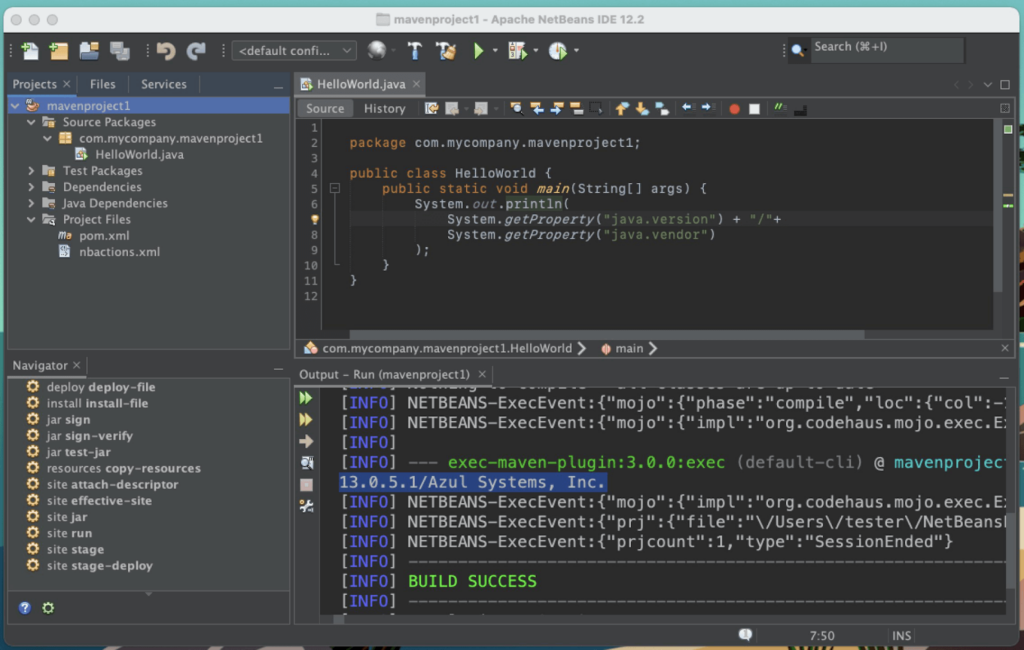
NetBeans is a well-recognized integrated development environment (IDE) that caters to a variety of programming languages. One of its standout aspects is its robust support for modular software development, aligning it perfectly as the best choice for such developmental needs.
Why I Picked NetBeans: I chose NetBeans after judging a variety of IDEs. What compelled my decision was its unique approach to modular coding, something not every text editor addresses directly. By comparing it with other tools, NetBeans felt the most accommodating for modular development, making it best for this specific purpose.
Standout Features & Integrations:
NetBeans boasts a wide array of features that appeal to developers. Its templates expedite the coding process by providing ready-made code structures. Additionally, the text editor is intuitive and customizable, ensuring coding is a smooth experience. NetBeans also offers comprehensive tutorials, making it easier for new users to get acquainted with its functionalities.
The tool has valuable integrations, including support for Maven, Gradle, and ANT for build processes. Furthermore, it integrates with Git, Mercurial, and other version control systems, making project management efficient.
Pros and Cons
Pros:
- Comprehensive tutorials for easy onboarding.
- Intuitive text editor that caters to various programming languages.
- Extensive range of templates to speed up development.
Cons:
- Larger projects might experience performance issues.
- The interface may seem dated compared to some newer IDEs.
- Might be overwhelming for beginners due to its broad range of features.


Oracle JDeveloper is an integrated development environment (IDE) that facilitates the design and development of applications within the Oracle ecosystem. Tailored specifically for Oracle's suite of products, it offers an environment that is optimal for building, testing, and deploying Oracle-centric applications.
Why I Picked Oracle JDeveloper: While determining which tools to recommend, Oracle JDeveloper came up as a strong contender, primarily because of its specialized alignment with Oracle platforms. Among the sea of IDEs available, Oracle JDeveloper stands out as it's finely tuned for Oracle application development. I chose this particular tool as it provides unparalleled integration capabilities for Oracle-based software solutions.
Standout Features & Integrations:
Oracle JDeveloper boasts features that allow for development in languages like Kotlin and JavaScript, enhancing its versatility. It provides tight integration with the Spring framework, which can be beneficial for building enterprise applications. Moreover, it has tailored functionalities for macOS, ensuring developers using this OS have a smooth experience.
Pros and Cons
Pros:
- macOS tailored functionalities offer a refined experience for Apple users
- Supports development in popular languages including Kotlin and JavaScript
- Deep integration with Oracle systems for streamlined development
Cons:
- Limited community support compared to some open-source IDEs
- Heavier than some other lightweight IDEs
- Might be overwhelming for beginners or non-Oracle projects


Apache Arrow functions as a cross-language development platform for in-memory data. By facilitating rapid analytics and big data science, Arrow has positioned itself as a leader, especially in in-memory analytics.
Why I Picked Apache Arrow: Among the various tools I scrutinized, Apache Arrow stood out prominently. After comparing and judging multiple platforms, it became evident that Arrow's specialization in in-memory analytics was unparalleled. This unique capability solidified my opinion that it is the best choice for those keen on harnessing the power of in-memory analytics.
Standout Features & Integrations:
Apache Arrow comes with a powerful compiler that aids in faster analytics. The platform's interactive nature allows developers to swiftly move between tasks, optimizing their workflow. Moreover, when it comes to Java programming, Arrow provides compatibility and integrations that streamline the development process, making it easier for apps to interact with data.
Pros and Cons
Pros:
- Extensive integrations available for Java programming and apps
- Interactive interface makes it user-friendly
- Powerful compiler accelerates data analytics tasks
Cons:
- Lack of a GUI might deter some users
- Documentation may be overwhelming for beginners
- Can be resource-intensive with larger datasets

Best for WebSphere integration

Rational Application Developer for WebSphere Software, or RAD, is a robust tool primarily designed to bolster your development within the WebSphere environment. With its close ties to WebSphere, it efficiently bridges the gap between code development and integration, justifying its position as the best fit for WebSphere integration.
Why I Picked RAD: I selected RAD after carefully comparing it against a myriad of alternatives. Through this comparison, it was evident that RAD's close integration with WebSphere made it distinct and gave it an edge over other tools. This harmony with WebSphere made me determine that it is indeed the best for WebSphere integration, ensuring a smooth and more intuitive experience for developers.
Standout Features & Integrations:
RAD's built-in code editor provides an intuitive platform for developers, simplifying the coding process. The debugger tool within RAD is a standout, especially when dealing with complex applications, making troubleshooting straightforward. Moreover, its integrations extend to both Windows and Android platforms, offering a wider scope of application development.
Pros and Cons
Pros:
- Broad compatibility with both Windows and Android platforms
- Efficient debugger tool aiding in swift troubleshooting
- Robust code editor that aligns well with WebSphere applications
Cons:
- The user interface could be intimidating for some users
- A heavier tool, requiring more system resources
- Might have a steeper learning curve for newcomers

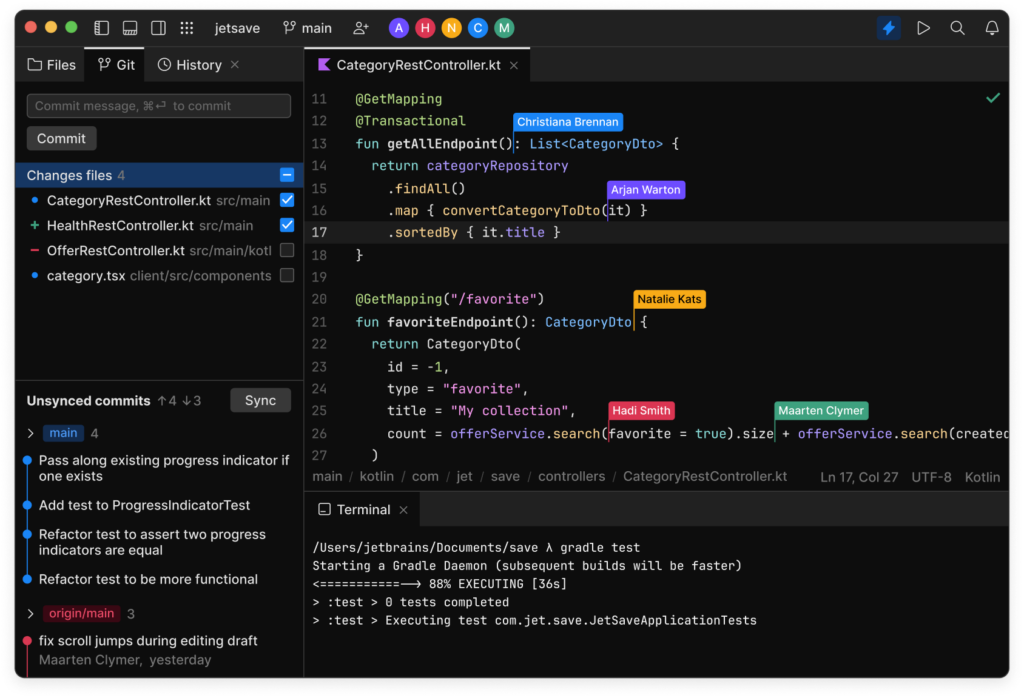
JetBrains Fleet is an integrated development environment (IDE) designed to enhance coding collaborations. With features promoting real-time interaction and joint project management, it aligns directly with the necessity for cooperative coding sessions.
Why I Picked JetBrains Fleet: Throughout my process of selecting development tools, JetBrains Fleet grabbed my attention due to its unique focus on collaboration. In comparing various platforms, the emphasis JetBrains Fleet placed on joint coding initiatives made it stand apart. I chose this tool because I believe its offerings are paramount for those seeking an IDE optimized for collaborative coding sessions.
Standout Features & Integrations:
JetBrains Fleet offers advanced source code management, allowing teams to track changes and collaborate efficiently. It includes syntax highlighting which aids developers in reading and understanding code, making the collaboration smoother. Furthermore, the integrated project management tools streamline the process of working on shared projects, ensuring team alignment.
Pros and Cons
Pros:
- Syntax highlighting supports clearer code comprehension
- Integrated project management tools ensure organized collaboration
- Robust source code management facilitates efficient teamwork
Cons:
- Some users may prefer other JetBrains IDEs they are familiar with
- Could be overkill for smaller teams or individual projects
- Might have a steeper learning curve for solo developers


Amazon Corretto is a no-cost, multi-platform distribution of the Open Java Development Kit (OpenJDK). It offers long-term support that goes beyond the conventional life of many Java versions, ensuring applications remain up-to-date and secure. Given its commitment to extended support, it naturally fits as a top choice for projects requiring long-term Java assistance.
Why I Picked Amazon Corretto: In the process of selecting a Java distribution that offers durability and stability, Amazon Corretto stood out. Its commitment to extended Java support, especially when others phase out, was a decisive factor. I chose Corretto because, in my judgment, it uniquely positions itself for projects that rely on enduring Java code assistance.
Standout Features & Integrations:
Amazon Corretto emphasizes consistent performance and security updates, making it trustworthy for critical applications. It provides graphical tools that are beneficial for debugging and analyzing applications. Furthermore, despite being a Java-centric platform, it offers integration capabilities with languages like Python, extending its use case beyond just Java projects.
Pros and Cons
Pros:
- Compatibility with platforms such as Linux enhances its versatility
- Graphical tools aid in intricate debugging scenarios
- Provides extended support beyond many Java versions
Cons:
- Transitioning from another JDK might require some adjustments
- Community around Corretto is smaller compared to mainline OpenJDK
- Might not have some of the cutting-edge features of other JDKs


AWS Cloud9 is an integrated development environment (IDE) that operates in the cloud, allowing developers to write, run, and debug code from any location with an internet connection. Its cloud-centric approach enables teams to collaborate effortlessly in real-time, making it particularly adept for those seeking robust online development environments.
Why I Picked AWS Cloud9: During my comparison of online IDEs, AWS Cloud9 consistently rose to prominence. What differentiates it is its integration with the wider AWS ecosystem and the real-time collaboration features. I determined that for teams or individuals prioritizing an online workspace without the lifecycle overhead of traditional setups, AWS Cloud9 fits the bill.
Standout Features & Integrations:
One of AWS Cloud9's prime features is its ability to facilitate real-time paired programming, which is invaluable for collaborative projects. Additionally, it supports a myriad of programming languages, including those that run on the JVM. Its profiling tools also ensure that developers can track and optimize their code's performance efficiently.
Pros and Cons
Pros:
- Profiling tools allow for performance tracking and optimization
- Supports real-time paired programming
- Deep integration with the AWS ecosystem
Cons:
- Not as specialized as tools like JCreator for Java-specific development
- Might have a steeper learning curve for those unfamiliar with AWS
- Pricing can be complex due to its dependency on AWS services


Eclipse Che provides a developer environment that's inherently cloud-first. Given today's gravitation towards cloud-centric applications, Che stands out as a top choice, notably for cloud-native development.
Why I Picked Eclipse Che: I chose Eclipse Che after extensively comparing it with its counterparts. In the process of determining the best IDEs for various purposes, Che's dedication to cloud-native development became evident. After considering various options and reflecting on my opinions, it's clear that Che's cloud-focused approach uniquely positions it as the best for cloud-native development.
Standout Features & Integrations:
Eclipse Che boasts a maven-based project structure, streamlining the build process for developers. It also supports multiple programming languages, with PHP being one of the significant ones, ensuring that programmers can work in their preferred language. The integrations that Che offers, especially with cloud platforms, further cement its cloud-native orientation.
Pros and Cons
Pros:
- Cloud integrations enhance its cloud-native proposition
- Multi-language support, including PHP, caters to diverse programmers
- Maven integration streamlines project builds
Cons:
- Lack of extensive documentation for specific integrations
- Some users report occasional lags in the interface
- Initial setup may be complex for some users
Weitere Java-IDEs
Unten findest du eine Liste weiterer Java-IDEs, die ich in die engere Wahl gezogen habe, die es aber nicht in die Top 10 geschafft haben. Sie sind definitiv einen Blick wert.
- BlueJ
For introductory Java education
- MyEclipse
For enterprise Java development
- Android Studio
Good for comprehensive Android app creation
- Codenvy
Good for cloud-based developer workspaces
- Oracle SQL Developer
Good for Oracle database management and design
- Xcode
Good for iOS and macOS app development
- Geany
Good for lightweight code editing and compiling
- Code::Blocks
Good for C, C++ and Fortran development
- CodeRunner
Good for quick code snippet testing
- Spring Tool Suite (STS)
Good for Spring framework projects
- jGRASP
Good for software visualization and comprehension
- CodeMix
Good for modern web development within Eclipse
- JaCoCo
Good for Java code coverage analysis
- Jbuilder
Good for crafting JSON structures in Rails
- Greenfoot
Good for visual interactive software education


Auswahlkriterien für Java-IDEs
Bei der Auswahl der besten Java-IDEs für diese Liste habe ich gängige Bedürfnisse und Herausforderungen von Anwendern wie Benutzerfreundlichkeit und Integrationsfähigkeit berücksichtigt. Außerdem habe ich folgendes Rahmenwerk genutzt, um meine Bewertung strukturiert und fair zu gestalten:
Kernfunktionen (25 % der Gesamtbewertung)
Jede Lösung musste für die Aufnahme in diese Liste folgende Einsatzszenarien abdecken:
- Codebearbeitung
- Debugging
- Integration der Versionskontrolle
- Syntaxhervorhebung
- Code-Refactoring
Weitere herausragende Funktionen (25 % der Gesamtbewertung)
Um die Auswahl weiter einzuschränken, habe ich außerdem auf besondere Merkmale geachtet, wie zum Beispiel:
- Zusammenarbeit in Echtzeit
- Cloud-basierter Zugriff
- KI-gestützte Codevervollständigung
- Integrierte Testwerkzeuge
- Anpassbare Designs
Benutzerfreundlichkeit (10 % der Gesamtbewertung)
Um mir ein Bild von der Benutzerfreundlichkeit jedes Systems zu machen, habe ich Folgendes berücksichtigt:
- Intuitive Oberfläche
- Einfache Navigation
- Anpassbare Shortcuts
- Responsives Design
- Minimale Einarbeitungszeit
Onboarding (10 % der Gesamtbewertung)
Um die Nutzerführung und Einführung bei jeder Plattform einzuschätzen, habe ich nach folgenden Aspekten geschaut:
- Verfügbarkeit von Trainingsvideos
- Interaktive Produkttouren
- Zugriff auf Vorlagen
- Chatbot-Unterstützung
- Webinare für neue Nutzer
Kundensupport (10% der Gesamtbewertung)
Um die Kundendienstleistungen der einzelnen Softwareanbieter zu bewerten, habe ich Folgendes berücksichtigt:
- Verfügbarkeit eines Live-Chats
- Umfassende Wissensdatenbank
- Reaktionszeit des E-Mail-Supports
- Benutzer-Community-Foren
- Verfügbarkeit von telefonischem Support
Preis-Leistungs-Verhältnis (10% der Gesamtbewertung)
Um das Preis-Leistungs-Verhältnis jeder Plattform zu beurteilen, habe ich Folgendes berücksichtigt:
- Konkurrenzfähige Preisgestaltung
- Verfügbarkeit einer kostenlosen Testversion
- Gestaffelte Preisoptionen
- Funktionsumfang im Verhältnis zu den Kosten
- Rabatt für Jahresabonnements
Kundenbewertungen (10% der Gesamtbewertung)
Um einen Überblick über die allgemeine Kundenzufriedenheit zu erhalten, habe ich beim Lesen der Kundenbewertungen Folgendes betrachtet:
- Zufriedenheitsbewertungen der Nutzer
- Feedback zur Leistung
- Kommentare zur Benutzerfreundlichkeit
- Meldungen von Fehlern oder Problemen
- Empfehlungen von Entwickler:innen
Wie wählt man eine Java-IDE aus?
Es ist leicht, sich in langen Funktionslisten und komplexen Preisstrukturen zu verlieren. Damit Sie sich während Ihres individuellen Softwareauswahlprozesses besser fokussieren können, finden Sie hier eine Checkliste mit Faktoren, die Sie berücksichtigen sollten:
| Faktor | Worauf achten? |
|---|---|
| Skalierbarkeit | Kann die IDE mit Ihren wachsenden Projektanforderungen Schritt halten? Berücksichtigen Sie die Unterstützung für größere Codebasen und höhere Nutzerzahlen ohne Leistungsprobleme. |
| Integrationen | Lässt sich die IDE mit Ihren bestehenden Tools wie Git, JIRA oder Jenkins verbinden? Stellen Sie sicher, dass sie nahtlos in Ihren aktuellen Workflow und Ihr Tool-Ökosystem passt. |
| Anpassbarkeit | Können Sie die IDE an Ihren Programmierstil anpassen? Achten Sie auf Möglichkeiten, Themes, Tastaturkürzel und Plugins nach Ihren Wünschen anzupassen. |
| Benutzerfreundlichkeit | Ist die Benutzeroberfläche für Ihr Team übersichtlich? Meiden Sie Tools, die umfangreiche Schulungen erfordern oder eine große Lernkurve für neue Benutzer:innen haben. |
| Implementierung und Einarbeitung | Wie schnell kann Ihr Team loslegen? Achten Sie auf umfassende Einarbeitungsressourcen wie Tutorials, Dokumentationen und Community-Support. |
| Kosten | Passen die Preise zu Ihrem Budget? Vergleichen Sie Abo-Modelle und achten Sie auf versteckte Kosten, wie Add-ons oder Nutzerlimits, die die Ausgaben erhöhen könnten. |
| Sicherheitsmaßnahmen | Entspricht die IDE Ihren Sicherheitsanforderungen? Achten Sie auf Funktionen wie Verschlüsselung, Zugriffskontrollen und regelmäßige Updates zum Schutz Ihres Codes. |
Was ist eine Java-IDE?
Eine Java-IDE ist eine Softwareanwendung, die Computerprogrammierer:innen umfassende Werkzeuge für die Softwareentwicklung in Java bereitstellt. Diese Tools werden in der Regel von Softwareentwickler:innen und Ingenieur:innen genutzt, die damit eine Reihe von Funktionen zum effizienten Schreiben, Debuggen und Verwalten von Code erhalten.
Funktionen wie Codebearbeitung, Debugging und Versionskontrolle helfen dabei, die Produktivität zu steigern und Fehler zu reduzieren. Insgesamt erhöhen diese Werkzeuge die Effizienz des Programmierprozesses und machen die Entwicklung schneller und organisierter.
Funktionen
Bei der Auswahl einer Java-IDE sollten Sie auf folgende Hauptfunktionen achten:
- Code-Bearbeitung: Bietet eine benutzerfreundliche Oberfläche zum Schreiben und Bearbeiten von Code, sodass Entwickler komplexe Codebasen effizient verwalten können.
- Debugging-Tools: Stellt integrierte Debugging-Funktionen zur Verfügung, die es ermöglichen, Fehler schnell zu identifizieren und zu beheben.
- Integration von Versionskontrollsystemen: Unterstützt die nahtlose Einbindung von Versionskontrollsystemen wie Git zur Nachverfolgung von Änderungen und Zusammenarbeit mit anderen.
- Syntaxhervorhebung: Erhöht die Lesbarkeit, indem verschiedene Elemente des Codes farblich markiert werden und so Syntaxfehler leichter zu erkennen sind.
- Code-Refactoring: Ermöglicht es Entwicklern, bestehenden Code zu restrukturieren, ohne dessen äußeres Verhalten zu verändern, und verbessert so die Codequalität und Wartbarkeit.
- Echtzeit-Zusammenarbeit: Mehrere Entwickler können gleichzeitig am selben Code arbeiten, was Teamarbeit und Produktivität steigert.
- KI-gestützte Codevervollständigung: Schlägt mit Hilfe künstlicher Intelligenz Codevervollständigungen vor, beschleunigt die Programmierung und verringert manuelle Fehler.
- Integrierte Testwerkzeuge: Erleichtert das Testen des Codes innerhalb der IDE, damit Anwendungen vor dem Einsatz wie beabsichtigt funktionieren.
- Anpassbare Themes: Nutzer können das Aussehen und die Bedienoberfläche der IDE individuell gestalten, um die Benutzererfahrung zu verbessern.
- Cloud-basierter Zugriff: Bietet die Möglichkeit, von jedem Ort mit Internetverbindung auf die IDE zuzugreifen, und schafft so Flexibilität für das Arbeiten aus der Ferne.
Vorteile
Die Implementierung einer Java IDE bietet Ihrem Team und Unternehmen zahlreiche Vorteile. Sehen Sie hier, worauf Sie sich freuen können:
- Gesteigerte Produktivität: Funktionen wie Codevervollständigung und Refactoring-Tools helfen Entwicklern, Code effizienter zu schreiben und zu verwalten.
- Weniger Fehler: Debugging-Werkzeuge und Syntaxhervorhebung ermöglichen es, Fehler frühzeitig im Entwicklungsprozess zu erkennen und zu beseitigen.
- Verbesserte Zusammenarbeit: Mit Funktionen zur Echtzeit-Zusammenarbeit können Teammitglieder effektiver am selben Code arbeiten.
- Besseres Codemanagement: Die Integration von Versionsverwaltung erleichtert es, Änderungen nachzuverfolgen und verschiedene Versionen des Codes zu verwalten.
- Höhere Flexibilität: Cloud-basierter Zugriff ermöglicht es Entwicklern, von überall aus zu arbeiten, was Remote-Arbeit und flexible Zeitgestaltung unterstützt.
- Individuelles Nutzererlebnis: Anpassbare Themes und Einstellungen sorgen für eine maßgeschneiderte Benutzererfahrung und machen die IDE angenehmer in der Nutzung.
- Effizientere Tests: Mit integrierten Testwerkzeugen können Entwickler ihren Code direkt in der IDE testen und so sicherstellen, dass Anwendungen vor dem Einsatz korrekt funktionieren.
Kosten & Preise
Die Auswahl einer Java IDE erfordert ein Verständnis der verschiedenen verfügbaren Preismodelle und Tarife. Die Kosten variieren abhängig von Funktionen, Teamgröße, Zusatzoptionen und weiteren Faktoren. Die folgende Tabelle fasst gängige Tarife, ihre Durchschnittspreise und typische Funktionen von Java-IDE-Lösungen zusammen:
Tarifvergleichstabelle für Java IDE
| Tariftyp | Durchschnittlicher Preis | Gängige Funktionen |
|---|---|---|
| Gratis-Tarif | $0 | Grundlegende Codebearbeitung, Syntaxhervorhebung und Integration von Versionskontrolle. |
| Persönlicher Tarif | $5-$25/user/month | Codevervollständigung, Debugging-Tools und anpassbare Themes. |
| Geschäftstarif | $25-$50/user/month | Echtzeit-Zusammenarbeit, integrierte Testwerkzeuge und fortschrittliches Refactoring. |
| Unternehmens-Tarif | $50-$100/user/month | Cloud-basierter Zugriff, vorrangiger Support und umfangreiche Integrationsmöglichkeiten. |
Java-IDE-FAQs
Hier finden Sie Antworten auf häufig gestellte Fragen zu Java-IDEs:
Kann ich eine Java-IDE auch für andere Programmiersprachen nutzen?
Ja, viele Java-IDEs unterstützen mehrere Programmiersprachen. So können Sie beispielsweise in IntelliJ IDEA und Eclipse Plugins oder Erweiterungen installieren, um in Sprachen wie Python, C++ oder JavaScript zu programmieren. Prüfen Sie die Dokumentation Ihrer IDE, um herauszufinden, welche Sprachen unterstützt werden und wie Sie diese aktivieren.
Ist eine Internetverbindung erforderlich, um eine Java-IDE zu verwenden?
Nein, für die lokale Entwicklung benötigen Sie keinen Internetzugang zur Nutzung einer Java-IDE. Allerdings ist Internet für Funktionen wie Versionskontrolle, Echtzeit-Zusammenarbeit sowie zum Herunterladen von Updates oder Plugins erforderlich. Wenn Sie offline arbeiten möchten, sollten Sie sicherstellen, dass Ihre IDE mit allen benötigten Tools und Ressourcen ausgestattet ist.
Wie gut kommen Java-IDEs mit großen Codebasen zurecht?
Einige IDEs sind darauf optimiert, große Projekte effizienter zu indexieren und zu laden als andere. Die Leistung kann davon abhängen, wie die IDE Hintergrundprozesse wie Indizierung, Fehlerüberprüfung und Codevorschläge verarbeitet. Wenn Sie an einem sehr großen Unternehmensprojekt arbeiten, können diese Unterschiede deutlich werden.
Unterstützen alle Java-IDEs sofort die neuesten JDK-Versionen?
Nicht immer – die Unterstützung für neue JDK-Versionen kann je nach IDE verzögert sein. Manche Anbieter reagieren schneller und passen sich an den Release-Zyklus von Oracle an, während andere Umwege oder Plugins benötigen. Das ist besonders relevant, wenn Sie mit den neuesten Java-Funktionen arbeiten möchten.
Unterscheiden sich Java-IDEs in Bezug auf Debugging-Tools?
Ja, das Debugging-Erlebnis variiert – einige IDEs bieten intuitivere Oberflächen, Inline-Variablenansichten oder erweiterte Breakpoints. Andere benötigen zusätzliche Einrichtung oder bieten während der Laufzeit nur eingeschränkte Einblicke. Besonders bei komplexen Multi-Thread-Anwendungen werden diese Unterschiede deutlich.
Wie geht es weiter:
Wenn Sie gerade auf der Suche nach einer passenden Java-IDE sind, verbinden Sie sich mit einem SoftwareSelect-Berater für kostenlose Empfehlungen.
Sie füllen ein Formular aus und führen ein kurzes Gespräch, in dem Ihre spezifischen Anforderungen besprochen werden. Anschließend erhalten Sie eine Shortlist passender Software zum Prüfen. Auf Wunsch werden Sie sogar durch den gesamten Beschaffungsprozess inklusive Preisverhandlungen begleitet.