

Virtual office software gives your distributed team a shared digital workspace for real-time collaboration, presence, and connection no matter where people are. If you’re exploring these tools, you need a platform that helps your engineers and staff feel engaged, present, and able to work together without friction. This guide breaks down the leading options for features, scalability, and ease of adoption so you can choose the right fit for remote work at scale.
Why Trust Our Software Recommendations
6,700+
Reviews
20
Industry experts
16+
Evaluation factors
14
Years
Our team has been testing and reviewing software since 2012. As tech leaders ourselves, we know how difficult—and important—it is to choose the right software.
For this guide, we evaluated tools using hands-on testing and independent research, scoring tools using our selection criteria.
Our reviews reflect our human editorial judgment, not a sales pitch.
Expert reviewers:
- Paulo Gardini MiguelTech Director
 Tim FisherVP of AI
 Gabriel RosasTech Lead & Software Architect
 Christhian GruhnTech Lead & Platform Architect

Virtual Office Software Comparison Table
This comparison table summarizes pricing details for my top virtual office software selections:
| Tool | Best For | Trial Info | Price | ||
|---|---|---|---|---|---|
| 1 | Best for real-time availability indicators | 14-day free trial + free demo available | From $6/user/month (billed annually) | Website | |
| 2 | Best for event hosting with breakout spaces | 14-day free trial + free demo available | From $299/month (billed annually) | Website | |
| 3 | Best for browser-based team collaboration | 14-day free trial + free demo available | From $19.50/user/month | Website | |
| 4 | Best for high-scale enterprise deployments | Free trial available | From $8/user/month (billed annually) | Website | |
| 5 | Best for open-source workspace customization | Free plan available | From $9/user/month (billed annually) | Website | |
| 6 | Best for customizable office maps and layouts | Free demo available | Pricing upon request | Website | |
| 7 | Best for proximity-based group video chats | Free plan + 7-day free trial + free demo | From $8/user/month | Website | |
| 8 | Best for instant spontaneous conversations | Free plan available | From $64/month | Website | |
| 9 | Best for spatial audio with persistent rooms | 14-day free trial + free plan + free demo | From $16/user/month (billed annually) | Website | |
| 10 | Best for live presence and calendar sync | 7-day free trial + free plan + free demo | From $5.40/user/month (billed annually) | Website |


Virtual Office Software Reviews
Below are my detailed summaries of the best virtual office software that made it onto my shortlist. My reviews offer a detailed look at the features, best use cases, and integrations of each platform to help you find the best one for you.
 Best for real-time availability indicators
- 14-day free trial + free demo available
- From $6/user/month (billed annually)
Visit WebsiteCustomer Rating:4.8/5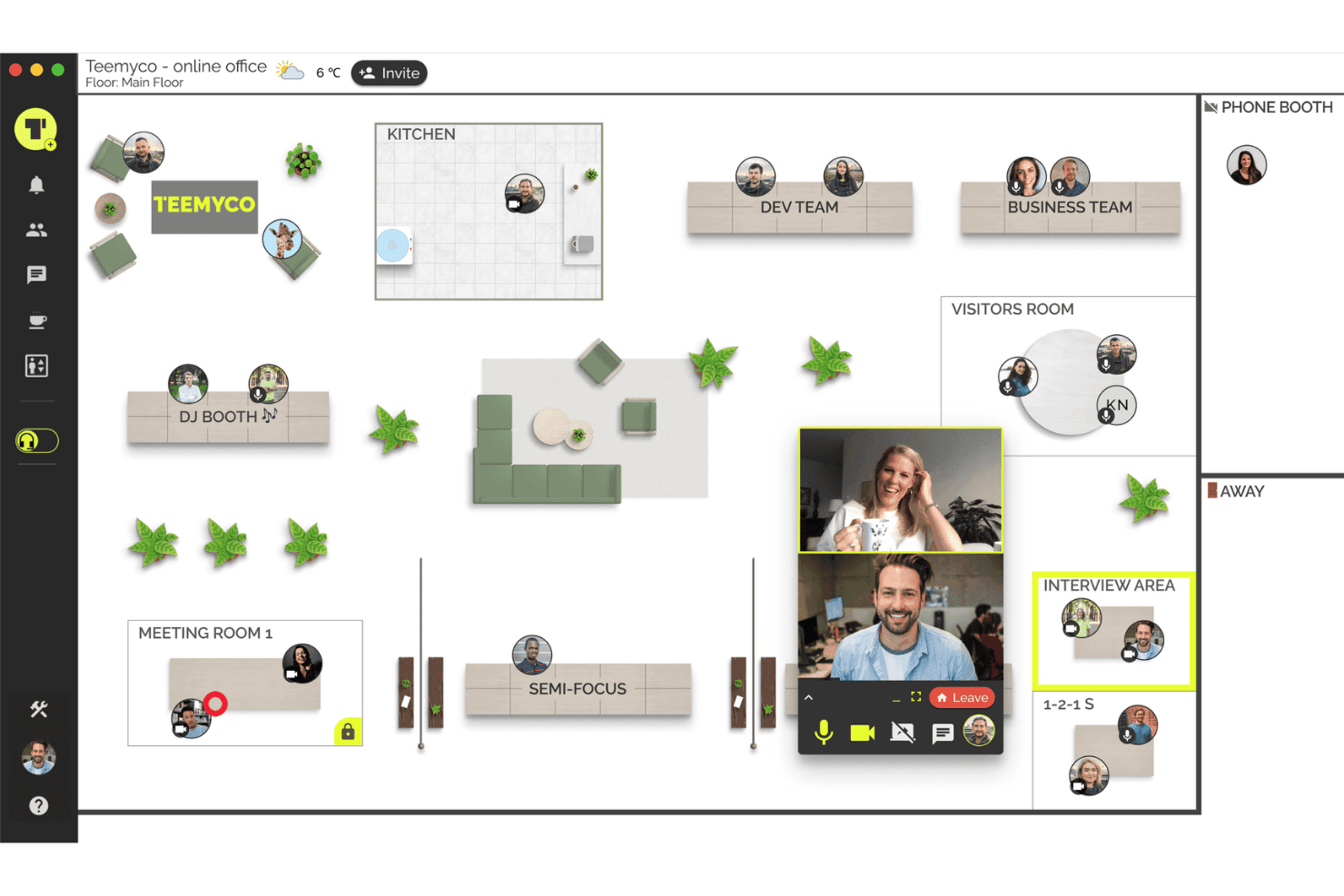
Teemyco replicates an office layout for remote team collaboration. Teemyco is a virtual office platform where remote and hybrid teams can see each other's live presence in a customizable spatial workspace, drop into rooms for instant video calls, and collaborate via chat and screen sharing.
Who Is Teemyco Best For?
Teemyco works well for small to mid-sized distributed or hybrid teams that want a persistent virtual workspace without heavy IT setup or administration overhead.
Why I Picked Teemyco
Teemyco earns its spot on my shortlist because of how it surfaces real-time availability. The bird's-eye office view shows exactly who is available, busy, or open to a conversation, with presence updating live and no manual status changes required. I like that clicking into a colleague's room starts a video call instantly, with no meeting link or calendar invite involved. The Google Calendar integration also ties scheduled commitments directly into the workspace view.
Teemyco Key Features
- Customizable office layout: Teams arrange rooms, desks, and shared spaces to match their workflow and structure.
- Unlimited video calls: Users can start or join video meetings in any room without restrictions or extra plugins.
- Double screensharing: Multiple participants share their screens at the same time in a single conversation.
- Office feed announcements: Team members post updates and announcements visible to everyone in the virtual office.
Teemyco Integrations
Teemyco offers native integrations with Google Calendar and Slack. An API is available for custom integrations.
Pros and Cons
Pros:
- Spatial layout mimics a real office environment
- Rooms persist with whiteboards and shared documents
- Live presence updates require no manual input
Cons:
- No free permanent plan option for small teams
- Limited enterprise security and compliance documentation
Learn more about Teemyco: 2Best for event hosting with breakout spaces
Remo
- 14-day free trial + free demo available
- From $299/month (billed annually)
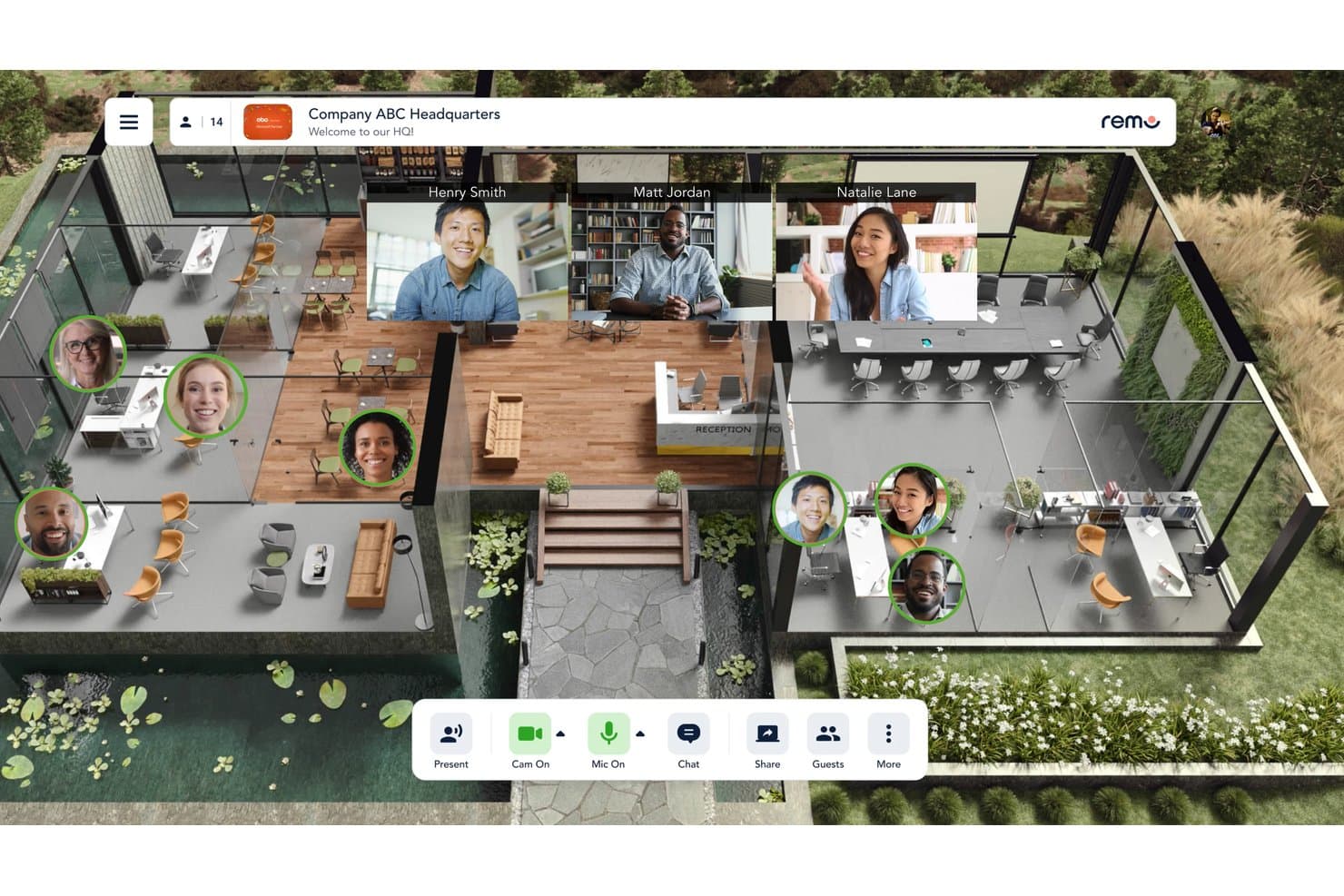
Remo lets users collaborate in a virtual office with video calls. Remo is a virtual office platform built around immersive floor plans and table-based video conversations, letting team members move freely between rooms, floors, and breakout spaces.
Who Is Remo Best For?
Remo is a strong fit for hybrid and remote teams that regularly run virtual networking events, all-hands meetings, or team culture sessions.
Why I Picked Remo
I've included Remo in my top picks because its table-based floor plan model genuinely replicates the feel of a physical event space. I love how participants can move freely between tables on their own, without a host manually assigning them to breakout rooms. The broadcast mode with stage access (up to 10 speakers), live polls, and Q&A layered on top of that free-movement setup makes Remo a strong pick when your virtual office needs to host structured all-hands events or large team networking sessions.
Remo Key Features
- Immersive floor plans: Design custom layouts with multiple rooms and floors for your virtual office environment.
- Interactive whiteboards: Collaborate visually using built-in whiteboards available at each virtual table or room.
- Live attendee analytics: Access real-time data on participant activity and engagement in your workspace.
- Custom registration and guest controls: Configure invite flows, manage guest access, and brand the visitor experience for events and daily use.
Remo Integrations
Native integrations are not clearly documented. An API is available for custom integrations.
Pros and Cons
Pros:
- Floor plan layouts mirror real event venues
- Stage mode supports up to 10 speakers
- Organic table-hopping without host intervention
Cons:
- High browser resource demand on older hardware
- Not designed as a persistent daily workspace
Learn more about Remo: 3Best for browser-based team collaboration
Roam
- 14-day free trial + free demo available
- From $19.50/user/month
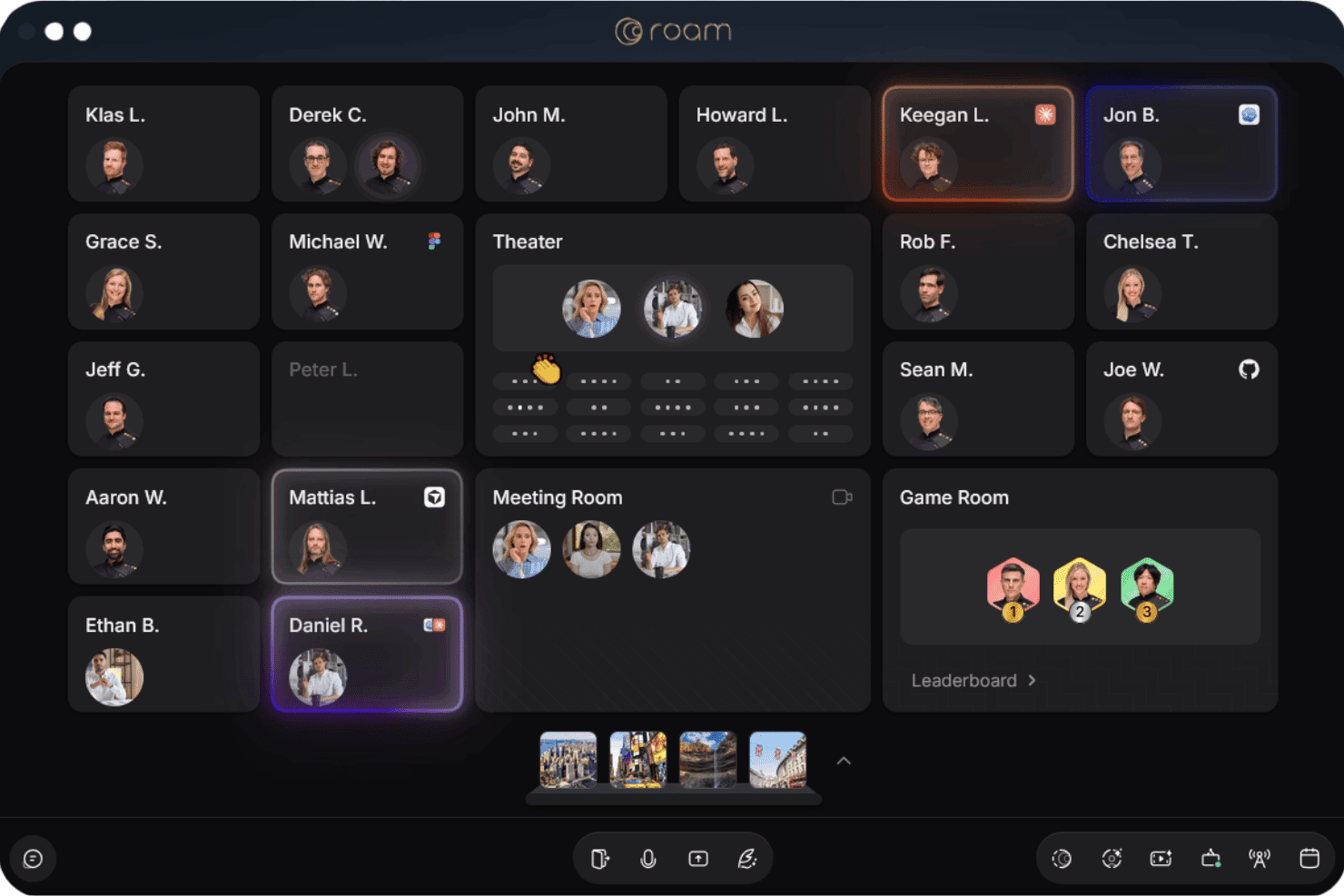
Roam lets users see teammates' availability across virtual office spaces. Roam is a browser-based virtual office platform that combines a live spatial map, drop-in audio/video meetings, enterprise messaging, AI meeting summaries, screen recording, and all-hands events into a single workspace for distributed teams.
Who Is Roam Best For?
Roam is a strong fit for fully remote or distributed tech teams that need a consolidated workspace without managing a stack of separate communication tools.
Why I Picked Roam
Roam earns its spot on my shortlist because it runs entirely in the browser, with no desktop app required. I especially like the live spatial map, where GitHub pull requests appear next to a developer's office until they're resolved, keeping code review visible without a separate Slack thread. My team also uses the knock-to-enter drop-in rooms daily, where clicking a colleague's office and joining a conversation takes seconds rather than a calendar invite.
Roam Key Features
- Theatre mode: Host company-wide all-hands or large-scale events for up to 3,000 participants in a single virtual space.
- AInbox enterprise messaging: Access threaded channels, DMs, and persistent chat directly within the virtual office environment.
- Magic Minutes AI summaries: Get automated meeting notes and action items without relying on a separate bot or recording tool.
- Physical office tags: Mark in-office, remote, or hybrid team members and floors to mirror real-world seating and team structure.
Roam Integrations
Roam offers native integrations with GitHub, Figma, Google Calendar, and Spotify. An API is available for custom integrations.
Pros and Cons
Pros:
- All-hands events support up to 3,000 attendees
- Includes built-in AI meeting notes
- Runs fully in-browser without app downloads
Cons:
- Audio quality can drop on slower connections
- Can feel resource-heavy on older hardware
Learn more about Roam: Best for high-scale enterprise deployments
- Free trial available
- From $8/user/month (billed annually)
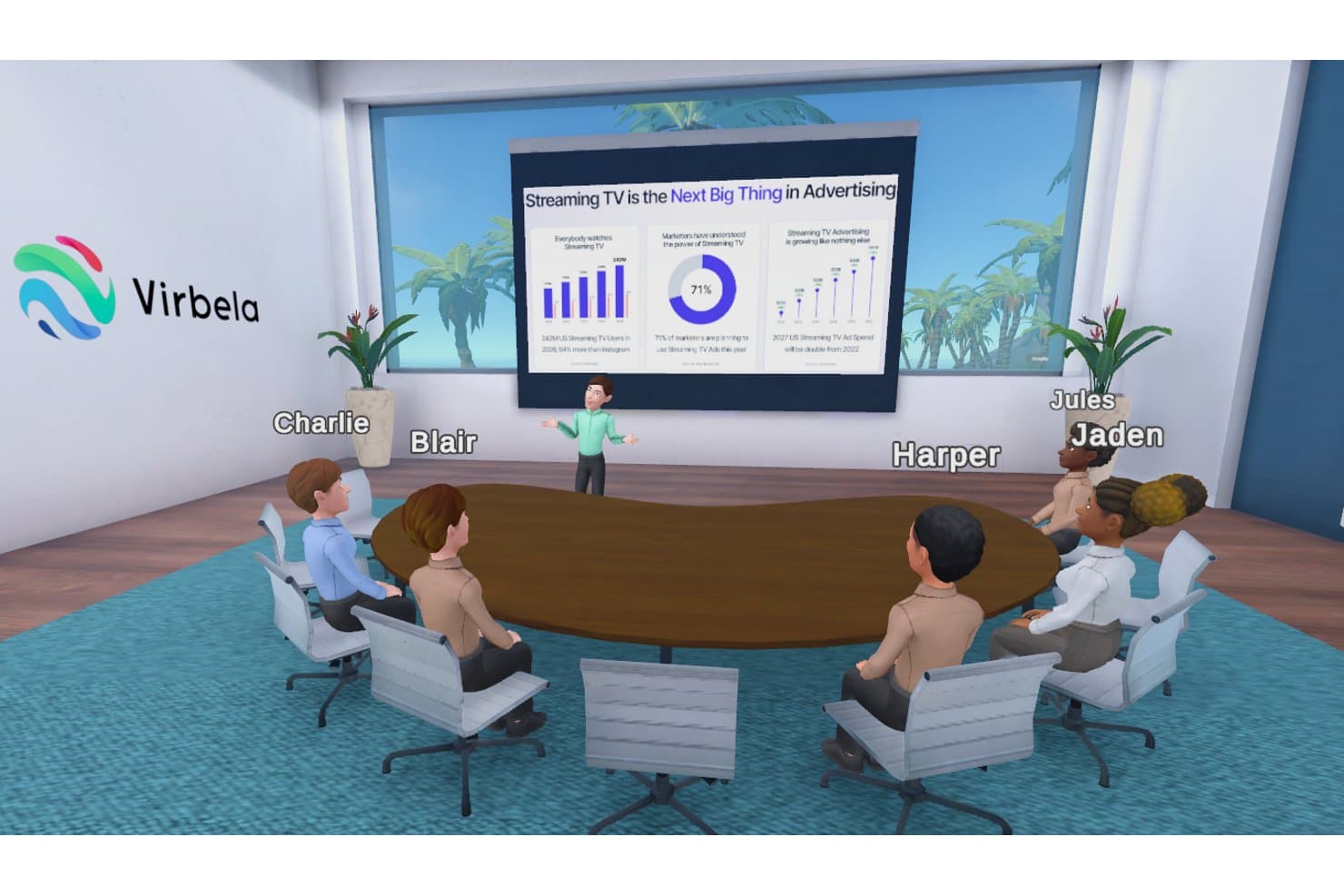
Virbela hosts virtual meetings with avatars in a 3D office space. Virbela is a 3D immersive virtual office platform with customizable persistent campuses, avatar-based presence, spatialized proximity audio, and real-time collaboration tools including screen sharing, whiteboards, and breakout spaces.
Who Is Virbela Best For?
Virbela is a strong fit for large enterprises and organizations that need to deploy a persistent virtual campus for hundreds to thousands of concurrent users.
Why I Picked Virbela
Virbela earns its spot as one of the best on my shortlist because no other virtual office platform handles truly massive concurrent user counts the way it does. eXp Realty runs its entire global operation inside Virbela simultaneously, which tells you a lot about what the platform can handle. The Private Campus product gives my team a persistent 3D environment that stays live around the clock, and the Enterprise tier includes SSO and custom integrations that IT leadership needs to approve a deployment this size.
Virbela Key Features
- Customizable avatar presence: Each user customizes their avatar for a more personal and engaging virtual experience.
- Spatialized voice chat: Audio volume and clarity change based on users’ positions within the virtual environment.
- Persistent campus environments: Teams can create and brand multiple offices, boardrooms, and meeting spaces that remain available at all times.
- Integrated presentation tools: In-room tools support slide sharing, video playback, screen sharing, sticky notes, and brainstorming directly within virtual spaces.
Virbela Integrations
Native integrations are not clearly documented. An API is available for custom integrations.
Pros and Cons
Pros:
- Private campus environments stay active continuously
- Persistent 3D campus stays live always
- Supports thousands of concurrent users simultaneously
Cons:
- High hardware requirements limit device compatibility
- Requires a desktop download to use
Learn more about Virbela: Best for open-source workspace customization
- Free plan available
- From $9/user/month (billed annually)
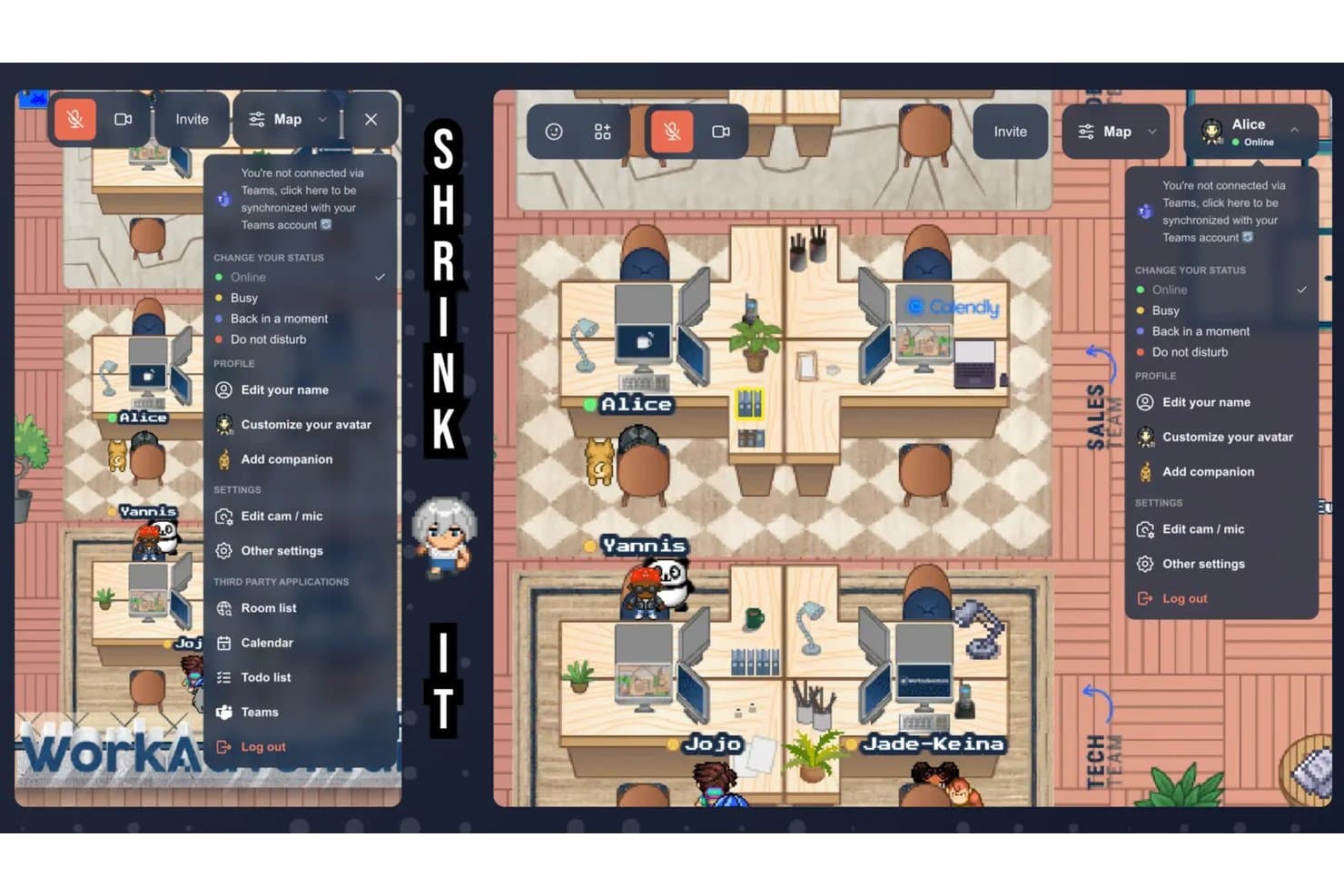
WorkAdventure lets users manage status, profile, and integrations in-world. WorkAdventure is an open-source virtual office platform where teams navigate 2D pixel-art maps as avatars, with proximity-triggered audio/video, screen sharing, integrated messaging, and customizable spatial environments.
Who Is WorkAdventure Best For?
WorkAdventure is a strong fit for mid-to-large remote and hybrid engineering teams that want a self-hosted, customizable virtual office they can control and adapt.
Why I Picked WorkAdventure
WorkAdventure earns its spot on my shortlist because the open-source codebase lets my team self-host the platform on our own servers, which is rare in this category. I like the built-in map editor, which lets us design spatial layouts that mirror our real office floor plan, with personalized desks and zone-specific rules. White-label mode removes all WorkAdventure branding, so the workspace feels native to our org rather than a third-party tool layered on top.
WorkAdventure Key Features
- Proximity-triggered video bubbles: Start instant audio and video chats as your avatar approaches other users on the virtual map.
- Integrated office apps: Embed Google Docs, Sheets, Slides, YouTube, Excalidraw, and Klaxoon directly in the workspace.
- Live presence and status indicators: See exactly where colleagues are located and whether they are available, busy, or away.
- Role-based access controls: Assign user roles, restrict access by email domain, and manage permissions from the admin dashboard.
WorkAdventure Integrations
WorkAdventure offers native integrations with Google Calendar, Outlook, Microsoft Teams, Discord, Element, Klaxoon, Excalidraw, Eraser, YouTube, and Google Drive. An API is available for custom integrations.
Pros and Cons
Pros:
- Self-hosting ensures full server control
- Supports deep workspace customization
- Self-hostable for full data sovereignty
Cons:
- Map design requires significant technical setup time
- High CPU load on lower-end devices
Learn more about WorkAdventure: Best for customizable office maps and layouts
- Free demo available
- Pricing upon request
Visit WebsiteCustomer Rating:4.7/5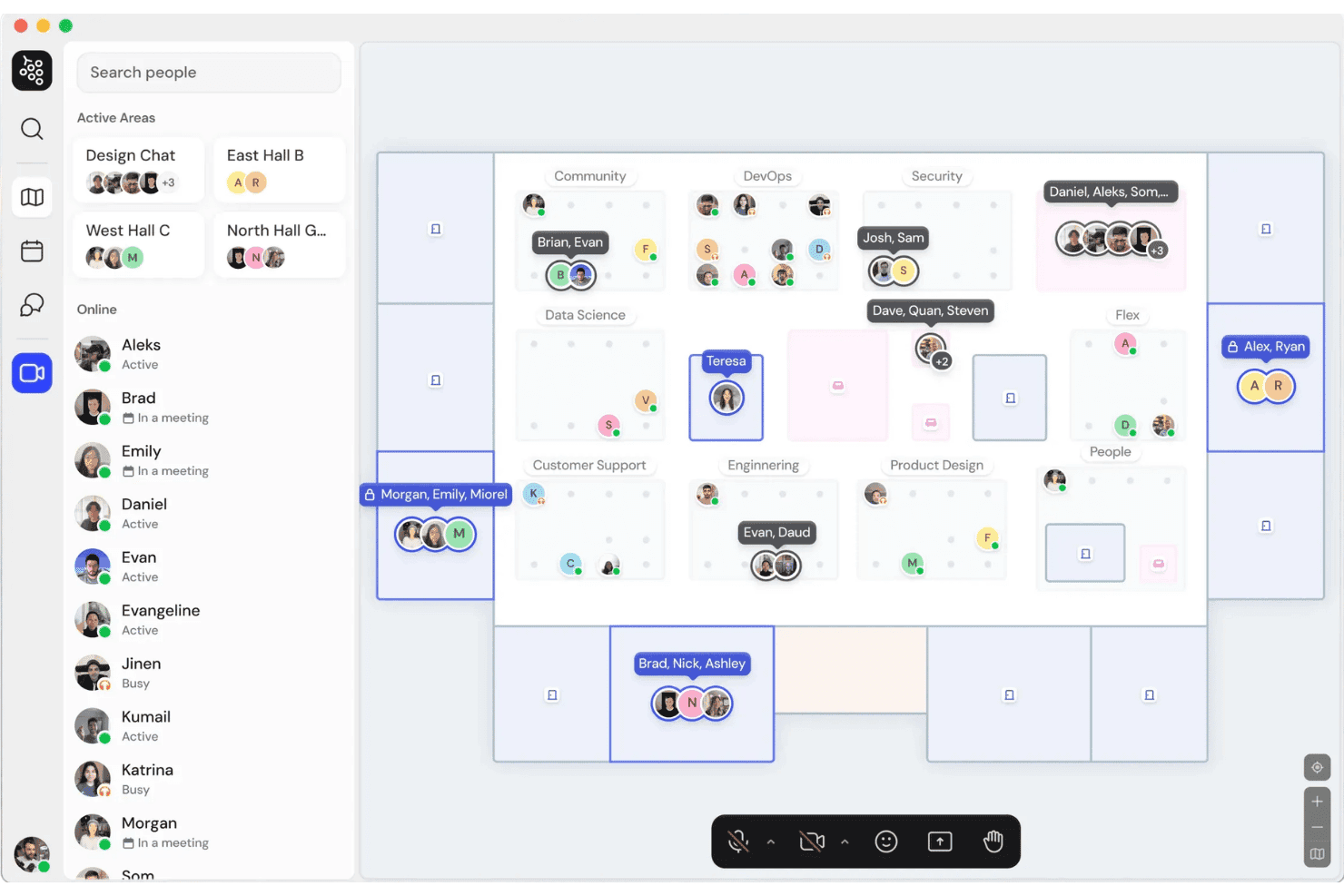
Gather shows team presence across virtual office spaces in real time. Gather is a spatial virtual office platform where remote teams move avatar-based characters through customizable 2D office maps, with proximity-triggered audio and video, persistent chat, screen sharing, and real-time presence built in.
Who Is Gather Best For?
Gather is a strong fit for remote-first engineering and tech teams that want a persistent, always-on workspace replacing daily standups and scheduled video calls.
Why I Picked Gather
Gather earns its spot as one of the best on my shortlist because no other virtual office tool gives you this level of control over your spatial layout. I love that you can build open, private, or hybrid floor plans from scratch, place over 200 interactive objects, and label distinct team zones like engineering, QA, or DevOps. My team can switch between templates instantly or edit rooms, walls, and floors directly to match how we're actually organized.
Gather Key Features
- Proximity-based audio and video: Interact naturally with coworkers when your avatars are nearby in the virtual space.
- Integrated workspace chat: Send DMs, group messages, or chat within specific rooms without switching apps.
- Real-time presence indicators: See who is online, available, busy, or in a meeting with live status syncing.
- Simultaneous multi-user screen sharing: Multiple team members can share screens at once during meetings or project work.
Gather Integrations
Gather offers native integrations with GitHub and Google Calendar, and provides an API for custom integrations.
Pros and Cons
Pros:
- Persistent rooms retain shared content between sessions
- Proximity audio mimics organic office conversations
- Highly customizable spatial office map layouts
Cons:
- Requires continuous high internet bandwidth
- Heavy CPU load on older hardware
Learn more about Tripleseat: Best for proximity-based group video chats
- Free plan + 7-day free trial + free demo
- From $8/user/month
Visit WebsiteCustomer Rating:5/5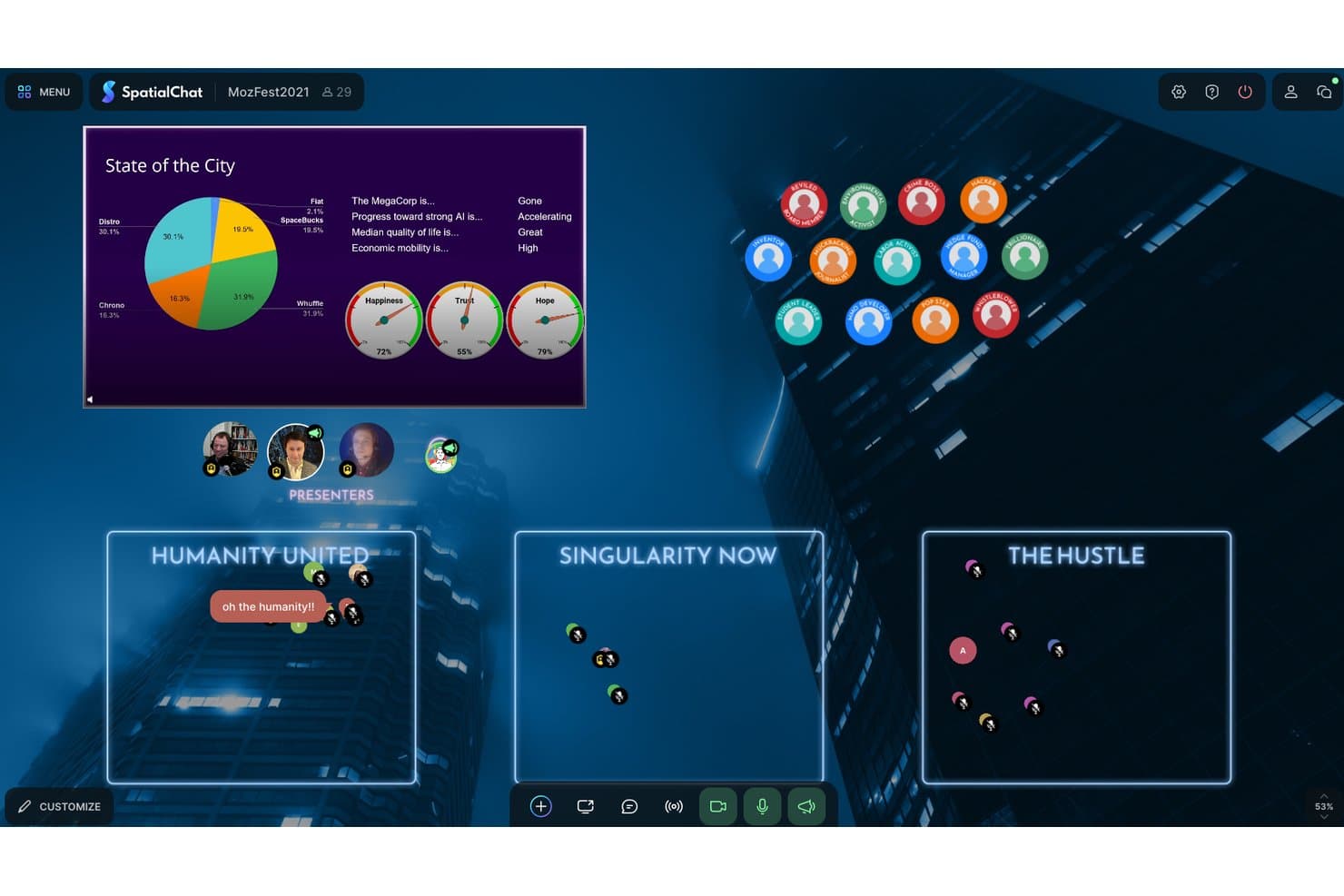
SpatialChat lets users host role-play sessions with live data dashboards. SpatialChat is a browser-based virtual office platform where distributed teams navigate customizable spatial environments using movable avatars, proximity-based audio and video, in-space document collaboration, and built-in text chat.
Who Is SpatialChat Best For?
SpatialChat suits small to mid-sized remote teams in education, research, and events who prioritize natural, unscheduled interaction over structured meeting formats.
Why I Picked SpatialChat
SpatialChat earns its spot on my shortlist because proximity-based audio is genuinely what separates it from standard video call tools. When my team moves avatars closer together on the spatial map, a conversation starts instantly, no meeting link required. I also like how the Pen-on-Map feature lets us annotate directly in the space, and in-space Google Docs embeds keep shared documents visible without tab-switching.
SpatialChat Key Features
- Customizable workspace rooms: Set up multiple persistent rooms with tailored backgrounds for different teams or purposes.
- Single sign-on (SSO) and RBAC: Secure access controls with SAML SSO and role-based permissions for enterprise governance.
- Embedded collaboration tools: Add Google Docs, Miro boards, and YouTube videos directly into rooms for shared work.
- Multi-user screen sharing: Allow several participants to share their screens at once within the same space.
SpatialChat Integrations
SpatialChat offers native integrations with Google Docs, Google Slides, Miro, and YouTube for in-room collaboration. An API is available for custom integrations.
Pros and Cons
Pros:
- Browser-based access requires no software download
- Persistent rooms retain whiteboards between sessions
- Proximity-based audio mimics real-world conversation
Cons:
- Limited text messaging compared to dedicated tools
- Heavy CPU load in large group sessions
Learn more about SpatialChat:
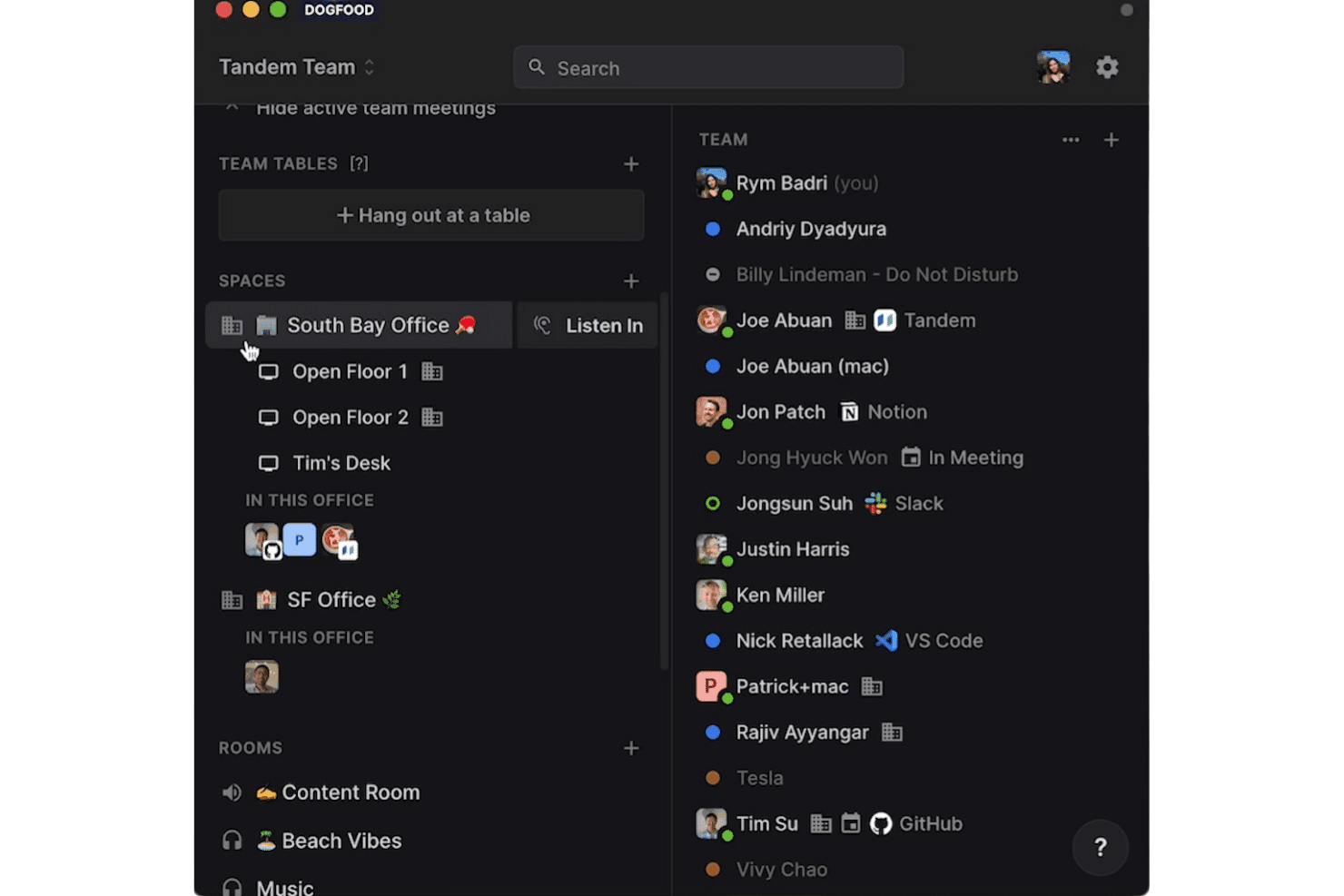
Tandem shows team presence, active apps, and virtual office spaces. Tandem is a virtual office platform built around persistent rooms, instant one-click audio and video, app-integrated presence indicators, and screen sharing with shared cursors and remote control for distributed teams.
Who Is Tandem Best For?
Tandem is a strong fit for remote engineering and product teams that rely on frequent, unscheduled collaboration across tools like GitHub, Figma, and VS Code.
Why I Picked Tandem
I've included Tandem in my top picks because no other virtual office tool makes unscheduled conversations this frictionless. The Wave & Talk feature lets my team tap a shoulder and jump into audio or video in seconds, with no meeting link and no setup. I also rely on the app-integrated presence layer, which shows exactly what tool a teammate is working in, so I know whether it's a good moment to drop in before I actually do.
Tandem Key Features
- Rooms and tables: Join persistent group spaces for focused work or casual connections with visibility into who's present.
- Hybrid spaces: Move between virtual office areas to connect distributed and on-site teammates in a single environment.
- Live activity indicators: View which apps or projects coworkers are currently working in, right from within Tandem.
- Music rooms: Stream music in shared spaces while co-working to foster team energy and atmosphere.
Tandem Integrations
Tandem offers native integrations with Slack, Google Calendar, Google Docs, GitHub, Jira, Figma, and VS Code. An API is available for custom integrations.
Pros and Cons
Pros:
- Spontaneous conversation feels genuinely natural
- Live app-level presence across the workspace
- One-click audio drop-ins without meeting links
Cons:
- No built-in whiteboard for collaborative sessions
- Limited room customization compared to competitors
Learn more about Tandem: Best for spatial audio with persistent rooms
- 14-day free trial + free plan + free demo
- From $16/user/month (billed annually)
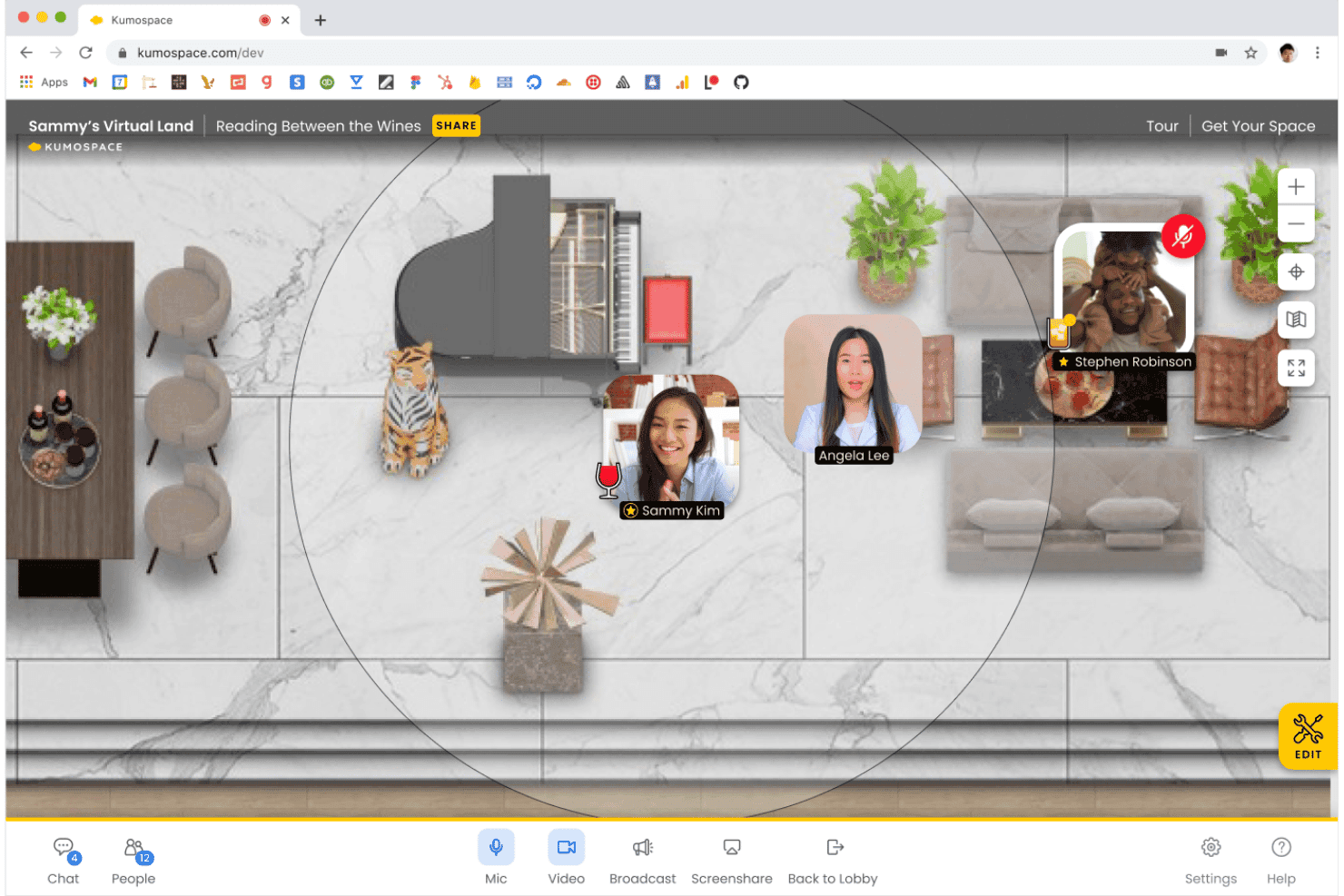
Kumospace lets users interact via live video in a virtual space. Kumospace is a spatial virtual office platform where distributed teams move avatar-based representations of themselves through customizable 2D environments, connecting via proximity-based audio and video, persistent rooms, screen sharing, and integrated team chat.
Who Is Kumospace Best For?
Kumospace is a strong fit for remote-first tech companies and engineering teams that need a persistent, always-on workspace to replace physical office dynamics.
Why I Picked Kumospace
Kumospace earns its spot on my shortlist because of how well its spatial audio model replicates physical proximity. When my team moves their avatars into the same room, conversations start naturally without a meeting invite. Persistent rooms mean our engineering channels stay set up between sessions, with whiteboards and shared documents exactly where we left them.
Kumospace Key Features
- People analytics dashboard: Gain insights into team activity, active users, and meeting participation patterns.
- Enterprise-grade admin controls: Manage permissions, SSO, SCIM, audit logs, and guest access from a centralized admin interface.
- Customizable space design: Arrange floors, rooms, and branded office layouts to fit your organization's culture and structure.
- App integrations: Connect with Google Drive, Outlook, Microsoft Teams, Slack, Miro, and more to unify workflows.
Kumospace Integrations
Kumospace offers native integrations with Google Workspace, Microsoft Outlook, Slack, Microsoft Teams, Miro, and Zapier. An API is available for custom integrations.
Pros and Cons
Pros:
- Highly customizable branded office environments
- Persistent rooms retain state between sessions
- Spatial audio mimics natural office conversations well
Cons:
- Browser-based audio drops on weak connections
- High CPU usage on older hardware
Learn more about Kumospace: 10Best for live presence and calendar sync
SoWork
- 7-day free trial + free plan + free demo
- From $5.40/user/month (billed annually)
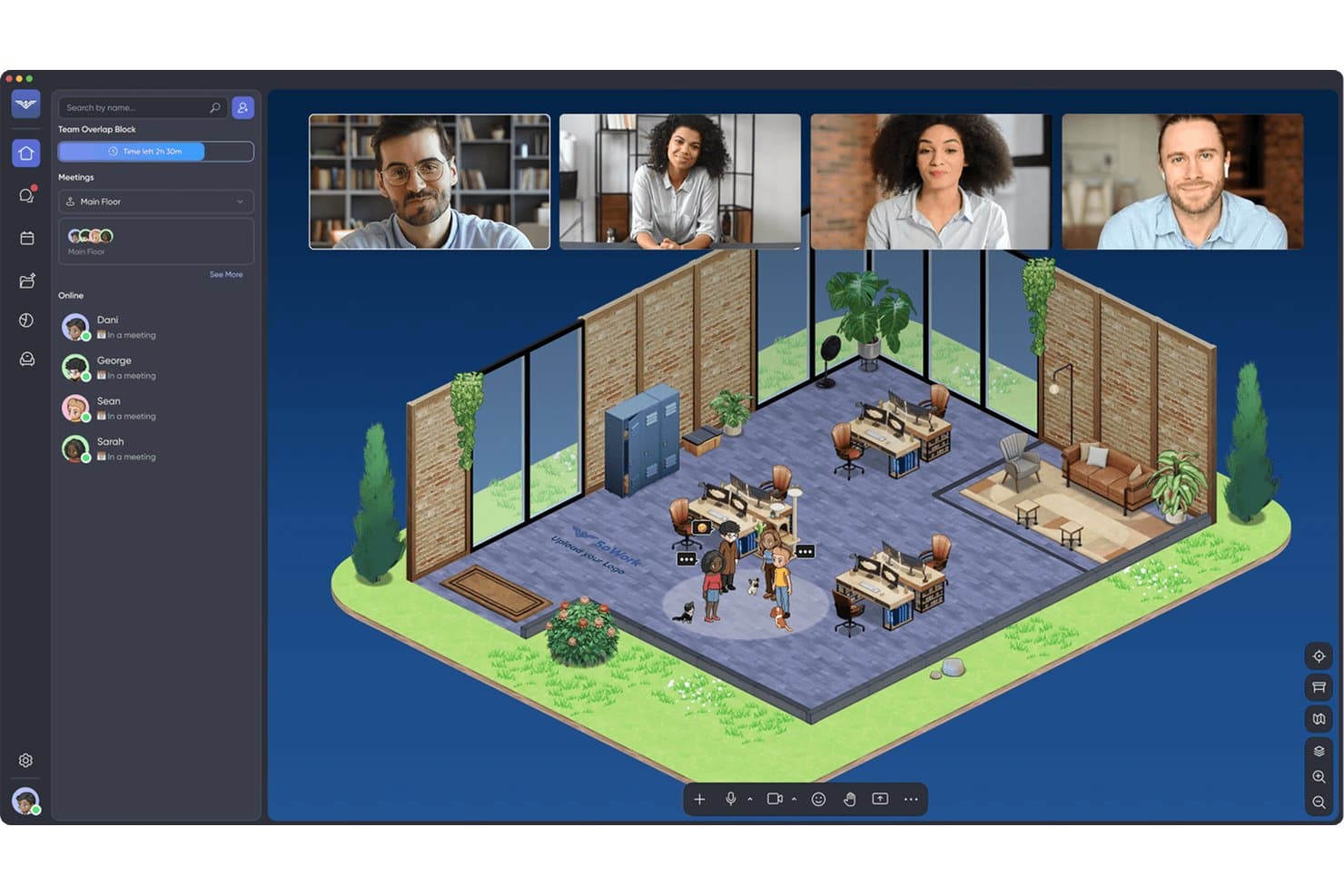
SoWork lets remote teams meet in a virtual office with video. SoWork is an AI-powered virtual office platform that combines spatial 2.5D workspaces, avatar-based presence, instant video and audio, team chat, and AI-assisted meeting recording and transcription in one environment.
Who Is SoWork Best For?
SoWork is a strong fit for remote-first engineering and technical teams that need a persistent, always-on workspace with real-time presence visibility.
Why I Picked SoWork
SoWork earns its spot on my shortlist because of how it handles live presence alongside calendar sync. I love that avatar locations update in real time across the 2.5D spatial map, so I can see at a glance whether a teammate is in a meeting, focused, or free for a drop-in conversation. Google Calendar and Outlook sync surfaces availability directly within the workspace, so I'm not toggling between tools to figure out who I can actually interrupt.
SoWork Key Features
- Customizable office layouts: Design virtual offices with branded rooms, floors, and interactive elements.
- Multi-user screen sharing: Share multiple screens at once for code reviews or group collaboration.
- AI-powered meeting memory: Record, transcribe, and summarize meetings within the virtual workspace.
- SSO and SCIM support: Manage user and admin access through single sign-on and directory integrations.
SoWork Integrations
SoWork offers native integrations with Slack, Google Calendar, Outlook Calendar, GitHub, Miro, and Zapier. An API is available for custom integrations.
Pros and Cons
Pros:
- Spatial audio enables natural proximity-based conversations
- AI meeting transcription built into the workspace
- Real-time avatar presence across customizable maps
Cons:
- Limited scalability for large enterprise deployments
- Desktop app required, no browser-only access
Learn more about SoWork:
Other Virtual Office Software
Here are some additional virtual office software options that didn’t make it onto my shortlist, but are still worth checking out:
How I Evaluate Virtual Office Software
I look at two layers: baseline requirements like persistent presence, real-time A/V, and admin controls, and the differentiators—spatial audio, custom maps—that matter most for distributed teams.
Core Functionality (Table Stakes For This List)
When I'm selecting tools for my list, I rank each one on a scale from 0 (does not offer the functionality) to 5 (excels in this area) for each core functionality listed below. I then calculate the tool's total score as a percentage, using 65% as a benchmark to help assess its overall fit for the list.
- Persistent Virtual Workspace: I look for always-on spatial environments with customizable rooms and floors where team members can move between areas throughout the workday.
- Real-Time Audio/Video: I evaluate whether audio and video connections happen instantly in rooms or by proximity, so engineers can start a quick code review without scheduling.
- Presence & Availability Status: Live indicators showing who's available, focused, or in a meeting help teams avoid interrupting deep work sessions—especially across time zones.
- Screen Sharing & Collaboration: I check for multi-user screen sharing and whiteboards that support pair programming, architecture reviews, and real-time debugging sessions.
- Integrated Messaging: Built-in chat tied to workspace rooms keeps context together. I look for DMs, group threads, and room-based channels that replace scattered app-switching.
- Admin Controls & Security: SSO, role-based permissions, and guest access management are what I evaluate here—especially for teams handling sensitive code or regulated data.
Once I have a list of tools that meet the criteria, I consider what sets each platform apart.
Differentiating Factors (What Sets Vendors Apart)
Here's how I compare and contrast different vendors:
Standout Features
Spatial audio and video are a major differentiator. I look for platforms where conversations naturally fade as your avatar moves away, mimicking the hallway and desk interactions remote teams miss. Customizable office maps also matter because they let you mirror your actual org structure with branded rooms and dedicated floors. Embedded collaboration apps like whiteboards and shared docs within the space keep engineers from tab-switching mid-session.
Beyond Features
Performance is a big one. Spatial environments with rich graphics can tax older hardware, so I evaluate CPU and bandwidth requirements against the machines your team actually uses. Security and compliance also weigh heavily—I check for SOC 2 certification, end-to-end encryption, and data residency options, especially for teams handling regulated workloads. Integration support with tools like Slack, Jira, and Google Workspace determines whether the platform fits into your existing stack or creates another silo.
How to Choose a Virtual Office Software
The core question is: which platform will foster real presence, spontaneous collaboration, and secure communication for your distributed team at scale?
| If your priority is… | Prioritize… |
|---|---|
| If your priority is…Always-on, real-time interactions | Prioritize…Persistent workspace with live status |
| If your priority is…Flexible office layouts for team culture | Prioritize…Customizable maps and branded environments |
| If your priority is…Reducing app/context switching | Prioritize…Embedded whiteboards and productivity tools |
| If your priority is…Strict security and compliance needs | Prioritize…Enterprise-grade admin controls and audits |
| If your priority is…Easy onboarding for new users | Prioritize…Browser-based access with guest support |
How to Vet Your Shortlist
- Test presence features: Run a week-long pilot to confirm active status, calendar sync, and visible workspace location work as promised.
- Validate collaboration flow: Have your engineers share screens, use whiteboards, and co-edit docs in a persistent room during a sprint.
- Confirm security protocols: Request the latest SOC 2 report, details on data residency options, and an overview of guest access management.
- Check integration alignment: Set up a real integration with Slack or Jira and verify notifications, calendar sync, and SSO function as expected.
- Balance tradeoff: Decide between advanced customization/presence (heavier virtual worlds) and lightweight, simple layouts that are easier to support and maintain.
What Is Virtual Office Software?
Virtual office software is a platform that creates a persistent, digital workspace mirroring the in-person office experience for distributed teams. It gives your engineers a shared environment with real-time audio, video, messaging, and presence features—helping teams collaborate, coordinate, and feel visible wherever they work. Admin controls and security options ensure the platform fits the needs of modern IT management and operations.
Features of Virtual Office Software
When selecting virtual office software, keep an eye out for the following key features:
- Persistent workspace: A spatial, always-on environment where team members can see each other's presence, move between rooms, and coordinate spontaneously.
- Real-time audio and video: Instant access to voice and video conversations, either by entering virtual rooms or approaching colleagues within the digital space.
- Presence and status indicators: Live status updates that show who is available, in a meeting, away, or focused—improving timing and reducing interruptions.
- Screen sharing: Ability for users to share their screens, walk through presentations, or collaborate on technical tasks without leaving the platform.
- Integrated messaging: Direct and group chat capabilities built into the workspace so conversations stay contextual and team members avoid switching between apps.
- Customizable office layouts: Tools to build virtual rooms, floors, and maps that reflect your organization’s real-life structure, branding, and team culture.
- Embedded collaboration apps: In-app whiteboards, shared docs, and sticky notes for live brainstorming, problem-solving, and technical reviews within the workspace.
- Admin controls and permissions: Centralized management for roles, guest access, and security policies to keep usage aligned with IT and compliance standards.
- Calendar and app integrations: Sync with calendars, single sign-on, and productivity tool integrations to simplify scheduling and reduce manual coordination.
- Guest access management: Controls to grant visitors or contractors access to specific rooms or meetings while keeping sensitive areas secure.
Common Virtual Office Software AI Features
Beyond the standard virtual office software features listed above, many of these solutions are incorporating AI with features like:
- AI meeting summaries: Automatically generates concise, actionable recaps of meetings, highlighting key decisions, action items, and follow-ups for easy reference.
- Smart presence detection: Uses AI to infer user availability and status based on calendar events, device activity, and meeting participation, keeping presence indicators accurate.
- Automated noise suppression: AI filters out background noise in real time during calls, improving audio clarity for distributed teams working in varied environments.
- Intelligent room suggestions: Recommends relevant virtual rooms or breakout spaces based on meeting topics, team projects, or recent collaboration patterns.
- AI-powered language translation: Provides real-time translation of chat and voice conversations, enabling direct communication across global teams.
- Virtual assistant bots: AI-driven bots help schedule meetings, surface relevant documents, or answer workspace questions directly within the virtual office.
Benefits of Virtual Office Software
Implementing virtual office software provides several benefits for your team and your business. Here are a few you can look forward to:
- Enhanced team presence: Persistent workspaces and live status indicators help everyone feel connected, visible, and part of the same office no matter where they are.
- Faster collaboration: Real-time audio, video, and built-in whiteboards enable quick code reviews, brainstorms, and problem-solving without scheduling delays.
- Reduced context switching: Embedded messaging, docs, and collaboration apps keep tasks and conversations in one place, helping teams stay focused.
- Improved onboarding and access: Browser-based access and guest controls let new hires and visitors join workspace sessions with minimal friction.
- Greater security and control: Admin tools for permissions, SSO, and compliance ensure sensitive information stays protected across distributed environments.
- Customization for culture: Custom office maps and branded environments reflect your team's structure and values, helping maintain culture in remote setups.
- Direct integration: Calendar and productivity tool integrations bring together all your collaboration essentials, reducing manual coordination and missed connections.
Costs and Pricing of Virtual Office Software
Selecting virtual office software requires an understanding of the various pricing models and plans available. Costs vary based on features, team size, add-ons, and more. The table below summarizes common plans, their average prices, and typical features included in virtual office software solutions:
Plan Comparison Table for Virtual Office Software
| Plan Type | Average Price | Common Features |
|---|---|---|
| Plan TypeFree Plan | Average Price$0 | Common FeaturesLimited rooms, basic audio and video, presence indicators, and restricted user capacity. |
| Plan TypePersonal Plan | Average Price$5–$15/user/month | Common FeaturesOne customizable office, integrated messaging, screen sharing, and basic admin controls. |
| Plan TypeBusiness Plan | Average Price$15–$25/user/month | Common FeaturesPersistent rooms, branded layouts, calendar integrations, enhanced security, and priority support. |
| Plan TypeEnterprise Plan | Average Price$25–$50/user/month | Common FeaturesMulti-office deployments, advanced compliance, SSO, API access, dedicated account manager, and analytics. |
Virtual Office Software FAQs
Here are some answers to common questions about virtual office software:
What hardware or internet connection is needed to run virtual office software?
Most virtual office software runs in a modern browser without high-end virtual reality hardware, but smooth spatial audio and video require a reliable broadband connection. Heavy workflow tasks or older laptops can limit real-time teamwork during a virtual meeting.
Can guests or external partners join meetings in a virtual office?
Yes, most solutions let you invite guests or external partners with guest passes or meeting links. Admin controls often allow you to restrict which rooms or resources guests can access, keeping sensitive spaces secure.
How does virtual office software support onboarding and remote culture?
Persistent virtual spaces, presence indicators, and customizable office layouts give new hires daily visual touchpoints and help teams build habits around “drop-in” chats, mimicking real in-office relationships.
Are these platforms secure enough for sensitive work?
Yes, leading platforms offer end-to-end encryption, SSO, security audits, and compliance options like SOC 2 or GDPR. Always ask vendors for documentation and details about data handling and access controls.
Can virtual office software replace traditional video conferencing?
Virtual office software often replaces basic video meetings by adding presence, rooms, and spontaneous chats, but some teams still use traditional video conferencing for large webinars or external calls.