

AI accessibility testing tools use AI-assisted checks to find and help prioritize barriers across digital products. For your team, the right fit depends on where checks belong in your workflow—from design and code review to dynamic user flows, screen-reader testing, and ongoing monitoring. This guide compares tools for sites, apps, and PDFs so you can choose an approach that supports repeatable fixes alongside human testing.
Why Trust Our Software Recommendations
6,700+
Reviews
20
Industry experts
16+
Evaluation factors
14
Years
Our team has been testing and reviewing software since 2012. As tech leaders ourselves, we know how difficult—and important—it is to choose the right software.
For this guide, we evaluated tools using hands-on testing and independent research, scoring tools using our selection criteria.
Our reviews reflect our human editorial judgment, not a sales pitch.
Expert reviewers:
- Paulo Gardini MiguelTech Director
 Tim FisherVP of AI
 Gabriel RosasTech Lead & Software Architect
 Christhian GruhnTech Lead & Platform Architect

Comparison Table: AI Accessibility Testing Tools
Compare pricing and specs side by side for the AI accessibility testing tools that made it onto my shortlist.
Score legend (out of 5)
- Excellent4.5–5
- Good4–4.4
- Average3–3.9
- Below average2–2.9
- Poor1–1.9
Sorted by: Default
| Tool | Starting Price | Website | |||||||
|---|---|---|---|---|---|---|---|---|---|
Best for legal-facing compliance monitoring | 3.3 out of 5 | 4 | 4 | 4 | 3 | 2 | 3 | $29/month Free demo + 14-day free trial available | Website |
Best for accessibility fixes in code review | 3.8 out of 5 | 2 | 5 | 4 | 3 | 5 | 4 | $59/month Free demo + 7-day free trial available | Website |
Best for accessibility across sites, apps and PDFs | 3.8 out of 5 | 3 | 4 | 5 | 4 | 3 | 4 | Pricing upon request Free demo available | Website |
Best for AI checks with real screen readers | 3.8 out of 5 | 3 | 4 | 4 | 4 | 4 | 4 | $29/month Free trial available | Website |
Best for expert-led accessibility programs | 4.2 out of 5 | 5 | 4 | 5 | 3 | 4 | 4 | Pricing upon request Free demo available | Website |
Best for accessibility in web governance | 3.7 out of 5 | 4 | 4 | 5 | 3 | 2 | 4 | Pricing upon request Free demo available | Website |
Best for AI-guided portfolio remediation | 3.7 out of 5 | 4 | 4 | 5 | 3 | 2 | 4 | Pricing upon request Not available | Website |
Best for spotting design issues before code | 3.7 out of 5 | 3 | 4 | 4 | 3 | 4 | 4 | $21/month Free plan + Free demo available | Website |
Best for AI-assisted scan-history reviews | 3.3 out of 5 | 4 | 3 | 5 | 2 | 2 | 4 | Pricing upon request Free demo + 14-day free trial available | Website |
Best for finding barriers in dynamic user flows | 3.8 out of 5 | 3 | 4 | 4 | 4 | 4 | 4 | Pricing upon request Free demo available | Website |


AI Accessibility Testing Tool Reviews
Below are my reviews of the best AI accessibility testing tools on my shortlist. Each overview covers key features and use cases to help you choose the right tool.
 Best for legal-facing compliance monitoring
- Free demo + 14-day free trial available
- From $29/month
Visit WebsiteCustomer Rating:5/5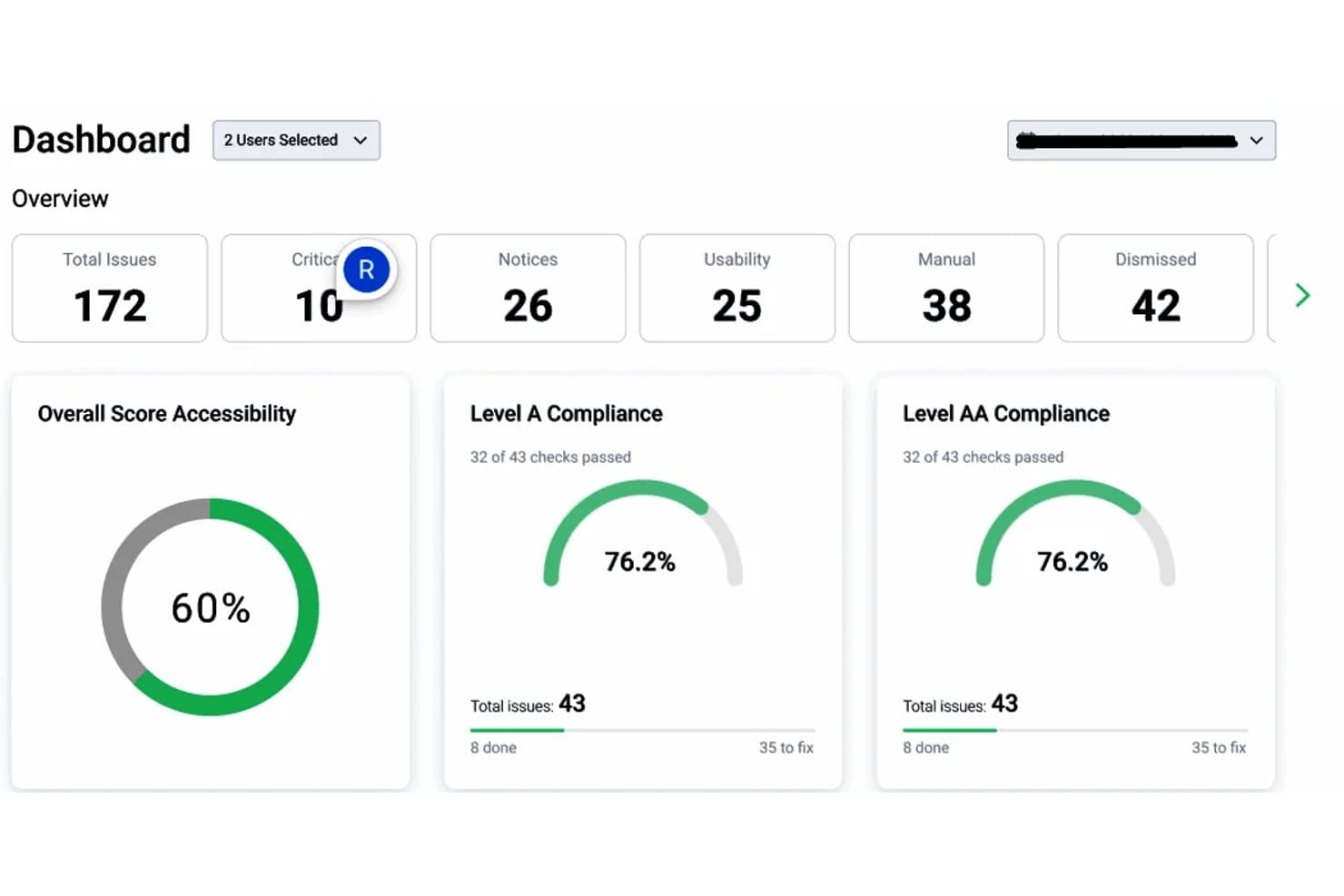
Equally AI dashboard summarizing accessibility issues and WCAG Level A and AA compliance scores. Equally AI is an AI-powered web accessibility platform that offers automated website scanning, an accessibility widget, AI-assisted code remediation through Flowy, and accessibility reporting to support WCAG compliance and related regulatory requirements.
Who Is Equally AI Best For?
Equally AI is a strong fit for website compliance teams that need automated accessibility monitoring, remediation guidance, and audit reports to support WCAG compliance reviews.
Why I Picked Equally AI
I picked Equally AI because its Flowy platform combines accessibility scanning with AI-generated, code-level remediation suggestions. I particularly like that Flowy provides recommendations for ARIA labels, roles, and image alt text, giving developers specific issues to review and address. It also supports downloadable audit reports in CSV and PDF formats, progress tracking, and configurable notifications for accessibility targets such as WCAG 2.1 AA.
Equally AI Key Features
- Accessibility profiles: Offer preconfigured widget profiles for vision, cognitive, seizure-safe, ADHD, and dyslexia needs.
- 24-hour accessibility monitoring: Scan updated website content every 24 hours to identify accessibility issues and apply supported widget remediation.
- Flowy progress tracking: Track accessibility improvements through graphs and review progress to plan follow-up remediation.
- Expert accessibility audits: Assess website source code and structure through manual testing and receive reports with recommendations for code-level fixes.
Equally AI Integrations
Equally AI supports Jira for linking accessibility remediation tasks to project boards through Flowy. It also provides installation guides for WordPress, Shopify, Wix, Squarespace, Drupal, Webflow, WooCommerce, and Google Tag Manager.
Pros and Cons
Pros:
- Expert audits provide code-level recommendations
- AI suggests ARIA and alt-text fixes
- Daily scans flag accessibility issues
Cons:
- Widget excludes PDF and video remediation
- Automated fixes require manual validation
Learn more about Equally AI: Best for accessibility fixes in code review
- Free demo + 7-day free trial available
- From $59/month
Visit WebsiteCustomer Rating:4.8/5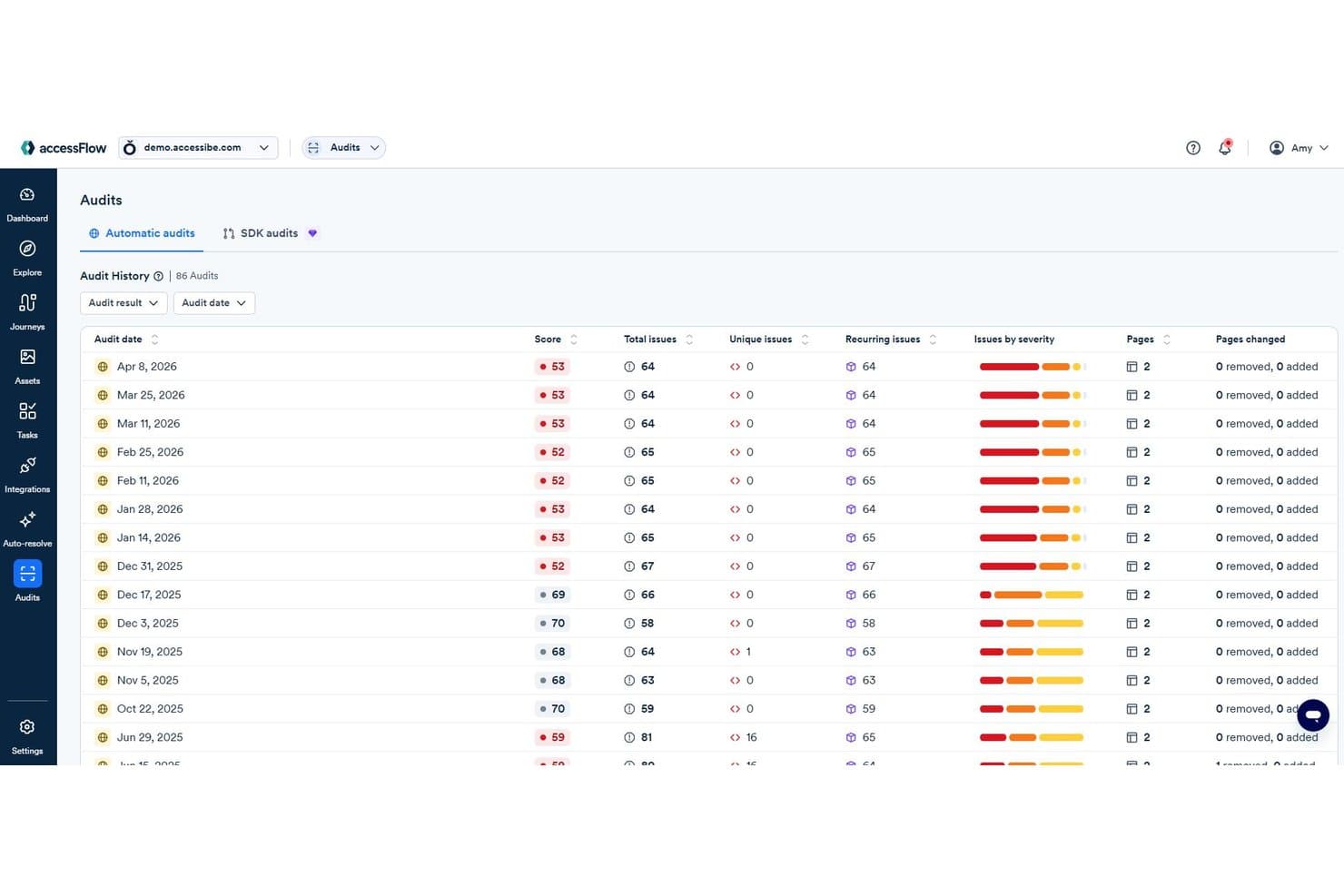
accessFlow audit history tracks accessibility scores and recurring issues over time. accessFlow by accessiBe is an AI-powered web accessibility testing platform that audits websites and web applications, evaluates user journeys, and provides WCAG-based remediation guidance. It also offers code-level accessibility reviews and suggested fixes for development teams.
Who Is accessiBe Best For?
accessFlow is a strong fit for front-end developers and QA engineers who need code-level accessibility testing, WCAG issue tracking, and remediation guidance throughout development.
Why I Picked accessiBe
I picked accessiBe as one of the best because accessFlow's Code Agent brings accessibility reviews into the development process.It analyzes pull requests for accessibility issues and provides code-specific explanations and suggested fixes for developers to review. I also like its repository scanning capability, which identifies existing accessibility issues and creates pull requests with proposed fixes. These capabilities make accessFlow worth considering for teams that want to address accessibility issues within their codebase rather than relying only on website audits.
accessiBe Key Features
- Journey recordings: Record or manually configure user flows, such as checkouts and logins, to identify accessibility issues at individual steps.
- AI-based auditing and monitoring: Run website accessibility audits, prioritize WCAG issues by severity, and track findings across audit cycles.
- AI-powered alt text generation: Generate suggested image descriptions for missing alt text within the issue remediation process.
- Accessibility issue remediation: Review WCAG references, source code, and suggested fixes, then verify corrections through follow-up audits.
accessiBe Integrations
accessiBe's accessFlow offers integrations with GitHub, Jira Cloud, ClickUp, Asana, Linear, Azure Boards, and ServiceNow. Its SDK supports accessibility testing in CI/CD environments, including Jenkins, CircleCI, and GitLab CI. It also provides an MCP server for connecting compatible AI coding tools, including GitHub Copilot in Visual Studio Code and Cursor.
Pros and Cons
Pros:
- Developers review suggested fixes before merging
- Journey recordings surface multi-step failures
- Code-specific accessibility fixes for developers
Cons:
- Code Agent supports limited frameworks
- Automated audits require supplementary manual testing
Learn more about accessiBe: Best for accessibility across sites, apps and PDFs
- Free demo available
- Pricing upon request
Visit WebsiteCustomer Rating:4.6/5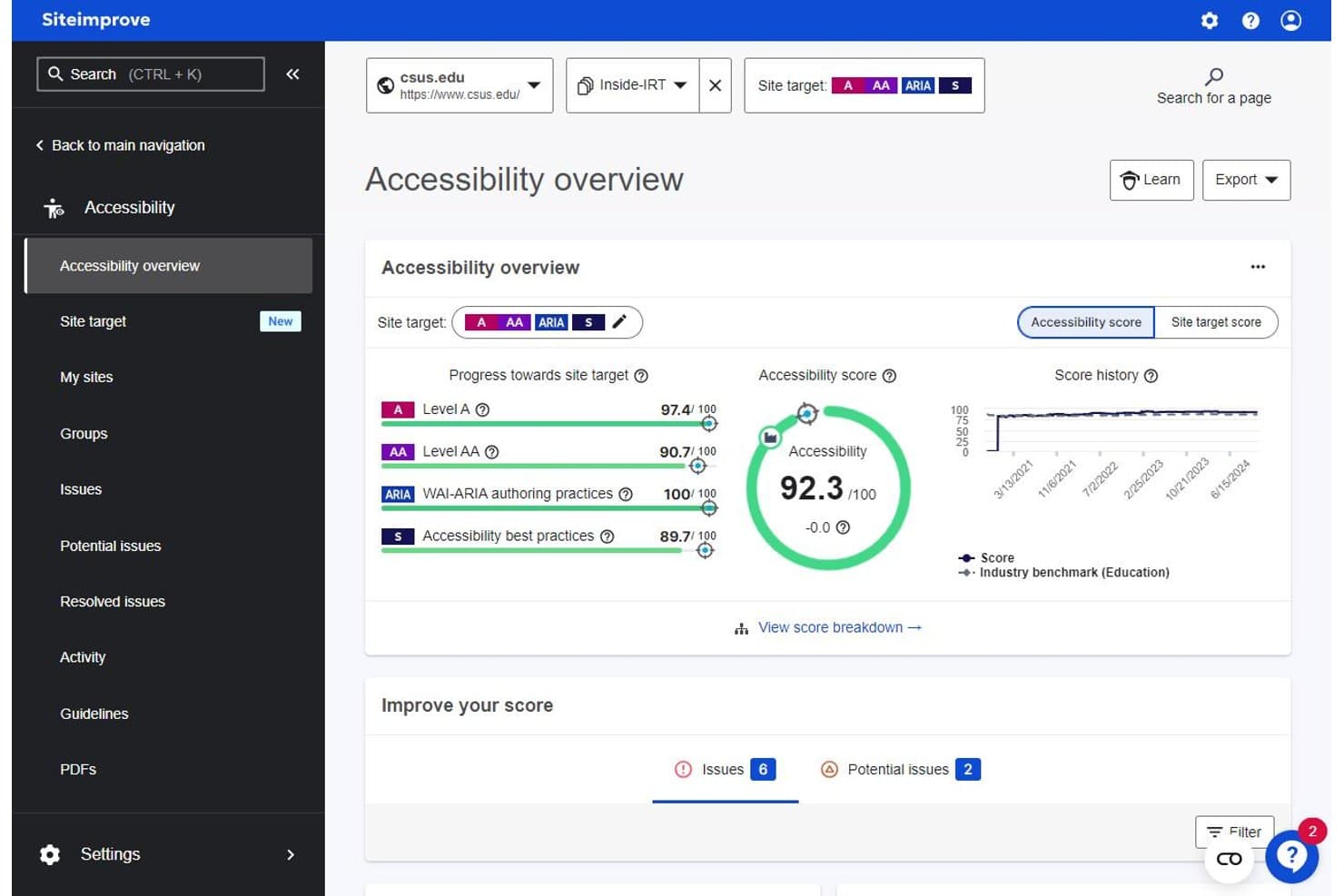
Siteimprove tracks accessibility scores, site targets, and issue counts. Siteimprove is an AI-powered accessibility testing platform that monitors websites, authenticated content, mobile apps, and PDFs for accessibility issues. It supports WCAG-based testing, regulatory compliance tracking, and AI-assisted remediation across web and PDF content.
Who Is Siteimprove Best For?
Siteimprove is a strong fit for compliance-focused teams managing accessibility across large, multi-site digital portfolios that include both web content and documents like PDFs.
Why I Picked Siteimprove
I picked Siteimprove because it supports accessibility testing across websites, authenticated content, mobile apps, and PDFs. I particularly like its PDF Remediation Agent, which addresses accessibility issues in PDFs and generates alternative text suggestions for images. Its CMS Remediation Agent also lets teams review and approve suggested accessibility fixes before applying changes to website content. These capabilities make Siteimprove a strong option for organizations managing accessibility across different types of digital content.
Siteimprove Key Features
- Accessibility Code Checker: Runs automated accessibility checks during development and provides issue guidance before deployment.
- Dynamic Content Checker: Captures snapshots of dynamic page states, including forms and authenticated content, for accessibility testing.
- Mobile accessibility testing: Tests native Android and iOS apps against platform-specific accessibility rules, with issue reports and remediation guidance.
- Figma plugin: Checks designs for color contrast, touch target size, and text readability issues before development.
Siteimprove Integrations
Siteimprove offers 40+ integrations, including WordPress, Drupal, and Figma. Its MCP Server supports AI-assisted development environments such as VS Code, Claude Code, and Lovable. The Accessibility Code Checker also supports Selenium, Playwright, Puppeteer, and Cypress, while its REST API enables custom integrations.
Pros and Cons
Pros:
- Supports code-level and CMS remediation
- Provides detailed accessibility issue guidance
- Covers websites, mobile apps, and PDFs
Cons:
- Dynamic Content Checker requires an add-on
- Automated findings still need manual verification
Learn more about Siteimprove: Best for AI checks with real screen readers
- Free trial available
- From $29/month (billed annually)
Visit WebsiteCustomer Rating:4.5/5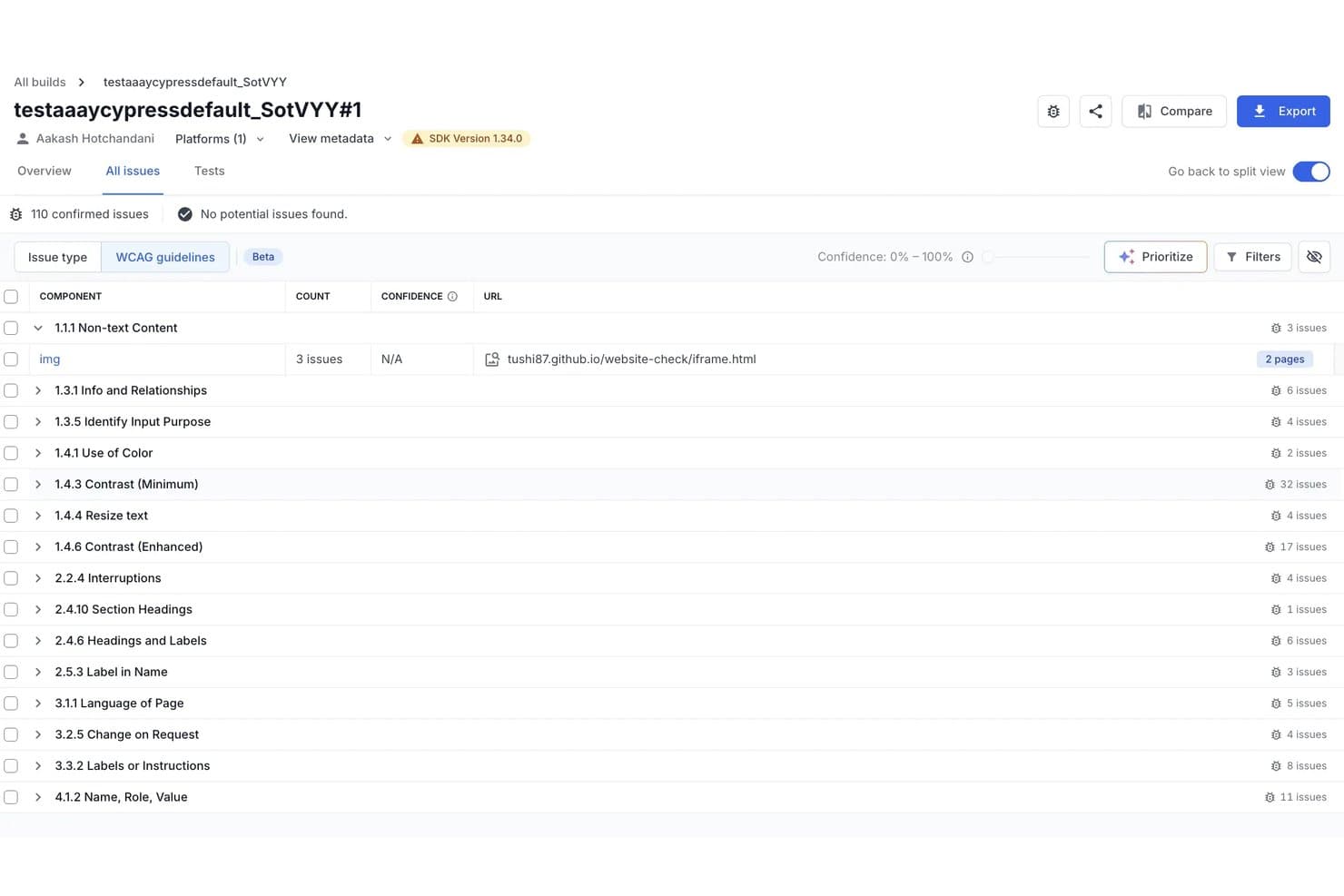
BrowserStack accessibility summary with scores, issue severity counts, and WCAG conformance results. BrowserStack is an AI-powered accessibility testing platform that combines automated WCAG scanning, real-device screen reader testing, and contextual issue detection and remediation for websites and web applications. It also supports PDF accessibility scans and automated testing workflows.
Who Is BrowserStack Best For?
BrowserStack Accessibility Testing is a strong fit for QA engineers and front-end developers who need automated accessibility checks within development workflows and screen reader testing on real devices.
Why I Picked BrowserStack
I picked BrowserStack because it combines AI-powered accessibility detection with real-device screen reader testing and automated WCAG checks. Its Spectra Rule Engine covers more than 40 WCAG success criteria, including focus visibility, non-text contrast, and reflow. I also like how its A11y Issue Detection Agent evaluates contextual issues, such as inaccurate alternative text and accessibility labels, while the A11y Issue Remediation Agent provides code snippets and guidance for addressing identified violations. This combination makes BrowserStack worth considering for teams that need both automated checks and hands-on accessibility validation.
BrowserStack Key Features
- Scheduled website scanning: Schedule daily or weekly accessibility scans across websites, PDF files, and authenticated pages, with historical reports tracking detected issues.
- CI/CD accessibility testing: Enable automated WCAG checks through the BrowserStack SDK, with scans triggered by DOM changes and reports tracking issues across test builds.
- Assisted accessibility tests: Review headings, landmarks, lists, forms, tables, modals, and keyboard navigation through guided checks across eight testing categories.
- Figma design monitoring: Scan Figma design files for accessibility issues and schedule recurring checks to identify violations introduced by design changes.
BrowserStack Integrations
BrowserStack Accessibility Testing supports Jira and Azure DevOps for reporting accessibility issues. BrowserStack also lists Jenkins and CircleCI among its broader testing integrations. Availability depends on the BrowserStack product and testing workflow.
Pros and Cons
Pros:
- CI checks fit existing accessibility test workflows
- Contextual AI flags contrast and alt-text issues
- Real-device screen readers support manual testing
Cons:
- AI remediation suggestions require manual review
- Automated scans still need human verification
Learn more about BrowserStack: Best for expert-led accessibility programs
- Free demo available
- Pricing upon request
Visit WebsiteCustomer Rating:4.5/5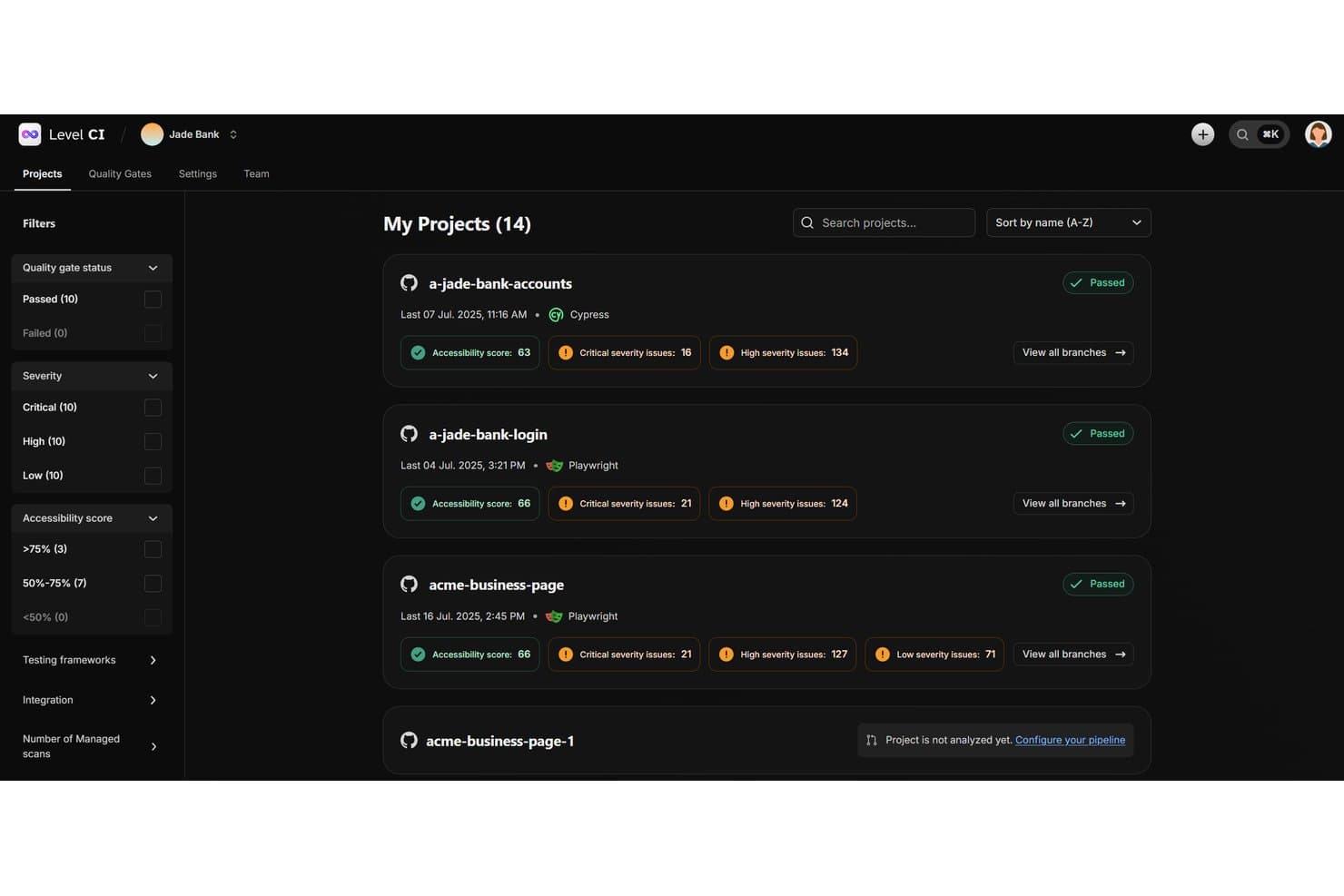
Level CI project overview featuring quality gate status, accessibility scores, and issue severity counts per project. Level Access is an AI-supported digital accessibility testing platform that combines automated scanning, expert-led manual evaluations, continuous monitoring, accessibility conformance reporting, and remediation tracking for web and mobile applications.
Who Is Level Access Best For?
Level Access is a strong fit for large organizations running structured accessibility programs that need both automated scanning and expert-led manual evaluation under one platform.
Why I Picked Level Access
I picked Level Access because it combines automated accessibility testing with structured expert-led manual evaluations. I particularly like Test Accelerator, which provides guided testing workflows for internal teams to assess accessibility issues and record findings. Its VPAT/ACR services also support conformance reporting against applicable standards, including WCAG, Section 508, and EN 301 549. For organizations managing formal accessibility evaluations, the combination of manual testing and standards-based reporting is particularly relevant.
Level Access Key Features
- Continuous monitoring: Tracks website accessibility scores, recurring findings, and remediation progress through scheduled scans, with AI-generated summaries of changes between scans.
- Level CI: Runs automated accessibility checks during development, with configurable quality gates based on issue severity and defined thresholds.
- Mobile app testing: Supports accessibility testing for native iOS and Android apps through manual evaluations, on-device testing, and mobile testing SDKs.
- Academy training: Provides self-paced accessibility courses, role-based learning paths, and learning progress tracking, with separate live training options.
Level Access Integrations
Level Access supports integrations with Jira, Asana, GitHub, GitLab, Bitbucket, and Azure DevOps. Its test automation integrations support Cypress, Mocha, Cucumber, Jest, Playwright, Puppeteer, Selenium Java, and WebdriverIO. Level Access also provides API-based options for custom workflows.
Pros and Cons
Pros:
- AI-supported monitoring summarizes scan changes
- Reports explain issues and remediation priorities
- Automated scans pair with expert manual audits
Cons:
- On-device testing requires eligible packages
- Scheduled monitoring excludes mobile apps
Learn more about Level Access: Best for accessibility in web governance
- Free demo available
- Pricing upon request
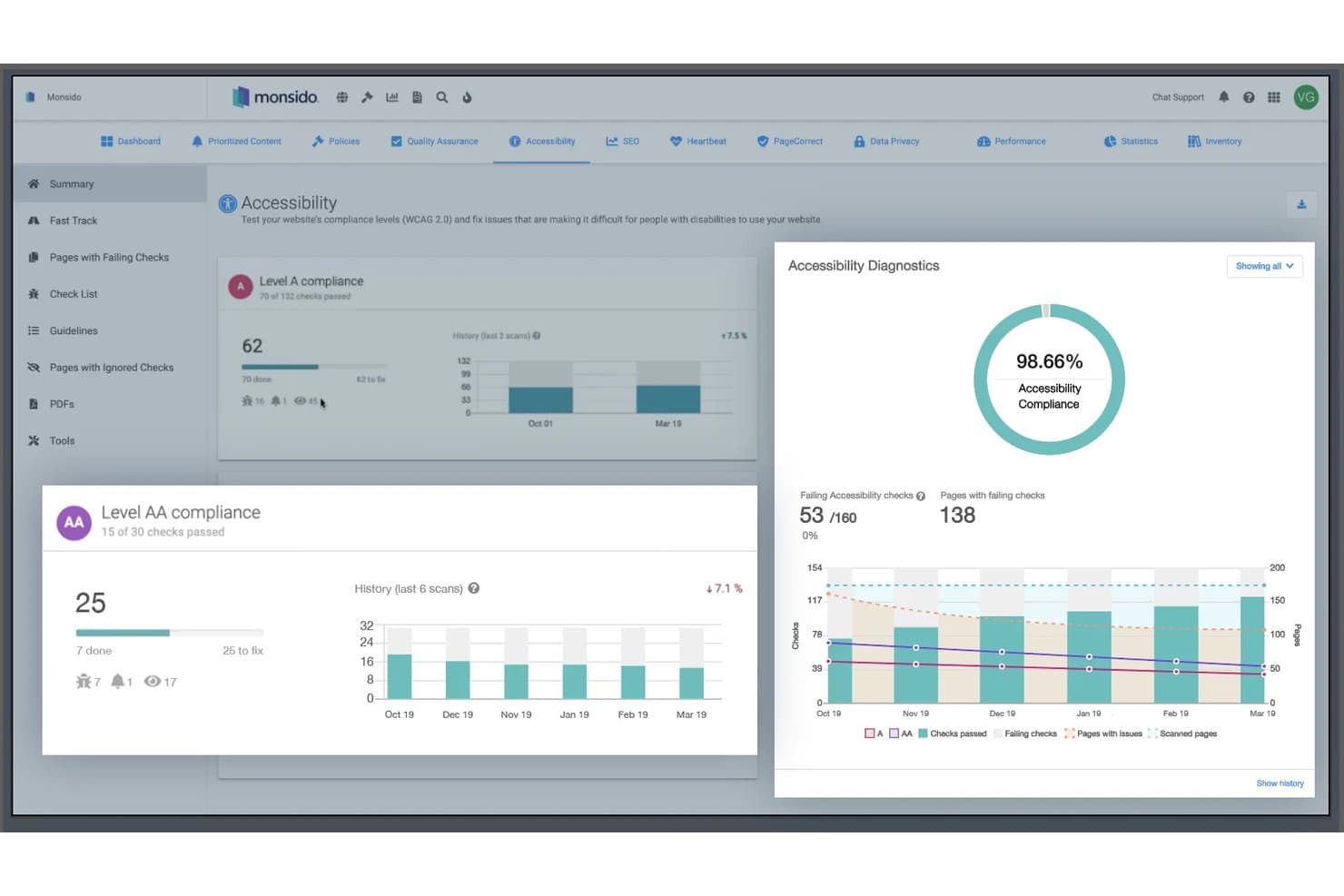
Monsido tracks accessibility compliance scores and scan history. Monsido is a web governance and accessibility testing platform that scans websites for accessibility issues, monitors content quality, and provides compliance reporting and remediation guidance across multiple websites.
Who Is Monsido Best For?
Monsido is a strong fit for web governance and accessibility teams managing multiple websites that need recurring accessibility scans, content quality checks, and compliance reporting.
Why I Picked Monsido
I picked Monsido as one of the best because it combines accessibility testing with broader website governance capabilities, including content quality checks and compliance monitoring. I particularly like its recurring accessibility scans and reporting tools, which help teams identify issues across multiple websites and track remediation progress. Its AI Remediation Companion also provides page-specific fix suggestions tailored to developers, content authors, and designers, making it useful for teams with different accessibility responsibilities.
Monsido Key Features
- PDF accessibility scanning: Identifies inaccessible PDF files and supports remediation through a dedicated PDF accessibility service.
- Automated accessibility checks: Identifies accessibility errors and provides guidance for issues that require manual review or remediation.
- Scheduled website scanning: Supports weekly and on-demand scans to identify accessibility issues and monitor changes over time.
- Cookie consent manager: Offers an add-on for managing cookie preferences, consent records, and GDPR and CCPA-related consent requirements.
Monsido Integrations
Monsido supports CMS integrations with Drupal, WordPress, and Joomla. It also provides an API for custom integrations and an MCP server for connecting with Claude and other MCP-compatible AI agents.
Pros and Cons
Pros:
- Role-specific AI guidance directs remediation
- PDF accessibility scanning supports remediation
- Continuous scans track large site portfolios
Cons:
- Some remediation features require add-ons
- Assisted checks still require human review
Learn more about Monsido:
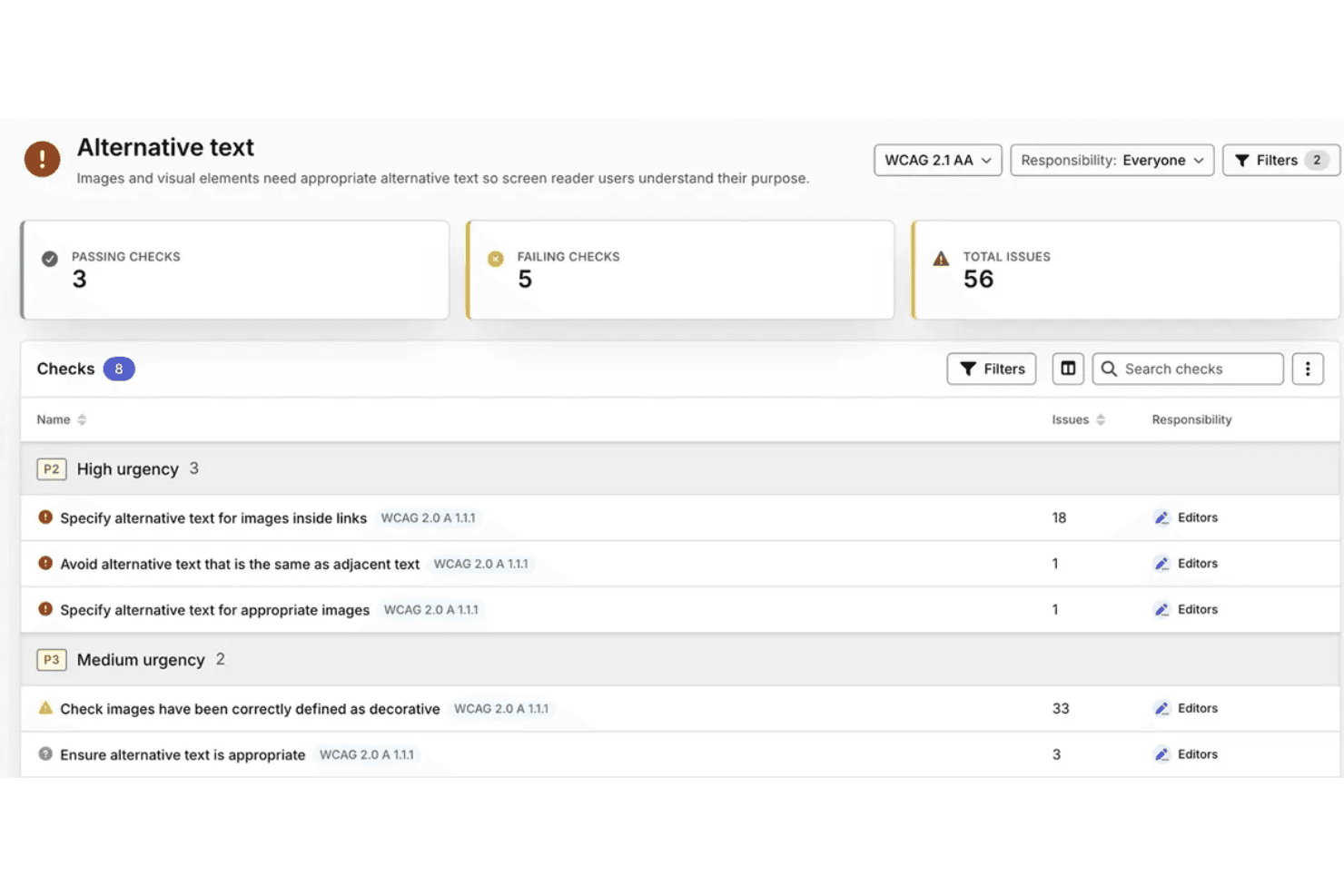
Silktide identifies alternative text issues by WCAG criteria and urgency. Silktide is an AI-powered accessibility testing platform that evaluates websites against WCAG 2.2 and PDFs against PDF/UA-1, with automated scans, expert-led manual evaluations, AI-assisted issue analysis, and accessibility reporting across multiple websites.
Who Is Silktide Best For?
Silktide is a strong fit for web accessibility specialists and compliance teams managing large website portfolios and PDF collections that require ongoing WCAG 2.2 testing and remediation tracking.
Why I Picked Silktide
I picked Silktide because its AI-assisted accessibility analysis goes beyond identifying individual WCAG issues. Its AI optimizer reviews accessibility findings and generates recommendations based on site priorities, while its Inspector provides contextual guidance to help teams understand and address specific issues. I also like how Silktide combines automated accessibility checks with expert-led manual evaluations, giving teams options for reviewing issues that require human judgment.
Silktide Key Features
- PDF accessibility testing: Evaluates PDFs against 136 PDF/UA-1 conditions, including 87 that are machine-testable.
- Compliance checks: Evaluates websites against applicable accessibility regulations and configurable organizational policies.
- Uptime monitoring: Checks selected webpages every five minutes and sends email or text alerts when it detects downtime.
- Task assignment and management: Converts findings into assigned tasks with supporting evidence, priorities, effort estimates, and customizable statuses.
Silktide Integrations
Silktide offers integrations with Jira and Linear for task management, and Slack and Microsoft Teams for notifications. It also supports API-based connections for custom workflows, depending on the account configuration and available API access.
Pros and Cons
Pros:
- Portfolio reporting tracks accessibility progress
- Contextual guidance explains accessibility issues
- AI reports prioritize accessibility findings
Cons:
- AI optimizer availability varies by plan
- Annual testing remains necessary for conformance
Learn more about Silktide: Best for spotting design issues before code
- Free plan + Free demo available
- From $21/month (billed annually)
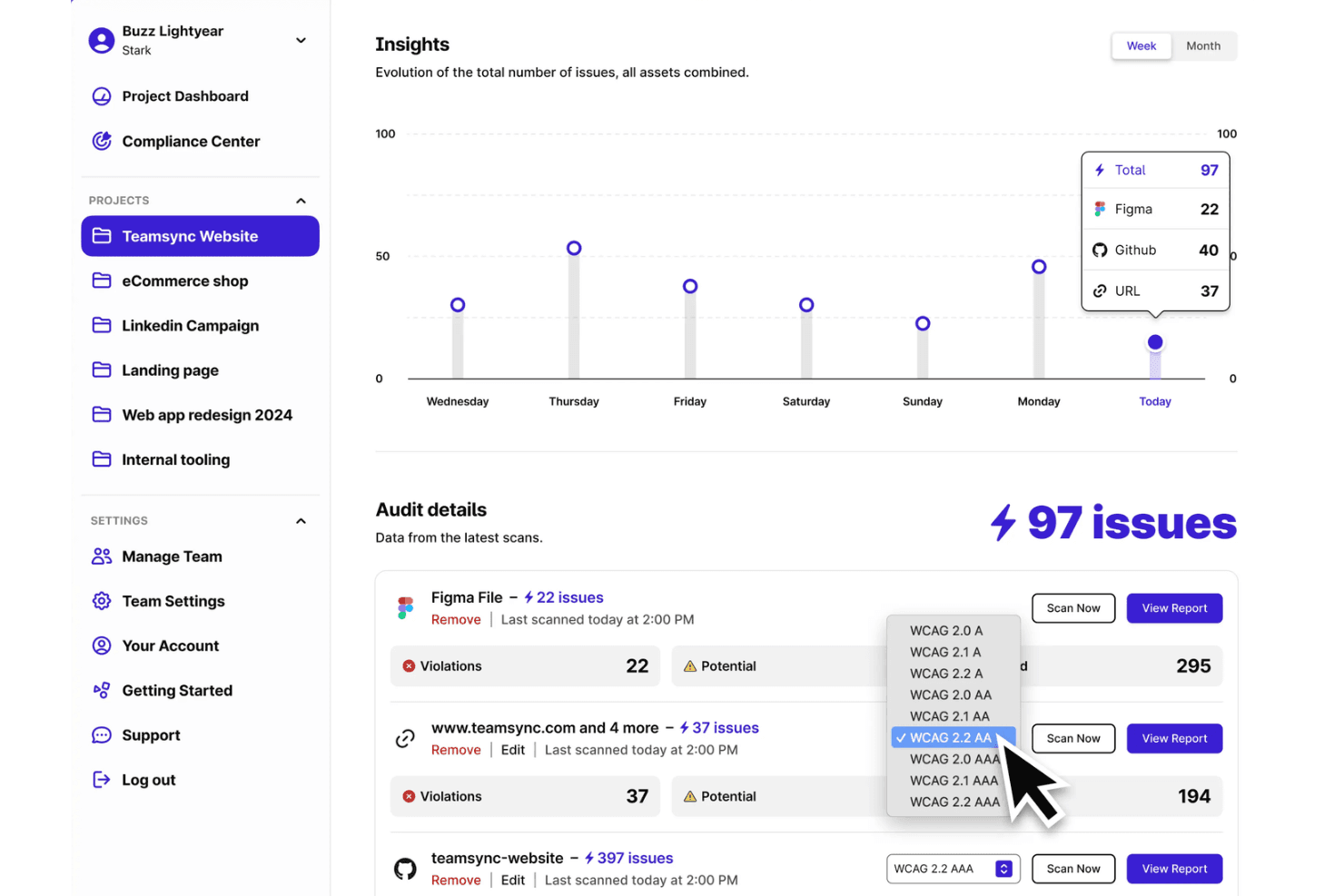
Stark Insights tracks accessibility issues across Figma, GitHub, and URLs. Stark is an AI-powered accessibility testing platform that supports design reviews, code testing, and live product monitoring. It combines automated WCAG checks, AI-assisted issue detection through Sidekick, and accessibility compliance reporting.
Who Is Stark Best For?
Stark is best for design and development teams that need to identify accessibility issues during design reviews and continue testing throughout product development.
Why I Picked Stark
I picked Stark because it brings AI-assisted accessibility testing into the design process, before development begins. Its Sidekick AI scans design files for contrast, typography, heading, and alt-text issues, then provides suggested corrections, including three alternative alt-text suggestions. I also like Stark's focus-order and landmark annotations, which help designers communicate accessibility requirements to developers during handoff.
Stark Key Features
- Compliance Center: Tracks accessibility controls, supporting evidence, and compliance progress against defined frameworks.
- CI/CD testing: Runs automated accessibility checks within development pipelines to identify issues during code changes.
- Draft VPAT report generation: Generates draft VPAT reports from accessibility assessment data for review and verification.
- Vision Simulator: Simulates different vision conditions to help designers evaluate visual accessibility.
Stark Integrations
Stark integrates with Figma, Sketch, GitHub, GitLab, Bitbucket, Azure DevOps, Jira, Asana, Trello, Linear, ClickUp, Pivotal Tracker, Slack, and Microsoft Teams. It also supports CI/CD testing through Puppeteer, Playwright, and Cypress, with API keys available for configuring scans.
Pros and Cons
Pros:
- Suggests alt text, headings, and contrast fixes
- Adds focus-order and landmark handoff annotations
- Finds contrast issues before code exists
Cons:
- Design scans cannot test keyboard interactions
- Automated checks require manual verification
Learn more about Stark: Best for AI-assisted scan-history reviews
- Free demo + 14-day free trial available
- Pricing upon request
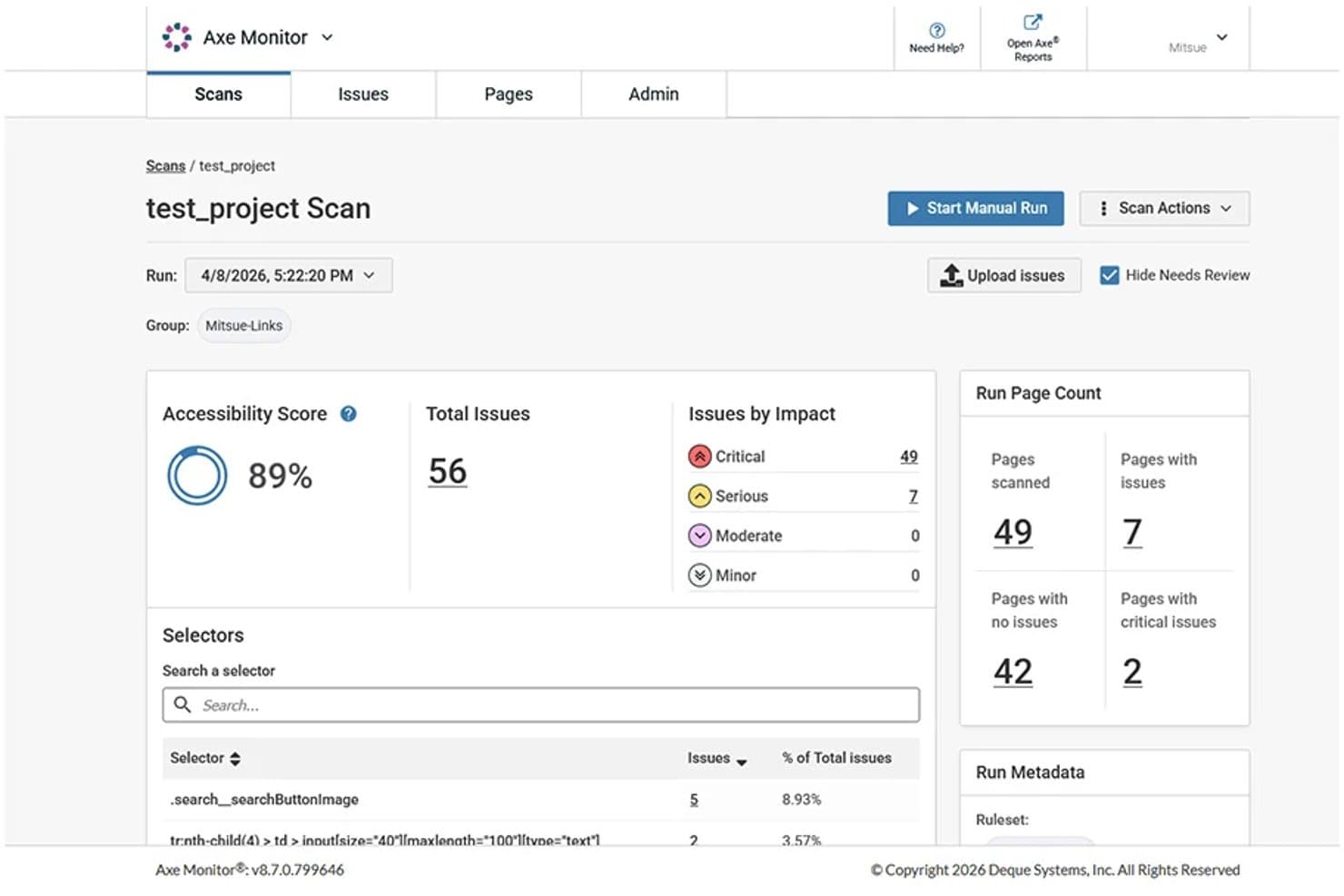
axe Monitor scan summary with accessibility scores and issue severity counts. axe Monitor is an automated accessibility monitoring tool from Deque that scans websites and PDFs at scale, tracks accessibility issues across scan runs, and provides prioritized findings, reports, and analytics.
Who Is axe Monitor Best For?
axe Monitor is a strong fit for accessibility specialists and compliance teams managing ongoing monitoring programs across large website portfolios.
Why I Picked axe Monitor
I picked axe Monitor because its MCP server adds AI-assisted analysis to ongoing accessibility monitoring. I like that it lets me review scan results through an AI assistant, compare findings across scan runs, and identify components that may need attention based on issue severity and frequency. Its component-level recommendations give accessibility teams a starting point for planning remediation across large website portfolios.
axe Monitor Key Features
- Website and PDF scanning: Scan websites and PDFs at scale to identify accessibility issues, scores, and progress over time.
- Historical scan records: Compare recent scan runs to identify changes in accessibility scores, issue counts, and recurring problems.
- Jira ticket creation: Create individual or grouped issue tickets using predefined field-mapping templates.
- Custom reports and analytics: Generate and share accessibility reports with issue trends, scores, and remediation progress.
axe Monitor Integrations
axe Monitor integrates with Jira to create individual or grouped accessibility issue tickets using configurable field-mapping templates. It also provides a REST API for accessing scan results, page details, and accessibility issue data through custom integrations.
Pros and Cons
Pros:
- AI-assisted remediation planning supports team workflows
- Severity-ranked reports clarify remediation priorities
- Historical scan comparisons surface recurring issues
Cons:
- Only three recent scan runs retained
- Some findings require manual verification
Learn more about axe Monitor:
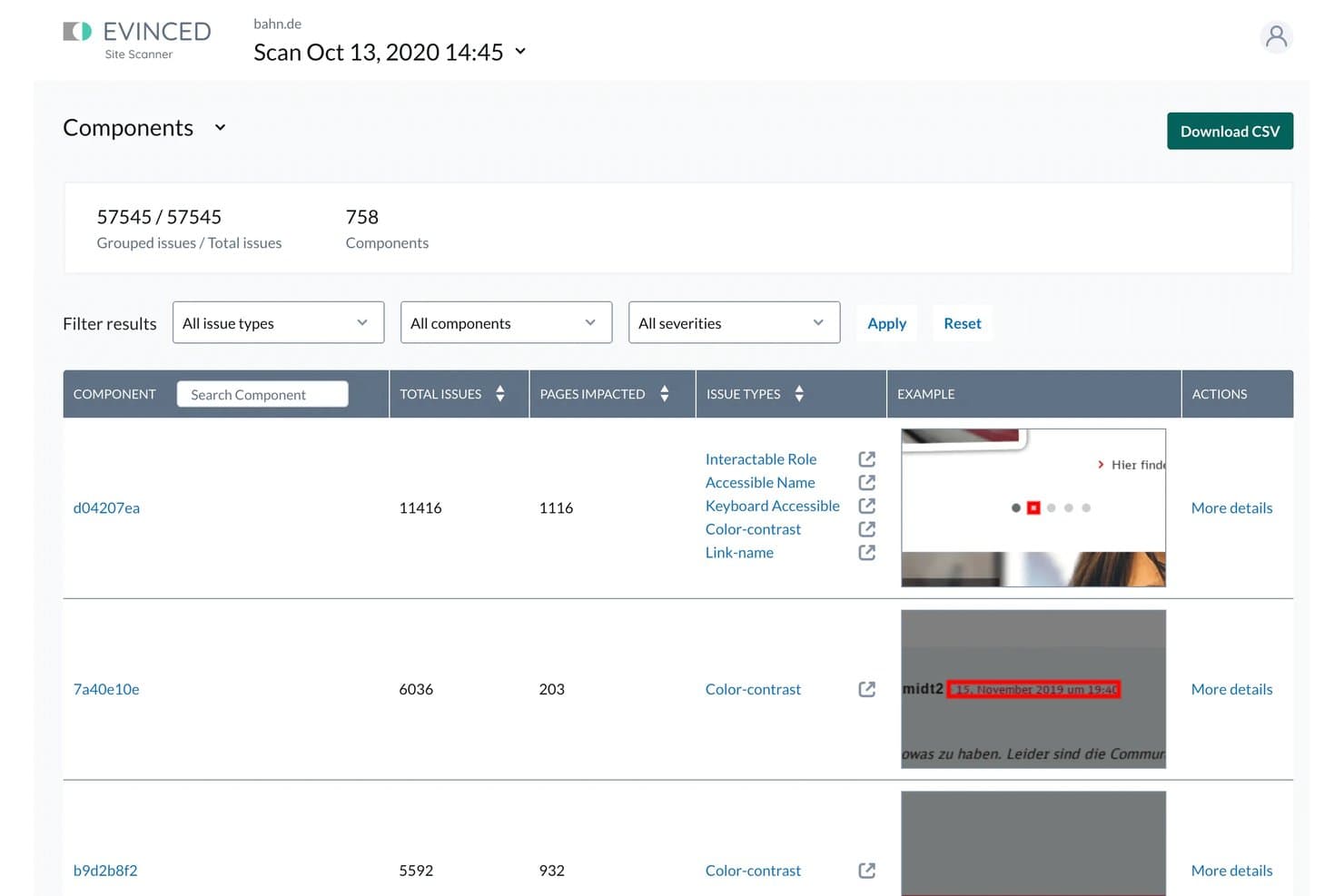
Evinced tracks component-level findings and new versus existing issues. Evinced is an AI-powered accessibility testing platform that combines visual analysis and DOM inspection to identify accessibility issues across websites and mobile apps, including dynamic user flows and reusable components.
Who Is Evinced Best For?
Evinced is best for QA engineers and accessibility specialists testing dynamic, component-driven web and mobile applications through automated testing workflows.
Why I Picked Evinced
I picked Evinced because it combines visual accessibility analysis with continuous DOM monitoring to identify issues as users interact with dynamic web applications. I particularly like its component analysis, which groups recurring accessibility findings by shared code patterns, helping teams identify affected components. Its issue tracking also distinguishes new findings from recurring issues across scans, providing useful context for accessibility remediation.
Evinced Key Features
- Continuous DOM monitoring: Detects accessibility issues as page content and elements change during automated tests.
- Component analysis: Groups recurring accessibility findings by shared code patterns to identify affected components.
- Issue tracking across scans: Assigns unique IDs to findings to distinguish new issues from recurring ones.
- Resolution tracking: Tracks resolved issues and resolution times by severity, issue type, and component.
Evinced Integrations
Evinced supports integrations with Jira, Azure DevOps, Selenium, Cypress, WebdriverIO, Playwright, TestCafe, XCUITest, Espresso, and Appium. It also supports CI workflows with Jenkins and CircleCI, with reporting formats including JSON, JUnit, and CSV.
Pros and Cons
Pros:
- Reports include screenshots and suggested fixes
- Groups recurring issues by component
- Maps barriers across dynamic user flows
Cons:
- JSDOM tests cannot evaluate visual accessibility
- Site Scanner defaults to 1,500 pages
Learn more about Evinced:
Other AI Accessibility Testing Tools
Here are a few additional options that didn’t make my top list but are still worth checking out:
- 11TestMu AIBest for accessibility checks in QA workflows
- 12UserWayBest for recurring scans of large websites
- 13AudioEyeBest for accessibility feedback from visitors
- 14ARC Platform by TPGiBest for accessibility checks in CI pipelines
How I Evaluate AI Accessibility Testing Tools
To make this list, AI should handle accessibility work, like detecting dynamic barriers and suggesting fixes. From there, I evaluate three things. Core functionality carries most weight: scanning sites against WCAG and tracking issues. Then I weigh standout features, like a human testing panel, and beyond-feature factors, like AI validation transparency.
Core Functionality (Table Stakes For This List)
When I'm selecting tools for my list, I score each one on a scale from 0 (does not offer the functionality) to 5 (excels in this area) for each core functionality listed below. I then convert the total into a percentage to help assess each tool's overall fit, with extra weight on any functionalities I’ve deemed essential.
- Automated Scanning (Essential): I look for reliable scans across multi-page sites and apps, including dynamic pages and common WCAG checks.
- AI Issue Detection (Essential): I evaluate whether AI can flag visual, structural, or dynamic barriers that static rules might miss, such as misleading ARIA use.
- Remediation Guidance: I check whether findings include prioritized, actionable fixes, such as code-level suggestions for a keyboard navigation barrier.
- Compliance Reporting: I assess whether reports map findings to standards such as WCAG and support audit reviews and stakeholder decisions.
- Developer Workflow Integration: I look for ways to run checks during development, such as through CI/CD, browser tools, or APIs.
- Continuous Monitoring: I consider scheduled scans, alerts, and issue history that help teams track changes across sites and product portfolios.
Once I have a list of tools that meet the criteria, I consider what sets each platform apart.
Differentiating Factors (What Sets Vendors Apart)
Here's how I compare and contrast different vendors:
Standout Features
I look for a human testing panel—access to testers with disabilities who validate what automated scans flag. Tools like Level Access and Evinced offer this, and it matters because AI catches roughly 30–50% of WCAG issues. Real screen-reader and keyboard-only feedback closes that gap. I also evaluate multi-framework component scanning, which lets teams test React, Angular, or Vue components in isolation rather than waiting for full-page builds. Beyond detection, I check whether a tool offers legal risk scoring that estimates compliance urgency so teams fix high-exposure barriers first.
Beyond Features
I evaluate whether vendors disclose how their AI models are trained and validated against WCAG success criteria. That transparency directly affects how much trust your team can place in flagged issues, especially when findings feed into compliance documentation. I also check for overlay-only approaches—some tools market AI-powered widgets that layer adjustments on a page without fixing underlying code, and these have been cited in accessibility lawsuits despite being active. Finally, I look at how well a platform scales across portfolios: role-based access for developers, QA, and legal teams matters when you're managing dozens of sites across business units.
How to Choose AI Accessibility Testing Tools
Choose a tool based on where your team needs evidence: dynamic flows, code changes, portfolio coverage, or human validation. The right evaluation should show how findings become tracked fixes, not just scan results.
| If Your Priority Is | Look For |
|---|---|
| If Your Priority IsFinding barriers in changing user flows | Look ForCoverage of interactive states, not only static pages |
| If Your Priority IsManaging many sites, apps, and PDFs | Look ForPortfolio-level issue tracking across those asset types |
| If Your Priority IsRouting findings into development | Look ForReproducible issues with code-level remediation guidance |
| If Your Priority IsBuilding confidence in AI findings | Look ForDisclosed validation methods and options for human testing |
How to Vet Your Shortlist
- Run a defined trial: Test one dynamic flow, such as opening a menu and completing a form, then compare findings with a manual keyboard review.
- Request the validation document: Ask for written details on how AI findings are tested against WCAG criteria, including known limitations.
- Trace a finding to a ticket: Use one trial result to create a developer ticket; check that it includes the affected state, evidence, and a reproducible issue.
- Test portfolio coverage: Submit a sample site, app screen, and PDF, then request an export showing how issues are grouped and tracked.
- Set the decision filter: Favor expert-led validation when human feedback on real flows is your priority; favor broad automated monitoring when coverage across many assets matters more.
What Are AI Accessibility Testing Tools?
AI accessibility testing tools are software that use AI-assisted checks to identify and prioritize barriers that can prevent people with disabilities from using digital products. They can review websites, apps, and documents for issues such as inaccessible page structures or interactive elements. Their findings help teams plan fixes, but manual testing with assistive technologies and people with disabilities remains important.
Features
Here are the main features I look for in AI accessibility testing tools:
- Automated scanning: Checks websites, applications, or supported digital content against accessibility rules, including relevant WCAG success criteria. Multi-page scanning helps detect potential issues across different sections of a website.
- Dynamic state testing: Evaluates interactive elements and states, including expanded menus, form validation errors, and modal dialogs. Testing capabilities vary by tool and may require configured interactions.
- AI issue detection: Uses AI-assisted analysis to identify potential accessibility barriers beyond predefined rules, including contextual issues involving page structure and element labels. Findings may require manual verification.
- Remediation guidance: Provides issue descriptions, affected elements, and suggested fixes. Some tools include code-level recommendations for addressing identified accessibility barriers.
- Standards-based reporting: Maps detected issues to relevant WCAG success criteria or other supported accessibility standards. Reports may include severity classifications, affected pages, and issue status.
- Developer workflow support: Offers browser extensions, APIs, or CI/CD integrations for running accessibility checks during development. Available capabilities depend on the tool.
- Continuous monitoring: Supports recurring accessibility scans, issue alerts, and historical tracking. Some tools also track previously identified issues across subsequent scans.
Benefits
In my experience, AI accessibility testing tools offer several benefits, including:
- Reduced manual checking: Automated assessments can handle repeatable accessibility checks across multiple pages, letting teams focus manual reviews on issues that require human judgment.
- Better visibility into accessibility barriers: Testing across different pages and interactive states can help teams identify potential barriers that might otherwise go unnoticed.
- More informed remediation decisions: Issue descriptions, severity classifications, and suggested fixes provide developers with additional context when evaluating accessibility problems.
- More consistent audit preparation: Standards-mapped findings and historical records provide supporting information for accessibility reviews, although automated reports alone cannot establish full compliance.
- Earlier feedback during development: Accessibility checks performed during coding and testing can identify potential issues before release, depending on the team's development process.
- Improved tracking of recurring issues: Historical scan results help teams compare findings over time and identify barriers that may have reappeared after changes.
Pricing
Pricing varies by scan volume, users, features, and support. Here are indicative price ranges and features you’ll typically find in AI accessibility testing tools.
Plan Comparison Table for AI Accessibility Testing Tools
| Plan Type | Average Price | Common Features |
|---|---|---|
| Plan TypeFree Plan | Average Price$0 | Common FeaturesBasic page scans, limited automated checks, and individual testing tools. |
| Plan TypePersonal Plan | Average Price$10-$50/user/month | Common FeaturesBrowser-based scans, issue explanations, WCAG guidance, and personal reports. |
| Plan TypeBusiness Plan | Average Price$50-$500/month | Common FeaturesMulti-page scans, scheduled monitoring, team reports, and developer workflow integrations. |
| Plan TypeEnterprise Plan | Average Price$500-$2,000+/month or custom pricing | Common FeaturesPortfolio-level monitoring, role-based access, advanced reporting, and dedicated support. |
These ranges are indicative, not standardized. Vendors may charge per user, domain,
FAQs
Here are answers to common questions about AI accessibility testing tools:
Can AI accessibility testing tools guarantee WCAG compliance?
No. AI accessibility testing tools can flag potential barriers, but they cannot guarantee WCAG conformance for a website or application. Conformance requires meeting all applicable success criteria across relevant pages, states, and user journeys. Automated tests may also miss barriers that require human judgment or assistive technology testing. Use scan results as part of a broader accessibility evaluation, including manual keyboard and screen reader testing. Ask vendors about their testing methods, supported WCAG versions, and validation limitations before relying on accessibility scores.
How should you handle accessibility findings that the tool flags incorrectly?
Treat each alert as a potential issue that requires verification. Reproduce the finding in the same page state and browser context, then compare it against the relevant WCAG success criterion. If the finding is incorrect, record the reason and supporting evidence. Limit exceptions to the affected element or rule, since broad suppression may conceal other accessibility issues. Retest after code changes and check whether dismissed findings remain available in reports and issue history.
When should you run accessibility scans during development?
Run accessibility scans at different stages of development. Include automated checks in pull requests or builds to identify potential issues during code reviews. Test important user journeys before release, particularly after changes to navigation, forms, authentication, or shared components. Schedule production scans to monitor potential regressions following updates or deployments. Assign responsibility for reviewing findings and supplement automated checks with manual keyboard and assistive technology testing. Set scan frequency based on release schedules and the frequency of website changes.