

Programvare for passordbehandling holder kontoene dine sikre ved å lagre, generere og organisere alle passordene dine på ett sted, slik at du slipper å huske dusinvis av unike pålogginger eller bekymre deg for sikkerhetsglipper. Det riktige verktøyet gjør det enkelt å logge inn og beskytter deg mot svake, gjenbrukte eller glemte passord.
Jeg har hjulpet enkeltpersoner og team med å finne passordbehandlere som kombinerer enkel konfigurering med sterk sikkerhet. I denne veiledningen viser jeg deg nøyaktig hvordan du velger den beste programvaren for passordbehandling for dine behov.
Why Trust Our Software Recommendations
6,700+
Reviews
20
Industry experts
16+
Evaluation factors
14
Years
Our team has been testing and reviewing software since 2012. As tech leaders ourselves, we know how difficult—and important—it is to choose the right software.
For this guide, we evaluated tools using hands-on testing and independent research, scoring tools using our selection criteria.
Our reviews reflect our human editorial judgment, not a sales pitch.
Expert reviewers:
- Paulo Gardini MiguelTech Director
 Tim FisherVP of AI
 Gabriel RosasTech Lead & Software Architect
 Christhian GruhnTech Lead & Platform Architect

Sammenligningstabell: Programvare for passordbehandling
Denne sammenligningstabellen oppsummerer prisdetaljene for mine beste utvalgte programmer for passordbehandling.
| Tool | Best For | Trial Info | Price | ||
|---|---|---|---|---|---|
| 1 | Best with just-in-time privileged access controls | 14-day free trial | Pricing upon request | Website | |
| 2 | Best for individual users and small businesses | 30-day free trial + free plan available | From $3/user/month (billed annually) | Website | |
| 3 | Best for multi-platform password synchronization | 14-day free trial | From $2.99/month (billed annually) | Website | |
| 4 | Best for a built-in VPN feature | From $4.99/user/month (billed annually) | Website | ||
| 5 | Best for large organizations with complex needs | From $2.96/user/month (min 5 seats, billed annually) | Website | ||
| 6 | Best for a straightforward user interface | From $2.49/user/month (billed annually) | Website | ||
| 7 | Best for organizations valuing open-source software | 7-day free trial + free plan + free demo available | From $3/user/month (billed annually) | Website | |
| 8 | Best for providing advanced two-factor authentication | Free demo available | From $8/client/month | Website | |
| 9 | Best for IT service providers | Pricing upon request | Website | ||
| 10 | Best for integrating with Active Directory | From $5/user/month (min 50 seats) | Website |


Anmeldelser av den beste programvaren for passordbehandling
Nedenfor finner du mine detaljerte sammendrag av de beste programmene for passordbehandling som kom med på kortlisten min. Anmeldelsene mine gir en detaljert oversikt over de viktigste funksjonene, fordeler og ulemper, integrasjonene og ideelle bruksområdene for hvert verktøy, slik at du kan finne det beste alternativet for deg.
 Best with just-in-time privileged access controls
- 14-day free trial
- Pricing upon request
Securden Unified PAM offers a centralized account vault where users can view and manage stored credentials, passwords, and account details with role-based controls. Securden Unified PAM is an enterprise privileged access management platform that combines credential vaulting, session monitoring, secrets management, and endpoint privilege controls in one solution.
Who Is Securden Unified PAM Best For?
It's a strong fit for security-focused IT teams in mid-to-enterprise organizations that need to govern privileged access across complex, multi-system environments.
Why I Picked Securden Unified PAM
I picked Securden Unified PAM because its just-in-time access controls go further than most password managers. Approval-gated sessions automatically revoke access and randomize the underlying credential the moment the time window expires, so users never retain usable passwords after a session ends. I also like that third-party vendor access can be scoped to a specific time window, with full session recording running throughout, which makes post-incident reviews straightforward.
Securden Unified PAM Key Features
- Granular role-based credential sharing: Share sensitive credentials and secrets with specific teams, users, or third parties with full permission controls.
- Comprehensive audit trails and session recording: Capture detailed logs of all privileged activity, including keystrokes and session video playback.
- Directory sync and SSO integration: Connect with Active Directory, LDAP, and SAML identity providers for automated provisioning and authentication.
- Automated credential rotation policies: Enforce password complexity and rotation schedules for privileged accounts, keys, and application secrets.
Securden Unified PAM Integrations
Securden Unified PAM offers native integrations with Okta, OneLogin, Microsoft Entra ID (Azure AD), Google Workspace, Ping Identity, Active Directory, LDAP, ServiceNow, and IBM QRadar. An API is available for custom integrations.
Pros and Cons
Pros:
- Granular vendor access scoping with time limits
- Session recording aids post-incident forensic reviews
- Just-in-time access minimizes standing privilege exposure
Cons:
- No consumer-facing browser autofill experience
- Initial deployment complexity for smaller IT teams
Learn more about Securden Unified PAM: Best for individual users and small businesses
- 30-day free trial + free plan available
- From $3/user/month (billed annually)
Visit WebsiteCustomer Rating:4.6/5
LastPass monitors your accounts and sends an alert if your information is compromised. LastPass is a robust password manager that helps individuals and small businesses manage their online credentials securely. It simplifies password management by creating, storing, and filling in login credentials across multiple sites.
Given its ease of use and cost-effectiveness, it is an excellent choice for individual users and small businesses that need a straightforward solution for password management.
Why I Picked LastPass: In assessing password management solutions, I was drawn to LastPass for its simple yet effective approach to password management. What makes LastPass stand out from the crowd is its user-friendly interface and intuitive features, making it accessible to individual users and small businesses.
I believe LastPass is ideal for this user segment due to its combination of affordability, ease of use, and comprehensive feature set that does not compromise on security.
Standout Features & Integrations:
Key features of LastPass include auto-fill and auto-login, secure password sharing, and multi-factor authentication. These features make it easier for users to navigate the web securely without the burden of remembering numerous passwords. LastPass integrates easily with various browsers and operating systems, offering a smooth user experience across devices.
Pros and Cons
Pros:
- Compatible with various platforms and browsers for easy use
- Offers secure password sharing, which is handy for team collaboration
- User-friendly interface, suitable for individuals and small businesses
Cons:
- Some users might find the setup process a bit complex initially
- Customer support could be more responsive
- The mobile app requires a subscription, which may not be ideal for users looking for a free solution
Learn more about LastPass: Best for multi-platform password synchronization
- 14-day free trial
- From $2.99/month (billed annually)
Visit WebsiteCustomer Rating:4.7/5
1Password vaults organize, share, and control team information access. 1Password offers a secure and user-friendly solution to manage all your passwords across various platforms. It shines in synchronizing your sensitive information across all devices and operating systems, securing your digital life no matter where you are.
Why I Picked 1Password: The multi-platform support and easy synchronization made 1Password stand out in my evaluation. As more people work from different devices and locations, it’s crucial to have a password manager that harmonizes your data across all platforms.
For this reason, 1Password took the crown for being the best for multi-platform password synchronization.
Standout Features & Integrations:
1Password offers end-to-end encryption, auto-fill functionality, and Travel Mode, which allows you to remove sensitive data from your devices when you travel. It integrates with popular browsers for effortless login and form filling, and it's compatible with major operating systems including Windows, macOS, iOS, and Android.
Pros and Cons
Pros:
- Easy synchronization across all platforms
- Travel Mode for data safety during travel
- End-to-end encryption for maximum security
Cons:
- May require initial learning to utilize all features
- No free version available
- Pricing is based on annual billing
Learn more about 1Password: Best for a built-in VPN feature
- From $4.99/user/month (billed annually)
Visit WebsiteCustomer Rating:4.5/5
Here's what reporting dashboard in Dashlane looks like. Dashlane is a robust password manager with an array of additional features, including a built-in VPN for added online security. The tool aids in generating, storing, and auto-filling complex passwords across all your devices, keeping your digital identity secure.
Its built-in VPN sets it apart, adding an extra layer of security, particularly when accessing the internet from public or unsecured networks.
Why I Picked Dashlane: I picked Dashlane for its unique built-in VPN feature. While all password managers secure your login credentials, Dashlane goes a step further to safeguard your overall online activities, making it the best option for users who need a VPN along with password management.
This distinct aspect creates a full-package security tool, differentiating Dashlane from many other password managers.
Standout Features & Integrations:
Beyond password management, Dashlane includes a digital wallet for secure online payments and offers dark web monitoring to alert users if their information appears in compromised databases. The tool's VPN functionality provides an encrypted internet connection, a feature not common in many password managers.
Dashlane integrates well with numerous web browsers like Chrome, Firefox, and Safari, and offers apps for both iOS and Android platforms like Microsoft.
Pros and Cons
Pros:
- Offers a digital wallet for secure online payments
- Provides dark web monitoring
- Includes a built-in VPN for added online security
Cons:
- Free version significantly limits the number of passwords and devices
- The built-in VPN is not as fully-featured as standalone VPN services
- More expensive compared to some other password managers
Learn more about Dashlane: Best for large organizations with complex needs
- From $2.96/user/month (min 5 seats, billed annually)
Visit WebsiteCustomer Rating:3.8/5
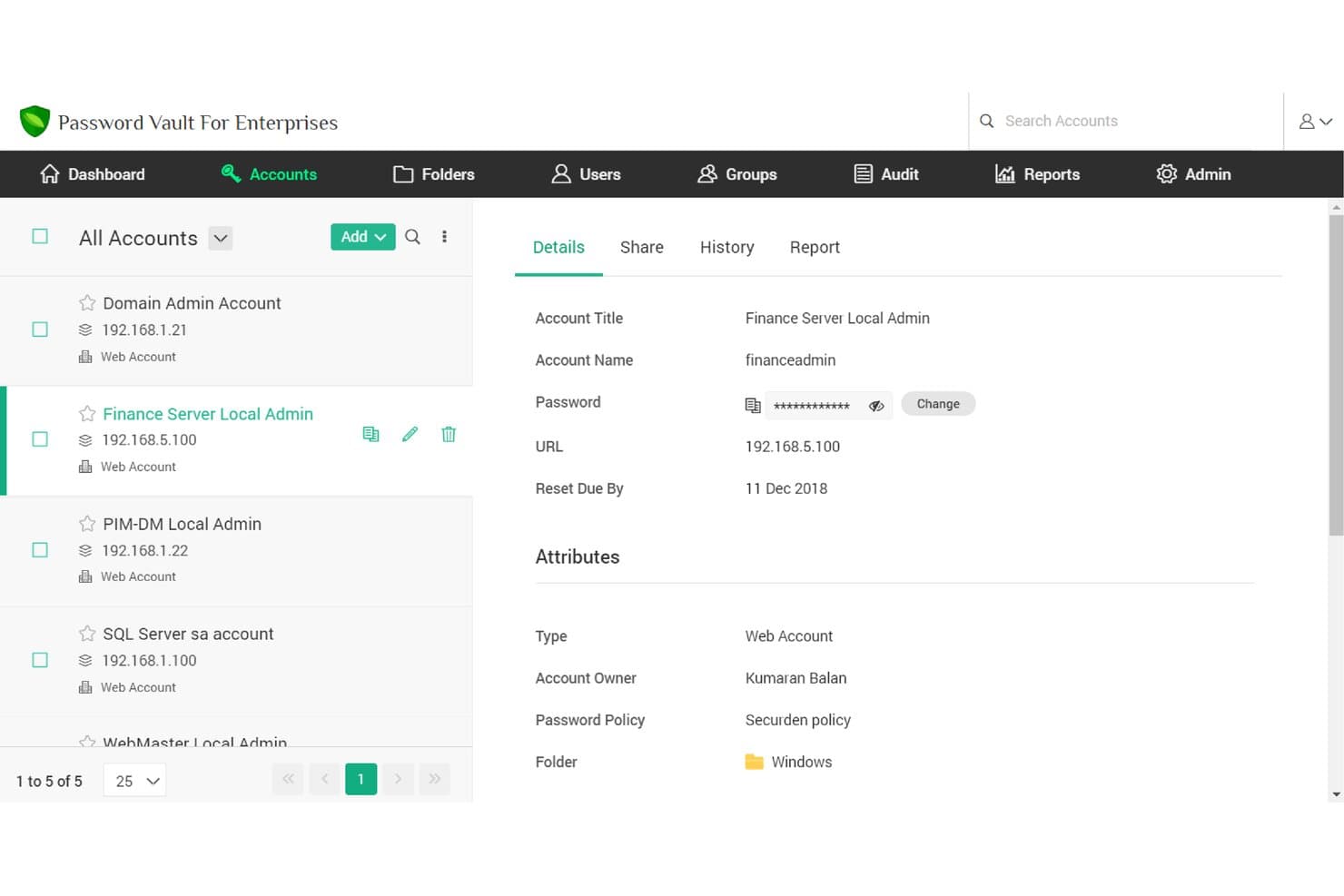
This image is a screenshot of the ManageEngine Password Manager Pro website. ManageEngine Password Manager Pro is an enterprise-grade password management solution that enables secure file storage, management, and sharing of passwords and digital identities. It is designed for larger organizations with intricate requirements, allowing for intricate access controls, thorough audit trails, and robust add-ons.
It fits large organizations well because of its scalability and the ability to handle complex hierarchical structures.
Why I Picked ManageEngine Password Manager Pro: I selected ManageEngine Password Manager Pro because of its scalability and extensive feature set catering to complex organizational structures. This tool stood out to me because it's not just a password manager, but a comprehensive privileged access management solution.
It's particularly suitable for large organizations with complex needs due to its extensive customization options, role-based access controls, and robust auditing capabilities.
Standout Features & Integrations:
ManageEngine Password Manager Pro offers a wide array of features such as automated password resets, secure remote access, privileged session management, and detailed audit trails. Its high-level security measures, including two-factor authentication, ensure secure access to sensitive data.
The tool integrates with a range of other platforms, such as Active Directory, LDAP, and a variety of SIEM tools to provide comprehensive security management.
Pros and Cons
Pros:
- Includes detailed audit trails for transparency and accountability
- Provides robust integrations for comprehensive security management
- Offers extensive features suitable for large organizations
Cons:
- The user interface could be more intuitive and user-friendly
- Pricing could be high for organizations with a large number of users
- Can be overwhelming for small businesses or individuals due to its complexity
Learn more about ManageEngine Password Manager Pro: Best for a straightforward user interface
- From $2.49/user/month (billed annually)

Implement company-wide security measures, including password guidelines and multi-factor authentication with NordPass. NordPass is a secure password management tool that operates with a focus on user-friendly design and simplicity. It's developed by the creators of NordVPN, and this attention to straightforward design makes it an excellent choice for those looking for an easy-to-use interface.
Why I Picked NordPass: I chose NordPass for this list because of its clean, intuitive user interface. Compared to some other passkey management tools, NordPass excels in providing a user-friendly experience without sacrificing security.
Given its easy-to-navigate design, I found NordPass to be the best tool for those seeking a straightforward user interface.
Standout Features & Integrations:
NordPass features include password generation, secure passkey sharing, and a built-in OCR scanner to capture information quickly. It's encrypted with the latest security measures (XChaCha20) to keep user information safe.
NordPass also integrates smoothly with various browsers such as Chrome, Firefox, Opera, and Edge, and platforms like iOS and Android, facilitating easy and secure access across devices.
Pros and Cons
Pros:
- Advanced security encryption (XChaCha20)
- Secure password sharing feature
- Clean and straightforward user interface
Cons:
- Annual commitment may not be ideal for all users
- The best features are only available in the paid plan
- Limited advanced features compared to some competitors
Learn more about NordPass: Best for organizations valuing open-source software
- 7-day free trial + free plan + free demo available
- From $3/user/month (billed annually)

Improve user onboarding and account provision/de-provision using Bitwarden Directory Connector or SCIM integration. Bitwarden is an open-source password manager that is designed for both individuals and businesses. It offers secure password storage and sharing, making it ideal for organizations that place a premium on the flexibility and transparency of open-source software.
Why I Picked Bitwarden: I selected Bitwarden for inclusion on this list due to its open-source nature. This characteristic sets it apart from many other password management tools. The transparency provided by open-source software can enhance trust and allow for customizable security solutions, making Bitwarden the best choice for organizations valuing open-source software.
Standout Features & Integrations:
Bitwarden provides end-to-end encryption for secure password management and sharing, as well as features such as a password generator and secure note storage. It offers easy integrations with multiple browsers, including Chrome, Firefox, Safari, and Edge, and mobile platforms like iOS and Android, allowing for secure access across various devices.
Pros and Cons
Pros:
- Wide range of browser and platform integrations
- Offers end-to-end encryption
- Open-source nature provides transparency and flexibility
Cons:
- Lacks some advanced features offered by proprietary password managers
- Requires some technical expertise to fully utilize open-source benefits
- User interface may not be as intuitive as some competitors
Learn more about Bitwarden: Best for providing advanced two-factor authentication
- Free demo available
- From $8/client/month

Here's the secure file and password sharing in Keeper. Keeper is a comprehensive password management solution that takes user security to a higher level. Its commitment to bolstering account security through advanced two-factor authentication makes it ideal for users who prioritize improved security protocols.
Why I Picked Keeper: The decision to include Keeper on this list was largely influenced by its focus on advanced security features. It differentiates itself with robust two-factor authentication, adding an extra layer of security to user accounts.
I am of the opinion that Keeper is the best tool for advanced two-factor authentication due to its uncompromising approach to securing user information.
Standout Features & Integrations:
Keeper offers features like secure record sharing, emergency access, and a strong focus on two-factor authentication, including biometric login. It also provides a secure digital vault for storing sensitive documents. Integration-wise, Keeper works easily with popular platforms like Slack, and it supports SAML 2.0 for secure authentication.
Pros and Cons
Pros:
- Integration with platforms like Slack
- Secure digital vault for storing sensitive documents
- Focuses on advanced two-factor authentication
Cons:
- Its emphasis on security might be overwhelming for users seeking a more straightforward password management tool
- Annual billing may not be suitable for all users
- Lower tiers lack some advanced features
Learn more about Keeper:

With Passportal's comprehensive, exportable reports, nothing will escape your notice. Passportal provides a specialized solution for IT service providers, offering an intuitive password and IT documentation management system. This tool simplifies the task of handling multiple clients' credentials and IT information, making it ideal for IT service providers.
Why I Picked Passportal: Passportal caught my attention due to its specificity in catering to the needs of IT service providers. Its centralized credential management and robust IT documentation features set it apart from other password managers.
I believe Passportal is best for IT service providers because it is designed to manage multiple clients' credentials and IT information efficiently.
Standout Features & Integrations:
Passportal includes features such as automated password resets, secure password sharing, and comprehensive IT documentation. It also provides audit logs to monitor any changes made. Integration-wise, Passportal works well with popular professional service automation (PSA) tools like Autotask and ConnectWise.
Pros and Cons
Pros:
- Integration with popular PSA tools
- Robust IT documentation capabilities
- Centralized management of multiple clients' credentials
Cons:
- Limited usability outside of IT service providers
- May be overwhelming for individual users or small businesses
- Pricing information is not directly available
Learn more about Passportal: Best for integrating with Active Directory
- From $5/user/month (min 50 seats)

Specops Password Security Software safeguards business data by preventing weak passwords. Specops is a comprehensive password security software that excels in Active Directory (AD) integration. This solution streamlines password policies, breach prevention, and secure password resets while synchronizing easily with your AD environment.
Why I Picked Specops Password Security Software: In assessing a plethora of password managers, Specops emerged as unique due to its deep Active Directory integration. This makes it perfect for organizations heavily reliant on AD for their identity and access management.
Consequently, Specops becomes the top pick for those seeking a solution best for integrating with Active Directory.
Standout Features & Integrations:
Specops stands out with features like customizable password policies, password expiration notifications, and secure self-service password reset functionality. Its ability to integrate easily with Active Directory ensures that password policies and changes reflect instantly across the AD environment, making user management more streamlined.
Pros and Cons
Pros:
- Secure self-service password reset
- Customizable password policies
- Deep Active Directory integration
Cons:
- Some features may have a learning curve
- May not be necessary for organizations not to use Active Directory
- Minimum of 50 seats might be high for smaller teams
Learn more about Specops Password Security Software:
Annen programvare for passordbehandling
Her er noen flere alternativer for programvare for passordbehandling som ikke kom med på kortlisten min, men som likevel er verdt å sjekke ut:
- 11SecurdenBest for centralized control over shared credentials
- 12PassworkBest for teams seeking robust collaboration
- 13Bravura PassBest for extensive customization options
- 14Zoho VaultGood for businesses already using the Zoho suite
- 15OneLoginGood for enterprise-level identity management
- 16Sticky PasswordGood for biometric verification options
- 17EssentialPIMGood for integration with personal information management
- 18ManageEngine ADSelfService PlusGood for Active Directory environments
- 19LogMeOnceGood for users seeking a photo login feature
- 20KeePassGood for users who prefer open-source solutions
- 21EnpassGood for offline password management
- 22True KeyGood for integration with Intel software
- 23RemembearGood for a simple and intuitive user interface
- 24Password BossGood for sharing passwords securely with teams
- 25BIO-key PortalGuard IDaaSGood for identity-as-a-service functionality
How I Evaluate Password Manager Software
I split evaluation into two layers: a baseline every tool must clear—zero-knowledge vaults, admin policy controls, SCIM provisioning—and differentiators that separate the best fits from the rest.
Core Functionality (Table Stakes For This List)
When I'm selecting tools for my list, I rank each one on a scale from 0 (does not offer the functionality) to 5 (excels in this area) for each core functionality listed below. Then, I calculate the tool's total score into a percentage. Each tool needs to achieve a minimum total score of 65% to be considered for inclusion.
- Encrypted Credential Vault: I evaluate the encryption model and whether the vendor maintains a zero-knowledge architecture, meaning even the provider can't access stored passwords, notes, or files.
- Secure Credential Sharing: Teams constantly pass around database credentials and staging environment logins, so I look for role-based sharing with revocation and expiration controls.
- Autofill & Browser Integration: Reliable autofill across major browsers and platforms matters. I check for desktop, mobile, and CLI coverage since IT and dev teams work across varied environments.
- Admin Policy Controls: I look at the admin console for enforceable password strength rules, MFA requirements, and access restrictions like IP allowlisting or device trust policies.
- SSO & Directory Integration: Provisioning users manually at scale is painful. I evaluate SAML SSO support and SCIM directory sync with providers like Okta, Azure AD, and Google Workspace.
- Audit Logs & Reporting: Compliance audits require proof of who accessed what and when. I check for detailed, exportable activity logs and password health dashboards at a minimum.
Once I have a list of tools that meet this criteria, I consider what sets each platform apart.
Differentiating Factors (What Sets Vendors Apart)
Here's how I compare and contrast different vendors:
Standout Features
Secrets management is a major differentiator. Dev and DevOps teams need a vault that handles API keys, SSH keys, and environment variables with CLI or SDK access—not just browser-based passwords. I also evaluate privileged access management features like credential rotation and just-in-time access for admin accounts. For organizations with strict data residency requirements, a self-hosting option can be a deciding factor, letting you deploy the vault on your own infrastructure.
Beyond Features
Security certifications matter here. I check whether a vendor holds SOC 2 Type II or ISO 27001 and whether they publish third-party penetration test results. Developer and DevOps integration is another big factor—tools that offer Terraform providers, CI/CD pipeline support, and REST APIs fit into existing workflows far better than those limited to browser extensions alone. I also evaluate incident response posture, including how account recovery works without breaking zero-knowledge encryption and how transparent the vendor has been about past security events.
Slik velger du programvare for passordbehandling
Det er lett å gå seg vill i lange funksjonslister og kompliserte prisstrukturer. For å hjelpe deg med å holde fokus mens du går gjennom den unike prosessen din for valg av programvare, får du her en sjekkliste over faktorer du bør ha i tankene:
| Faktor | Hva du bør vurdere |
|---|---|
| FaktorSkalerbarhet | Hva du bør vurdereKan verktøyet vokse med teamet ditt? Vurder om det støtter å legge til flere brukere eller håndtere økte datamengder uten ytelsesproblemer. Se etter fleksible brukerabonnementer som håndterer vekst. |
| FaktorIntegrasjoner | Hva du bør vurdereFungerer det med andre verktøy du bruker? Kontroller kompatibiliteten med eksisterende plattformer som Google Workspace eller Microsoft 365 for å effektivisere arbeidsflyter og unngå manuell dataregistrering. |
| FaktorTilpasningsmuligheter | Hva du bør vurdereKan du tilpasse verktøyet etter behovene dine? Se etter alternativer for å justere innstillinger, tillatelser og brukerroller slik at de samsvarer med teamets struktur og sikkerhetspolicyer. |
| FaktorBrukervennlighet | Hva du bør vurdereEr det enkelt for alle å bruke? Vurder brukergrensesnittet og utformingen. Sørg for at det er intuitivt for teamet ditt, slik at læringskurven blir så kort som mulig og behovet for omfattende opplæring reduseres. |
| FaktorImplementering og innføring | Hva du bør vurdereHvor raskt kan du komme i gang? Vurder prosessen for konfigurering og innføring. Se etter ressurser som veiledninger, maler og dedikert brukerstøtte for å gjøre overgangen enklere og sikre en problemfri utrulling. |
| FaktorKostnad | Hva du bør vurderePasser det inn i budsjettet ditt? Analyser prisstrukturen, inkludert eventuelle skjulte gebyrer. Sammenlign kostnaden med funksjonene som tilbys, og se etter rabatter ved årlig fakturering eller abonnementer for mange brukere. |
| FaktorSikkerhetstiltak | Hva du bør vurdereEr passordene dine trygge? Sørg for at verktøyet bruker sterke krypteringsstandarder, tilbyr flerfaktorautentisering og gir revisjonsspor for å overvåke tilgang og oppdage uautoriserte aktiviteter. |
| FaktorEtterlevelseskrav | Hva du bør vurdereOppfyller det bransjeregelverket? Kontroller om verktøyet overholder relevante juridiske standarder som GDPR eller HIPAA, spesielt hvis teamet ditt håndterer sensitive data. Se etter sertifiseringer eller dokumentasjon som bekrefter etterlevelsen. |
Hva er programvare for passordadministrasjon?
Programvare for passordadministrasjon er et verktøy som lagrer, genererer og organiserer alle passordene dine på ett sikkert sted. Personer som IT-administratorer, sikkerhetseksperter og alle som er lei av å glemme påloggingsopplysninger, bruker det for å holde kontoene sine sikre uten å måtte bekymre seg for endeløse passord. Det hjelper deg med å opprette sterke passord, fyller dem ut for deg og låser informasjonen din inne, slik at du slipper å bekymre deg for svake eller gjenbrukte påloggingsopplysninger.
Funksjoner
Når du velger programvare for passordadministrasjon, bør du se etter følgende viktige funksjoner:
- Passordhvelv: Lagrer alle passordene dine sikkert på ett sted, slik at det blir enkelt å administrere og få tilgang til dem ved behov.
- Autofyll: Fyller automatisk ut påloggingsopplysninger på nettsteder, slik at du sparer tid og reduserer risikoen for inntastingsfeil.
- Passordgenerator: Oppretter sterke, unike passord for hver konto og forbedrer sikkerheten ved å forhindre passord som er enkle å gjette.
- Flerfaktorautentisering: Legger til et ekstra sikkerhetslag ved å kreve ytterligere bekreftelsestrinn utover bare et passord.
- Overvåking av det mørke nettet: Varsler deg hvis påloggingsopplysningene dine dukker opp i datainnbrudd, slik at du raskt kan iverksette tiltak for å beskytte kontoene dine.
- Tilpassbare tilgangskontroller: Lar deg definere hvem som kan få tilgang til bestemte passord, slik at sensitiv informasjon bare er tilgjengelig for autoriserte brukere.
- Øktopptak: Overvåker og logger brukeraktivitet, og gir et revisjonsspor for sikkerhets- og samsvarsformål.
- Biometrisk pålogging: Bruker fingeravtrykk eller ansiktsgjenkjenning for sikker og praktisk tilgang til kontoene dine.
- Sikkerhetsrapporter: Gir innsikt i passordhelse og sikkerhet, slik at du kan identifisere svake punkter og forbedre den generelle sikkerheten din.
- Integrasjonsmuligheter: Kobler seg til andre verktøy og plattformer du bruker, noe som effektiviserer arbeidsflyten og reduserer manuell datainntasting.
Fordeler
Implementering av programvare for passordadministrasjon gir flere fordeler for teamet og virksomheten din. Her er noen av fordelene du kan se frem til:
- Forbedret sikkerhet: Beskytter kontoene dine med sterke, unike passord og flerfaktorautentisering, noe som reduserer risikoen for datainnbrudd.
- Tidsbesparelser: Fyller automatisk ut påloggingsopplysninger for rask tilgang, slik at du slipper å huske eller skrive inn passord manuelt.
- Forenklet administrasjon: Sentraliserer passordlagringen i et sikkert hvelv, slik at det blir enkelt å organisere og hente frem påloggingsopplysninger.
- Forbedret samsvar: Gir revisjonsspor og aktivitetslogger som bidrar til å oppfylle sikkerhetsforskrifter og standarder.
- Økt produktivitet: Integreres med eksisterende verktøy for å effektivisere arbeidsflyter og redusere manuell datainntasting.
- Proaktive trusselvarsler: Overvåker det mørke nettet for datainnbrudd, slik at du raskt kan reagere på potensielle trusler.
- Tilpassbar tilgang: Gir kontroll over hvem som kan se eller endre passord, slik at sensitive data bare er tilgjengelige for autoriserte brukere.
Kostnader og priser
Valg av programvare for passordadministrasjon krever en forståelse av de ulike prismodellene og abonnementene som er tilgjengelige. Kostnadene varierer basert på funksjoner, teamstørrelse, tillegg og mer. Tabellen nedenfor oppsummerer vanlige abonnementer, gjennomsnittsprisene deres og typiske funksjoner som er inkludert i løsninger for passordadministrasjon:
Sammenligningstabell for abonnementer for programvare for passordadministrasjon
| Abonnementstype | Gjennomsnittspris | Vanlige funksjoner |
|---|---|---|
| AbonnementstypeGratisabonnement | Gjennomsnittspris$0 | Vanlige funksjonerGrunnleggende passordlagring, autofyll og passordgenerering. |
| AbonnementstypePersonlig abonnement | Gjennomsnittspris$3-$10/user/month | Vanlige funksjonerSikkert passordhvelv, synkronisering på flere enheter og grunnleggende kundestøtte. |
| AbonnementstypeBedriftsabonnement | Gjennomsnittspris$5-$25/user/month | Vanlige funksjonerDeling av passord i teamet, administratorkontroller og prioritert kundestøtte. |
| AbonnementstypeVirksomhetsabonnement | Gjennomsnittspris$15-$50/user/month | Vanlige funksjonerAvanserte sikkerhetsfunksjoner, samsvarsverktøy, dedikert kundeansvarlig og tilpassede integrasjoner. |
Vanlige spørsmål om passordbehandlingsprogramvare
Her er noen svar på vanlige spørsmål om passordbehandlingsprogramvare:
Kan jeg bruke passordbehandlingsprogramvare uten nettforbindelse?
Ja, mange passordbehandlingsprogrammer tilbyr tilgang uten nettforbindelse. Du kan se lagrede passord selv uten internettilkobling. Enkelte funksjoner, som synkronisering på tvers av enheter, kan imidlertid kreve internettilgang. Sjekk om verktøyet du vurderer, støtter funksjonalitet uten nettforbindelse hvis dette er viktig for arbeidsflyten din.
Er det vanskelig å bytte til en ny passordbehandler?
Nei, de fleste passordbehandlere tilbyr importverktøy. De lar deg enkelt overføre passord fra den gamle passordbehandleren din. Se etter alternativer som støtter import fra populære verktøy som LastPass eller Dashlane. Dette kan spare deg for tid og arbeid under overgangen og hjelper deg med å opprettholde sikkerheten.
Hvordan håndterer passordbehandlere datainnbrudd?
Passordbehandlere varsler deg hvis dataene dine blir kompromittert. De overvåker datainnbrudd og varsler deg hvis noen av de lagrede påloggingsopplysningene dine blir berørt. Deretter kan du endre passord raskt for å beskytte kontoene dine. Noen verktøy tilbyr også overvåking av det mørke nettet for ytterligere sikkerhetsinnsikt.
Fungerer passordbehandlere på flere enheter?
Ja, de synkroniseres vanligvis på tvers av enheter. Dette betyr at du kan få tilgang til passordene dine på telefonen, nettbrettet og datamaskinen. Sjekk om verktøyet støtter operativsystemene du bruker, for eksempel Windows, macOS, iOS og Android. Dette sikrer en sømløs opplevelse på alle enhetene dine.