

De beste verktøyene for parprogrammering hjelper utviklere med å samarbeide i sanntid, dele kontekst umiddelbart og opprettholde høy kodekvalitet uten å miste arbeidsflyten. De gjør det enklere for team å gjennomgå kode sammen, rette feil raskt og holde prosjekter i gang når de jobber eksternt eller på tvers av tidssoner.
Team begynner ofte å lete etter bedre løsninger når kodegjennomganger trekker ut, tilbakemeldinger går tapt i endeløse kommentartråder eller bytte mellom verktøy forstyrrer konsentrasjonen. Uten et felles arbeidsområde kan selv enkle feilsøkingsøkter utvikle seg til langsomme og fragmenterte diskusjoner.
Jeg har jobbet med utviklingsteam som bruker disse verktøyene i produksjonsmiljøer i sanntid, og testet hvor godt de håndterer felles redigering, versjonskontroll og kommunikasjon på tvers av distribuerte team. Denne erfaringen har vist meg hvilke plattformer som faktisk gjør parprogrammering produktivt i stedet for frustrerende.
I denne veiledningen lærer du hvilke verktøy for parprogrammering som gir den beste samarbeidsopplevelsen i sanntid, reduserer kontekstbytte og hjelper teamet ditt med å skrive renere og mer vedlikeholdbar kode sammen.
Why Trust Our Software Recommendations
6,700+
Reviews
20
Industry experts
16+
Evaluation factors
14
Years
Our team has been testing and reviewing software since 2012. As tech leaders ourselves, we know how difficult—and important—it is to choose the right software.
For this guide, we evaluated tools using hands-on testing and independent research, scoring tools using our selection criteria.
Our reviews reflect our human editorial judgment, not a sales pitch.
Expert reviewers:
- Paulo Gardini MiguelTech Director
 Tim FisherVP of AI
 Gabriel RosasTech Lead & Software Architect
 Christhian GruhnTech Lead & Platform Architect

Sammenligningstabell: Verktøy for parprogrammering
Denne sammenligningstabellen oppsummerer prisdetaljene for mine beste utvalgte verktøy for parprogrammering.
| Tool | Best For | Trial Info | Price | ||
|---|---|---|---|---|---|
| 1 | Best for GitHub-native cloud pairing environments | Free plan + 30-day free trial available | From $4/user/month | Website | |
| 2 | Best for web-based pair programming with Classroom Mode | Free plan available | From $170/workspace/month | Website | |
| 3 | Best for technical interview live coding sessions | 14-day free trial + free demo available | From $80/month (billed annually) | Website | |
| 4 | Best for open-source, self-hosted pairing | 14-day free trial | From $15/user/month | Website | |
| 5 | Best for AI fluency assessment in interviews | Free trial + free demo available | From $79/month (billed annually) | Website | |
| 6 | Best for zero-setup mentoring and onboarding | Free plan available | From $18/month (billed annually) | Website | |
| 7 | Best for cross-IDE pair programming sessions | 30-day free trial + free demo available | Pricing upon request | Website | |
| 8 | Best for shared debugging in VS Code teams | Free plan available | From $45/user/month (billed annually) | Website | |
| 9 | Best for in-IDE voice and video calling | Free plan available | From $6/month | Website | |
| 10 | Best for macOS-based pair programming | 14-day free trial | From $30/user/month | Website |


Anmeldelser av de beste verktøyene for parprogrammering
Nedenfor finner du mine detaljerte sammendrag av de beste verktøyene for parprogrammering som kom med på kortlisten. Anmeldelsene mine gir en grundig gjennomgang av de viktigste funksjonene, fordelene & ulempene, integrasjonene og ideelle bruksområdene for hvert verktøy, slik at du kan finne det som passer best for deg.
 Best for GitHub-native cloud pairing environments
- Free plan + 30-day free trial available
- From $4/user/month

GitHub Codespaces provides a full VS Code editor in the browser for pair programming. GitHub Codespaces is a cloud-hosted development environment platform that spins up fully pre-configured coding workspaces directly from any GitHub repository, supporting real-time collaborative editing via VS Code Live Share, shared terminals, and AI-assisted coding through GitHub Copilot.
Who Is GitHub Codespaces Best For?
GitHub Codespaces is a strong fit for development teams already working within the GitHub ecosystem who need instant, reproducible cloud environments for onboarding, mentoring, and collaborative code review.
Why I Picked GitHub Codespaces
GitHub Codespaces earns its spot on my shortlist because it's the strongest option I've found for teams already living inside GitHub who want a cloud-native pairing setup without local environment headaches. I love how
devcontainer.jsonlets you version-control the entire environment, so every collaborator, including new hires, opens an identical, pre-configured workspace from a single link. Pair that with GitHub Copilot pre-installed and VS Code Live Share for shared terminals and joint debugging, and you get a genuinely capable pairing setup built around the GitHub workflow.GitHub Codespaces Key Features
- Pull request environment launch: Open a fully configured Codespace directly from any pull request, letting you investigate and test changes in context during code review.
- Port forwarding: Share a running local server or web app with collaborators by forwarding ports from your Codespace, with visibility controls set to private, org-wide, or public.
- Prebuild configuration: Set up prebuilt Codespaces via GitHub Actions to reduce environment startup time for frequently used branches.
- Read-only Live Share mode: Invite collaborators into your Codespace session with read-only access, useful for walkthroughs, demos, or guided mentoring without risking accidental edits.
GitHub Codespaces Integrations
GitHub Codespaces integrates with VS Code Live Share, GitHub Copilot, GitHub Actions, Docker and Dev Containers, GitHub Pull Requests, JetBrains Gateway, and JupyterLab. Its GitHub-native workflow connects repositories, branches, commits, and pull requests directly to cloud development environments.
Pros and Cons
Pros:
- AI coding assistant embedded for pair sessions
- Reproducible workspaces using devcontainer version control
- Opens instant, pre-configured GitHub cloud environments
Cons:
- No native chat or voice tools included
- Real-time co-editing depends on Live Share
Learn more about GitHub Codespaces: Best for web-based pair programming with Classroom Mode
- Free plan available
- From $170/workspace/month

CodeSandbox Live enables real-time collaborative code editing with live cursors. CodeSandbox Live is a browser-based collaborative coding environment that offers real-time co-editing, shared terminals, live previews, and Classroom Mode for structured, permission-controlled pair programming sessions.
Who Is CodeSandbox Live Best For?
CodeSandbox Live is a strong fit for web developers and coding instructors who need instant, browser-based collaborative environments without any local setup.
Why I Picked CodeSandbox Live
CodeSandbox Live earns its spot on my shortlist because Classroom Mode is genuinely unlike what most pair programming tools offer: the host controls exactly who can edit while 30+ participants observe the same live sandbox in real time. I've used this setup for technical onboarding sessions where a senior developer walks through a React component while junior teammates watch without accidentally breaking anything. The zero-install guest join and shared terminals round out a workflow that's hard to beat for browser-based web development pairing.
CodeSandbox Live Key Features
- Operational transform conflict resolution: Multiple users can edit the same file simultaneously, with OT-based sync automatically resolving conflicts across all sessions in real time.
- Shared live terminal: Any terminal spawned during a session is instantly visible to all branch collaborators, enabling real-time command execution and server output without extra configuration.
- MicroVM cloud environments: Isolated virtual machine environments spin up in under three seconds and restore from snapshots in under two, giving every collaborator an identical, reproducible workspace.
- GitHub repository integration: Teams can import existing repositories, create branches, and link cloud environments directly to PRs, keeping pair sessions connected to their existing Git workflow.
CodeSandbox Live Integrations
CodeSandbox Live offers native GitHub integration, plus integrations with Storybook and Together AI through the CodeSandbox SDK. Sandpack supports embedded interactive sandboxes, while the SDK enables custom AI-agent and code-execution workflows.
Pros and Cons
Pros:
- Instant browser-based onboarding with no install
- Real-time shared terminals for all collaborators
- Classroom Mode locks editing for observers
Cons:
- No JetBrains or native VS Code support
- No built-in voice or text chat
Learn more about CodeSandbox SDK: Best for technical interview live coding sessions
- 14-day free trial + free demo available
- From $80/month (billed annually)

CoderPad supports real-time collaborative coding with multi-file editing. CoderPad is a browser-based collaborative coding platform built specifically for technical interviews, offering a shared IDE, real-time co-editing, built-in audio/video, an AI pairing assistant, session recording, and a digital whiteboard—all without any local setup.
Who Is CoderPad Best For?
CoderPad is a strong fit for hiring teams and engineering managers who run high-volume technical interviews and need a structured, repeatable live coding environment.
Why I Picked CoderPad
CoderPad earns its spot as one of the best on my shortlist because no other tool is as purpose-built for technical interview live coding sessions. I love that it combines a shared, VS Code-style browser IDE with native audio/video and a built-in whiteboard, so there's nothing external to set up or switch between mid-session. Session recording with full code playback is a feature I find genuinely useful, letting hiring teams revisit a candidate's problem-solving process after the fact.
CoderPad Key Features
- AI Assist panel: An embedded AI tool supporting multiple LLMs—including GPT-5, Claude Sonnet 4, and Gemini 2.5 Pro—with Ask, Edit, and Plan modes accessible to both participants during a session.
- Question library: A curated bank of 400+ to 4,000+ ready-made coding questions, depending on your plan, with options for custom questions and gamified assessments.
- Drawing mode: A built-in digital whiteboard for sketching system architectures, data flows, and logic diagrams alongside the live coding environment.
- Take-home projects: Asynchronous coding assessments with automated test case scoring, letting you evaluate candidates outside of a live session.
CoderPad Integrations
CoderPad offers integrations with GitHub, Slack, Microsoft Teams, Google Calendar, Greenhouse, Lever, and Workday. Enterprise plans include API access for custom integrations.
Pros and Cons
Pros:
- Integrated audio, video, and digital whiteboard
- Session recording enables detailed interview review
- AI Assist supports multiple leading language models
Cons:
- No support for local IDE integration
- Limited debugging beyond basic code execution
Learn more about CoderPad:
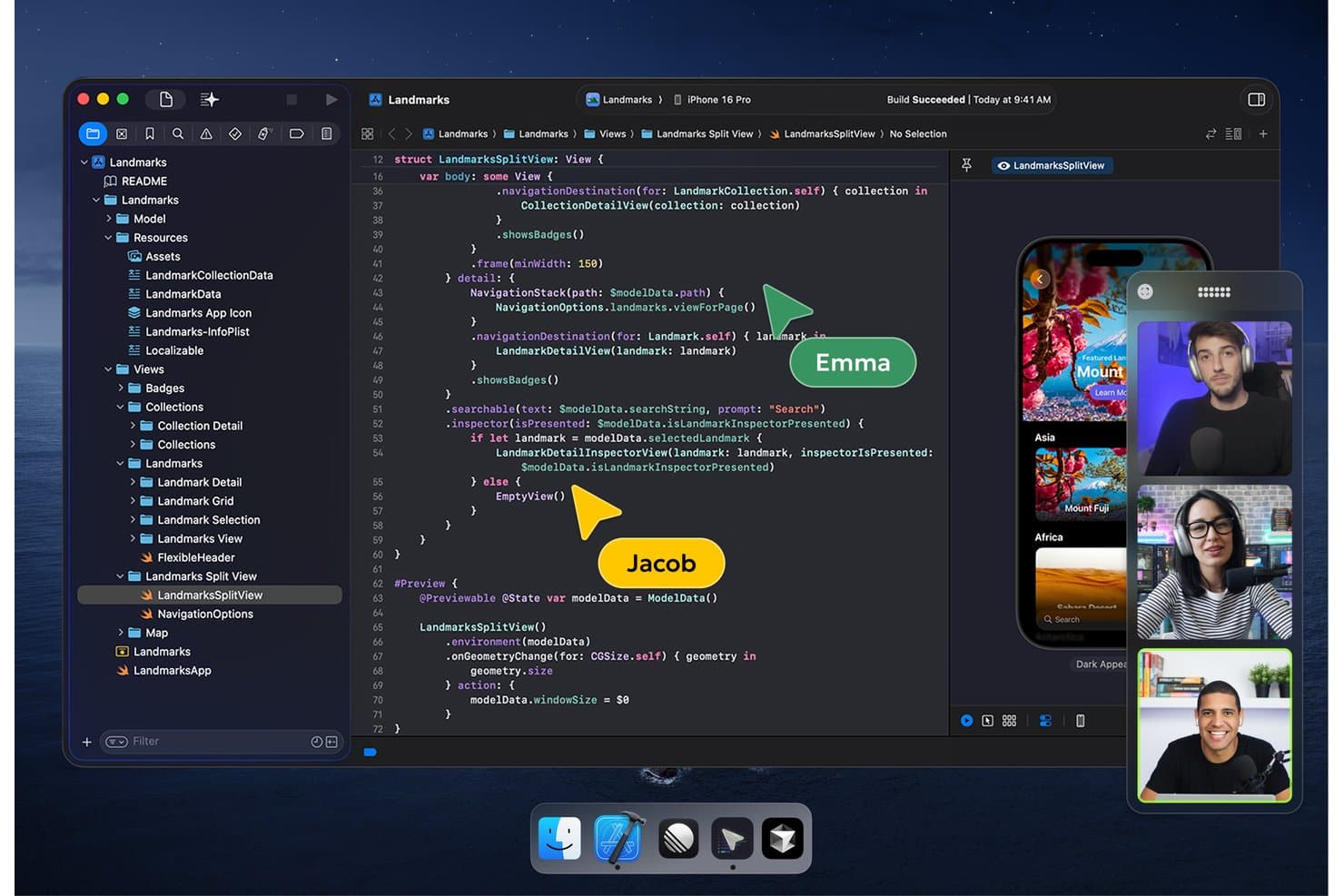
Hopp lets users pair program in real time via shared Xcode sessions. Hopp is an open-source pair programming tool that delivers 4K screen sharing with shared mouse and keyboard control, built-in voice with noise cancellation, and application-agnostic collaboration across any IDE, terminal, or dashboard.
Who Is Hopp Best For?
Hopp is a strong fit for security-conscious engineering teams that want full control over their collaboration infrastructure through self-hosting.
Why I Picked Hopp
Hopp earns its spot on my shortlist because it's the only dedicated pair programming tool I've found that's fully open-source (AGPL-3.0) and self-hostable, which matters a lot if your team has strict data residency or security requirements. I like that its screen-sharing model is application-agnostic: you can share a terminal, a Grafana dashboard, or an AWS console with full shared mouse and keyboard control, not just an IDE window. That 4K streaming at sub-100ms latency makes it feel genuinely interactive, not like a laggy video call.
Hopp Key Features
- Screen annotations: Draw directly on the shared screen to highlight code, point to specific lines, or mark up a terminal output during a session.
- Mob programming rooms: Host up to 10 participants in a single room, supporting code reviews, onboarding sessions, and group debugging beyond standard 1:1 pairing.
- Mid-session control toggle: The sharer can grant or revoke remote mouse and keyboard control at any point during an active session without ending the call.
- Browser-based guest access: Guests can join a Hopp room via their browser in view-only mode without installing the desktop client.
Hopp Integrations
Hopp offers a native Slack integration for launching pair programming sessions. It also supports sign-in with Google and GitHub, while LiveKit provides its underlying audio and video infrastructure.
Pros and Cons
Pros:
- Sub-100ms 4K streaming latency focus
- Shares any app, not just IDEs
- Fully open-source and self-hostable option
Cons:
- No session recording or playback support
- No built-in text or chat feature
Learn more about Hopp: Best for AI fluency assessment in interviews
- Free trial + free demo available
- From $79/month (billed annually)

HackerRank lets users code and test solutions live during pair sessions. HackerRank Interview is a browser-based technical interview platform that pairs a shared live coding environment with an AI-integrated workspace, real-code repository sessions, built-in whiteboarding, and session recording tools.
Who Is HackerRank Best For?
HackerRank Interview is a strong fit for engineering hiring teams that want to evaluate how candidates work alongside AI tools in a realistic coding environment.
Why I Picked HackerRank
I picked HackerRank as one of the best because it's the only platform I've seen that makes AI fluency a measurable part of a live coding session. Candidates work inside a real repository using frontier models like Claude Sonnet 5 or GPT-5.6, while I watch their prompts, reasoning, and corrections unfold in real time. The ADE pairs that with a shared terminal and diff view, so I can assess how someone actually navigates and validates AI-generated code under realistic conditions.
HackerRank Key Features
- Session recording and playback: Captures every keystroke and action in the shared coding session, with a full activity timeline you can replay after the interview.
- Built-in whiteboard: A native infinite-canvas drawing tool lets you run system design discussions alongside live coding without switching tools.
- Observer mode: Lets additional reviewers monitor a live session in real time without disrupting the candidate or interviewer.
- Cloud-hosted repository workspace: Candidates work inside pre-configured, multi-file codebases with a shared terminal and live app preview, all running in the browser.
HackerRank Integrations
HackerRank Interview offers native integrations with Slack, Zoom, Cisco Webex, Google Calendar, Microsoft Outlook, Greenhouse, Lever, and Workday. It also supports SAML 2.0 and SCIM 2.0 for enterprise identity management.
Pros and Cons
Pros:
- Built-in whiteboard for system design interviews
- Session recording with keystroke-level playback
- AI fluency assessment in live coding sessions
Cons:
- Designed mainly for technical hiring, not team pairing
- No support for VS Code or JetBrains plugins
Learn more about HackerRank: Best for zero-setup mentoring and onboarding
- Free plan available
- From $18/month (billed annually)
Visit WebsiteCustomer Rating:4.4/5
Replit's AI chat helps users generate full HTML pages collaboratively. Replit is a browser-based cloud IDE and pair programming platform that combines real-time multiplayer editing, AI-assisted code generation, a shared terminal, and built-in whiteboarding in a zero-install environment.
Who Is Replit Best For?
Replit is a great fit for engineering teams that frequently onboard junior developers or run mentoring sessions and want a zero-setup environment everyone can join from a browser.
Why I Picked Replit
Replit earns its spot on my shortlist because no other pair programming tool gets a new developer into a shared, working environment faster. I love Observation Mode specifically: a senior dev can open a session and a junior can follow their cursor across files in real time, watching every edit and switch without any setup. Filetree Presence shows exactly which files each teammate is in, so mentoring stays organized from the first session.
Replit Key Features
- Multiplayer editing: Multiple collaborators can edit the same codebase simultaneously, with live named cursors showing each participant's position in real time.
- Built-in whiteboarding: Excalidraw-powered
.drawfiles let your team sketch diagrams and architecture directly alongside live code in the shared workspace. - Visual Git pane: A built-in interface handles branching, commits, push/pull, and pull request workflows across GitHub, GitLab, and Bitbucket without leaving the editor.
- In-editor text chat: Collaborators can communicate directly inside the coding environment without switching to an external messaging tool.
Replit Integrations
Replit offers 30+ native integrations, including GitHub, GitLab, Bitbucket, Jira, Linear, Slack, Discord, Zoom, and Figma. It also supports custom connectors through MCP.
Pros and Cons
Pros:
- Cloud IDE with built-in multiplayer editing
- Real-time observation mode for live mentoring
- Zero-setup collaborative environment for instant onboarding
Cons:
- Limited to browser-based development only
- No native voice or video chat
Learn more about Replit: Best for cross-IDE pair programming sessions
- 30-day free trial + free demo available
- Pricing upon request
Visit WebsiteCustomer Rating:4.4/5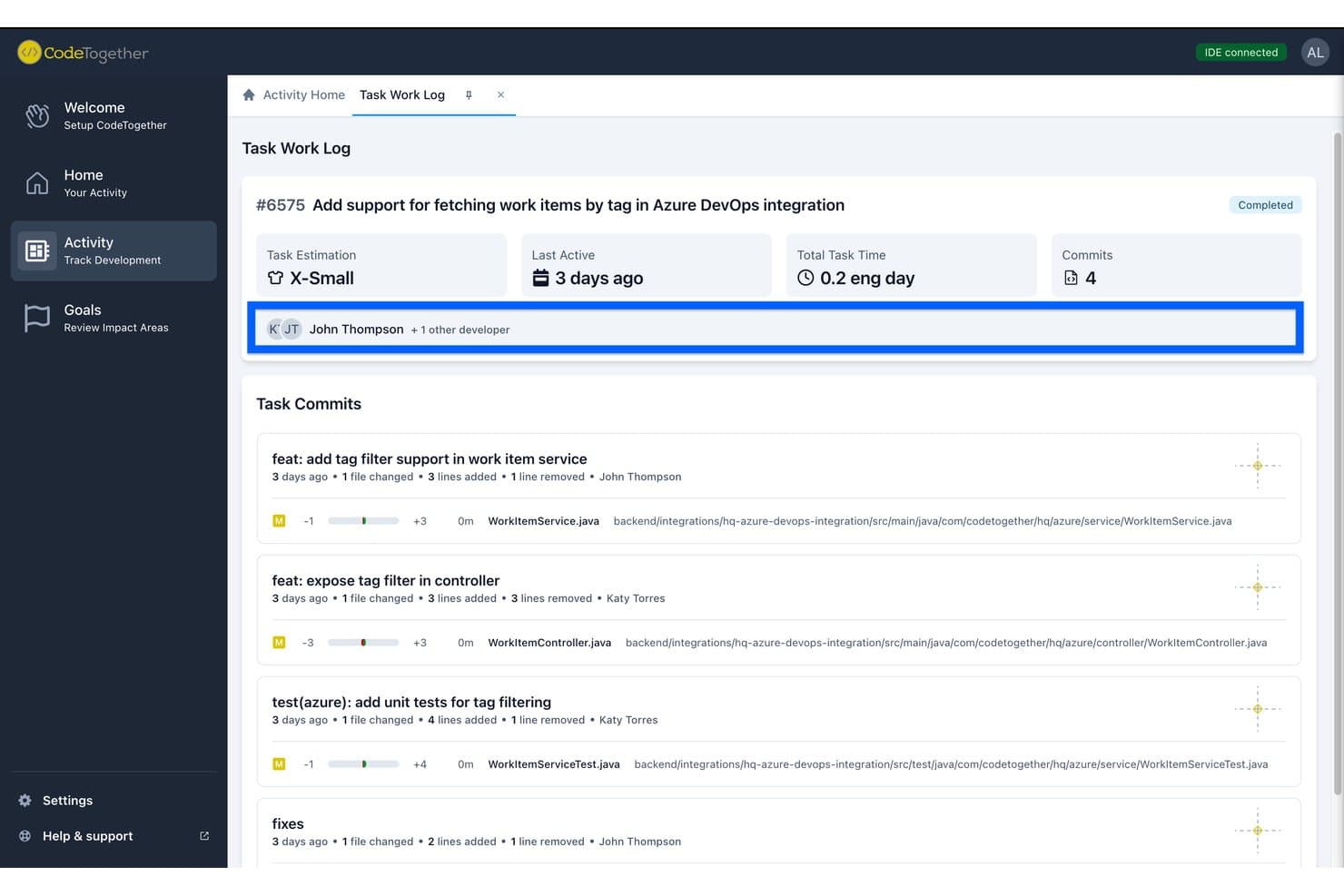
CodeTogether tracks commits and contributors per task in one view. CodeTogether is a pair programming tool that supports real-time co-editing, shared terminals, and cross-IDE sessions across JetBrains IDEs, VS Code, Eclipse, and browser-based guest access.
Who Is CodeTogether Best For?
CodeTogether is a strong fit for development teams that work across mixed IDE environments—especially those pairing JetBrains users with VS Code or Eclipse users in the same session.
Why I Picked CodeTogether
CodeTogether earns its spot on my shortlist because cross-IDE pairing is genuinely rare, and it's the only tool I've found that lets an IntelliJ user and a VS Code user collaborate in the same live session without either person switching editors. I like that each participant keeps their own keybindings and theme, so there's no negotiating whose setup everyone else has to tolerate. The browser-based guest joining is a practical bonus: I've used it to pull in an external reviewer mid-session with nothing more than a link.
CodeTogether Key Features
- Explicit driver mode: Locks the driver role to one participant, requiring them to actively hand off control before anyone else can edit.
- Session access controls: Hosts can restrict file visibility, editing permissions, terminal write access, and remote test execution per participant.
- Shared terminal with write access: Guests can view the host's terminal and request write access, enabling collaborative command execution within the session.
- On-premises and air-gapped deployment: Self-hosted deployment is available for teams with strict data residency or compliance requirements.
CodeTogether Integrations
CodeTogether documents integrations with GitHub, GitLab, Bitbucket, Jira, GitHub Issues, GitHub Copilot, Cursor, Claude Code, and OpenAI Codex. An open API supports custom integrations.
Pros and Cons
Pros:
- Hosts control editing and terminal permissions precisely
- Browser-based joining needs no software install
- Cross-IDE collaboration works across JetBrains, VS Code, Eclipse
Cons:
- Performance slows on large or complex codebases
- Built-in audio and video are deprecated
Learn more about CodeTogether: Best for shared debugging in VS Code teams
- Free plan available
- From $45/user/month (billed annually)

Microsoft Visual Studio Live Share shows multiple cursors and participant activity in real time. Microsoft Visual Studio Live Share is a real-time code collaboration extension for VS Code and Visual Studio that lets multiple developers co-edit, co-debug, share terminals, and forward local ports—all without guests needing to clone a repo or configure a local environment.
Who Is Microsoft Visual Studio Live Share Best For?
VS Code and Visual Studio teams who need deep, shared debugging sessions will get the most out of Live Share.
Why I Picked Microsoft Visual Studio Live Share
Visual Studio Live Share earns its spot on my shortlist because shared debugging in VS Code is where it genuinely has no equal. When my team hits a tricky bug, guests can independently inspect local variables, hover over values, and walk the call stack without interrupting the host's execution flow—that's a level of co-debugging depth you won't get from screen sharing. I also rely on shared terminal access, where hosts can open read/write terminal instances so guests can run commands directly in the same environment, no repo cloning or environment setup required.
Microsoft Visual Studio Live Share Key Features
- Follow mode: Participants can toggle to follow another collaborator's navigation in real time, with the option to detach and explore the codebase independently at any point.
- Read-only session mode: Hosts can lock the session so guests can navigate, inspect variables, and track cursors without making any edits to the codebase.
- File exclusions via .vsls.json: Hosts can block or hide sensitive files—like API keys or certificates—from guest access using glob patterns in a configuration file.
- Browser-based guest join: Guests can join a Live Share session directly through vscode.dev without installing VS Code or any local dependencies.
Microsoft Visual Studio Live Share Integrations
Microsoft Visual Studio Live Share supports shared debugging with Azure Dev Spaces, Azure App Service, and Azure Functions, plus authentication through GitHub and Microsoft accounts. It has no native CI/CD, Jira, or pull request integrations.
Pros and Cons
Pros:
- End-to-end encrypted sessions for privacy
- Zero setup for joining via browser link
- Guests co-debug independently without interrupting host
Cons:
- Built-in voice and audio now deprecated
- No support for JetBrains or Vim editors
Learn more about Microsoft Visual Studio Live Share:
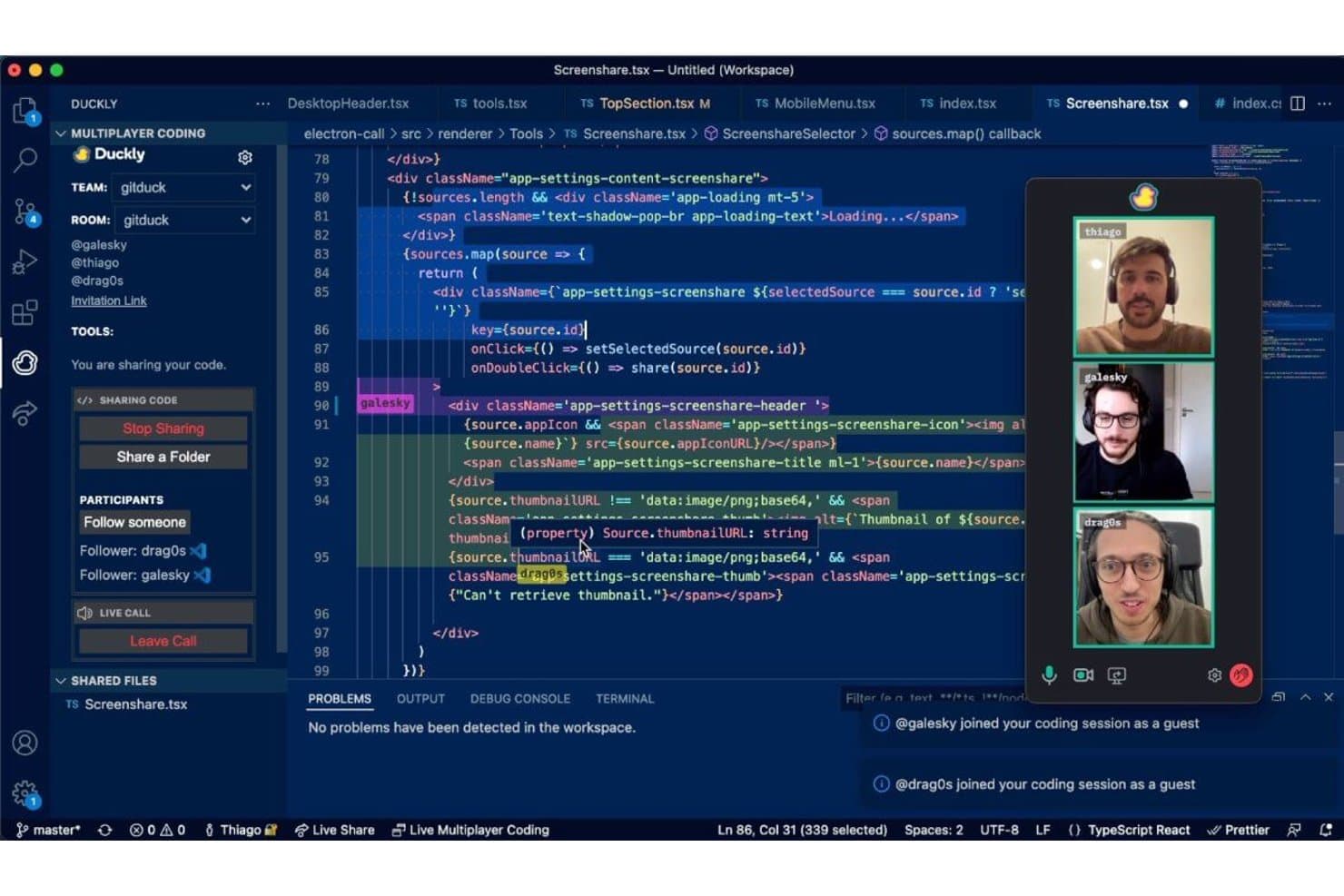
Duckly enables real-time multiplayer coding with live video calls. Duckly is a pair programming plugin for VS Code and JetBrains IDEs that enables real-time cross-IDE code co-editing, shared terminal access, local server sharing, and built-in voice, video, and screen sharing directly inside the development environment.
Who Is Duckly Best For?
Duckly is a strong fit for remote development teams whose members work across different IDEs and need voice and video collaboration built directly into their coding environment.
Why I Picked Duckly
Duckly earns its spot on my shortlist because of something I genuinely haven't seen done as well elsewhere: voice and video calling built directly inside the IDE. There's no alt-tabbing to Zoom mid-session — you talk, share your screen, and co-edit code all without leaving VS Code or IntelliJ. I also rate its cross-IDE pairing highly, since a developer on WebStorm can pair with someone on VS Code in real time, which removes a friction point most tools ignore entirely.
Duckly Key Features
- Cross-IDE co-editing: Pair program in real time across VS Code and JetBrains IDEs simultaneously, with no requirement to standardize on a single editor.
- Shared terminal access: Share a live terminal session with teammates in read-only or write mode, giving the host control over guest permissions.
- Local server sharing: Expose your local development server to collaborators so they can preview your running application in real time.
- Chrome co-browsing extension: Interact with live websites or localhost apps together using Duckly's Chrome extension, going beyond passive screen sharing.
Duckly Integrations
Duckly offers native plugins for VS Code, VSCodium, and JetBrains IDEs, plus a Chrome extension for co-browsing. It also supports terminal sharing through npm and video calls through Daily.co. No Git, CI/CD, issue tracker, or API integrations are documented.
Pros and Cons
Pros:
- Shared terminal with read or write access
- Real-time cross-IDE code collaboration supported
- Native voice and video calling in IDE
Cons:
- No session recording or playback functionality
- No AI assistant or code suggestions available
Learn more about Duckly:

Tuple integrates seamlessly into a developer's workflow during pair programming sessions. Tuple is a native pair programming tool that combines ultra-low-latency screen sharing, full remote control, built-in audio and video, and a programmable Triggers API—all without requiring an IDE plugin.
Who Is Tuple Best For?
Tuple is the right fit for engineering teams on macOS who pair-program regularly and need the lowest-latency remote collaboration experience available.
Why I Picked Tuple
Tuple earns its spot on my shortlist because it's the only pair programming tool I've seen built from the ground up specifically for macOS developers who care about session quality. Its native C++ engine streams screen content at up to 5K resolution, so even small code fonts stay readable during long pairing sessions. I also love the Triggers API, which lets you wire up shell scripts to call lifecycle events so things like Git co-author attribution happen automatically the moment a teammate joins.
Tuple Key Features
- Session capture with on-device transcription: Tuple records your pairing sessions locally and transcribes audio using Whisper, keeping all data on your machine.
- Up to 10 participants per session: Tuple supports mob programming, code reviews, and onboarding sessions with up to 10 people in a single call.
- App Veil: Hosts can hide specific applications from participants during screen sharing to protect sensitive content.
- Personal rooms with door controls: Each user gets a persistent room with lock/unlock controls so teammates can drop in or request access on demand.
Tuple Integrations
Tuple offers native integrations with Slack, Google Calendar, and Apple Calendar. Its Triggers API, CLI, and MCP server connect Git, Docker, 1Password, Linear, and AI agents such as Claude Code and Cursor; Raycast support is community-built.
Pros and Cons
Pros:
- Local session capture with on-device transcription
- IDE-agnostic; works with any local editor
- Ultra-low-latency screen sharing feels like in-person
Cons:
- Native app required; no browser client available
- No true multi-cursor co-editing support
Learn more about Tuple:
Andre verktøy for parprogrammering
Her er noen flere alternativer for verktøy til parprogrammering som ikke kom med på kortlisten min, men som likevel er verdt å sjekke ut:
- 11DrovioBest for any-IDE pairing with on-prem security
- 12PopBest for multiplayer desktop control in remote pairing
- 13CodeanywhereBest for any-device, zero-install cloud coding
- 14SarosBest for Eclipse IDE users
- 15GitLiveBest for preemptive merge conflict detection
How I Evaluate Pair Programming Tools
I look at these tools in two layers: core features like real-time co-editing and shared terminals that every viable option needs, and differentiators that set the best apart.
Core Functionality (Table Stakes For This List)
When I'm selecting tools for my list, I rank each one on a scale from 0 (does not offer the functionality) to 5 (excels in this area) for each core functionality listed below. Then, I calculate the tool's total score into a percentage. Each tool needs to achieve a minimum total score of 65% to be considered for inclusion.
- Real-Time Co-Editing: I evaluate how smoothly two or more developers can type in the same file simultaneously, checking for sync lag that disrupts a driver-navigator flow.
- Shared IDE Environment: Each tool should let collaborators work inside the same project context, including file trees, extensions, and language support relevant to the session.
- Multi-Cursor Tracking: I look for visible, labeled cursors and selections for every participant so pairs can follow each other's navigation without constant verbal cues.
- Integrated Communication: Built-in voice, video, or chat matters because switching to a separate call app mid-session breaks focus—tools like VS Code Live Share and CodeTogether handle this differently.
- Shared Terminal & Debugging: I check whether both developers can run commands, set breakpoints, and inspect variables together, which is where most pairing sessions get real work done.
- Session Access Control: The tool should offer invite-based access with clear host and guest permissions so you can safely pair with contractors or interviewees without exposing your full environment.
Once I have a list of tools that meet this criteria, I consider what sets each platform apart.
Differentiating Factors (What Sets Vendors Apart)
Here's how I compare and contrast different vendors:
Standout Features
Cloud dev environments are a major differentiator. Tools like Gitpod and GitHub Codespaces let a guest spin up a ready-to-go workspace without cloning repos or installing dependencies locally. I also evaluate session recording and playback, which is invaluable when a senior developer walks a new hire through a codebase and wants to revisit the session later. AI pairing assistants add another layer, offering real-time code suggestions that keep momentum when your human pair steps away to handle something else.
Beyond Features
I check how well a tool fits into existing toolchains—whether it plugs into JetBrains, VS Code, or Neovim and connects to GitHub, GitLab, or Bitbucket without friction. Security and compliance posture matters too, especially for enterprise teams sharing proprietary code with external contractors. I look for end-to-end encryption, SSO, and audit logging. Onboarding friction is another big one. If a guest has to create an account, install plugins, and configure settings before joining a session, you'll lose half the value of pairing in the first place.
Slik velger du et verktøy for parprogrammering
Det er lett å gå seg vill i lange funksjonslister og komplekse prismodeller. For å hjelpe deg med å holde fokus mens du går gjennom den unike prosessen din for valg av programvare, får du her en sjekkliste over faktorer du bør ha i tankene:
| Faktor | Hva du bør vurdere |
| Skalerbarhet | Vil verktøyet håndtere teamets vekst? Vurder om det kan håndtere flere brukere eller prosjekter etter hvert som teamet vokser, uten redusert ytelse. |
| Integrasjoner | Fungerer det med verktøyene dere allerede bruker? Kontroller om det kan integreres med IDE-er, versjonskontrollsystemer og kommunikasjonsplattformer teamet bruker. |
| Tilpasningsmuligheter | Kan du tilpasse verktøyet til arbeidsflytene deres? Se etter alternativer for å tilpasse innstillinger, tillatelser og grensesnitt slik at de passer teamets prosesser. |
| Brukervennlighet | Er det intuitivt for alle teammedlemmer? Sørg for at det har et brukervennlig grensesnitt som reduserer læringskurven, særlig for brukere som er mindre teknisk kyndige. |
| Implementering og introduksjon | Hvor raskt kan dere komme i gang? Vurder hvor lang tid oppsettet tar, og hvilke ressurser som kreves, inkludert opplæringsmateriell eller støtte når teamet skal ta verktøyet i bruk. |
| Kostnad | Passer det inn i budsjettet? Sammenlign prisplanene, og ta hensyn til både kostnader ved oppstart og langsiktige utgifter, for eksempel fornyelser av abonnementer eller tillegg. |
| Sikkerhetstiltak | Er prosjektene deres beskyttet? Se etter kryptering, tilgangskontroller og samsvar med sikkerhetsstandarder for å beskytte dataene og koden deres. |
Hva er verktøy for parprogrammering?
Verktøy for parprogrammering er applikasjoner som lar to eller flere utviklere arbeide sammen på den samme kodebasen i sanntid fra forskjellige steder. Programvareingeniører, kvalitetstestere og tekniske ledere bruker disse verktøyene til å gjennomgå kode, rette feil og raskt dele kontekst uten å måtte befinne seg i samme arbeidsområde.
Delte redigeringsverktøy, feilsøking i sanntid og innebygde kommunikasjonsfunksjoner bidrar til raskere problemløsning, bedre kodekvalitet og smidigere samarbeid. Alt i alt gjør verktøy for parprogrammering det enklere for team å skrive, teste og forbedre kode sammen på en effektiv måte.
Funksjoner i verktøy for parprogrammering
Når du velger verktøy for parprogrammering, bør du se etter følgende nøkkelfunksjoner:
- Samarbeid om kode i sanntid: Lar flere utviklere arbeide med den samme kodebasen samtidig, noe som styrker teamarbeidet og produktiviteten.
- Integrert kommunikasjon: Inkluderer chat-, tale- eller videofunksjoner for å legge til rette for umiddelbar kommunikasjon og tilbakemelding under kodeøkter.
- Kompatibilitet på tvers av IDE-er: Støtter samarbeid på tvers av ulike integrerte utviklingsmiljøer, for eksempel Eclipse eller Golang-IDE-er, noe som gjør verktøyet allsidig for forskjellige team.
- Opptak av økter: Tar opp kodeøkter for senere gjennomgang, noe som er nyttig i opplæring og kodegjennomgang.
- Tilpassbare brukertillatelser: Lar deg kontrollere tilgangsnivåer og sørger for sikkerhet og gode samarbeidsforhold.
- Innebygde feilsøkingsverktøy: Tilbyr verktøy for å identifisere og løse kodeproblemer i sanntid, noe som forbedrer kodekvaliteten og effektiviteten.
- Deling av kode i sanntid: Gjør det mulig for utviklere å dele kodeendringer umiddelbart, slik at alle teammedlemmer holdes oppdatert.
- Sikker tilkobling: Tilbyr kryptering og tilgangskontroller for å beskytte kode og data under samarbeidet.
- Brukervennlighet: Har et intuitivt grensesnitt som reduserer læringskurven og gjør verktøyet tilgjengelig for alle teammedlemmer.
- Skalerbarhet: Støtter team og prosjekter i vekst, slik at de kan utvides sømløst uten tap av ytelse.
Fordeler med verktøy for parprogrammering
Implementering av verktøy for parprogrammering gir flere fordeler for teamet og virksomheten din. Her er noen av fordelene du kan se frem til:
- Bedre samarbeid: Verktøy for samarbeid om kode i sanntid, med redigering og integrerte kommunikasjonsfunksjoner, hjelper teamet med å arbeide mer effektivt sammen og reduserer misforståelser.
- Bedre kodekvalitet: Delte feilsøkingsverktøy gjør det mulig for utviklere å identifisere og løse problemer raskere, noe som fører til renere og mer pålitelig kode.
- Raskere introduksjon: Nye teammedlemmer kan lære av erfarne utviklere gjennom kodeøkter i sanntid, noe som fremskynder integreringen og øker produktiviteten.
- Økt produktivitet: Funksjoner som deling av kode i sanntid og tilpassbare brukertillatelser effektiviserer arbeidsflytene og hjelper teamet med å oppnå mer på kortere tid.
- Bedre sikkerhet: Sikre tilkoblinger og tilgangskontroller beskytter prosjektene og sørger for at sensitiv kode og data forblir konfidensielle.
- Fleksibilitet i verktøy: Kompatibilitet på tvers av IDE-er gjør det mulig for utviklere å bruke sine foretrukne miljøer, noe som gjør samarbeidet smidigere og mer inkluderende.
- Skalerbarhet: Muligheten til å håndtere team og prosjekter i vekst sørger for at verktøyene kan støtte virksomheten etter hvert som den utvides.
Kostnader og priser for verktøy for parprogrammering
Valg av verktøy for parprogrammering krever en forståelse av de ulike prismodellene og abonnementene som er tilgjengelige. Kostnadene varierer basert på funksjoner, teamstørrelse, tillegg og mer. Tabellen nedenfor oppsummerer vanlige abonnementer, gjennomsnittsprisene deres og typiske funksjoner som er inkludert i løsninger for parprogrammeringsverktøy:
Sammenligningstabell for abonnementer for parprogrammeringsverktøy
| Abonnementstype | Gjennomsnittspris | Vanlige funksjoner |
| Gratisabonnement | $0 | Grunnleggende redigering av kode, begrensede samarbeidsøkter og brukerstøtte fra fellesskapet. |
| Personlig abonnement | $5-$25 /bruker /måned | Utvidede samarbeidsfunksjoner, deling av kode i sanntid og grunnleggende brukerstøtte. |
| Bedriftsabonnement | $25-$50 /bruker /måned | Avanserte sikkerhetsfunksjoner, integrasjonsalternativer og prioritert brukerstøtte. |
| Virksomhetsabonnement | $50-$100 /bruker /måned | Tilpassbare løsninger, dedikert kontoadministrasjon og omfattende verktøy for sikkerhet og samsvar. |
Vanlige spørsmål om parprogrammeringsverktøy
Her er noen svar på vanlige spørsmål om parprogrammeringsverktøy:
Hva er ulempene med parprogrammering?
Selv om parprogrammering kan forbedre samarbeidet, kan det føles som sløsing med ressurser når to personer arbeider med én enkelt oppgave. Det halverer ikke nødvendigvis tiden som brukes på prosjektet. Konstant samarbeid kan også føre til utmattelse, så det er viktig å planlegge øktene nøye.
Hvordan parprogrammerer man effektivt?
Effektiv parprogrammering innebærer å velge riktig partner og sette tydelige mål. Bytt roller regelmessig for å holde engasjementet balansert. Sørg for å kommunisere effektivt, og ta i bruk teknikker som Pomodoro-teknikken for å opprettholde fokus og produktivitet.
Når bør man ikke bruke parprogrammering?
Unngå parprogrammering hvis det fører til utbrenthet, eller hvis teammedlemmene ikke får utbytte av samarbeidet. Hvis du merker at én person blir frustrert eller sliten, kan det være på tide å bytte roller eller ta en pause. Parprogrammering er ikke alltid nødvendig for rutineoppgaver.
Hvordan håndterer man konflikter under parprogrammering?
Konflikter kan oppstå på grunn av ulike meninger eller kodestiler. Håndter dem ved å fremme åpen kommunikasjon og gjensidig respekt. Fastsett grunnregler i begynnelsen av økten, og vurder å bytte par hvis konfliktene vedvarer, for å se om en annen sammensetning fungerer bedre.
Kan parprogrammering fungere for eksterne team?
Ja, parprogrammering kan fungere for eksterne team med de riktige verktøyene. Bruk programvare som støtter samarbeid og kommunikasjon i sanntid, for eksempel funksjoner for video og chat. Sørg for at internettforbindelsen er stabil, slik at du unngår avbrudd under kodeøktene.
Hvordan påvirker parprogrammering kvaliteten på koden?
Parprogrammering kan forbedre kodekvaliteten ved å kombinere ferdighetene og perspektivene til to utviklere. Det gir umiddelbare tilbakemeldinger og reduserer sannsynligheten for feil. Det krever imidlertid at begge deltakerne holder fokus og engasjement for å være effektivt.