

En Android-emulator for Windows lar deg kjøre Android-apper og teste funksjoner i Android-operativsystemet direkte på PC-en uten en fysisk enhet. Hvis du ser etter den beste Android-emulatoren for Windows, vurderer du sannsynligvis utviklerfokuserte verktøy, automatisering for CI/CD, støtte for de nyeste Android-versjonene eller spilling med høy ytelse på stasjonær maskinvare.
Etter min erfaring med disse emulatorene innen både testing i virksomheter og apputvikling påvirker valget av riktig emulator alt fra teamets produktivitet til påliteligheten ved lanseringer. Denne listen forklarer de viktigste forskjellene mellom de ledende alternativene, slik at du kan velge det som passer arbeidsflyten, appen og brukermålene dine.
Why Trust Our Software Recommendations
6,700+
Reviews
20
Industry experts
16+
Evaluation factors
14
Years
Our team has been testing and reviewing software since 2012. As tech leaders ourselves, we know how difficult—and important—it is to choose the right software.
For this guide, we evaluated tools using hands-on testing and independent research, scoring tools using our selection criteria.
Our reviews reflect our human editorial judgment, not a sales pitch.
Expert reviewers:
- Paulo Gardini MiguelTech Director
 Tim FisherVP of AI
 Gabriel RosasTech Lead & Software Architect
 Christhian GruhnTech Lead & Platform Architect

Sammenligningstabell: Android-emulatorer for Windows
\u003cspan data-slate-fragment=\u0022JTVCJTdCJTIyY2hpbGRyZW4lMjIlM0ElNUIlN0IlMjJ0ZXh0JTIyJTNBJTIyQ29tcGFyZSUyMHByaWNpbmclMjBhbmQlMjBzcGVjcyUyQyUyMHNpZGUlMjBieSUyMHNpZGUlMkMlMjBmb3IlMjB0aGUlMjBBbmRyb2lkJTIwZW11bGF0b3JzJTIwZm9yJTIwV2luZG93cyUyMHRoYXQlMjBtYWRlJTIwaXQlMjBvbnRvJTIwbXklMjBzaG9ydGxpc3QuJTIyJTdEJTVEJTJDJTIydHlwZSUyMiUzQSUyMnAlMjIlMkMlMjJpZCUyMiUzQSUyMnhfSUthQThLYUMlMjIlN0QlNUQ=\u0022\u003eSammenlign priser og spesifikasjoner side om side for Android-emulatorene for Windows som kom med på kortlisten min.\u003c/span\u003e
| Tool | Best For | Trial Info | Price | ||
|---|---|---|---|---|---|
| 1 | Best for agentic AI quality engineering | Free plan + free demo available | From $15/month (billed annually) | Website | |
| 2 | Best for continuous cloud mobile testing | 28-day free trial + free demo available | From $39/month (billed annually) | Website | |
| 3 | Best for gaming-focused multi-instance emulation | Free plan available | Free plan available | Website | |
| 4 | Best for running multiple Android versions at once | Free plan available | Free plan available | Website | |
| 5 | Best for browser-based Android CI/CD testing | Free plan + free demo available | From $59/month (billed annually) | Website | |
| 6 | Best for native Android app dev and CI/CD testing | Free plan available | Free plan available | Website | |
| 7 | Best for gaming-first Android 14 emulation on PC | Free plan available | Free plan available | Website | |
| 8 | Best for CI/CD-integrated Android test automation | Free plan available | From $239.99/computer/year | Website | |
| 9 | Best for gaming on Windows with input macros | Free plan available | Free plan available | Website | |
| 10 | Best for running Android 15 games, ad-free | Free plan available | Free plan available | Website |


Anmeldelser av Android-emulatorer for Windows
\u003cspan data-slate-fragment=\u0022JTVCJTdCJTIyY2hpbGRyZW4lMjIlM0ElNUIlN0IlMjJ0ZXh0JTIyJTNBJTIyQmVsb3clMjBhcmUlMjBteSUyMGRldGFpbGVkJTIwc3VtbWFyaWVzJTIwb2YlMjB0aGUlMjBiZXN0JTIwQW5kcm9pZCUyMGVtdWxhdG9ycyUyMGZvciUyMFdpbmRvd3MlMjB0aGF0JTIwbWFkZSUyMGl0JTIwb250byUyMG15JTIwc2hvcnRsaXN0LiUyME15JTIwcmV2aWV3cyUyMG9mZmVyJTIwYSUyMGRldGFpbGVkJTIwbG9vayUyMGF0JTIwdGhlJTIwZmVhdHVyZXMlMkMlMjBiZXN0JTIwdXNlJTIwY2FzZXMlMkMlMjBhbmQlMjBjYXBhYmlsaXRpZXMlMjBvZiUyMGVhY2glMjBwbGF0Zm9ybSUyMHRvJTIwaGVscCUyMHlvdSUyMGZpbmQlMjB0aGUlMjBiZXN0JTIwb25lJTIwZm9yJTIweW91LiUyMiU3RCU1RCUyQyUyMnR5cGUlMjIlM0ElMjJwJTIyJTJDJTIyaWQlMjIlM0ElMjJpMFU2VHEwY19CJTIyJTdEJTVE\u0022\u003eNedenfor finner du mine detaljerte sammendrag av de beste Android-emulatorene for Windows som kom med på kortlisten min. Anmeldelsene mine gir en detaljert gjennomgang av funksjonene, de beste bruksområdene og egenskapene til hver plattform, slik at du kan finne den beste for deg.\u003c/span\u003e
 Best for agentic AI quality engineering
- Free plan + free demo available
- From $15/month (billed annually)
Visit WebsiteCustomer Rating:4.9/5
LambdaTest lets users capture screenshots across multiple browsers and OS versions. TestMu AI is a cloud-based Android testing platform that gives you browser-based access to 170+ Android emulator profiles spanning versions 4.1 through 16, with support for automated test execution, AI-driven test authoring, and real device testing.
Who Is TestMu AI Best For?
TestMu AI is a strong fit for QA and DevOps teams that need to run automated Android tests across a wide range of OS versions without managing local emulator infrastructure.
Why I Picked TestMu AI
I've included TestMu AI in my top picks because it's the only option on this list built around agentic AI quality engineering, where KaneAI lets you write test steps in plain English and converts them into automated scripts that run across 170+ Android emulator profiles spanning versions 4.1 through 16. I especially like that HyperExecute can run those scripts across hundreds of emulator instances simultaneously, cutting regression suite runtimes by up to 70% without any local emulator setup on your Windows machine.
TestMu AI Key Features
- 170+ Android emulator profiles: Access pre-configured virtual device profiles spanning Android 4.1 through 16, covering a wide range of screen sizes and OS versions from a browser on any Windows machine.
- Geolocation simulation: Test location-dependent app behaviour across 170+ geoIP locations without modifying device settings or writing custom scripts.
- Network throttling: Simulate 3G, 4G, 5G, Wi-Fi, and offline network conditions to test how your app behaves under real-world connectivity constraints.
- Lambda Tunnel: Route test sessions through an encrypted tunnel to access apps hosted on private networks or behind a firewall without exposing them publicly.
TestMu AI Integrations
TestMu AI offers 120+ integrations, including Appium, Jenkins, GitHub Actions, GitLab CI, CircleCI, Bitrise, Jira, Azure DevOps, Slack, and Detox. Its REST API supports custom app uploads, test execution, and CI/CD workflows.
Pros and Cons
Pros:
- No local Windows emulator installation needed
- Enables parallel test execution at scale
- Runs 170+ Android versions ina browser
Cons:
- Prevents direct local hardware sensor simulation
- Limited full system shell command execution
Learn more about TestMu AI: Best for continuous cloud mobile testing
- 28-day free trial + free demo available
- From $39/month (billed annually)
Visit WebsiteCustomer Rating:4.3/5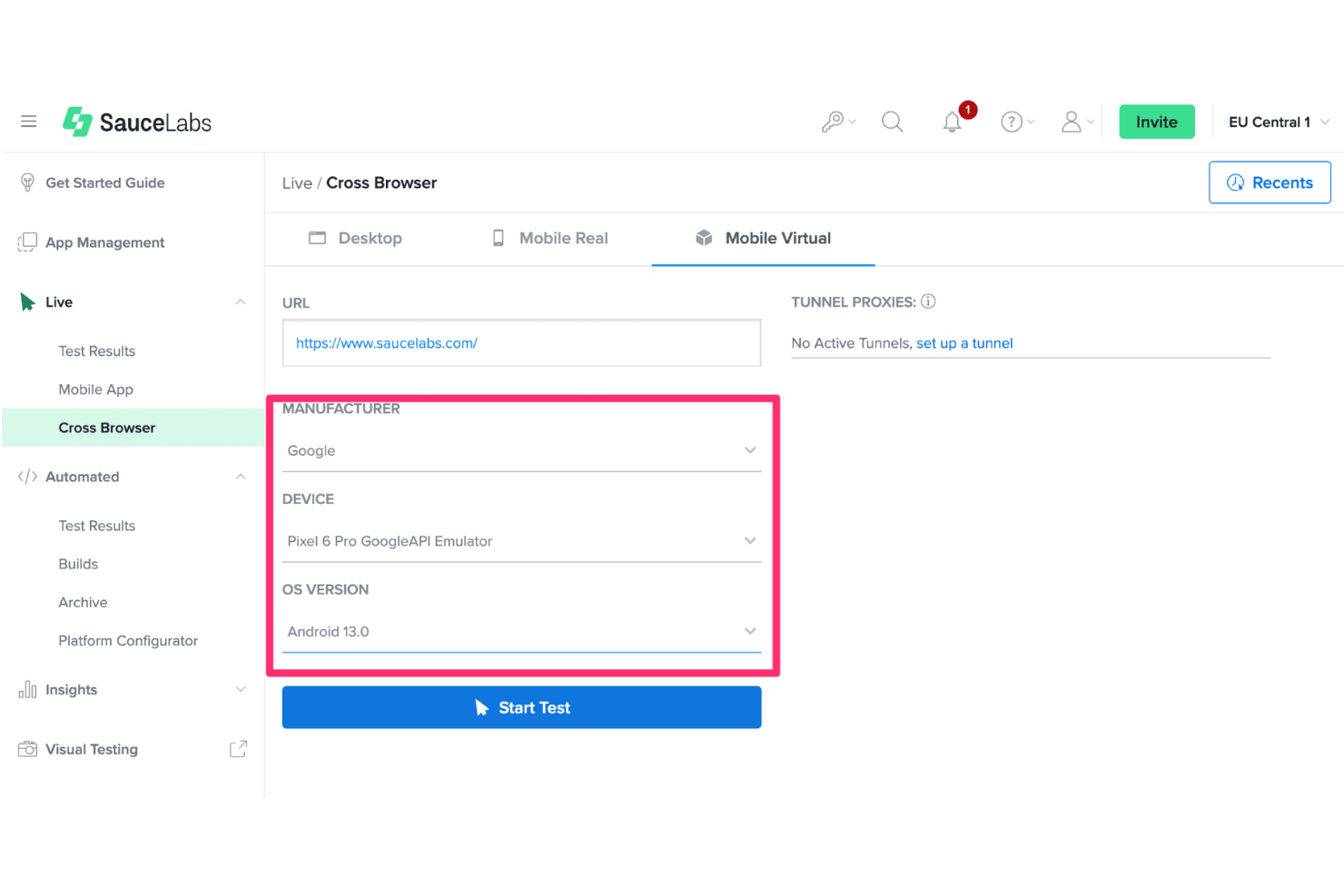
Sauce Labs lets users test websites on virtual mobile devices. Sauce Labs is a cloud-based mobile testing platform that gives you on-demand access to Android emulators, iOS simulators, and real devices for live and automated app testing across a wide range of OS versions, device profiles, and CI/CD pipelines.
Who Is Sauce Labs Best For?
Sauce Labs is a strong fit for QA engineers and DevOps teams who need to run automated Android tests at scale across multiple OS versions in a CI/CD pipeline.
Why I Picked Sauce Labs
I've included Sauce Labs in my top picks because it's the only cloud-based option here built specifically for continuous Android testing at CI/CD scale. I love that its ARM-native Android Premium Cloud eliminates the x86 translation layer that causes test flakiness, cutting session startup to around 20 seconds and reducing error rates by roughly 10x. You can run up to 24 parallel emulator sessions across Android 5.0 through 16, covering device profiles from Pixel skins to custom configurations, without touching local hardware.
Sauce Labs Key Features
- Parallel emulator sessions: Run up to 24 concurrent Android emulator sessions simultaneously across different OS versions and device profiles.
- Sensor simulation: Inject GPS coordinates, camera images, audio, and biometric inputs directly during live testing sessions.
- saucectl CLI: Execute test suites headlessly from the command line, enabling pipeline-friendly automation without a browser interface.
- Single-use virtual machines: Every emulator session runs on a fresh VM that's discarded after the session, preventing data carryover between tests.
Sauce Labs Integrations
Sauce Labs integrates with Appium, Espresso, Jenkins, GitHub Actions, GitLab CI, and Bitrise. Its REST API and saucectl CLI support custom CI/CD workflows and headless test execution.
Pros and Cons
Pros:
- Runs up to 24 parallel emulator sessions
- ARM-native emulation removes x86 translation errors
- Cloud access to Android emulators on demand
Cons:
- Lacks local USB device pass-through capability
- Limited root access on cloud devices
Learn more about Sauce Labs: Best for gaming-focused multi-instance emulation
- Free plan available
- Free plan available

NoxPlayer lets users play Call of Duty Mobile on PC. NoxPlayer is a free Android emulator for Windows built around multi-instance management, keyboard and controller input mapping, macro recording, and configurable virtual device profiles across Android 5, 7, 9, and 12 Beta.
Who Is NoxPlayer Best For?
NoxPlayer suits individual users and casual power users who want to run mobile games on PC with keyboard, controller, and multi-instance support.
Why I Picked NoxPlayer
NoxPlayer earns its spot on my shortlist because its multi-instance sync is genuinely one of the best I've seen in this category. I can run parallel instances across Android 5, 7, 9, and 12 Beta simultaneously, then mirror inputs across all of them in real time using the Synchronize Operations feature. On top of that, the macro recorder lets me log tap sequences, set loop counts, and configure replay intervals without writing a single line of code.
NoxPlayer Key Features
- Virtual device configuration: Adjust CPU cores (1–8), RAM (up to 8 GB), resolution, DPI, and rendering mode per instance.
- Device identity spoofing: Modify IMEI, model number, Android ID, MAC address, and SIM details via Settings or CLI commands.
- Snapshot backup and restore: Save and reload full instance states using the UI or
NoxConsole.exe, with.npbkand.vmdkfile support. - Command-line instance management: Use
NoxConsole.exeto launch, clone, reboot, and modify instances, install APKs, and run ADB commands from a script.
NoxPlayer Integrations
NoxPlayer connects with the Google Play Store and ADB, including
NoxConsole.execommands for scripted APK and instance management. It supports Xbox, PlayStation, and Logitech controllers, but has no documented native integrations with Android Studio, Appium, Jenkins, GitHub Actions, or GitLab CI.Pros and Cons
Pros:
- Granular CPU, RAM, and device identity settings
- Feeds fake virtual video to app camera
- Multi-instance syncs actions across sessions
Cons:
- History of security and malware concerns
- No support for Android 10 and 11
Learn more about NoxPlayer:

MEmu's file manager lets users browse and manage Android files easily. MEmu is a Windows-based Android emulator that lets you run multiple Android versions (5.1, 7.1, 9.0, and 12), manage parallel instances, and sideload or install APKs via Google Play—primarily built around gaming but with CLI and ADB tooling for developers.
Who Is MEmu Best For?
MEmu is a good fit for developers and testers who need to run and compare apps across multiple Android versions on a single Windows machine.
Why I Picked MEmu
MEmu earns its spot on my shortlist because it lets you select from Android 5.1, 7.1, 9.0, and 12 within a single installation, which is genuinely rare among Windows-based emulators. I find this especially useful when I need to verify how an app behaves across different API levels without juggling multiple installs. The multi-instance manager makes it easy to run those versions in parallel, each with its own CPU, RAM, and resolution profile.
MEmu Key Features
- Macro and operation recording: MEmu's built-in recorder captures in-app actions and replays them as macros, letting you automate repetitive flows without any external tooling.
- Per-instance root toggle: Each emulator instance supports independent root access, so you can test privileged app behaviour alongside standard installs in the same session.
- MEMUC CLI: MEmu's proprietary command-line interface lets you script VM management tasks—launching, cloning, and configuring instances—directly from the terminal.
- Google Play Store integration: MEmu comes with Google Play pre-installed and supports multiple Google accounts with two-factor authentication for direct app downloads.
MEmu Integrations
MEmu offers documented connectivity with Apica ZebraTester and Google Play Store. It also supports ADB, MEMUC CLI, and third-party pymemuc for custom scripting, but no native CI/CD integrations are documented.
Pros and Cons
Pros:
- Per-instance root access toggle available
- Built-in macro recording for app automation
- Sideload applications natively
Cons:
- Free version displays full-screen advertisements
- Lacks native Linux operating system builds
Learn more about MEmu: Best for browser-based Android CI/CD testing
- Free plan + free demo available
- From $59/month (billed annually)

Appetize.io lets users monitor network logs while testing apps in-browser. Appetize.io is a cloud-based Android emulator platform that streams virtual Android devices to any Windows browser, supporting APK/AAB uploads, ADB tunnel access, network traffic inspection, and Playwright-based test automation without any local installation.
Who Is Appetize.io Best For?
Appetize.io is a strong fit for QA engineers and DevOps teams who need to run Android CI/CD testing pipelines without configuring local emulator environments on Windows.
Why I Picked Appetize.io
Appetize.io earns its spot on my shortlist because it's the only option here that runs Android entirely in a browser, with no local install, no Hyper-V conflicts, and no HAXM setup on your Windows machine. I particularly like its native Playwright for Mobile integration, which lets QA teams run parallel Android test suites (I've seen it handle 400 tests in 4 minutes) directly in CI pipelines via GitHub Actions, GitLab, or Bitrise. The ADB tunnel over SSH is genuinely useful too, giving you standard
adb devicesaccess to a cloud-hosted Android session from Android Studio.Appetize.io Key Features
- Network traffic monitor: Captures all HTTP/HTTPS traffic from a running Android session in real time, with HAR export and Chrome DevTools integration for API-level debugging.
- UI hierarchy inspector: Lets you examine the full view hierarchy of your Android app during a live session to identify layout and accessibility issues.
- AppRecorder: A built-in low-code automation tool that records and replays UI interactions across Android sessions without writing test scripts from scratch.
- Multi-device profile selection: Choose from a curated set of Android device profiles—including Pixel, Nexus, Samsung, and tablet configurations—via query parameters or the JavaScript SDK.
Appetize.io Integrations
Appetize.io offers native integrations with GitHub Actions, GitLab CI, Bitrise, Fastlane, Expo, and Storybook Native. REST API v1 and v2 support custom CI/CD workflows and session orchestration.
Pros and Cons
Pros:
- Streams devices to any browser instantly
- Supports modern Android 8.1 through 16
- Captures network packets
Cons:
- Not designed for running mobile games
- Limits individual continuous stream session length
Learn more about Appetize.io: Best for native Android app dev and CI/CD testing
- Free plan available
- Free plan available
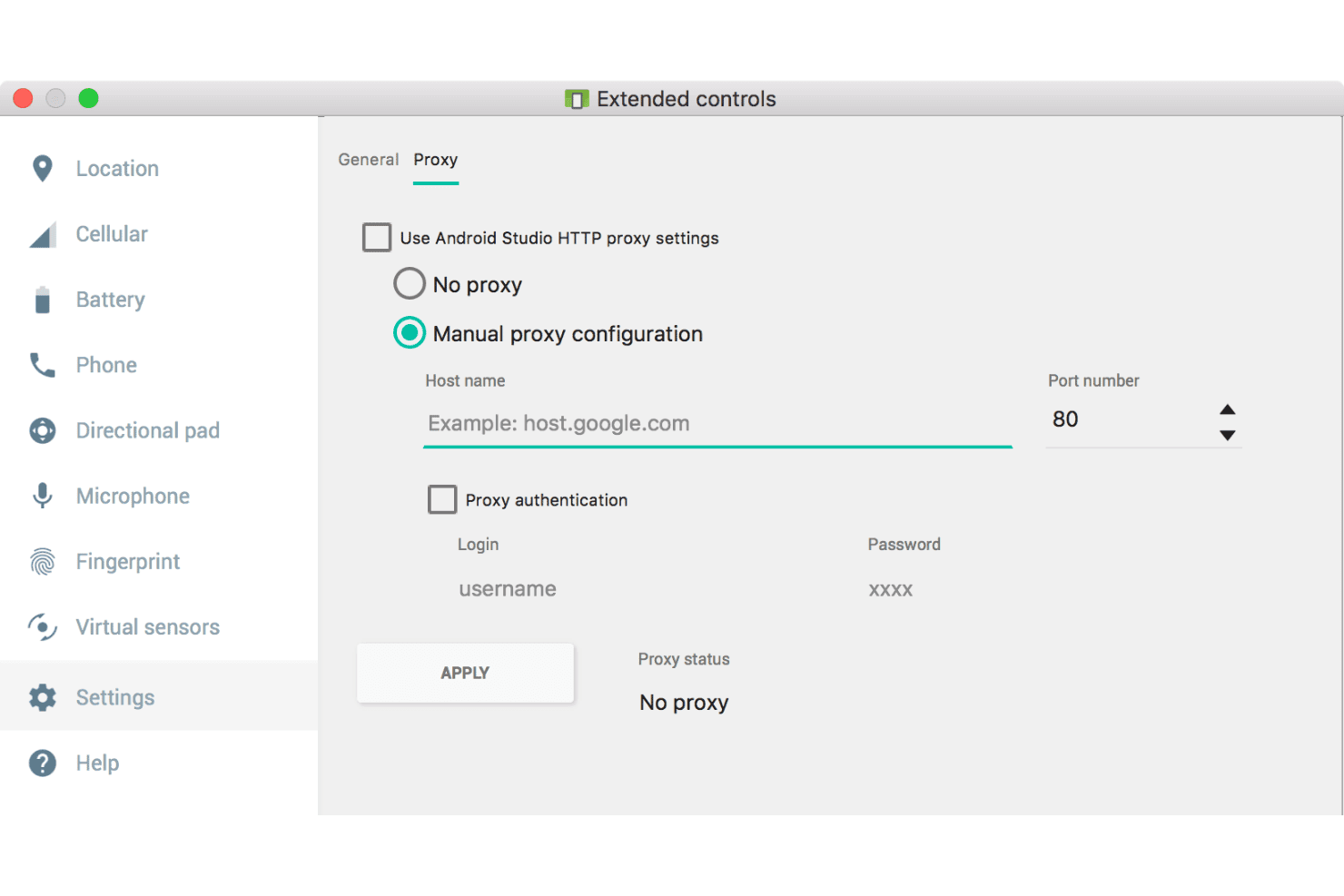
Android Studio lets users configure manual proxy settings for the emulator. Android Studio is Google's official IDE and Android emulator that lets you create and run virtual Android devices across a wide range of API levels, device types, and form factors—from phones and tablets to Wear OS, Android TV, foldables, and XR headsets.
Who Is Android Studio Best For?
Android Studio is the go-to choice for mobile app developers and QA engineers who need a fully featured emulator tightly integrated with the Android build and testing toolchain.
Why I Picked Android Studio
Android Studio earns its spot on my shortlist because it's Google's official emulator, meaning it supports the latest Android API levels and Pixel device profiles the moment Google ships them. I've run headless AVDs via
-no-windowinside GitHub Actions pipelines, feeding results straight into Gradle'sconnectedAndroidTestrunner without touching the IDE. The Quick Boot snapshot system also cuts iteration time significantly during instrumented test cycles.Android Studio Key Features
- Extended controls panel: Simulate GPS routes, incoming calls, SMS messages, fingerprint scans, battery states, and cellular network types directly from a built-in control panel.
- Multi-instance AVD support: Launch multiple Android Virtual Devices simultaneously on the same host for parallel testing across different API levels or device configurations.
- Zero-config multi-device networking: Connect multiple virtual devices peer-to-peer on the same host without port forwarding, enabling Wi-Fi Direct, Bluetooth pairing, and companion app testing.
- Quick Boot snapshots: Save and restore emulator state on demand so you can resume exactly where you left off without waiting through a full cold boot each time.
Android Studio Integrations
Android Studio natively integrates with ADB, Gradle, Logcat, Android Profiler, and Layout Inspector. It supports headless CI/CD workflows with Jenkins, GitHub Actions, GitLab CI, Bitrise, Espresso, UI Automator, Appium, and Detox.
Pros and Cons
Pros:
- Quick Boot snapshots for faster restarts
- Deep sensor and hardware simulation controls
- Supports the latest Android API and Pixel devices
Cons:
- No gaming macro or key-mapping overlays
- Demands massive disk storage for SDKs
Learn more about Android Studio: Best for gaming-first Android 14 emulation on PC
- Free plan available
- Free plan available

LDPlayer runs Brawl Stars with smooth mobile gameplay on PC. LDPlayer is a free Windows-based Android emulator that runs Android versions 5.0 through 14, with multi-instance management, keyboard and mouse input mapping, macro recording, and ARM-on-x86 translation via Intel Bridge Technology.
Who Is LDPlayer Best For?
LDPlayer is a strong fit for PC gamers who want to run mobile titles on a larger screen with keyboard and mouse controls.
Why I Picked LDPlayer
LDPlayer earns its spot on my shortlist because it's the only Windows Android emulator running a full Android 14 architecture as of {{year}}. I love how its Smart Control keymapping lets you bind keyboard and mouse inputs to on-screen touch targets on a per-game basis, so playing titles like PUBG Mobile or Call of Duty: Mobile on PC actually feels intentional rather than jury-rigged. LDPlayer 14 also uses licensed Intel Bridge Technology for ARM-on-x86 translation, which cuts down on the APK crashes and install failures you'd typically hit when running ARM-compiled games on Intel hardware.
LDPlayer Key Features
- Multi-instance manager: LDMultiplayer lets you launch and run multiple independent Android instances simultaneously on a single Windows PC.
- Operation Recorder: A built-in macro recorder that captures, saves, and replays sequences of on-screen actions via hotkey, with no coding required.
- Input synchronizer: The Synchronizer mirrors your inputs across all open emulator instances at once, provided they share identical resolution and DPI settings.
- ADB debugging access: LDPlayer exposes ADB through its settings panel, letting you connect external developer tools to the running Android environment.
LDPlayer Integrations
LDPlayer connects with Google Play Store, Hyper-V, ADB, Intel Bridge Technology, and third-party proxy tools such as Tun2Tap. No API, CI/CD, Appium, Espresso, or UI Automator integrations are documented.
Pros and Cons
Pros:
- Multi-instance manager with Eco Mode
- Delivers 200+ FPS in popular games
- Runs Android 14 and older versions
Cons:
- Recent unresolved data privacy allegations
- Lacks native macOS installer support
Learn more about LDPlayer: Best for CI/CD-integrated Android test automation
- Free plan available
- From $239.99/computer/year

Genymotion lets users manage local Android virtual devices easily. Genymotion is an Android emulator built for developers and QA engineers, offering virtual device creation across Android 5.0 through 16, 40+ hardware profiles, a full sensor simulation suite, and a CLI and REST API ecosystem for scripted device management.
Who Is Genymotion Best For?
Genymotion is a strong fit for QA engineers and DevOps teams who need to run Android test automation inside CI/CD pipelines like Jenkins, GitHub Actions, or CircleCI.
Why I Picked Genymotion
Genymotion earns its spot on my shortlist because of how deeply it integrates into CI/CD pipelines like Jenkins, GitHub Actions, and CircleCI. I particularly like the
gmsaasCLI, which lets you spin up, configure, and tear down cloud virtual devices entirely from a script, with no UI required. Pair that with the Device HTTP REST API, and you can trigger test runs, adjust network conditions (2G through 5G), and collect results programmatically across Android 5.0 through 16.Genymotion Key Features
- Sensor simulation suite: Simulate GPS routes, accelerometer, gyroscope, fingerprint, call/SMS, and battery states directly from the widget panel on paid plans.
- Network condition simulation: Configure 2G through 5G profiles with adjustable bandwidth, latency, and packet loss to test app behaviour on degraded connections.
- Root access toggle: Enable or disable root access per virtual device, making it practical for security testing and penetration testing workflows.
- 40+ hardware profiles: Choose from over 40 named device templates, with customizable resolution, DPI, CPU cores, and RAM to match real-world form factors.
Genymotion Integrations
Genymotion has documented integrations with Jenkins, GitHub Actions, CircleCI, Bitrise, Docker, and Android Studio. Its
gmsaasCLI, Platform HTTP API, and Device HTTP API support custom CI/CD and device-farm integrations.Pros and Cons
Pros:
- Wide Android version and device profile range
- Deep network and sensor simulation options
- CI/CD automation with CLI and REST APIs
Cons:
- Requires separate Open GApps installer setup
- Hyper-V conflict requires manual configuration change
Learn more about Genymotion: Best for gaming on Windows with input macros
- Free plan available
- Free plan available
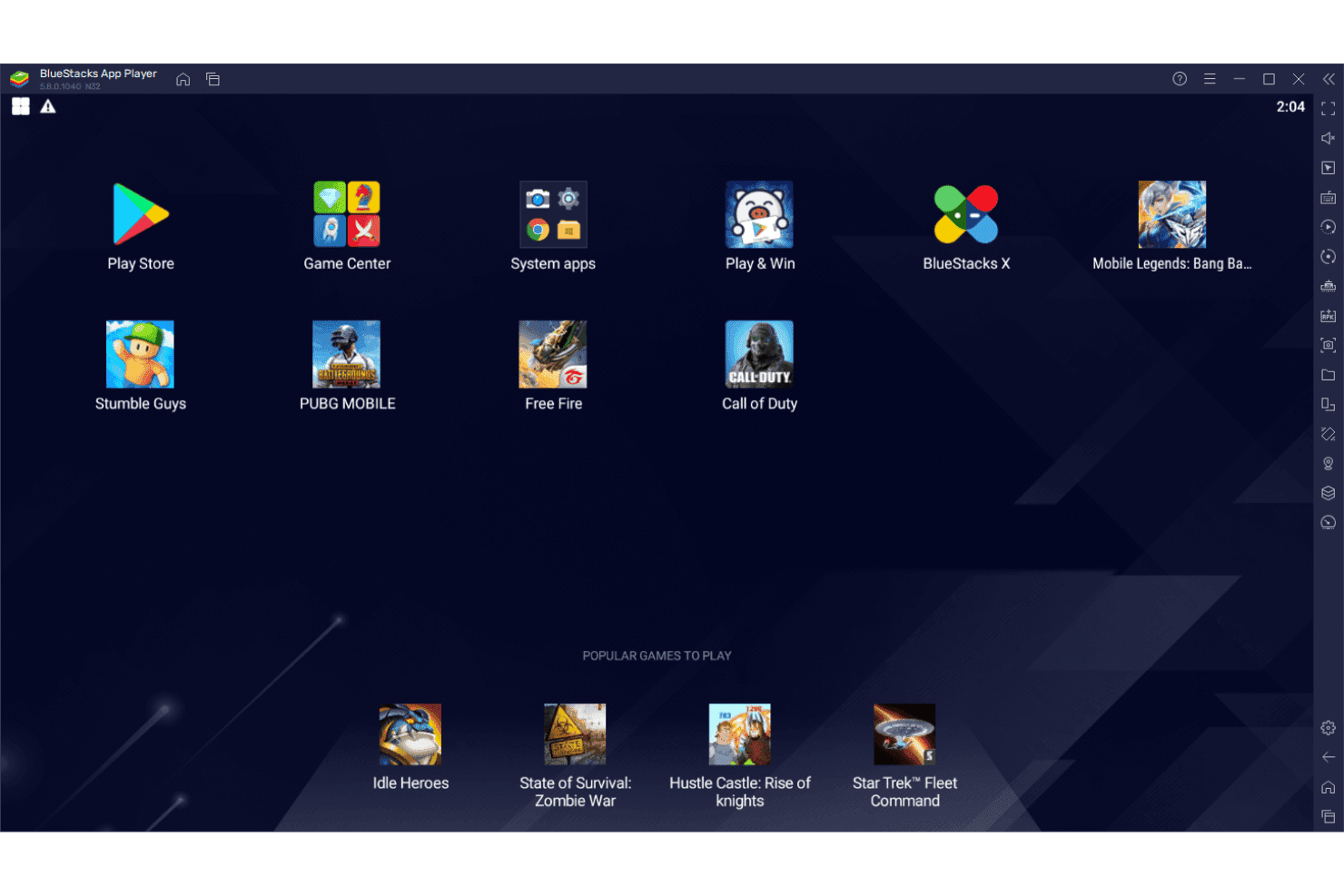
BlueStacks lets users run mobile games like PUBG and Free Fire on PC. BlueStacks is a Windows-based Android emulator that runs Android apps and games on PC, with multi-instance management, APK sideloading, input key mapping, macro recording, and a built-in scripting engine.
Who Is BlueStacks Best For?
BlueStacks is a strong fit for gamers and mobile app developers who need to run Android titles on Windows with full keyboard, mouse, and controller input control.
Why I Picked BlueStacks
BlueStacks earns its spot on my shortlist because no other Android emulator for Windows comes close to its input control depth for gaming. I'm particularly impressed by the macro recorder, which lets you capture multi-step input sequences and replay them with a single keypress, and the custom scripting engine, which supports tap, swipe, multi-touch up to 16 points, and loop commands. If you're running a title like a mobile MOBA or shooter, the dedicated Shooting Mode and MOBA Mode give you precision keyboard and mouse control that feels native.
BlueStacks Key Features
- Multi-instance manager: Create and run multiple Android instances simultaneously, each with independent RAM, CPU, resolution, and Android version settings.
- Google Play Store integration: Access over 2 million Android apps and games directly through a natively integrated Play Store, with APK drag-and-drop sideloading as an alternative.
- ADB support: Enable Android Debug Bridge via settings to connect BlueStacks to Android Studio for app deployment, logcat access, and shell commands.
- Eco Mode: Reduces CPU usage by up to 87% and GPU usage by up to 97% for background instances, letting you run more concurrent sessions without overwhelming your hardware.
BlueStacks Integrations
BlueStacks has native Google Play Store integration and connects to Android Studio through ADB for app deployment, debugging, logcat, and shell access. Appium connectivity is possible but unreliable, with no documented REST API, headless mode, or CI/CD integrations.
Pros and Cons
Pros:
- Multi-instance sync for parallel testing
- Game macros and input scripting included
- Runs multiple Android versions simultaneously
Cons:
- Displays sponsored games on home screen
- Requires active desktop display connection
Learn more about BlueStacks: Best for running Android 15 games, ad-free
- Free plan available
- Free plan available
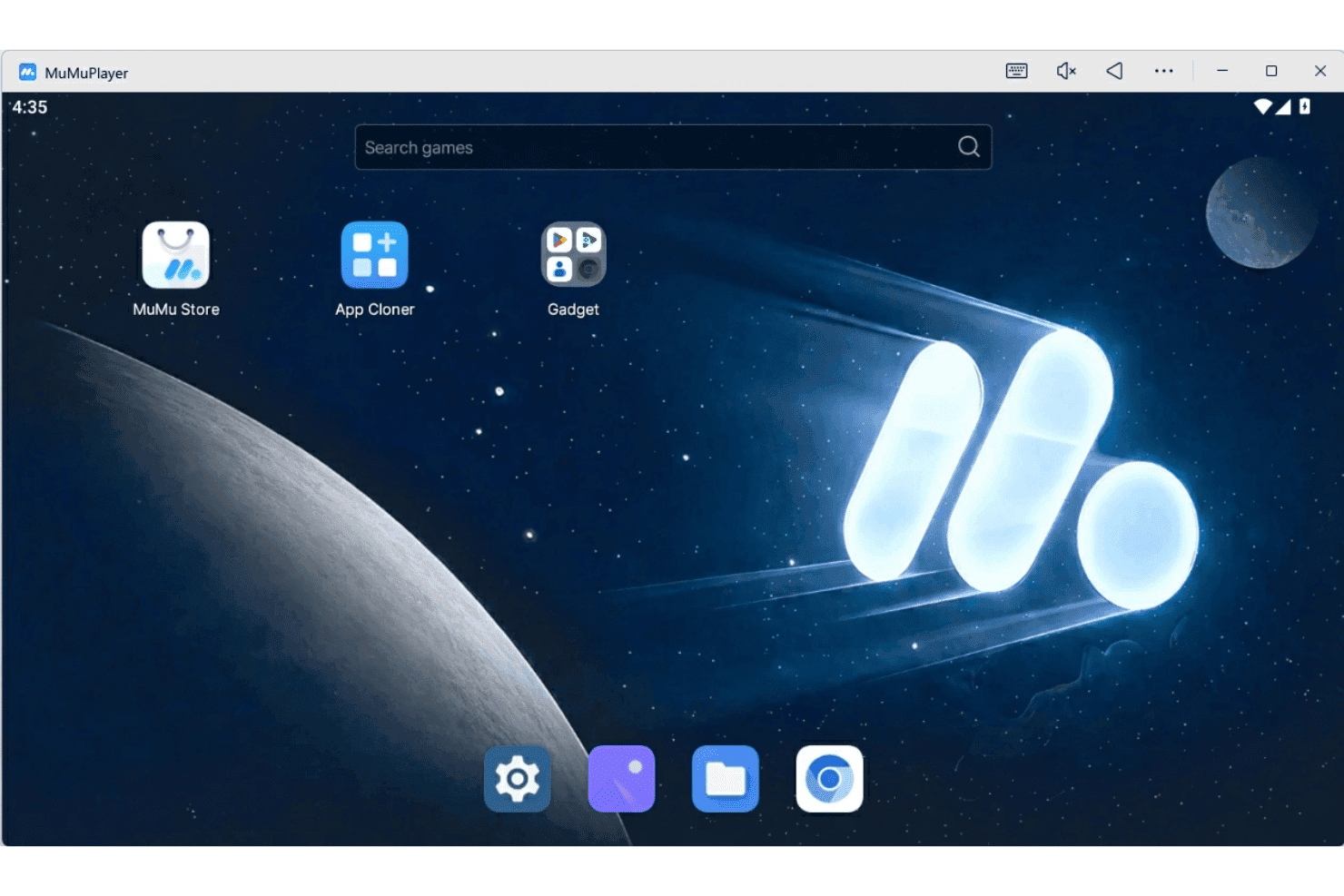
MuMuPlayer offers a clean home screen to launch and find games. MuMuPlayer is a free Android emulator for Windows that runs Android 12 and Android 15 instances side-by-side, with support for multi-instance management, keyboard and mouse key mapping, macro scripting, ADB access, and GPU acceleration via OpenGL and Vulkan.
Who Is MuMuPlayer Best For?
MuMuPlayer is a strong fit for mobile gamers and app testers who need a free, ad-free Windows environment to run Android 12 and Android 15 titles side-by-side.
Why I Picked MuMuPlayer
MuMuPlayer earns its spot on my shortlist because it's the only Android emulator currently running Android 15, which matters when newer titles won't launch on older API levels. I particularly like its unlimited multi-instance manager: you can run Android 12 and Android 15 instances side-by-side, each with independent CPU, RAM, and resolution configs. The built-in macro scripting system lets me automate repeated in-game inputs with loops, timed delays, and multi-point clicks, all without touching a third-party tool.
MuMuPlayer Key Features
- ADB developer access: Connect to a full ADB interface via localhost port 7555 to install APKs, run logcat, push and pull files, simulate touch input, and capture screenshots.
- GPU acceleration via OpenGL and Vulkan: Run games with hardware-accelerated rendering through both OpenGL and Vulkan, with frame rates up to 240 FPS and optional frame interpolation up to 480 FPS.
- Snapshot backup and restore: Export complete emulator states as
.mumudatafiles and reimport them to replicate or recover any instance with all installed apps and data intact. - Keyboard and mouse key mapping: Assign individual keys to in-game actions including WASD movement, aim, fire, skill casting, and drag paths, with adjustable sensitivity per key type.
MuMuPlayer Integrations
MuMuPlayer has two documented integrations: Android Debug Bridge (ADB) and Fiddler for packet capture. It has no documented API or native CI/CD integrations.
Pros and Cons
Pros:
- Macro scripting for automating game actions
- Unlimited multi-instance management with snapshots
- Runs Android 15 and Android 12 side-by-side
Cons:
- Bundles third-party sponsored application installers
- No support for Hyper-V virtualization
Learn more about MuMuPlayer:
Andre Android-emulatorer for Windows
\u003cspan data-slate-fragment=\u0022JTVCJTdCJTIyY2hpbGRyZW4lMjIlM0ElNUIlN0IlMjJ0ZXh0JTIyJTNBJTIySGVyZSUyMGFyZSUyMHNvbWUlMjBhZGRpdGlvbmFsJTIwQW5kcm9pZCUyMGVtdWxhdG9yJTIwZm9yJTIwV2luZG93cyUyMG9wdGlvbnMlMjB0aGF0JTIwZGlkbiVFMiU4MCU5OXQlMjBtYWtlJTIwaXQlMjBvbnRvJTIwbXklMjBzaG9ydGxpc3QlMkMlMjBidXQlMjBhcmUlMjBzdGlsbCUyMHdvcnRoJTIwY2hlY2tpbmclMjBvdXQlM0ElMjIlN0QlNUQlMkMlMjJ0eXBlJTIyJTNBJTIycCUyMiUyQyUyMmlkJTIyJTNBJTIydV9oSC1UUlRPZSUyMiU3RCU1RA==\u0022\u003eHer er noen flere alternativer for Android-emulatorer for Windows som ikke kom med på kortlisten min, men som likevel er verdt å undersøke:\u003c/span\u003e
- 11Anbox CloudBest for cloud-scale Android CI/CD test automation
- 12PcloudyBest for enterprise CI/CD real-device testing
- 13BrowserStackBest for testing on physical cloud devices
- 14Perforce PerfectoBest for AI-assisted cloud Android QA testing
- 15Google Play GamesBest for native Play Store PC gaming
- 16MSI App PlayerBest for MSI hardware-optimized Android gaming
How I Evaluate Android Emulators for Windows
Whether I'm looking at a CI/CD-integrated cloud testing platform or a gaming emulator with macro support, I split my evaluation into baseline acceptance criteria every tool must meet and differentiating factors that separate the best from the rest.
Core Functionality (Table Stakes For This List)
When I'm selecting tools for my list, I rank each one on a scale from 0 (does not offer the functionality) to 5 (excels in this area) for each core functionality listed below. I then calculate the tool's total score as a percentage, using 75% as a benchmark to help assess its overall fit for the list.
- Android OS Virtualization: I check how many Android versions each tool supports and whether it covers both legacy and recent API levels for multi-version testing.
- APK Install and Execution: Smooth sideloading, drag-and-drop install, and app store access all matter when I'm evaluating how easily teams can load test builds.
- Virtual Device Configuration: I look for custom profiles with adjustable RAM, CPU, resolution, and multi-instance support for parallel testing across device types.
- Input Mapping and Peripherals: Tools should offer keyboard, mouse, and controller mapping plus sensor simulation like GPS spoofing or accelerometer input.
- ADB and Developer Tooling: I evaluate ADB stability, logcat access, IDE integration, and whether the tool exposes CI/CD-ready APIs for automation workflows.
- Performance and Acceleration: Hardware acceleration via Hyper-V, HAXM, or GPU passthrough should deliver responsive frame rates under real workloads, not just idle screens.
Once I have a list of tools that meet the criteria, I consider what sets each platform apart.
Differentiating Factors (What Sets Vendors Apart)
Here's how I compare and contrast different vendors:
Standout Features
I look for snapshot and state cloning support, since saving a fully configured device state lets QA teams skip repetitive setup and reproduce bugs on demand. Multi-instance management matters just as much—I check whether a tool can launch and sync parallel emulator instances across different device profiles, which is essential for batch regression runs. I also evaluate network condition simulation, like throttling to 3G or injecting latency, to catch issues that only surface on slow connections.
Beyond Features
I check whether a tool supports headless mode and command-line orchestration for CI/CD pipelines, since teams running nightly regression suites on Jenkins or GitHub Actions need emulators they can spin up without a GUI. Security and sandboxing matter just as much—I evaluate how well the emulated environment is isolated from the host OS, especially when QA teams need to install untrusted APKs on shared build agents. I also look at vendor support quality, including enterprise SLA options and how quickly documentation tracks new Android releases.
Slik velger du en Android-emulator for Windows
Valget av Android-emulator for Windows avhenger av arbeidsflyten, teamets prioriteringer og de tekniske kravene dine: optimaliserer du for spillytelse, automatiserte CI/CD-pipeliner, testing på tvers av flere versjoner eller noe annet?
| Hvis prioriteten din er … | Se etter … |
|---|---|
| Hvis prioriteten din er …Testing på tvers av flere Android-versjoner | Se etter …Støtte for eldre og nyere API-nivåer |
| Hvis prioriteten din er …Integrering av automatisering i CI/CD-pipeliner | Se etter …Orkestrering via kommandolinjen og hodeløs modus |
| Hvis prioriteten din er …Spillinndata og periferiutstyr med høy gjengivelsesnøyaktighet | Se etter …Avansert inndatakartlegging og sensoralternativer |
| Hvis prioriteten din er …Skalering av parallelle tester på tvers av enhetsprofiler | Se etter …Verktøy for flere instanser og tilstandsbilder |
| Hvis prioriteten din er …App-sikkerhet på delt infrastruktur | Se etter …Solid sandkasse og isolering av miljøer |
Slik vurderer du kortlisten din
- Simuler den sentrale arbeidsflyten: Kjør en fullstendig enhetsbygging, installer APK-en din, og kjør tester i minst tre forskjellige Android-versjoner ved hjelp av emulatorens konfigurasjonsalternativer.
- Test integrasjoner for automatisering: Konfigurer en testjobb i CI ved hjelp av det faktiske verktøyet i pipelinen din (Jenkins, GitHub Actions eller tilsvarende), og kjør en hodeløs emulatorsesjon med ADB-kommandoer.
- Valider støtte for inndata og sensorer: Koble til minst to eksterne periferenheter (f.eks. en fysisk kontroller og GPS-inndata), og utløs enhetsspesifikke sensorhendelser for å bekrefte funksjonaliteten for automatiserings- eller spillmålene dine.
- Be om informasjon om isolasjon og sikkerhet: Be om teknisk dokumentasjon som beskriver hvordan emulatoren sandbokser gjesteinstanser av Android fra Windows-verten, inkludert prosedyrer for oppdatering og tilbakerulling.
- Avveining: skyadministrert skalering kontra lokal kontroll: Avgjør om automatisert horisontal skalering og nettleserbasert tilgang er viktigere enn lokal virtualiseringsnøyaktighet og oppbevaring av artefakter.
Hva er Android-emulatorer for Windows?
Android-emulatorer for Windows er programvareverktøy som lar deg kjøre Android-operativsystemer og apper direkte på en Windows-PC. De etterligner Android-maskinvare og systemfunksjoner for å tilby et virtuelt miljø for testing, utvikling, automatisering eller spilling. Disse emulatorene brukes ofte av utviklere, kvalitetssikringsteam og spillere som trenger å samhandle med eller analysere Android-apper uten å måtte bruke en fysisk Android-enhet. Funksjoner
Funksjoner i Android-emulatorer for Windows
Når du velger en Android-emulator for Windows, bør du se etter følgende viktige funksjoner:
- Virtualisering av Android-operativsystemet: Lar deg kjøre forskjellige versjoner av Android direkte på PC-en, slik at du kan teste både eldre og de nyeste API-nivåene for bedre appkompatibilitet.
- Installasjon og kjøring av APK: Gjør det enkelt å sidelaste eller installere apper ved å dra og slippe, slik at du raskt kan teste byggene dine eller en hvilken som helst Android-APK uten problemer.
- Konfigurering av virtuelle enheter: Tilbyr justerbare alternativer for RAM, CPU, skjermstørrelse, oppløsning og enhetsmodell for å etterligne ulike maskinvareprofiler og teste et bredt utvalg av brukermiljøer.
- Inndatakartlegging og støtte for periferenheter: Støtter kartlegging av tastaturer, mus og kontrollere, samt simulering av enhetssensorer som GPS, akselerometer og gyroskop – nyttig for testing av spill eller apper som er avhengige av fysisk inndata.
- Integrasjon med ADB og utviklerverktøy: Gir stabil støtte for Android Debug Bridge (ADB), tilgang til logcat og kobler sømløst til IDE-er eller kommandolinjeverktøy for forbedret feilsøking og automatisering.
- Administrasjon av flere instanser: Lar deg kjøre flere emulatorsesjoner parallelt, hver med forskjellige konfigurasjoner – utmerket for regresjonstesting, automatisering eller sammenligning av appens oppførsel på tvers av enhetstyper.
- Lagring og gjenoppretting av øyeblikksbilder og tilstand: Lar deg lagre den virtuelle enhetens nåværende tilstand og gjenopprette den senere, noe som gjør det enkelt å teste spesifikke feil eller hoppe over tidkrevende oppsettstrinn.
- Simulering av nettverksforhold: Emulerer ulike nettverkstyper, båndbreddebegrensninger og ventetidsprofiler, slik at du kan se hvordan appen fungerer under varierende nettverksscenarier.
- Ytelse og maskinvareakselerasjon: Utnytter PC-ens maskinvare med alternativer som GPU-gjennomkobling, Hyper-V eller HAXM for jevnere grafikk, raskere kjøring og mer realistisk ytelse.
- Sandbokser og sikkerhetskontroller: Isolerer emulatormiljøet fra Windows-verten, reduserer risikoen for at skadevare sprer seg fra test-APK-er og lar deg teste apper du ikke stoler på, på en trygg måte.
Fordeler med Android-emulatorer for Windows
Implementering av Android-emulatorer for Windows gir flere fordeler for teamet og virksomheten din. Her er noen av fordelene du kan se frem til:
- Testing på tvers av flere Android-versjoner: Emulatorer lar deg kjøre både eldre og nye Android-utgivelser, slik at du kan sørge for at appene dine fungerer på et bredest mulig utvalg av enheter og API-nivåer.
- Tilpassbare virtuelle enhetsmiljøer: Du kan justere RAM, CPU, skjermstørrelse og innstillinger for enhetsmodell, noe som hjelper deg med å simulere ulike maskinvareprofiler og brukerscenarioer.
- Enkel installasjon og kjøring av APK-filer: Funksjoner for installasjon av APK-filer med dra-og-slipp gjør det enkelt å installere bygg direkte og teste apper uten ekstra oppsett eller konverteringstrinn.
- Avansert simulering av inndata og sensorer: Tilordning av tastatur, mus og kontroller samt simulering av sensorer lar deg gjenskape inndata fra virkelige enheter for automatisering, spilling eller QA-arbeidsflyter.
- Integrerte utvikler- og automatiseringsverktøy: Integrasjoner med ADB, logcat og IDE muliggjør feilsøking, automatisering og CI/CD-orkestrering ved hjelp av velkjente verktøy og arbeidsflyter på kommandolinjen.
- Håndtering av øyeblikksbilder og tilstander: Du kan lagre, gjenopprette eller klone enhetstilstander – perfekt for gjenskaping av feil eller rask tilbakestilling av testmiljøer uten gjentatt manuelt oppsett.
- Forbedret sikkerhet og isolasjon: Emulatorens sandkasser skiller virtuelle Android-miljøer fra vertsoperativsystemet, slik at du trygt kan kjøre apper du ikke stoler på, eller isolerte testøkter.
Kostnader og priser
Valg av Android-emulatorer for Windows krever en forståelse av de ulike prismodellene og abonnementene som er tilgjengelige. Kostnadene varierer basert på funksjoner, teamstørrelse, tillegg og mer. Tabellen nedenfor oppsummerer vanlige abonnementer, gjennomsnittsprisene deres og typiske funksjoner som er inkludert i løsninger med Android-emulatorer for Windows:
Sammenligningstabell for abonnementer for Android-emulatorer for Windows
| Abonnementstype | Gjennomsnittspris | Vanlige funksjoner |
|---|---|---|
| AbonnementstypeGratisabonnement | Gjennomsnittspris$0 | Vanlige funksjonerGrunnleggende virtualisering av Android-operativsystemet, begrenset enhetskonfigurasjon, standardtilordning av inndata og brukerstøtte fra fellesskapet. |
| AbonnementstypePrivatabonnement | Gjennomsnittspris$5-$20/måned | Vanlige funksjonerFlere Android-versjoner, avanserte alternativer for installasjon av APK-filer, egendefinerte enhetsprofiler og grunnleggende ADB-integrasjon. |
| AbonnementstypeForretningsabonnement | Gjennomsnittspris$25-$60/bruker/måned | Vanlige funksjonerHåndtering av flere instanser, automatiseringsverktøy, lagring av øyeblikksbilder og tilstander, nettverkssimulering og prioritert brukerstøtte. |
| AbonnementstypeBedriftsabonnement | Gjennomsnittspris$75-$150/bruker/måned | Vanlige funksjonerHodeløs modus, orkestrering via kommandolinjen, forbedrede sikkerhetskontroller, sandkassing, brukerstøtte med SLA og avanserte integrasjons-API-er. |
Vanlige spørsmål om Android-emulatorer for Windows
Her er noen svar på vanlige spørsmål om Android-emulatorer for Windows:
Støtter Android-emulatorer for Windows ARM-baserte APK-er?
Ja, mange Android-emulatorer for Windows støtter ARM-baserte APK-er, men noen håndterer dette gjennom emuleringslag som bruker programvaregjengivelse, noe som kan redusere ytelsen. Hvis apputviklingsarbeidsflyten din er avhengig av ARM-apper på systemer som Windows 10, Windows 11 eller ChromeOS, eller av krysstesting mot Apple Silicon-arkitekturer, bør du undersøke om Android-emulatoren for PC eller en Android Studio-emulator tilbyr innebygd ARM-oversettelse.
Kan Android-emulatorer for Windows integreres med CI/CD-pipelines?
Ja, flere Android-emulatorer for Windows støtter CI/CD-integrasjon ved hjelp av hodeløs modus og kommandolinjeverktøy. Det fungerer godt med Jenkins eller GitHub Actions å kjøre en emulator med skriptbar oppstart og ADB-tilgang. Dette muliggjør automatisert testing uten å sløse med unødvendig diskplass eller kreve et komplett brukergrensesnitt, slik at du kan kjøre testpipelines uten manuell inngripen og administrere appbygginger effektivt.
Er det mulig å simulere enheter med lav ytelse med Android-emulatorer for Windows?
Ja, du kan opprette egendefinerte profiler for virtuelle Android-enheter for å etterligne maskinvare med lav ytelse ved å justere innstillinger for RAM, CPU og skjerm. Ved å aktivere eller deaktivere maskinvareakselerasjon – eller slå Intel VT-x- og AMD-V-virtualiseringsfunksjoner av og på – kan du gjenskape virkelige forhold som brukere med rimelige enheter møter, særlig når du tester appytelse og respons på systemer med begrensede ressurser.
Hvor sikre er Android-emulatorer for Windows ved testing av APK-er du ikke stoler på?
Android-emulatorer for Windows isolerer vanligvis den virtuelle enheten fra vertsoperativsystemet. Selv om denne sandkassefunksjonen beskytter PC-en din, varierer sikkerhetsnivået. Det gir ekstra sikkerhet å kjøre en emulator inne i en isolert virtuell maskin. I sensitive miljøer bør du velge verktøy med tydelig dokumentasjon om integrasjon med Google Play-tjenester, systemisolasjon, alternativer for tilbakeføring og oppdateringsprosedyrer for APK-er du ikke stoler på.
Lar Android-emulatorer for Windows deg simulere nettverksforhold?
Ja, mange Android-emulatorer for Windows lar deg begrense nettverkshastigheter og legge inn forsinkelser for å simulere 3G-, 4G- eller ustabile Wi-Fi-tilkoblinger. Dette hjelper deg med å vurdere hvordan Android-appene dine fungerer med dårlig tilkobling, kontrollere at reserveløsninger fungerer som de skal, og forhindre uventede krasj før den endelige lanseringen.
Kan du kjøre flere emulatorforekomster samtidig på samme maskin?
Ja, de fleste avanserte verktøy har støtte for flere forekomster, slik at du kan kjøre flere forekomster parallelt. Ved å administrere flere virtuelle enheter med egendefinert tastaturtilordning og støtte for spillkontroller kan du håndtere regresjonstesting eller sammenligne appatferd på tvers av Android-versjoner. Det er også nyttig for administrasjon av flere kontoer i mobile Android-spill som Free Fire.