

Ein PDF-Barrierefreiheitsprüfer durchsucht Dokumente nach Barrieren für die digitale Barrierefreiheit. Er kann außerdem dabei helfen, Korrekturen zu identifizieren, durch die Inhalte für mehr Menschen nutzbar werden. Wenn Sie nach solchen Lösungen suchen, stehen Sie vor der Herausforderung, Compliance-Risiken gering zu halten, alle Benutzer zu unterstützen und die Überwachung zu vereinfachen, während die PDF-Nutzung zunimmt.
Dieser Leitfaden behandelt Tools für IT- und Entwicklungsteams, die Barrierefreiheit in die Dokumentverwaltung integrieren müssen. Er umfasst Optionen zur Automatisierung von Prüfungen und zur Unterstützung prüfungsbereiter Arbeitsabläufe. Sie erhalten einen Überblick über Optionen für manuelle Prüfungen, Automatisierung und sogar spezialisierte Inhalte – basierend auf Funktionen und Standards, die für Ihr Team wichtig sind.
Warum Sie unseren Software-Empfehlungen vertrauen können
6,700+
Reviews
20
Industry experts
16+
Evaluation factors
14
Years
Unser Team testet und bewertet Software seit 2012. Als Tech-Führungskräfte wissen wir selbst, wie schwierig – und wichtig – es ist, die richtige Software auszuwählen.
Für diesen Leitfaden haben wir Tools mithilfe von praktischen Tests und unabhängiger Recherche bewertet und dabei unsere Bewertungskriterien angewendet.
Unsere Bewertungen spiegeln unser menschliches redaktionelles Urteilsvermögen wider, keine Verkaufsstrategie.
Expertenprüfer:
- Paulo Gardini MiguelTech-Direktor
 Tim FisherVP für KI
 Gabriel RosasTech Lead & Software-Architekt
 Christhian GruhnTech Lead & Plattform-Architekt

Vergleichstabelle der PDF-Barrierefreiheitsprüfer
| Tool | Best For | Trial Info | Price | ||
|---|---|---|---|---|---|
| 1 | Am besten für Stapelvalidierung und Fehlerkorrekturen geeignet | Kostenloser Tarif verfügbar | Ab $599/Benutzer/Jahr (jährlich abgerechnet) | Website | |
| 2 | Am besten für visuelle PDF/UA- und WCAG-Prüfungen geeignet | Kostenloser Plan verfügbar | Preise auf Anfrage | Website | |
| 3 | Am besten für geführte manuelle Konformitätsprüfungen geeignet | Kostenloser Tarif verfügbar | Preis auf Anfrage | Website | |
| 4 | Am besten für die automatisierte PDF/UA-Überprüfung | 14-tägige kostenlose Testversion | Preise auf Anfrage | Website | |
| 5 | Am besten für regulierte PDF-Qualitätsprüfungen geeignet | Kostenlose Demo verfügbar | Preise auf Anfrage | Website | |
| 6 | Am besten für die Bearbeitung von PDFs mit Werkzeugen für Barrierefreiheit geeignet | 14-tägige kostenlose Testversion | Ab $10.99/Nutzer/Monat (jährlich abgerechnet) | Website | |
| 7 | Am besten zum Prüfen und Beheben von Problemen in PDFs geeignet | 7-tägige kostenlose Testversion | Ab $19.99/Monat | Website | |
| 8 | Am besten für die websiteweite PDF-Überwachung geeignet | Kostenlose Demo verfügbar | Preis auf Anfrage | Website | |
| 9 | Am besten für KI-gestützte Tabellenoptimierung | Kostenlose Demo verfügbar | Preis auf Anfrage | Website | |
| 10 | Am besten für die Massenvalidierung der PDF-Barrierefreiheit geeignet | Kostenlose Demo verfügbar | Preis auf Anfrage | Website |


Bewertungen von PDF-Barrierefreiheitsprüfern
Im Folgenden finden Sie meine ausführlichen Zusammenfassungen der besten PDF-Barrierefreiheitsprüfer, die es in meine engere Auswahl geschafft haben. Meine Bewertungen bieten einen detaillierten Überblick über die Funktionen, die besten Einsatzmöglichkeiten und die Fähigkeiten jedes Tools, damit Sie das für Sie beste Tool finden können.
 Am besten für Stapelvalidierung und Fehlerkorrekturen geeignet
- Kostenloser Tarif verfügbar
- Ab $599/Benutzer/Jahr (jährlich abgerechnet)
Visit WebsiteCustomer Rating:5/5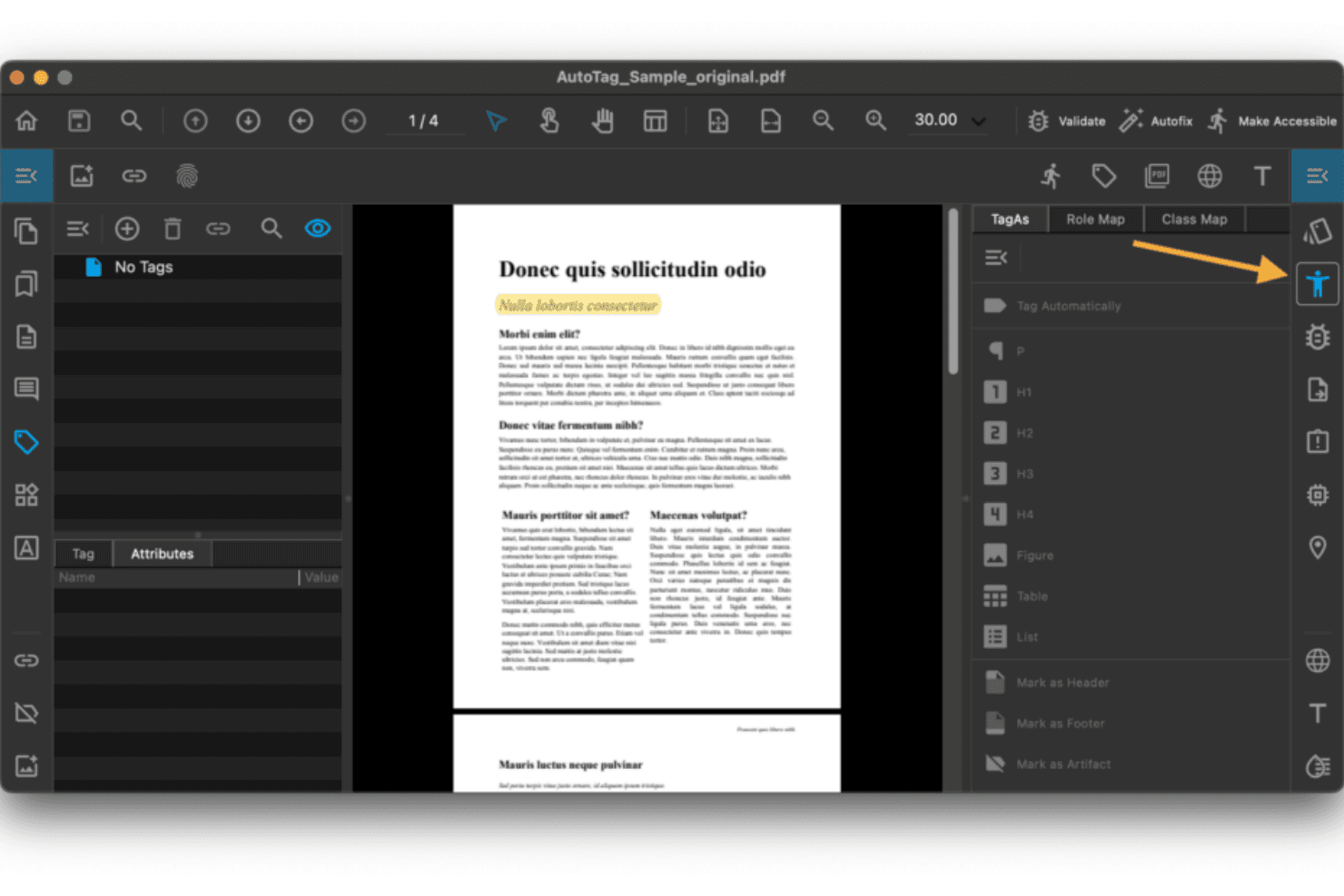
PDFix ermöglicht Benutzern, PDF-Elemente für die Einhaltung von Anforderungen an die Barrierefreiheit zu taggen. PDFix ist eine KI-gestützte Plattform für die Barrierefreiheit von PDFs zur Validierung nach WCAG 2.1/2.2, PDF/UA und Abschnitt 508. Außerdem unterstützt sie die automatisierte Stapelkorrektur und ist als Desktopanwendung, SDK und REST-API verfügbar.
Für wen ist PDFix am besten geeignet?
PDFix eignet sich für Entwickler und Compliance-Teams in regulierten Branchen wie dem öffentlichen Sektor, dem Finanzwesen und dem Gesundheitswesen. Besonders nützlich ist es für Teams, die große PDF-Mengen programmgesteuert validieren und korrigieren müssen.
Warum ich PDFix ausgewählt habe
PDFix gehört zu den besten Lösungen auf meiner Auswahlliste, weil es die Stapelvalidierung und automatisierte Korrekturen in einem Arbeitsablauf kombiniert. Ich habe es auf ganze Dokumentordner angewendet, und es kennzeichnet jeden Verstoß mit Verweisen auf das Matterhorn-Protokoll und zeigt die genaue Position im Tag-Baum an. Besonders gut gefällt mir die KI-gestützte automatische Tag-Kennzeichnung, die die Lesereihenfolge und Überschriftenhierarchie in Hunderten von PDFs neu erstellt, ohne dass jede Datei manuell bearbeitet werden muss.
Wichtige Funktionen von PDFix
- Standardsvalidierung mit veraPDF: Verwendet die branchenübliche veraPDF-Engine zur Prüfung der Konformität mit PDF/UA, WCAG und Abschnitt 508.
- Export von Berichten in mehreren Formaten: Erstellt Berichte zur Barrierefreiheit in JSON, XML, HTML und als einfachen Text zur einfachen Weitergabe und Integration.
- Plattformübergreifende Desktopanwendung: Läuft unter Windows, macOS und Linux, sodass Sie die Barrierefreiheit auf jedem wichtigen Betriebssystem prüfen können.
- Entwickler-SDK mit API: Bietet Bindings für Python, C#, Java, Node.js und C++ zur Integration von Barrierefreiheitsprüfungen in automatisierte Arbeitsabläufe.
Integrationen von PDFix
PDFix bietet native Integrationen mit Enfocus Switch und dem GitHub Actions Marketplace sowie eine REST-API und ein SDK für benutzerdefinierte Integrationen mit Python, C#, Java, Node.js und C++.
Pros and Cons
Pros:
- Korrigiert Hunderte von PDFs gleichzeitig im Stapelverfahren
- Die automatische KI-Tag-Kennzeichnung stellt die Lesereihenfolge automatisch wieder her
- Verweise auf das Matterhorn-Protokoll identifizieren genaue Fehler bei Tags
Cons:
- Für die Integration in Pipelines sind Entwicklerkenntnisse erforderlich
- Keine Option für die cloudbasierte Dokumentverarbeitung
Learn more about PDFix: Am besten für visuelle PDF/UA- und WCAG-Prüfungen geeignet
- Kostenloser Plan verfügbar
- Preise auf Anfrage

PAC überprüft die Barrierefreiheitskonformität von PDFs anhand von PDF/UA, WCAG und Qualitätskriterien. PAC ist ein kostenloses Windows-Desktop-Tool, das PDFs anhand der Standards PDF/UA (ISO 14289-1) und WCAG 2.1 mit dem Matterhorn-Protokoll überprüft. Es umfasst außerdem einen visuellen Prüfer für den Tag-Strukturbaum und eine Vorschau der Bildschirmleseprogramm-Struktur.
Für wen eignet sich PAC (PDF-Barrierefreiheitsprüfer) am besten?
PAC eignet sich besonders für Beauftragte für Barrierefreiheitskonformität und Verantwortliche für technische Dokumentation, die PDFs manuell anhand der PDF/UA- und WCAG-Standards prüfen müssen.
Warum ich PAC (PDF-Barrierefreiheitsprüfer) ausgewählt habe
PAC gehört zu den besten Tools meiner engeren Auswahl, weil es visuelle PDF/UA-Prüfungen so gut umsetzt. Mit der Vorschau für Bildschirmleseprogramme kann ich genau sehen, was JAWS oder NVDA vorlesen wird, und der vollständige Tag-Strukturbaum zeigt jede Eigenschaft und jedes Attribut in der Dokumentstruktur. Außerdem gefällt mir die Abdeckung der maschinell prüfbaren Prüfpunkte des Matterhorn-Protokolls. Dadurch kann ich die Validierungsergebnisse anhand etablierter PDF/UA-Kriterien überprüfen.
Wichtige Funktionen von PAC (PDF-Barrierefreiheitsprüfer)
- KI-gestützte semantische Analyse: Verwendet KI, um den manuellen Aufwand bei der Überprüfung der Qualität von PDF-Struktur und Tags zu reduzieren.
- Ansicht zur Simulation von Bildschirmleseprogrammen: Zeigt visuell an, wie gängige Bildschirmleseprogramme den Inhalt und die Reihenfolge des PDFs interpretieren.
- Statistiken zur Dokumentstruktur: Stellt strukturelle Statistiken und Zusammenfassungen für jedes PDF bereit, einschließlich der Tag-Verteilung und Details zur logischen Struktur.
- Lokaler Offline-Betrieb: Läuft vollständig auf Windows-Desktops, ohne Dateien ins Internet oder auf externe Server hochzuladen.
Integrationen von PAC (PDF-Barrierefreiheitsprüfer)
PAC (PDF-Barrierefreiheitsprüfer) verfügt über keine nativen Integrationen.
Pros and Cons
Pros:
- Dauerhaft kostenlos herunterzuladen und zu verwenden
- Vollständige Abdeckung der Prüfpunkte des Matterhorn-Protokolls
- Integrierte visuelle Vorschau für Bildschirmleseprogramme
Cons:
- Nur für Windows, daher ohne Unterstützung für Mac- und Linux-Nutzer
- Keine Stapelverarbeitung mehrerer PDFs
Learn more about PAC (PDF Accessibility Checker): Am besten für geführte manuelle Konformitätsprüfungen geeignet
- Kostenloser Tarif verfügbar
- Preis auf Anfrage

Allyant führt Benutzer mit schrittweisen Arbeitsabläufen durch die Behebung von PDF-Problemen bei der Barrierefreiheit. Der CommonLook PDF Validator von Allyant ist ein kostenloses Plug-in für Adobe Acrobat, das PDFs anhand der Standards WCAG, PDF/UA und Section 508 prüft. Außerdem führt es Benutzer durch automatisierte und manuelle Tests zur Barrierefreiheit und erstellt Zertifizierungsberichte für jedes Dokument.
Für wen ist Allyant am besten geeignet?
Der CommonLook PDF Validator von Allyant eignet sich besonders für Compliance-Beauftragte und Dokumentationsteams in Regierungsbehörden oder regulierten Branchen, in denen die Konformität mit Section 508 zwingend erforderlich ist.
Warum ich Allyant ausgewählt habe
Ich habe den CommonLook PDF Validator von Allyant als eines der besten Werkzeuge für geführte manuelle Konformitätsprüfungen ausgewählt. Im Gegensatz zu Tools, die bei der automatisierten Kennzeichnung von Problemen aufhören, führt es Sie durch Prüfungen, die kein Scanner zuverlässig abschließen kann. Dazu gehören die Überprüfung der Genauigkeit von Alternativtexten (nicht nur deren Vorhandensein), die Bestätigung, dass Tabellenzusammenfassungen aussagekräftig sind, und die Validierung der Hierarchie von Überschriften-Tags. Der Zertifizierungsbericht für jedes Dokument liefert einen konkreten Konformitätsnachweis gemäß Section 508, WCAG und PDF/UA.
Wichtige Funktionen von Allyant
- Integration mit Adobe Acrobat: Wird unter Windows als Plug-in innerhalb von Adobe Acrobat Pro ausgeführt und ermöglicht eine native PDF-Analyse.
- Prüfungen nach Section 508 und HHS: Enthält Tests, die speziell auf die Vorschriften zur Barrierefreiheit der US-Regierung und des Gesundheitswesens ausgerichtet sind.
- Tag-basierte Hervorhebung von Inhalten: Ermöglicht die visuelle Überprüfung der Anwendung von Tags innerhalb des PDFs für eine gründlichere Kontrolle.
- Zertifizierungsberichte für jedes Dokument: Erstellt nach jeder Prüfung ein herunterladbares Konformitätszertifikat zur Dokumentation.
Integrationen von Allyant
Der CommonLook PDF Validator von Allyant wird unter Windows als Plug-in für Adobe Acrobat Pro ausgeführt. Native Integrationen über Adobe Acrobat Pro hinaus sind nicht eindeutig dokumentiert.
Pros and Cons
Pros:
- Führt Benutzer durch manuelle Konformitätsprüfungen
- Validiert nach Section 508, WCAG und PDF/UA
- Erstellt Zertifizierungsberichte für jedes Dokument
Cons:
- Läuft nur unter Windows über Adobe Acrobat
- Keine Stapelprüfung mehrerer PDFs
Learn more about Allyant: Am besten für die automatisierte PDF/UA-Überprüfung
- 14-tägige kostenlose Testversion
- Preise auf Anfrage

pdfaPilot 5 führt Unterstützung für ePub 3.0 und die Konvertierung von E-Mail in PDF/A ein. pdfaPilot ist ein PDF/UA- und PDF/A-Konformitätswerkzeug für Unternehmen von callas software. Es ist als Desktop-App, Server, CLI und SDK verfügbar, um die automatisierte Überprüfung der Barrierefreiheit in Dokumenten-Workflows zu ermöglichen.
Für wen eignet sich pdfaPilot am besten?
IT-Betriebs- und Compliance-Teams in Behörden, Kanzleien oder Unternehmen, die große PDF-Archive auf PDF/UA-Konformität prüfen müssen.
Warum ich pdfaPilot ausgewählt habe
pdfaPilot verdient einen Platz auf meiner Auswahlliste der besten Lösungen, weil kein anderes von mir getestetes Tool bei der automatisierten PDF/UA-Überprüfung großer Dokumentenmengen mithalten kann. Beispielsweise verarbeitet die Hotfolder-Verarbeitung der Server-Variante bis zu 8 Aufträge parallel. Die Dispatcher-Lizenz kann die Verarbeitung für große Archive auf mehrere Rechner verteilen. Ich schätze außerdem pdfGoHTML, das getaggte PDFs in farbcodiertes HTML umwandelt, sodass ich die Dokumentstruktur, die Überschriftenhierarchie und die Qualität von Alternativtexten visuell überprüfen kann.
Wichtige Funktionen von pdfaPilot
- Umfassende Unterstützung von Standards: Unterstützt PDF/A-1, PDF/A-2, PDF/A-3 sowie maschinell überprüfbare PDF/UA-1-Barrierefreiheitsprüfungen.
- Editor für Qualitätskontrollprofile: Ermöglicht das Erstellen, Bearbeiten und Anwenden benutzerdefinierter Regelwerke für PDF-Barrierefreiheit und Konformität.
- Vorschau der PDF-zu-HTML-Struktur: Wandelt getaggte PDFs in visuelles HTML um, damit Barrierefreiheitsstrukturen schnell überprüft werden können.
- Flexible API- und Integrationsoptionen: Bietet REST API, CLI und SDK für die Integration in Workflow-Automatisierung und Dokumenten-Pipelines.
Integrationen von pdfaPilot
pdfaPilot bietet eine native Integration mit Enfocus Switch zur Workflow-Automatisierung und stellt eine REST API, CLI und ein SDK für benutzerdefinierte Integrationen mit Dokumentenmanagementsystemen und CI/CD-Pipelines bereit.
Pros and Cons
Pros:
- Umfassende Abdeckung von PDF/UA-1 und dem Matterhorn-Protokoll
- Parallele Server-Aufträge beschleunigen die Prüfung großer Archive
- Die visuelle HTML-Ausgabe bestätigt die Genauigkeit der Tag-Struktur
Cons:
- Kein integrierter Editor zur manuellen Behebung von Tag-Problemen
- Aufwendige Einrichtung für nichttechnische Compliance-Teams
Learn more about pdfaPilot: Am besten für regulierte PDF-Qualitätsprüfungen geeignet
- Kostenlose Demo verfügbar
- Preise auf Anfrage

Mit DocShifter können Benutzer Dokumenten-Workflows mit verketteten Transformationsmodulen erstellen. DocShifter PDFValidator ist ein automatisiertes PDF-Validierungstool für gesetzliche und technische Compliance-Standards, einschließlich PDF/UA-1. Es kann beispielsweise Lesezeichen, Hyperlinks, die Einbettung von Schriftarten, Seiteneigenschaften und Anmerkungen prüfen.
Für wen ist DocShifter PDFValidator am besten geeignet?
Es eignet sich besonders für Unternehmensteams in den Bereichen Biowissenschaften, Banken und Versicherungen, die eine automatisierte PDF-Validierung in großen Mengen anhand gesetzlicher Standards für Einreichungen benötigen.
Warum ich DocShifter PDFValidator ausgewählt habe
Ich habe DocShifter PDFValidator ausgewählt, weil das Tool gezielt auf regulierte Dokumenten-Workflows ausgerichtet ist. Es validiert anhand der Einreichungsstandards von Gesundheitsbehörden und prüft Lesezeichen, Hyperlinks, die Einbettung von Schriftarten und die Seitenkonformität in einem einzigen automatisierten Durchlauf. Besonders gefällt mir, dass PDF/UA-1 als validiertes Ausgabeformat unterstützt wird. Das ist wichtig, wenn die Dokumentqualität direkt mit den Akzeptanzkriterien für die behördliche Zulassung verknüpft ist.
Die wichtigsten Funktionen von DocShifter PDFValidator
- Validierung von Hyperlinks: Prüft automatisch auf defekte, externe oder falsch formatierte Hyperlinks in PDF-Dateien.
- Analyse der Lesezeichenstruktur: Überprüft die Organisation und Verschachtelung von Lesezeichen sowie deren Übereinstimmung mit der Dokumentstruktur.
- Überprüfung von Seiteneigenschaften: Stellt sicher, dass Seitengröße, Ausrichtung und Nummerierung den gesetzlichen und technischen Anforderungen entsprechen.
- Erkennung von Anmerkungen und Kommentaren: Kennzeichnet vorhandene Anmerkungen, Kommentare oder nachverfolgte Änderungen, die vor der Archivierung entfernt werden sollten.
Integrationen von DocShifter PDFValidator
DocShifter PDFValidator bietet native Integrationen mit Veeva Vault, OpenText Documentum, Lorenz docuBridge und Microsoft SharePoint. Für benutzerdefinierte Integrationen und die Workflow-Automatisierung steht eine API zur Verfügung.
Pros and Cons
Pros:
- Validiert PDFs anhand der Einreichungsstandards von Gesundheitsbehörden
- Unterstützt die automatisierte PDF-Prüfung großer Mengen im Stapelbetrieb
- Erkennt Probleme bei der Einbettung von Schriftarten, Anmerkungen und Lesezeichen
Cons:
- Keine integrierte Behebung von Fehlern bei der Barrierefreiheit
- Beschränkt sich auf die Validierung und bietet keine umfassendere Prüfung der Barrierefreiheit
Learn more about DocShifter PDFValidator: Am besten für die Bearbeitung von PDFs mit Werkzeugen für Barrierefreiheit geeignet
- 14-tägige kostenlose Testversion
- Ab $10.99/Nutzer/Monat (jährlich abgerechnet)
Visit WebsiteCustomer Rating:4.6/5
Der Startbildschirm von Foxit PDF Editor bietet schnellen Zugriff auf PDF-Werkzeuge. Foxit PDF Editor ist eine Plattform zur PDF-Bearbeitung mit integrierten Werkzeugen für Barrierefreiheit. Dazu gehören Prüfungen nach WCAG und Abschnitt 508, automatische Tag-Vergabe, Bearbeitung der Lesereihenfolge, Verwaltung von Alternativtexten und geführte Workflows zur Behebung von Problemen.
Für wen eignet sich Foxit PDF Editor am besten?
Foxit PDF Editor eignet sich für Teams für technische Dokumentation und Compliance-Beauftragte in mittelgroßen bis großen Organisationen, die PDFs für die Anforderungen von Abschnitt 508 oder ADA erstellen, bearbeiten und barrierefrei gestalten müssen.
Warum ich Foxit PDF Editor ausgewählt habe
Ich habe Foxit PDF Editor in meine Top-Auswahl aufgenommen, weil es die Prüfung der Barrierefreiheit und die direkte Behebung von Problemen in einer Bearbeitungsumgebung kombiniert. Besonders gut gefällt mir das Werkzeug für die vollständige Prüfung, das einen anklickbaren Bericht erstellt, in dem jedes gekennzeichnete Problem direkt mit seiner Position im Dokument verknüpft ist. Mit dem Bereich für die Lesereihenfolge und der Funktion zur automatischen Tag-Vergabe kann ich Probleme bei der strukturellen Auszeichnung beheben, ohne zwischen Anwendungen wechseln zu müssen.
Die wichtigsten Funktionen von Foxit PDF Editor
- Bericht zur vollständigen Prüfung der Barrierefreiheit: Durchsucht PDFs nach Problemen gemäß WCAG und Abschnitt 508 und stellt einen anklickbaren Bericht mit detaillierten Ergebnissen bereit.
- Bereich für die Tag-Bearbeitung: Ermöglicht das Bearbeiten von Tags, das Hinzufügen oder Anpassen von Überschriften sowie das direkte Markieren von Artefakten in der Dokumentstruktur.
- Verwaltung von Alternativtexten: Unterstützt das Hinzufügen und Validieren von Alternativtexten für Bilder sowie das Markieren dekorativer Elemente als Artefakte.
- Automatisierung mit dem Aktionsassistenten: Automatisiert mehrstufige Prüfungen und Korrekturen der Barrierefreiheit für mehrere Dokumente und reduziert dadurch wiederkehrenden manuellen Aufwand.
Integrationen von Foxit PDF Editor
Foxit PDF Editor bietet native Integrationen mit Microsoft OneDrive, Google Drive, Dropbox, Box und SharePoint. Für individuelle Integrationen ist eine API verfügbar.
Pros and Cons
Pros:
- Kombiniert Bearbeitung und Prüfung der Barrierefreiheit nativ
- Unterstützt Prüfungen zur PDF/UA- und WCAG-Validierung
- Die automatische Tag-Vergabe erstellt eine Struktur aus nicht ausgezeichneten PDFs
Cons:
- Bei der stapelweisen Behebung von Problemen fehlen Zeitplanung und Automatisierung
- Kennzeichnet weniger Probleme als spezialisierte Prüfprogramme
Learn more about Foxit PDF Editor: Am besten zum Prüfen und Beheben von Problemen in PDFs geeignet
- 7-tägige kostenlose Testversion
- Ab $19.99/Monat
Visit WebsiteCustomer Rating:4.5/5
Adobe Acrobat bietet Werkzeuge wie Bearbeiten, Signieren, Exportieren und Stempeln. Adobe Acrobat Pro ist eine Plattform zur PDF-Bearbeitung und für Barrierefreiheit mit einer integrierten Barrierefreiheitsprüfung. Außerdem bietet sie einen Tag-Baum-Editor, Werkzeuge für die Lesereihenfolge und eine KI-gestützte Generierung von Alternativtexten zur Behebung von Barrierefreiheitsproblemen in PDFs.
Für wen eignet sich Adobe Acrobat am besten?
Adobe Acrobat Pro eignet sich besonders für Verantwortliche für Barrierefreiheits-Compliance und Leitungen der technischen Dokumentation in Unternehmen sowie Organisationen des öffentlichen Sektors.
Warum ich Adobe Acrobat ausgewählt habe
Adobe Acrobat steht auf meiner Auswahlliste, weil kein anderes Werkzeug die Prüfung und Behebung von Barrierefreiheitsproblemen so eng miteinander verbindet. Besonders gut gefallen mir der Tag-Baum-Editor und das Werkzeug für die Lesereihenfolge, mit denen ich strukturelle Probleme direkt in derselben Benutzeroberfläche untersuchen und beheben kann. Durch die 2025 hinzugekommene Funktion für KI-generierte Alternativtexte kann ich einen der häufigsten Fehler bei der Barrierefreiheit beheben, ohne zwischen Werkzeugen wechseln zu müssen.
Hauptfunktionen von Adobe Acrobat
- Aktion zur Barrierefreiheitsprüfung: Durchsucht PDFs nach Problemen im Zusammenhang mit der Einhaltung von Standards und erstellt einen detaillierten Barrierefreiheitsbericht.
- Exportierbare Prüfberichte: Erstellt Compliance-Dokumentationen, die Sie für interne und externe Prüfungen weitergeben oder archivieren können.
- Integration mit Microsoft Office: Ermöglicht das direkte Erstellen barrierefreier PDFs aus Word-, Excel- und PowerPoint-Dateien.
- Unterstützung assistiver Technologien: Gewährleistet die Kompatibilität mit gängigen Screenreadern und anderen assistiven Geräten für eine barrierefreie Dokumentnavigation.
Integrationen von Adobe Acrobat
Adobe Acrobat bietet direkte Integrationen im gesamten Microsoft-Ökosystem, einschließlich Microsoft 365 und SharePoint, und unterstützt PDF-Workflows innerhalb von Microsoft-Office-Anwendungen. Keine API-basierte Integration in eine Barrierefreiheits-Pipeline.
Pros and Cons
Pros:
- Problembehebung im Werkzeug direkt neben der Barrierefreiheitsprüfung
- KI-generierte Alternativtexte beschleunigen die Problembehebung
- Tag-Baum-Editor für direkte strukturelle Korrekturen
Cons:
- Stapelverarbeitung ohne Enterprise-Lizenz eingeschränkt
- Keine API-basierte Integration in eine Barrierefreiheits-Pipeline
Learn more about Adobe Acrobat: Am besten für die websiteweite PDF-Überwachung geeignet
- Kostenlose Demo verfügbar
- Preis auf Anfrage
Visit WebsiteCustomer Rating:4.5/5
Recite Me hilft Reise-Websites dabei, Passagiere mit Behinderungen online zu unterstützen. Recite Me ist ein Prüftool für die Barrierefreiheit von PDF-Dateien, das Ihre Website durchsucht, um PDF-Dokumente zu entdecken, zu prüfen und automatisch gemäß den WCAG-2.2-Konformitätsstandards der Stufe AA zu korrigieren.
Für wen ist Recite Me am besten geeignet?
Recite Me eignet sich besonders für Organisationen, die große Mengen im Web veröffentlichter PDF-Dateien verwalten und eine kontinuierliche Überwachung der Konformität anstelle einmaliger Prüfungen benötigen.
Warum ich Recite Me ausgewählt habe
Recite Me hat sich einen Platz auf meiner Auswahlliste verdient, weil es die Barrierefreiheit von PDF-Dateien auf Websiteebene statt auf Dateiebene angeht. Das Tool durchsucht Ihre Website, um verknüpfte PDF-Dateien automatisch zu entdecken, wodurch die manuelle Identifizierung von Dokumenten entfällt. Anschließend kennzeichnet die kontinuierliche erneute Prüfung neue oder geänderte Dokumente, sobald sie erscheinen. Darüber hinaus können durch die bidirektionale CMS-Synchronisierung überarbeitete Dateien ohne manuelle erneute Veröffentlichung ersetzt werden.
Die wichtigsten Funktionen von Recite Me
- Konformitäts-Dashboard: Ein zentrales Dashboard visualisiert den Barrierefreiheitsstatus aller geprüften PDF-Dateien in Echtzeit.
- Automatisierte Korrekturwerkzeuge: KI-gestützte Module wenden strukturelle Tags an, korrigieren die Lesereihenfolge und verbessern Metadaten automatisch.
- Laufende PDF-Überwachung: Geplante Prüfungen und Benachrichtigungen erkennen und kennzeichnen neue oder aktualisierte PDF-Dateien auf Ihrer Website.
- CMS-Integration: Die bidirektionale Synchronisierung stellt sicher, dass jede in Ihr CMS hochgeladene PDF-Datei automatisch geprüft und bei Bedarf korrigiert wird.
Integrationen von Recite Me
Native Integrationen sind nicht eindeutig dokumentiert. Für benutzerdefinierte Integrationen ist eine API verfügbar.
Pros and Cons
Pros:
- Prüft Ihre gesamte Website auf jede verknüpfte PDF-Datei
- Die automatisierte OCR konvertiert in Bildern eingebetteten Text automatisch
- Die kontinuierliche Überwachung kennzeichnet neue Uploads ohne manuelle Prüfungen
Cons:
- Keine eigenständige Desktop- oder Offline-Prüfoption
- Bei komplexen Tag-Strukturen ist weiterhin eine manuelle Korrektur erforderlich
Learn more about Recite Me: Am besten für KI-gestützte Tabellenoptimierung
- Kostenlose Demo verfügbar
- Preis auf Anfrage

Equidox schlägt mithilfe von ML-Seitenabgleich automatisch Markierungszonen vor. Equidox ist eine cloudbasierte Plattform zur PDF-Optimierung, die mithilfe KI-gestützter Erkennung die Dokumentstruktur identifiziert und mit Tags versieht. Dazu gehören Tabellen, Überschriften, Listen und Bilder. Außerdem können barrierefreie PDFs, HTML- und EPUB-Dateien exportiert werden.
Für wen ist Equidox am besten geeignet?
Equidox eignet sich besonders für Compliance-Beauftragte und Dokumententeams in Behörden, Hochschulen und im Gesundheitswesen, die große PDF-Bibliotheken verwalten, für die eine strukturierte Optimierung erforderlich ist.
Warum ich Equidox ausgewählt habe
Ich habe Equidox als eine der besten Lösungen ausgewählt, weil der intelligente Tabellendetektor die Plattform für alle hervorhebt, die komplexe PDFs optimieren. Er erkennt automatisch Zeilen, Spalten, verbundene Zellen und Zellstrukturen mit übergreifenden Bereichen und füllt die Tabellenzusammenfassung automatisch mit Angaben zu Überschriften und Zellanzahl. Die HTML-Vorschau kann außerdem dabei helfen, zu überprüfen, wie ein Screenreader die Tabellenstruktur interpretiert, bevor das endgültige barrierefreie PDF exportiert wird.
Die wichtigsten Funktionen von Equidox
- Intelligenter Zonendetektor: Verwendet KI, um Überschriften, Listen, Links und Bilder in nicht mit Tags versehenen PDFs zu identifizieren und so eine präzise Verschlagwortung zu ermöglichen.
- HTML-Vorschau: Bietet eine Echtzeitansicht davon, wie Screenreader die Dokumentstruktur und den Inhalt interpretieren werden.
- Integrierte OCR: Wandelt gescannte Dokumente in digitalen Text um und versieht sie automatisch mit Tags für Barrierefreiheit.
- Gruppen- und Rollenverwaltung: Bietet Berechtigungen, konfigurierbare Zugriffsdomänen und Kontrollmöglichkeiten für die Zusammenarbeit in größeren Teams.
Integrationen von Equidox
Equidox bietet SSO-Integrationen mit Microsoft und Google sowie eine API für benutzerdefinierte Integrationen und die Stapelverarbeitung. Native Integrationen über diese hinaus sind nicht eindeutig dokumentiert.
Pros and Cons
Pros:
- KI-gestützte Tabellenerkennung verarbeitet komplexe Strukturen
- Integrierte OCR für die Optimierung gescannter PDFs
- HTML-Vorschau bestätigt die Ausgabe für Screenreader
Cons:
- Begrenzte Stapelverarbeitung im Vergleich zu Lösungen für Unternehmen
- Kein eigenständiges Dashboard für Compliance-Berichte verfügbar
Learn more about Equidox: Am besten für die Massenvalidierung der PDF-Barrierefreiheit geeignet
- Kostenlose Demo verfügbar
- Preis auf Anfrage

PREP führt Benutzer durch die Korrektur von Überschriftenstrukturen in PDF-Dokumenten. PREP von Continual Engine ist eine cloudbasierte Plattform zur Behebung von Barrierefreiheitsproblemen in PDFs mit KI-gestützter automatischer Tag-Kennzeichnung und integrierter Prüfung auf WCAG-2.2-/PDF-/UA-Konformität. Sie bietet außerdem die Bearbeitung der Lesereihenfolge und APIs zur Massenvalidierung.
Für wen ist PREP von Continual Engine am besten geeignet?
PREP eignet sich besonders für Barrierefreiheitsteams an Universitäten, in Regierungsbehörden und in großen Organisationen, die große Mengen älterer PDF-Dokumente verwalten.
Warum ich PREP von Continual Engine ausgewählt habe
Ich habe PREP als eine der besten Lösungen ausgewählt, weil die API zur Prüfung der Barrierefreiheit und das Audit-Tool ContinuA11Y die Massenvalidierung in einem Umfang ermöglichen, den die meisten Prüfprogramme nicht erreichen. Ich kann ContinuA11Y auf eine gesamte Website ansetzen, es automatisch nicht barrierefreie PDFs erkennen lassen und sie in einem einzigen Arbeitsablauf direkt zur Behebung an PREP weiterleiten. Die API validiert anhand von WCAG 2.2, PDF/UA-1 und Section 508 unter Verwendung des Matterhorn-Protokolls, sodass jedes gemeldete Problem einem bestimmten Konformitätsprüfpunkt zugeordnet wird.
Wichtige Funktionen von PREP von Continual Engine
- KI-basierte automatische Tag-Kennzeichnung: Verwendet maschinelles Lernen, um Dokumentelemente wie Listen, Tabellen und Überschriften automatisch zu erkennen und mit Tags zu versehen.
- Integrierter OCR-Modus: Verarbeitet gescannte oder bildbasierte PDFs, um auswählbare und barrierefreie Textinhalte hinzuzufügen.
- Vorschau für Screenreader: Simuliert, wie bearbeitete PDFs von unterstützenden Technologien interpretiert werden.
- Vorlagenbasierte Dokument-Tag-Kennzeichnung: Ermöglicht die Erstellung und Wiederverwendung von Tag-Kennzeichnungsvorlagen für eine einheitliche Bearbeitung ähnlicher Dokumenttypen.
Integrationen von PREP von Continual Engine
PREP bietet native Integrationen mit Canvas, D2L Brightspace, CivicPlus und Wagtail sowie eine REST-API für benutzerdefinierte Integrationen.
Pros and Cons
Pros:
- Bewältigt die PDF-Massenvalidierung auf Unternehmensebene
- Die automatische KI-Tag-Kennzeichnung beschleunigt die Bearbeitung erheblich
- Deckt WCAG 2.2, PDF/UA und Section 508 ab
Cons:
- Für API-basierte Arbeitsabläufe ist eine technische Einrichtung erforderlich
- Begrenzte eigenständige Desktop-Option zur Bearbeitung
Learn more about PREP by Continual Engine:
Weitere PDF-Barrierefreiheitsprüfer
Hier finden Sie einige zusätzliche Optionen für PDF-Barrierefreiheitsprüfer, die es nicht in meine engere Auswahl geschafft haben, aber dennoch einen Blick wert sind:
- 11TheLaTeXLab PDF Accessibility CheckerAm besten für Prüfungen der Barrierefreiheit von LaTeX und mathematischen Inhalten
- 12PdftoolsAm besten für die zugriffsbasierte Validierung über APIs geeignet
Related Reviews
How I Evaluate PDF Accessibility Checkers
I split my evaluation into baseline checks like PDF/UA validation and batch processing. I then consider differentiators like remediation depth, API access, and compliance coverage.
Core Functionality (Table Stakes For This List)
When I'm selecting tools for my list, I rank each one on a scale from 0 (does not offer the functionality) to 5 (excels in this area) for each core functionality listed below. I then calculate the tool's total score into a percentage, using 65% as a benchmark to help assess its overall fit for the list.
- WCAG/PDF-UA Validation: I check whether a tool covers WCAG 2.1/2.2 AA, PDF/UA-1, and Section 508 rules—not just a partial subset of basic checks.
- Tag Structure Analysis: A good checker lets you inspect the full tag tree, logical reading order, and heading hierarchy so screen readers interpret content correctly.
- Accessibility Issue Detection: I assess whether the tool can identify accessibility issues across document structure, tags, reading order, and other machine-testable requirements.
- Detailed Issue Reporting: Reports should pinpoint each failure by location and severity, with export options like JSON or XML for feeding into tracking systems.
- Remediation Guidance: Beyond flagging errors, I evaluate whether the tool offers specific fix instructions or in-tool corrections for issues like missing alt text.
- Standards Coverage: I assess which accessibility standards and requirements each checker supports, such as PDF/UA, WCAG, and Section 508.
Once I have a list of tools that meet the criteria, I consider what sets each platform apart.
Differentiating Factors (What Sets Vendors Apart)
Here's how I compare and contrast different vendors:
Standout Features
Automated remediation is a major differentiator. For example, AI-assisted or one-click fixes for missing tags, alt text, and table headers can reduce manual PDF editing. I also look for a visual reading order and tag tree editor, since adjusting logical structure by hand is often the only way to get complex layouts right for screen readers. Detailed audit reports matter too, especially when your team needs exportable compliance documentation for legal reviews or regulatory audits.
Beyond Features
Security and data handling matter, especially for teams processing legal or healthcare PDFs. I check whether vendors offer on-premise options or hold certifications like SOC 2 and ISO 27001. Compliance standards coverage is another factor I evaluate closely. Accessibility regulations vary by region and sector, so tools that track updates to WCAG, PDF/UA, and EN 301 549 help you stay current. Finally, I consider deployment flexibility. I look at whether a tool fits your stack as a SaaS app, desktop plugin, or CMS integration.
So wählen Sie einen PDF-Barrierefreiheitsprüfer aus
Wenn Sie PDF-Barrierefreiheitsprüfer vergleichen, sollten Sie sich zunächst auf die Anforderungen Ihres Dokumenten-Workflows und Ihre Compliance-Verantwortlichkeiten konzentrieren:
| Wenn Ihre Priorität ... ist | Achten Sie auf ... |
| Prüfungsbereite regulatorische Berichte | Detaillierte, exportierbare Compliance-Dokumentation |
| Verarbeitung großer Dokumentenmengen | Automatisierte Stapelprüfung für große Dokumentenbestände |
| Workflow-Integration | API-/CLI-Optionen für CI/CD- oder CMS-Pipelines |
| Schnelle Behebung | Integrierte oder KI-gestützte Vorschläge zur Fehlerbehebung |
| Bearbeitung komplexer Dokumentlayouts | Visueller Tag-Baum und Editor für die Lesereihenfolge |
So prüfen Sie Ihre engere Auswahl
- Fordern Sie einen Beispielprüfbericht an: Bitten Sie um einen maschinenlesbaren und einen für Menschen lesbaren Bericht für ein PDF aus Ihrem Unternehmen, an dem Sie die Rechte besitzen.
- Führen Sie einen Stapeltest mit 10 Dateien durch: Laden Sie einen typischen Dokumentensatz hoch, um zu sehen, wie der Prüfer die Stapelvalidierung und Berichterstellung in großem Umfang handhabt.
- Prüfen Sie die API-Dokumentation: Sehen Sie sich die REST-API-, CLI- oder SDK-Dokumentation des Anbieters an, um Beispiele für die Integration und die Unterstützung von CI/CD-Workflows zu finden.
- Bitten Sie schriftlich um eine Klausel zur Konformität: Verlangen Sie in den Geschäftsbedingungen oder im SLA eine Erklärung, die die Abdeckung der Standards WCAG 2.2 und PDF/UA-1 garantiert.
- Kompromiss – Automatisierung vs. manuelle Kontrolle: Entscheiden Sie, ob Sie schnelle, automatisierte Korrekturen in großem Umfang wünschen oder eine präzise, manuelle Bearbeitung komplexer Dokumente benötigen.
Was sind PDF-Barrierefreiheitsprüfungen?
PDF-Barrierefreiheitsprüfungen durchsuchen PDFs nach Problemen, die für Menschen mit Behinderungen Barrieren schaffen können. Anschließend melden sie diese Probleme zur Überprüfung oder Behebung. Diese Prüfungen validieren Dokumente anhand von Standards wie WCAG und PDF/UA, untersuchen Tag-Strukturen und geben umsetzbare Hinweise zur Behebung. Teams verwenden sie, um sicherzustellen, dass Dokumente für alle nutzbar sind, gesetzliche Anforderungen erfüllen und problemlos auf ihre Barrierefreiheit hin überprüft werden können.
Funktionen von PDF-Barrierefreiheitsprüfungen
Achten Sie bei der Auswahl von PDF-Barrierefreiheitsprüfungen auf die folgenden wichtigen Funktionen:
- WCAG/PDF-UA-Validierung: Prüft jedes PDF anhand von Barrierefreiheitsstandards wie WCAG, PDF/UA und Section 508, um Konformitätslücken zu erkennen und das Management rechtlicher Risiken zu unterstützen.
- Analyse der Tag-Struktur: Untersucht den Tag-Baum, die Lesereihenfolge und die Überschriftenhierarchie des Dokuments, um festzustellen, ob unterstützende Technologien den Inhalt korrekt interpretieren.
- Automatisierte Stapelprüfung: Verarbeitet mehrere PDFs gleichzeitig und ermöglicht so eine effiziente Prüfung und Überwachung großer Dokumentenbestände oder teaminterner Arbeitsabläufe.
- Detaillierte Problemberichte: Erstellt maschinenlesbare und menschenlesbare Berichte, die genau zeigen, wo Barrierefreiheitsfehler auftreten, einschließlich ihres Schweregrads und empfohlener Maßnahmen.
- Anleitungen zur Behebung: Bietet konkrete, umsetzbare Anweisungen oder integrierte Assistenten zur Behebung von Fehlern wie fehlenden Alternativtexten, nicht getaggten Elementen und einer falschen Lesereihenfolge.
- API/CLI-Integration: Bietet REST API und Befehlszeilenwerkzeuge, damit Teams Barrierefreiheitsprüfungen in CI/CD-Pipelines oder Veröffentlichungsabläufen automatisieren können.
- Exportierbare Konformitätsberichte: Erstellt Berichte in Formaten wie PDF, HTML oder XML, die mit Prüfern geteilt oder zur Dokumentation der Barrierefreiheit aufbewahrt werden können.
- Visueller Tag-Baum-Editor: Ermöglicht es Benutzern, die Struktur eines PDFs visuell in der Vorschau anzuzeigen und anzupassen, wodurch sich komplexe Layouts ohne tiefgehende technische Kenntnisse korrigieren lassen.
- Konfiguration benutzerdefinierter Regeln: Gibt Administratoren die Möglichkeit, organisationsspezifische Barrierefreiheitsregeln durchzusetzen oder besondere Konformitätsszenarien zu kennzeichnen.
- Rollenbasierte Zugriffskontrollen: Ermöglicht es verschiedenen Mitgliedern Ihres Teams, Probleme anhand der zugewiesenen Berechtigungen zu überprüfen, zu genehmigen oder zu beheben, und unterstützt so die gemeinsame Prüfung und Konformität.
Häufige KI-Funktionen von PDF-Barrierefreiheitsprüfungen
Über die oben aufgeführten Standardfunktionen von PDF-Barrierefreiheitsprüfungen hinaus integrieren viele dieser Lösungen KI mit Funktionen wie:
- KI-gestützte Erstellung von Alternativtexten: Erstellt automatisch beschreibende Alternativtexte für Bilder und Grafiken, reduziert den manuellen Aufwand und verbessert die Barrierefreiheit für Benutzer von Bildschirmleseprogrammen.
- Automatisierte Tag-Empfehlungen: Verwendet KI, um die Dokumentstruktur zu analysieren und geeignete Tags vorzuschlagen oder anzuwenden, wodurch der manuelle Aufwand beim Taggen komplexer PDFs reduziert wird.
- Vorhersage der Lesereihenfolge: Nutzt maschinelles Lernen, um die logische Lesereihenfolge der Inhalte abzuleiten, und trägt so dazu bei, dass Bildschirmleseprogramme Informationen in der vorgesehenen Reihenfolge ausgeben.
- Kontextbezogene Priorisierung von Problemen: Setzt KI ein, um den Schweregrad und die Auswirkungen erkannter Barrierefreiheitsprobleme zu bewerten, und hilft Benutzern dabei, zuerst die kritischsten Probleme zu beheben.
- Anleitungen zur Behebung in natürlicher Sprache: Liefert KI-generierte, kontextbezogene Anweisungen zur Behebung bestimmter Barrierefreiheitsfehler und macht die Behebung für Benutzer mit unterschiedlichem Kenntnisstand intuitiver.
Vorteile von PDF-Barrierefreiheitsprüfungen
Die Einführung von PDF-Barrierefreiheitsprüfungen bietet Ihrem Team und Ihrem Unternehmen mehrere Vorteile. Hier sind einige, auf die Sie sich freuen können:
- Einhaltung gesetzlicher Vorgaben: Unterstützt die Einhaltung von Standards wie WCAG, PDF/UA und Abschnitt 508 und verringert rechtliche Risiken für Ihre Organisation.
- Bessere Nutzbarkeit von Dokumenten: Stellt sicher, dass PDFs für Personen zugänglich sind, die unterstützende Technologien verwenden, indem Probleme mit der Lesereihenfolge und der Tag-Struktur erkannt und behoben werden.
- Audit-Bereitschaft: Erstellt detaillierte, exportierbare Berichte, die Verbesserungen der Barrierefreiheit dokumentieren und dadurch die Vorbereitung auf Audits oder Prüfungen erleichtern.
- Zeiteinsparung: Automatisiert Stapelprüfungen und schlägt Korrekturen direkt im Tool vor, sodass Teams große Dokumentmengen effizienter verarbeiten und barrierefrei gestalten können.
- Zusammenarbeit zwischen Teams: Rollenbasierte Zugriffsrechte und Workflow-Funktionen unterstützen IT, Compliance und Inhaltsverantwortliche dabei, die Barrierefreiheit gemeinsam zu verwalten.
- Integration in Prozesse: API- und CLI-Optionen ermöglichen automatische Prüfungen innerhalb des Dokumentenlebenszyklus und sorgen für eine einheitliche Einhaltung der Vorgaben, während Dateien Veröffentlichungs- und Prüfprozesse durchlaufen.
- Reduzierung manueller Fehler: Automatisierte und KI-gestützte Funktionen erkennen Probleme, die bei manuellen Prüfungen möglicherweise übersehen werden, und verbessern dadurch die allgemeine Qualität und Konsistenz der PDF-Barrierefreiheit.
Kosten und Preise
Die Preise für Prüfer der PDF-Barrierefreiheit variieren je nach Funktionen, Teamgröße, Bereitstellung und Zusatzoptionen. Zum Vergleich fasst die folgende Tabelle gängige Tarifarten, typische Preise und enthaltene Funktionen zusammen:
Vergleichstabelle für Tarife von Prüfern der PDF-Barrierefreiheit
| Tarifart | Durchschnittlicher Preis | Übliche Funktionen |
|---|---|---|
| TarifartKostenloser Tarif | Durchschnittlicher Preis$0 | Übliche FunktionenGrundlegende Validierung für eine begrenzte Anzahl von PDFs, manuelle Berichte und Zugriff auf wichtige Hinweise zur Behebung von Problemen. |
| TarifartPersönlicher Tarif | Durchschnittlicher Preis$10–$30/Benutzer/Monat | Übliche FunktionenUnbegrenzte Prüfungen für eine einzelne Person, Stapelverarbeitung, erweiterte Berichte und E-Mail-Support. |
| TarifartGeschäftstarif | Durchschnittlicher Preis$40–$80/Benutzer/Monat | Übliche FunktionenZugriff für mehrere Personen, API- und Workflow-Integrationen, automatisierte Behebung von Problemen, exportierbare, auditfähige Berichte und rollenbasierte Zugriffssteuerungen. |
| TarifartUnternehmenstarif | Durchschnittlicher Preis$100–$250/Benutzer/Monat | Übliche FunktionenIndividuelle Bereitstellungsoptionen, erweiterte Sicherheitsfunktionen, bevorzugter Support, organisationsweite Compliance-Analysen und eine dedizierte Einarbeitung. |
FAQs zu PDF-Barrierefreiheitsprüfern
Hier finden Sie Antworten auf häufige Fragen zu PDF-Barrierefreiheitsprüfern:
Anhand welcher Standards prüfen PDF-Barrierefreiheitsprüfer?
Die meisten PDF-Barrierefreiheitsprüfer validieren Dokumente anhand von WCAG 2.1/2.2, PDF/UA, Abschnitt 508 und manchmal auch des europäischen Standards EN 301 549. Dadurch wird eine umfassende globale Konformitätsabdeckung gewährleistet.
Kann ich PDF-Barrierefreiheitsprüfer für große Dokumentmengen verwenden?
Einige PDF-Barrierefreiheitsprüfer bieten eine Stapelverarbeitung zum gleichzeitigen Scannen mehrerer Dokumente, während andere in erster Linie für die Validierung einzelner Dateien ausgelegt sind.
Wie genau sind automatisierte Barrierefreiheitsprüfer?
Automatisierte Werkzeuge sind äußerst effektiv beim Erkennen struktureller Probleme und fehlender Tags. Komplexe Dokumente oder einzigartige Layouts profitieren jedoch weiterhin von einer manuellen Prüfung und Nachbearbeitung.
Lassen sich diese Werkzeuge in Content-Management- oder Workflow-Systeme integrieren?
Ja, mehrere Anbieter bieten APIs, Plugins oder integrierte Schnittstellen zu CMS-Plattformen, DAM-Systemen und Veröffentlichungspipelines für automatisierte Konformitätsprüfungen an.
Was passiert, wenn ein Problem gefunden wird – beheben die Prüfer es für mich?
Einige Prüfer bieten geführte oder KI-gestützte Vorschläge zur Behebung an und können gängige Probleme wie fehlenden Alternativtext oder eine falsche Lesereihenfolge automatisch korrigieren. Manchmal sind jedoch weiterhin manuelle Anpassungen erforderlich.