

Non-compliant PDFs can accumulate fast, exposing your organization to audit risks. PDF remediation software automatically adds tags and fixes documents to meet Section 508 and PDF/UA standards.
In this guide, I’ll help compare the top solutions for enterprise teams to process high volumes and clear backlogs.
Why Trust Our Software Recommendations
6,700+
Reviews
20
Industry experts
16+
Evaluation factors
14
Years
Our team has been testing and reviewing software since 2012. As tech leaders ourselves, we know how difficult—and important—it is to choose the right software.
For this guide, we evaluated tools using hands-on testing and independent research, scoring tools using our selection criteria.
Our reviews reflect our human editorial judgment, not a sales pitch.
Expert reviewers:
- Paulo Gardini MiguelTech Director
 Tim FisherVP of AI
 Gabriel RosasTech Lead & Software Architect
 Christhian GruhnTech Lead & Platform Architect

Compare the Best PDF Remediation Software
Compare pricing and specs, side by side, for the PDF remediation software that made it onto my shortlist.
| Tool | Best For | Trial Info | Price | ||
|---|---|---|---|---|---|
| 1 | Best for API-driven remediation pipelines | 14-day free trial | From $10.99/user/month | Website | |
| 2 | Best for native PDF editing and accessibility checking | 7-day free trial | From $19.99/user/month (billed annually) | Website | |
| 3 | Best for on-premises PDF remediation at scale | Free plan available | From $599/user/year | Website | |
| 4 | Best for AI-driven batch PDF accessibility | Free trial available (100 pages) | From $0.30/page | Website | |
| 5 | Best for enterprise-wide PDF compliance | Free demo available | Pricing upon request | Website | |
| 6 | Best for automated document accessibility verification | Free demo + 7-day free trial available | From $390/year | Website | |
| 7 | Best for AI-assisted PDF tagging and structure repair | Free demo available | Pricing upon request | Website | |
| 8 | Best for turning Google Docs into accessible PDFs | 14-day free trial | Pricing upon request | Website | |
| 9 | Best for automated PDF correction at a flat-rate | Free plan available | From $100/month | Website | |
| 10 | Best for audit-ready multi-standard compliance proof | 7-day free trial | Pricing upon request | Website |


Best PDF Remediation Software Reviews
Below are my detailed summaries of the best PDF remediation software that made it onto my shortlist. My reviews offer a detailed look at the features, capabilities, and best use cases of each software to help you find the best one.
 Best for API-driven remediation pipelines
- 14-day free trial
- From $10.99/user/month
Visit WebsiteCustomer Rating:4.6/5
Foxit PDF Editor flags accessibility issues in a built-in check panel. Foxit PDF Editor is a PDF remediation tool that covers the full accessibility lifecycle—auto-tagging and manual tag editing, reading order correction, Full Accessibility Check against WCAG/Section 508/PDF/UA-1 rulesets, Action Wizard batch automation, and developer APIs for embedding accessibility processing into document pipelines.
Who Is Foxit PDF Editor Best For?
Foxit PDF Editor is a strong fit for IT and document engineering teams that need to embed accessibility processing into document pipelines via API.
Why I Picked Foxit PDF Editor
I picked Foxit PDF Editor as one of the best because its developer API ecosystem is what separates it from desktop-only remediation tools. When I'm building a document pipeline, I can use the PDF Services API (Python, Node.js, or cURL) to trigger accessibility tagging server-side, and the Rendition Server handles high-volume OCR and tagging with full audit trails. The Action Wizard adds another layer, letting me chain auto-tagging, language-setting, and Full Accessibility Check into a single repeatable batch sequence.
Foxit PDF Editor Key Features
- Full Accessibility Check: Runs a pass/fail compliance check, generating a clickable report that links directly to each flagged issue in the document.
- Reading Order tool: Lets you drag and drop content blocks to establish or correct the logical reading sequence that assistive technologies follow.
- Access Pro plugin: Adds compliance certification workflows directly inside Foxit PDF Editor.
- PAC 2024 integration: Offers third-party cross-validation of document accessibility alongside Foxit's native checking tools.
Foxit PDF Editor Integrations
Foxit PDF Editor integrates with SharePoint, OneDrive, Google Drive, Box, Dropbox, and Microsoft Office and offers PDF Services API and SDK for custom workflows.
Pros and Cons
Pros:
- Developer APIs enable automated accessibility pipelines
- Full accessibility check with clickable reports
- Action Wizard supports batch remediation workflows
Cons:
- Standards coverage limited to WCAG 2.0
- No built-in screen reader preview
Learn more about Foxit PDF Editor: Best for native PDF editing and accessibility checking
- 7-day free trial
- From $19.99/user/month (billed annually)
Visit WebsiteCustomer Rating:4.5/5
Adobe Acrobat tags PDF structure elements for accessible document remediation. Adobe Acrobat is a PDF platform that covers the full remediation workflow—tag tree editing, reading order correction, accessibility checking against WCAG and PDF/UA standards, OCR for scanned documents, and AI-powered auto-tagging via API for large-scale document backlogs.
Who Is Adobe Acrobat Best For?
Adobe Acrobat is a strong fit for enterprise IT teams that need a FedRAMP-authorized, widely supported tool for both hands-on PDF remediation and large-scale automated tagging via developer APIs.
Why I Picked Adobe Acrobat
Adobe Acrobat earns its spot as one of the best on my shortlist because it's the only tool where native PDF editing and accessibility checking live in the same environment. I particularly like the Tags panel for direct tag tree editing alongside the Accessibility Checker, which maps every flagged issue to a specific WCAG success criterion so I know exactly what structural fix is needed. The AI-powered PDF Accessibility Auto-Tag API also handles large document backlogs at scale, something no desktop-only tool can match.
Adobe Acrobat Key Features
- Fix Reading Order tool: Lets you reorder text blocks, fix reading sequences, assign heading levels, and flag decorative graphics as background artifacts.
- Auto tag Document: Automatically analyzes untagged PDFs to generate an initial structure tree (headings, paragraphs, lists, and tables).
- Action Wizard: Lets you build and apply multi-step document actions across multiple files for repeatable accessibility tasks.
- OCR for scanned documents: Converts image-only PDFs to searchable, tagged text so screen readers can access content in scanned files.
Adobe Acrobat Integrations
Adobe Acrobat integrates natively with Microsoft 365, Google Drive, Dropbox, Box, and InDesign. It also supports custom workflows via APIs and SDKs.
Pros and Cons
Pros:
- Supports WCAG, PDF/UA, and Section 508
- Scalable auto-tag API for large PDF batches
- Combines native tag editing with digital accessibility checks
Cons:
- Manual table remediation is slow and prone to errors
- No undo function for tag tree edits
Learn more about Adobe Acrobat: Best for on-premises PDF remediation at scale
- Free plan available
- From $599/user/year
Visit WebsiteCustomer Rating:5/5
PDFix lets users view and edit PDF tag structures for accessibility. PDFix is a PDF remediation platform that combines AI-driven auto-tagging, veraPDF validation, and on-premises batch processing via a desktop editor, CLI, SDK, and Docker-deployable pipeline.
Who Is PDFix Best For?
PDFix is a strong fit for engineering and IT teams in government agencies or large enterprises that need to run high-volume PDF remediation entirely on-premises.
Why I Picked PDFix
PDFix earns its spot on my shortlist because it's built specifically for on-premises, high-volume PDF remediation at scale. I love that the SDK supports reusable JSON layout templates, so once you've defined the structure for a recurring document type, like a government form or financial statement, you can apply it across thousands of files automatically. The modular AI tagging engine is also a genuine differentiator, letting you run IBM Docling or Paddle AI locally with zero data leaving your environment.
PDFix Key Features
- veraPDF validation: Validates against all 136 Matterhorn Protocol failure conditions with exportable HTML, XML, and JSON reports.
- Cross-platform desktop editor: Gives teams a visual Accessibility Panel for hands-on tag tree editing, reading order correction, and alt text management.
- Multi-language SDK bindings: Allow engineering teams to embed PDF accessibility remediation into existing backend services or document pipelines.
- Free Desktop Lite checker: Checks PDFs against WCAG 2.1, WCAG 2.2, PDF/UA, Section 508, and EAA standards.
PDFix Integrations
PDFix integrates with Enfocus Switch for PDFix Make Accessible and Validation, and supports GitHub Actions, GitLab CI, Docker, plus SDK, CLI, and REST API.
Pros and Cons
Pros:
- Cross-platform desktop and SDK support
- Multi-engine AI tagging for complex documents
- Runs fully on-premises for data privacy
Cons:
- No live screen reader preview
- Requires engineering skills for full automation
Learn more about PDFix: Best for AI-driven batch PDF accessibility
- Free trial available (100 pages)
- From $0.30/page

Accessibility On Demand flags and tracks WCAG issues in PDF documents. Accessibility On Demand is a cloud-based AI PDF remediation platform that automates document tagging, reading order detection, OCR, alt text generation, and compliance validation across large document batches.
Who Is Accessibility On Demand Best For?
Accessibility On Demand is a strong fit for universities and healthcare organizations managing large PDF backlogs under ADA Title II or Section 508 compliance deadlines.
Why I Picked Accessibility On Demand
Accessibility On Demand earns its spot on my shortlist because it's built specifically for AI-driven, high-volume batch remediation. I love that every processed document gets validated by the Axes4 PAC engine, the same third-party checker auditors actually use, producing a defensible compliance certificate per file. The AI auto-tagging engine detects headings, multi-column layouts, tables, and reading order automatically.
Accessibility On Demand Key Features
- OCR for scanned PDFs: Converts image-only and poor-quality scanned documents into searchable, structurally tagged PDFs.
- In-platform review modal: Lets you adjust the tag tree, logical reading order, OCR text, and alt text via drag-and-drop.
- Multi-language support: Processes documents in English, Spanish, French, German, Italian, and Portuguese, with approximately 100 languages planned.
- Audit Pack with remediation log: Packages the PAC compliance score and a remediation log into a downloadable record for regulatory reviews and procurement documentation.
Accessibility On Demand Integrations
Accessibility On Demand lacks native integrations but offers a REST API to support custom connections to document management systems.
Pros and Cons
Pros:
- High-accuracy OCR for scanned documents
- PAC-validated compliance certificates included automatically
- AI auto-tagging for fast batch remediation
Cons:
- Interactive form remediation gated to highest tier
- No on-premises or self-hosted deployment
Learn more about Accessibility On Demand: Best for enterprise-wide PDF compliance
- Free demo available
- Pricing upon request

Siteimprove AI suggests valid ARIA role fixes for inaccessible input elements. Siteimprove Accessibility is a web governance platform that includes an AI-driven PDF Remediation Agent for automated tagging, heading structure correction, table repair, alt text generation, and multi-standard compliance checking across WCAG 2.x, PDF/UA-1, Section 508, and ADA.
Who Is Siteimprove Accessibility Best For?
Siteimprove is a strong fit for enterprise IT and compliance teams in government and higher education that need to manage PDF accessibility at scale across large document portfolios.
Why I Picked Siteimprove.ai Accessibility
Siteimprove.ai Accessibility stands out for enterprise-scale PDF compliance. The PDF Remediation Agent runs in two distinct modes: Fix Gaps preserves existing valid tags and patches only what's missing, while Start Fresh rebuilds the entire tag tree from scratch, which I find invaluable when working through backlogs of poorly structured legacy documents.
Siteimprove.ai Accessibility Key Features
- PDF Validate: Upload a PDF before publishing to get an instant pass/fail accessibility status check against WCAG 2 and PDF/UA standards.
- AI-generated alt text: Classifies images as informative or decorative and suggests alt text for informative figures, which you can edit before downloading.
- Bulk remediation and download: Process and download multiple PDFs, with status filters to track progress across your document portfolio.
- Jira and Azure DevOps connectors: Route accessibility issues directly into your existing issue-tracking workflows for team-based remediation management.
Siteimprove.ai Accessibility Integrations
Siteimprove.ai Accessibility integrates with Jira, Azure DevOps, and 20+ CMS platforms, including WordPress and Drupal. It also offers a REST API for custom connections.
Pros and Cons
Pros:
- Bulk remediation and status tracking included
- Two remediation modes for different PDF types
- Handles WCAG, PDF/UA, Section 508, ADA
Cons:
- No OCR for image-only PDFs
- No manual tag tree editor available
Learn more about Siteimprove.ai Accessibility: Best for automated document accessibility verification
- Free demo + 7-day free trial available
- From $390/year

EqualWeb provides a full accessibility audit report with a perfect score. EqualWeb is a PDF remediation platform that combines AI auto-tagging, batch remediation, accessibility checking, and CMS integrations for WordPress, SharePoint, Drupal, and more.
Who Is EqualWeb Best For?
EqualWeb is a strong fit for digital publishing teams and enterprise organizations managing large PDF backlogs across CMS platforms like WordPress, SharePoint, and Drupal.
Why I Picked EqualWeb
EqualWeb earns its spot on my shortlist because its free PDF Accessibility Checker runs 80+ automated checks across eight categories, scores every document from 0 to 100, and generates a permanent report link with a digitally signed "Accessible Document" stamp. I like that it also flags legal-priority exposure, classifying documents as "Required for service," "Public," or "Archive" so you can triage your backlog by compliance risk rather than guessing where to start.
EqualWeb Key Features
- AI auto-remediation engine: Builds or repairs a full PDF tag tree from scratch, correcting reading order, headings, lists, and tables across 1,000 PDFs per job.
- Integrated OCR pipeline: Processes scanned or image-only PDFs up to 400 pages, converting them into tagged, screen reader-compatible documents.
- REST API for pipeline integration: Automates upload, audit, remediation, and download workflows within existing CMS, DMS, or publishing pipelines.
- In-place file replacement: Replaces original files within WordPress and SharePoint, preserving file IDs, links, and version history.
EqualWeb Integrations
EqualWeb offers 40+ integrations like WordPress and Shopify, plus a REST API for custom CMS and publishing pipelines.
Pros and Cons
Pros:
- Digitally signed accessibility reports with legal tags
- Batch processes 1,000 PDFs in one job
- AI engine scores PDFs before and after
Cons:
- Interface can be complex and non-intuitive
- Automated fixes may miss complex elements
Learn more about Equal Web: 7Best for AI-assisted PDF tagging and structure repair
PREP
- Free demo available
- Pricing upon request
Visit WebsiteCustomer Rating:5/5
PREP tags PDF elements automatically and allows you to review them. PREP is a PDF remediation platform built by Continual Engine that uses AI-driven auto-tagging, a visual tag editor, built-in accessibility checking, and REST APIs to make documents compliant with standards like WCAG 2.2, PDF/UA, Section 508, and ADA Title II.
Who Is PREP Best For?
PREP is a strong fit for higher education institutions and government agencies managing large PDF backlogs under strict accessibility compliance mandates.
Why I Picked PREP
I selected PREP as a top choice because its AI auto-tagging engine efficiently handles the structural complexities that typically slow down remediation workflows. It automatically tags heading hierarchies, nested tables, and tables of contents, and includes a visual tag tree editor for quick adjustments. I also like that you can preview the document without leaving the platform.
PREP Key Features
- Template-based bulk tagging: Save tagging templates for recurring document types and apply them across batches of similarly structured files.
- Multi-format export: Export remediated documents as PDF, HTML, Word, or ePub to match downstream publishing or distribution requirements.
- OCR for scanned PDFs: Converts image-only or poorly scanned documents into structured, tagged, accessible files.
- REST API suite: Auto-Tag, Accessibility Checker, and PDF Audit APIs connect PREP to your CMS, LMS, or DMS for programmatic, pipeline-level remediation at scale.
PREP Integrations
PREP integrates with Canvas, D2L Brightspace, CivicPlus, and Wagtail CMS. It also offers REST APIs with OAuth 2.0 and LTI connectivity for custom workflows.
Pros and Cons
Pros:
- Built-in screen reader preview
- Supports advanced remediation for complex tables
- AI auto-tagging claims high accuracy rates
Cons:
- Manual review still required for final QA
- Auto-tagging often misidentifies elements
Learn more about PREP: Best for turning Google Docs into accessible PDFs
- 14-day free trial
- Pricing upon request

GrackleDocs checks content in Google Docs and flags heading issues. GrackleDocs is a browser-based PDF remediation platform that covers AI-powered auto-tagging, reading order editing, accessibility validation, and high-volume automated document processing via API.
Who Is GrackleDocs Best For?
GrackleDocs is a strong fit for education and public sector organizations running Google Workspace environments that need to produce accessible, standards-compliant PDFs.
Why I Picked GrackleDocs
I picked GrackleDocs as one of the best because it's the only tool I've seen built around converting Google Docs into standards-compliant, accessible PDFs. The Grackle Workspace add-on works inside Google Docs, Sheets, and Slides, handling alt text, heading hierarchy, table structure, and artifact tagging. Pair that with the March 2025 AI-powered auto-tagging in Grackle PDF, and you're cutting manual remediation effort dramatically on the output side too.
GrackleDocs Key Features
- Grackle Stream: Handles large-scale document backlogs without re-engineering your existing infrastructure.
- Grackle GO: Delivers pass/fail results against PDF/UA and WCAG checkpoints in under 10 seconds, with one-click printable compliance reports.
- OCR engine: Processes scanned or image-only PDFs, converting them into tagged, accessible documents.
- GrackleScan: Automatically crawls websites, content management systems, and public-facing databases to find and audit inaccessible PDFs.
GrackleDocs Integrations
GrackleDocs integrates with Google Workspace and WordPress. Grackle Stream offers a REST API for custom document integrations.
Pros and Cons
Pros:
- No Adobe Acrobat required for remediation
- Certificate of compliance supports audit needs
- AI auto-tagging reduces manual effort
Cons:
- No live screen reader output preview
- Accuracy of in-tool checker questioned by users
Learn more about GrackleDocs: Best for automated PDF correction at a flat-rate
- Free plan available
- From $100/month

RemeDocs tracks PDF accessibility scores and remediation history at a glance. RemeDocs is an AI-driven PDF remediation platform that automates tag tree construction, alt text generation, reading order correction, and compliance validation against WCAG 2.1 AA, PDF/UA-1, and Section 508.
Who Is RemeDocs Best For?
RemeDocs is a strong fit for compliance managers and document production teams who need to process large PDF backlogs without hiring dedicated accessibility staff.
Why I Picked RemeDocs
RemeDocs earns its spot on my shortlist because it runs the entire remediation pipeline automatically, no accessibility specialists required. I love that it handles tag tree construction, AI-generated alt text, and reading order correction in a single pass, then delivers a signed PDF/UA conformance certificate with every output. That certificate includes a timestamped issue log and PAC 2024/VeraPDF validation results, which I've found invaluable when producing audit-ready records for compliance reviews.
RemeDocs Key Features
- Dual-validator output: Validates files against both PAC 2024 and VeraPDF before delivery, with results embedded in the signed compliance certificate.
- Built-in OCR: Process scanned, image-only, and mixed-language PDFs without a separate preprocessing step.
- Batch & API Processing: Batch processing to integrate remediation into custom enterprise workflows and high-volume environments.
- Analytics Dashboard: Track document accessibility scores and overall remediation progress over time.
RemeDocs Integrations
RemeDocs doesn't offer any native integrations. You can use the REST API to integrate RemeDocs into your workflows.
Pros and Cons
Pros:
- Handles large PDF backlogs efficiently
- Generates audit-ready PDF/UA compliance certificates
- Fully automated AI remediation workflow
Cons:
- Users report inaccurate alt-text generation
- No live screen reader preview
Learn more about RemeDocs: Best for audit-ready multi-standard compliance proof
- 7-day free trial
- Pricing upon request
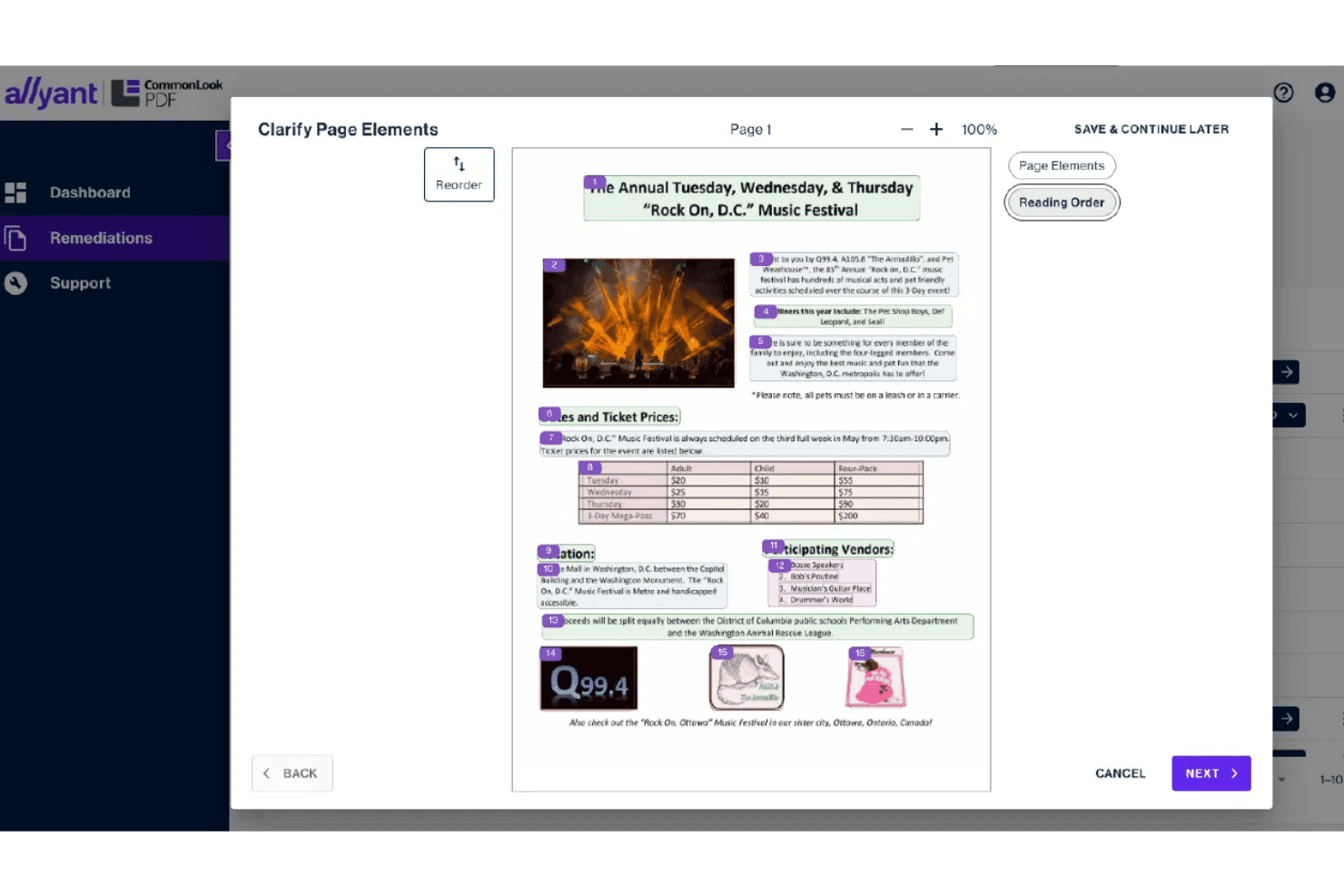
CommonLook PDF guides users through clarifying reading order of page elements. CommonLook PDF is a PDF remediation tool that combines multi-standard accessibility checking, a dual-mode tag tree editor, AI-assisted auto-tagging, and purpose-built tools for complex tables, forms, and lists.
Who Is CommonLook PDF Best For?
CommonLook PDF is a strong fit for government agencies and higher education institutions for defensible PDF documentation.
Why I Picked CommonLook PDF
CommonLook PDF earns its spot on my shortlist because it's the only tool I've seen that generates a per-document Validation Report accepted as formal compliance proof against Section 508, WCAG, PDF/UA, and HHS standards. When an audit lands, that report is your defensible paper trail, checkpoint by checkpoint. I also rely on its dedicated Table Editor for documents where complex header structures would otherwise break screen reader navigation entirely.
CommonLook PDF Key Features
- AI-powered auto-tagging: Detects and tags headings, lists, tables, forms, and figures across a document to accelerate remediation.
- Dual editing modes: Handles easy remediation for non-technical users, while an Advanced Editor gives experienced practitioners full tag tree control.
- Fix Wizard: Guides you through resolving each identified accessibility issue one checkpoint at a time.
- CommonLook Office plug-in: Fix accessibility natively in Microsoft Word and PowerPoint before exporting files.
CommonLook PDF Integrations
CommonLook PDF integrates with Adobe Acrobat Pro, Microsoft Word and PowerPoint. It also connects with CommonLook Clarity for repository scanning.
Pros and Cons
Pros:
- Offers dual-mode editing for different skill levels
- Handles complex tables, forms, and lists exceptionally
- Generates audit-ready validation reports for compliance
Cons:
- No publicly documented developer API or SDK
- Validation reports can be difficult to interpret
Learn more about CommonLook PDF:
Other PDF Remediation Software
Here are some additional PDF remediation software options that didn’t make it onto my shortlist, but are still worth checking out:
- 11YuJa CivicGuardBest for government PDF compliance
- 12OpenText Document AccessibilityBest for high-volume PDF tagging and remediation
- 13Level AccessBest for source-file PDF compliance workflows
- 14AudioEyeBest for legally defensible dynamic PDF compliance
- 15axesWordBest for Word-to-PDF accessibility
- 16MadeToTagBest for InDesign-native accessible PDF export
- 17EquidoxBest for no-Adobe concurrent-user licensing
- 18AccessibilityNow RemediateBest for complex-table PDF tag finishing
- 19ApryseBest for embedding PDF/UA into dev pipelines
Related Reviews
How I Evaluate PDF Remediation Software
I split every evaluation into baseline requirements a tool must meet and the differentiators that separate a solid option from the right one for your environment.
Core Functionality (Table Stakes For This List)
When I'm selecting tools for my list, I rank each one on a scale from 0 (does not offer the functionality) to 5 (excels in this area) for each core functionality listed below. I then calculate the tool's total score as a percentage, using 65% as a benchmark to help assess its overall fit for the list.
- PDF tagging and structure: I evaluate how each tool handles tag tree editing, reading order adjustments, and structural inference—especially on scanned or legacy documents where the original structure is missing entirely.
- Standards compliance: Each tool needs to map its checks to recognized standards like WCAG 2.x, PDF/UA, and Section 508, so I look at which standards are covered and whether the tool ties specific rules back to each one.
- Accessibility checking: I check whether the validation engine goes beyond surface-level flags to offer per-issue diagnostics and remediation guidance, since a basic pass/fail result won't help your team fix anything.
- Complex element remediation: Tables with merged cells, nested lists, and interactive forms are where most tools fall short, so this is where I focus—alt text support alone doesn't cut it for real-world documents.
- Batch and automated remediation: For teams sitting on large PDF backlogs, I look at whether the tool supports queued processing, API-driven automation, or AI-assisted tagging across document sets rather than forcing file-by-file manual work.
- Reporting and audit trails: Compliance reports, certificates, and remediation history matter when you're answering to auditors, so I evaluate what each tool generates and whether those outputs are exportable and stakeholder-ready.
Differentiating Factors (What Sets Vendors Apart)
Here's how I compare and contrast different vendors:
Standout Features
I look for developer APIs and SDKs that let teams embed remediation into CMS or CI/CD pipelines—tools like PDFix and Foxit offer REST APIs, but I check whether they support queued, event-driven triggers, not just manual calls. Template and rule reuse matters just as much: if your team remediates quarterly financial reports, saveable zone definitions cut per-page effort dramatically on every cycle. I also evaluate whether a tool includes a live screen reader preview, since validating the end-user experience without switching to JAWS or NVDA separately catches reading-order issues early.
Beyond Features
Deployment model matters more than most buyers expect. If your team handles sensitive records, I check whether a vendor offers on-premises or air-gapped options—PDFix and OpenText both support self-hosted installs, which keeps documents off third-party servers entirely. I also evaluate pricing structure against backlog size, since per-page licensing can spike costs on large remediation projects while flat-rate or per-seat models stay predictable. Finally, I look at whether the vendor integrates with validators like PAC 2024 or veraPDF, because audit-defensible output is what separates a fixed PDF from a provably compliant one.
How to Choose a PDF Remediation Software
So, how do you pick PDF remediation software that actually delivers audit-ready output and scales without bottlenecking your document workflows?
| If your priority is… | Look for… |
|---|---|
| If your priority is…Automation of large PDF backlogs | Look for…Batch remediation plus queue-based or API triggers |
| If your priority is…Defending compliance in an audit | Look for…Tools with exportable reports and certifiable standards mapping |
| If your priority is…Integrating with internal IT systems | Look for…Native REST APIs or SDKs that fit your deployment model |
| If your priority is…Handling legacy or complex documents | Look for…Tag tree editing and diagnostics for tables, forms, and lists |
How to Vet Your Shortlist
- Verify automation support: Request a live demo with a batch upload (10+ files) and confirm if the tool supports event-driven APIs or automated triggers.
- Test compliance reporting: Ask for a sample compliance report mapped to PDF/UA or Section 508. Check for per-issue diagnostics and audit trail history.
- Evaluate complex remediation: Run a trial on a PDF with merged cells or interactive forms and review the tag tree output for correctness.
- Confirm deployment options in writing: Require explicit documentation on on-premises support or air-gapped installation if handling sensitive data.
- Tradeoff—scalability vs. control: Decide if you need vendor-hosted automation for speed, or on-premises/self-hosted options for data control and custom integration.
What Is PDF Remediation Software?
PDF remediation software make PDFs accessible by scanning, tagging, and fixing documents so they comply with accessibility standards like Section 508 and PDF/UA. These solutions help your team identify barriers for screen readers, improve document structure, and generate compliance reports, making sure everyone can access and use your digital documents without obstacles.
Features of PDF Remediation Software
When selecting PDF remediation software, keep an eye out for the following key features:
- PDF tagging and structure: Allows you to add, edit, and fix tag trees so screen readers can navigate digital content in the correct order.
- Standards compliance mapping: Maps checks and remediation to standards like WCAG 2.x, PDF/UA, and Section 508, and shows which rules are being applied so you know your files meet the right regulations.
- Accessibility checking: Examines PDFs for barriers to accessibility, providing detailed diagnostics and guidance for fixing issues rather than simple pass-fail results.
- Complex element remediation: Handles complicated parts of PDFs such as tables with merged cells, nested lists, and interactive forms, enabling accurate tagging and structure for these elements.
- Batch and automated processing: Supports remediation of multiple PDFs at once through batch processing, APIs, or queue-based workflows, saving time when managing document backlogs.
- Reporting and audit trails: Produces exportable compliance reports and maintains a history of changes, helping your team document and defend accessibility work during audits.
- Screen reader preview: Lets you simulate how documents will be read by popular screen readers, so you can catch order and navigation issues before finalizing files.
- Template and rule reuse: Lets you define and apply custom rules or templates to similar documents, reducing repetitive work and maintaining consistency across bulk jobs.
- Deployment flexibility: Offers multiple deployment options, such as cloud, on-premises, or air-gapped installations, so you can fit the software into your data security and IT infrastructure requirements.
- Third-party validator integration: Works with external validators like PAC or veraPDF, so you can confirm that output meets independent accessibility testing standards.
Common PDF Remediation Software AI Features
Beyond the standard PDF remediation software features listed above, many of these solutions are incorporating AI with features like:
- AI-driven tag suggestion: Uses machine learning to analyze document structure and content, then automatically recommends or applies the most appropriate tags for headings, lists, tables, and images. This reduces manual tagging work and helps ensure consistency across large document sets.
- Automated reading order detection: Leverages AI to infer the logical reading order of complex or unstructured PDFs, even when the original layout is inconsistent. This helps screen readers present content in the correct sequence without manual intervention.
- Intelligent table recognition: Applies AI models to identify tables, merged cells, and nested structures within scanned or poorly formatted PDFs. The tool then generates accurate table tags and cell relationships, improving accessibility for users who rely on assistive technology.
- Natural language alt text generation: Uses AI to generate descriptive alternative text for images, charts, and graphics by analyzing visual content and surrounding context. This feature helps teams quickly add meaningful descriptions that meet accessibility standards.
- Context-aware issue prioritization: Employs AI to assess detected accessibility issues and rank them based on impact, frequency, and compliance risk. This guides users to address the most critical problems first, streamlining remediation workflows.
- Predictive remediation recommendations: Utilizes AI to suggest specific fixes for detected issues, drawing on patterns from previous remediations and best practices. This helps users resolve complex accessibility barriers with targeted, actionable guidance.
Benefits of PDF Remediation Software
Implementing PDF remediation software provides several benefits for your team and your business. Here are a few you can look forward to:
- Improved document accessibility: Tagging tools and structure editing let you turn scanned or legacy PDFs into accessible files that work seamlessly with screen readers.
- Audit-ready compliance: Automated standards mapping and detailed reporting features help you create documents that meet PDF/UA, WCAG 2.x, and Section 508 requirements with traceable audit trails.
- Faster large-scale remediation: Batch processing, API-driven automation, and AI-powered tagging allow your team to remediate multiple PDFs at once instead of working file by file.
- Accurate handling of complex elements: Specialized tools for tables, forms, and interactive fields make it possible to remediate challenging content correctly, reducing manual corrections later.
- Flexible integration with IT systems: Native REST APIs, SDKs, and third-party connections let you fit remediation into your company’s compliance workflows.
- Consistent results through templates and rules: Help your team apply best practices and cut manual work to maintain high quality across documents.
- Deployment options for sensitive environments: On-premises, air-gapped, or self-hosted deployment choices give you greater control over document security and workflow integration.
Costs and Pricing
Selecting PDF remediation software requires an understanding of the various pricing models and plans available. Costs vary based on features, team size, add-ons, and more. The table below summarizes common plans, their average prices, and typical features included in PDF remediation solutions:
Plan Comparison Table for PDF Remediation Software
| Plan Type | Average Price | Common Features |
|---|---|---|
| Plan TypeFree Plan | Average Price$0 | Common FeaturesAllows limited page processing, offers basic tagging tools, provides simple compliance checks, and supports single-user access. |
| Plan TypePersonal Plan | Average Price$40-$100/user/month | Common FeaturesIncludes advanced tagging, basic batch processing, standards mapping, individual support, and access to core reporting tools. |
| Plan TypeBusiness Plan | Average Price$150-$400/user/month | Common FeaturesSupports multi-user teams, full batch automation, complex element remediation, API access, and exportable compliance reports. |
| Plan TypeEnterprise Plan | Average Price$1,000+/month | Common FeaturesEnables on-premises or self-hosted deployment, advanced security controls, custom integrations, audit trails, and priority support. |
PDF Remediation Software FAQs
Here are some answers to common questions about PDF remediation software:
How do I know if a PDF remediation tool meets compliance standards?
You should look for explicit references to standards like WCAG 2.x, PDF/UA, and Section 508 within the tool’s documentation or reports. The best tools let you map specific checks and fixes to these regulations and generate exportable audit trails, so you can prove compliance during an audit or legal review.
Can PDF remediation software handle batch processing for large document sets?
Yes, many PDF remediation tools support batch and automated workflows. If you need to process hundreds or thousands of files, prioritize solutions with API access, queue-driven processing, or rule-based templates. Always test this feature during your demo with at least 10+ files to confirm it works as promised.
What are the differences between cloud-based and on-premises deployment?
Cloud-based tools are typically easier to set up and update, while on-premises or air-gapped deployments offer more control over sensitive data. If your team handles confidential records or must meet strict security requirements, ask vendors for written confirmation of their on-premises or self-hosted support.
Does PDF remediation software support integration with other IT systems?
Yes, many vendors offer REST APIs or SDKs that let you integrate remediation into content management or CI/CD pipelines. Some platforms also work with third-party validators or reporting systems. If integration is a priority, confirm the tool fits your existing workflow and supports queued or event-driven automation.
How can I evaluate a tool’s support for complex PDF elements like tables and forms?
Run a trial upload of a document with merged table cells, nested lists, or interactive forms. Check whether the tool’s tag tree output handles these correctly, and look for diagnostics or guidance when issues arise. Tools that only offer simple tagging probably won’t handle these real-world documents well.