

Testar aplicações Android num Mac nem sempre é fácil. Poderá deparar-se com um desempenho lento, suporte limitado para dispositivos ou ferramentas que simplesmente não foram concebidas a pensar nos programadores. Quer esteja a depurar uma aplicação, a instalar APKs manualmente ou apenas a tentar reproduzir a experiência de um dispositivo real, o emulador que escolher pode ter um impacto significativo no seu fluxo de trabalho.
Nos últimos anos, testei uma vasta gama de emuladores Android enquanto trabalhava em projetos multiplataforma e colaborava com equipas de desenvolvimento que dependem do macOS. Vi em primeira mão quais são fiáveis, fáceis de utilizar pelos programadores e capazes de cumprir efetivamente o que prometem.
Neste guia, apresentarei uma análise detalhada dos melhores emuladores de Android para Mac — com base em testes reais, não apenas em especificações ou listas de funcionalidades. Quer precise de algo leve para testes rápidos ou de um dispositivo virtual mais completo, ajudá-lo-ei a encontrar a opção certa.
Why Trust Our Software Recommendations
6,700+
Reviews
20
Industry experts
16+
Evaluation factors
14
Years
Our team has been testing and reviewing software since 2012. As tech leaders ourselves, we know how difficult—and important—it is to choose the right software.
For this guide, we evaluated tools using hands-on testing and independent research, scoring tools using our selection criteria.
Our reviews reflect our human editorial judgment, not a sales pitch.
Expert reviewers:
- Paulo Gardini MiguelTech Director
 Tim FisherVP of AI
 Gabriel RosasTech Lead & Software Architect
 Christhian GruhnTech Lead & Platform Architect

Tabela comparativa de emuladores de Android para Mac
Esta tabela comparativa resume os detalhes de preços das minhas principais seleções de emuladores Android para Mac:
| Tool | Best For | Trial Info | Price | ||
|---|---|---|---|---|---|
| 1 | Best for CI/CD-scale Android test coverage | 28-day free trial + free demo available | From $39/month (billed annually) | Website | |
| 2 | Best for CI/CD-driven mobile QA teams | Free trial + free demo available | From $83/month | Website | |
| 3 | Best with dedicated private device lab options | Free plan available | From $250/month | Website | |
| 4 | Best for emulating game experience | Free plan available | Free plan available | Website | |
| 5 | Best for browser-based CI/CD pipeline testing | Free plan + free demo available | From $59/month (billed annually) | Website | |
| 6 | Best for cross-browser testing | Free plan + free demo available | From $15/month (billed annually) | Website | |
| 7 | Best with 150+ third-party tool integrations | Free trial available | From $29/user/month (billed annually) | Website | |
| 8 | Best for app development | Free plan available | Free plan available | Website | |
| 9 | Best for cloud-scale Android device fleet testing | Free plan available | From $239.99/computer/year | Website | |
| 10 | Best for Apple Silicon Android gaming on Mac | Free plan available | Free plan available | Website |


Análises dos melhores emuladores de Android para Mac
Seguem-se os meus resumos detalhados dos melhores emuladores de Android para Mac que entraram na minha lista resumida. As minhas análises apresentam uma visão detalhada das principais funcionalidades, vantagens e desvantagens, integrações e casos de utilização ideais de cada ferramenta, para o ajudar a encontrar a melhor opção para si.
 Best for CI/CD-scale Android test coverage
- 28-day free trial + free demo available
- From $39/month (billed annually)
Visit WebsiteCustomer Rating:4.3/5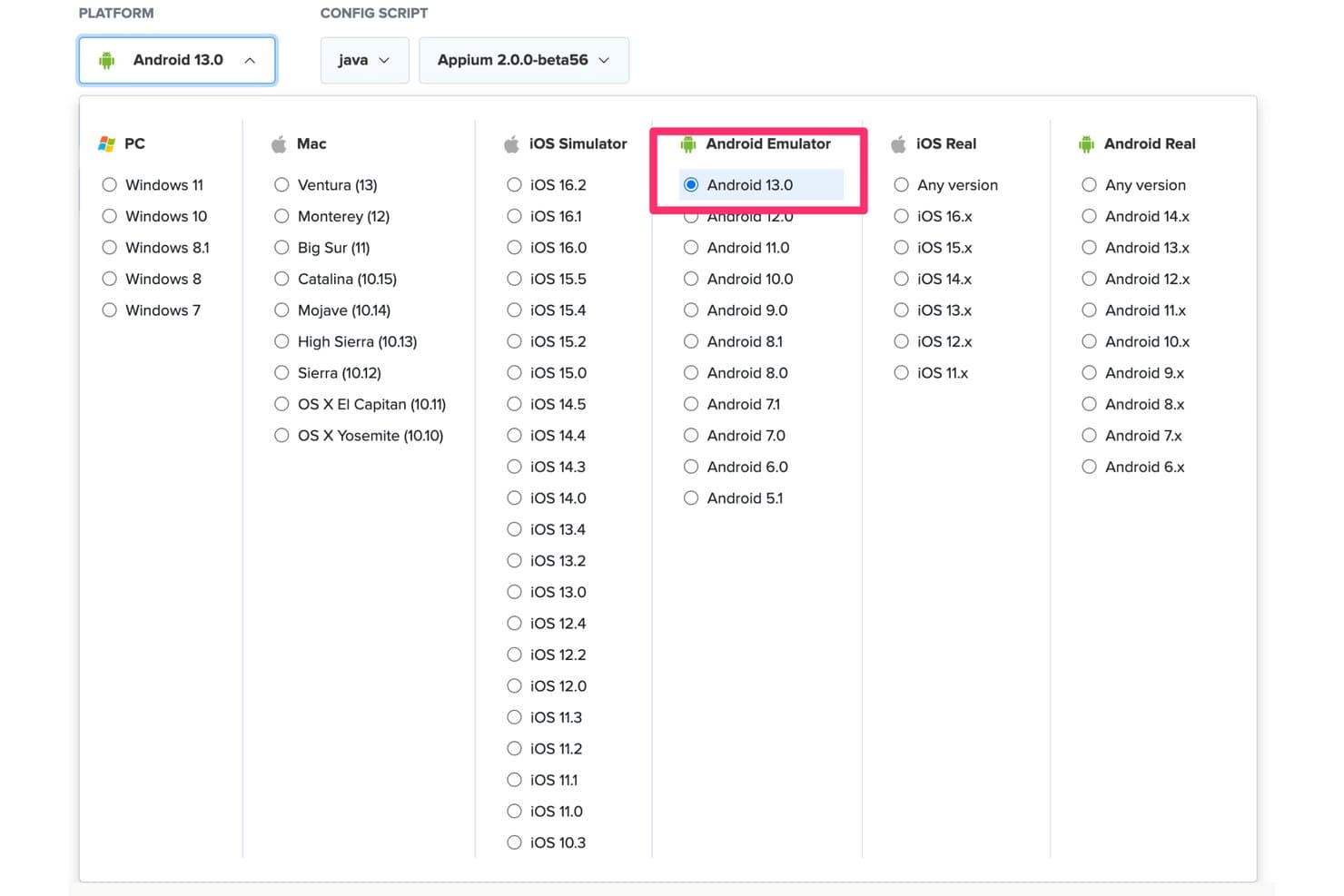
Sauce Labs supports Android Emulator testing on Android 13.0 via Java and Appium. Sauce Labs is a cloud-based Android testing platform that gives you on-demand access to 1,700+ virtual Android emulators spanning Android 5.0 through 16.x, with ARM-native execution, parallel test runs, and deep integration with Appium, Espresso, and major CI/CD pipelines.
Who Is Sauce Labs Best For?
Sauce Labs is a strong fit for QA engineers and DevOps teams that need to run Android tests at CI/CD scale without managing local emulator infrastructure.
Why I Picked Sauce Labs
I picked Sauce Labs as one of the best because it's the only platform I know of that delivers ARM-native Android execution at CI/CD scale, which directly solves the flakiness and slowness that plague x86-based cloud emulators. Session start times drop from ~90 seconds to ~20 seconds on the Android Premium Cloud, and I've seen teams run across 24+ concurrent Android versions without touching a local emulator setup. If your Mac-based QA pipeline is the bottleneck, Sauce Labs removes it entirely.
Sauce Labs Key Features
- ARM-native Android execution: The Android Premium Cloud runs virtual Android devices on ARM hardware, eliminating the x86 binary translation layer that causes test flakiness and slow session starts.
- Parallel test concurrency: Plans support up to 24+ simultaneous Android emulator sessions, letting your team run full device-version matrices in a single pipeline trigger.
- saucectl CLI: A command-line tool that handles APK/AAB uploads and Espresso test execution directly from your terminal, fitting naturally into scripted build workflows.
- Single-use VM sessions: Each emulator session spins up on a fresh virtual machine and is wiped after the session ends, giving every test run a clean, isolated environment.
Sauce Labs Integrations
Sauce Labs offers native plugins for Jenkins, Bitbucket, and TeamCity, plus documented integrations with GitHub Actions, GitLab, CircleCI, and Azure DevOps. Appium, Espresso, the
saucectlCLI, and REST API support custom CI/CD workflows from a Mac.Pros and Cons
Pros:
- Supports massive parallel version concurrency
- Runs ARM-native Android sessions in cloud
- No local Mac setup required for testing
Cons:
- Real-time app interactions limited by network latency
- Does not run natively on macOS
Learn more about Sauce Labs: Best for CI/CD-driven mobile QA teams
- Free trial + free demo available
- From $83/month
Visit WebsiteCustomer Rating:4.3/5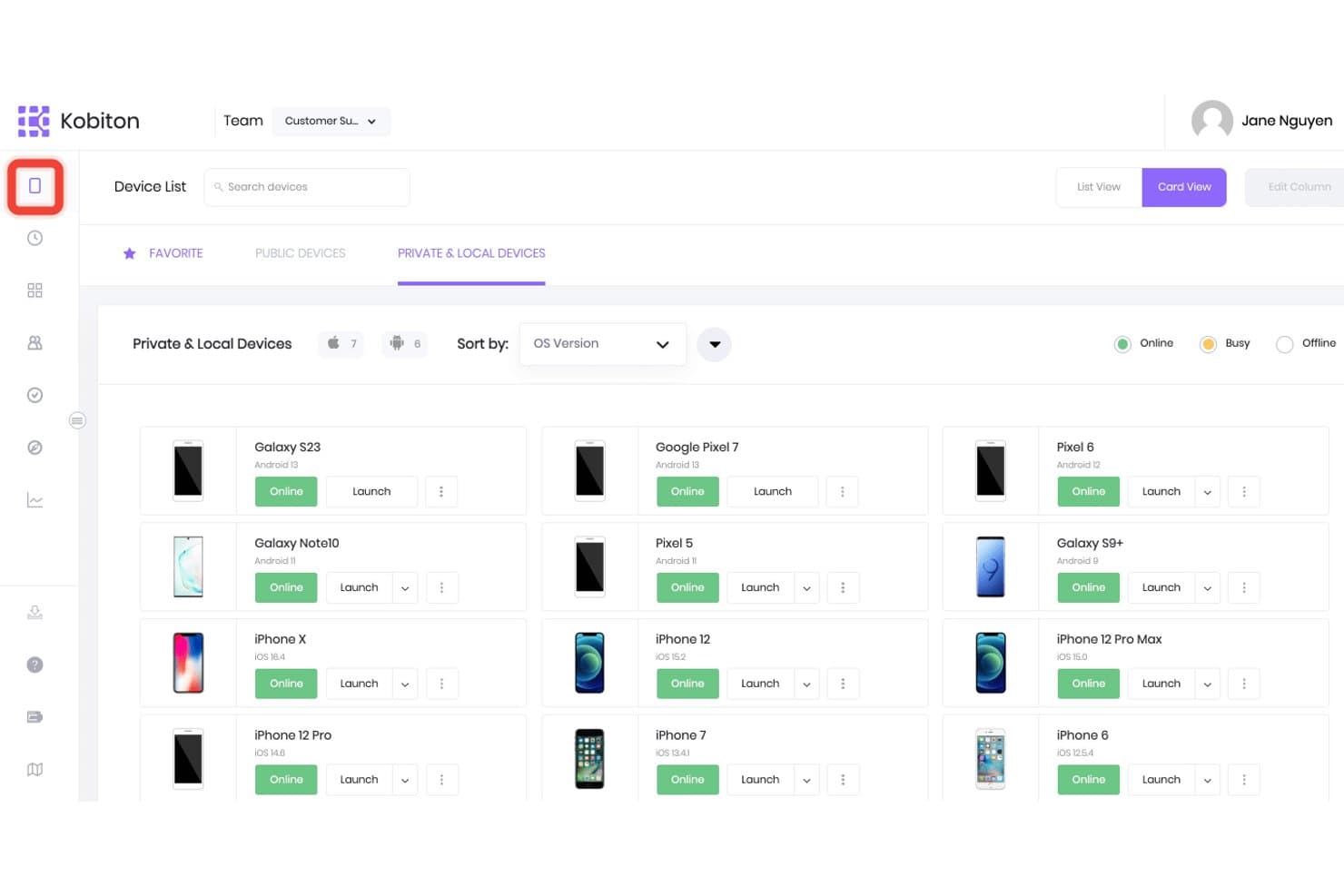
Kobiton lets users browse and launch private and local devices. Kobiton is a cloud-based mobile testing platform that gives teams browser-accessible Android device testing—combining real device access, virtual emulators, and AI-assisted test automation across a wide range of OS versions and manufacturers.
Who Is Kobiton Best For?
Kobiton is a strong fit for QA and DevOps engineers who need cloud-based Android testing woven directly into automated CI/CD pipelines.
Why I Picked Kobiton
I've included Kobiton in my top picks because it's the strongest option for QA and DevOps teams who need Android testing built directly into a CI/CD pipeline. Where local emulators fall short in automation depth, Kobiton fills the gap with scriptless test recording that auto-generates Appium scripts and self-healing script execution that adapts when UI elements change. Its Session Explorer lets you replay test sessions, inspect screen load times, and file bugs to Jira without leaving the platform.
Kobiton Key Features
- Parallel device execution: Run test sessions across multiple Android OS versions and device profiles simultaneously within a single pipeline run.
- Camera image injection: Replace a device's live camera feed with custom images or video to test barcode scanning, OCR, and augmented reality workflows.
- GPS location mocking: Set virtual GPS coordinates on cloud-hosted Android devices to validate geofencing and location-dependent app behavior.
- Air-gapped deployment support: Deploy Kobiton entirely on-premises or in a fully isolated environment for teams with strict data governance or compliance requirements.
Kobiton Integrations
Kobiton integrates with Jenkins, GitHub Actions, CircleCI, Bitrise, Azure DevOps, TeamCity, Buildkite, Jira, Appium, Espresso, and XCUITest. Its API supports custom CI/CD workflows and automated mobile testing.
Pros and Cons
Pros:
- Parallel test execution across multiple devices
- Strong CI/CD pipeline and automation features
- Access to real devices and emulators remotely
Cons:
- Requires stable internet for all device sessions
- No native emulator runs on Mac locally
Learn more about Kobiton: Best with dedicated private device lab options
- Free plan available
- From $250/month
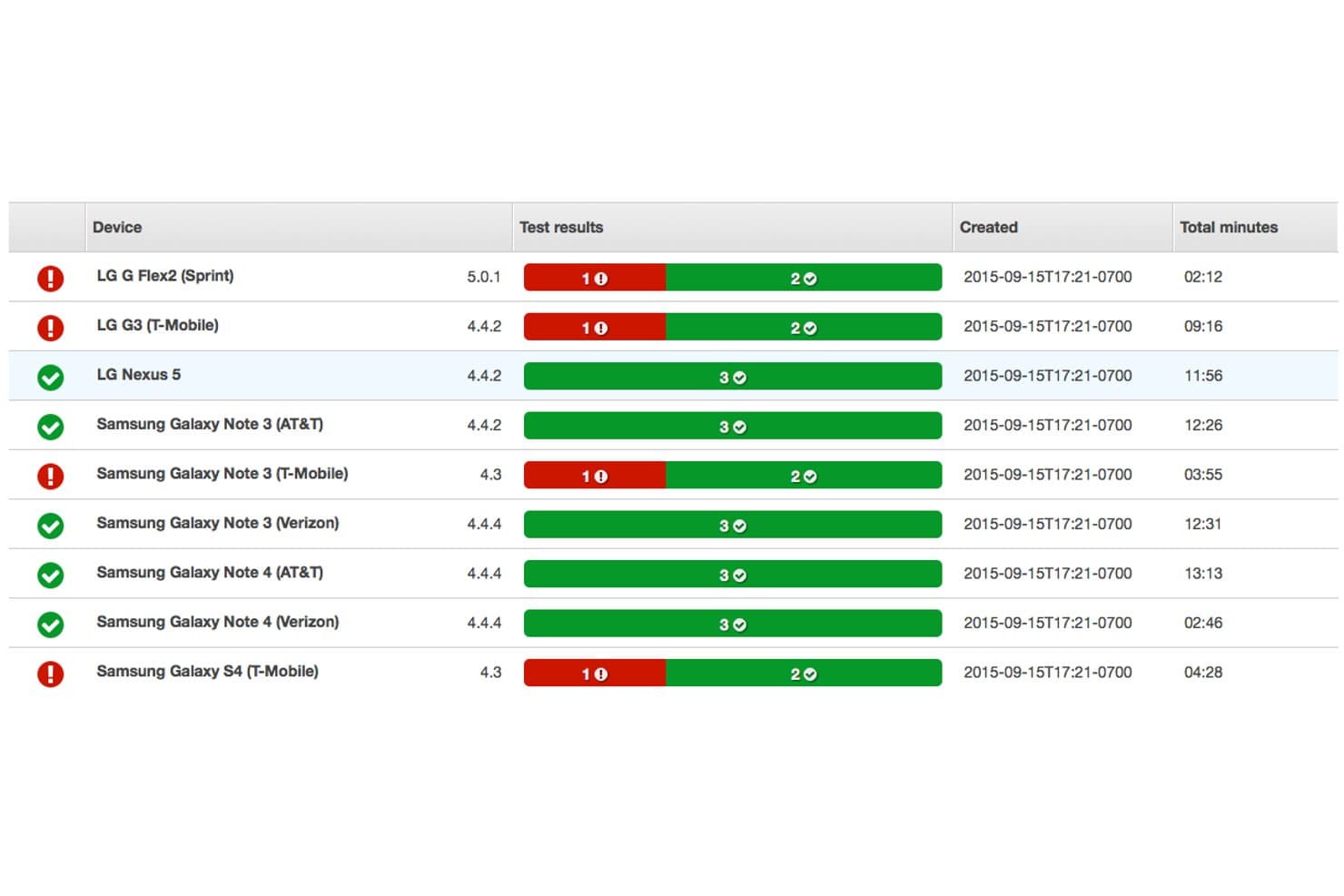
AWS Device Farm displays real Android device test results with pass/fail statuses, OS versions, and total test duration per device. AWS Device Farm is a cloud-based device testing platform designed for developers who need to run Android apps on real devices and browsers from their Mac.
Who Is AWS Device Farm Best For?
Mobile QA teams and developers at technology companies that need access to a wide range of real Android devices for thorough app testing at scale.
Why I Picked AWS Device Farm
I picked AWS Device Farm as one of the best because I can reserve private Android devices in a cloud lab, ensure sensitive apps never share hardware with competitors, and run parallel, automated tests on real hardware from my Mac.
AWS Device Farm Key Features
- Automated test suite support: Run tests using frameworks like Appium, Espresso, Calabash, and XCTest.
- Live device access: Interact with real Android devices for manual testing directly from your Mac.
- Deep diagnostic logs: Capture video, screenshots, and performance data from each test session.
- Device state configuration: Change settings like location, language, or network to simulate real-world conditions.
AWS Device Farm Integrations
AWS Device Farm offers native integrations with Jenkins, Android Studio, and the broader AWS ecosystem, including CodePipeline and S3. An API is available for custom integrations and test automation workflows.
Pros and Cons
Pros:
- Offers device state and environment configuration
- Supports both manual and automated testing
- Access to a wide real device library
Cons:
- Not suitable for offline or local-only testing
- Queues can delay access to popular devices
Learn more about AWS Device Farm:
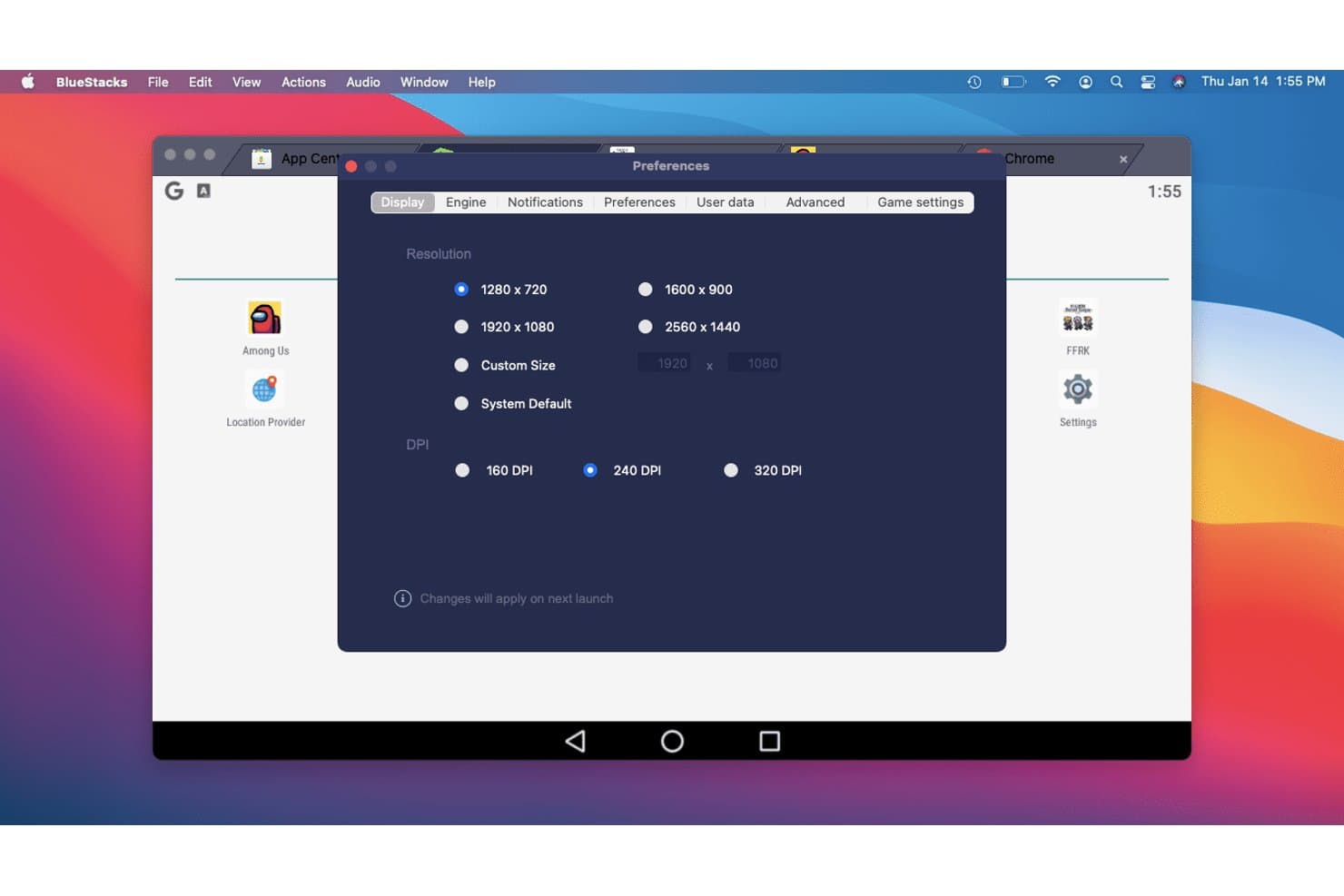
BlueStacks lets users customize display resolution and DPI settings. BlueStacks Air is a native ARM64 Android emulator for Apple Silicon Macs that runs Android 13 apps and games through a fully integrated Google Play Store, multi-instance manager, and Vulkan-accelerated graphics engine.
Who Is BlueStacks Best For?
BlueStacks Air is the go-to pick for casual gamers and mobile gaming enthusiasts who want to play Android games on an Apple Silicon Mac without any technical setup.
Why I Picked BlueStacks
BlueStacks Air earns its spot on my list because no other Mac Android emulator comes close for gaming. It's a native ARM64 build with Vulkan-accelerated graphics and up to 240 FPS support, so titles like Genshin Impact and Call of Duty: Mobile run with real fluidity on Apple Silicon. The Multi-Instance Manager lets you run several game accounts simultaneously, each with its own CPU and RAM allocation.
BlueStacks Key Features
- Google Play Store integration: Access the full Play Store with your Google account, including in-app purchases and cloud sync, without sideloading APKs.
- Multi-Instance Manager: Run multiple independent Android sessions simultaneously, each with its own CPU, RAM, and resolution settings.
- BlueStacks AI (BlueAI): An AI layer that performs in-app actions automatically, with support for third-party LLM providers via your own API key.
- Eco Mode: Reduces CPU and GPU usage for background instances so your Mac stays responsive while multiple sessions run.
BlueStacks Integrations
BlueStacks has native Google Play Store integration and supports ADB connections through port 5555. BlueAI connects with OpenAI and Anthropic through your API key, while macOS integration supports Mission Control, full-screen mode, keyboard shortcuts, and multiple monitors.
Pros and Cons
Pros:
- Multi-instance manager for parallel sessions
- Smooth gameplay with up to 240 FPS
- Native support for Apple Silicon Macs
Cons:
- Only emulates Android 13 version
- No support for Intel-based Macs
Learn more about BlueStacks: Best for browser-based CI/CD pipeline testing
- Free plan + free demo available
- From $59/month (billed annually)
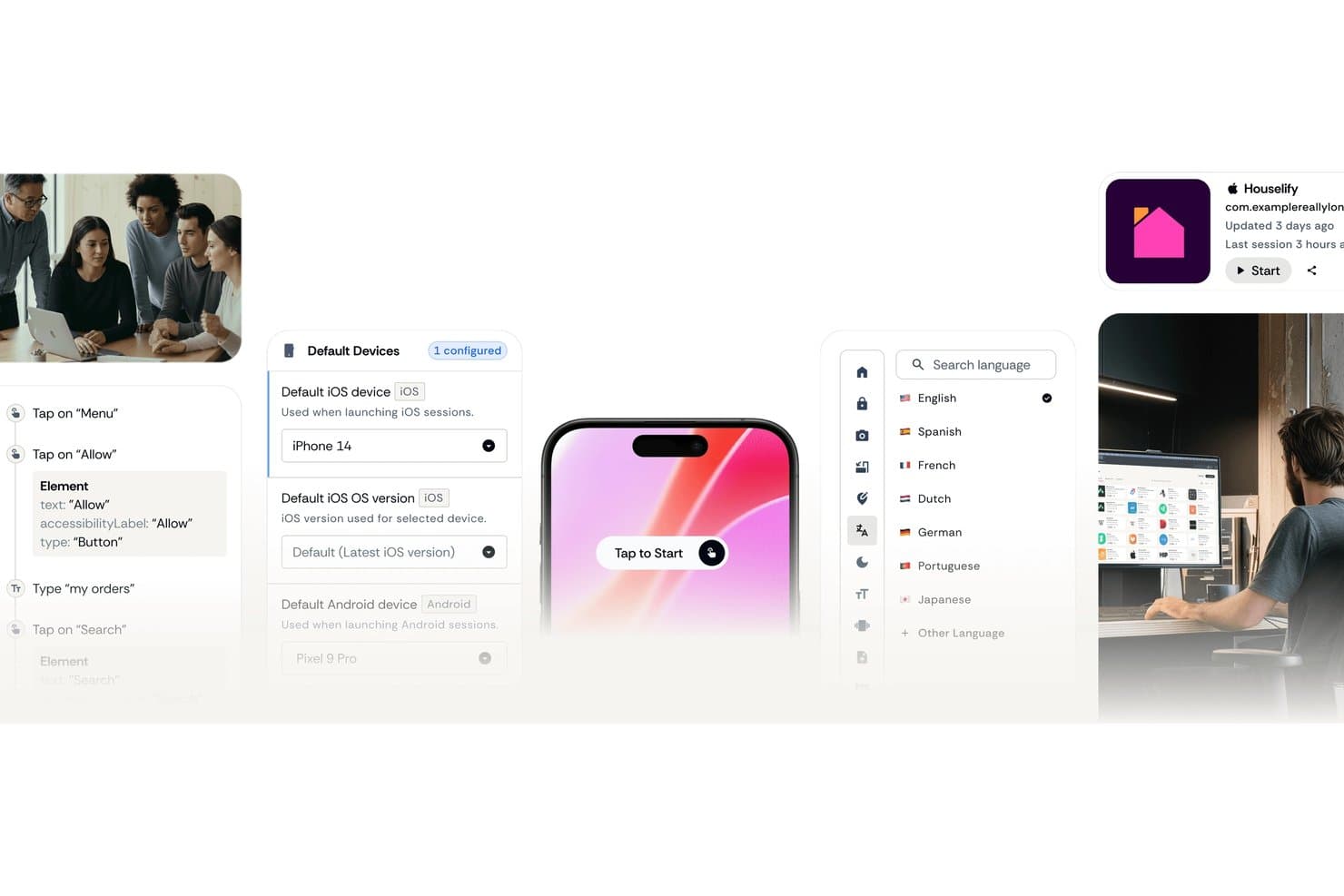
Appetize.io lets users configure default iOS and Android devices for testing. Appetize.io is a cloud-based Android emulator that runs entirely in your browser, offering APK upload and playback, multi-version device profiles spanning Android 8.1 through 16, ADB tunnel access, a JavaScript SDK, and native Playwright integration for automated testing.
Who Is Appetize.io Best For?
Appetize.io is a strong fit for QA engineers and DevOps teams who need scalable, browser-based Android testing wired directly into their CI/CD pipelines.
Why I Picked Appetize.io
I've included Appetize.io in my top picks because it's the only tool on this list that runs entirely in your browser, making Apple Silicon compatibility a non-issue. I particularly like its native Playwright integration with AppRecorder, which lets you record and replay test sessions without writing automation scripts from scratch. Pair that with documented CI/CD support for Bitrise, FastLane, GitHub, and GitLab, and you get a cloud Android environment that slots directly into an existing pipeline.
Appetize.io Key Features
- ADB tunnel access: Creates an SSH tunnel into a live cloud emulator session, letting you connect Android Studio or standard ADB commands directly to a remote device.
- Network traffic monitor: Captures all app network traffic via a built-in intercept proxy, with logs viewable in-session or downloadable as a HAR file.
- Mock location simulation: Sets device GPS coordinates via URL parameters or the JavaScript SDK
setLocation()method to test location-dependent app behaviour. - Media injection: Uploads images or video files (up to 50 MB) directly to a running emulator session for testing camera, OCR, or AR features.
Appetize.io Integrations
Appetize.io offers documented integrations with Bitrise, FastLane, GitHub, GitLab, Playwright, Android Studio via ADB tunnel, and Okta SSO. Its REST API and JavaScript SDK support custom CI/CD orchestration and embedded workflows.
Pros and Cons
Pros:
- Supports Playwright-native test automation workflows
- Connects Android Studio via ADB tunnel
- Runs Android emulation fully in browser
Cons:
- Lacks Google Play Store access
- Requires consistent internet for use
Learn more about Appetize.io: Best for cross-browser testing
- Free plan + free demo available
- From $15/month (billed annually)
Visit WebsiteCustomer Rating:4.9/5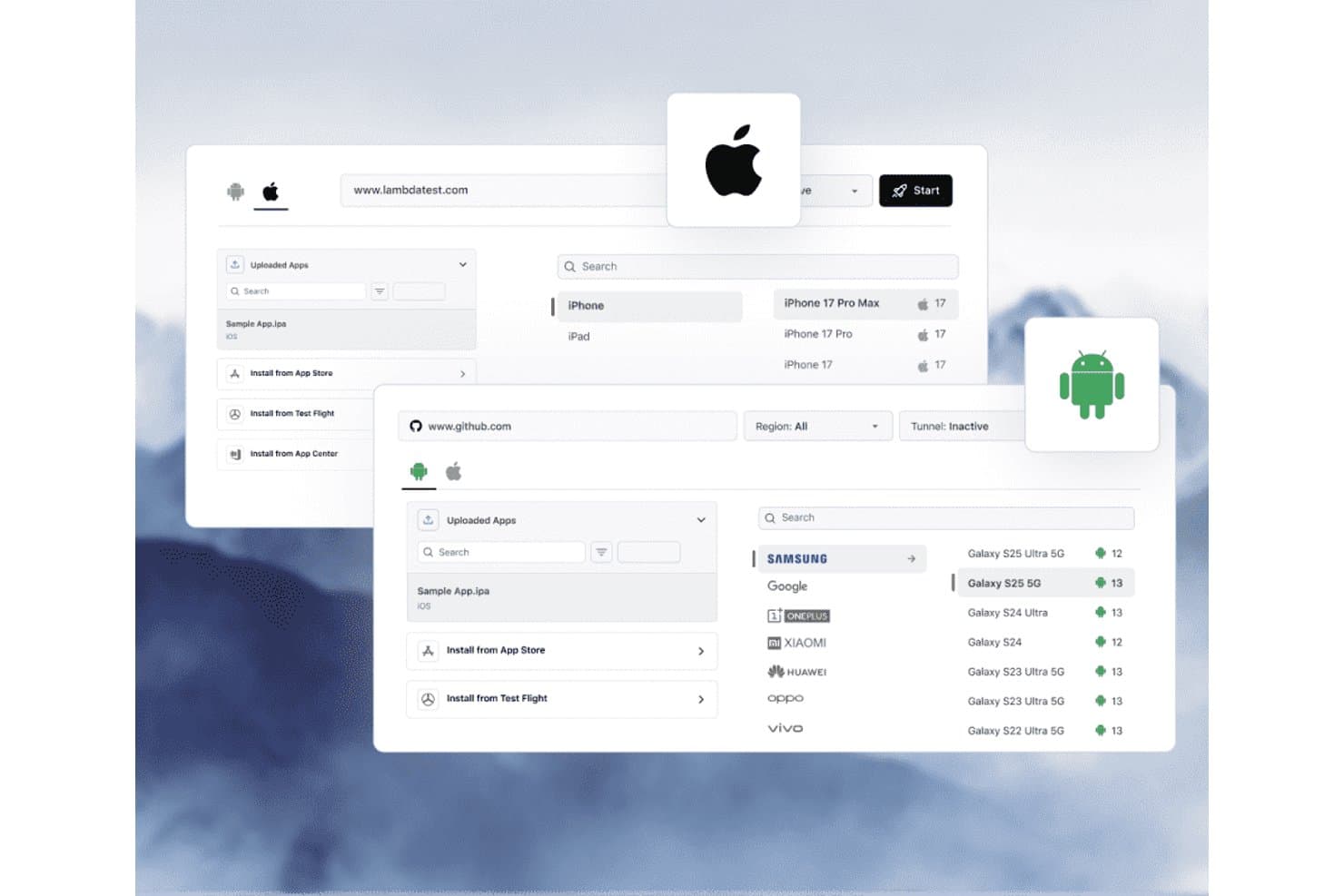
TestMu AI lets users test apps on real iOS and Android devices in the cloud. TestMu AI is a cloud-based Android testing platform that gives you access to 170+ emulator profiles and 10,000+ real devices directly from your browser, with built-in support for Appium, Espresso, Detox, and CI/CD pipeline integrations.
Who Is TestMu AI Best For?
TestMu AI is a strong fit for QA engineers and DevOps teams who need to test Android apps across a wide range of OS versions and real devices without managing local infrastructure.
Why I Picked TestMu AI
I picked TestMu AI as one of the best because it gives you access to 170+ Android emulator profiles and 10,000+ real devices directly from your browser, covering Android 4.1 through 16 without touching your Mac's local setup. Cross-browser testing is where it genuinely shines: you can run the same test session across multiple device and OS configurations simultaneously using HyperExecute, catching rendering and behaviour differences that single-device runs miss. I also like that KaneAI lets you author those tests in plain English, so spinning up a cross-device matrix doesn't require deep Appium scripting every time.
TestMu AI Key Features
- Real device cloud access: Connect to 10,000+ physical Android and iOS devices from your browser, with full hardware fidelity including real sensors and network conditions.
- CI/CD pipeline integrations: Connect directly to Jenkins, GitHub Actions, GitLab, CircleCI, Azure DevOps, and Bitbucket via a native Appium hub endpoint.
- Network condition simulation: Toggle between 3G, 4G, 5G, offline, and custom latency profiles within any test session to validate app behaviour under real-world network constraints.
- Session logging and diagnostics: Capture device logs, app crash reports, and network traffic automatically for every test session, accessible from the cloud dashboard after the run.
TestMu AI Integrations
TestMu AI supports 120+ integrations, including Jenkins, GitHub Actions, GitLab, Azure DevOps, CircleCI, Bitbucket, Appium, Espresso, Detox, and Maestro. Its Appium hub, REST APIs, and KaneAI CLI support custom CI/CD workflows.
Pros and Cons
Pros:
- Simultaneous testing across multiple configurations
- Huge range of Android versions and devices
- Runs on any Mac, no installation needed
Cons:
- Cannot run Android natively on Mac
- Requires constant internet connection to use
Learn more about TestMu AI: Best with 150+ third-party tool integrations
- Free trial available
- From $29/user/month (billed annually)
Visit WebsiteCustomer Rating:4.5/5
BrowserStack offers parallel testing across four Android devices simultaneously, displaying the Wikipedia app on Google Pixel 9, Samsung Galaxy S25, Google Pixel 9 Pro XL, and Samsung Galaxy S25 Ultra. BrowserStack is a cloud-based testing platform that gives Mac users access to thousands of real Android devices and browsers for both manual and automated app testing.
Who Is BrowserStack Best For?
QA teams and developers at medium to large companies who need real-device Android app testing without maintaining in-house device labs.
Why I Picked BrowserStack
I picked BrowserStack because my team is able to test Android apps on real devices directly from a Mac browser and instantly switch between models, OS versions, and network settings. The 150+ third-party tool integrations let us plug device testing into our CI/CD and reporting tools.
BrowserStack Key Features
- AI-powered test agents: Access automated test authoring, analysis, and failure debugging powered by built-in AI tools.
- Visual regression testing: Run automated screenshots and visual diffs across Android devices to catch layout bugs.
- Accessibility scanning: Test app accessibility on real Android phones with detailed reports on accessibility issues.
- Device geolocation simulator: Simulate different geographic locations for apps to test region-specific features and content.
BrowserStack Integrations
BrowserStack offers over 150 native integrations, including Jenkins, Jira, GitHub, GitLab, Slack, Bitbucket, Azure DevOps, CircleCI, Appium, and Selenium. An API is also available for custom integrations.
Pros and Cons
Pros:
- No local installation required for device testing
- Wide OS and device model coverage
- Real Android devices available instantly on Mac
Cons:
- Advanced device features require higher-tier plans
- Can experience lag during peak hours
Learn more about BrowserStack:
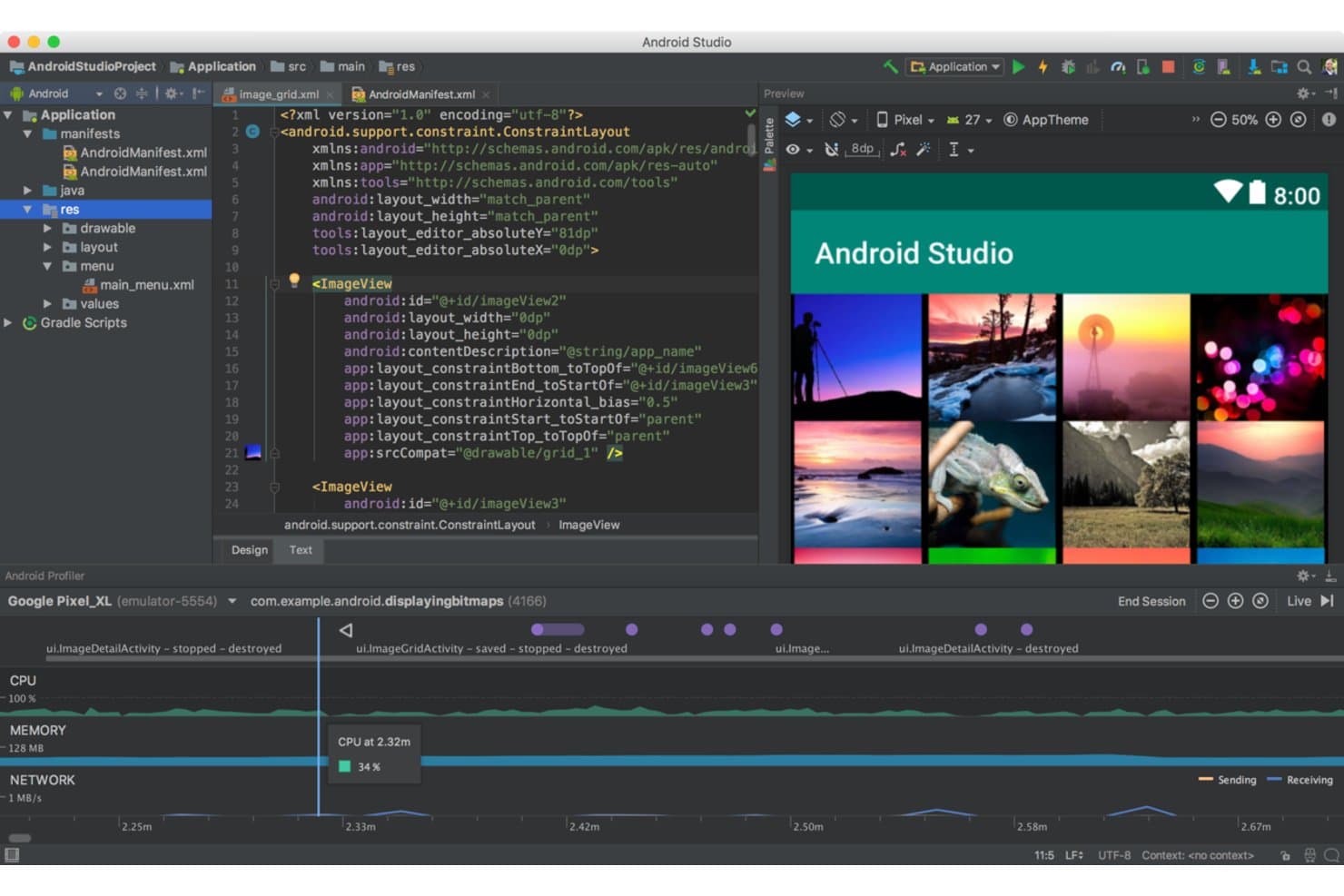
Android Studio lets users build and preview grid layouts with real-time profiling. Android Studio is Google's official Android IDE and emulator, built around the Android Virtual Device (AVD) Manager, with native Apple Silicon support, full sensor simulation, and deep integration with ADB, Gradle, Espresso, and CI/CD pipelines.
Who Is Android Studio Best For?
Android Studio is the go-to choice for Android app developers and QA engineers who need a full-featured, official development environment with deep toolchain integration.
Why I Picked Android Studio
I picked Android Studio as one of the best because it's Google's official Android IDE, which means it gets first-class support for every new Android API and device profile before any other emulator does. The AVD Manager ships with profiles covering Pixel 10 series, foldables, Wear OS, and Android Automotive, and you can swap API levels on the fly. I especially like the Extended Controls panel, which lets you script GPS routes, simulate 5G network conditions, and inject fingerprint events during active test runs.
Android Studio Key Features
- Quick Boot snapshots: Save and reload emulator states instantly, cutting subsequent launch times by up to 10x compared to a cold boot.
- Multi-instance networking: Run multiple AVDs simultaneously with a networking stack that lets emulators communicate directly, without manual port forwarding.
- Headless emulator mode: Launch and control the emulator from the command line without a GUI, making it compatible with automated CI/CD pipelines.
- Telnet and gRPC console: Connect to a running emulator via telnet or gRPC to inject commands, simulate events, and control device behavior programmatically.
Android Studio Integrations
Android Studio integrates with Gradle, Espresso, UI Automator, Firebase Test Lab, GitHub Actions, Jenkins, and Appium through ADB. It also provides gRPC and telnet interfaces for custom emulator automation.
Pros and Cons
Pros:
- Massive device and API version library
- Deep sensor and hardware simulation tools
- Native Apple Silicon and Intel Mac support
Cons:
- Not suitable for gaming or casual use
- High RAM and CPU usage on Mac
Learn more about Android Studio: Best for cloud-scale Android device fleet testing
- Free plan available
- From $239.99/computer/year
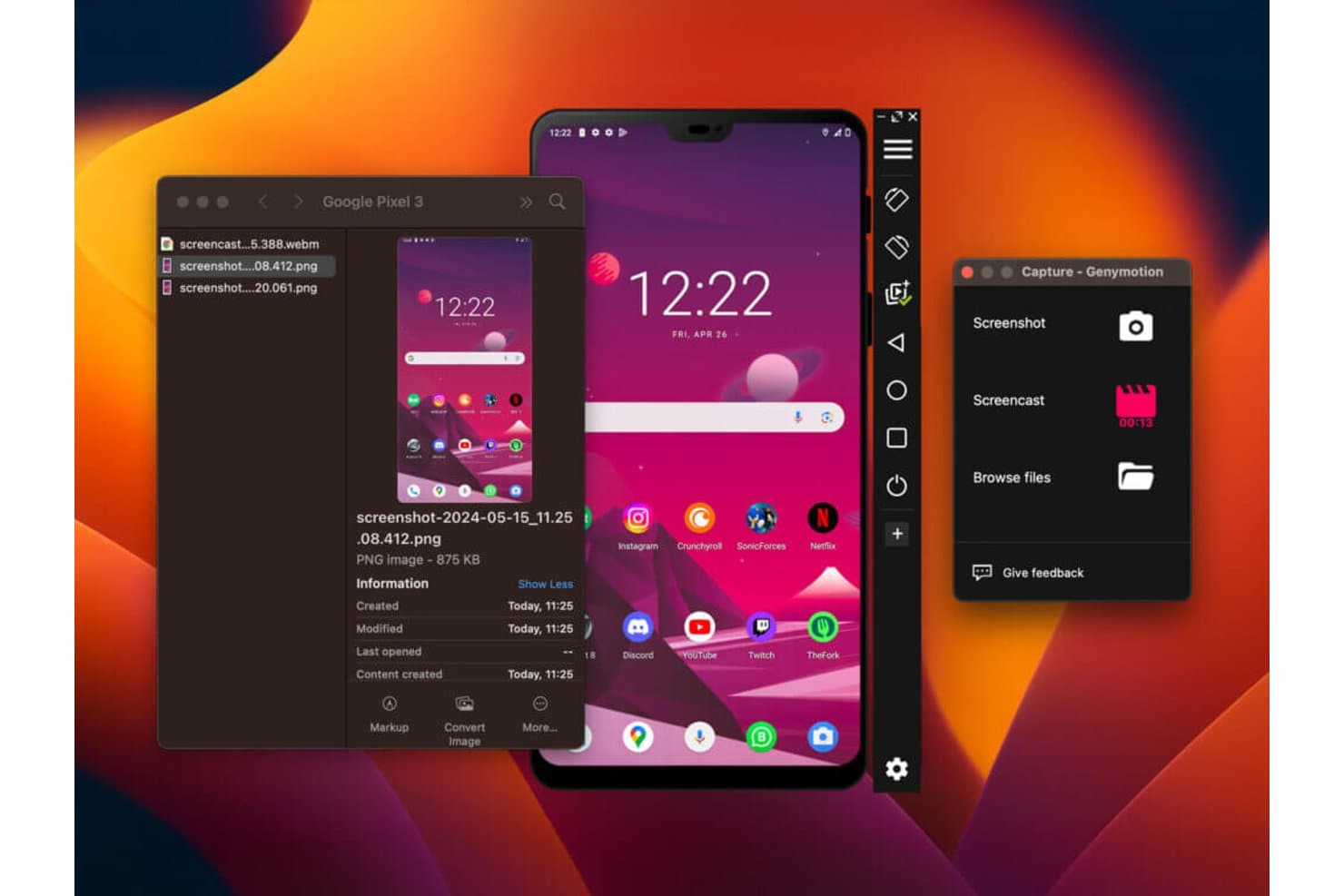
Genymotion lets users capture screenshots and screencasts of emulated Android devices on Mac. Genymotion is an Android emulator for Mac that supports local desktop, cloud-hosted (SaaS), and on-premises deployment, with multi-instance emulation, customizable device profiles, and deep CI/CD pipeline integration across Jenkins, Bitrise, CircleCI, and GitHub Actions.
Who Is Genymotion Best For?
Genymotion is a strong fit for mobile QA and DevOps teams that need to run large-scale, automated Android test suites across cloud-hosted device fleets.
Why I Picked Genymotion
I've included Genymotion in my top picks because it's the only Android emulator on this list that scales from a single local instance to a fleet of cloud-hosted virtual devices across AWS, GCP, and Azure. I like that the
gmsaasCLI lets you spin up, connect, and tear down devices programmatically inside Jenkins or GitHub Actions pipelines without any manual setup. PeerSpot users report running 100 to 200+ parallel instances, cutting test cycle times dramatically.Genymotion Key Features
- Custom device profiles: Configure screen resolution, DPI, CPU cores, RAM, and system fingerprint to replicate specific Android device models.
- Sensor simulation widgets: Simulate GPS routes via KML files, camera/media injection, battery state, biometrics, and network conditions from 2G through 5G.
- Android Studio plugin: Create, start, and deploy apps to Genymotion virtual devices directly from Android Studio via the official JetBrains Marketplace plugin.
- Multi-instance emulation: Run multiple Android virtual device instances simultaneously, with clone functionality available via the
gmtool admin clonecommand.
Genymotion Integrations
Genymotion has documented integrations with Android Studio, Jenkins, Bitrise, CircleCI, and GitHub Actions, plus Espresso, Appium, and Detox support. Its
gmsaasCLI and REST API support custom CI/CD automation across SaaS devices.Pros and Cons
Pros:
- Broad hardware and sensor simulation options
- Multi-instance emulation and quick device cloning
- Scales to large cloud device fleets
Cons:
- Motion sensor simulation unavailable in cloud mode
- No Google Play Services pre-installed
Learn more about Genymotion: Best for Apple Silicon Android gaming on Mac
- Free plan available
- Free plan available
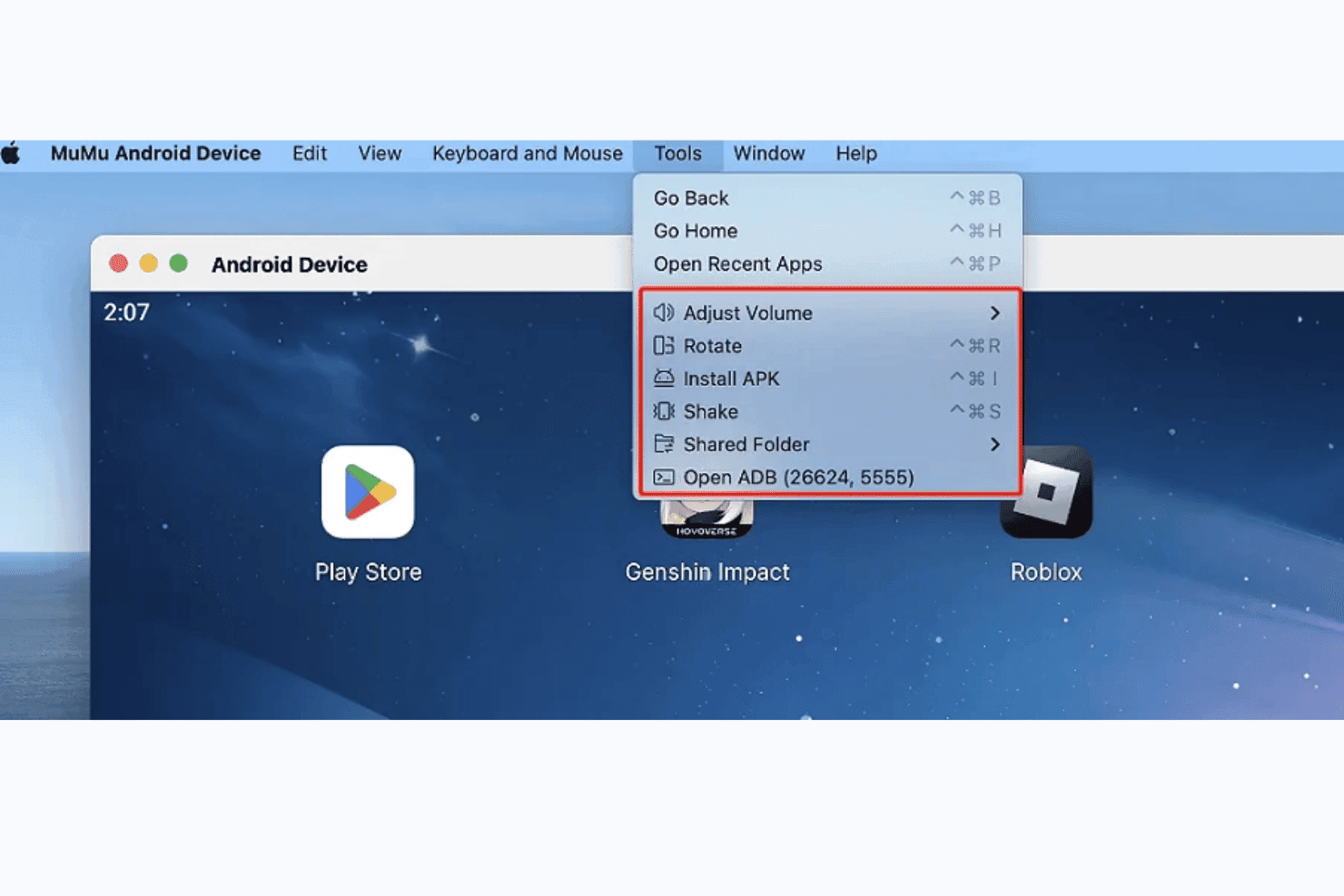
MuMuPlayer lets users access ADB, install APKs, and manage device tools on Mac. MuMuPlayer Pro is a native Apple Silicon Android emulator for Mac that runs Android 12, supports multi-instance device management, and includes ADB connectivity, a proprietary CLI, and customizable device profiles for gaming and app testing.
Who Is MuMuPlayer Best For?
MuMuPlayer Pro is a strong pick for Mac gamers and indie developers on Apple Silicon who want to run Android titles or test apps without a Windows machine.
Why I Picked MuMuPlayer
MuMuPlayer Pro earns its spot on my shortlist because it's one of the only Android emulators built natively for Apple Silicon, running as a true ARM64 app with no Rosetta overhead. I've run Genshin Impact and Honkai: Star Rail on it at high FPS without the stuttering I've seen from Rosetta-dependent alternatives. The
mumutoolCLI also lets me script device creation and APK installs, which saves real time when spinning up multiple test instances across different device profiles.MuMuPlayer Key Features
- Device profile customization: Configure each virtual device's model, resolution, DPI, GPU profile, RAM, CPU cores, and notch type per instance.
mumutoolCLI: A proprietary command-line tool for scripting device creation, APK installs, settings changes, and app lifecycle management.- Multi-instance orchestration: Create, clone, and run multiple virtual Android devices simultaneously, each with independent hardware configurations.
- ADB connectivity: Each running instance exposes a unique ADB port, letting you connect any ADB-compatible tooling or the Android Studio debugger directly.
MuMuPlayer Integrations
MuMuPlayer has native integrations with Android Studio and Android Debug Bridge (ADB), with a unique ADB port for each running device. Its proprietary
mumutoolCLI supports custom device, APK, settings, and app-management scripts; no CI/CD integrations or public API are documented.Pros and Cons
Pros:
- Customizable key mapping for games
- True multi-instance with custom device profiles
- Runs natively on Apple Silicon Macs
Cons:
- Only runs Android 12 on Mac
- No support for Intel-based Macs
Learn more about MuMuPlayer:
How I Evaluate Android Emulators for Mac
I split my evaluation into baseline requirements—like Apple Silicon stability and APK management—and differentiators like CI/CD fit, snapshot handling, and multi-instance support.
Core Functionality (Table Stakes For This List)
When I'm selecting tools for my list, I rank each one on a scale from 0 (does not offer the functionality) to 5 (excels in this area) for each core functionality listed below. I then calculate the tool's total score into a percentage, using 65% as a benchmark to help assess its overall fit for the list.
- macOS Compatibility: I check whether the emulator runs natively on both Intel and Apple Silicon Macs, since M-series chips need ARM64 builds to avoid Rosetta 2 overhead.
- Android OS Emulation: The range of supported Android versions matters. I look for tools that let you install APKs and access Google Play services across multiple OS releases.
- Virtual Device Configuration: I evaluate how much control you get over device profiles, including RAM allocation, screen resolution, DPI, and CPU cores—similar to the AVD manager in Android Studio.
- Input & Peripheral Mapping: Touch-based apps need reliable keyboard and mouse mapping on a desktop. I look for custom keybinding support and gamepad compatibility for game testing.
- Performance & Hardware Acceleration: I check for Hypervisor.framework support and GPU passthrough, because software-only rendering makes even simple apps sluggish on modern hardware.
- File & APK Management: Drag-and-drop APK installs, shared folders, and ADB access are what I evaluate here. These features determine how quickly you can push builds and pull logs during a test cycle.
Once I have a list of tools that meet the criteria, I consider what sets each platform apart.
Differentiating Factors (What Sets Vendors Apart)
Here's how I compare and contrast different vendors:
Standout Features
I look for snapshot and state management first. Being able to save a fully configured device state—apps installed, accounts logged in, sensor values set—and restore it in seconds cuts hours off regression testing. Scriptable automation hooks matter just as much, because headless CLI launches and gRPC control let you drive emulators from CI pipelines without manual intervention. I also evaluate network condition simulation, since throttling bandwidth or injecting latency inside the emulator is the fastest way to catch connectivity bugs before users do.
Beyond Features
Apple Silicon performance is the first thing I check. A native ARM64 build on an M-series Mac boots faster, runs cooler, and avoids the frame drops you get with x86 translation through Rosetta 2. I also evaluate CI/CD ecosystem fit—whether a tool ships Docker images, GitHub Actions workflows, or Jenkins plugins determines how quickly your DevOps team can wire it into existing pipelines. Licensing matters too, since scaling from one developer seat to a parallel test fleet can shift costs dramatically between open-source and commercial options.
Como escolher um emulador de Android para Mac
É fácil perder-se em listas extensas de funcionalidades e estruturas de preços complexas. Para o ajudar a manter o foco enquanto trabalha no seu processo específico de seleção de software, apresentamos uma lista de verificação dos fatores a ter em conta:
| Fator | O que considerar |
| Escalabilidade | Certifique-se de que o emulador consegue acompanhar o crescimento dos seus projetos sem degradar o desempenho. Procure soluções que consigam suportar utilizadores adicionais ou aplicações mais exigentes sem esforço. |
| Integrações | Verifique se o emulador é compatível com as suas ferramentas de desenvolvimento existentes, como o Android Studio ou o IntelliJ IDEA, para otimizar o seu fluxo de trabalho. |
| Personalização | A sua equipa poderá ter de ajustar as definições do emulador para cenários de teste específicos. Escolha um emulador que permita adaptar as configurações aos seus projetos. |
| Facilidade de utilização | Opte por um emulador com uma interface intuitiva que não exija formação extensa. Isto ajuda a sua equipa a concentrar-se no desenvolvimento em vez de resolver problemas. |
| Orçamento | Compare os modelos de preços e certifique-se de que o emulador se enquadra no orçamento da sua equipa. Procure um equilíbrio entre o custo e as funcionalidades disponibilizadas para evitar gastos excessivos. |
| Medidas de segurança | Avalie as medidas de segurança implementadas, como a encriptação de dados e os protocolos de ligação segura, para proteger o seu ambiente de desenvolvimento e os dados sensíveis. |
Tendências nos emuladores Android
Na minha investigação, consultei inúmeras atualizações de produtos, comunicados de imprensa e registos de lançamento de diferentes fornecedores de emuladores de iOS e emuladores Android. Eis algumas das tendências emergentes que tenho acompanhado:
- Compatibilidade multiplataforma: Mais emuladores estão a apostar em oferecer compatibilidade não só com Mac, mas também com outros sistemas operativos. Isto facilita a mudança entre diferentes ambientes por parte de programadores e utilizadores, sem perda de funcionalidade. Por exemplo, o Genymotion disponibiliza suporte para várias plataformas.
- Otimização do desempenho: Os emuladores estão cada vez mais orientados para melhorar a velocidade e reduzir a latência. Fornecedores como a BlueStacks estão continuamente a aperfeiçoar a sua arquitetura para garantir experiências de utilização mais fluidas, especialmente em aplicações que exigem muitos recursos, como os jogos.
- Suporte gráfico avançado: A melhoria da renderização gráfica tornou-se um ponto central, especialmente no caso das aplicações de jogos. Emuladores como o LDPlayer estão a integrar motores gráficos avançados para suportar imagens de alta definição e animações complexas.
- Integração com ferramentas de desenvolvimento: A maior compatibilidade com ambientes de desenvolvimento, como o Android Studio, está a tornar-se comum. Isto permite aos programadores testar e implementar aplicações de forma mais eficiente, sem necessitarem de configurações separadas.
- Personalização da interface do utilizador: Existe uma tendência crescente para permitir que os utilizadores personalizem a interface do emulador de modo a adaptá-la melhor às suas preferências e fluxos de trabalho. Os fornecedores estão a disponibilizar mais definições flexíveis da interface, como janelas redimensionáveis e controlos personalizáveis.
O que é um emulador Android para Mac?
Um emulador Android para Mac é uma ferramenta que permite aos utilizadores executar aplicações Android em dispositivos macOS. Os programadores, jogadores e profissionais de testes utilizam normalmente estas ferramentas para aceder a aplicações Android, testar o desempenho das aplicações ou jogar jogos móveis num ecrã maior. Os controlos personalizados, o suporte para várias instâncias e a compatibilidade com diferentes versões do Android ajudam os utilizadores a testar, jogar e trabalhar de forma mais eficiente. No geral, estas ferramentas proporcionam uma forma conveniente de levar a funcionalidade do Android para o macOS.
Funcionalidades dos emuladores Android para Mac
Ao selecionar um emulador Android para Mac, tenha em atenção as seguintes funcionalidades principais:
- Instalação através de arrastar e largar: Esta funcionalidade permite aos utilizadores instalar facilmente aplicações, arrastando os ficheiros APK diretamente para o emulador, simplificando o processo de instalação.
- Funcionalidades de gravação do ecrã: Os emuladores com esta funcionalidade permitem aos utilizadores gravar as suas atividades no ecrã, o que é útil para criar tutoriais ou captar sessões de jogo.
- Simulação da configuração de hardware: Esta funcionalidade permite aos emuladores imitar diferentes configurações de hardware, como vários tamanhos e resoluções de ecrã, ajudando os programadores a testar a capacidade de resposta das aplicações.
- Suporte para várias instâncias: Permite aos utilizadores executar várias instâncias do emulador em simultâneo, o que é útil para testar aplicações em diferentes condições ou realizar várias tarefas ao mesmo tempo.
- Controlos personalizáveis: Os utilizadores podem associar entradas do teclado e do rato para simular controlos táteis, melhorando a experiência em jogos ou nos testes de aplicações.
- Definições de desempenho: Os emuladores disponibilizam frequentemente opções para ajustar a utilização do CPU e da memória, permitindo aos utilizadores otimizar o desempenho com base nas capacidades do seu sistema.
- Compatibilidade com ferramentas de desenvolvimento: A integração fluida com ambientes de desenvolvimento Android, como o Android Studio, ajuda os programadores a testar e depurar aplicações de forma eficiente.
- Suporte multiplataforma: Alguns emuladores podem ser executados em diferentes sistemas operativos, tornando-os versáteis para utilizadores que trabalham em várias plataformas.
- Sincronização baseada na nuvem: Esta funcionalidade permite aos utilizadores sincronizar as definições e os dados do emulador entre dispositivos, proporcionando continuidade e conveniência.
- Configuração de rede avançada: Permite ao emulador simular diferentes condições de rede, ajudando os programadores a testar o comportamento das aplicações em cenários de conectividade variados.
Benefícios dos emuladores Android para Mac
A implementação de emuladores Android para Mac proporciona vários benefícios à sua equipa e à sua empresa. Eis alguns dos benefícios que pode esperar:
- Compatibilidade multiplataforma: Permite executar aplicações Android em dispositivos macOS, para uma melhor acessibilidade.
- Controlos personalizados: Permite associar definições do teclado e do rato para melhorar a experiência de jogo ou a utilização das aplicações.
- Capacidade para várias instâncias: Permite executar várias aplicações ou jogos em simultâneo para testes ou realização de várias tarefas.
- Flexibilidade nos testes de aplicações: Ajuda os programadores e os profissionais de testes a simular vários dispositivos Android e versões do sistema operativo.
- Melhoria do desempenho das aplicações: Disponibiliza opções para ajustar o CPU, a RAM e a resolução, de modo a otimizar a execução das aplicações.
- Conveniência para jogos: Transfere os jogos móveis para um ecrã maior, com melhores controlos e imagens mais fluidas.
- Testes económicos: Reduz a necessidade de dispositivos Android físicos, disponibilizando ambientes virtuais.
Custos e preços dos emuladores Android para Mac
A seleção de um emulador Android para Mac exige uma compreensão dos vários modelos de preços e planos disponíveis. Os custos variam consoante as funcionalidades, o tamanho da equipa, os complementos, entre outros fatores. A tabela abaixo resume os planos comuns, os respetivos preços médios e as funcionalidades normalmente incluídas nas soluções de emulação Android para Mac:
Tabela de comparação de planos para emuladores Android
| Tipo de plano | Preço médio | Funcionalidades comuns |
| Plano gratuito | $0 | Emulação básica, suporte limitado e desempenho restrito. |
| Plano pessoal | $5-$20 /utilizador /mês | Emulação padrão, suporte moderado, personalização limitada e acesso à comunidade. |
| Plano empresarial | $25-$50 /utilizador /mês | Desempenho melhorado, suporte prioritário, capacidade para várias instâncias e integrações avançadas. |
| Plano empresarial avançado | $60-$100 /utilizador /mês | Personalização completa, suporte dedicado, segurança de nível empresarial e análise abrangente. |
Perguntas frequentes sobre emuladores Android para Mac
Eis algumas respostas a perguntas comuns sobre emuladores Android para Mac:
Como executar um emulador Android num Mac?
Para executar um emulador Android no Mac, pode utilizar software como o Android Studio, que inclui a ferramenta de emulação. Comece por descarregar e instalar o Android Studio e, em seguida, crie um Dispositivo Virtual Android (AVD) através do Gestor de AVD. Inicie o emulador para simular diferentes dispositivos Android sem precisar de hardware físico.
É possível utilizar um emulador Android num Mac com um chip M1?
Sim, é possível utilizar um emulador Android num Mac com um chip M1. Alguns emuladores, como o Genymotion e as versões mais recentes do emulador do Android Studio, estão otimizados para o silício M1 da Apple, oferecendo melhorias de compatibilidade e desempenho. Certifique-se de que descarrega a versão correta compatível com o Apple Silicon.
Quais são os passos para melhorar o desempenho de um emulador Android no Mac?
Para melhorar o desempenho de um emulador Android no Mac, pode atribuir mais recursos de RAM e CPU nas definições do AVD. Ativar a aceleração de hardware, como o Intel HAXM, também pode melhorar o desempenho. Considere executar o emulador numa janela mais pequena para reduzir a carga no sistema.
É possível testar aplicações Android num Mac sem utilizar o Android Studio?
Sim, pode testar aplicações Android num Mac sem utilizar o Android Studio através de opções de emuladores autónomos, como o Genymotion ou o BlueStacks. Estes emuladores permitem executar e testar aplicações Android de forma independente, embora possam exigir configuração adicional para simular definições específicas do dispositivo.
Como resolver problemas comuns com emuladores Android no Mac?
Para resolver problemas com emuladores Android no Mac, verifique a compatibilidade do sistema com os requisitos do emulador. Certifique-se de que a virtualização está ativada nas definições da BIOS do Mac. A atualização do emulador e das ferramentas do SDK pode corrigir erros, e consultar fóruns online pode fornecer soluções para problemas específicos que esteja a enfrentar.