

Navegar pelo vasto panorama do software de suporte remoto pode parecer avassalador, sobretudo quando gere ambientes diversificados, incluindo Linux, MacOS e vários endpoints. Como veterano da área tecnológica, já trabalhei com uma grande variedade de ferramentas e compreendo as necessidades diversificadas de um serviço de suporte. Hoje, gostaria de o orientar por algumas das melhores alternativas ao ConnectWise ScreenConnect. Estas foram selecionadas pela sua sólida capacidade de gestão de endpoints, automatização, videoconferência e mensagens, entre outras funcionalidades.
O Splashtop Business Access e o VNC Connect são exemplos de destaque de alternativas ao ConnectWise Control. O Splashtop disponibiliza suporte remoto a pedido, facilitando a gestão dos utilizadores finais através de um navegador web. Esta ferramenta é uma enorme ajuda para os MSP, proporcionando uma VPN segura para um suporte técnico eficiente e até funcionalidades de webinar. Por outro lado, o VNC Connect é uma solução de código aberto perfeita para necessidades no local e na nuvem, sendo uma escolha ideal para prestadores de serviços que procuram uma solução de gestão personalizável e económica.
Estas ferramentas respondem eficazmente a problemas essenciais, como a gestão eficiente de endpoints, funcionalidades intuitivas de serviço de suporte e comunicação simples, tornando as sessões de suporte remoto muito mais fáceis. Recomendo que analise estas opções com mais atenção — podem melhorar significativamente a sua eficiência e a qualidade do serviço, permitindo-lhe oferecer o nível de serviço que os seus clientes merecem.
O que é o ConnectWise ScreenConnect?
O ConnectWise ScreenConnect é uma ferramenta de suporte e gestão remotos que permite aceder e controlar dispositivos a partir de qualquer lugar para resolver problemas ou prestar assistência. É utilizado principalmente por equipas de suporte informático, MSP e técnicos de serviços de suporte que precisam de ajudar utilizadores ou gerir endpoints sem estarem fisicamente presentes. As sessões remotas, o acesso não assistido e os controlos de permissões ajudam a resolver problemas rapidamente, a garantir um acesso seguro e a transmitir confiança aos utilizadores. De forma geral, o ScreenConnect permite à sua equipa gerir dispositivos e prestar suporte aos utilizadores sem necessidade de estar fisicamente presente.
Why Trust Our Software Recommendations
6,700+
Reviews
20
Industry experts
16+
Evaluation factors
14
Years
Our team has been testing and reviewing software since 2012. As tech leaders ourselves, we know how difficult—and important—it is to choose the right software.
For this guide, we evaluated tools using hands-on testing and independent research, scoring tools using our selection criteria.
Our reviews reflect our human editorial judgment, not a sales pitch.
Expert reviewers:
- Paulo Gardini MiguelTech Director
 Tim FisherVP of AI
 Gabriel RosasTech Lead & Software Architect
 Christhian GruhnTech Lead & Platform Architect

Tabela comparativa das alternativas ao ConnectWise ScreenConnect
Esta tabela comparativa resume os detalhes de preços das minhas principais escolhas de alternativas ao ConnectWise ScreenConnect:
Score legend (out of 5)
- Excellent4.5–5
- Good4–4.4
- Average3–3.9
- Below average2–2.9
- Poor1–1.9
Sorted by: Default
| Tool | Starting Price | Website | |||||||
|---|---|---|---|---|---|---|---|---|---|
Best for integrated collaboration tools | 3.8 out of 5 | 3 | 3 | 4 | 4 | 5 | 4 | $120.90/month 30-day free trial | Website |
Best for multi-platform remote access | 4.0 out of 5 | 4 | 3 | 4 | 4 | 5 | 4 | Pricing upon request 14-day free trial | Website |
Best for advanced troubleshooting features | 3.5 out of 5 | 3 | 4 | 2 | 4 | 4 | 4 | Pricing upon request Free plan available | Website |
Best for low latency and high-speed connections | 3.7 out of 5 | 3 | 4 | 3 | 4 | 4 | 4 | $28.90/month Free plan available | Website |
Best for ease of setup and use | Not rated | 2 | 4 | Not rated | 3 | 3 | 4 | Pricing upon request Free plan available | Website |
Best for privileged access management | 4.2 out of 5 | 3 | 4 | 4 | 5 | 5 | 4 | Pricing upon request Free trial available | Website |
Best for comprehensive IT support tools | 3.8 out of 5 | 4 | 4 | 3 | 4 | 4 | 4 | Pricing upon request 14-day free trial | Website |
Best for cross-platform compatibility | 3.5 out of 5 | 3 | 4 | 3 | 3 | 4 | 4 | $8.75/month 7-day free trial | Website |
Best for high-quality audio and video streaming | 3.7 out of 5 | 4 | 4 | 3 | 3 | 4 | 4 | $8.50/month 7-day free trial | Website |
Best for reliable remote access to desktop environments | Not rated | 3 | 3 | Not rated | 3 | 4 | 4 | $44/month 7-day free trial | Website |


Análises das melhores alternativas ao ConnectWise ScreenConnect
Seguem-se os meus resumos detalhados das melhores alternativas ao ConnectWise ScreenConnect que entraram na minha seleção. As minhas análises apresentam uma visão detalhada das principais funcionalidades, vantagens & desvantagens, integrações e casos de utilização ideais de cada ferramenta, para o ajudar a encontrar a melhor opção para si.
 Best for integrated collaboration tools
- 30-day free trial
- From $120.90/month (billed annually)
Visit WebsiteCustomer Rating:4.6/5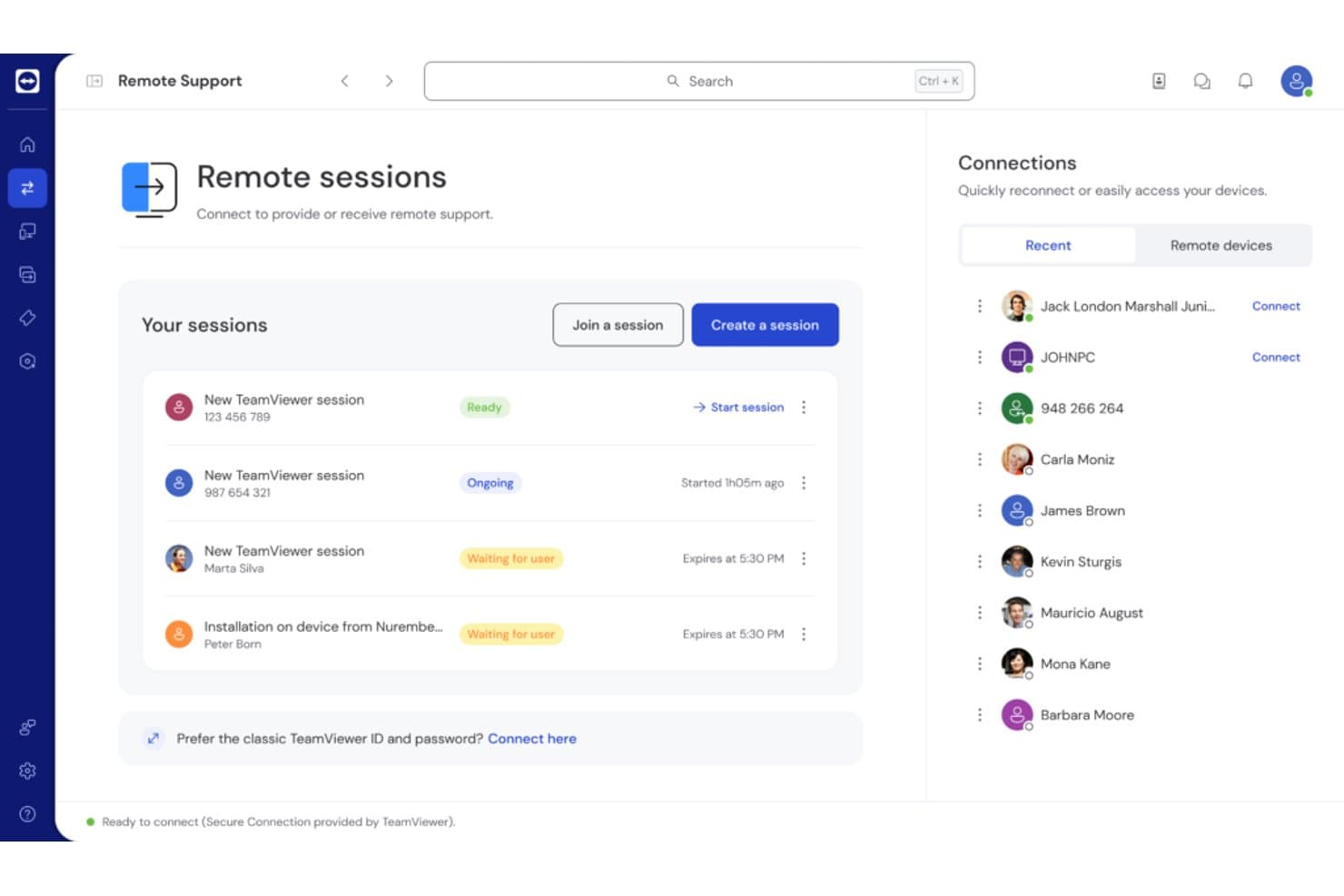
TeamViewer lets users manage and monitor remote support sessions in one view. TeamViewer is a remote access and support platform that helps IT teams connect to devices, troubleshoot technical issues, and support employees across distributed environments.
Who Is TeamViewer Best For?
IT support teams that need remote access and collaboration tools to coordinate troubleshooting across distributed workforces.
Why I Picked TeamViewer
I picked TeamViewer as a ConnectWise ScreenConnect alternative because its integrated collaboration tools support live troubleshooting with colleagues. I can share a desktop or mobile screen with multiple participants, who can watch interactions in real time. That helps me walk another technician through a fault or guide an employee through a fix.
TeamViewer Key Features
- Unattended access: Connect to configured devices without requiring someone on-site.
- File transfer: Move files between connected devices during a remote session.
- Remote printing: Print files from a remote Windows or macOS device to a local printer.
- Wake-on-LAN: Wake a supported device remotely when it’s asleep or powered off.
TeamViewer Integrations
TeamViewer lists integrations with ServiceNow, Microsoft Teams, Microsoft Intune, Jira, Salesforce, Freshworks, Slack, Zendesk, and ManageEngine. Its APIs support custom integrations.
Pros and Cons
Pros:
- Users praise reliable connections and multi-monitor support
- Unattended access spans desktop and mobile endpoints
- Multiple technicians can watch live sessions
Cons:
- Commercial-use flags can interrupt personal sessions
- Lag and dropped sessions affect weaker networks
Learn more about TeamViewer: Best for multi-platform remote access
- 14-day free trial
- Pricing upon request
Visit WebsiteCustomer Rating:4.1/5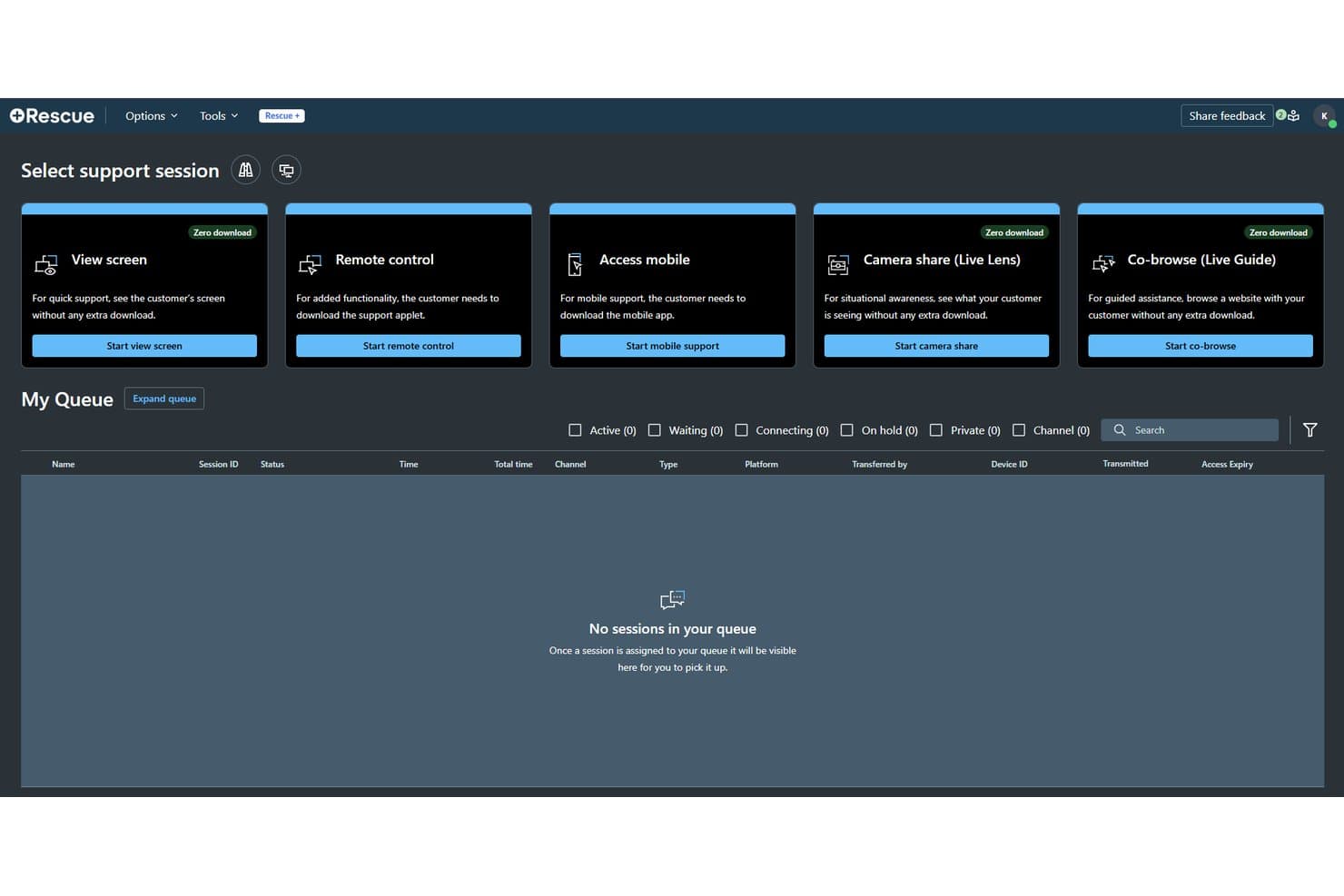
LogMeIn supports remote sessions via screen view, control, and mobile access. LogMeIn gives IT teams and support providers a remote access alternative for troubleshooting computers and supporting users without requiring an onsite visit.
Who Is LogMeIn Best For?
LogMeIn suits IT administrators and help desk teams that need remote access across different operating systems.
Why I Picked LogMeIn
I picked LogMeIn as my “Best for multi-platform remote access” choice because LogMeIn Rescue supports Mac, iOS, Windows, Android, and Chromebook devices. During support sessions, I can transfer files and review device details and system diagnostics from the technician console.
LogMeIn Key Features
- Unattended access: Connect to a remote computer when no user is present.
- Multi-session handling: Manage multiple support sessions from one technician console.
- Reboot and reconnect: Restart a customer’s device and reconnect to the session.
- Centralized scripting: Create, manage, and deploy support scripts from one location.
LogMeIn Integrations
LogMeIn Rescue offers out-of-the-box integrations with ServiceNow, Salesforce, Microsoft Dynamics 365, Microsoft Teams, Zendesk, Freshdesk, Jira Service Management, Autotask, HappyFox, and Agiloft. It also provides APIs for custom integrations with other support applications.
Pros and Cons
Pros:
- Multiple concurrent sessions support faster triage
- File transfer and diagnostics aid complex troubleshooting
- Remote support spans desktop and mobile platforms
Cons:
- Elevated admin prompts can block keyboard input
- Sessions can drop during unstable connections
Learn more about LogMeIn: Best for advanced troubleshooting features
- Free plan available
- Pricing upon request
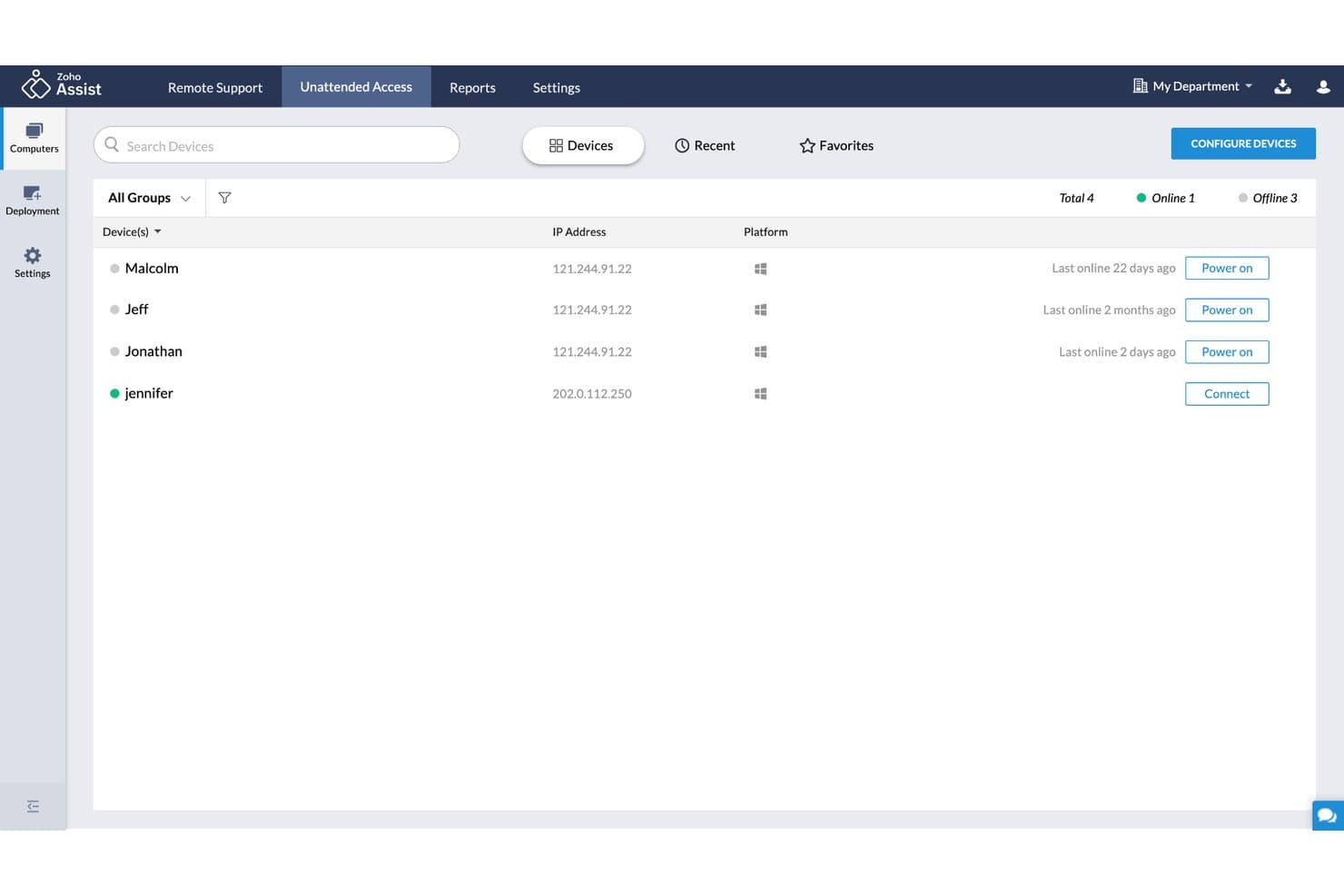
Zoho Assist lets users manage and connect to remote devices unattended. Zoho Assist is a remote support platform for IT and help desk teams that need to troubleshoot user devices through attended sessions or manage unattended computers without an onsite visit.
Who Is Zoho Assist Best For?
Zoho Assist suits IT support teams that need advanced remote diagnostics to investigate and resolve user-device issues without sending a technician onsite.
Why I Picked Zoho Assist
I picked Zoho Assist as a ConnectWise ScreenConnect alternative for its advanced troubleshooting features. Its diagnostic panel gives me remote access to tools such as Command Prompt, Task Manager, and Event Viewer during support sessions. I can inspect logs or restart a stopped service without asking the user to navigate system settings.
Zoho Assist Key Features
- File transfer: Send files between your device and the remote computer during a session.
- In-session chat: Exchange text messages with the remote user while providing support.
- Multi-monitor navigation: Switch between the remote computer’s connected displays.
- Session recording: Record support sessions for later review.
Zoho Assist Integrations
Zoho Assist has built-in integrations with Zendesk, ServiceNow, Jira, Freshdesk, Spiceworks, Zoho Desk, Zoho CRM, Slack, and Microsoft Teams. It also supports Zapier and offers APIs for custom integrations.
Pros and Cons
Pros:
- Multi-monitor controls and file transfer aid support
- Unattended access supports after-hours troubleshooting
- Background diagnostics expose system tools mid-session
Cons:
- Intermittent lag and dropped connections disrupt sessions
- Large deployments can require lengthy device setup
Learn more about Zoho Assist: Best for low latency and high-speed connections
- Free plan available
- From $28.90/month (billed annually)
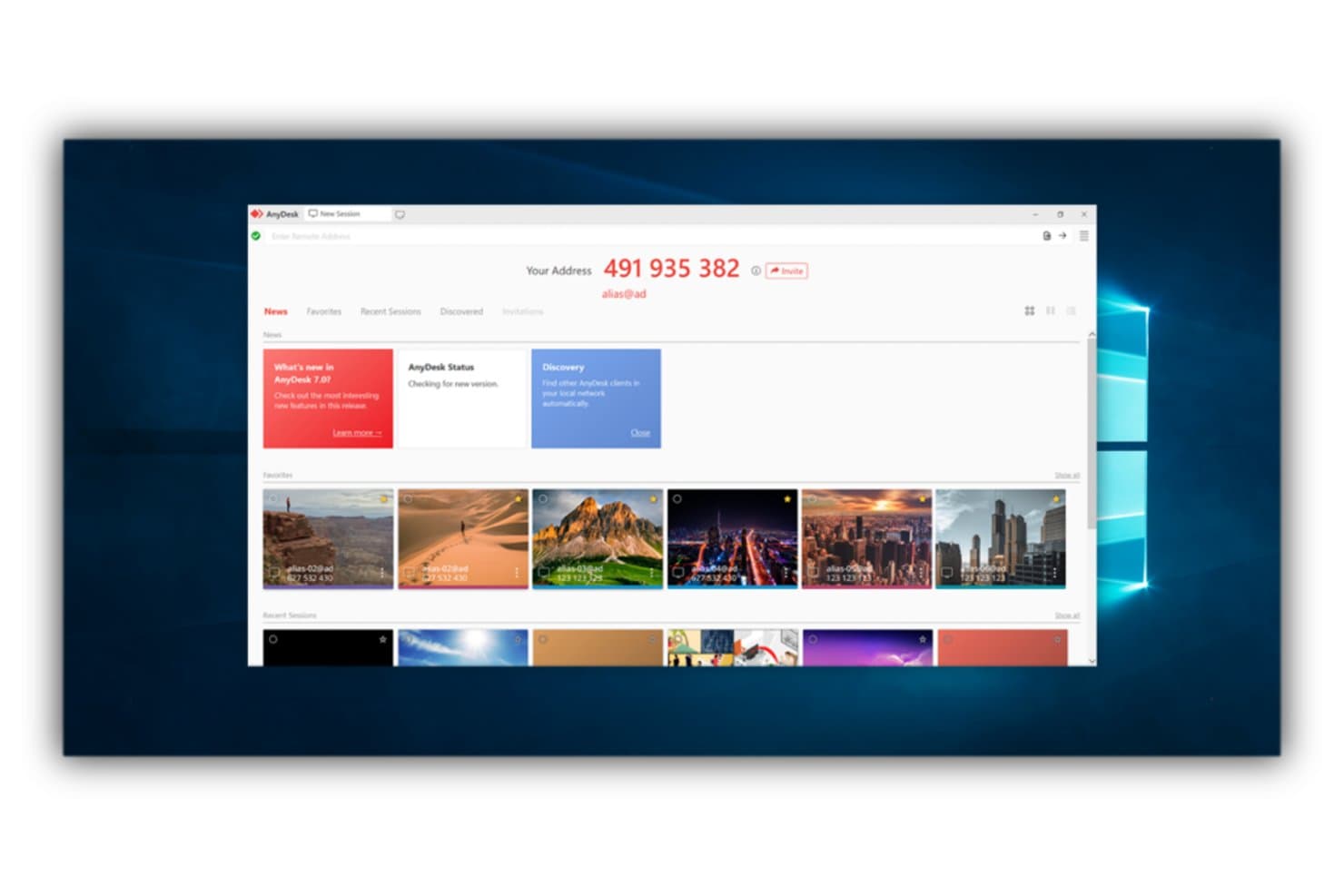
AnyDesk lets users manage remote sessions and favorites from one dashboard. AnyDesk is a remote access platform for IT support teams and businesses that need to troubleshoot endpoints, assist users, and support distributed devices as an alternative to ConnectWise ScreenConnect.
Who Is AnyDesk Best For?
AnyDesk suits IT support teams that need responsive remote control to troubleshoot devices across office, home, and field locations.
Why I Picked AnyDesk
I picked AnyDesk as a ConnectWise ScreenConnect alternative for its focus: Best for low latency and high-speed connections. Its DeskRT codec is designed to keep screen updates responsive, which helps when I’m troubleshooting a user’s device over a constrained network. AnyDesk also supports high frame rates, so cursor movement and visual changes remain clear during remote sessions.
AnyDesk Key Features
- File Manager: Browse remote folders and upload or download files without opening desktop control.
- Session recording: Record remote sessions locally for later review.
- Permission profiles: Control actions such as clipboard access and file transfer during sessions.
- Unattended access: Connect to configured devices without requiring someone at the remote endpoint to accept each session.
AnyDesk Integrations
AnyDesk lists integrations with Salesforce and Freshworks products, including Freshservice, Freshdesk, and Freshchat, plus partner integrations for Atera and baramundi. Its REST API supports custom integrations and automation.
Pros and Cons
Pros:
- Cross-platform unattended endpoint access
- Lightweight client launches quickly
- Responsive control over weak networks
Cons:
- Large file transfers can be slow
- Long sessions can freeze or disconnect
Learn more about AnyDesk: Best for ease of setup and use
- Free plan available
- Pricing upon request
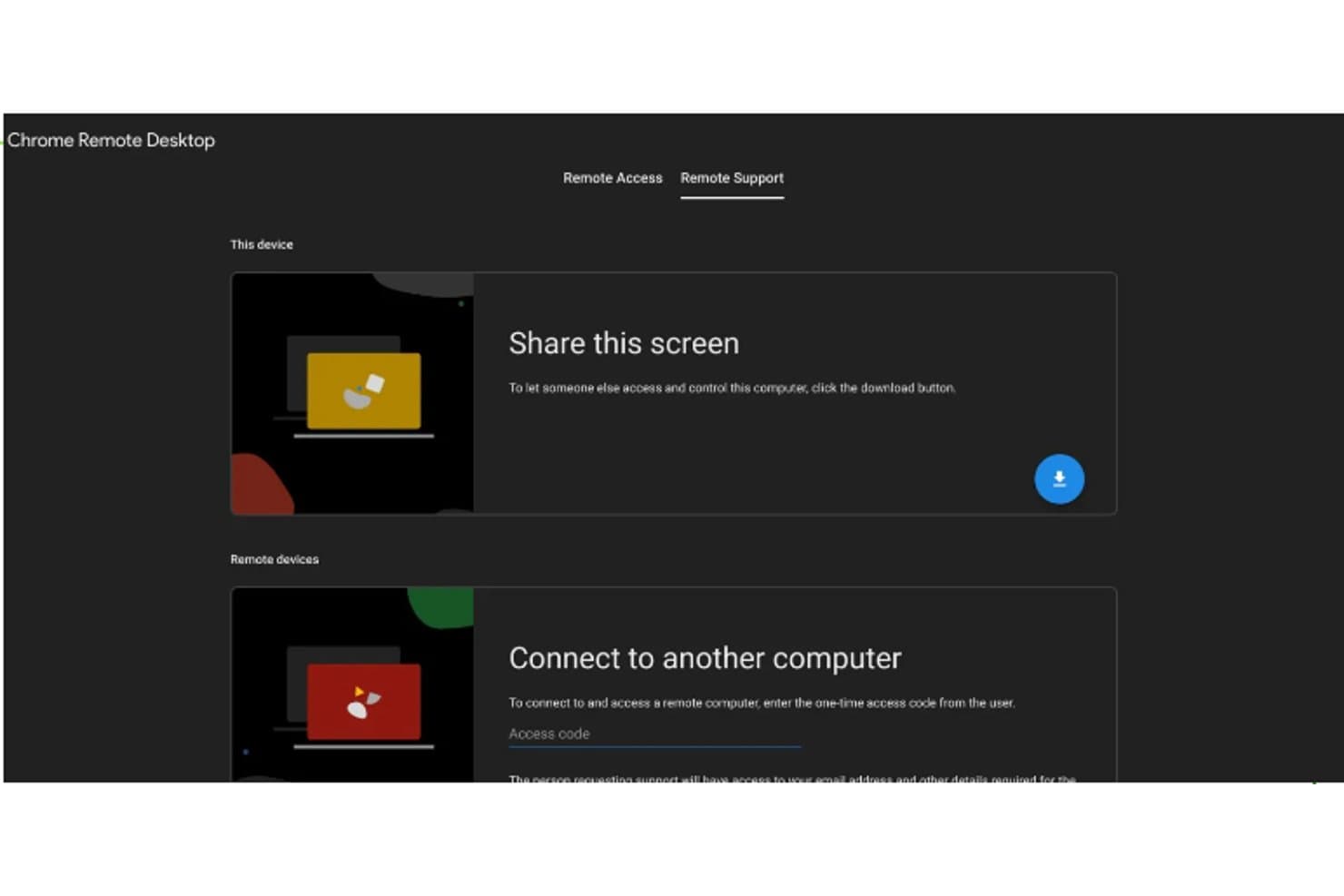
Chrome Remote Desktop lets users share or access remote screens easily. Chrome Remote Desktop lets IT staff access and control computers remotely through a browser or app, helping small teams troubleshoot endpoints and reach configured workstations without a full remote-support suite.
Who Is Chrome Remote Desktop Best For?
Chrome Remote Desktop suits solo IT admins and small support teams that need straightforward remote access to configured computers.
Why I Picked Chrome Remote Desktop
I picked Chrome Remote Desktop as a ConnectWise ScreenConnect alternative because “Best for ease of setup and use” fits its straightforward access options. I can start a support session with a one-time access code, or configure a computer for ongoing access with a PIN. That covers quick troubleshooting and reaching a workstation later without a full remote-support suite.
Chrome Remote Desktop Key Features
- Cross-device access: Connect from a computer or Android and iOS mobile devices.
- Clipboard sync: Copy and paste text between local and remote computers.
- File transfer: Upload or download files through the session toolbar.
- Display controls: Switch to full-screen mode or adjust how the remote desktop fits your screen.
Chrome Remote Desktop Integrations
Chrome Remote Desktop doesn’t have any native integrations.
Pros and Cons
Pros:
- Built-in file transfer during sessions
- PIN-based unattended access to configured computers
- Quick setup for one-time support sessions
Cons:
- Limited display options for multi-monitor hosts
- No built-in chat for troubleshooting
Learn more about Chrome Remote Desktop: Best for privileged access management
- Free trial available
- Pricing upon request
BeyondTrust Remote Support secures access via a login portal. BeyondTrust Remote Support helps IT and service desk teams troubleshoot employee and customer devices across distributed environments, with centralized tools for managing remote support sessions.
Who Is BeyondTrust Remote Support Best For?
IT security and support teams that need to grant technicians controlled remote access to privileged systems.
Why I Picked BeyondTrust Remote Support
I picked BeyondTrust Remote Support as a ConnectWise ScreenConnect alternative for privileged access management. Its credential vault injects privileged passwords into target systems without exposing them to end users, while granular permissions limit technician actions. Session logs and optional screen recordings document remote access for review.
BeyondTrust Remote Support Key Features
- Attended and unattended sessions: Support devices with a user present or connect when no user is available.
- Cross-platform support: Connect to Windows, Linux, macOS, Chrome OS, iOS, and Android devices.
- Remote Support Dashboard: View team availability and session loads, then transfer or take over sessions.
- Script execution and deployment: Run scripts and deploy mass installers to supported systems.
BeyondTrust Remote Support Integrations
BeyondTrust Remote Support has documented integrations with ServiceNow, Jira Service Management, Microsoft Teams, Salesforce, and Zendesk. It also provides an API for custom integrations.
Pros and Cons
Pros:
- Supports diverse platforms without requiring VPN access
- Audits sessions with recordings and detailed logs
- Injects vaulted credentials without exposing passwords
Cons:
- High licensing costs can burden smaller teams
- Dated interface can complicate technician workflows
Learn more about BeyondTrust Remote Support: Best for comprehensive IT support tools
- 14-day free trial
- Pricing upon request
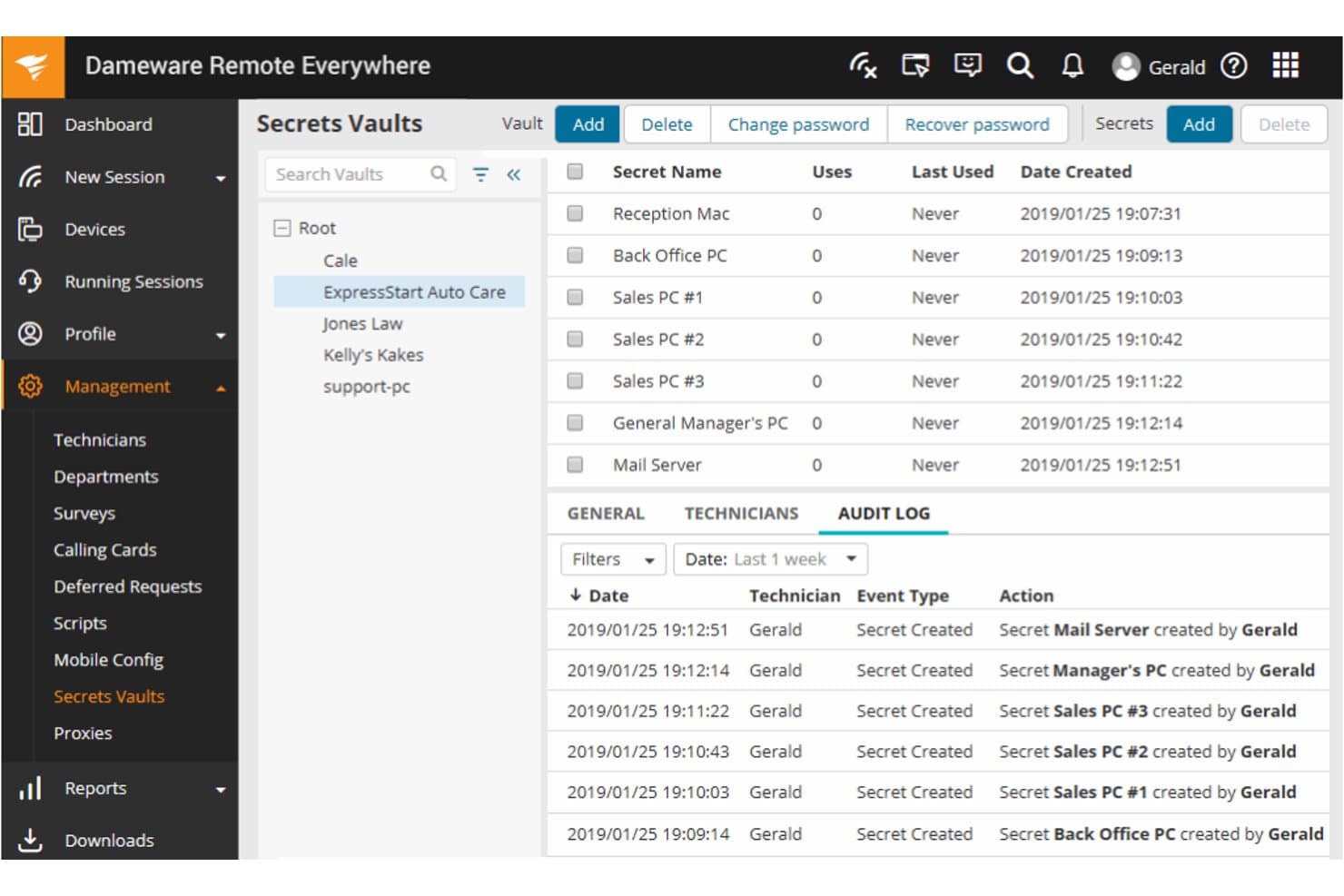
Dameware Remote Everywhere securely stores and manages device credentials in vaults. SolarWinds Dameware Remote Everywhere gives IT support teams remote access to user devices, helping them troubleshoot endpoint issues and resolve support requests without an on-site visit.
Who Is SolarWinds Dameware Remote Everywhere Best For?
Dameware Remote Everywhere suits IT help desks that need to troubleshoot user devices remotely and manage day-to-day support requests.
Why I Picked SolarWinds Dameware Remote Everywhere
I picked SolarWinds Dameware Remote Everywhere as a ConnectWise ScreenConnect alternative for its broad help-desk reach. It fits the USP, Best for comprehensive IT support tools, with attended and unattended access across Windows, Linux, and macOS, plus live chat and file transfer. I value session logs and video recordings for documenting troubleshooting and handing off cases.
SolarWinds Dameware Remote Everywhere Key Features
- Wake-on-LAN: Wake sleeping or powered-off devices for remote troubleshooting.
- Device monitoring and alerts: Track device metrics and receive alerts when they cross set thresholds.
- Multi-monitor viewing: Switch between remote monitors or view multiple screens at once.
- Mobile technician app: Connect to desktops, laptops, and tablets from Android or iOS devices.
SolarWinds Dameware Remote Everywhere Integrations
Dameware Remote Everywhere has a native integration with SolarWinds Service Desk, letting technicians start remote sessions from incident records and view session history. The integration uses Dameware API keys and also supports unattended remote sessions from asset records.
Pros and Cons
Pros:
- Session recordings and system details aid handoffs
- Attended and unattended access with Wake-on-LAN
- Fast connections across Windows, macOS, and Linux
Cons:
- Bulky client and high memory use
- Remote sessions can crash during system inspection
Learn more about SolarWinds Dameware Remote Everywhere: Best for cross-platform compatibility
- 7-day free trial
- From $8.75/month (billed annually)
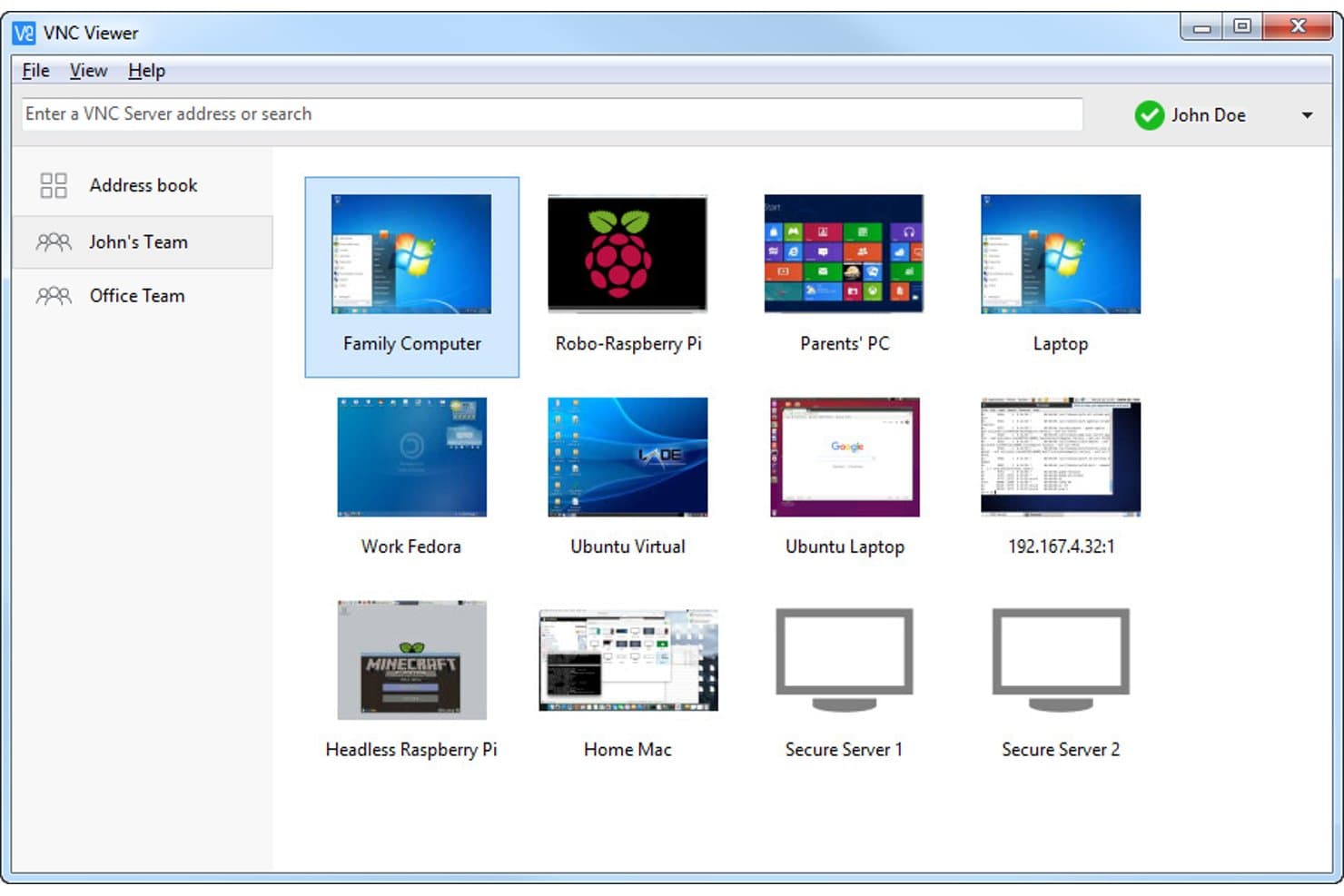
RealVNC lets users manage multiple remote computers from one dashboard. RealVNC gives IT teams a remote access alternative to ConnectWise ScreenConnect for connecting to endpoints, troubleshooting user issues, and supporting distributed systems.
Who Is RealVNC Best For?
RealVNC suits IT support teams that need remote access across endpoints running different operating systems.
Why I Picked RealVNC
I picked RealVNC because it is best for cross-platform compatibility: I can remotely access Windows, macOS, and Linux endpoints through its remote access software. That lets me troubleshoot a Linux system from a Windows workstation or support a Mac user without maintaining a separate remote-control tool for each OS.
RealVNC Key Features
- File transfer: Move files between your local device and a remote computer.
- Remote printing: Send documents from a remote computer to a local printer.
- Session recording: Save desktop sessions as WebM video files.
- In-session chat: Exchange messages with the remote user during a connection.
RealVNC Integrations
RealVNC Connect supports SSO integrations with Okta and Microsoft Entra ID, and provides an API for custom integrations.
Pros and Cons
Pros:
- Lightweight installs simplify endpoint deployment
- On-demand support and colleague session handoffs
- Cross-platform access spans Windows, macOS, and Linux
Cons:
- Multi-monitor controls can feel awkward
- Intermittent disconnects disrupt support sessions
Learn more about RealVNC: Best for high-quality audio and video streaming
- 7-day free trial
- From $8.50/month
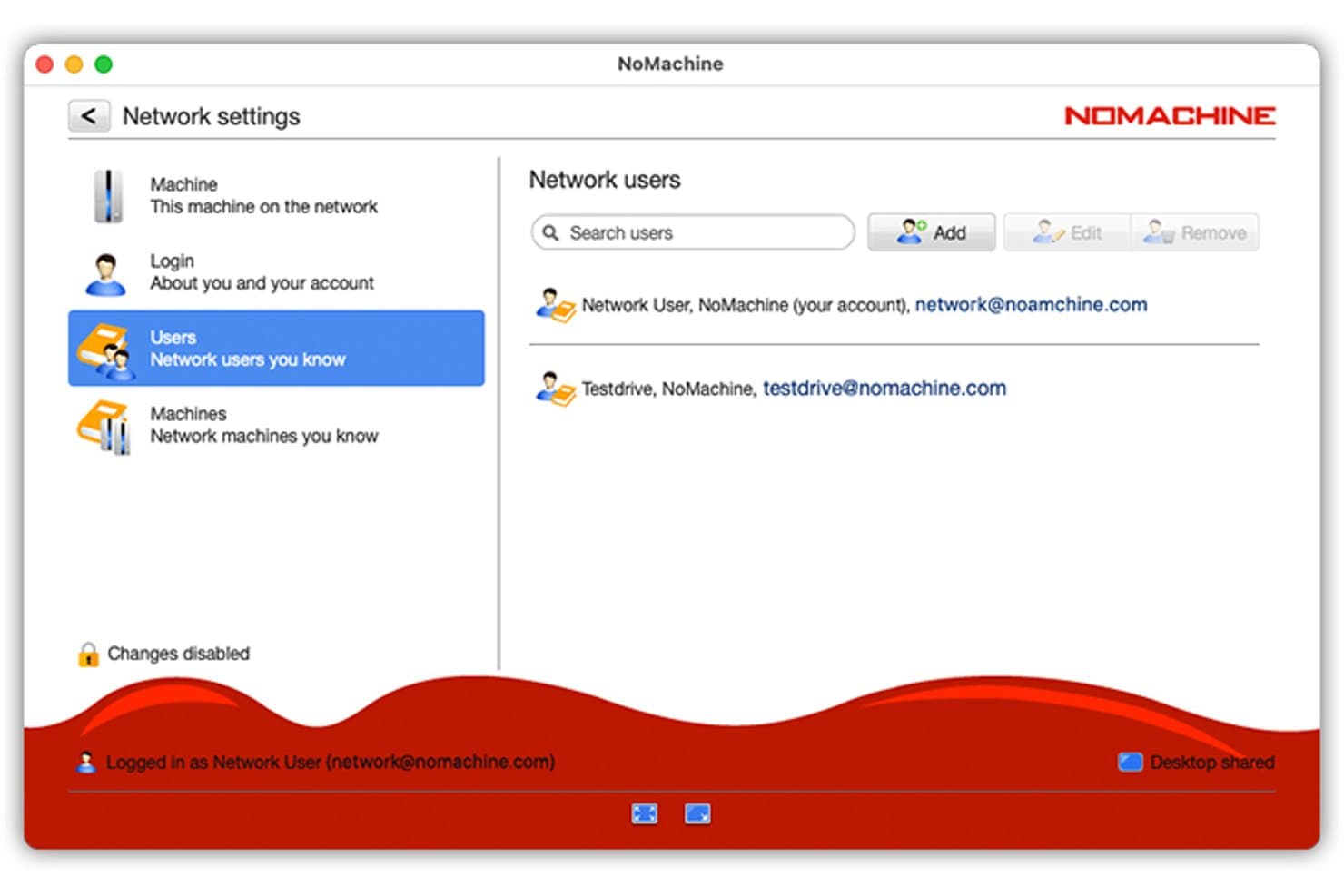
NoMachine lets users manage trusted network contacts by email. NoMachine is a remote desktop platform for IT teams and distributed professionals who need to access workstations, support users, and keep work moving across locations.
Who Is NoMachine Best For?
NoMachine suits creative and technical teams that need remote workstation access for media-heavy tasks with high-quality audio and video playback.
Why I Picked NoMachine
I picked NoMachine as a ConnectWise ScreenConnect alternative for the use case: Best for high-quality audio and video streaming. It streams audio and video from remote desktops in real time, and supports smooth, high-resolution playback on remote PCs and Macs. I’d use it to review media on a workstation without transferring files.
NoMachine Key Features
- Bidirectional file transfer: Upload files to or download files from the remote computer.
- Multi-monitor controls: Switch between remote displays or view all monitors in one window.
- Session recording: Record a remote desktop session and save it locally.
- Remote printing: Print documents between connected computers.
NoMachine Integrations
NoMachine Enterprise supports single sign-on integrations with Microsoft Entra ID, Okta, Keycloak, and Google Identity, plus Active Directory integration.
Pros and Cons
Pros:
- Built-in file transfer and session recording
- Low-lag sessions on cloud desktops
- Smooth high-motion video playback
Cons:
- No built-in ticketing or technician queue
- CGNAT can block direct connections
Learn more about NoMachine:
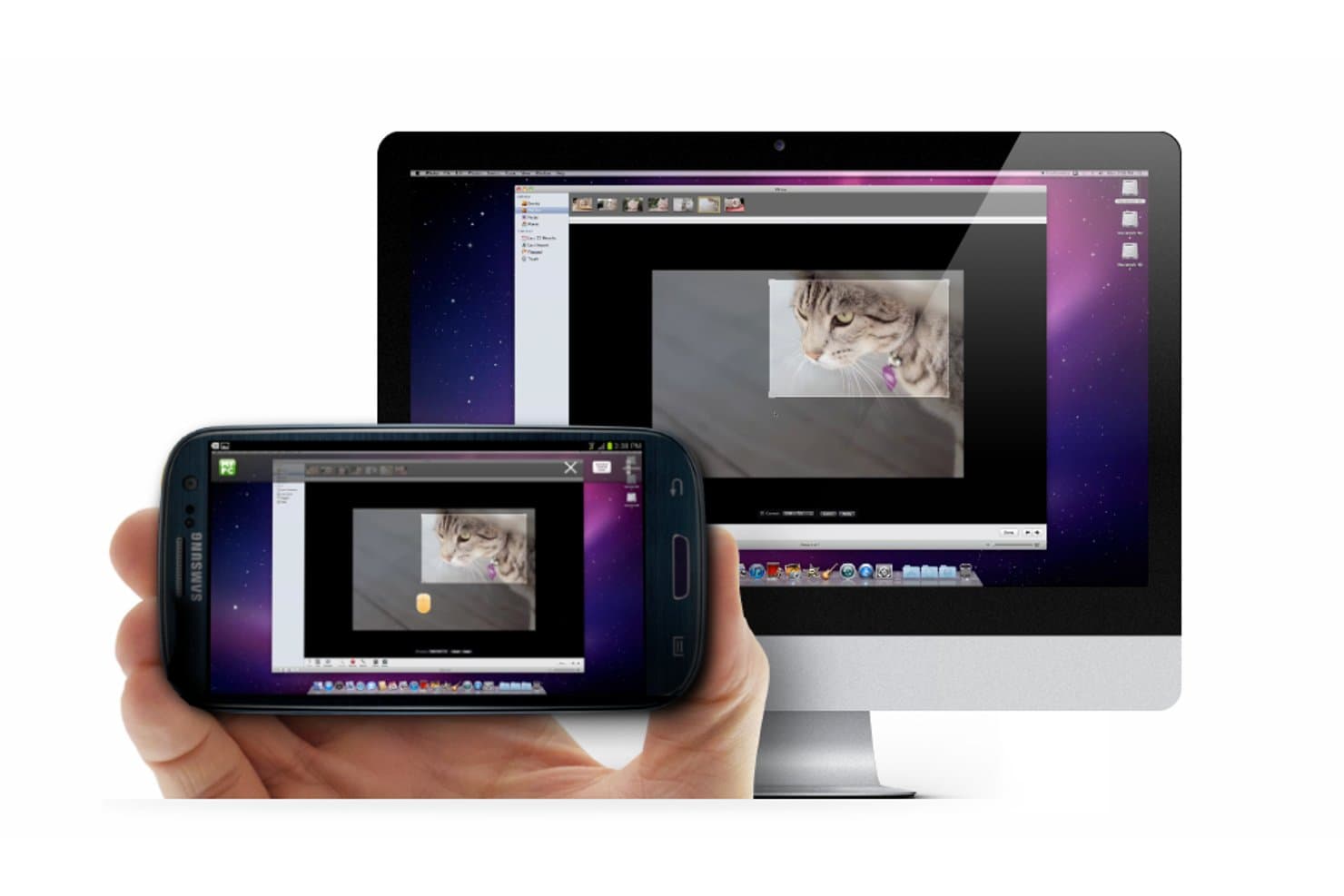
GoToMyPC lets users access their Mac desktop remotely from a smartphone. For IT teams comparing ConnectWise ScreenConnect alternatives, GoToMyPC provides remote desktop access to office computers and work applications, helping employees and support staff stay productive when they can’t reach a workstation in person.
Who Is GoToMyPC Best For?
GoToMyPC suits IT administrators who need to give employees remote access to office desktops and their installed applications.
Why I Picked GoToMyPC
I picked GoToMyPC for reliable remote access to desktop environments, so employees can reach office PCs and their installed applications remotely. I like its file transfer and remote printing features for support tasks such as retrieving a document or printing it from the connected workstation.
GoToMyPC Key Features
- Multi-monitor support: View the displays connected to the remote computer.
- Guest invite: Let another person temporarily join your computer session.
- Remote sound: Listen to audio from the computer you’re accessing.
- Two-factor authentication: Add an extra verification step when signing in.
GoToMyPC Integrations
GoToMyPC doesn’t clearly document native third-party integrations. GoToMyPC Corporate provides APIs for custom connections between account management and reporting data and your administration or reporting applications.
Pros and Cons
Pros:
- Multi-monitor support helps manage desktop workflows
- Remote printing supports work away from the office
- Reliable access to office computers from anywhere
Cons:
- Connections sometimes freeze and require reconnecting
- Remote computer updates can require onsite help
Learn more about GoToMyPC:
Outras alternativas ao ConnectWise ScreenConnect
Eis algumas alternativas adicionais ao ConnectWise ScreenConnect que não entraram na minha seleção, mas que vale a pena conhecer:
- 11RemotePCBest for affordability and secure connections
- 12SplashtopBest for high-definition remote sessions
- 13AeroAdminGood for simple and secure remote desktop control, even for non-tech savvy users
- 14Jump DesktopGood for connecting from any device, including iOS and Android
- 15SupremoGood for swift and easy remote desktop connections with no configuration needed
- 16Parallels AccessGood for seamless access to desktop applications from mobile devices
- 17TightVNCGood for providing cost-effective remote control and administration
- 18Teradici PCoIP TechnologyGood for secure remote access in graphic-intensive industries
Outras análises de software
How I Evaluate ConnectWise ScreenConnect Alternatives
I split my evaluation into two layers: baseline requirements like unattended access and session security that every option must meet, and differentiators that determine the right fit for your environment.
Core Functionality (Table Stakes For This List)
When I'm selecting tools for my list, I rank each one on a scale from 0 (does not offer the functionality) to 5 (excels in this area) for each core functionality listed below. Then, I calculate the tool's total score into a percentage. Each tool needs to achieve a minimum total score of 65% to be considered for inclusion.
- Remote Desktop Control: I evaluate session responsiveness, multi-monitor navigation, and input handling—things you'll feel immediately when troubleshooting a laggy workstation overseas.
- Unattended Endpoint Access: Each tool should let technicians connect to machines without someone on the other end, which is essential for after-hours patching or rebooting a server rack.
- Attended Support Sessions: I look for quick, low-friction join methods like one-time codes or links so end users can get help without installing a permanent agent on their device.
- Cross-Platform OS Support: A good alternative covers Windows, macOS, and Linux at minimum. Tools like TeamViewer and Splashtop also extend to mobile, which matters for BYOD environments.
- Session Security Controls: Encryption standards, MFA options, session recording, and role-based access all factor in. I check whether each tool gives you enough control to satisfy an internal audit.
- Multi-Technician Session Management: Teams need concurrent session support, session transfers between agents, and permission structures that scale from a two-person help desk to a 50-seat MSP.
Once I have a list of tools that meet this criteria, I consider what sets each platform apart.
Differentiating Factors (What Sets Vendors Apart)
Here's how I compare and contrast different vendors:
Standout Features
PSA and RMM integrations matter a lot here. I look for tools that let technicians launch sessions straight from a service ticket in platforms like Autotask or ServiceNow, which cuts out unnecessary context-switching. Built-in diagnostic toolboxes are another differentiator—command-line access and registry editing within a session means fewer secondary connections. For MSPs supporting multiple clients, I also evaluate session branding, since a white-labeled support portal builds end-user trust.
Beyond Features
Licensing structure is one of the first things I check. Per-technician, per-endpoint, and concurrent-session models each hit budgets differently depending on team size, so I evaluate which model fits how your team actually works. Deployment flexibility also matters—some organizations need a self-hosted option for data residency requirements, while others want pure cloud. I look closely at security posture too, especially independent certifications like SOC 2 Type II and track records around vulnerability disclosure, which became a bigger concern after ScreenConnect's 2024 CVE disclosures.
Por que motivo procurar uma alternativa ao ConnectWise ScreenConnect?
Embora o ConnectWise ScreenConnect seja uma boa escolha enquanto ferramenta de suporte e gestão remotos, existem várias razões pelas quais alguns utilizadores procuram soluções alternativas. Poderá estar à procura de uma alternativa ao ConnectWise ScreenConnect porque…
- Pretende uma interface de utilizador mais simples e intuitiva.
- Precisa de uma solução de menor custo para equipas mais pequenas.
- Procura um suporte multiplataforma mais fácil.
- Prefere tempos de ligação mais rápidos para sessões remotas.
- Precisa de melhores funcionalidades de acesso e controlo através de dispositivos móveis.
- Pretende definições de permissões de utilizador mais flexíveis.
Se alguma destas situações se aplica a si, veio ao sítio certo. A minha lista inclui várias opções de ferramentas de suporte e gestão remotos mais adequadas para equipas que enfrentam estes desafios com o ConnectWise ScreenConnect e procuram soluções alternativas.
Principais funcionalidades do ConnectWise ScreenConnect
Eis algumas das principais funcionalidades do ConnectWise ScreenConnect, para o ajudar a comparar as ofertas das soluções alternativas:
- Suporte para dispositivos móveis: Permite-lhe aceder ou prestar suporte remotamente a dispositivos Android e iOS quando necessário.
- Acesso e controlo remotos: Permite-lhe ligar-se a dispositivos remotos e controlá-los a partir de qualquer lugar, para que possa resolver problemas sem estar no local.
- Acesso não assistido: Permite à sua equipa ligar-se a máquinas mesmo quando não está ninguém do outro lado.
- Agrupamento de sessões: Ajuda-o a organizar sessões por tipo ou função, para que possa acompanhar várias ligações.
- Transferência de ficheiros: Permite-lhe mover ficheiros entre dispositivos durante uma sessão, para que possa instalar atualizações ou obter registos sem precisar de ferramentas separadas.
- Suporte por conversação: Permite-lhe enviar mensagens diretamente ao utilizador final durante a sessão, o que é útil para orientar alguém na resolução de um problema.
- Gravação de sessões: Regista as suas sessões remotas para fins de auditoria ou formação.
- Suporte para vários monitores: Permite-lhe alternar entre vários monitores num dispositivo remoto e controlá-los.
- Definições de permissões: Permite-lhe definir diferentes níveis de acesso, para que os membros da equipa só possam aceder às máquinas ou aos dados de que necessitam.
- Personalização da marca: Permite-lhe adicionar o seu logótipo e elementos da sua marca à interface de suporte.