

En tilgjengelighetskontroll for PDF skanner dokumenter for å finne hindringer for digital tilgjengelighet. Den kan også bidra til å identifisere løsninger som gjør innhold tilgjengelig for flere. Hvis du ser etter slike løsninger, står du overfor behovet for å holde risikoen for manglende samsvar lav, hjelpe alle brukere og forenkle oppfølgingen etter hvert som bruken av PDF øker.
Denne veiledningen dekker verktøy for IT- og utviklingsteam som trenger å bygge inn tilgjengelighet i dokumenthåndteringen. Den omfatter alternativer for automatisering av kontroller og støtte for arbeidsflyter som er klare for revisjon. Du får se alternativer for manuelle gjennomganger, automatisering og til og med spesialisert innhold – alt basert på funksjoner og standarder som er viktige for teamet ditt.
Why Trust Our Software Recommendations
6,700+
Reviews
20
Industry experts
16+
Evaluation factors
14
Years
Our team has been testing and reviewing software since 2012. As tech leaders ourselves, we know how difficult—and important—it is to choose the right software.
For this guide, we evaluated tools using hands-on testing and independent research, scoring tools using our selection criteria.
Our reviews reflect our human editorial judgment, not a sales pitch.
Expert reviewers:
- Paulo Gardini MiguelTech Director
 Tim FisherVP of AI
 Gabriel RosasTech Lead & Software Architect
 Christhian GruhnTech Lead & Platform Architect

Sammenligningstabell for tilgjengelighetskontroller for PDF
| Tool | Best For | Trial Info | Price | ||
|---|---|---|---|---|---|
| 1 | Best for batch validation and issue fixes | Free plan available | From $599/user/year | Website | |
| 2 | Best for visual PDF/UA and WCAG reviews | Free plan available | Pricing upon request | Website | |
| 3 | Best for guided manual compliance testing | Not available | Pricing upon request | Website | |
| 4 | Best for automated PDF/UA verification | 14-day free trial | Pricing upon request | Website | |
| 5 | Best for regulated PDF quality checks | Free demo available | Pricing upon request | Website | |
| 6 | Best for editing PDFs with accessibility tools | 14-day free trial | From $10.99/user/month | Website | |
| 7 | Best for checking and fixing PDFs | 7-day free trial | From $19.99/user/month (billed annually) | Website | |
| 8 | Best for website-wide PDF monitoring | Free demo available | Pricing upon request | Website | |
| 9 | Best for AI-assisted table remediation | Free demo available | Pricing upon request | Website | |
| 10 | Best for bulk PDF accessibility validation | Free demo available | Pricing upon request | Website |


Anmeldelser av tilgjengelighetskontroller for PDF
Nedenfor finner du mine detaljerte sammendrag av de beste tilgjengelighetskontrollene for PDF som kom med på kortlisten min. Anmeldelsene mine gir en detaljert gjennomgang av funksjonene, de beste bruksområdene og egenskapene til hvert verktøy, slik at du kan finne det beste alternativet for deg.
 Best for batch validation and issue fixes
- Free plan available
- From $599/user/year
Visit WebsiteCustomer Rating:5/5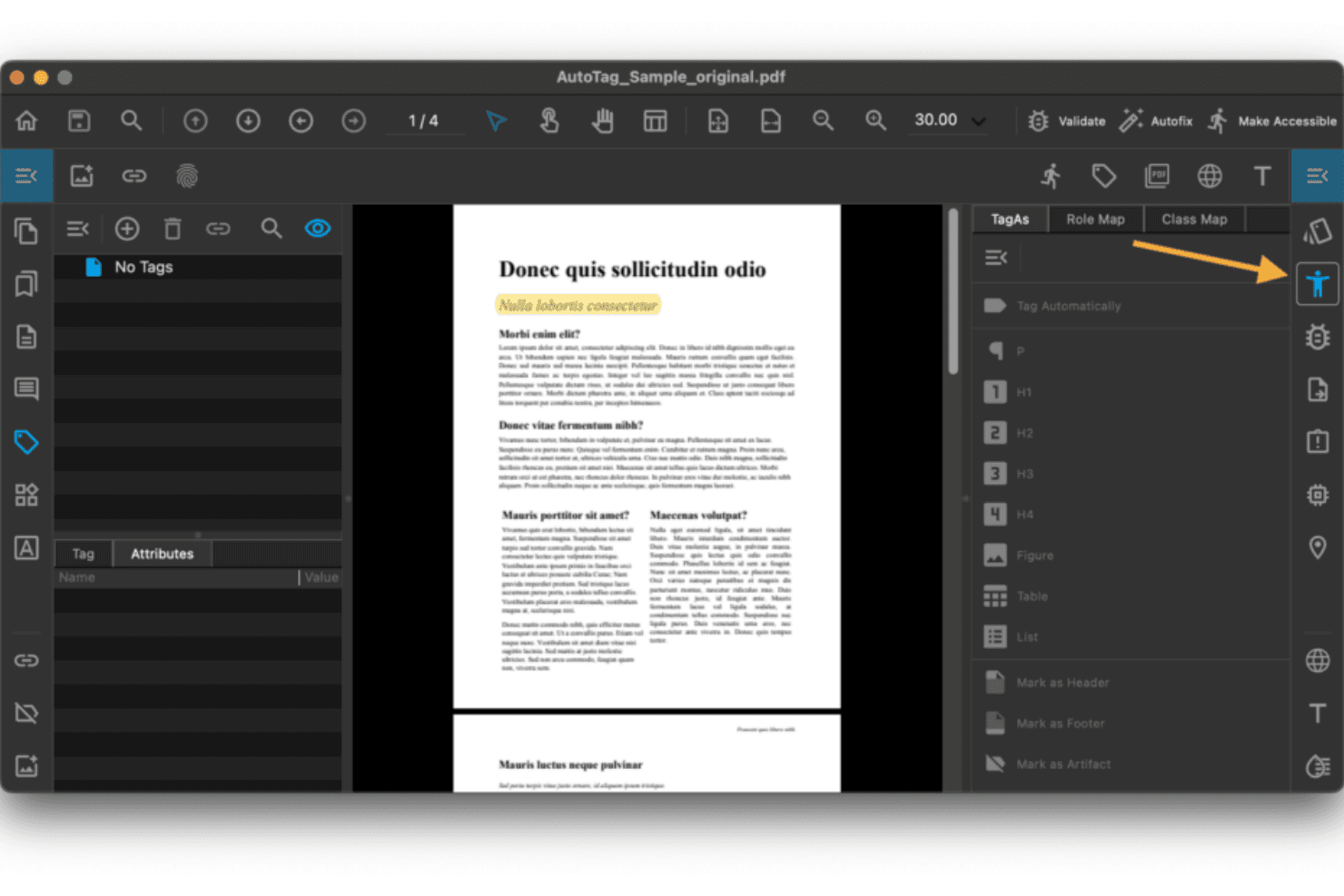
PDFix lets users tag PDF elements for accessibility compliance. PDFix is an AI-powered PDF accessibility platform for WCAG 2.1/2.2, PDF/UA, and Section 508 validation. It also supports automated batch remediation and is available as a desktop application, SDK, and REST API.
Who Is PDFix Best For?
PDFix suits developers and compliance teams in regulated industries such as government, finance, and healthcare. It's particularly useful for teams that need to validate and remediate large PDF volumes programmatically.
Why I Picked PDFix
PDFix earns its spot as one of the best on my shortlist because of how it handles batch validation and automated fixes in one workflow. I've run it across entire document folders and it flags every violation with Matterhorn Protocol references, pinpointing the exact location in the tag tree. What I really like is the AI-powered auto-tagging, which rebuilds reading order and heading hierarchy across hundreds of PDFs without touching each file manually.
PDFix Key Features
- veraPDF-powered standards validation: Uses the industry-standard veraPDF engine to audit compliance with PDF/UA, WCAG, and Section 508.
- Multi-format report export: Generates accessibility reports in JSON, XML, HTML, and plain text for easy sharing and integration.
- Cross-platform desktop app: Runs on Windows, macOS, and Linux so you can check accessibility on any major operating system.
- Developer SDK with API: Provides Python, C#, Java, Node.js, and C++ bindings for integrating accessibility checks into automated workflows.
PDFix Integrations
PDFix offers native integrations with Enfocus Switch and GitHub Actions Marketplace, and provides a REST API and SDK for custom integrations across Python, C#, Java, Node.js, and C++.
Pros and Cons
Pros:
- Matterhorn Protocol references identify exact tag failures
- AI auto-tagging reconstructs reading order automatically
- Batch remediates hundreds of PDFs simultaneously
Cons:
- No cloud-based document processing option
- Requires developer expertise for pipeline integration
Learn more about PDFix: Best for visual PDF/UA and WCAG reviews
- Free plan available
- Pricing upon request

PAC checks PDF accessibility compliance across PDF/UA, WCAG, and quality criteria. PAC is a free Windows desktop tool that checks PDFs against PDF/UA (ISO 14289-1) and WCAG 2.1 standards using the Matterhorn Protocol. It also includes a visual tag tree inspector and screen reader structure preview.
Who Is PAC (PDF Accessibility Checker) Best For?
PAC is a strong fit for accessibility compliance officers and technical documentation leads who need to manually audit PDFs against PDF/UA and WCAG standards.
Why I Picked PAC (PDF Accessibility Checker)
PAC earns its spot as one of the best on my shortlist because of how it handles visual PDF/UA review. The screen reader preview lets me see exactly what JAWS or NVDA will read, and the full tag tree shows every property and attribute in the document structure. I also like its coverage of machine-testable Matterhorn Protocol checkpoints. As a result, I can review validation results against established PDF/UA criteria.
PAC (PDF Accessibility Checker) Key Features
- AI-assisted semantic analysis: Uses AI to reduce manual effort in checking the quality of PDF structure and tags.
- Screen reader simulation view: Visually displays how popular screen readers will interpret the PDF’s content and order.
- Document structure statistics: Presents structural statistics and summaries for each PDF, including tag distribution and logical structure details.
- Local, offline operation: Runs entirely on Windows desktops without uploading files to the internet or external servers.
PAC (PDF Accessibility Checker) Integrations
PAC (PDF Accessibility Checker) doesn't have any native integrations.
Pros and Cons
Pros:
- Visual screen reader preview built in
- Full Matterhorn Protocol checkpoint coverage included
- Free to download and use permanently
Cons:
- No batch processing for multiple PDFs
- Windows-only, excluding Mac and Linux users
Learn more about PAC (PDF Accessibility Checker):

Allyant guides users through PDF remediation with step-by-step workflows. Allyant's CommonLook PDF Validator is a free Adobe Acrobat plugin that checks PDFs against WCAG, PDF/UA, and Section 508 standards. It also guides users through automated and manual accessibility tests and provides per-document certification reports.
Who Is Allyant Best For?
Allyant's CommonLook PDF Validator is a strong fit for compliance officers and documentation teams in government agencies or regulated industries where Section 508 conformance is a hard requirement.
Why I Picked Allyant
I picked Allyant's CommonLook PDF Validator as one of the best for guided manual compliance testing. Unlike tools that stop at automated flagging, it guides you through checks no scanner can reliably complete. That includes verifying alt text accuracy (not just presence), confirming table summaries are meaningful, and validating heading tag hierarchy. The per-document certification report delivers a concrete conformance record against Section 508, WCAG, and PDF/UA.
Allyant Key Features
- Adobe Acrobat integration: Runs as a plugin inside Adobe Acrobat Pro on Windows for native PDF analysis.
- Section 508 and HHS checks: Includes tests specific to US government and healthcare accessibility regulations.
- Tag-based content highlighting: Lets you review tags’ application visually within the PDF for deeper inspection.
- Per-document certification reports: Generates a downloadable compliance certificate after every check for record-keeping.
Allyant Integrations
Allyant's CommonLook PDF Validator runs as a plugin for Adobe Acrobat Pro on Windows. Native integrations beyond Adobe Acrobat Pro are not clearly documented.
Pros and Cons
Pros:
- Generates per-document certification reports
- Validates against Section 508, WCAG, and PDF/UA
- Guides users through manual compliance checks
Cons:
- No batch scanning across multiple PDFs
- Only runs on Windows via Adobe Acrobat
Learn more about Allyant:

pdfaPilot 5 introduces ePub 3.0 support and email-to-PDF/A conversion. pdfaPilot is an enterprise PDF/UA and PDF/A compliance tool from callas software. It's available as a desktop app, server, CLI, and SDK for automated accessibility verification across document workflows.
Who Is pdfaPilot Best For?
IT operations and compliance teams in government, legal, or enterprise environments that need to process large PDF archives for PDF/UA conformance.
Why I Picked pdfaPilot
pdfaPilot earns its spot as one of the best on my shortlist because no other tool I've tested matches it for high-volume automated PDF/UA verification. For example, the Server variant's hotfolder processing runs up to 8 parallel jobs. The Dispatcher license can scale processing across multiple machines for large archives. I also like pdfGoHTML, which converts tagged PDFs to color-coded HTML so I can visually verify document structure, heading hierarchy, and alt text quality.
pdfaPilot Key Features
- Full standards compliance support: Supports PDF/A-1, PDF/A-2, PDF/A-3, and machine-verifiable PDF/UA-1 accessibility checks.
- Quality control profile editor: Lets you create, edit, and apply custom PDF accessibility and compliance rule sets.
- PDF-to-HTML structure preview: Converts tagged PDFs to visual HTML for fast inspection of accessibility structures.
- Flexible API and integration options: Offers REST API, CLI, and SDK for integration with workflow automation and document pipelines.
pdfaPilot Integrations
pdfaPilot offers native integration with Enfocus Switch for workflow automation and provides a REST API, CLI, and SDK for custom integrations with document management systems and CI/CD pipelines.
Pros and Cons
Pros:
- Visual HTML output confirms tag structure accuracy
- Parallel server jobs accelerate large-archive auditing
- Deep PDF/UA-1 and Matterhorn Protocol coverage
Cons:
- Steep setup for non-technical compliance teams
- No built-in manual tag remediation editor
Learn more about pdfaPilot: Best for regulated PDF quality checks
- Free demo available
- Pricing upon request

DocShifter lets users build document workflows with chained transformation modules. DocShifter PDFValidator is an automated PDF validation tool for regulatory and technical compliance standards, including PDF/UA-1. For example, it can inspect bookmarks, hyperlinks, font embedding, page properties, and annotations.
Who Is DocShifter PDFValidator Best For?
It's a strong fit for enterprise teams in life sciences, banking, and insurance that need automated, high-volume PDF validation against regulatory submission standards.
Why I Picked DocShifter PDFValidator
I picked DocShifter PDFValidator because of how precisely it targets regulated document workflows. It validates against health authority submission standards, checking bookmarks, hyperlinks, font embedding, and page conformance in a single automated pass. I particularly like that it supports PDF/UA-1 as a validated output format, which matters when document quality is directly tied to regulatory acceptance criteria.
DocShifter PDFValidator Key Features
- Hyperlink validation: Automatically checks for broken, external, or incorrectly formatted hyperlinks in PDF files.
- Bookmark structure analysis: Verifies bookmark organization, nesting, and alignment with document structure.
- Page property enforcement: Ensures page size, orientation, and numbering comply with regulatory and technical requirements.
- Annotation and comment detection: Flags presence of annotations, comments, or tracked changes that should be removed before archiving.
DocShifter PDFValidator Integrations
DocShifter PDFValidator offers native integrations with Veeva Vault, OpenText Documentum, Lorenz docuBridge, and Microsoft SharePoint. An API is available for custom integrations and workflow automation.
Pros and Cons
Pros:
- Detects font embedding, annotation, and bookmark issues
- Supports high-volume automated batch PDF checking
- Validates PDFs against health authority submission standards
Cons:
- Limited to validation, not broader accessibility auditing
- No built-in remediation for accessibility failures
Learn more about DocShifter PDFValidator: Best for editing PDFs with accessibility tools
- 14-day free trial
- From $10.99/user/month
Visit WebsiteCustomer Rating:4.6/5
Foxit PDF Editor's home screen offers quick access to PDF tools. Foxit PDF Editor is a PDF editing platform with built-in accessibility tools. These include WCAG and Section 508 checking, autotagging, reading order editing, alt-text management, and guided remediation workflows.
Who Is Foxit PDF Editor Best For?
Foxit PDF Editor suits technical documentation teams and compliance officers at mid-to-large organizations that need to author, edit, and remediate PDFs for Section 508 or ADA requirements.
Why I Picked Foxit PDF Editor
I've included Foxit PDF Editor in my top picks because it combines accessibility checking and in-place remediation in one editing environment. I particularly like the Full Check tool, which generates a clickable report where each flagged issue links directly to its location in the document. The Reading Order panel and Autotag feature let me fix structural tagging problems without switching between applications.
Foxit PDF Editor Key Features
- Accessibility full check report: Scans PDFs for WCAG and Section 508 issues and provides a clickable report with detailed findings.
- Tag editor panel: Lets you edit tags, add or adjust headings, and mark artifacts directly in the document structure.
- Alternate text management: Supports adding and validating alternate text for images and marking decorative elements as artifacts.
- Action Wizard automation: Automates multi-step accessibility checks and fixes across multiple documents to reduce repetitive manual work.
Foxit PDF Editor Integrations
Foxit PDF Editor offers native integrations with Microsoft OneDrive, Google Drive, Dropbox, Box, and SharePoint. An API is available for custom integrations.
Pros and Cons
Pros:
- Autotag generates structure from untagged PDFs
- Supports PDF/UA and WCAG validation checks
- Combines editing and accessibility checking natively
Cons:
- Flags fewer issues than dedicated checkers
- Batch remediation lacks scheduling or automation
Learn more about Foxit PDF Editor: Best for checking and fixing PDFs
- 7-day free trial
- From $19.99/user/month (billed annually)
Visit WebsiteCustomer Rating:4.5/5
Adobe Acrobat offers tools like Edit, Sign, Export, and Stamp. Adobe Acrobat Pro is a PDF editing and accessibility platform with a built-in accessibility checker. It also provides a tag tree editor, reading order tools, and AI-assisted alt text generation for PDF remediation.
Who Is Adobe Acrobat Best For?
Adobe Acrobat Pro is a strong fit for accessibility compliance officers and technical documentation leads in enterprise and public sector organizations.
Why I Picked Adobe Acrobat
Adobe Acrobat earns its spot on my shortlist because no other tool combines accessibility checking and in-tool remediation as tightly. I particularly like the tag tree editor and Reading Order tool, which let me inspect and fix structural issues directly within the same interface. The 2025 addition of AI-generated alt text means I can address one of the most common accessibility failures without switching tools.
Adobe Acrobat Key Features
- Accessibility Checker action: Scans PDFs for issues related to standards compliance and generates a detailed accessibility report.
- Exportable audit reports: Produces compliance documentation that you can share or archive for internal and external audits.
- Integration with Microsoft Office: Lets you create accessible PDFs directly from Word, Excel, and PowerPoint files.
- Support for assistive technologies: Ensures compatibility with popular screen readers and other assistive devices for accessible document navigation.
Adobe Acrobat Integrations
Adobe Acrobat offers native integrations across the Microsoft ecosystem, including Microsoft 365 and SharePoint, and supports PDF workflows from within Microsoft Office applications. No API-based accessibility pipeline integration.
Pros and Cons
Pros:
- Tag tree editor for direct structural fixes
- AI-generated alt text speeds up remediation
- In-tool remediation alongside accessibility checking
Cons:
- No API-based accessibility pipeline integration
- Batch processing limited without enterprise licensing
Learn more about Adobe Acrobat: Best for website-wide PDF monitoring
- Free demo available
- Pricing upon request
Visit WebsiteCustomer Rating:4.5/5
Recite Me helps travel sites support passengers with disabilities online. Recite Me is a PDF accessibility checker that crawls your website to discover, scan, and automatically remediate PDF documents against WCAG 2.2 Level AA standards.
Who Is Recite Me Best For?
Recite Me is a strong fit for organizations managing large volumes of web-published PDFs who need continuous compliance monitoring rather than one-time audits.
Why I Picked Recite Me
Recite Me earns its spot on my shortlist because it approaches PDF accessibility at the site level rather than the file level. It crawls your website to automatically discover linked PDFs, reducing the need to identify documents manually. From there, continuous re-scanning flags new or changed documents as they appear. In addition, two-way CMS sync can replace remediated files without manual republishing.
Recite Me Key Features
- Compliance dashboard: Centralized dashboard visualizes the accessibility status of all scanned PDFs in real time.
- Automated remediation tools: AI-driven modules apply structural tags, fix reading order, and improve metadata automatically.
- Ongoing PDF monitoring: Scheduled scans and alerts detect and flag new or updated PDFs on your website.
- CMS integration: Two-way sync ensures any PDF uploaded to your CMS is automatically checked and, if needed, remediated.
Recite Me Integrations
Native integrations are not clearly documented. An API is available for custom integrations.
Pros and Cons
Pros:
- Continuous monitoring flags new uploads without manual checks
- Automated OCR converts image-embedded text automatically
- Scans your entire site for every linked PDF
Cons:
- Manual remediation still needed for complex tag structures
- No standalone desktop or offline scanning option
Learn more about Recite Me:

Equidox suggests tag zones automatically using ML Page Match. Equidox is a cloud-based PDF remediation platform that uses AI-powered detection to identify and tag document structure. This includes tables, headings, lists, and images. It can also export accessible PDFs, HTML, and EPUB files.
Who Is Equidox Best For?
Equidox is a strong fit for compliance officers and document teams in government, higher education, and healthcare that manage large libraries of PDFs requiring structured remediation.
Why I Picked Equidox
I picked Equidox as one of the best because its Smart Table Detector sets it apart for anyone remediating complex PDFs. It automatically identifies rows, columns, merged cells, and spanning cell structures, and auto-populates the table summary with heading and cell count data. The HTML preview can also help verify how a screen reader will interpret the table structure before the final accessible PDF is exported.
Equidox Key Features
- Smart zone detector: Uses AI to identify headings, lists, links, and images in untagged PDFs for accurate tagging.
- HTML preview: Offers a real-time view of how screen readers will interpret document structure and content.
- Built-in OCR: Converts scanned documents to digital text with automatic tagging for accessibility.
- Group and role management: Provides permissions, configurable access domains, and collaboration controls for larger teams.
Equidox Integrations
Equidox offers SSO integrations with Microsoft and Google and provides an API for custom integrations and batch processing. Native integrations beyond these are not clearly documented.
Pros and Cons
Pros:
- HTML preview confirms screen reader output
- Built-in OCR for scanned PDF remediation
- AI-powered table detection handles complex structures
Cons:
- No standalone compliance reporting dashboard available
- Limited batch processing compared to enterprise tools
Learn more about Equidox: Best for bulk PDF accessibility validation
- Free demo available
- Pricing upon request

PREP guides users through fixing heading structures in PDF documents. PREP by Continual Engine is a cloud-based PDF accessibility remediation platform with AI-powered auto-tagging and built-in WCAG 2.2/PDF/UA compliance checking. It also provides reading order editing and bulk validation APIs.
Who Is PREP by Continual Engine Best For?
PREP is a strong fit for accessibility teams at universities, government agencies, and large organizations managing high volumes of legacy PDF documents.
Why I Picked PREP by Continual Engine
I picked PREP as one of the best because its Accessibility Checker API and ContinuA11Y Audit tool handle bulk validation at a scale most checkers can't match. I can point ContinuA11Y at an entire site, have it detect inaccessible PDFs automatically, and route them directly into PREP for remediation in a single workflow. The API validates against WCAG 2.2, PDF/UA-1, and Section 508 using the Matterhorn Protocol, so every flagged issue maps to a specific compliance checkpoint.
PREP by Continual Engine Key Features
- AI-based auto-tagging: Uses machine learning to automatically detect and tag document elements like lists, tables, and headings.
- Built-in OCR mode: Processes scanned or image-based PDFs to add selectable, accessible text content.
- Screen reader preview: Simulates how remediated PDFs will be interpreted by assistive technologies.
- Templatized document tagging: Lets you create and reuse tagging templates for consistent remediation across similar document types.
PREP by Continual Engine Integrations
PREP offers native integrations with Canvas, D2L Brightspace, CivicPlus, and Wagtail, and provides a REST API for custom integrations.
Pros and Cons
Pros:
- Covers WCAG 2.2, PDF/UA, and Section 508
- AI auto-tagging speeds up remediation significantly
- Handles bulk PDF validation at enterprise scale
Cons:
- Limited standalone desktop remediation option
- Requires technical setup for API-based workflows
Learn more about PREP by Continual Engine:
Andre tilgjengelighetskontroller for PDF
Her er noen flere alternativer for tilgjengelighetskontroller for PDF som ikke kom med på kortlisten min, men som likevel er verdt å undersøke:
- 11TheLaTeXLab PDF Accessibility CheckerBest for LaTeX and math accessibility checks
- 12PdftoolsBest for API-based accessibility validation
How I Evaluate PDF Accessibility Checkers
I split my evaluation into baseline checks like PDF/UA validation and batch processing. I then consider differentiators like remediation depth, API access, and compliance coverage.
Core Functionality (Table Stakes For This List)
When I'm selecting tools for my list, I rank each one on a scale from 0 (does not offer the functionality) to 5 (excels in this area) for each core functionality listed below. I then calculate the tool's total score into a percentage, using 65% as a benchmark to help assess its overall fit for the list.
- WCAG/PDF-UA Validation: I check whether a tool covers WCAG 2.1/2.2 AA, PDF/UA-1, and Section 508 rules—not just a partial subset of basic checks.
- Tag Structure Analysis: A good checker lets you inspect the full tag tree, logical reading order, and heading hierarchy so screen readers interpret content correctly.
- Accessibility Issue Detection: I assess whether the tool can identify accessibility issues across document structure, tags, reading order, and other machine-testable requirements.
- Detailed Issue Reporting: Reports should pinpoint each failure by location and severity, with export options like JSON or XML for feeding into tracking systems.
- Remediation Guidance: Beyond flagging errors, I evaluate whether the tool offers specific fix instructions or in-tool corrections for issues like missing alt text.
- Standards Coverage: I assess which accessibility standards and requirements each checker supports, such as PDF/UA, WCAG, and Section 508.
Once I have a list of tools that meet the criteria, I consider what sets each platform apart.
Differentiating Factors (What Sets Vendors Apart)
Here's how I compare and contrast different vendors:
Standout Features
Automated remediation is a major differentiator. For example, AI-assisted or one-click fixes for missing tags, alt text, and table headers can reduce manual PDF editing. I also look for a visual reading order and tag tree editor, since adjusting logical structure by hand is often the only way to get complex layouts right for screen readers. Detailed audit reports matter too, especially when your team needs exportable compliance documentation for legal reviews or regulatory audits.
Beyond Features
Security and data handling matter, especially for teams processing legal or healthcare PDFs. I check whether vendors offer on-premise options or hold certifications like SOC 2 and ISO 27001. Compliance standards coverage is another factor I evaluate closely. Accessibility regulations vary by region and sector, so tools that track updates to WCAG, PDF/UA, and EN 301 549 help you stay current. Finally, I consider deployment flexibility. I look at whether a tool fits your stack as a SaaS app, desktop plugin, or CMS integration.
Slik velger du en tilgjengelighetskontroll for PDF
Når du går gjennom tilgjengelighetskontroller for PDF, bør du først fokusere på behovene i dokumentarbeidsflyten og ansvaret for samsvar:
| Hvis prioriteten din er ... | Se etter ... |
| Regelverksrapporter som er klare for revisjon | Detaljert og eksporterbar dokumentasjon på samsvar |
| Dokumentbehandling i stort volum | Automatisert satsvis kontroll av store arkiver |
| Integrasjon med arbeidsflyter | API-/CLI-alternativer for CI/CD- eller CMS-pipeliner |
| Rask utbedring | Forslag til løsninger i verktøyet eller med støtte fra kunstig intelligens |
| Redigering av komplekse dokumentoppsett | Visuelt taggtre og redigering av leserekkefølge |
Slik vurderer du kortlisten din
- Be om en eksempelrapport fra en revisjon: Be om en maskinlesbar og menneskelesbar rapport for en intern PDF du eier.
- Gjennomfør en satsvis test med 10 filer: Last opp et typisk dokumentsett for å se hvordan kontrollen håndterer satsvis validering og rapportering i stor skala.
- Kontroller API-dokumentasjonen: Gå gjennom leverandørens dokumentasjon for REST-API-et, CLI-et eller SDK-et for integrasjonseksempler og støtte for CI/CD-arbeidsflyter.
- Be om en samsvarsklausul skriftlig: Krev en erklæring som garanterer dekning for WCAG 2.2- og PDF/UA-1-standardene i vilkårene eller tjenestenivåavtalen deres.
- Avveining – automatisering kontra manuell kontroll: Bestem om du ønsker raske, automatiserte rettelser i stor skala, eller om du trenger presis, manuell redigering av komplekse dokumenter.
Hva er tilgjengelighetskontrollere for PDF?
Tilgjengelighetskontrollere for PDF skanner PDF-filer etter problemer som kan skape hindringer for personer med funksjonsnedsettelser. Deretter rapporterer de disse problemene for gjennomgang eller utbedring. Disse kontrollerne validerer dokumenter mot standarder som WCAG og PDF/UA, undersøker taggstrukturer og gir konkrete råd om utbedring. Team bruker dem for å sikre at dokumenter kan brukes av alle, overholder juridiske krav og enkelt kan revideres med hensyn til tilgjengelighet.
Funksjoner i tilgjengelighetskontrollere for PDF
Når du velger tilgjengelighetskontrollere for PDF, bør du se etter følgende viktige funksjoner:
- Validering mot WCAG/PDF-UA: Kontrollerer hver PDF mot tilgjengelighetsstandarder som WCAG, PDF/UA og Section 508 for å identifisere mangler i samsvar og bidra til håndtering av juridisk risiko.
- Analyse av taggstruktur: Undersøker dokumentets taggtre, leserekkefølge og overskriftshierarki for å avgjøre om hjelpemiddelteknologier vil tolke innholdet riktig.
- Automatisert kontroll av flere filer: Behandler flere PDF-filer samtidig, noe som muliggjør effektiv revisjon og overvåking på tvers av store dokumentarkiver eller teamarbeidsflyter.
- Detaljert problemrapportering: Genererer maskinlesbare og menneskelesbare rapporter som viser nøyaktig hvor tilgjengelighetsfeil oppstår, sammen med alvorlighetsgrad og foreslåtte tiltak.
- Veiledning for utbedring: Gir spesifikke, handlingsrettede instruksjoner eller innebygde veiviserverktøy for å rette feil som manglende alternativ tekst, elementer uten tagger og feil leserekkefølge.
- API-/CLI-integrasjon: Tilbyr REST API og kommandolinjeverktøy slik at team kan automatisere tilgjengelighetskontroller i CI/CD-pipelines eller publiseringsarbeidsflyter.
- Eksporterbare samsvarsrapporter: Produserer rapporter i formater som PDF, HTML eller XML, slik at de kan deles med revisorer eller brukes til å opprettholde dokumentasjon av tilgjengelighet.
- Visuell redigerer for taggtre: Lar brukere forhåndsvise og justere strukturen i en PDF visuelt, noe som gjør det enklere å utbedre komplekse oppsett uten inngående teknisk kunnskap.
- Konfigurasjon av egendefinerte regler: Gir administratorer mulighet til å håndheve tilgjengelighetsregler som er spesifikke for organisasjonen, eller merke unike samsvarsscenarioer.
- Rollebasert tilgangskontroll: Lar ulike medlemmer av teamet gjennomgå, godkjenne eller utbedre problemer basert på tildelte tillatelser, og støtter samarbeid om revisjon og samsvar.
Vanlige AI-funksjoner i tilgjengelighetskontrollere for PDF
I tillegg til standardfunksjonene i tilgjengelighetskontrollere for PDF som er listet opp ovenfor, tar mange av disse løsningene i bruk AI med funksjoner som:
- AI-generering av alternativ tekst: Oppretter automatisk beskrivende alternativ tekst for bilder og grafikk, noe som reduserer manuelt arbeid og forbedrer tilgjengeligheten for brukere av skjermlesere.
- Automatiserte forslag til tagging: Bruker AI til å analysere dokumentstrukturen og anbefale eller bruke passende tagger, noe som reduserer det manuelle arbeidet med tagging av komplekse PDF-filer.
- Forutsigelse av leserekkefølge: Bruker maskinlæring til å utlede den logiske leserekkefølgen for innholdet, slik at skjermlesere presenterer informasjonen i ønsket rekkefølge.
- Prioritering av problemer basert på kontekst: Bruker AI til å vurdere alvorlighetsgraden og virkningen av oppdagede tilgjengelighetsproblemer, slik at brukerne veiledes til å håndtere de mest kritiske problemene først.
- Utbedringsveiledning på naturlig språk: Leverer AI-genererte, kontekstbevisste instruksjoner for å rette spesifikke tilgjengelighetsfeil, noe som gjør utbedringen mer intuitiv for brukere med ulik erfaring.
Fordeler med tilgjengelighetskontrollere for PDF
Implementering av tilgjengelighetskontrollere for PDF gir flere fordeler for teamet og virksomheten din. Her er noen av fordelene du kan se frem til:
- Overholdelse av regelverk: Bidrar til å oppfylle standarder som WCAG, PDF/UA og Section 508, noe som reduserer den juridiske risikoen for organisasjonen din.
- Bedre brukervennlighet for dokumenter: Sikrer at PDF-filer er tilgjengelige for personer som bruker hjelpeteknologier, ved å oppdage og løse problemer med leserekkefølge og tagging.
- Klar for revisjon: Produserer detaljerte, eksporterbare rapporter som dokumenterer tilgjengelighetsforbedringer, slik at det blir enklere å forberede seg til revisjoner eller gjennomganger.
- Tidsbesparelser: Automatiserer batchkontroller og foreslår korrigeringer i verktøyet, slik at team kan behandle og utbedre store dokumentsamlinger mer effektivt.
- Samarbeid på tvers av team: Rollebasert tilgang og arbeidsflytfunksjoner hjelper IT-, samsvars- og innholdseiere med å administrere tilgjengelighet sammen.
- Integrasjon i prosesser: API- og CLI-alternativer muliggjør automatiske kontroller i dokumentets livssyklus, slik at samsvar opprettholdes når filer går gjennom publisering og gjennomgang.
- Reduksjon av manuelle feil: Automatiserte og AI-drevne funksjoner oppdager problemer som manuelle kontroller kan overse, og forbedrer den generelle kvaliteten og konsekvensen i PDF-tilgjengeligheten.
Kostnader og priser
Prisene for kontrollverktøy for PDF-tilgjengelighet varierer basert på funksjoner, teamstørrelse, distribusjon og tillegg. Tabellen nedenfor oppsummerer vanlige plantyper, typiske priser og inkluderte funksjoner for sammenligning:
Sammenligningstabell for planer for kontrollverktøy for PDF-tilgjengelighet
| Plantype | Gjennomsnittlig pris | Vanlige funksjoner |
|---|---|---|
| PlantypeGratisplan | Gjennomsnittlig pris$0 | Vanlige funksjonerGrunnleggende validering for et begrenset antall PDF-filer, manuelle rapporter og tilgang til viktige tips om utbedring. |
| PlantypePersonlig plan | Gjennomsnittlig pris$10–$30/bruker/måned | Vanlige funksjonerUbegrensede kontroller for én bruker, batchbehandling, utvidet rapportering og brukerstøtte via e-post. |
| PlantypeBedriftsplan | Gjennomsnittlig pris$40–$80/bruker/måned | Vanlige funksjonerTilgang for flere brukere, API- og arbeidsflytintegrasjoner, automatisk utbedring, eksporterbare rapporter klare for revisjon og rollebaserte tilgangskontroller. |
| PlantypeStorbedriftsplan | Gjennomsnittlig pris$100–$250/bruker/måned | Vanlige funksjonerTilpassede distribusjonsalternativer, avanserte sikkerhetsfunksjoner, prioritert brukerstøtte, samsvarsanalyse for hele organisasjonen og dedikert implementeringsstøtte. |