

Mit Fernzugriffssoftware können Sie sich sicher mit Geräten verbinden und diese von überall aus steuern. So lassen sich Lücken zwischen verteilten Teams und entfernten Systemen überbrücken. Wenn Sie für die IT verantwortlich sind, müssen Sie wissen, welche Plattformen die richtige Kombination aus Sicherheitskontrollen, hochwertigem Streaming und praxisnahen Verwaltungsfunktionen bieten.
Erhalten Sie direkte Antworten zur besten Fernzugriffssoftware im Jahr 2026 – von Compliance-Tools auf Unternehmensniveau bis hin zu zuverlässigen Lösungen für den Desktop-Support –, damit Sie Risiken minimieren, Probleme reduzieren und Ihrem Team sicher den benötigten Zugriff ermöglichen können. Diese Liste führt Sie durch die besten Angebote und macht Ihre nächste Wahl klar und umsetzbar.
Warum Sie unseren Software-Empfehlungen vertrauen können
6,700+
Reviews
20
Industry experts
16+
Evaluation factors
14
Years
Unser Team testet und bewertet Software seit 2012. Als Tech-Führungskräfte wissen wir selbst, wie schwierig – und wichtig – es ist, die richtige Software auszuwählen.
Für diesen Leitfaden haben wir Tools mithilfe von praktischen Tests und unabhängiger Recherche bewertet und dabei unsere Bewertungskriterien angewendet.
Unsere Bewertungen spiegeln unser menschliches redaktionelles Urteilsvermögen wider, keine Verkaufsstrategie.
Expertenprüfer:
- Paulo Gardini MiguelTech-Direktor
 Tim FisherVP für KI
 Gabriel RosasTech Lead & Software-Architekt
 Christhian GruhnTech Lead & Plattform-Architekt

| Tool | Best For | Trial Info | Price | ||
|---|---|---|---|---|---|
| 1 | Best for automated patch management workflows | Free demo available | Pricing upon request | Website | |
| 2 | Best for self-hosted perpetual licensing | 15-day free trial | From $16.9/month (billed annually) | Website | |
| 3 | Best for multi-device desktop management at scale | 7-day free trial | From $1.84/month (billed annually) | Website | |
| 4 | Best for MSP technician speed and diagnostic tools | 14-day free trial + free demo available | Pricing upon request | Website | |
| 5 | Best for high-performance remote control at 4K quality | Free trial + free demo available | From $6/month | Website | |
| 6 | Best with AI-assisted IT diagnostics | 30-day free trial | From $24.9/month (billed annually) | Website | |
| 7 | Best for FIPS 140-2 compliant support | Free trial + free demo available | Pricing upon request | Website | |
| 8 | Best for FedRAMP-grade zero trust access | Free trial + free demo available | Pricing upon request | Website | |
| 9 | Best for session recording and auditing | 14-day free trial | From $33/month (billed annually) | Website | |
| 10 | Best for mass deployment call center support | Free 14-day free trial + free demo available | From $109/month (billed annually) | Website |


Tests von Fernzugriffssoftware
Nachfolgend finden Sie meine ausführlichen Zusammenfassungen der besten Fernzugriffssoftware, die es in meine Auswahl geschafft hat. Meine Tests bieten einen detaillierten Überblick über die Funktionen, die besten Einsatzmöglichkeiten und die Fähigkeiten jeder Software, damit Sie die beste Lösung für Ihre Anforderungen finden können.
 Am besten geeignet für automatisierte Workflows zur Verwaltung von Softwareaktualisierungen
- Kostenlose Demo verfügbar
- Preise auf Anfrage

Kaseya VSA ermöglicht Sitzungen mit Fernsteuerung verwalteter Geräte per Mausklick. Kaseya VSA ist eine cloudbasierte Plattform für die Remoteüberwachung und -verwaltung (RMM), die für MSPs und interne IT-Teams entwickelt wurde und die Überwachung von Endgeräten, die automatisierte Verteilung von Softwareaktualisierungen, die richtlinienbasierte Aufgabenautomatisierung, die Erkennung von Ransomware, die Verwaltung mobiler Geräte sowie den sicheren Fernzugriff umfasst.
Für wen ist Kaseya VSA am besten geeignet?
Kaseya VSA eignet sich besonders für MSPs und interne IT-Teams, die große Bestände an Endgeräten verwalten und eine richtliniengesteuerte Automatisierung von Softwareaktualisierungen für Windows, macOS und Drittanbieteranwendungen benötigen.
Warum ich Kaseya VSA ausgewählt habe
Ich habe Kaseya VSA als eine der besten Lösungen ausgewählt, weil die Verwaltung von Softwareaktualisierungen über eine einfache Zeitplanung hinausgeht. Mit richtlinienbasierter Aktualisierung können Sie Genehmigungsregeln, Wartungsfenster und Sperrzeiten für Windows, macOS, Linux und mehr als 300 Drittanbieteranwendungen über eine einzige Konsole festlegen. Besonders nützlich finde ich die Funktion zum Überschreiben von Aktualisierungen, mit der Sie bestimmte problematische Aktualisierungen per Skript ausschließen können, ohne den übergreifenden Workflow zu beeinträchtigen. Der RMM-Agent verteilt Aktualisierungen außerdem innerhalb und außerhalb des Netzwerks, ohne auf LAN-Caches angewiesen zu sein. Dadurch bleiben entfernte Endgeräte ohne zusätzliche Konfiguration auf dem aktuellen Stand.
Wichtige Funktionen von Kaseya VSA
- Sicherer Fernzugriff: Stellen Sie sofort eine Verbindung zu jedem Endgerät her, um Live-Support-Sitzungen ohne Benutzerinteraktion oder VPN zu ermöglichen.
- Ransomware-Erkennung und -Isolierung: Die verhaltensbasierte Erkennung stellt infizierte Endgeräte automatisch unter Quarantäne, um Bedrohungen einzudämmen, bevor sie sich ausbreiten.
- Echtzeitüberwachung und Warnmeldungen: Überwacht den Zustand der Endgeräte kontinuierlich und löst bei auftretenden Problemen automatisch die Erstellung von Tickets und deren Behebung aus.
- Erkennung und Zuordnung von IT-Ressourcen: Erkennt und inventarisiert automatisch Hardware, Software, VMs, Cloud-Infrastruktur und IoT-Geräte in Ihrer Umgebung.
Integrationen von Kaseya VSA
Kaseya VSA bietet native Integrationen mit Autotask, IT Glue, ConnectWise, Acronis, Bitdefender, ESET, Webroot, Datto und Scalepad Lifecycle Manager. Für benutzerdefinierte Integrationen ist eine API verfügbar.
Pros and Cons
Pros:
- Richtlinienbasierte automatisierte Bereitstellung von Softwareaktualisierungen
- Sichere Remotesitzungen ohne VPN
- Ransomware-Isolierung für entfernte Endgeräte
Cons:
- Die Benutzeroberfläche kann veraltet und unübersichtlich wirken
- Für einige Fernzugriffsfunktionen ist die Installation eines Agents erforderlich
Learn more about Kaseya VSA: Am besten für selbst gehostete unbefristete Lizenzen geeignet
- 15-tägige kostenlose Testversion
- Ab $16.9/Monat (jährlich abgerechnet)
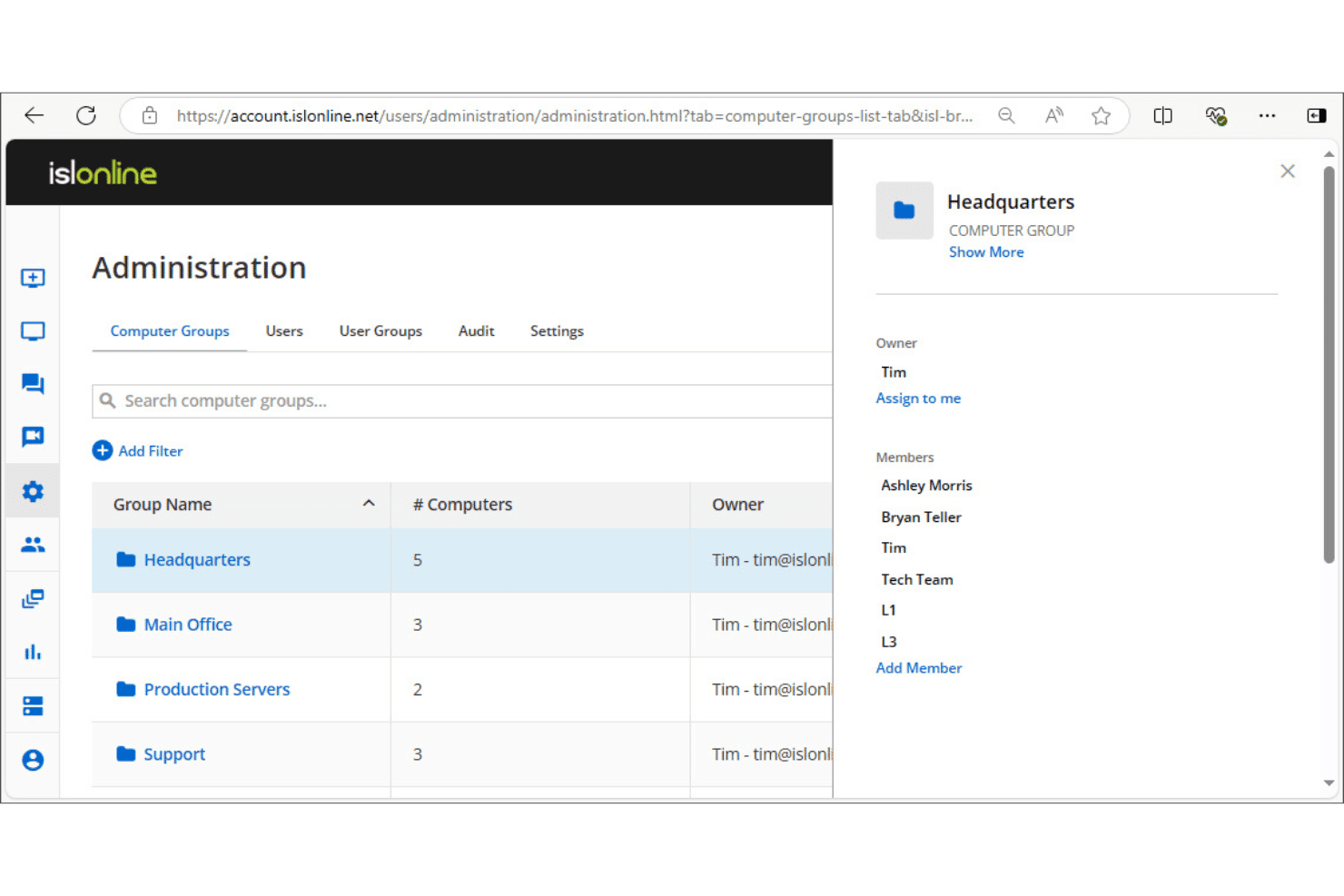
Mit ISL Online können Administratoren Computer mithilfe von Zugriffssteuerungen für Mitglieder in Gruppen organisieren. ISL Online ist eine Remote-Desktop-Software, die unbeaufsichtigten Zugriff, Live-Kundensupport-Sitzungen, RDP/SSH-Verbindungen sowie eine zentrale Benutzer- und Geräteverwaltung für Windows, macOS, Linux und mobile Plattformen unterstützt.
Für wen eignet sich ISL Online am besten?
ISL Online eignet sich besonders für IT-Teams und Managed-Service-Provider, die ihre Infrastruktur für den Fernzugriff auf eigenen Servern betreiben möchten, anstatt sich auf die Cloud eines Anbieters zu verlassen.
Warum ich mich für ISL Online entschieden habe
ISL Online steht auf meiner Auswahlliste, weil die Lösung die selbst gehostete Bereitstellung als erstklassige Option und nicht als nachträgliche Ergänzung behandelt. Mir gefällt, dass der selbst gehostete Tarif den Betrieb des vollständigen ISL-Online-Servers auf der eigenen Infrastruktur ermöglicht, einschließlich der Unterstützung für externe LDAP-Authentifizierung und SAML-SSO sowie der Ports 80 und 443. Dadurch berühren Ihre Sitzungsdaten niemals die Cloud eines Drittanbieters, was wichtig ist, wenn Ihre Organisation strenge Anforderungen an Datenresidenz oder Compliance erfüllen muss.
Wichtige Funktionen von ISL Online
- Sitzungsaufzeichnung: Erstellen Sie vollständige Videoaufzeichnungen von Remote-Sitzungen für Prüfpfade und Compliance-Dokumentation.
- Dateiübertragung: Senden und empfangen Sie Dateien zwischen lokalen und entfernten Rechnern direkt innerhalb einer aktiven Sitzung.
- Zwei-Faktor-Authentifizierung: Fordern Sie bei der Anmeldung einen zweiten Verifizierungsschritt an, um unbefugten Zugriff auf Remote-Geräte zu reduzieren.
- RDP/SSH-Verbindungen: Verbinden Sie sich über RDP oder SSH mit entfernten Rechnern, ohne eine VPN-Konfiguration oder Firewall-Änderungen zu benötigen.
ISL-Online-Integrationen
ISL Online bietet native Integrationen mit ServiceNow, Freshdesk, HaloITSM, Microsoft Intune, Devolutions Remote Desktop Manager, Deepser, SuperOps und PDQ Connect sowie eine REST-API zum Einbetten des Fernzugriffs oder zum Erstellen eigener OEM-Integrationen in RMM-, PSA-, EDR- und ITSM-Plattformen.
Pros and Cons
Pros:
- Kann vollständig auf der eigenen Infrastruktur bereitgestellt werden
- Erfordert eine zusätzliche Verifizierung bei der Anmeldung
- Native Unterstützung für RDP und SSH
Cons:
- Erfordert für maximalen Datenschutz das Selbsthosting
- Keine automatisierten Aufgaben zur Behebung von Endpunktproblemen
Learn more about ISL Online: Am besten für die Verwaltung von Desktop-Geräten im großen Maßstab
- 7-tägige kostenlose Testversion
- Ab 1,84 $/Monat (jährliche Abrechnung)
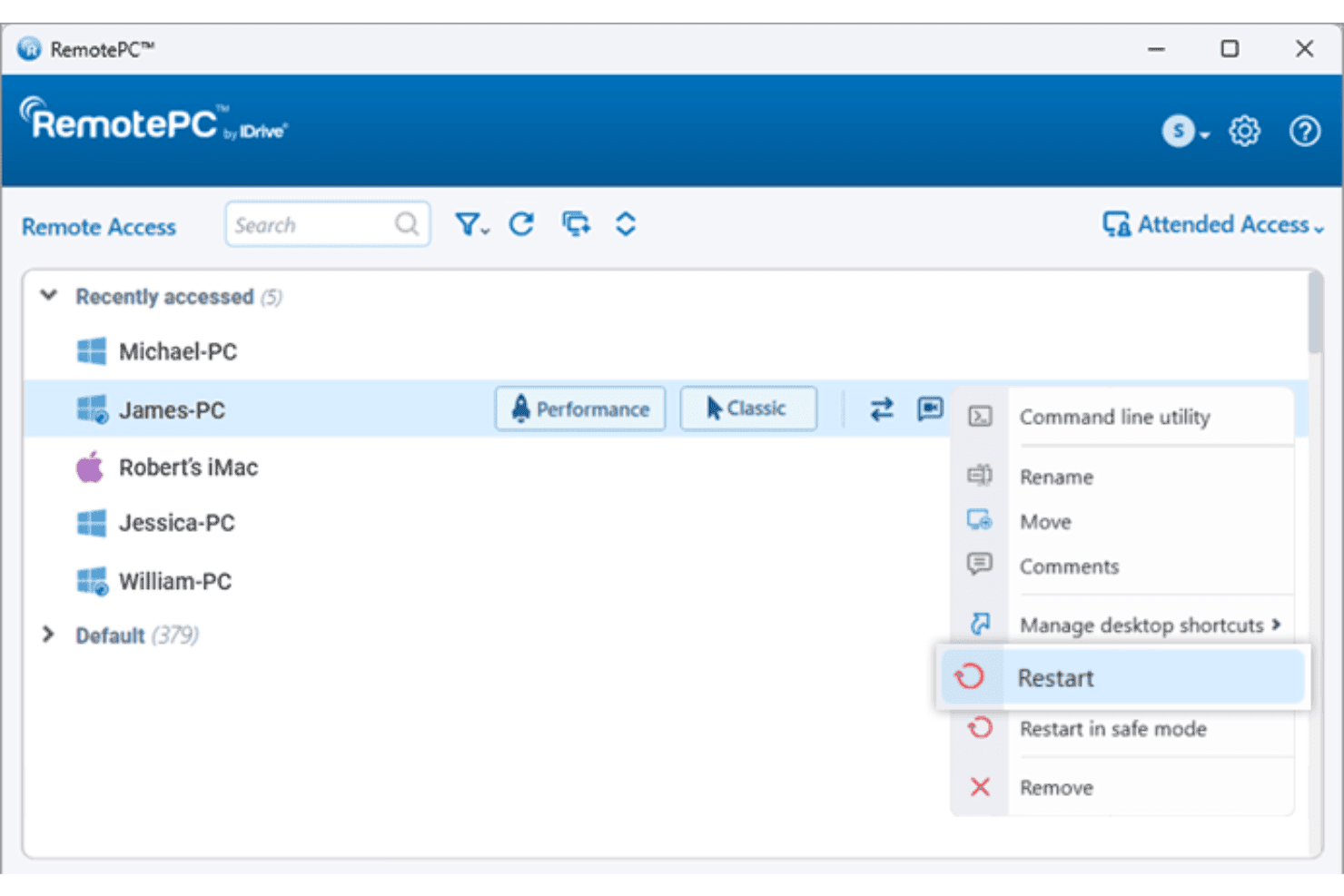
Mit RemotePC können Benutzer Remote-Computer direkt über die Geräteliste neu starten. RemotePC ist eine Plattform für den Fernzugriff, mit der Sie über das Internet eine Verbindung zu Windows-, Mac-, Linux-, Android- und iOS-Geräten herstellen und diese steuern können. Zu den Funktionen gehören Unterstützung für mehrere Monitore, Dateiübertragung, Remote-Bereitstellung, Verwaltung von Benutzer- und Computergruppen sowie Sitzungsaufzeichnung.
Für wen eignet sich RemotePC am besten?
RemotePC eignet sich besonders für IT-Teams, die große Bestände an Windows-, Mac- und Linux-Geräten verwalten und einen zentralisierten Fernzugriff mit Verwaltung von Benutzer- und Computergruppen benötigen.
Warum ich RemotePC ausgewählt habe
RemotePC hat sich einen Platz auf meiner Auswahlliste verdient, weil die Plattform besonders gut mit großen Umgebungen umgehen kann. Mit den Funktionen zur Computergruppierung und Benutzergruppenverwaltung können Sie große Gerätebestände organisieren und Zugriffsberechtigungen zuweisen, ohne jeden Rechner manuell konfigurieren zu müssen. Besonders nützlich finde ich die Massenbereitstellung über GPO, Microsoft Intune oder Jamf Pro. Dadurch können Sie RemotePC über eine zentrale Konsole auf Hunderten von Endpunkten installieren, statt jeden einzelnen Rechner bearbeiten zu müssen. Zusammen mit der Sitzungsaufzeichnung und detaillierten Zugriffsprotokollen erhalten Sie eine solide Nachvollziehbarkeit für jede Remoteverbindung in Ihrer Umgebung.
Die wichtigsten Funktionen von RemotePC
- Remote-Drucken: Drucken Sie auf jedem Remote-Rechner gespeicherte Dokumente direkt auf Ihrem lokalen Drucker aus, ohne Dateien manuell übertragen zu müssen.
- USB-Geräteumleitung: Leiten Sie ein USB-Gerät von Ihrem lokalen Rechner an einen Remote-Computer weiter, sodass es funktioniert, als wäre es physisch angeschlossen.
- RDP-Konnektor: Greifen Sie über RDP auf entfernte Windows-Computer und -Server zu, ohne ein VPN oder Microsoft RD Gateway konfigurieren zu müssen.
- Begleiteter Zugriff: Teilen Sie einen einmaligen Sitzungscode, um sofortigen Zugriff auf Abruf auf einen Remote-Computer für Echtzeit-Support zu ermöglichen.
Integrationen von RemotePC
RemotePC bietet native Integrationen mit Zendesk, Freshdesk, Freshservice, Jira, OneLogin, Okta, Azure AD, Keycloak, Google Workspace und Jamf Pro. Für benutzerdefinierte Integrationen steht eine API zur Verfügung.
Pros and Cons
Pros:
- Unterstützt den Fernzugriff auf alle wichtigen Plattformen
- Optionen für die Massenbereitstellung großer Gerätebestände
- Aufwecken über Netzwerk wird unterstützt
Cons:
- Keine Unterstützung für benutzerdefinierte API-Integrationen
- Keine automatisierten Tools zum Patchen von Remote-Software
Learn more about RemotePC: Am besten geeignet für die Geschwindigkeit und Diagnosetools von MSP-Technikern
- Kostenlose 14-Tage-Testversion + kostenlose Demo verfügbar
- Preis auf Anfrage
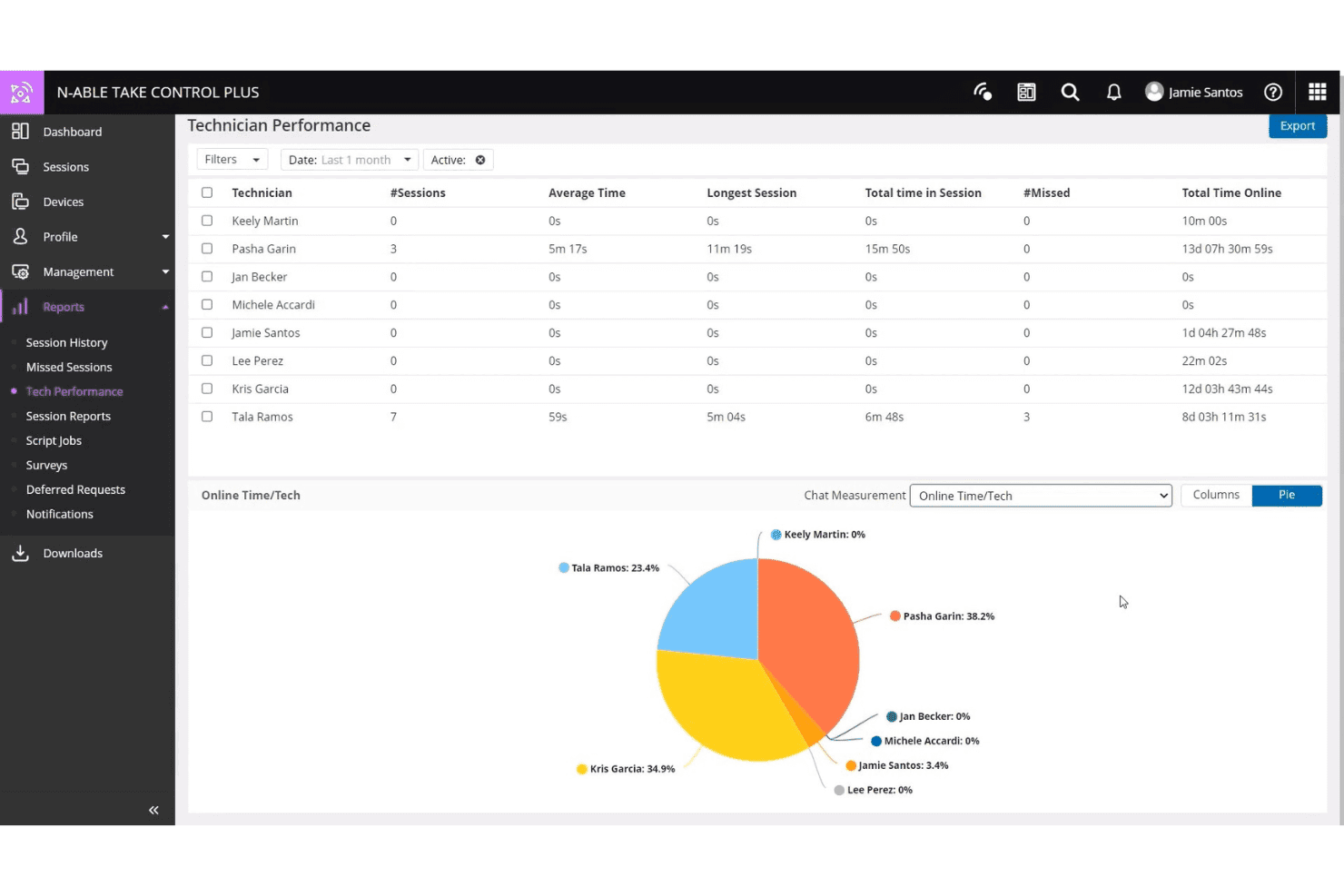
N-able Take Control erfasst die Sitzungsaktivität und Online-Zeit von Technikern. N-able Take Control ist ein Tool für den Fernsupport, das für MSPs und IT-Teams entwickelt wurde und plattformübergreifende Sitzungsverwaltung, integrierte Diagnosetools, Live-Chat, VoIP, Multi-Faktor-Authentifizierung und Integrationen mit den RMM-Plattformen von N-able bietet.
Für wen ist N-able Take Control am besten geeignet?
N-able Take Control eignet sich hervorragend für MSP-Techniker, die Sitzungen schnell starten und integrierte Diagnosetools nutzen möchten, ohne zwischen verschiedenen Plattformen wechseln zu müssen.
Warum ich mich für N-able Take Control entschieden habe
Ich habe N-able Take Control in meine Top-Auswahl aufgenommen, weil die Geschwindigkeit beim Starten von Sitzungen wirklich beeindruckend ist und die integrierten Diagnosetools dafür sorgen, dass Techniker beim Beheben von Problemen nicht zwischen verschiedenen Tabs wechseln müssen. Besonders gut gefällt mir das Dashboard zur Gerätezustandsüberwachung, das während einer Live-Sitzung CPU-, Speicher- und Festplattendaten anzeigt, sodass Sie die Diagnose direkt während der Arbeit durchführen können. Die Remote-Befehlskonsole mit nur einem Klick ist ein weiteres Feature, auf das ich immer wieder zurückgreife. Damit können Sie Skripte ausführen und Dienste neu starten, ohne den Bildschirm des Endbenutzers zu unterbrechen.
Die wichtigsten Funktionen von N-able Take Control
- Plattformübergreifende Remotesitzungen: Stellen Sie innerhalb einer einzigen Sitzungswarteschlange Verbindungen zu Windows-, Mac-, Linux-, iOS- und Android-Geräten her und von diesen Geräten aus.
- Unterstützung mehrerer Monitore: Wechseln Sie zwischen mehreren Monitoren auf dem Remote-Gerät und zeigen Sie diese an, ohne die Sitzung zu beenden oder neu zu starten.
- Dateiübertragung innerhalb der Sitzung: Ziehen Sie Dateien während einer aktiven Support-Sitzung direkt auf ein Remote-Gerät und von diesem herunter.
- Sitzungsaufzeichnung: Starten und stoppen Sie Aufzeichnungen von Live-Sitzungen zu Prüfungs-, Compliance- oder Schulungszwecken für Techniker.
Integrationen von N-able Take Control
N-able Take Control bietet native Integrationen mit N-sight RMM, N-central, Autotask und ConnectWise. Für benutzerdefinierte Integrationen ist eine API verfügbar.
Pros and Cons
Pros:
- Die Geschwindigkeit beim Starten von Sitzungen ist konstant hoch
- Integriertes Dashboard zur Gerätezustandsüberwachung während Sitzungen
- Plattformübergreifende Warteschlangen für Windows, Mac und Linux
Cons:
- Begrenzte native Integrationen außerhalb des N-able-Ökosystems
- Einige erweiterte Funktionen erfordern die N-central-Plattform
Learn more about N-able Take Control: Am besten geeignet für leistungsstarke Fernsteuerung in 4K-Qualität
- Kostenlose Testversion + kostenlose Demo verfügbar
- Ab $6/Monat
Visit WebsiteCustomer Rating:4.8/5
Splashtop ermöglicht es Benutzern, Windows-Ereignisprotokolle aus der Ferne nach Typ und Schweregrad anzuzeigen und zu filtern. Splashtop ist eine Plattform für Fernzugriff und Fernsupport, die für IT-Teams entwickelt wurde und Fernsteuerung von Desktops, Bildschirmfreigabe, Sitzungsaufzeichnung und Unterstützung mehrerer Monitore auf Windows-, Mac-, iOS-, Android- und Linux-Geräten bietet.
Für wen ist Splashtop am besten geeignet?
Splashtop eignet sich besonders für IT-Teams und Managed-Service-Provider, die eine präzise Fernsteuerung von Desktops benötigen, insbesondere wenn Anzeigequalität und Sitzungsleistung besonders wichtig sind.
Warum ich Splashtop ausgewählt habe
Splashtop steht auf meiner Auswahlliste, weil es 4K-Streaming mit bis zu 60 fps bietet und dadurch tatsächlich für die Arbeit aus der Ferne mit grafikintensiven Anwendungen wie der Adobe Creative Suite oder AutoCAD geeignet ist. Ich habe es in Szenarien eingesetzt, in denen die Anzeigegenauigkeit wirklich wichtig ist, und der Unterschied zu einem herkömmlichen HD-Stream ist deutlich erkennbar. Darüber hinaus können Sie dank der Unterstützung mehrerer Monitore mehrere entfernte Bildschirme anzeigen, ohne den Überblick über Ihren Arbeitsbereich zu verlieren.
Die wichtigsten Funktionen von Splashtop
- Sitzungsaufzeichnung: Zeichnen Sie Sitzungen aus der Ferne automatisch auf und speichern Sie sie zur Prüfung, für Compliance-Zwecke oder zur Fehlerbehebung.
- Dateiübertragung: Verschieben Sie Dateien innerhalb einer aktiven Sitzung direkt zwischen dem lokalen und dem entfernten Gerät, ohne ein Drittanbieter-Tool zu benötigen.
- Neustart aus der Ferne: Starten Sie einen entfernten Computer neu, auch im abgesicherten Modus, ohne den Zugriff auf die Sitzung zu verlieren.
- Multi-Faktor-Authentifizierung: Fordern Sie bei der Anmeldung einen zweiten Verifizierungsschritt an, um den unbefugten Zugriff auf entfernte Endpunkte zu verringern.
Integrationen von Splashtop
Splashtop bietet mehr als 40 direkt integrierte Anbindungen, darunter Jira, ServiceNow, Zendesk, Freshservice, Microsoft Teams, Salesforce, Splunk, Jamf, NinjaOne und JumpCloud. Außerdem verfügt es über direkt integrierte Anbindungen im gesamten Microsoft-Ökosystem, einschließlich Microsoft Entra ID. Für benutzerdefinierte Integrationen ist ebenfalls eine API verfügbar.
Pros and Cons
Pros:
- Überträgt entfernte Desktops mit 4K und 60 fps
- Ermöglicht den sicheren Neustart entfernter Geräte
- Bietet direkte Funktionen zur Dateiübertragung
Cons:
- Keine Befehlszeile für Endpunkte im Hintergrund
- Keine automatisierten Tools zum Patchen von Software
Learn more about Splashtop: Am besten mit KI-gestützter IT-Diagnose
- 30-tägige kostenlose Testversion
- Ab $24.9/Monat (jährlich abgerechnet)
Visit WebsiteCustomer Rating:4.5/5
TeamViewer erkennt und überwacht alle Geräte in Ihrem Netzwerk. TeamViewer ist eine Plattform für Fernzugriff und Unterstützung, die Geräteverbindungen, sitzungsbasierte Fehlerbehebung, Endpunktüberwachung und KI-gestützte Diagnosen in Desktop-, Mobil- und IoT-Umgebungen kombiniert.
Für wen ist TeamViewer am besten geeignet?
TeamViewer eignet sich besonders für IT-Supportteams, die große, heterogene Geräteumgebungen verwalten, in denen schnelle Ferndiagnosen über Desktop-, Mobil- und IoT-Endpunkte täglich erforderlich sind.
Warum ich TeamViewer ausgewählt habe
TeamViewer hat sich einen Platz auf meiner engeren Auswahl verdient, weil Tia, der integrierte KI-Agent, Probleme tatsächlich während der Sitzung diagnostiziert, eine Lösung empfiehlt, genehmigte Fehlerbehebungen ausführt und das Ergebnis validiert, ohne dass man die Fernsitzung verlassen muss. Ich schätze außerdem Session Insights, das automatisch prüfungsbereite Sitzungszusammenfassungen erstellt und Musterdaten in Session Analytics einspeist, sodass wiederkehrende Probleme in der gesamten Umgebung erkannt werden können. Für IT-Teams, die ein hohes Ticketaufkommen in heterogenen Geräteflotten bewältigen müssen, schließen diese beiden Funktionen gemeinsam die Lücke zwischen reaktiver Fehlerbehebung und einer Form von autonomer Unterstützung.
Die wichtigsten Funktionen von TeamViewer
- Unbeaufsichtigter Zugriff: Stellen Sie eine Verbindung zu genehmigten Geräten her und steuern Sie diese – einschließlich Computern und Android-Endpunkten –, ohne dass am anderen Ende ein Benutzer anwesend sein muss.
- Augmented-Reality-Fernunterstützung: Nutzen Sie Assist AR, um Mitarbeiter vor Ort mithilfe von Live-AR-Einblendungen auf dem Smartphone durch Hardware- oder Softwareprobleme zu führen, ohne einen Techniker entsenden zu müssen.
- Verschlüsselter Dateitransfer: Übertragen Sie Dateien zwischen lokalen und entfernten Geräten mit einer Ende-zu-Ende-AES-Verschlüsselung mit 256 Bit. Dabei werden mehrere Übertragungsmethoden unterstützt, darunter Kopieren und Einfügen.
- Stille Massenbereitstellung: Verteilen Sie den TeamViewer-Client in großen Mengen auf Tausenden von Geräten, ohne eine Benutzerinteraktion zu erfordern, und verkürzen Sie so die Einführungszeit für große Geräteflotten.
TeamViewer-Integrationen
TeamViewer bietet mehr als 30 native Integrationen, darunter ServiceNow, Salesforce, Zendesk, Jira, Freshworks, Slack, Google Meet, SAP, Jamf Pro sowie Tools aus dem Microsoft-Ökosystem wie Microsoft 365, Intune, Teams, Dynamics 365 und Entra ID. Für benutzerdefinierte Integrationen ist außerdem eine API verfügbar.
Pros and Cons
Pros:
- KI-gestützte Diagnosen schlagen in Echtzeit Lösungen vor
- Session Insights erstellt prüfungsbereite Supportberichte
- Modus für visuelle Unterstützung mit Augmented Reality
Cons:
- Kein unauffälliger Hintergrundverwaltungsmodus
- Der Fernzugriff wird gelegentlich durch strenge Firewalls blockiert
Learn more about TeamViewer: Am besten für FIPS-140-2-konformen Support geeignet
- Kostenlose Testversion + kostenlose Demo verfügbar
- Preis auf Anfrage

BeyondTrust Remote Support erfasst Live-Sitzungen, Wartezeiten und die Aktivitäten der Supportmitarbeiter. BeyondTrust Remote Support ist eine Fernzugriffsplattform für IT- und Supportteams, die sicher auf Endpunkte in lokalen, Cloud- und hybriden Umgebungen zugreifen, diese Fehler beheben und verwalten müssen.
Für wen eignet sich BeyondTrust Remote Support am besten?
BeyondTrust Remote Support eignet sich besonders für IT- und Sicherheitsteams in Behörden, im Verteidigungssektor und in stark regulierten Branchen, die Remote-Support benötigen, der nach den Standards FIPS 140-2, Level 1, validiert ist.
Warum ich mich für BeyondTrust Remote Support entschieden habe
BeyondTrust Remote Support ist das einzige Remote-Support-Produkt mit einer Validierung nach FIPS 140-2, Level 1. Damit ist es eine klare Wahl für Behörden, Rüstungsunternehmen und Organisationen, die den Anforderungen von FedRAMP oder FISMA unterliegen. Besonders gut gefällt mir die Tresor-Funktion, mit der Sie bis zu 100.000 Anmeldedaten direkt in Remote-Sitzungen verwalten, rotieren und einschleusen können, sodass der privilegierte Zugriff streng kontrolliert bleibt. Sitzungsprotokollierung und forensische Analysen bieten Sicherheitsteams einen vollständigen Prüfpfad für jede Verbindung.
Die wichtigsten Funktionen von BeyondTrust Remote Support
- Jump-Clients: Stellen Sie Jump-Clients für den unbeaufsichtigten Zugriff auf entfernte Endpunkte bereit, mit Unterstützung für Massenbereitstellungen und die bedarfsgesteuerte Bereitstellung von Zugriffen.
- Dashboard für Remote-Support: Überwachen Sie alle aktiven Sitzungen in Echtzeit, sehen Sie die Auslastung des Teams ein und übertragen oder übernehmen Sie Sitzungen direkt aus einer zentralen Manageransicht.
- Plattformübergreifende Geräteunterstützung: Stellen Sie über eine einzige Oberfläche Verbindungen zu Windows-, Linux-, macOS-, Chrome-OS-, iOS- und Android-Geräten her und beheben Sie dort Fehler.
- Automatisierte Skriptausführung: Führen Sie während Remote-Sitzungen Skripte und Masseninstallationen auf Endpunkten aus, um die Fehlerbehebung ohne manuelle Eingriffe zu beschleunigen.
Integrationen von BeyondTrust Remote Support
BeyondTrust Remote Support bietet native Integrationen mit ServiceNow, Jira Service Management, BMC ITSM, Splunk, Microsoft Entra ID, Okta und Ping Identity. Für benutzerdefinierte Integrationen steht eine API zur Verfügung.
Pros and Cons
Pros:
- Bietet eine Validierung nach FIPS 140-2, Level 1
- Zentrale Verwaltung von Anmeldedaten während Remote-Sitzungen
- Automatisierte Skriptausführung auf Endpunkten
Cons:
- Kein Hintergrundmodus für die Endpunktverwaltung
- Für einen optimalen unbeaufsichtigten Zugriff ist eine Einrichtung erforderlich
Learn more about BeyondTrust Remote Support: Am besten für Zero-Trust-Zugriff auf FedRAMP-Niveau geeignet
- Kostenlose Testversion und kostenlose Demo verfügbar
- Preise auf Anfrage

BeyondTrust verfolgt die Einhaltung von Computerrichtlinien und Clientversionen auf allen Endpunkten. BeyondTrust Privileged Remote Access ist eine Lösung für die Verwaltung privilegierter Zugriffe (PAM), die mithilfe einer Zero-Trust-Architektur, der Einschleusung von Zugangsdaten und der Sitzungsaufzeichnung Remote-Sitzungen für Mitarbeitende, Anbieter und Dienstkonten in Cloud-, lokalen und OT-Umgebungen steuert und prüft.
Für wen eignet sich BeyondTrust Privileged Access Management am besten?
BeyondTrust Privileged Remote Access eignet sich besonders für Regierungsbehörden, Rüstungsauftragnehmer und regulierte Unternehmen, die für privilegierte Benutzer und Drittanbieter gemäß FedRAMP autorisierte Kontrollen für den Remotezugriff benötigen.
Warum ich mich für BeyondTrust Privileged Access Management entschieden habe
BeyondTrust Privileged Remote Access hat sich einen Platz auf meiner Liste verdient, weil es eine der wenigen Lösungen für den Remotezugriff mit einer FedRAMP-Moderate-Autorisierung ist. Das ist besonders wichtig, wenn Sie in einer Bundesbehörde tätig sind oder Regierungsauftragnehmer unterstützen. Besonders gut gefällt mir die Funktion zur Einschleusung von Zugangsdaten, mit der sich privilegierte Benutzer an Systemen authentifizieren können, ohne jemals Klartextpasswörter zu sehen. In Kombination mit Just-in-time-Zugriffskontrollen und einer vollständigen Sitzungsaufzeichnung erhalten Sie so eine prüfungstaugliche Zugriffshistorie, die sowohl internen Sicherheitsteams als auch externen Compliance-Prüfern genügt.
Die wichtigsten Funktionen von BeyondTrust Privileged Access Management
- Verwaltung privilegierter Zugriffe für Anbieter: Gewährt Drittanbietern zeitlich begrenzten Remotezugriff, ohne eine VPN-Verbindung oder gemeinsam genutzte Zugangsdaten zu erfordern.
- Unterstützung mehrerer Sitzungsprotokolle: Unterstützt RDP-, VNC-, SSH-, HTTPS- und SQL-Verbindungen für authentifizierte und prüfbare Sitzungen über menschliche und nichtmenschliche Identitäten hinweg.
- Cloud-Zugriff für Entwickler: Bietet einen protokollorientierten Zugriff mit einem Workflow zur Nutzung eigener Tools für kurzlebige Multi-Cloud-Systeme und API-basierte Umgebungen.
- Delegierte Einbindung von Anbietern: Ermöglicht es Ihnen, die Benutzerverwaltung von Anbietern Gruppenrichtlinien zuzuweisen, wodurch gemeinsame Konten abgeschafft und der manuelle Bereitstellungsaufwand reduziert werden.
Integrationen von BeyondTrust Privileged Access Management
BeyondTrust Privileged Remote Access bietet native Integrationen mit ServiceNow, Jira Service Management, Splunk, Sekoia, SailPoint IdentityIQ, AWS und VMware. Für benutzerdefinierte Integrationen steht eine API zur Verfügung.
Pros and Cons
Pros:
- Die FedRAMP-Moderate-Autorisierung unterstützt Anforderungen an die Einhaltung bundesstaatlicher Vorschriften
- Die Einschleusung von Zugangsdaten verbirgt sensible Passwörter vor Benutzern
- Die Sitzungsaufzeichnung ermöglicht umfassende Prüfpfade
Cons:
- Kein direkter Chat-Messenger für Endgeräte
- Keine integrierte Verwaltung von Antivirensoftware
Learn more about BeyondTrust Privileged Access Management: Am besten für Sitzungsaufzeichnung und Prüfungen geeignet
- 14-tägige kostenlose Testversion
- Ab $33/Monat (jährlich abgerechnet)

ScreenConnect erfasst Höherstufungsanfragen und Zugriffsgenehmigungen in einer einzigen Übersicht. ScreenConnect ist eine Plattform für Fernzugriff und Support, die unbeaufsichtigten Gerätezugriff, Remote-Support-Sitzungen, Verwaltung privilegierter Zugriffe und die Echtzeit-Kamerafreigabe auf Windows-, Mac-, Linux- und Mobilgeräten abdeckt.
Für wen ist ScreenConnect am besten geeignet?
ScreenConnect eignet sich gut für IT-Teams und Anbieter verwalteter IT-Dienste, die vollständige Prüfpfade und aufgezeichnete Sitzungsprotokolle benötigen, um Compliance- oder interne Verantwortlichkeitsanforderungen zu erfüllen.
Warum ich ScreenConnect ausgewählt habe
ScreenConnect hat sich seinen Platz auf meiner Auswahlliste verdient, weil die Plattform die Transparenz und Verantwortlichkeit bei Sitzungen besonders ernst nimmt. Jede Remotesitzung kann als Videoaufzeichnung protokolliert werden, und das Prüfprotokoll erfasst Anmeldeversuche, Passwortänderungen und Sitzungszugriffe in einer einzigen filterbaren Ansicht. So können Sie genau nachvollziehen, was ein Techniker während einer bestimmten Sitzung getan hat, ohne sich durch fragmentierte Protokolle arbeiten zu müssen. Außerdem gefällt mir, dass sich Prüfprotokolle nach dem Sitzungsnamen filtern lassen, um Aufzeichnungen schnell zu finden. Das ist besonders wichtig, wenn Sie auf eine Compliance-Anfrage oder eine interne Prüfung reagieren.
Wichtige Funktionen von ScreenConnect
- Unbeaufsichtigter Gerätezugriff: Stellen Sie eine Verbindung zu entfernten Windows-, Mac- und Linux-Computern her, ohne dass am anderen Ende ein Benutzer anwesend sein muss.
- Echtzeit-Kamerafreigabe: Greifen Sie während einer Support-Sitzung auf das Livebild der Kamera eines Geräts zu, um visuellen Kontext zu physischen Umgebungen oder Hardwareproblemen zu erhalten.
- Rollenbasierte Zugriffskontrolle: Weisen Sie Technikern granular Berechtigungen zu und legen Sie fest, auf welche Computer und Sitzungstypen die einzelnen Benutzer zugreifen können.
- Wake-on-LAN: Schalten Sie entfernte Geräte über das Netzwerk ein, damit Sie eine Verbindung zu ausgeschalteten Computern herstellen können, ohne dass jemand vor Ort sein muss.
Integrationen von ScreenConnect
ScreenConnect bietet native Integrationen mit ConnectWise PSA, ConnectWise Automate, ConnectWise RMM, Acronis, Freshdesk, Zendesk, Microsoft Outlook, ServiceNow und Delinea sowie mehr als 100 Erweiterungen über den ConnectWise Marketplace. Für benutzerdefinierte Integrationen ist eine API verfügbar.
Pros and Cons
Pros:
- Echtzeit-Kamerafreigabe für Geräte
- Granulare Prüfprotokolle für Verantwortlichkeitsprüfungen
- Rollenbasierte Berechtigungen zur Zugriffskontrolle für Techniker
Cons:
- Keine kostenlose Version oder Testversion verfügbar
- Keine einheitliche Bereitstellung von Patches für Endgeräte
Learn more about ScreenConnect: Am besten für Callcenter-Support mit Masseneinsätzen geeignet
- Kostenlose 14-tägige Testversion + kostenlose Demo verfügbar
- Ab $109/Monat (jährlich abgerechnet)

LogMeIn Rescue ermöglicht Benutzern, Fern-, Mobil- oder Bildschirmfreigabe-Supportsitzungen zu starten. LogMeIn Rescue ist eine cloudbasierte Plattform für Fernsupport, die für IT-Teams und Helpdesks entwickelt wurde und den Fernzugriff auf Geräte, die Sitzungsverwaltung, plattformübergreifenden Support sowie Werkzeuge der Techniker-Konsole für Desktop- und mobile Umgebungen bietet.
Für wen ist LogMeIn Rescue am besten geeignet?
LogMeIn Rescue eignet sich besonders für IT-Helpdesks und Callcenter, die gleichzeitig große Mengen von Endbenutzern auf verschiedenen Geräten und Betriebssystemen unterstützen müssen.
Warum ich mich für LogMeIn Rescue entschieden habe
Ich habe LogMeIn Rescue in meine Top-Auswahl aufgenommen, weil es den Support in Callcentern mit hohem Anfragevolumen besser bewältigt als die meisten Tools in dieser Kategorie. Die Funktion für Support-Verknüpfungen ist der entscheidende Unterschied: Über eine Masseninstallation lässt sich eine Desktop-Verknüpfung mit nur einem Klick auf Tausenden von Rechnern der Endbenutzer bereitstellen, sodass Benutzer ohne PIN eine Support-Sitzung starten können. Die Techniker auf der anderen Seite verwalten eingehende Anfragen über Sitzungswarteschlangen und Kanalweiterleitung, wodurch Callcenter-Abläufe auch bei großem Umfang übersichtlich bleiben.
Wichtige Funktionen von LogMeIn Rescue
- KI-Sitzungszusammenfassungen: Erstellt automatisch strukturierte Sitzungsnotizen aus Chatprotokollen, Geräteinformationen und während einer Support-Sitzung durchgeführten Technikeraktionen.
- Sitzungsaufzeichnung und Berichterstellung: Zeichnet Fernsupport-Sitzungen auf und ermöglicht den Zugriff auf historische Nutzungsdaten, um die Aktivitäten der Techniker zu überprüfen und teamweite Kennzahlen zu verfolgen.
- Live Lens: Ermöglicht Endbenutzern, ihre physische Umgebung über die Smartphone-Kamera zu teilen, sodass Techniker Hardware- oder Vor-Ort-Probleme diagnostizieren können, ohne den Arbeitsplatz aufsuchen zu müssen.
- Zusammenarbeit mehrerer Techniker: Lädt zusätzliche Techniker in eine aktive Sitzung ein, damit sie gemeinsam Fehler beheben können, ohne die Sitzung neu zu starten oder zu übertragen.
Integrationen von LogMeIn Rescue
LogMeIn Rescue bietet integrierte Verbindungen mit ServiceNow, Salesforce (einschließlich Lightning), Microsoft Dynamics, Microsoft Teams, Zendesk, Freshdesk, Jira Service Management, Autotask und Nexthink. Außerdem stehen APIs und SDKs für benutzerdefinierte Integrationen mit CRM-, Ticketsystem- und Workflow-Systemen zur Verfügung.
Pros and Cons
Pros:
- Möglichkeit zur automatischen Erstellung von Sitzungsnotizen
- Live Lens unterstützt die Diagnose von Hardwareproblemen
- Sitzungen mit mehreren Technikern ohne Unterbrechung
Cons:
- Kein integriertes Antivirenprogramm für Endgeräte
- Keine kontinuierliche Automatisierung von Patches für Endgeräte
Learn more about LogMeIn Rescue:
Weitere Fernzugriffssoftware
Hier finden Sie einige zusätzliche Optionen für Fernzugriffssoftware, die es nicht in meine Auswahl geschafft haben, aber dennoch einen Blick wert sind:
- 11NinjaOneAm besten für die native RMM-Steuerung von Endgeräten geeignet
- 12Zoho AssistAm besten für native Integrationen in das Zoho-Ökosystem geeignet
- 13AteraAm besten für transparente Preise pro Techniker
- 14ManageEngine Remote Access PlusAm besten für unbeaufsichtigte Systemdiagnosen geeignet
- 15Parallels RASAm besten für die Bereitstellung virtueller Apps und Desktops auf jedem Gerät
- 16AnyDeskAm besten für plattformübergreifende Steuerung mit geringer Latenz
- 17Azure Virtual DesktopAm besten für cloudnative Windows-Desktops
- 18LogMeIn ResolveAm besten für einheitliche Endgeräte-Ticketverwaltung und Zugriff
- 19RustDeskAm besten für die Souveränität von Open-Source-Daten geeignet
- 20RealVNC ConnectAm besten für den Zugriff auf eingebettete Systeme und IoT
Related Reviews
How I Evaluate Remote Access Software
I split my evaluation into baseline capabilities every tool must clear—like unattended access and session auditing—and the differentiators, like zero-trust architecture or MSP ecosystem fit, that separate good tools from the right one.
Core Functionality (Table Stakes for This List)
When I'm selecting tools for my list, I rank each one on a scale from 0 (does not offer the functionality) to 5 (excels in this area) for each core functionality listed below. I then calculate the tool's total score as a percentage, using 75% as a benchmark to help assess its overall fit for the list.
- Remote control access: I evaluate real-time screen, keyboard, and mouse control across connections, checking for multi-monitor handling, resolution scaling, and performance under high-latency conditions.
- Unattended access: Tools need to support always-on agent-based connections so technicians can reach endpoints for after-hours patching or server maintenance without someone on the other end.
- Cross-platform support: I check whether each tool covers Windows, macOS, Linux, iOS, and Android as both host and client, since mixed-OS environments are the norm for most IT teams.
- Secure connection and encryption: AES-256 encryption, MFA enforcement, and SSO/SAML support are what I look for, along with any compliance certifications like SOC 2 or ISO 27001.
- File transfer and session tools: Bi-directional file transfer, clipboard sync, remote print, and in-session chat all factor in, especially for support scenarios where a technician needs to push a config file mid-session.
- Session management and auditing: I look at session recording, role-based access controls, and exportable audit logs, since these directly support compliance requirements and internal accountability reviews.
Once I have a list of tools that meet the criteria, I consider what sets each platform apart.
Differentiating Factors (What Sets Vendors Apart)
Here's how I compare and contrast different vendors:
Standout Features
Session recording with searchable metadata matters most when your compliance team needs a defensible audit trail. I check whether recordings auto-attach to tickets and how long vendors retain them. Just-in-time privileged access is equally important—I evaluate how tools handle time-bound, approval-gated elevation for contractors so access revokes automatically after a session ends. I also look at mass deployment tooling, since onboarding thousands of endpoints via silent MSI installers or Group Policy integration separates enterprise-ready platforms from ones that require manual setup.
Beyond Features
I evaluate each tool's deployment model first—cloud-hosted, self-hosted, or hybrid—because teams in regulated industries often need on-premises control or data residency guarantees. Licensing structure matters just as much: per-technician pricing suits lean internal teams, while per-endpoint or concurrent-session models can save MSPs real money at scale. I also check for native connectors to PSA, ITSM, and identity providers like Okta or Azure AD, since launching a remote session straight from a ServiceNow ticket eliminates context-switching. Finally, I look at compliance certifications like SOC 2 Type II and FedRAMP that map directly to buyer requirements in healthcare, finance, and public sector.
So wählen Sie eine Fernzugriffssoftware aus
Welche Prioritäten sollten Ihren Auswahlprozess für Fernzugriffssoftware bestimmen, damit Ihr Team sicheren, skalierbaren und prüfbaren Zugriff erhält?
| Wenn Ihre Priorität … ist | Achten Sie auf … |
|---|---|
| Wenn Ihre Priorität … istSicherheit und Compliance nachweisen | Achten Sie auf …Zertifizierungen wie SOC 2, FIPS 140-2 oder FedRAMP sowie Tools zur Sitzungsprüfung |
| Wenn Ihre Priorität … istGeräteabdeckung im Unternehmensmaßstab | Achten Sie auf …Massenbereitstellung über MSI, GPO oder RMM-Integration |
| Wenn Ihre Priorität … istPlattformübergreifender Zugriff | Achten Sie auf …Vollständige Unterstützung für Windows, macOS, Linux, iOS und Android sowohl als Host als auch als Client |
| Wenn Ihre Priorität … istZero Trust und granulare Kontrolle | Achten Sie auf …Rollenbasierter Zugriff mit zeitlich begrenzter Rechteerhöhung und verpflichtender MFA-Durchsetzung |
| Wenn Ihre Priorität … istPrüfungstaugliche Fehlerbehebung | Achten Sie auf …Sitzungsaufzeichnung mit exportierbaren Protokollen und durchsuchbaren Metadaten |
So prüfen Sie Ihre Auswahl
- Compliance-Nachweise anfordern: Bitten Sie Anbieter innerhalb von zwei Werktagen um aktuelle SOC-2- oder FedRAMP-Dokumentation.
- Massenbereitstellung testen: Testen Sie die unbeaufsichtigte Installation oder die GPO-basierte Bereitstellung auf mindestens 10 Endpunkten in getrennten Netzwerken.
- Zugriffskontrollen simulieren: Erstellen Sie in einer Testversion einen zeitlich begrenzten, genehmigungspflichtigen Zugriff für einen Testauftragnehmer und überprüfen Sie den automatischen Entzug.
- Sitzungsprüfprotokolle exportieren: Führen Sie eine Sitzung durch und exportieren Sie anschließend innerhalb von 24 Stunden ein detailliertes Protokoll oder eine Aufzeichnung für ein echtes Gerät.
- Wählen Sie Ihren Ansatz – Cloud-Komfort oder lokale Kontrolle: Entscheiden Sie sich zwischen der Agilität von SaaS und der Datenhoheit sowie den Compliance-Garantien einer selbst gehosteten Bereitstellung.
Was ist Fernzugriffssoftware?
Fernzugriffssoftware ist eine Sammlung von Tools, mit denen Sie sich sicher über ein Netzwerk oder das Internet mit einem anderen Gerät verbinden und dieses steuern können. Sie ermöglicht IT-Teams und Benutzern, Geräte zu verwalten, Probleme zu beheben und Administrationsaufgaben durchzuführen, ohne physisch vor Ort sein zu müssen. Diese Plattformen sind wichtig, um verteilte Umgebungen zu unterstützen, die Betriebszeit aufrechtzuerhalten und Sicherheitskontrollen über verschiedene Betriebssysteme und Standorte hinweg durchzusetzen.
Funktionen von Fernzugriffssoftware
Achten Sie bei der Auswahl von Fernzugriffssoftware auf die folgenden wichtigen Funktionen:
- Fernsteuerungszugriff: Ermöglicht es Ihnen, den Bildschirm, die Tastatur und die Maus eines anderen Geräts in Echtzeit anzuzeigen und zu steuern, um Probleme zu beheben, Aktualisierungen durchzuführen oder Wartungsarbeiten vorzunehmen, ohne physisch vor Ort sein zu müssen.
- Unbeaufsichtigter Zugriff: Ermöglicht Remoteverbindungen zu Endgeräten, auch wenn kein Benutzer anwesend ist, was für Support außerhalb der Geschäftszeiten, das Einspielen von Patches und Arbeiten an Servern entscheidend ist.
- Plattformübergreifende Kompatibilität: Unterstützt Verbindungen zwischen Windows-, macOS-, Linux-, iOS- und Android-Geräten und stellt sicher, dass Ihr Team gemischte Umgebungen lückenlos verwalten kann.
- Starke Verschlüsselung: Verwendet Sicherheitsprotokolle wie AES-256, um Sitzungsdaten zu schützen und sicherzustellen, dass Ihre Remotesitzungen nicht abgefangen oder manipuliert werden können.
- Multi-Faktor-Authentifizierung (MFA): Erfordert einen zusätzlichen Authentifizierungsschritt über ein einfaches Passwort hinaus, wodurch das Risiko eines unbefugten Zugriffs verringert und die allgemeine Sicherheit erhöht wird.
- Sitzungsaufzeichnung und Prüfprotokolle: Erfasst Aktivitäten in Remotesitzungen und stellt detaillierte Protokolle bereit, was bei der Einhaltung von Compliance-Vorgaben, internen Überprüfungen und der Verifizierung von Benutzeraktionen hilft.
- Dateiübertragungs-Tools: Erleichtern das Senden und Empfangen von Dateien zwischen lokalen und entfernten Rechnern, was für die Bereitstellung von Patches und Skripten oder das Sammeln von Protokolldateien während Support-Sitzungen entscheidend ist.
- Rollenbasierte Zugriffskontrollen: Ermöglichen es Ihnen, Benutzern oder Gruppen detaillierte Berechtigungen zuzuweisen und den Fernzugriff auf diejenigen zu beschränken, die ihn unbedingt benötigen.
- Chat innerhalb der Sitzung: Bietet Technikern die Möglichkeit, während einer Support-Sitzung direkt mit Remote-Benutzern zu kommunizieren, um Probleme besser zu klären und die Fehlerbehebung zu koordinieren.
- Skalierbare Bereitstellungsoptionen: Bietet Tools für Masseninstallationen oder Integrationen wie MSI-Installationsprogramme, GPO oder RMM-Konnektoren und vereinfacht so die Einbindung großer Mengen von Endgeräten in Ihre Umgebung.
Gängige KI-Funktionen von Fernzugriffssoftware
Über die oben aufgeführten Standardfunktionen von Fernzugriffssoftware hinaus integrieren viele dieser Lösungen KI mit Funktionen wie:
- Automatisierte Problemerkennung: KI analysiert Sitzungsaktivitäten und Systemprotokolle, um potenzielle Probleme oder Anomalien zu erkennen, bevor sie eskalieren, und hilft IT-Teams dabei, Probleme proaktiv zu beheben.
- Intelligente Sitzungsweiterleitung: KI ordnet Supportanfragen anhand der bisherigen Leistung, Fachkenntnisse und aktuellen Auslastung dem am besten qualifizierten Techniker zu, wodurch sich Lösungszeiten verkürzen und die Benutzererfahrung verbessern lässt.
- Warnungen zur vorausschauenden Wartung: KI überwacht den Gerätezustand und Nutzungsmuster, um Hardwareausfälle oder Softwareprobleme vorherzusagen, sodass Teams Wartungsarbeiten planen können, bevor es zu Beeinträchtigungen kommt.
- Kontextbezogene Sitzungszusammenfassungen: KI erstellt detaillierte, durchsuchbare Zusammenfassungen von Remotesitzungen und hebt wichtige Aktionen, Entscheidungen und Ergebnisse hervor, um die Dokumentation und Compliance-Überprüfungen zu vereinfachen.
- Anomaliebasierte Zugriffsüberwachung: KI bewertet kontinuierlich das Benutzerverhalten während Remotesitzungen und kennzeichnet ungewöhnliche Zugriffsmuster oder riskante Aktionen zur sofortigen Überprüfung, um die Sicherheit zu erhöhen.
- Chatbots für den Support in natürlicher Sprache: KI-gestützte Chatbots unterstützen Benutzer und Techniker während Remotesitzungen, indem sie Fragen beantworten, Schritte zur Fehlerbehebung vorschlagen oder Routineaufgaben über dialogorientierte Schnittstellen automatisieren.
Vorteile von Fernzugriffssoftware
Die Implementierung von Fernzugriffssoftware bietet Ihrem Team und Ihrem Unternehmen mehrere Vorteile. Hier sind einige, auf die Sie sich freuen können:
- Sichere Remoteverbindungen: Ermöglichen Sie Ihrem Team, Geräte von überall aus mithilfe verschlüsselter Verbindungen, MFA und rollenbasierter Zugriffskontrollen zu warten, zu verwalten und zu aktualisieren.
- Plattformübergreifende Geräteverwaltung: Verwalten und steuern Sie Endpunkte auf Windows-, macOS-, Linux-, iOS- und Android-Plattformen und unterstützen Sie vielfältige Infrastrukturen, ohne mehrere Tools zu benötigen.
- Unterstützung bei Audits und Compliance: Erfüllen Sie Audit- und regulatorische Anforderungen durch Sitzungsaufzeichnungen, exportierbare Protokolle und eine detaillierte Nachverfolgung von Benutzeraktivitäten, die Compliance-Prüfungen erleichtern.
- Unbeaufsichtigte Systemwartung: Planen Sie Patches, bearbeiten Sie Vorfälle oder greifen Sie außerhalb der Geschäftszeiten auf Server zu, ohne auf einen Endbenutzer warten zu müssen – dank dauerhaft aktiver Agenten und Funktionen für den unbeaufsichtigten Zugriff.
- Direkte Dateiübertragungen und Zusammenarbeit: Übertragen Sie Dateien, synchronisieren Sie Zwischenablagen und nutzen Sie den Chat innerhalb von Sitzungen, um Probleme effizient zu lösen und Benutzer in Echtzeit zu unterstützen.
- Skalierbare Bereitstellung: Binden Sie mithilfe von MSI-Installationsprogrammen, der Integration in Gruppenrichtlinien oder RMM-Konnektoren, die die Massenbereitstellung vereinfachen, schnell Tausende von Geräten ein.
- KI-gestützte Erkenntnisse und Automatisierung: Nutzen Sie KI-Tools zur automatischen Erkennung von Problemen, für kontextbezogene Sitzungszusammenfassungen und vorausschauende Wartungswarnungen, damit Ihr Team Probleme verhindert, bevor sie sich auf Benutzer auswirken.
Kosten und Preise
Für die Auswahl einer Software für den Fernzugriff ist es erforderlich, die verschiedenen verfügbaren Preismodelle und Tarife zu verstehen. Die Kosten variieren je nach Funktionen, Teamgröße, Zusatzoptionen und weiteren Faktoren. Die folgende Tabelle fasst gängige Tarife, ihre Durchschnittspreise und typische Funktionen zusammen, die in Softwarelösungen für den Fernzugriff enthalten sind:
Vergleichstabelle für Tarife von Fernzugriffssoftware
| Tariftyp | Durchschnittspreis | Übliche Funktionen |
|---|---|---|
| TariftypKostenloser Tarif | Durchschnittspreis$0 | Übliche FunktionenGrundlegende Fernsteuerung, begrenzte Sitzungsdauer, Unterstützung für ein oder zwei Geräte und Unterstützung durch die Community. |
| TariftypPersönlicher Tarif | Durchschnittspreis$5–$15/Benutzer/Monat | Übliche FunktionenUnbeaufsichtigter Zugriff, Tools zur Dateiübertragung, starke Verschlüsselung und Unterstützung für Windows und macOS. |
| TariftypGeschäftstarif | Durchschnittspreis$25–$40/Benutzer/Monat | Übliche FunktionenPlattformübergreifender Zugriff, Multi-Faktor-Authentifizierung, Sitzungsaufzeichnung, Teamverwaltung und Audit-Protokolle. |
| TariftypUnternehmenstarif | Durchschnittspreis$50–$80/Benutzer/Monat | Übliche FunktionenErweiterte rollenbasierte Zugriffskontrollen, Berechtigungserweiterung zum benötigten Zeitpunkt, Integration mit Identitätsanbietern, Massenbereitstellung und Compliance-Zertifizierungen. |
Häufig gestellte Fragen zu Fernzugriffssoftware
Hier finden Sie Antworten auf häufige Fragen zu Fernzugriffssoftware:
Woran erkenne ich, ob Fernzugriffssoftware für meine Organisation sicher genug ist?
Um eine sichere Fernzugriffseinrichtung zu gewährleisten, sollten Sie auf starke Verschlüsselung (z. B. AES-256), Mehrfaktor-Authentifizierung und die Integration mit einem Passwortmanager oder SSO achten. Bitten Sie Anbieter um Konformitätszertifizierungen wie SOC 2 oder FedRAMP. Stellen Sie sicher, dass die Lösung mit Ihrer vorhandenen Firewall und Ihrem VPN funktioniert, und dass Sitzungen aufgezeichnet werden, damit Sie für jede Sitzung nachweisen können, dass Sie den Zugriff kontrollieren.
Kann Fernzugriffssoftware mit einer Kombination aus Windows-, macOS- und Linux-Systemen funktionieren?
Ja, eine vielseitige Remotedesktoplösung unterstützt plattformübergreifende Verbindungen. Achten Sie auf Anbieter, die ausdrücklich die Kompatibilität für die Verwaltung von Windows-PCs, macOS, Linux, Chromebooks (ChromeOS) und iOS-Geräten angeben. Prüfen Sie, ob eine native Desktop-App und eine mobile App angeboten werden, damit Sie Verbindungen in beide Richtungen herstellen können.
Was ist der Unterschied zwischen unbeaufsichtigtem und beaufsichtigtem Fernzugriff?
Unbeaufsichtigter Fernzugriff bedeutet, dass der technische Support eine Remotedesktopverbindung herstellen kann, ohne dass ein Benutzer anwesend ist. Dadurch werden beispielsweise Wartungsarbeiten an Servern außerhalb der Geschäftszeiten oder die Aktualisierung eines Raspberry Pi ermöglicht. Beim beaufsichtigten Zugriff muss sich jemand am Gerät befinden, um die Sitzung zu genehmigen. Die meisten Teams nutzen je nach Situation beide Ansätze.
Wie kann ich Fernzugriffssoftware auf einer großen Anzahl von Endpunkten gleichzeitig bereitstellen?
Sie können Bereitstellungstools wie MSI-Installationsprogramme, Skripte, Gruppenrichtlinienobjekte oder Integrationen mit Plattformen für Remote-Monitoring und -Management (RMM) verwenden. Bevorzugen Sie Anbieter, die Befehlszeilenoptionen oder direkte Integrationen für die Massenaufnahme bereitstellen – manuelle Installationen sind nicht skalierbar.
Ist es möglich, Fernzugriffssoftware in mein ITSM- oder Helpdesk-System zu integrieren?
Ja, viele Fernzugriffsplattformen bieten native Konnektoren für ITSM-Tools wie ServiceNow, Jira Service Management oder Zendesk. Damit können Sie Sitzungen direkt aus Support-Tickets starten und Prüfprotokolle automatisch dem richtigen Datensatz zuordnen. Das spart Zeit und reduziert den Wechsel zwischen verschiedenen Kontexten.