

Un emulator de terminal pentru Linux vă permite să rulați aplicații de linie de comandă într-un mediu grafic, oferindu-vă acces la instrumentele și scripturile sistemului fără să părăsiți desktopul. Dacă administrați servere, scrieți scripturi sau depanați sisteme, emulatorul de terminal potrivit vă poate transforma fluxul de lucru și reduce neplăcerile.
Acest ghid prezintă cele mai bune opțiuni, astfel încât să găsiți soluția potrivită pentru nevoile dvs. — fie că urmăriți performanță, personalizare sau o integrare specifică cu desktopul. Veți găsi comparații practice care vă ajută să decideți ce emulator de terminal merită un loc în setul dvs. de instrumente pentru 2026.
Why Trust Our Software Recommendations
6,700+
Reviews
20
Industry experts
16+
Evaluation factors
14
Years
Our team has been testing and reviewing software since 2012. As tech leaders ourselves, we know how difficult—and important—it is to choose the right software.
For this guide, we evaluated tools using hands-on testing and independent research, scoring tools using our selection criteria.
Our reviews reflect our human editorial judgment, not a sales pitch.
Expert reviewers:
- Paulo Gardini MiguelTech Director
 Tim FisherVP of AI
 Gabriel RosasTech Lead & Software Architect
 Christhian GruhnTech Lead & Platform Architect

Tabel comparativ al emulatoarelor de terminal pentru Linux
Acest tabel comparativ rezumă detaliile de preț pentru selecția mea de emulatoare de terminal pentru Linux:
Sorted by: Default
| Tool | Starting Price | Website | |
|---|---|---|---|
Best for native GNOME desktop integration | Not rated | Free, open-source Free to use | Website |
Best for KDE environment integration | Not rated | Free, open-source Free to use | Website |
Best for slide-down terminal in KDE environments | Not rated | Free, open-source Free to use | Website |
Best for quick dropdown access from any workspace | Not rated | Free, open-source Free to use | Website |
Best for drag-and-drop tiling and layout control | Not rated | Free, open-source Free to use | Website |
Best for accelerated terminal performance | Not rated | Free, open-source Free to use | Website |
Best for cross-platform workflows and plugins | Not rated | Free, open-source Free to use | Website |
Best for GPU-accelerated text and image rendering | Not rated | Free, open-source Free to use | Website |
Best for advanced scripting with Lua configuration | Not rated | Free, open-source Free to use | Website |
Best for minimal footprint with high performance | Not rated | Free, open-source Free to use | Website |


Recenzii ale celor mai bune emulatoare de terminal pentru Linux
Mai jos sunt rezumatele mele detaliate ale celor mai bune emulatoare de terminal pentru Linux care au ajuns pe lista mea scurtă. Recenziile mele oferă o analiză detaliată a funcțiilor, cazurilor de utilizare și integrărilor fiecărui instrument, pentru a vă ajuta să îl găsiți pe cel mai potrivit pentru dvs.


GNOME Terminal displays its About dialog showing version 3.36.2 alongside a terminal window running the ls -l command. GNOME Terminal is the default terminal emulator for the GNOME desktop environment, offering tabbed sessions, per-profile customization, color schemes, font controls, and full ANSI/VT escape sequence rendering.
Who Is GNOME Terminal Best For?
It's a natural fit for developers and sysadmins working on GNOME-based Linux distributions like Ubuntu or Fedora who want a reliable terminal without extra setup.
Why I Picked GNOME Terminal
GNOME Terminal earns its spot on my shortlist because of how naturally it fits into the GNOME desktop. It inherits GTK themes, system fonts, and accessibility settings automatically, which means zero manual theming work on Ubuntu or Fedora. I also like the per-profile configuration, where I can define separate shells, color schemes, and startup commands for each profile without touching a config file.
GNOME Terminal Key Features
- Tabbed terminal sessions: Switch between multiple open tabs in a single window to keep concurrent sessions organized.
- Built-in text search: Quickly find specific command output or log entries within the current buffer.
- Hyperlink and email support: Automatically detects URLs and email addresses for quick access or copying.
- Custom keyboard shortcuts: Configure and use keyboard shortcuts for faster navigation and workflow.
GNOME Terminal Integrations
Native integrations are not clearly documented. GNOME Terminal is tightly integrated with the GNOME desktop environment and underlying GTK/VTE libraries.
Pros and Cons
Pros:
- Supports multiple profiles and tabs
- Reliable performance on Ubuntu and Fedora
- Tight GNOME and GTK theme integration
Cons:
- Lacks built-in SSH session manager
- No native split pane support
Learn more about GNOME Terminal:

Konsole displays a hamburger menu with options like Save Output As, Full Screen Mode, font controls, and profile settings in a tabbed terminal window. Konsole is a KDE-native terminal emulator that offers tabbed sessions, split-view panes, multiple profiles, SSH and telnet session bookmarking, and a VT102/xterm-compliant rendering engine.
Who Is Konsole Best For?
Konsole is a natural fit for developers and system administrators who run KDE Plasma as their primary desktop environment.
Why I Picked Konsole
I picked Konsole as one of the best because its KDE Plasma integration is genuinely hard to replicate in other terminal emulators. When I'm working in KDevelop or Kate, Konsole embeds directly via KPart, so I never need to context-switch to a separate terminal window. I also rely on its SSH and telnet session bookmarking, which keeps remote connections organized across multiple tabs and split panes without any extra configuration.
Konsole Key Features
- Split-view mode: Open multiple terminal panes within a single window for parallel workflows.
- Custom profiles: Save and switch between personalized shell, color, and behavior settings for different tasks.
- Unicode and multilingual support: Render UTF-8 output and native languages including right-to-left scripts.
- Activity and silence monitoring: Highlight tabs or trigger notifications when output or inactivity is detected.
Konsole Integrations
Konsole offers native integrations across the KDE application ecosystem, including Dolphin, Kate, KDevelop, Kile, and more.
Pros and Cons
Pros:
- Unicode and right-to-left language output supported
- Supports tabs, split-view, and profiles out-of-the-box
- KDE Plasma desktop integration is smooth
Cons:
- Limited automation features compared to competitors
- No native SSH key management interface
Learn more about Konsole:

Yakuake displays a drop-down bash terminal with Podman image listings, file system output, and shell command history. Yakuake is a drop-down terminal emulator for KDE that slides down from the top of your screen on a keypress, offering tabbed sessions, split panes, and a D-Bus interface for runtime scripting control.
Who Is Yakuake Best For?
Yakuake is a strong fit for developers and sysadmins who run KDE Plasma as their primary desktop environment and want instant terminal access without leaving their workflow.
Why I Picked Yakuake
Yakuake earns its spot on my shortlist because the slide-down behavior is genuinely different from any standard terminal workflow. Pressing F12 drops a fully active Konsole session from the top of the screen without disrupting what's behind it. I also like that the configurable width and height settings let me tailor exactly how much screen real estate it occupies, and split panes mean I can run parallel sessions inside the same drop-down window.
Yakuake Key Features
- Tabbed interface: Organize multiple terminal sessions in a single dropdown window for quick switching.
- D-Bus integration: Control runtime actions programmatically, including opening tabs and executing commands remotely.
- Konsole-based backend: Leverages the Konsole engine for robust shell support and ANSI/VT rendering accuracy.
- Built-in search functionality: Quickly find text within the scrollback buffer across active terminal tabs.
Yakuake Integrations
Yakuake offers native integration with KDE Plasma and leverages Konsole's backend for shell compatibility. An API is available through its D-Bus interface for custom integrations and scripting.
Pros and Cons
Pros:
- Customizable appearance with transparency options
- Multiple tabbed sessions in a single window
- Fast drop-down access with global hotkey
Cons:
- Limited to KDE and Linux environments
- No built-in SSH profile manager
Learn more about Yakuake: Best for quick dropdown access from any workspace
- Free to use
- Free, open-source

Guake Terminal displays a multi-pane tmux session with htop process monitor, kernel logs, and a nano CSS editor running simultaneously. Guake Terminal is a drop-down terminal emulator for the GNOME desktop environment that features hotkey-triggered visibility toggling, multiple named tabs, 130+ color palettes, and Quick Open file launching.
Who Is Guake Terminal Best For?
Guake Terminal is a good fit for Linux power users—developers and system administrators—who work primarily within the GNOME desktop environment.
Why I Picked Guake Terminal
I picked Guake Terminal as one of the best because the default F12 hotkey drops a terminal directly from the top of my screen, no matter what application I have focused. The multi-monitor support is genuinely useful: it opens on whichever display my mouse is on, so I don't have to drag windows around between workspaces. I also use named tabs with per-tab keyboard shortcuts to jump between shell sessions without reaching for the mouse.
Guake Terminal Key Features
- Named tabs: Automatically names each tab based on the running command, with the option for users to set custom names.
- Quick Open links: Lets users click file paths in output to open them in a configurable text editor, including line and column jump.
- 130+ color palettes: Provides a wide selection of predefined terminal color schemes for rapid visual customization.
- Multi-monitor awareness: Detects which monitor the pointer is on and launches the terminal dropdown on that display.
Guake Terminal Integrations
Guake Terminal integrates natively with the GNOME desktop environment and supports Quick Open to external text editors.
Pros and Cons
Pros:
- 130+ color palettes for fast switching
- Automatically names tabs based on process
- Instantly drops down from any workspace
Cons:
- Lacks split-pane or tiling support
- No built-in SSH session management
Learn more about Guake Terminal:
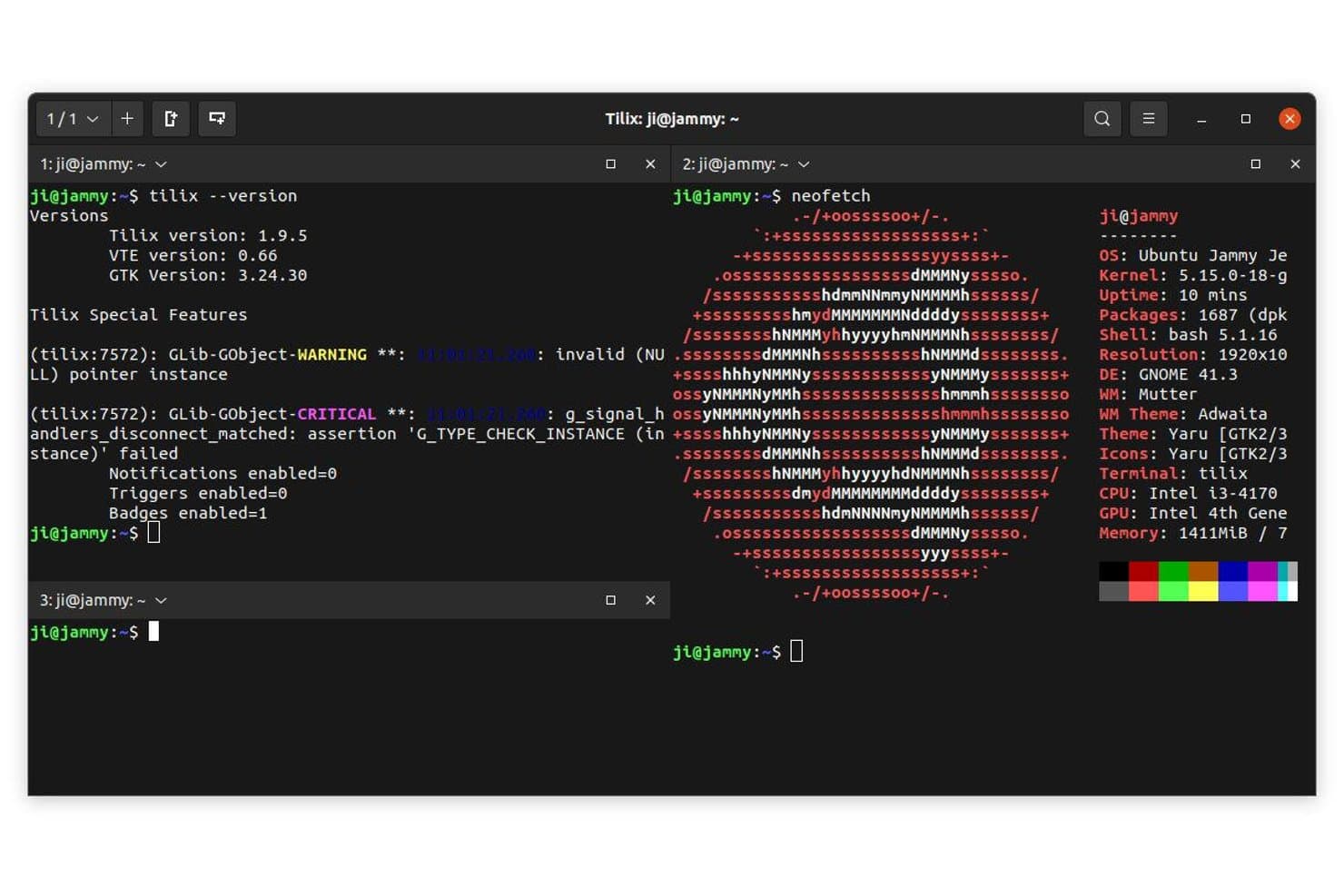
Tilix offers a split-pane terminal layout with multiple sessions, system info via neofetch, and version details displayed simultaneously. Tilix is an open-source tiling terminal emulator for Linux, built on GTK+ 3, that supports split panes, synchronized input across sessions, persistent layout saving, and drag-and-drop terminal rearrangement within and between windows.
Who Is Tilix Best For?
Tilix suits Linux-based developers and system administrators who need a GNOME-native terminal with flexible multi-pane layouts and session persistence.
Why I Picked Tilix
Tilix earns its spot on my shortlist because the drag-and-drop layout control is genuinely unlike most Linux terminal emulators. I can drag any pane to a different position within the same window, or drop it into a completely separate window mid-session. Paired with persistent layout saving, I can restore a specific multi-pane setup for a given project without rebuilding it each time.
Tilix Key Features
- Quake mode: Instantly toggle a drop-down terminal overlay for quick access without leaving your workspace.
- Custom profile switching: Automatically change color schemes and settings based on hostname or directory context.
- Session persistence: Save and load complete terminal layouts to resume project environments exactly as configured.
- Background images: Apply custom images for terminal backgrounds to personalize appearance beyond solid colors.
Tilix Integrations
Tilix includes a native integration with the Nautilus file manager on GNOME-based systems and supports shell hooks through /etc/profile.d/vte.sh for improved terminal features.
Pros and Cons
Pros:
- Drag-and-drop pane reordering
- Quake-style drop-down terminal mode
- Native session layout saving and restoring
Cons:
- Project is not actively maintained
- No built-in SSH session manager
Learn more about Tilix:

Alacritty displays Rust source code with syntax highlighting, demonstrating its GPU-accelerated rendering in a dark-themed terminal environment. Alacritty is a free, open-source, GPU-accelerated terminal emulator written in Rust that runs on Linux, macOS, BSD, and Windows, configured entirely through a text file with no built-in tabs or splits by design.
Who Is Alacritty Best For?
Alacritty is a strong fit for developers and sysadmins who prefer a minimal, config-file-driven workflow and want the fastest possible terminal rendering without extra overhead.
Why I Picked Alacritty
Alacritty earns its spot on my shortlist because of its GPU-accelerated rendering pipeline, which I've consistently found delivers noticeably lower key-to-glyph latency compared to CPU-bound terminals like GNOME Terminal. I like that it's written in Rust and uses OpenGL directly, keeping idle CPU usage near zero even across long sessions. The Regex Hints feature is genuinely useful, letting me flag and interact with output patterns like IP addresses or file paths without lifting my hands from the keyboard.
Alacritty Key Features
- Vi mode: Navigate and select text in the terminal using familiar vi keybindings.
- Multi-window support: Open multiple terminal windows, each managed by a single Alacritty process.
- YAML-based configuration: Define fonts, colors, and keybindings through a clear and editable YAML file.
- Cross-platform compatibility: Runs natively on Linux, BSD, macOS, and Windows for a consistent terminal setup.
Alacritty Integrations
Native integrations are not clearly documented. Alacritty works directly with terminal multiplexers like tmux and screen, standard shells, and a variety of window managers.
Pros and Cons
Pros:
- Configured entirely through a single file
- Very low resource usage during heavy loads
- Extremely fast with GPU acceleration
Cons:
- Lacks built-in SSH session management
- No native tab or split support
Learn more about Alacritty:
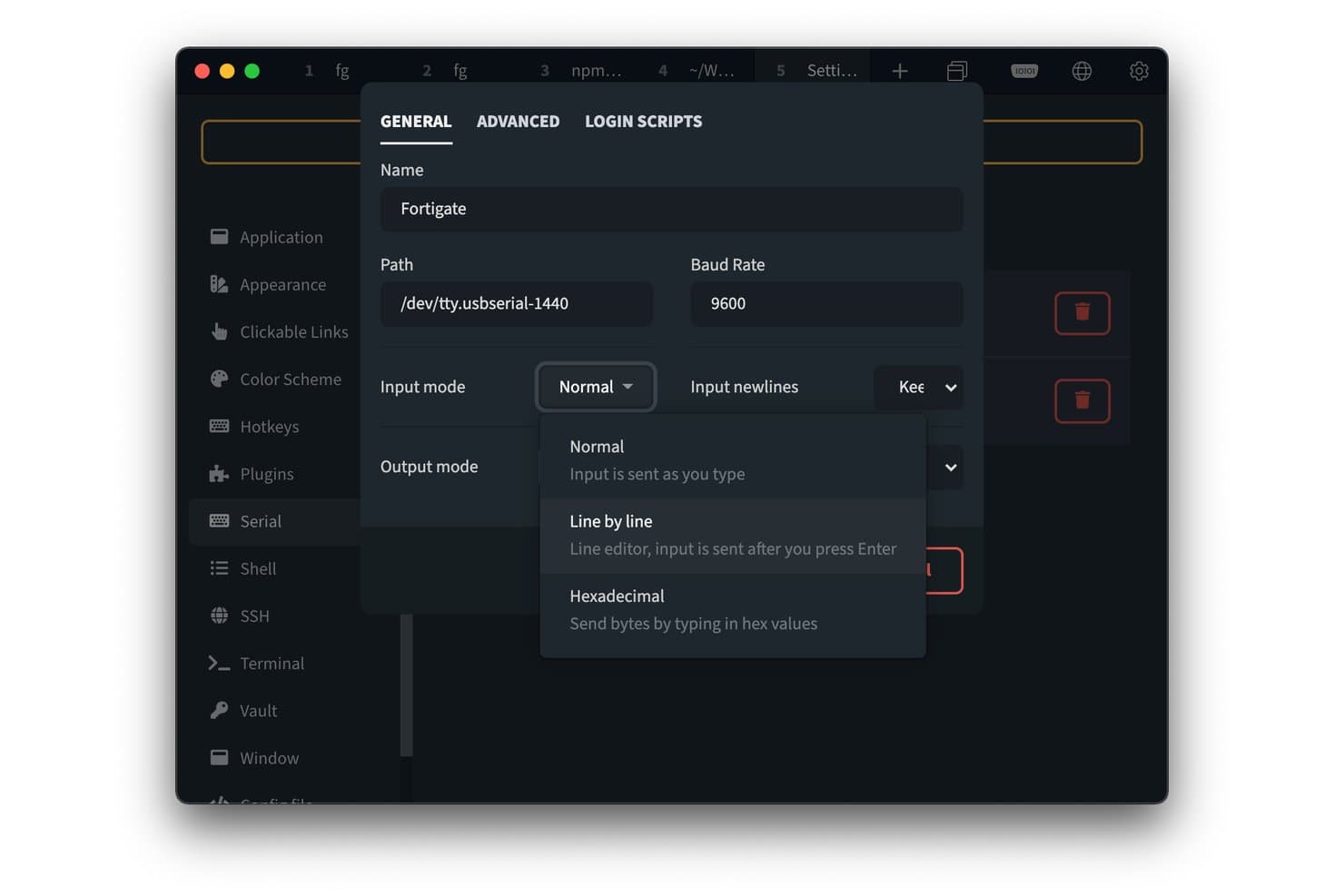
Tabby offers a Serial connection configuration panel with input mode options including Normal, Line by line, and Hexadecimal. Tabby is a free, open-source terminal emulator for Linux, macOS, and Windows that combines local shell support, an integrated SSH client, serial and Telnet connections, split panes, and a JS/CSS-based plugin system.
Who Is Tabby Best For?
Tabby suits developers, sysadmins, and DevOps engineers who work across multiple operating systems and need a single terminal for local shells and remote SSH sessions.
Why I Picked Tabby
Tabby earns its spot as one of the best on my shortlist because its plugin architecture lets me extend the terminal in ways most emulators simply don't allow. I can install or write JS-based plugins to add functionality, and CSS customization means my team's terminal setup looks and behaves consistently whether we're on Linux, macOS, or Windows. I also rely on its simultaneous multi-pane input when pushing the same command across several remote sessions at once.
Tabby Key Features
- Integrated SSH client: Connect directly to remote servers with built-in profile and key management.
- Multi-pane layout support: Arrange and manage multiple terminal sessions with resizable splits in a single workspace.
- Shell and environment support: Launch Bash, Zsh, Fish, PowerShell, WSL, Git-Bash, Cygwin, or CMD within a unified interface.
- Theming and community color schemes: Switch among 150+ ANSI color schemes and customize terminal appearance using CSS.
Tabby Integrations
Tabby offers native integrations with PowerShell, WSL, Git-Bash, MSYS2, Cmder, and CMD, and includes built-in support for SSH, SFTP, Zmodem, Telnet, and more. An API is available for custom integrations.
Pros and Cons
Pros:
- Multiple split panes and tab layouts
- Cross-platform support for Linux, Windows, macOS
- Plugin system supports deep extensibility
Cons:
- No native inline image rendering
- Electron base increases memory usage
Learn more about Tabby:

Kitty terminal displays a diff view comparing two versions of a Python file alongside two application icons. Kitty is a GPU-accelerated terminal emulator for Linux and macOS, written in C and Python, with built-in tiling window management, image rendering via its own graphics protocol, and Python-based extensibility through kittens.
Who Is Kitty Best For?
Kitty is a strong fit for developers and system administrators who live in the terminal and want deep configurability, native tiling, and advanced rendering without relying on a multiplexer.
Why I Picked Kitty
Kitty earns its spot on my shortlist because of how it handles rendering. It uses the GPU alongside SIMD vector CPU instructions to draw text, which means scrolling through dense log output or large files stays smooth even at high speeds. I also like the Kitty Graphics Protocol, which lets you display images and animations directly in the terminal. I use it regularly with the
kitten icatcommand to preview files without leaving the shell, which cuts a surprising amount of context-switching out of my workflow.Kitty Key Features
- Startup sessions: Launches predefined sets of windows, tabs, and layouts from a config file for repeatable workflows.
- Remote control protocol: Enables scripts or tools to control and interact with running Kitty instances in real time.
- Markdown and hyperlink support: Recognizes and displays clickable hyperlinks as well as certain markdown formatting directly in terminal output.
- Comprehensive shell integration: Offers support scripts for Bash, Zsh, and Fish to enhance terminal interactions and prompt awareness.
Kitty Integrations
Kitty offers native shell integrations for Bash, Zsh, and Fish, along with built-in SSH workflow support and a Python API for custom extensions and scripting.
Pros and Cons
Pros:
- Python-based extension system for custom scripts
- Native tiling window and tab management
- GPU-accelerated text and image rendering
Cons:
- Limited accessibility features for screen readers
- No GUI for configuration or profiles
Learn more about Kitty:

WezTerm displays a Lua configuration file in Neovim with transparency and blur effects visible through the terminal window. WezTerm is a GPU-accelerated, cross-platform terminal emulator and multiplexer written in Rust that supports tabbed sessions, split panes, a built-in SSH client, and deep Lua-based configuration with hot reloading.
Who Is WezTerm Best For?
WezTerm is a strong fit for developers, DevOps engineers, and SREs who want to script and automate their terminal environment beyond what config files typically allow.
Why I Picked WezTerm
WezTerm earns its spot on my shortlist because its Lua API goes well beyond setting colors and fonts. I write event-driven scripts that react to tab changes or process titles, letting me build workspace layouts that load automatically per project. The hot-reload behavior means I can iterate on my config without restarting, and
wezterm.plugin.requiremakes it easy to share scripts across machines.WezTerm Key Features
- GPU-based rendering: Provides hardware-accelerated terminal output for smooth scrolling and graphics display.
- Advanced font support: Offers ligatures, fallback fonts, Powerline symbols, and full Unicode compatibility.
- Inline image protocol: Supports Kitty, iTerm2, and Sixel graphics for displaying images directly in the terminal.
- Multiplexer server: Enables local and remote persistent terminal sessions with tabs, splits, and session grouping.
WezTerm Integrations
WezTerm offers native integrations with Bash, Zsh, and Fish shells for OSC features, and includes a built-in SSH client for remote connections.
Pros and Cons
Pros:
- GPU acceleration for smooth rendering
- Hot-reload configuration without restarting sessions
- Lua scripting for deep terminal automation
Cons:
- No graphical configuration settings available
- Sparse official documentation and tutorials
Learn more about WezTerm:

Ghostty displays a fastfetch system info output in a dark terminal window with a pixelated NixOS logo and color palette. Ghostty is an open-source, GPU-accelerated terminal emulator for Linux and macOS, built on a native GTK4 architecture with tabs, splits, hundreds of built-in themes, Kitty graphics protocol support, and full VT/ANSI compliance.
Who Is Ghostty Best For?
Ghostty suits developers and power users on Linux or macOS who want a fast, native terminal that works well out of the box without requiring extensive configuration.
Why I Picked Ghostty
I picked Ghostty as one of the best because its OpenGL-based GPU rendering on Linux hits around 407 FPS with roughly 2ms key-to-screen latency, which I notice immediately when tailing high-volume logs. It's built on a Zig-based core (libghostty) that keeps the binary lean, and it's the first native GTK4 terminal to skip the VTE library entirely, cutting the overhead that slows most traditional Linux terminals down.
Ghostty Key Features
- Kitty graphics protocol support: Display inline images and graphical content directly in the terminal window.
- Hundreds of built-in themes: Switch easily between preconfigured color schemes or author your own for full visual control.
- Native GTK4 interface: Integrates seamlessly with modern Linux desktop environments using the newest native UI toolkit.
- Advanced Unicode handling: Correctly renders multi-codepoint emoji, Arabic, Hebrew, and other complex scripts.
Ghostty Integrations
Ghostty natively supports the Kitty graphics protocol for inline images and integrates with shells like Bash, Zsh, and Fish.
Pros and Cons
Pros:
- Native GTK4 interface for desktop integration
- Supports hundreds of built-in terminal themes
- Extremely low resource usage and fast startup
Cons:
- Lacks macro or snippet automation features
- No built-in SSH profile manager
Learn more about Ghostty:
Alte emulatoare de terminal pentru Linux
Iată câteva opțiuni suplimentare de emulatoare de terminal pentru Linux care nu au ajuns pe lista mea scurtă, dar merită totuși analizate:
- 11TerminatorBest for multi-pane window management
- 12HyperBest for extensive plugin customization
- 13Xfce TerminalBest for lightweight resource usage in Xfce
- 14FootBest for minimalist designs with Wayland support
- 15Wave TerminalBest for unified dashboards with file editing
- 16Rio TerminalBest for simple cross-platform installation
- 17PtyxisBest for container access alongside host systems
- 18Black BoxBest for modern GNOME interface aesthetics
- 19Warp TerminalBest for modern interface with AI command input
How I Evaluate Linux Terminal Emulators
I split my evaluation into baseline requirements every terminal emulator must meet and the differentiators—like GPU acceleration, Lua scripting, or SSH management—that separate good from great.
Core Functionality (Table Stakes For This List)
When I'm selecting tools for my list, I rank each one on a scale from 0 (does not offer the functionality) to 5 (excels in this area) for each core functionality listed below. Then, I calculate the tool's total score into a percentage. Each tool needs to achieve a minimum total score of 75% to be considered for inclusion.
- Shell Compatibility: I check whether the emulator handles Bash, Zsh, Fish, and others with full ANSI/VT escape sequence rendering so prompts and TUI apps display correctly.
- Multi-Session Management: Tabs and split panes are table stakes, but I also look for session grouping and broadcast input for managing clusters.
- SSH & Remote Access: I evaluate how each tool handles saved SSH profiles, key management, and jump host support for daily remote server work.
- Customization & Theming: From keybindings to per-profile color schemes, I look for config depth that lets you version-control your setup across machines.
- Text & Buffer Handling: Scrollback search, regex matching, hyperlink detection, and solid Unicode/UTF-8 rendering all factor into how I assess output handling.
- Scripting & Automation: I consider whether the emulator offers scripting hooks, macros, or snippet support to automate repetitive tasks like log tailing or deployments.
Once I have a list of tools that meet the criteria, I consider what sets each platform apart.
Differentiating Factors (What Sets Vendors Apart)
Here's how I compare and contrast different vendors:
Standout Features
GPU acceleration matters when you're tailing massive log files or running TUI dashboards. I look for OpenGL or Vulkan support that keeps rendering smooth under heavy output. Scripting and extensibility is another key differentiator, since tools like Kitty and WezTerm let you define configs in code and make setups portable and version-controlled. Inline image protocol support also stands out, letting you preview plots or thumbnails directly in the terminal without switching contexts.
Beyond Features
Resource footprint is a big one—I check startup time and memory usage because if you're spawning terminals dozens of times a day, a slow launch adds up fast. Desktop environment compatibility also matters, especially whether a tool supports Wayland natively or still relies on XWayland. Community health and licensing round things out. An active open-source project with responsive maintainers means bugs get fixed and shared configs stay current.
Cum să alegeți un emulator de terminal pentru Linux
Este ușor să vă pierdeți în liste lungi de funcții și structuri complexe de prețuri. Pentru a vă ajuta să rămâneți concentrați în timp ce parcurgeți procesul personalizat de selectare a software-ului, iată o listă de verificare a factorilor de care trebuie să țineți cont:
| Factor | Ce trebuie luat în considerare |
|---|---|
| FactorScalabilitate | Ce trebuie luat în considerareEmulatorul se va potrivi nevoilor dvs. pe măsură ce echipa sau proiectul se extinde? Luați în considerare dacă poate gestiona mai multe sesiuni, dispozitive sau fluxuri de lucru complexe în timp. |
| FactorIntegrări | Ce trebuie luat în considerareFuncționează fără probleme cu cheile SSH, managerii de parole sau sistemele de control al versiunilor? Confirmați compatibilitatea cu lanțul dvs. de instrumente înainte de a lua o decizie. |
| FactorPosibilitatea de personalizare | Ce trebuie luat în considerareCât de ușor îl puteți adapta pentru a corespunde fluxurilor dvs. de lucru sau preferințelor? Țineți cont dacă modificările necesită setări GUI, fișiere de configurare sau scripturi. |
| FactorUșurință în utilizare | Ce trebuie luat în considerareÎl vor putea folosi membrii echipei fără o perioadă lungă de instruire? Încercați să evaluați curba inițială de învățare, documentația disponibilă și claritatea meniurilor de setări. |
| FactorImplementare și inițiere | Ce trebuie luat în considerareCât timp vor dura implementarea și configurarea? Verificați existența pachetelor preconfigurate, a scripturilor de instalare și a ghidurilor de configurare pentru sistemul dvs. de operare și mediul utilizatorului. |
| FactorCost | Ce trebuie luat în considerareExistă restricții privind licențierea sau utilizarea comercială? Verificați prețurile componentelor plătite, ale pluginurilor opționale sau ale asistenței continue. |
| FactorMăsuri de securitate | Ce trebuie luat în considerareCum sunt protejate cheile SSH, datele de autentificare și setările? Verificați întotdeauna existența stocării criptate, a canalelor sigure de actualizare și a posibilității de auditare a modificărilor configurației. |
| FactorDisponibilitatea asistenței | Ce trebuie luat în considerarePuteți obține rapid ajutor atunci când apar probleme? Luați în considerare acordurile SLA pentru asistența furnizorului, forumurile și promptitudinea comunității în soluționarea problemelor sau a remediilor urgente. |
Ce sunt emulatoarele de terminal pentru Linux?
Un emulator de terminal pentru Linux este un software care vă permite să utilizați shell-uri de linie de comandă într-un mediu desktop grafic. Puteți rula comenzi shell, administra servere la distanță, naviga prin directoare și executa scripturi direct de pe desktop. Aceste instrumente vă oferă acces flexibil și centralizat la sistemul dvs. și la mediile de la distanță, susținând o gamă largă de fluxuri de lucru zilnice pentru dezvoltatori și administratori.
Funcțiile emulatorului de terminal pentru Linux
Atunci când selectați un emulator de terminal pentru Linux, urmăriți următoarele funcții esențiale:
- Compatibilitate cu interpretoarele de comenzi: Acceptă interpretoare populare precum Bash, Zsh și Fish, astfel încât să puteți lucra în mediul și cu setul de comenzi preferate.
- Gestionarea filelor și a panourilor: Vă permite să deschideți mai multe sesiuni de terminal în file sau panouri divizate, păstrând proiectele și serverele organizate într-o singură fereastră.
- Integrare SSH: Permite conexiuni directe la servere la distanță cu profiluri salvate, făcând administrarea la distanță mai rapidă și reducând configurarea manuală.
- Teme personalizabile: Vă permite să modificați fonturile, culorile și aspectul, astfel încât să vă personalizați terminalul în funcție de nevoile vizuale și fluxul de lucru.
- Memorie tampon pentru derulare: Păstrează istoricul rezultatelor comenzilor, permițându-vă să examinați sau să căutați cu ușurință comenzile și răspunsurile anterioare.
- Scurtături de la tastatură: Oferă asocieri de taste configurabile pentru navigare rapidă, executarea comenzilor și gestionarea ferestrelor.
- Suport pentru copiere și lipire: Simplifică selectarea și transferul textului între terminal și alte aplicații, fără a afecta formatarea sau sintaxa comenzilor.
- Suport pentru Unicode și emoji: Afișează corect caracterele internaționale, simbolurile și emoji-urile, fiind util pentru jurnale, scripturi și colaborarea cu echipe globale.
- Suport pentru scripturi și automatizare: Vă permite să automatizați sarcinile repetitive, să rulați scripturi la pornire sau să definiți macrocomenzi pentru operațiuni mai rapide.
- Suport pentru module sau extensii: Extinde funcționalitatea de bază prin module sau extensii create de utilizatori, permițându-vă să adaptați terminalul pentru nevoi de nișă sau fluxuri de lucru avansate.
Beneficiile emulatorului de terminal Linux
Implementarea unui emulator de terminal Linux oferă mai multe beneficii pentru echipa și compania dumneavoastră. Iată câteva dintre avantajele de care vă puteți bucura:
- Acces centralizat la comenzi: Lucrați cu mai multe interpretoare de comenzi și sesiuni la distanță dintr-o singură interfață unificată, simplificând sarcinile IT și de dezvoltare de zi cu zi.
- Personalizare flexibilă: Personalizați temele, aspectul și asocierile de taste pentru a crea un mediu eficient, potrivit fluxurilor de lucru preferate.
- Administrare îmbunătățită la distanță: Integrarea SSH încorporată și profilurile de sesiune fac accesarea sistemelor și serverelor la distanță mai rapidă și mai sigură.
- Depanare mai rapidă: Memoriile tampon pentru derulare, funcțiile de căutare și suportul pentru copiere și lipire ajută echipa să analizeze jurnalele sau erorile fără a omite detalii critice.
- Productivitate sporită: Filele, panourile divizate și suportul pentru scripturi vă permit să gestionați mai multe proiecte, să automatizați sarcinile repetitive și să lucrați simultan cu ușurință.
- Suport internațional mai bun: Afișarea corectă a caracterelor Unicode și a emoji-urilor face colaborarea și lucrul în mai multe limbi mai accesibile.
- Extensibilitate facilă: Suportul pentru module și extensii vă permite să adaptați terminalul la sarcini noi sau la tehnologii viitoare fără a schimba platforma.
Costurile și prețurile emulatorului de terminal Linux
Alegerea unui emulator de terminal Linux necesită înțelegerea diferitelor modele de preț și planuri disponibile. Costurile variază în funcție de funcții, dimensiunea echipei, suplimente și alți factori. Tabelul de mai jos sintetizează planurile comune, prețurile medii ale acestora și funcțiile incluse de obicei în soluțiile de tip emulator de terminal Linux:
Tabel comparativ al planurilor pentru emulatorul de terminal Linux
| Tipul planului | Preț mediu | Funcții comune |
|---|---|---|
| Tipul planuluiPlan gratuit | Preț mediu$0 | Funcții comuneOferă funcțiile de bază ale terminalului, personalizare de bază a temei, sesiuni cu file și asistență din partea comunității. |
| Tipul planuluiPlan personal | Preț mediu$5-$15/utilizator/lună | Funcții comuneAdaugă personalizare avansată, gestionarea profilurilor SSH, păstrarea sesiunilor și actualizări prioritare. |
| Tipul planuluiPlan pentru companii | Preț mediu$15-$30/utilizator/lună | Funcții comuneInclude gestionarea mai multor utilizatori, suport pentru module, setări de securitate îmbunătățite și controale de audit. |
| Tipul planuluiPlan pentru întreprinderi | Preț mediu$30-$50/utilizator/lună | Funcții comuneOferă SSO pentru întreprinderi, asistență dedicată, funcții de conformitate, integrări extinse și disponibilitate garantată prin SLA. |
Întrebări frecvente despre emulatoarele de terminal Linux
Iată câteva răspunsuri la întrebările frecvente despre emulatoarele de terminal Linux:
Pot rula mai multe sesiuni shell simultan?
Da, majoritatea emulatoarelor de terminal Linux vă permit să deschideți mai multe file sau să împărțiți panoul în zone, astfel încât să puteți lucra simultan în mai multe sesiuni shell sau să organizați conexiuni către servere diferite.
Sunt emulatoarele de terminal Linux sigure pentru conexiuni la distanță?
Da, atât timp cât utilizați protocoale sigure precum SSH și vă gestionați cheile în condiții de siguranță. Multe emulatoare oferă funcții SSH încorporate și acceptă stocarea criptată a cheilor, dar verificați întotdeauna setările configurației.
Ce face ca un emulator de terminal Linux să fie mai potrivit pentru scripturi și automatizare?
Căutați emulatoare care acceptă puncte de integrare pentru scripturi, macrocomenzi sau sisteme de module. Aceste funcții ajută la automatizarea fluxurilor de lucru de rutină, precum implementarea codului sau rularea diagnosticelor, direct din terminal.
Funcționează emulatoarele de terminal Linux în medii desktop diferite?
Majoritatea emulatoarelor moderne de terminal Linux sunt concepute pentru compatibilitate cu GNOME, KDE, Xfce și managerii de ferestre cu dispunere în mozaic. Verificați întotdeauna compatibilitatea cu mediul preferat, în special în Wayland.
Cum personalizez temele și fonturile într-un emulator de terminal Linux?
De obicei, puteți schimba temele, fonturile și culorile fie utilizând o casetă de dialog pentru preferințe, fie editând un fișier de configurare. Unele emulatoare acceptă teme partajate de comunitate, pentru a face configurarea și mai ușoară.