

Um emulador Android para Windows permite-lhe executar aplicações Android e testar funcionalidades do sistema operativo Android diretamente no seu PC, sem um dispositivo físico. Se procura o melhor emulador Android para Windows, é provável que esteja a ponderar ferramentas direcionadas para programadores, automatização para CI/CD, suporte para as versões mais recentes do Android ou jogos de elevado desempenho no hardware do computador.
Com base na minha experiência de trabalho com estes emuladores, tanto em testes empresariais como no desenvolvimento de aplicações, escolher o emulador certo influencia tudo, desde a produtividade da equipa até à fiabilidade das versões lançadas. Esta lista apresenta as principais diferenças entre as opções líderes, para que possa escolher a que melhor se adapta ao seu fluxo de trabalho, à sua aplicação e aos seus objetivos em termos de utilizadores.
Why Trust Our Software Recommendations
6,700+
Reviews
20
Industry experts
16+
Evaluation factors
14
Years
Our team has been testing and reviewing software since 2012. As tech leaders ourselves, we know how difficult—and important—it is to choose the right software.
For this guide, we evaluated tools using hands-on testing and independent research, scoring tools using our selection criteria.
Our reviews reflect our human editorial judgment, not a sales pitch.
Expert reviewers:
- Paulo Gardini MiguelTech Director
 Tim FisherVP of AI
 Gabriel RosasTech Lead & Software Architect
 Christhian GruhnTech Lead & Platform Architect

Tabela de comparação: emuladores Android para Windows
Compare preços e especificações, lado a lado, dos emuladores Android para Windows que entraram na minha lista de opções.
Score legend (out of 5)
- Excellent4.5–5
- Good4–4.4
- Average3–3.9
- Below average2–2.9
- Poor1–1.9
Sorted by: Default
| Tool | Starting Price | Website | |||||||
|---|---|---|---|---|---|---|---|---|---|
Best for continuous cloud mobile testing | 4.2 out of 5 | 5 | 3 | 5 | 3 | 4 | 5 | $39/month 28-day free trial + free demo available | Website |
Best for gaming-focused multi-instance emulation | 3.7 out of 5 | 2 | 4 | 3 | 5 | 5 | 3 | Free plan available Free plan available | Website |
Best for running multiple Android versions at once | 4.2 out of 5 | 3 | 5 | 4 | 4 | 5 | 4 | Free plan available Free plan available | Website |
Best for browser-based Android CI/CD testing | 3.5 out of 5 | 5 | 3 | 4 | 3 | 3 | 3 | $59/month Free plan + free demo available | Website |
Best for cloud-scale Android CI/CD test automation | 3.7 out of 5 | 5 | 2 | 4 | 2 | 5 | 4 | Pricing upon request Free trial available | Website |
Best for native Android app dev and CI/CD testing | 4.5 out of 5 | 5 | 4 | 5 | 4 | 5 | 4 | Free plan available Free plan available | Website |
Best for gaming-first Android 14 emulation on PC | 4.2 out of 5 | 2 | 4 | 5 | 4 | 5 | 5 | Free plan available Free plan available | Website |
Best for CI/CD-integrated Android test automation | 4.5 out of 5 | 5 | 4 | 5 | 4 | 5 | 4 | $239.99/computer/year Free plan available | Website |
Best for gaming on Windows with input macros | 4.2 out of 5 | 3 | 4 | 5 | 4 | 5 | 4 | Free plan available Free plan available | Website |
Best for running Android 15 games, ad-free | 4.0 out of 5 | 3 | 5 | 3 | 4 | 5 | 4 | Free plan available Free plan available | Website |


Análises dos emuladores Android para Windows
Seguem-se os meus resumos detalhados dos melhores emuladores Android para Windows que entraram na minha lista de opções. As minhas análises oferecem uma visão detalhada das funcionalidades, dos melhores casos de utilização e das capacidades de cada plataforma, para o ajudar a encontrar a melhor opção para si.
 Best for continuous cloud mobile testing
- 28-day free trial + free demo available
- From $39/month (billed annually)
Visit WebsiteCustomer Rating:4.3/5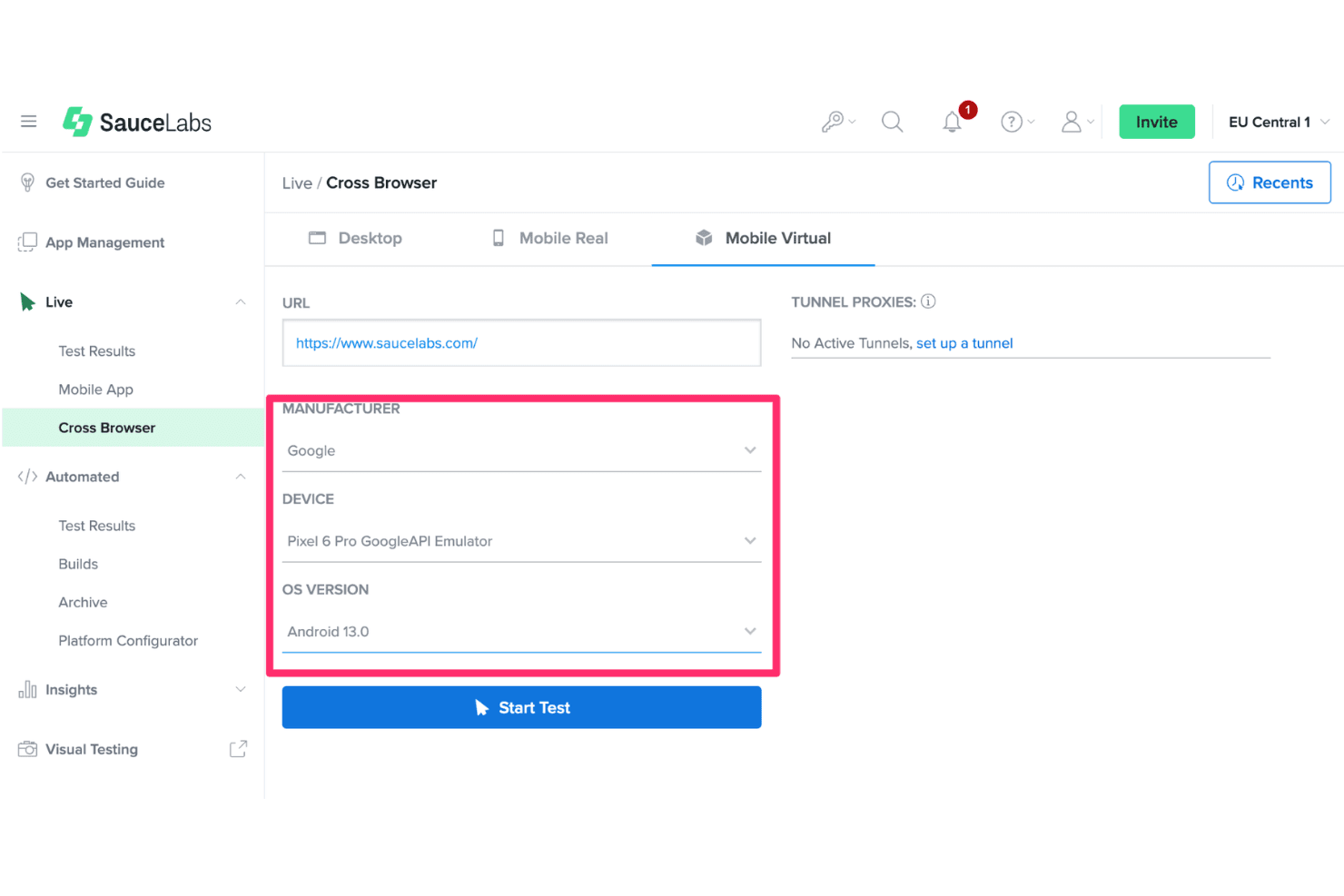
Sauce Labs lets users test websites on virtual mobile devices. Sauce Labs is a cloud-based mobile testing platform that gives you on-demand access to Android emulators, iOS simulators, and real devices for live and automated app testing across a wide range of OS versions, device profiles, and CI/CD pipelines.
Who Is Sauce Labs Best For?
Sauce Labs is a strong fit for QA engineers and DevOps teams who need to run automated Android tests at scale across multiple OS versions in a CI/CD pipeline.
Why I Picked Sauce Labs
I've included Sauce Labs in my top picks because it's the only cloud-based option here built specifically for continuous Android testing at CI/CD scale. I love that its ARM-native Android Premium Cloud eliminates the x86 translation layer that causes test flakiness, cutting session startup to around 20 seconds and reducing error rates by roughly 10x. You can run up to 24 parallel emulator sessions across Android 5.0 through 16, covering device profiles from Pixel skins to custom configurations, without touching local hardware.
Sauce Labs Key Features
- Parallel emulator sessions: Run up to 24 concurrent Android emulator sessions simultaneously across different OS versions and device profiles.
- Sensor simulation: Inject GPS coordinates, camera images, audio, and biometric inputs directly during live testing sessions.
- saucectl CLI: Execute test suites headlessly from the command line, enabling pipeline-friendly automation without a browser interface.
- Single-use virtual machines: Every emulator session runs on a fresh VM that's discarded after the session, preventing data carryover between tests.
Sauce Labs Integrations
Sauce Labs integrates with Appium, Espresso, Jenkins, GitHub Actions, GitLab CI, and Bitrise. Its REST API and saucectl CLI support custom CI/CD workflows and headless test execution.
Pros and Cons
Pros:
- Runs up to 24 parallel emulator sessions
- ARM-native emulation removes x86 translation errors
- Cloud access to Android emulators on demand
Cons:
- Lacks local USB device pass-through capability
- Limited root access on cloud devices
Learn more about Sauce Labs: Best for gaming-focused multi-instance emulation
- Free plan available
- Free plan available

NoxPlayer lets users play Call of Duty Mobile on PC. NoxPlayer is a free Android emulator for Windows built around multi-instance management, keyboard and controller input mapping, macro recording, and configurable virtual device profiles across Android 5, 7, 9, and 12 Beta.
Who Is NoxPlayer Best For?
NoxPlayer suits individual users and casual power users who want to run mobile games on PC with keyboard, controller, and multi-instance support.
Why I Picked NoxPlayer
NoxPlayer earns its spot on my shortlist because its multi-instance sync is genuinely one of the best I've seen in this category. I can run parallel instances across Android 5, 7, 9, and 12 Beta simultaneously, then mirror inputs across all of them in real time using the Synchronize Operations feature. On top of that, the macro recorder lets me log tap sequences, set loop counts, and configure replay intervals without writing a single line of code.
NoxPlayer Key Features
- Virtual device configuration: Adjust CPU cores (1–8), RAM (up to 8 GB), resolution, DPI, and rendering mode per instance.
- Device identity spoofing: Modify IMEI, model number, Android ID, MAC address, and SIM details via Settings or CLI commands.
- Snapshot backup and restore: Save and reload full instance states using the UI or
NoxConsole.exe, with.npbkand.vmdkfile support. - Command-line instance management: Use
NoxConsole.exeto launch, clone, reboot, and modify instances, install APKs, and run ADB commands from a script.
NoxPlayer Integrations
NoxPlayer connects with the Google Play Store and ADB, including
NoxConsole.execommands for scripted APK and instance management. It supports Xbox, PlayStation, and Logitech controllers, but has no documented native integrations with Android Studio, Appium, Jenkins, GitHub Actions, or GitLab CI.Pros and Cons
Pros:
- Granular CPU, RAM, and device identity settings
- Feeds fake virtual video to app camera
- Multi-instance syncs actions across sessions
Cons:
- History of security and malware concerns
- No support for Android 10 and 11
Learn more about NoxPlayer:

MEmu's file manager lets users browse and manage Android files easily. MEmu is a Windows-based Android emulator that lets you run multiple Android versions (5.1, 7.1, 9.0, and 12), manage parallel instances, and sideload or install APKs via Google Play—primarily built around gaming but with CLI and ADB tooling for developers.
Who Is MEmu Best For?
MEmu is a good fit for developers and testers who need to run and compare apps across multiple Android versions on a single Windows machine.
Why I Picked MEmu
MEmu earns its spot on my shortlist because it lets you select from Android 5.1, 7.1, 9.0, and 12 within a single installation, which is genuinely rare among Windows-based emulators. I find this especially useful when I need to verify how an app behaves across different API levels without juggling multiple installs. The multi-instance manager makes it easy to run those versions in parallel, each with its own CPU, RAM, and resolution profile.
MEmu Key Features
- Macro and operation recording: MEmu's built-in recorder captures in-app actions and replays them as macros, letting you automate repetitive flows without any external tooling.
- Per-instance root toggle: Each emulator instance supports independent root access, so you can test privileged app behaviour alongside standard installs in the same session.
- MEMUC CLI: MEmu's proprietary command-line interface lets you script VM management tasks—launching, cloning, and configuring instances—directly from the terminal.
- Google Play Store integration: MEmu comes with Google Play pre-installed and supports multiple Google accounts with two-factor authentication for direct app downloads.
MEmu Integrations
MEmu offers documented connectivity with Apica ZebraTester and Google Play Store. It also supports ADB, MEMUC CLI, and third-party pymemuc for custom scripting, but no native CI/CD integrations are documented.
Pros and Cons
Pros:
- Per-instance root access toggle available
- Built-in macro recording for app automation
- Sideload applications natively
Cons:
- Free version displays full-screen advertisements
- Lacks native Linux operating system builds
Learn more about MEmu: Best for browser-based Android CI/CD testing
- Free plan + free demo available
- From $59/month (billed annually)

Appetize.io lets users monitor network logs while testing apps in-browser. Appetize.io is a cloud-based Android emulator platform that streams virtual Android devices to any Windows browser, supporting APK/AAB uploads, ADB tunnel access, network traffic inspection, and Playwright-based test automation without any local installation.
Who Is Appetize.io Best For?
Appetize.io is a strong fit for QA engineers and DevOps teams who need to run Android CI/CD testing pipelines without configuring local emulator environments on Windows.
Why I Picked Appetize.io
Appetize.io earns its spot on my shortlist because it's the only option here that runs Android entirely in a browser, with no local install, no Hyper-V conflicts, and no HAXM setup on your Windows machine. I particularly like its native Playwright for Mobile integration, which lets QA teams run parallel Android test suites (I've seen it handle 400 tests in 4 minutes) directly in CI pipelines via GitHub Actions, GitLab, or Bitrise. The ADB tunnel over SSH is genuinely useful too, giving you standard
adb devicesaccess to a cloud-hosted Android session from Android Studio.Appetize.io Key Features
- Network traffic monitor: Captures all HTTP/HTTPS traffic from a running Android session in real time, with HAR export and Chrome DevTools integration for API-level debugging.
- UI hierarchy inspector: Lets you examine the full view hierarchy of your Android app during a live session to identify layout and accessibility issues.
- AppRecorder: A built-in low-code automation tool that records and replays UI interactions across Android sessions without writing test scripts from scratch.
- Multi-device profile selection: Choose from a curated set of Android device profiles—including Pixel, Nexus, Samsung, and tablet configurations—via query parameters or the JavaScript SDK.
Appetize.io Integrations
Appetize.io offers native integrations with GitHub Actions, GitLab CI, Bitrise, Fastlane, Expo, and Storybook Native. REST API v1 and v2 support custom CI/CD workflows and session orchestration.
Pros and Cons
Pros:
- Streams devices to any browser instantly
- Supports modern Android 8.1 through 16
- Captures network packets
Cons:
- Not designed for running mobile games
- Limits individual continuous stream session length
Learn more about Appetize.io: Best for cloud-scale Android CI/CD test automation
- Free trial available
- Pricing upon request

Anbox Cloud lets users edit VHAL properties in real time via a GUI. Anbox Cloud is a cloud-hosted Android virtualization platform from Canonical that runs scalable Android instances on remote Linux infrastructure, accessible via browser-based streaming, with REST APIs, CLI tooling, ADB access, and CI/CD pipeline support for automated testing workflows.
Who Is Anbox Cloud Best For?
Anbox Cloud is a strong fit for DevOps and QA engineering teams running large-scale, automated Android testing pipelines on cloud or bare-metal Linux infrastructure.
Why I Picked Anbox Cloud
I've included Anbox Cloud in my top picks because it's the only platform here built specifically for running hundreds of Android instances simultaneously on cloud or bare-metal Linux infrastructure, making it the clear choice for CI/CD-scale automated testing. I love that it exposes a full REST API and CLI (AMC) alongside ADB access, so your pipeline can spin up headless Android 14, 15, or 16 instances, run test suites, and tear them down without any manual intervention.
Anbox Cloud Key Features
- Dual execution models: Run Android inside LXD containers for high-density testing or as full virtual machines for system-level OS development and certification testing (CTS/VTS).
- WebRTC-based streaming client: Access Android instances remotely from any browser via a low-latency WebRTC streaming stack, including TURN/STUN servers and a Stream Gateway.
- AAOS image support: Test Android Automotive OS builds with VHAL property simulation for vehicle conditions like speed and battery state.
- Anbox Application Registry (AAR): Centrally manage and sync APKs across multi-cluster deployments without relying on Google Play Store.
Anbox Cloud Integrations
Anbox Cloud supports CI/CD workflows with Jenkins and GitHub Actions, plus Android Studio through ADB. Its REST APIs and AMC CLI support custom integrations, while Juju handles deployment orchestration.
Pros and Cons
Pros:
- Offers native ARM and x86 instance support
- Designed for automated CI/CD Android testing
- Supports 100+ Android instances per server
Cons:
- Requires custom container deployment architecture
- Requires Linux host operating system setup
Learn more about Anbox Cloud: Best for native Android app dev and CI/CD testing
- Free plan available
- Free plan available
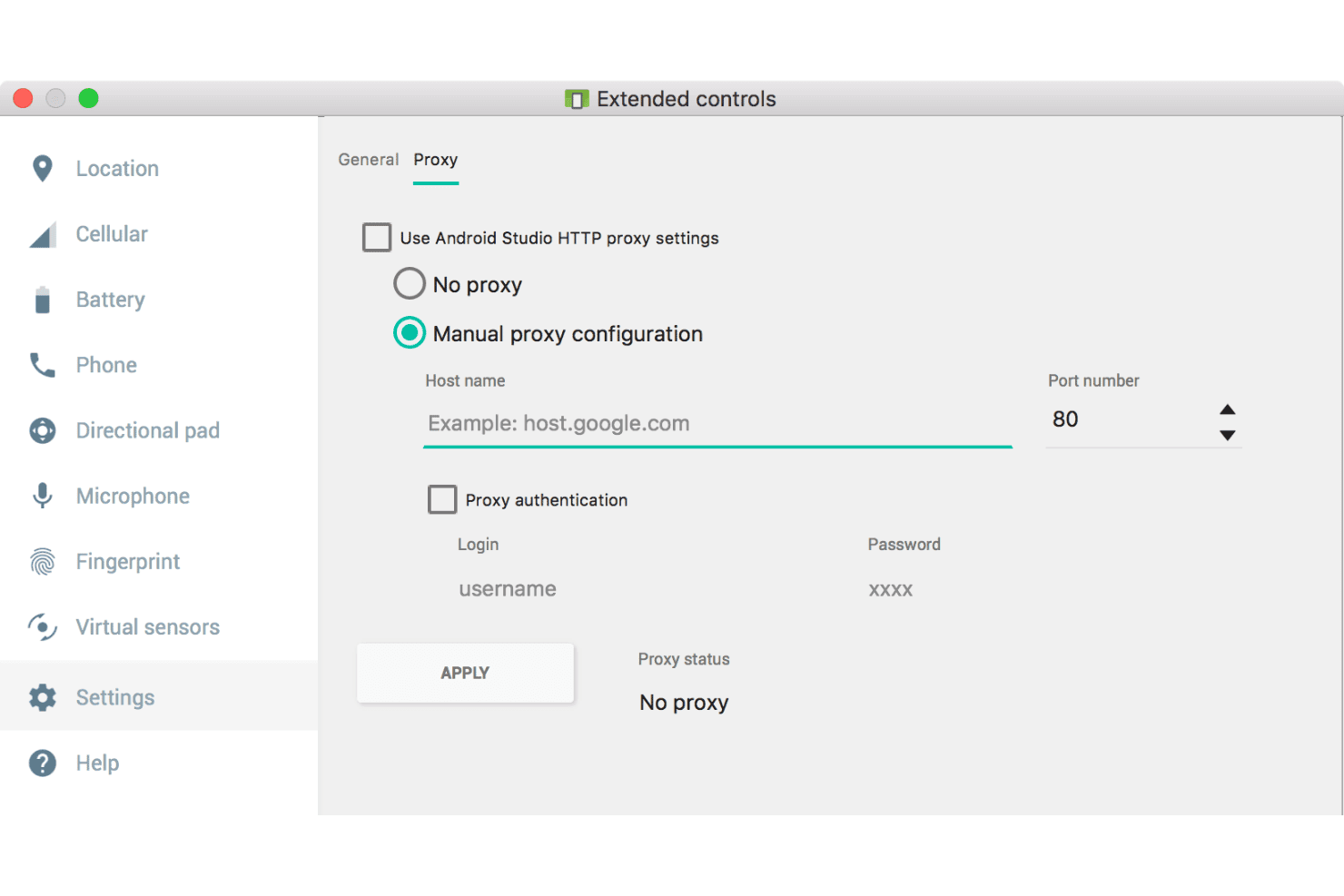
Android Studio lets users configure manual proxy settings for the emulator. Android Studio is Google's official IDE and Android emulator that lets you create and run virtual Android devices across a wide range of API levels, device types, and form factors—from phones and tablets to Wear OS, Android TV, foldables, and XR headsets.
Who Is Android Studio Best For?
Android Studio is the go-to choice for mobile app developers and QA engineers who need a fully featured emulator tightly integrated with the Android build and testing toolchain.
Why I Picked Android Studio
Android Studio earns its spot on my shortlist because it's Google's official emulator, meaning it supports the latest Android API levels and Pixel device profiles the moment Google ships them. I've run headless AVDs via
-no-windowinside GitHub Actions pipelines, feeding results straight into Gradle'sconnectedAndroidTestrunner without touching the IDE. The Quick Boot snapshot system also cuts iteration time significantly during instrumented test cycles.Android Studio Key Features
- Extended controls panel: Simulate GPS routes, incoming calls, SMS messages, fingerprint scans, battery states, and cellular network types directly from a built-in control panel.
- Multi-instance AVD support: Launch multiple Android Virtual Devices simultaneously on the same host for parallel testing across different API levels or device configurations.
- Zero-config multi-device networking: Connect multiple virtual devices peer-to-peer on the same host without port forwarding, enabling Wi-Fi Direct, Bluetooth pairing, and companion app testing.
- Quick Boot snapshots: Save and restore emulator state on demand so you can resume exactly where you left off without waiting through a full cold boot each time.
Android Studio Integrations
Android Studio natively integrates with ADB, Gradle, Logcat, Android Profiler, and Layout Inspector. It supports headless CI/CD workflows with Jenkins, GitHub Actions, GitLab CI, Bitrise, Espresso, UI Automator, Appium, and Detox.
Pros and Cons
Pros:
- Quick Boot snapshots for faster restarts
- Deep sensor and hardware simulation controls
- Supports the latest Android API and Pixel devices
Cons:
- No gaming macro or key-mapping overlays
- Demands massive disk storage for SDKs
Learn more about Android Studio: Best for gaming-first Android 14 emulation on PC
- Free plan available
- Free plan available

LDPlayer runs Brawl Stars with smooth mobile gameplay on PC. LDPlayer is a free Windows-based Android emulator that runs Android versions 5.0 through 14, with multi-instance management, keyboard and mouse input mapping, macro recording, and ARM-on-x86 translation via Intel Bridge Technology.
Who Is LDPlayer Best For?
LDPlayer is a strong fit for PC gamers who want to run mobile titles on a larger screen with keyboard and mouse controls.
Why I Picked LDPlayer
LDPlayer earns its spot on my shortlist because it's the only Windows Android emulator running a full Android 14 architecture as of {{year}}. I love how its Smart Control keymapping lets you bind keyboard and mouse inputs to on-screen touch targets on a per-game basis, so playing titles like PUBG Mobile or Call of Duty: Mobile on PC actually feels intentional rather than jury-rigged. LDPlayer 14 also uses licensed Intel Bridge Technology for ARM-on-x86 translation, which cuts down on the APK crashes and install failures you'd typically hit when running ARM-compiled games on Intel hardware.
LDPlayer Key Features
- Multi-instance manager: LDMultiplayer lets you launch and run multiple independent Android instances simultaneously on a single Windows PC.
- Operation Recorder: A built-in macro recorder that captures, saves, and replays sequences of on-screen actions via hotkey, with no coding required.
- Input synchronizer: The Synchronizer mirrors your inputs across all open emulator instances at once, provided they share identical resolution and DPI settings.
- ADB debugging access: LDPlayer exposes ADB through its settings panel, letting you connect external developer tools to the running Android environment.
LDPlayer Integrations
LDPlayer connects with Google Play Store, Hyper-V, ADB, Intel Bridge Technology, and third-party proxy tools such as Tun2Tap. No API, CI/CD, Appium, Espresso, or UI Automator integrations are documented.
Pros and Cons
Pros:
- Multi-instance manager with Eco Mode
- Delivers 200+ FPS in popular games
- Runs Android 14 and older versions
Cons:
- Recent unresolved data privacy allegations
- Lacks native macOS installer support
Learn more about LDPlayer: Best for CI/CD-integrated Android test automation
- Free plan available
- From $239.99/computer/year

Genymotion lets users manage local Android virtual devices easily. Genymotion is an Android emulator built for developers and QA engineers, offering virtual device creation across Android 5.0 through 16, 40+ hardware profiles, a full sensor simulation suite, and a CLI and REST API ecosystem for scripted device management.
Who Is Genymotion Best For?
Genymotion is a strong fit for QA engineers and DevOps teams who need to run Android test automation inside CI/CD pipelines like Jenkins, GitHub Actions, or CircleCI.
Why I Picked Genymotion
Genymotion earns its spot on my shortlist because of how deeply it integrates into CI/CD pipelines like Jenkins, GitHub Actions, and CircleCI. I particularly like the
gmsaasCLI, which lets you spin up, configure, and tear down cloud virtual devices entirely from a script, with no UI required. Pair that with the Device HTTP REST API, and you can trigger test runs, adjust network conditions (2G through 5G), and collect results programmatically across Android 5.0 through 16.Genymotion Key Features
- Sensor simulation suite: Simulate GPS routes, accelerometer, gyroscope, fingerprint, call/SMS, and battery states directly from the widget panel on paid plans.
- Network condition simulation: Configure 2G through 5G profiles with adjustable bandwidth, latency, and packet loss to test app behaviour on degraded connections.
- Root access toggle: Enable or disable root access per virtual device, making it practical for security testing and penetration testing workflows.
- 40+ hardware profiles: Choose from over 40 named device templates, with customizable resolution, DPI, CPU cores, and RAM to match real-world form factors.
Genymotion Integrations
Genymotion has documented integrations with Jenkins, GitHub Actions, CircleCI, Bitrise, Docker, and Android Studio. Its
gmsaasCLI, Platform HTTP API, and Device HTTP API support custom CI/CD and device-farm integrations.Pros and Cons
Pros:
- Wide Android version and device profile range
- Deep network and sensor simulation options
- CI/CD automation with CLI and REST APIs
Cons:
- Requires separate Open GApps installer setup
- Hyper-V conflict requires manual configuration change
Learn more about Genymotion: Best for gaming on Windows with input macros
- Free plan available
- Free plan available
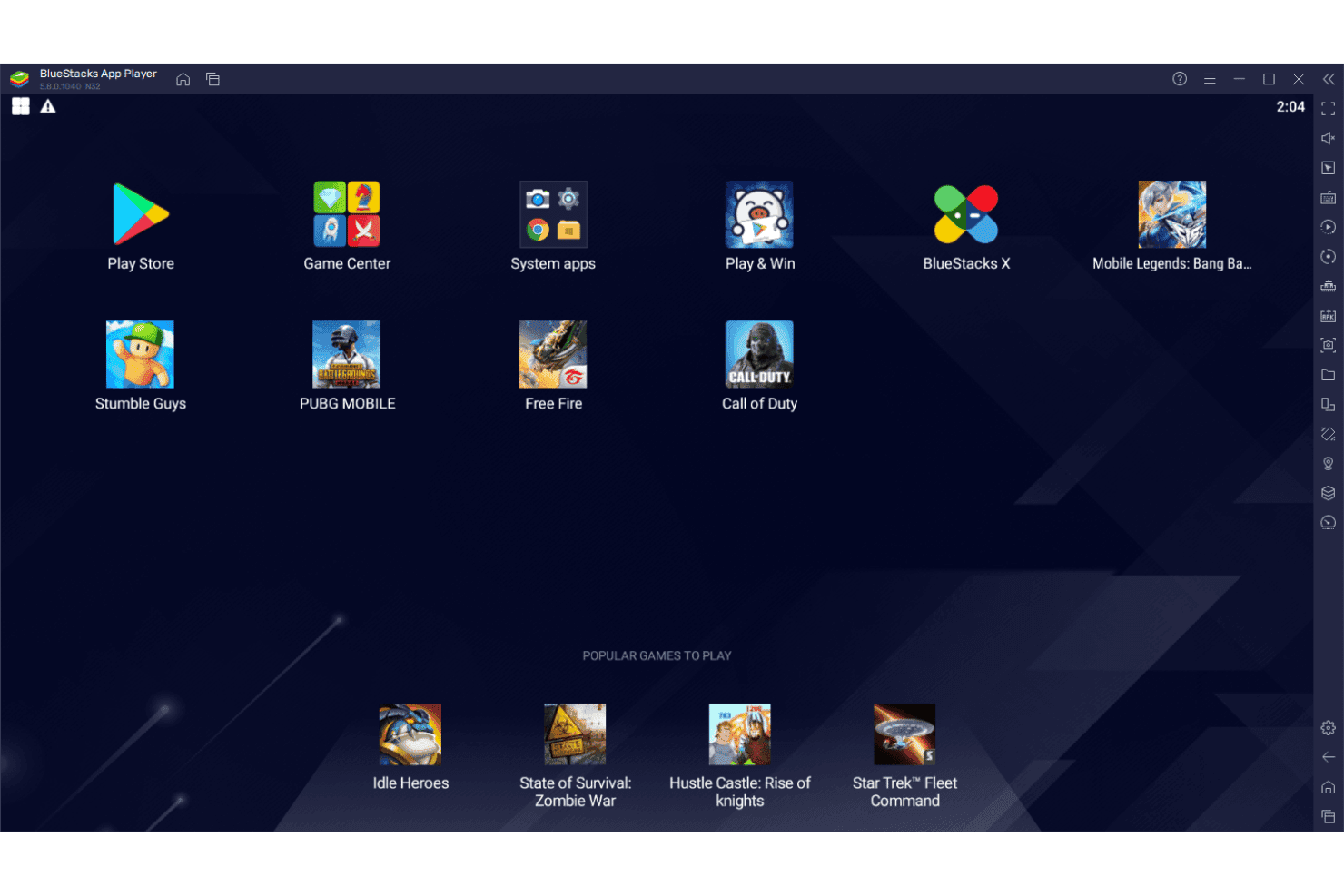
BlueStacks lets users run mobile games like PUBG and Free Fire on PC. BlueStacks is a Windows-based Android emulator that runs Android apps and games on PC, with multi-instance management, APK sideloading, input key mapping, macro recording, and a built-in scripting engine.
Who Is BlueStacks Best For?
BlueStacks is a strong fit for gamers and mobile app developers who need to run Android titles on Windows with full keyboard, mouse, and controller input control.
Why I Picked BlueStacks
BlueStacks earns its spot on my shortlist because no other Android emulator for Windows comes close to its input control depth for gaming. I'm particularly impressed by the macro recorder, which lets you capture multi-step input sequences and replay them with a single keypress, and the custom scripting engine, which supports tap, swipe, multi-touch up to 16 points, and loop commands. If you're running a title like a mobile MOBA or shooter, the dedicated Shooting Mode and MOBA Mode give you precision keyboard and mouse control that feels native.
BlueStacks Key Features
- Multi-instance manager: Create and run multiple Android instances simultaneously, each with independent RAM, CPU, resolution, and Android version settings.
- Google Play Store integration: Access over 2 million Android apps and games directly through a natively integrated Play Store, with APK drag-and-drop sideloading as an alternative.
- ADB support: Enable Android Debug Bridge via settings to connect BlueStacks to Android Studio for app deployment, logcat access, and shell commands.
- Eco Mode: Reduces CPU usage by up to 87% and GPU usage by up to 97% for background instances, letting you run more concurrent sessions without overwhelming your hardware.
BlueStacks Integrations
BlueStacks has native Google Play Store integration and connects to Android Studio through ADB for app deployment, debugging, logcat, and shell access. Appium connectivity is possible but unreliable, with no documented REST API, headless mode, or CI/CD integrations.
Pros and Cons
Pros:
- Multi-instance sync for parallel testing
- Game macros and input scripting included
- Runs multiple Android versions simultaneously
Cons:
- Displays sponsored games on home screen
- Requires active desktop display connection
Learn more about BlueStacks: Best for running Android 15 games, ad-free
- Free plan available
- Free plan available
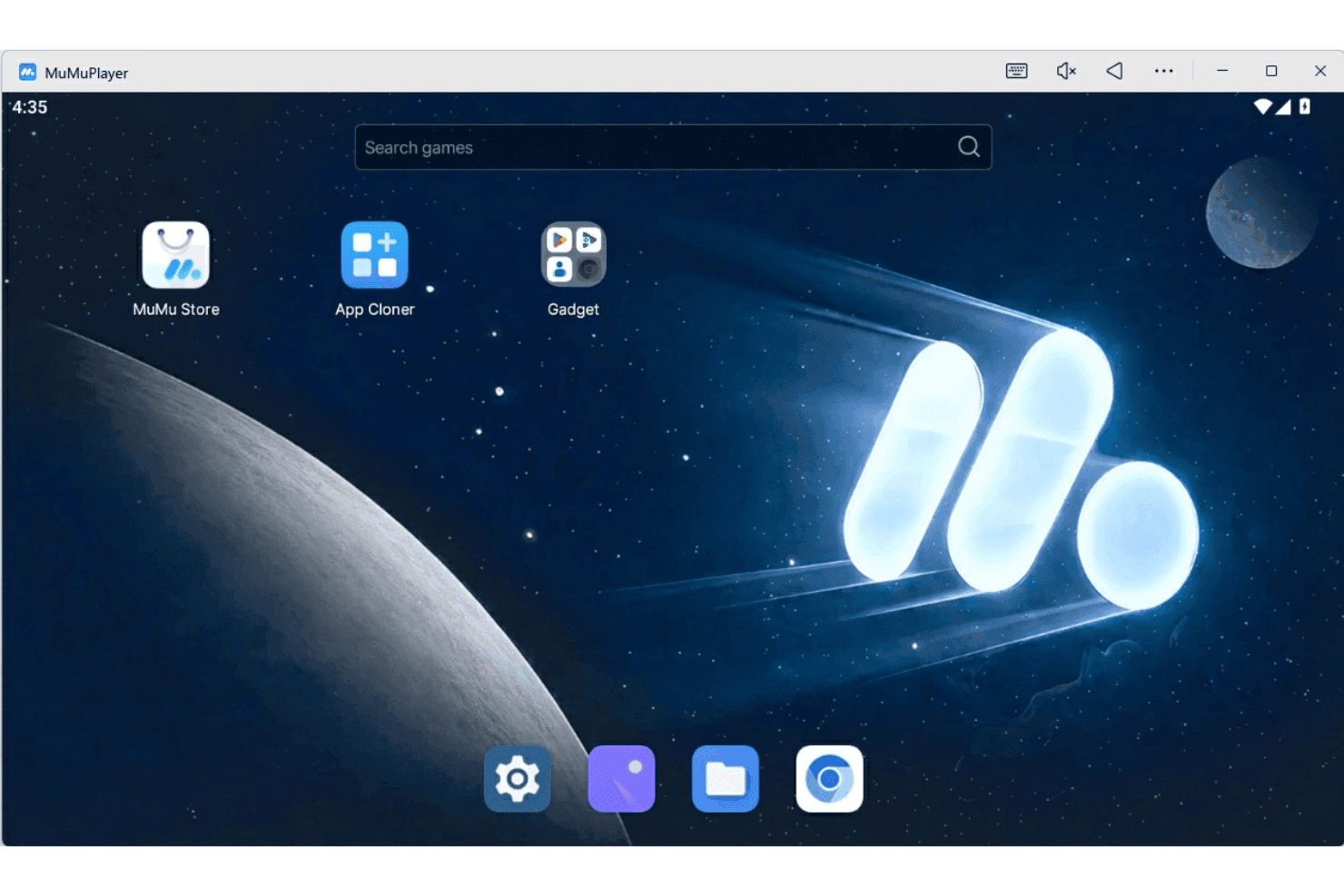
MuMuPlayer offers a clean home screen to launch and find games. MuMuPlayer is a free Android emulator for Windows that runs Android 12 and Android 15 instances side-by-side, with support for multi-instance management, keyboard and mouse key mapping, macro scripting, ADB access, and GPU acceleration via OpenGL and Vulkan.
Who Is MuMuPlayer Best For?
MuMuPlayer is a strong fit for mobile gamers and app testers who need a free, ad-free Windows environment to run Android 12 and Android 15 titles side-by-side.
Why I Picked MuMuPlayer
MuMuPlayer earns its spot on my shortlist because it's the only Android emulator currently running Android 15, which matters when newer titles won't launch on older API levels. I particularly like its unlimited multi-instance manager: you can run Android 12 and Android 15 instances side-by-side, each with independent CPU, RAM, and resolution configs. The built-in macro scripting system lets me automate repeated in-game inputs with loops, timed delays, and multi-point clicks, all without touching a third-party tool.
MuMuPlayer Key Features
- ADB developer access: Connect to a full ADB interface via localhost port 7555 to install APKs, run logcat, push and pull files, simulate touch input, and capture screenshots.
- GPU acceleration via OpenGL and Vulkan: Run games with hardware-accelerated rendering through both OpenGL and Vulkan, with frame rates up to 240 FPS and optional frame interpolation up to 480 FPS.
- Snapshot backup and restore: Export complete emulator states as
.mumudatafiles and reimport them to replicate or recover any instance with all installed apps and data intact. - Keyboard and mouse key mapping: Assign individual keys to in-game actions including WASD movement, aim, fire, skill casting, and drag paths, with adjustable sensitivity per key type.
MuMuPlayer Integrations
MuMuPlayer has two documented integrations: Android Debug Bridge (ADB) and Fiddler for packet capture. It has no documented API or native CI/CD integrations.
Pros and Cons
Pros:
- Macro scripting for automating game actions
- Unlimited multi-instance management with snapshots
- Runs Android 15 and Android 12 side-by-side
Cons:
- Bundles third-party sponsored application installers
- No support for Hyper-V virtualization
Learn more about MuMuPlayer:
Outros emuladores Android para Windows
Eis algumas opções adicionais de emuladores Android para Windows que não entraram na minha lista de opções, mas que ainda vale a pena consultar:
- 11TestMu AIBest for agentic AI quality engineering
- 12PcloudyBest for enterprise CI/CD real-device testing
- 13BrowserStackBest for testing on physical cloud devices
- 14Perforce PerfectoBest for AI-assisted cloud Android QA testing
- 15Google Play GamesBest for native Play Store PC gaming
- 16MSI App PlayerBest for MSI hardware-optimized Android gaming
Related Reviews
How I Evaluate Android Emulators for Windows
Whether I'm looking at a CI/CD-integrated cloud testing platform or a gaming emulator with macro support, I split my evaluation into baseline acceptance criteria every tool must meet and differentiating factors that separate the best from the rest.
Core Functionality (Table Stakes For This List)
When I'm selecting tools for my list, I rank each one on a scale from 0 (does not offer the functionality) to 5 (excels in this area) for each core functionality listed below. I then calculate the tool's total score as a percentage, using 75% as a benchmark to help assess its overall fit for the list.
- Android OS Virtualization: I check how many Android versions each tool supports and whether it covers both legacy and recent API levels for multi-version testing.
- APK Install and Execution: Smooth sideloading, drag-and-drop install, and app store access all matter when I'm evaluating how easily teams can load test builds.
- Virtual Device Configuration: I look for custom profiles with adjustable RAM, CPU, resolution, and multi-instance support for parallel testing across device types.
- Input Mapping and Peripherals: Tools should offer keyboard, mouse, and controller mapping plus sensor simulation like GPS spoofing or accelerometer input.
- ADB and Developer Tooling: I evaluate ADB stability, logcat access, IDE integration, and whether the tool exposes CI/CD-ready APIs for automation workflows.
- Performance and Acceleration: Hardware acceleration via Hyper-V, HAXM, or GPU passthrough should deliver responsive frame rates under real workloads, not just idle screens.
Once I have a list of tools that meet the criteria, I consider what sets each platform apart.
Differentiating Factors (What Sets Vendors Apart)
Here's how I compare and contrast different vendors:
Standout Features
I look for snapshot and state cloning support, since saving a fully configured device state lets QA teams skip repetitive setup and reproduce bugs on demand. Multi-instance management matters just as much—I check whether a tool can launch and sync parallel emulator instances across different device profiles, which is essential for batch regression runs. I also evaluate network condition simulation, like throttling to 3G or injecting latency, to catch issues that only surface on slow connections.
Beyond Features
I check whether a tool supports headless mode and command-line orchestration for CI/CD pipelines, since teams running nightly regression suites on Jenkins or GitHub Actions need emulators they can spin up without a GUI. Security and sandboxing matter just as much—I evaluate how well the emulated environment is isolated from the host OS, especially when QA teams need to install untrusted APKs on shared build agents. I also look at vendor support quality, including enterprise SLA options and how quickly documentation tracks new Android releases.
Como escolher um emulador Android para Windows
A escolha de um emulador Android para Windows depende do seu fluxo de trabalho, das prioridades da equipa e dos requisitos técnicos: está a otimizar o desempenho dos jogos, os processos de CI/CD automatizados, os testes em várias versões ou outra finalidade?
| Se a sua prioridade é... | Procure... |
|---|---|
| Se a sua prioridade é...Testar várias versões do Android | Procure...Suporte para níveis de API antigos e recentes |
| Se a sua prioridade é...Integrar a automatização em processos de CI/CD | Procure...Orquestração através da linha de comandos e modo sem interface |
| Se a sua prioridade é...Entrada de jogo e periféricos de elevada fidelidade | Procure...Mapeamento avançado de entradas e opções de sensores |
| Se a sua prioridade é...Dimensionar testes paralelos entre perfis de dispositivos | Procure...Ferramentas para várias instâncias e instantâneos do estado |
| Se a sua prioridade é...Segurança das aplicações numa infraestrutura partilhada | Procure...Sandboxing robusto e isolamento do ambiente |
Como avaliar a sua lista de opções
- Simule o seu fluxo de trabalho principal: Execute uma compilação completa do dispositivo, instale o seu APK e execute testes em, pelo menos, três versões diferentes do Android, utilizando as opções de configuração do emulador.
- Teste as integrações para automatização: Configure uma tarefa de CI de teste utilizando a sua ferramenta de pipeline real (Jenkins, GitHub Actions ou semelhante) e execute uma sessão de emulador sem interface gráfica com comandos ADB.
- Valide o suporte a entradas e sensores: Mapeie, pelo menos, dois periféricos externos (por exemplo, um comando físico e uma entrada de GPS) e acione eventos de sensores específicos do dispositivo para confirmar a funcionalidade dos seus destinos de automatização ou jogos.
- Solicite informações sobre isolamento e segurança: Peça documentação técnica que descreva como o emulador coloca as instâncias Android convidadas numa área isolada relativamente ao anfitrião Windows, incluindo os procedimentos de atualização e reversão.
- Compromisso: escalabilidade gerida na nuvem vs. controlo local: Decida se a escalabilidade horizontal automatizada e o acesso através do navegador são mais importantes do que a fidelidade da virtualização local e a retenção de artefactos.
O que são emuladores Android para Windows?
Os emuladores Android para Windows são ferramentas de software que permitem executar sistemas operativos e aplicações Android diretamente num PC Windows. Estes emuladores imitam o hardware e as funcionalidades do sistema Android para disponibilizar um ambiente virtual para testes, desenvolvimento, automatização ou jogos. São habitualmente utilizados por programadores, equipas de garantia de qualidade e jogadores que precisam de interagir com aplicações Android ou analisá-las sem necessitarem de um dispositivo Android físico. Funcionalidades
Funcionalidades do emulador Android para Windows
Ao selecionar um emulador Android para Windows, procure as seguintes funcionalidades principais:
- Virtualização do sistema operativo Android: Permite executar diferentes versões do Android diretamente no PC, possibilitando testar tanto níveis de API mais antigos como os mais recentes para melhorar a compatibilidade das aplicações.
- Instalação e execução de APK: Permite instalar facilmente aplicações através de carregamento lateral ou arrastar e largar, para que possa testar rapidamente as suas compilações ou qualquer APK Android sem complicações.
- Configuração de dispositivos virtuais: Disponibiliza opções ajustáveis para a RAM, CPU, tamanho do ecrã, resolução e modelo do dispositivo, permitindo imitar vários perfis de hardware e testar uma ampla variedade de ambientes de utilizador.
- Mapeamento de entradas e suporte para periféricos: Permite mapear teclados, ratos e comandos, bem como simular sensores do dispositivo, como GPS, acelerómetro e giroscópio — útil para testar jogos ou aplicações que dependam de entradas físicas.
- Integração com ADB e ferramentas de desenvolvimento: Disponibiliza suporte estável para o Android Debug Bridge (ADB), acesso ao logcat e ligação simples a IDE ou ferramentas de linha de comandos para melhorar a depuração e a automatização.
- Gestão de várias instâncias: Permite executar várias sessões do emulador em paralelo, cada uma com configurações diferentes — ideal para testes de regressão, automatização ou comparação do comportamento das aplicações em diferentes tipos de dispositivos.
- Guardar e restaurar instantâneos e estados: Permite guardar o estado atual do dispositivo virtual e restaurá-lo mais tarde, facilitando o teste de erros específicos ou o avanço rápido para além de etapas de configuração demoradas.
- Simulação das condições de rede: Emula diferentes tipos de rede, restrições de largura de banda e perfis de latência, para que possa verificar o desempenho da aplicação em cenários de rede variáveis.
- Desempenho e aceleração de hardware: Utiliza o hardware do PC, com opções como passagem direta da GPU, Hyper-V ou HAXM, para obter gráficos mais fluidos, execução mais rápida e um desempenho mais realista.
- Controlo de isolamento e segurança: Isola o ambiente do emulador do anfitrião Windows, reduzindo o risco de propagação de malware a partir de APK de teste e permitindo testar aplicações não fidedignas em segurança.
Vantagens dos emuladores Android para Windows
A implementação de emuladores Android para Windows proporciona várias vantagens à sua equipa e à sua empresa. Eis algumas das vantagens que pode esperar:
- Testes em várias versões do Android: Os emuladores permitem executar versões antigas e novas do Android, para que possa garantir que as suas aplicações funcionam no maior número possível de dispositivos e níveis de API.
- Ambientes de dispositivos virtuais personalizáveis: Pode ajustar a RAM, a CPU, o tamanho do ecrã e as definições do modelo do dispositivo, o que ajuda a simular diferentes perfis de hardware e cenários de utilização.
- Instalação e execução fáceis de APKs: As funcionalidades de instalação de APKs através de arrastar e largar simplificam a instalação lateral de compilações e o teste de qualquer aplicação sem configuração adicional nem etapas de conversão.
- Simulação avançada de entradas e sensores: O mapeamento do teclado, rato e comandos, bem como a simulação de sensores, permitem replicar entradas de dispositivos reais para fluxos de trabalho de automatização, jogos ou QA.
- Ferramentas integradas de desenvolvimento e automatização: As integrações com ADB, logcat e IDE permitem depuração, automatização e orquestração de CI/CD utilizando ferramentas familiares e fluxos de trabalho de linha de comandos.
- Gestão de instantâneos e estados: Pode guardar, restaurar ou clonar estados dos dispositivos — perfeito para reproduzir erros ou repor rapidamente ambientes de teste sem repetir a configuração manual.
- Segurança e isolamento reforçados: As áreas isoladas dos emuladores separam os ambientes Android virtuais do sistema operativo anfitrião, permitindo executar com segurança aplicações não fidedignas ou sessões de teste isoladas.
Custos e preços
A seleção de emuladores Android para Windows requer a compreensão dos vários modelos de preços e planos disponíveis. Os custos variam consoante as funcionalidades, o tamanho da equipa, os extras e outros fatores. A tabela abaixo resume os planos comuns, os seus preços médios e as funcionalidades normalmente incluídas nas soluções de emuladores Android para Windows:
Tabela de comparação de planos para emuladores Android para Windows
| Tipo de plano | Preço médio | Funcionalidades comuns |
|---|---|---|
| Tipo de planoPlano gratuito | Preço médio$0 | Funcionalidades comunsVirtualização básica do SO Android, configuração limitada do dispositivo, mapeamento padrão de entradas e apoio da comunidade. |
| Tipo de planoPlano pessoal | Preço médio$5-$20/mês | Funcionalidades comunsVárias versões do Android, opções avançadas de instalação de APKs, perfis de dispositivos personalizados e integração básica com ADB. |
| Tipo de planoPlano empresarial | Preço médio$25-$60/utilizador/mês | Funcionalidades comunsGestão de várias instâncias, ferramentas de automatização, gravação de instantâneos e estados, simulação de rede e apoio prioritário. |
| Tipo de planoPlano empresarial avançado | Preço médio$75-$150/utilizador/mês | Funcionalidades comunsModo sem interface, orquestração através da linha de comandos, controlos de segurança reforçados, isolamento, apoio abrangido por SLA e APIs de integração avançadas. |