

Um verificador de acessibilidade de PDF analisa os documentos à procura de barreiras à acessibilidade digital. Também pode ajudar a identificar correções que tornam o conteúdo utilizável por mais pessoas. Se está à procura destas soluções, está a enfrentar a necessidade de manter baixos os riscos de incumprimento, ajudar todos os utilizadores e simplificar a supervisão à medida que a utilização de PDF aumenta.
Este guia aborda ferramentas para equipas de TI e de desenvolvimento que precisam de integrar a acessibilidade na gestão de documentos. Inclui opções para automatizar verificações e apoiar fluxos de trabalho preparados para auditorias. Encontrará opções para revisões manuais, automatização e até conteúdos especializados — tudo baseado em funcionalidades e normas importantes para a sua equipa.
Why Trust Our Software Recommendations
6,700+
Reviews
20
Industry experts
16+
Evaluation factors
14
Years
Our team has been testing and reviewing software since 2012. As tech leaders ourselves, we know how difficult—and important—it is to choose the right software.
For this guide, we evaluated tools using hands-on testing and independent research, scoring tools using our selection criteria.
Our reviews reflect our human editorial judgment, not a sales pitch.
Expert reviewers:
- Paulo Gardini MiguelTech Director
 Tim FisherVP of AI
 Gabriel RosasTech Lead & Software Architect
 Christhian GruhnTech Lead & Platform Architect

Tabela comparativa dos verificadores de acessibilidade de PDF
| Tool | Best For | Trial Info | Price | ||
|---|---|---|---|---|---|
| 1 | Best for batch validation and issue fixes | Free plan available | From $599/user/year | Website | |
| 2 | Best for visual PDF/UA and WCAG reviews | Free plan available | Pricing upon request | Website | |
| 3 | Best for guided manual compliance testing | Not available | Pricing upon request | Website | |
| 4 | Best for automated PDF/UA verification | 14-day free trial | Pricing upon request | Website | |
| 5 | Best for regulated PDF quality checks | Free demo available | Pricing upon request | Website | |
| 6 | Best for editing PDFs with accessibility tools | 14-day free trial | From $10.99/user/month | Website | |
| 7 | Best for checking and fixing PDFs | 7-day free trial | From $19.99/user/month (billed annually) | Website | |
| 8 | Best for website-wide PDF monitoring | Free demo available | Pricing upon request | Website | |
| 9 | Best for AI-assisted table remediation | Free demo available | Pricing upon request | Website | |
| 10 | Best for bulk PDF accessibility validation | Free demo available | Pricing upon request | Website |


Avaliações dos verificadores de acessibilidade de PDF
 Best for batch validation and issue fixes
- Free plan available
- From $599/user/year
Visit WebsiteCustomer Rating:5/5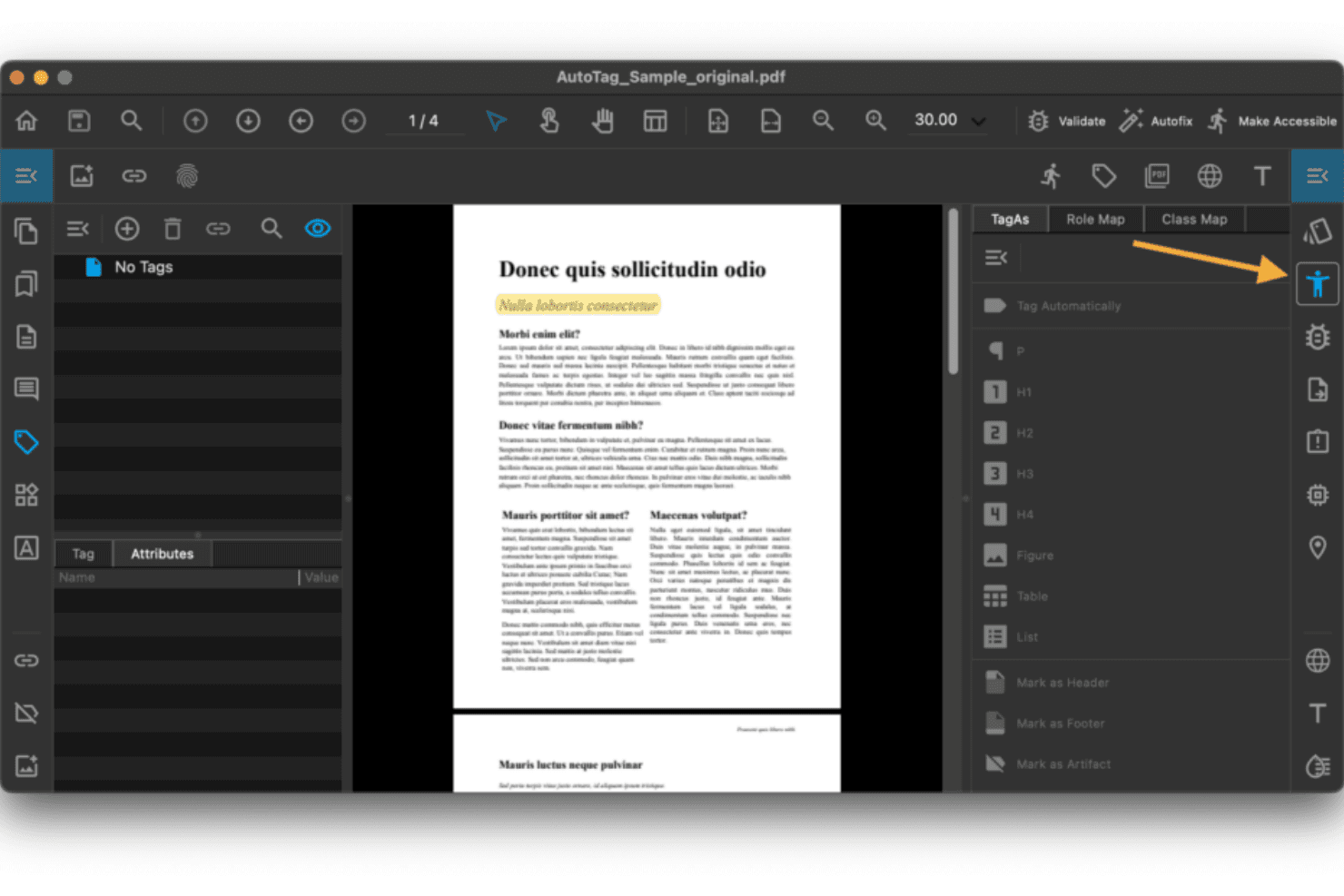
PDFix lets users tag PDF elements for accessibility compliance. PDFix is an AI-powered PDF accessibility platform for WCAG 2.1/2.2, PDF/UA, and Section 508 validation. It also supports automated batch remediation and is available as a desktop application, SDK, and REST API.
Who Is PDFix Best For?
PDFix suits developers and compliance teams in regulated industries such as government, finance, and healthcare. It's particularly useful for teams that need to validate and remediate large PDF volumes programmatically.
Why I Picked PDFix
PDFix earns its spot as one of the best on my shortlist because of how it handles batch validation and automated fixes in one workflow. I've run it across entire document folders and it flags every violation with Matterhorn Protocol references, pinpointing the exact location in the tag tree. What I really like is the AI-powered auto-tagging, which rebuilds reading order and heading hierarchy across hundreds of PDFs without touching each file manually.
PDFix Key Features
- veraPDF-powered standards validation: Uses the industry-standard veraPDF engine to audit compliance with PDF/UA, WCAG, and Section 508.
- Multi-format report export: Generates accessibility reports in JSON, XML, HTML, and plain text for easy sharing and integration.
- Cross-platform desktop app: Runs on Windows, macOS, and Linux so you can check accessibility on any major operating system.
- Developer SDK with API: Provides Python, C#, Java, Node.js, and C++ bindings for integrating accessibility checks into automated workflows.
PDFix Integrations
PDFix offers native integrations with Enfocus Switch and GitHub Actions Marketplace, and provides a REST API and SDK for custom integrations across Python, C#, Java, Node.js, and C++.
Pros and Cons
Pros:
- Matterhorn Protocol references identify exact tag failures
- AI auto-tagging reconstructs reading order automatically
- Batch remediates hundreds of PDFs simultaneously
Cons:
- No cloud-based document processing option
- Requires developer expertise for pipeline integration
Learn more about PDFix: Best for visual PDF/UA and WCAG reviews
- Free plan available
- Pricing upon request

PAC checks PDF accessibility compliance across PDF/UA, WCAG, and quality criteria. PAC is a free Windows desktop tool that checks PDFs against PDF/UA (ISO 14289-1) and WCAG 2.1 standards using the Matterhorn Protocol. It also includes a visual tag tree inspector and screen reader structure preview.
Who Is PAC (PDF Accessibility Checker) Best For?
PAC is a strong fit for accessibility compliance officers and technical documentation leads who need to manually audit PDFs against PDF/UA and WCAG standards.
Why I Picked PAC (PDF Accessibility Checker)
PAC earns its spot as one of the best on my shortlist because of how it handles visual PDF/UA review. The screen reader preview lets me see exactly what JAWS or NVDA will read, and the full tag tree shows every property and attribute in the document structure. I also like its coverage of machine-testable Matterhorn Protocol checkpoints. As a result, I can review validation results against established PDF/UA criteria.
PAC (PDF Accessibility Checker) Key Features
- AI-assisted semantic analysis: Uses AI to reduce manual effort in checking the quality of PDF structure and tags.
- Screen reader simulation view: Visually displays how popular screen readers will interpret the PDF’s content and order.
- Document structure statistics: Presents structural statistics and summaries for each PDF, including tag distribution and logical structure details.
- Local, offline operation: Runs entirely on Windows desktops without uploading files to the internet or external servers.
PAC (PDF Accessibility Checker) Integrations
PAC (PDF Accessibility Checker) doesn't have any native integrations.
Pros and Cons
Pros:
- Visual screen reader preview built in
- Full Matterhorn Protocol checkpoint coverage included
- Free to download and use permanently
Cons:
- No batch processing for multiple PDFs
- Windows-only, excluding Mac and Linux users
Learn more about PAC (PDF Accessibility Checker):

Allyant guides users through PDF remediation with step-by-step workflows. Allyant's CommonLook PDF Validator is a free Adobe Acrobat plugin that checks PDFs against WCAG, PDF/UA, and Section 508 standards. It also guides users through automated and manual accessibility tests and provides per-document certification reports.
Who Is Allyant Best For?
Allyant's CommonLook PDF Validator is a strong fit for compliance officers and documentation teams in government agencies or regulated industries where Section 508 conformance is a hard requirement.
Why I Picked Allyant
I picked Allyant's CommonLook PDF Validator as one of the best for guided manual compliance testing. Unlike tools that stop at automated flagging, it guides you through checks no scanner can reliably complete. That includes verifying alt text accuracy (not just presence), confirming table summaries are meaningful, and validating heading tag hierarchy. The per-document certification report delivers a concrete conformance record against Section 508, WCAG, and PDF/UA.
Allyant Key Features
- Adobe Acrobat integration: Runs as a plugin inside Adobe Acrobat Pro on Windows for native PDF analysis.
- Section 508 and HHS checks: Includes tests specific to US government and healthcare accessibility regulations.
- Tag-based content highlighting: Lets you review tags’ application visually within the PDF for deeper inspection.
- Per-document certification reports: Generates a downloadable compliance certificate after every check for record-keeping.
Allyant Integrations
Allyant's CommonLook PDF Validator runs as a plugin for Adobe Acrobat Pro on Windows. Native integrations beyond Adobe Acrobat Pro are not clearly documented.
Pros and Cons
Pros:
- Generates per-document certification reports
- Validates against Section 508, WCAG, and PDF/UA
- Guides users through manual compliance checks
Cons:
- No batch scanning across multiple PDFs
- Only runs on Windows via Adobe Acrobat
Learn more about Allyant:

pdfaPilot 5 introduces ePub 3.0 support and email-to-PDF/A conversion. pdfaPilot is an enterprise PDF/UA and PDF/A compliance tool from callas software. It's available as a desktop app, server, CLI, and SDK for automated accessibility verification across document workflows.
Who Is pdfaPilot Best For?
IT operations and compliance teams in government, legal, or enterprise environments that need to process large PDF archives for PDF/UA conformance.
Why I Picked pdfaPilot
pdfaPilot earns its spot as one of the best on my shortlist because no other tool I've tested matches it for high-volume automated PDF/UA verification. For example, the Server variant's hotfolder processing runs up to 8 parallel jobs. The Dispatcher license can scale processing across multiple machines for large archives. I also like pdfGoHTML, which converts tagged PDFs to color-coded HTML so I can visually verify document structure, heading hierarchy, and alt text quality.
pdfaPilot Key Features
- Full standards compliance support: Supports PDF/A-1, PDF/A-2, PDF/A-3, and machine-verifiable PDF/UA-1 accessibility checks.
- Quality control profile editor: Lets you create, edit, and apply custom PDF accessibility and compliance rule sets.
- PDF-to-HTML structure preview: Converts tagged PDFs to visual HTML for fast inspection of accessibility structures.
- Flexible API and integration options: Offers REST API, CLI, and SDK for integration with workflow automation and document pipelines.
pdfaPilot Integrations
pdfaPilot offers native integration with Enfocus Switch for workflow automation and provides a REST API, CLI, and SDK for custom integrations with document management systems and CI/CD pipelines.
Pros and Cons
Pros:
- Visual HTML output confirms tag structure accuracy
- Parallel server jobs accelerate large-archive auditing
- Deep PDF/UA-1 and Matterhorn Protocol coverage
Cons:
- Steep setup for non-technical compliance teams
- No built-in manual tag remediation editor
Learn more about pdfaPilot: Best for regulated PDF quality checks
- Free demo available
- Pricing upon request

DocShifter lets users build document workflows with chained transformation modules. DocShifter PDFValidator is an automated PDF validation tool for regulatory and technical compliance standards, including PDF/UA-1. For example, it can inspect bookmarks, hyperlinks, font embedding, page properties, and annotations.
Who Is DocShifter PDFValidator Best For?
It's a strong fit for enterprise teams in life sciences, banking, and insurance that need automated, high-volume PDF validation against regulatory submission standards.
Why I Picked DocShifter PDFValidator
I picked DocShifter PDFValidator because of how precisely it targets regulated document workflows. It validates against health authority submission standards, checking bookmarks, hyperlinks, font embedding, and page conformance in a single automated pass. I particularly like that it supports PDF/UA-1 as a validated output format, which matters when document quality is directly tied to regulatory acceptance criteria.
DocShifter PDFValidator Key Features
- Hyperlink validation: Automatically checks for broken, external, or incorrectly formatted hyperlinks in PDF files.
- Bookmark structure analysis: Verifies bookmark organization, nesting, and alignment with document structure.
- Page property enforcement: Ensures page size, orientation, and numbering comply with regulatory and technical requirements.
- Annotation and comment detection: Flags presence of annotations, comments, or tracked changes that should be removed before archiving.
DocShifter PDFValidator Integrations
DocShifter PDFValidator offers native integrations with Veeva Vault, OpenText Documentum, Lorenz docuBridge, and Microsoft SharePoint. An API is available for custom integrations and workflow automation.
Pros and Cons
Pros:
- Detects font embedding, annotation, and bookmark issues
- Supports high-volume automated batch PDF checking
- Validates PDFs against health authority submission standards
Cons:
- Limited to validation, not broader accessibility auditing
- No built-in remediation for accessibility failures
Learn more about DocShifter PDFValidator: Best for editing PDFs with accessibility tools
- 14-day free trial
- From $10.99/user/month
Visit WebsiteCustomer Rating:4.6/5
Foxit PDF Editor's home screen offers quick access to PDF tools. Foxit PDF Editor is a PDF editing platform with built-in accessibility tools. These include WCAG and Section 508 checking, autotagging, reading order editing, alt-text management, and guided remediation workflows.
Who Is Foxit PDF Editor Best For?
Foxit PDF Editor suits technical documentation teams and compliance officers at mid-to-large organizations that need to author, edit, and remediate PDFs for Section 508 or ADA requirements.
Why I Picked Foxit PDF Editor
I've included Foxit PDF Editor in my top picks because it combines accessibility checking and in-place remediation in one editing environment. I particularly like the Full Check tool, which generates a clickable report where each flagged issue links directly to its location in the document. The Reading Order panel and Autotag feature let me fix structural tagging problems without switching between applications.
Foxit PDF Editor Key Features
- Accessibility full check report: Scans PDFs for WCAG and Section 508 issues and provides a clickable report with detailed findings.
- Tag editor panel: Lets you edit tags, add or adjust headings, and mark artifacts directly in the document structure.
- Alternate text management: Supports adding and validating alternate text for images and marking decorative elements as artifacts.
- Action Wizard automation: Automates multi-step accessibility checks and fixes across multiple documents to reduce repetitive manual work.
Foxit PDF Editor Integrations
Foxit PDF Editor offers native integrations with Microsoft OneDrive, Google Drive, Dropbox, Box, and SharePoint. An API is available for custom integrations.
Pros and Cons
Pros:
- Autotag generates structure from untagged PDFs
- Supports PDF/UA and WCAG validation checks
- Combines editing and accessibility checking natively
Cons:
- Flags fewer issues than dedicated checkers
- Batch remediation lacks scheduling or automation
Learn more about Foxit PDF Editor: Best for checking and fixing PDFs
- 7-day free trial
- From $19.99/user/month (billed annually)
Visit WebsiteCustomer Rating:4.5/5
Adobe Acrobat offers tools like Edit, Sign, Export, and Stamp. Adobe Acrobat Pro is a PDF editing and accessibility platform with a built-in accessibility checker. It also provides a tag tree editor, reading order tools, and AI-assisted alt text generation for PDF remediation.
Who Is Adobe Acrobat Best For?
Adobe Acrobat Pro is a strong fit for accessibility compliance officers and technical documentation leads in enterprise and public sector organizations.
Why I Picked Adobe Acrobat
Adobe Acrobat earns its spot on my shortlist because no other tool combines accessibility checking and in-tool remediation as tightly. I particularly like the tag tree editor and Reading Order tool, which let me inspect and fix structural issues directly within the same interface. The 2025 addition of AI-generated alt text means I can address one of the most common accessibility failures without switching tools.
Adobe Acrobat Key Features
- Accessibility Checker action: Scans PDFs for issues related to standards compliance and generates a detailed accessibility report.
- Exportable audit reports: Produces compliance documentation that you can share or archive for internal and external audits.
- Integration with Microsoft Office: Lets you create accessible PDFs directly from Word, Excel, and PowerPoint files.
- Support for assistive technologies: Ensures compatibility with popular screen readers and other assistive devices for accessible document navigation.
Adobe Acrobat Integrations
Adobe Acrobat offers native integrations across the Microsoft ecosystem, including Microsoft 365 and SharePoint, and supports PDF workflows from within Microsoft Office applications. No API-based accessibility pipeline integration.
Pros and Cons
Pros:
- Tag tree editor for direct structural fixes
- AI-generated alt text speeds up remediation
- In-tool remediation alongside accessibility checking
Cons:
- No API-based accessibility pipeline integration
- Batch processing limited without enterprise licensing
Learn more about Adobe Acrobat: Best for website-wide PDF monitoring
- Free demo available
- Pricing upon request
Visit WebsiteCustomer Rating:4.5/5
Recite Me helps travel sites support passengers with disabilities online. Recite Me is a PDF accessibility checker that crawls your website to discover, scan, and automatically remediate PDF documents against WCAG 2.2 Level AA standards.
Who Is Recite Me Best For?
Recite Me is a strong fit for organizations managing large volumes of web-published PDFs who need continuous compliance monitoring rather than one-time audits.
Why I Picked Recite Me
Recite Me earns its spot on my shortlist because it approaches PDF accessibility at the site level rather than the file level. It crawls your website to automatically discover linked PDFs, reducing the need to identify documents manually. From there, continuous re-scanning flags new or changed documents as they appear. In addition, two-way CMS sync can replace remediated files without manual republishing.
Recite Me Key Features
- Compliance dashboard: Centralized dashboard visualizes the accessibility status of all scanned PDFs in real time.
- Automated remediation tools: AI-driven modules apply structural tags, fix reading order, and improve metadata automatically.
- Ongoing PDF monitoring: Scheduled scans and alerts detect and flag new or updated PDFs on your website.
- CMS integration: Two-way sync ensures any PDF uploaded to your CMS is automatically checked and, if needed, remediated.
Recite Me Integrations
Native integrations are not clearly documented. An API is available for custom integrations.
Pros and Cons
Pros:
- Continuous monitoring flags new uploads without manual checks
- Automated OCR converts image-embedded text automatically
- Scans your entire site for every linked PDF
Cons:
- Manual remediation still needed for complex tag structures
- No standalone desktop or offline scanning option
Learn more about Recite Me:

Equidox suggests tag zones automatically using ML Page Match. Equidox is a cloud-based PDF remediation platform that uses AI-powered detection to identify and tag document structure. This includes tables, headings, lists, and images. It can also export accessible PDFs, HTML, and EPUB files.
Who Is Equidox Best For?
Equidox is a strong fit for compliance officers and document teams in government, higher education, and healthcare that manage large libraries of PDFs requiring structured remediation.
Why I Picked Equidox
I picked Equidox as one of the best because its Smart Table Detector sets it apart for anyone remediating complex PDFs. It automatically identifies rows, columns, merged cells, and spanning cell structures, and auto-populates the table summary with heading and cell count data. The HTML preview can also help verify how a screen reader will interpret the table structure before the final accessible PDF is exported.
Equidox Key Features
- Smart zone detector: Uses AI to identify headings, lists, links, and images in untagged PDFs for accurate tagging.
- HTML preview: Offers a real-time view of how screen readers will interpret document structure and content.
- Built-in OCR: Converts scanned documents to digital text with automatic tagging for accessibility.
- Group and role management: Provides permissions, configurable access domains, and collaboration controls for larger teams.
Equidox Integrations
Equidox offers SSO integrations with Microsoft and Google and provides an API for custom integrations and batch processing. Native integrations beyond these are not clearly documented.
Pros and Cons
Pros:
- HTML preview confirms screen reader output
- Built-in OCR for scanned PDF remediation
- AI-powered table detection handles complex structures
Cons:
- No standalone compliance reporting dashboard available
- Limited batch processing compared to enterprise tools
Learn more about Equidox: Best for bulk PDF accessibility validation
- Free demo available
- Pricing upon request

PREP guides users through fixing heading structures in PDF documents. PREP by Continual Engine is a cloud-based PDF accessibility remediation platform with AI-powered auto-tagging and built-in WCAG 2.2/PDF/UA compliance checking. It also provides reading order editing and bulk validation APIs.
Who Is PREP by Continual Engine Best For?
PREP is a strong fit for accessibility teams at universities, government agencies, and large organizations managing high volumes of legacy PDF documents.
Why I Picked PREP by Continual Engine
I picked PREP as one of the best because its Accessibility Checker API and ContinuA11Y Audit tool handle bulk validation at a scale most checkers can't match. I can point ContinuA11Y at an entire site, have it detect inaccessible PDFs automatically, and route them directly into PREP for remediation in a single workflow. The API validates against WCAG 2.2, PDF/UA-1, and Section 508 using the Matterhorn Protocol, so every flagged issue maps to a specific compliance checkpoint.
PREP by Continual Engine Key Features
- AI-based auto-tagging: Uses machine learning to automatically detect and tag document elements like lists, tables, and headings.
- Built-in OCR mode: Processes scanned or image-based PDFs to add selectable, accessible text content.
- Screen reader preview: Simulates how remediated PDFs will be interpreted by assistive technologies.
- Templatized document tagging: Lets you create and reuse tagging templates for consistent remediation across similar document types.
PREP by Continual Engine Integrations
PREP offers native integrations with Canvas, D2L Brightspace, CivicPlus, and Wagtail, and provides a REST API for custom integrations.
Pros and Cons
Pros:
- Covers WCAG 2.2, PDF/UA, and Section 508
- AI auto-tagging speeds up remediation significantly
- Handles bulk PDF validation at enterprise scale
Cons:
- Limited standalone desktop remediation option
- Requires technical setup for API-based workflows
Learn more about PREP by Continual Engine:
Outros verificadores de acessibilidade de PDF
Eis algumas opções adicionais de verificadores de acessibilidade de PDF que não entraram na minha lista restrita, mas que ainda vale a pena conhecer:
- 11TheLaTeXLab PDF Accessibility CheckerBest for LaTeX and math accessibility checks
- 12PdftoolsBest for API-based accessibility validation
Related Reviews
How I Evaluate PDF Accessibility Checkers
I split my evaluation into baseline checks like PDF/UA validation and batch processing. I then consider differentiators like remediation depth, API access, and compliance coverage.
Core Functionality (Table Stakes For This List)
When I'm selecting tools for my list, I rank each one on a scale from 0 (does not offer the functionality) to 5 (excels in this area) for each core functionality listed below. I then calculate the tool's total score into a percentage, using 65% as a benchmark to help assess its overall fit for the list.
- WCAG/PDF-UA Validation: I check whether a tool covers WCAG 2.1/2.2 AA, PDF/UA-1, and Section 508 rules—not just a partial subset of basic checks.
- Tag Structure Analysis: A good checker lets you inspect the full tag tree, logical reading order, and heading hierarchy so screen readers interpret content correctly.
- Accessibility Issue Detection: I assess whether the tool can identify accessibility issues across document structure, tags, reading order, and other machine-testable requirements.
- Detailed Issue Reporting: Reports should pinpoint each failure by location and severity, with export options like JSON or XML for feeding into tracking systems.
- Remediation Guidance: Beyond flagging errors, I evaluate whether the tool offers specific fix instructions or in-tool corrections for issues like missing alt text.
- Standards Coverage: I assess which accessibility standards and requirements each checker supports, such as PDF/UA, WCAG, and Section 508.
Once I have a list of tools that meet the criteria, I consider what sets each platform apart.
Differentiating Factors (What Sets Vendors Apart)
Here's how I compare and contrast different vendors:
Standout Features
Automated remediation is a major differentiator. For example, AI-assisted or one-click fixes for missing tags, alt text, and table headers can reduce manual PDF editing. I also look for a visual reading order and tag tree editor, since adjusting logical structure by hand is often the only way to get complex layouts right for screen readers. Detailed audit reports matter too, especially when your team needs exportable compliance documentation for legal reviews or regulatory audits.
Beyond Features
Security and data handling matter, especially for teams processing legal or healthcare PDFs. I check whether vendors offer on-premise options or hold certifications like SOC 2 and ISO 27001. Compliance standards coverage is another factor I evaluate closely. Accessibility regulations vary by region and sector, so tools that track updates to WCAG, PDF/UA, and EN 301 549 help you stay current. Finally, I consider deployment flexibility. I look at whether a tool fits your stack as a SaaS app, desktop plugin, or CMS integration.
Como escolher um verificador de acessibilidade de PDF
Ao analisar verificadores de acessibilidade de PDF, comece por se concentrar nas necessidades do seu fluxo de trabalho documental e nas suas responsabilidades de conformidade:
| Se a sua prioridade for... | Procure... |
| Relatórios regulamentares preparados para auditorias | Documentação de conformidade detalhada e exportável |
| Processamento de documentos em grande volume | Verificação automática em lote para grandes repositórios |
| Integração com fluxos de trabalho | Opções de API/CLI para pipelines de CI/CD ou CMS |
| Correção rápida | Sugestões de correção na ferramenta ou assistidas por IA |
| Edição de esquemas de documentos complexos | Árvore visual de etiquetas e editor da ordem de leitura |
Como avaliar a sua lista restrita
- Peça um relatório de auditoria de amostra: Solicite um relatório legível por máquina e por humanos para um PDF interno que lhe pertença.
- Execute um teste em lote com 10 ficheiros: Carregue um conjunto de documentos típico para verificar como o verificador gere a validação e os relatórios em lote à escala.
- Consulte a documentação da API: Analise a documentação da API REST, da CLI ou do SDK do fornecedor para obter exemplos de integração e suporte para fluxos de trabalho de CI/CD.
- Peça uma cláusula de conformidade por escrito: Exija uma declaração que garanta a cobertura das normas WCAG 2.2 e PDF/UA-1 nos termos ou no SLA.
- Compromisso — automatização vs. controlo manual: Decida se pretende correções rápidas e automatizadas em grande escala ou se precisa de uma edição precisa e manual para documentos complexos.
O que são os verificadores de acessibilidade de PDF?
Os verificadores de acessibilidade de PDF analisam ficheiros PDF em busca de problemas que possam criar barreiras para pessoas com deficiência. Em seguida, comunicam esses problemas para análise ou correção. Estes verificadores validam os documentos de acordo com normas como WCAG e PDF/UA, inspecionam as estruturas de etiquetas e fornecem orientações práticas para a correção. As equipas utilizam-nos para garantir que os documentos são utilizáveis por todos, cumprem os requisitos legais e podem ser facilmente auditados quanto à sua preparação em termos de acessibilidade.
Funcionalidades dos verificadores de acessibilidade de PDF
Ao selecionar verificadores de acessibilidade de PDF, procure as seguintes funcionalidades principais:
- Validação WCAG/PDF-UA: Verifica cada PDF em relação a normas de acessibilidade como WCAG, PDF/UA e a Secção 508, para identificar lacunas de conformidade e orientar a gestão do risco jurídico.
- Análise da estrutura de etiquetas: Inspeciona a árvore de etiquetas, a ordem de leitura e a hierarquia de títulos do documento para determinar se as tecnologias de apoio interpretarão corretamente o conteúdo.
- Verificação automatizada em lote: Processa vários PDF em simultâneo, permitindo uma auditoria e monitorização eficientes em grandes repositórios de documentos ou fluxos de trabalho de equipas.
- Relatórios detalhados de problemas: Gera relatórios legíveis por máquinas e por pessoas que mostram exatamente onde ocorrem as falhas de acessibilidade, juntamente com a gravidade e as ações sugeridas.
- Orientações para a correção: Fornece instruções específicas e práticas ou ferramentas de assistente integradas para corrigir erros como texto alternativo em falta, elementos sem etiquetas e ordem de leitura incorreta.
- Integração com API/CLI: Disponibiliza uma API REST e ferramentas de linha de comandos para que as equipas possam automatizar as verificações de acessibilidade em pipelines de CI/CD ou fluxos de publicação.
- Relatórios de conformidade exportáveis: Produz relatórios em formatos como PDF, HTML ou XML, para partilhar com auditores ou manter registos de documentação de acessibilidade.
- Editor visual de árvores de etiquetas: Permite aos utilizadores pré-visualizar e ajustar visualmente a estrutura de um PDF, ajudando a corrigir esquemas complexos sem exigir conhecimentos técnicos aprofundados.
- Configuração de regras personalizadas: Permite aos administradores aplicar regras de acessibilidade específicas da organização ou assinalar cenários de conformidade particulares.
- Controlos de acesso baseados em funções: Permite que diferentes membros da sua equipa analisem, aprovem ou corrijam problemas com base nas permissões atribuídas, apoiando a auditoria e a conformidade colaborativas.
Funcionalidades comuns de IA dos verificadores de acessibilidade de PDF
Para além das funcionalidades padrão dos verificadores de acessibilidade de PDF acima indicadas, muitas destas soluções estão a incorporar IA com funcionalidades como:
- Geração de texto alternativo com IA: Cria automaticamente texto alternativo descritivo para imagens e gráficos, reduzindo o esforço manual e melhorando a acessibilidade para utilizadores de leitores de ecrã.
- Sugestão automatizada de etiquetas: Utiliza IA para analisar a estrutura dos documentos e recomendar ou aplicar etiquetas adequadas, reduzindo o trabalho manual envolvido na etiquetagem de PDF complexos.
- Previsão da ordem de leitura: Utiliza aprendizagem automática para inferir a sequência lógica de leitura do conteúdo, ajudando a garantir que os leitores de ecrã apresentam a informação pela ordem pretendida.
- Priorização contextual de problemas: Aplica IA para avaliar a gravidade e o impacto dos problemas de acessibilidade detetados, orientando os utilizadores para resolverem primeiro os problemas mais críticos.
- Orientações de correção em linguagem natural: Fornece instruções geradas por IA e adaptadas ao contexto para corrigir erros de acessibilidade específicos, tornando a correção mais intuitiva para utilizadores com diferentes níveis de experiência.
Benefícios dos verificadores de acessibilidade de PDF
A implementação de verificadores de acessibilidade de PDF proporciona vários benefícios à sua equipa e à sua empresa. Eis alguns dos benefícios que pode esperar:
- Conformidade regulamentar: Apoia o cumprimento de normas como WCAG, PDF/UA e a Secção 508, reduzindo o risco jurídico para a sua organização.
- Maior usabilidade dos documentos: Garante que os PDFs são acessíveis a pessoas que utilizam tecnologias de apoio, detetando e corrigindo problemas na ordem de leitura e na etiquetagem.
- Preparação para auditorias: Produz relatórios detalhados e exportáveis que documentam as melhorias de acessibilidade, facilitando a preparação para auditorias ou revisões.
- Poupança de tempo: Automatiza verificações em lote e sugere correções na ferramenta, permitindo que as equipas processem e corrijam grandes conjuntos de documentos de forma mais eficiente.
- Colaboração entre equipas: O acesso baseado em funções e as funcionalidades de fluxo de trabalho ajudam as equipas de TI, conformidade e os responsáveis pelos conteúdos a gerir a acessibilidade em conjunto.
- Integração de processos: As opções de API e CLI permitem verificações automáticas ao longo do ciclo de vida dos documentos, mantendo a conformidade de forma consistente à medida que os ficheiros passam pela publicação e revisão.
- Redução de erros manuais: As funcionalidades automatizadas e baseadas em IA detetam problemas que as verificações manuais podem não identificar, melhorando a qualidade e a consistência gerais da acessibilidade dos PDFs.
Custos e preços
Os preços dos verificadores de acessibilidade de PDF variam consoante as funcionalidades, a dimensão da equipa, a implementação e os complementos. Para efeitos de comparação, a tabela abaixo resume os tipos de planos mais comuns, os preços habituais e as funcionalidades incluídas:
Tabela de comparação de planos para verificadores de acessibilidade de PDF
| Tipo de plano | Preço médio | Funcionalidades comuns |
|---|---|---|
| Tipo de planoPlano gratuito | Preço médio$0 | Funcionalidades comunsValidação básica para um número limitado de PDFs, relatórios manuais e acesso a sugestões essenciais para a correção. |
| Tipo de planoPlano pessoal | Preço médio$10–$30/utilizador/mês | Funcionalidades comunsVerificações ilimitadas para um único utilizador, processamento em lote, relatórios melhorados e suporte por e-mail. |
| Tipo de planoPlano empresarial | Preço médio$40–$80/utilizador/mês | Funcionalidades comunsAcesso multiutilizador, integrações de API e de fluxos de trabalho, correção automatizada, relatórios exportáveis preparados para auditorias e controlos de acesso baseados em funções. |
| Tipo de planoPlano empresarial de grande escala | Preço médio$100–$250/utilizador/mês | Funcionalidades comunsOpções de implementação personalizadas, funcionalidades de segurança avançadas, suporte prioritário, análises de conformidade a nível organizacional e acompanhamento dedicado na implementação. |
Perguntas frequentes sobre verificadores de acessibilidade de PDF
Eis algumas respostas a perguntas frequentes sobre verificadores de acessibilidade de PDF:
Que normas validam os verificadores de acessibilidade de PDF?
A maioria dos verificadores de acessibilidade de PDF valida os documentos segundo as normas WCAG 2.1/2.2, PDF/UA, Section 508 e, por vezes, a norma europeia EN 301 549, garantindo uma ampla cobertura de conformidade a nível mundial.
Posso utilizar verificadores de acessibilidade de PDF para grandes lotes de documentos?
Alguns verificadores de acessibilidade de PDF permitem o processamento em lote para analisar vários documentos de uma só vez, enquanto outros foram concebidos principalmente para a validação de ficheiros individuais.
Qual é a precisão dos verificadores automatizados de acessibilidade?
As ferramentas automatizadas são altamente eficazes na deteção de problemas estruturais e etiquetas em falta, mas os documentos complexos ou com esquemas únicos continuam a beneficiar de uma revisão e correção manuais.
Estas ferramentas integram-se em sistemas de gestão de conteúdos ou de fluxos de trabalho?
Sim, vários fornecedores disponibilizam APIs, plug-ins ou integrações incorporadas com plataformas CMS, sistemas DAM e fluxos de publicação para verificações automatizadas de conformidade.
O que acontece se for detetado um problema? Os verificadores corrigem-no por mim?
Alguns verificadores oferecem sugestões de correção orientadas ou baseadas em IA e podem automatizar a resolução de problemas comuns, como texto alternativo em falta ou ordem de leitura incorreta, mas por vezes continuam a ser necessários ajustes manuais.