

Os melhores instrumentos de programação em pares ajudam os programadores a colaborar em tempo real, partilhar contexto instantaneamente e manter uma elevada qualidade do código sem interromper o seu fluxo de trabalho. Facilitam a revisão conjunta do código, a correção rápida de erros e a continuidade dos projetos quando se trabalha remotamente ou entre diferentes fusos horários.
As equipas começam frequentemente a procurar soluções melhores quando as revisões de código se arrastam, o feedback se perde em intermináveis sequências de comentários ou a alternância entre instrumentos prejudica a concentração. Sem um espaço de trabalho partilhado, até as sessões simples de depuração podem transformar-se em discussões lentas e fragmentadas.
Trabalhei com equipas de engenharia que utilizam estes instrumentos em ambientes de produção reais, testando a forma como lidam com a edição partilhada, o controlo de versões e a comunicação entre equipas distribuídas. Essa experiência mostrou-me quais são as plataformas que tornam efetivamente a programação em pares produtiva, em vez de frustrante.
Neste guia, ficará a saber quais são os instrumentos de programação em pares que proporcionam a melhor experiência de colaboração em tempo real, reduzem a alternância de contexto e ajudam a sua equipa a escrever código mais limpo e fácil de manter em conjunto.
Why Trust Our Software Recommendations
6,700+
Reviews
20
Industry experts
16+
Evaluation factors
14
Years
Our team has been testing and reviewing software since 2012. As tech leaders ourselves, we know how difficult—and important—it is to choose the right software.
For this guide, we evaluated tools using hands-on testing and independent research, scoring tools using our selection criteria.
Our reviews reflect our human editorial judgment, not a sales pitch.
Expert reviewers:
- Paulo Gardini MiguelTech Director
 Tim FisherVP of AI
 Gabriel RosasTech Lead & Software Architect
 Christhian GruhnTech Lead & Platform Architect

Tabela de comparação: instrumentos de programação em pares
Esta tabela de comparação resume os detalhes de preços das minhas principais escolhas de instrumentos de programação em pares.
Score legend (out of 5)
- Excellent4.5–5
- Good4–4.4
- Average3–3.9
- Below average2–2.9
- Poor1–1.9
Sorted by: Default
| Tool | Starting Price | Website | |||||||
|---|---|---|---|---|---|---|---|---|---|
Best for GitHub-native cloud pairing environments | 3.5 out of 5 | 3 | 4 | 5 | 4 | 4 | 1 | $4/user/month Free plan + 30-day free trial available | Website |
Best for web-based pair programming with Classroom Mode | Not rated | 5 | 3 | 4 | 3 | 4 | Not rated | $170/workspace/month Free plan available | Website |
Best for technical interview live coding sessions | 3.8 out of 5 | 4 | 4 | 4 | 3 | 3 | 5 | $80/month 14-day free trial + free demo available | Website |
Best for open-source, self-hosted pairing | 3.5 out of 5 | 3 | 4 | 3 | 3 | 4 | 4 | $15/user/month 14-day free trial | Website |
Best for AI fluency assessment in interviews | 3.5 out of 5 | 3 | 2 | 5 | 2 | 4 | 5 | $79/month Free trial + free demo available | Website |
Best for zero-setup mentoring and onboarding | 4.3 out of 5 | 5 | 5 | 5 | 4 | 5 | 2 | $20/month Free plan available | Website |
Best for cross-IDE pair programming sessions | 4.0 out of 5 | 4 | 5 | 5 | 5 | 4 | 1 | Pricing upon request 30-day free trial + free demo available | Website |
Best for shared debugging in VS Code teams | 3.8 out of 5 | 4 | 5 | 4 | 3 | 5 | 2 | $45/user/month Free plan available | Website |
Best for in-IDE voice and video calling | 4.0 out of 5 | 4 | 3 | 3 | 5 | 4 | 5 | $6/month Free plan available | Website |
Best for macOS-based pair programming | 4.0 out of 5 | 3 | 3 | 5 | 4 | 5 | 4 | $30/user/month 14-day free trial | Website |


Análises dos melhores instrumentos de programação em pares
Apresentamos abaixo os meus resumos detalhados dos melhores instrumentos de programação em pares que entraram na minha lista. As minhas análises oferecem uma visão detalhada das principais funcionalidades, vantagens & desvantagens, integrações e casos de utilização ideais de cada instrumento, para o ajudar a encontrar a melhor opção para si.
 Best for GitHub-native cloud pairing environments
- Free plan + 30-day free trial available
- From $4/user/month

GitHub Codespaces provides a full VS Code editor in the browser for pair programming. GitHub Codespaces is a cloud-hosted development environment platform that spins up fully pre-configured coding workspaces directly from any GitHub repository, supporting real-time collaborative editing via VS Code Live Share, shared terminals, and AI-assisted coding through GitHub Copilot.
Who Is GitHub Codespaces Best For?
GitHub Codespaces is a strong fit for development teams already working within the GitHub ecosystem who need instant, reproducible cloud environments for onboarding, mentoring, and collaborative code review.
Why I Picked GitHub Codespaces
GitHub Codespaces earns its spot on my shortlist because it's the strongest option I've found for teams already living inside GitHub who want a cloud-native pairing setup without local environment headaches. I love how
devcontainer.jsonlets you version-control the entire environment, so every collaborator, including new hires, opens an identical, pre-configured workspace from a single link. Pair that with GitHub Copilot pre-installed and VS Code Live Share for shared terminals and joint debugging, and you get a genuinely capable pairing setup built around the GitHub workflow.GitHub Codespaces Key Features
- Pull request environment launch: Open a fully configured Codespace directly from any pull request, letting you investigate and test changes in context during code review.
- Port forwarding: Share a running local server or web app with collaborators by forwarding ports from your Codespace, with visibility controls set to private, org-wide, or public.
- Prebuild configuration: Set up prebuilt Codespaces via GitHub Actions to reduce environment startup time for frequently used branches.
- Read-only Live Share mode: Invite collaborators into your Codespace session with read-only access, useful for walkthroughs, demos, or guided mentoring without risking accidental edits.
GitHub Codespaces Integrations
GitHub Codespaces integrates with VS Code Live Share, GitHub Copilot, GitHub Actions, Docker and Dev Containers, GitHub Pull Requests, JetBrains Gateway, and JupyterLab. Its GitHub-native workflow connects repositories, branches, commits, and pull requests directly to cloud development environments.
Pros and Cons
Pros:
- AI coding assistant embedded for pair sessions
- Reproducible workspaces using devcontainer version control
- Opens instant, pre-configured GitHub cloud environments
Cons:
- No native chat or voice tools included
- Real-time co-editing depends on Live Share
Learn more about GitHub Codespaces: Best for web-based pair programming with Classroom Mode
- Free plan available
- From $170/workspace/month

CodeSandbox Live enables real-time collaborative code editing with live cursors. CodeSandbox Live is a browser-based collaborative coding environment that offers real-time co-editing, shared terminals, live previews, and Classroom Mode for structured, permission-controlled pair programming sessions.
Who Is CodeSandbox Live Best For?
CodeSandbox Live is a strong fit for web developers and coding instructors who need instant, browser-based collaborative environments without any local setup.
Why I Picked CodeSandbox Live
CodeSandbox Live earns its spot on my shortlist because Classroom Mode is genuinely unlike what most pair programming tools offer: the host controls exactly who can edit while 30+ participants observe the same live sandbox in real time. I've used this setup for technical onboarding sessions where a senior developer walks through a React component while junior teammates watch without accidentally breaking anything. The zero-install guest join and shared terminals round out a workflow that's hard to beat for browser-based web development pairing.
CodeSandbox Live Key Features
- Operational transform conflict resolution: Multiple users can edit the same file simultaneously, with OT-based sync automatically resolving conflicts across all sessions in real time.
- Shared live terminal: Any terminal spawned during a session is instantly visible to all branch collaborators, enabling real-time command execution and server output without extra configuration.
- MicroVM cloud environments: Isolated virtual machine environments spin up in under three seconds and restore from snapshots in under two, giving every collaborator an identical, reproducible workspace.
- GitHub repository integration: Teams can import existing repositories, create branches, and link cloud environments directly to PRs, keeping pair sessions connected to their existing Git workflow.
CodeSandbox Live Integrations
CodeSandbox Live offers native GitHub integration, plus integrations with Storybook and Together AI through the CodeSandbox SDK. Sandpack supports embedded interactive sandboxes, while the SDK enables custom AI-agent and code-execution workflows.
Pros and Cons
Pros:
- Instant browser-based onboarding with no install
- Real-time shared terminals for all collaborators
- Classroom Mode locks editing for observers
Cons:
- No JetBrains or native VS Code support
- No built-in voice or text chat
Learn more about CodeSandbox SDK: Best for technical interview live coding sessions
- 14-day free trial + free demo available
- From $80/month (billed annually)

CoderPad supports real-time collaborative coding with multi-file editing. CoderPad is a browser-based collaborative coding platform built specifically for technical interviews, offering a shared IDE, real-time co-editing, built-in audio/video, an AI pairing assistant, session recording, and a digital whiteboard—all without any local setup.
Who Is CoderPad Best For?
CoderPad is a strong fit for hiring teams and engineering managers who run high-volume technical interviews and need a structured, repeatable live coding environment.
Why I Picked CoderPad
CoderPad earns its spot as one of the best on my shortlist because no other tool is as purpose-built for technical interview live coding sessions. I love that it combines a shared, VS Code-style browser IDE with native audio/video and a built-in whiteboard, so there's nothing external to set up or switch between mid-session. Session recording with full code playback is a feature I find genuinely useful, letting hiring teams revisit a candidate's problem-solving process after the fact.
CoderPad Key Features
- AI Assist panel: An embedded AI tool supporting multiple LLMs—including GPT-5, Claude Sonnet 4, and Gemini 2.5 Pro—with Ask, Edit, and Plan modes accessible to both participants during a session.
- Question library: A curated bank of 400+ to 4,000+ ready-made coding questions, depending on your plan, with options for custom questions and gamified assessments.
- Drawing mode: A built-in digital whiteboard for sketching system architectures, data flows, and logic diagrams alongside the live coding environment.
- Take-home projects: Asynchronous coding assessments with automated test case scoring, letting you evaluate candidates outside of a live session.
CoderPad Integrations
CoderPad offers integrations with GitHub, Slack, Microsoft Teams, Google Calendar, Greenhouse, Lever, and Workday. Enterprise plans include API access for custom integrations.
Pros and Cons
Pros:
- Integrated audio, video, and digital whiteboard
- Session recording enables detailed interview review
- AI Assist supports multiple leading language models
Cons:
- No support for local IDE integration
- Limited debugging beyond basic code execution
Learn more about CoderPad:
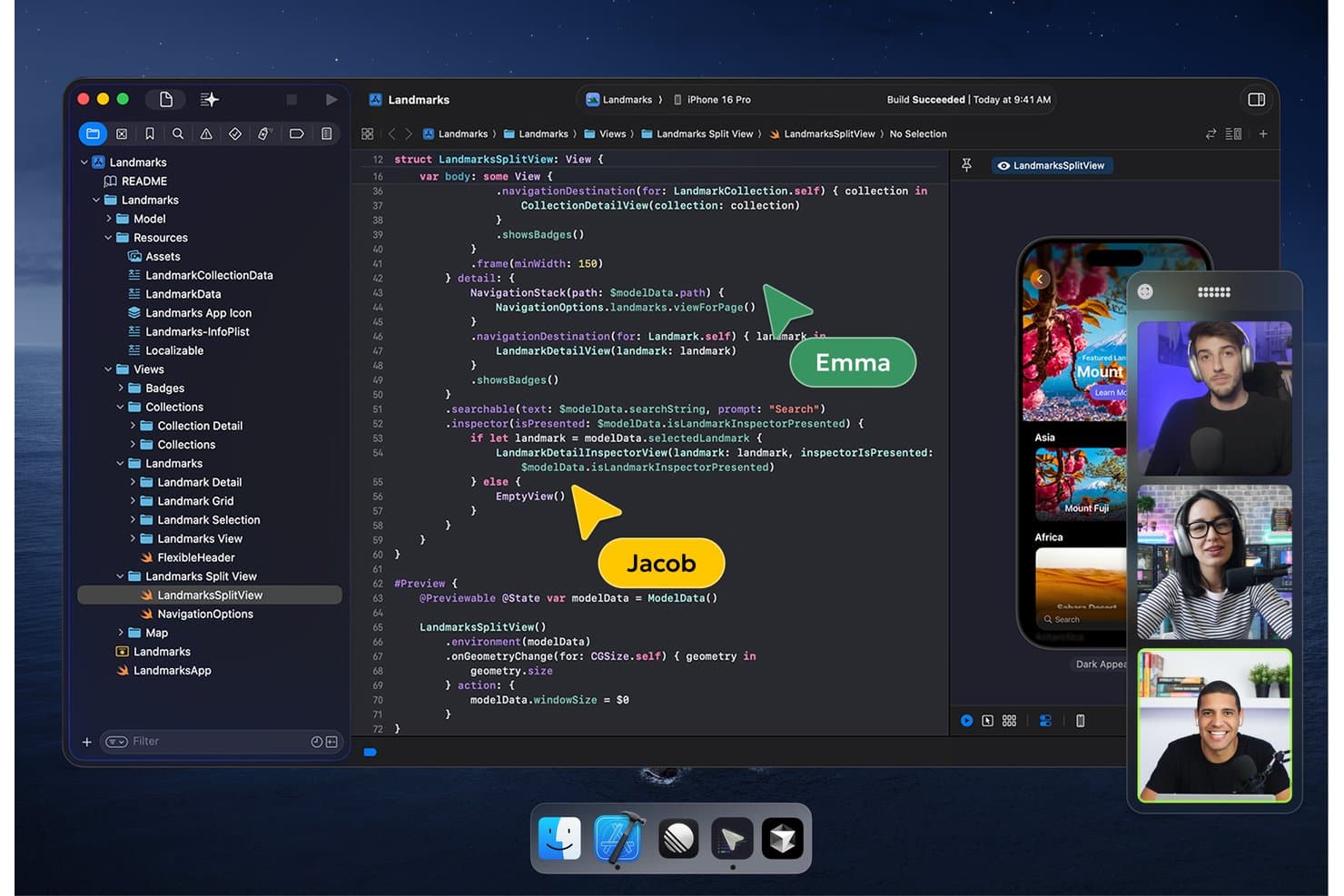
Hopp lets users pair program in real time via shared Xcode sessions. Hopp is an open-source pair programming tool that delivers 4K screen sharing with shared mouse and keyboard control, built-in voice with noise cancellation, and application-agnostic collaboration across any IDE, terminal, or dashboard.
Who Is Hopp Best For?
Hopp is a strong fit for security-conscious engineering teams that want full control over their collaboration infrastructure through self-hosting.
Why I Picked Hopp
Hopp earns its spot on my shortlist because it's the only dedicated pair programming tool I've found that's fully open-source (AGPL-3.0) and self-hostable, which matters a lot if your team has strict data residency or security requirements. I like that its screen-sharing model is application-agnostic: you can share a terminal, a Grafana dashboard, or an AWS console with full shared mouse and keyboard control, not just an IDE window. That 4K streaming at sub-100ms latency makes it feel genuinely interactive, not like a laggy video call.
Hopp Key Features
- Screen annotations: Draw directly on the shared screen to highlight code, point to specific lines, or mark up a terminal output during a session.
- Mob programming rooms: Host up to 10 participants in a single room, supporting code reviews, onboarding sessions, and group debugging beyond standard 1:1 pairing.
- Mid-session control toggle: The sharer can grant or revoke remote mouse and keyboard control at any point during an active session without ending the call.
- Browser-based guest access: Guests can join a Hopp room via their browser in view-only mode without installing the desktop client.
Hopp Integrations
Hopp offers a native Slack integration for launching pair programming sessions. It also supports sign-in with Google and GitHub, while LiveKit provides its underlying audio and video infrastructure.
Pros and Cons
Pros:
- Sub-100ms 4K streaming latency focus
- Shares any app, not just IDEs
- Fully open-source and self-hostable option
Cons:
- No session recording or playback support
- No built-in text or chat feature
Learn more about Hopp: Best for AI fluency assessment in interviews
- Free trial + free demo available
- From $79/month (billed annually)

HackerRank lets users code and test solutions live during pair sessions. HackerRank Interview is a browser-based technical interview platform that pairs a shared live coding environment with an AI-integrated workspace, real-code repository sessions, built-in whiteboarding, and session recording tools.
Who Is HackerRank Best For?
HackerRank Interview is a strong fit for engineering hiring teams that want to evaluate how candidates work alongside AI tools in a realistic coding environment.
Why I Picked HackerRank
I picked HackerRank as one of the best because it's the only platform I've seen that makes AI fluency a measurable part of a live coding session. Candidates work inside a real repository using frontier models like Claude Sonnet 5 or GPT-5.6, while I watch their prompts, reasoning, and corrections unfold in real time. The ADE pairs that with a shared terminal and diff view, so I can assess how someone actually navigates and validates AI-generated code under realistic conditions.
HackerRank Key Features
- Session recording and playback: Captures every keystroke and action in the shared coding session, with a full activity timeline you can replay after the interview.
- Built-in whiteboard: A native infinite-canvas drawing tool lets you run system design discussions alongside live coding without switching tools.
- Observer mode: Lets additional reviewers monitor a live session in real time without disrupting the candidate or interviewer.
- Cloud-hosted repository workspace: Candidates work inside pre-configured, multi-file codebases with a shared terminal and live app preview, all running in the browser.
HackerRank Integrations
HackerRank Interview offers native integrations with Slack, Zoom, Cisco Webex, Google Calendar, Microsoft Outlook, Greenhouse, Lever, and Workday. It also supports SAML 2.0 and SCIM 2.0 for enterprise identity management.
Pros and Cons
Pros:
- Built-in whiteboard for system design interviews
- Session recording with keystroke-level playback
- AI fluency assessment in live coding sessions
Cons:
- Designed mainly for technical hiring, not team pairing
- No support for VS Code or JetBrains plugins
Learn more about HackerRank: Best for zero-setup mentoring and onboarding
- Free plan available
- From $20/month
Visit WebsiteCustomer Rating:4.4/5
Replit's AI chat helps users generate full HTML pages collaboratively. Replit is a browser-based cloud IDE and pair programming platform that combines real-time multiplayer editing, AI-assisted code generation, a shared terminal, and built-in whiteboarding in a zero-install environment.
Who Is Replit Best For?
Replit is a great fit for engineering teams that frequently onboard junior developers or run mentoring sessions and want a zero-setup environment everyone can join from a browser.
Why I Picked Replit
Replit earns its spot on my shortlist because no other pair programming tool gets a new developer into a shared, working environment faster. I love Observation Mode specifically: a senior dev can open a session and a junior can follow their cursor across files in real time, watching every edit and switch without any setup. Filetree Presence shows exactly which files each teammate is in, so mentoring stays organized from the first session.
Replit Key Features
- Multiplayer editing: Multiple collaborators can edit the same codebase simultaneously, with live named cursors showing each participant's position in real time.
- Built-in whiteboarding: Excalidraw-powered
.drawfiles let your team sketch diagrams and architecture directly alongside live code in the shared workspace. - Visual Git pane: A built-in interface handles branching, commits, push/pull, and pull request workflows across GitHub, GitLab, and Bitbucket without leaving the editor.
- In-editor text chat: Collaborators can communicate directly inside the coding environment without switching to an external messaging tool.
Replit Integrations
Replit offers 30+ native integrations, including GitHub, GitLab, Bitbucket, Jira, Linear, Slack, Discord, Zoom, and Figma. It also supports custom connectors through MCP.
Pros and Cons
Pros:
- Cloud IDE with built-in multiplayer editing
- Real-time observation mode for live mentoring
- Zero-setup collaborative environment for instant onboarding
Cons:
- Limited to browser-based development only
- No native voice or video chat
Learn more about Replit: Best for cross-IDE pair programming sessions
- 30-day free trial + free demo available
- Pricing upon request
Visit WebsiteCustomer Rating:4.4/5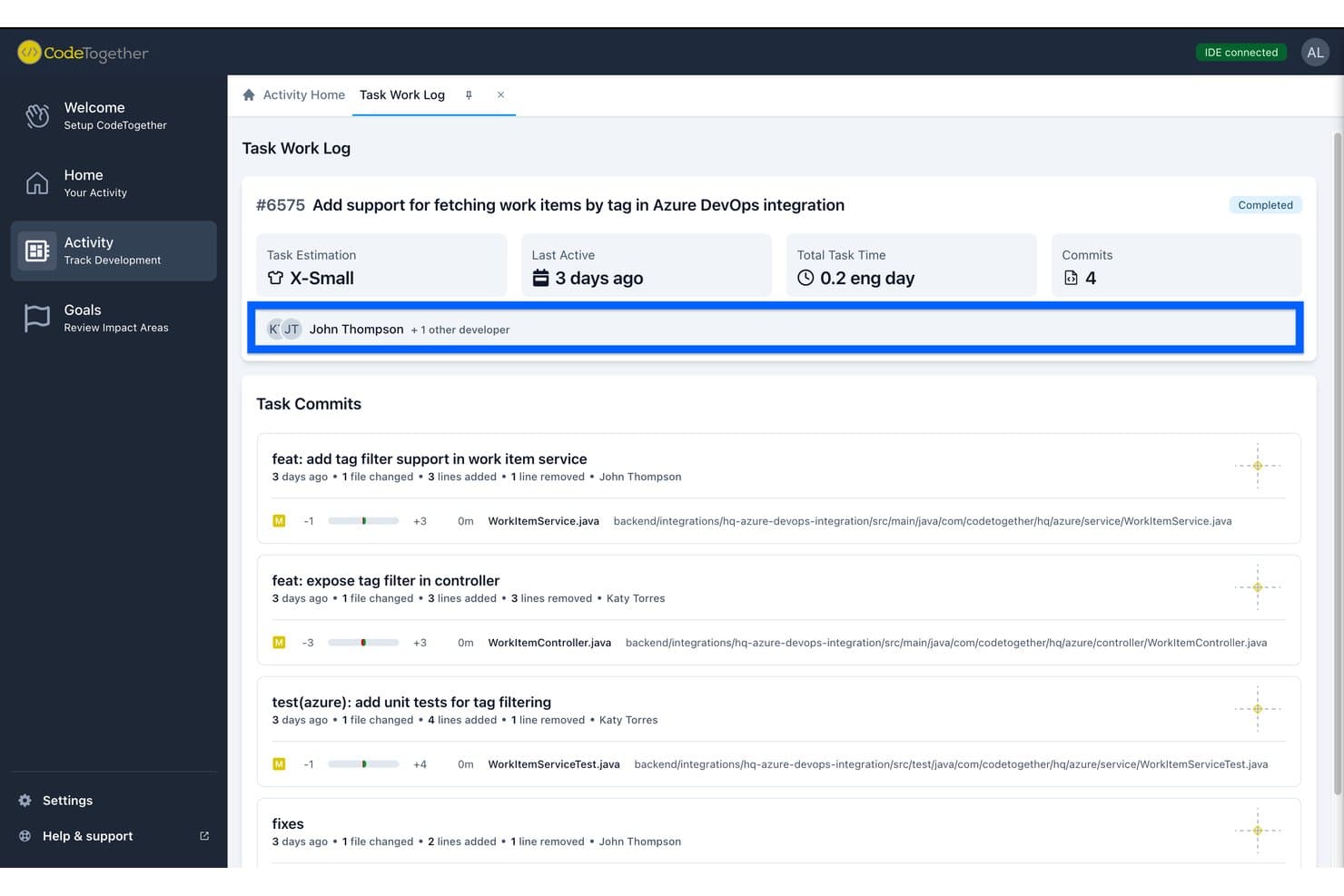
CodeTogether tracks commits and contributors per task in one view. CodeTogether is a pair programming tool that supports real-time co-editing, shared terminals, and cross-IDE sessions across JetBrains IDEs, VS Code, Eclipse, and browser-based guest access.
Who Is CodeTogether Best For?
CodeTogether is a strong fit for development teams that work across mixed IDE environments—especially those pairing JetBrains users with VS Code or Eclipse users in the same session.
Why I Picked CodeTogether
CodeTogether earns its spot on my shortlist because cross-IDE pairing is genuinely rare, and it's the only tool I've found that lets an IntelliJ user and a VS Code user collaborate in the same live session without either person switching editors. I like that each participant keeps their own keybindings and theme, so there's no negotiating whose setup everyone else has to tolerate. The browser-based guest joining is a practical bonus: I've used it to pull in an external reviewer mid-session with nothing more than a link.
CodeTogether Key Features
- Explicit driver mode: Locks the driver role to one participant, requiring them to actively hand off control before anyone else can edit.
- Session access controls: Hosts can restrict file visibility, editing permissions, terminal write access, and remote test execution per participant.
- Shared terminal with write access: Guests can view the host's terminal and request write access, enabling collaborative command execution within the session.
- On-premises and air-gapped deployment: Self-hosted deployment is available for teams with strict data residency or compliance requirements.
CodeTogether Integrations
CodeTogether documents integrations with GitHub, GitLab, Bitbucket, Jira, GitHub Issues, GitHub Copilot, Cursor, Claude Code, and OpenAI Codex. An open API supports custom integrations.
Pros and Cons
Pros:
- Hosts control editing and terminal permissions precisely
- Browser-based joining needs no software install
- Cross-IDE collaboration works across JetBrains, VS Code, Eclipse
Cons:
- Performance slows on large or complex codebases
- Built-in audio and video are deprecated
Learn more about CodeTogether: Best for shared debugging in VS Code teams
- Free plan available
- From $45/user/month (billed annually)

Microsoft Visual Studio Live Share shows multiple cursors and participant activity in real time. Microsoft Visual Studio Live Share is a real-time code collaboration extension for VS Code and Visual Studio that lets multiple developers co-edit, co-debug, share terminals, and forward local ports—all without guests needing to clone a repo or configure a local environment.
Who Is Microsoft Visual Studio Live Share Best For?
VS Code and Visual Studio teams who need deep, shared debugging sessions will get the most out of Live Share.
Why I Picked Microsoft Visual Studio Live Share
Visual Studio Live Share earns its spot on my shortlist because shared debugging in VS Code is where it genuinely has no equal. When my team hits a tricky bug, guests can independently inspect local variables, hover over values, and walk the call stack without interrupting the host's execution flow—that's a level of co-debugging depth you won't get from screen sharing. I also rely on shared terminal access, where hosts can open read/write terminal instances so guests can run commands directly in the same environment, no repo cloning or environment setup required.
Microsoft Visual Studio Live Share Key Features
- Follow mode: Participants can toggle to follow another collaborator's navigation in real time, with the option to detach and explore the codebase independently at any point.
- Read-only session mode: Hosts can lock the session so guests can navigate, inspect variables, and track cursors without making any edits to the codebase.
- File exclusions via .vsls.json: Hosts can block or hide sensitive files—like API keys or certificates—from guest access using glob patterns in a configuration file.
- Browser-based guest join: Guests can join a Live Share session directly through vscode.dev without installing VS Code or any local dependencies.
Microsoft Visual Studio Live Share Integrations
Microsoft Visual Studio Live Share supports shared debugging with Azure Dev Spaces, Azure App Service, and Azure Functions, plus authentication through GitHub and Microsoft accounts. It has no native CI/CD, Jira, or pull request integrations.
Pros and Cons
Pros:
- End-to-end encrypted sessions for privacy
- Zero setup for joining via browser link
- Guests co-debug independently without interrupting host
Cons:
- Built-in voice and audio now deprecated
- No support for JetBrains or Vim editors
Learn more about Microsoft Visual Studio Live Share:
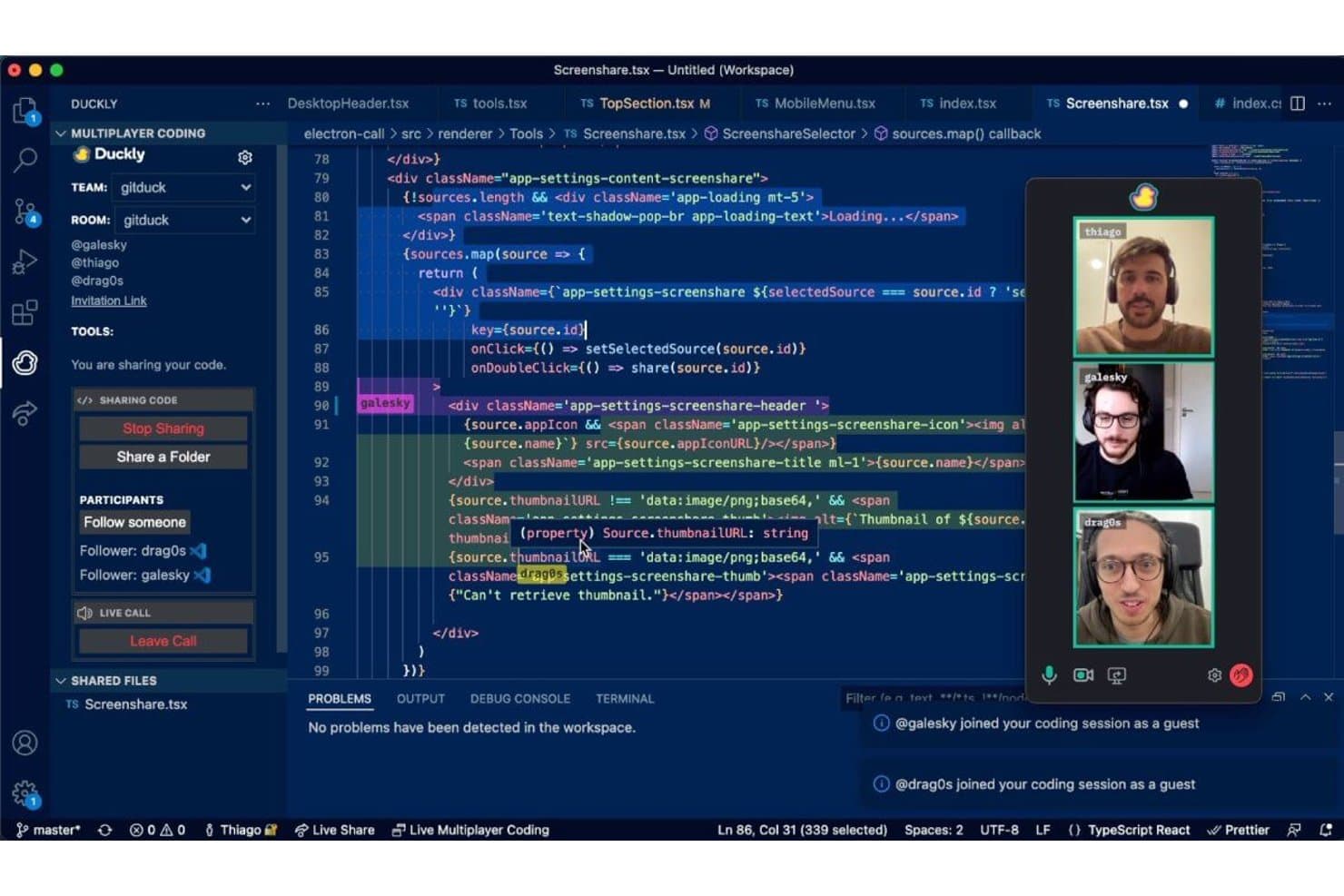
Duckly enables real-time multiplayer coding with live video calls. Duckly is a pair programming plugin for VS Code and JetBrains IDEs that enables real-time cross-IDE code co-editing, shared terminal access, local server sharing, and built-in voice, video, and screen sharing directly inside the development environment.
Who Is Duckly Best For?
Duckly is a strong fit for remote development teams whose members work across different IDEs and need voice and video collaboration built directly into their coding environment.
Why I Picked Duckly
Duckly earns its spot on my shortlist because of something I genuinely haven't seen done as well elsewhere: voice and video calling built directly inside the IDE. There's no alt-tabbing to Zoom mid-session — you talk, share your screen, and co-edit code all without leaving VS Code or IntelliJ. I also rate its cross-IDE pairing highly, since a developer on WebStorm can pair with someone on VS Code in real time, which removes a friction point most tools ignore entirely.
Duckly Key Features
- Cross-IDE co-editing: Pair program in real time across VS Code and JetBrains IDEs simultaneously, with no requirement to standardize on a single editor.
- Shared terminal access: Share a live terminal session with teammates in read-only or write mode, giving the host control over guest permissions.
- Local server sharing: Expose your local development server to collaborators so they can preview your running application in real time.
- Chrome co-browsing extension: Interact with live websites or localhost apps together using Duckly's Chrome extension, going beyond passive screen sharing.
Duckly Integrations
Duckly offers native plugins for VS Code, VSCodium, and JetBrains IDEs, plus a Chrome extension for co-browsing. It also supports terminal sharing through npm and video calls through Daily.co. No Git, CI/CD, issue tracker, or API integrations are documented.
Pros and Cons
Pros:
- Shared terminal with read or write access
- Real-time cross-IDE code collaboration supported
- Native voice and video calling in IDE
Cons:
- No session recording or playback functionality
- No AI assistant or code suggestions available
Learn more about Duckly:

Tuple integrates seamlessly into a developer's workflow during pair programming sessions. Tuple is a native pair programming tool that combines ultra-low-latency screen sharing, full remote control, built-in audio and video, and a programmable Triggers API—all without requiring an IDE plugin.
Who Is Tuple Best For?
Tuple is the right fit for engineering teams on macOS who pair-program regularly and need the lowest-latency remote collaboration experience available.
Why I Picked Tuple
Tuple earns its spot on my shortlist because it's the only pair programming tool I've seen built from the ground up specifically for macOS developers who care about session quality. Its native C++ engine streams screen content at up to 5K resolution, so even small code fonts stay readable during long pairing sessions. I also love the Triggers API, which lets you wire up shell scripts to call lifecycle events so things like Git co-author attribution happen automatically the moment a teammate joins.
Tuple Key Features
- Session capture with on-device transcription: Tuple records your pairing sessions locally and transcribes audio using Whisper, keeping all data on your machine.
- Up to 10 participants per session: Tuple supports mob programming, code reviews, and onboarding sessions with up to 10 people in a single call.
- App Veil: Hosts can hide specific applications from participants during screen sharing to protect sensitive content.
- Personal rooms with door controls: Each user gets a persistent room with lock/unlock controls so teammates can drop in or request access on demand.
Tuple Integrations
Tuple offers native integrations with Slack, Google Calendar, and Apple Calendar. Its Triggers API, CLI, and MCP server connect Git, Docker, 1Password, Linear, and AI agents such as Claude Code and Cursor; Raycast support is community-built.
Pros and Cons
Pros:
- Local session capture with on-device transcription
- IDE-agnostic; works with any local editor
- Ultra-low-latency screen sharing feels like in-person
Cons:
- Native app required; no browser client available
- No true multi-cursor co-editing support
Learn more about Tuple:
Outros instrumentos de programação em pares
Eis algumas opções adicionais de instrumentos de programação em pares que não entraram na minha lista, mas que continuam a valer a pena consultar:
- 11DrovioBest for any-IDE pairing with on-prem security
- 12PopBest for multiplayer desktop control in remote pairing
- 13CodeanywhereBest for any-device, zero-install cloud coding
- 14SarosBest for Eclipse IDE users
- 15GitLiveBest for preemptive merge conflict detection
How I Evaluate Pair Programming Tools
I look at these tools in two layers: core features like real-time co-editing and shared terminals that every viable option needs, and differentiators that set the best apart.
Core Functionality (Table Stakes For This List)
When I'm selecting tools for my list, I rank each one on a scale from 0 (does not offer the functionality) to 5 (excels in this area) for each core functionality listed below. Then, I calculate the tool's total score into a percentage. Each tool needs to achieve a minimum total score of 65% to be considered for inclusion.
- Real-Time Co-Editing: I evaluate how smoothly two or more developers can type in the same file simultaneously, checking for sync lag that disrupts a driver-navigator flow.
- Shared IDE Environment: Each tool should let collaborators work inside the same project context, including file trees, extensions, and language support relevant to the session.
- Multi-Cursor Tracking: I look for visible, labeled cursors and selections for every participant so pairs can follow each other's navigation without constant verbal cues.
- Integrated Communication: Built-in voice, video, or chat matters because switching to a separate call app mid-session breaks focus—tools like VS Code Live Share and CodeTogether handle this differently.
- Shared Terminal & Debugging: I check whether both developers can run commands, set breakpoints, and inspect variables together, which is where most pairing sessions get real work done.
- Session Access Control: The tool should offer invite-based access with clear host and guest permissions so you can safely pair with contractors or interviewees without exposing your full environment.
Once I have a list of tools that meet this criteria, I consider what sets each platform apart.
Differentiating Factors (What Sets Vendors Apart)
Here's how I compare and contrast different vendors:
Standout Features
Cloud dev environments are a major differentiator. Tools like Gitpod and GitHub Codespaces let a guest spin up a ready-to-go workspace without cloning repos or installing dependencies locally. I also evaluate session recording and playback, which is invaluable when a senior developer walks a new hire through a codebase and wants to revisit the session later. AI pairing assistants add another layer, offering real-time code suggestions that keep momentum when your human pair steps away to handle something else.
Beyond Features
I check how well a tool fits into existing toolchains—whether it plugs into JetBrains, VS Code, or Neovim and connects to GitHub, GitLab, or Bitbucket without friction. Security and compliance posture matters too, especially for enterprise teams sharing proprietary code with external contractors. I look for end-to-end encryption, SSO, and audit logging. Onboarding friction is another big one. If a guest has to create an account, install plugins, and configure settings before joining a session, you'll lose half the value of pairing in the first place.
Como escolher um instrumento de programação em pares
É fácil ficar preso a longas listas de funcionalidades e estruturas de preços complexas. Para o ajudar a manter a concentração enquanto conduz o seu processo específico de seleção de software, eis uma lista de verificação dos fatores a ter em conta:
| Fator | O que considerar |
| Escalabilidade | A ferramenta acompanhará o crescimento da sua equipa? Considere se consegue lidar com mais utilizadores ou projetos à medida que a sua equipa cresce, sem perda de desempenho. |
| Integrações | Funciona com as ferramentas que já utiliza? Verifique se se integra com os ambientes de desenvolvimento integrados, sistemas de controlo de versões e plataformas de comunicação utilizados pela sua equipa. |
| Personalização | Pode adaptar a ferramenta aos seus fluxos de trabalho? Procure opções para personalizar definições, permissões e interfaces de modo a corresponder aos processos da sua equipa. |
| Facilidade de utilização | É intuitiva para todos os membros da equipa? Certifique-se de que tem uma interface fácil de utilizar, que reduz a curva de aprendizagem, especialmente para os utilizadores menos familiarizados com tecnologia. |
| Implementação e integração | Com que rapidez pode começar? Avalie o tempo de configuração e os recursos necessários, incluindo materiais de formação ou apoio para integrar a sua equipa. |
| Custo | Encaixa-se no seu orçamento? Compare os planos de preços, considerando tanto os custos iniciais como as despesas a longo prazo, tais como renovações de subscrições ou complementos. |
| Medidas de segurança | Os seus projetos estão protegidos? Verifique a existência de encriptação, controlos de acesso e conformidade com as normas de segurança para proteger os seus dados e código. |
O que são ferramentas de programação em pares?
As ferramentas de programação em pares são aplicações que permitem que dois ou mais programadores trabalhem em conjunto na mesma base de código, em tempo real, a partir de locais diferentes. Engenheiros de software, testadores de controlo de qualidade e responsáveis técnicos utilizam estas ferramentas para rever código, corrigir erros e partilhar rapidamente contexto, sem precisarem de estar no mesmo espaço de trabalho.
Editores partilhados, depuração em tempo real e funcionalidades de comunicação integradas ajudam a resolver problemas mais rapidamente, a melhorar a qualidade do código e a facilitar a colaboração. No geral, as ferramentas de programação em pares facilitam a escrita, os testes e o aperfeiçoamento conjunto do código pelas equipas, de forma eficiente.
Funcionalidades das ferramentas de programação em pares
Ao selecionar ferramentas de programação em pares, tenha em atenção as seguintes funcionalidades essenciais:
- Colaboração em código em tempo real: Permite que vários programadores trabalhem simultaneamente na mesma base de código, melhorando o trabalho de equipa e a produtividade.
- Comunicação integrada: Inclui funcionalidades de conversação, voz ou vídeo para facilitar a comunicação e o feedback instantâneos durante as sessões de programação.
- Compatibilidade com diferentes ambientes de desenvolvimento: Permite a colaboração entre diferentes ambientes de desenvolvimento integrados, como o Eclipse ou IDEs para Go, tornando-a versátil para equipas diversificadas.
- Gravação de sessões: Regista as sessões de programação para análise posterior, ajudando nos processos de formação e revisão de código.
- Permissões de utilizador personalizáveis: Permitem controlar os níveis de acesso, garantindo a segurança e uma dinâmica de colaboração adequada.
- Ferramentas de depuração integradas: Oferecem ferramentas para identificar e resolver problemas no código em tempo real, melhorando a qualidade e a eficiência do código.
- Partilha de código em direto: Permite que os programadores partilhem instantaneamente as alterações ao código, mantendo todos os membros da equipa atualizados.
- Ligação segura: Fornece encriptação e controlos de acesso para proteger o código e os dados durante a colaboração.
- Facilidade de utilização: Apresenta uma interface intuitiva que reduz a curva de aprendizagem, tornando-a acessível a todos os membros da equipa.
- Escalabilidade: Suporta equipas e projetos em crescimento, permitindo uma expansão simples sem perda de desempenho.
Vantagens das ferramentas de programação em pares
A implementação de ferramentas de programação em pares proporciona várias vantagens para a sua equipa e para a sua empresa. Eis algumas que pode esperar:
- Colaboração melhorada: As ferramentas de colaboração em código em tempo real, com funcionalidades de edição e comunicação integrada, ajudam a sua equipa a trabalhar em conjunto de forma mais eficaz, reduzindo mal-entendidos.
- Maior qualidade do código: As ferramentas de depuração partilhadas permitem que os programadores identifiquem e corrijam problemas mais rapidamente, resultando num código mais limpo e fiável.
- Integração mais rápida: Os novos membros da equipa podem aprender com programadores experientes através de sessões de código em direto, acelerando a sua integração e produtividade.
- Maior produtividade: Funcionalidades como a partilha de código em direto e as permissões de utilizador personalizáveis simplificam os fluxos de trabalho, ajudando a sua equipa a alcançar mais em menos tempo.
- Maior segurança: As ligações seguras e os controlos de acesso protegem os seus projetos, garantindo que o código e os dados sensíveis permanecem confidenciais.
- Flexibilidade nas ferramentas: A compatibilidade com diferentes ambientes de desenvolvimento permite que os programadores utilizem os seus ambientes preferidos, tornando a colaboração mais simples e inclusiva.
- Escalabilidade: A capacidade de lidar com equipas e projetos em crescimento garante que as ferramentas conseguem apoiar a sua empresa à medida que esta se expande.
Custos e preços das ferramentas de programação em pares
A seleção de ferramentas de programação em pares exige uma compreensão dos vários modelos de preços e planos disponíveis. Os custos variam consoante as funcionalidades, o tamanho da equipa, os complementos, entre outros fatores. A tabela abaixo resume os planos comuns, os respetivos preços médios e as funcionalidades normalmente incluídas nas soluções de ferramentas de programação em pares:
Tabela de comparação de planos para ferramentas de programação em pares
| Tipo de plano | Preço médio | Funcionalidades comuns |
| Plano gratuito | $0 | Edição básica de código, sessões de colaboração limitadas e suporte da comunidade. |
| Plano pessoal | $5-$25 /utilizador /mês | Funcionalidades de colaboração melhoradas, partilha de código em tempo real e suporte básico. |
| Plano empresarial | $25-$50 /utilizador /mês | Funcionalidades de segurança avançadas, opções de integração e suporte prioritário. |
| Plano empresarial de grande dimensão | $50-$100 /utilizador /mês | Soluções personalizáveis, gestão de conta dedicada e ferramentas abrangentes de segurança e conformidade. |
Perguntas frequentes sobre ferramentas de programação em pares
Eis algumas respostas a perguntas comuns sobre ferramentas de programação em pares:
Quais são as desvantagens da programação em pares?
Embora a programação em pares possa melhorar a colaboração, pode parecer um desperdício de recursos, uma vez que duas pessoas trabalham numa única tarefa. Não reduz necessariamente o tempo do projeto para metade. Além disso, a colaboração constante pode causar fadiga, pelo que é importante gerir cuidadosamente as sessões.
Como fazer programação em pares de forma eficaz?
Uma programação em pares eficaz envolve escolher o parceiro certo e definir objetivos claros. Alterne regularmente os papéis para manter o envolvimento equilibrado. Certifique-se de que comunica de forma eficaz e adote técnicas como a Técnica Pomodoro para manter a concentração e a produtividade.
Quando não se deve fazer programação em pares?
Evite a programação em pares se esta causar esgotamento ou se os membros da equipa não estiverem a beneficiar da colaboração. Se notar que uma pessoa está frustrada ou cansada, pode ser altura de trocar de papéis ou fazer uma pausa. A programação em pares nem sempre é necessária para tarefas rotineiras.
Como gerir conflitos durante a programação em pares?
Os conflitos podem surgir devido a opiniões ou estilos de programação diferentes. Resolva-os promovendo uma comunicação aberta e o respeito mútuo. Defina regras básicas no início de uma sessão e, se os conflitos persistirem, considere alterar os pares para verificar se uma dinâmica diferente funciona melhor.
A programação em pares pode funcionar para equipas remotas?
Sim, a programação em pares pode funcionar para equipas remotas com as ferramentas certas. Utilize software que suporte colaboração e comunicação em tempo real, como funcionalidades de vídeo e conversação. Certifique-se de que a ligação à Internet é estável para evitar interrupções durante as sessões de programação.
Como afeta a programação em pares a qualidade do código?
A programação em pares pode melhorar a qualidade do código ao combinar as competências e perspetivas de dois programadores. Permite obter feedback imediato e reduz a probabilidade de erros. No entanto, para ser eficaz, exige que ambos os participantes se mantenham concentrados e envolvidos.