

Een controleprogramma voor PDF-toegankelijkheid scant documenten op belemmeringen voor digitale toegankelijkheid. Het kan ook helpen bij het identificeren van oplossingen die content voor meer mensen bruikbaar maken. Als je op zoek bent naar deze oplossingen, sta je voor de noodzaak om nalevingsrisico's laag te houden, alle gebruikers te ondersteunen en het toezicht te vereenvoudigen naarmate het gebruik van PDF's toeneemt.
Deze gids behandelt hulpmiddelen voor IT- en ontwikkelingsteams die toegankelijkheid in documentbeheer moeten integreren. De gids bevat opties voor het automatiseren van controles en het ondersteunen van workflows die klaar zijn voor audits. Je ziet opties voor handmatige beoordelingen, automatisering en zelfs gespecialiseerde content—allemaal gebaseerd op functies en standaarden die voor jouw team van belang zijn.
Waarom u onze softwareaanbevelingen kunt vertrouwen
6,700+
Reviews
20
Industry experts
16+
Evaluation factors
14
Years
Ons team test en beoordeelt software sinds 2012. Als technologieleiders weten we zelf hoe moeilijk — en belangrijk — het is om de juiste software te kiezen.
Voor deze gids hebben we tools geëvalueerd met behulp van praktijktests en onafhankelijk onderzoek, waarbij we tools beoordeeden aan de hand van onze selectiecriteria.
Onze reviews weerspiegelen ons menselijke redactionele oordeel, geen verkooppraatje.
Deskundige beoordelaars:
- Paulo Gardini MiguelTechnisch directeur
 Tim FisherVP AI
 Gabriel RosasTech Lead & software-architect
 Christhian GruhnTech Lead & platformarchitect

Vergelijkingstabel van controleprogramma's voor PDF-toegankelijkheid
| Tool | Best For | Trial Info | Price | ||
|---|---|---|---|---|---|
| 1 | Beste voor batchvalidatie en het oplossen van problemen | Gratis abonnement beschikbaar | Vanaf $599/gebruiker/jaar (jaarlijks gefactureerd) | Website | |
| 2 | Het beste voor visuele PDF/UA- en WCAG-controles | Gratis abonnement beschikbaar | Prijs op aanvraag | Website | |
| 3 | Het beste voor begeleide handmatige compliancetests | Gratis abonnement beschikbaar | Prijs op aanvraag | Website | |
| 4 | Beste voor geautomatiseerde PDF/UA-verificatie | Gratis proefperiode van 14 dagen | Prijs op aanvraag | Website | |
| 5 | Ideaal voor gereguleerde kwaliteitscontroles van PDF's | Gratis demo beschikbaar | Prijs op aanvraag | Website | |
| 6 | Ideaal voor het bewerken van pdf's met toegankelijkheidstools | 14 dagen gratis proefperiode | Vanaf $10.99/gebruiker/maand (jaarlijks gefactureerd) | Website | |
| 7 | Het beste voor het controleren en herstellen van PDF's | Gratis proefperiode van 7 dagen | Vanaf $19.99/maand | Website | |
| 8 | Beste voor monitoring van pdf-documenten op de hele website | Gratis demo beschikbaar | Prijs op aanvraag | Website | |
| 9 | Best voor AI-ondersteunde tabelremediëring | Gratis demo beschikbaar | Prijs op aanvraag | Website | |
| 10 | Beste keuze voor bulkvalidatie van pdf-toegankelijkheid | Gratis demo beschikbaar | Prijzen op aanvraag | Website |


Beoordelingen van controleprogramma's voor PDF-toegankelijkheid
\u003cspan data-slate-fragment=\u0022JTVCJTdCJTIyY2hpbGRyZW4lMjIlM0ElNUIlN0IlMjJ0ZXh0JTIyJTNBJTIyQmVsb3clMjBhcmUlMjBteSUyMGRldGFpbGVkJTIwc3VtbWFyaWVzJTIwb2YlMjB0aGUlMjBiZXN0JTIwUERGJTIwYWNjZXNzaWJpbGl0eSUyMGNoZWNrZXJzJTIwdGhhdCUyMG1hZGUlMjBpdCUyMG9udG8lMjBteSUyMHNob3J0bGlzdC4lMjBNeSUyMHJldmlld3MlMjBvZmZlciUyMGElMjBkZXRhaWxlZCUyMGxvb2slMjBhdCUyMHRoZSUyMGZlYXR1cmVzJTJDJTIwYmVzdCUyMHVzZSUyMGNhc2UlMjBjYXNlcyUyQyUyMGFuZCUyMGNhcGFiaWxpdGllcyUyMG9mJTIwZWFjaCUyMHRvb2wlMjB0byUyMGhlbHAlMjB5b3UlMjBmaW5kJTIwdGhlJTIwYmVzdCUyMG9uZSUyMGZvciUyMHlvdS4lMjIlN0QlNUQlMkMlMjJ0eXBlJTIyJTNBJTIycCUyMiUyQyUyMmlkJTIyJTNBJTIyVE51NE1yYmtLVyUyMiU3RCU1RC\u0022\u003eHieronder staan mijn gedetailleerde samenvattingen van de beste controleprogramma’s voor PDF-toegankelijkheid die op mijn shortlist zijn gekomen. Mijn beoordelingen geven een gedetailleerd overzicht van de functies, de beste gebruiksscenario’s en de mogelijkheden van elk hulpmiddel, zodat je het beste hulpmiddel voor jouw situatie kunt vinden.\u003c/span\u003e
 Beste voor batchvalidatie en het oplossen van problemen
- Gratis abonnement beschikbaar
- Vanaf $599/gebruiker/jaar (jaarlijks gefactureerd)
Visit WebsiteCustomer Rating:5/5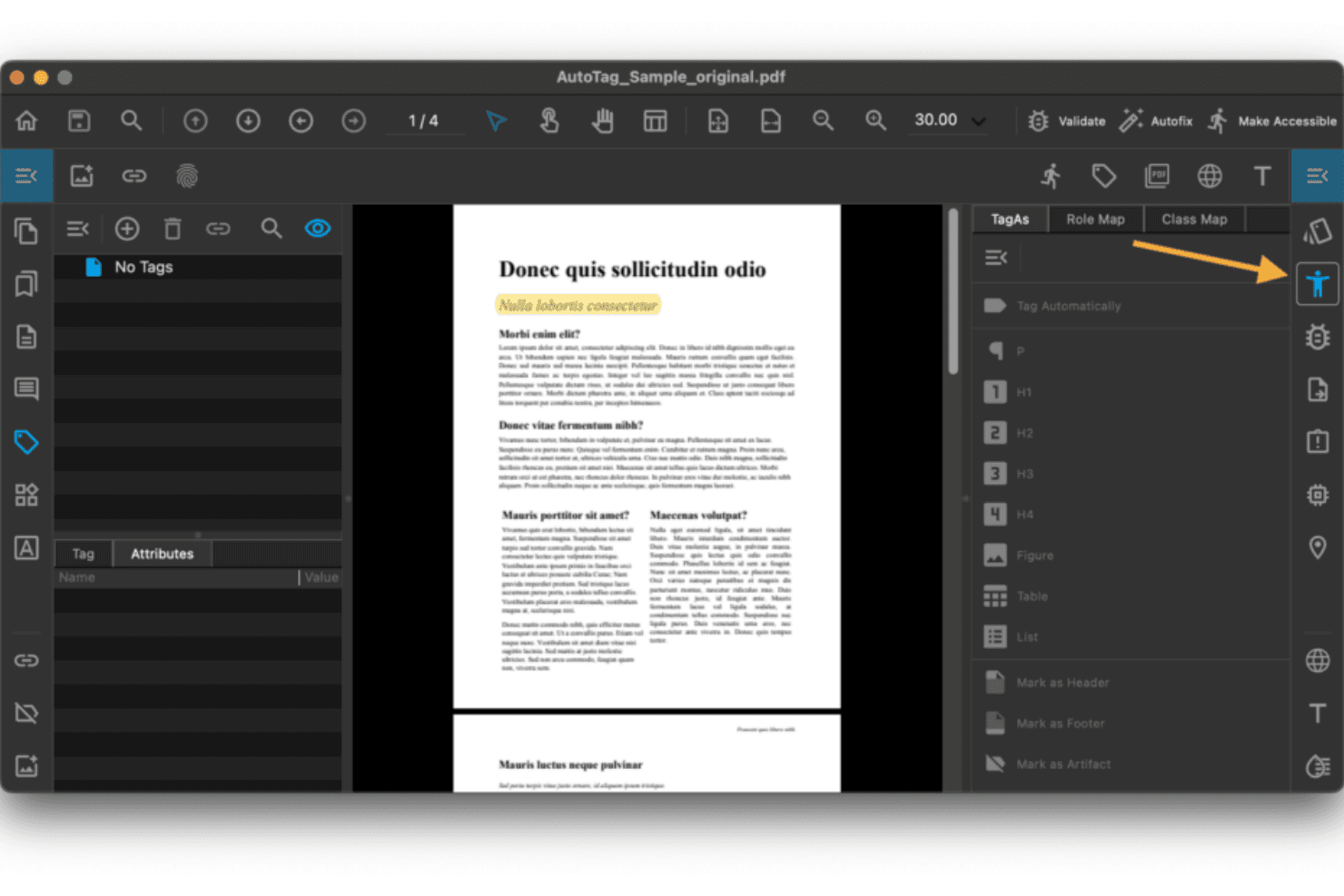
Met PDFix kunnen gebruikers pdf-elementen taggen om aan toegankelijkheidsvereisten te voldoen. PDFix is een AI-aangedreven toegankelijkheidsplatform voor pdf's voor WCAG 2.1/2.2, PDF/UA en Section 508-validatie. Het ondersteunt ook geautomatiseerde batchremediatie en is beschikbaar als desktopapplicatie, SDK en REST API.
Voor wie is PDFix het meest geschikt?
PDFix is geschikt voor ontwikkelaars en complianceteams in gereguleerde sectoren zoals de overheid, financiële dienstverlening en gezondheidszorg. Het is met name nuttig voor teams die grote hoeveelheden pdf's programmatisch moeten valideren en herstellen.
Waarom ik voor PDFix koos
PDFix verdient een plek als een van de beste oplossingen op mijn shortlist vanwege de manier waarop het batchvalidatie en geautomatiseerde oplossingen in één workflow combineert. Ik heb het toegepast op volledige documentmappen en het markeert elke overtreding met Matterhorn Protocol-verwijzingen, waarbij de exacte locatie in de tagstructuur wordt aangegeven. Wat ik vooral goed vind, is het AI-aangedreven automatisch taggen, waarmee de leesvolgorde en koppenhiërarchie in honderden pdf's opnieuw worden opgebouwd zonder elk bestand handmatig te hoeven aanpassen.
Belangrijkste functies van PDFix
- Standaardvalidatie met veraPDF: Gebruikt de veraPDF-engine, de industriestandaard, om naleving van PDF/UA, WCAG en Section 508 te controleren.
- Export van rapporten in meerdere indelingen: Genereert toegankelijkheidsrapporten in JSON, XML, HTML en platte tekst, zodat ze eenvoudig kunnen worden gedeeld en geïntegreerd.
- Platformonafhankelijke desktopapp: Werkt op Windows, macOS en Linux, zodat je de toegankelijkheid op elk belangrijk besturingssysteem kunt controleren.
- SDK voor ontwikkelaars met API: Biedt Python-, C#-, Java-, Node.js- en C++-koppelingen voor het integreren van toegankelijkheidscontroles in geautomatiseerde workflows.
Integraties van PDFix
PDFix biedt ingebouwde integraties met Enfocus Switch en GitHub Actions Marketplace, en levert een REST API en SDK voor aangepaste integraties met Python, C#, Java, Node.js en C++.
Pros and Cons
Pros:
- Voert batchremediatie uit voor honderden pdf's tegelijk
- AI-gestuurd automatisch taggen reconstrueert de leesvolgorde automatisch
- Matterhorn Protocol-verwijzingen identificeren exacte tagfouten
Cons:
- Vereist expertise van ontwikkelaars voor integratie in verwerkingspijplijnen
- Geen cloudgebaseerde optie voor documentverwerking
Learn more about PDFix: Het beste voor visuele PDF/UA- en WCAG-controles
- Gratis abonnement beschikbaar
- Prijs op aanvraag

PAC controleert de naleving van PDF-toegankelijkheid op het gebied van PDF/UA, WCAG en kwaliteitscriteria. PAC is een gratis Windows-desktopprogramma dat PDF's controleert op PDF/UA (ISO 14289-1)- en WCAG 2.1-standaarden met behulp van het Matterhorn-protocol. Het bevat ook een visuele inspectietool voor de tagstructuur en een voorbeeldweergave van de structuur voor schermlezers.
Voor wie is PAC (PDF-toegankelijkheidscontrole) het meest geschikt?
PAC is zeer geschikt voor compliancefunctionarissen op het gebied van toegankelijkheid en leidinggevenden voor technische documentatie die PDF's handmatig moeten controleren op naleving van PDF/UA- en WCAG-standaarden.
Waarom heb ik PAC (PDF-toegankelijkheidscontrole) gekozen?
PAC verdient een plek als een van de beste tools op mijn shortlist vanwege de manier waarop het visuele PDF/UA-controles uitvoert. Met de voorbeeldweergave voor schermlezers kan ik precies zien wat JAWS of NVDA zal voorlezen, en de volledige tagstructuur toont elke eigenschap en elk kenmerk in de documentstructuur. Ik waardeer ook de dekking van machinaal testbare controlepunten uit het Matterhorn-protocol. Daardoor kan ik validatieresultaten controleren aan de hand van vastgestelde PDF/UA-criteria.
Belangrijkste functies van PAC (PDF-toegankelijkheidscontrole)
- AI-ondersteunde semantische analyse: Gebruikt AI om de handmatige inspanning te verminderen die nodig is om de kwaliteit van de PDF-structuur en tags te controleren.
- Simulatieweergave voor schermlezers: Toont visueel hoe populaire schermlezers de inhoud en volgorde van de PDF zullen interpreteren.
- Statistieken over de documentstructuur: Geeft structurele statistieken en samenvattingen voor elke PDF weer, waaronder de tagverdeling en details over de logische structuur.
- Lokale, offline werking: Werkt volledig op Windows-desktops zonder bestanden naar het internet of externe servers te uploaden.
Integraties van PAC (PDF-toegankelijkheidscontrole)
PAC (PDF-toegankelijkheidscontrole) heeft geen ingebouwde integraties.
Pros and Cons
Pros:
- Permanent gratis te downloaden en te gebruiken
- Volledige dekking van controlepunten uit het Matterhorn-protocol
- Ingebouwde visuele voorbeeldweergave voor schermlezers
Cons:
- Alleen voor Windows, waardoor Mac- en Linux-gebruikers worden uitgesloten
- Geen batchverwerking voor meerdere PDF's
Learn more about PAC (PDF Accessibility Checker): Het beste voor begeleide handmatige compliancetests
- Gratis abonnement beschikbaar
- Prijs op aanvraag

Allyant begeleidt gebruikers bij het toegankelijk maken van pdf's met stapsgewijze workflows. Allyants CommonLook PDF Validator is een gratis Adobe Acrobat-plug-in die pdf's controleert op naleving van WCAG-, PDF/UA- en Section 508-normen. De plug-in begeleidt gebruikers ook bij geautomatiseerde en handmatige toegankelijkheidstests en levert certificeringsrapporten per document.
Voor wie is Allyant het meest geschikt?
Allyants CommonLook PDF Validator is zeer geschikt voor compliancefunctionarissen en documentatieteams bij overheidsinstanties of in gereguleerde sectoren waar naleving van Section 508 een harde vereiste is.
Waarom ik voor Allyant heb gekozen
Ik heb Allyants CommonLook PDF Validator gekozen als een van de beste oplossingen voor begeleide handmatige compliancetests. In tegenstelling tot tools die niet verder gaan dan geautomatiseerde signaleringen, begeleidt deze oplossing je bij controles die geen enkele scanner betrouwbaar kan uitvoeren. Daarbij gaat het onder andere om het controleren van de nauwkeurigheid van alt-tekst (niet alleen de aanwezigheid ervan), het bevestigen dat tabelsamenvattingen betekenisvol zijn en het valideren van de hiërarchie van koptags. Het certificeringsrapport per document levert een concreet nalevingsdocument op voor Section 508, WCAG en PDF/UA.
Belangrijkste functies van Allyant
- Integratie met Adobe Acrobat: Werkt als plug-in binnen Adobe Acrobat Pro op Windows voor native pdf-analyse.
- Controles voor Section 508 en HHS: Bevat tests die specifiek zijn gericht op Amerikaanse overheids- en zorgtoegankelijkheidsvoorschriften.
- Op tags gebaseerde inhoudsmarkering: Hiermee kun je de toepassing van tags visueel in de pdf controleren voor een grondigere inspectie.
- Certificeringsrapporten per document: Genereert na elke controle een downloadbaar nalevingscertificaat voor archiveringsdoeleinden.
Integraties van Allyant
Allyants CommonLook PDF Validator werkt als plug-in voor Adobe Acrobat Pro op Windows. Oorspronkelijke integraties naast Adobe Acrobat Pro zijn niet duidelijk gedocumenteerd.
Pros and Cons
Pros:
- Begeleidt gebruikers bij handmatige compliancecontroles
- Valideert volgens Section 508, WCAG en PDF/UA
- Genereert certificeringsrapporten per document
Cons:
- Werkt alleen op Windows via Adobe Acrobat
- Geen batchscan van meerdere pdf's
Learn more about Allyant: Beste voor geautomatiseerde PDF/UA-verificatie
- Gratis proefperiode van 14 dagen
- Prijs op aanvraag

pdfaPilot 5 introduceert ondersteuning voor ePub 3.0 en conversie van e-mail naar PDF/A. pdfaPilot is een tool voor ondernemingen voor PDF/UA- en PDF/A-naleving van callas software. Het is beschikbaar als desktopapplicatie, server, CLI en SDK voor geautomatiseerde toegankelijkheidsverificatie binnen documentworkflows.
Voor wie is pdfaPilot het meest geschikt?
IT-operations- en compliance-teams binnen overheids-, juridische of enterpriseomgevingen die grote PDF-archieven moeten verwerken voor PDF/UA-conformiteit.
Waarom ik voor pdfaPilot heb gekozen
pdfaPilot verdient een plek als een van de beste tools op mijn shortlist, omdat geen enkele andere tool die ik heb getest kan tippen aan de mogelijkheden voor geautomatiseerde PDF/UA-verificatie op grote schaal. Zo verwerkt de hotfolderfunctie van de servervariant tot 8 parallelle taken. Met de Dispatcher-licentie kan de verwerking over meerdere machines worden geschaald voor grote archieven. Ik ben ook te spreken over pdfGoHTML, dat getagde PDF's omzet naar kleurgecodeerde HTML, zodat ik de documentstructuur, kophiërarchie en kwaliteit van alternatieve tekst visueel kan controleren.
Belangrijkste functies van pdfaPilot
- Volledige ondersteuning voor standaarden: Ondersteunt PDF/A-1, PDF/A-2, PDF/A-3 en machineverifieerbare toegankelijkheidscontroles voor PDF/UA-1.
- Editor voor kwaliteitscontroleprofielen: Hiermee kunt u aangepaste regelsets voor PDF-toegankelijkheid en naleving maken, bewerken en toepassen.
- Voorbeeld van PDF-naar-HTML-structuur: Zet getagde PDF's om naar visuele HTML voor snelle controle van toegankelijkheidsstructuren.
- Flexibele API- en integratieopties: Biedt een REST API, CLI en SDK voor integratie met workflowautomatisering en documentpijplijnen.
Integraties van pdfaPilot
pdfaPilot biedt oorspronkelijke integratie met Enfocus Switch voor workflowautomatisering en levert een REST API, CLI en SDK voor aangepaste integraties met documentbeheersystemen en CI/CD-pijplijnen.
Pros and Cons
Pros:
- Uitgebreide ondersteuning voor PDF/UA-1 en het Matterhorn-protocol
- Parallelle servertaken versnellen audits van grote archieven
- Visuele HTML-uitvoer bevestigt de nauwkeurigheid van de tagstructuur
Cons:
- Geen ingebouwde editor voor handmatige tagcorrectie
- Complexe installatie voor niet-technische complianceteams
Learn more about pdfaPilot: Ideaal voor gereguleerde kwaliteitscontroles van PDF's
- Gratis demo beschikbaar
- Prijs op aanvraag

Met DocShifter kunnen gebruikers documentworkflows samenstellen met gekoppelde transformatiemodules. DocShifter PDFValidator is een geautomatiseerde PDF-validatietool voor naleving van wettelijke en technische normen, waaronder PDF/UA-1. Zo kan de tool bladwijzers, hyperlinks, het insluiten van lettertypen, pagina-eigenschappen en annotaties controleren.
Voor wie is DocShifter PDFValidator het meest geschikt?
De tool is zeer geschikt voor bedrijfsteams in de levenswetenschappen, het bankwezen en de verzekeringssector die geautomatiseerde, grootschalige PDF-validatie tegen normen voor indiening bij regelgevende instanties nodig hebben.
Waarom ik voor DocShifter PDFValidator heb gekozen
Ik heb voor DocShifter PDFValidator gekozen vanwege de nauwkeurigheid waarmee de tool zich richt op gereguleerde documentworkflows. De tool valideert documenten volgens de indieningsnormen van gezondheidsautoriteiten en controleert bladwijzers, hyperlinks, het insluiten van lettertypen en de conformiteit van pagina's in één geautomatiseerde bewerking. Ik vind het vooral goed dat PDF/UA-1 als gevalideerd uitvoerformaat wordt ondersteund, wat belangrijk is wanneer documentkwaliteit rechtstreeks verband houdt met de acceptatiecriteria van regelgevende instanties.
Belangrijkste functies van DocShifter PDFValidator
- Hyperlinkvalidatie: Controleert automatisch op verbroken, externe of onjuist opgemaakte hyperlinks in PDF-bestanden.
- Analyse van de bladwijzerstructuur: Controleert de ordening en nesten van bladwijzers en of deze overeenkomen met de documentstructuur.
- Handhaving van pagina-eigenschappen: Zorgt ervoor dat paginaformaat, afdrukstand en paginanummering voldoen aan wettelijke en technische vereisten.
- Detectie van annotaties en opmerkingen: Signaleert de aanwezigheid van annotaties, opmerkingen of bijgehouden wijzigingen die vóór archivering moeten worden verwijderd.
Integraties van DocShifter PDFValidator
DocShifter PDFValidator biedt native integraties met Veeva Vault, OpenText Documentum, Lorenz docuBridge en Microsoft SharePoint. Er is een API beschikbaar voor aangepaste integraties en workflowautomatisering.
Pros and Cons
Pros:
- Valideert PDF's volgens de indieningsnormen van gezondheidsautoriteiten
- Ondersteunt geautomatiseerde batchcontroles van grote aantallen PDF's
- Detecteert problemen met het insluiten van lettertypen, annotaties en bladwijzers
Cons:
- Geen ingebouwde oplossing voor het herstellen van toegankelijkheidsproblemen
- Beperkt tot validatie, zonder uitgebreidere toegankelijkheidsaudits
Learn more about DocShifter PDFValidator: Ideaal voor het bewerken van pdf's met toegankelijkheidstools
- 14 dagen gratis proefperiode
- Vanaf $10.99/gebruiker/maand (jaarlijks gefactureerd)
Visit WebsiteCustomer Rating:4.6/5
Het startscherm van Foxit PDF Editor biedt snelle toegang tot pdf-hulpmiddelen. Foxit PDF Editor is een platform voor het bewerken van pdf's met ingebouwde toegankelijkheidstools. Deze omvatten controles voor WCAG en Section 508, automatische structurering, het bewerken van de leesvolgorde, beheer van alternatieve tekst en begeleide workflows voor herstel.
Voor wie is Foxit PDF Editor het meest geschikt?
Foxit PDF Editor is geschikt voor teams voor technische documentatie en compliancefunctionarissen bij middelgrote tot grote organisaties die pdf's moeten maken, bewerken en herstellen om te voldoen aan de vereisten van Section 508 of de ADA.
Waarom ik voor Foxit PDF Editor heb gekozen
Ik heb Foxit PDF Editor opgenomen in mijn topkeuzes omdat het toegankelijkheidscontroles en herstel op dezelfde plek combineert in één bewerkingsomgeving. Ik ben vooral te spreken over de tool voor een volledige toegankelijkheidscontrole, die een klikbaar rapport genereert waarin elk gemarkeerd probleem rechtstreeks naar de locatie ervan in het document verwijst. Met het paneel voor de leesvolgorde en de functie voor automatische structurering kan ik problemen met structurele tags oplossen zonder tussen toepassingen te hoeven wisselen.
Belangrijkste functies van Foxit PDF Editor
- Volledig rapport voor toegankelijkheidscontrole: Scant pdf's op problemen met WCAG en Section 508 en biedt een klikbaar rapport met gedetailleerde bevindingen.
- Paneel voor tagbewerking: Hiermee kunt u tags bewerken, koppen toevoegen of aanpassen en artefacten rechtstreeks in de documentstructuur markeren.
- Beheer van alternatieve tekst: Ondersteunt het toevoegen en valideren van alternatieve tekst voor afbeeldingen en het markeren van decoratieve elementen als artefacten.
- Automatisering met de actiewizard: Automatiseert toegankelijkheidscontroles en -herstel in meerdere stappen voor meerdere documenten om repetitief handmatig werk te beperken.
Integraties van Foxit PDF Editor
Foxit PDF Editor biedt geïntegreerde koppelingen met Microsoft OneDrive, Google Drive, Dropbox, Box en SharePoint. Er is een API beschikbaar voor aangepaste integraties.
Pros and Cons
Pros:
- Combineert bewerking en toegankelijkheidscontrole op geïntegreerde wijze
- Ondersteunt PDF/UA- en WCAG-validatiecontroles
- Automatische structurering genereert een structuur voor pdf's zonder tags
Cons:
- Herstel in batches biedt geen planning of automatisering
- Signaleert minder problemen dan speciale controleprogramma's
Learn more about Foxit PDF Editor: Het beste voor het controleren en herstellen van PDF's
- Gratis proefperiode van 7 dagen
- Vanaf $19.99/maand
Visit WebsiteCustomer Rating:4.5/5
Adobe Acrobat biedt hulpmiddelen zoals Bewerken, Ondertekenen, Exporteren en Stempel. Adobe Acrobat Pro is een platform voor het bewerken en toegankelijk maken van PDF's met ingebouwde toegankelijkheidscontrole. Het biedt ook een editor voor de tagstructuur, hulpmiddelen voor de leesvolgorde en AI-ondersteunde generatie van alternatieve tekst voor PDF-remediëring.
Voor wie is Adobe Acrobat het meest geschikt?
Adobe Acrobat Pro is zeer geschikt voor medewerkers die verantwoordelijk zijn voor de naleving van toegankelijkheidsrichtlijnen en voor verantwoordelijken voor technische documentatie binnen ondernemingen en publieke organisaties.
Waarom ik voor Adobe Acrobat heb gekozen
Adobe Acrobat staat op mijn shortlist omdat geen enkele andere tool toegankelijkheidscontrole en remediëring binnen dezelfde tool zo nauw combineert. Ik ben vooral te spreken over de editor voor de tagstructuur en het hulpmiddel Leesvolgorde, waarmee ik structurele problemen rechtstreeks binnen dezelfde interface kan controleren en oplossen. Dankzij de toevoeging van door AI gegenereerde alternatieve tekst in 2025 kan ik een van de meest voorkomende toegankelijkheidsproblemen aanpakken zonder van hulpmiddel te wisselen.
Belangrijkste functies van Adobe Acrobat
- Actie Toegankelijkheidscontrole: Scant PDF's op problemen met betrekking tot naleving van standaarden en genereert een gedetailleerd toegankelijkheidsrapport.
- Exporteerbare auditrapporten: Produceert documentatie over naleving die je kunt delen of archiveren voor interne en externe audits.
- Integratie met Microsoft Office: Hiermee kun je rechtstreeks vanuit Word-, Excel- en PowerPoint-bestanden toegankelijke PDF's maken.
- Ondersteuning voor ondersteunende technologieën: Zorgt voor compatibiliteit met populaire schermlezers en andere ondersteunende apparaten, zodat documenten toegankelijk kunnen worden genavigeerd.
Integraties van Adobe Acrobat
Adobe Acrobat biedt rechtstreekse integraties binnen het Microsoft-ecosysteem, waaronder Microsoft 365 en SharePoint, en ondersteunt PDF-werkstromen vanuit Microsoft Office-toepassingen. Er is geen integratie met toegankelijkheidspipelines op basis van een API.
Pros and Cons
Pros:
- Remediëring binnen de tool naast toegankelijkheidscontrole
- Door AI gegenereerde alternatieve tekst versnelt remediëring
- Editor voor de tagstructuur voor rechtstreekse structurele aanpassingen
Cons:
- Batchverwerking is beperkt zonder een bedrijfslicentie
- Geen integratie met toegankelijkheidspipelines op basis van een API
Learn more about Adobe Acrobat: Beste voor monitoring van pdf-documenten op de hele website
- Gratis demo beschikbaar
- Prijs op aanvraag
Visit WebsiteCustomer Rating:4.5/5
Recite Me helpt reissites om passagiers met een beperking online te ondersteunen. Recite Me is een toegankelijkheidschecker voor pdf-documenten die je website crawlt om pdf-documenten te ontdekken, te scannen en automatisch te herstellen volgens de WCAG 2.2-normen van niveau AA.
Voor wie is Recite Me het meest geschikt?
Recite Me is een goede keuze voor organisaties die grote hoeveelheden online gepubliceerde pdf-documenten beheren en doorlopende nalevingsmonitoring nodig hebben in plaats van eenmalige audits.
Waarom ik voor Recite Me heb gekozen
Recite Me staat op mijn shortlist omdat het pdf-toegankelijkheid op siteniveau benadert in plaats van op bestandsniveau. Het crawlt je website om gekoppelde pdf-documenten automatisch te ontdekken, waardoor documenten minder vaak handmatig hoeven te worden geïdentificeerd. Vervolgens markeert doorlopend opnieuw scannen nieuwe of gewijzigde documenten zodra deze verschijnen. Bovendien kan tweerichtingssynchronisatie met het CMS herstelde bestanden vervangen zonder dat ze handmatig opnieuw hoeven te worden gepubliceerd.
Belangrijkste functies van Recite Me
- Dashboard voor naleving: Een gecentraliseerd dashboard toont de toegankelijkheidsstatus van alle gescande pdf-documenten in realtime.
- Geautomatiseerde hersteltools: Modules op basis van AI voegen structurele tags toe, herstellen de leesvolgorde en verbeteren metadata automatisch.
- Doorlopende pdf-monitoring: Geplande scans en waarschuwingen detecteren en markeren nieuwe of bijgewerkte pdf-documenten op je website.
- CMS-integratie: Tweerichtingssynchronisatie zorgt ervoor dat elke pdf die naar je CMS wordt geüpload automatisch wordt gecontroleerd en, indien nodig, hersteld.
Integraties van Recite Me
Ingebouwde integraties zijn niet duidelijk gedocumenteerd. Er is een API beschikbaar voor aangepaste integraties.
Pros and Cons
Pros:
- Scant je volledige website op elk gekoppeld pdf-document
- Geautomatiseerde OCR zet tekst in afbeeldingen automatisch om
- Doorlopende monitoring markeert nieuwe uploads zonder handmatige controles
Cons:
- Geen zelfstandige desktop- of offline-scanoptie
- Handmatig herstel blijft nodig voor complexe tagstructuren
Learn more about Recite Me: Best voor AI-ondersteunde tabelremediëring
- Gratis demo beschikbaar
- Prijs op aanvraag

Equidox stelt automatisch tagzones voor met behulp van ML Page Match. Equidox is een cloudgebaseerd PDF-remediëringsplatform dat AI-ondersteunde detectie gebruikt om de documentstructuur te identificeren en te taggen. Dit omvat tabellen, koppen, lijsten en afbeeldingen. Het kan ook toegankelijke pdf's, HTML- en EPUB-bestanden exporteren.
Voor wie is Equidox het meest geschikt?
Equidox is zeer geschikt voor compliancefunctionarissen en documentteams binnen de overheid, het hoger onderwijs en de gezondheidszorg die grote pdf-bibliotheken beheren waarvoor structurele remediëring nodig is.
Waarom ik voor Equidox heb gekozen
Ik heb Equidox gekozen als een van de beste oplossingen omdat de Slimme tabeldetector zich onderscheidt voor iedereen die complexe pdf's remediëert. De detector identificeert automatisch rijen, kolommen, samengevoegde cellen en structuren met celoverspanning, en vult de tabelsamenvatting automatisch aan met gegevens over koppen en het aantal cellen. De HTML-voorvertoning kan ook helpen controleren hoe een schermlezer de tabelstructuur zal interpreteren voordat de uiteindelijke toegankelijke pdf wordt geëxporteerd.
Belangrijkste functies van Equidox
- Slimme zonedetector: Gebruikt AI om koppen, lijsten, links en afbeeldingen in pdf's zonder tags te identificeren voor nauwkeurige tagging.
- HTML-voorvertoning: Biedt in realtime inzicht in hoe schermlezers de documentstructuur en inhoud zullen interpreteren.
- Ingebouwde OCR: Zet gescande documenten om in digitale tekst met automatische tagging voor toegankelijkheid.
- Groeps- en rolbeheer: Biedt machtigingen, configureerbare toegangsdomeinen en samenwerkingsbeheer voor grotere teams.
Integraties van Equidox
Equidox biedt SSO-integraties met Microsoft en Google en een API voor aangepaste integraties en batchverwerking. Ingebouwde integraties naast deze opties zijn niet duidelijk gedocumenteerd.
Pros and Cons
Pros:
- AI-ondersteunde tabeldetectie verwerkt complexe structuren
- Ingebouwde OCR voor remediëring van gescande pdf's
- HTML-voorvertoning bevestigt de uitvoer voor schermlezers
Cons:
- Beperkte batchverwerking in vergelijking met zakelijke hulpmiddelen
- Geen zelfstandig dashboard voor compliance-rapportage beschikbaar
Learn more about Equidox: Beste keuze voor bulkvalidatie van pdf-toegankelijkheid
- Gratis demo beschikbaar
- Prijzen op aanvraag

PREP begeleidt gebruikers bij het herstellen van kopstructuren in pdf-documenten. PREP van Continual Engine is een cloudgebaseerd platform voor het herstellen van de toegankelijkheid van pdf-bestanden, met door AI aangedreven automatische tagging en ingebouwde controle op naleving van WCAG 2.2/PDF/UA. Het biedt ook bewerking van de leesvolgorde en API's voor bulkvalidatie.
Voor wie is PREP van Continual Engine het meest geschikt?
PREP is zeer geschikt voor toegankelijkheidsteams bij universiteiten, overheidsinstanties en grote organisaties die grote hoeveelheden oudere pdf-documenten beheren.
Waarom ik voor PREP van Continual Engine heb gekozen
Ik heb PREP geselecteerd als een van de beste oplossingen, omdat de API voor toegankelijkheidscontrole en de ContinuA11Y Audit-tool bulkvalidatie op een schaal uitvoeren die de meeste controleprogramma's niet aankunnen. Ik kan ContinuA11Y op een volledige website richten, het automatisch ontoegankelijke pdf-bestanden laten detecteren en deze in één werkstroom rechtstreeks naar PREP sturen voor herstel. De API valideert volgens WCAG 2.2, PDF/UA-1 en Section 508 met behulp van het Matterhorn-protocol, zodat elk gemarkeerd probleem wordt gekoppeld aan een specifiek nalevingscontrolepunt.
Belangrijkste functies van PREP van Continual Engine
- Automatische tagging op basis van AI: Gebruikt machinaal leren om documentelementen zoals lijsten, tabellen en koppen automatisch te detecteren en te taggen.
- Ingebouwde OCR-modus: Verwerkt gescande of op afbeeldingen gebaseerde pdf-bestanden om selecteerbare, toegankelijke tekstinhoud toe te voegen.
- Voorbeeldweergave voor schermlezers: Simuleert hoe herstelde pdf-bestanden door ondersteunende technologieën worden geïnterpreteerd.
- Tagging van documenten op basis van sjablonen: Hiermee kun je tagging-sjablonen maken en opnieuw gebruiken voor consistente herstelwerkzaamheden bij vergelijkbare documenttypen.
Integraties van PREP van Continual Engine
PREP biedt standaardintegraties met Canvas, D2L Brightspace, CivicPlus en Wagtail, en biedt een REST API voor aangepaste integraties.
Pros and Cons
Pros:
- Verwerkt bulkvalidatie van pdf-bestanden op ondernemingsschaal
- Automatische tagging met AI versnelt herstelwerkzaamheden aanzienlijk
- Dekt WCAG 2.2, PDF/UA en Section 508
Cons:
- Vereist technische configuratie voor op API's gebaseerde workflows
- Beperkte zelfstandige desktopoptie voor herstelwerkzaamheden
Learn more about PREP by Continual Engine:
Andere controleprogramma's voor PDF-toegankelijkheid
\u003cspan data-slate-fragment=\u0022JTVCJTdCJTIyY2hpbGRyZW4lMjIlM0ElNUIlN0IlMjJ0ZXh0JTIyJTNBJTIySGVyZSUyMGFyZSUyMHNvbWUlMjBhZGRpdGlvbmFsJTIwUERGJTIwYWNjZXNzaWJpbGl0eSUyMGNoZWNrZXIlMjBvcHRpb25zJTIwdGhhdCUyMGRpZG4lRTIlODAlOTl0JTIwbWFrZSUyMGl0JTIwb250byUyMG15JTIwc2hvcnRsaXN0JTJDJTIwYnV0JTIwYXJlJTIwc3RpbGwlMjB3b3J0aCUyMGNoZWNraW5nJTIwb3V0JTNBJTIyJTdEJTVEJTJDJTIydHlwZSUyMiUzQSUyMnAlMjIlMkMlMjJpZCUyMiUzQSUyMkpRcW9TOS12ZSUyMiU3RCU1RA=\u0022\u003eHier zijn enkele aanvullende opties voor controleprogramma’s voor PDF-toegankelijkheid die niet op mijn shortlist zijn gekomen, maar die nog steeds de moeite waard zijn om te bekijken:\u003c/span\u003e
- 11TheLaTeXLab PDF Accessibility CheckerIdeaal voor toegankelijkheidscontroles van LaTeX en wiskundige inhoud
- 12PdftoolsIdeaal voor op API's gebaseerde toegankelijkheidsvalidatie
Related Reviews
How I Evaluate PDF Accessibility Checkers
I split my evaluation into baseline checks like PDF/UA validation and batch processing. I then consider differentiators like remediation depth, API access, and compliance coverage.
Core Functionality (Table Stakes For This List)
When I'm selecting tools for my list, I rank each one on a scale from 0 (does not offer the functionality) to 5 (excels in this area) for each core functionality listed below. I then calculate the tool's total score into a percentage, using 65% as a benchmark to help assess its overall fit for the list.
- WCAG/PDF-UA Validation: I check whether a tool covers WCAG 2.1/2.2 AA, PDF/UA-1, and Section 508 rules—not just a partial subset of basic checks.
- Tag Structure Analysis: A good checker lets you inspect the full tag tree, logical reading order, and heading hierarchy so screen readers interpret content correctly.
- Accessibility Issue Detection: I assess whether the tool can identify accessibility issues across document structure, tags, reading order, and other machine-testable requirements.
- Detailed Issue Reporting: Reports should pinpoint each failure by location and severity, with export options like JSON or XML for feeding into tracking systems.
- Remediation Guidance: Beyond flagging errors, I evaluate whether the tool offers specific fix instructions or in-tool corrections for issues like missing alt text.
- Standards Coverage: I assess which accessibility standards and requirements each checker supports, such as PDF/UA, WCAG, and Section 508.
Once I have a list of tools that meet the criteria, I consider what sets each platform apart.
Differentiating Factors (What Sets Vendors Apart)
Here's how I compare and contrast different vendors:
Standout Features
Automated remediation is a major differentiator. For example, AI-assisted or one-click fixes for missing tags, alt text, and table headers can reduce manual PDF editing. I also look for a visual reading order and tag tree editor, since adjusting logical structure by hand is often the only way to get complex layouts right for screen readers. Detailed audit reports matter too, especially when your team needs exportable compliance documentation for legal reviews or regulatory audits.
Beyond Features
Security and data handling matter, especially for teams processing legal or healthcare PDFs. I check whether vendors offer on-premise options or hold certifications like SOC 2 and ISO 27001. Compliance standards coverage is another factor I evaluate closely. Accessibility regulations vary by region and sector, so tools that track updates to WCAG, PDF/UA, and EN 301 549 help you stay current. Finally, I consider deployment flexibility. I look at whether a tool fits your stack as a SaaS app, desktop plugin, or CMS integration.
Een controleprogramma voor PDF-toegankelijkheid kiezen
Wanneer je verschillende controleprogramma's voor PDF-toegankelijkheid vergelijkt, richt je dan eerst op de behoeften van je documentworkflow en je verantwoordelijkheden op het gebied van naleving:
| Als je prioriteit ligt bij... | Zoek dan naar... |
| Regelgevingsrapporten die klaar zijn voor audits | Gedetailleerde, exporteerbare documentatie over naleving |
| Documentverwerking met grote volumes | Geautomatiseerde batchcontroles voor grote opslagplaatsen |
| Workflowintegratie | API/CLI-opties voor CI/CD- of CMS-pijplijnen |
| Snelle herstelacties | Ingebouwde of door AI ondersteunde suggesties voor oplossingen |
| Complexe documentlay-outs bewerken | Een visuele tagstructuur en editor voor de leesvolgorde |
Je shortlist beoordelen
- Vraag een voorbeeld van een auditrapport aan: Vraag om een machineleesbaar en menselijk leesbaar rapport voor een interne PDF die je bezit.
- Voer een batchtest met 10 bestanden uit: Upload een gebruikelijke documentset om te zien hoe het controleprogramma batchvalidatie en rapportage op grote schaal afhandelt.
- Controleer de API-documentatie: Bekijk de REST API-, CLI- of SDK-documentatie van de leverancier voor integratievoorbeelden en ondersteuning van CI/CD-workflows.
- Vraag schriftelijk om een nalevingsclausule: Vereis een verklaring die dekking voor de WCAG 2.2- en PDF/UA-1-standaarden garandeert in hun voorwaarden of SLA.
- Afweging - Automatisering versus handmatige controle: Bepaal of u snelle, geautomatiseerde oplossingen op grote schaal wilt, of nauwkeurige, handmatige bewerking nodig hebt voor complexe documenten.
Wat zijn controles voor PDF-toegankelijkheid?
Controles voor PDF-toegankelijkheid scannen PDF's op problemen die belemmeringen kunnen creëren voor mensen met een beperking. Vervolgens rapporteren ze deze problemen zodat ze kunnen worden beoordeeld of opgelost. Deze controles toetsen documenten aan standaarden zoals WCAG en PDF/UA, inspecteren tagstructuren en bieden bruikbare richtlijnen voor herstel. Teams gebruiken ze om ervoor te zorgen dat documenten door iedereen kunnen worden gebruikt, aan wettelijke vereisten voldoen en eenvoudig kunnen worden gecontroleerd op toegankelijkheid.
Functies van controles voor PDF-toegankelijkheid
Let bij het selecteren van controles voor PDF-toegankelijkheid op de volgende belangrijke functies:
- WCAG/PDF-UA-validatie: Controleert elke PDF aan de hand van toegankelijkheidsstandaarden zoals WCAG, PDF/UA en Section 508 om hiaten in de naleving vast te stellen en het beheer van juridische risico's te ondersteunen.
- Analyse van de tagstructuur: Inspecteert de tagstructuur, leesvolgorde en kophiërarchie van het document om te bepalen of ondersteunende technologieën de inhoud correct zullen interpreteren.
- Geautomatiseerde batchcontrole: Verwerkt meerdere PDF's tegelijk, waardoor efficiënte audits en monitoring in grote documentopslagplaatsen of teamwerkstromen mogelijk zijn.
- Gedetailleerde rapportage van problemen: Genereert door machines leesbare en door mensen leesbare rapporten die precies aangeven waar toegankelijkheidsproblemen optreden, samen met de ernst ervan en voorgestelde acties.
- Richtlijnen voor herstel: Biedt specifieke, bruikbare instructies of ingebouwde wizardtools voor het oplossen van fouten zoals ontbrekende alternatieve tekst, elementen zonder tags en een onjuiste leesvolgorde.
- API/CLI-integratie: Biedt REST API- en opdrachtregeltools, zodat teams toegankelijkheidscontroles kunnen automatiseren binnen CI/CD-pijplijnen of publicatiewerkstromen.
- Exporteerbare nalevingsrapporten: Produceert rapporten in indelingen zoals PDF, HTML of XML om ze met auditors te delen of documentatie over toegankelijkheid bij te houden.
- Visuele tagstructuureditor: Stelt gebruikers in staat de structuur van een PDF visueel te bekijken en aan te passen, waardoor complexe lay-outs kunnen worden hersteld zonder diepgaande technische kennis.
- Configuratie van aangepaste regels: Geeft beheerders de mogelijkheid om toegankelijkheidsregels die specifiek zijn voor de organisatie af te dwingen of unieke nalevingsscenario's te markeren.
- Op rollen gebaseerde toegangscontroles: Stelt verschillende leden van uw team in staat problemen te beoordelen, goed te keuren of op te lossen op basis van toegewezen rechten, ter ondersteuning van gezamenlijke audits en naleving.
Veelvoorkomende AI-functies van controles voor PDF-toegankelijkheid
Naast de hierboven genoemde standaardfuncties van controles voor PDF-toegankelijkheid integreren veel van deze oplossingen AI met functies zoals:
- Door AI gegenereerde alternatieve tekst: Maakt automatisch beschrijvende alternatieve tekst voor afbeeldingen en grafische elementen, waardoor handmatig werk wordt beperkt en de toegankelijkheid voor gebruikers van schermlezers wordt verbeterd.
- Geautomatiseerde tagsuggesties: Gebruikt AI om de documentstructuur te analyseren en geschikte tags aan te bevelen of toe te passen, waardoor het handmatige werk dat nodig is voor het taggen van complexe PDF's wordt beperkt.
- Voorspelling van de leesvolgorde: Gebruikt machinaal leren om de logische leesvolgorde van inhoud af te leiden, zodat schermlezers informatie in de bedoelde volgorde presenteren.
- Contextuele prioritering van problemen: Gebruikt AI om de ernst en impact van gedetecteerde toegankelijkheidsproblemen te beoordelen, zodat gebruikers eerst de meest kritieke problemen kunnen aanpakken.
- Richtlijnen voor herstel in natuurlijke taal: Levert door AI gegenereerde, contextbewuste instructies voor het oplossen van specifieke toegankelijkheidsfouten, waardoor herstel intuïtiever wordt voor gebruikers met verschillende kennisniveaus.
Voordelen van controles voor PDF-toegankelijkheid
Het implementeren van controles voor PDF-toegankelijkheid biedt verschillende voordelen voor uw team en uw bedrijf. Hier zijn enkele voordelen waar u naar kunt uitkijken:
- Naleving van regelgeving: Ondersteunt naleving van normen zoals WCAG, PDF/UA en Section 508, waardoor het juridische risico voor uw organisatie wordt beperkt.
- Grotere bruikbaarheid van documenten: Zorgt ervoor dat pdf's toegankelijk zijn voor mensen die ondersteunende technologieën gebruiken, door problemen met de leesvolgorde en tags te detecteren en op te lossen.
- Auditgereedheid: Genereert gedetailleerde, exporteerbare rapporten waarin verbeteringen op het gebied van toegankelijkheid worden vastgelegd, zodat u zich gemakkelijker kunt voorbereiden op audits of beoordelingen.
- Tijdbesparing: Automatiseert controles van batches en stelt oplossingen in de tool voor, zodat teams grote documentverzamelingen efficiënter kunnen verwerken en toegankelijk kunnen maken.
- Samenwerking tussen teams: Toegang op basis van rollen en workflowfuncties helpen IT, compliance en inhoudseigenaren om samen de toegankelijkheid te beheren.
- Integratie in processen: API- en CLI-opties maken automatische controles binnen uw documentlevenscyclus mogelijk, waardoor naleving consistent blijft terwijl bestanden het publicatie- en beoordelingsproces doorlopen.
- Vermindering van handmatige fouten: Geautomatiseerde en AI-gestuurde functies signaleren problemen die bij handmatige controles mogelijk over het hoofd worden gezien, waardoor de algehele kwaliteit en consistentie van pdf-toegankelijkheid verbetert.
Kosten en prijzen
De prijzen van controles op pdf-toegankelijkheid variëren afhankelijk van functies, teamgrootte, implementatie en aanvullingen. Ter vergelijking geeft de onderstaande tabel een overzicht van veelvoorkomende plantypen, gebruikelijke prijzen en inbegrepen functies:
Vergelijkingstabel van plannen voor controles op pdf-toegankelijkheid
| Plantype | Gemiddelde prijs | Veelvoorkomende functies |
|---|---|---|
| PlantypeGratis abonnement | Gemiddelde prijs$0 | Veelvoorkomende functiesBasisvalidatie voor een beperkt aantal pdf's, handmatige rapporten en toegang tot essentiële tips voor toegankelijkheidsherstel. |
| PlantypePersoonlijk abonnement | Gemiddelde prijs$10–$30 per gebruiker per maand | Veelvoorkomende functiesOnbeperkte controles voor één gebruiker, batchverwerking, uitgebreidere rapportage en ondersteuning per e-mail. |
| PlantypeZakelijk abonnement | Gemiddelde prijs$40–$80 per gebruiker per maand | Veelvoorkomende functiesToegang voor meerdere gebruikers, API- en workflowintegraties, geautomatiseerd herstel, auditklare exporteerbare rapporten en op rollen gebaseerde toegangscontroles. |
| PlantypeOndernemingsabonnement | Gemiddelde prijs$100–$250 per gebruiker per maand | Veelvoorkomende functiesAangepaste implementatieopties, geavanceerde beveiligingsfuncties, prioriteitsondersteuning, analyses van naleving voor de hele organisatie en speciale introductie. |
Veelgestelde vragen over de PDF-toegankelijkheidschecker
Hier vindt u antwoorden op veelgestelde vragen over PDF-toegankelijkheidscheckers:
Aan welke standaarden toetsen PDF-toegankelijkheidscheckers?
De meeste PDF-toegankelijkheidscheckers toetsen documenten aan WCAG 2.1/2.2, PDF/UA, Section 508 en soms de Europese norm EN 301 549, waardoor een brede wereldwijde nalevingsdekking wordt gegarandeerd.
Kan ik PDF-toegankelijkheidscheckers gebruiken voor grote hoeveelheden documenten?
Sommige PDF-toegankelijkheidscheckers bieden batchverwerking voor het gelijktijdig scannen van meerdere documenten, terwijl andere voornamelijk zijn ontworpen voor de validatie van afzonderlijke bestanden.
Hoe nauwkeurig zijn geautomatiseerde toegankelijkheidscheckers?
Geautomatiseerde hulpmiddelen zijn zeer effectief in het signaleren van structurele problemen en ontbrekende tags, maar complexe documenten of unieke lay-outs hebben nog steeds baat bij handmatige controle en herstel.
Kunnen deze hulpmiddelen worden geïntegreerd met contentmanagement- of workflowsystemen?
Ja, verschillende leveranciers bieden API’s, plug-ins of ingebouwde integraties met CMS-platforms, DAM-systemen en publicatiepijplijnen voor geautomatiseerde nalevingscontroles.
Wat gebeurt er als er een probleem wordt gevonden—lossen de checkers dit voor mij op?
Sommige checkers bieden begeleide of door AI aangedreven suggesties voor herstel en kunnen veelvoorkomende problemen, zoals ontbrekende alternatieve tekst of een onjuiste leesvolgorde, automatisch oplossen, maar soms zijn handmatige aanpassingen nog steeds nodig.