

Et godt alternativ til Chrome Remote Desktop gir deg sikker og fleksibel ekstern tilgang, i tillegg til funksjoner utviklet for IT-team – som øktkontroller, brukeradministrasjon og bred enhetsstøtte. Hvis du leter etter programvare for fjernovervåking og -administrasjon (RMM) som gjør mer enn bare grunnleggende skjermdeling, er du sannsynligvis frustrert over begrensningene i Chrome Remote Desktop.
Ved å velge riktig alternativ kan du standardisere feilsøking på avstand, forbedre administrasjonen av endepunkter og oppfylle strengere sikkerhetsstandarder. Denne listen går gjennom de beste alternativene, slik at du kan finne et verktøy som passer teamets behov, sikkerhetskrav og teknologimiljø.
Hva er Chrome Remote Desktop?
Chrome Remote Desktop er et gratis verktøy fra Google som lar deg få tilgang til og styre datamaskiner eksternt via nettleseren Google Chrome. Det egner seg best for rask, ad hoc-basert fjernsupport eller enkel tilgang til en personlig enhet. Det mangler imidlertid administrasjon av flere brukere, rapportering om økter og viktige RMM-funksjoner som IT-team trenger for brukerstøtte i virksomheter og sikkerhetsovervåking. Hvis du trenger avansert IT-kontroll, bør du velge et RMM-fokusert alternativ.
Why Trust Our Software Recommendations
6,700+
Reviews
20
Industry experts
16+
Evaluation factors
14
Years
Our team has been testing and reviewing software since 2012. As tech leaders ourselves, we know how difficult—and important—it is to choose the right software.
For this guide, we evaluated tools using hands-on testing and independent research, scoring tools using our selection criteria.
Our reviews reflect our human editorial judgment, not a sales pitch.
Expert reviewers:
- Paulo Gardini MiguelTech Director
 Tim FisherVP of AI
 Gabriel RosasTech Lead & Software Architect
 Christhian GruhnTech Lead & Platform Architect

Sammenligningstabell: Alternativ til Chrome Remote Desktop
Denne sammenligningstabellen oppsummerer prisdetaljene for mine beste alternativer til Chrome Remote Desktop.
| Tool | Best For | Trial Info | Price | ||
|---|---|---|---|---|---|
| 1 | Best for unlimited simultaneous sessions | Not available | From €8,17/month (billed annually) | Website | |
| 2 | Best for on-demand attended support sessions | Free 14-day free trial + free demo available | From $109/month (billed annually) | Website | |
| 3 | Best for encrypted cross-platform connections | 14-day free trial | From $8.75/month (billed annually) | Website | |
| 4 | Best for granular technician-level permissions | 14-day free trial + free demo available | Pricing upon request | Website | |
| 5 | Best for credential and session management | 30-day free trial | From $30/user/month | Website | |
| 6 | Best for global remote connectivity across devices | 30-day free trial | From $24.9/month (billed annually) | Website | |
| 7 | Best for low-latency remote desktop performance | Free trial + free demo available | From $28.90/month (billed annually) | Website | |
| 8 | Best for robust security and compliance workflows | Free trial + free demo available | Pricing upon request | Website | |
| 9 | Best for scalable unattended endpoint management | 7-day free trial | From $1.84/month (billed annually) | Website | |
| 10 | Best for custom remote session control | 14-day free trial available | From $33/month (billed annually) | Website |


Anmeldelser av de beste alternativene til Chrome Remote Desktop
Nedenfor finner du mine detaljerte sammendrag av de beste alternativene til Chrome Remote Desktop som kom med på kortlisten. Anmeldelsene mine gir en grundig gjennomgang av funksjonene, de beste bruksområdene og sikkerhetskontrollene i hver programvare, slik at du kan finne det beste alternativet for deg.
 Best for unlimited simultaneous sessions
- Not available
- From €8,17/month (billed annually)
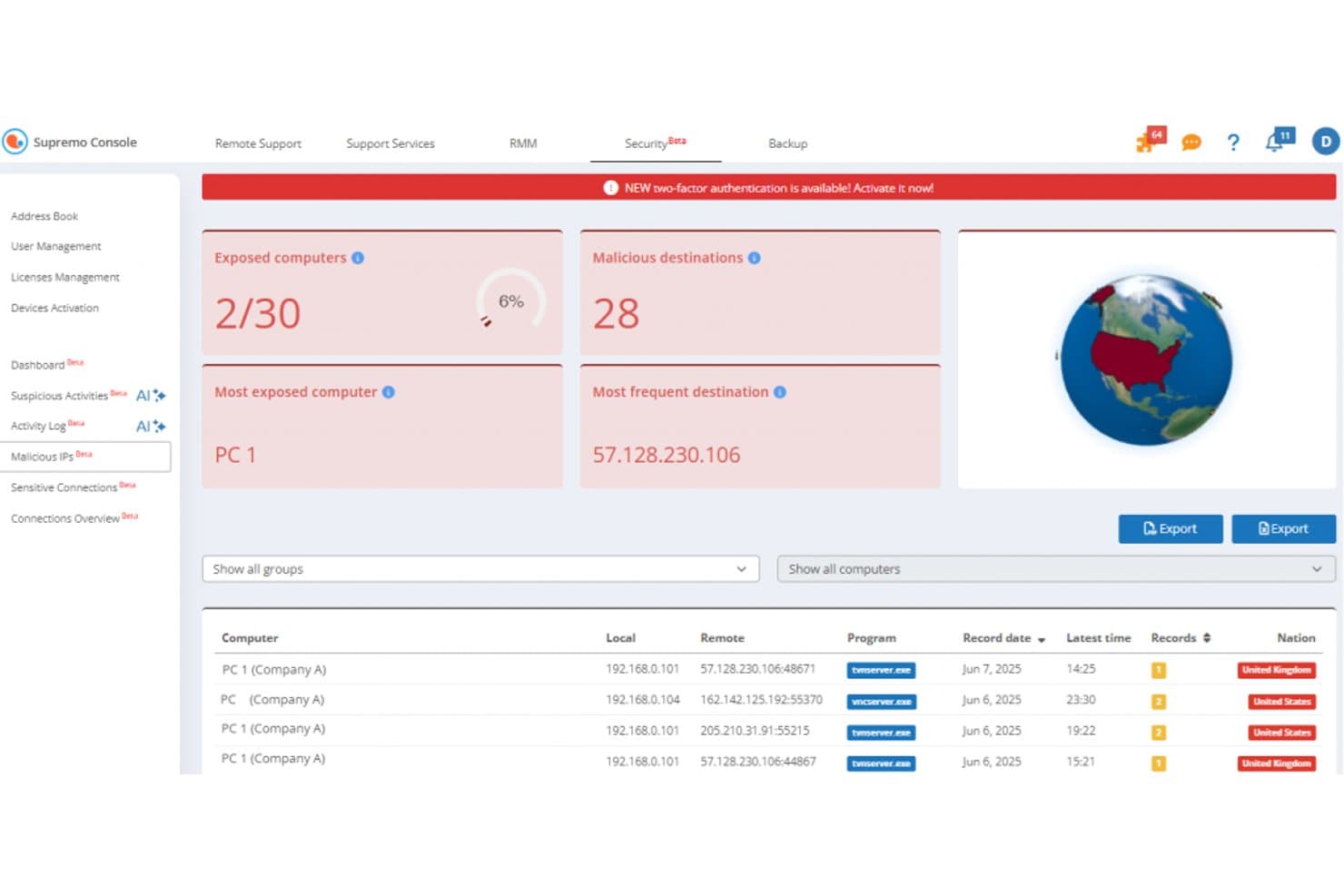
Supremo offers a Security dashboard with malicious IP tracking, exposed computers monitoring, and connection records showing remote destinations by nation. Supremo is a lightweight remote desktop tool from Nanosystems built for IT support teams and MSPs who need unattended access, a branded quick-support client, and RMM capabilities without the complexity or cost of enterprise-tier platforms.
Who Is Supremo Best For?
Supremo is a good fit for small to mid-sized MSPs and IT service providers who run multiple concurrent remote support sessions and want a white-label client without paying enterprise-tier prices.
Why Supremo Is a Good Chrome Remote Desktop Alternative
I've included Supremo in my top picks because its Business and Professional plans support unlimited simultaneous sessions by stacking concurrent connection licenses under a single shared activation code. In practice, my team can run multiple live support sessions at once without separate per-technician subscriptions. I also like the mass deployment feature, which lets me push the Supremo client to endpoints silently, something Chrome Remote Desktop simply can't do.
Supremo Key Features
- Supremo Console RMM dashboard: Manage endpoints, monitor device health, and deploy updates across your environment from a single panel.
- Remote printing: Print documents from remote devices directly to your local printer during a session.
- Address book with contact sharing: Store unlimited device contacts, track online status, and share access lists with teammates.
- Custom-branded client generator: Create a white-label support app with your logo and distribution link for customers.
Supremo Integrations
Native integrations are not clearly documented. Supremo provides an API for custom integrations.
Pros and Cons
Pros:
- White-label client included without extra charge
- Silent mass deployment to endpoints via MSI
- Unlimited concurrent sessions on all paid plans
Cons:
- Mobile app ratings indicate frequent connection drops
- No Linux unattended access agent available
Learn more about Supremo: Best for on-demand attended support sessions
- Free 14-day free trial + free demo available
- From $109/month (billed annually)
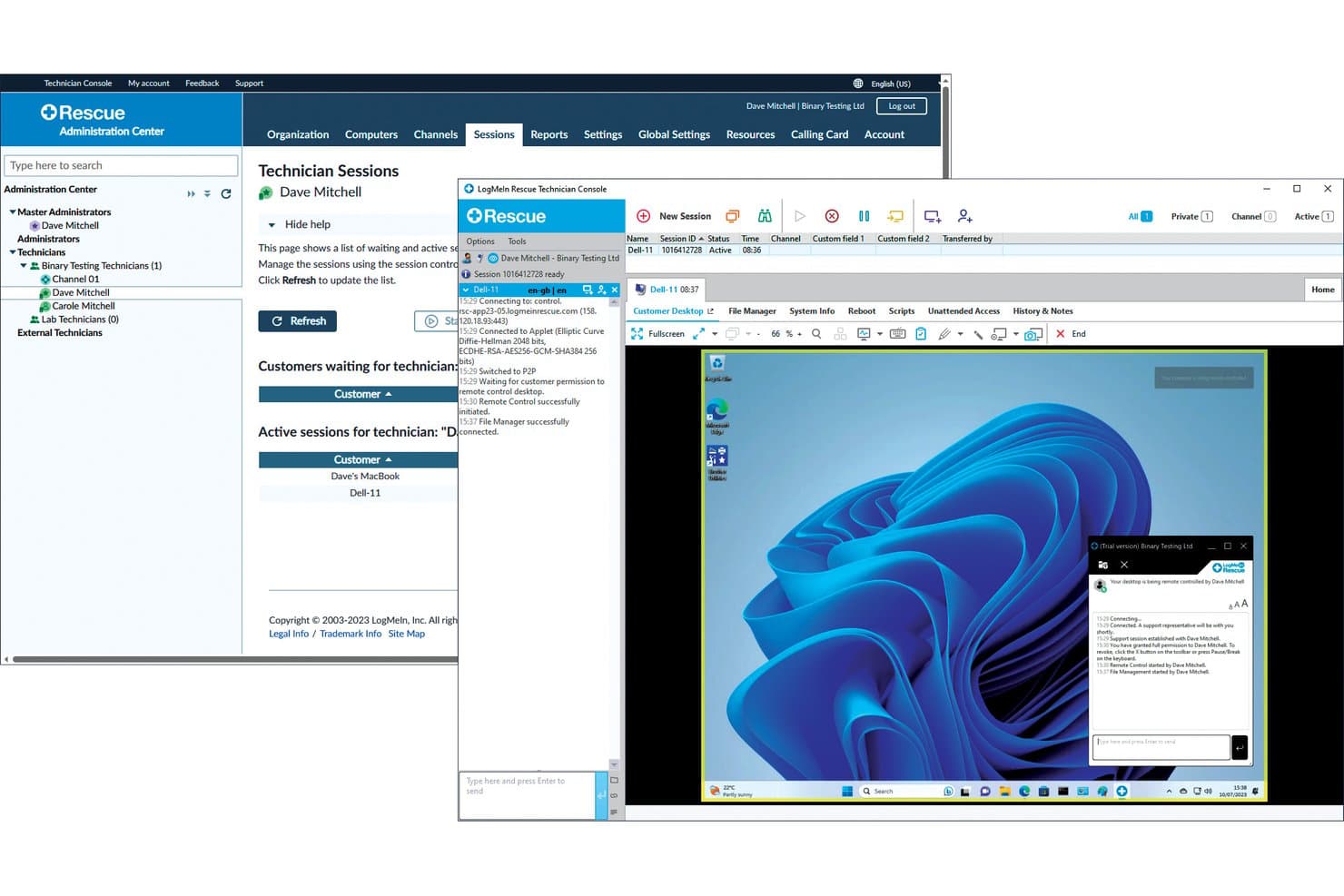
LogMeIn Rescue offers a full remote desktop control interface with live session management, file manager access, and real-time chat between technician and end user. LogMeIn Rescue is an enterprise remote support platform built for IT help desks and MSPs that need secure, on-demand access to user devices across Windows, macOS, Linux, iOS, Android, and ChromeOS.
Who Is LogMeIn Rescue Best For?
It's a strong fit for mid-to-large IT support teams and customer care organizations that run high volumes of remote support sessions daily across mixed device environments.
Why LogMeIn Rescue Is a Good Chrome Remote Desktop Alternative
I picked LogMeIn Rescue as one of the best because its attended session capabilities go well beyond what Chrome Remote Desktop offers. Technicians can start a session via PIN, link, or SMS with no software pre-installed on the end user's device. I particularly like Live Guide, which lets me deliver browser-based guidance without any download at all. On top of that, AI Error Analysis reads on-screen errors in real time and surfaces recommended fixes mid-session.
LogMeIn Rescue Key Features
- Unattended access with device grouping: Technicians can connect to endpoints even when users are away, using predefined device groups for faster access.
- Session recording and auditing: Every remote session can be recorded, logged, and searched for compliance and accountability.
- Role-based access controls: Administrators can define granular permissions to control who can access which devices or features.
- Multi-platform support: Compatible with Windows, macOS, Linux, iOS, Android, and ChromeOS for broad device coverage.
LogMeIn Rescue Integrations
LogMeIn Rescue offers native integrations with ServiceNow, Salesforce, Zendesk, Jira, Freshdesk, and Microsoft Teams. An API is available for custom integrations.
Pros and Cons
Pros:
- Real-time AI error troubleshooting helper
- Instant connection via simple session codes
- PIN-based sessions require no end-user install
Cons:
- Occasional lag on lower-bandwidth remote connections
- Complex admin configuration for smaller IT teams
Learn more about LogMeIn Rescue: Best for encrypted cross-platform connections
- 14-day free trial
- From $8.75/month (billed annually)
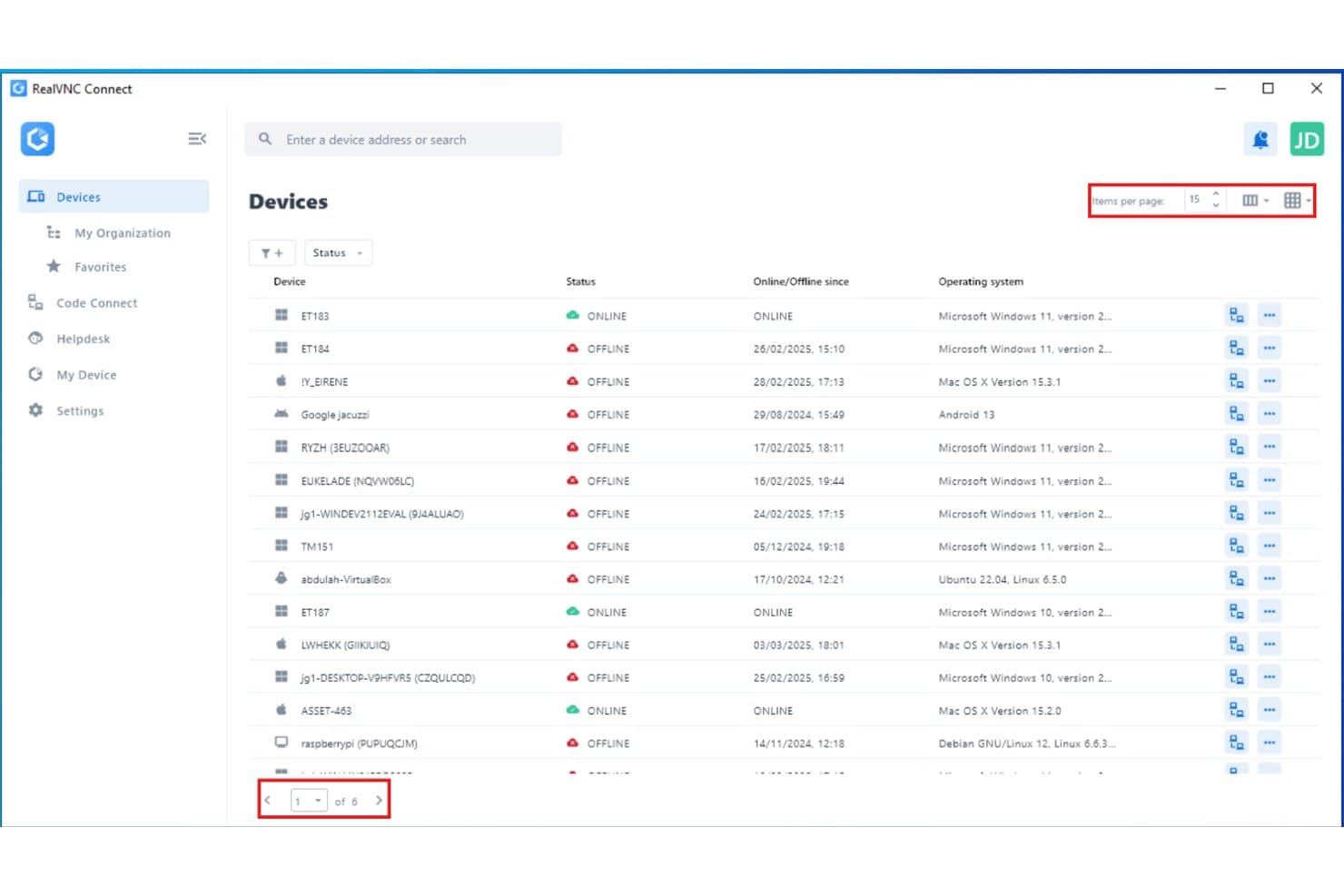
RealVNC Connect displays a multi-device management dashboard listing remote devices with their online/offline status and operating systems across 6 pages. RealVNC Connect is a remote access and support platform built for IT teams who need encrypted, cross-platform connections to Windows, macOS, Linux, and mobile devices without the browser-dependency limitations of Chrome Remote Desktop.
Who Is RealVNC Connect Best For?
IT support technicians and MSP agents who manage large fleets of mixed-OS devices and need enterprise-grade security controls will get the most out of RealVNC Connect.
Why RealVNC Connect Is a Good Chrome Remote Desktop Alternative
RealVNC Connect earns its spot on my shortlist because every session, regardless of OS, is protected with end-to-end 256-bit AES encryption. I particularly like that you can enforce MFA per session and pull detailed audit logs, which Chrome Remote Desktop simply doesn't offer. On top of that, Code Connect generates self-expiring session codes every two minutes, so there's no lingering access risk when supporting remote users across Windows, macOS, Linux, and mobile devices.
RealVNC Connect Key Features
- Session recording: Record remote sessions automatically for compliance and audit trails.
- Multi-level device lists: Organize endpoints by department, location, or team for easier management at scale.
- Dual-pane file transfer: Move files between local and remote systems with a drag-and-drop interface.
- Presence status indicators: See which devices are currently online, offline, or unavailable in real time.
RealVNC Connect Integrations
Native integrations are not clearly documented. An API is available for custom integrations.
Pros and Cons
Pros:
- Built-in session recording for compliance auditing
- Supports Windows, macOS, Linux, iOS, and Android
- End-to-end 256-bit AES encryption built in
Cons:
- No browser-based access for technicians
- Agent must be pre-installed on remote devices
Learn more about RealVNC Connect: Best for granular technician-level permissions
- 14-day free trial + free demo available
- Pricing upon request
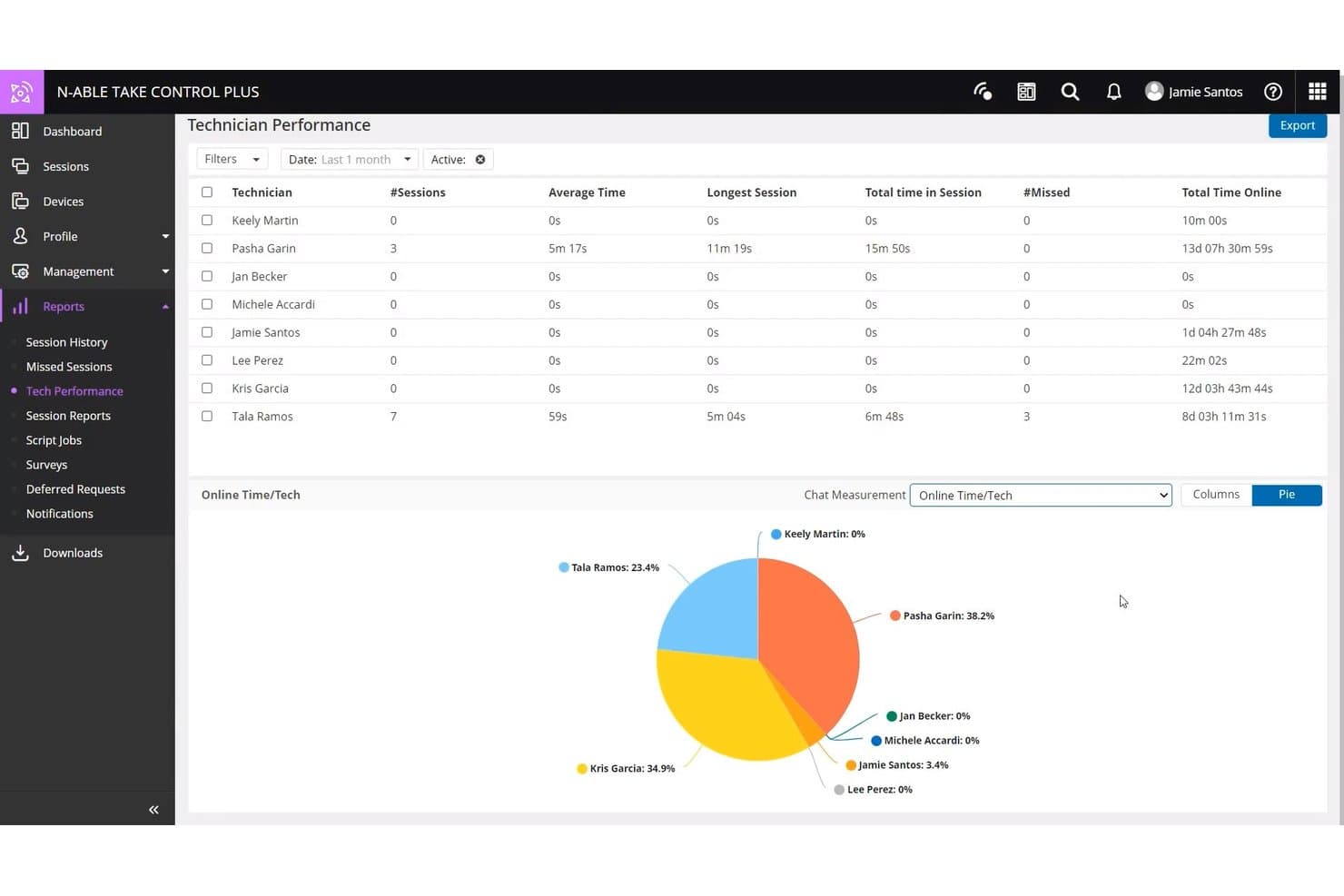
N-able Take Control offers a detailed Technician Performance report with session stats, missed sessions, and online time visualized in a pie chart. N-able Take Control is a remote support tool built for MSPs and IT support teams who need fast, secure connections to client devices across Windows, macOS, Linux, iOS, and Android—without the limitations of a basic remote access tool.
Who Is N-able Take Control Best For?
It's a strong fit for managed service providers running multi-client support operations who need to manage technician access, accountability, and session activity across many endpoints.
Why N-able Take Control Is a Good Chrome Remote Desktop Alternative
I've included N-able Take Control in my top picks because of how precisely you can control what each technician can see and do. You can assign per-technician permissions, enforce IP access restrictions, and protect sessions with MFA and Secrets Vaults. I also use the real-time session dashboard to monitor active sessions and pull tech performance reports when I need accountability across the team.
N-able Take Control Key Features
- Session recording: Automatically capture every remote session for compliance and review.
- Multi-monitor support: View and switch between multiple displays during a remote session.
- Wake-on-LAN: Power on offline client machines remotely to enable support any time.
- File transfer: Drag and drop files or folders between local and remote devices during support sessions.
N-able Take Control Integrations
N-able Take Control has native integrations with N-central, N-sight RMM, MSP Manager, and Passportal. An API is available for building custom integrations.
Pros and Cons
Pros:
- Integrated real-time performance monitoring dashboard
- Session recording included for compliance auditing
- Granular per-technician permission controls built in
Cons:
- Steeper onboarding for solo IT technicians
- Mobile viewing limited compared to desktop access
Learn more about N-able Take Control: Best for credential and session management
- 30-day free trial
- From $30/user/month
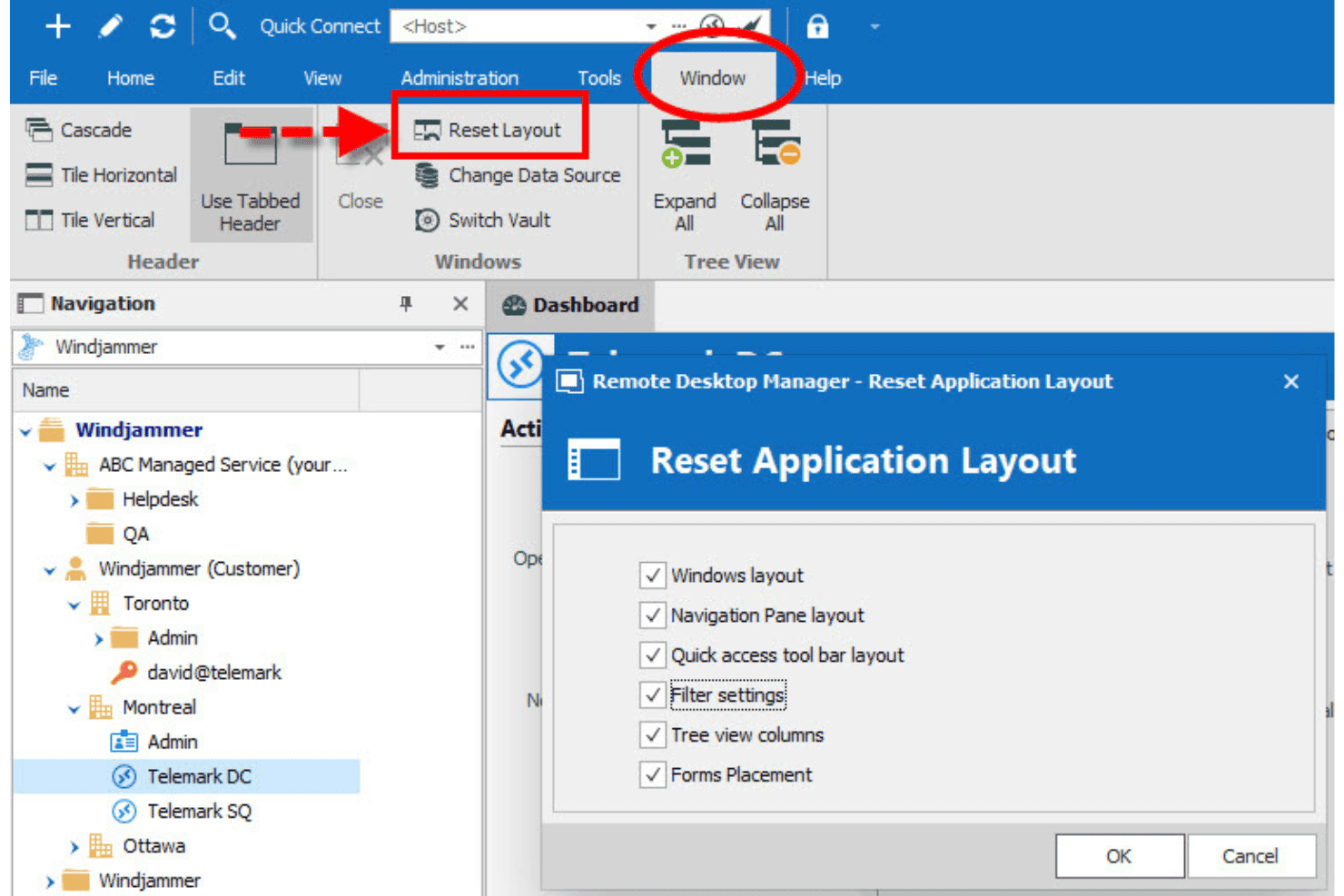
Devolutions Remote Desktop Manager allows users to reset the application layout via the Window menu, offering options to restore Windows layout, Navigation Pane, Quick access toolbar, Filter settings, Tree view columns, and Forms Placement. Devolutions Remote Desktop Manager is a centralized IT access platform for sysadmins and MSPs who need to manage remote connections across 150+ protocols, control privileged credentials, and enforce access policies across mixed-OS environments.
Who Is Devolutions Remote Desktop Manager Best For?
It's a strong fit for IT teams at small to mid-sized organizations that need to centralize access management without the cost of enterprise PAM platforms.
Why Devolutions Remote Desktop Manager Is a Good Chrome Remote Desktop Alternative
I picked Devolutions Remote Desktop Manager because its approach to credential management goes well beyond what Chrome Remote Desktop offers. Credentials are injected directly into sessions at launch, so technicians never see or copy the actual password. Paired with account brokering and granular RBAC, I can grant access to specific systems without exposing the underlying credentials at all.
Devolutions Remote Desktop Manager Key Features
- Session recording and auditing: Keep detailed logs and recordings of all technician activity for compliance and accountability.
- Multi-monitor support: View and switch between multiple monitors on connected remote machines.
- Cross-platform clients: Access and manage remote systems from Windows, macOS, Linux, iOS, and Android devices.
- File transfer protocol support: Move files between local and remote machines using SCP and SFTP within the session.
Devolutions Remote Desktop Manager Integrations
Devolutions Remote Desktop Manager offers native integrations with Active Directory, Azure Active Directory, Okta, CyberArk, Thycotic, BeyondTrust, and LastPass, and provides an API for custom integrations.
Pros and Cons
Pros:
- Centralized credential vault with role-based access
- Built-in session recording with searchable audit logs
- Supports 150+ remote connection protocol types
Cons:
- Initial setup is complex for smaller teams
- Requires high system resources during usage
Learn more about Devolutions Remote Desktop Manager: Best for global remote connectivity across devices
- 30-day free trial
- From $24.9/month (billed annually)
Visit WebsiteCustomer Rating:4.6/5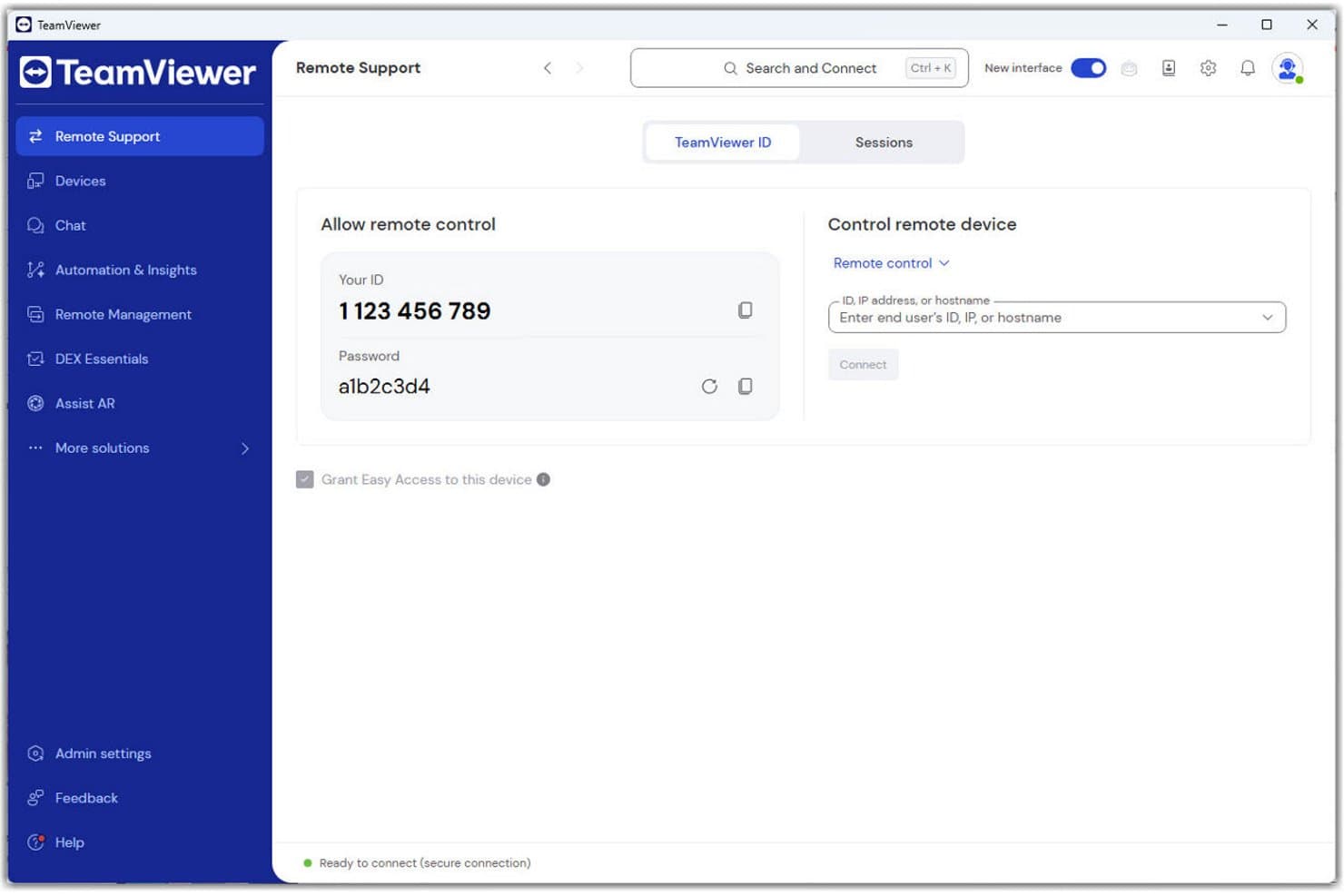
TeamViewer offers a clean remote support interface displaying your unique ID, session password, and a field to connect to remote devices. TeamViewer is a remote connectivity platform built for IT teams who need secure, cross-platform access to endpoints, servers, and user devices across any OS without the limitations of browser-based tools like Chrome Remote Desktop.
Who Is TeamViewer Best For?
TeamViewer is a strong fit for IT support teams and MSPs managing distributed device fleets across multiple operating systems and geographies.
Why TeamViewer Is a Good Chrome Remote Desktop Alternative
I picked TeamViewer as one of the best because its device reach is unmatched in this category. While Chrome Remote Desktop is limited to browser-based connections on a narrow device set, TeamViewer supports Windows, macOS, Linux, iOS, Android, and ChromeOS with full feature parity. Wake-on-LAN lets my team power on remote devices before connecting, and unattended access with granular RBAC means I can control exactly who reaches which endpoint across a globally distributed fleet.
TeamViewer Key Features
- Session recording and auditing: Record remote support sessions automatically and access searchable audit logs for compliance tracking.
- Mobile device management: Enroll, monitor, and configure mobile devices alongside traditional endpoints from a unified dashboard.
- Asset management: Automatically discover, inventory, and report on all managed devices across your environment.
- Custom branding: Apply your organization's logos and colours within the remote support interface and quick-support modules.
TeamViewer Integrations
TeamViewer offers native integrations with ServiceNow, Freshworks, Zendesk, Jira, Microsoft Teams, Salesforce, IBM MaaS360, Jamf Pro, MobileIron, and Intune. An API is available for custom integrations.
Pros and Cons
Pros:
- Built-in session recording for compliance auditing
- Wake-on-LAN powers on offline endpoints remotely
- Connects across all major operating systems
Cons:
- Can flag personal use as commercial
- Requires software installation on both endpoints
Learn more about TeamViewer: Best for low-latency remote desktop performance
- Free trial + free demo available
- From $28.90/month (billed annually)

AnyDesk offers a centralized dashboard displaying connections, users, deployed clients, address books, available builds, and online client access. AnyDesk is a remote desktop platform built for IT teams and MSPs who need fast, cross-platform access to endpoints, servers, and user devices without the limitations of browser-dependent tools like Chrome Remote Desktop.
Who Is AnyDesk Best For?
AnyDesk is a strong fit for MSPs and IT support teams that manage remote access across large, mixed-OS device fleets and need reliable performance on constrained connections.
Why AnyDesk Is a Good Chrome Remote Desktop Alternative
AnyDesk earns its spot on my shortlist because of its proprietary DeskRT codec, which maintains fluid, low-latency connections even on slow or unstable networks. I've used it in situations where Chrome Remote Desktop becomes sluggish or drops entirely, and AnyDesk keeps the session responsive. Features like Wake-on-LAN and unattended access to up to 1,000 managed devices make it genuinely practical for large-scale endpoint management.
AnyDesk Key Features
- REST API integration: Connect AnyDesk with automation tools and IT systems through its programmable interface.
- On-premises deployment: Deploy AnyDesk fully within your own infrastructure for maximum data control.
- Session recording: Record and archive remote access sessions for compliance or auditing needs.
- Custom client generator: Create branded, pre-configured AnyDesk clients tailored to your organization’s requirements.
AnyDesk Integrations
Native integrations are not clearly documented. AnyDesk provides an API for custom integrations.
Pros and Cons
Pros:
- On-premises deployment option available
- Unattended access scales to large device fleets
- Low-latency sessions even on poor connections
Cons:
- Mobile app has limited remote control functionality
- No browser-based client for remote technicians
Learn more about AnyDesk: Best for robust security and compliance workflows
- Free trial + free demo available
- Pricing upon request
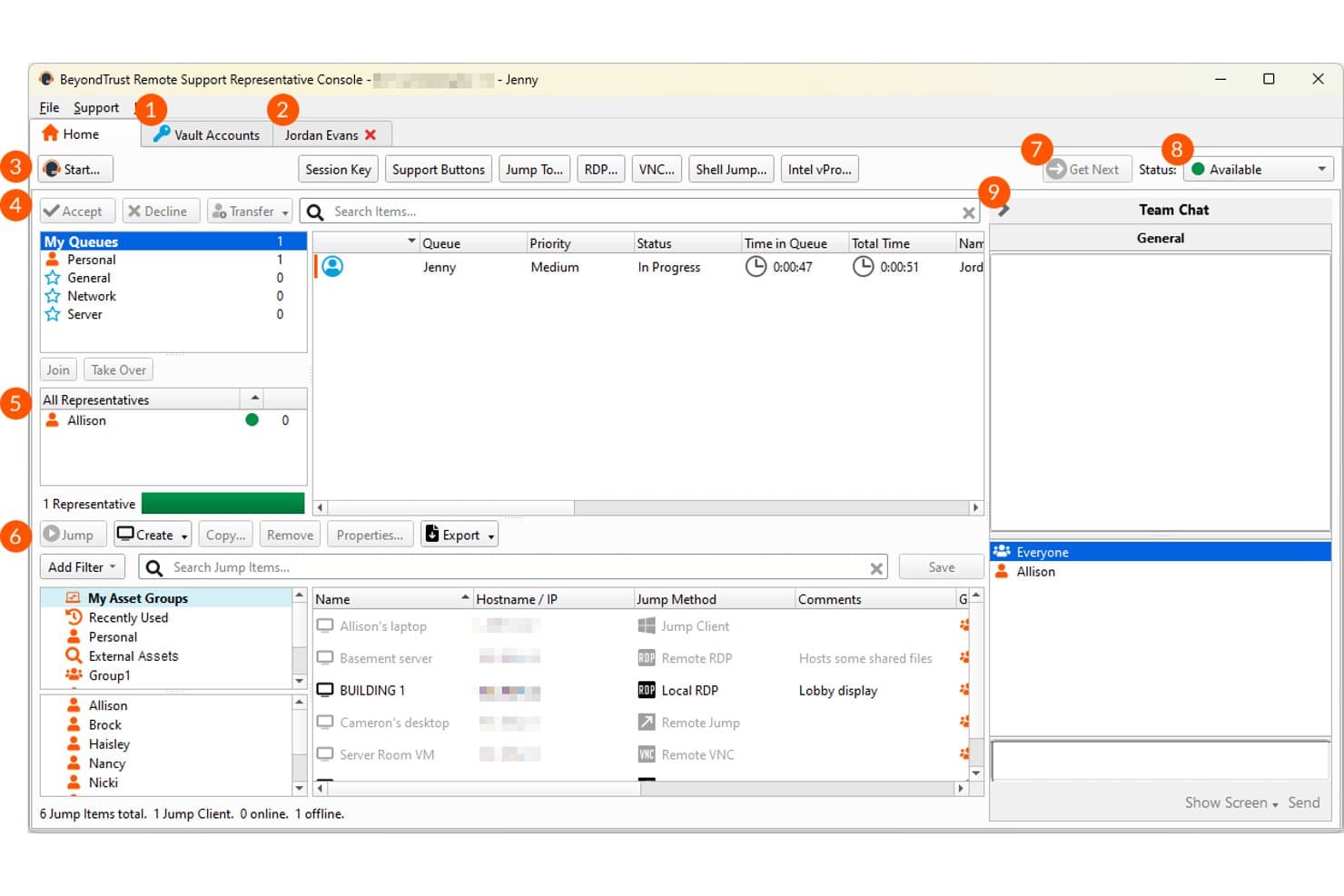
BeyondTrust Remote Support offers a representative console with session queues, jump item management, asset groups, and team chat for remote support operations. BeyondTrust Remote Support is an enterprise remote access platform built for IT teams and MSPs that need auditable, compliance-ready sessions across Windows, macOS, Linux, iOS, Android, and ChromeOS — without asking end users to pre-install anything.
Who Is BeyondTrust Remote Support Best For?
It's a strong fit for enterprise IT teams and service desks in regulated industries where security controls, session auditing, and compliance certifications are non-negotiable.
Why BeyondTrust Remote Support Is a Good Chrome Remote Desktop Alternative
I've included BeyondTrust Remote Support in my top picks because it's the only remote support tool I know of with FIPS 140-2 Level 1 validation, which matters the moment your environment touches FedRAMP, HIPAA, or FISMA requirements. Every session gets a full video audit trail and detailed logs, so when a compliance review comes around, the records are already there. I also appreciate the vaulted credential injection, which lets my team authenticate into remote systems without ever exposing the underlying passwords.
BeyondTrust Remote Support Key Features
- Jump Clients: Deploy persistent agents for unattended remote connections to thousands of endpoints.
- Session management dashboard: Monitor and control all active support sessions from a centralized interface.
- Custom branded portals: Set up end-user-facing portals with your company’s branding for initiating support requests.
- Drag-and-drop file transfer: Move files securely between local and remote machines during an active session.
BeyondTrust Remote Support Integrations
BeyondTrust Remote Support offers native integrations with ServiceNow, BMC Remedy, Salesforce, Cherwell, Freshservice, Jira Service Management, Zendesk, and SysAid. An API is available for custom integrations.
Pros and Cons
Pros:
- Supports both attended and unattended access natively
- FIPS 140-2 validated encryption for compliance environments
- Full session recording with searchable audit logs
Cons:
- No built-in screen zoom controls in session
- Lacks built-in voice communication options
Learn more about BeyondTrust Remote Support: Best for scalable unattended endpoint management
- 7-day free trial
- From $1.84/month (billed annually)
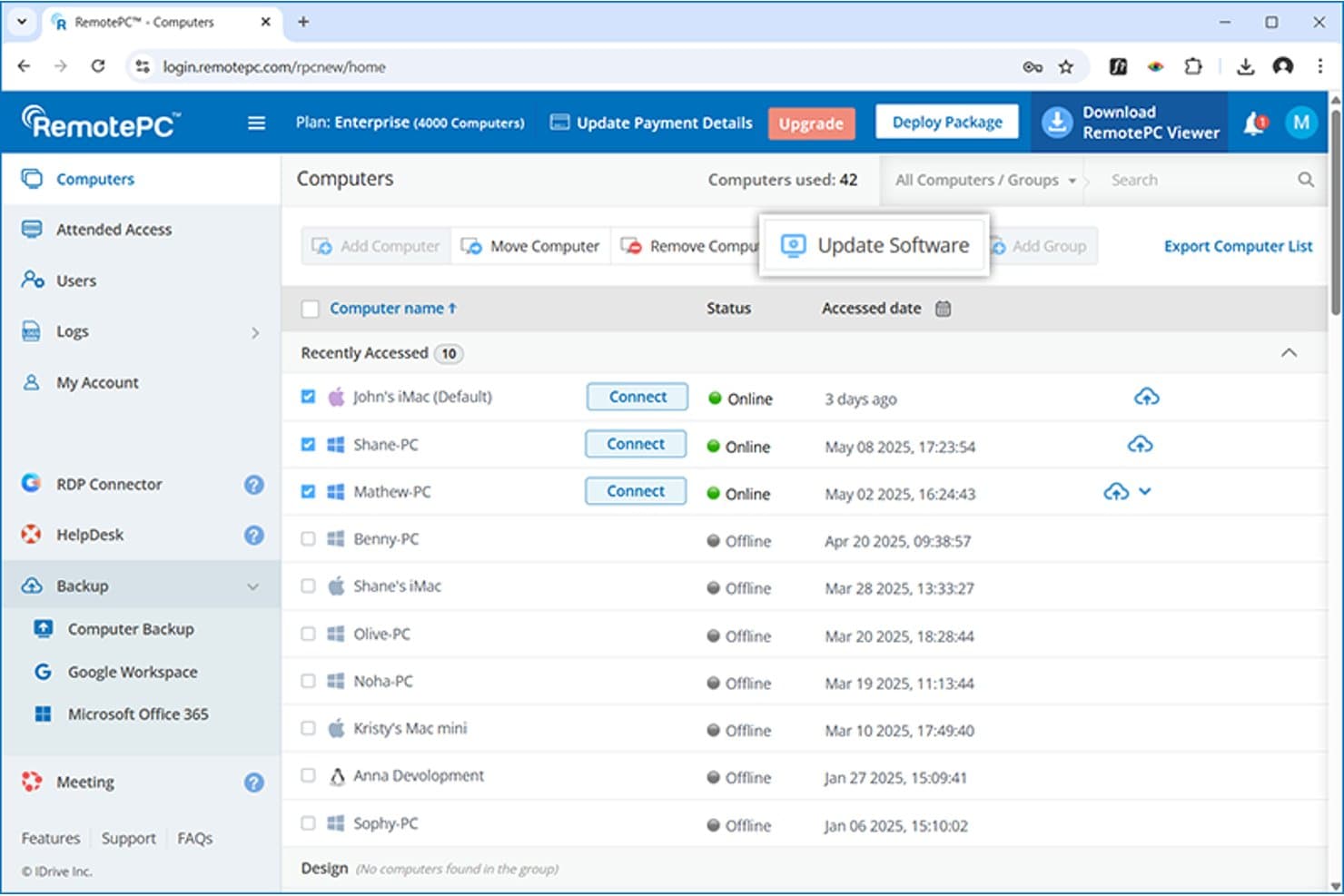
RemotePC offers an 'Update Software' button in the Computers dashboard, allowing users to manage and update remote machines from a centralized interface. RemotePC is a remote access platform built for IT teams and MSPs who need secure, always-on connections to endpoints across Windows, macOS, and Linux—without the compliance gaps and admin limitations that come with free tools like Chrome Remote Desktop.
Who Is RemotePC Best For?
RemotePC is a strong fit for small to mid-sized IT teams and MSPs managing distributed endpoints who need enterprise-grade access controls without enterprise-level pricing.
Why RemotePC Is a Good Chrome Remote Desktop Alternative
I picked RemotePC as one of the best because it handles unattended access at a scale Chrome Remote Desktop simply can't match. I like that you can deploy the agent to thousands of endpoints via an MSI package through NinjaOne, then organize them into groups with scheduling and Wake-on-LAN baked in. In practice, that means I can wake, connect, and manage an offline machine without anyone touching the end user's desk.
RemotePC Key Features
- Session recording and audit logs: Record remote sessions automatically and review searchable activity logs for compliance and accountability.
- Multi-monitor support: View and interact with all remote monitors simultaneously or switch between them during a session.
- Wake-on-LAN: Power on offline, network-connected endpoints remotely without user intervention.
- In-session chat: Communicate with end users in real time directly within the remote support session.
RemotePC Integrations
RemotePC offers native integrations with NinjaOne, Remote Desktop Protocol (RDP) Connector, and Okta, and provides an API for custom integrations.
Pros and Cons
Pros:
- Session recording included on all plans
- Bulk agent deployment via installation packages
- Supports unattended access across thousands of endpoints
Cons:
- No built-in ticketing or helpdesk tools
- Mobile app lacks full desktop feature parity
Learn more about RemotePC: Best for custom remote session control
- 14-day free trial available
- From $33/month (billed annually)
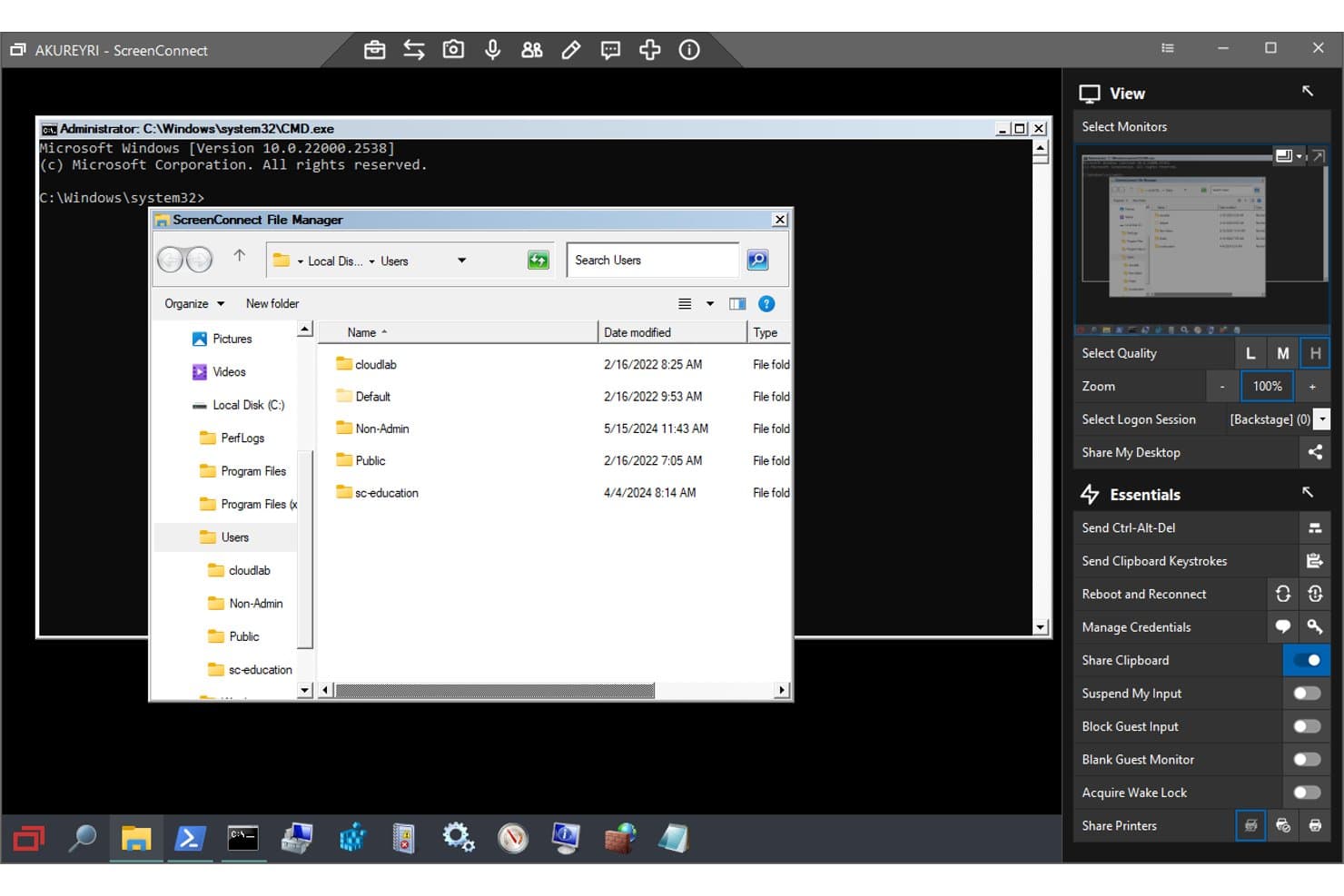
ScreenConnect Remote Access offers a file manager and backstage CMD access, allowing administrators to browse and manage remote files without disrupting the end user. ScreenConnect Remote Access is a remote access and support platform built for IT teams and MSPs who need secure, unattended access to endpoints across Windows, macOS, and Linux environments.
Who Is ScreenConnect Remote Access Best For?
It's a natural fit for MSPs and internal IT teams that manage large fleets of endpoints and need granular control over how remote sessions are configured and secured.
Why ScreenConnect Remote Access Is a Good Chrome Remote Desktop Alternative
ScreenConnect Remote Access earns its spot on my shortlist because of how much control it gives me over every aspect of a remote session. I love the Backstage feature, which lets me access file systems, PowerShell, and the registry on a remote machine without ever disrupting the end user's screen. Bridge Connectivity is also notable, letting me connect via RDP or VNC without installing an agent first, which Chrome Remote Desktop simply doesn't offer.
ScreenConnect Remote Access Key Features
- Session recording and video auditing: Capture and review full remote sessions for compliance and accountability.
- Role-based access control: Assign granular permissions to users and groups for secure access management.
- Dynamic session grouping: Automatically organize endpoints by criteria like OS, status, or tags to make device management simpler.
- Wake-on-LAN support: Power on offline devices remotely without physical access to endpoint locations.
ScreenConnect Remote Access Integrations
ScreenConnect Remote Access offers native integrations with ConnectWise PSA, ConnectWise Automate, and ConnectWise RMM. An API is available for custom integrations.
Pros and Cons
Pros:
- Supports unattended access across large device fleets
- Backstage access without disrupting end users
- Highly customizable session branding and toolbars
Cons:
- Mobile client has limited session control options
- Self-hosted setup requires significant infrastructure effort
Learn more about ScreenConnect Remote Access:
Andre alternativer til Chrome Remote Desktop
Her er noen flere alternativer til Chrome Remote Desktop som ikke kom med på kortlisten, men som likevel er verdt å undersøke:
- 11SplashtopBest for secure remote access with SSO integration
- 12Zoho AssistBest for browser-based remote IT support
- 13PulsewayBest for remote control from mobile devices
- 14ManageEngine Remote Access PlusBest for session auditing and troubleshooting
- 15Iperius RemoteBest for lightweight unattended access
- 16NinjaOneBest for endpoint monitoring and remote access
- 17ISL OnlineBest for cross-platform browser access
- 18RustDeskBest for open-source deployment flexibility
- 19Dameware Remote EverywhereBest for advanced session recording capabilities
How I Evaluate Chrome Remote Desktop Alternatives
I split evaluation into two layers: the baseline every Chrome Remote Desktop alternative must offer, and differentiators that set tools apart. Core covers what's standard across remote access tools; differentiators are what I look for beyond that.
Core Functionality (Table Stakes For This List)
When I'm selecting tools for my list, I rank each one on a scale from 0 (does not offer the functionality) to 5 (excels in this area) for each core functionality listed below. Then, I calculate the tool's total score as a percentage. Each tool needs to achieve a minimum total score of 75% to be considered for inclusion.
- Cross-Platform Access: I check whether a tool supports Windows, macOS, and Linux connections, plus mobile viewers for iOS and Android—essential when your fleet spans mixed OS environments.
- Unattended Remote Access: This covers connecting to endpoints without anyone on the other side, like patching a server at 2 a.m. or running maintenance across grouped devices.
- Attended Support Sessions: I evaluate how end users join live sessions—whether via a code, link, or lightweight applet—and look for built-in chat and annotation tools.
- Secure Encrypted Connections: Encryption standards, MFA enforcement, and session logging all factor in. I look for AES-256 encryption at minimum, with SSO and audit trails for regulated teams.
- File Transfer: Moving files between local and remote machines during a session matters for deploying patches or pulling logs. Drag-and-drop and background transfers score higher here.
- Multi-Monitor Support: Many technicians and developers work across two or three screens. I evaluate whether the tool detects all monitors and lets you switch or view them simultaneously.
Once I have a list of tools that meet the criteria, I consider what sets each platform apart.
Differentiating Factors (What Sets Vendors Apart)
Here's how I compare and contrast different vendors:
Standout Features
Session recording with searchable logs is a major differentiator, especially for MSPs who need to document what happened during a support call for compliance or dispute resolution. Wake-on-LAN is another feature I look for—it lets you power on offline machines remotely, which saves physical trips for after-hours maintenance. In-session chat paired with drag-and-drop file transfer also makes a real difference during live troubleshooting, letting you exchange configs or pull logs without leaving the session.
Beyond Features
Primary use case fit matters a lot here. A tool built for MSP client management handles multi-tenancy and branding differently than one aimed at internal IT helpdesks. I also evaluate security and compliance posture—certifications like SOC 2 or HIPAA tell you whether the platform can operate in regulated environments without extra workarounds. Pricing models vary widely too. Per-technician licensing suits small support teams, while per-endpoint models work better when you're managing hundreds of unattended devices.
Hvorfor se etter et alternativ til Chrome Remote Desktop?
Selv om Chrome Remote Desktop er et godt valg av RMM-programvare, finnes det flere grunner til at enkelte brukere ser etter alternative løsninger. Det kan hende du ser etter et alternativ til Chrome Remote Desktop fordi …
- Du trenger sikker ekstern tilgang, endepunktadministrasjon og samsvarskontroller på bedriftsnivå
- Du støtter et stort og blandet operativsystemmiljø med bred kompatibilitet på tvers av plattformer
- Du ønsker ekte tilgang uten tilsyn, fjernstyring og gruppering av enheter
- Du trenger opptak av økter, skjermdeling eller revisjonsspor
- Du møter begrensninger for støtte av flere skjermer eller ekstern utskrift
- Du trenger avansert brukeradministrasjon, verktøy for kundestøtte og tillatelsesinnstillinger for IT-support og brukerstøtteteam
Hvis noe av dette høres kjent ut, har du kommet til rett sted. Listen min inneholder flere alternativer for eksternt skrivebord og løsninger for eksternt skrivebord som tilbyr god funksjonalitet, transparente priser og en komplett opplevelse.
Viktige funksjoner i Chrome Remote Desktop
Her er noen av de viktigste funksjonene i Chrome Remote Desktop som kan hjelpe deg med å sammenligne hva programvare for ekstern tilgang og alternative verktøy for ekstern brukerstøtte tilbyr:
- Ekstern tilgang: Koble til den eksterne datamaskinen eller mobilenheten din fra hvor som helst via Chrome-nettleseren eller Chrome-utvidelsen, slik at du kan arbeide på den eksterne enheten akkurat som om du satt foran den.
- Støtte på tvers av plattformer: Få tilgang til Windows-, macOS- (Mac), Linux-, Android- og iOS-enheter, slik at medlemmer av brukerstøtteteamet kan feilsøke på tvers av ulike operativsystemer uten å installere flere apper for eksternt skrivebord.
- Tilgang uten tilsyn: Konfigurer eksterne enheter for tilgang uten brukerinndata, slik at du kan logge på og administrere datamaskiner selv om ingen er til stede på den andre siden. Dette gjør løsningen velegnet både til personlig bruk og ekstern brukerstøtte.
- Brukerstøtte ved behov: Hjelp venner eller kolleger ved å generere en øktkode for midlertidige, overvåkede eksterne tilkoblinger uten permanent installasjon.
- Helhetlig kryptering: Beskytt eksterne tilkoblinger med Googles krypterte tilkoblinger ved hjelp av Google-kontoen din eller personlige Google-kontoer, slik at data som overføres, forblir private mellom den lokale og den eksterne datamaskinen.
- Enkel filoverføring: Overfør filer og administrer fildeling mellom lokale og eksterne datamaskiner, slik at det blir enklere å dele logger, dokumenter eller installasjonspakker under en ekstern økt.
- Øktadministrasjon: Se aktive eksterne økter og koble fra økter som ikke lenger trengs, for enklere bruk og ekstern kontroll over sikker ekstern tilgang.
- Støtte for flere skjermer: Bytt mellom flere skjermer på den eksterne maskinen, slik at du alltid ser skjermen du trenger å arbeide på eller feilsøke.
- Nettleserbasert tilgang: Arbeid helt fra Google Chrome eller en hvilken som helst nettleser uten å installere tung klientprogramvare. Dette gir en brukervennlig løsning for ad hoc-brukerstøtte eller brukerstøtte på mobile enheter.
- Gratis å bruke: Få tilgang til enhetene dine uten kostnad med denne gratisversjonen, noe som passer for brukere som trenger grunnleggende tilgang uten å investere i betalte, selvhostede verktøy eller kommersiell RMM-programvare med komplisert prissetting.