
Using MDM software well means more than getting devices enrolled—it means building a repeatable process that keeps your fleet secure, compliant, and manageable at scale. Most IT teams set up the basics and stop there, leaving real gaps in policy enforcement and visibility.
This guide walks you through seven practical steps: from enrollment and security policies to app deployment, compliance monitoring, and remediation. If you've ever dealt with a device going out of scope quietly, you'll know why getting this workflow right matters.
Selecting the Best MDM Software
Before you commit to a platform, narrow your options against criteria that are specific to device management needs:
- OS and platform coverage: Make sure the solution supports every operating system and device type in your fleet—iOS, Android, Windows, macOS, and ChromeOS each require different management capabilities.
- Enrollment method flexibility: Look for support for zero-touch enrollment options like Apple Business Manager, Android Zero-Touch, and Windows Autopilot, since manual enrollment doesn't scale past a few dozen devices.
- Policy granularity: The platform should let you apply configuration profiles at the user, group, or device level rather than only fleet-wide, so you can enforce different rules across different departments or risk tiers.
- Identity provider integration: Confirm that the MDM integrates directly with your existing directory service—whether that's Microsoft Entra ID (formerly Azure Active Directory), Okta, or an on-premises LDAP—so access control stays tied to your single source of truth.
- Compliance reporting and audit trail depth: You need exportable compliance reports with timestamped policy states, not just a live dashboard, to satisfy security audits or regulatory reviews after the fact.
- Deployment model options: Decide whether a cloud-hosted or on-premises deployment fits your data residency requirements, since some regulated industries or geographies restrict where device data can be processed and stored.
Step-by-Step Guide to Using MDM Software
Treat MDM as a repeatable workflow: define ownership and access before enrollment, then test policies with a small device group. This helps you catch platform-specific gaps before they affect the wider fleet:
Have an account? Log In
1. Enroll All Devices Into the Platform
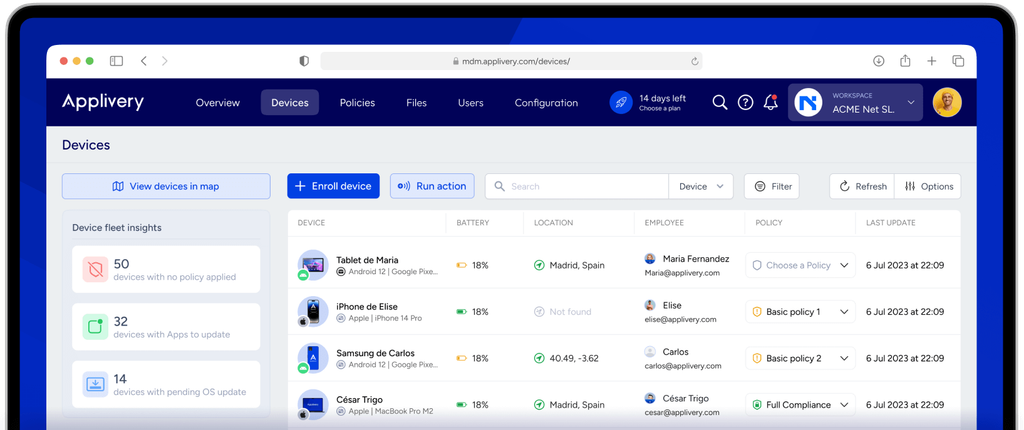
Enrollment is what brings devices under management—nothing else in your MDM workflow works until this is done. For corporate-owned fleets, I'd use zero-touch methods like Apple Business Manager or Windows Autopilot to avoid manual setup at scale.
For BYOD scenarios, user-initiated enrollment through a company portal works well. Either way, grouping devices by OS or department during enrollment saves you significant policy configuration time later.
Keep these enrollment best practices in mind before you push devices to production:
- Match the method to the ownership model: Use zero-touch enrollment—Apple Business Manager for iOS and macOS, Android Zero-Touch for Android, Windows Autopilot for Windows—on corporate-owned devices.
Reserve user-initiated portal enrollment, like the one in Microsoft Intune's Company Portal, for BYOD scenarios where IT doesn't control the out-of-box experience. - Define device groups before you start: Group devices by OS, department, or risk tier during enrollment rather than after. Reconfiguring group membership retroactively in a platform like Jamf Pro or Omnissa Workspace ONE UEM is tedious and error-prone.
- Pilot with a staging group first: Enroll 10–20 devices in a test group before rolling out to the full fleet. This surfaces platform-specific enrollment failures—like a misconfigured DEP token or a certificate issue—before they affect hundreds of endpoints.
- Confirm identity binding at enrollment: Tie each device to a user identity through your identity provider at the point of enrollment. If a device lands in your MDM without an owner, tracking down who it belongs to later is a real headache, especially for compliance purposes.
- Document serial numbers and enrollment timestamps: Log each device's serial number, assigned user, and enrollment date in your CMDB or asset register. MDM platforms like Iru (formerly Kandji) and Mosyle give you this data, but it's worth exporting it to a system you own independently.
- Plan for re-enrollment scenarios: Devices get wiped, sold, or reassigned. Set up automated re-enrollment workflows from the start so a factory-reset device rejoins your fleet without manual IT intervention.
2. Define User Roles and Access Permissions
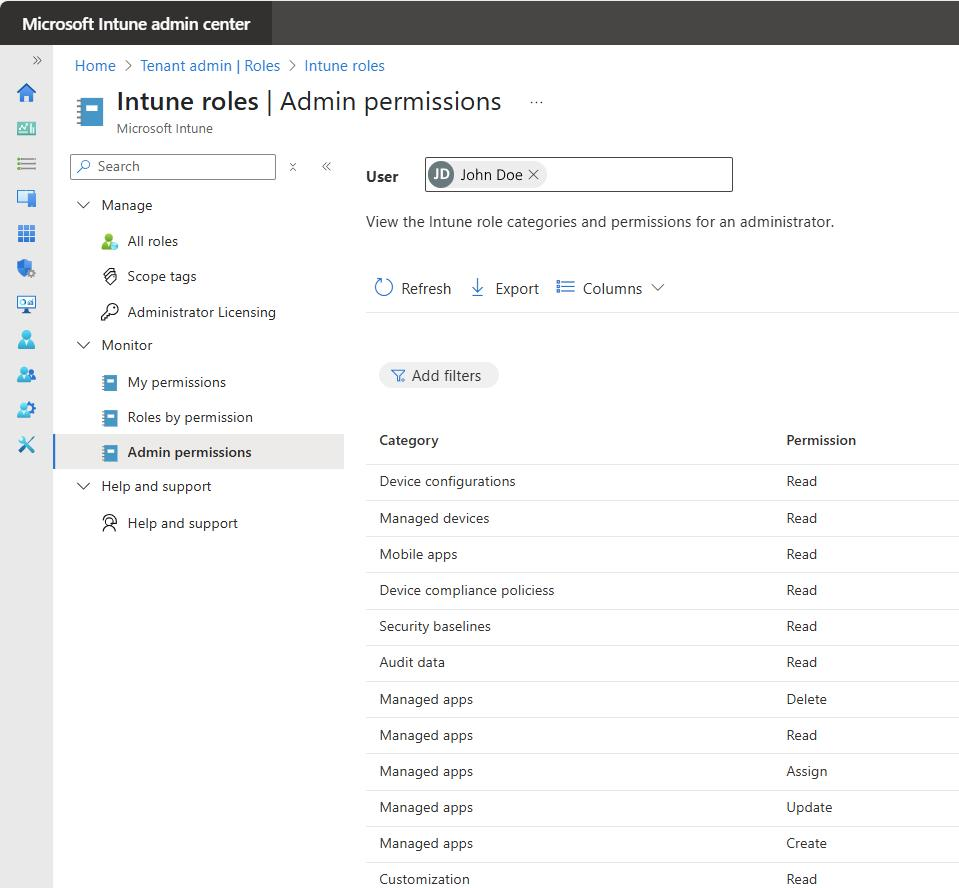
Role-based access keeps your MDM configuration from becoming a free-for-all. I'd set up at minimum three tiers: read-only for helpdesk, policy management for IT admins, and full administrative access for senior engineers.
This matters because an overpermissioned helpdesk account that can wipe devices is a real liability. In platforms like Microsoft Intune or Jamf Pro, role scoping also limits which device groups each admin can touch—critical for segmenting contractor fleets from corporate ones.
Use this table to map each access tier to the right people and permissions before you configure roles in your MDM platform:
| Role Tier | Who It's For | Key Permissions | Restricted From |
|---|---|---|---|
| Role TierRead-only | Who It's ForHelpdesk staff, L1 support | Key PermissionsView device status, enrollment state, compliance flags | Restricted FromEditing policies, wiping devices, modifying group membership |
| Role TierPolicy manager | Who It's ForIT admins, endpoint engineers | Key PermissionsCreate and edit configuration profiles, deploy apps, run compliance reports | Restricted FromFull admin controls, billing, identity provider configuration |
| Role TierFull admin | Who It's ForSenior engineers, IT leads | Key PermissionsAll permissions, including device wipe, role assignment, and MDM server settings | Restricted FromNothing—use sparingly and audit regularly |
| Role TierScoped admin | Who It's ForContractor IT teams, regional admins | Key PermissionsFull admin rights within an assigned device group only | Restricted FromDevice groups outside their assigned scope |
A few things I'd flag from using platforms like Microsoft Intune and Jamf Pro in practice. First, the scoped admin tier is the one most teams skip, and it's a real gap. If you manage contractor fleets or regional offices separately, scoped roles prevent cross-environment changes that are hard to audit after the fact.
Second, in Jamf Pro, role scoping is tied directly to site membership—so your group structure at enrollment directly determines how cleanly you can segment admin access later.
Getting that wrong early compounds quickly. Finally, treat full admin accounts the way you'd treat root access on a server: assign them sparingly, enforce MFA, and log every action.
3. Configure Security Policies and Compliance Rules
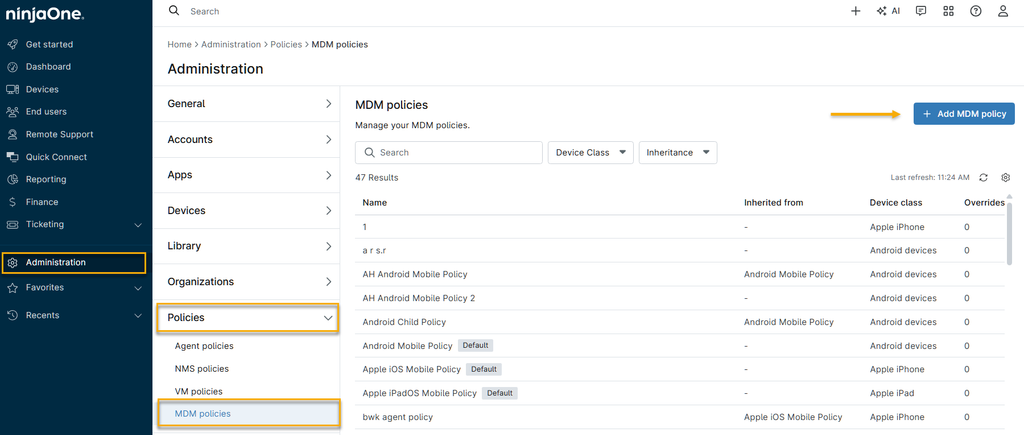
Security policies are where MDM earns its keep. Without them, enrollment is just inventory. I'd start with the non-negotiables: encryption enforcement, screen lock, and OS version minimums.
Then layer in compliance rules that flag or block non-compliant devices automatically. For example, a device running an outdated OS version should trigger a compliance alert before it touches internal resources.
Platforms like Microsoft Intune let you gate access conditionally, which is exactly the right approach.
Keep these best practices in mind when configuring security policies and compliance rules in your MDM platform:
- Baseline first, then layer: Start with encryption, screen lock, and OS version minimums on every device before you configure anything else. These three cover the most common audit findings and give you a solid foundation to build on.
- Use conditional access to enforce compliance: In Microsoft Intune, tie compliance policies directly to Microsoft Entra Conditional Access so a non-compliant device loses access to Microsoft 365 resources automatically—not after a helpdesk ticket gets raised.
- Segment policies by risk tier: Don't apply the same policy to a developer's laptop and a shared kiosk device. In Jamf Pro, I'd use separate configuration profiles for different device groups so stricter controls apply where the risk is highest.
- Set a grace period—but keep it short: Give users 24–72 hours to resolve a compliance flag before access is blocked. This reduces helpdesk volume from false positives while still enforcing the policy.
- Test policy changes in a staging group: Push any new or modified configuration profile to a 10–20 device test group before fleet-wide deployment. I've seen a misconfigured Wi-Fi profile lock hundreds of users off the network simultaneously—a staging group catches that.
- Document every policy with a business justification: When an auditor asks why you enforce a 6-character PIN minimum, you need a written answer. Store justifications alongside your policy configs, not just in someone's memory.
- Review OS version minimums quarterly: Minimum OS requirements go stale fast. A threshold that was current six months ago may now leave devices two major versions behind, which creates real exposure.
- Don't rely solely on the MDM dashboard for compliance status: Export compliance reports on a schedule and store them in your SIEM or a separate system. If a device drops out of scope and you need to prove its state at a specific point in time, a live dashboard won't help you.
4. Deploy Required Apps to Device Groups
App deployment turns your MDM into a software delivery system. Instead of manually installing tools on individual devices, you push apps directly to the right device groups—finance gets their approved tools, developers get theirs.
In Jamf Pro or Microsoft Intune, you assign apps to groups at enrollment, so a new device arrives ready to work. I'd always scope deployments to groups rather than individual devices to keep things manageable as the fleet grows.
Keep these best practices in mind when deploying apps to device groups in your MDM platform:
- Scope to groups, not individuals: Always assign apps to device groups rather than individual devices. In Microsoft Intune and Jamf Pro, individual assignments create a maintenance burden that compounds fast—group-based deployment scales with your fleet.
- Separate required from optional installs: Mark business-critical tools—VPN clients, endpoint detection agents, identity apps—as required. Put productivity apps like Slack or Zoom in a self-service catalog where users can install on demand.
This keeps mandatory installs controlled without over-pushing software. - Use the app store integrations: Platforms like Jamf Pro connect directly to the Apple App Store through Apple Business Manager, and Intune connects to the Microsoft Store.
Use these integrations to push licensed, managed versions of apps rather than sideloading, which creates update and license tracking headaches. - Stage rollouts for large deployments: Push app updates to a test group first, especially for apps that interact with system-level settings or VPN configurations.
I've seen a forced update to a VPN client break connectivity for an entire department because it wasn't validated against the current OS version. - Set update behavior explicitly: Don't leave app update settings at the platform default. In Jamf Pro, I'd configure managed app updates to install automatically during a maintenance window rather than prompting users mid-workday.
- Account for licensed app limits: For paid apps deployed through Apple Business Manager or Google Play managed distribution, track license consumption against your purchased seats.
Jamf Pro and Omnissa Workspace ONE UEM both surface this, but it's easy to miss when you're onboarding a batch of new devices quickly. - Document app-to-group mappings: Maintain a simple reference—even a spreadsheet works—that maps each deployed app to the device groups receiving it, the deployment type (required vs. optional), and the last reviewed date.
This saves significant time during security audits or when troubleshooting a missing app on a newly enrolled device.
5. Set Up Remote Monitoring and Alerts
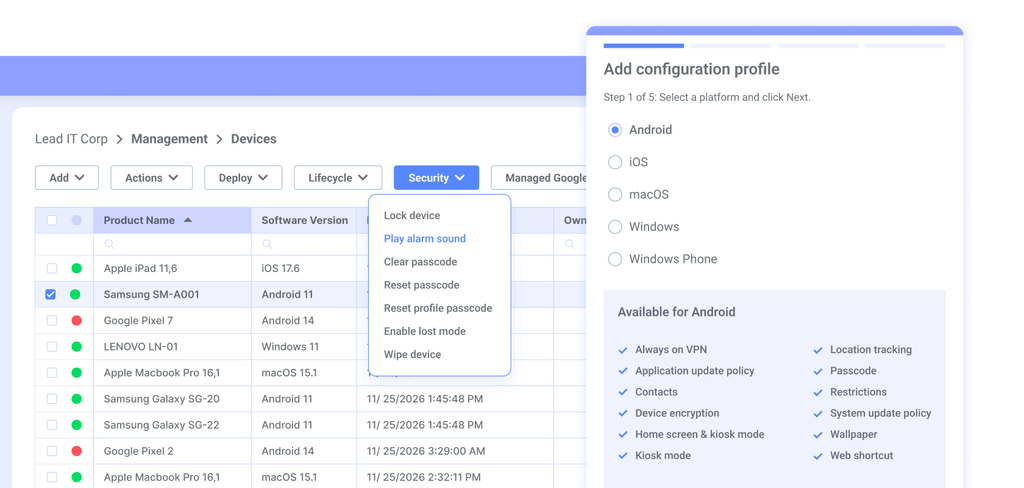
Remote monitoring is what turns your MDM from a passive inventory tool into an active security layer. Configure alerts for compliance drift, failed login attempts, and devices going offline unexpectedly.
For example, if a laptop stops checking in for 48 hours, you want to know before it becomes a data loss incident. In Jamf Pro or Microsoft Intune, I'd pair monitoring rules with automated remediation actions where possible—not just notifications.
Keep these best practices in mind when configuring remote monitoring and alerts in your MDM platform:
- Prioritize signal over noise: Configure alerts for events that require action—compliance drift, repeated failed logins, devices offline for 48+ hours—before anything else. Alert fatigue is real. If your team starts ignoring notifications because there are too many, the whole system fails.
- Pair alerts with automated remediation: Where your platform supports it, tie monitoring rules to automated responses. In Microsoft Intune, you can configure a non-compliant device to lose access to Microsoft 365 resources automatically, without waiting for a helpdesk ticket.
- Set offline thresholds by device type: A shared kiosk that stops checking in overnight is less urgent than an executive laptop that goes dark mid-business-day. In Jamf Pro, I'd create separate smart groups for each device type and set offline alert thresholds accordingly.
- Monitor enrollment failures, not just active devices: New devices that fail enrollment silently are easy to miss. Set up an alert for devices that appear in your MDM as pending but never complete enrollment—this catches DEP token misconfigurations before they become a backlog.
- Route alerts to the right people: A compliance drift alert shouldn't go to the same queue as a device-offline alert. Use severity tiers and route high-priority alerts—like a device being wiped remotely—directly to your security team, not just your general IT inbox.
- Export monitoring data to your SIEM: Don't rely solely on your MDM dashboard for a historical record of device state. Push compliance and alert data into your SIEM on a schedule so you have auditable logs that exist independently of your MDM platform.
- Test your alerts deliberately: Intentionally trigger a monitoring condition in a staging group to confirm alerts fire correctly.
I've seen teams configure alerting rules in Workspace ONE UEM, assume they're working, and discover months later that a misconfigured notification channel meant alerts were routing to an unmanned inbox.
6. Enforce Compliance and Remediate Violations
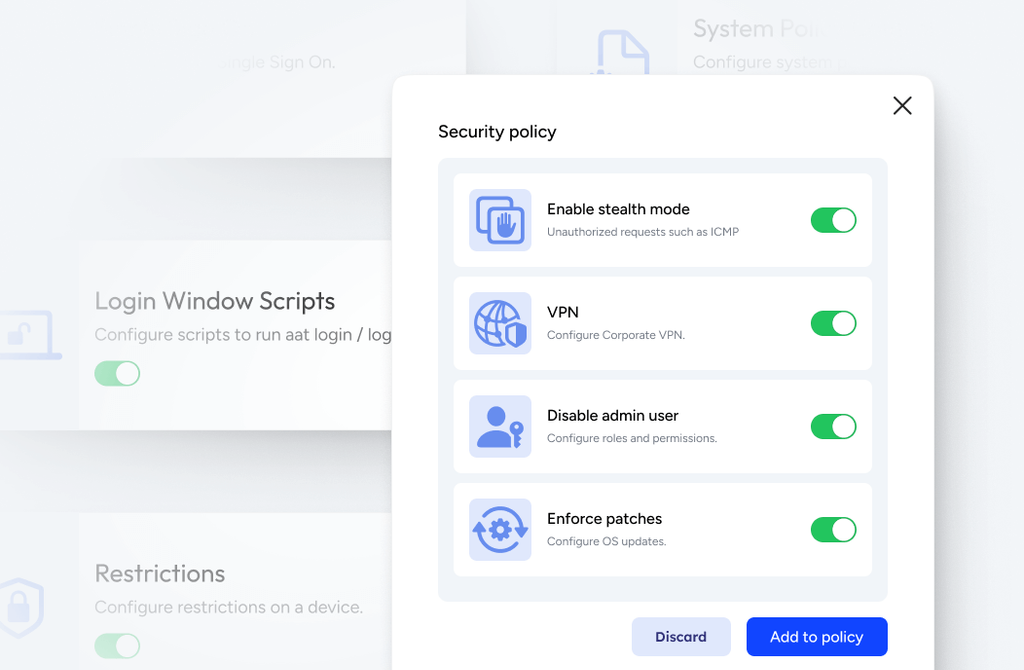
Compliance enforcement is what gives your policies teeth. Without automated remediation, flagged devices just sit in a report waiting for someone to act.
In Microsoft Intune, I'd tie compliance policies directly to Conditional Access so a non-compliant device loses resource access immediately—not after a ticket gets raised.
For example, a device missing required encryption gets blocked from email until it's resolved. Pair access restrictions with user-facing notifications so people know exactly what to fix.
Keep these best practices in mind when enforcing compliance and remediating violations in your MDM platform:
- Automate access revocation: Don't wait for a helpdesk ticket to block a non-compliant device. In Microsoft Intune, tie compliance policies directly to Azure Active Directory Conditional Access so a device missing required encryption loses access to Microsoft 365 resources the moment it falls out of compliance.
- Send user-facing notifications with clear instructions: When a device gets flagged, the user needs to know what's wrong and how to fix it. Vague "your device is non-compliant" messages generate helpdesk calls. Specific ones—"your OS version is below the minimum required; update to resolve this"—don't.
- Set a grace period—but keep it short: Give users 24–72 hours to resolve a compliance flag before access is blocked. This reduces false-positive helpdesk volume without giving people an indefinite window to ignore the issue.
- Distinguish between blocking and alerting: Not every violation warrants an access block. A device that's one patch behind your OS minimum might warrant an alert and a grace period. A device with encryption disabled should be blocked immediately. Define severity tiers before you configure anything.
- Use automated remediation where the platform supports it: In Jamf Pro, you can trigger a re-push of a configuration profile when a device drifts from a required setting. That's more reliable than waiting for a user to self-remediate, especially for settings users can accidentally toggle off.
- Don't treat the MDM dashboard as your compliance record: Export compliance reports on a schedule and store them in your SIEM. If a device was non-compliant during a specific window and you need to prove it later, a live dashboard won't give you that history.
- Close the loop on remediation: Log when a violation was flagged, when the user was notified, and when the device returned to compliance. Platforms like Omnissa Workspace ONE UEM surface this in reporting, but it's worth confirming that your audit trail is complete before an external review surfaces the gap.
7. Audit Device Inventory and Policy Adherence
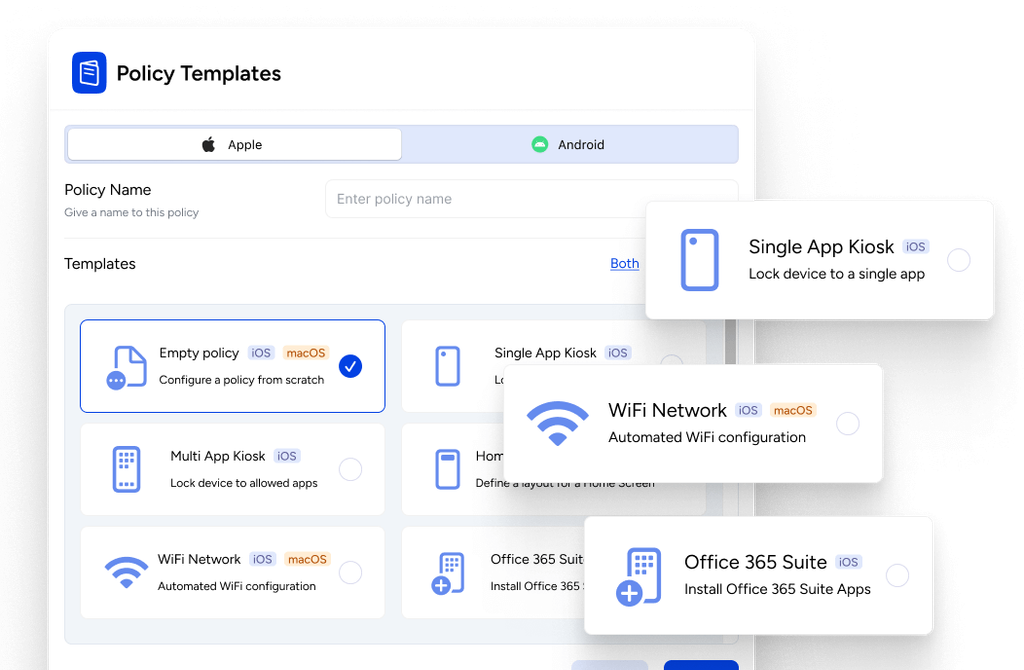
Regular audits confirm that your MDM configuration is actually working—not just configured. Pull a full device inventory report and cross-reference it against your compliance policies.
I'd check for devices that enrolled but never received their configuration profiles, and flag any that have drifted from required settings. For example, a laptop showing compliant in your dashboard but missing its encryption profile is a real scenario. Run these audits quarterly at minimum.
Keep these best practices in mind when auditing device inventory and policy adherence in your MDM platform:
- Run inventory against enrollment records: Cross-reference your MDM device list against your enrollment source—Apple Business Manager, Windows Autopilot, or your identity provider. Devices that appear in one system but not the other are a gap worth investigating before an auditor finds them first.
- Check profile delivery, not just enrollment status: A device can show as enrolled while missing one or more configuration profiles. In Jamf Pro, I'd run a smart group scoped to devices where a specific profile is not installed—that surfaces the gap in a way the main dashboard won't.
- Flag devices that haven't checked in recently: Set a threshold—I'd use 14 days—and pull a report of devices that haven't synced. Some will be decommissioned hardware that was never removed from the MDM. Others might be active devices that lost management connectivity, which is a different problem entirely.
- Audit group membership alongside compliance status: A device can be fully compliant but assigned to the wrong group, which means it's missing policies it should have. I've seen this happen when a device gets re-enrolled after a wipe and lands in a default group instead of the correct department group.
- Export reports on a schedule: Live dashboards in Microsoft Intune and Jamf Pro show current state only. Schedule exports to your SIEM or a shared storage location so you have point-in-time records. If a device was non-compliant during a specific audit window, you'll need that history—not a current screenshot.
- Reconcile licensed app assignments: During inventory audits, verify that app license counts in Apple Business Manager or Microsoft Intune match your active device count. License over-assignment is a compliance and cost issue that surfaces in audits.
- Document and date every audit: Log what you checked, what you found, and what you resolved. A simple audit log—even a spreadsheet—becomes your paper trail when an external reviewer asks whether your MDM policies were actively enforced.
Common Challenges of Using MDM Software (and How to Address Them)
Even a well-configured MDM deployment runs into friction—most of it predictable, and most of it fixable if you know where to look:
| Problem | Solution |
|---|---|
| ProblemDevices enrolled but missing profiles | SolutionIn Jamf Pro, create a smart group scoped to devices where the required configuration profile isn't installed, then use that group as a standing audit report. |
| ProblemAlert fatigue from too many notifications | SolutionLimit alerts to events that require direct action—compliance drift, repeated failed logins, devices offline for 48+ hours—and route them by severity tier to the right team. |
| ProblemCompliance status lost after a wipe | SolutionWhen a device re-enrolls after a wipe, manually verify group assignment before assuming policies are applied—re-enrolled devices often land in a default group instead of the correct department group. |
| ProblemOutdated OS version minimums | SolutionReview and update OS minimum thresholds quarterly; a threshold set six months ago can leave devices two major versions behind without anyone noticing. |
| ProblemNo historical compliance record | SolutionSchedule compliance report exports to your SIEM on a recurring basis so you have point-in-time records that exist independently of the live MDM dashboard. |
| ProblemApp license over-assignment | SolutionDuring quarterly inventory audits, reconcile app license counts in Apple Business Manager or Microsoft Intune against active device counts to catch over-assignment before it surfaces in an external audit. |
| ProblemUsers ignoring compliance notifications | SolutionReplace vague non-compliance messages with specific instructions—tell users exactly which setting is out of compliance and what action resolves it, which reduces helpdesk call volume. |
More Articles
Advanced Uses & Maximizing ROI From MDM Software
Once your baseline policies are running and your fleet is enrolled, MDM software becomes a platform for broader IT operations—not just a compliance checkbox. Here's where deeper adoption starts paying off in ways that go well beyond basic device management:
- Zero-touch provisioning: Configure Apple Business Manager or Windows Autopilot so a new device ships directly to an employee and self-enrolls with the right profiles, apps, and settings—no IT hands-on-keyboard required.
I've seen this cut device setup time from hours to under 30 minutes per device, which compounds fast when you're onboarding 50 people a quarter. - Automated offboarding: Connect your identity provider to your MDM to trigger approved offboarding workflows when an employee leaves. For personally owned devices (BYOD), remove corporate apps and data without affecting personal information.
For company-owned devices, use remote lock or full wipe when appropriate and authorized. In Microsoft Intune, these actions require different configurations, so test your workflows before automating them. - SIEM integration for audit trails: Push compliance and alert data from Microsoft Intune or Jamf Pro into your SIEM on a schedule. This gives you point-in-time compliance records that live independently of your MDM dashboard—which matters the moment an auditor asks about device state three months ago.
- Risk-tiered policy segmentation: Use device group logic to apply stricter controls where the risk is highest.
In Jamf Pro, I'd maintain separate configuration profiles for executive laptops, shared kiosks, and developer machines rather than applying a one-size-fits-all policy that either over-restricts or under-protects. - Conditional access enforcement: In Microsoft Intune, connecting compliance policies directly to Conditional Access means a non-compliant device loses access to Microsoft 365 resources the moment it falls out of policy—no ticket, no delay, no manual review required.
- Self-service app catalogs: Pushing every app as a required install creates unnecessary noise and support volume. Configure a self-service catalog in Jamf Pro or Intune for discretionary tools so users can install approved software on demand, without opening a helpdesk request.
Ready to Build Out Your MDM Strategy
Once your MDM is configured and your fleet is under management, the next decision is usually cost—so if you're evaluating platforms or planning a budget, reviewing MDM software pricing across device counts, licensing models, and feature tiers will help you match the right platform to what your fleet actually needs.