

Un verificador de accesibilidad de PDF analiza los documentos en busca de barreras para la accesibilidad digital. También puede ayudar a identificar soluciones que hagan que el contenido sea utilizable por más personas. Si estás buscando estas soluciones, te enfrentas a la necesidad de mantener bajos los riesgos de incumplimiento, ayudar a todos los usuarios y simplificar la supervisión a medida que aumenta el uso de PDF.
Esta guía abarca herramientas para equipos de TI y desarrollo que necesitan integrar la accesibilidad en la gestión de documentos. Incluye opciones para automatizar las comprobaciones y facilitar flujos de trabajo preparados para auditorías. Encontrarás opciones para revisiones manuales, automatización e incluso contenido especializado, todo ello basado en funciones y estándares importantes para tu equipo.
Por qué confiar en nuestras recomendaciones de software
6,700+
Reviews
20
Industry experts
16+
Evaluation factors
14
Years
Nuestro equipo lleva probando y evaluando software desde 2012. Como líderes tecnológicos, sabemos lo difícil —y lo importante— que es elegir el software adecuado.
Para esta guía, evaluamos las herramientas mediante pruebas prácticas e investigación independiente, puntuando las herramientas según nuestros criterios de selección.
Nuestras reseñas reflejan nuestro criterio editorial humano, no un discurso de ventas.
Revisores expertos:
- Paulo Gardini MiguelDirector técnico
 Tim FisherVP de IA
 Gabriel RosasTech Lead y arquitecto de software
 Christhian GruhnTech Lead y arquitecto de plataforma

Tabla comparativa de verificadores de accesibilidad de PDF
| Tool | Best For | Trial Info | Price | ||
|---|---|---|---|---|---|
| 1 | Ideal para la validación por lotes y la corrección de problemas | Plan gratuito disponible | Desde $599/usuario/año (con facturación anual) | Website | |
| 2 | Ideal para revisiones visuales de PDF/UA y WCAG | Plan gratuito disponible | Precios disponibles previa solicitud | Website | |
| 3 | La mejor opción para realizar pruebas guiadas de cumplimiento manual | Plan gratuito disponible | Precio bajo solicitud | Website | |
| 4 | Ideal para la verificación automatizada de PDF/UA | Prueba gratuita de 14 días | Precios disponibles previa solicitud | Website | |
| 5 | Ideal para comprobaciones de calidad de PDF regulados | Demostración gratuita disponible | Precio disponible bajo solicitud | Website | |
| 6 | La mejor opción para editar archivos PDF con herramientas de accesibilidad | Prueba gratuita de 14 días | Desde $10.99/usuario/mes (facturado anualmente) | Website | |
| 7 | Ideal para comprobar y corregir PDF | Prueba gratuita de 7 días | Desde $19.99/mes | Website | |
| 8 | Ideal para supervisar los PDF de todo el sitio web | Demostración gratuita disponible | Precios disponibles previa solicitud | Website | |
| 9 | Ideal para la remediación de tablas asistida por IA | Demostración gratuita disponible | Precios disponibles previa solicitud | Website | |
| 10 | Ideal para la validación masiva de la accesibilidad de archivos PDF | Demostración gratuita disponible | Precios bajo petición | Website |


Reseñas de verificadores de accesibilidad de PDF
A continuación se muestran mis resúmenes detallados de los mejores verificadores de accesibilidad de PDF que llegaron a mi selección. Mis reseñas ofrecen una visión detallada de las funciones, los casos de uso más adecuados y las capacidades de cada herramienta para ayudarte a encontrar la mejor opción para ti.
 Ideal para la validación por lotes y la corrección de problemas
- Plan gratuito disponible
- Desde $599/usuario/año (con facturación anual)
Visit WebsiteCustomer Rating:5/5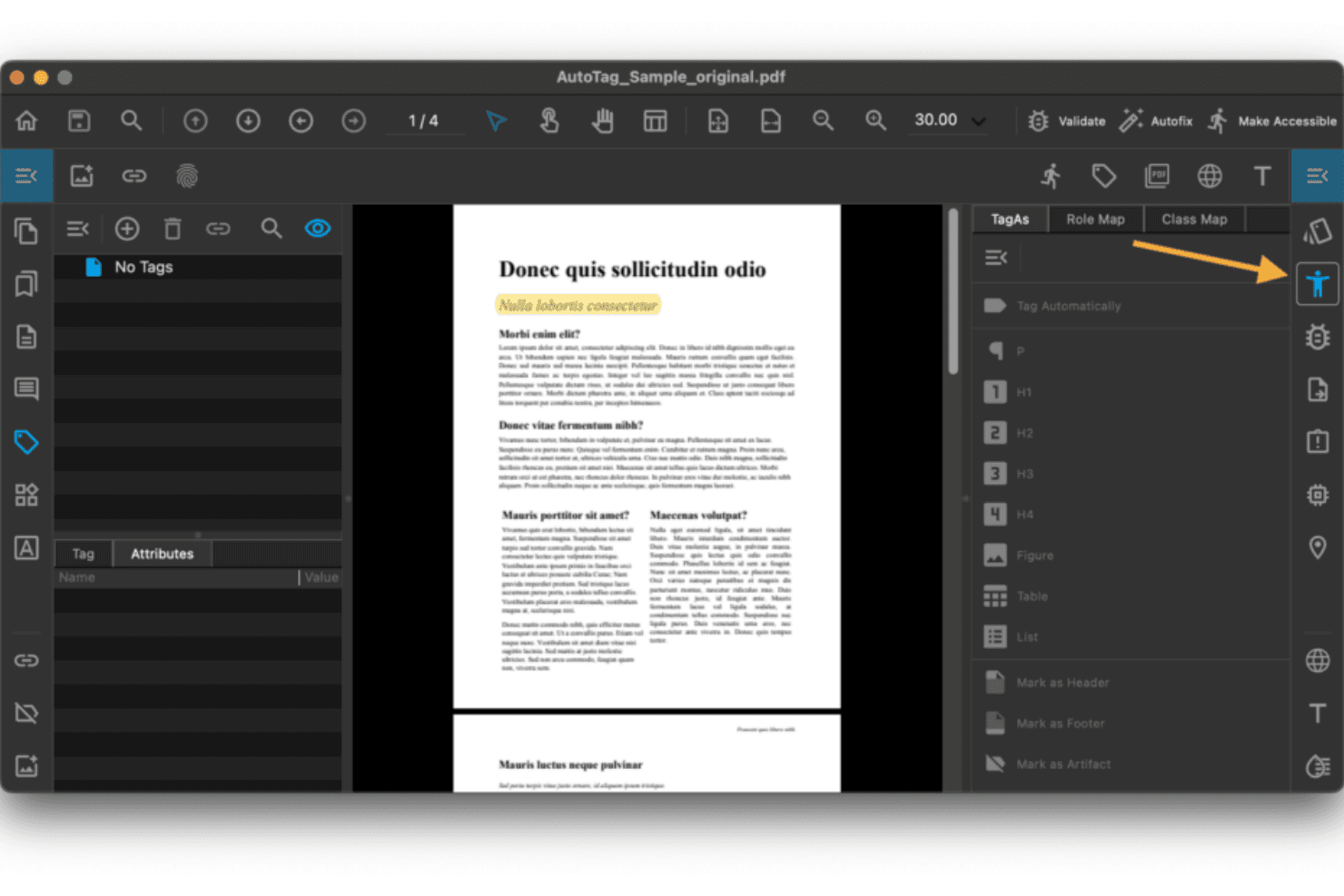
PDFix permite a los usuarios etiquetar elementos PDF para cumplir con los requisitos de accesibilidad. PDFix es una plataforma de accesibilidad de PDF impulsada por IA para la validación de WCAG 2.1/2.2, PDF/UA y la Sección 508. También admite la remediación automatizada por lotes y está disponible como aplicación de escritorio, SDK y API REST.
¿Para quién es más adecuado PDFix?
PDFix es adecuado para desarrolladores y equipos de cumplimiento normativo en sectores regulados como el gubernamental, financiero y sanitario. Es especialmente útil para equipos que necesitan validar y remediar grandes volúmenes de archivos PDF mediante programación.
Por qué elegí PDFix
PDFix ocupa un lugar destacado en mi selección porque combina la validación por lotes y las correcciones automatizadas en un solo flujo de trabajo. Lo he ejecutado en carpetas enteras de documentos y señala cada incumplimiento con referencias al Protocolo Matterhorn, indicando con precisión su ubicación en el árbol de etiquetas. Lo que más me gusta es el etiquetado automático impulsado por IA, que reconstruye el orden de lectura y la jerarquía de encabezados en cientos de archivos PDF sin tener que modificar cada archivo manualmente.
Funciones principales de PDFix
- Validación de estándares basada en veraPDF: Utiliza el motor veraPDF, estándar del sector, para auditar el cumplimiento de PDF/UA, WCAG y la Sección 508.
- Exportación de informes en varios formatos: Genera informes de accesibilidad en JSON, XML, HTML y texto sin formato para facilitar su distribución e integración.
- Aplicación de escritorio multiplataforma: Funciona en Windows, macOS y Linux, por lo que puedes comprobar la accesibilidad en cualquier sistema operativo principal.
- SDK para desarrolladores con API: Proporciona enlaces para Python, C#, Java, Node.js y C++ con el fin de integrar las comprobaciones de accesibilidad en flujos de trabajo automatizados.
Integraciones de PDFix
PDFix ofrece integraciones nativas con Enfocus Switch y el mercado de GitHub Actions, además de una API REST y un SDK para integraciones personalizadas con Python, C#, Java, Node.js y C++.
Pros and Cons
Pros:
- Remedia cientos de archivos PDF por lotes de forma simultánea
- El etiquetado automático mediante IA reconstruye el orden de lectura automáticamente
- Las referencias al Protocolo Matterhorn identifican los fallos exactos de las etiquetas
Cons:
- Requiere conocimientos de desarrollo para integrar canalizaciones
- No ofrece una opción de procesamiento de documentos basada en la nube
Learn more about PDFix: Ideal para revisiones visuales de PDF/UA y WCAG
- Plan gratuito disponible
- Precios disponibles previa solicitud

PAC comprueba el cumplimiento de la accesibilidad de los PDF según PDF/UA, WCAG y criterios de calidad. PAC es una herramienta de escritorio gratuita para Windows que comprueba los PDF según las normas PDF/UA (ISO 14289-1) y WCAG 2.1 mediante el Protocolo Matterhorn. También incluye un inspector visual del árbol de etiquetas y una vista previa de la estructura para lectores de pantalla.
¿Para quién es más adecuado PAC (Comprobador de accesibilidad de PDF)?
PAC es una opción especialmente adecuada para responsables del cumplimiento de la accesibilidad y responsables de documentación técnica que necesitan auditar manualmente los PDF según las normas PDF/UA y WCAG.
Por qué elegí PAC (Comprobador de accesibilidad de PDF)
PAC merece estar entre las mejores opciones de mi lista por la forma en que gestiona la revisión visual de PDF/UA. La vista previa del lector de pantalla me permite ver exactamente lo que leerán JAWS o NVDA, y el árbol de etiquetas completo muestra cada propiedad y atributo de la estructura del documento. También me gusta su cobertura de los puntos de control del Protocolo Matterhorn que pueden probarse automáticamente. Como resultado, puedo revisar los resultados de validación según criterios PDF/UA establecidos.
Características principales de PAC (Comprobador de accesibilidad de PDF)
- Análisis semántico asistido por IA: Utiliza IA para reducir el esfuerzo manual al comprobar la calidad de la estructura y las etiquetas de los PDF.
- Vista de simulación del lector de pantalla: Muestra visualmente cómo los lectores de pantalla populares interpretarán el contenido y el orden del PDF.
- Estadísticas de la estructura del documento: Presenta estadísticas y resúmenes estructurales de cada PDF, incluida la distribución de etiquetas y los detalles de la estructura lógica.
- Funcionamiento local y sin conexión: Se ejecuta completamente en equipos de escritorio Windows sin cargar archivos en internet ni en servidores externos.
Integraciones de PAC (Comprobador de accesibilidad de PDF)
PAC (Comprobador de accesibilidad de PDF) no cuenta con integraciones nativas.
Pros and Cons
Pros:
- Descarga y uso gratuitos de forma permanente
- Incluye cobertura completa de los puntos de control del Protocolo Matterhorn
- Vista previa visual del lector de pantalla integrada
Cons:
- Solo para Windows, por lo que excluye a los usuarios de Mac y Linux
- No permite procesar varios PDF por lotes
Learn more about PAC (PDF Accessibility Checker): La mejor opción para realizar pruebas guiadas de cumplimiento manual
- Plan gratuito disponible
- Precio bajo solicitud

Allyant guía a los usuarios en la corrección de archivos PDF mediante flujos de trabajo paso a paso. CommonLook PDF Validator de Allyant es un complemento gratuito de Adobe Acrobat que comprueba los archivos PDF según las normas WCAG, PDF/UA y la Sección 508. También guía a los usuarios durante las pruebas de accesibilidad automatizadas y manuales, y proporciona informes de certificación por documento.
¿Para quién es más adecuado Allyant?
CommonLook PDF Validator de Allyant es una opción ideal para responsables de cumplimiento y equipos de documentación de organismos gubernamentales o sectores regulados en los que la conformidad con la Sección 508 es un requisito obligatorio.
Por qué elegí Allyant
Elegí CommonLook PDF Validator de Allyant como una de las mejores herramientas para realizar pruebas guiadas de cumplimiento manual. A diferencia de las herramientas que se limitan a señalar problemas automáticamente, esta guía al usuario durante comprobaciones que ningún escáner puede completar de forma fiable. Esto incluye verificar la precisión del texto alternativo, no solo su presencia; confirmar que los resúmenes de las tablas sean significativos; y validar la jerarquía de las etiquetas de encabezado. El informe de certificación por documento proporciona un registro concreto de conformidad con la Sección 508, WCAG y PDF/UA.
Características principales de Allyant
- Integración con Adobe Acrobat: Se ejecuta como complemento dentro de Adobe Acrobat Pro en Windows para analizar archivos PDF de forma nativa.
- Comprobaciones de la Sección 508 y HHS: Incluye pruebas específicas para las normativas de accesibilidad del Gobierno de EE. UU. y del sector sanitario.
- Resaltado del contenido basado en etiquetas: Permite revisar visualmente la aplicación de las etiquetas dentro del PDF para realizar una inspección más exhaustiva.
- Informes de certificación por documento: Genera un certificado de cumplimiento descargable después de cada comprobación para facilitar el mantenimiento de registros.
Integraciones de Allyant
CommonLook PDF Validator de Allyant se ejecuta como complemento de Adobe Acrobat Pro en Windows. No se han documentado claramente integraciones nativas adicionales aparte de Adobe Acrobat Pro.
Pros and Cons
Pros:
- Guía a los usuarios durante las comprobaciones manuales de cumplimiento
- Valida el cumplimiento de la Sección 508, WCAG y PDF/UA
- Genera informes de certificación por documento
Cons:
- Solo se ejecuta en Windows mediante Adobe Acrobat
- No permite realizar escaneos por lotes de varios archivos PDF
Learn more about Allyant: Ideal para la verificación automatizada de PDF/UA
- Prueba gratuita de 14 días
- Precios disponibles previa solicitud

pdfaPilot 5 incorpora compatibilidad con ePub 3.0 y conversión de correo electrónico a PDF/A. pdfaPilot es una herramienta empresarial de cumplimiento de PDF/UA y PDF/A de callas software. Está disponible como aplicación de escritorio, servidor, CLI y SDK para la verificación automatizada de la accesibilidad en los flujos de trabajo de documentos.
¿Para quién es más adecuado pdfaPilot?
Equipos de operaciones de TI y cumplimiento normativo en entornos gubernamentales, jurídicos o empresariales que necesitan procesar grandes archivos PDF para comprobar la conformidad con PDF/UA.
Por qué elegí pdfaPilot
pdfaPilot merece estar entre los mejores de mi lista porque ninguna otra herramienta que haya probado iguala su capacidad para la verificación automatizada de PDF/UA a gran escala. Por ejemplo, el procesamiento mediante carpeta activa de la variante de servidor ejecuta hasta 8 trabajos en paralelo. La licencia Dispatcher permite escalar el procesamiento entre varias máquinas para grandes archivos. También me gusta pdfGoHTML, que convierte los PDF etiquetados en HTML codificado por colores para que pueda verificar visualmente la estructura del documento, la jerarquía de encabezados y la calidad del texto alternativo.
Características principales de pdfaPilot
- Compatibilidad total con los estándares: Admite PDF/A-1, PDF/A-2, PDF/A-3 y comprobaciones de accesibilidad PDF/UA-1 verificables automáticamente.
- Editor de perfiles de control de calidad: Permite crear, editar y aplicar conjuntos de reglas personalizados de accesibilidad y cumplimiento de PDF.
- Vista previa de la estructura de PDF a HTML: Convierte los PDF etiquetados en HTML visual para inspeccionar rápidamente las estructuras de accesibilidad.
- Opciones flexibles de API e integración: Ofrece REST API, CLI y SDK para integrarse con la automatización de flujos de trabajo y las cadenas de procesamiento de documentos.
Integraciones de pdfaPilot
pdfaPilot ofrece integración nativa con Enfocus Switch para la automatización de flujos de trabajo y proporciona REST API, CLI y SDK para integraciones personalizadas con sistemas de gestión documental y cadenas de CI/CD.
Pros and Cons
Pros:
- Amplia cobertura de PDF/UA-1 y del Protocolo Matterhorn
- Los trabajos paralelos del servidor aceleran la auditoría de grandes archivos
- La salida HTML visual confirma la precisión de la estructura de etiquetas
Cons:
- No incluye un editor integrado para la corrección manual de etiquetas
- Configuración compleja para equipos de cumplimiento no técnicos
Learn more about pdfaPilot: Ideal para comprobaciones de calidad de PDF regulados
- Demostración gratuita disponible
- Precio disponible bajo solicitud

DocShifter permite a los usuarios crear flujos de trabajo de documentos con módulos de transformación encadenados. DocShifter PDFValidator es una herramienta automatizada de validación de PDF para estándares de cumplimiento normativo y técnico, incluido PDF/UA-1. Por ejemplo, puede inspeccionar marcadores, hipervínculos, incrustación de fuentes, propiedades de página y anotaciones.
¿Para quién es más adecuado DocShifter PDFValidator?
Es una opción ideal para equipos empresariales de los sectores de ciencias de la vida, banca y seguros que necesitan una validación automatizada y de gran volumen de archivos PDF conforme a los estándares de envío normativo.
Por qué elegí DocShifter PDFValidator
Elegí DocShifter PDFValidator por la precisión con la que se adapta a los flujos de trabajo de documentos regulados. Valida conforme a los estándares de envío de las autoridades sanitarias y comprueba los marcadores, los hipervínculos, la incrustación de fuentes y la conformidad de las páginas en una única pasada automatizada. Me gusta especialmente que admita PDF/UA-1 como formato de salida validado, algo importante cuando la calidad de los documentos está directamente relacionada con los criterios de aceptación normativa.
Funciones principales de DocShifter PDFValidator
- Validación de hipervínculos: Comprueba automáticamente si existen hipervínculos rotos, externos o con un formato incorrecto en los archivos PDF.
- Análisis de la estructura de marcadores: Verifica la organización, la anidación y la correspondencia de los marcadores con la estructura del documento.
- Aplicación de propiedades de página: Garantiza que el tamaño, la orientación y la numeración de las páginas cumplan los requisitos normativos y técnicos.
- Detección de anotaciones y comentarios: Señala la presencia de anotaciones, comentarios o cambios controlados que deberían eliminarse antes del archivado.
Integraciones de DocShifter PDFValidator
DocShifter PDFValidator ofrece integraciones nativas con Veeva Vault, OpenText Documentum, Lorenz docuBridge y Microsoft SharePoint. Hay una API disponible para integraciones personalizadas y la automatización de flujos de trabajo.
Pros and Cons
Pros:
- Valida archivos PDF conforme a los estándares de envío de las autoridades sanitarias
- Admite la comprobación automatizada de archivos PDF por lotes y de gran volumen
- Detecta problemas de incrustación de fuentes, anotaciones y marcadores
Cons:
- No incluye corrección integrada para fallos de accesibilidad
- Se limita a la validación y no ofrece auditorías de accesibilidad más amplias
Learn more about DocShifter PDFValidator: La mejor opción para editar archivos PDF con herramientas de accesibilidad
- Prueba gratuita de 14 días
- Desde $10.99/usuario/mes (facturado anualmente)
Visit WebsiteCustomer Rating:4.6/5
La pantalla de inicio de Foxit PDF Editor ofrece acceso rápido a las herramientas de PDF. Foxit PDF Editor es una plataforma de edición de PDF con herramientas de accesibilidad integradas. Estas incluyen comprobación de WCAG y de la Sección 508, etiquetado automático, edición del orden de lectura, gestión de texto alternativo y flujos de trabajo guiados de remediación.
¿Para quién es más adecuado Foxit PDF Editor?
Foxit PDF Editor es adecuado para equipos de documentación técnica y responsables de cumplimiento normativo de organizaciones medianas y grandes que necesitan crear, editar y remediar archivos PDF para cumplir los requisitos de la Sección 508 o de la ADA.
Por qué elegí Foxit PDF Editor
He incluido Foxit PDF Editor entre mis principales opciones porque combina la comprobación de accesibilidad y la remediación directa en el documento en un mismo entorno de edición. Me gusta especialmente la herramienta de Comprobación completa, que genera un informe interactivo en el que cada problema señalado enlaza directamente con su ubicación en el documento. El panel Orden de lectura y la función de etiquetado automático me permiten corregir problemas de etiquetado estructural sin tener que cambiar de aplicación.
Funciones principales de Foxit PDF Editor
- Informe de comprobación completa de accesibilidad: Analiza los archivos PDF en busca de problemas relacionados con WCAG y la Sección 508, y proporciona un informe interactivo con resultados detallados.
- Panel del editor de etiquetas: Permite editar etiquetas, añadir o ajustar encabezados y marcar artefactos directamente en la estructura del documento.
- Gestión de texto alternativo: Permite añadir y validar texto alternativo para imágenes, así como marcar los elementos decorativos como artefactos.
- Automatización con el asistente de acciones: Automatiza las comprobaciones y correcciones de accesibilidad en varios pasos en múltiples documentos para reducir el trabajo manual repetitivo.
Integraciones de Foxit PDF Editor
Foxit PDF Editor ofrece integraciones nativas con Microsoft OneDrive, Google Drive, Dropbox, Box y SharePoint. También dispone de una API para integraciones personalizadas.
Pros and Cons
Pros:
- Combina de forma nativa la edición y la comprobación de accesibilidad
- Admite comprobaciones de validación de PDF/UA y WCAG
- El etiquetado automático genera una estructura a partir de archivos PDF sin etiquetas
Cons:
- La remediación por lotes no incluye programación ni automatización
- Señala menos problemas que los comprobadores especializados
Learn more about Foxit PDF Editor: Ideal para comprobar y corregir PDF
- Prueba gratuita de 7 días
- Desde $19.99/mes
Visit WebsiteCustomer Rating:4.5/5
Adobe Acrobat ofrece herramientas como Editar, Firmar, Exportar y Sello. Adobe Acrobat Pro es una plataforma de edición y accesibilidad de PDF con un comprobador de accesibilidad integrado. También proporciona un editor de árbol de etiquetas, herramientas de orden de lectura y generación de texto alternativo asistida por IA para la corrección de PDF.
¿Para quién es más adecuado Adobe Acrobat?
Adobe Acrobat Pro es una opción sólida para responsables del cumplimiento de la accesibilidad y responsables de documentación técnica en organizaciones empresariales y del sector público.
Por qué elegí Adobe Acrobat
Adobe Acrobat ocupa un lugar en mi lista de opciones principales porque ninguna otra herramienta combina de forma tan estrecha la comprobación de accesibilidad y la corrección dentro de la propia herramienta. Me gusta especialmente el editor de árbol de etiquetas y la herramienta Orden de lectura, que me permiten inspeccionar y corregir problemas estructurales directamente dentro de la misma interfaz. La incorporación de texto alternativo generado por IA en 2025 significa que puedo abordar uno de los fallos de accesibilidad más comunes sin cambiar de herramienta.
Características principales de Adobe Acrobat
- Acción Comprobador de accesibilidad: Analiza los PDF en busca de problemas relacionados con el cumplimiento de los estándares y genera un informe detallado de accesibilidad.
- Informes de auditoría exportables: Produce documentación de cumplimiento que puedes compartir o archivar para auditorías internas y externas.
- Integración con Microsoft Office: Permite crear PDF accesibles directamente a partir de archivos de Word, Excel y PowerPoint.
- Compatibilidad con tecnologías de asistencia: Garantiza la compatibilidad con lectores de pantalla populares y otros dispositivos de asistencia para facilitar la navegación accesible por los documentos.
Integraciones de Adobe Acrobat
Adobe Acrobat ofrece integraciones nativas en todo el ecosistema de Microsoft, incluidos Microsoft 365 y SharePoint, y admite flujos de trabajo de PDF desde las aplicaciones de Microsoft Office. No ofrece integración de canalización de accesibilidad basada en API.
Pros and Cons
Pros:
- Corrección dentro de la herramienta junto con la comprobación de accesibilidad
- El texto alternativo generado por IA acelera la corrección
- Editor de árbol de etiquetas para realizar correcciones estructurales directas
Cons:
- El procesamiento por lotes es limitado sin una licencia empresarial
- No ofrece integración de canalización de accesibilidad basada en API
Learn more about Adobe Acrobat: Ideal para supervisar los PDF de todo el sitio web
- Demostración gratuita disponible
- Precios disponibles previa solicitud
Visit WebsiteCustomer Rating:4.5/5
Recite Me ayuda a los sitios web de viajes a prestar asistencia en línea a los pasajeros con discapacidades. Recite Me es un comprobador de accesibilidad de PDF que rastrea tu sitio web para descubrir, analizar y corregir automáticamente los documentos PDF conforme a los estándares WCAG 2.2 de nivel AA.
¿Para quién es más adecuado Recite Me?
Recite Me es una opción especialmente adecuada para organizaciones que gestionan grandes volúmenes de archivos PDF publicados en la web y necesitan una supervisión continua del cumplimiento, en lugar de auditorías puntuales.
Por qué elegí Recite Me
Recite Me se encuentra en mi lista de opciones principales porque aborda la accesibilidad de los PDF a nivel del sitio, en lugar de hacerlo archivo por archivo. Rastrea tu sitio web para descubrir automáticamente los PDF enlazados, lo que reduce la necesidad de identificar los documentos manualmente. A partir de ahí, los análisis continuos vuelven a revisar los documentos y señalan los nuevos o modificados a medida que aparecen. Además, la sincronización bidireccional con el CMS puede sustituir los archivos corregidos sin necesidad de volver a publicarlos manualmente.
Características principales de Recite Me
- Panel de cumplimiento: El panel centralizado visualiza en tiempo real el estado de accesibilidad de todos los PDF analizados.
- Herramientas de corrección automatizada: Los módulos impulsados por IA aplican etiquetas estructurales, corrigen el orden de lectura y mejoran automáticamente los metadatos.
- Supervisión continua de PDF: Los análisis programados y las alertas detectan y señalan los PDF nuevos o actualizados de tu sitio web.
- Integración con CMS: La sincronización bidireccional garantiza que cualquier PDF subido a tu CMS se compruebe automáticamente y, si es necesario, se corrija.
Integraciones de Recite Me
Las integraciones nativas no están documentadas claramente. Hay una API disponible para integraciones personalizadas.
Pros and Cons
Pros:
- Analiza todo tu sitio en busca de cada PDF enlazado
- El OCR automatizado convierte automáticamente el texto incrustado en imágenes
- La supervisión continua señala las nuevas cargas sin comprobaciones manuales
Cons:
- No ofrece una opción independiente de escritorio ni de análisis sin conexión
- Para las estructuras de etiquetas complejas sigue siendo necesaria la corrección manual
Learn more about Recite Me: Ideal para la remediación de tablas asistida por IA
- Demostración gratuita disponible
- Precios disponibles previa solicitud

Equidox sugiere automáticamente zonas de etiquetado mediante ML Page Match. Equidox es una plataforma de remediación de PDF basada en la nube que utiliza detección impulsada por IA para identificar y etiquetar la estructura de los documentos. Esto incluye tablas, encabezados, listas e imágenes. También puede exportar archivos PDF, HTML y EPUB accesibles.
¿Para quién es más adecuado Equidox?
Equidox es una opción excelente para responsables de cumplimiento y equipos documentales de organismos gubernamentales, instituciones de educación superior y organizaciones sanitarias que gestionan grandes bibliotecas de PDF que requieren remediación estructurada.
Por qué elegí Equidox
Elegí Equidox como una de las mejores opciones porque su detector inteligente de tablas lo diferencia para quienes trabajan en la remediación de PDF complejos. Identifica automáticamente filas, columnas, celdas combinadas y estructuras de celdas extendidas, y completa automáticamente el resumen de la tabla con datos sobre los encabezados y el número de celdas. La vista previa HTML también puede ayudar a verificar cómo interpretará un lector de pantalla la estructura de la tabla antes de exportar el PDF accesible final.
Características principales de Equidox
- Detector inteligente de zonas: Utiliza IA para identificar encabezados, listas, enlaces e imágenes en PDF sin etiquetar, lo que permite un etiquetado preciso.
- Vista previa HTML: Ofrece una visualización en tiempo real de cómo interpretarán los lectores de pantalla la estructura y el contenido del documento.
- OCR integrado: Convierte documentos escaneados en texto digital con etiquetado automático para la accesibilidad.
- Gestión de grupos y roles: Proporciona permisos, dominios de acceso configurables y controles de colaboración para equipos grandes.
Integraciones de Equidox
Equidox ofrece integraciones de inicio de sesión único con Microsoft y Google, además de una API para integraciones personalizadas y procesamiento por lotes. Las integraciones nativas adicionales no están documentadas claramente.
Pros and Cons
Pros:
- La detección de tablas impulsada por IA gestiona estructuras complejas
- OCR integrado para la remediación de PDF escaneados
- La vista previa HTML confirma la salida del lector de pantalla
Cons:
- Procesamiento por lotes limitado en comparación con las herramientas empresariales
- No hay un panel independiente de informes de cumplimiento disponible
Learn more about Equidox: Ideal para la validación masiva de la accesibilidad de archivos PDF
- Demostración gratuita disponible
- Precios bajo petición

PREP guía a los usuarios para corregir las estructuras de encabezados en documentos PDF. PREP by Continual Engine es una plataforma de remediación de la accesibilidad de archivos PDF basada en la nube, con etiquetado automático impulsado por IA y comprobación integrada de conformidad con WCAG 2.2/PDF/UA. También proporciona edición del orden de lectura y API de validación masiva.
¿Para quién es más adecuado PREP by Continual Engine?
PREP es una opción especialmente adecuada para equipos de accesibilidad de universidades, organismos gubernamentales y grandes organizaciones que gestionan grandes volúmenes de documentos PDF antiguos.
Por qué elegí PREP by Continual Engine
Elegí PREP como una de las mejores opciones porque su API de comprobación de accesibilidad y su herramienta de auditoría ContinuA11Y gestionan la validación masiva a una escala que la mayoría de los comprobadores no puede igualar. Puedo indicar a ContinuA11Y que analice un sitio completo, hacer que detecte automáticamente los archivos PDF inaccesibles y enviarlos directamente a PREP para su remediación en un único flujo de trabajo. La API valida conforme a WCAG 2.2, PDF/UA-1 y la Sección 508 mediante el Protocolo Matterhorn, por lo que cada problema señalado se asigna a un punto de control de conformidad específico.
Características principales de PREP by Continual Engine
- Etiquetado automático basado en IA: Utiliza aprendizaje automático para detectar y etiquetar automáticamente elementos del documento, como listas, tablas y encabezados.
- Modo OCR integrado: Procesa archivos PDF escaneados o basados en imágenes para añadir contenido de texto seleccionable y accesible.
- Vista previa para lectores de pantalla: Simula cómo las tecnologías de asistencia interpretarán los archivos PDF remediados.
- Etiquetado de documentos mediante plantillas: Permite crear y reutilizar plantillas de etiquetado para lograr una remediación coherente en tipos de documentos similares.
Integraciones de PREP by Continual Engine
PREP ofrece integraciones nativas con Canvas, D2L Brightspace, CivicPlus y Wagtail, además de una API REST para integraciones personalizadas.
Pros and Cons
Pros:
- Gestiona la validación masiva de archivos PDF a escala empresarial
- El etiquetado automático mediante IA acelera significativamente la remediación
- Cubre WCAG 2.2, PDF/UA y la Sección 508
Cons:
- Requiere configuración técnica para los flujos de trabajo basados en API
- Opciones limitadas de remediación independiente en equipos de escritorio
Learn more about PREP by Continual Engine:
Otros verificadores de accesibilidad de PDF
Aquí tienes algunas opciones adicionales de verificadores de accesibilidad de PDF que no llegaron a mi selección, pero que aún merece la pena revisar:
- 11TheLaTeXLab PDF Accessibility CheckerIdeal para comprobaciones de accesibilidad de LaTeX y matemáticas
- 12PdftoolsIdeal para la validación de accesibilidad basada en API
How I Evaluate PDF Accessibility Checkers
I split my evaluation into baseline checks like PDF/UA validation and batch processing. I then consider differentiators like remediation depth, API access, and compliance coverage.
Core Functionality (Table Stakes For This List)
When I'm selecting tools for my list, I rank each one on a scale from 0 (does not offer the functionality) to 5 (excels in this area) for each core functionality listed below. I then calculate the tool's total score into a percentage, using 65% as a benchmark to help assess its overall fit for the list.
- WCAG/PDF-UA Validation: I check whether a tool covers WCAG 2.1/2.2 AA, PDF/UA-1, and Section 508 rules—not just a partial subset of basic checks.
- Tag Structure Analysis: A good checker lets you inspect the full tag tree, logical reading order, and heading hierarchy so screen readers interpret content correctly.
- Accessibility Issue Detection: I assess whether the tool can identify accessibility issues across document structure, tags, reading order, and other machine-testable requirements.
- Detailed Issue Reporting: Reports should pinpoint each failure by location and severity, with export options like JSON or XML for feeding into tracking systems.
- Remediation Guidance: Beyond flagging errors, I evaluate whether the tool offers specific fix instructions or in-tool corrections for issues like missing alt text.
- Standards Coverage: I assess which accessibility standards and requirements each checker supports, such as PDF/UA, WCAG, and Section 508.
Once I have a list of tools that meet the criteria, I consider what sets each platform apart.
Differentiating Factors (What Sets Vendors Apart)
Here's how I compare and contrast different vendors:
Standout Features
Automated remediation is a major differentiator. For example, AI-assisted or one-click fixes for missing tags, alt text, and table headers can reduce manual PDF editing. I also look for a visual reading order and tag tree editor, since adjusting logical structure by hand is often the only way to get complex layouts right for screen readers. Detailed audit reports matter too, especially when your team needs exportable compliance documentation for legal reviews or regulatory audits.
Beyond Features
Security and data handling matter, especially for teams processing legal or healthcare PDFs. I check whether vendors offer on-premise options or hold certifications like SOC 2 and ISO 27001. Compliance standards coverage is another factor I evaluate closely. Accessibility regulations vary by region and sector, so tools that track updates to WCAG, PDF/UA, and EN 301 549 help you stay current. Finally, I consider deployment flexibility. I look at whether a tool fits your stack as a SaaS app, desktop plugin, or CMS integration.
Cómo elegir un verificador de accesibilidad de PDF
Al comparar verificadores de accesibilidad de PDF, céntrate primero en las necesidades de tu flujo de trabajo documental y en tus responsabilidades de cumplimiento:
| Si tu prioridad es... | Busca... |
| Informes normativos preparados para auditorías | Documentación de cumplimiento detallada y exportable |
| Procesamiento de documentos en grandes volúmenes | Comprobación automatizada por lotes para repositorios grandes |
| Integración con el flujo de trabajo | Opciones de API/CLI para flujos de CI/CD o CMS |
| Corrección rápida | Sugerencias de corrección integradas en la herramienta o asistidas por IA |
| Edición de diseños de documentos complejos | Árbol de etiquetas visual y editor del orden de lectura |
Cómo evaluar tu selección
- Solicita un informe de auditoría de muestra: Pide un informe legible por máquina y por personas para un PDF interno de tu propiedad.
- Realiza una prueba por lotes con 10 archivos: Sube un conjunto de documentos típico para comprobar cómo gestiona el verificador la validación y los informes por lotes a gran escala.
- Comprueba la documentación de la API: Revisa la documentación de la API REST, la CLI o el SDK del proveedor para consultar ejemplos de integración y compatibilidad con flujos de CI/CD.
- Solicita por escrito una cláusula de cumplimiento: Exige una declaración que garantice la cobertura de los estándares WCAG 2.2 y PDF/UA-1 en sus condiciones o SLA.
- Equilibrio entre automatización y control manual: Decide si quieres soluciones rápidas y automatizadas a gran escala o si necesitas una edición precisa y manual para documentos complejos.
¿Qué son los comprobadores de accesibilidad de PDF?
Los comprobadores de accesibilidad de PDF analizan los archivos PDF en busca de problemas que puedan crear barreras para las personas con discapacidad. Después, informan sobre esos problemas para su revisión o corrección. Estos comprobadores validan los documentos con respecto a estándares como WCAG y PDF/UA, inspeccionan las estructuras de etiquetas y proporcionan orientación práctica para la corrección. Los equipos los utilizan para garantizar que los documentos sean utilizables por todo el mundo, cumplan los requisitos legales y puedan auditarse fácilmente para comprobar su nivel de preparación en materia de accesibilidad.
Características de los comprobadores de accesibilidad de PDF
Al seleccionar comprobadores de accesibilidad de PDF, presta atención a las siguientes características clave:
- Validación de WCAG/PDF-UA: Comprueba cada PDF con respecto a estándares de accesibilidad como WCAG, PDF/UA y la Sección 508 para identificar deficiencias de cumplimiento y orientar la gestión de riesgos legales.
- Análisis de la estructura de etiquetas: Inspecciona el árbol de etiquetas, el orden de lectura y la jerarquía de encabezados del documento para determinar si las tecnologías de asistencia interpretarán correctamente el contenido.
- Comprobación automatizada por lotes: Procesa varios archivos PDF a la vez, lo que permite realizar auditorías y supervisiones eficientes en grandes repositorios de documentos o flujos de trabajo de equipos.
- Informes detallados de problemas: Genera informes legibles por máquinas y personas que muestran exactamente dónde se producen los fallos de accesibilidad, junto con su gravedad y las acciones sugeridas.
- Orientación para la corrección: Proporciona instrucciones específicas y prácticas, o herramientas de asistente integradas, para corregir errores como la ausencia de texto alternativo, elementos sin etiquetar y un orden de lectura incorrecto.
- Integración con API/CLI: Ofrece una API REST y herramientas de línea de comandos para que los equipos puedan automatizar las comprobaciones de accesibilidad dentro de las canalizaciones de CI/CD o los flujos de publicación.
- Informes de cumplimiento exportables: Produce informes en formatos como PDF, HTML o XML para compartirlos con auditores o mantener registros de documentación sobre accesibilidad.
- Editor visual del árbol de etiquetas: Permite previsualizar y ajustar visualmente la estructura de un PDF, lo que ayuda a corregir diseños complejos sin necesidad de conocimientos técnicos avanzados.
- Configuración de reglas personalizadas: Permite a los administradores aplicar reglas de accesibilidad específicas de la organización o señalar situaciones de cumplimiento singulares.
- Controles de acceso basados en roles: Permite que distintos miembros del equipo revisen, aprueben o corrijan problemas según los permisos asignados, facilitando las auditorías y el cumplimiento colaborativos.
Características habituales de IA de los comprobadores de accesibilidad de PDF
Además de las características estándar de los comprobadores de accesibilidad de PDF indicadas anteriormente, muchas de estas soluciones están incorporando IA con funciones como:
- Generación de texto alternativo mediante IA: Crea automáticamente texto alternativo descriptivo para imágenes y gráficos, reduciendo el esfuerzo manual y mejorando la accesibilidad para las personas usuarias de lectores de pantalla.
- Sugerencia automatizada de etiquetas: Utiliza IA para analizar la estructura del documento y recomendar o aplicar las etiquetas adecuadas, reduciendo el trabajo manual necesario para etiquetar archivos PDF complejos.
- Predicción del orden de lectura: Utiliza el aprendizaje automático para inferir la secuencia lógica de lectura del contenido, ayudando a garantizar que los lectores de pantalla presenten la información en el orden previsto.
- Priorización contextual de problemas: Aplica IA para evaluar la gravedad y el impacto de los problemas de accesibilidad detectados, orientando a los usuarios para que aborden primero los problemas más críticos.
- Orientación para la corrección en lenguaje natural: Proporciona instrucciones generadas por IA y adaptadas al contexto para corregir errores de accesibilidad específicos, haciendo que la corrección sea más intuitiva para usuarios con distintos niveles de experiencia.
Beneficios de los comprobadores de accesibilidad de PDF
La implementación de comprobadores de accesibilidad de PDF ofrece varias ventajas para tu equipo y tu empresa. Estas son algunas de las que puedes esperar:
- Cumplimiento normativo: Favorece el cumplimiento de normas como WCAG, PDF/UA y la Sección 508, reduciendo el riesgo legal para su organización.
- Mayor usabilidad de los documentos: Garantiza que los PDF sean accesibles para las personas que utilizan tecnologías de asistencia, detectando y corrigiendo problemas del orden de lectura y del etiquetado.
- Preparación para auditorías: Genera informes detallados y exportables que documentan las mejoras de accesibilidad, lo que facilita la preparación para auditorías o revisiones.
- Ahorro de tiempo: Automatiza las comprobaciones por lotes y sugiere correcciones en la herramienta, lo que permite a los equipos procesar y corregir grandes conjuntos de documentos de forma más eficiente.
- Colaboración entre equipos: El acceso basado en roles y las funciones de flujo de trabajo ayudan a los equipos de TI, cumplimiento normativo y responsables del contenido a gestionar juntos la accesibilidad.
- Integración del proceso: Las opciones de API y CLI permiten realizar comprobaciones automáticas durante el ciclo de vida de los documentos, manteniendo la coherencia del cumplimiento a medida que los archivos pasan por las fases de publicación y revisión.
- Reducción de errores manuales: Las funciones automatizadas y basadas en IA detectan problemas que las comprobaciones manuales podrían pasar por alto, mejorando la calidad y coherencia generales de la accesibilidad de los PDF.
Costes y precios
El precio de los verificadores de accesibilidad de PDF varía en función de las funciones, el tamaño del equipo, la implementación y los complementos. Para facilitar la comparación, la siguiente tabla resume los tipos de planes habituales, sus precios habituales y las funciones incluidas:
Tabla comparativa de planes para verificadores de accesibilidad de PDF
| Tipo de plan | Precio medio | Características habituales |
|---|---|---|
| Tipo de planPlan gratuito | Precio medio$0 | Características habitualesValidación básica para un número limitado de PDF, informes manuales y acceso a consejos esenciales para la corrección. |
| Tipo de planPlan personal | Precio medio$10–$30/usuario/mes | Características habitualesComprobaciones ilimitadas para un solo usuario, procesamiento por lotes, informes mejorados y asistencia por correo electrónico. |
| Tipo de planPlan empresarial | Precio medio$40–$80/usuario/mes | Características habitualesAcceso para varios usuarios, integraciones con API y flujos de trabajo, corrección automatizada, informes exportables listos para auditorías y controles de acceso basados en roles. |
| Tipo de planPlan corporativo | Precio medio$100–$250/usuario/mes | Características habitualesOpciones de implementación personalizadas, funciones de seguridad avanzadas, asistencia prioritaria, análisis del cumplimiento en toda la organización y puesta en marcha personalizada. |
Preguntas frecuentes sobre comprobadores de accesibilidad de PDF
\u003cspan data-slate-fragment=\u0022JTVCJTdCJTIyY2hpbGRyZW4lMjIlM0ElNUIlN0IlMjJ0ZXh0JTIyJTNBJTIySGVyZSUyMGFyZSUyMHNvbWUlMjBhbnN3ZXJzJTIwdG8lMjBjb21tb24lMjBxdWVzdGlvbnMlMjBhYm91dCUyMFBERiUyMGFjY2Vzc2liaWxpdHklMjBjaGVja2VycyUzQSUyMiU3RCU1RCUyQyUyMnR5cGUlMjIlM0ElMjJwJTIyJTJDJTIyaWQlMjIlM0ElMjJPZWxSekptS3Q5JTIyJTdEJTVE\u0022\u003eAquí encontrarás respuestas a preguntas frecuentes sobre los comprobadores de accesibilidad de PDF:\u003c/span\u003e
¿Con qué estándares validan los comprobadores de accesibilidad de PDF?
\u003cspan data-slate-fragment=\u0022JTVCJTdCJTIyY2hpbGRyZW4lMjIlM0ElNUIlN0IlMjJ0ZXh0JTIyJTNBJTIyTW9zdCUyMFBERiUyMGFjY2Vzc2liaWxpdHklMjBjaGVja2VycyUyMHZhbGlkYXRlJTIwZG9jdW1lbnRzJTIwYWdhaW5zdCUyMFdDQUclMjAyLjElMkYyLjIlMkMlMjBQREYlMkZVQSUyQyUyMFNlY3Rpb24lMjA1MDglMkMlMjBhbmQlMjBzb21ldGltZXMlMjB0aGUlMjBFdXJvcGVhbiUyMEVOJTIwMzAxJTIwNTQ5JTIwc3RhbmRhcmQlMkMlMjBlbnN1cmluZyUyMGJyb2FkJTIwZ2xvYmFsJTIwY29tcGxpYW5jZSUyMGNvdmVyYWdlLiUyMiU3RCU1RCUyQyUyMnR5cGUlMjIlM0ElMjJwJTIyJTJDJTIyaWQlMjIlM0ElMjJIbHl2N3NoUjZ2JTIyJTdEJTVE\u0022\u003eLa mayoría de los comprobadores de accesibilidad de PDF validan los documentos según WCAG 2.1/2.2, PDF/UA, la Sección 508 y, en ocasiones, la norma europea EN 301 549, lo que garantiza una amplia cobertura del cumplimiento normativo a escala mundial.\u003c/span\u003e
¿Puedo utilizar comprobadores de accesibilidad de PDF para grandes lotes de documentos?
Algunos comprobadores de accesibilidad de PDF ofrecen procesamiento por lotes para analizar varios documentos a la vez, mientras que otros están diseñados principalmente para validar archivos individuales.
¿Qué precisión tienen los comprobadores automatizados de accesibilidad?
\u003cspan data-slate-fragment=\u0022JTVCJTdCJTIyY2hpbGRyZW4lMjIlM0ElNUIlN0IlMjJ0ZXh0JTIyJTNBJTIyQXV0b21hdGVkJTIwdG9vbHMlMjBhcmUlMjBoaWdobHklMjBlZmZlY3RpdmUlMjBmb3IlMjBmbGFnZ2luZyUyMHN0cnVjdHVyYWwlMjBpc3N1ZXMlMjBhbmQlMjBtaXNzaW5nJTIwdGFncyUyQyUyMGJ1dCUyMGNvbXBsZXglMjBkb2N1bWVudHMlMjBvciUyMHVuaXF1ZSUyMGxheW91dHMlMjBzdGlsbCUyMGJlbmVmaXQlMjBmcm9tJTIwbWFudWFsJTIwcmV2aWV3JTIwYW5kJTIwcmVtZWRpYXRpb24uJTIyJTdEJTVEJTJDJTIydHlwZSUyMiUzQSUyMnAlMjIlMkMlMjJpZCUyMiUzQSUyMnFGclc5VVhoLVElMjIlN0QlNUQ=\u0022\u003eLas herramientas automatizadas son muy eficaces para detectar problemas estructurales y etiquetas ausentes, pero los documentos complejos o con diseños únicos siguen beneficiándose de la revisión y la corrección manuales.\u003c/span\u003e
¿Se integran estas herramientas con los sistemas de gestión de contenidos o de flujo de trabajo?
\u003cspan data-slate-fragment=\u0022JTVCJTdCJTIyY2hpbGRyZW4lMjIlM0ElNUIlN0IlMjJ0ZXh0JTIyJTNBJTIyWWVzJTJDJTIwc2V2ZXJhbCUyMHZlbmRvcnMlMjBvZmZlciUyMEFQSXMlMkMlMjBwbHVnaW5zJTJDJTIwb3IlMjBidWlsdC1pbiUyMGludGVncmF0aW9ucyUyMHdpdGglMjBDTVMlMjBwbGF0Zm9ybXMlMkMlMjBEQU0lMjBzeXN0ZW1zJTJDJTIwYW5kJTIwcHVibGlzaGluZyUyMHBpcGVsaW5lcyUyMGZvciUyMGF1dG9tYXRlZCUyMGNvbXBsaWFuY2UlMjBjaGVja3MuJTIyJTdEJTVEJTJDJTIydHlwZSUyMiUzQSUyMnAlMjIlMkMlMjJpZCUyMiUzQSUyMldZdzE0VVFaMWYlMjIlN0QlNUQ=\u0022\u003eSí, varios proveedores ofrecen API, plugins o integraciones integradas con plataformas CMS, sistemas DAM y canalizaciones de publicación para realizar comprobaciones automatizadas del cumplimiento normativo.\u003c/span\u003e
¿Qué ocurre si se encuentra un problema? ¿Los comprobadores lo solucionan por mí?
\u003cspan data-slate-fragment=\u0022JTVCJTdCJTIyY2hpbGRyZW4lMjIlM0ElNUIlN0IlMjJ0ZXh0JTIyJTNBJTIyU29tZSUyMGNoZWNrZXJzJTIwb2ZmZXIlMjBndWlkZWQlMjBvciUyMEFJLXBvd2VyZWQlMjByZW1lZGlhdGlvbiUyMHN1Z2dlc3Rpb25zJTIwYW5kJTIwbWF5JTIwYXV0b21hdGUlMjBmaXhlcyUyMGZvciUyMGNvbW1vbiUyMHByb2JsZW1zJTIwbGlrZSUyMG1pc3NpbmclMjBhbHQlMjB0ZXh0JTIwb3IlMjBpbmNvcnJlY3QlMjByZWFkaW5nJTIwb3JkZXIlMkMlMjBidXQlMjBtYW51YWwlMjBhZGp1c3RtZW50cyUyMGFyZSUyMHNvbWV0aW1lcyUyMHN0aWxsJTIwcmVxdWlyZWQuJTIyJTdEJTVEJTJDJTIydHlwZSUyMiUzQSUyMnAlMjIlMkMlMjJpZCUyMiUzQSUyMko0RUc3dDA3clklMjIlN0QlNUQ=\u0022\u003eAlgunos comprobadores ofrecen sugerencias de corrección guiadas o basadas en IA y pueden automatizar soluciones para problemas comunes, como la ausencia de texto alternativo o un orden de lectura incorrecto, pero en ocasiones siguen siendo necesarios ajustes manuales.\u003c/span\u003e