

El software de acceso remoto te permite conectarte de forma segura a dispositivos y controlarlos desde cualquier lugar, cerrando las brechas entre equipos distribuidos y sistemas remotos. Si diriges el área de TI, necesitas saber qué plataformas ofrecen la combinación adecuada de controles de seguridad, transmisión de alta calidad y funciones de gestión prácticas.
Obtén respuestas directas sobre el mejor software de acceso remoto en 2026—desde herramientas de cumplimiento de nivel empresarial hasta opciones fiables para la asistencia de escritorio—para minimizar los riesgos, reducir los inconvenientes y proporcionar a tu equipo el acceso que necesita con confianza. Esta lista te guía por las principales opciones y hace que tu próxima elección sea clara y práctica.
Por qué confiar en nuestras recomendaciones de software
6,700+
Reviews
20
Industry experts
16+
Evaluation factors
14
Years
Nuestro equipo lleva probando y evaluando software desde 2012. Como líderes tecnológicos, sabemos lo difícil —y lo importante— que es elegir el software adecuado.
Para esta guía, evaluamos las herramientas mediante pruebas prácticas e investigación independiente, puntuando las herramientas según nuestros criterios de selección.
Nuestras reseñas reflejan nuestro criterio editorial humano, no un discurso de ventas.
Revisores expertos:
- Paulo Gardini MiguelDirector técnico
 Tim FisherVP de IA
 Gabriel RosasTech Lead y arquitecto de software
 Christhian GruhnTech Lead y arquitecto de plataforma

| Tool | Best For | Trial Info | Price | ||
|---|---|---|---|---|---|
| 1 | Best for automated patch management workflows | Free demo available | Pricing upon request | Website | |
| 2 | Best for self-hosted perpetual licensing | 15-day free trial | From $16.9/month (billed annually) | Website | |
| 3 | Best for multi-device desktop management at scale | 7-day free trial | From $1.84/month (billed annually) | Website | |
| 4 | Best for MSP technician speed and diagnostic tools | 14-day free trial + free demo available | Pricing upon request | Website | |
| 5 | Best for high-performance remote control at 4K quality | Free trial + free demo available | From $6/month | Website | |
| 6 | Best with AI-assisted IT diagnostics | 30-day free trial | From $24.9/month (billed annually) | Website | |
| 7 | Best for FIPS 140-2 compliant support | Free trial + free demo available | Pricing upon request | Website | |
| 8 | Best for FedRAMP-grade zero trust access | Free trial + free demo available | Pricing upon request | Website | |
| 9 | Best for session recording and auditing | 14-day free trial | From $33/month (billed annually) | Website | |
| 10 | Best for mass deployment call center support | Free 14-day free trial + free demo available | From $109/month (billed annually) | Website |


Reseñas de software de acceso remoto
A continuación encontrarás mis resúmenes detallados del mejor software de acceso remoto que llegó a mi lista final. Mis reseñas ofrecen un análisis detallado de las funciones, los mejores casos de uso y las capacidades de cada software para ayudarte a encontrar el que mejor se adapte a ti.
 Ideal para flujos de trabajo automatizados de gestión de parches
- Demostración gratuita disponible
- Precios disponibles previa solicitud

Kaseya VSA permite iniciar sesiones de control remoto con un solo clic en los dispositivos gestionados. Kaseya VSA es una plataforma de monitoreo y gestión remotos (RMM) basada en la nube, diseñada para MSP y equipos internos de TI, que abarca el monitoreo de dispositivos, la aplicación automatizada de parches, la automatización de tareas basada en políticas, la detección de ransomware, la gestión de dispositivos móviles y el acceso seguro para el control remoto.
¿Para quién es más adecuado Kaseya VSA?
Kaseya VSA es una opción ideal para MSP y equipos internos de TI que gestionan grandes cantidades de dispositivos y necesitan una automatización de parches basada en políticas para Windows, macOS y aplicaciones de terceros.
Por qué elegí Kaseya VSA
Elegí Kaseya VSA como una de las mejores opciones porque su gestión de parches va más allá de la programación básica. La aplicación de parches basada en políticas permite definir reglas de aprobación, ventanas de mantenimiento y períodos de bloqueo para Windows, macOS, Linux y más de 300 aplicaciones de terceros desde una sola consola. Lo que me resulta realmente útil es la funcionalidad de anulación de parches, que permite excluir parches problemáticos específicos mediante un guion sin interrumpir el flujo de trabajo general. El agente RMM también distribuye parches dentro y fuera de la red sin depender de cachés de LAN, por lo que los dispositivos remotos se mantienen actualizados sin configuración adicional.
Características principales de Kaseya VSA
- Acceso seguro para el control remoto: Conéctate al instante a cualquier dispositivo para realizar sesiones de soporte en directo sin requerir la interacción del usuario ni una VPN.
- Detección y aislamiento de ransomware: La detección basada en el comportamiento pone automáticamente en cuarentena los dispositivos infectados para contener las amenazas antes de que se propaguen.
- Monitoreo y alertas en tiempo real: Monitorea continuamente el estado de los dispositivos y activa automáticamente la creación de incidencias y la corrección de problemas cuando surgen.
- Descubrimiento y mapeo de activos de TI: Descubre e inventaría automáticamente el hardware, el software, las máquinas virtuales, la infraestructura en la nube y los dispositivos IoT de todo tu entorno.
Integraciones de Kaseya VSA
Kaseya VSA ofrece integraciones nativas con Autotask, IT Glue, ConnectWise, Acronis, Bitdefender, ESET, Webroot, Datto y Scalepad Lifecycle Manager. Hay una API disponible para integraciones personalizadas.
Pros and Cons
Pros:
- Implementación automatizada de parches basada en políticas
- Sesiones remotas seguras sin una VPN
- Aislamiento de ransomware para dispositivos remotos
Cons:
- La interfaz puede parecer anticuada y estar saturada
- Algunas funciones remotas requieren la instalación del agente
Learn more about Kaseya VSA: Ideal para licencias perpetuas autohospedadas
- Prueba gratuita de 15 días
- Desde $16.9/mes (facturado anualmente)
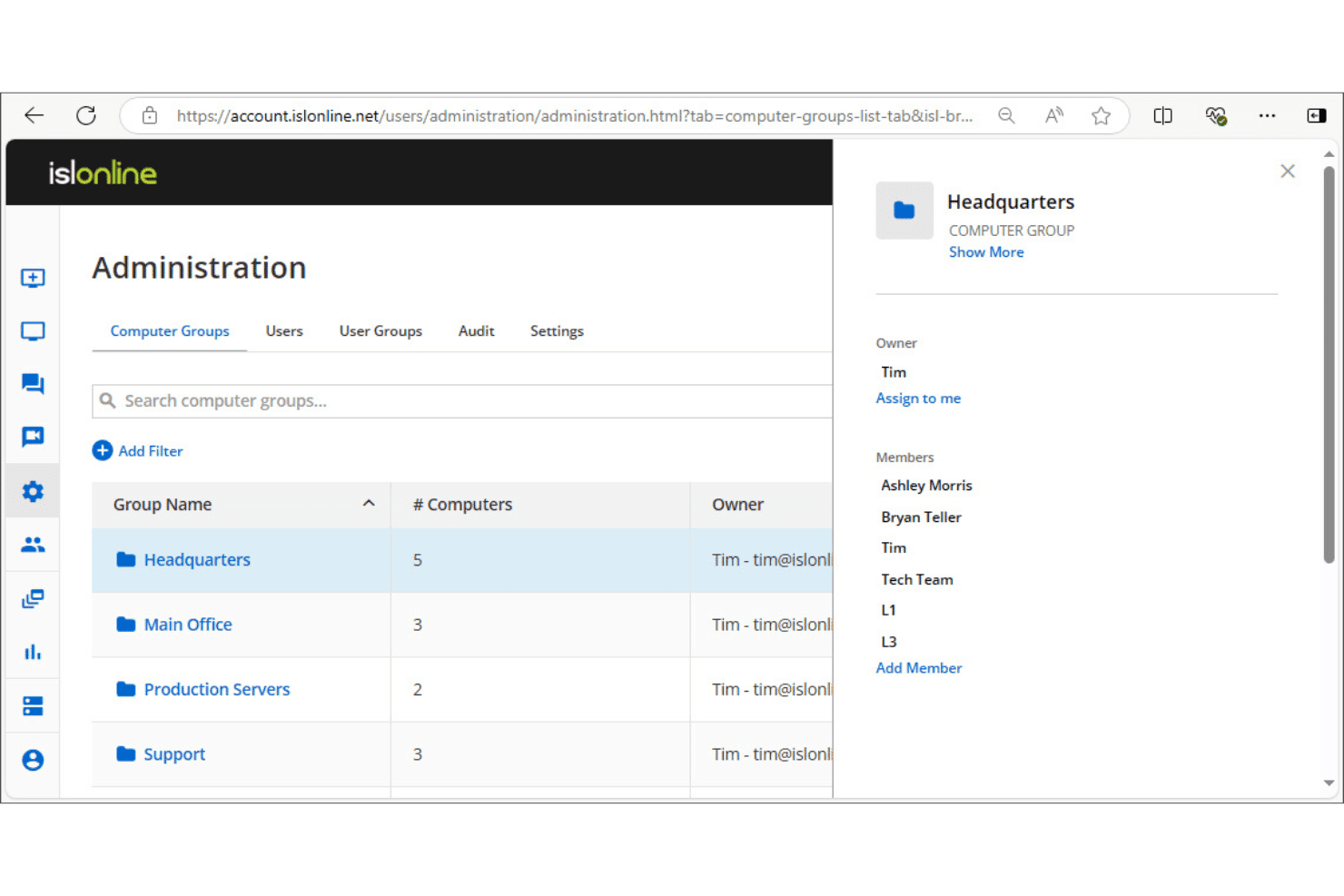
ISL Online permite a los administradores organizar los equipos en grupos con controles de acceso para los miembros. ISL Online es un software de escritorio remoto que admite acceso desatendido, sesiones de asistencia al cliente en directo, conexiones RDP/SSH y administración centralizada de usuarios y dispositivos en plataformas Windows, macOS, Linux y móviles.
¿Para quién es más adecuado ISL Online?
ISL Online es una opción excelente para equipos de TI y proveedores de servicios gestionados que necesitan ejecutar la infraestructura de acceso remoto en sus propios servidores en lugar de depender de la nube de un proveedor.
Por qué elegí ISL Online
ISL Online se ha ganado un lugar en mi lista de favoritos por la importancia que concede a la implementación autohospedada como una opción de primer nivel, no como algo secundario. Me gusta que el plan autohospedado permita ejecutar el servidor completo de ISL Online en la propia infraestructura, con compatibilidad con la autenticación LDAP externa y el inicio de sesión único SAML, además de los puertos 80 y 443. Esto significa que los datos de las sesiones nunca pasan por una nube de terceros, algo importante cuando una organización tiene requisitos estrictos de residencia de datos o cumplimiento normativo.
Funciones principales de ISL Online
- Grabación de sesiones: Captura grabaciones de vídeo completas de las sesiones remotas para crear registros de auditoría y documentación de cumplimiento.
- Transferencia de archivos: Envía y recibe archivos entre máquinas locales y remotas directamente dentro de una sesión activa.
- Autenticación de dos factores: Requiere un segundo paso de verificación al iniciar sesión para reducir el acceso no autorizado a dispositivos remotos.
- Conexiones RDP/SSH: Conecta con máquinas remotas mediante RDP o SSH sin necesidad de configurar una VPN ni realizar cambios en el cortafuegos.
Integración de ISL Online
ISL Online ofrece integraciones nativas con ServiceNow, Freshdesk, HaloITSM, Microsoft Intune, Devolutions Remote Desktop Manager, Deepser, SuperOps y PDQ Connect, además de una API REST para integrar el acceso remoto o crear integraciones OEM personalizadas en plataformas RMM, PSA, EDR e ITSM.
Pros and Cons
Pros:
- Puede implementarse por completo en la propia infraestructura
- Requiere una verificación adicional para iniciar sesión
- Compatibilidad nativa con RDP y SSH
Cons:
- Requiere autohospedaje para obtener la máxima privacidad
- No ofrece tareas automatizadas de corrección de terminales
Learn more about ISL Online: Ideal para la gestión de equipos de escritorio multidispositivo a gran escala
- Prueba gratuita de 7 días
- Desde $1.84/mes (facturado anualmente)
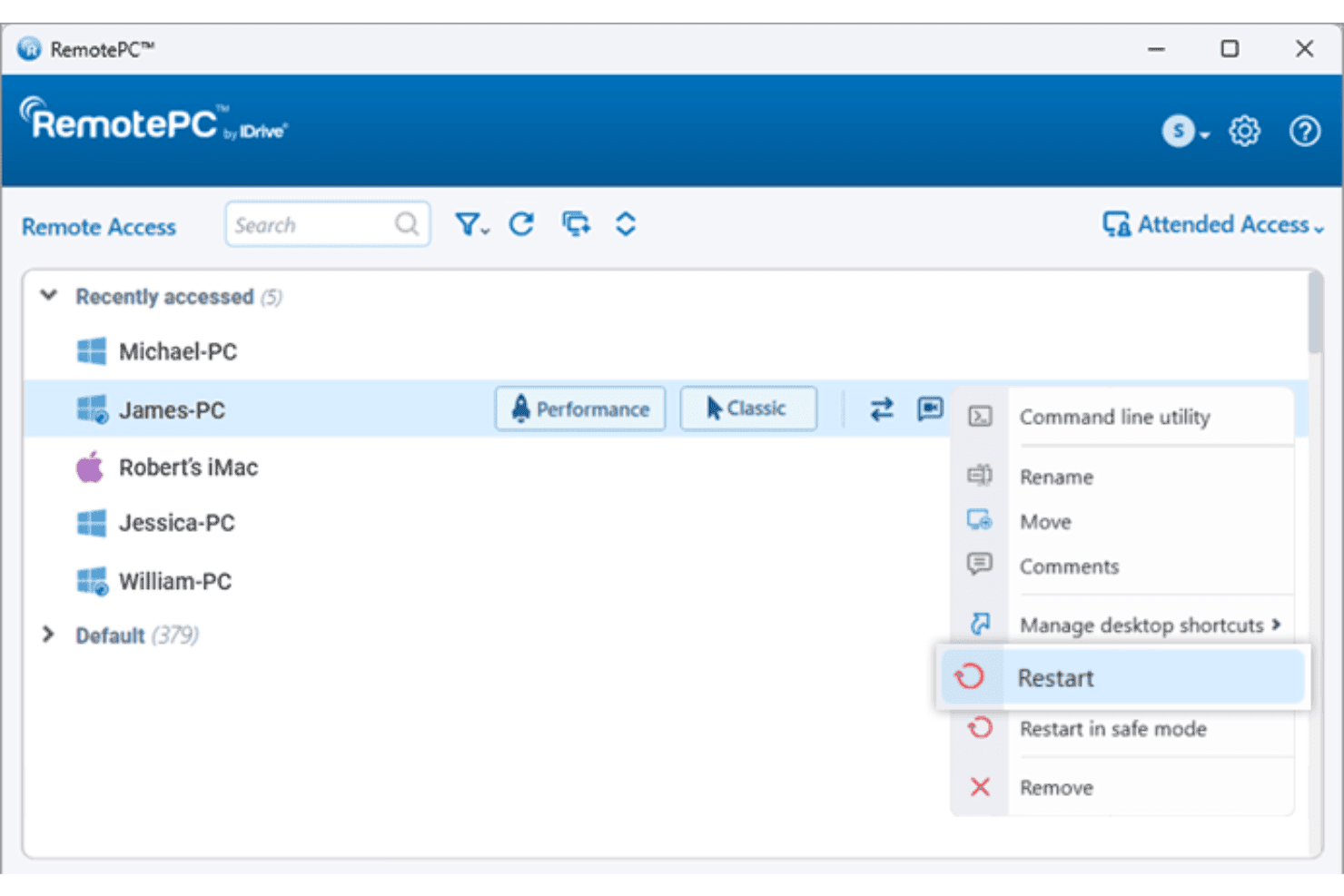
RemotePC permite a los usuarios reiniciar ordenadores remotos directamente desde la lista de dispositivos. RemotePC es una plataforma de acceso remoto que permite conectarse y controlar dispositivos Windows, Mac, Linux, Android e iOS a través de internet, con funciones que incluyen compatibilidad con varios monitores, transferencia de archivos, implementación remota, gestión de grupos de usuarios y equipos, y grabación de sesiones.
¿Para quién es más adecuado RemotePC?
RemotePC es una opción excelente para equipos de TI que gestionan grandes flotas de dispositivos Windows, Mac y Linux y necesitan acceso remoto centralizado con gestión de grupos de usuarios y equipos.
Por qué elegí RemotePC
RemotePC ocupa un lugar en mi lista de opciones principales por lo bien que gestiona la escala. Las funciones de agrupación de equipos y gestión de grupos de usuarios permiten organizar grandes flotas de dispositivos y asignar permisos de acceso sin configurar manualmente cada máquina. Lo que me resulta especialmente útil es la implementación masiva mediante GPO, Microsoft Intune o Jamf Pro, lo que permite implementar RemotePC en cientos de endpoints desde una consola central en lugar de acceder a cada uno individualmente. Si añadimos la grabación de sesiones y los registros de acceso detallados, se obtiene una sólida trazabilidad de cada conexión remota en el entorno.
Características principales de RemotePC
- Impresión remota: Imprime documentos almacenados en cualquier máquina remota directamente en tu impresora local sin transferir archivos manualmente.
- Redirección de dispositivos USB: Redirige un dispositivo USB desde tu máquina local a un equipo remoto para que funcione como si estuviera conectado físicamente.
- Conector RDP: Accede a ordenadores y servidores Windows remotos mediante RDP sin configurar una VPN ni Microsoft RD Gateway.
- Acceso asistido: Comparte un código de sesión de un solo uso para proporcionar acceso instantáneo y bajo demanda a un ordenador remoto para ofrecer asistencia en tiempo real.
Integraciones de RemotePC
RemotePC ofrece integraciones nativas con Zendesk, Freshdesk, Freshservice, Jira, OneLogin, Okta, Azure AD, Keycloak, Google Workspace y Jamf Pro. También hay una API disponible para integraciones personalizadas.
Pros and Cons
Pros:
- Admite el acceso remoto a las principales plataformas
- Opciones de implementación masiva para grandes flotas de dispositivos
- Funcionalidad de activación mediante red compatible
Cons:
- No admite integraciones de API personalizadas
- Carece de herramientas automatizadas para aplicar parches de software de forma remota
Learn more about RemotePC: La mejor opción para la rapidez y las herramientas de diagnóstico de los técnicos de MSP
- Prueba gratuita de 14 días + demostración gratuita disponible
- Precios disponibles previa solicitud
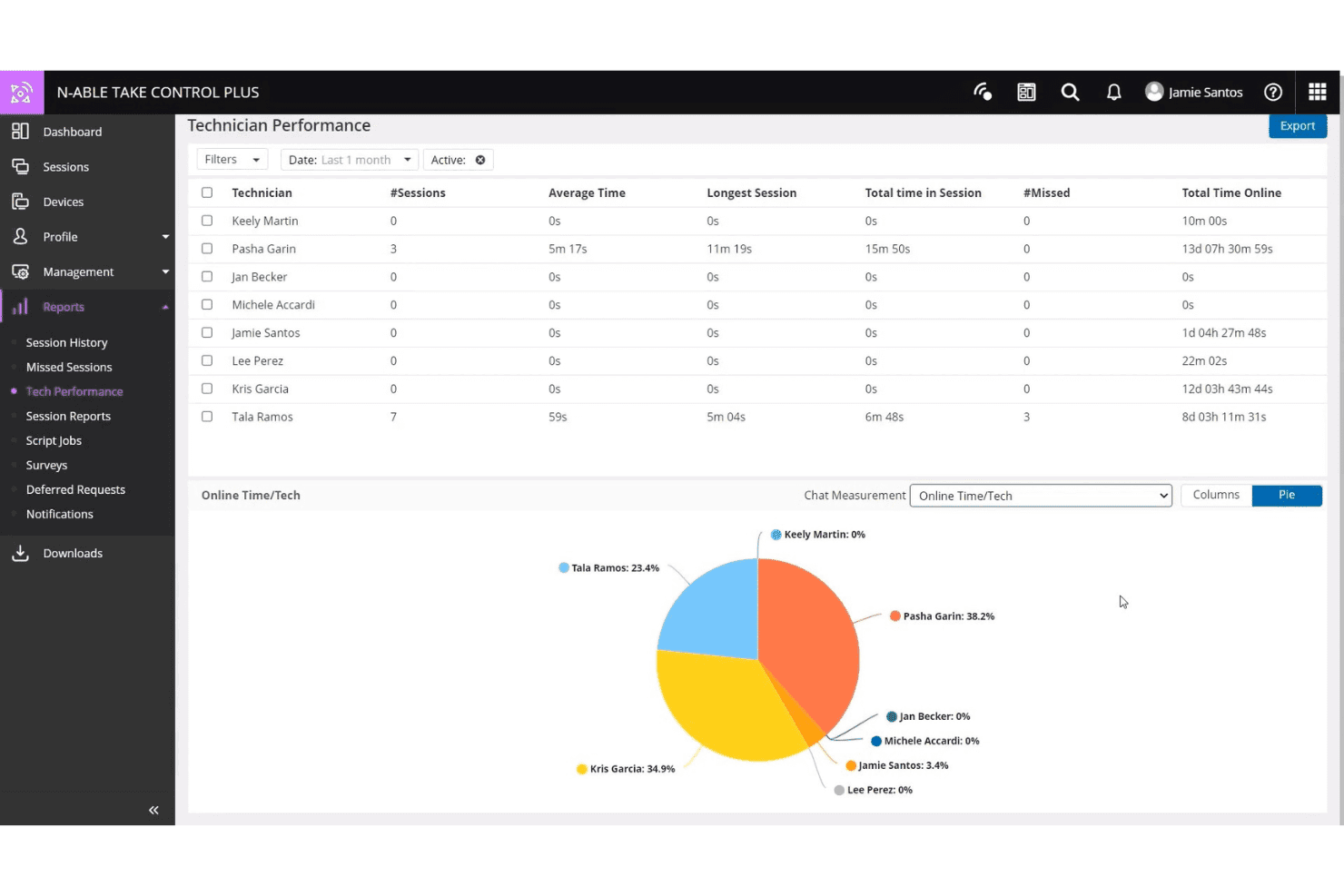
N-able Take Control registra la actividad de las sesiones y el tiempo en línea de los técnicos. N-able Take Control es una herramienta de soporte remoto diseñada para MSP y equipos de TI, que ofrece gestión de sesiones multiplataforma, herramientas de diagnóstico integradas, chat en vivo, VoIP, autenticación multifactor e integraciones con las plataformas RMM de N-able.
¿Para quién es más adecuado N-able Take Control?
N-able Take Control es una excelente opción para técnicos de MSP que necesitan iniciar sesiones rápidamente y utilizar herramientas de diagnóstico integradas sin cambiar de plataforma.
Por qué elegí N-able Take Control
He incluido N-able Take Control entre mis opciones principales porque la velocidad de inicio de las sesiones es realmente impresionante, y las herramientas de diagnóstico integradas evitan que los técnicos tengan que cambiar entre pestañas para solucionar problemas. Me gusta especialmente el panel de estado del dispositivo, que muestra datos de CPU, memoria y disco durante una sesión activa, para que puedas diagnosticar mientras trabajas. La consola de comandos remotos con un clic es otra función a la que recurro con frecuencia, ya que permite ejecutar scripts y reiniciar servicios sin interrumpir la pantalla del usuario final.
Funciones principales de N-able Take Control
- Sesiones remotas multiplataforma: Conéctate desde y hacia dispositivos Windows, Mac, Linux, iOS y Android dentro de una única cola de sesiones.
- Compatibilidad con varios monitores: Cambia entre varios monitores del dispositivo remoto y visualízalos sin finalizar ni reiniciar la sesión.
- Transferencia de archivos durante la sesión: Arrastra y suelta archivos directamente hacia y desde un dispositivo remoto durante una sesión de soporte activa.
- Grabación de sesiones: Inicia y detén grabaciones de sesiones activas para fines de auditoría, cumplimiento normativo o capacitación de técnicos.
Integraciones de N-able Take Control
N-able Take Control ofrece integraciones nativas con N-sight RMM, N-central, Autotask y ConnectWise. También hay una API disponible para integraciones personalizadas.
Pros and Cons
Pros:
- La velocidad de inicio de las sesiones es constantemente rápida
- Panel de estado del dispositivo integrado durante las sesiones
- Colas multiplataforma para Windows, Mac y Linux
Cons:
- Integraciones nativas limitadas fuera del ecosistema de N-able
- Algunas funciones avanzadas requieren la plataforma N-central
Learn more about N-able Take Control: Ideal para control remoto de alto rendimiento con calidad 4K
- Prueba gratuita + demostración gratuita disponibles
- Desde $6/mes
Visit WebsiteCustomer Rating:4.8/5
Splashtop permite a los usuarios ver y filtrar de forma remota los registros de eventos de Windows por tipo y gravedad. Splashtop es una plataforma de acceso remoto y asistencia remota diseñada para equipos de TI, que ofrece control de escritorio remoto, uso compartido de pantalla, grabación de sesiones y compatibilidad con varios monitores en dispositivos Windows, Mac, iOS, Android y Linux.
¿Para quién es más adecuado Splashtop?
Splashtop es una opción sólida para equipos de TI y proveedores de servicios gestionados que necesitan un control de escritorio remoto de alta fidelidad, especialmente cuando la calidad de visualización y el rendimiento de las sesiones son factores prioritarios.
Por qué elegí Splashtop
Splashtop está en mi lista de opciones finalistas gracias a su transmisión en 4K a hasta 60fps, lo que la hace realmente viable para trabajar de forma remota con aplicaciones con un uso intensivo de gráficos, como Adobe Creative Suite o AutoCAD. La he utilizado en situaciones en las que la fidelidad de la imagen es realmente importante, y la diferencia con una transmisión HD estándar es notable. Además, la compatibilidad con varios monitores permite ver varias pantallas remotas sin perder la perspectiva del espacio de trabajo.
Funciones principales de Splashtop
- Grabación de sesiones: Graba automáticamente las sesiones remotas y almacénalas para auditorías, cumplimiento normativo o revisiones de resolución de problemas.
- Transferencia de archivos: Mueve archivos entre el dispositivo local y el remoto directamente dentro de una sesión activa, sin necesidad de una herramienta de terceros.
- Reinicio remoto: Reinicia una máquina remota, incluso en modo seguro, sin perder el acceso a la sesión.
- Autenticación de dos factores: Requiere un segundo paso de verificación al iniciar sesión para reducir el acceso no autorizado a los endpoints remotos.
Integraciones de Splashtop
Splashtop ofrece más de 40 integraciones nativas, incluidas Jira, ServiceNow, Zendesk, Freshservice, Microsoft Teams, Salesforce, Splunk, Jamf, NinjaOne y JumpCloud, y cuenta con integraciones nativas en todo el ecosistema de Microsoft, incluida Microsoft Entra ID. También hay una API disponible para integraciones personalizadas.
Pros and Cons
Pros:
- Transmite escritorios remotos en 4K a 60fps
- Permite reiniciar dispositivos remotos de forma segura
- Ofrece funciones directas de transferencia de archivos
Cons:
- Carece de una línea de comandos de endpoint en segundo plano
- No cuenta con herramientas automatizadas de aplicación de parches de software
Learn more about Splashtop: Ideal para diagnósticos de TI asistidos por IA
- Prueba gratuita de 30 días
- Desde 24.9 $/mes (facturado anualmente)
Visit WebsiteCustomer Rating:4.5/5
TeamViewer descubre y supervisa todos los dispositivos de tu red. TeamViewer es una plataforma de acceso y soporte remoto que combina la conectividad de dispositivos, la resolución de problemas basada en sesiones, la supervisión de dispositivos y los diagnósticos asistidos por IA en entornos de escritorio, móviles e IoT.
¿Para quién es más adecuado TeamViewer?
TeamViewer es una opción excelente para equipos de soporte informático que gestionan entornos grandes y heterogéneos, donde los diagnósticos remotos rápidos en equipos de escritorio, dispositivos móviles y dispositivos IoT son una necesidad diaria.
Por qué elegí TeamViewer
TeamViewer ocupa un lugar en mi lista de opciones principales gracias a Tia, su agente de IA integrado que diagnostica problemas durante la sesión, recomienda una solución, ejecuta la corrección aprobada y valida el resultado sin que tengas que abandonar la sesión remota. También me gusta Información de sesión, que genera automáticamente resúmenes de sesiones preparados para auditorías y envía datos de patrones a Análisis de sesiones para que puedas detectar problemas recurrentes en todo tu entorno. Para los equipos de TI que gestionan grandes volúmenes de tickets en flotas de dispositivos heterogéneas, estas dos funciones juntas reducen la distancia entre la resolución reactiva de problemas y algo más cercano al soporte autónomo.
Funciones principales de TeamViewer
- Acceso desatendido: Conéctate a dispositivos aprobados y contrólalos —incluidos equipos y dispositivos Android— sin necesidad de que haya un usuario presente en el otro extremo.
- Asistencia remota con realidad aumentada: Usa Assist AR para guiar a los trabajadores en las instalaciones frente a problemas de hardware o software mediante superposiciones de realidad aumentada en directo basadas en el teléfono inteligente, sin enviar a un técnico.
- Transferencia de archivos cifrada: Transfiere archivos entre dispositivos locales y remotos mediante cifrado AES de extremo a extremo de 256 bits, con compatibilidad con varios métodos de transferencia, incluido copiar y pegar.
- Implementación masiva silenciosa: Envía el cliente de TeamViewer a miles de dispositivos en bloque sin requerir la interacción del usuario, reduciendo el tiempo de incorporación de flotas grandes de dispositivos.
Integraciones de TeamViewer
TeamViewer ofrece más de 30 integraciones nativas, incluidas ServiceNow, Salesforce, Zendesk, Jira, Freshworks, Slack, Google Meet, SAP, Jamf Pro y herramientas del ecosistema de Microsoft como Microsoft 365, Intune, Teams, Dynamics 365 y Entra ID. También hay disponible una API para integraciones personalizadas.
Pros and Cons
Pros:
- Los diagnósticos basados en IA sugieren soluciones en tiempo real
- Información de sesión genera informes de soporte preparados para auditorías
- Modo de asistencia visual con realidad aumentada
Cons:
- Carece de un modo de gestión en segundo plano discreto
- El acceso remoto se bloquea ocasionalmente debido a firewalls estrictos
Learn more about TeamViewer: Ideal para soporte conforme a FIPS 140-2
- Prueba gratuita y demostración gratuita disponibles
- Precios bajo solicitud

BeyondTrust Remote Support realiza un seguimiento de las sesiones activas, los tiempos de espera y la actividad de los agentes. BeyondTrust Remote Support es una plataforma de acceso remoto diseñada para equipos de TI y soporte que necesitan acceder, solucionar problemas y gestionar de forma segura dispositivos finales en entornos locales, en la nube e híbridos.
¿Para quién es más adecuado BeyondTrust Remote Support?
BeyondTrust Remote Support es una opción sólida para equipos de TI y seguridad de organismos gubernamentales, defensa y sectores altamente regulados que necesitan soporte remoto validado según los estándares FIPS 140-2, nivel 1.
Por qué elegí BeyondTrust Remote Support
BeyondTrust Remote Support es el único producto de soporte remoto con validación FIPS 140-2, nivel 1, lo que lo convierte en una opción clara para organismos gubernamentales, contratistas de defensa y organizaciones que operan bajo los requisitos de FedRAMP o FISMA. Me gusta especialmente la función Vault, que permite gestionar, rotar e inyectar hasta 100.000 credenciales directamente dentro de las sesiones remotas, manteniendo el acceso privilegiado estrictamente controlado. El registro de sesiones y el análisis forense proporcionan a los equipos de seguridad un registro de auditoría completo de cada conexión.
Funciones principales de BeyondTrust Remote Support
- Clientes Jump: Implementa clientes Jump para acceder sin supervisión a dispositivos finales remotos, con compatibilidad para implementaciones masivas y aprovisionamiento de acceso justo a tiempo.
- Panel de soporte remoto: Supervisa todas las sesiones activas en tiempo real, consulta la carga del equipo y transfiere o asume sesiones directamente desde una vista de gestión centralizada.
- Compatibilidad con dispositivos multiplataforma: Conéctate a dispositivos Windows, Linux, macOS, Chrome OS, iOS y Android, y soluciona sus problemas desde una única interfaz.
- Ejecución automatizada de secuencias de comandos: Ejecuta secuencias de comandos e instaladores masivos en los dispositivos finales durante las sesiones remotas para acelerar la resolución de problemas sin intervención manual.
Integraciones de BeyondTrust Remote Support
BeyondTrust Remote Support ofrece integraciones nativas con ServiceNow, Jira Service Management, BMC ITSM, Splunk, Microsoft Entra ID, Okta y Ping Identity. También hay disponible una API para integraciones personalizadas.
Pros and Cons
Pros:
- Ofrece validación FIPS 140-2 de nivel 1
- Gestión centralizada de credenciales durante las sesiones remotas
- Ejecución automatizada de secuencias de comandos en los dispositivos finales
Cons:
- Carece de un modo de gestión de dispositivos finales en segundo plano
- Requiere configuración para un acceso sin supervisión óptimo
Learn more about BeyondTrust Remote Support: Más adecuada para el acceso de confianza cero de nivel FedRAMP
- Prueba gratuita + demostración gratuita disponibles
- Precio bajo solicitud

BeyondTrust realiza un seguimiento del cumplimiento de las políticas informáticas y de las versiones de los clientes en todos los dispositivos finales. BeyondTrust Privileged Remote Access es una solución de gestión de acceso privilegiado (PAM) que controla y audita las sesiones remotas de empleados, proveedores y cuentas de servicio en entornos de nube, locales y de OT mediante una arquitectura de confianza cero, inyección de credenciales y grabación de sesiones.
¿Para quién es más adecuada la gestión de acceso privilegiado de BeyondTrust?
BeyondTrust Privileged Remote Access es una opción especialmente adecuada para organismos gubernamentales, contratistas de defensa y empresas reguladas que necesitan controles de acceso remoto con autorización FedRAMP para usuarios privilegiados y proveedores externos.
Por qué elegí la gestión de acceso privilegiado de BeyondTrust
BeyondTrust Privileged Remote Access ocupa un lugar en mi lista porque es una de las pocas soluciones de acceso remoto con autorización FedRAMP Moderate, algo muy importante si trabajas en un organismo federal o prestas apoyo a contratistas gubernamentales. Me gusta especialmente su capacidad de inyección de credenciales, que permite a los usuarios privilegiados autenticarse en los sistemas sin ver nunca las contraseñas en texto plano. Si a esto le sumas controles de acceso justo a tiempo y la grabación completa de las sesiones, obtienes el tipo de rastro de acceso preparado para auditorías que satisface tanto a los equipos de seguridad internos como a los revisores externos de cumplimiento.
Características principales de la gestión de acceso privilegiado de BeyondTrust
- Gestión de acceso privilegiado de proveedores: Concede a proveedores externos acceso remoto por tiempo limitado sin requerir conectividad VPN ni credenciales compartidas.
- Compatibilidad con sesiones multiprotocolo: Admite conexiones RDP, VNC, SSH, HTTPS y SQL para ofrecer sesiones autenticadas y auditables entre identidades humanas y no humanas.
- Acceso de desarrolladores a la nube: Proporciona acceso basado en protocolos con un flujo de trabajo que permite usar herramientas nativas para sistemas efímeros multinube y entornos basados en API.
- Incorporación delegada de proveedores: Permite asignar la gestión de usuarios de proveedores a políticas de grupo, eliminando las cuentas compartidas y reduciendo la carga administrativa del aprovisionamiento manual.
Integraciones de la gestión de acceso privilegiado de BeyondTrust
BeyondTrust Privileged Remote Access ofrece integraciones nativas con ServiceNow, Jira Service Management, Splunk, Sekoia, SailPoint IdentityIQ, AWS y VMware. Hay una API disponible para integraciones personalizadas.
Pros and Cons
Pros:
- La autorización FedRAMP Moderate facilita el cumplimiento de los requisitos federales
- La inyección de credenciales oculta las contraseñas confidenciales a los usuarios
- La grabación de sesiones permite crear registros de auditoría exhaustivos
Cons:
- Carece de una función de chat directo para dispositivos finales
- No incluye gestión antivirus integrada
Learn more about BeyondTrust Privileged Access Management: Ideal para grabar y auditar sesiones
- Prueba gratuita de 14 días
- Desde $33/mes (facturado anualmente)

ScreenConnect realiza un seguimiento de las solicitudes de elevación y las aprobaciones de acceso en un único panel. ScreenConnect es una plataforma de acceso y asistencia remotos que abarca el acceso a dispositivos desatendidos, las sesiones de asistencia remota, la gestión de accesos privilegiados y el uso compartido de cámaras en tiempo real en dispositivos Windows, Mac, Linux y móviles.
¿Para quién es más adecuado ScreenConnect?
ScreenConnect es una buena opción para equipos de TI y proveedores de servicios gestionados que necesitan registros de auditoría completos y registros de sesiones grabadas para cumplir los requisitos de conformidad o de responsabilidad interna.
Por qué elegí ScreenConnect
ScreenConnect ocupa un lugar en mi lista de finalistas por la seriedad con la que gestiona la visibilidad y la responsabilidad de las sesiones. Cada sesión remota puede registrarse como una grabación de vídeo, y el registro de auditoría realiza un seguimiento de los intentos de inicio de sesión, los cambios de contraseña y el acceso a las sesiones en una única vista filtrable, por lo que puedes consultar exactamente qué hizo un técnico durante una sesión específica sin tener que revisar registros fragmentados. También me gusta que puedas filtrar los registros de auditoría por nombre de sesión para encontrar grabaciones rápidamente, algo importante cuando respondes a una consulta de conformidad o a una revisión interna.
Características principales de ScreenConnect
- Acceso a dispositivos desatendidos: Conéctate a máquinas remotas con Windows, Mac y Linux sin que sea necesario que haya un usuario presente al otro lado.
- Uso compartido de cámaras en tiempo real: Accede a la transmisión en directo de la cámara de un dispositivo durante una sesión de asistencia para obtener contexto visual sobre entornos físicos o problemas de hardware.
- Control de acceso basado en roles: Asigna permisos a los técnicos con un nivel de granularidad preciso y controla a qué máquinas y tipos de sesión puede acceder cada usuario.
- Activación remota por LAN: Enciende dispositivos remotos a través de la red para poder conectarte a máquinas apagadas sin necesidad de que haya alguien en el lugar.
Integraciones de ScreenConnect
ScreenConnect ofrece integraciones nativas con ConnectWise PSA, ConnectWise Automate, ConnectWise RMM, Acronis, Freshdesk, Zendesk, Microsoft Outlook, ServiceNow y Delinea, además de más de 100 extensiones disponibles a través de ConnectWise Marketplace. Hay una API disponible para integraciones personalizadas.
Pros and Cons
Pros:
- Uso compartido de la cámara del dispositivo en tiempo real
- Registros de auditoría detallados para revisiones de responsabilidad
- Permisos basados en roles para controlar el acceso de los técnicos
Cons:
- No hay una versión gratuita ni de prueba disponible
- Carece de una implementación unificada de parches para dispositivos finales
Learn more about ScreenConnect: Ideal para el soporte de centros de llamadas mediante implementaciones masivas
- Prueba gratuita de 14 días + demostración gratuita disponible
- Desde $109/mes (facturado anualmente)

LogMeIn Rescue permite a los usuarios iniciar sesiones de soporte remoto, móvil o de uso compartido de pantalla. LogMeIn Rescue es una plataforma de soporte remoto basada en la nube, diseñada para equipos de TI y mesas de ayuda, que ofrece acceso remoto a dispositivos, gestión de sesiones, compatibilidad multiplataforma y herramientas de consola para técnicos en entornos de escritorio y móviles.
¿Para quién es más adecuado LogMeIn Rescue?
LogMeIn Rescue es una opción excelente para mesas de ayuda de TI y centros de llamadas que necesitan prestar soporte a grandes volúmenes de usuarios finales en varios dispositivos y sistemas operativos simultáneamente.
Por qué elegí LogMeIn Rescue
He incluido LogMeIn Rescue entre mis principales opciones porque gestiona el soporte para centros de llamadas de gran volumen mejor que la mayoría de las herramientas de esta categoría. La función Tarjeta de llamada es el verdadero factor diferenciador: permite implementar un acceso directo de escritorio con un solo clic en miles de equipos de usuarios finales mediante una instalación masiva, y los usuarios pueden conectarse a una sesión de soporte sin un PIN. Por su parte, los técnicos gestionan las solicitudes entrantes mediante colas de sesiones y enrutamiento por canales, lo que mantiene organizados los flujos de trabajo de los centros de llamadas a gran escala.
Funciones principales de LogMeIn Rescue
- Resúmenes de sesiones con IA: Genera automáticamente notas estructuradas de las sesiones a partir de los registros de chat, la información del dispositivo y las acciones realizadas por el técnico durante una sesión de soporte.
- Grabación y generación de informes de sesiones: Graba sesiones remotas y permite acceder a datos históricos de uso para revisar la actividad de los técnicos y realizar un seguimiento de las métricas del equipo.
- Live Lens: Permite que los usuarios finales compartan su entorno físico mediante la cámara de su teléfono inteligente, para que los técnicos puedan diagnosticar problemas de hardware o incidencias en las instalaciones sin necesidad de desplazarse hasta el puesto.
- Colaboración entre varios técnicos: Invita a técnicos adicionales a una sesión activa para solucionar problemas conjuntamente sin reiniciar ni transferir la sesión.
Integraciones de LogMeIn Rescue
LogMeIn Rescue ofrece integraciones nativas con ServiceNow, Salesforce (incluido Lightning), Microsoft Dynamics, Microsoft Teams, Zendesk, Freshdesk, Jira Service Management, Autotask y Nexthink. También proporciona API y SDK para integraciones personalizadas con sistemas de CRM, gestión de tickets y flujos de trabajo.
Pros and Cons
Pros:
- Capacidad para generar automáticamente notas de las sesiones
- Live Lens permite diagnosticar problemas de hardware
- Sesiones con varios técnicos sin interrupciones
Cons:
- No incluye antivirus integrado para los terminales
- No cuenta con automatización continua de parches para los terminales
Learn more about LogMeIn Rescue:
Otro software de acceso remoto
Aquí tienes algunas opciones adicionales de software de acceso remoto que no llegaron a mi lista final, pero que aún merece la pena considerar:
- 11NinjaOneIdeal para el control nativo de dispositivos terminales mediante RMM
- 12Zoho AssistLa mejor opción para integraciones nativas con el ecosistema de Zoho
- 13AteraIdeal para precios transparentes por técnico
- 14ManageEngine Remote Access PlusIdeal para diagnósticos del sistema sin supervisión
- 15Parallels RASIdeal para la entrega de aplicaciones y escritorios virtuales a cualquier dispositivo
- 16AnyDeskIdeal para el control multiplataforma de baja latencia
- 17Azure Virtual DesktopIdeal para escritorios de Windows nativos de la nube
- 18LogMeIn ResolveIdeal para la gestión unificada de incidencias y el acceso a dispositivos finales
- 19RustDeskIdeal para la soberanía de los datos de código abierto
- 20RealVNC ConnectIdeal para sistemas embebidos y acceso a IoT
Related Reviews
How I Evaluate Remote Access Software
I split my evaluation into baseline capabilities every tool must clear—like unattended access and session auditing—and the differentiators, like zero-trust architecture or MSP ecosystem fit, that separate good tools from the right one.
Core Functionality (Table Stakes for This List)
When I'm selecting tools for my list, I rank each one on a scale from 0 (does not offer the functionality) to 5 (excels in this area) for each core functionality listed below. I then calculate the tool's total score as a percentage, using 75% as a benchmark to help assess its overall fit for the list.
- Remote control access: I evaluate real-time screen, keyboard, and mouse control across connections, checking for multi-monitor handling, resolution scaling, and performance under high-latency conditions.
- Unattended access: Tools need to support always-on agent-based connections so technicians can reach endpoints for after-hours patching or server maintenance without someone on the other end.
- Cross-platform support: I check whether each tool covers Windows, macOS, Linux, iOS, and Android as both host and client, since mixed-OS environments are the norm for most IT teams.
- Secure connection and encryption: AES-256 encryption, MFA enforcement, and SSO/SAML support are what I look for, along with any compliance certifications like SOC 2 or ISO 27001.
- File transfer and session tools: Bi-directional file transfer, clipboard sync, remote print, and in-session chat all factor in, especially for support scenarios where a technician needs to push a config file mid-session.
- Session management and auditing: I look at session recording, role-based access controls, and exportable audit logs, since these directly support compliance requirements and internal accountability reviews.
Once I have a list of tools that meet the criteria, I consider what sets each platform apart.
Differentiating Factors (What Sets Vendors Apart)
Here's how I compare and contrast different vendors:
Standout Features
Session recording with searchable metadata matters most when your compliance team needs a defensible audit trail. I check whether recordings auto-attach to tickets and how long vendors retain them. Just-in-time privileged access is equally important—I evaluate how tools handle time-bound, approval-gated elevation for contractors so access revokes automatically after a session ends. I also look at mass deployment tooling, since onboarding thousands of endpoints via silent MSI installers or Group Policy integration separates enterprise-ready platforms from ones that require manual setup.
Beyond Features
I evaluate each tool's deployment model first—cloud-hosted, self-hosted, or hybrid—because teams in regulated industries often need on-premises control or data residency guarantees. Licensing structure matters just as much: per-technician pricing suits lean internal teams, while per-endpoint or concurrent-session models can save MSPs real money at scale. I also check for native connectors to PSA, ITSM, and identity providers like Okta or Azure AD, since launching a remote session straight from a ServiceNow ticket eliminates context-switching. Finally, I look at compliance certifications like SOC 2 Type II and FedRAMP that map directly to buyer requirements in healthcare, finance, and public sector.
Cómo elegir un software de acceso remoto
¿Qué prioridades deberían guiar tu proceso de selección de software de acceso remoto para ofrecer un acceso seguro, escalable y auditable a tu equipo?
| Si tu prioridad es… | Busca… |
|---|---|
| Si tu prioridad es…Demostrar la seguridad y el cumplimiento | Busca…Certificaciones como SOC 2, FIPS 140-2 o FedRAMP, además de herramientas de auditoría de sesiones |
| Si tu prioridad es…Cobertura de dispositivos a escala empresarial | Busca…Implementación masiva mediante MSI, GPO o integración con RMM |
| Si tu prioridad es…Acceso multiplataforma | Busca…Compatibilidad completa con Windows, macOS, Linux, iOS y Android, tanto como equipos anfitriones como clientes |
| Si tu prioridad es…Confianza cero y control detallado | Busca…Acceso basado en roles con elevación justo a tiempo y aplicación obligatoria de MFA |
| Si tu prioridad es…Resolución de problemas preparada para auditorías | Busca…Grabación de sesiones con registros exportables y metadatos que permitan realizar búsquedas |
Cómo evaluar tu lista final
- Solicita documentación de cumplimiento: Pide a los proveedores la documentación actual de SOC 2 o FedRAMP en un plazo de dos días laborables.
- Prueba la implementación masiva: Realiza una prueba de un instalador silencioso o de una implementación basada en GPO en al menos 10 puntos finales de redes independientes.
- Simula los controles de acceso: Utiliza una versión de prueba para crear un acceso limitado en el tiempo y sujeto a aprobación para un contratista de prueba, y verifica su revocación automática.
- Exporta los registros de auditoría de las sesiones: Completa una sesión y, a continuación, exporta un registro detallado o una grabación de un dispositivo real en un plazo de 24 horas.
- Elige tu opción: comodidad de la nube frente a control local: Decide entre la agilidad del SaaS y la soberanía de los datos y las garantías de cumplimiento de una implementación autogestionada.
¿Qué es el software de acceso remoto?
El software de acceso remoto es un conjunto de herramientas que permite conectarse de forma segura a otro dispositivo y controlarlo a través de una red o de internet. Permite a los equipos de TI y a los usuarios administrar dispositivos, solucionar problemas y realizar tareas de administración sin estar físicamente presentes. Estas plataformas son importantes para brindar soporte a entornos distribuidos, mantener la disponibilidad y aplicar controles de seguridad en diversos sistemas operativos y ubicaciones.
Funciones del software de acceso remoto
Al seleccionar un software de acceso remoto, presta atención a las siguientes funciones clave:
- Acceso mediante control remoto: Permite ver y controlar en tiempo real la pantalla, el teclado y el ratón de otro dispositivo para solucionar problemas, realizar actualizaciones o tareas de mantenimiento sin estar físicamente en el lugar.
- Acceso desatendido: Permite conexiones remotas a los dispositivos finales incluso cuando no hay ningún usuario presente, lo que es fundamental para el soporte fuera del horario laboral, la aplicación de parches y el trabajo en servidores.
- Compatibilidad multiplataforma: Admite conexiones entre dispositivos con Windows, macOS, Linux, iOS y Android, lo que garantiza que tu equipo pueda administrar entornos mixtos sin limitaciones.
- Cifrado sólido: Utiliza protocolos de seguridad como AES-256 para proteger los datos de las sesiones y garantizar que tus sesiones remotas no puedan ser interceptadas ni manipuladas.
- Autenticación multifactor (MFA): Requiere un paso de autenticación adicional, más allá de la contraseña, lo que reduce el riesgo de acceso no autorizado y aumenta la seguridad general.
- Grabación de sesiones y registros de auditoría: Captura la actividad de las sesiones remotas y proporciona registros detallados, lo que ayuda con el cumplimiento, las revisiones internas y la verificación de las acciones de los usuarios.
- Herramientas de transferencia de archivos: Facilitan el envío y la recepción de archivos entre equipos locales y remotos, algo fundamental para implementar parches y scripts, o recopilar archivos de registro durante las sesiones de soporte.
- Controles de acceso basados en roles: Permiten asignar permisos específicos a usuarios o grupos y limitar el acceso remoto únicamente a quienes realmente lo necesitan.
- Chat durante la sesión: Ofrece a los técnicos una forma de comunicarse directamente con los usuarios remotos durante una sesión de soporte, lo que ayuda a aclarar problemas y coordinar su resolución.
- Opciones de implementación escalables: Proporciona herramientas de instalación masiva o integraciones, como instaladores MSI, GPO o conectores RMM, que simplifican la incorporación de grandes cantidades de dispositivos finales en tu entorno.
Funciones habituales de IA del software de acceso remoto
Además de las funciones estándar del software de acceso remoto mencionadas anteriormente, muchas de estas soluciones están incorporando IA con funciones como las siguientes:
- Detección automatizada de problemas: La IA analiza la actividad de las sesiones y los registros del sistema para identificar posibles problemas o anomalías antes de que se agraven, lo que ayuda a los equipos de TI a abordarlos de forma proactiva.
- Enrutamiento inteligente de sesiones: La IA asigna las solicitudes de soporte al técnico más cualificado según su rendimiento histórico, experiencia y carga de trabajo actual, lo que reduce los tiempos de resolución y mejora la experiencia del usuario.
- Alertas de mantenimiento predictivo: La IA supervisa el estado y los patrones de uso de los dispositivos para predecir fallos de hardware o problemas de software, lo que permite a los equipos programar el mantenimiento antes de que se produzcan interrupciones.
- Resúmenes de sesiones con reconocimiento del contexto: La IA genera resúmenes detallados y consultables de las sesiones remotas, destacando las acciones, decisiones y resultados clave para simplificar la documentación y las revisiones de cumplimiento.
- Supervisión del acceso basada en anomalías: La IA evalúa continuamente el comportamiento de los usuarios durante las sesiones remotas y señala patrones de acceso inusuales o acciones arriesgadas para su revisión inmediata, con el fin de reforzar la seguridad.
- Chatbots de soporte en lenguaje natural: Los chatbots con IA ayudan a los usuarios y técnicos durante las sesiones remotas al responder preguntas, sugerir pasos para solucionar problemas o automatizar tareas rutinarias mediante interfaces conversacionales.
Beneficios del software de acceso remoto
Implementar un software de acceso remoto ofrece varios beneficios para tu equipo y tu empresa. Estos son algunos de los que puedes esperar:
- Conectividad remota segura: Permite que tu equipo solucione problemas, administre y actualice dispositivos desde cualquier lugar mediante conexiones cifradas, MFA y controles de acceso basados en roles.
- Gestión de dispositivos multiplataforma: Gestione y controle dispositivos finales en plataformas Windows, macOS, Linux, iOS y Android, admitiendo infraestructuras diversas sin necesidad de utilizar varias herramientas.
- Compatibilidad con auditorías y cumplimiento normativo: Cumpla con las necesidades de auditoría y normativas mediante la grabación de sesiones, registros exportables y un seguimiento detallado de la actividad de los usuarios que facilita las revisiones de cumplimiento.
- Mantenimiento desatendido de sistemas: Programe parches, aborde incidentes o acceda a servidores fuera del horario laboral sin esperar a que intervenga un usuario final, gracias a las funciones de agente siempre activo y acceso desatendido.
- Transferencias directas de archivos y colaboración: Transfiera archivos, sincronice portapapeles y utilice el chat durante las sesiones para resolver problemas de forma eficiente y ayudar a los usuarios en tiempo real.
- Implementación escalable: Incorpore rápidamente miles de dispositivos mediante instaladores MSI, integración con directivas de grupo o conectores RMM que simplifican la implementación masiva.
- Información y automatización impulsadas por IA: Utilice herramientas de IA para la detección automatizada de problemas, resúmenes de sesiones adaptados al contexto y alertas de mantenimiento predictivo que ayuden a su equipo a prevenir problemas antes de que afecten a los usuarios.
Costes y precios
Para seleccionar un software de acceso remoto es necesario comprender los distintos modelos de precios y planes disponibles. Los costes varían según las funciones, el tamaño del equipo, los complementos y otros factores. La siguiente tabla resume los planes habituales, sus precios medios y las funciones que suelen incluir las soluciones de software de acceso remoto:
Tabla comparativa de planes de software de acceso remoto
| Tipo de plan | Precio medio | Funciones habituales |
|---|---|---|
| Tipo de planPlan gratuito | Precio medio$0 | Funciones habitualesControl remoto básico, duración limitada de las sesiones, compatibilidad con uno o dos dispositivos y asistencia de la comunidad. |
| Tipo de planPlan personal | Precio medio$5–$15/usuario/mes | Funciones habitualesAcceso desatendido, herramientas de transferencia de archivos, cifrado sólido y compatibilidad con Windows y macOS. |
| Tipo de planPlan empresarial | Precio medio$25–$40/usuario/mes | Funciones habitualesAcceso multiplataforma, autenticación multifactor, grabación de sesiones, gestión de equipos y registros de auditoría. |
| Tipo de planPlan para empresas | Precio medio$50–$80/usuario/mes | Funciones habitualesControles avanzados de acceso basados en roles, elevación justo a tiempo, integración con proveedores de identidad, implementación masiva y certificaciones de cumplimiento. |
Preguntas frecuentes sobre el software de acceso remoto
Aquí encontrarás respuestas a algunas preguntas frecuentes sobre el software de acceso remoto:
¿Cómo sé si el software de acceso remoto es lo suficientemente seguro para mi organización?
Para garantizar una configuración segura de acceso remoto, comprueba que haya un cifrado sólido (como AES-256), autenticación multifactor e integración con un gestor de contraseñas o SSO. Solicita a los proveedores certificaciones de cumplimiento como SOC 2 o FedRAMP. Confirma que funciona junto con tu firewall y VPN existentes, y asegúrate de que haya grabación de sesiones para demostrar que controlas el acceso en cada sesión.
¿Puede el software de acceso remoto funcionar con una combinación de sistemas Windows, macOS y Linux?
Sí, una solución versátil de escritorio remoto admite conexiones entre distintas plataformas. Busca proveedores que indiquen explícitamente la compatibilidad para administrar un PC con Windows, macOS, Linux, Chromebooks (ChromeOS) y dispositivos iOS. Comprueba si ofrecen una aplicación de escritorio nativa y una aplicación móvil para que puedas conectarte en ambas direcciones.
¿Cuál es la diferencia entre el acceso remoto desatendido y el atendido?
El acceso remoto desatendido permite que el soporte técnico establezca una conexión de escritorio remoto sin que haya un usuario presente, lo que facilita el mantenimiento de servidores fuera del horario laboral o la actualización de una Raspberry Pi. El acceso atendido requiere que alguien esté frente al dispositivo para conceder permiso para la sesión. La mayoría de los equipos utilizan ambos enfoques según la situación.
¿Cómo puedo implementar masivamente software de acceso remoto en un gran número de dispositivos?
Puedes utilizar herramientas de implementación como instaladores MSI, scripts, objetos de directiva de grupo o integraciones con plataformas de supervisión y gestión remotas (RMM). Da prioridad a los proveedores que ofrezcan opciones de línea de comandos o integraciones directas para la incorporación masiva; las instalaciones manuales no son escalables.
¿Es posible integrar el software de acceso remoto con mi sistema ITSM o de mesa de ayuda?
Sí, muchas plataformas de acceso remoto ofrecen conectores nativos para herramientas ITSM como ServiceNow, Jira Service Management o Zendesk. Esto permite iniciar sesiones directamente desde los tickets de soporte y adjuntar automáticamente los registros de auditoría al registro correspondiente, lo que ahorra tiempo y reduce los cambios de contexto.
¿Qué requisitos de cumplimiento debo considerar al elegir un software de acceso remoto?
Céntrate en las expectativas de tu sector. Los equipos sanitarios suelen necesitar el cumplimiento de HIPAA, los equipos financieros buscan SOC 2 Type II y los compradores del sector público pueden exigir FedRAMP. Solicita a los proveedores informes de certificación actualizados y revisa detenidamente sus opciones de registro de sesiones y residencia de datos.