

Jump Desktop Review: Pros, Cons, Features, and Pricing
Jump Desktop sets itself apart with its reliable cross-platform functionality, making it a top choice for teams needing consistent remote access.

We review tools independently, and commissions help fund our testing. See our transparency policy, our methodology, or suggest a tool.
Jump Desktop is a remote desktop software built for IT professionals and power users who need reliable, low-latency remote access across Mac, Windows, iOS, and Android devices. It's worth a close look if you want the connection quality and native app experience that TeamViewer charges a premium for, without the enterprise-tier pricing. Jump Desktop's proprietary Fluid protocol keeps latency low even on less-than-ideal network conditions—which is where it earns its keep for teams managing remote systems day to day.
Jump Desktop Evaluation Summary

0/5
- From $7.99/user/month (billed annually)
- 14-day free trial + free plan available
Why Trust Our Software Recommendations
6,700+
Reviews
20
Industry experts
16+
Evaluation factors
14
Years
Our team has been testing and reviewing software since 2012. As tech leaders ourselves, we know how difficult—and important—it is to choose the right software.
For this guide, we evaluated tools using hands-on testing and independent research, scoring tools using our selection criteria.
Our reviews reflect our human editorial judgment, not a sales pitch.
Expert reviewers:
- Paulo Gardini MiguelTech Director
 Tim FisherVP of AI
 Gabriel RosasTech Lead & Software Architect
 Christhian GruhnTech Lead & Platform Architect

Jump Desktop Overview
In my opinion, Jump Desktop is a solid choice for teams needing reliable remote access across various devices. Its standout features include cross-platform compatibility, fluid remote desktop performance, and enterprise-grade security, making it ideal for industries such as healthcare and finance. While it excels in ease of use and onboarding with automatic setup, some users may find the customer support lacking compared to competitors such as TeamViewer or Splashtop. For those prioritizing seamless integration, secure authentication, and smooth remote operations, Jump Desktop is worth considering. However, if you need extensive customer support, you might want to explore other options.
Pros
- You can easily access your work from any device with its cross-platform compatibility.
- The user interface is intuitive and simple to navigate, even on mobile devices.
- It offers strong security features, keeping your data safe during remote access.
Cons
- Customer support can be slow to respond to your queries.
- Some users find the initial setup challenging without guidance.
- It may lack some advanced features found in other tools.
Is Jump Desktop Right For Your Needs?
Who Would be a Good Fit for Jump Desktop?
Jump Desktop is ideal for IT departments and tech support teams in industries such as finance and healthcare, where secure remote access is essential. Its cross-platform compatibility ensures your team can access systems from laptops, desktops, or mobile devices, enhancing productivity. If your work requires a simple interface, strong security, and support for multiple monitors, Jump Desktop supports these needs effectively.
- IT DepartmentsJump Desktop's secure access, multi-protocol support (including RDP and VNC connections), and cross-platform functionality make it a reliable tool for your IT team's remote management needs.
- Healthcare ProvidersIts strong security features, including encryption and secure authentication, ensure your sensitive data remains protected when you access patient information remotely.
- Finance TeamsThe secure remote access helps you manage financial data safely from different locations and offers multi-monitor support for complex workflows.
- Tech SupportJump Desktop's intuitive interface, screen sharing, and remote support capabilities allow your tech support team to assist users efficiently across various devices.
- Small BusinessesWith easy setup, availability via the App Store, and support for Wi-Fi and external networks, Jump Desktop is a practical choice for small businesses needing remote access without complexity.
- Educational InstitutionsThe cross-platform functionality supports your educational staff and students in accessing resources from any device, including Chromebooks, via alternatives such as Chrome Remote Desktops where necessary.
Who Would be a Bad Fit for Jump Desktop?
Jump Desktop might not suit large enterprises needing extensive customer support, advanced RD gateway customization, or deep multi-monitor orchestration. If your work relies on rapid support response times or highly specialized functionalities, you might find Jump Desktop lacking. Teams that require detailed customization, complex VPN integrations, or extensive workflow automation may also struggle with its limited options.
- Large EnterprisesYour large enterprise may require more advanced features, extensive multi-monitor support, and faster assistance than Jump Desktop offers.
- Highly Regulated IndustriesIf your industry demands extensive compliance tooling beyond encryption and secure protocols, Jump Desktop might not meet all your regulatory requirements.
- Custom Software DevelopersDevelopers needing deep integration with custom software, complex VNC client configurations, or heavy redirection may find Jump Desktop's integration capabilities limited.
- Call CentersCall centers that need quick and comprehensive support, advanced screen sharing, and detailed session controls might be frustrated by Jump Desktop's slower response times.
- Media Production TeamsTeams needing specialized tools, ultra-low latency, and advanced file transfers for media workflows might find Jump Desktop lacks the necessary features.
- Government AgenciesAgencies with stringent security, auditing, and compliance needs might require more robust solutions than Jump Desktop provides.
Our Review Methodology
How We Test & Score Tools
We’ve spent years building, refining, and improving our software testing and scoring system. The rubric is designed to capture the nuances of software selection and what makes a tool effective, focusing on critical aspects of the decision-making process.
Below, you can see exactly how our testing and scoring works across seven criteria. It allows us to provide an unbiased evaluation of the software based on core functionality, standout features, ease of use, onboarding, customer support, integrations, customer reviews, and value for money.
Core Functionality (25% of final scoring)
The starting point of our evaluation is always the core functionality of the tool. Does it have the basic features and functions that a user would expect to see? Are any of those core features locked to higher-tiered pricing plans? At its core, we expect a tool to stand up against the baseline capabilities of its competitors.
Standout Features (25% of final scoring)
Next, we evaluate uncommon standout features that go above and beyond the core functionality typically found in tools of its kind. A high score reflects specialized or unique features that make the product faster, more efficient, or offer additional value to the user.
We also evaluate how easy it is to integrate with other tools typically found in the tech stack to expand the functionality and utility of the software. Tools offering plentiful native integrations, 3rd party connections, and API access to build custom integrations score best.
Ease of Use (10% of final scoring)
We consider how quick and easy it is to execute the tasks defined in the core functionality using the tool. High scoring software is well designed, intuitive to use, offers mobile apps, provides templates, and makes relatively complex tasks seem simple.
Onboarding (10% of final scoring)
We know how important rapid team adoption is for a new platform, so we evaluate how easy it is to learn and use a tool with minimal training. We evaluate how quickly a team member can get set up and start using the tool with no experience. High scoring solutions indicate little or no support is required.
Customer Support (10% of final scoring)
We review how quick and easy it is to get unstuck and find help by phone, live chat, or knowledge base. Tools and companies that provide real-time support score best, while chatbots score worst.
Customer Reviews (10% of final scoring)
Beyond our own testing and evaluation, we consider the net promoter score from current and past customers. We review their likelihood, given the option, to choose the tool again for the core functionality. A high scoring software reflects a high net promoter score from current or past customers.
Value for Money (10% of final scoring)
Lastly, in consideration of all the other criteria, we review the average price of entry level plans against the core features and consider the value of the other evaluation criteria. Software that delivers more, for less, will score higher.
Core Features
Cross-Platform Compatibility
Jump Desktop lets you access your work from any device, whether you're using Windows, Mac, iOS, or Android. This flexibility ensures your team can work seamlessly across different platforms.
Secure Remote Access
With end-to-end encryption, SSL/TLS, and optional VPN or SSH tunneling, your data stays safe while you connect remotely.
Easy Setup
Jump Desktop offers a straightforward installation process with automatic setup, allowing you to get up and running quickly. This means you won't need extensive technical knowledge to start using it.
Screen Sharing
You can share your screen in real time, supporting collaboration similar to TeamViewer while maintaining Jump Desktop's performance edge. It's an essential tool for remote meetings or troubleshooting sessions.
Customizable Shortcuts
Jump Desktop lets you set up keyboard shortcuts to streamline your workflow. This boosts productivity by allowing you to perform tasks faster.

Standout Features
Fluid Remote Desktop Protocol
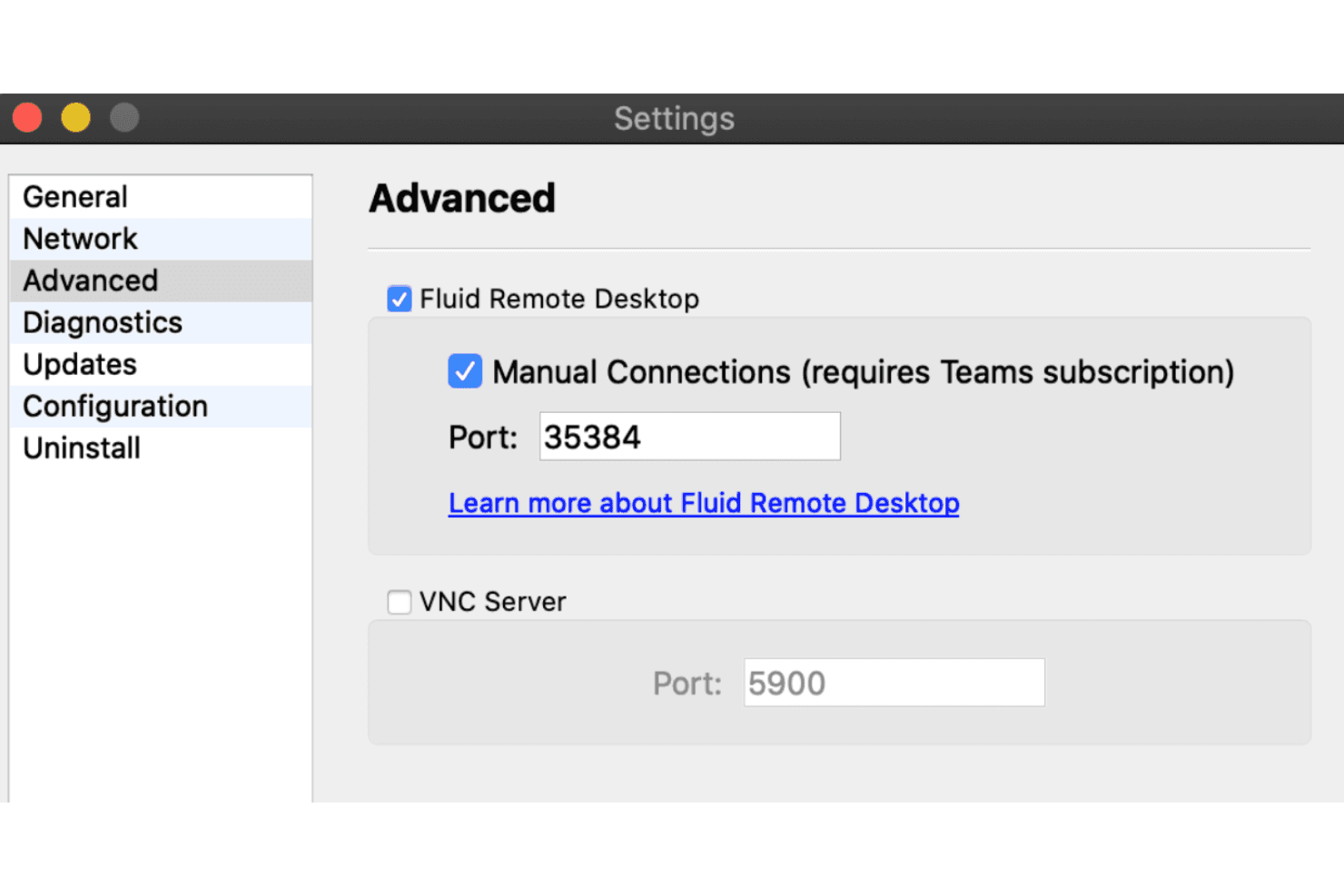
Jump Desktop uses its proprietary fluid remote desktop technology to deliver smooth, responsive sessions, even over variable networks.
Automatic Reconnection
If your connection drops, Jump Desktop automatically reconnects you. This ensures you stay connected without manual intervention, minimizing disruptions to your work.
Ease of Use
Jump Desktop stands out for its user-friendly design, making it simple for you and your team to navigate. The intuitive interface works consistently across macOS, Windows, and mobile devices, and the easy setup process gets you started without hassle. Users appreciate the customizable shortcuts and multi-monitor handling that enhance productivity. Compared to many competitors, Jump Desktop provides a smooth experience that doesn't require extensive training.

Onboarding
Jump Desktop offers a straightforward onboarding process, allowing you to start quickly without confusion. The setup guides help users configure permissions, network access, and protocols such as RDP or VNC connections efficiently. Users find the support documentation helpful, though the response time from the support team can be slow.
Customer Support
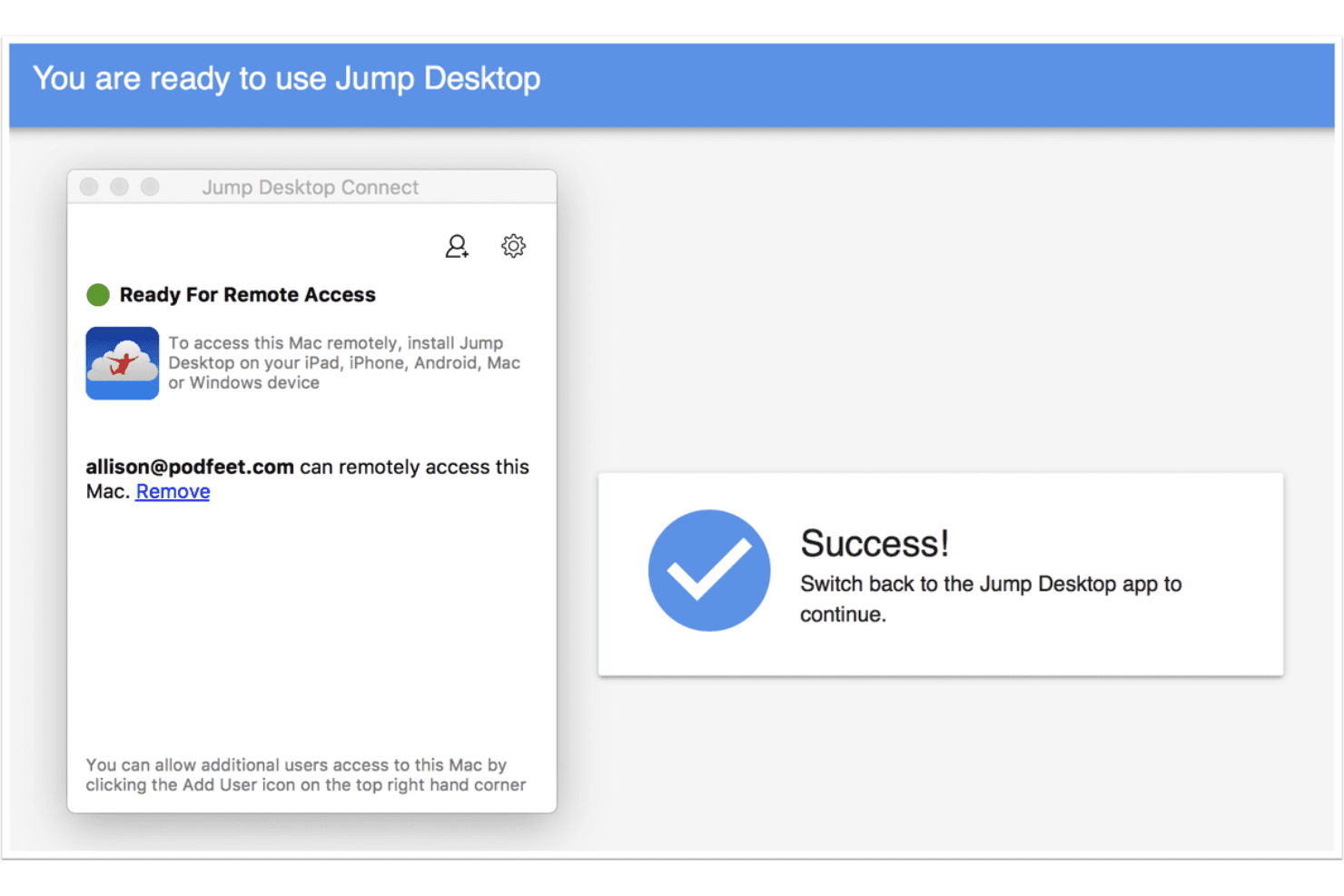
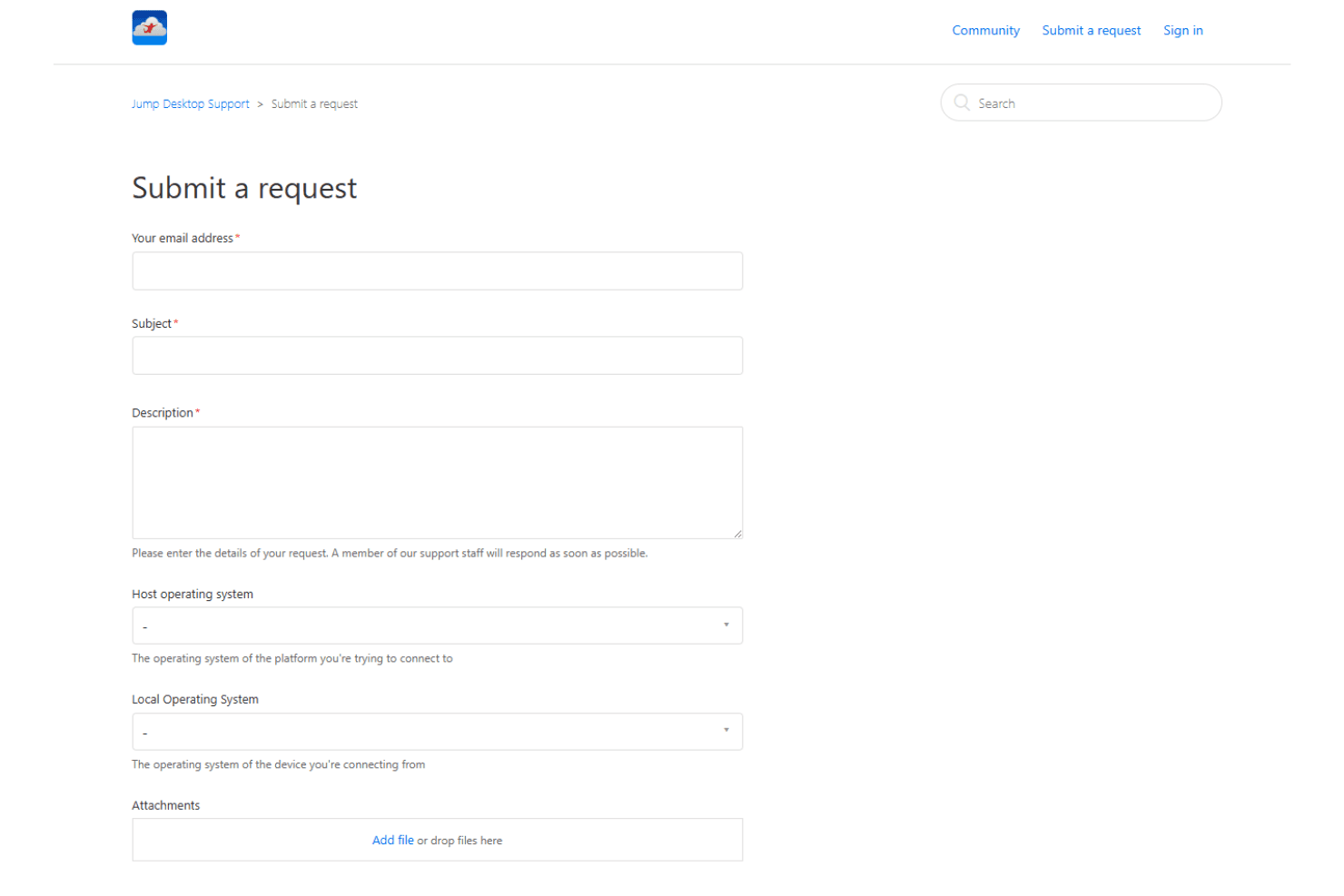
Jump Desktop's customer support receives mixed reviews, with users noting slow response times as a drawback. While the support documentation covers topics such as remote desktop app setup, multi-monitor usage, and network configuration, the lack of live support may affect urgent remote support needs. Overall, while the resources are valuable, the speed and availability of direct support could be improved for better user satisfaction.
Integrations
Jump Desktop integrates with tools such as Microsoft Remote Desktop, VNC, Fluid Remote Desktop, and SSH, functioning as a versatile multi-protocol solution. It also supports cloud storage integrations and SAML SSO, making it suitable for enterprise environments. Jump Desktop has an API, allowing integrations with custom workflows and automation systems used by organizations such as Phase Five Systems and similar IT service providers.

Value for Money
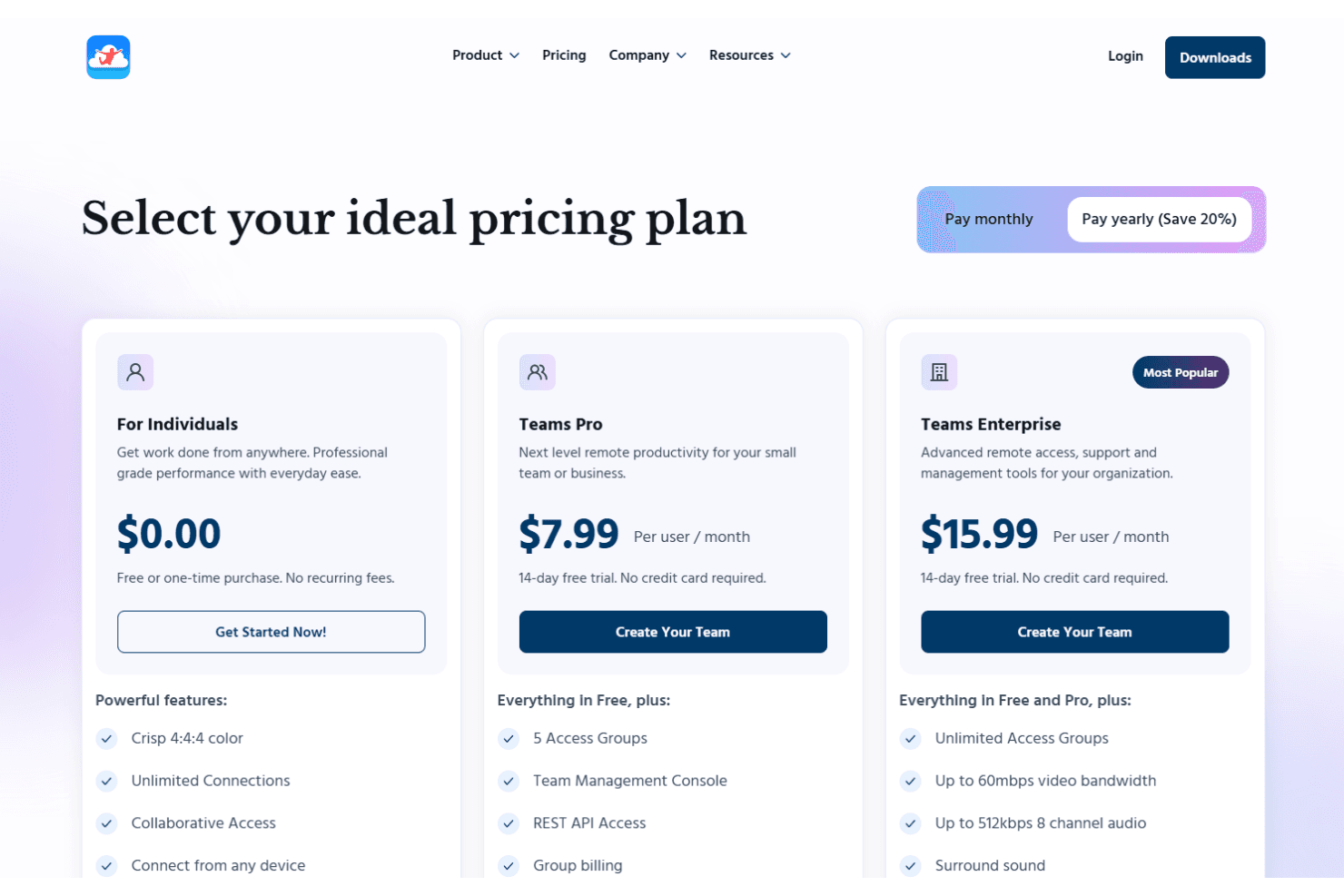
Jump Desktop offers competitive pricing for a high-performance remote desktop app, delivering strong value compared to alternatives such as Splashtop. Its pricing plans cater to both individuals and large teams, ensuring flexibility and scalability. The free plan offers unlimited connections, while the Teams Pro and Enterprise plans introduce management tools and advanced features, respectively. A 14-day free trial is available for teams, allowing you to evaluate the software before committing.
- For Individuals: FREE; unlimited connections for individuals with basic features.
- Teams Pro: $7.99/user/month (billed annually); team management tools and a 14-day free trial.
- Teams Enterprise: $15.99/user/month (billed annually); advanced functionalities such as unlimited access groups and SSO integration, with a 14-day free trial.
Jump Desktop Specs
- API: Yes
- Batch Permissions & Access: Yes
- Behavioral Tracking: No
- Big Data: No
- Competency Assessment: Yes
- Compliance Tracking: Yes
- Dashboard: Yes
- Data Export: Yes
- Data Import: Yes
- Data Visualization: Yes
- Database: No
- Employee Database: No
- Employee Engagement: No
- Employee Onboarding: No
- External Integrations: Yes
- Feedback Management: No
- Multi-User: No
- Notifications: Yes
- Password & Access Management: Yes
- Performance Appraisal: Yes
- Site Access Management: Yes
- Social-Media Integration: No
- Workflow Management: Yes
Jump Desktop FAQs
Jump Desktop Company Overview & History
Jump Desktop is a remote desktop software company founded in 2009. It's known for its secure and reliable remote desktop platform, which allows you to access any computer from anywhere without VPNs. The company focuses on providing seamless connectivity and powerful security features for remote access. While specific financial details and notable clients aren't publicly disclosed, Jump Desktop remains a popular choice for businesses needing secure remote solutions.
Jump Desktop Major Milestones
- 2009: Founded and began offering remote desktop solutions.