

Um emulador de terminal Linux permite executar aplicações de linha de comandos num ambiente gráfico, dando-lhe acesso a ferramentas e scripts do sistema sem sair do ambiente de trabalho. Se gere servidores, escreve scripts ou resolve problemas em sistemas, o emulador de terminal certo pode transformar o seu fluxo de trabalho e reduzir as complicações.
Este guia analisa as principais opções para que possa encontrar a mais adequada às suas necessidades — quer procure desempenho, personalização ou uma integração específica com o ambiente de trabalho. Conte com comparações práticas que o ajudarão a decidir qual o emulador de terminal que merece um lugar no seu conjunto de ferramentas para 2026.
Why Trust Our Software Recommendations
6,700+
Reviews
20
Industry experts
16+
Evaluation factors
14
Years
Our team has been testing and reviewing software since 2012. As tech leaders ourselves, we know how difficult—and important—it is to choose the right software.
For this guide, we evaluated tools using hands-on testing and independent research, scoring tools using our selection criteria.
Our reviews reflect our human editorial judgment, not a sales pitch.
Expert reviewers:
- Paulo Gardini MiguelTech Director
 Tim FisherVP of AI
 Gabriel RosasTech Lead & Software Architect
 Christhian GruhnTech Lead & Platform Architect

Tabela comparativa de emuladores de terminal Linux
Esta tabela comparativa resume os detalhes de preços das minhas principais escolhas de emuladores de terminal Linux:
| Tool | Best For | Trial Info | Price | ||
|---|---|---|---|---|---|
| 1 | Best for native GNOME desktop integration | Free to use | Free, open-source | Website | |
| 2 | Best for KDE environment integration | Free to use | Free, open-source | Website | |
| 3 | Best for slide-down terminal in KDE environments | Free to use | Free, open-source | Website | |
| 4 | Best for quick dropdown access from any workspace | Free to use | Free, open-source | Website | |
| 5 | Best for drag-and-drop tiling and layout control | Free to use | Free, open-source | Website | |
| 6 | Best for accelerated terminal performance | Free to use | Free, open-source | Website | |
| 7 | Best for cross-platform workflows and plugins | Free to use | Free, open-source | Website | |
| 8 | Best for GPU-accelerated text and image rendering | Free to use | Free, open-source | Website | |
| 9 | Best for advanced scripting with Lua configuration | Free to use | Free, open-source | Website | |
| 10 | Best for minimal footprint with high performance | Free to use | Free, open-source | Website |


Avaliações dos melhores emuladores de terminal Linux
Abaixo encontram-se os meus resumos detalhados dos melhores emuladores de terminal Linux que entraram na minha lista restrita. As minhas avaliações apresentam uma análise detalhada das funcionalidades, dos casos de utilização e das integrações de cada ferramenta, para o ajudar a encontrar a melhor opção para si.


GNOME Terminal displays its About dialog showing version 3.36.2 alongside a terminal window running the ls -l command. GNOME Terminal is the default terminal emulator for the GNOME desktop environment, offering tabbed sessions, per-profile customization, color schemes, font controls, and full ANSI/VT escape sequence rendering.
Who Is GNOME Terminal Best For?
It's a natural fit for developers and sysadmins working on GNOME-based Linux distributions like Ubuntu or Fedora who want a reliable terminal without extra setup.
Why I Picked GNOME Terminal
GNOME Terminal earns its spot on my shortlist because of how naturally it fits into the GNOME desktop. It inherits GTK themes, system fonts, and accessibility settings automatically, which means zero manual theming work on Ubuntu or Fedora. I also like the per-profile configuration, where I can define separate shells, color schemes, and startup commands for each profile without touching a config file.
GNOME Terminal Key Features
- Tabbed terminal sessions: Switch between multiple open tabs in a single window to keep concurrent sessions organized.
- Built-in text search: Quickly find specific command output or log entries within the current buffer.
- Hyperlink and email support: Automatically detects URLs and email addresses for quick access or copying.
- Custom keyboard shortcuts: Configure and use keyboard shortcuts for faster navigation and workflow.
GNOME Terminal Integrations
Native integrations are not clearly documented. GNOME Terminal is tightly integrated with the GNOME desktop environment and underlying GTK/VTE libraries.
Pros and Cons
Pros:
- Supports multiple profiles and tabs
- Reliable performance on Ubuntu and Fedora
- Tight GNOME and GTK theme integration
Cons:
- Lacks built-in SSH session manager
- No native split pane support
Learn more about GNOME Terminal:

Konsole displays a hamburger menu with options like Save Output As, Full Screen Mode, font controls, and profile settings in a tabbed terminal window. Konsole is a KDE-native terminal emulator that offers tabbed sessions, split-view panes, multiple profiles, SSH and telnet session bookmarking, and a VT102/xterm-compliant rendering engine.
Who Is Konsole Best For?
Konsole is a natural fit for developers and system administrators who run KDE Plasma as their primary desktop environment.
Why I Picked Konsole
I picked Konsole as one of the best because its KDE Plasma integration is genuinely hard to replicate in other terminal emulators. When I'm working in KDevelop or Kate, Konsole embeds directly via KPart, so I never need to context-switch to a separate terminal window. I also rely on its SSH and telnet session bookmarking, which keeps remote connections organized across multiple tabs and split panes without any extra configuration.
Konsole Key Features
- Split-view mode: Open multiple terminal panes within a single window for parallel workflows.
- Custom profiles: Save and switch between personalized shell, color, and behavior settings for different tasks.
- Unicode and multilingual support: Render UTF-8 output and native languages including right-to-left scripts.
- Activity and silence monitoring: Highlight tabs or trigger notifications when output or inactivity is detected.
Konsole Integrations
Konsole offers native integrations across the KDE application ecosystem, including Dolphin, Kate, KDevelop, Kile, and more.
Pros and Cons
Pros:
- Unicode and right-to-left language output supported
- Supports tabs, split-view, and profiles out-of-the-box
- KDE Plasma desktop integration is smooth
Cons:
- Limited automation features compared to competitors
- No native SSH key management interface
Learn more about Konsole:

Yakuake displays a drop-down bash terminal with Podman image listings, file system output, and shell command history. Yakuake is a drop-down terminal emulator for KDE that slides down from the top of your screen on a keypress, offering tabbed sessions, split panes, and a D-Bus interface for runtime scripting control.
Who Is Yakuake Best For?
Yakuake is a strong fit for developers and sysadmins who run KDE Plasma as their primary desktop environment and want instant terminal access without leaving their workflow.
Why I Picked Yakuake
Yakuake earns its spot on my shortlist because the slide-down behavior is genuinely different from any standard terminal workflow. Pressing F12 drops a fully active Konsole session from the top of the screen without disrupting what's behind it. I also like that the configurable width and height settings let me tailor exactly how much screen real estate it occupies, and split panes mean I can run parallel sessions inside the same drop-down window.
Yakuake Key Features
- Tabbed interface: Organize multiple terminal sessions in a single dropdown window for quick switching.
- D-Bus integration: Control runtime actions programmatically, including opening tabs and executing commands remotely.
- Konsole-based backend: Leverages the Konsole engine for robust shell support and ANSI/VT rendering accuracy.
- Built-in search functionality: Quickly find text within the scrollback buffer across active terminal tabs.
Yakuake Integrations
Yakuake offers native integration with KDE Plasma and leverages Konsole's backend for shell compatibility. An API is available through its D-Bus interface for custom integrations and scripting.
Pros and Cons
Pros:
- Customizable appearance with transparency options
- Multiple tabbed sessions in a single window
- Fast drop-down access with global hotkey
Cons:
- Limited to KDE and Linux environments
- No built-in SSH profile manager
Learn more about Yakuake: Best for quick dropdown access from any workspace
- Free to use
- Free, open-source

Guake Terminal displays a multi-pane tmux session with htop process monitor, kernel logs, and a nano CSS editor running simultaneously. Guake Terminal is a drop-down terminal emulator for the GNOME desktop environment that features hotkey-triggered visibility toggling, multiple named tabs, 130+ color palettes, and Quick Open file launching.
Who Is Guake Terminal Best For?
Guake Terminal is a good fit for Linux power users—developers and system administrators—who work primarily within the GNOME desktop environment.
Why I Picked Guake Terminal
I picked Guake Terminal as one of the best because the default F12 hotkey drops a terminal directly from the top of my screen, no matter what application I have focused. The multi-monitor support is genuinely useful: it opens on whichever display my mouse is on, so I don't have to drag windows around between workspaces. I also use named tabs with per-tab keyboard shortcuts to jump between shell sessions without reaching for the mouse.
Guake Terminal Key Features
- Named tabs: Automatically names each tab based on the running command, with the option for users to set custom names.
- Quick Open links: Lets users click file paths in output to open them in a configurable text editor, including line and column jump.
- 130+ color palettes: Provides a wide selection of predefined terminal color schemes for rapid visual customization.
- Multi-monitor awareness: Detects which monitor the pointer is on and launches the terminal dropdown on that display.
Guake Terminal Integrations
Guake Terminal integrates natively with the GNOME desktop environment and supports Quick Open to external text editors.
Pros and Cons
Pros:
- 130+ color palettes for fast switching
- Automatically names tabs based on process
- Instantly drops down from any workspace
Cons:
- Lacks split-pane or tiling support
- No built-in SSH session management
Learn more about Guake Terminal:
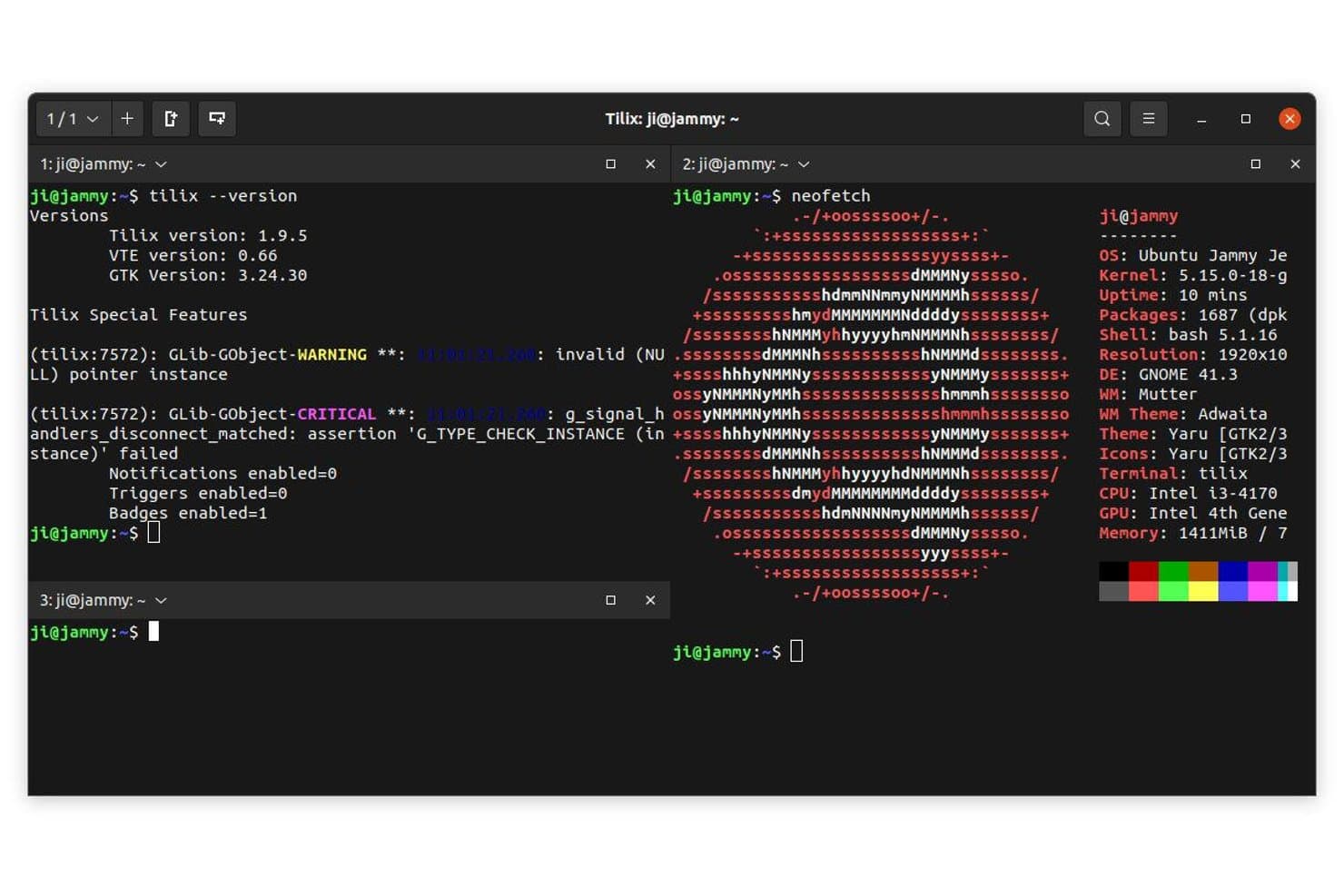
Tilix offers a split-pane terminal layout with multiple sessions, system info via neofetch, and version details displayed simultaneously. Tilix is an open-source tiling terminal emulator for Linux, built on GTK+ 3, that supports split panes, synchronized input across sessions, persistent layout saving, and drag-and-drop terminal rearrangement within and between windows.
Who Is Tilix Best For?
Tilix suits Linux-based developers and system administrators who need a GNOME-native terminal with flexible multi-pane layouts and session persistence.
Why I Picked Tilix
Tilix earns its spot on my shortlist because the drag-and-drop layout control is genuinely unlike most Linux terminal emulators. I can drag any pane to a different position within the same window, or drop it into a completely separate window mid-session. Paired with persistent layout saving, I can restore a specific multi-pane setup for a given project without rebuilding it each time.
Tilix Key Features
- Quake mode: Instantly toggle a drop-down terminal overlay for quick access without leaving your workspace.
- Custom profile switching: Automatically change color schemes and settings based on hostname or directory context.
- Session persistence: Save and load complete terminal layouts to resume project environments exactly as configured.
- Background images: Apply custom images for terminal backgrounds to personalize appearance beyond solid colors.
Tilix Integrations
Tilix includes a native integration with the Nautilus file manager on GNOME-based systems and supports shell hooks through /etc/profile.d/vte.sh for improved terminal features.
Pros and Cons
Pros:
- Drag-and-drop pane reordering
- Quake-style drop-down terminal mode
- Native session layout saving and restoring
Cons:
- Project is not actively maintained
- No built-in SSH session manager
Learn more about Tilix:

Alacritty displays Rust source code with syntax highlighting, demonstrating its GPU-accelerated rendering in a dark-themed terminal environment. Alacritty is a free, open-source, GPU-accelerated terminal emulator written in Rust that runs on Linux, macOS, BSD, and Windows, configured entirely through a text file with no built-in tabs or splits by design.
Who Is Alacritty Best For?
Alacritty is a strong fit for developers and sysadmins who prefer a minimal, config-file-driven workflow and want the fastest possible terminal rendering without extra overhead.
Why I Picked Alacritty
Alacritty earns its spot on my shortlist because of its GPU-accelerated rendering pipeline, which I've consistently found delivers noticeably lower key-to-glyph latency compared to CPU-bound terminals like GNOME Terminal. I like that it's written in Rust and uses OpenGL directly, keeping idle CPU usage near zero even across long sessions. The Regex Hints feature is genuinely useful, letting me flag and interact with output patterns like IP addresses or file paths without lifting my hands from the keyboard.
Alacritty Key Features
- Vi mode: Navigate and select text in the terminal using familiar vi keybindings.
- Multi-window support: Open multiple terminal windows, each managed by a single Alacritty process.
- YAML-based configuration: Define fonts, colors, and keybindings through a clear and editable YAML file.
- Cross-platform compatibility: Runs natively on Linux, BSD, macOS, and Windows for a consistent terminal setup.
Alacritty Integrations
Native integrations are not clearly documented. Alacritty works directly with terminal multiplexers like tmux and screen, standard shells, and a variety of window managers.
Pros and Cons
Pros:
- Configured entirely through a single file
- Very low resource usage during heavy loads
- Extremely fast with GPU acceleration
Cons:
- Lacks built-in SSH session management
- No native tab or split support
Learn more about Alacritty:
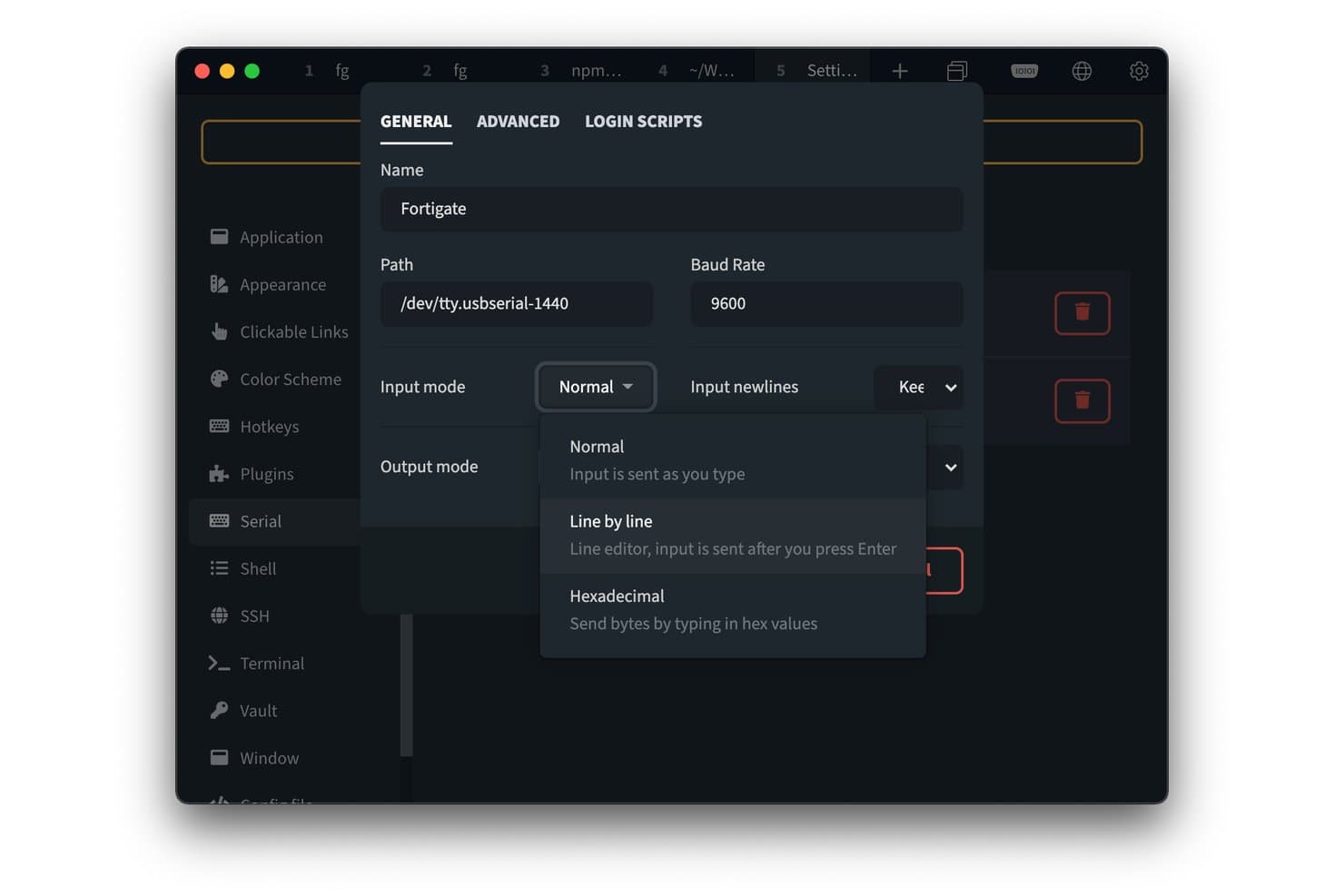
Tabby offers a Serial connection configuration panel with input mode options including Normal, Line by line, and Hexadecimal. Tabby is a free, open-source terminal emulator for Linux, macOS, and Windows that combines local shell support, an integrated SSH client, serial and Telnet connections, split panes, and a JS/CSS-based plugin system.
Who Is Tabby Best For?
Tabby suits developers, sysadmins, and DevOps engineers who work across multiple operating systems and need a single terminal for local shells and remote SSH sessions.
Why I Picked Tabby
Tabby earns its spot as one of the best on my shortlist because its plugin architecture lets me extend the terminal in ways most emulators simply don't allow. I can install or write JS-based plugins to add functionality, and CSS customization means my team's terminal setup looks and behaves consistently whether we're on Linux, macOS, or Windows. I also rely on its simultaneous multi-pane input when pushing the same command across several remote sessions at once.
Tabby Key Features
- Integrated SSH client: Connect directly to remote servers with built-in profile and key management.
- Multi-pane layout support: Arrange and manage multiple terminal sessions with resizable splits in a single workspace.
- Shell and environment support: Launch Bash, Zsh, Fish, PowerShell, WSL, Git-Bash, Cygwin, or CMD within a unified interface.
- Theming and community color schemes: Switch among 150+ ANSI color schemes and customize terminal appearance using CSS.
Tabby Integrations
Tabby offers native integrations with PowerShell, WSL, Git-Bash, MSYS2, Cmder, and CMD, and includes built-in support for SSH, SFTP, Zmodem, Telnet, and more. An API is available for custom integrations.
Pros and Cons
Pros:
- Multiple split panes and tab layouts
- Cross-platform support for Linux, Windows, macOS
- Plugin system supports deep extensibility
Cons:
- No native inline image rendering
- Electron base increases memory usage
Learn more about Tabby:

Kitty terminal displays a diff view comparing two versions of a Python file alongside two application icons. Kitty is a GPU-accelerated terminal emulator for Linux and macOS, written in C and Python, with built-in tiling window management, image rendering via its own graphics protocol, and Python-based extensibility through kittens.
Who Is Kitty Best For?
Kitty is a strong fit for developers and system administrators who live in the terminal and want deep configurability, native tiling, and advanced rendering without relying on a multiplexer.
Why I Picked Kitty
Kitty earns its spot on my shortlist because of how it handles rendering. It uses the GPU alongside SIMD vector CPU instructions to draw text, which means scrolling through dense log output or large files stays smooth even at high speeds. I also like the Kitty Graphics Protocol, which lets you display images and animations directly in the terminal. I use it regularly with the
kitten icatcommand to preview files without leaving the shell, which cuts a surprising amount of context-switching out of my workflow.Kitty Key Features
- Startup sessions: Launches predefined sets of windows, tabs, and layouts from a config file for repeatable workflows.
- Remote control protocol: Enables scripts or tools to control and interact with running Kitty instances in real time.
- Markdown and hyperlink support: Recognizes and displays clickable hyperlinks as well as certain markdown formatting directly in terminal output.
- Comprehensive shell integration: Offers support scripts for Bash, Zsh, and Fish to enhance terminal interactions and prompt awareness.
Kitty Integrations
Kitty offers native shell integrations for Bash, Zsh, and Fish, along with built-in SSH workflow support and a Python API for custom extensions and scripting.
Pros and Cons
Pros:
- Python-based extension system for custom scripts
- Native tiling window and tab management
- GPU-accelerated text and image rendering
Cons:
- Limited accessibility features for screen readers
- No GUI for configuration or profiles
Learn more about Kitty:

WezTerm displays a Lua configuration file in Neovim with transparency and blur effects visible through the terminal window. WezTerm is a GPU-accelerated, cross-platform terminal emulator and multiplexer written in Rust that supports tabbed sessions, split panes, a built-in SSH client, and deep Lua-based configuration with hot reloading.
Who Is WezTerm Best For?
WezTerm is a strong fit for developers, DevOps engineers, and SREs who want to script and automate their terminal environment beyond what config files typically allow.
Why I Picked WezTerm
WezTerm earns its spot on my shortlist because its Lua API goes well beyond setting colors and fonts. I write event-driven scripts that react to tab changes or process titles, letting me build workspace layouts that load automatically per project. The hot-reload behavior means I can iterate on my config without restarting, and
wezterm.plugin.requiremakes it easy to share scripts across machines.WezTerm Key Features
- GPU-based rendering: Provides hardware-accelerated terminal output for smooth scrolling and graphics display.
- Advanced font support: Offers ligatures, fallback fonts, Powerline symbols, and full Unicode compatibility.
- Inline image protocol: Supports Kitty, iTerm2, and Sixel graphics for displaying images directly in the terminal.
- Multiplexer server: Enables local and remote persistent terminal sessions with tabs, splits, and session grouping.
WezTerm Integrations
WezTerm offers native integrations with Bash, Zsh, and Fish shells for OSC features, and includes a built-in SSH client for remote connections.
Pros and Cons
Pros:
- GPU acceleration for smooth rendering
- Hot-reload configuration without restarting sessions
- Lua scripting for deep terminal automation
Cons:
- No graphical configuration settings available
- Sparse official documentation and tutorials
Learn more about WezTerm:

Ghostty displays a fastfetch system info output in a dark terminal window with a pixelated NixOS logo and color palette. Ghostty is an open-source, GPU-accelerated terminal emulator for Linux and macOS, built on a native GTK4 architecture with tabs, splits, hundreds of built-in themes, Kitty graphics protocol support, and full VT/ANSI compliance.
Who Is Ghostty Best For?
Ghostty suits developers and power users on Linux or macOS who want a fast, native terminal that works well out of the box without requiring extensive configuration.
Why I Picked Ghostty
I picked Ghostty as one of the best because its OpenGL-based GPU rendering on Linux hits around 407 FPS with roughly 2ms key-to-screen latency, which I notice immediately when tailing high-volume logs. It's built on a Zig-based core (libghostty) that keeps the binary lean, and it's the first native GTK4 terminal to skip the VTE library entirely, cutting the overhead that slows most traditional Linux terminals down.
Ghostty Key Features
- Kitty graphics protocol support: Display inline images and graphical content directly in the terminal window.
- Hundreds of built-in themes: Switch easily between preconfigured color schemes or author your own for full visual control.
- Native GTK4 interface: Integrates seamlessly with modern Linux desktop environments using the newest native UI toolkit.
- Advanced Unicode handling: Correctly renders multi-codepoint emoji, Arabic, Hebrew, and other complex scripts.
Ghostty Integrations
Ghostty natively supports the Kitty graphics protocol for inline images and integrates with shells like Bash, Zsh, and Fish.
Pros and Cons
Pros:
- Native GTK4 interface for desktop integration
- Supports hundreds of built-in terminal themes
- Extremely low resource usage and fast startup
Cons:
- Lacks macro or snippet automation features
- No built-in SSH profile manager
Learn more about Ghostty:
Outro emulador de terminal Linux
Eis algumas opções adicionais de emuladores de terminal Linux que não entraram na minha lista restrita, mas que ainda vale a pena conhecer:
- 11TerminatorBest for multi-pane window management
- 12WarpBest for modern interface with AI command input
- 13HyperBest for extensive plugin customization
- 14Xfce TerminalBest for lightweight resource usage in Xfce
- 15FootBest for minimalist designs with Wayland support
- 16Wave TerminalBest for unified dashboards with file editing
- 17Rio TerminalBest for simple cross-platform installation
- 18PtyxisBest for container access alongside host systems
- 19Black BoxBest for modern GNOME interface aesthetics
How I Evaluate Linux Terminal Emulators
I split my evaluation into baseline requirements every terminal emulator must meet and the differentiators—like GPU acceleration, Lua scripting, or SSH management—that separate good from great.
Core Functionality (Table Stakes For This List)
When I'm selecting tools for my list, I rank each one on a scale from 0 (does not offer the functionality) to 5 (excels in this area) for each core functionality listed below. Then, I calculate the tool's total score into a percentage. Each tool needs to achieve a minimum total score of 75% to be considered for inclusion.
- Shell Compatibility: I check whether the emulator handles Bash, Zsh, Fish, and others with full ANSI/VT escape sequence rendering so prompts and TUI apps display correctly.
- Multi-Session Management: Tabs and split panes are table stakes, but I also look for session grouping and broadcast input for managing clusters.
- SSH & Remote Access: I evaluate how each tool handles saved SSH profiles, key management, and jump host support for daily remote server work.
- Customization & Theming: From keybindings to per-profile color schemes, I look for config depth that lets you version-control your setup across machines.
- Text & Buffer Handling: Scrollback search, regex matching, hyperlink detection, and solid Unicode/UTF-8 rendering all factor into how I assess output handling.
- Scripting & Automation: I consider whether the emulator offers scripting hooks, macros, or snippet support to automate repetitive tasks like log tailing or deployments.
Once I have a list of tools that meet the criteria, I consider what sets each platform apart.
Differentiating Factors (What Sets Vendors Apart)
Here's how I compare and contrast different vendors:
Standout Features
GPU acceleration matters when you're tailing massive log files or running TUI dashboards. I look for OpenGL or Vulkan support that keeps rendering smooth under heavy output. Scripting and extensibility is another key differentiator, since tools like Kitty and WezTerm let you define configs in code and make setups portable and version-controlled. Inline image protocol support also stands out, letting you preview plots or thumbnails directly in the terminal without switching contexts.
Beyond Features
Resource footprint is a big one—I check startup time and memory usage because if you're spawning terminals dozens of times a day, a slow launch adds up fast. Desktop environment compatibility also matters, especially whether a tool supports Wayland natively or still relies on XWayland. Community health and licensing round things out. An active open-source project with responsive maintainers means bugs get fixed and shared configs stay current.
Como escolher um emulador de terminal Linux
É fácil ficar preso a longas listas de funcionalidades e estruturas de preços complexas. Para o ajudar a manter o foco enquanto percorre o seu processo específico de seleção de software, eis uma lista de verificação dos fatores a ter em conta:
| Fator | O que considerar |
|---|---|
| FatorEscalabilidade | O que considerarO emulador continuará a responder às suas necessidades à medida que a sua equipa ou projeto crescem? Considere se consegue suportar mais sessões, dispositivos ou fluxos de trabalho complexos ao longo do tempo. |
| FatorIntegrações | O que considerarFunciona corretamente com as suas chaves SSH, gestores de palavras-passe ou sistemas de controlo de versões? Confirme a compatibilidade com o seu conjunto de ferramentas antes de avançar. |
| FatorPersonalização | O que considerarAté que ponto pode adaptá-lo facilmente aos seus fluxos de trabalho ou preferências? Tenha em atenção se as alterações exigem definições da interface gráfica, ficheiros de configuração ou scripts. |
| FatorFacilidade de utilização | O que considerarOs membros da equipa conseguirão começar a utilizá-lo sem uma formação intensiva? Tente avaliar a curva de aprendizagem inicial, a documentação disponível e a clareza dos menus de definições. |
| FatorImplementação e integração inicial | O que considerarQuanto tempo demorarão a implementação e a configuração? Procure pacotes pré-criados, scripts de instalação e guias de configuração para o seu sistema operativo e ambiente de utilizador. |
| FatorCusto | O que considerarExistem restrições de licenciamento ou de utilização comercial? Consulte os preços dos componentes pagos, dos plug-ins opcionais ou do suporte contínuo. |
| FatorMedidas de segurança | O que considerarComo são protegidas as chaves SSH, as credenciais e as definições? Verifique sempre a existência de armazenamento encriptado, canais de atualização seguros e possibilidade de auditoria das alterações à configuração. |
| FatorDisponibilidade do suporte | O que considerarConsegue obter ajuda rapidamente quando surgem problemas? Considere os SLA de suporte do fornecedor, os fóruns e a capacidade de resposta da comunidade para a resolução de problemas ou correções urgentes. |
O que são emuladores de terminal Linux?
Um emulador de terminal Linux é um software que permite utilizar shells de linha de comandos num ambiente de trabalho gráfico. Pode executar comandos da shell, gerir servidores remotos, navegar por diretórios e executar scripts diretamente a partir do ambiente de trabalho. Estas ferramentas proporcionam um acesso flexível e centralizado ao seu sistema e a ambientes remotos, suportando uma vasta gama de fluxos de trabalho diários de programadores e administradores.
Funcionalidades dos emuladores de terminal Linux
Ao selecionar um emulador de terminal Linux, tenha em atenção as seguintes funcionalidades essenciais:
- Compatibilidade com shells: Suporta shells populares como Bash, Zsh e Fish, para que possa trabalhar com o seu ambiente e conjunto de comandos preferidos.
- Gestão de separadores e painéis: Permite abrir várias sessões de terminal em separadores ou painéis divididos, mantendo os projetos e servidores organizados numa só janela.
- Integração com SSH: Permite ligações diretas a servidores remotos com perfis guardados, tornando a gestão remota mais rápida e reduzindo a configuração manual.
- Temas personalizáveis: Permite alterar tipos de letra, cores e esquemas, para que possa personalizar o terminal de acordo com as suas necessidades visuais e o seu fluxo de trabalho.
- Memória intermédia do histórico: Conserva o histórico do resultado dos comandos, permitindo rever ou pesquisar facilmente comandos e respostas anteriores.
- Atalhos de teclado: Disponibiliza combinações de teclas configuráveis para uma navegação rápida, execução de comandos e gestão de janelas.
- Suporte para copiar e colar: Simplifica a seleção e transferência de texto entre o terminal e outras aplicações sem prejudicar a formatação ou a sintaxe dos comandos.
- Suporte para Unicode e emojis: Apresenta corretamente caracteres internacionais, símbolos e emojis, sendo útil para registos, scripts e colaboração com equipas de todo o mundo.
- Ganchos para scripts e automatização: Permite automatizar tarefas repetitivas, executar scripts no arranque ou definir macros para operações mais rápidas.
- Suporte para plug-ins ou extensões: Expande a funcionalidade principal através de plug-ins ou extensões criados pelos utilizadores, permitindo adaptar o terminal a necessidades específicas ou fluxos de trabalho avançados.
Vantagens de um Emulador de Terminal Linux
Implementar um emulador de terminal Linux proporciona várias vantagens à sua equipa e à sua empresa. Eis algumas das que pode esperar:
- Acesso centralizado aos comandos: Trabalhe com vários shells e sessões remotas a partir de uma única interface unificada, simplificando as tarefas diárias de TI e desenvolvimento.
- Personalização flexível: Personalize temas, esquemas e combinações de teclas para criar um ambiente eficiente que se adapte aos seus fluxos de trabalho preferidos.
- Gestão remota melhorada: A integração incorporada com SSH e os perfis de sessão tornam o acesso a sistemas e servidores remotos mais rápido e seguro.
- Resolução de problemas mais rápida: As memórias intermédias do histórico, as funcionalidades de pesquisa e o suporte para copiar e colar ajudam a sua equipa a analisar registos ou erros sem perder detalhes críticos.
- Produtividade melhorada: Os separadores, os painéis divididos e os ganchos para scripts permitem gerir vários projetos, automatizar tarefas repetitivas e realizar várias tarefas com facilidade.
- Melhor suporte internacional: A apresentação precisa de Unicode e emojis torna a colaboração e o trabalho em diferentes idiomas mais acessíveis.
- Extensibilidade simples: O suporte para plug-ins e extensões permite adaptar o terminal a novas tarefas ou tecnologias futuras sem mudar de plataforma.
Custos e Preços de um Emulador de Terminal Linux
A seleção de um emulador de terminal Linux exige uma compreensão dos vários modelos de preços e planos disponíveis. Os custos variam consoante as funcionalidades, a dimensão da equipa, os complementos e outros fatores. A tabela abaixo resume os planos comuns, os seus preços médios e as funcionalidades normalmente incluídas nas soluções de emulador de terminal Linux:
Tabela de Comparação de Planos para Emuladores de Terminal Linux
| Tipo de plano | Preço médio | Funcionalidades comuns |
|---|---|---|
| Tipo de planoPlano gratuito | Preço médio$0 | Funcionalidades comunsSuporta funcionalidades essenciais do terminal, temas básicos, sessões com separadores e suporte da comunidade. |
| Tipo de planoPlano pessoal | Preço médio$5-$15/utilizador/mês | Funcionalidades comunsAdiciona personalização avançada, gestão de perfis SSH, persistência de sessões e atualizações prioritárias. |
| Tipo de planoPlano empresarial | Preço médio$15-$30/utilizador/mês | Funcionalidades comunsInclui gestão de vários utilizadores, suporte para plug-ins, definições de segurança melhoradas e controlos de auditoria. |
| Tipo de planoPlano empresarial avançado | Preço médio$30-$50/utilizador/mês | Funcionalidades comunsDisponibiliza SSO empresarial, suporte dedicado, funcionalidades de conformidade, integrações alargadas e disponibilidade garantida por SLA. |
Perguntas frequentes sobre emuladores de terminal Linux
Eis algumas respostas a perguntas comuns sobre emuladores de terminal Linux:
Posso executar várias sessões de shell em simultâneo?
Sim, a maioria dos emuladores de terminal Linux permite abrir vários separadores ou dividir os painéis, para que possa trabalhar em várias sessões de shell em simultâneo ou organizar ligações a diferentes servidores.
Os emuladores de terminal Linux são seguros para ligações remotas?
Sim, desde que utilize protocolos seguros, como SSH, e faça uma gestão segura das suas chaves. Muitos emuladores disponibilizam funcionalidades SSH integradas e suporte para armazenamento encriptado de chaves, mas reveja sempre as definições da sua configuração.
O que torna um emulador de terminal Linux melhor para scripts e automação?
Procure emuladores que suportem ganchos de scripting, macros ou sistemas de plug-ins. Estas funcionalidades ajudam a automatizar fluxos de trabalho de rotina, como implementar código ou executar diagnósticos, diretamente a partir do terminal.
Os emuladores de terminal Linux funcionam em diferentes ambientes de trabalho?
A maioria dos emuladores de terminal Linux modernos foi concebida para ser compatível com GNOME, KDE, Xfce e gestores de janelas em mosaico. Verifique sempre a compatibilidade com o seu ambiente preferido, especialmente no Wayland.
Como posso personalizar os temas e os tipos de letra num emulador de terminal Linux?
Normalmente, pode alterar os temas, os tipos de letra e as cores através de uma caixa de diálogo de preferências ou editando um ficheiro de configuração. Alguns emuladores suportam temas partilhados pela comunidade para facilitar ainda mais a configuração.